 ManualGo.com
Palmcorder PVL354 - Camcorder PANASONIC - Free user manual and instructions
Find the device manual for free Palmcorder PVL354 PANASONIC in PDF.

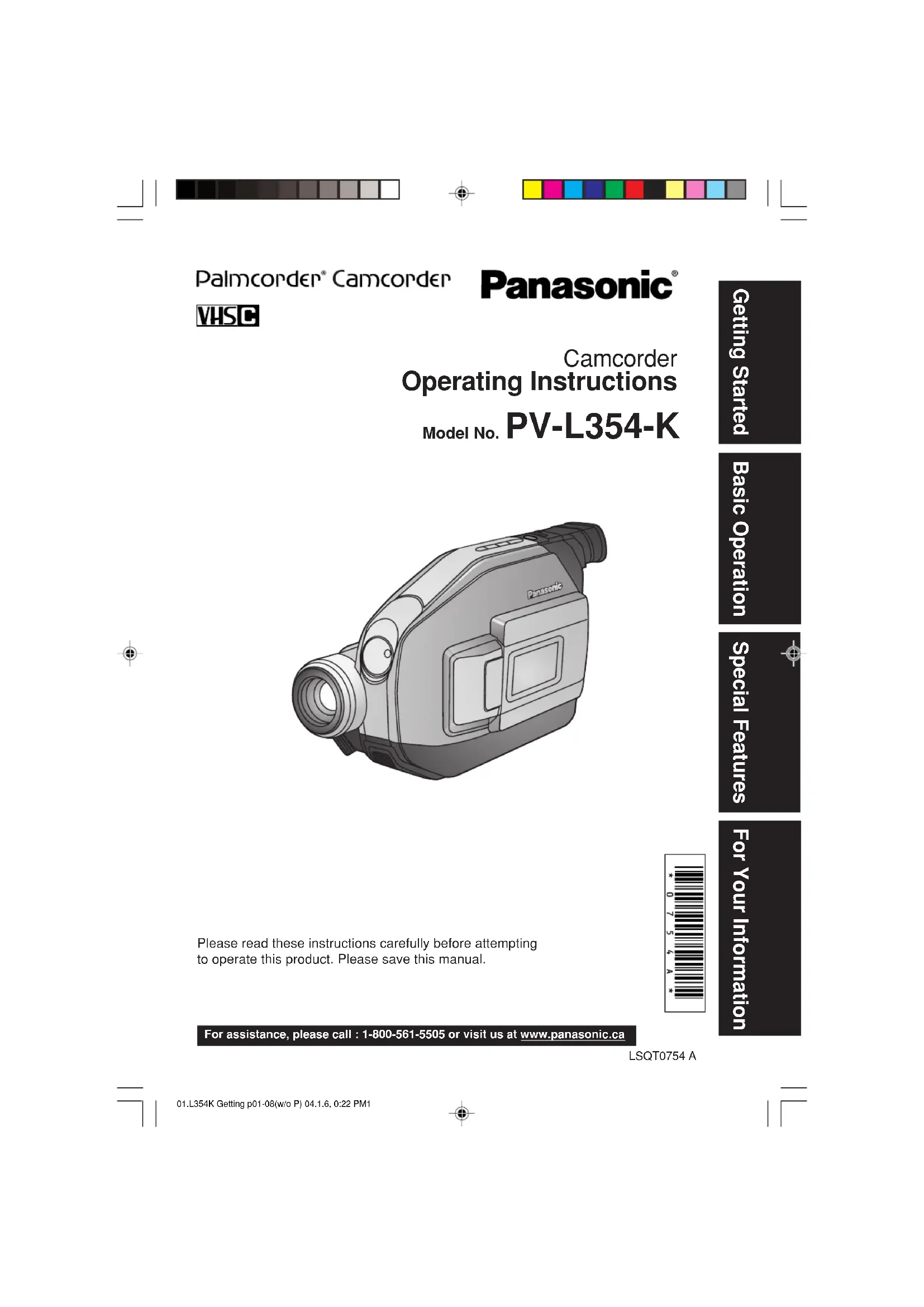

Download the instructions for your Camcorder in PDF format for free! Find your manual Palmcorder PVL354 - PANASONIC and take your electronic device back in hand. On this page are published all the documents necessary for the use of your device. Palmcorder PVL354 by PANASONIC.
USER MANUAL Palmcorder PVL354 PANASONIC
Basic Operation Special Features For Your Information Getting Started Camcorder Operating Instructions Please read these instructions carefully before attemptingto operate this product. Please save this manual. Model No.LSQT0754 A PV-L354-K For assistance, please call : 1-800-561-5505 or visit us at www.panasonic.ca01.L354K Getting p01-08(w/o P) 04.1.6, 0:22 PM12 Things You Should Know Thank you for choosing Panasonic! You have purchased one of the most sophisticated and reliable products on the market today. Used properly, it will bring you years of enjoyment. Please take time to fill in the information to the right. The serial number is on the tag located on the underside of your Camcorder. Be sure to retain this manual as your convenient Camcorder information source. Date of Purchase Dealer Purchased From Dealer Address Dealer Phone No. Model No. PV-L354-K Serial No. 1 pc. Audio/Video Cable (LSJA0368) (pages 21, 22) 1 pc. Battery Pack (LSSB0012/LSSB0015) (pages 9, 10) These accessories are provided in order to set up or use your Camcorder. Unpack your Camcorder 1 pc. Lens Cap (LSKM0937) with Lens Cap Strap (LSGQ0049) (page 12) 1 pc. CR2025 Clock Battery (installed in Camcorder) (page 34) 1 pc. Shoulder Strap (LSFC0012) (page 12) 1 pc. AC Adaptor (PV-A20-K) with DC Power Cable (page 10) 1 pc. VHS PlayPak (PV-P1-K/VYMW0009) and one “AA” battery (page 21) 01.L354K Getting p01-08(w/o P) 04.1.6, 0:22 PM23 Getting Started Things You Should Know Safety Precautions
WARNING:TO PREVENT FIRE OR SHOCK HAZARD, DO NOT
EXPOSE THIS EQUIPMENT TO RAIN OR
INCORRECTLY REPLACED. REPLACE ONLY WITH
RECOMMENDED ACCESSORIES ONLY. Your Compact VHS Camcorder is designed to record and play back in Standard Play (SP) and Super Long Play (SLP) modes. You can also play a Compact VHS Camcorder recording on your VHS VCR using the supplied VHS PlayPak. This Camcorder is equipped with the HQ System to provide excellent video pictures, and is compatible with standard VHS equipment. It is recommended that only cassette tapes that have been tested and inspected for use in VCR machines, with the and/or mark, be used. This symbol warns the user thatuninsulated voltage within the unit mayhave sufficient magnitude to causeelectric shock. Therefore, it isdangerous to make any kind of contactwith any inside part of this unit.This symbol alerts the user thatimportant literature concerning theoperation and maintenance of this unithas been included. Therefore, it shouldbe read carefully in order to avoid anyproblems. The above markings are located on the appliance’s bottom cover. This device complies with Part 15 of the FCC Rules. Operation is subject to the following twoconditions: (1) This device may not cause harmful interference, and (2) this device must accept anyinterference received, including interference that may cause undesired operation.Note: This equipment has been tested and found to comply with Part 15 and part 18 of the FCCRules. These limits are designed to provide reasonable protection against harmful interference whenoperated in a residential environment.If this equipment does cause interference to radio or television reception, which can be determined byturning the equipment off and on, use the equipment in another location and/or utilize an electricaloutlet different from that used by the receiver.If necessary, consult the dealer or an experienced radio/TV technician for help. You may find the booklet, ‘Something About Interference’ available from FCC local regional offices helpful. This product may cause interference to radio equipment and should not be installed near maritimesafety communications equipment or other critical navigation or communication equipment operatingbetween 0.45-30 MHz. FCC Warning: Any unauthorized changes or modifications to this equipment would void the user’s authority to operate. 01.L354K Getting p01-08(w/o P) 04.1.6, 0:22 PM34
1. Read Instructions – All the safety and
operating instructions should be read before the unit is operated.
2. Retain Instructions – The safety and
operating instructions should be retained for future reference.
3. Heed Warnings – All warnings on the
unit and in the operating instructions should be adhered to.
4. Follow Instructions – All operating and
maintenance instructions should be followed.
5. Cleaning – Unplug this video unit from
the wall outlet before cleaning. Do not use liquid or aerosol cleaners. Use a dry cloth for cleaning.
6. Attachments – Do not use attachments
not recommended by the video product manufacturer as they may be hazardous.
7. Water and Moisture – Do not use this
video unit near water – for example near a bath tub, wash bowl, kitchen sink, or laundry tub, in a wet basement, or near a swimming pool, and the like.
8. Accessories – Do not place this video
unit on an unstable cart, stand, tripod, bracket, or table. The video unit may fall, causing serious injury to a child or adult, and serious damage to the unit. Use only with a cart, stand, tripod, bracket, or table recommended by the manufacturer, or sold with the video unit. Any mounting of the unit should follow the manufacturer’s instructions and should use a mounting accessory recommended by the manufacturer. An appliance and cart combination should be moved with care. Quick stops, excessive force, and uneven surfaces may cause the appliance and cart combination to overturn.
9. Ventilation – Slots and openings in the
cabinet are provided for ventilation and to ensure reliable operation of the video unit and to protect it from overheating. These openings must not be blocked or covered. Never place the video unit on a bed, sofa, rug, or other similar surface, or near or over a radiator or heat register. This video unit should not be placed in a built-in installation such as a bookcase or rack unless proper ventilation is provided or the manufacturer’s instructions have been adhered to.
10. Power Sources – This video unit should
be operated only from the type of power source indicated on the marking label. If you are not sure of the type of power supply to your home, consult your appliance dealer or local power company. For video units intended to be operated from battery power, or other sources, refer to the operating instructions. Important Safeguards
11. Grounding or Polarization – This video unit may be
equipped with either a polarized 2-wire AC (Alternating Current) line plug (a plug having one blade wider than the other) or 3-wire grounding type plug, a plug having a third (grounding) pin. The 2-wire polarized plug will fit into the power outlet only one way. This is a safety feature. If you are unable to insert the plug fully into the outlet, try reversing the plug. If the plug still fails to fit, contact your electrician to replace your obsolete outlet. Do not defeat the safety purpose of the polarized plug. The 3-wire grounding type plug will fit into a grounding type power outlet. This is a safety feature. If you are unable to insert the plug into the outlet, contact your electrician to replace your obsolete outlet. Do not defeat the safety purpose of the grounding type plug.
12. Power-Cord Protection – Power-supply cords should
be routed so that they are not likely to be walked on or pinched by items placed upon or against them. Paying particular attention to cords of plugs, convenience receptacles, and the point where they exit from the unit.
13. Outdoor Antenna Grounding – If an outside antenna
or cable system is connected to the video unit, be sure the antenna or cable system is grounded so as to provide some protection against voltage surges and built-up static charges. Part 1 of the Canadian Electrical Code, in USA Section 810 of the National Electrical Code, provides information with respect to proper grounding of the mast and supporting structure, grounding of the lead-in wire to an antenna discharge unit, size of grounding conductors, location of antenna discharge unit, connection to grounding electrodes, and requirements for the grounding electrode.
14. Lightning – For added protection of this video unit
receiver during a lightning storm, or when it is left unattended and unused for long periods of time, unplug it from the wall outlet and disconnect the antenna or cable system. This will prevent damage to the video unit due to lightning and power-line surges.
15. Power Lines – An outside antenna system should not
be located in the vicinity of overhead power lines or other electric light or power circuits, or where it can fall into such power lines or circuits. When installing an outside antenna system, extreme care should be taken to keep from touching such power lines or circuits as contact with them might be fatal.
16. Overloading – Do not overload wall outlets and
extension cords as this can result in a risk of fire or electric shock.
17. Objects and Liquids – Never push objects of any kind
into this video unit through openings as they may touch dangerous voltage points or short out parts that could result in a fire or electric shock. Never spill liquid of any kind onto the video unit. 01.L354K Getting p01-08(w/o P) 04.1.6, 0:22 PM45 Getting Started Important Safeguards 18. Servicing – Do not attempt to service this video unityourself as opening or removing covers may exposeyou to dangerous voltage or other hazards. Refer allservicing to qualified service personnel.19. Damage Requiring Service – Unplug this video unitfrom the wall outlet and refer servicing to qualifiedservice personnel under the following conditions:a. When the power-supply cord or plug is damaged.b. If any liquid has been spilled into, or objects havefallen onto, the video unit.c. If the video unit has been exposed to rain or water.d. If the video unit does not operate normally byfollowing the operating instructions. Adjust onlythose controls that are covered by the operatinginstructions, as an improper adjustment of othercontrols may result in damage and will oftenrequire extensive work by a qualified technician torestore the video unit to its normal operation.e. If the video unit has been dropped or thecabinet has been damaged.f. When the video unit exhibits a distinctchange in performance – this indicates aneed for service.20. Replacement Parts – When replacementparts are required, be sure the servicetechnician has used replacement partsspecified by the manufacturer or have thesame characteristics as the original part.Unauthorized substitutions may result infire, electric shock or other hazards.21. Safety Check – Upon completion of anyservice or repairs to this video unit, ask theservice technician to perform safety checksto determine that the video unit is in safeoperating order. USE & LOCATION
- TO AVOID SHOCK HAZARD ... Your Camcorder and power supply should not be exposed to rain or moisture. Do not connect the power supply or operate your Camcorder if it gets wet. Your Camcorder has been designed foroutdoor use, in all kinds of weather, however it will probably not survive any type of direct exposure to water, rain,sleet, snow, sand, dust, or a direct splashing from a pool or even a cup of coffee. This action could permanentlydamage the internal parts of your Camcorder. Do not attempt to disassemble this unit. Unplug your Camcorderfrom the power supply before cleaning.• DO NOT AIM YOUR CAMCORDER AT THE SUN OR OTHER BRIGHT OBJECTS.• DO NOT LEAVE THE CAMCORDER WITH THE EVF AIMED DIRECTLY AT THE SUN AS THIS MAY CAUSEDAMAGE TO THE INTERNAL PARTS OF THE EVF.
- DO NOT EXPOSE YOUR CAMCORDER TO EXTENDED HIGH TEMPERATURE ... Such as, in direct sunlight, inside a closed car, next to a heater, etc... This action could permanently damage the internal parts of yourCamcorder.
- AVOID SUDDEN CHANGES IN TEMPERATURE ... If the unit is suddenly moved from a cold place to a warm place, moisture may form on the tape and inside the unit.• DO NOT LEAVE YOUR CAMCORDER OR THE POWER SUPPLY TURNED ON WHEN NOT IN USE.
- STORAGE OF YOUR CAMCORDER ... Store and handle your Camcorder in a manner that will not subject it to unnecessary movement (avoid shaking and striking). Your Camcorder contains a sensitive pick-up device whichcould be damaged by improper handling or storage. CARE
- TO CLEAN YOUR CAMCORDER ... Do not use strong or abrasive detergents when cleaning your Camcorder body.
- TO PROTECT THE LENS ... Do not touch the surface of the lens with your hand. Use a commercial camcorder lens solution and lens paper when cleaning the lens. Improper cleaning can scratch the lens coating.
- TO PROTECT THE FINISH OF YOUR CAMCORDER ... Before handling your Camcorder, make sure your hands and face are free from any chemical products, such as suntan lotion, as it may damage the finish. ■ LCD Monitor/Viewfinder LCD Monitor
- In a place with drastic temperature changes, condensation may take place on the LCD Monitor. Wipe it with a soft dry cloth.
- If your Camcorder is extremely cold when you turn its power on, the image on the LCD Monitor will be slightly darker than usual at first. However, as the internal temperature increases, it goes back to the normal brightness.Extremely high precision technology is employed to produce the LCD Monitor screen featuring a total ofapproximately 112,000 pixels. The result is more than 99.99% effective pixels with a mere 0.01% of the pixelsinactive or always lit. However, this is not a malfunction and does not affect the recorded picture. Viewfinder
- Do not direct the Viewfinder or Lens to the sun. Internal components may be seriously damaged.
- When the Camcorder is used with a large capacity Battery attached to it, it is not practical to look in the Viewfinder from behind the Battery. In this case, lift up the Viewfinder to an easy-to-see angle.Extremely high precision technology is employed to produce the Viewfinder screen featuring a total of approximately67,500 pixels. The result is more than 99.99% active pixels with a mere 0.01% of the pixels inactive or always lit.However, this is not a malfunction and does not affect the recorded picture. CAUTION WARNING Precautions 01.L354K Getting p01-08(w/o P) 04.1.6, 0:22 PM56 Table of Contents Viewfinder/LCD Monitor Indications .......................................................31~33 Replacing Clock Battery ................................................................................. 34 Camcorder Accessory System ...................................................................... 35 Specifications .................................................................................................. 36 Before Requesting Service (Video Head Cleaning) ........................................37~38 Notes On Operations ...................................................................................... 38 Warranty ........................................................................................................... 39 Index ................................................................................................................. 40 Things You Should Know ............................................................................. 2~3 Important Safeguards ...................................................................................4~5 Precautions........................................................................................................5 Self Demo Mode ................................................................................................ 7 Quick Operation Guide ..................................................................................... 8 Supplying Power (Battery Charge/Use/Refresh/Care, AC Adaptor) ...........................9~10 Cassette Information ...................................................................................... 11 Before Using (Using the Shoulder and Hand Straps, Lens Cap) .................................... 12 Using MENU Mode .......................................................................................... 13 Setting the Clock (Time Zone, Auto Daylight Saving Time) ...................................14~15 Built-in Light (Using the Light) .............................................................................. 16 Camera Recording (Basic, Stand-by, Programmed Recording) .............................17~19 Playing Back Recordings (Basic Playback, Visual Search, Still Picture, Tracking, TV/VCR Playback) ................. 20~21 Copying your Tapes (dubbing) ...................................................................... 22 Four-Speed Power Zoom................................................................................ 23 Backlight .......................................................................................................... 23 Focus (Auto/Manual Focus) .................................................................................... 24 High Speed Shutter (Auto/Manual Shutter) ................................................................ 25 Auto Fade......................................................................................................... 26 Colour Digital Fade ......................................................................................... 27 Digital Zoom .................................................................................................... 28 Digital Electronic Image Stabilization (EIS) .................................................. 29 Motion Detection ............................................................................................. 30 Basic Operation Special Features For Your Information Getting Started 01.L354K Getting p01-08(w/o P) 04.1.6, 0:22 PM67 Getting Started Self Demo Mode EVF or LCD MonitorNote:• Self Demo stops automatically if batteryis attached (page 9) and cassette tape isinserted (page 11).• Inserting a tape alone (or attaching apartially charged battery) only temporarilystops Self Demo.• Self Demo stops for 30 seconds when theBack Light is pressed.To turn Self Demo back on:• Set to SELF DEMO ; ON in MENU screen. Before you begin...
- Connect Camcorder to power source.Self Demo mode is on when the screenbelow appears. To turn it off, followsteps 1-4 below. 1 Set POWER to CAMERA. 2 Press MENU for MENU mode.Press UP orDOWN to selectSELF DEMO . 3 Press M.FOCUS to select OFF. 4 Press MENU to exit.
2, 3, 4 01.L354K Getting p01-08(w/o P) 04.1.6, 0:22 PM78 Quick Operation Guide Insert Cassette 1Attach fully charged Battery (page 9). 2Slide TAPE EJECT to open door. 3Insert cassette (page 11). 4Press here to close door. 1 Plug in AC Adaptor. 2 Insert Battery. CHARGE Lamp flashes, then stays lit when charging is complete. Charging the Battery Pack Charge Battery Pack fully before operation (page 9). See page 20. See page 17. Camera Recording Playback using the LCD Monitor 1 Press LCD-OPEN to unlock the LCD monitor. Swing it fully open and adjust the angle. 2 Set POWER to CAMERA. 3 Press RECORD/PAUSE to start recording. Press RECORD/PAUSE again to pause recording. 1 Press LCD-OPEN to unlock the LCD monitor. Swing it fully open and adjust the angle. 2 Set POWER to VCR. 3 Press (REWIND/SEARCH) to rewind tape. 4 Press (PLAY/STILL) to start playback. 5 Press (STOP) to stop playback. 01.L354K Getting p01-08(w/o P) 04.1.6, 0:22 PM89 Getting Started Supplying Power To use battery refresh, insert Battery on ACAdaptor (see steps 1~2 above), then pressBATTERY REFRESH.The REFRESH Lamp lights, then goes out whendischarge is complete. Battery charging will thenstart automatically.If BATTERY REFRESH is pressed by mistake,remove Battery from AC Adaptor and reinsert itfor normal charging.Note:• Charging takes about 4 hours when BatteryRefresh is used.• Battery will not operate in extremely hightemperatures.Note:• Charging takes about 50 minutes.• While the DC Power Cable (supplied) is connectedto the AC Adaptor, the Battery cannot be charged.• After charging 5 times, use Battery Refresh featureas explained below.• Battery life gradually decreases after repeated useand recharging. If operation time becomes veryshort even after a sufficient charge, discard Batteryproperly (pages 10, 38).Charge Battery Pack fully before use. 1 Plug in AC Adaptor. POWER Lamp lights. 2 Insert Battery. A Align left side of Battery with left edge ofAC Adaptor.B Press Battery down and slide in directionof arrow.The CHARGE Lamp flashes, then stays litwhen charging is complete. 3 Remove Battery. Slide Battery to the left and lift off.Battery RefreshThis feature completely dischargesBattery before recharging begins.Use after every 5 charges for optimumBattery performance.A fully charged Battery provides a maximum of about 1 hour of continuous use (LCDmonitor off) or about 40 minutes (LCD monitor on). Actual time may vary due to operatingconditions. Using the Built-in Light decreases operating time.
Lift up EVF and attach Battery. a Insert top of Battery into top of mountingsurface.b Press and snap into place. Remove Battery.Slide BATTERY RELEASE and removeBattery.
(Top View) Charging the Battery Pack• We recommend using a Panasonic battery.
- We cannot guarantee the quality of this Camcorder when batteries from other companies are used. BATTERYREFRESHREFRESH Lamp 02.L354K Getting p9-16 04.1.6, 0:22 PM910 Supplying Power Note:• While the DC Power Cable (supplied) isconnected to the AC Adaptor, the Batterycannot be charged.• When not in use, unplug AC Adaptor fromAC outlet. (Adaptor uses 1.2 W of electricitywhile plugged in.) 1 Connect AC Adaptor DC OUT to Camcorder DC IN with supplied DCPower Cable. 2 Plug in AC Adaptor. POWER Lamp lights. Battery Care DC OUT Connector• Do not place the Battery near or dispose of in fire.• Do not connect (short-circuit) the positive (+) andnegative (–) terminals.• Never attempt to disassemble or reassemble the Battery.• Do not drop or jar Battery.• Use Battery with specified units only.• Charge only with specified charger.• Do not use an insufficiently charged or worn-out Battery.• Battery can be charged within a temperature range of 10 °C (50 °F) and 35 °C (95 °F).
- Battery is normally warm after charging or just after use. Battery Life and Protection
- If Battery is used in extremely hightemperatures, a safety device willautomatically prevent operation.• While not in use, remove Battery fromthe Camcorder and AC Adaptor, andstore in a cool, dark, dry place.• Keep Battery terminals clean. CAUTION DC INConnectorDC Power CablePOWER LampThis unit will operate on 110/120/220/240 V AC 50/60 Hz. An AC plug adaptor maybe required for voltages other than 120 V AC. Please contact either a local orforeign electrical parts distributor for assistance in selecting an alternate AC plug.We recommend using the accessory power plug adaptor (VJSS0070/K2DB42E00001) in an area which has special AC outlets. CAUTION AC Adaptor 02.L354K Getting p9-16 04.1.6, 0:22 PM1011 Getting Started Cassette Information 1 Turn Tape Wheel in direction of arrow until there is no slack. 2 Attach Battery (page 9). 3 Slide TAPE EJECT to open door. 4 Insert cassette as shown. 5 Press here to close door.
1 To prevent accidental erasing, break off tab with screwdriver.(Or, slide tab open.) 2 To record again, cover hole with adhesive tape.(Or, slide tab closed.)Protects tapes from being accidentallyerased. Erase Protection Tab Cassette Insertion/Removal Slide tab type
SLP (Super Long Play) (Standard Play)Cassette typeTape SpeedTC-2020 minutes1 hour30 minutesTC-30 TC-4040 minutes1 hour30 minutes2 hoursUse tapes with the mark in this unit. Record/Playback Time 02.L354K Getting p9-16 04.1.6, 0:22 PM1112 Before Using Remove Battery Pack before completing the following steps: 1 Undo strap ends from buckles. Attaching Shoulder Strap Adjust the Length of the Shoulder Strap Pull a loop of strap from buckle, then pull strap tight to shorten or lengthen. Adjust Hand Strap length to fit your hand as shown. 2 Thread strap ends through Strap Rings on Camcorder. Hand Strap Lens Cap Attaching the Lens Cap Strap to the Hand Strap: Remove the Hand Strap from the front clasp and thread the Strap through the loop in the Lens Cap Strap. Reattach the Hand Strap. 3 Re-insert the strap ends into buckles.
- Connect Camcorder to power source.• Set POWER to CAMERA or VCR. 1 Press MENU for MENU mode. The CAMERA or VCR MENU screen (see belowleft) appears when Menu mode is entered. 2 Press UP or DOWN to highlight the desired menu item. 3 Press M.FOCUS to set selection. 4 Press MENU to exit. Note:• The Menu mode is cancelled if UP/DOWN,M.FOCUS, or MENU are not pressed within 5 minuteswhen Self Demo mode is off with no cassette tapeand/or battery inserted.• The Menu mode is cancelled if UP/DOWN,M.FOCUS, or MENU are not pressed within 30seconds when Self Demo mode is on with no cassettetape and/or battery inserted.
[ VCR MODE ][ CAMERA MODE ]
1, 2, 3, 4 02.L354K Getting p9-16 04.1.6, 0:22 PM1415 Getting Started Date and time including leap years arecalculated up to DEC 31, 2099.Spring (First Sunday in April) :ahead one hour.Autumn (Last Sunday in October) :back one hour.Clock will auto-adjust to daylight saving time (DST). Setting the Time Zone
- When travelling, repeat this operationand select one of the 6 listed time zonesto set the clock to local time.Press UP or DOWN toselect OFF or AUTO.Press M.FOCUS toconfirm entry.Press UP or DOWN toselect local time zone.Press M.FOCUS toconfirm entry.DST: AUTOPress or hold down UP orDOWN to select hour, thenpress M.FOCUS to set.Repeat for minute, month, day,and year.Clock starts when year isentered and M.FOCUS ispressed. EXAMPLE : Note :• Clock may lose or gain up to 2 minutesper month.• When travelling outside the listed timezones, set clock to local time manually.
- To adjust or set clock, see “Setting Date and Time” (below).The Camcorder is preset to DST: AUTO .If DST is not observed in your area, setto OFF by doing the following. [ Time Zone chart ] The Camcorder is preset to Eastern time. Auto Daylight Saving Time Setting Date and Time Setting the Clock
02.L354K Getting p9-16 04.1.6, 0:22 PM1516 1, 2 Note:• Using Light reduces battery operating time.• Provide proper ventilation when using Lightextensively in a hot environment.• Set Light to OFF when not in use.For recording in dim lighting. Using the Light Built-in Light Before you begin...• Connect Camcorder to power source.• Set POWER to CAMERA. This mark indicates that lightbecomes hot. Never cover Lightwhile on. CAUTION EVF or LCD MonitorA : Light is on.A : Light mode is auto. 1 Press MENU for MENU mode. PressUP or DOWN toselect LIGHT MODE . 2 Press M.FOCUS to set OFF/ON or OFF/ON/AUTO. Press MENU to exit. 3 Press LIGHT repeatedly for Light ON, AUTO, or OFF.• In AUTO, light turns itself on/offaccording to lighting conditions. 02.L354K Getting p9-16 04.1.6, 0:22 PM1617 Basic Operation Camera Recording Before you begin...• Connect Camcorder to power source.• Insert cassette with record tab (page 11).View recording scene on EVF (ElectronicViewer Finder) or LCD (Liquid CrystalDisplay) monitor. Recording via EVF or LCD Monitor Note:• When Camcorder is aimed at excessivelybright objects, or bright lights, a verticalbar may appear in the picture. This isnormal for the CCD pick-up. Try to avoidthis when possible.• Using LCD monitor reduces batteryoperation time. Return LCD monitor tolocked position when not in use.EVF or LCD Monitor(Record/Pause mode) VISIONADJUSTMENT Built-inMicrophone 2, 6
Rotating partially open LCD monitormay block cassette door and damageCamcorder body. CAUTION To adjust LCD BRIGHT
Press MENU forMENU mode.Press UP or DOWNto selectLCD BRIGHT . Press M.FOCUS forLCD BRIGHTSETTING menu.Press UP or DOWNto adjust LCD monitorbrightness level. 1 Press LCD-OPEN to unlock the LCD monitor. Swing LCD monitor fullyopen and adjust viewing angle. 2 Set POWER to CAMERA.• Be sure POWERis fully turned toCAMERA position.• EVF or LCD monitorturns on/off by the POWER switch.• Both EVF and LCD monitor turn onwhen LCD is at 180° (see above left).This allows both you and the subjectto view the recording. 3 LCD : Adjust LCD monitor brightness level. See To adjust LCD BRIGHT left. EVF : Look into EVF and adjustVISION ADJUSTMENT to yourpreference. 4 Set REC MODE to “SP” or “SLP” in the CAMERA MODE Menu (page 13). 5 Press RECORD/PAUSE to start or pause recording. 6 Set POWER to OFF when finished.
- To remove the cassette, slide theTAPE EJECT switch (page 11). 03.L354K Basic p17-19 04.1.6, 0:23 PM1718 Before you begin...• Connect Camcorder to power source.• Insert cassette with record tab (page 11). Camera Recording 1 Set POWER to CAMERA. 2 Press MENU for MENU mode.Press UP or DOWN to selectSTAND-BY RELEASE . 3 Press M.FOCUS to select ON or OFF. ON : From Stand-by mode, pressRECORD/PAUSE two times toresume recording.OFF : From Stand-by mode, setPOWER to OFF, then toCAMERA. Press RECORD/PAUSE to record. 4 Press MENU to exit. Stand-by Quick Release a Press RECORD/PAUSE to stop recording. bSet POWER to OFF and leave cassette in Camcorder. c To resume recording, set POWER to CAMERA. dPress RECORD/PAUSE to resume recording.Note:• Use Manual Easy Edit (left) if more than24 hours has passed before recordingwas resumed.Manual Easy EditingFor a smooth transition between scenes ifrecording is stopped, and then startedwithin 24 hours.For proper continuity when taping from Stopmode or after attaching a new Battery.Easy Edit Stand-by ASet POWER to VCR. Ba Press (REWIND/SEARCH) to rewind a few seconds of tape.b Press (PLAY/STILL) to reviewrecording.c Press (PLAY/STILL) at thepoint where you will want to continuethe recording. CSet POWER to CAMERA. DPress RECORD/PAUSE to resume recording.
If left in RECORD/PAUSE mode for 5minutes, the Camcorder switches toStand-by mode to conserve battery power.When set to ON, Stand-by Quick Releaselets you resume recording by pressingRECORD/PAUSE twice. The defaultsetting from the factory is OFF mode. 03.L354K Basic p17-19 04.1.6, 0:23 PM1819 Basic Operation Before you begin...• Connect Camcorder to power source.Use AC Adaptor for longer recordings.• Insert cassette with record tab (page 11).• Set POWER to CAMERA. Camera Recording 1 Press MENU for MENU mode. Press UP orDOWN to selectPROGRAMMED REC . 2 Press M.FOCUS. (Current time isdisplayed.)Each additional pressof M.FOCUS increasesstart time by 30 minutes. 3 Press DOWN to select REC TIME .Press M.FOCUSrepeatedly to select oneof the options shown atleft. To cancel the setup, press MENU twice. 4 Press RECORD/PAUSE to place Camcorder instand-by mode.Recording will be done as scheduled.Note:• Start time may not be set over 24 hours fromcurrent time.• Camcorder shuts off at tape end, or 12 hoursafter Interval Recording starts.• To cancel, set POWER to OFF.Set a recording start and stop time. Or,set a 5 or 10 second interval recordingto be done each minute.*1 Record 5 seconds each minute.*2 Record 10 seconds each minute.REC TIME : Programmed Recording
1, 2, 3 03.L354K Basic p17-19 04.1.6, 0:23 PM1920 Playing Back Recordings Before you begin...• Connect Camcorder to power source.• Insert recorded tape. Tracking Control Quick Visual SearchSearch Speed• SP (Standard Play) : 3 times normal.• SLP (Super Long Play) : 9 times normal.During playback, press:• (FAST FORWARD/SEARCH) : fast forward search• (REWIND/SEARCH) : rewind search Press again or press (PLAY/STILL) for normal play.Still PicturePress (PLAY/STILL) to freeze picture.Press again for normal play.This feature works best in SLP mode (page 11). Special Effects Note:• During search, horizontal noise bars will appear.Audio is muted.• To protect video heads and tape, operating modeswill revert as follows after 5 minutes:Still Stand-byStand-by Power off (when Battery Pack is used).• Tape auto-rewinds if played or fast forwarded to end.Note:• Using LCD monitor reduces battery operating time.Return LCD monitor to locked position when not in use.
- During playback, press MENU to adjust LCDmonitor brightness (page 17). Press LCD-OPEN and swing LCDmonitor fully open. Set POWER to VCR.• If tape has no record tab, auto playbackbegins.• EVF or LCD monitor turns on/off by thePOWER switch. Playback function buttons.A (REWIND/SEARCH) : Rewind tape. (PLAY/STILL) : Play tape. (FAST FORWARD/SEARCH) :Fast Forward tape. (STOP) : Stop tape.E VOLUME : During playback, adjustvolume of speaker. Playback on EVF or LCD Monitor Auto TrackingContinuously analyzes each recording foroptimum picture quality.Manual TrackingSome recordings require manualadjustment to reduce noise.Press UP or DOWN until Playbackpicture clears up.Press M.FOCUS to return to AutoTracking.Speaker Press “W” :Volume down.Press “T” :Volume up.
BD C 04.L354K Basic p20-22(w/o P) 04.1.6, 0:23 PM2021 Basic Operation Playing Back Recordings Connections 1 Set POWER to: VCR ➞ view playback.CAMERA ➞ view picture as it isrecorded. 2 Turn TV ON and set to LINE INPUT. See TV owner’s manual. 3 Begin playback or recording. Audio/Video OutConnect Camcorder to a TV to viewplayback or recordings in progress.Before you begin...• Connect Camcorder to power source.• Make all TV-Camcorder connections. TV Playback or Viewing Remove Battery lid and insert AA battery.• Do not reverse polarity.• Replace battery when tape loading/unloading takes longerthan usual. 1 Turn cassette Tape Wheel in direction of arrow to take up any slack. 2 Slide RELEASE to open cassette lid. 3 Insert the cassette with the window up and on the left, then snap lid shut.Remove CassetteInsert Cassette in PlayPak 1 Slide RELEASE and wait for lid to open. 2 Push cassette out through hole in bottom of PlayPak with your finger.• Do not obstruct cassettereel while loading.• Allow PlayPak LoadDetector to fully retractbefore using in VHS VCR.Load DetectorLoad Battery in PlayPak VCR Playback using PlayPak
04.L354K Basic p20-22(w/o P) 04.1.6, 0:23 PM2122 Before you begin...• Make Camcorder-VCR connections (see left).• Turn both units on.• Set VCR input signal to LINE.Please see VCR owner’s manual.• Set Camcorder POWER to VCR. Insert a pre-recorded tapeinto Camcorder and a blank tape withrecord tab into VCR. Press (PLAY/STILL) onCamcorder, then press again atstarting point. Press REC, then STILL/PAUSE on VCR.
Press (PLAY/STILL) onCamcorder and STILL/PAUSE on VCRto start copying. Press (STOP) on both units tostop copying.Note:• Camcorder will only play back tapesrecorded in SP or SLP mode.• Dubbing may reduce picture quality. CAUTION:Unauthorized exchanging and/or copyingof copyrighted recordings may becopyright infringement. Copying your Tapes (dubbing) Connections
- Turn TV on and tune to VCR channel(CH3 or CH4).• Set TV/VCR Selector on VCR to VCR. Monitor with your TV Source(Playing)CamcorderAudio/Video Out 52, 4 04.L354K Basic p20-22(w/o P) 04.1.6, 0:23 PM2223 Special Features Four-Speed Power Zoom
- Zoom slowly: Lightly press “T” (telephoto) or “W” (wide angle) POWER ZOOM button.
- Zoom quickly: Apply more pressure to the button. Zoom In (“T”) Zoom Out (“W”) Before you begin...
- Connect Camcorder to power source.
- Set POWER to CAMERA. Zoom in (close up) and out (wide angle) in one of four speeds ranging from slow (16 seconds) to fast (2 seconds). Use when subject is darker than surroundings, in shadowed area, or in front of the light source. Before you begin...
- Connect Camcorder to power source.
- Set POWER to CAMERA. Press (BACK LIGHT) while recording to select the level of backlight compensation. In normal lighting, press (BACK LIGHT) repeatedly until no indicator is displayed. EVF or LCD Monitor Backlight BACK LIGHT POWER ZOOM 05.L354K Special p23-30 04.1.6, 0:24 PM2324 Focus Use Manual Focus (MF) when :• recording through glass.• lighting is poor.• subject is far away with objects in foreground.• subject has distinct horizontal lines.• subject is not centred in EVF or LCD monitor.• subject has a shiny surface.• subject is slanted.• subject is bright and flat, like a white wall.• subject is in fast motion. 1 Press M.FOCUS so “MF” (Manual Focus) appears in EVF or LCD monitor. 2 Press “T” (telephoto) on POWER ZOOM to fully zoom the object in. 3 Press UP (FAR) or DOWN (NEAR) until subject is in focus.• Back away from subject if necessary. 4 Press “W” (wide angle) on POWER ZOOM as desired.• Refocus as needed when aiming at newscenes.Before you begin...• Connect Camcorder to power source.• Set POWER to CAMERA.Camcorder automatically focuses on subject even during zooming. Auto Focus is on when “MF” is not displayed in EVF or LCD monitor. Press M.FOCUS to remove “MF” in EVF or LCD monitor if necessary. Auto Focus Manual Focus Macro Focus (close-ups) Auto Focus functions up to 12.7 mm (1/2 inch) from subject.Press “W” on POWER ZOOM to maximum wide angle.Bring Camcorder up close to the subject.EVF or LCD Monitor 1 3 2, 4 05.L354K Special p23-30 04.1.6, 0:24 PM2425 Special Features Note:• Shutter speed cannot be set to 1/60 if DigitalEIS feature is set to ON.• Provide additional halogen or tungsten lightfor use indoors or in poor light. Fluorescentlight degrades picture.• Auto Focus may not function properly if highspeed shutter is used in inadequate light.• Setting reverts to AUTO each time POWER isset to CAMERA.Improves Still or Slow Motion playbackpicture of high speed subjects (e.g. a tennisstroke), when viewed on a Camcorder (Stillonly) or a 3 or 4 head VCR (Still and SlowMotion). High Speed Shutter Before you begin...• Connect Camcorder to power source.• Insert cassette with record tab (page 11).• Set POWER to CAMERA.In AUTO mode (no indication in EVF or LCD Monitor), shutter speed is auto-adjusted from1/60 to 1/350 according to subject brightness.• AUTO mode is selected each time POWER is set to CAMERA.The faster the shutter speed, the more light is needed for proper picture and colour quality.High Speed Shutter indication flashes if light is inadequate. Provide additional light. Manual Selection Auto Shutter 1 Press MENU for MENU mode. Press UP or DOWN to select SHUTTER . 2 Press M.FOCUS repeatedly to select shutter speed. 3 Press MENU to exit. 1, 2, 3 05.L354K Special p23-30 04.1.6, 0:24 PM2526 Before you begin...
- Connect Camcorder to power source.• Set POWER to CAMERA. Fade In: In RECORD/PAUSE mode, press (FADE) so “FADE” flashes in EVF or LCD monitor.Press RECORD/PAUSE.Recording starts as picture and soundgradually fades in. Fade Out: While recording, press (FADE) so“FADE” flashes in EVF or LCD monitor.Press RECORD/PAUSE.Picture and sound gradually fades out, andrecording is paused. (FADE) is pressed accidentally, pressagain so “FADE” disappears in EVF or LCDmonitor.An interesting way to open and closescenes. Auto Fade Fade OutBLACKWHITEFade InRECORD/PAUSE 1, 2, 3, 4, 5 FADE 1 Press MENU for MENU mode.Press UP or DOWNto selectDIGITAL EFFECTS . 2 Press M.FOCUS for DIGITAL EFFECTSmenu. Press UP orDOWN to selectFADE . 3 Press M.FOCUS for FADE menu. PressUP or DOWN toselectAUTO FADE . 4 Press M.FOCUS for AUTO FADE ;COLOR menu.Press UP or DOWNto select BLACK orWHITE. 5 Press M.FOCUS to confirm entry. Press MENU twice to exit.05.L354K Special p23-30 04.1.6, 0:24 PM2627 Special Features ■ For more effects, stop fade in or fadeout at any time (except RANDOMmode) by pressing (FADE).Then, press (FADE) to resumefade. Before you begin...
- Connect Camcorder to power source.• Set POWER to CAMERA. Colour Digital Fade Choose from 7 fade effects in 8different colours.Note:• Audio is not affected by fade.• To cancel Digital Fade, do steps 1-3and 6. In step 3, select AUTO FADE.EVF or LCD monitor 1, 2, 3, 4, 5, 6
1 Press MENU for MENU mode. Press UP orDOWN to selectDIGITAL EFFECTS . 2 Press M.FOCUS for DIGITAL EFFECTS menu.Press UP or DOWN toselect FADE . 3 Press M.FOCUS for FADE menu.Press UP or DOWN toselect DIGITAL FADE . 4 Press M.FOCUS for DIGITAL FADE menu.Press UP or DOWN to select TYPE . Press M.FOCUS for TYPE menu.Press UP or DOWN to select from 7different fade types.• A preview of each fade type is displayedas it is selected. Press M.FOCUS for DIGITAL FADE menu. Press UP or DOWN to select COLOR . Press M.FOCUS for COLOR menu. Press UP or DOWN to select from 8 colours.
- A preview of each colour is displayed as itis selected. 6 Press M.FOCUS to confirm entry. Press MENU three times to exit. 7 Start recording (page 17). 8 Press (FADE) for about 2 seconds to fade out during recording (selected fadetype flashes). Press (FADE) again tofade in.05.L354K Special p23-30 04.1.6, 0:24 PM2728 1 Press MENU for MENU mode. PressUP or DOWN to selectDIGITAL EFFECTS . 2 Press M.FOCUS for DIGITAL EFFECTSmenu.Press UP or DOWN toselect DIGITAL ZOOM . 3 Press M.FOCUS repeatedly to select D.ZOOM1, D.ZOOM2, or OFF.D.ZOOM 1 : 150× maximumD.ZOOM 2 : 700× maximumOFF : Turn off D.ZOOMThe higher digital magnification levels maycause picture distortion. 4 Press MENU twice to exit. 5 Press “T” on POWER ZOOM. Digital Zoom starts when normal zoomreaches maximum (20×).• Zoom level appears in EVF or LCDmonitor.• POWER ZOOM switch controls digitalzoom level.• Normal zoom resumes when level fallsto 20×. 6 Repeat steps 2~3 to select OFF to cancel this feature. Digital Zoom Power Zoom magnification is digitallyincreased. Before you begin...
- Connect Camcorder to power source.• Set POWER to CAMERA. 1, 2, 3, 4, 5 05.L354K Special p23-30 04.1.6, 0:24 PM2829 Special Features Digital Electronic Image Stabilization (EIS) 1 Press (EIS) to display “EIS” in the EVF or LCD monitor.• Image becomes slightly enlarged andshutter speed auto-adjusts from 1/80 to1/350 according to brightness.• Use High Speed Shutter (page 25) ifneeded. Shutter speed setting remainsafter EIS is cancelled. 2 Press (EIS) again to cancel when not in use.EIS may not function during...• extreme Camcorder movement.• recording of subjects with distinct horizontalor vertical stripes.• low light situations (EIS indicator flashes).• intense fluorescent lighting situations.• recording of very fast motion. Before you begin...
- Connect Camcorder to power source.• Set POWER to CAMERA.Digital EIS ON 1, 2 NORMALHelps compensate for unintentionalhand and/or Camcorder movement.Reduces jitter in recordings even ifmade from a moving car, etc.05.L354K Special p23-30 04.1.6, 0:24 PM2930 Motion Detection may mistakenly startwhen:• background is plain, like a white wall,or has distinct vertical, horizontal, orslanted stripes, like a venetian blind.• brightness suddenly changes.Motion Detection may not start when:• motion is very slow or fast.• moving object is very small.• motion occurs only in 1 corner ofviewing area.• in poor lighting (in this case,MOTION DETECTION flashes).• background is plain, like a white wall,or has distinct horizontal or verticalstripes. Motion Detection Before you begin...
- Connect Camcorder to power source.Use AC Adaptor for longer recordings.• Insert cassette with record tab (page 11).• Set POWER to CAMERA.• Securely position and aim Camcorder.Note:• Motion Detection recording starts ifCamcorder is bumped or repositioned.• This feature is not available during normalrecording.• While in Motion Detection stand-by, thefollowing functions are not available: Record/Pause, Stand-by mode, Digital EIS, VideoEffects (Auto/Digital Fade).Recording starts automatically if motionis detected. 1, 2, 3, 4 1 Press MENU for MENU mode. PressUP or DOWN to selectDIGITAL EFFECTS . 2 Press M.FOCUS for DIGITAL EFFECTSmenu.Press UP or DOWN toselectMOTION DETECTION
3 Press M.FOCUS to select ON. 4 Press MENU twice for Motion Detection stand-by mode. (If cassette is notinserted, “” will flash.)• Recording will start about 3 secondsafter motion is detected.• Date and time are recorded if displayedin EVF or LCD monitor (page 15).• Recording stops about 30 seconds aftermotion ceases.To cancel Motion Detection Mode, setPOWER to OFF.05.L354K Special p23-30 04.1.6, 0:24 PM3031 For Your Information 2, 3, 4, 5, 6 Viewfinder/LCD Monitor Indications 1 Set POWER to CAMERA. 2 Press MENU for MENU mode.Press UP or DOWNto selectDISPLAY SET . Press M.FOCUS forDISPLAY SET menu.Press UP or DOWNto selectMODE SELECT . 4 Press M.FOCUS for MODE SELECT menu. 5 Press M.FOCUS repeatedly to select the following displays. 6 Press MENU three times to exit. FULL EMPTYTape Remaining:Battery Remaining: FULL EMPTY• Tape remaining indicator operates a fewseconds after tape starts moving.Tape remaining and battery charge levelcan be displayed. Before you begin...
- Connect Camcorder to power source. 06.L354K Infor p31-35 04.1.6, 0:25 PM3132 For assistance, please call : 1-800-211-PANA(7262) or send e-mail to : consumerproducts@panasonic.com 1 Repeat steps 1-5 on page 31 to select time/date, date only, or no display. 2 Start a recording (page 17).
- Only the Date and/or Time are recorded.Recording the Date and TimeDisplay-Off Mode Viewfinder/LCD Monitor Indications
A Set POWER to CAMERA or VCR. B Press MENU for MENU mode. Press UP or DOWN to select DISPLAY SET . CPress M.FOCUS for DISPLAY SET menu.Press UP or DOWN toselect DISPLAY . D Press M.FOCUS to select OFF. Press MENU twice to exit.Indications are restored thenext time Camcorder isturned on. 06.L354K Infor p31-35 04.1.6, 0:25 PM3233 For Your Information Viewfinder/LCD Monitor Indications 1 Zoom Magnification level (pages 23, 28). 2 Battery Remaining (page 31). “WARNING LOW BATTERY” appears and Camcorder shuts off after 15 seconds. 3 Tape Remaining (page 31). “ ” flashes and “TAPE END” appears for 5 seconds when:
- End of tape is reached. “ ” flashes for 1 minute and “CHECK TAPE” appears for 5 seconds when:
- RECORD/PAUSE is pressed with no cassette, or cassette has no record tab in Camera (RECORD) mode.
- PLAY, FF or REW is pressed with no cassette inserted in VCR mode. 4 10-Second Reminder Each time a recording is started, a 10 second incremental display (up to 59:50) lets you monitor how long one scene is recorded. 0:00 0:10 0:20 . . . . . 59:50 (return to 0:00 and continue) 5 TAPE SPEED (pages 11, 17). (SP=standard play, SLP=super long play). 6 Digital EIS (page 29). 7 Digital Zoom (page 28). 8 VCR-MODE “VCR-MODE” appears for 1 minute when POWER is set to VCR or if RECORD/ PAUSE is pressed in VCR mode. 9 DEW If moisture condensation occurs in unit, “WARNING DEW DETECTED” appears, and Camcorder will shut off in 15 seconds. Wait until “WARNING” no longer indicates when Camcorder is turned on to use. 10 Motion Detection (page 30). 11 Date and Time (pages 14, 15). 12 Operating Mode
06.L354K Infor p31-35 04.1.6, 0:25 PM3334 For assistance, please call : 1-800-211-PANA(7262) or send e-mail to : consumerproducts@panasonic.com Replacing Clock Battery The clock battery is pre-installed. Follow the steps below if replacement becomesnecessary. Clock Battery 1 While pinching the 2 tabs, pull Battery Tray out. 2 Bend middle tab out and remove Battery. 3 Snap new Battery (⊕ mark down) into Battery Tray.• Do not reverse the polarity. 4 Insert Battery Tray so the triangle marks meet.Note:• Improper installation, discharge, ormissing battery causes “PLEASE CHECKCLOCK BATTERY” to appear.• Battery life is approximately 5 years.Underside View
Tripod Mounting Hole
- Replace Battery with Panasonic or LIXING type CR2025 only. Use of anotherbattery may present a risk of fire or explosion.•Battery may explode if mishandled.•As with any small object, this type of Battery can be swallowed by youngchildren. Do not allow children to handle this Battery. WARNING
- Dispose of used battery promptly.•Do not recharge, disassemble or dispose of in fire. CAUTION 06.L354K Infor p31-35 04.1.6, 0:25 PM3435 For Your Information Camcorder Accessory System 1 Ah Battery Pack (Rechargeable Nickel Cadmium Battery) Supplied (LSSB0015) Up to 1 hr Battery Pack (Rechargeable Nickel Metal Hydride Battery) Supplied (LSSB0012) Audio/Video Cable Supplied (LSJA0368) Shoulder Strap Supplied (LSFC0012) VCR (not supplied)Audio/Video Cable Supplied (LSJA0368) VHS PlayPak Supplied (PV-P1-K/ VYMW0009) Compact Video Cassette Tape Optional (NV-TC20P) Optional (NV-TC30P) Optional (NV-TC40P) Power Supplies Connection To Record and Playback To Transport To Copy your Tapes (with Video/Audio) Up to 6 hr Battery Pack (Rechargeable Nickel Metal Hydride Battery) Optional (HHR-V60A/1B) Up to 4 hr Battery Pack (Rechargeable Nickel Metal Hydride Battery) Optional (HHR-V40A/1B) Up to 2 hr Battery Pack (Rechargeable Nickel Metal Hydride Battery) Optional (HHR-V20A/1B) AC Adaptor with DC Power Cable Supplied (PV-A20-K) Optional (PV-A20-K) 06.L354K Infor p31-35 04.1.6, 0:25 PM3536 Specifications Power Source: Compact VHS Camcorder: DC 6 V AC Adaptor: 110/120/220/240 V AC, 50/60 Hz Battery :Nickel-Metal Hydride Type DC 6 V / Nickel-Cadmium Type DC 6 V Power Consumption: Compact VHS Camcorder: 6V DC 8.5 W (Max. 11.5 W) AC Adaptor: 19 W
1.2 W (when not in use.)
Dimensions: Compact VHS Camcorder:
87.2 (W) × 123 (H) × 226 (D) mm
3-3/8 (W) × 4-7/8 (H) × 8-7/8 (D) inch AC Adaptor: 68 (W) × 41 (H) × 140 (D) mm 2-11/16 (W) × 1-5/8 (H) × 5-1/2 (D) inch Weight and dimensions shown are approximate. Designs and specifications are subject to change without notice. 07.L354K Infor p36-40(w/o P) 04.1.6, 0:25 PM3637 For Your Information If a problem arises, you may be able to correct it yourself. See Symptom and Correction list below. Before Requesting Service CorrectionSymptom No picture in EVF or LCD monitor ... Video cassette cannot be inserted ... Video cassette cannot be removed ... Operation buttons do not work ... Recording cannot be done ... Auto Focus does not operate ... Sound from microphone can’t be monitored ... Camera picture is too dark ... No playback picture, or the playback picture is noisy or contains streaks ... “Panasonic ITS TAPES CAN PLAY IN YOUR VCR ...” appears in EVF or LCD Monitor ... Top of playback picture waves back and forth excessively ...
- Connect Power Source. (pp. 9, 10)
- Set POWER to VCR or CAMERA. (pp. 17, 20)
- Check for Dew Indication. (p. 33)
- Use fully charged Battery. (p. 9)
- Firmly connect all necessary cables. (p. 10)
- Connect Power Source. (pp. 9, 10)
- Insert cassette, window side facing out. (p. 11)
- Connect Power Source. (pp. 9, 10)
- Check for Dew Indication. (p. 33)
- Make sure record tab is intact. (p. 11)
- Check Battery Indicator. (p. 31)
- Check for Dew Indication. (p. 33)
- Set FOCUS to AUTO. (p. 24)
- Press UP/DOWN button during playback (Tracking Control). (p.20)
- Set POWER to CAMERA, then set SELF DEMO : OFF in MENU screen to cancel Demo mode. (p. 7)
- A playback signal is not as stable as an off the air TV signal, so the top of your TV screen may appear bent or unstable during playback. This is called, “Horizontal AFC time constant change.” If your TV does not have this control, or adjusting it does not help, contact your TV servicentre. (Some nominal service charges may be required.) 07.L354K Infor p36-40(w/o P) 04.1.6, 0:25 PM3738 Before Requesting Service Clogged Video Head (a) Video Head Cleaning: Your Camcorder will not normally require head cleaning; however, it is possible that the heads may become clogged when playing an old or damaged tape. If the image on your screen resembles the photograph on the left while playing back a tape, the heads may require cleaning. (b) Cleaning the Heads: To clean the heads, obtain a head cleaning cartridge. There is a wide range of cleaning cartridges, however, using a worn or poor quality cleaning cartridge will shorten head life. Be sure to follow the instructions that come with the cassette, as excessive use can shorten head life. It is recommended that the cleaning be done by a qualified technician, Please contact your nearest Panasonic Servicentre. (Refer to page 39.) Refer servicing to qualified service personnel. Video Head Cleaning Notes On Operations A nickel cadmium battery that is recyclable powers the product you have purchased. At the end of its useful life, under various state and local laws, it is illegal to dispose of this battery into your municipal waste stream. Please call 1-800-8-BATTERY for information on how to recycle this battery. ATTENTION :
A nickel metal hydride battery that is recyclable powers the product you have purchased. Please call 1-800-8-BATTERY for information on how to recycle this battery. ATTENTION : 07.L354K Infor p36-40(w/o P) 04.1.6, 0:25 PM3839 For Your Information Warranty Panasonic Canada Inc. 5770 Ambler Drive, Mississauga, Ontario L4W 2T3
PANASONIC PRODUCT – LIMITED WARRANTY
Panasonic Canada Inc. warrants this product to be free from defects in material and workmanship and agrees to remedy any such defect for a period as stated below from the date of original purchase. Camcorder Product – One (1) year, parts and labour
LIMITATIONS AND EXCLUSIONS
This warranty does not apply to products purchased outside Canada or to any product which has been improperly installed, subjected to usage for which the product was not designed, misused or abused, damaged during shipping, or which has been altered or repaired in any way that affects the reliability or detracts from the performance, nor does it cover any product which is used commercially. Dry cell batteries are also excluded from coverage under this warranty. This warranty is extended to the original end user purchaser only. A purchase receipt or other proof of date of original purchase is required before warranty service is performed. THIS EXPRESS, LIMITED WARRANTY IS IN LIEU OF ALL OTHER WARRANTIES, EXPRESS OR IMPLIED, EXCLUDING ANY IMPLIED WARRANTIES OF MERCHANTABILITY OR FITNESS FOR A PARTICULAR PURPOSE. IN NO EVENT WILL PANASONIC CANADA INC. BE LIABLE FOR ANY SPECIAL, INDIRECT OR CONSEQUENTIAL DAMAGES. In certain instances, some jurisdictions do not allow the exclusion or limitation of incidental or consequential damages, or the exclusion of implied warranties, so the above limitations and exclusions may not be applicable. WARRANTY SERVICE For product operation and information assistance, please contact your Dealer or our Customer Care Centre at: Telephone #: (905) 624-5505 Fax #: (905) 238-2360 Web: www.panasonic.ca For product repairs, please contact one of the following:
- Your Dealer who will inform you of an authorized Servicentre nearest you.
- Our Customer Care Centre at (905) 624-5505 or www.panasonic.ca
St. N. E. Calgary, AB T2E 7H7 Tel: (403) 295-3955 Fax: (403) 274-5493 Mississauga, Ontario Panasonic Canada Inc. 5770 Ambler Dr. Mississauga, ON L4W 2T3 Tel: (905) 624-8447 Fax: (905) 238-2418 Lachine, Québec Panasonic Canada Inc. 3075, rue Louis A. Amos Lachine, QC H8T 1C4 Tel: (514) 633-8684 Fax: (514) 633-8020 IF YOU SHIP THE PRODUCT TO A SERVICENTRE Carefully pack and send prepaid, adequately insured and preferably in the original carton. Include details of the defect claimed, and proof of date of original purchase. 07.L354K Infor p36-40(w/o P) 04.1.6, 0:25 PM3940 Index