
SSD 512GO 850 PRO MZ-7KE512BW - SSD SAMSUNG - Free user manual and instructions
Find the device manual for free SSD 512GO 850 PRO MZ-7KE512BW SAMSUNG in PDF.


| Product type | Internal SSD |
| Brand | Samsung |
| Model | 850 PRO MZ-7KE512BW |
| Capacity | 512 GB |
| Interface | SATA III 6 Gbps |
| Form factor | 2.5 inches |
| Sequential read speed | Up to 550 MB/s |
| Sequential write speed | Up to 520 MB/s |
| Power consumption (average) | 3.5 W (read), 3.3 W (write) |
| Operating temperature | 0°C to 70°C |
| Weight | Approximately 66 g |
| Dimensions (L x W x H) | 100 x 69.85 x 6.8 mm |
| Manufacturer warranty | 10 years |
| Supported operating systems | Windows 7/8/8.1/10 (32 and 64-bit) |
| Software features | Magician (optimization, benchmark, firmware update, secure erase) |
| Endurance (TBW) | 300 TB |
| Cleaning and maintenance | No special maintenance. Avoid shocks and moisture. |
| Security | AES 256-bit encryption, TCG Opal |
| Spare parts and repairability | Not user-repairable. Contact Samsung support. |
Frequently Asked Questions - SSD 512GO 850 PRO MZ-7KE512BW SAMSUNG
User questions about SSD 512GO 850 PRO MZ-7KE512BW SAMSUNG
0 question about this device. Answer the ones you know or ask your own.
Ask a new question about this device
Download the instructions for your SSD in PDF format for free! Find your manual SSD 512GO 850 PRO MZ-7KE512BW - SAMSUNG and take your electronic device back in hand. On this page are published all the documents necessary for the use of your device. SSD 512GO 850 PRO MZ-7KE512BW by SAMSUNG.
USER MANUAL SSD 512GO 850 PRO MZ-7KE512BW SAMSUNG
New Samsung Magician
Installation Guide
Revision 2.0
LEGAL DISCLAIMER
SAMSUNG ELECTRONICS RESERVES THE RIGHT TO CHANGE PRODUCTS, INFORMATION AND SPECIFICATIONS WITHOUT NOTICE.
Products and specifications discussed herein are for reference purposes only. All information discussed herein may change without notice and is provided on an “AS IS” basis, without warranties of any kind. This document and all information discussed herein remain the sole and exclusive property of Samsung Electronics. No license of any patent, copyright, mask work, trademark or any other intellectual property right is granted by one party to the other party under this document, by implication, estoppels or otherwise. Samsung products are not intended for use in life support, critical care, medical, safety equipment, or similar applications where product failure could result in loss of life or personal or physical harm, or any military or defense application, or any governmental procurement to which special terms or provisions may apply. For updates or additional information about Samsung products, contact your nearest Samsung office. All brand names, trademarks and registered trademarks belong to their respective owners.
Copyright, 2016 Samsung Electronics Co., Ltd. All rights reserved.
COPYRIGHT © 2016
This material is copyrighted by Samsung Electronics. Any unauthorized reproductions, use or disclosure of this material, or any part thereof, is strictly prohibited and is a violation under copyright law.
TRADEMARKS & SERVICE MARKS
The Samsung Logo is the trademark of Samsung Electronics. Adobe is a trademark and Adobe Acrobat is a registered trademark of Adobe Systems Incorporated. All other company and product names may be trademarks of the respective companies with which they are associated.
Introduction
New Samsung Magician
Samsung Magician software, up until the version 4.9.7, has been an end-user application with a collection of features to help manage Samsung branded SSDs. With New Samsung Magician, it is aimed at providing a better user experience with a new GUI, feature-level update schemes.
Samsung Magician software is developed and distributed exclusively for owners of Samsung Solid Sate Drives (SSDs).
New Features
New Samsung Magician features a number of improvements over version 4.9.7:
- Completely re-designed and more intuitive user interface
- New Models support : Samsung SSD 960 PRO, 960 EVO
- System Compatibility guide
- SSD model specific feature installation system : only required feature components are installed and updated
Requirements and Support
System Requirements
| Component | Requirements |
| Operating System | Windows 7 (32/64bit)Windows 8 & 8.1 (32/64bit)Windows 10(32/64bit) |
| Disk Capacity | minimum 95MB available for installation |
| Supported Partition Types | MBR, GPT |
| Supported Languages | English, Korean, Spanish, German, Japanese, Chinese(Simplified), French, Italian, Portuguese, Russian |
| SSD | The following Samsung SSDs are supported*:Samsung SSD 960 PRO(M.2)Samsung SSD 960 EVO(M.2)Samsung SSD 950 PRO(M.2)Samsung SSD 850 PROSamsung SSD 850 EVO(2.5", mSATA, M.2)Samsung SSD 840 PROSamsung SSD 840 EVO(2.5", mSATA)Samsung SSD 840 SeriesSamsung SSD 830 SeriesSamsung SSD 750 EVOSamsung SSD 470 Series |
*Some features may not be supported for all models.
Requirements and Support
RAPID mode Requirements
| Component | Requirements |
| Operating System | Windows 7 (32/64bit)Windows 8 & 8.1 (32/64bit)Windows 10 (32/64bit) |
| SSD | Samsung SSD 850 PROSamsung SSD 850 EVO(2.5", mSATA, M.2),Samsung SSD 840 PROSamsung SSD 840 EVO(2.5", mSATA),Samsung SSD 750 EVO |
| Processor | 1GHz or faster |
| System memory(DRAM) | 2GB RAM or more |
| Free Disk Space | Minimum 50MB |
| File System | NTFS |
Driver Support
| Chipset | Driver | Supported |
| Intel | Microsoft | Yes |
| Intel | Yes | |
| AMD | Microsoft | Yes |
| AMD | Yes(With Latest Driver) | |
| NVIDIA | Yes |
Precautions
1) Magician does not require Internet access to run. However, to get updates for the latest Firmware, Feature modules or application, internet connection is required.
2) If you delete some files of Magician without internet connection, some features like certification or configuration may not work properly and cause limitations in use of Magician.
3) The SSD should not be removed or disconnected while Performance Optimization, Benchmarking, Secure Erase or RAPID features are in progress. Doing so could result in data corruption.
4) All parallel operations should be terminated before executing the Performance Optimization or Benchmarking features.
5) Data corruption may result if the user terminates the Magician application abnormally while Benchmarking, FW Update, Secure Erase, Performance Optimization or RAPID features are in progress.
6) There is always the risk of data loss when updating SSD firmware. It is imperative that the user backs up any important data before performing a firmware update.
7) Coach-mark is shown after module installation or update, but once the function performed, coach-mark will be removed and not shown.
8) If there are some system issues for magician to perform functions, System Compatibility will provide guide to fix the issues.
9) New Samsung Magician doesn't show the status as locked drive even "Class 0" is enabled on the drive.
General Limitations
Overall
1) Magician Shows only supported features for the connected SSD. Appearing features may vary as (different) SSDs connected.
2) Magician does not work with SSDs connected via the SCSI controller interface.
3) Only MBR and GPT partition types are supported. Magician may not work with other partition types.
4) Magician shows only volumes mounted with letter.
5) Magician will not work on SSDs that are locked with a user password.
6) The user may need to manually refresh for Magician to accurately reflect all connected/removed disks.
7) RAID on mode in SATA configuration is not supported by Samsung magician and DOS application.
8) Security mode (Class 0, TCG/Opal or Encrypted Drive) must be disabled (unlocked) before removing and installing onto another PC.
9) If you are using any custom storage driver, then Magician may not work properly. Please always use the latest storage driver or Microsoft driver.
10) In Windows 7, the Samsung NVMe Driver is required for Magician to fully support Samsung's NVMe device.
Performance Benchmark
1) Benchmarking results are for a Queue Depth of 32.
2) The numbers of threads used for performance benchmark are: 1 for Sequential and 4 for Random for NVMe device; 1 for Sequential and 1 for Random for SATA device.
3) Benchmarking may not work with some removable storage devices.
4) Performance Benchmark may get timed-out on ASMedia controllers if the driver does not handle multi thread operations (IOs)
General Limitations
Firmware Update
1) PC will be shut down automatically after firmware update (Magician counts down 20 seconds before shutdown)
2) Firmware Update may fail on Samsung brand SSDs connected to AMD Controller or IRST v10.0.0.1046. Please retry using default SATA AHCI controller(Microsoft drivers)
Performance Optimization
1) Performance Optimization supports only the NTFS file system.
2) Performance Optimization will take more time to complete Performance improvement may depend on the user system environment, thus this process is recommended for the user who essentially needs performance optimization. Performance Optimization is only supported in Samsung SSD 840 EVO and 840 Series model.
3) Windows may experience slow response while Performance Optimization is in progress, on ASUS Sabertooth 990FX system with AMD 1.2.1.269 driver.
Secure Erase
1) Secure Erase is not supported with NVMe device connected as primary disk.
2) For NVMe devices, Secure Erase may not work on systems where SECURITY FREEZE LOCK is issued by the BIOS and Microsoft NVMe driver is used.
3) Magician provides different way to erase disk depend on disk's interface type. (SATA – DOS bootable solution)
4) While making a DOS bootable solution for Secure Erase, please make sure the Device Manager window is closed.
*refer 'DOS Utility Limitations'
DOS Utility Limitations
1) In some of the PCs DOS Solution may not work properly as expected because of compatibility issue.
2) The DOS Utility is not compatible with pure SCSI or SATA NVIDIA/LSI/AMD chipset drivers.
3) AHCI or ATA mode must be enabled in the BIOS during PC boot up.
4) The DOS utility may not work consistently on PCs with chipsets other than the ones listed above.
5) The DOS Utility may hang if the SSD is removed on PCs that do not support the hot plug feature (e.g. ICH5/6 chipsets).
6) The DOS Utility will not work with devices attached via SATA 6Gbps (SATA III) operating in IDE mode.
7) If SSD name is too long, then Model name and serial no. overlaps in DOS Bootable Solution. Please use the Command line option "/C" to run in CLI mode
8) By default, a GUI version of the application is launched when you boot from USB. In order for this GUI application to function, the default font must be installed on your system. Otherwise, a command line version of the software is necessary.
*Note : A command line version of the application is copied along with the corresponding GUI version when you create the bootable USB. You must manually type the application name to launch the command line versions. Press the [ESC] key to return to the DOS Prompt and type the commands shown under the headings below.
DOS - Font
The DOS-based Secure Erase utilities require the "/s" command line parameter as part of each command in order to configure the default DOS font.
Commands are – “segui0 /s”
DOS-CLI(Command Line)
The DOS-based Secure Erase utilities require the "/c" command line parameter to launch the CLI version of the application.
Commands are - "segui0 /c"
RAPID mode Limitations
1) RAPID mode accelerates only one SSD even though user has several Samsung SSDs (750 EVO, 850 EVO, 850 PRO, 840 EVO, and 840 PRO regardless of form factor).
2) If there are two identical SSDs connected, RAPID mode may accelerate the incorrect SSD.
3) RAID Mode sets is not supported as an accelerated drive.
4) After uninstalling RAPID mode, if the system is restored to a prior state in which RAPID mode was installed, RAPID mode will be started in a disabled state.
5) NVIDIA Storage controller is not supported.
6) During RAPID mode Enable/Disable operation: Do not disconnect the target SSD, Do not kill the application.
7) If fast startup is enabled on windows 8, 8.1 and 10 machines, RAPID mode enable/disable requires system restart. Shutdown followed by turning-on the power will not activate RAPID mode enable/disable. By default fast startup is enabled.
8) Flush command of operating system and/or application may cause variation in performance when RAPID mode is enabled.
9) Sometimes on AMD PC with AMD and ASMedia storage controllers it was found that the IOs takes a longer time to complete. In such cases if Rapid was enabled, it may get automatically disabled due to such IO errors. It may display "Rapid is in inactive state". User has to reboot the PC to enable the Rapid back.
10) If multiple iterations of Read and Write are performed, RAPID mode may become inactive due to system internal errors on some of the AMD / ASMedia Controller or Driver.
11) RAPID mode can't be guaranteed on the target SSD with non-NTFS file system.
12) If you delete some files on RAPID folder, RAPID may not be uninstalled properly.
RAPID mode Limitations
13) If the msiexec.exe is either unstable or corrupted, RAPID mode enable fails with the error message “The Windows Installer service failed to start. Start the Windows Installer service manually, upgrade the Windows Installer service, and check if the last updated or installed program in Windows was successful. If the problem persists, contact the A/S center.”
The issue can be fixed by:
- Unregister and reregister Windows Installer service / MSI service.
- On the Start menu, click Run.
In the Open box, type "msiexec /unreg". And then press ENTER. - On the Start menu, click Run
In the Open box, type "msiexec /regserver". And then press ENTER. - Try enabling RAPID mode again.
If RAPID mode does not enable, follow the steps below.
- Updating Windows Installer
If your Windows Installer is not the latest version, corrupted or msiexec is missing, please install the latest version of Windows Installer, then try enabling RAPID mode again.
- If none of the above procedures work, we recommend reinstalling Windows.
Operational Check of RAPID mode
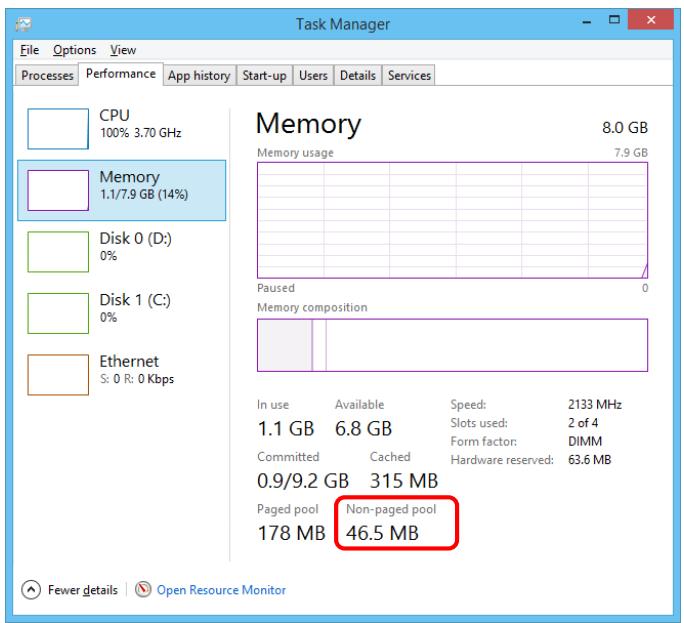
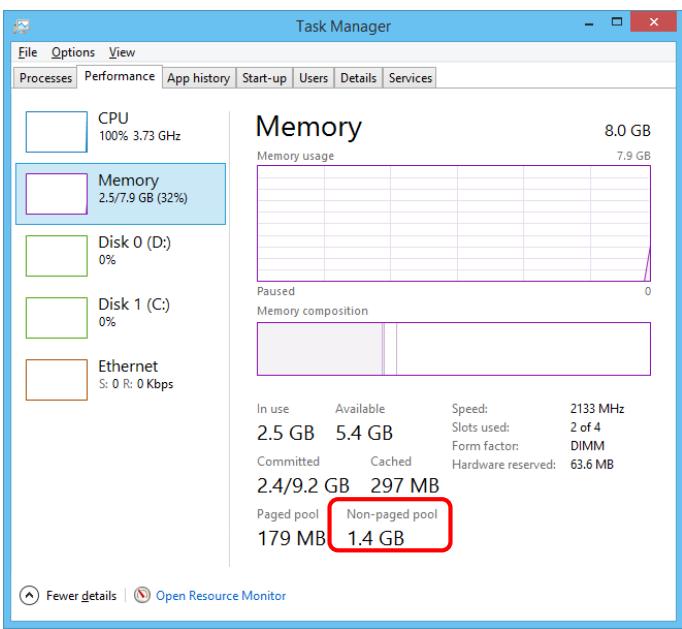
RAPID mode starts its operation 45 seconds after OS booting. Please make sure the increased size of non-paged pool using “task manager → performance → memory tab” to ensure it is fully operational.
* Before RAPID mode enabling
* After RAPID mode enabling
End of Document
November 2016
www.samsung.com/ssd
www.samsungssd.com
Design and contents of this manual are subject to change without notice.
©2016 Samsung Electronics, Co., Ltd. All rights reserved.
- New Samsung Magician
- LEGAL DISCLAIMER
- COPYRIGHT © 2016
- TRADEMARKS & SERVICE MARKS
- Introduction
- New Features
- Requirements and Support
- Precautions
- General Limitations
- Overall
- Performance Benchmark
- Firmware Update
- Performance Optimization
- Secure Erase
- DOS Utility Limitations
- RAPID mode Limitations
- The issue can be fixed by:
- Operational Check of RAPID mode
- End of Document
Brand : SAMSUNG
Model : SSD 512GO 850 PRO MZ-7KE512BW
Category : SSD