RX-4508 - Audio Amplifier SHERWOOD - Free user manual and instructions
Find the device manual for free RX-4508 SHERWOOD in PDF.
Download the instructions for your Audio Amplifier in PDF format for free! Find your manual RX-4508 - SHERWOOD and take your electronic device back in hand. On this page are published all the documents necessary for the use of your device. RX-4508 by SHERWOOD.
USER MANUAL RX-4508 SHERWOOD
This symbol indicates the presence of uninsulated “dangerous voltage” within the product’s enclosure that may be of sufficient magnitude to constitute a risk of electric shock. This symbol indicates important operating and maintenance (servicing) instructions in the literature accompanying the appliance.
TO REDUCE THE RISK OF FIRE OR ELECTRIC SHOCK, DO NOT EXPOSE THIS APPLIANCE TO RAIN OR MOISTURE. CAUTION
- • Leave space around the unit for sufficient ventilation.
- • Avoid installation in extremely hot or cold locations, or in an area that is exposed to direct sunlight or heating equipment.
- • Keep the unit free from moisture, water, and dust.
- • Do not let foreign objects in the unit.
- • Keep the ventilation openings clear of items, such as newspapers, linens, or curtains.
- • Keep open flame from candles or other sources away from the unit.
- • Observe the local regulations regarding disposal of packaging materials, exhausted batteries and old equipment.
- • Do not expose the unit to dripping or splashing, or place objects filled with liquids such as vases.
- • Do not let insecticides, benzene, or thinner come in contact with the unit.
- • Never disassemble or modify the unit in any way. Notes on the AC power cord and the wall outlet
- • The unit remains connected to AC power as long as it is plugged into the wall outlet, even if the unit has been turned off.
- • To completely disconnect this product from AC power, disconnect the plug from the wall socket outlet.
- • When setting up this product, make sure that the AC outlet you are using is easily accessible.
- • Disconnect the plug from the wall outlet when not using the unit for long periods of time. Caution regarding installation ON / STANDBY VOLUME MEMORY TUNE / PRESET INPUT PHONES Do not block ventilation openings or stack other equipment on the top. Note: For heat dispersal, do not install this unit in a confined space such as a bookcase or similar enclosure.
Installing the Remote Control Battery
Operating the Range of the Remote Control
Connecting Audio Components
Connecting Recording Components Connecting an Antenna
Adjusting the Sound Balance (Left and Right)
Adjusting the Tone (Bass and Treble) Listening to Radio
Tuning in to Preset Stations
Scanning Preset Stations in Sequence
Pairing with the Bluetooth Device
Listening to Music on Device
Using Other Functions Connecting Playback Components
Listening to Your System
Adjusting the Brightness of the Fluorescent Display 24 TROUBLESHOOTING
Connecting FM Antenna
Connecting AM Antenna
Trademarks and Licenses
Getting Started What's Included VOLUME ON / STANDBY MEMORY TUNE / PRESET INPUT PHONES Main unit POWER
BASS SEARCH MODE TREBLE RC-157 Remote control (1 ea) Battery FM Antenna (1 ea) AM Antenna (1 ea) Warranty User Manual (1 ea)
Warranty (1 ea) Getting Started Installing the Remote Control Battery
Remove the battery cover. Insert two AAA size batteries with the polarity matched properly.
- • Always use alkaline batteries, and do not use the rechargeable batteries (Ni-Cd type).
- • If the batteries run out, remove the old batteries and replace them with new ones within several minutes.
- • If the batteries are removed or have been exhausted for a longer period of time, memorized contents will be cleared. In this case, you should memorize them again.
- • If the battery is placed incorrectly, it can cause explosion.
- • Remove the battery if the remote control is not used for a long period of time.
- • Do not leave the product in a hot or humid place.
- • Do not handle and store the battery with metallic tools. Operating the Range of the Remote Control Use the remote control within a range of about 7 meters (23 feet) and angles of up to 30 degrees aiming at the remote control sensor. VOLUME ON / STANDBY MEMORY TUNE / PRESET INPUT PHONES
Parts Description Front Panel
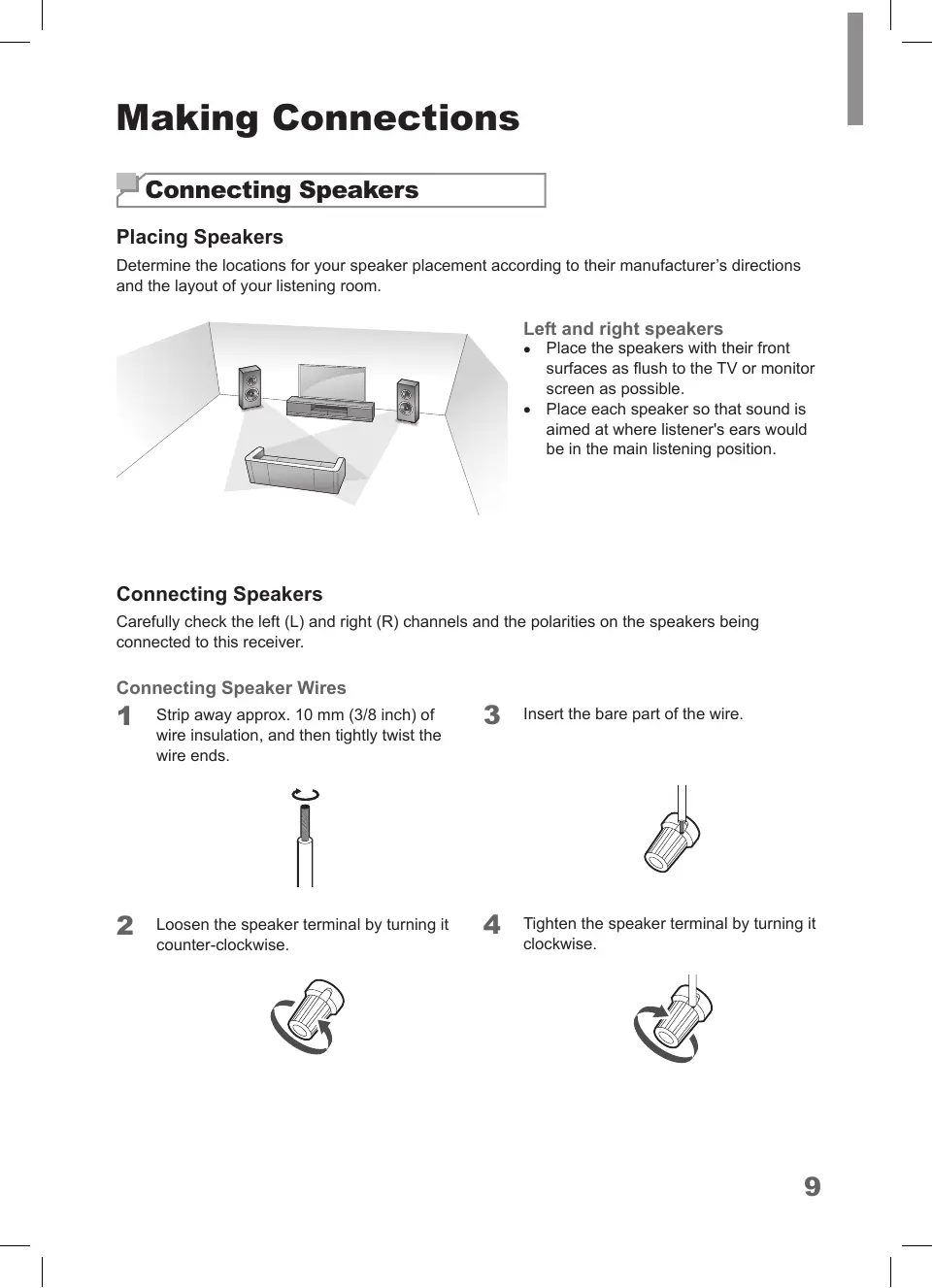
Memory/Enter Button Balance Adjust Buttons Bluetooth Button Bass Up/Down Buttons Treble Up/Down Buttons Bluetooth Previous/Rewind Button Bluetooth Next/Fast Forward Button Bluetooth Play/Pause Button Volume Up/Down Buttons Mute Button Mono/Stereo Select Button Sleep Button Dimmer Button Speaker Select Button Power Button Making Connections Connecting Speakers Placing Speakers Determine the locations for your speaker placement according to their manufacturer’s directions and the layout of your listening room. Left and right speakers
- • Place the speakers with their front surfaces as flush to the TV or monitor screen as possible.
- • Place each speaker so that sound is aimed at where listener's ears would be in the main listening position. Connecting Speakers Carefully check the left (L) and right (R) channels and the polarities on the speakers being connected to this receiver. Connecting Speaker Wires
Strip away approx. 10 mm (3/8 inch) of wire insulation, and then tightly twist the wire ends.
Loosen the speaker terminal by turning it counter-clockwise.
Tighten the speaker terminal by turning it clockwise.
Rear Panel Speaker A Left Speaker A Right Speaker B Right Speaker B Left
- • Be sure to connect speakers firmly and accurately according to the channel (left and right) and the polarity (+ and −). If the connections are incorrect, no sound will be produced by the speakers, and if the polarity of the speaker connection is incorrect, the sound will be unnatural and tinny.
- • Be sure to use the speakers with the impedance of 8 ohms or above.
- • Do not let bare speaker wires touch each other or any metal part of this receiver. This could damage the main unit and/or the speakers.
- • Never touch the speaker terminals while the AC input cord is connected to the wall AC outlet. Doing so could result in electric shock.
Making Connections Connecting Playback Components Source devices are components from which a playback signal originates, e.g., a Blu-ray Disc™ or DVD player; a set-top box, or HDTV tuner, etc. Phono Connection You can use the PHONO input jack to connect turntable. Rear Panel Connecting Audio Components Audio Connection Make audio connections from your source devices.
- • Ensure the left (L) and right (R) channels and the inputs and outputs are correctly connected.
- • To listen to the sound of a connected audio device, select AUX as the input source. Rear Panel Turntable with MM type cartridge
Listening with Headphones
Connect the headphones to the PHONES jack on the front panel. ON / STANDBY VOLUME MEMORY TUNE / PRESET INPUT Connecting Recording Components You can connect audio recording devices to the AUX OUT jacks. You can make an audio recording from the built-in tuner or from an audio source connected to the main unit. PHONES Rear Panel PHONES
- • Be careful not to set the volume too high when using headphones.
Making Connections Connecting an Antenna To listen to radio stations, connect the FM wire antenna and AM loop antenna as illustrated below. Outdoor Antenna
Remove the indoor antenna if it is connected.
Connect the FM outdoor antenna to the FM antenna terminal. Connecting FM Antenna To strengthen the signal reception, extend the antenna to its full length. Indoor Antenna
Connect the FM indoor antenna to the FM antenna terminal.
Change the position of the antenna until you get the best reception of your favorite FM stations. Rear Panel Rear Panel
Connecting AM Antenna
Assemble the AM loop antenna as illustrated below.
Place the antenna as far as possible from the main unit, TV set, speaker cords and the AC input cord, and set the direction for the best reception.
If the reception is poor with the AM loop antenna, it is recommended to replace it with an AM outdoor antenna. Rear Panel
Rear Panel Making Connections Connecting Power Make sure to plug in only after you have connected all your components to the main unit. Plug the supplied AC power cord into the wall outlet. Rear Panel AC power cord To the wall outlet
Listening to Your System Select the input source you want to play back.
- • On the main unit, press INPUT.
- • Each time the button is pressed, the display changes in the following order: Basic Operation You can listen to audio by following the basic procedures below.
Turn on the connected component.
- • With the receiver in Standby mode, you can also turn the power on by pressing an Input Selector button on the remote control.
Start playback of the component you selected in step 1.
During playback, you can adjust the volume level.
- • On the main unit, rotate the volume controller.
- • On the remote control, press VOLUME -/+. TONE DIRECT Select the speakers you want to play.
- • When using the headphone, press the corresponding speaker button to switch off both A and B speakers. SEL
- • On the remote control, press SPEAKER A or SPEAKER B. "SPK A(or/and)B" is displayed. MUTE VOLUME PRESET MEMO/ ENTER T UN E
SEARCH MODE Operating Your System Muting the Sound Adjusting the Tone (Bass and Treble) You can mute the sound temporarily by pressing MUTE. You can adjust the tone (bass and treble) as desired.
Press MUTE to mute the sound. TONE DIRECT
- • "TON CTRL" is displayed on the display panel. MUTE VOLUME TONE DIRECT S EL SEL TU N E T UN E PRESET MEMO/ ENTER Select the tone control mode by pressing TONE DIRECT. MUTE VOLUME PRESET T UN E SEL
- • If you want to listen to a program source without the tone effect, select the tone direct mode by pressing TONE DIRECT. "TON DIR" and "DIR." are displayed on the display panel. T UN E SEL TU N E MEMO/ ENTER S EL PRESET PRES ET
SEARCH MODE Adjusting the Sound Balance (Left and Right) Adjust the sound volume balance between the left and right speakers by pressing L-BALANCE or BALANCE-R. SEL TU N E MEMO/ ENTER T UN E
- • The each sound balance level can be adjusted up to 10.
- • It is recommended the balance to be adjusted to 0.
Adjust the tone as desired by pressing BASS -/+ or Treble -/+.
- • The tone level can be adjusted within the range of -10 ~ +10 dB.
- • It is recommended the bass and treble to be adjusted to 0 dB (flat level). PRES ET
MEMO/ ENTER PRES ET Press MUTE or VOLUME - / + to turn on the sound. TONE DIRECT TU N E
- • Extreme settings at high volume may damage your speakers. TREBLE
Select FM or AM tuner as the input source.
- • On the main unit, press INPUT repeatedly.
- • On the remote control, press TUNER repeatedly. PRESET MO/ST SLEEP PHONO TUNER
AUX Press and hold TUNE ◄ or TUNE► for more than 1 second.
- • On the main unit, press and hold ◄ or ► for more than 1 second.
- • The tuner keeps searching until a station with strong signal strength is found. The display shows the tuned frequency.
- • If the found station is not the desired one, simply repeat this operation.
- • Stations with weak signal strength are skipped during auto tuning. TONE DIRECT TONE DIRECT MUTE VOLUME MUTE VOLUME PRESET SEL TU N E PRESET MEMO/ ENTER T UN E Selecting the Band S EL Listening to Radio PRES ET
Select a desired station.
- • On the main unit, press ◄ or ► repeatedly.
- • On the remote control, press TUNE ◄ or TUNE ► repeatedly. Tune to the desired station with auto or manual tuning.
- • When FM stereo broadcasts are poor, select FM mono mode to reduce the noise. For details, see "Switching FM Stereo/Mono Mode" on page 20.
- • A stored station is erased from the memory by storing another station in its place. TONE DIRECT MUTE VOLUME
Press and hold MEMO/ENTER for more than 2 seconds.
- • "AUTO MEM" blinks and the main unit begins to preset stations with strong signals.
- • Up to 30 FM stations may be stored.
- • To stop auto presetting, press MEMO/ ENTER again. TONE DIRECT S EL SEL TU N E MEMO/ ENTER T UN E PRESET Auto Presetting MUTE VOLUME PRESET MEMO/ ENTER T UN E SEL SEARCH MODE TU N E
- • When you set a preset number by pressing numeric buttons on the remote control, you can skip the step 4.
Confirm your selection.
- • On the main unit, press MEMORY.
- • On the remote control, press MEMO/ ENTER.
- • The station has now been stored in the memory.
- • A stored station is erased from the memory by storing another station in its place. TONE DIRECT
- • Auto preset is performed only when you select FM tuner as a input source.
- • FM stations with weak signal strength cannot be stored to memory. MUTE VOLUME T UN E SEL TU N E MEMO/ ENTER S EL PRESET PRES ET
SEARCH MODE Repeat the above steps 1 - 4 to store another station.
Tuning in to Preset Stations
Select a desired preset number.
- • The receiver starts scanning the stations in the preset sequence.
Press Preset again to stop scanning.
- • If you select a desired preset number by pressing ◄ or ► on the main unit, be sure to select preset mode. When you select preset mode, "PRESET" is displayed on the display panel.
- • You can select a desired preset number by pressing numeric buttons on the remote control. AUX
- • Stations with weak signals will not be scanned, and will therefore not be sampled. Switching FM Stereo/Mono Mode
Select FM tuner as the input source.
- • On the main unit, press INPUT repeatedly.
- • On the remote control, press TUNER repeatedly.
Bluetooth Bluetooth technology is a short-range wireless technology that enables wireless data communication between digital devices. You can enjoy music wirelessly with a music player featuring Bluetooth wireless technology such as MP3 player, mobile phone, etc.. When pairing is completed, "CONNECTED" is displayed on the display panel and the Bluetooth indicator is turned on.
- • If the last paired device in range during pairing mode, the device will connect automatically. Pairing with the Bluetooth Device
Select Bluetooth AUDIO as the input source.
- • On the main unit, press INPUT repeatedly.
- • On the remote control, press BLUETOOTH. PRES ET INPUT
During playback, press
- • Playback will stop at the point where the button is pressed.
- • To resume playback from this point, press the button again. SEARCH MODE PRES ET BASS TREBLE
- • Place the device near the main unit within 30 feet (10 meters).
Perform pairing on the device to detect main unit.
Select "RX-4508" in the device list.
- • If "RX-4508" is not displayed, repeat from step 1.
If PIN code is required, enter "0000" on the device.
- • Depending on the device, "Bluetooth PAUSE" is delayed on the display panel.
- • Depending on the device, connection is automatically made without enter the PIN code.
Each time the button is pressed, a track is skipped forward or backward.
Each time the button is pressed and held, playback point is moved forward or backward.
- • On the main unit, press and hold ◄ or ► for more than 1 second.
- • On the remote control, press and hold for more than 1 second. Recording You can make an audio recording from the builtin tuner or from an audio source connected to the receiver (such as a CD player or TV). Keep in mind you can’t make a digital recording from an analog source or vice-versa, so make sure the components you are recording to/from are hooked up in the same way. (For details on connection, see “Connecting Playback Components“ on page 11.)
- • The receiver’s volume, Audio parameters (the tone controls, for example), and surround effects have no effect on the recorded signal.
- • Some digital sources are copy-protected, and can only be recorded in analog.
Select the desired recording source.
Start recording on the component.
Start play on the desired input.
- • The audio signal from the desired input will be dubbed on the recorder and you can enjoy them from the speakers.
- • The volume and tone (bass and treble) settings have no effect on the recording signals.
- • When recording the audio signals from AUX, cannot be recorded on the same AUX jack. (For example, the audio signal from AUX IN cannot be recorded on AUX OUT.)
Operating Your System Using Other Functions
- • When you play music via Bluetooth, the auto power control does not works. Setting the Sleep Timer You can set a specified period of time before the main unit is automatically shut.
- • Each time the button is pressed, the sleep time changes as follows: 10 20 30 60 90 Off Unit: minutes
- • While operating the sleep timer, " " lights up.
- • When the sleep time is selected, the fluorescent display is dimly lit.
MO/ST SLEEP Adjusting the Brightness of the Fluorescent Display You can select the brightness of the fluorescent display as desired.
- • Each time the button is pressed, the display mode changes as follows: On Dimmer Off
AUX You can set the standby time for the system to be turned off. The default setting value is 6H.
Press and hold SLEEP for more than 3 seconds.
- • Each time this button is pressed, the auto power control time changes as follows: Off 2h 4h 6h
Troubleshooting If you experience any of the following difficulties while using the system, use this troubleshooting guide to help remedy the problem before requesting servicing. Should any problem persist, consult your nearest authorized dealer or authorized independent company. If the unit does not operate normally due to external influence such as static electricity, disconnect the power plug from the outlet and insert again to return to normal operating conditions. GENERAL Problem Remedy The power does not turn on.
- • Disconnect the power plug from the outlet, and connect again. The system suddenly turns off.
- • After about a minute (you won’t be able to turn the main unit on during this time), turn the system back on. If the problem persists, call an authorized independent service company. No sound is heard after a function is selected.
- • Make sure the component is connected correctly. (See "Making Connections" on page 9.) Press MUTE to restore the sound. Can’t operate the remote control.
The display is dark or off.
- • Press DIMMER on the control repeatedly to return to the default setting. Replace the batteries. (See page 5.) Operate within 7 m, and 30° of the remote sensor Remove any obstacles, or operate from another position. Avoid exposing the remote sensor on the front panel to direct light. SOUND Problem There is no sound from the selected component. Sound is interrupted or there is noise. Remedy
- • Check that the component is connected correctly to the audio input jacks of components.
- • Ensure that the cords are fully inserted into the jacks on both the component and the main unit.
- • Ensure that the component is selected correctly.
Check the output audio formats support system. Check that the speakers and equipment are connected securely. Move your audio equipment away from the TV. The plugs and jacks are dirty. Wipe them with a cloth slightly moistened with alcohol. The left and right sounds are unbalanced or reversed.
- • Ensure that the speakers and equipment are connected correctly and securely. Recording cannot be carried out.
- • Ensure that the equipment is connected correctly.
- • Select the source equipment using the input buttons (See page 16).
- • Copyright protection to prevent recording is contained in the sources. In this case, you may not be able to record from the sources. No sound, or sound suddenly ceases.
Stereo separation 30 dBu @ 1 kHz Image rejection 20 dB IF rejection 65 dB AM Tuner Section Frequency range 522 – 1611 kHz Signal-to-noise ratio 35 dB Usable sensitivity (S/N = 20 dB) 63 dBu/m Selectivity (±10 kHz) 23 dB IF rejection 40 dB
Bluetooth Section Model name IK-CSR8645 Out Power -6 – 4 dBm Frequency Range 2402 – 2480 MHz General Specifications Power requirement AC 230V / 50 Hz Power consumption 230 W Dimensions (W×H×D, including protruding parts) 17.1" x 5.5" x 14.7" (435 mm x 141 mm x 375 mm) Weight (Net)
Trademarks and Licenses This system incorporates a sophisticated technology that allows you to create optimum sound quality and sound atmosphere in your personal Home Theater. The Bluetooth® word mark and logos are registered trademarks owned by Bluetooth SIG, Inc. and any use of such marks by inkel is under license. Other trademarks and trade names are those of their respective owners. © 2014 CSR plc and its group companies. The aptX® mark and the aptX logo are trade marks of CSR plc or one of its group companies and may be registered in one or more jurisdictions.
5707-00000-935-0S Printed in Vietnam
ManualGo.com