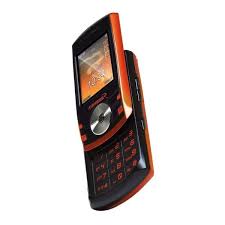
MK99 - Mobile Phone AIRNESS - Free user manual and instructions
Find the device manual for free MK99 AIRNESS in PDF.


| Product type | Mobile phone |
| Brand | AIRNESS |
| Model | MK99 |
| Category | Mobile phone |
| Power supply | Rechargeable Li-ion battery, mains charger |
| Screen | Color screen with status icons |
| Camera | Built-in camera with shutter |
| Connectivity | Bluetooth, GPRS, IrDA, WAP |
| Memory card | Micro-SD (card not included) |
| Main functions | Calls, SMS, MMS, phonebook (300 entries), FM radio, audio player, video player, games, alarm, stopwatch, calculator, converter |
| Security | PIN code, PUK code, phone lock, password |
| Warranty | 1 year manufacturer's warranty (battery: 6 months) |
| Maintenance and cleaning | Wipe with a soft cloth slightly dampened with lukewarm soapy water |
| Spare parts and repairability | Repair by authorized technician; use only approved accessories and batteries |
| General information | Max SAR: 0.551 W/kg; compliant with European regulations |
Frequently Asked Questions - MK99 AIRNESS
User questions about MK99 AIRNESS
0 question about this device. Answer the ones you know or ask your own.
Ask a new question about this device
Download the instructions for your Mobile Phone in PDF format for free! Find your manual MK99 - AIRNESS and take your electronic device back in hand. On this page are published all the documents necessary for the use of your device. MK99 by AIRNESS.
USER MANUAL MK99 AIRNESS
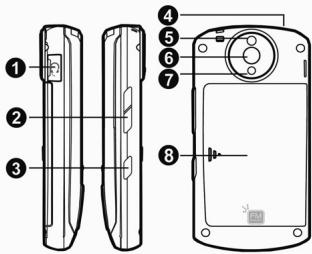
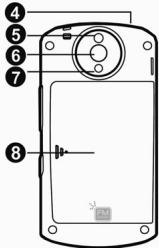
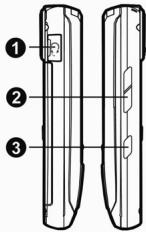
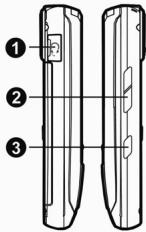
1 All-in-one Connect port
Volume Key
3 Camera Hot Key
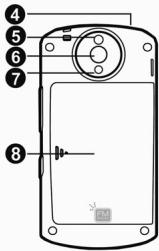
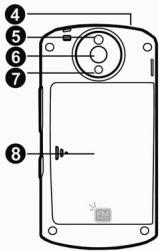
4 IrDA
5 Mirror
6 Camera
7 Flash
3 Battery
FR
Raccourcis
For your safety, please refer to the guidelines prior to using the phone. Failure to comply with the guidelines may cause malfunctions or be hazardous to the user.
Road Safety Comes First
Please be careful not to use the phone while driving. In case you need to use the phone, please pull over your vehicle first. In some countries, it is illegal to use a wireless phone while driving. Also, it is recommended to avoid using a mobile phone while refueling at a gas station
Switch off in Aircraft
Mobile phones may cause interference to the aircrafts navigation system. Please make sure the phone is in switch off mode while in the airplanes.
Respect Special Regulations
Please follow special regulations in any areas wherever it is applicable. It is recommended to switch off your phone whenever it is illegal to use, or when it may cause interferences, such as hospitals.
Interference
All mobile phones may be subject to radio interference, which may affect the performance during calling and receiving.
Qualified Service
It is highly recommended to have a repair service by qualified service personnel. Use only approved accessories and batteries.
UK
Use Properly
Use only in the normal position (hold to the ear). Avoid unnecessary contact with the antenna when the phone is switched on.
Emergency Calls
When making an emergency call, please ensure that the phone is switched on and is in service. Enter the emergency number (Official Emergency Number or another official emergency number) and press the [Send Key]. Inform your current location. Do not end the call until given permission to do so. You may end the call by pressing the [End Key].
Operating Environment
- Remember to follow any special regulations in force in any area and always switch off your phone whenever it is forbidden to use it, or when it may cause interference or danger (in a hospital for example).
- Operation of any radio-transmitting equipment, including cellular phones, may interfere with inadequately protected medical devices. Consult a doctor or the manufacturer of the medical device if you have any questions. Other electronic equipment may also be subject to interference.
- As with other mobile radio-transmitting equipment, you are advised that for satisfactory operations and personal safety, the equipment should only be used in the normal operating position.
-
Always switch off the phone when refueling (service station). You are reminded of the need to observe restrictions on the use of radio equipment in fuel depots (fuel storage and distribution areas), chemical plants or where blasting operations are in progress.
-
Do not store or carry flammable liquids, gases or explosive materials in the same compartment as the phone, its parts or accessories.
- Switch off your cellular phone when in aircraft. The use of cellular phones in aircraft is illegal and may be dangerous to the operation of the aircraft or disrupt the cellular network. Failure to observe these instructions may lead to the suspension or denial of cellular telephone services to the offender, legal action or both.
Care and Maintenance
- Your phone is a product of superior design and craftsmanship and should be treated with care. The suggestions below will help you fulfill the warranty obligations and enjoy this product for many years.
- Keep the phone and all its parts and accessories out of the reach of small children.
- Keep the phone dry. Precipitation, humidity and liquids containing minerals will corrode the electronic circuits.
- Do not use or store the phone in dusty, dirty areas as its components may be damaged.
- Do not store the phone in warm areas. High temperatures can shorten the life of electronic devices, damage batteries and warp or melt certain plastics.
- Do not store the phone in cold areas. When the phone warms up to its normal temperature, moisture can form inside the phone, which may damage the electronic circuits.
- Do not attempt to open the phone's casing. Non-expert handling of the phone may cause damages to your phone.
- Do not drop or knock the phone. Rough handling may damage the internal circuits.
UK
- Do not use harsh chemicals, cleaning solvents or strong detergents to clean the phone. Wipe out with a soft cloth slightly dampened in mild, soapy water.
- If the phone or any of its accessories are not working properly, take them to your nearest qualified service center. The personnel there will assist you, and if necessary, arrange for the phone to be repaired.
Exposure to Radio Frequency Energy (SAR Information)
This phone meets European Union (EU) requirements concerning exposure to radio waves.
Your mobile phone is a radio transmitter and receiver. It is designed and manufactured, so as not to exceed the limits for exposure to radio-frequency (RF) energy, as recommended by the EU Council. These limits are part of comprehensive guidelines and establish permitted levels of RF energy for the general population. The guidelines were developed by independent scientific organizations through periodic and thorough evaluation of scientific studies. The limits include a substantial safety margin designed to ensure the safety of all persons, regardless of age and health.
The exposure standard for mobile phones employs a unit of measurement known as SAR (Specific Absorption Rate). The SAR limit recommended by the EU Council is 2.0W / kg
SAR Value: 0.551 W/kg
*The SAR limit for mobile phones used by the public is 2.0 watts/kilogram (W/kg) averaged over ten grams of body tissue. The limit incorporates a substantial margin of safety to give additional protection for the public and to account for any variations in measurements. The SAR values may vary
depending on national reporting requirements and the network band.
Hearing safety:
This product respects the current regulations for limiting the output volume of consumer audio devices to a safe level. By listening to your device with headphones or earbuds at high volumes, you run the risk of permanent damage to your ears. Even if you get used to listening at high volumes and it seems normal to you, you still risk the possibility of damaging your hearing. Reduce the volume of your device to a reasonable level to avoid permanent hearing damage. If you hear ringing in your ears, reduce the volume or shut off the audio player. This device has been tested with the MK99 supplied earpiece. Other manufactures earpiece may produce volume levels higher or lower than the MK99 delivered earpiece.
Unpacking
Thank you for purchasing your MK99. Please check the product contents to see if you have all the available items as below (*Images may vary from the actual product in your package)
| Handset | Battery |
| USER MANUAL | Ear/Microphone |
| Traveler's Charger |
Your Phone
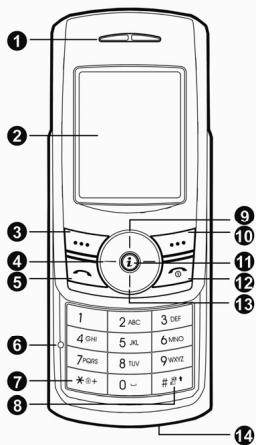
PHONE LAYOUT
1 Receiver
2 Main Display
Left Soft Key
4 Navigation Keys
5 Send Key
6 Mic
7 8 Special Function Keys
9 Bluetooth Hot Key
16 Right Soft Key
WAP Key
End/Power Key
Audio Player Hot Key
14 Antenna
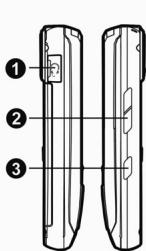
1 All-in-one Connect port
Volume Key
3 Camera Hot Key
4 IrDA
5 Mirror
6 Camera
7 Flash
3 Battery
Shortcuts
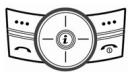
| Left: Access to “Message” Right: Access to “Shortcuts” Up: Access to “Bluetooth” Down: Access to “Audio Player” from an idle mode You may dedicate the left navigation key for favorite menu in ‘Dedicated key’ setting menu (Menu > 4.Settings > 1.Phone Setup > Display Settings) | |
| WAP Key Accesses to WAP menu (press shortly), and launch WAP browser (press and hold). | |
| Camera Hot Key (side) Press and hold to start the camera preview mode. In camera and video preview mode, works as a shutter. | |
| To select the “Keypad Lock” option menu, press this key and hold. | |
| To activate the “Silent Mode” option, press this key and hold. |
Display Layout
The idle screen display includes three areas.
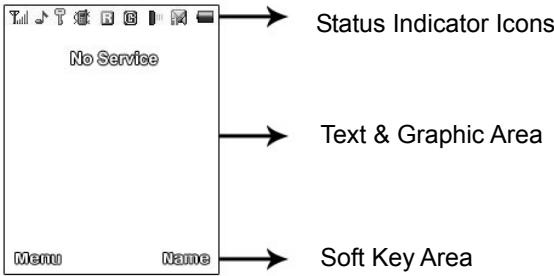
Icons
| Icon | Description |
| T. | Signal Strength: Shows the strength of the receiving signal. The greater the number of bars, the better the signal strength. |
| G | GPRS: Shows the strength of the receiving GPRS signal. The greater the number of bars, the better the signal strength. |
| G | GPRS Connect: Appears when you connect to GPRS. |
| R | Roaming: Appears when the phone is roaming. |
| L1 | L1, L2: Some SIM cards support two phone numbers and you can switch the number (line) with this feature. The phone will display this icon when you set a line. |
| Missed Calls: Appears when there is missed call(s). | |
| New Message: Appears when a new incoming text message is arrived and unread. | |
| MMS Unread: Appears when a new MMS message is arrived and unread. | |
| MMS Busy: Appears when MMS is busy, such as receiving and sending a message. | |
| Broadcast Message: Appears when Broadcast Message receive mode is active.. | |
| WAP Mail: Appears when WAP mail is arrived. | |
| Call Barring On: Appears when the call barring mode is active. | |
| Call Forward: Appears when the call forward mode is active. | |
| Bluetooth: Appears when the Bluetooth power is on. It has to be on, if you want to use the Bluetooth function. When you finish using, turn off the Bluetooth power. | |
| Bluetooth Headset: Appears when the Bluetooth hands-free headset is connected. | |
| Bluetooth File Transfer: Appears when the Bluetooth FTP and OPP (vCard) is connected. | |
| Ring: Appears when the Ring mode is active. | |
| Vibrate and Ring: Appears when the Vibrate and Ring mode is active. | |
| Vibrate then Ring: Appears when the Vibrate then Ring mode is active. | |
| Vibrator On: Appears when the Vibration only mode is active. | |
| Silent Mode: Appears when the silent mode (manner mode) is active. | |
| Alarm On: Appears when you set the alarm. | |
| Stopwatch: Appears when you set the stopwatch. | |
| Lock: Appears when you set the phone lock. | |
| Battery Strength: Shows the level of your battery. The more bars you see, the more power you have left. | |
| Meeting: appears when you set the Sound profile as Meeting. | |
| Outdoor: appears when you set the Sound profile as Outdoor. | |
| Indoor: appears when you set the Sound profile as Indoor. | |
| Headset: appears when you set the Sound profile as Headset. | |
Getting Started
Your First Call
Please refer to the following diagram that describes the main steps to make a first call.
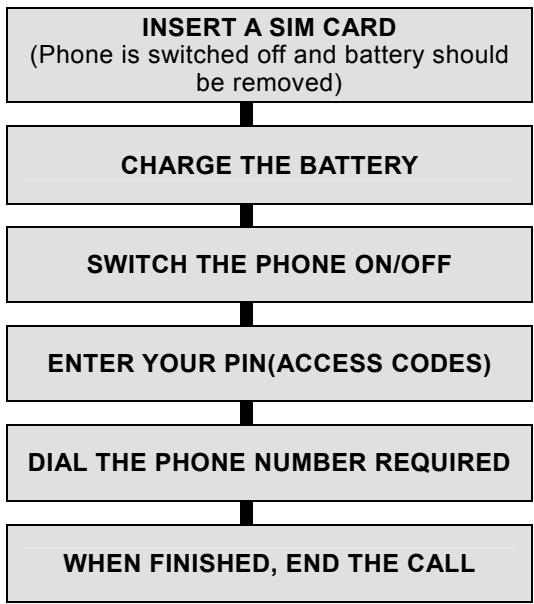
UK
Installing the SIM card
When you subscribe to a cellular network, you will need a plug-in SIM card loaded with your subscription details (PIN, and optional services available).
- If necessary, switch off the phone by holding down the End/Power key until the Power off message appears.
- Remove the battery by following the steps below:
① Pull up and hold the locking catch above the battery on the back of the phone.
② Lift the battery, as shown below.
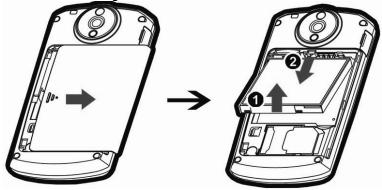
- Put the SIM card into the phone. Ensure that the SIM card is inserted properly.
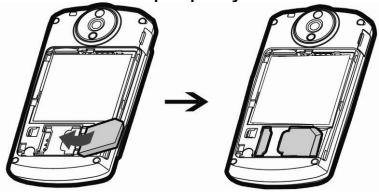
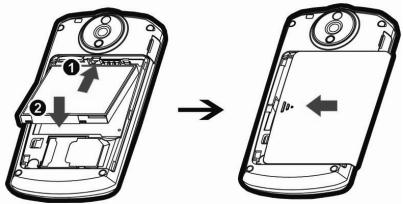
- Place the battery pack inside the phone. Slide in the battery cover to the phone. Align the bottom of the battery with the corresponding slots in the phone and place the battery inside the phone.
Charging the Battery
Your phone package comes with a battery, and a traveler's charger. You can also use USB data cable to charge your phone, however, the charging time may be different from traveler's charger.
Use only approved batteries and chargers for your safety.
Note: It is highly recommended to fully charge the battery prior to using your phone for the first time
- After putting the battery to the phone properly, insert the charging plug into the charging port on the "left side" of the phone.
- Connect the traveler's charger to a standard AC outlet.
- When charging is completed, disconnect the
traveler's charger from the power outlet and from the phone by pulling the charging plug.
Note: When the battery is discharged completely, and not used for a while, the phone will not display the charging image for about 30 minutes while charging. After 30 minutes of charging, the phone will display the charging image.
Charger, USB Cable & Headset Insert Operating Instructions
While using a proper charger, USB cable, & Stereo Headset, you must insert them into the phone with the arrow side as front as described as below image;
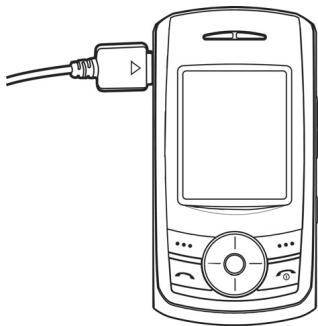
Caution: DO NOT INSERT THEM TO REVERSE SIDE!
Switching the Phone On/Off
- Hold down the power on/off key more than one second to switch on.
- If the phone asks for a PIN, key-in the PIN. The phone searches for your network and when it finds it, it will display the idle screen. The external display shows the signal strength, battery strength and current time and date.
- When you wish to switch off the phone, hold down the power on/off key for more than two seconds.
Access Codes
There are access codes for your SIM card. These codes help you to protect the phone against unauthorized use.
When requested for any of the code explained below, key-in the appropriate code (displayed as asterisks) and press the OK key.
PIN
The Personal Identification Number or PIN (4-8digits) protects your SIM card against unauthorized use. The PIN comes with the SIM card; see the SIM card instruction provided with your card.
If you enter an incorrect PIN three times in succession, the code will be disabled and cannot be used until you re-enable it by entering the PUK.
UK
PUK
The 8-digit PUK (Personal Unblocking Key) is required to change a disabled PIN. The PUK may be supplied with the SIM card. If not, or in case you have lost it, please contact your service provider. To re-enable your PIN, proceed as follows.
- Key-in the PUK and press the OK key.
- Enter a new PIN of your choice and press the OK key.
- When the Confirm New PIN message is displayed, key-in the same code again and press the OK key.
If you enter an incorrect PUK ten times in succession, the SIM card becomes invalid. Please contact your service provider for a new card.
Pin Password
The 4 8 digits of password is required when you use the Call barring function. You can obtain the password from your service provider when you subscribe to this function.
General Functions
Making a Call
To make a call on your phone, check the phone if the screen is idle and the phone indicates signal. Then key-in the area code and phone number using the numeric keys and press the Send Key.
Making an International Call
Press the * key twice to display "+" character. Input the country code and the phone number (without leading 0 of area). Then press the Send Key. The "+" informs the network that it is the international call.
Redialing the Last Number
The phone stores the last 10 numbers dialed. To recall any of these numbers, press the Send Key to display a list of the last dialed numbers
Emergency Call
Ensure that the phone is switched on and in service. Enter the emergency number (Official Emergency Number) and press the Send Key. Provide your location. Do not end the call until given permission to do so. End the call by pressing the End key.
Note : When "Enter Lock Code" or "Enter PIN" messages are prompted on the display during power-on, some network may not allow emergency call. However, some network may request to insert a SIM card and enter Official Emergency Number.
Entering a "Pause or Wait"
You may enter a pause ("P") character into a dial string by pressing the left special function key * three times. Press the left special function key * four times to enter a wait ("W") character into a dial string.
Ending a Call
When you have finished your call, press the End key for a short time.
Note : You can make, receive, or end a call when the slide is open or closed.
SD Card
Warning: It is highly recommended to use only the genuine microSD cards approved and specified by the "SD Card Association." http://www.sdcard.org or SanDisk. Using other products that are NOT indicated by SD Card Association or SanDisk may cause damage to the microSD card slot of your phone.
Installing the microSD Card
Your mobile phone is compatible with microSD Card. As shown below, open the battery and place the microSD card in the slot as shown below.
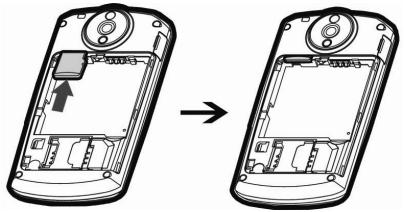
Note: It is recommended that microSD card has about 100KB free space for Audio File play list. If the microSD card is full, the phone may not able to play a new music file. * In case the Storage Mode is selected WITHOUT inserting the microSD memory card, "No memory card" warning will appear.
Note: The USB data cable from your package is used for both data transmission and power charging cable, however, the charging level will differ from the traveler's charger.
Uninstalling the microSD Card
Slide the protector up and push the card to slide out. After uninstalling the card, close the protector.
In-Call Options
Your phone provides a number of call control functions that is allowed to use during calling.
- Putting a Call on Hold/Un-hold
- Making a Second Call
- Making an International Second Call
- Answering a Second Incoming Call
- Storing a Number
- Mute a Call
Voice Recording a Call - Speaker Phone Call
Swapping Calls
Conference Call
You can make calls while there are active held calls on conversation by using [Conference Call] menu in [Call Menu].
Note: Some networks do not allow the user to change this setting.
Sending Message
You can send messages by using the [SMS] Menu in [Messages] even during you are calling.
Inter-working Phonebook
You can use [Phonebook] menu and sub menus even while you are calling.
Using Phonebook
You can store phone numbers and its corresponding names in the memory of your SIM card. In addition, you can store up to 300 entries and categorize in 5 groups. The SIM card and phone memories, although physically separate, are used as if they were a single entity, called phonebook.
Storing a Phone Number with a Name and an Image
As soon as you start to enter a number, [Save] appears above the soft key (left) to allow you to store numbers in the phonebook.
Key-in the number to be stored. You can input the number up to 40 digits.
Select the storage from "To SIM" or "To Phone". You can also check how many you have saved and total entries you can store in the storage.
Select a category to edit. To select the category, scroll to the category and press the [Edit] soft key (left).
The following categories are available:
Name
Number
Home Number (only if stored on the phone)
- Company Name (only if stored on the phone)
- Email Address (only if stored on the phone)
UK
- Office Number (only if stored on the phone)
- Fax Number (only if stored on the phone)
Birthday (only if stored on the phone) - Associate Picture (only if stored on the phone)
- Associate Sound (only if stored on the phone)
- Associate Video (only if stored on the phone)
- Caller Group(only if stored on the phone)
Storing a Phone Number using the Phonebook Menu
- Press the [Menu] soft key (left), and select the [Phonebook] menu.
- Scroll to [Add New Entry] by pressing up or down the navigation key and press the [OK] soft key (left).
- Select the storage from "To SIM" or "To Phone." You can also check how many you saved in the storage and total entries you can store.
- Select a category to edit. To select the category, scroll to the category and press the [Edit] soft key (left). Ten categories are available (see "Storing a Phone Number with a Name and an Image" for selecting category, edit and save the entries).
Text input
Input Options Text
While you are in text editing mode, you will be in several modes.
When you see [Option] and [Clear] in the soft key, press left soft key for option: you can save the entry or change the Text Input Method. To erase a character, press the right soft key next to the character you want to erase. You can move among the characters you typed-in by pressing the 4 way navigation keys.
There can be more than two options depending on what contents you are editing.
T9 Text Editing Mode
While you are in T9 editing mode, press the alphanumeric key once for one character. You will see T9 suggested words, i.e. press 6 and 4 key to type in "OK." Press up or down navigation key, to navigate through word list. Press the [Select] soft key (left) to select the word you want to write.
If there is no such word in the word list, the left soft key will change from [Select] to [Add]. Press the [Add] soft key (left) to edit and select 'Done' to save a word to the word list. The next time you enter the word sequence, you can use the saved word.
UK
You can define the default Input Method of your phone and change input methods time to time.
To define your preferred input method, go to "Phone Setup" sub menu in "Settings" menu. Then select "Preferred Input Method."
You can change the text input method with # key; the input methods will swap when you press the # key. Press and hold the * key to select Symbols.
Press the * key to toggle select cases of abc, Abc, and ABC.
Messages
You can write and read messages in this menu. Message functions are available depending on network services that your service provider supports.
SMS
The SMS (Short Message Service) function is a network service and your network may not support the service. You can send messages in Fax, Page, Email and Text format. To send text messages by phone, you must obtain the SMS center number from your service provider, and enter it on the SC Address option in Profile Settings menu.
When the icon appears on the status indicators area, it indicates that you have received a new message.
Note: The SMS service may not be available on all networks. Some allows it only within its own network.
Write Message
With this menu, you can write a message as following.
1) Select [Write Message] menu in the [SMS] menu.
2)Type a message.
3)After you completed the message, press the [Option] soft key (left) and then select "Done." Choose one of following options.
UK
- Send Only: Sends the message to the recipient phone number. It will not save the message.
- Save and Send: Saves the message, and send it to the required recipient.
- Save Only: Saves the message so that you can send it later.
- Send to Many: Send the message to multiple recipients. Select Edit List to add up to 10 recipient(s).
- Send by Group: Sends the message to the Caller Group. Select a Caller Group from the list.
4) You can input the number directly or get from the phonebook by pressing the [Search] soft key.
5) The phone will display the Message sending Success or Fail message on the screen for all recipients.
Note: If you receive a call while you are writing a message, the message will be backed-up and after hang up, the phone will display [write message] mode. You can finish the message without losing the data.
Inbox
With this menu, you can view the new text messages or the read messages. It will display the sender's phone number or name (if stored in the Phonebook) on the list. If you choose the [Ok] soft key, you can view the message contents.
Outbox
With this menu, you can view the sent or unsent messages you have saved. Send, Edit, Delete, Delete All and Use Number options are available.
Drafts
You can view and edit the saved messages in the Drafts.
Templates
You can edit and delete message templates in this menu. You can store your frequently used messages up to 10 messages. For example, "Call Me Now," "How are you," and so forth. You can use the Template by selecting [Use Template] option, when you write a message.
Message Settings
You can setup default Message Information: Profile Settings, Common Settings, and Memory Status
MMS
The MMS (multimedia messaging service), also called Photo Message, allows end-users to send and receive messages containing multimedia content (including images, video, sound and text). It provides a rich media of personal multimedia messages from between mobile to mobile, and mobile to Email.
UK
Write Message
You can write a message and insert Image, Sound, and Attachment.
1)Select [Write Message] menu in the [MMS] menu.
2)Make a message. You can edit To, CC, BCC, Subject, and Content.
3) You can input the number directly or get from the phonebook by pressing the [Search] soft key.
4)After you complete the message, press the [Option] soft key (left) and then select "Done." Choose one of following options.
- Send Only: Sends the message. It will not save the message.
- Save and Send: Saves the message, and send it to required recipient(s).
- Save to Drafts: Saves the message to Drafts. You may send it later.
- Send Options: Validity Period, Delivery Report, Read Report, Priority
- Exit: Exits the Write Message, the phone will ask if you want to save the message.
5) The phone will display the Message sending Success or Fail message on the screen for all recipients.
Inbox, Outbox and Drafts
Please see descriptions in the SMS section.
Templates
You can edit the MMS templates and write a message in this menu. You can use the Template by selecting [Use Template] option, when you write a message.
Message Settings
Within the MMS sub-menu, you can define default values on common parameters for mobile-originated messages. By setting default values for MMS messages, you can experience a more comfortable service.
You can set up the MMS related parameters for sending and retrieving the MMS messages.
Voice Mail
Your phone is capable of dialing with voicemail server number (if provided by your network). If the voicemail has arrived, your phone displays new message in the idle screen and sets to inform you of the arrival.
Select the Voice Mail from the list and press [Option] soft key (left). You can Edit the Voice Mail server number.
By selecting the Connect to Voice, your phone will dial to the configured number that has been stored in Voice Mail list. You can then listen to the voicemail.
UK
Note: Voice mail is a network feature. Please contact your service provider for more information.
Broadcast Message
This network service allows you to receive the broadcast messages on various topics such as weather, traffic, local district code, local hospitals, taxis or pharmacy in your area.
For more information about broadcast message topics, please contact your service provider.
The phone will display the Broadcast Messages immediately when they are arrived on the following condition:
1) When the phone is in the idle mode
2) When the Receive Mode option is set to On
3) When the message channel is currently active in the channel list.
Note: This service may not be available on all networks. For more information about the available subjects, please contact your network service provider.
Call history
With this menu, you can identify all call records that you have dialed, received or missed. It will display the number and name (if available), together with the date and time at which the call was made or received.
Missed Calls
This menu lets you view the last 10 missed calls.
Dialed Calls
This menu lets you view the last dialed calls. In the dialed calls list, you can view the details of the record by pressing the [Ok] soft key (left). In the view screen, you can make a call to the number by pressing the Send Key.
Received Calls
This menu lets you see the last 10 received calls. In the list of received calls, you can view the details of the record by pressing the [Ok] soft key (left). In the view screen, you can make a call to the number by pressing the Send Key.
Delete Call Log
This menu lets you delete all call data of each category at once.
Call Time
This menu lets you view the timers for calls made and received: Last Call Time, Total Sent, Total Received, and Reset All Time.
UK
Note: The actual time invoiced for calls by your service provider may vary, depending on network features, rounding-off for billing purposes and so forth.
Call Cost
You can view the cost of the last call, or of all calls. It will show costs, only if your network operator supports this service. The following options are available.
- Last Call Cost: Allows you to check the cost of the last call.
- Total Cost: Allows you to check the cost of all calls.
- Reset Cost: Allows you to reset the call cost.
- Max Cost: Enter PIN2 and input a limitation of the Max Cost.
- Price Per Unit: Enter PIN2 and input a limitation of the price per unit.
Note: Not all SIM cards support this feature. The number of items in these lists depends on the contents of your SIM card.
SMS Counter
You can view the numbers of sent and received SMS.
GPRS Counter
You can view how many GPRS message has been sent and received, and reset the counter.
Settings
You can change settings for your phone using this menu. There are Phone Setup, Call Setup, Network Setup, Security Setup, and Restore Factory Settings sub menu.
Phone Setup
With this menu, you can setup settings regarding display and operations of the phone:
Profiles
You can use the Sound setting features to customize various settings depending on environments, such as General, Meeting, Outdoor, Indoor and Headset.
Select each environment and select "Activate" to activate the setting. Select "Customize" to customize the Sound settings.
Language
This menu allows you to set the display language. Select your preferred language and press [Ok] soft key (left) to save the setting. When you change the language setting, the phone will display in the corresponding language mode.
Preferred Input Methods
This menu allows you to define your preferred input method. Once you set the preferred input method, next time you edit in text input mode, it will reflect the setting until you change to another.
UK
Display Settings
This menu allows you to customize desired phone display items.
Dedicated Key
This menu allows you to set the dedicated function for the 4-way navigation key in the idle mode. You can dedicate the Down/Left/Right navigation keys to menus. Select from the menu lists, and press [Ok] key to change the dedicated menu.
Shortcuts
This menu allows you to set shortcuts menu list.
Call Setup
The following Call Setup features are network services. Please contact your network service provider to check availability and subscribe to the feature.
Caller ID
This network service informs your Caller ID to the recipient when you call out.
Note: Some networks do not allow the user to change this setting.
Call Waiting
This network service informs when someone is trying to reach you during another call. You can specify the call waiting option for voice calls only.
Call Divert
This network service reroutes incoming calls to the number that you specify.
Example: you may wish to divert your business calls to a colleague while you are busy. Call diverting can be set up in the following ways.
You must enter a forward number when you have incoming call(s).
Divert All Voice Calls: diverts all voice calls.
- Divert If Unreachable: diverts calls, if you are not in a coverage area of your service provider.
Divert If No Answer: diverts calls, if you do not answer the phone.
Divert If Busy: diverts calls, if you are already making another call.
Divert All Data Calls: diverts all data calls.
- Cancel All Divert: cancels all call diverting options.
Note: The phone sends your settings to the network and the network will acknowledge the settings. You can deactivate all call diverting settings by selecting the Cancel All.
Call Barring
This network service allows you to restrict your calls. You can set and change the call barring password obtained from your service provider using this option. You must enter the current password before you can specify a new one.
UK
Note: The phone sends your settings to the network and the network returns the acknowledgement. You can deactivate all call barring settings by selecting the Cancel All.
Call Time Reminder
You can set the call time reminder. Options are Off / Single/ Periodic.
Call Time Display
You can set if you want the phone to display the call time or not.
Auto Redial
This option allows you to set radial automatically when the call receiver is busy. If you set [Auto Redial] on, it will redial 10 times to make a call.
Network Setup
These menu functions are network services. Please contact your service provider to check their availability and subscribe to them, if you wish. These settings might affect your monthly bill and your phone's network performances.
Network Selection
The Network Selection feature enables you to select automatically or manually the network used when roaming outside your home area.
Note: You can select a network other than your home network only if it has a valid roaming agreement with your home network.
Options:
Automatic: You will be connected to the first available network when roaming
- Manual: The phone scans for the available network, and you can select the network manually.
Preferred Networks
You can set your preferred networks. The phone will list up PLMN list. You can Add From List, Create New, Change Priority and Delete
Band Selection
This menu allows you to select the service bandwidth.
GPRS Connection
Press [Change] soft key (left) to change the setting for the GPRS connection.
Security Setup
There are six types of security setting categories, and you can optimize security mode by choosing sub menus in "Security Setup" in "Settings" menu. These security settings will help you to keep privacy and to prevent other people from using the phone without your permission.
UK
PIN Lock
When the PIN Lock feature is on, the phone only works when you enter PIN code for the SIM card. If you turn on the phone with the SIM card, the phone will ask the password. Once the correct password has entered, the phone will work with the SIM card.
Phone Lock
When the Phone Lock feature is on, user must enter the password each time you turn on the phone. Making a call or operating the phone is not available without the password.
Auto Keypad Lock
To prevent unwanted accidental key presses, you can use this auto keypad lock function. You may not make a call or operate the phone until you press the unlock code. However, answering a call, receiving messages are available without entering the unlocking key sequence.
Fixed Dial
When the Fixed Dial mode is enabled, the person using this phone can call to the phone numbers stored in the Fixed Dial List only. To make a call to the number not starting the numbers stored in Fixed Dial List, you must enter the PIN2 to disable Fixed Dial mode. If the SIM card does not have PIN2, this feature is not supported.
Barred Dial
When the Barred Dial mode is enabled, the person using this phone cannot call to numbers in the barred dial list. To make a call to the barred number, you must enter the PIN2 to disable the barred dial mode. If the SIM card does not have PIN2, it does not support the Barred Dial feature.
Change Password
To change the password, input the current password, and then enter the new password.
Audio Equalizer
Allows you to set and edit equalizer as Normal, Bass, Dance, Classical, Treble, Party, Pop, Rock.
IrDA
You may use the IrDA port of your phone to send or receive files with other phone or PC equipped with IrDA port.
- Activation Menu allows you to open or close the IrDA port.
- Storage: You can choose where to save the files, either to phone or Memory Card.
Bluetooth
Your phone supports Bluetooth connections. You can use Bluetooth hands-free devices. Usually the range is approximately within 10 meters; however, it can
UK
vary depending on device or environment.
To use Bluetooth headset, set Bluetooth Mode to On and select 'Search Audio Device' or 'My Device' then select the device.
Note: It requires pass code to use a Bluetooth device.
Please refer to the Bluetooth device manual for detail.
Bluetooth Mode
To connect this phone to other Bluetooth device, set this option to On.
icon will appear on the idle screen.
If the Bluetooth device was connected, the phone will connect to the device when the phone's power is back on.
Note: When you are not using the Bluetooth feature, set the Bluetooth Mode to Off, in order to save the battery power.
Inquiry Audio Device
This option will search for Audio device(s) within the range of your phone.
- Put the device nearest possible when you search a new device.
- Check to turn on your phone and the new device. For turning on your new device, see instruction provided by the device manufacturer. Make sure your phone is in Bluetooth Mode.
- Select "Search Audio Device" to find the new device.
UK
- After your phone finds the device, press [Pair] soft key (left), it might ask for a pass code. Default pass code is depending on the Bluetooth device. You might try 0000 or 1234 as a pass code. Usually the Bluetooth audio device provides a guide with this pass code.
- The phone and device will be paired and connected. If you fail this pair procedure, try again or contact the device manufacturer, or change to other device.
Note: Please use recommended Bluetooth devices for optimal use.
My Device
This will display Paired Device(s), which have been connected and registered with your phone. You can conveniently connect to the frequently using Bluetooth device by using this menu.
- Connect: you can connect to the listed Bluetooth device.
- Rename: you can edit the device name.
- Delete: you can delete the saved device from the My Device list.
- Search new device: you can also search for new device.
UK
Settings
- Visibility: You can set your phone visible to other Bluetooth devices. If you set this On, other devices can search your phone as a Bluetooth device. You can only change this option when the Bluetooth Mode is On.
- My Phone Name: Name your phone name by using this option. When other Bluetooth device searches your phone, this name will be displayed.
- Authentication: Set Authentication On or Off. You can only change this option when the Bluetooth Mode is On.
This feature would reset the phone to the same settings as those configured at the factory. In this case, it does not delete the downloaded objects and phonebook records.
You will need to input password to restore factory settings.
Multimedia
The Multimedia menu provides you several multimedia functions.
Camera
- Image Viewer
Video Recorder
Video Player
- Photo Manager
Audio Player
Sound Recorder
MelodyComposer
FM Radio
Fun
Fun provides you with Java interface and Games. You can use your phone as your entertainment center.
Java
Using this menu you can enjoy the embedded Java games and downloaded Java games or Java Applications from WAP. Follow the instruction of the application or game. Loading time will vary from applications to applications. There are embedded Java games for your mobile phone. (Depending on Software version)
Press [Option] soft key (left) and select 'Launch' to execute the java game or application.
Tools
Tools menu helps you utilize your phone as Calendar, To-Do, Alarm, Schedule Power On/Off, World Clock, Calculator, Units Converter, Health and Stopwatch.
Calendar
- To Do List
- Alarm: This menu allows you to set the alarm to ring at a specific time. You can save up to three alarms.
To stop the alarm when it rings, press the [Stop] soft key (left) to stop the alarm or press the [Snoopze] soft key (right) to snooze the alarm so that it will remind you again in four minutes.
- Schedule Power On/Off: You can set a schedule for powering on and off your mobile phone.
World Clock - Calculator
- Units Converter: You can convert from one type of unit to another.
Services
This menu allows you to use services including SIM card additional services, WAP and Data Service.
STK
If you use a SIM card that provides additional services, the STK menu displays. For details of SIM Card Tool Kit, please refer to your SIM card instructions. If you have any questions, please call After Sales support center.
WAP
You can connect to WAP site by this phone, and use the services provided by the sites. The WAP browser works as Internet browser of PC. And the services are provided by the connected sites.
Chapter
When you choose [Homepage] menu, WAP browser opens the main page of home site that you had activated among the sites in [Profile].
Bookmarks
You can make bookmark data in your phone. And you can connect to the site directly.
Options
- Goto: Connect to the bookmarked WAP page
- Edit : Edit the name and URL of the selected entry
- Delete : Delete the selected entry
- Delete All : Delete all entries in the bookmarks.
- AddBookmark
Recent Pages
When you choose [Recent Pages] menu, WAP browser opens the latest WAP page.
Enter Address
If you know the URL of the site, you can go to the site directly by inputting the URL.
WAP Push
Your phone receives WAP service messages and saves them in the WAP Push. You can read the message in the Inbox.
Settings
This option allows you to set the WAP settings. There are several profiles of sites in this phone. You can activate one of them as a home site and change or set each profile.
UK
Data Account
This menu allows you to change the settings for the GSM and GPRS network services. For further details, contact your service provider.
GSM Data
This setting allows you to change the settings for the GSM Data network as following:
- Account Name
Number - User Name
- Password
- Line Type
- Speed
DNS
GPRS
This setting allows you to change the settings for the GPRS network as following:
- Account Name: Edit the account name.
- APN: Enter the access point name used for the address of the GPRS network gateway.
- User Name: Enter the User Name required to connect to GPRS network.
- Password: Enter the password required to connect to GPRS network
- Auth. Type: Select the authorization type from Normal and Secure.
File Manager
This menu allows you to navigate the stored files in the phone or memory card.
- You can view the remaining memory (free) and total memory of the phone and the microSD Card.
- You can open and navigate the directories and files in the storage.
- You can view, play, and setup files in the storage disks.
View / Play: allows you to view or play the file. - Edit: allows you to edit image files.
- Forward: allows you to forward the file to use in Wallpaper, Screen Saver, Tone Setup, Phonebook, and to send via MMS, EMS, IrDA
- Detail: displays information of the file, date and size.
- Rename: allows you to edit the file name.
- Copy: allows you to copy the file to the other folder or other storage.
- Move: allows you the move the file to the selected folder or storage. The file will be removed from the original folder and paste to the selected folder.
- Delete: allows you to delete the selected file.
- Delete All Files: allow you to delete all files in the selected folder.
- Sort: allows you to sort the files by name, by type, by time, and by size.
Note: After selecting Copy or Move option, press the left or right navigation keys to access to the upper or lower folder.
SIM AT Service
SIM Card provides several value-added services.
These functions will only display and work on the menu of the phone when your SIM card is supported. If your SIM Card does not support such services, the phone will not display those menus.
The content and the terms of the function lists will depend on your network service provider.
Please contact your network service provider (a network operator or the service provider) in regards with availability of any services related to the SIM card, application information and the costs.
Note: Charges may be applied to your bill due to activated SMS or Call when you perform those services. The text of SIM AT menus may be different from your phone language setting because the text directly comes from your SIM card
Using Batteries
Precautions When Using Batteries
- Never use any charger or battery that is damaged in any way.
- Use the battery only for intended purpose.
- If you use the phone near the network's base station, it uses less power; talk and standby times are greatly affected by the signal strength on the cellular network and the parameters set by the network operator.
- Battery charging time depends on the remaining battery charge and the type of battery and charger used. The battery can be charged and discharged hundreds of times, but it will gradually wear out. When the operation time (talk time and standby time) is noticeably shorter than normal, it is time to buy a new battery.
- If left unused, a fully charged battery will discharge itself over time. When charging after complete discharge, the phone will not display anything for about 30 minutes.
- Use only approved chargers. When a charger is not in use, disconnect it from the power source. Do not leave the battery connected to a charger for more than a week, since overcharging may shorten the battery life.
- Extreme temperatures will affect the charging capacity of your battery: it may require cooling or warming first.
UK
- Do not leave the battery in hot or cold places, such as in a car in summer or winter conditions, as it will reduce the capacity and lifetime of the battery. Always try to keep the battery at room temperature. A phone with a hot or cold battery may not work temporarily, even when the battery is fully charged. Li-ion batteries are particularly affected by temperatures below 0^ (32^) .
- Do not short-circuit the battery. Accidental short-circuiting can occur when a metallic object (coin, clip or pen) causes a direct connection between the + and - terminals of the battery (metal strips on the battery), for example, when you carry a spare battery in a pocket or bag.
- Short-circuiting the terminals may damage the battery or the object causing the short-circuit.
- Dispose the used batteries in accordance with local regulations. Always recycle. Do not dispose of batteries in a fire.
Limited Warranty
Manufacturer's Warranty
Subject to the terms of the limited warranty herein, the manufacturer warrants to the end user that the MK99 products are free from design defects under normal use for a period of one (1) year from the initial purchase date and six (6) months for the product battery. If the product requires a repair covered by the warranty, return it to the authorized distributor from whom you purchased the product.
Warranty Service
If this product proves defective under normal use and conditions, the user must contact an authorized MK99 distributor to obtain warranty service authorization. Consequently, the user must provide the original receipt bearing the purchase date.
THE MANUFACTURER RESERVES THE RIGHT TO INVOICE FOR ADMINISTRATIVE COSTS IF IT TRANSPIRES THAT A RETURNED PRODUCT IS NOT COVERED BY THE WARRANTY IN ACCORDANCE WITH THE TERMS DESCRIBED HEREIN. USERS RETURNING THEIR PRODUCT EXPLICITLY AGREE THAT ALL PERSONAL DATA, APPLICATIONS, CONTENT DOWNLOADS AND PERSONALISED SETTINGS ON THE PRODUCT WILL BE LOST DURING PRODUCT MAINTENANCE. THE MANUFACTURER MAY NOT BE HELD LIABLE FOR THE LOSS OF SUCH DATA.
UK
Manufacturer's warranty
- The warranty is only valid subject to presentation of a valid proof of purchase from an authorized MK99 distributor. The said proof of purchase must bear the purchase date and the product's serial number (or IMEI code).
- The present warranty only covers the MK99 telephone, excluding the accessories (ear microphone and battery charger) supplied with the telephone. The battery is covered during a specific warranty period stated before.
- The replacement or repaired product shall be guaranteed according to the same terms as the initial product for a minimum period of ninety (90) days or until the end of the initial warranty period, whichever is the longer period. All exchanged products or parts shall become the property of the manufacturer.
- The present warranty does not cover: (a) defects due to normal wear and tear of the product; (b) material damage affecting the product's surface, including cracks and scratches on the product's screens or case; (c) defects resulting from an accident or modifications to the software or hardware, or damage due to contact with a liquid; (d) defects caused by installations, modifications, repairs or opening of the product by an unauthorized agent; (e) defects caused by use of the accessories supplied other than in accordance with the documentation; (f) defects resulting from the use of non-original accessories or those not authorized by the manufacturer as compatible.
European Union
If you have purchased your Product in an EU country, you can have your Product serviced, under the conditions set out above, within the warranty period, in any EU country where identical Product is sold by an authorized MK99 distributor. Please observe that it may not be possible to repair SIM-locked product elsewhere than in the country of original purchase.
Disclaimer of Warranty
THE WARRANTYES AND REPAIRS STIPULATED ABOVE ARE EXCLUSIVE OF ANY OTHER EXPRESS, IMPLIED, WRITTEN OR VERBAL WARRANTYES, INCLUDING IMPLIED WARRANTYES OF MERCHANTABILITY AND FITNESS FOR A PARTICULAR PURPOSE, CONFORMITY TO ANY REPRESENTATION OR DESCRIPTION AND NONINFRINGEMENT. THE MANUFACTURER SHALL NOT BE HELD LIABLE FOR ANY INCIDENTAL, CONSEQUENTIAL, INDIRECT OR SPECIAL DAMAGE OR FOR ANY DAMAGE OF ANY SORT, NOR FOR ANY FINANCIAL LOSS RESULTING FROM OR ASSOCIATED WITH THE USE OR SALE OF THE PRESENT PRODUCT.
Some countries, states and provinces do not allow the disclaimer or limitation of tacit warranties and liability for incidental or consequential damage, insofar as the foregoing limitations and exclusions may only be partially applied in your case.

www.airnessmobile.com
CONSEGNE DI SICUREZZA. 3
CONTINUTo 8
IL TELEFONO. 9
OPERAZIONI PRELIMINARI 15
FUNZIONI GENERALI 20
OPTIONI DI CHIAMATA. 23
USO DELLA RUBRICA 25
SUGGERIMENTI PER L'IMMISSIONDEL
TESTO 27
MESSAGE 29
CRONISTORIA 35
IMPOSTAZIONI 37
FUNZIONI MULTIMEDIALI 46
FUN 47
ARNESE 48
SERVIZI 49
FILE MANAGER 52
SERVIZIO SIM AT 54
BATTERIA 55
GARANZIA LIMITATA. 57
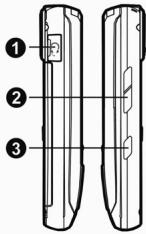
1 All-in-one Connect port
Volume Key
3 Camera Hot Key
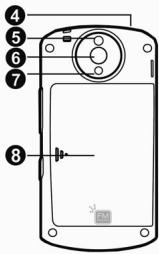
4 IrDA
5 Mirror
6 Camera
7 Flash
3 Battery
Tasti
II codice PIN (Personal Identification Number,
www. airnessmobile.com
1 All-in-one Connect port
Volume Key
3 Camera Hot Key
4 IrDA
5 Mirror
6 Camera
7 Flash
3 Battery
DE
Schnellzugriff
1 All-in-one Connect port
Volume Key
3 Camera Hot Key
4 IrDA
5 Mirror
6 Camera
7 Flash
3 Battery
Snelkoppelingen
Links: Naar "Bericht"
Rechts: Naar "Snelkoppelingen"
Omhoog: Naar "Bluetooth"