
TEW-826DAP - Wireless Access Point TRENDNET - Free user manual and instructions
Find the device manual for free TEW-826DAP TRENDNET in PDF.

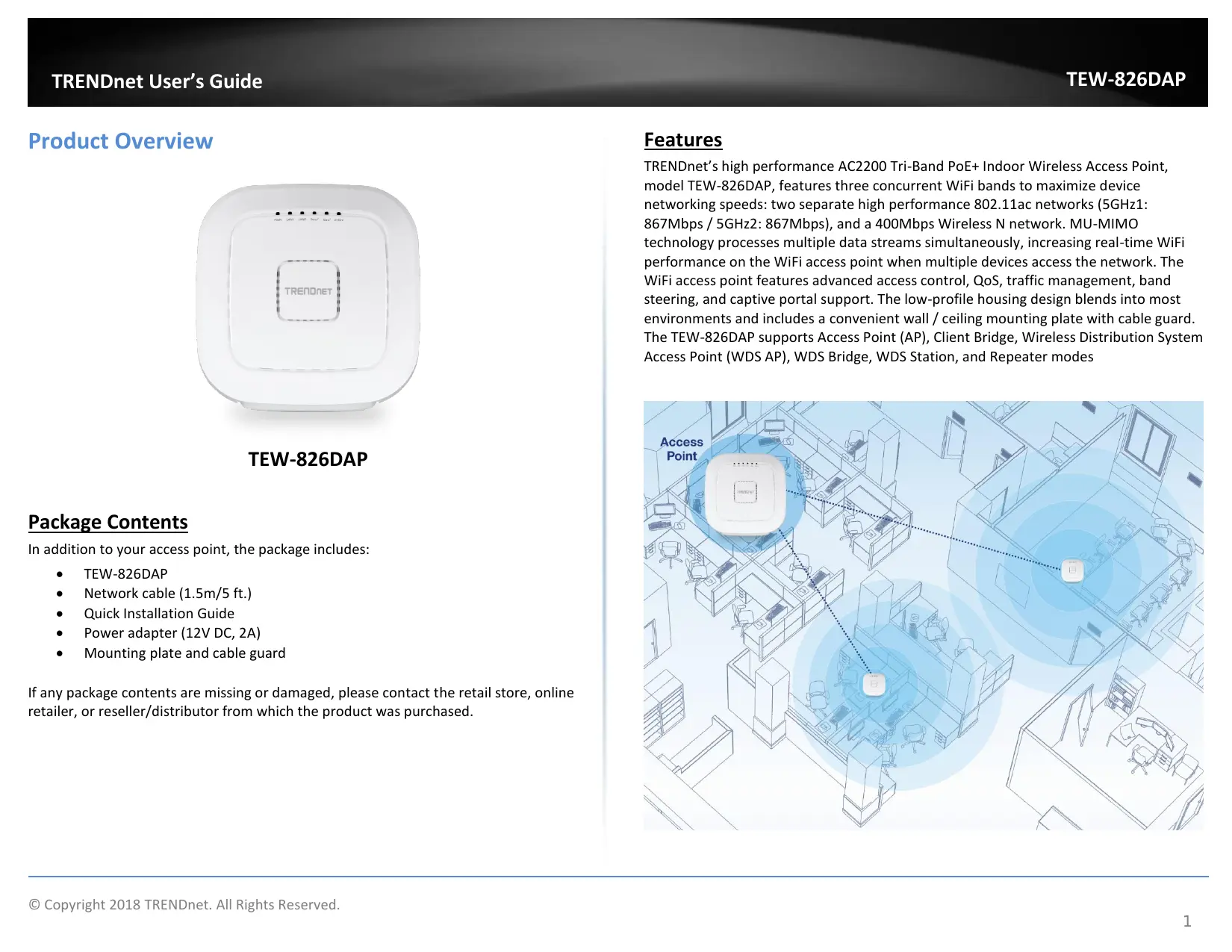

| Product Type | Tri-band Indoor Wireless Access Point |
| Model | TEW-826DAP |
| Brand | TRENDnet |
| Wi-Fi Bands | Tri-band: 867 Mbps (5 GHz1) + 867 Mbps (5 GHz2) + 400 Mbps (2.4 GHz) |
| Wireless Standards | IEEE 802.11ac, 802.11n, 802.11g, 802.11b, 802.11a |
| Maximum Theoretical Throughput | AC2200 (867 + 867 + 400 Mbps) |
| Ethernet Ports | 1 Gigabit PoE+ port (LAN1), 1 Gigabit port (LAN2) |
| Power Supply | 12V DC, 2A power adapter (included) or PoE+ (802.3af/at) |
| MU-MIMO | Yes, multi-user MIMO for simultaneous performance |
| Operating Mode | Access Point, Client Bridge, WDS (AP, Bridge, Station), Repeater |
| SSID Management | Up to 8 SSIDs per band (24 total) |
| Wireless Security | WEP, WPA, WPA2 (Personal/Enterprise), WPS, MAC filtering |
| Captive Portal | Yes (internal, RADIUS, redirect URL) |
| Band Steering | Yes, automatically directs clients to 5 GHz band |
| Quality of Service (QoS) | Bandwidth management per SSID, Airtime Fairness |
| LED Indicators | 5 LEDs (Power, LAN1, LAN2, 5 GHz1, 5 GHz2, 2.4 GHz) - controllable |
| Reset Button | Yes (press 15 seconds) |
| Mounting | Ceiling/wall with mounting plate and cable cover included |
| Dimensions | Approximately 200 x 200 x 30 mm (estimate) |
| Weight | Approximately 400 g (estimate) |
| Operating Temperature | 0°C to 40°C |
| Operating Humidity | 10% to 90% non-condensing |
| Certifications | FCC, CE, IC, RoHS |
| Warranty | Limited lifetime warranty (except power adapter: 1 year) |
Frequently Asked Questions - TEW-826DAP TRENDNET
User questions about TEW-826DAP TRENDNET
0 question about this device. Answer the ones you know or ask your own.
Ask a new question about this device
Download the instructions for your Wireless Access Point in PDF format for free! Find your manual TEW-826DAP - TRENDNET and take your electronic device back in hand. On this page are published all the documents necessary for the use of your device. TEW-826DAP by TRENDNET.
USER MANUAL TEW-826DAP TRENDNET
AC2200 Tri-Band PoE+ Indoor Wireless Access Point
TEW-826DAP
Table of Contents
Product Overview 1
Package Contents 1
Features 1
Product Hardware Features 3
Getting Started 4
Quick Reference 4
Application Diagram 4
Basic Setup. 5
Hardware Installation 6
Steps to improve wireless connectivity 6
Connect wireless devices to your access point 7
Initial Setup 8
Access the management page 8
Setup Wizard 8
Using the Utility 9
Status 11
Main. 11
Wireless Client List. 12
System Log. 13
IPv6 Status 13
System 14
Wizard 14
Operation Mode 14
IP Settings 15
Spanning Tree Settings 16
Band Steering. 16
IPv6 Settings 17
StaticIPv6 17
Auto Configuration (SLAAC/DHCPv6) 17
Captive Portal 18
Captive Portal with RADIUS (CoovaChilli) 18
Internal Captive Portal. 19
Redirect URL 22
Airtime Fairness 23
Wireless Networking and Security 24
How to choose the type of security for your wireless network 24
General Configuration 25
Secure your wireless network 25
Roaming Support (802.11k) 27
Wireless Bandwidth Control 27
RSSI Scanner 28
Wireless MAC filter 29
Connect wireless devices using WPS 30
Access Point. 32
Access Point: Wireless Network 32
Access Point: Wireless Profile (SSID) 34
Client Bridge 35
Client Bridge: Wireless Network 35
Client Bridge: Scan for wireless networks 36
WDS 38
WDS Link 38
Repeater 39
Repeater: Wireless Network 39
Repeater: Scan for wireless networks 40
Repeater: Advanced wireless settings 41
Management 43
Administration 43
Administrator Settings: 43
Device Name Settings: 43
Management VLAN 44
SNMP Settings 45
Backup/Restore Settings 46
Export Settings (backup your configuration): 46
Import Settings (restore from configuration): 46
Reset to Factory Defaults 46
SystemReboot: 47
Upgrade your firmware 47
Time and Date Settings 48
Automatically set using NTP: 48
Daylight Saving Time: 48
NTP Settings: 48
Date and Time Settings (manually set): 48
Schedules 49
SSH Management 50
Log 50
Diagnostics. 51
Ping Test Parameter: 51
Traceroute Parameter: 51
Download Technical Support Data: 51
LED Control 52
AP utility 53
Installation 53
Device Settings 53
Add and Delete Device 54
Add device: 54
Delete Device: 54
Upgrade Firmware 55
Load configuration 55
Access Points 56
Clients 57
Statistics. 57
Technical Specifications 59
Troubleshooting 62
Appendix 63
Product Overview
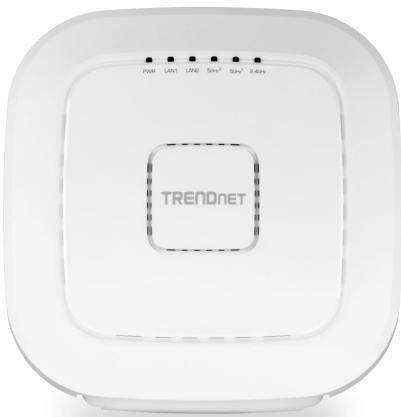
TEW-826DAP
Package Contents
In addition to your access point, the package includes:
- TEW-826DAP
Network cable (1.5m/5 ft.) - Quick Installation Guide
Power adapter (12V DC, 2A) - Mounting plate and cable guard
If any package contents are missing or damaged, please contact the retail store, online retailer, or reseller/distributor from which the product was purchased.
Features
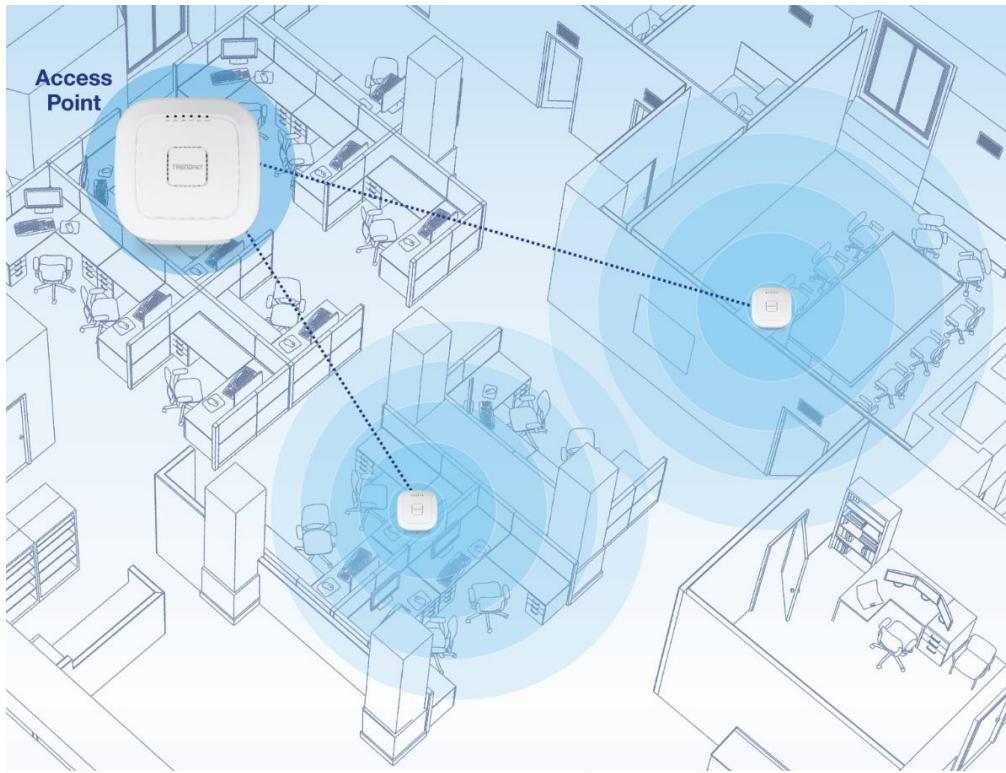
TRENDnet's high performance AC2200 Tri-Band PoE+ Indoor Wireless Access Point, model TEW-826DAP, features three concurrent WiFi bands to maximize device networking speeds: two separate high performance 802.11ac networks (5GHz1: 867Mbps / 5GHz2: 867Mbps), and a 400Mbps Wireless N network. MU-MIMO technology processes multiple data streams simultaneously, increasing real-time WiFi performance on the WiFi access point when multiple devices access the network. The WiFi access point features advanced access control, QoS, traffic management, band steering, and captive portal support. The low-profile housing design blends into most environments and includes a convenient wall / ceiling mounting plate with cable guard. The TEW-826DAP supports Access Point (AP), Client Bridge, Wireless Distribution System Access Point (WDS AP), WDS Bridge, WDS Station, and Repeater modes
Tri-Band WiFi
AC2200 Tri-Band: 867Mbps (5GHz1) + 867Mbps (5GHz2) + 400Mbps (2.4GHz) bands
Power over Ethernet (PoE+)
Saves installation time and costs with gigabit PoE+ support (optional power port for non-PoE+ installations)
WiFi Operation Modes
The WiFi access point supports Access Point (AP), Client Bridge, WDS AP, WDS Bridge, WDS Station, and Repeater modes for each WiFi band independently
Gigabit Port
One gigabit PoE+ input port to power and connect the AP to the network, and one gigabit port to connect a nearby device
Wireless Coverage
Extended wireless coverage with MU-MIMO antenna technology
MU-MIMO Performance
MU-MIMO technology enables the access point to process multiple data streams simultaneously, and increases real-time WiFi performance
Pre-Encrypted Wireless
For your convenience, the WiFi access point's WiFi bands are pre-encrypted with unique passwords
Band Steering
Band steering alleviates network congestion by automatically directing wireless devices from the 2.4 GHz band to the 5 GHz band
WiFi Traffic Shaping
Manage traffic allocation per SSID for each band separately
Multiple SSDs
Create up to 8 SSDs per band (24 total)
LED Control
Reduce product visibility by disabling LED indicators
Low Profile
Low-profile housing design blends into most environments
Mounting Plate
Wall / Ceiling mounting plate with cable guard
Disclaimer
*Maximum wireless signal rates are referenced from IEEE 802.11 theoretical specifications. Actual data throughput and coverage will vary depending on interference, network traffic, building materials and other conditions. For maximum performance of up to 867Mbps use with an 867Mbps 802.11ac wireless adapter. For maximum performance of up to 400Mbps, use with a 400Mbps 802.11n wireless adapter. Multi-User MIMO (MU-MIMO) requires the use of multiple MU-MIMO enabled wireless adapters.
Product Hardware Features
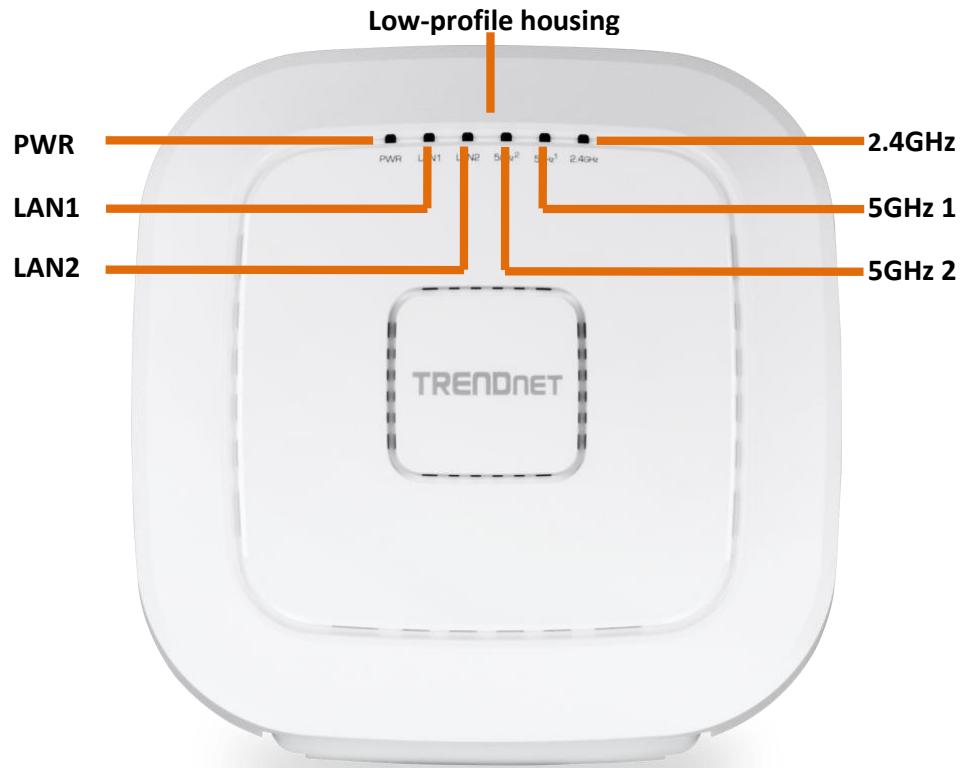
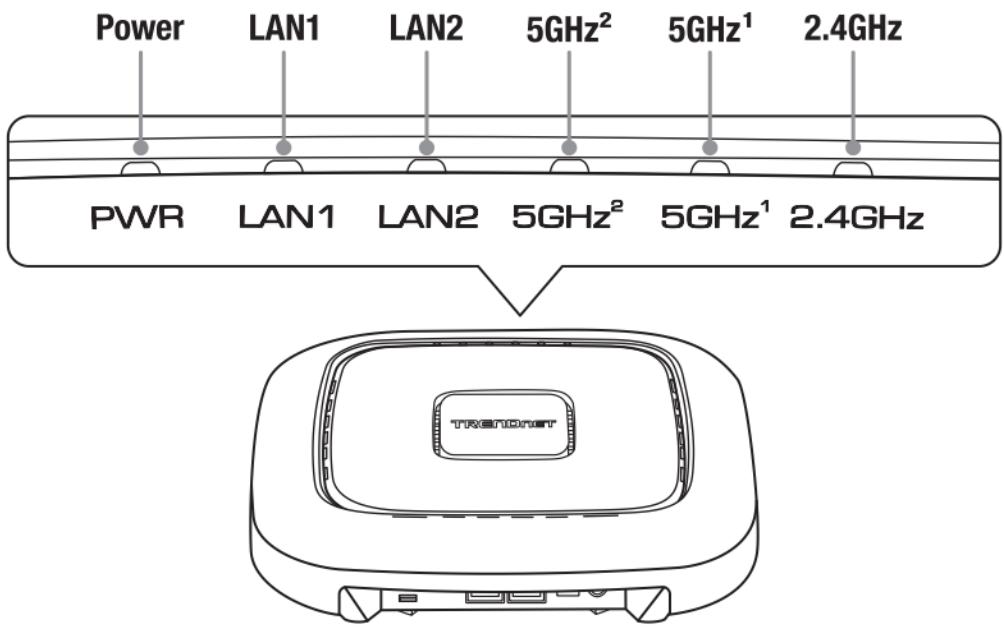
- PWR: This indicator turns green when the device is powered.
- LAN1: This LED indicator turns green when the access point's LAN1 port is connected. The LED indicator blinks during data transmission.
- LAN2: This LED indicator turns green when the access point's LAN2 port is connected. The LED indicator blinks during data transmission.
- 5GHz2: This LED indicator turns green when the wireless is enabled. The LED indicator blinks during data transmission.
- 5GHz1: This LED indicator turns green when the wireless is enabled. The LED indicator blinks during data transmission.
- 2.4GHz: This LED indicator turns green when the wireless is enabled. The LED indicator blinks during data transmission.
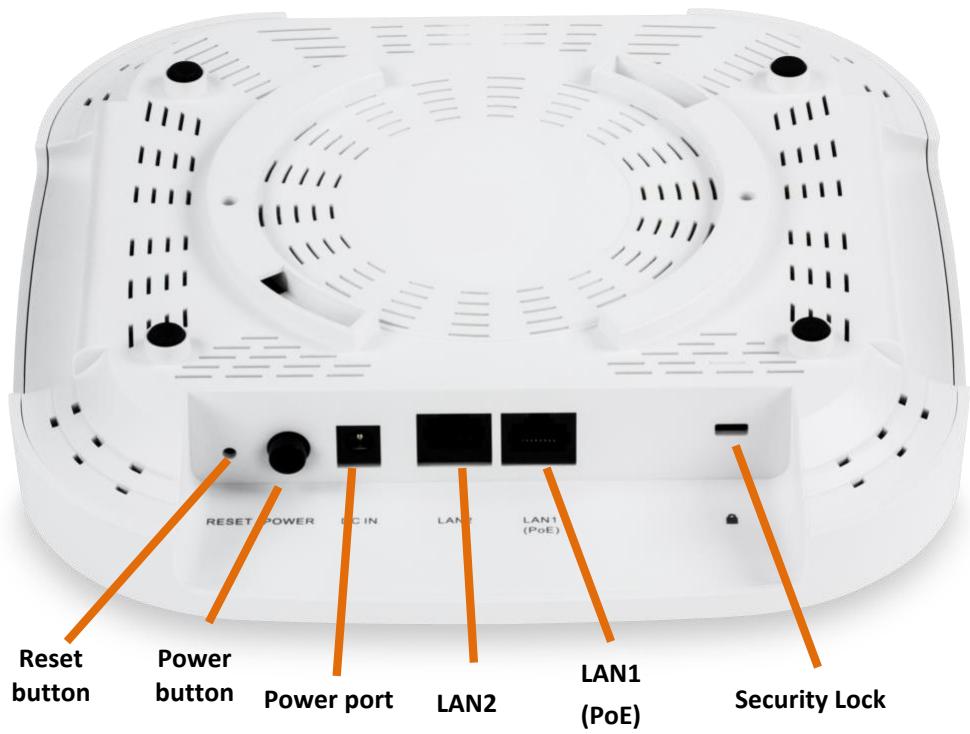
- Reset button: Use a sharp tool to press and hold this button for 15 seconds to reset the access point.
- Power button: If your access point is to be powered using the power adapter, this toggle button can be used to turn on or off the access point. Note: this only affects the Power port connection; this button has no function if your access point is powered by a PoE+ connection.
- Power port (optional): If you are not using PoE+ to power the AP, you can connect the power adapter from your access point power port to an available power outlet.
- Gigabit LAN2 port: Plug an Ethernet cable (also called network cables) from your access point to your router and/or wired network devices.
- Gigabit LAN1 PoE+ port: Plug an Ethernet cable (also called network cables) from your access point to your router and/or wired network devices. The Gigabit port complies with standard 802.3af/at PoE/PoE+ so you can power this AP with a PoE+ switch or injector that complies with 802.3af/at.
- Security Lock: You may choose to secure this AP using compatible security locks including Kensington Locks.
Getting Started
Quick Reference
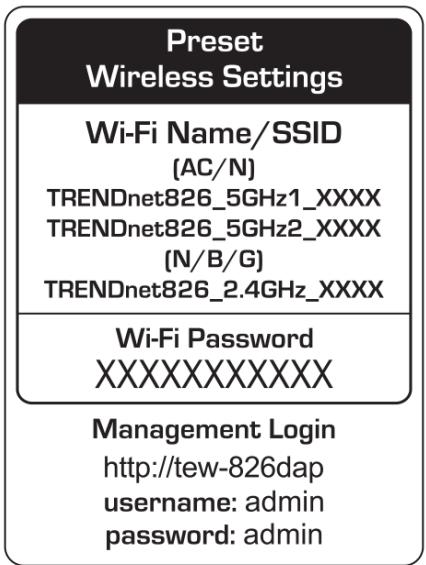
Note: By default, the wireless network name/SSID and wireless encryption settings have been pre-configured for your convenience and can be located on the included preset wireless settings sticker or on the device label located on the back of the access point. By default, the access point web management configuration page can be accessed using the URL http://tew-826dap or using the default LAN IP address http://192.168.10.100. At default settings and initial setup, if the access point is connected to a network with a DHCP server providing IP address settings automatically, the access point will obtain IP address settings from the network DHCP server and if no DHCP server is available, the access point will use the default IP address settings 192.168.10.100 / 255.255.255.0.
| Preset Wireless Settings |
| Wi-Fi Name/SSID [AC/N] |
| TRENDnet826_5GHz1_XXXX |
| TRENDnet826_5GHz2_XXXX |
| [N/B/G] |
| TRENDnet826_2.4GHz_XXXX |
| Wi-Fi Password |
| XXXXXXXXXX |
| Management Login http://tew-826dap username: admin password: admin |
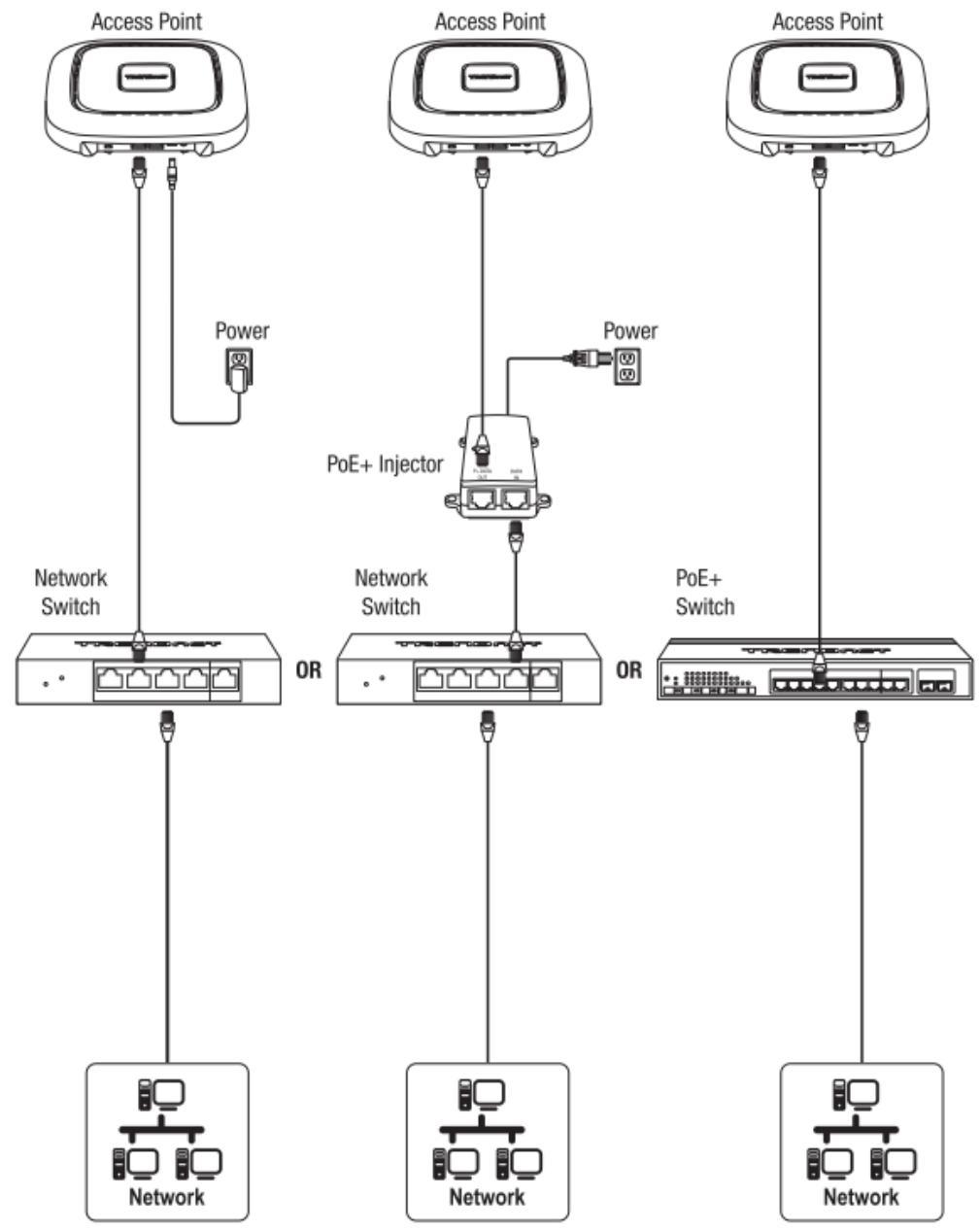
Application Diagram
Basic Setup
Note: It is strongly recommended to configure the access point first before mounting.
For a typical wireless setup at home or office when using the access point in AP mode, please do the following:
- Connect the power adapter to the power port of the access point. Or simply plug an Ethernet cable on the access point to a PoE+ (Power over Ethernet+) switch that connects to your router or network.
a. If using the power adapter, plug an Ethernet cable to either LAN1 or LAN2 on the access point and plug the other end to your access point or network, and then depress the Power button
- The PWR, 5GHz1, 5GHz2, 2.4GHz, and the LAN (whichever is used to connect to the network) LEDs will all turn on to indicate that the access point is ready.
- For your security, each TEW-826DAP comes pre-encrypted with a unique WiFi Name (SSID) and WiFi Password. You can find your device'sSSID and WiFi password on the white labels located on the device. Use this information to connect to the TEW-826DAP access point.
- Verify your connection to you network by accessing the Internet. For advanced configuration continue to the advanced sections of the user manual. (see "Access the management page" on page 8)
Hardware Installation
To mount the access point, first route the network cable through the largest opening in the mounting plate and install the mounting plate to the desired wall or ceiling using the included drywall anchors and screws. Install the mounting plate with the clips facing away from the wall or ceiling. If wall mounting, install the mounting plate with the correct orientation. After the mounting plate is properly installed, connect the network cable to the network LAN1 port of the access point, align the access point mounting holes with the mounting plate clips and rotate the access point clockwise to lock into place. Finally, install the cable guard by sliding it onto the mounting plate until it locks into place.
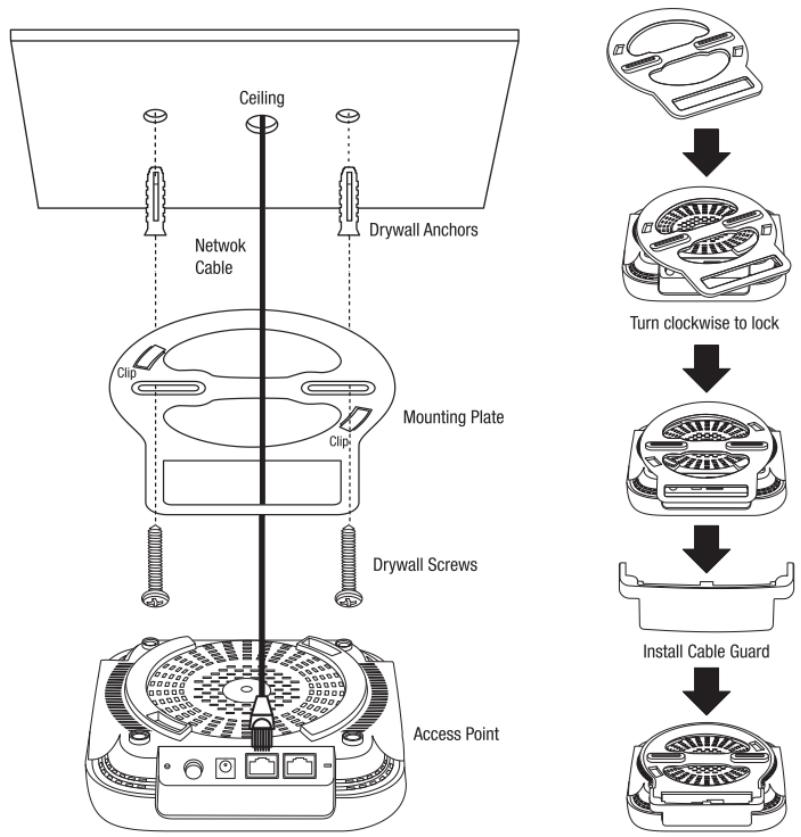
Ceiling mounting
Steps to improve wireless connectivity
There are a number of factors that can impact the range of wireless devices. Follow these tips to help improve your wireless connectivity:
- Keep the number of obstructions to a minimum. Each obstruction can reduce the range of a wireless device. Position the wireless devices in a manner that will minimize the amount of obstructions between them.
a. For the widest coverage area, install your access point near the center of your home, and near the ceiling, if possible.
b. Avoid placing the access point on or near metal objects (such as file cabinets and metal furniture), reflective surfaces (such as glass or mirrors), and masonry walls.
c. Any obstruction can weaken the wireless signal (even non-metallic objects), so the fewer obstructions between the access point and the wireless device, the better.
d. Place the access point in a location away from other electronics, motors, and fluorescent lighting.
e. Many environmental variables can affect the access point's performance, so if your wireless signal is weak, place the access point in several locations and test the signal strength to determine the ideal position. - Building materials can have a large impact on your wireless signal. In an indoor environment, try to position the wireless devices so that the signal passes through less dense material such as dry wall. Dense materials like metal, solid wood, glass or even furniture may block or degrade the signal.
- Antenna orientation can also have a large impact on your wireless signal. Use the wireless adapter's site survey tool to determine the best antenna orientation for your wireless devices.
- Interference from devices that produce RF (radio frequency) noise can also impact your signal. Position your wireless devices away from anything that generates RF noise, such as microwaves, radios and baby monitors.
If possible, upgrade wireless network interfaces (such as wireless cards in computers) from older wireless standards to 802.11n. If a wirelessly networked device uses an older standard, the performance of the entire wireless network may be slower. If you are still experiencing low or no signal, consider repositioning the wireless devices or installing additional access points.
Connect wireless devices to your access point
A variety of wireless network devices can connect to your wireless network such as:
Gaming Consoles
- Internet enabled TVs
Network media players
Smart Phones
Wireless Laptop computers
- Wireless IP cameras
Each device may have its own software utility for searching and connecting to available wireless networks, therefore, you must refer to the User's Manual/Guide of your wireless client device to determine how to search and connect to this access point's wireless network.
See the "Appendix" on page 62 for general information on connecting to a wireless network.
Initial Setup
Access the management page
Note: Your access point management page URL/domain name http://TEW-826dap or IP address (default: http://192.168.10.100) is accessed through the use of your Internet web browser (e.g. Internet Explorer, Firefox, Chrome, Safari, Opera) and will be referenced frequently in this User's Guide.
If there is no DHCP server on your network and you are configuring a factory default unit you MUST statically configure the IP address and subnet mask of your computer to the following:
IP Address: 192.168.10.xxx (except 192.168.10.100)
Subnet Mask: 255.255.255.0
- Open your web browser (e.g. Internet Explorer, Firefox, Safari, Chrome, or Opera) and go to URL/domain name http://TEW-826dap or IP address http://192.168.10.100. Your access point will prompt you for a user name and password.

- You can find your device's default SSID and WiFi password on the white labels located on the device. Use this information to connect to the TEW-826DAP access point.
Preset
Wireless Settings
Wi-Fi Name/SSID
[AC/N]
TRENDnet826_5GHz1_XXXXX
TRENDnet826_5GHz2_XXXXX
(N/B/G)
TRENDnet826_2.4GHz_XXXXX
Wi-Fi Password
XXXXXX
Management Login
http://tew-826dap
username:admin
password:admin
- Enter yourUsername and Password, select your preferred language, and then click Login.
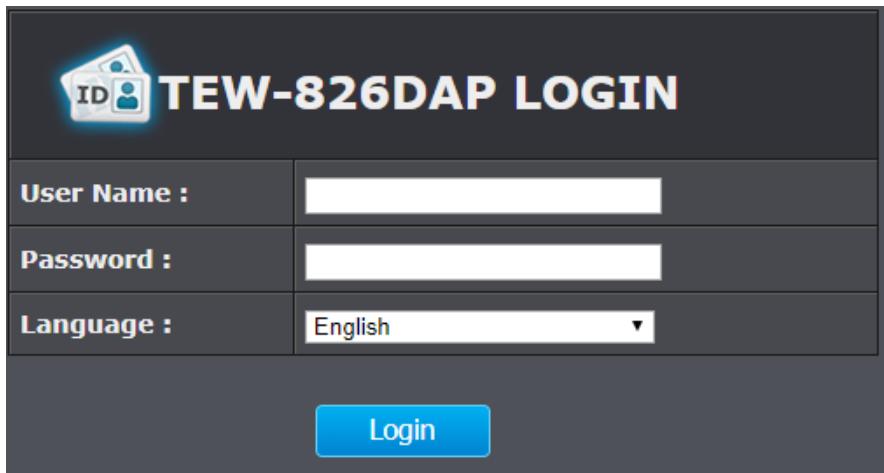
Setup Wizard
If it is the first-time you are logging into the device, you will automatically be prompted to run through the setup wizard.
- For your security, the first step is to change the login password of the access point. Enter your new login password and click OK.

- Your new password settings will be applied and you will be redirected to the login screen. You will need to use the new login password to proceed.

Using the Utility
For additional information on the utility please go to utility section.
- Download the latest version of the utility by navigating to http://www.trendnet.com/support and selecting model TEW-826DAP within the Product Download drop-down list.
- Extract the contents of the .zip file and run the .exe installer to install the utility.
- Once the utility is installed click on Discover to refresh the list of access points.
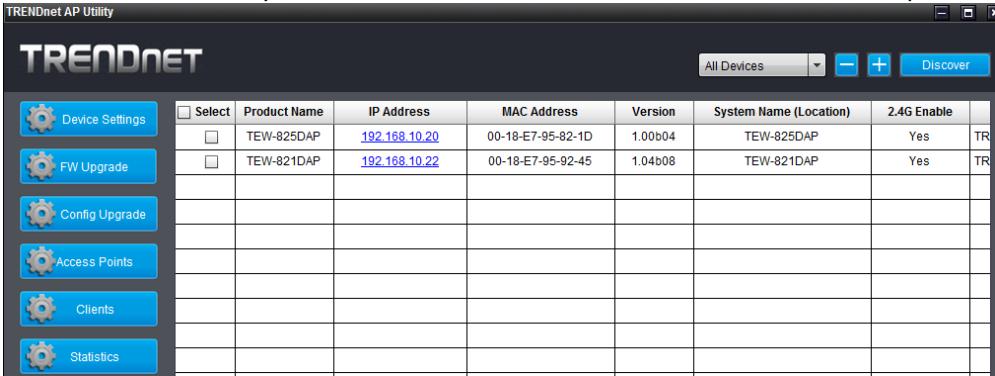
- Select the access point you want to configure.
| □ Select | Product Name | IP Address | MAC Address | Version | System Name (Location) | 2.4G Enable |
| □ | TEW-825DAP | 192.168.10.20 | 00-18-E7-95-82-1D | 1.00b04 | TEW-825DAP | Yes |
| ✓ | TEW-821DAP | 192.168.10.22 | 00-18-E7-95-92-45 | 1.04b08 | TEW-821DAP | Yes |
- Click on Device settings to configure the access point.
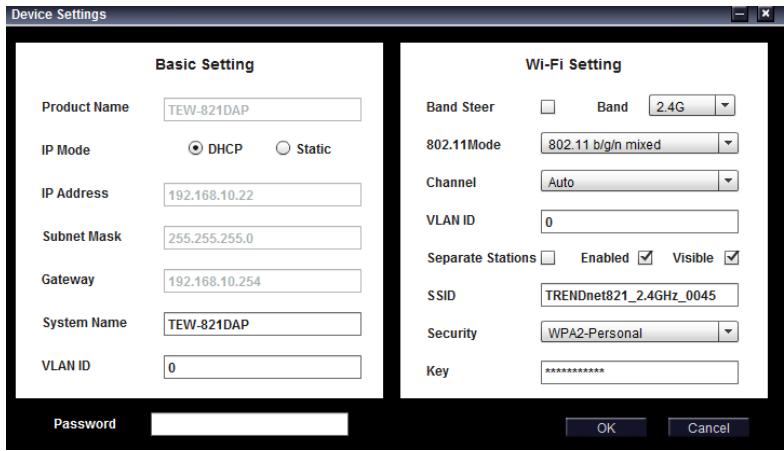
- Product Name: Displays the device model
- IP Mode: Select the IP mode to apply on the device
○ DHCP: Select this option to allow the device to receive IP address from your DHCP server
Static: Select this option to manually set the IP address of the device
IP Address: Enter the IP address to assign to the device
- Subnet Mask: Enter the subnet mask to assign to the device
- Gateway: Enter the gateway IP address to assign to the device
- System Name: Assign name of the device to help distinguish between similar devices
- VLAN ID: Assigns the VLAN ID for the Ethernet port.
- Band Steer: Select this to enable/disable band steering (Only available on dual band AP models)
- Band: Select on the pull-down menu the wireless interface to configure (5GHz only available on dual band AP models)
802.11 Mode: Select the 802.11 mode of the selected wireless interface
- Channel: Select the wireless channel of the selected wireless interface
- VLAN ID: Assigns the VLAN ID for the primary SSID.
- Separate Stations: Select this option to restrict wireless client devices from accessing other client devices connected to this network(s).
- Enable: Select this option to enable the selected wireless interface
- Visible: Select this option to wireless broadcast the selected wireless interface
SSID: Enter the SSID (Wireless Network Name) of the selected wireless interface
- Security: Select the wireless encryption security for to assign the selected wireless interface
Key: Enter the wireless encryption security key or password
- Password: Enter the login password of the device and click OK to save settings
Status
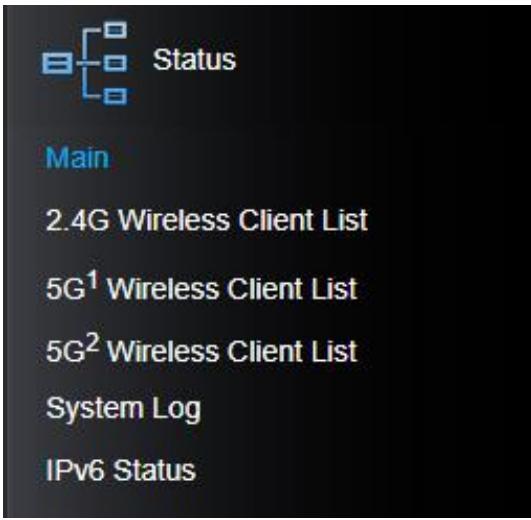
Main
Status > Main
This section displays the status and other related information regarding the Access Point.
- Log into your management page (see "Access the management page" on page 8).
- Click on Status, and click on Main.
-
Review the settings:
-
System Info: Following table displays information on the device.
Device Name: Displays the name assigned to the device.
- Firmware Version: Displays the current firmware version installed on this device.
- System Time: Displays the current time and date set on the device.
- System Up Time: Displays the duration that this device has been powered on.
Network: Following table displays the network information of this device.
MAC Address: Displays this device's LAN MAC address.
IP Address: Displays the current IP address of this device.
Subnet Mask: Displays the current subnet mask assigned to this device.
O Default Gateway: Displays the current Gateway of this device.
Primary Domain Name Server: Displays the current primary DNS server of this device.
Secondary Domain Name Server: Displays the current primary DNS server of this device.
- 2.4GHz/5GHz1/5GHz2 Wireless: Following tables display each band's respective wireless information.
Operation Mode: Displays the current operation mode set on the specific wireless radio.
- Wireless Mode: Displays the 802.11a/b/g/n/ac mode of the specific wireless radio.
○ Channel Width: Displays the channel width of the specified wireless radio. (MHz)
Frequency (Channel): Displays the channel that the specific wireless radio is broadcasting on.
○ TX (Packets): Displays the amount of data that this wireless radio has transmitted. (KB-Kilo Bytes; PKts.-Packets)
RX (Packets): Displays the amount of data that this wireless radio has transmitted. (KB-Kilo Bytes; PKts.-Packets)
○ SSID List: Displays all configured wireless SSID's for this wireless radio and its MAC Address, Security Mode, and Status.
Wireless Client List
Note: this status page will change depending on the selected Operation Mode of the wireless radios.
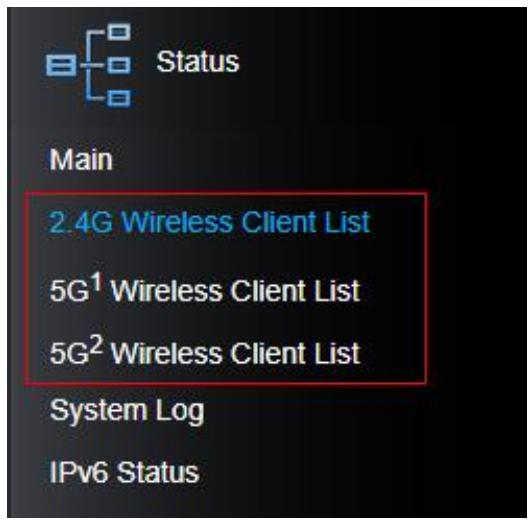
Status >2.4G / 5G1 / 5G2 Wireless Client List
This section displays the wireless clients connected to the specified wireless radio.
- Log into your management page (see "Access the management page" on page 8).
- Click on Status, and click on 2.4G Wireless Client List, 5G1 Wireless Client List, and 5G2 Wireless Client List.
- Review the settings:
| Wireless Network | ||||||
| SSID:# | MAC Address | Mode | Rate | Signal | TX(Bytes)RX(Bytes) | Kick and Ban |
| SSID#0 | 30:52:cb:80:51:e5 | WME | 866M | 100 | 314.357M4.249M | Kick and Ban |
SSID:#-Displays the SSID that this client is connected to.
- MAC Address—Displays the MAC Address of the connected client.
Mode-Displays the wireless mode of the connected client.
- Rate-Displays the wireless link rate of the connected client in Megabits per second.
- Signal-Displays the signal strength as a percentage (\%) out of 100 (max).
TX(Bytes)//RX(Bytes)-Displays the amount of data sent (on top) and received (on bottom).
- Kick and Ban—Click this button to kick and ban the MAC Address from being able to connect on this radio.
System Log
Status > System Log
System log keeps track of changes made to the access point.
- Log into your management page (see "Access the management page" on page 8).
- Click on the Status tab and click System Log.
| System Log | ||||||||
| Sep 11 | 17:10:00 | TEW-826DAP | USER | root | pid | 30906 | cmd | cameo-schedule-cron.sh |
| Sep 11 | 17:11:00 | TEW-826DAP | USER | root | pid | 31468 | cmd | cameo-schedule-cron.sh |
| Sep 11 | 17:12:00 | TEW-826DAP | USER | root | pid | 32025 | cmd | cameo-schedule-cron.sh |
| Sep 11 | 17:13:00 | TEW-826DAP | USER | root | pid | 32572 | cmd | cameo-schedule-cron.sh |
| Sep 11 | 17:14:00 | TEW-826DAP | USER | root | pid | 696 | cmd | cameo-schedule-cron.sh |
| Sep 11 | 17:15:00 | TEW-826DAP | USER | root | pid | 1258 | cmd | cameo-schedule-cron.sh |
| Sep 11 | 17:16:00 | TEW-826DAP | USER | root | pid | 1827 | cmd | cameo-schedule-cron.sh |
| Sep 11 | 17:17:00 | TEW-826DAP | USER | root | pid | 2408 | cmd | cameo-schedule-cron.sh |
| Sep 11 | 17:18:00 | TEW-826DAP | USER | root | pid | 2969 | cmd | cameo-schedule-cron.sh |
| Sep 11 | 17:19:00 | TEW-826DAP | USER | root | pid | 3530 | cmd | cameo-schedule-cron.sh |
| Sep 11 | 17:20:00 | TEW-826DAP | USER | root | pid | 4090 | cmd | cameo-schedule-cron.sh |
| Sep 11 | 17:21:00 | TEW-826DAP | USER | root | pid | 4670 | cmd | cameo-schedule-cron.sh |
| Sep 11 | 17:22:00 | TEW-826DAP | USER | root | pid | 5217 | cmd | cameo-schedule-cron.sh |
| Sep 11 | 17:23:00 | TEW-826DAP | USER | root | pid | 5770 | cmd | cameo-schedule-cron.sh |
| Sep 11 | 17:24:00 | TEW-826DAP | USER | root | pid | 6357 | cmd | cameo-schedule-cron.sh |
Refresh
Clear
- Refresh: Clicking Refresh allows the access point to update the log with any new data that has not been previously logged yet.
- Clear: Clears all the data saved previously onto the log.
IPv6 Status
Status > IPv6 Status
This section displays the device's IPv6 status information
- Log into your management page (see "Access the management page" on page 8).
- Click on the Status tab and click IPv6 Status.
| Network | |
| IPv6 Connection Type | Local Connectivity Only |
| LAN IPv6 Link-Local Address | fe80::daeb:97ff:fe33:6b1/64 |
System
Wizard
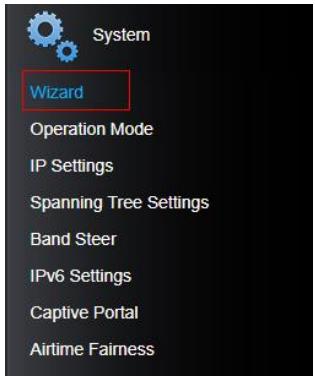
System > Wizard
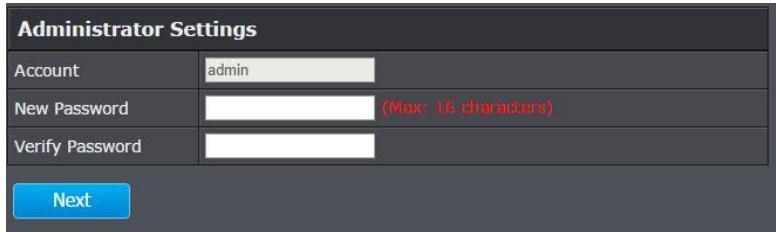
You are able to set a new password using the password wizard.
If it is the first-time you are logging into the device, you will automatically be prompted to run through the setup wizard.
- Log into your management page (see "Access the management page" on page 8).
- Click on System and Wizard.
- Enter and re-enter your new login password and click OK.
- Your new password settings will be applied and you will be redirected to the login screen. You will need to use the new login password to proceed.

Operation Mode
System > Operation Mode
This section outlines the available operating modes available on the access point.
- Log into your management page (see "Access the management page" on page 8).
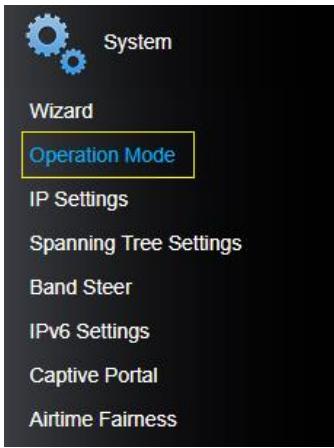
- Click on System and Operation Mode.
- Select the operating mode to apply on each wireless band.
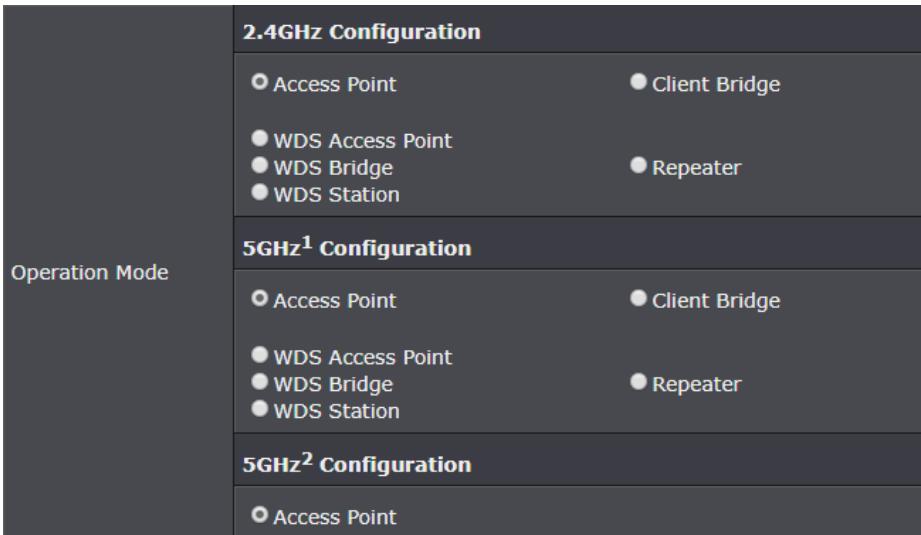
- Access Point: In this mode, the device creates a wireless network to your existing network.
- Client Bridge: Select this mode to allow the access point the ability to wireless connect to your wireless network. This is similar to a wireless laptop or mobile device connecting to a wireless network.
- WDS Access Point: In the mode, the access point connects to other WDS bridge enable devices for backbone communication and provides wireless connection to clients (STAs) at the same time.
- WDS Bridge: When this mode is selected the access point connects ONLY to other WDS bridge enabled devices and local networks (the other wireless interface and Ethernet interface) as a wireless backbone bridge.
- WDS Station: The wireless interface connects to other WDS bridge enabled devices for backbone communication and connects to other wireless access points at the same time. Use this mode to pair with the next hop access point as a WDS network outlet.
Note: Please note that only one bridge can be set up on 2.4GHz or 5.0GHz band, but not both. -
Repeater: In this mode, the wireless interface repeats wireless signal and packets for backbone communication as well as a client access. This feature is used to expand your existing wireless network to areas that your current access point is unable to reach. Make sure all of the settings of the wireless interface matches to your root or connecting wireless access points, sameSSID, channel and wireless encryption settings.
-
Click on the Save button then click on the flashing Apply/Discard button located on the top left section, and click Save & Apply to apply the settings.
Save
Apply/Discard Changes: 0
Save & Apply
Note: Your configurations are not saved and applied until you click on Apply/Discard Changes button. The Save & Apply step saves and applies all configuration changes.
IP Settings
System > IP Settings
In most cases, you do not need to change the IP address settings. Typically, the IP address settings only needs to be changed, if you plan to use another access point in your network with the same IP address settings, if you are connecting your access point to an existing network that is already using the IP address settings your access point is using.
Note: If you are not encountering any issues or are not faced with one of the cases described above or similar, it is recommended to keep your device's IP address settings as default. Default IP Address and Subnet mask: 192.168.10.100 / 255.255.255.0
- Log into your management page (see "Access the management page" on page 8).
- Click on the System tab and click IP Settings.
- Review the settings and click Save to save changes.
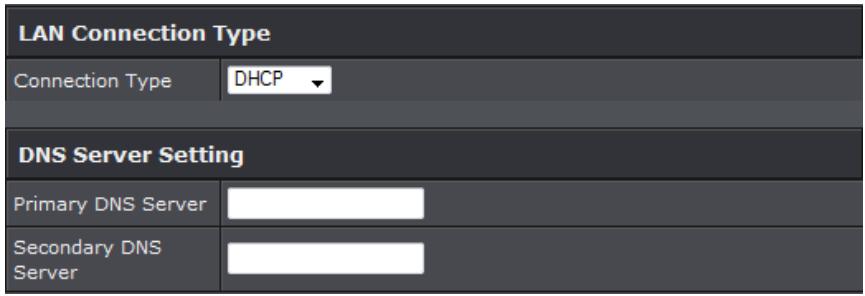
- Connection Type: Select on the pull-down menu the LAN connection type.
○ DHCP: Select this option to have the access point obtain an IP address from your DHCP server
STATIC: Select this option to manually assign and IP address to your access point
DNS Server: Enter your network's DNS server IP address
- Click on the Save button then click on the flashing Apply/Discard button located on the top left section, and click Save & Apply to apply the settings.
Save
Apply/Discard Changes: 0
Save & Apply
Note: Your configurations are not saved and applied until you click on Apply/Discard Changes button. The Save & Apply step saves and applies all configuration changes.
Spanning Tree Settings
System > Spanning Tree Settings
- Log into your management page (see “Access the management page” on page 8).
- Click on the System tab and click Spanning Tree Settings.
- Review the settings and click Save to save changes.
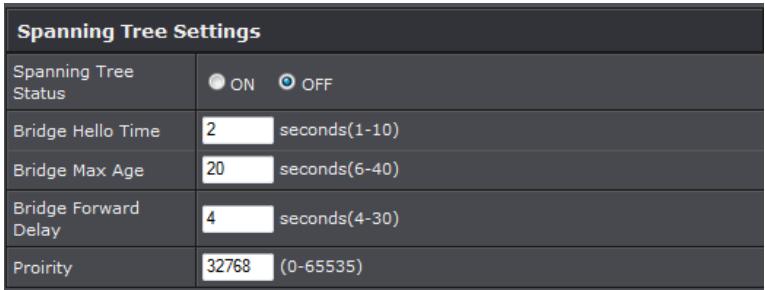
- Spanning Tree Status: Select ON or OFF to enable or disable spanning tree feature.
- Bridge Hello Time: Enter the bridge duration
- Bridge Max Age: Enter the max duration
- Bridge Forward Delay: Enter the delay duration
-
Priority: Enter the priority
-
Click on the Save button then click on the flashing Apply/Discard button located on the top left section, and click Save & Apply to apply the settings.
Save
Apply/Discard Changes: 0
Save & Apply
Note: Your configurations are not saved and applied until you click on Apply/Discard Changes button. The Save & Apply step saves and applies all configuration changes.
Band Steering
System > Band Steering
When 2.4GHz and both 5GHz bands are all using the same SSID and WiFi security settings, band steering allows the AP to automatically detect if clients are 11AC capable and automatically pushing them over to the underutilized 5GHz bands. This allows your AP to use both bands more efficiently and making sure clients capable of the 11AC standard for faster speeds are establish WiFi links at 11AC connectivity whenever possible.
- Log into your management page (see "Access the management page" on page 8).
- Click on the System tab and click Band Steer.
- Select enable to turn on band steering feature and click Save to save settings.
Band steering
Enable
- Click on the Save button then click on the flashing Apply/Discard button located on the top left section, and click Save & Apply to apply the settings.
Save
Apply/Discard Changes: 0
Save & Apply
Note: Your configurations are not saved and applied until you click on Apply/Discard Changes button. The Save & Apply step saves and applies all configuration changes.
To enable band steering, you have to setup steering SSID the same in both 2.4GHz and 5GHz
IPv6 Settings
System > IPv6 Settings
- Log into your management page (see “Access the management page” on page 8).
- Click on the System tab and click IPv6 Settings.
| IPv6 Connection Type | |
| Choose the mode to be used by the AP to connect to the IPv6 Internet. | |
| My IPv6 Connection is | Local Connectivity Only |
| Local Connectivity Only | |
| Static IPv6 Autoconfiguration (SLAAC/DHCPv6) | |
- Choose your IPv6 Connection Type.
- Click on the Save button then click on the flashing Apply/Discard button located on the top left section, and click Save & Apply to apply the settings.


Note: Your configurations are not saved and applied until you click on Apply/Discard Changes button. The Save & Apply step saves and applies all configuration changes.
Static IPv6
Static IPv6 are static IP addresses that are usually provided by your Internet Service Provider (ISP).
- Review the Static IPv6 settings below.
| LAN IPv6 ADDRESS SETTINGS | |
| Enter the information provided by your Internet Service Provider (ISP). | |
| LAN IPv6 Address | |
| Subnet Prefix Length | 0 |
| Default Gateway | |
| Primary DNS Server | |
| Secondary DNS Server | |
LAN IPv6 Address: Enter the IPv6 IP address provided to you by your Internet Service Provider (ISP)
- Subnet Prefix Length: Enter the prefix length of your subnet mask
- Default Gateway: Enter the default gateway of your Internet Service Provider (ISP)
- Primary DNS Server / Secondary DNS Server: Enter the Primary and Secondary DNS server provided to you by your local Internet Service Provider (ISP)
Auto Configuration (SLAAC/DHCPv6)
- Review the IPv6 DNS Settings below.
| IPv6 DNS SETTINGS | |
| Obtain DNS server address automatically or enter a specific DNS server address. | |
| ○ | Obtain IPv6 DNS server address automatically |
| ● | Use the following IPv6 DNS servers |
| Primary DNS Server | |
| Secondary DNS Server | |
-
Select either Obtain IPv6 DNS server address automatically or Use the following IPv6 DNS Servers.
-
Obtain IPv6 DNS server address automatically: Selecting this option will allow the access point to automatically search for the DNS server address that is provided by your Internet Service Provider (ISP)
- Use the following IPv6 DNS Servers: Selecting this option enables you to manually input the Primary and Secondary DNS Servers
Captive Portal
System > Captive Portal
The captive portal feature allows you to provide customized authentication typically for public WiFi users and guest user authentication. Captive Portal authentication for WiFi is typically used in areas such as hotel lobbies, airports, coffee shops and other WiFi hot spots. The access points supports both captive portal authentication through the built-in user account database and basic portal customization or CoovaChilli which is an open-source implementation of captive portal (UAM) function and 802.1X RADIUS (please note CoovaChilli requires an external CoovaChilli server which must be preconfigured to work and authenticate requests through the access point). You may want to disable standard WiFi security methods on the selected SSDs such as WEP/WPA/WPA2 in order to use the captive portal authentication method instead. Before applying captive portal functionality to select wireless profiles, the captive portal type must be configured first along with all required parameters.
Select the captive portal mode:
- Internal Captive Portal – This mode allows you to authenticate requests through the built-in user account database and apply basic customization to the captive port user login page. This option is recommended and does not require an external authentication server.
- Redirect URL - This mode requires no authentication and allows redirection of users to a specific website/URL.
- Captive Portal with RADIUS (CoovaChilli) – This mode requires an external CoovaChilli server to be configured to provide the captive portal user login page and authenticate request through the access point.
Captive Portal with RADIUS (CoovaChilli)
Assuming your external CoovaChilli server has been installed and configured to authenticate requests through the access point.
- Log into your management page (see "Access the management page" on page 8).
- Click on the System tab and click Captive Portal.
- Choose the Captive Portal mode Captive Port with RADIUS.
| Mode | |
| Select Mode | Captive Portal with Radius▼ |
- Check the Enable option for the Enable Captive Portal setting to enable the captive portal feature. Tick which SSIDs to apply and require the captive portal authentication function.
| Which wifi(s) support Captive Portal | |
| Enable Captive Portal | Enable Disable |
| 2.4G | 5G |
| ■SSID #1: TRENDnet821_2.4GHz_0045 | ■SSID #1: TRENDnet821_5GHz_0045 |
| ■SSID #2:(Off) | ■SSID #2:(Off) |
| ■SSID #3:(Off) | ■SSID #3:(Off) |
| ■SSID #4:(Off) | ■SSID #4:(Off) |
| ■SSID #5:(Off) | ■SSID #5:(Off) |
| ■SSID #6:(Off) | ■SSID #6:(Off) |
| ■SSID #7:(Off) | ■SSID #7:(Off) |
| ■SSID #8:(Off) | ■SSID #8:(Off) |
- Enter the CoovaChilli server settings. Primary RADIUS Server - Enter the IP address of the external CoovaChilli authentication server.
| RADIUS Settings | ||
| Primary RADIUS Server: | ||
| Secondary RADIUS Server: | ||
| RADIUS Auth Port: | 1812 | |
| RADIUS Acct Port: | 1813 | |
| RADIUS Shared Secret: | .................. | |
| RADIUS NASID: | nas01 | |
| UAM Setting | ||
| UAM Portal URL: | ||
| UAM Secret: | .................. | |
- Secondary RADIUS Server - If you have secondary or backup CoovaChilli authentication server, enter the IP address.
- RADIUS Auth Port - Enter the port number used by the CoovaChilli server for authenticating RADIUS requests. The default port number used for RADIUS authentication is 1812.
- RADIUS Acct Port - Enter the port number used by the CoovaChilli server for accounting on the server. The default port number for RAIDUS accounting is 1813.
- RADIUS Shared Secret - Enter the shared secret used to allow the CoovaChilli server to allow the access point to authentication RADIUS authentication requests.
-
RADIUS NAS ID: Enter the NAS ID required by the CoovaChilli server to allow the access point to authentication RADIUS authentication requests.
UAM Portal URL - Enter the UAM portal web URL address of the login authentication page provided by the CoovaChilli server.
UAM Secret - Enter the UAM secret required to allow access to this portal page. -
Click on the Save button then click on the flashing Apply/Discard button located on the top left section, and click Save & Apply to apply the settings.
Save
Apply/Discard Changes: 0
Save & Apply
Note: Your configurations are not saved and applied until you click on Apply/Discard Changes button. The Save & Apply step saves and applies all configuration changes.
Internal Captive Portal
Note: The internal captive portal function works on HTTP web port 80. Once enabled, in order to log back in to the access point management page, when prompted for credentials in the captive portal page, enter the access point administrator user name and password (default: admin / admin). After you have logged into the captive portal page with the access point administrative account, you will be redirected to the main access point management page for device configuration.
-
Log into your management page (see "Access the management page" on page 8).
-
Click on the System tab and click Captive Portal.
- Choose the Captive Portal mode Internal Captive Portal.
Mode
Select Mode
Internal Captive Portal

First, enable Captive Portal, enter user name and password accounts for users to authenticate and set an authentication timeout value. Then click Save at the bottom of the page to save the settings.
Select the Login Method for connecting to your captive portal WiFi network. At the Login Method drop-down list, select one of the following.
Login Method
User name and password
- User name and password - Requires users to enter a user name and password for authentication to connect to your captive portal WiFi network which must be defined in the Users List.
Note: Multiple users can use the same user account to log into your captive portal WiFi network.
To create a new user account, next to Setting username and Password, enter the user name and password for the new user account and click Add. Repeat to add more user accounts.
| SettingUsername and Password | |||
| User Name | Password | Add User | |
| Add | |||
| Users List | |||
| # | UserID | User Password | Delete User |
| 1 | user | user | Delete |
- Single password – Requires users to enter a single password to connect your captive portal WiFi network which must be defined in the Setting Single Password settings.
To specify a single password, next to Setting Single Password, enter the new password or click Generate to randomly generate a new password.

- Both – Users can enter either a user name and password or single password to connect to your captive portal WiFi network. Both prompts will be displayed on the captive portal page and user can select either method to authenticate.
- Next, specify the Authentication Timeout settings. This is the session time period (minutes) which users are allowed to be logged in to your wireless network. Once the time expires, users will automatically logged and will need to log back in through the captive portal page again in order to reconnect to your wireless network. It is recommended to set a value to ensure authentication sessions are closed after a certain time period. Setting the value to 0 minutes allows users to be authenticated and connected to your captive portal WiFi network without any time restrictions.

Click Save when you have completed these settings.
- After your users authenticate and connect to your captive portal WiFi network, you may want to redirect your users to a specific URL, address, or website for advertisement purposes.
To enable this feature on your captive portal WiFi network, click the Redirect dropdown and select Enable. Enter the URL/address/website in the field Redirect URL. Click Save at the bottom of the page to save the settings.
Note: The prefix http:// or https:// must be included when entering URLs/addresses/websites (ex. https://www.trendnet.com)

After you have defined the initial parameters, you can apply portal page customization. Under Upload Image File, click Browse or Choose File depending on your browser, and navigate to the directory where the selected image is located and select the image. Once you have selected the image, click Upload.
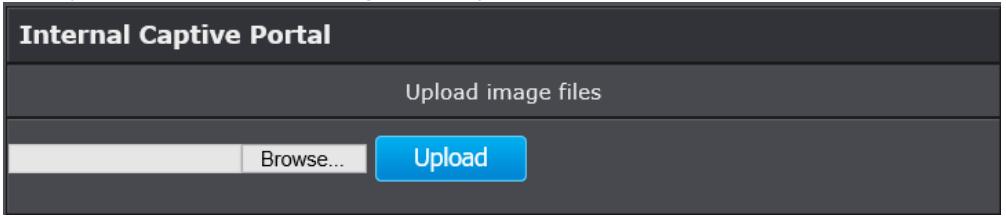
Once you have uploaded the image, an image preview will appear and you can assign the image Set as background or Set as logo. If you would like to delete the image and upload a different image, you can also click Delete to delete the image.
Note: Only 2 images can be uploaded for portal page customization (Only one image can be set for the portal page background and another image can be set for the company/organization logo). Images are automatically scaled when uploaded. The recommended image formats are JPG, PNG, GIF. Maximum file size for images is 250KB.
Internal Captive Portal
Upload image files

Delete
Set as background.
Set as Logo.
Browse.
Upload
After you have uploaded your images, you can add a welcome or greeting message to display to your guest users on the captive portal page. A preview of the page and text will also be displayed. After you have finished entering your message, click Save at the bottom of the page to save the settings.
Note: Aside from text, you can enter HTML tags for text formatting and styles.
Below is an example of a greeting message formatted in html.
Message.(Support html syntax)
Hello World!
Thank you for connecting to our complementary guest WiFi Internet access.
Please login with your credentials to start surfing the Internet. Have a nice day!

Hello World!
Thank you for connecting to our complementary guest WiFi Internet access.
Please login with your credentials to start surfing the Internet. Have a nice day!
Additionally, you can modify the text displayed to your users for your terms of service. By default, a generic terms of service statement is provided for reference.
Terms of service
Acceptable Use of the Service.
Your use of the Service and any activities conducted online through the Service shall
To apply captive portal authentication to a wireless SSID, under 2.4G or 5G, select which SSIDs captive portal authentication should be applied, then click Save at the bottom of the page to save the settings.
Note: The SSIDs must be enabled and configured under Wireless >2.4G or 5G to be assigned. If using Captive Portal authentication, it is recommended to set the Authentication method to None in the wireless SSID settings since captive portal authentication will be used instead. If the Authentication Method is left enabled, the users will need to authenticate twice, once with the authentication method defined and also captive portal authentication.
Once you are done with all your configurations, click on the Save button then click on the flashing Apply/Discard button located on the top left section, and click Save & Apply to apply the settings.


Note: Your configurations are not saved and applied until you click on Apply/Discard Changes button. The Save & Apply step saves and applies all configuration changes.
Redirect URL
1. Log into your management page (see “Access the management page” on page 8). 2. Click on the System tab and click Captive Portal. 3. Choose the Captive Portal mode Redirect URL.
Mode
Select Mode RedirectURL  First, enable Captive Portal, enter the URL/website to redirect users and set an authentication timeout value. Then click Save at the bottom of the page to save the settings.
Redirect
Enabled 
Redirect URL
https://www.trendnet.com - Redirect - Enables the redirect URL captive portal function. - Redirect URL – This is the website or URL guest users will be automatically redirected after connecting to your wireless network through your captive portal page. (e.g. https://www.trendnet.com) - Authentication Timeout - This is the session time period (minutes) which users are allowed to be logged in to your wireless network. Once the time expires, users will automatically logged and will need to log back in through the captive portal page again in order to reconnect to your wireless network. It is recommended to set a value to ensure authentication sessions are closed after a certain time period.
Airtime Fairness
System > Airtime Fairness
This is an optional setting that will provide higher speed WiFi clients with higher traffic priority when competing for wireless bandwidth with slower speed clients. This can provide increased network performance by preventing higher speed clients from waiting for slower speed clients to completely data transfers before utilizing WiFi bandwidth. Note: Airtime Fairness priority (highest to lowest): 802.11ac > 802.11n > 802.11a/g > 802.11b 1. Log into your management page (see "Access the management page" on page 8). 2. Click on the System tab and click on Airtime Fairness. 3. Check the Enable check box and click Save to enable the airtime fairness feature.  4. Click on the Save button then click on the flashing Apply/Discard button located on the top left section, and click Save & Apply to apply the settings.    Note: Your configurations are not saved and applied until you click on Apply/Discard Changes button. The Save & Apply step saves and applies all configuration changes.
Wireless Networking and Security
How to choose the type of security for your wireless network
Setting up wireless security is very important. Leaving your wireless network open and insecure could expose your entire network and personal files to outsiders. TRENDnet recommends reading through this entire section and setting up wireless security on your new access point. There are a few different wireless security types supported in wireless networking each having its own characteristics which may be more suitable for your wireless network taking into consideration compatibility, performance, as well as the security strength along with using older wireless networking hardware (also called legacy hardware). It is strongly recommended to enable wireless security to prevent unwanted users from accessing your network and network resources (personal documents, media, etc.). In general, it is recommended that you choose the security type with the highest strength and performance supported by the wireless computers and devices in your network. Please review the security types to determine which one you should use for your network.
Wireless Encryption Types
- WEP: Legacy encryption method supported by older 802.11b/g hardware. This is the oldest and least secure type of wireless encryption. It is generally not recommended to use this encryption standard, however if you have old 802.11 b or 802.11g wireless adapters or computers with old embedded wireless cards(wireless clients), you may have to set your access point to WEP to allow the old adapters to connect to the access point. Note: This encryption standard will limit connection speeds to 54Mbps. - WPA: This encryption is significantly more robust than the WEP technology. Much of the older 802.11g hardware was been upgraded (with firmware/driver upgrades) to support this encryption standard. Total wireless speeds under this encryption type however are limited to 54Mbps. - WPA-Auto: This setting provides the access point with the ability to detect wireless devices using either WPA or WPA2 encryption. Your wireless network will automatically change the encryption setting based on the first wireless device connected. For example, if the first wireless client that connects to your wireless network uses WPA encryption your wireless network will use WPA encryption. Only when all wireless clients disconnect to the network and a wireless client with WPA2 encryption connects your wireless network will then change to WPA2 encryption. Note: WPA2 encryption supports 802.11n speeds and WPA encryption will limit your connection speeds to 54Mbps - WPA2: This is the most secure wireless encryption available today, similar to WPA encryption but more robust. This encryption standard also supports the highest connection speeds. TRENDnet recommends setting your access point to this encryption standard. If you find that one of your wireless network devices does not support WPA2 encryption, then set your access point to either WPA or WPA-Auto encryption. Note: Check the specifications of your wireless network adapters and wireless appliances to verify the highest level of encryption supported. Below is a brief comparison chart of the wireless security types and the recommended configuration depending on which type you choose for your wireless network.
| Security Standard | WEP | WPA | WPA2 |
| Compatible Wireless Standards | IEEE 802.11a/b/g (802.11n devices will operate at 802.11g to connect using this standard) | IEEE 802.11a/b/g (802.11n devices will operate at 802.11g to connect using this standard) | IEEE 802.11a/b/g/n |
| Highest Performance Under This Setting | Up to 54Mbps | Up to 54Mbps | Up to 450Mbps (11n) and up to 1.3Gbps (11ac)* |
| Encryption Strength | Low | Medium | High |
| Additional Options | Open System or Shared Key, HEX or ASCII, Different key sizes | TKIP or AES, Preshared Key or RADIUS | TKIP or AES, Preshared Key or RADIUS |
| Recommended Configuration | Open System ASCII 13 characters | TKIP Preshared Key 8-63 characters | AES Preshared Key 8-63 characters |
*Dependent on the maximum 802.11n/ac data rate supported by the device (150Mbps, 300Mbps, 450Mbps, 867Mbps, or 1.3Gbps)
General Configuration
The following section details general configurations of the device's wireless radios. The availability of the configurations will depends on the radio's Operation Mode. For detailed information regarding functionalities within specific Operation Modes, please see their respective dedicated sections.
Secure your wireless network
Wireless (2.4GHz, 5GHz1, or 5GHz2) > Wireless Network > Edit After you have determined which security type to use for your wireless network (see "How to choose the security type for your wireless network" on page 23), you can set up wireless security. 1. Log into your management page (see "Access the management page" on page 8). 2. Click on the Wireless 2.4GHz, 5GHz1, or 5GHz2.  3. Underneath the basic wireless band section, you will see Wireless Network and all your wireless network profiles will be listed. 4. Click on the Edit button next to the wireless profile you want to configure.
| Current Profiles | |||
| Enable | SSID | Security Mode | Edit |
| ✓ | TRENDnet821_2.4GHz_0045 | WPA2-PSK AES | Edit |
5. Select from the drop-down list to the wireless security to configure.  Selecting WEP-OPEN, WEP-SHARED: If selecting WEP (Wired Equivalent Privacy), please review the WEP settings to configure and click Save to save the changes. Note: WPS functionality is not available when using WEP. In the Security Mode drop-down list, select WEP-OPEN or WEP-SHARED. Note: It is recommended to use WEP-OPEN because it is known to be more secure than Shared Key. 
| WEP Key Format | HEX | ASCII |
| Character set | 0-9 & A-F, a-f only | Alphanumeric (a,b,C,?,*, /,1,2, etc.) |
| 64-bit key length | 10 characters | 5 characters |
| 128-bit key length | 26 characters | 13 characters |
- Default Key: Select the WEP Key from the drop-down list to use Network Key 1-4 This is where you enter the WEP key needed for a computer to connect to the access point wirelessly - You can define up to 4 passwords or 4 keys. Only one key can be active at a given time. Most users simply define one key. Choose a key index 1, 2, 3, or 4 and enter the key. When connecting to the access point, the client must match both the password and the Key number. (e.g. if you have activated Key 2 with a password of 12345, then the client must select: Key 2 (entering Key 1, 3, or 4 will block the ability to connect) and enter password 12345) - Note: It is recommended to use 128-bit format because it is more secure to use a key that consists of more characters. - HEX or ASCII: Select which WEP code type to assign Selecting WPA- Personal, WPA2- Personal, WPA2- Personal, or Mixed (WPA2-PSK recommended): In the Security Mode drop-down list, select WPA- Personal  The following section outlines options when selecting WPA-Personal, WPA2- Personal, or WPA2- Personal Mixed (Pre-shared Key Protocol), - WPA Cipher: Select a Cipher Type to use. When selecting WPA-PSK security, it is recommended to use TKIP + AES. - When selecting WPA2- Personal Mixed security, it is recommended to use TKIP+AES. - When selecting WPA2- Personal security, it is recommended to use AES. - Pre-Shared Key: Enter the passphrase or password This is the password or key that is used to connect your computer to this access point wirelessly Note: 8-63 alphanumeric characters (a,b,C,?, *, /,1,2, etc.) Key Update Interval: Enter the time interval (seconds) of when the network passphrase will rotate. Note: It is recommended to use the default interval time. Your passphrase will not change; rotation of the key is part of the WPA protocol and designed to increase security. Selecting WPA-Enterprise, WPA2-Enterprise, or WPA2-Enterprise Mixed:  The following section outlines options when selecting WPA-Enterprise. WPA2- Enterprise or WPA2-Enterprise Mixed known as EAP (Extensible Authentication Protocol). Also known as called Remote Authentication Dial-In User Service or RADIUS. Note: This security type requires an external RADIUS server, PSK only requires you to create a passphrase. - WPA Cipher: Select a Cipher Type to use. When selecting WPA-PSK security, it is recommended to use TKIP + AES. - Key Update Interval: Enter the time interval (seconds) of when the network passphrase will rotate. Note: It is recommended to use the default interval time. Your passphrase will not change; rotation of the key is part of the WPA protocol and designed to increase security. - IP Address: Enter the IP address of the RADIUS server. (e.g. 192.168.10.250) - Port: Enter the port your RADIUS server is configured to use for RADIUS authentication. Note: It is recommended to use port 1812 which is typical default RADIUS port. - Shared Secret: Enter the shared secret used to authorize your access point with your RADIUS server.
Roaming Support (802.11k)
Wireless (2.4GHz, 5GHz1, or 5GHz2) > Wireless Network > Edit The 802.11k standard is an enhancement to wireless roaming technology. It allows wireless access points to exchange and learn information about other access points on the network such as signal strength and client utilization and provide this information to 802.11k capable wireless client devices. Wireless client devices can use the information about other wireless network and make more intelligent decisions when roaming from one wireless access point to another. This also assists in better access point client utilization. Note: This function can only work with 802.11k capable wireless client devices. Please check your device specifications with your manufacturer for details. 1. Log into your management page (see "Access the management page" on page 8). 2. Click on Wireless (2.4GHz, 5GHz1, or 5GHz2), and click Wireless Network. 3. Under the Current Profiles section, click Edit for the profile you would like to configure.
| Current Profiles | |||
| Enable | SSID | Security Mode | Edit |
| TRENDnet826_2.4GHz_06B1 | WPA2-PSK AES | Edit | |
| ■ | ■ | None | Edit |
4. Under the Roaming Assistant section, check the 802.11k support option to enable 802.11k support. The Scan Period defines how often the access point will scan for information about other access points on the wireless network.
| Roaming Assistant | |
| 802.11k Support | ■ |
| Scan Period | 10 minutes |
5. Click on the Save button then click on the flashing Apply/Discard button located on the top left section, and click Save & Apply to apply the settings.
| Save | Apply/Discard Changes: 0 | Save & Apply |
Note: Your configurations are not saved and applied until you click on Apply/Discard Changes button. The Save & Apply step saves and applies all configuration changes.
Wireless Bandwidth Control
Wireless (2.4GHz, 5GHz1, or 5GHz2) > Wireless Bandwidth Control Note: Please note that wireless bandwidth control is only available when using AP mode. 1. Log into your management page (see "Access the management page" on page 8). 2. Click on the Wireless (2.4GHz, 5GHz1, or 5GHz2) tab and click Wireless Bandwidth Control. 3. Review the settings for both wireless bands (2.4GHz and 5GHz) and click Save to save settings.
| Bandwidth Control | Disabled | ||||
| Current Profiles | |||||
| Enable | SSID | Download MAX | Download | Upload Limit for Client | |
| ■ | TRENDnet826_2.4GHz_06B1 | Limit for Client▼ | 10m bps | 1m | bps |
| ■ | Limit for Client▼ | 10m bps | 1m | bps | |
| ■ | Limit for Client▼ | 10m bps | 1m | bps | |
| ■ | Limit for Client▼ | 10m bps | 1m | bps | |
| ■ | Limit for Client▼ | 10m bps | 1m | bps | |
| ■ | Limit for Client▼ | 10m bps | 1m | bps | |
| ■ | Limit for Client▼ | 10m bps | 1m | bps | |
| ■ | Limit for Client▼ | 10m bps | 1m | bps | |
| ■ | Limit for Client▼ | 10m bps | 1m | bps | |
- Bandwidth Control: Select Enable to enable bandwidth control on this SSDI SSID: The SSID that the following limits will apply to - Download MAX: Choose to set a limit per client or limit shared with entire SSID Download: Enter your network's inbound traffic limit - Upload Limit for Client: Enter your network's outbound traffic limit for the selected wireless band 4. Click on the Save button then click on the flashing Apply/Discard button located on the top left section, and click Save & Apply to apply the settings. Save Apply/Discard Changes: 0 Save & Apply Note: Your configurations are not saved and applied until you click on Apply/Discard Changes button. The Save & Apply step saves and applies all configuration changes.
RSSI Scanner
Wireless (2.4GHz, 5GHz1, or 5GHz2) > Wireless RSSI Scanner Note: Please note that wireless bandwidth control is only available when using AP mode. The RSSI scanner feature allows the access point to scan for the signal strength of wireless client devices that currently connected and configured to automatically disconnect the wireless devices once signal strength and connectivity reach a specified limit. In a wireless roaming network with multiple access points, this can assist by forcing the disconnection of the wireless client device before signal strength and connectivity to the AP are too low to sustain enough bandwidth for Internet streaming applications. This will force the wireless client device to connect to an AP strong signal and connection rate relative to its new location. It is the nature of wireless client devices to maintain connectivity to the currently connected wireless network as long as the signal can still be discovered. In the example diagram, you can see that the further away the client device is from the AP, the lower signal strength. (-30 RSSI is a higher strength value relative the AP compared to -90 RSSI). The client device at -90 RSSI is closer to the next AP but without the forced disconnection from the AP on the left using the RSSI scanner function, the client device would remain connected to the much further AP on the left than stronger signal AP on the right. Forcing a disconnect from the originally connected AP on the right would force the client to connect to the much higher signal strength AP on the right providing better connectivity during the transition between physical locations.  1. Log into your management page (see "Access the management page" on page 8). 2. Click on Wireless (2.4GHz, 5GHz1, or 5GHz2), and click Wireless RSSI Scanner. 3. Under the Current Profiles list, tick the SSID to enable the RSSI scanner feature.
| Current Profiles | |||
| Enable | SSID | Tolerance | RSSI value |
| ■ | TRENDnet826_2.4GHz_06B1 | kick immediately | -90 dBm |
| ■ | kick immediately | -90 dBm | |
| ■ | kick immediately | -90 dBm | |
- RSSI Value: First select the minimum RSSI value (client signal strength) before the AP disconnects the client (-30dBm is better signal strength than -90dBm). - Tolerance: Then select the tolerance or action once the AP detects the specified signal strength of the client device is reached. - Kick immediately – This setting will immediately disconnect the client once the specified RSSI value is reached - Detect # seconds – Once the specified RSSI value is reached for a client device, this setting will check the client device signal strength again after the selected number of seconds. If the signal strength is still at the specified RSSI value or less, the client will be disconnected. 4. Click on the Save button then click on the flashing Apply/Discard button located on the top left section, and click Save & Apply to apply the settings.  Note: Your configurations are not saved and applied until you click on Apply/Discard Changes button. The Save & Apply step saves and applies all configuration changes.
Wireless MAC filter
Wireless (2.4GHz, 5GHz1, or 5GHz2) > Wireless MAC Filter Note: Please note that wireless bandwidth control is only available when using AP mode. Every network device has a unique, 12-digit MAC (Media Access Control) address. Using wireless MAC filters, you can allow or deny specific wireless clients using this access point's wireless network. 1. Log into your management page (see "Access the management page" on page 8). 2. Click on the wireless band you would like to configure and click Wireless MAC Filter.  3. Review the settings and Save then click on the flashing Apply/Discard button located on the top left section, and click Save & Apply to apply the settings.  - Filter Mode: Select from the pull-down list the MAC filter rule to apply. ○ Disable: Select to turn off MAC filter feature ○ DENY: Select this option to DENY all listed MAC addressed - ALLOW: Select this option to only ALLOW the listed MAC address to the network. - MAC Address: Enter the MAC address to apply on the MAC filter rule
| MAC Filter List | |
| MAC | Delete |
| 00:33:22:44:55:55 | x |
MAC: List of all MAC addresses - Delete: Click to remove the selected MAC address from the MAC Filter List
Connect wireless devices using WPS
Wireless (2.4GHz, 5GHz1, or 5GHz2) > WPS Note: Please note that wireless bandwidth control is only available when using AP mode. WPS (Wi-Fi Protected Setup) is a feature that makes it easy to connect devices to your wireless network. If your wireless devices support WPS, you can use this feature to easily add wireless devices to your network. Note: You will not be able to use WPS if you set the SSID Broadcast setting to Disabled or if you are using WEP security. There are two methods the WPS feature can easily connect your wireless devices to your network. - Push Button Configuration (PBC) method WPS Software/Virtual Push Button - located in the management page PIN (Personal Identification Number) Method - located in the management page Note: Refer to your wireless device documentation for details on the operation of WPS. For connecting additional WPS supported devices, repeat this process for each additional device. 1. Log into your management page (see “Access the management page” on page 8). 2. Click on the Wireless network you want to configure button (Wireless 2.4GHz, 5GHz1, or 5GHz2) and click WPS.  3. Review the following WPS settings: WPS Config
| WPS Config | |
| WPS | Enable Disable |
| WPS External Registrar Lock | Enable Disable |
WPS: Select enable to turn on WPS feature - WPS External Registrar Lock: Select to enable or disable external registrar feature on the select wireless band. WPS Summary
| WPS Summary | |
| WPS Current Status | Idle |
| WPS Configured | Yes |
| WPS SSID | _0001 |
| WPS Security Mode | WPA2-PSK AES |
| WPS Key | 1234567890 |
| AP PIN | 12345678 |
- WPS Current Status: Displays the status of WPS feature on the selected wireless band WPS Configure: Displays the configured mode of the WPS feature WPS SSID: Displays the SSID of the WPS network WPS Security Mode: Display the security mode of the WPS network WPS Key: Displays the security password AP PIN: Display the WPS PIN information. WPS Action
| WPS Action | |
| If you are using the Virtual Push Button method, click Start Push Button, then push and activate WPS on your wireless client device. If you are using the PIN method, enter the wireless client device PIN in the field and click Start PIN, then activate the WPS PIN method on your wireless client device. | |
| PIN | Start PIN |
| PBC | Start Push Button |
- PIN: Enter the PIN information of the wireless client you want to connect to the network. Click Start PIN button to activate WPS once you enter the client's PIN information Note: You may need to initiate the WPS PIN on your wireless device first when using this method. Refer to your wireless device documentation for details on the operation of WPS. PBC: Click Start Push Button to activate WPS PBC configuration. 4. Click on the Save button then click on the flashing Apply/Discard button located on the top left section, and click Save & Apply to apply the settings. Save Apply/Discard Changes: 0 Save & Apply Note: Your configurations are not saved and applied until you click on Apply/Discard Changes button. The Save & Apply step saves and applies all configuration changes.
Access Point
 
Access Point: Wireless Network
Wireless (2.4GHz, 5GHz1, or 5GHz2) > Wireless Network This section outlines the available features to configure for the wireless 2.4 GHz and both 5GHz bands when Access Point mode is selected. 1. Log into your management page (see "Access the management page" on page 8). 2. Click on the wireless band you would like to configure and click Wireless Network.  3. Configure the below settings and click Save to save settings. 
Configurations per band:
- Wireless Mode: If all of the wireless devices you want to connect with this Access Point can connect in the same transmission mode, you can improve performance slightly by choosing the appropriate mode. If you have some devices that use a different transmission mode, choose the appropriate mode.
2.4GHz Wireless
- B/G/N mixed: Select this mode for the best compatibility. This mode allows older 802.11b and 802.11g wireless devices to connect to the access point in addition to newer 802.11n devices. - B/G mixed: This mode only allows devices to connect to the access point using older and slow 802.11b or 802.11g technology and it thereby reduces the access point's maximum speed to 54Mbps (typically not recommended). - N only: This mode only allows newer 802.11n devices to connect to your access point. This mode does ensure the highest speed and security for your network, however, if you have older 802.11g wireless clients, they will no longer be able to connect to this access point. - G only: This mode only allows devices to connect to the access point using older and slower 802.11g technology (typically not recommended). - B only: This mode only allows devices to connect to the access point using older and slower 802.11b technology (typically not recommended). - Note: Please check the specifications on your wireless devices for the highest wireless capability supported first before applying these settings. If you are unsure, it is recommended that you keep the default setting (B/G/N mixed) for the best compatibility.
5GHz Wireless
- A only: This mode only allows devices to connect to the access point using older and slower 802.11a technology (typically not recommended). - A/N mixed: This mode only allows devices to connect to the access point using older and slower 802.11a or 802.11n technology and it thereby reduces the access point's maximum speed to 54Mbps (typically not recommended). - N only: This mode only allows newer 802.11n devices to connect to your access point. This mode does ensure the highest speed and security for your network, however, if you have older 802.11a wireless clients, they will no longer be able to connect to this access point. - N/AC mixed: Select this mode for the best compatibility. This mode allows older 802.11a wireless devices to connect to the access point in addition to newer 802.11ac devices. - AC only: This mode only allows devices to connect to the access point using newer and faster 802.11ac technology (typically not recommended). - A/N/AC mixed: Select this mode for the best compatibility. This mode allows older 802.11a and 802.11n wireless devices to connect to the access point in addition to newer 802.11ac devices. Note: Please check the specifications on your wireless devices for the highest wireless capability supported first before applying these settings. If you are unsure, it is recommended that you keep the default setting (A/N/AC mixed) for the best compatibility. - When applying the 802.11 mode setting, please keep in mind the following: - Wireless devices that support 802.11n are backwards compatible and can connect wirelessly at 802.11g or 802.11b. - Connecting at 802.11b or 802.11g will limit the capability of your 802.11n supported wireless devices from obtaining higher performance and data rates. - Allowing 802.11b or 802.11g devices to connect to an 802.11n capable wireless network may degrade the wireless network performance below the higher performance and data rates of 802.11n. - Wireless devices that only support 802.11b or 802.11g will not be able to connect to a wireless network that is set to 802.11n only mode. - Wireless devices that only support 802.11b will not be able to connect to a wireless network that is set to 802.11g only mode. - Channel Width: Select the channel width for the access point to operate on. By default, the access point is on Auto 20/40 MHz. - Extension channel: When 20/40 channel bandwidth has been chosen, you should select extension channel to get higher throughput. - Frequency (Channel): In North America, this access point can broadcast on 1 of 11 Channels for 2.4GHz (13 in Europe and other countries). Selecting the Auto option enables the access point to automatically select the best Channel for wireless communication. To manually set the channel on which the access point will broadcast, click the drop-down list and select the desired Channel for wireless communication. The goal is to select the Channel that is least used by neighboring wireless networks. 4. Click on the Save button then click on the flashing Apply/Discard button located on the top left section, and click Save & Apply to apply the settings.
Save
Apply/Discard Changes: 0
Save & Apply
Note: Your configurations are not saved and applied until you click on Apply/Discard Changes button. The Save & Apply step saves and applies all configuration changes.
Access Point: Wireless Profile (SSID)
Wireless (2.4GHz, 5GHz1, or 5GHz2) > Wireless Network 1. Log into your management page (see “Access the management page” on page 8). 2. Click on the wireless band you would like to configure and click Wireless Network.  3. Underneath the basic wireless band section, you will see Wireless Network and all your wireless network profiles will be listed. 4. Click on the Edit button next to the wireless profile you want to configure. Current Profiles
| Enable | SSID | Security Mode | Edit |
| TRENDnet821_2.4GHz_0045 | WPA2-PSK AES | Edit | |
5. Review the wireless settings, click Save and Apply/Discard Changes when finished.  - SSID: Enter the wireless network name (SSID) to assign to the selected wireless profile - Hide SSID: Select option to disable the wireless network name to broadcast - Separate Stations: Select this option to restrict wireless client devices from accessing other client devices connected to this network(s). - Enable: Select this option to enable this SSID 6. Click on the Save button then click on the flashing Apply/Discard button located on the top left section, and click Save & Apply to apply the settings. Save Apply/Discard Changes: 0 Save & Apply Note: Your configurations are not saved and applied until you click on Apply/Discard Changes button. The Save & Apply step saves and applies all configuration changes.
Client Bridge

Client Bridge: Wireless Network
Wireless (2.4GHz, 5GHz1, or 5GHz2) > Wireless Network This section outlines the available features to configure for the wireless 2.4 GHz and 5GHz bands when Client Bridge mode is selected. 1. Log into your management page (see "Access the management page" on page 8). 2. Click on System, and select Operation Mode.  3. Enable Client Bridge, under the wireless band (2.4GHz or 5GHz) you would like to connect this access point to. Please make sure that the selected band is available on your network.
| Device Name | TEW-826DAP | |
| Operation Mode | 2.4GHz Configuration | |
| ○Access Point | ○Client Bridge | |
| ○WDS Access Point | ||
| ○WDS Bridge | ○Repeater | |
| ○WDS Station | ||
| 5GHz1Configuration | ||
| ○Access Point | ○Client Bridge | |
| ○WDS Access Point | ||
| ○WDS Bridge | ○Repeater | |
| ○WDS Station | ||
| 5GHz2Configuration | ||
| ○Access Point | ||
4. Click Save to save your current settings. 5. On the left-hand side menu, click on the wireless band tab (Wireless 2.4GHz / Wireless 5GHz) you would like to configure and click Wireless Network.  6. Configure the below settings and click Save and Apply/Discard Changes to save settings.  - Wireless Mode: Select the wireless mode to set on the selected wireless band in client bridge mode - SSID: Manually enter the wireless network name (SSID) you want to establish connection. Or simply click on Site Survey to scan for available wireless network (more details below). - Preferred BSSID: Click option and enter the preferred wireless network you would like to connect to.  - Security Mode: Select from the pull-down menu the wireless security that is used on the wireless network you would like to connect to.
Client Bridge: Scan for wireless networks
Wireless (2.4GHz, 5GHz1, or 5GHz2) > Wireless Network This section outlines the available features to configure for the wireless 2.4 GHz and 5GHz bands when Client Bridge mode is selected. 1. Log into your management page (see “Access the management page” on page 8). 2. Click on the wireless band you would like to configure and click Wireless Network.  3. Under SSD section click Site Survey to wirelessly scan for available wireless networks.
| SSID | BSSID | Channel | Signal Level | Type | Security | Mode |
| PortalTest | D8:EB:97:A2:87:4C | 2 | -49 dbm | 802.11NG HT20 | WPA2-PSK AES | AP |
| sonnytest | 00:14:D1:BF:0B:37 | 1 | -56 dbm | 802.11NG HT20 | WPA2-PSK AES | AP |
| TrendnetSkyN | 00:14:D1:C5:7D:44 | 1 | -76 dbm | 802.11NG HT20 | WPA2-PSK AES | AP |
| TrendnetOp | 00:14:D1:B1:E1:B4 | 2 | -80 dbm | 802.11NG HT20 | WPA2-PSK AES | AP |
| TrendnetOpWork | 00:14:D1:B1:E1:B5 | 2 | -81 dbm | 802.11NG HT20 | WPA2-PSK AES | AP |
| 823 2.4GHz test | EB:97:2A:CD:FE | 1 | -50 dbm | 802.11NG HT20 | WPA2-PSK AES | AP |
| TRENDnetGuest | 00:14:D1:C6:A1:6E | 4 | -74 dbm | 802.11NG HT20 | WPA/WPA2-PSK TKIP/AES | AP |
4. Click on the wireless network you would like to connect. The information will automatically fill on the previous screen. You will then need to select and enter the wireless security.  5. Click on the Save button then click on the flashing Apply/Discard button located on the top left section, and click Save & Apply to apply the settings.    Note: Your configurations are not saved and applied until you click on Apply/Discard Changes button. The Save & Apply step saves and applies all configuration changes.  WDS
WDS Link
Wireless (2.4GHz, 5GHz1, or 5GHz2) > WDS Link Settings This section outlines the available features to configure for both wireless 2.4GHz and 5GHz when WDS mode is selected. 1. Log into your management page (see "Access the management page" on page 8). 2. Click on System, and select Operation Mode. 3. Enable WDS Access Point, under the wireless band (2.4GHz or 5GHz) you would like to connect this access point to. Please make sure that the selected band is available on your network. Access Point Client Bridge WDS Access Point Repeater WDS Bridge WDS Station 4. Click on the wireless band you would like to configure and click WDS Link Settings.  5. Configure the below settings and click Save to save settings.  - Site Survey: Click this option to scan for available WDS networks - Remote AP MAC: Enter the MAC address of the remote access point you want to establish WDS connection.
Wireless Security
Security Mode Disable # - Security Mode: Select from the pull-down menu the wireless security that is used on the wireless network you would like to connect to. 6. Click on the Save button then click on the flashing Apply/Discard button located on the top left section, and click Save & Apply to apply the settings.  Note: Your configurations are not saved and applied until you click on Apply/Discard Changes button. The Save & Apply step saves and applies all configuration changes.
Repeater

Repeater: Wireless Network
Wireless (2.4GHz, 5GHz1, or 5GHz2) > Wireless Network This section outlines the available features to configure for both wireless 2.4GHz and 5GHz when Repeater mode is selected. 1. Log into your management page (see "Access the management page" on page 8). 2. Click on System, and select Operation Mode.  3. Enable Repeater under the wireless band (2.4GHz or 5GHz) you would like to connect this access point to, then press Save. Please make sure that the selected band is available on your network.
| Device Name | TEW-826DAP | |
| Operation Mode | 2.4GHz Configuration | |
| ○Access Point | ○Client Bridge | |
| ○WDS Access Point | ||
| ○WDS Bridge | ○Repeater | |
| ○WDS Station | ||
| 5GHz1Configuration | ||
| ○Access Point | ○Client Bridge | |
| ○WDS Access Point | ||
| ○WDS Bridge | ○Repeater | |
| ○WDS Station | ||
| 5GHz2Configuration | ||
| ○Access Point | ||
4. Click on the wireless band (Wireless 2.4GHz / Wireless 5GHz) you would like to configure and click Wireless Network.  5. Configure the below settings and click Save to save settings.
| Wireless Mode | 5GHz 802.11 a/n/ac mixed mode▼ |
| SSID | Enter the SSID/Wireless Network Name of the wireless network you would like to connect to in the field below or click Site Survey to scan for the available wireless networks to connect. : AP SSID Site Survey |
| Preferred BSSID | ■ |
| Repeater SSID | ■ |
- Wireless Mode: Select the wireless mode to set on the selected wireless band in client bridge mode - SSID: Manually enter the wireless network name (SSID) you want to establish connection. Or simply click on Site Survey to scan for available wireless network (more on this function in below section). - Preferred BSSID: Click option and enter the MAC address of the preferred wireless network you would like to connect to. - Repeater SSD: You may specify a new SSD name to use
| Wireless Security | |
| Security Mode | Disable |
- Security Mode: Select from the pull-down menu the wireless security that is used on the wireless network you would like to connect to. 6. Click on the Save button then click on the flashing Apply/Discard button located on the top left section, and click Save & Apply to apply the settings.
| Save | Apply/Discard Changes: 0 | Save & Apply |
Note: Your configurations are not saved and applied until you click on Apply/Discard Changes button. The Save & Apply step saves and applies all configuration changes.
Repeater: Scan for wireless networks
Wireless (2.4GHz, 5GHz1, or 5GHz2) > Wireless Network This section outlines the available features to configure for both wireless 2.4 GHz and 5GHz when Repeater mode is selected. 1. Log into your management page (see "Access the management page" on page 16). 2. Click on the wireless band you would like to configure and click Wireless Network.  3. Under SSD section click Site Survey to wireless scan for available wireless networks.  4. Click on the wireless network you would like to repeat. The information will automatically fill on the previous screen. You will then need to select and enter the wireless security.
| SSID | BSSID | Channel | Signal Level | Type | Security | Mode |
| PortalTest | D8:EB:97:A2:87:4C | 2 | -49 dbm | 802.11NG HT20 | WPA2-PSK AES | AP |
| sonnytest | 00:14:D1:BF:0B:37 | 1 | -56 dbm | 802.11NG HT20 | WPA2-PSK AES | AP |
| TrendnetSkyN | 00:14:D1:C5:7D:44 | 1 | -76 dbm | 802.11NG HT20 | WPA2-PSK AES | AP |
| TrendnetOp | 00:14:D1:B1:E1:B4 | 2 | -80 dbm | 802.11NG HT20 | WPA2-PSK AES | AP |
| TrendnetOpWork | 00:14:D1:B1:E1:B5 | 2 | -81 dbm | 802.11NG HT20 | WPA2-PSK AES | AP |
| 823 2.4GHz test | EB:97:2A:CD:FE | 1 | -50 dbm | 802.11NG HT20 | WPA2-PSK AES | AP |
| TRENDnetGuest | 00:14:D1:C6:A1:6E | 4 | -74 dbm | 802.11NG HT20 | WPA/WPA2-PSK TKIP/AES | AP |
5. Click on the Save button then click on the flashing Apply/Discard button located on the top left section, and click Save & Apply to apply the settings.    Note: Your configurations are not saved and applied until you click on Apply/Discard Changes button. The Save & Apply step saves and applies all configuration changes.
Repeater: Advanced wireless settings
Wireless (2.4GHz, 5GHz1, or 5GHz2) > Advanced Wireless 1. Log into your management page (see "Access the management page" on page 8). 2. Click on the wireless band you would like to configure and click Wireless Advanced Settings.  3. Review the settings and click Save to save settings.
| Advanced Wireless | |
| Data Rate | Auto |
| Transmit Power | Auto |
| RTS/CTS Threshold | 2347 (range 1 - 2347, default 2347) |
| Beacon Period | 100 ms (range 100 - 1000, default 100) |
| DTIM | 1 (range 1 - 255, default 1) |
- Data Rate: Select the operating wireless data rate. - Transmit Power: The wireless transmit power can be modified to lower the antenna strength setting from 18 dBm to 11 dBm, if necessary. Lowering the wireless transmit power may help to better stabilize the wireless connectivity and reduce the effects of wireless interference in areas where there are several 2.4GHz wireless devices. (Default: 18 dBm) - RTS/CTS Threshold: The Request To Send (RTS) function is part of the networking protocol. A wireless device that needs to send data will send a RTS before sending the data in question. The destination wireless device will send a response called Clear to Send (CTS). The RTS Threshold defines the smallest data packet size allowed to initiate the RTS/CTS function. Default Value: 2347 (range: 256-2346) - Beacon Period: A beacon is a management frame used in wireless networks that transmitted periodically to announce the presence and provide information about the access point's wireless network. The interval is the amount time between each beacon transmission. - DTIM: DTIM is a countdown informing clients of the next window for listening to broadcast and multicast messages. When the access point has buffered broadcast or multicast messages for associated clients, it sends the next DTIM with a DTIM Interval value. Wireless clients detect the beacons and awaken to receive the broadcast and multicast messages. The default value is 1. Valid settings are between 1 and 255.
| HT Physical Mode | |
| Guard Interval | Auto Long |
| A-MPDU | Enable Disable 32 Frames 50000 Bytes(Max) |
Guard Interval: Select to enable short guard interval (400ns). - MPDU: MPDU aggregation also collects Ethernet frames to be transmitted to a single destination, but it wraps each frame in an 802.11n MAC header. Normally this is less efficient than MSDU aggregation, but it may be more efficient in environments to maintain performance in noisy networks and to prevent hidden nodes from degrading the performance.
| Client Limit | |
| Client Limit | Enable Disable |
| Max Client | 48 |
- Client Limit: Select enable to turn on client limit of the select wireless band Max Client: Enter the amount of clients to allow 4. Click on the Save button then click on the flashing Apply/Discard button located on the top left section, and click Save & Apply to apply the settings.  Note: Your configurations are not saved and applied until you click on Apply/Discard Changes button. The Save & Apply step saves and applies all configuration changes.
Management
Administration
Management > Administration
Administrator Settings:
1. Log into your management page (see "Access the management page" on page 8). 2. Click on the Management tab and click Administration. 3. Review the settings and click Save to save settings.
| Administrator Settings | ||
| Account | admin | |
| Password | ............ (Max: 16 characters) | |
| Idle Timeout | 3600 (120-3600 seconds) | |
| Save | Cancel | |
- Account: Change the login user name in this field - Password: Change the login password in this field - Idle Timeout: Change the length of time that the access point can idle before timing out. The duration can be between 120 – 3600 seconds. (By default it is set to 120 seconds)
Device Name Settings:
Management > Administration
1. Log into your management page (see "Access the management page" on page 8). 2. Click on the Management tab and click Administration. 3. Review the settings and click Save to save settings.
| Device Name Settings | |
| Device Name | TEW-821DAP |
| Save | Cancel |
4. Click on the Save button then click on the flashing Apply/Discard button located on the top left section, and click Save & Apply to apply the settings.
| Save | Apply/Discard Changes: 0 | Save & Apply |
Note: Your configurations are not saved and applied until you click on Apply/Discard Changes button. The Save & Apply step saves and applies all configuration changes.
Management VLAN
Management > Management VLAN 1. Log into your management page (see “Access the management page” on page 8). 2. Click on the Management tab and click Management VLAN. 3. Review the settings for the 2.4G and both 5G profiles and click Save to save settings.
| 2.4G Current Profiles | |||
| Enable | VID | SSID | WiFi Security |
| 1 | TRENDnet826_2.4GHz_06B1 | WPA2-PSK AES | |
| 5G1 Current Profiles | |||
| Enable | VID | SSID | WiFi Security |
| 1 | TRENDnet826_5GHz1_06B1 | WPA2-PSK AES | |
| 5G2 Current Profiles | |||
| Enable | VID | SSID | WiFi Security |
| 1 | TRENDnet826_5GHz2_06B1 | WPA2-PSK AES | |
- Enable: Check box of the selected SSID to enable VLAN feature - VID: Enter the VID to assign on the selected wireless network SSID: Displays the available SSID - WiFi Security: Displays the wireless security type of the wireless network
Management VLAN ID
No VLAN tag - Specified VLAN ID (must be in the range 2 ~ 4094.) - No VLAN Tag: Select this option to use no VLAN Tag - Specified VLAN ID: Select this option and enter the assigned VLAN ID. 4. Click on the Save button then click on the flashing Apply/Discard button located on the top left section, and click Save & Apply to apply the settings.
Save
Apply/Discard Changes: 0
Save & Apply
Note: Your configurations are not saved and applied until you click on Apply/Discard Changes button. The Save & Apply step saves and applies all configuration changes.
SNMP Settings
Management >SNMP Settings SNMP (Simple Network Management Protocol) is a network management protocol used to monitor (read) and/or manage (write) multiple network devices on a network through a preconfigured external SNMP server. 1. Log into your management page (see "Access the management page" on page 8). 2. Click on the Management tab and click SNMP Settings. 3. Review the settings and click Save to save settings.
| SNMP | Enable Disable |
| Contact | |
| Location | |
| Community Name (Read Only) | public |
| Community Name (Read/Write) | private |
| Trap Destination Address | |
| Trap Destination Community Name | public |
SNMP: Select enable to enable SNMP feature - Contact: Enter the contact person or contact information for your access point. - Location: Enter an assigned location for your access point. - Community Name (Read only): Enter an assigned name for your access point. - Community (Read/Write): Enter a public and private community name. - Trap Destination Address: Enter the destination IP address of the SNMP trap. - Trap Destination Community Name: Enter the name of the destination community
| SNMPv3 | ○ v3Enable ○ v3Disable |
| User Name | admin |
| Auth Protocol | MD5 |
| Auth Key (8-32 Characters) | 12345678 |
| Priv Protocol | DES |
| Priv Key (8-32 Characters) | 12345678 |
| Engine ID |
- SNMPv3: Select option to enable or disable SNMPv3 -Username:Enter the username - Auth Protocol: Select from the pull down menu the authentication protocol to use Authentication Key: Enter the authentication key Priv Protocol: Select the private protocol Priv Key: Enter the private key - Engine ID: Enter the engine name 4. Click on the Save button then click on the flashing Apply/Discard button located on the top left section, and click Save & Apply to apply the settings.
Save
Apply/Discard Changes: 0
Save & Apply
Note: Your configurations are not saved and applied until you click on Apply/Discard Changes button. The Save & Apply step saves and applies all configuration changes.
Backup/Restore Settings
Management > Backup/Restore Settings You may have added many customized settings to your device and in the case that you need to reset your device back to factory default, all your customized settings would be lost and would require you to manually reconfigure all of your device settings instead of simply restoring from a backed up access point configuration file.
Export Settings (backup your configuration):
1. Log into your management page (see "Access the management page" on page 8). 2. Click on the Management tab and click Backup/Restore Settings. 3. Click Export.
| Export Settings | |
| Export | Export |
| Encrypt Key | 12345678 Save |
4. When setting and saving an Encrypt Key, make sure that the same field is matched when importing the configuration settings. Make sure to click on the Save button to apply the settings and then click on the Apply/Discard button located on the top left section to save the settings BEFORE EXPORTING a configuration file. 5. Depending on your web browser settings, you may be prompted to save a file (specify the location) or the file may be downloaded automatically to the web browser settings default download folder. (Default Filename: config.bin) 6. Save the configuration file to location on your computer.
Import Settings (restore from configuration):
Management > Backup/Restore Settings 1. Log into your management page (see “Access the management page” on page 8). 2. Click on the Management tab and click Backup/Restore Settings. 3. Under Import Settings, depending on your web browser, click on Browse or Choose File. A separate file navigation window should open.
Import Settings
Settings file location Choose File No file chosen 4. Navigate to the location of the access point configuration file to restore. O DefaultFilename:config.bin). 5. Select the access point configuration file to restore. Enter the login password under Encrypt Key and click Save. (Default Filename: config.bin). If prompted, click Yes or OK. 6. Wait for the access point to restore settings.
Reset to Factory Defaults
Management > Backup/Restore Settings You may want to reset the access point to factory defaults if you are encountering difficulties and have attempted all other troubleshooting. Before you reset to defaults, if possible, you should backup your access point's configuration first (see previous section). There are two methods that can be used to reset your access point to factory defaults: i. Hardware Reset Button: Located on the side of the access point, (see "Product Hardware Features" on page 3). Use this method if you are encountering difficulties with accessing your access point management page.
OR
ii. Access Point Management Page 1. Log into your management page (see "Access the management page" on page 8). 2. Click on the Management tab and click Backup/Restore Settings. 3. Click Load Default. If prompted, click Yes or Ok.
Reset to Factory Defaults
Load Default Load Default
System Reboot:
Management > Backup/Restore Settings You may want to restart your access point if you are encountering difficulties with your access point and have attempted all other troubleshooting. There are two methods that can be used to restart your access point. i. Turn the access point off disconnect the power source or press the power button from the side of your access point (see "Product Hardware Features" on page 3). Use this method if you are encountering difficulties with accessing your access point management page. This is also known as a hard reboot or power cycle. OR ii. Access Point Management Page: This is also known as a soft reboot or restart. 1. Log into your management page (see "Access the management page" on page 8). 2. Click on the Management tab and click Backup/Restore Settings. 3. Click Reboot under System Reboot to restart the access point. If prompted, click yes or OK.
SystemReboot
System Reboot Reboot
Upgrade your firmware
Management >Upload Firmware TRENDnet may periodically release firmware upgrades that may add features or fix problems associated with your TRENDnet access point model and version. To check if there is a firmware upgrade available for your device, please check your TRENDnet model and version using the link. http://www.trendnet.com/downloads/ In addition, it is also important to verify if the latest firmware version is newer than the one your access point is currently running. To identify the firmware that is currently loaded on your access point, log in to the access point, click on the Status tab and select Main. If there is a newer version available, also review the release notes to check if there were any new features you may want or if any problems were fixed that you may have been experiencing. i. If a firmware upgrade is available, download the firmware to your computer. ii. Unzip the file to a folder on your computer.
Please note the following:
- Do not interrupt the firmware upgrade process. Do not turn off the device or press the Reset button during the upgrade. - If you are upgrade the firmware using a laptop computer, ensure that the laptop is connected to a power source or ensure that the battery is fully charged. - Disable sleep mode on your computer as this may interrupt the firmware upgrade process. - Do not upgrade the firmware using a wireless connection, only using a wired network connection. - Any interruptions during the firmware upgrade process may permanently damage your device. 1. Log into your management page (see "Access the management page" on page 8). 2. Click on Management, and click on Upload Firmware. 3. Depending on your web browser, next to Upgrade Firmware, click Browse or Choose File.
Firmware
Location: Choose File No file chosen 4. Navigate to the folder on your computer where the unzipped firmware file (.bin) is located and select it. 5. Click Open to start the firmware upgrade process. If prompted, click yes or OK.
Time and Date Settings
Management > Time and Date Settings There are two ways to set the access point's date and time: NTP (Network Time Protocol, based on time servers) or manually. Note: It is important that the time is configured correctly before setting any schedules. Automatically set using NTP: 1. Log into your management page (see "Access the management page" on page 8). 2. Click on the Management tab and click Time and Date Settings. 3. Next to Time Zone, click the drop-down list to select your time zone.
| Time Configuration | |
| System Time | Fri Sep, 7, 2018 20:34:19 |
| Time Zone | (GMT-08:00) Pacific Time (US/Canada), Tijuana |
Daylight Saving Time:
Management > Time and Date Settings When using NTP or manual configuration, you may also configure Daylight Saving feature.
| Daylight Saving Time | |||||
| Enable Daylight Saving | ✓ | ||||
| Daylight Saving Offset | +1:00 | ||||
| Daylight Saving Dates | Month | Week | Day of Week | Hour | |
| DST Start | Mar | 3rd | Sun | 01 | |
| DST End | Nov | 2nd | Sun | 01 | |
- Enable: Check option to enable daylight savings Daylight Saving Offset: Select the offset amount for daylight savings to apply - Start/End Time: Configure the start and end time of daylight savings.
NTP Settings:
Management > Time and Date Settings Review the settings below and click Save to save settings.  - Enable: Check option to enable NTP feature - NTP Server: Select the NTP server to use - NTP synchronization: Enter the time of when the access point will continue to check for NTP updates.
Date and Time Settings (manually set):
Management > Time and Date Settings 1. Manually set the date and time of the access point using the section pictured below.
| Date and Time Settings | |||||
| Date And Time | Year | 2018 | Month | Oct | Day |
| Hour | 12 | Minute | 33 | Second | |
2. Click on the Save button then click on the flashing Apply/Discard button located on the top left section, and click Save & Apply to apply the settings.  Note: Your configurations are not saved and applied until you click on Apply/Discard Changes button. The Save & Apply step saves and applies all configuration changes.
Schedules
Management > Schedule Create a schedule to define the days/time period when a feature should be active or inactive: 1. Log into your management page (see "Access the management page" on page 8). 2. Click on the Management tab and click Schedule. 3. Select from the pull-down menu under Add Schedule Rule to Enable wireless schedules.  4. Review the settings and click Add to save settings.  - Rule Name: Enter desired schedule name. - Service: Allows you to set one of the actions either to Reboot the device, activate 2.4GHz or 5GHz or both bands. Day: Check the day(s) to implement the schedule. - Start Time: Specify the time when this schedule will be in effect. End Time: Specify the time when this schedule will end. 5. After you are done Adding the schedule, Click on the Save button in the ABOVE SECTION then click on the flashing Apply/Discard button located on the top left section, and click Save & Apply to apply the settings. Save Apply/Discard Changes: 0 Save & Apply Note: Your configurations are not saved and applied until you click on Apply/Discard Changes button. The Save & Apply step saves and applies all configuration changes.
SSH Management
Management > SSH Management SSH (Secure SSH) is a form of a CLI (Command Line Interface), a user interface where commands can be sent to the access point in the form of successive lines of text (command lines). 1. Log into your management page (see "Access the management page" on page 8). 2. Click on the Management tab and click SSH Management. 3. Select ON and click Save to save settings.
| SSH | ON OFF |
4. Click on the Save button then click on the flashing Apply/Discard button located on the top left section, and click Save & Apply to apply the settings.
| Save | Apply/Discard Changes: 0 | Save & Apply |
Note: Your configurations are not saved and applied until you click on Apply/Discard Changes button. The Save & Apply step saves and applies all configuration changes.
Log
Management > Log 1. Log into your management page (see "Access the management page" on page 8). 2. Click on the Management tab and click Log. Click apply to save settings
| System Log | |
| Enable System Log | ✓ |
| Syslog Server IP Address | 0.0.0.0 |
| Local Log | |
| Local Log | Enable |
- Enable System log: Select option to enable system log feature - Syslog Server IP Address: Enter the IP address of the syslog server - Local Log: Select enable to enable local log feature 3. Click on the Save button then click on the flashing Apply/Discard button located on the top left section, and click Save & Apply to apply the settings.
| Save | Apply/Discard Changes: 0 | Save & Apply |
Note: Your configurations are not saved and applied until you click on Apply/Discard Changes button. The Save & Apply step saves and applies all configuration changes.
Diagnostics
Management > Diagnostics
Ping Test Parameter:
1. Log into your management page (see "Access the management page" on page 8). 2. Click on the Management tab and click Diagnostics.
| Ping Test Parameter | |
| IP | |
| Packet Length | 64(bytes) |
| Number of Pings | 4 |
IP: Enter the IP address you would like to conduct the ping test - Packet Length: Enter the packet size Number of Pings: Enter the amount of pings to conduct. - Ping: Click to start ping test
Traceroute Parameter:
Management > Diagnostics 1. Log into your management page (see “Access the management page” on page 8). 2. Click on the Management tab and click Diagnostics.
| Traceroute Parameter | |
| Target | |
Target: Enter the IP address to conduct traceroute test - Traceroute: Click to start traceroute test
Download Technical Support Data:
Management > Diagnostics 1. Log into your management page (see “Access the management page” on page 8). 2. Click on the Management tab and click Diagnostics.
| Download Technical Support Data | |
| Download Data | Download |
3. Depending on your web browser settings, you may be prompted to save a file (specify the location) or the file may be downloaded automatically to the web browser settings default download folder. (Default Filename: TRENDnet EAP_config.bin) 4. Save the configuration file to location on your computer. **Technical Data may be requested from you by a technical support representative to further assist you with support tickets**
LED Control
Management > LED Control 1. Log into your management page (see "Access the management page" on page 8). 2. Click on the Management tab and click LED Control. 3. Review the settings and click Save to save settings.
| Power LED | ON OFF |
| LAN LED | ON OFF |
| 2.4GHz LED | ON OFF |
| 5GHz1 LED | ON OFF |
| 5GHz2 LED | ON OFF |
- Power LED: Select ON to leave Power LED on or OFF option to turn off. - LAN LED: Select ON to leave LAN LED on or OFF option to turn off. - 2.4GHz LED: Select ON to leave wireless 2.4GHz LED on or OFF option to turn off. - 5GHz1 LED: Select ON to leave wireless 5GHz1 LED on or OFF option to turn off. - 5GHz2 LED: Select ON to leave wireless 5GHz2 LED on or OFF option to turn off. 4. Click on the Save button then click on the flashing Apply/Discard button located on the top left section, and click Save & Apply to apply the settings.  Note: Your configurations are not saved and applied until you click on Apply/Discard Changes button. The Save & Apply step saves and applies all configuration changes.
AP utility
Installation
1. Download the latest version of the utility by navigating to http://www.trendnet.com/support and selecting model TEW-826DAP within the Product Download drop-down list. 2. Extract the contents of the .zip file and run the .exe installer to install the utility. 3. Once the utility is installed click on Discover to refresh the list of access points. (Product specifics in example images may not be the same product)  4. Select the access point you want to configure.  5. Click on Device settings to configure the access point.
Device Settings
 Product Name: Displays the device model - IP Mode: Select the IP mode to apply on the device ○ DHCP: Select this option to allow the device to receive IP address from your DHCP server Static: Select this option to manually set the IP address of the device - IP Address: Enter the IP address to assign to the device - Subnet Mask: Enter the subnet mask to assign to the device - Gateway: Enter the gateway IP address to assign to the device - System Name: Assign name of the device to help distinguish between similar devices - VLAN ID: Assigns the VLAN ID for the Ethernet port. Band Steer: Select this to enable/disable band steering Band: Select on the pull-down menu the wireless interface to configure 802.11 Mode: Select the 802.11 mode of the selected wireless interface - Channel: Select the wireless channel of the selected wireless interface - VLAN ID: Assigns the VLAN ID for the primary SSID. interface - Separate Stations: Select this option to restrict wireless client devices from accessing other client devices connected to this network(s). - Enable: Select this option to enable the selected wireless interface - **Visible:** Select this option to wireless broadcast the selected wireless interface - SSID: Enter the SSID (Wireless Network Name) of the selected wireless interface - Security: Select the wireless encryption security for to assign the selected wireless interface Key: Enter the wireless encryption security key or password - Password: Enter the login password of the device and click OK to save settings
Add and Delete Device
Add device:
1. Run the utility 2. To add a device to control select the "+" on the upper right corner.  3. Enter the IP address of the device you would like to add to the controller and press OK. 
Delete Device:
1. Run the utility 2. To delete a device from the controller. Select the device from the listed devices and click " - " on the upper right corner.  3. Confirm the deletion of the device by pushing Ok. 
Upgrade Firmware
1. Run the utility 2. Select the devices you want to conduct a firmware upgrade and click on FW upgrade button  3. Click Browse button and navigate to the folder on your computer where the unzipped firmware file (.bin) is located and select it to select the firmware  4. Enter the login password of the devices and click Upgrade to start the firmware upgrade process.
Load configuration
1. Run the utility 2. Select the devices you want to conduct a configuration upgrade and click Config Upgrade button  3. Click Browse button and navigate to the folder on your computer where the unzipped firmware file (.bin) is located and select it to select the firmware  4. Enter the login password of the devices and click Upgrade to start the firmware upgrade process.
Access Points
1. To view access points that are currently connected to your network, click on the Access Points tab.  2. Review the AP setting information below.  - System Name: Displays the name of the device. This can be changed in the AP utility under Device Setting (see page 39) - BSSID: Displays the wireless MAC address of the access points on the network - IP Address: Displays the IP address of the access points on the network - Model Name: Displays the model number of the access points connected on the network - Firmware Version: Displays the current firmware version of the access points connected on the network - Status: Displays the current status of the access points connected on the network - SSID: Displays the SSID (Wireless Network Name) of the access points connected on the network - Channel: Displays the current channel that the access point is on - Total Clients: Displays the number of clients (devices) that is currently connected to the access point - Upload/Download: Displays the amount of data that the access point has sent and received
Clients
1. To view devices that are currently connected to your network, click on the Clients tab.  2. Review the client setting information below.  - MAC: Displays the MAC address that is connected to the access point - WLAN (SSID): Displays theSSID (wireless network name) of the access point the device is connected to - Access Point: Displays the wireless MAC address of the access points on the network that the device is connected to - Signal strength (dBm): Displays the signal strength between the access point and the client. i.e.: -40 is a stronger signal than -50. - Uptime: Displays the duration the client has been connected to the access point
Statistics
1. To view statistical data about your access point, click on the Statistics tab.  2. Review the statistics information below.  - Clients by SSIDs: Displays the number of clients connected to the access point in comparison between the different SSIDs (wireless network name). Mouse over the chart to view a current break-down of the total number of clients connected to the selected SSID. - Clients by AP: Displays number of clients and traffic per access point. - Most Active Device: Displays the access point with the most activity in comparison between other access points on the network. - Most Active SSID: Displays the SSID (wireless network name) with the most amount of activity. - Clients (Total): Shows the number of clients currently connected onto the access point. The unit of measurement (time) can be configured to show the number of devices connected in the last 5 minutes, hours, or days - Traffic (MBytes): This displays the amount of throughput (upload, download, all) that has been passed. This can be configured to display only upload, download, or all.
Technical Specifications
Standards
IEEE 802.3 IEEE 802.3u - IEEE 802.3x IEEE 802.3ab IEEE 802.3at IEEE802.1Q IEEE 802.11a IEEE 802.11b IEEE 802.11g IEEE 802.11n (up to 400Mbps @ 256QAM) - IEEE 802.11ac Wave 2 (5GHz 1 : up to 867Mbps, 5GHz 2 : up to 867Mbps @ 256QAM)
Hardware Interface
1 x PoE+ Gigabit LAN port (power input) 1xGigabit LAN port Power port (optional non-PoE installation) LED indicators - Mounting plate and cable guard - On/Off power button - Reset button
Features
802.11ac MU-MIMO Wave 2 support IP30 rated housing (with mounting plate and cable guard installed) - Concurrent tri-band Band steering WiFi traffic shaping 802.1Q VLAN assignment per SSID IPv6 support (Link-Local, Static IPv6, Auto-Configuration (SLAAC/DHCPv6)) Multi-Language interface, English, French, Spanish, German, Russian - LEDs on/off External Captive Portal (CoovaChilli server authentication) - Internal Captive Portal (Local user account authentication and customizable portal page) 802.11k intelligent radio resource management - RSSI Threshold (client signal strength and connectivity control) Airtime Fairness
Operation Modes
- Access Point - Client Bridge WDS AP WDS Bridge WDS Station Repeater
Management/Monitoring
Web based management AP software utility SNMP v1/v3 - STP Event logging - Ping test - Traceroute Telnet
Access Control
- Wireless encryption: WEP, WPA/WPA2-PSK, WPA/WPA2-RADIUS, WPA3 - MAC filter Maximum client limit
QoS
WMM - Bandwidth control per SSID or client
SSID
Up to 8 SSDs per wireless band (24 total)
Frequency
2.4GHz: 2.412 - 2.472GHz - 5GHz 1 : 5.180 - 5.320GHz 5GHz²: 5.500 - 5.825GHz
Wireless Channels
2.4GHz: FCC: 1-11, ETSI: 1-13 - 5GHz: FCC: 36, 40, 44, 48, 149, 153, 157, 161 and 165 ETSI: 36, 40, 44, 48 (52, 56, 60, 64, 100, 104, 108, 112, 116, 132, 136, 140)**
Modulation
DBPSK/DQPSK/CCK for DSSS technique - BPSK/QPSK/16-QAM/64-QAM/256-QAM for OFDM technique
Antenna Gain
2.4GHz: 2 x 4 dBi internal 5GHz1: 2 x 4 dBi internal - 5Ghz2: 2 × 4 dBi internal
Wireless Output Power
802.11a: FCC: 27.76 dBm (max.) / CE: 28.4 dBm (max.) / IC: 30.18 dBm (max.) 802.11b: FCC: 29.22 dBm (max.) / CE: 17.82 dBm (max.) / IC: 30.79 dBm (max.) 802.11g: FCC: 28.2 dBm (max.) / CE: 18.71 dBm (max.) / IC: 30.23 dBm (max.) 802.11n (2.4GHz): FCC: 28.56 dBm (max.) / CE: 18.79 dBm (max.) / IC: 30.41 dBm (max.) 802.11n (5GHz): FCC: 28.74 dBm (max.) / CE: 28.74 dBm (max.) / IC: 30.37 dBm (max.) 802.11ac: FCC: 27.45 dBm (max.) / CE: 28.74 dBm (max.) / IC: 29.55 dBm (max.)
Receiving Sensitivity
802.11a: -70 dBm (typical) @ 54 Mbps 802.11b: -85 dBm (typical) @ 11 Mbps 802.11g: -72 dBm (typical) @ 54 Mbps 802.11n (2.4 GHz): -67 dBm (typical) @ 400 Mbps 802.11n (5 GHz): -67 dBm (typical) @ 400 Mbps 802.11ac: -64 dBm (typical) @ 867 Mbps
Power
- IEEE 802.3at Type 2 PoE PD Class 4 - Input: 100 - 240V AC, 50/60Hz, Output: 12V DC, 2A external power adapter (optional) Max. consumption: 18.96W
Operating Temperature
0irc - 40ircC (32irc - 104ircF)
Operating Humidity
Max. 95% non-condensing
Certifications
CE FCC C
Dimensions
214× 214× 36mm (8.4× 8.4× 1.4 in.)
Weight
- 684g (1.51 lbs.)
Disclaimer
*Maximum wireless signal rates are referenced from IEEE 802.11 theoretical specifications. Actual data throughput and coverage will vary depending on interference, network traffic, building materials and other conditions. For maximum performance of up to 867Mbps use with an 867Mbps 802.11ac wireless adapter. For maximum performance of up to 400Mbps, use with a 400Mbps 802.11n wireless adapter. Multi-User MIMO (MU-MIMO) requires the use of multiple MU-MIMO enabled wireless adapters. **Due to regulatory requirements, the wireless channels specified cannot be statically assigned, but will be available within the available wireless channels when set to auto.
Troubleshooting
Q: I typed http://192.168.10.100 in my Internet Browser Address Bar, but an error message says "The page cannot be displayed." How can I access the access point management page?
Answer:
1. Check your hardware settings again. See "Getting Started" on page 4. 2. Make sure the LAN, 2.4GHz, 5GHz1, 5GHz2, PWR LEDs are on. 3. Make sure your network adapter TCP/IP settings are set to Obtain an IP address automatically or DHCP (see the steps below). 4. Make sure your computer is connected to your network and your access point's LAN port is connected to the network. 5. Press on the factory reset button for 15 seconds, the release. Windows 10/8.1/8/7 a. Go into the Control Panel, click Network and Sharing Center. b. Click Change Adapter Settings, right-click the Local Area Connection icon. c. Then click Properties and click Internet Protocol Version 4 (TCP/IPv4). d. Then click Obtain an IP address automatically and click OK. Windows Vista a. Go into the Control Panel, click Network and Internet. b. Click Manage Network Connections, right-click the Local Area Connection icon and click Properties. c. Click Internet Protocol Version (TCP/IPv4) and then click Properties. d. Then click Obtain an IP address automatically and click OK. Windows XP/2000 a. Go into the Control Panel, double-click the Network Connections icon b. Right-click the Local Area Connection icon and the click Properties. c. Click Internet Protocol (TCP/IP) and click Properties. d. Then click Obtain an IP address automatically and click OK. Note: If you are experiencing difficulties, please contact your computer or operating system manufacturer for assistance. Q: I cannot connect wirelessly to the access point. What should I do?
Answer:
1. Double check that the LAN light on the access point is lit. 2. Power cycle the access point. Unplug the power to the access point. Wait 15 seconds, then plug the power back in to the access point. 3. Contact the manufacturer of your wireless network adapter and make sure the wireless network adapter is configured with the proper SSID. The preset SSID is TRENDnet (model_number). 4. To verify whether or not wireless is enabled, login to the access point management page, click on Wireless. 5. Please see "Steps to improve wireless connectivity" on page 6 if you continue to have wireless connectivity problems.
Appendix
How to find your IP address? Note: Please note that although the following procedures provided to follow for your operating system on configuring your network settings can be used as general guidelines, however, it is strongly recommended that you consult your computer or operating system manufacturer directly for assistance on the proper procedure for configuring network settings. Command Prompt Method Windows 2000/XP/Vista/7/8/8.1/10 1. On your keyboard, press Windows Logo + R keys simultaneously to bring up the Run dialog box. 2. In the dialog box, type cmd to bring up the command prompt. 3. In the command prompt, type ipconfig /all to display your IP address settings.
MACOSX
1. Navigate to your Applications folder and open Utilities. 2. Double-click on Terminal to launch the command prompt. 3. In the command prompt, type ipconfig getifaddr
MAC OS 10.6 - 10.12
1. From the Apple menu, select System Preferences. 2. In System Preferences, from the View menu, select Network. 3. In the Network preference window, click a network port (e.g., Ethernet, AirPort, modem). If you are connected, you'll see your IP address settings under "Status:"MAC OS 10.4
1. From the Apple menu, select Location, and then Network Preferences. 2. In the Network Preference window, next to "Show:", select Network Status. You'll see your network status and your IP address settings displayed. Note: If you are experiencing difficulties, please contact your computer or operating system manufacturer for assistance. How to configure your network settings to obtain an IP address automatically or use DHCP? Note: Please note that although the following procedures provided to follow for your operating system on configuring your network settings can be used as general guidelines, however, it is strongly recommended that you consult your computer or operating system manufacturer directly for assistance on the proper procedure for configuring network settings.Windows 7 and up
a. Go into the Control Panel, click Network and Sharing Center. b. Click Change Adapter Settings, right-click the Local Area Connection icon. c. Then click Properties and click Internet Protocol Version 4 (TCP/IPv4). d. Then click Obtain an IP address automatically and click OK.Windows Vista
a. Go into the Control Panel, click Network and Internet. b. Click Manage Network Connections, right-click the Local Area Connection icon and click Properties. c. Click Internet Protocol Version (TCP/IPv4) and then click Properties. d. Then click Obtain an IP address automatically and click OK.Windows XP/2000
a. Go into the Control Panel, double-click the Network Connections icon b. Right-click the Local Area Connection icon and the click Properties. c. Click Internet Protocol (TCP/IP) and click Properties. d. Then click Obtain an IP address automatically and click OK.MAC OS 10.4/10.5/10.6
a. From the Apple, drop-down list, select System Preferences. b. Click the Network icon. c. From the Location drop-down list, select Automatic. d. Select and view your Ethernet connection. In MAC OS 10.4, from the Show drop-down list, select Built-in Ethernet and select the TCP/IP tab. In MAC OS 10.5/10.6, in the left column, select Ethernet. e. Configure TCP/IP to use DHCP. In MAC 10.4, from the Configure IPv4, drop-down list, select Using DHCP and click the Apply Now button. In MAC 10.5, from the Configure drop-down list, select Using DHCP and click the Save button. In MAC 10.6, from the Configure drop-down list, select Using DHCP and click the Save button. f. Restart your computer. Note: If you are experiencing difficulties, please contact your computer or operating system manufacturer for assistance.How to find your MAC address?
In Windows 2000/XP/Vista/7/8/8.1/10, Your computer MAC addresses are also displayed in this window, however, you can type getmac -v to display the MAC addresses only. In MAC OS 10.4, 1. Apple Menu > System Preferences > Network 2. From the Show menu, select Built-in Ethernet. 3. On the Ethernet tab, the Ethernet ID is your MAC Address. In MAC OS 10.5/10.6, 1. Apple Menu > System Preferences > Network 2. Select Ethernet from the list on the left. 3. Click the Advanced button. 3. On the Ethernet tab, the Ethernet ID is your MAC Address. How to connect to a wireless network using the built-in Windows utility? Note: Please note that although the following procedures provided to follow for your operating system on configuring your network settings can be used as general guidelines, however, it is strongly recommended that you consult your computer or operating system manufacturer directly for assistance on the proper procedure for connecting to a wireless network using the built-in utility.Windows 7/8/8.1/10
1. Open Connect to a Network by clicking the network icon (or in the notification area. 2. In the list of available wireless networks, click the wireless network you would like to connect to, then click Connect. 4. You may be prompted to enter a security key in order to connect to the network. 5. Enter in the security key corresponding to the wireless network, and click OK.Windows Vista
1. Open Connect to a Network by clicking the Start Button. and then click Connect To. 2. In the Show list, click Wireless. 3. In the list of available wireless networks, click the wireless network you would like to connect to, then click Connect. 4. You may be prompted to enter a security key in order to connect to the network. 5. Enter in the security key corresponding to the wireless network, and click OK.Windows XP
1. Right-click the network icon in the notification area, then click View Available Wireless Networks. 2. In Connect to a Network, under Available Networks, click the wireless network you would like to connect to. 3. You may be prompted to enter a security key in order to connect to the network. 4. Enter in the security key corresponding to the wireless network, and click Connect.Federal Communication Commission Interference Statement
This equipment has been tested and found to comply with the limits for a Class B digital device, pursuant to Part 15 of the FCC Rules. These limits are designed to provide reasonable protection against harmful interference in a residential installation. This equipment generates, uses and can radiate radio frequency energy and, if not installed and used in accordance with the instructions, may cause harmful interference to radio communications. However, there is no guarantee that interference will not occur in a particular installation. If this equipment does cause harmful interference to radio or television reception, which can be determined by turning the equipment off and on, the user is encouraged to try to correct the interference by one of the following measures: - Reorient or relocate the receiving antenna. - Increase the separation between the equipment and receiver. - Connect the equipment into an outlet on a circuit different from that to which the receiver is connected. - Consult the dealer or an experienced radio/TV technician for help. FCC Caution: Any changes or modifications not expressly approved by the party responsible for compliance could void the user's authority to operate this equipment. This device complies with Part 15 of the FCC Rules. Operation is subject to the following two conditions: (1) This device may not cause harmful interference, and (2) this device must accept any interference received, including interference that may cause undesired operation.IMPORTANT NOTE:
Radiation Exposure Statement:
This equipment complies with FCC radiation exposure limits set forth for an uncontrolled environment. This equipment should be installed and operated with minimum distance 25cm between the radiator & your body. This transmitter must not be co-located or operating in conjunction with any other antenna or transmitter. Country Code selection feature to be disabled for products marketed to the US/CANADA TRENDnet hereby declare that the product is in compliance with the essential requirements and other relevant provisions under our sole responsibility.Europe - EU Declaration of Conformity
TRENDnet hereby declare that the product is in compliance with the essential requirements and other relevant provisions under our sole responsibility.Safety
IEC 62368-1: 2014EMC
EN 301 489-1 V2.1.1 (2017-02) EN 301 489-17 V3.1.1 (2017-02) EN 55032: 2015 + AC: 2016 (CISPR32: 2015 / COR1: 2016) EN 55024: 2010 + A1: 2015 AS/NZS CISPR32: 2015 Radio Spectrum & Health
EN 300 328 V2.1.1 (2016-11) EN 301 893 V2.1.1 (2017-05) EN 62311: 2008Energy Efficiency
Regulation (EC) No. 1275/2008, No. 278/2009, No. 801/2013 This product is herewith confirmed to comply with the Directives.Directives
Low Voltage Directive 2014/35/EU EMC Directive 2014/30/EU RED Directive 2014/53/EU Ecodesign for ErP Directive 2009/125/EC RoHS Directive 2011/65/EU WEEE Directive 2012/19/EU REACH Regulation (EC) No. 1907/2006 Operations in the 5.15-5.25GHz / 5.470 ~ 5.725GHz band are restricted to indoor usage only. The band from 5600-5650MHz will be disabled by the software during the manufacturing and cannot be changed by the end user. This device meets all the other requirements specified in Part 15E, Section 15.407 of the FCC Rules.Industry Canada Statement
This device complies with Industry Canada license-exempt RSS standard(s). Operation is subject to the following two conditions: (1) this device may not cause interference, and (2) this device must accept any interference, including interference that may cause undesired operation of the device. Le present apparéil est conforme aux CNR d'Industrie Canada applicables aux apparéils radio exempls de licence. L'exploitation est autorisée aux deux conditions suivantes : (1) l' apparéil ne doit pas produit de brouillage, et (2) l'utilisateur de l' apparéil doit accepter tout brouillage radioélectrique subi, même si le brouillage est susceptible d'en compromètement le fonctionnement.Radiation Exposure Statement:
This equipment complies with IC radiation exposure limits set forth for an uncontrolled environment. This equipment should be installed and operated with minimum distance 25cm between the radiator & your body.Déclaration d'exposition aux radiations:
Cet équipement est conforme aux limites d'exposition aux rayonnements IC établies pour un environnement non contrôleé. Cet équipement doit être installé et utilisé avec un minimum de 25 cm de distance entre la source de rayonnement et votre corps.Limited Warranty
TRENDnet warrants only to the original purchaser of this product from a TRENDnet authorized reseller or distributor that this product will be free from defects in material and workmanship under normal use and service. This limited warranty is non-transferable and does not apply to any purchaser who bought the product from a reseller or distributor not authorized by TRENDnet, including but not limited to purchases from Internet auction sites.Limited Warranty
TRENDnet warrants its products against defects in material and workmanship, under normal use and service. Specific warranty periods are listed on each of the respective product pages on the TRENDnet website. - AC/DC Power Adapter, Cooling Fan, and Power Supply carry a one-year warranty.Limited Lifetime Warranty
TRENDnet offers a limited lifetime warranty for all of its metal-enclosed network switches that have been purchased in the United States/Canada on or after 1/1/2015. Cooling fan and internal power supply carry a one-year warranty To obtain an RMA, the ORIGINAL PURCHASER must show Proof of Purchase and return the unit to the address provided. The customer is responsible for any shipping-related costs that may occur. Replacement goods will be shipped back to the customer at TRENDnet's expense. Upon receiving the RMA unit, TRENDnet may repair the unit using refurbished parts. In the event that the RMA unit needs to be replaced, TRENDnet may replace it with a refurbished product of the same or comparable model. In the event that, after evaluation, TRENDnet cannot replace the defective product or there is no comparable model available, we will refund the depreciated value of the product. If a product does not operate as warranted during the applicable warranty period, TRENDnet shall reserve the right, at its expense, to repair or replace the defective product or part and deliver an equivalent product or part to the customer. The repair/replacement unit's warranty continues from the original date of purchase. All products that are replaced become the property of TRENDnet. Replacement products may be new or reconditioned. TRENDnet does not issue refunds or credit. Please contact the point-of-purchase for their return policies. TRENDnet shall not be responsible for any software, firmware, information, or memory data of customer contained in, stored on, or integrated with any products returned to TRENDnet pursuant to any warranty. There are no user serviceable parts inside the product. Do not remove or attempt to service the product by any unauthorized service center. This warranty is voided if (i) the product has been modified or repaired by any unauthorized service center, (ii) the product was subject to accident, abuse, or improper use, or (iii) the product was subject to conditions more severe than those specified in the manual. Warranty service may be obtained by contacting TRENDnet within the applicable warranty period and providing a copy of the dated proof of the purchase. Upon proper submission of required documentation, a Return Material Authorization (RMA) number will be issued. An RMA number is required in order to initiate warranty service support for all TRENDnet products. Products that are sent to TRENDnet for RMA service must have the RMA number marked on the outside of return packages and sent to TRENDnet prepaid, insured and packaged appropriately for safe shipment. International customers shipping from outside of the USA and Canada are responsible for any return shipping and/or customs charges, including but not limited to, duty, tax, and other fees. Refurbished product: Refurbished products carry a 90-day warranty after date of purchase. Please retain the dated sales receipt with purchase price clearly visible as evidence of the original purchaser's date of purchase. Replacement products may be refurbished or contain refurbished materials. If TRENDnet, by its sole determination, is unable to replace the defective product, we will offer a refund for the depreciated value of the product. WARRANTIES EXCLUSIVE: IF THE TRENDNET PRODUCT DOES NOT OPERATE AS WARRANTED ABOVE, THE CUSTOMER'S SOLE REMEDY SHALL BE, AT TRENDNET'S OPTION, REPAIR OR REPLACE. THE FOREGOING WARRANTY AND REMEDIES ARE EXCLUSIVE AND ARE IN LIEU OF ALL OTHER WARRANTYES, EXPRESSED OR IMPLIED, EITHER IN FACT OR BY OPERATION OF LAW, STATUTORY OR OTHERWISE, INCLUDING WARRANTYES OF MERCHANTABILITY AND FITNESS FOR A PARTICULAR PURPOSE. TRENDNET NEITHER ASSUMES NOR AUTHORIZES ANY OTHER PERSON TO ASSUME FOR IT ANY OTHER LIABILITY IN CONNECTION WITH THE SALE, INSTALLATION, MAINTENANCE, OR USE OF TRENDNET'S PRODUCTS. TRENDNET SHALL NOT BE LIABLE UNDER THIS WARRANTY IF ITS TESTING AND EXAMINATION DISCLOSE THAT THE ALGED DEFECT IN THE PRODUCT DOES NOT EXIST OR WAS CAUSED BY CUSTOMER'S OR ANY THIRD PERSON'S MISUSE, NEGLECT, IMPROPER INSTALLATION OR TESTING, UNAUTHORIZED ATTEMPTS TO REPAIR OR MODIFY, OR ANY OTHER CAUSE BEYOND THE RANGE OF THE INTENDED USE, OR BY ACCIDENT, FIRE, LIGHTNING, OR OTHER HAZARD. LIMITATION OF LIABILITY: TO THE FULL EXTENT ALLOWED BY LAW, TRENDNET ALSO EXCUSES FOR ITSELF AND ITS SUPPLIERS ANY LIABILITY, WHETHER BASED IN CONTRACT OR TORT (INCLUDING NEGLIGENCE), FOR INCIDENTAL, CONSEQUENTIAL, INDIRECT, SPECIAL, OR PUNITIVE DAMAGES OF ANY KIND, OR FOR LOSS OF REVENUE OR PROFITS, LOSS OF BUSINESS, LOSS OF INFORMATION OR DATE, OR OTHER FINANCIAL LOSS ARISING OUT OF OR IN CONNECTION WITH THE SALE, INSTALLATION, MAINTENANCE, USE, PERFORMANCE, FAILURE, OR INTERRUPTION OF THE POSSIBILITY OF SUCH DAMAGES, AND LIMITS ITS LIABILITY TO REPAIR, REPLACEMENT, OR REFUND OF THE PURCHASE PRICE PAID, AT TRENDNET'S OPTION. THIS DISCLAIMER OF LIABILITY FOR DAMAGES WILL NOT BE AFFECTED IF ANY REMEDY PROVIDED HEREIN SHALL FAIL OF ITS ESSENTIAL PURPOSE. Governing Law: This Limited Warranty shall be governed by the laws of the state of California. Some TRENDnet products include software code written by third party developers. These codes are subject to the GNU General Public License ("GPL") or GNU Lesser General Public License ("LGPL"). Visit http://www.trendnet.com/gpl or the support section on http://www.trendnet.com and search for the desired TRENDnet product to access to the GPL Code or LGPL Code. These codes are distributed WITHOUT WARRANTY and are subject to the copyrights of the developers. TRENDnet does not provide technical support for these codes. Please visit http://www.gnu.org/licenses/gpl.txt or http://www.gnu.org/licenses/lgpl.txt for specific terms of each license. PWP07172015v3 2018/12/07TRENDnet
Product Warranty Registration
Please take a moment to register your product online. Go to TRENDnet's website at http://www.trendnet.com/register TRENDnet 20675 Manhattan Place Torrance, CA 90501. USA Copyright ©2018. All Rights Reserved. TRENDnet.- AC2200 Tri-Band PoE+ Indoor Wireless Access Point
- Table of Contents
- Product Overview 1
- Getting Started 4
- Initial Setup 8
- Status 11
- System 14
- Wireless Networking and Security 24
- General Configuration 25
- Access Point. 32
- Client Bridge 35
- WDS 38
- Repeater 39
- Management 43
- AP utility 53
- Technical Specifications 59
- Troubleshooting 62
- Appendix 63
- Product Overview
- Package Contents
- Features
- Tri-Band WiFi
- Power over Ethernet (PoE+)
- WiFi Operation Modes
- Gigabit Port
- Wireless Coverage
- MU-MIMO Performance
- Pre-Encrypted Wireless
- Band Steering
- WiFi Traffic Shaping
- Multiple SSDs
- LED Control
- Low Profile
- Mounting Plate
- Disclaimer
- Product Hardware Features
- Getting Started
- Quick Reference
- Basic Setup
- Hardware Installation
- Steps to improve wireless connectivity
- Connect wireless devices to your access point
- Initial Setup
- Access the management page
- Preset
- Wireless Settings
- Setup Wizard
- Using the Utility
- Status
- Main
- Wireless Client List
- System Log
- Refresh
- Clear
- IPv6 Status
- System
- Wizard
- Operation Mode
- IP Settings
- System > IP Settings
- Spanning Tree Settings
- IPv6 Settings
- Static IPv6
- Auto Configuration (SLAAC/DHCPv6)
- Captive Portal
- Captive Portal with RADIUS (CoovaChilli)
- Save
- Apply/Discard Changes: 0
- Save & Apply
- Internal Captive Portal
- Mode
- Login Method
- Redirect URL
- Redirect
- Airtime Fairness
- System > Airtime Fairness
- Wireless Networking and Security
- How to choose the type of security for your wireless network
- Wireless Encryption Types
- General Configuration
- Secure your wireless network
- Roaming Support (802.11k)
- Wireless Bandwidth Control
- RSSI Scanner
- Wireless MAC filter
- Connect wireless devices using WPS
- Access Point
- Access Point: Wireless Network
- Configurations per band:
- 2.4GHz Wireless
- 5GHz Wireless
- Access Point: Wireless Profile (SSID)
- Client Bridge
- Client Bridge: Wireless Network
- Client Bridge: Scan for wireless networks
- WDS Link
- Wireless Security
- Repeater
- Repeater: Wireless Network
- Repeater: Scan for wireless networks
- Repeater: Advanced wireless settings
- Management
- Administration
- Administrator Settings:
- Device Name Settings:
- Management > Administration
- Management VLAN
- Management VLAN ID
- SNMP Settings
- Backup/Restore Settings
- Export Settings (backup your configuration):
- Import Settings (restore from configuration):
- Import Settings
- Reset to Factory Defaults
- OR
- System Reboot:
- SystemReboot
- Upgrade your firmware
- Please note the following:
- Firmware
- Time and Date Settings
- Daylight Saving Time:
- NTP Settings:
- Date and Time Settings (manually set):
- Schedules
- SSH Management
- Log
- Diagnostics
- Ping Test Parameter:
- Traceroute Parameter:
- Download Technical Support Data:
- AP utility
- Installation
- Device Settings
- Add and Delete Device
- Add device:
- Delete Device:
- Upgrade Firmware
- Load configuration
- Access Points
- Clients
- Statistics
- Technical Specifications
- Standards
- Hardware Interface
- Operation Modes
- Management/Monitoring
- Access Control
- QoS
- SSID
- Frequency
- Wireless Channels
- Modulation
- Antenna Gain
- Wireless Output Power
- Receiving Sensitivity
- Power
- Operating Temperature
- Operating Humidity
- Certifications
- Dimensions
- Weight
- Troubleshooting
- Answer:
- Appendix
- MACOSX
- MAC OS 10.6 - 10.12
- MAC OS 10.4
- Windows 7 and up
- Windows Vista
- Windows XP/2000
- MAC OS 10.4/10.5/10.6
- How to find your MAC address?
- Windows 7/8/8.1/10
- Windows XP
- Federal Communication Commission Interference Statement
- IMPORTANT NOTE:
- Radiation Exposure Statement:
- Europe - EU Declaration of Conformity
- Safety
- EMC
- Radio Spectrum & Health
- Energy Efficiency
- Directives
- Industry Canada Statement
- Déclaration d'exposition aux radiations:
- Limited Warranty
- Limited Lifetime Warranty
- TRENDnet
- Product Warranty Registration
Brand : TRENDNET
Model : TEW-826DAP
Category : Wireless Access Point