 ManualGo.com
 TEW-637AP - Point d'accès sans fil TRENDNET - Free user manual and instructions
Find the device manual for free TEW-637AP TRENDNET in PDF.


Download the instructions for your Point d'accès sans fil in PDF format for free! Find your manual TEW-637AP - TRENDNET and take your electronic device back in hand. On this page are published all the documents necessary for the use of your device. TEW-637AP by TRENDNET.
USER MANUAL TEW-637AP TRENDNET
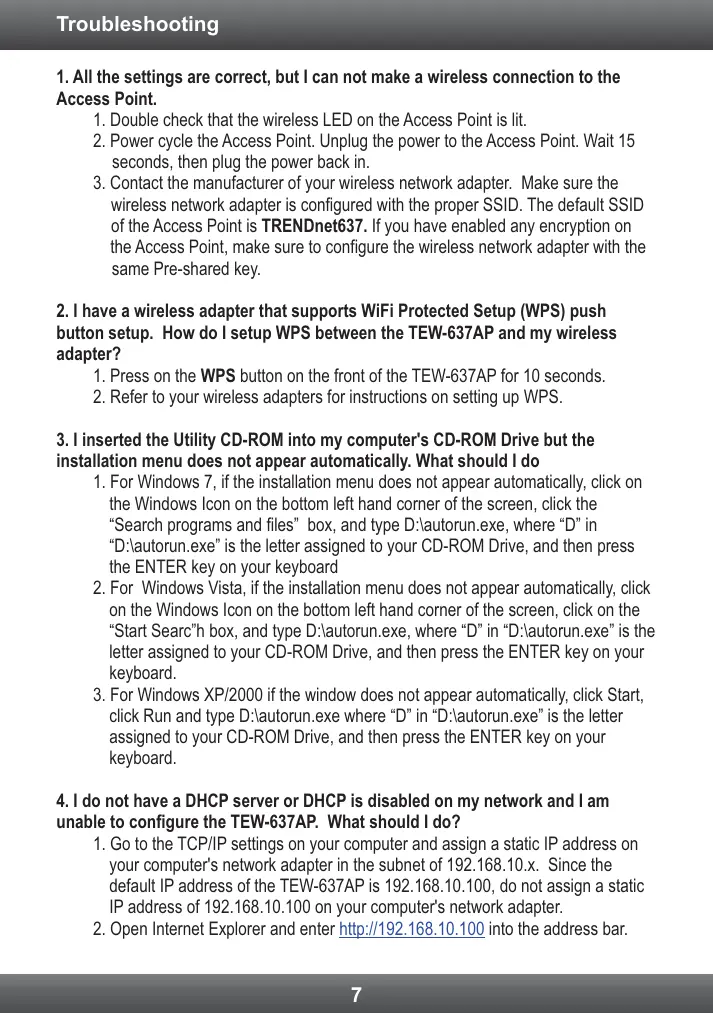
1. All the settings are correct, but | can not make a wireless connection to the Access Point.
1. Double check that the wireless LED on the Access Point is lit.
2. Power cycle the Access Point. Unplug the power to the Access Point. Wait 15 seconds, then plug the power back in.
3. Contact the manufacturer of your wireless network adapter. Make sure the wireless network adapter is configured with the proper SSID. The default SSID of the Access Point is TRENDnet637. f you have enabled any encryption on the Access Point, make sure to configure the wireless network adapter with the same Pre-shared key.
2. l have a wireless adapter that supports WiFi Protected Setup (WPS) push button setup. How do I setup WPS between the TEW-637AP and my wireless adapter? 1. Press on the WPS button on the front of the TEW-637AP for 10 seconds. 2. Refer to your wireless adapters for instructions on setting up WPS.
3. l'inserted the Utility CD-ROM into my computer's CD-ROM Drive but the installation menu does not appear automatically. What should 1 do
1. For Windows 7, if the installation menu does not appear automatically, click on the Windows Icon on the bottom left hand corner of the screen, click the “Search programs and files” box, and type D:\autorun.exe, where “Din “D:\autorun.exe” is the letter assigned to your CD-ROM Drive, and then press the ENTER key on your keyboard
2. For Windows Vista, if the installation menu does not appear automatically, click on the Windows Icon on the bottom left hand corner of the screen, click on the “Start Searc’h box, and type D:\autorun.exe, where “D” in “D:\autorun.exe” is the letter assigned to your CD-ROM Drive, and then press the ENTER key on your keyboard.
3. For Windows XP/2000 if the window does not appear automatically, click Start, click Run and type D:\autorun.exe where “D” in “D:\autorun.exe’ is the letter assigned to your CD-ROM Drive, and then press the ENTER key on your keyboard.
4.1 do not have a DHCP server or DHCP is disabled on my network and | am unable to configure the TEW-637AP. What should | do?
1. Go to the TCP/IP settings on your computer and assign a static IP address on your computer's network adapter in the subnet of 192.168.10.x. Since the default IP address of the TEW-637AP is 192.168.10.100, do not assign a static IP address of 192.168.10.100 on your computer's network adapter.
2. Open Internet Explorer and enter http://192.168.10.100 into the address bar.
5. ! followed the Quick Installation Guide and setup a new password. When I log
in to the browser configuration an access error message appears. What should |
do? If the password was changed and you don't remember it, you need to reset the TEW-637AP. To reset the TEW-637AP, power up the unit and wait 30 seconds for the unit to boot up. Then take a pin or paper clip and press the reset button for 15 seconds, then let go. The reset button is located on the bottom of the TEW-637AP. Please note that performing a reset on the TEW-637AP will erase all settings applied and will revert back to default settings. The default user name is admin and the default password is admin. When you log in to the browser configuration for the first time, make sure to enter admin for user name. Do not leave the user name field blank
LED'Button Color | Sequence | Definition ET ET NA [of Denice of soi a por ps 10/20 Mbps or 100/200Mbps Network Port | Green Link/Act LEDS ES or 109/200Mbps (HalFul Duplex) NA of Wireless LAN is on or enabledireless dal transmission Green | Blinking | _ Wireless LAN: on or enabled/ireless data transmission Weess LED Lun À of Wireless LAN is of or disabled Solid | WPS auhenicaïion provess complete WPS LED Green ing | VIPS authentcatonin process Na [of WPS not acivaled or disabled Power Switch Na | Na Tums onfof power to the TEW.637AP (EU Version oniy) ResetButton | NA | NA Hoid 15 seconds lo reset device factory defauls.
WPS Button NA [NA Hoïd 3 seconds o acivale PS If you still encounter problems or have any questions regarding the TEW-637AP, please contact TRENDnet's Technical Support Department.
The following are some general wireless tips to help minimize the impact of interference within an environment.
Assign your network a unique SSID Do not use anything that would be identifing Ike “Smith Family Network”. Choose something that you would easily identify when searching for available wireless networks.
Do not turn off the SSID broadcast The SSID broadcast is intended to be on and tuming i off can cause connectiity issues. The preferred method of securing a wireless network is to choose a strong form of encryption with a strong and varied encryption key.
Note: after setting up the SSID, encryption type and encryption key/passphrase, please make a note of them for future reference. You will need this information to connect your wireless computers to the wireless router/access point.
Change the channel Most wireless access points and routers are defaulted to channel 6. If you have a site survey tool that wil display the channels you can plan your channel selection around neighboring access points to minimize interference from them. If your site survey tool does not display the channel try using channels 1 or 11.
I you are using 802 in you should be securing the network with WPA2 security.
Note: Due to Wi-Fi certication considerations if you choose WEP, WPA or WPA2-TKIP encryption this device may operate in legacy wireless mode (802.11b/g). You may not get 802 l'in performance as these forms of encryption are not supported by the 802.11n specification.
Please also make sure that the wireless hardware is not placed in any type of shelving or enclosures.
Avoid stacking hardware on top of each other to prevent overheating issues Maintain enough free space around the hardware for good ventilation and airlow. There should also be plenty of free space around the antennas to allow the wireless signal to propagate
There are a number of other environmental factors that can impact the range of wireless devices.
1. Adjust your wireless devices so that the signal is traveling in a straight path, rather than at
an angle. The more material he signal has to pass through the more signal you wil lose.
2. Keep the number of obstructions to a minimum. Each obstruction can reduce the range of
a wireless device. Position the wireless devices in a manner that will minimize the amount of obstructions between them.
3. Building materials can have a large impact on your wireless signal. In an indoor environment, try to position the wireless devices so that the signal passes through less
dense material such as dry wall. Dense materials like metal, solid wood, glass or even fumiture may block or degrade the signal.
4. Antenna orientation can also have a large impact on your wireless signal. Use the wireless
adapter site survey tool to determine the best antenna orientation for your wireless devices.
5.Interference from devices that produce RF (radio frequency) noise can also impact your signal. Position your wireless devices away from anything that generates RF noise, such 28 microwaves, HAM radios, Walkie-Talkies and baby monitors:
6. Any device operating on the 2 4GHz frequency will cause interference. Devices such as 2.AGHz cordiess phones or other wireless remotes operating on the 2.4GHz frequency can potentially drop the wireless signal. Although the phone may not be in use, the base
can st transmit wireless signals. Move the phone's base station as far away as possible from your wireless devices.
If you are still experiencing low or no signal consider repositioning the wireless devices or installing
additional access points. The use of higher gain antennas may also provide the necessary coverage depending on the environment.
Déclaration de conformité
Sonny Su Director of Technology FuName Fos 7 Title April 20, 2011 \ 1 Ç- Date Sun]
This equipment has been tested and found to comply with FCC and CE Rules. Operation is subject to the following two conditions:
(1) This device may not cause harmiul interference.
(2) This device must accept any interference received. Including interference that may cause undesired operation.
Waste electrical and electronic products must not be disposed of with householé waste. Please recycle where faciles exist, Check with you Local
Authority or Retail orrecycing advice. —
NOTE: THE MANUFACTURER IS NOT RESPONSIBLE FOR ANY RADIO OR TV INTERFERENCE CAUSED BY UNAUTHORIZED MODIFICATIONS TO THIS EQUIPMENT. SUCH MODIFICATIONS COULD VOID THE USER'S AUTHORITY TO OPERATE THE EQUIPMENT.
ADVERTENCIA En todos nuestros equipos se mencionan claramente las caracteristicas del adaptador de alimentacén necesario para su funcionamiento. El uso de un adaptador distinto al mencionado puede producir daños fisicos y/o daños al equipo conectado. El adaptador de alimentacién debe operar con voltaje y frecuencia de la energia electrica domiciiaria existente en el pais o zona de instalaciôn.
Copyright © 2011. All Rights Reserved. TRENDnet.