
TEW-703PIL - Wireless Access Point TRENDNET - Free user manual and instructions
Find the device manual for free TEW-703PIL TRENDNET in PDF.

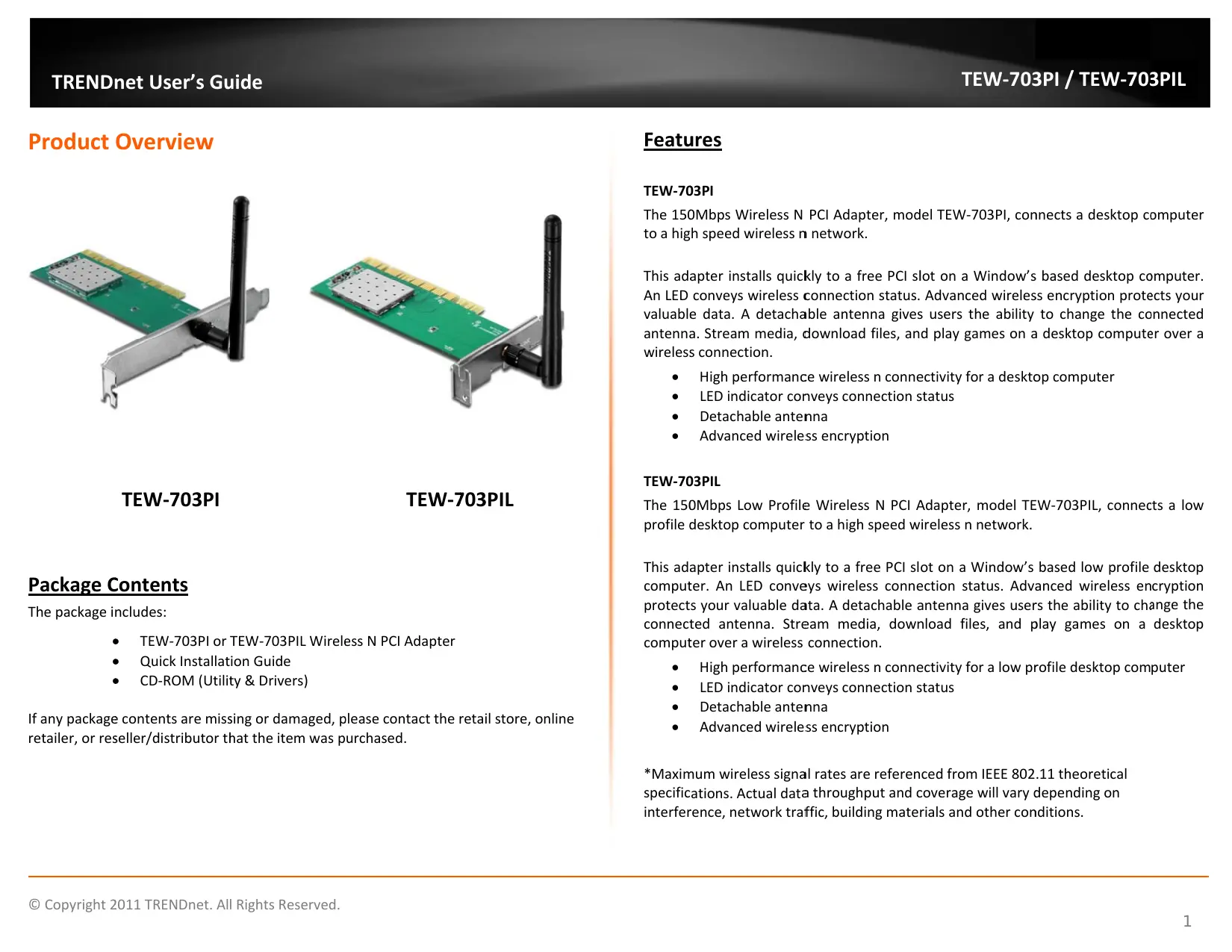

| Product Type | 150 Mbps PCI Wireless N Adapter (Low Profile) |
| Brand | TRENDnet |
| Model | TEW-703PIL |
| Interface | 32-Bit PCI 2.1 |
| Wireless Standards | IEEE 802.11b/g/n |
| Maximum Data Rate | Up to 150 Mbps (802.11n) |
| Frequency | 2.4 GHz (2.412 ~ 2.484 GHz) |
| Antenna | 1 detachable dipole antenna 2 dBi, Reverse SMA connector |
| Wireless Security | WEP 64/128-bit, WPA/WPA2 (TKIP/AES), WPA-PSK/WPA2-PSK |
| LED Indicators | Link (solid green), Activity (blinking green) |
| Power Consumption | 350 mA (reception) / 400 mA (transmission) max. |
| Dimensions (L x W) | 120 x 44 mm |
| Weight | 55 g |
| Supported Operating Systems | Windows 7, Vista, XP (32/64-bit) |
| Operating Temperature | 0° to 40°C |
| Operating Humidity | 95% max. (non-condensing) |
| Certifications | CE, FCC |
| Warranty | 3 years |
| Package Contents | Adapter, quick installation guide, CD-ROM (drivers and utility) |
| Main Features | High-speed wireless N connection, easy installation in PCI slot, streaming, downloading, online gaming |
| Care and Cleaning | No special maintenance required. Clean with a soft, dry cloth. |
| Spare Parts and Repairability | Detachable antenna available as an option. No user-serviceable parts inside. |
| General Information | 3-year warranty. Compliant with CE and FCC standards. Suitable for low profile cases. |
Frequently Asked Questions - TEW-703PIL TRENDNET
User questions about TEW-703PIL TRENDNET
0 question about this device. Answer the ones you know or ask your own.
Ask a new question about this device
Download the instructions for your Wireless Access Point in PDF format for free! Find your manual TEW-703PIL - TRENDNET and take your electronic device back in hand. On this page are published all the documents necessary for the use of your device. TEW-703PIL by TRENDNET.
USER MANUAL TEW-703PIL TRENDNET
150Mbps Wireless N PCI Adapter Low Profile 150Mbps Wireless N PCI Adapter
TEW-703PI / TEW-703PIL
Contents
Product Overview. 1
Package Contents 1
Features 1
TEW-703PI 1
TEW-703PIL 1
Product Hardware Features. 2
LED 2
Application Diagram 2
Software Installation and Configurations 3
Utility Installation 3
Utility Configurations 4
General 4
Profile 4
Available Networks 6
Status 6
Statistics 7
WPS 7
Technical Specifications 11
Limited Warranty 15
Product Overview
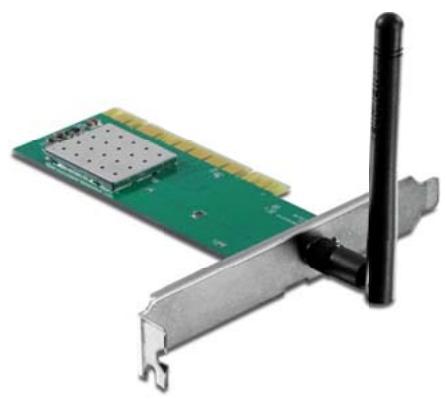
TEW-703PI
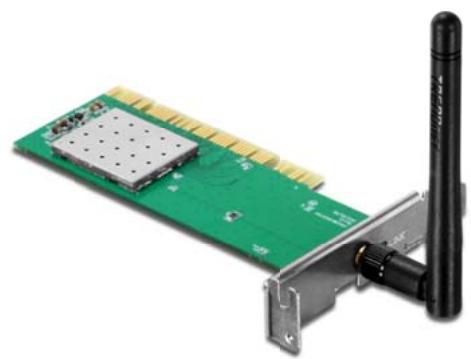
TEW-703PIL
Package Contents
The package includes:
- TEW-703PI or TEW-703PIL Wireless N PCI Adapter
- Quick Installation Guide
CD-ROM (Utility & Drivers)
If any package contents are missing or damaged, please contact the retail store, online retailer, or reseller/distributor that the item was purchased.
Features
TEW-703PI
The 150Mbps Wireless N PCI Adapter, model TEW-703PI, connects a desktop computer to a high speed wireless n network.
This adapter installs quickly to a free PCI slot on a Window's based desktop computer. An LED conveys wireless connection status. Advanced wireless encryption protects your valuable data. A detachable antenna gives users the ability to change the connected antenna. Stream media, download files, and play games on a desktop computer over a wireless connection.
High performance wireless n connectivity for a desktop computer
LED indicator conveys connection status
- Detachable antenna
Advanced wireless encryption
TEW-703PIL
The 150Mbps Low Profile Wireless N PCI Adapter, model TEW-703PIL, connects a low profile desktop computer to a high speed wireless n network.
This adapter installs quickly to a free PCI slot on a Window's based low profile desktop computer. An LED conveys wireless connection status. Advanced wireless encryption protects your valuable data. A detachable antenna gives users the ability to change the connected antenna. Stream media, download files, and play games on a desktop computer over a wireless connection.
High performance wireless n connectivity for a low profile desktop computer
LED indicator conveys connection status
- Detachable antenna
Advanced wireless encryption
*Maximum wireless signal rates are referenced from IEEE 802.11 theoretical specifications. Actual data throughput and coverage will vary depending on interference, network traffic, building materials and other conditions.
Product Hardware Features
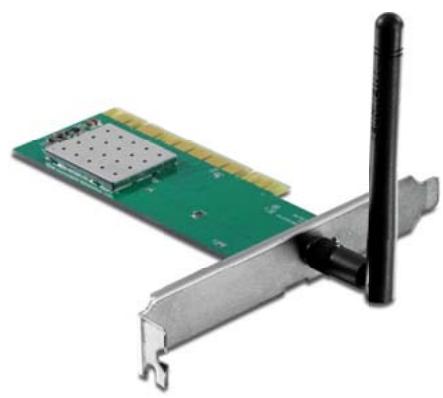
TEW-703PI

TEW-703PIL
LED
Link
A green Link LED indicator lights up when the TEW-703PI / TEW-703PIL Wireless N PCI Adapter is connected to a wireless network successfully.
ACT (Activity)
The ACT LED indicator blinks green when the 802.11n Wireless LAN Adapter is transmitting or receiving data.
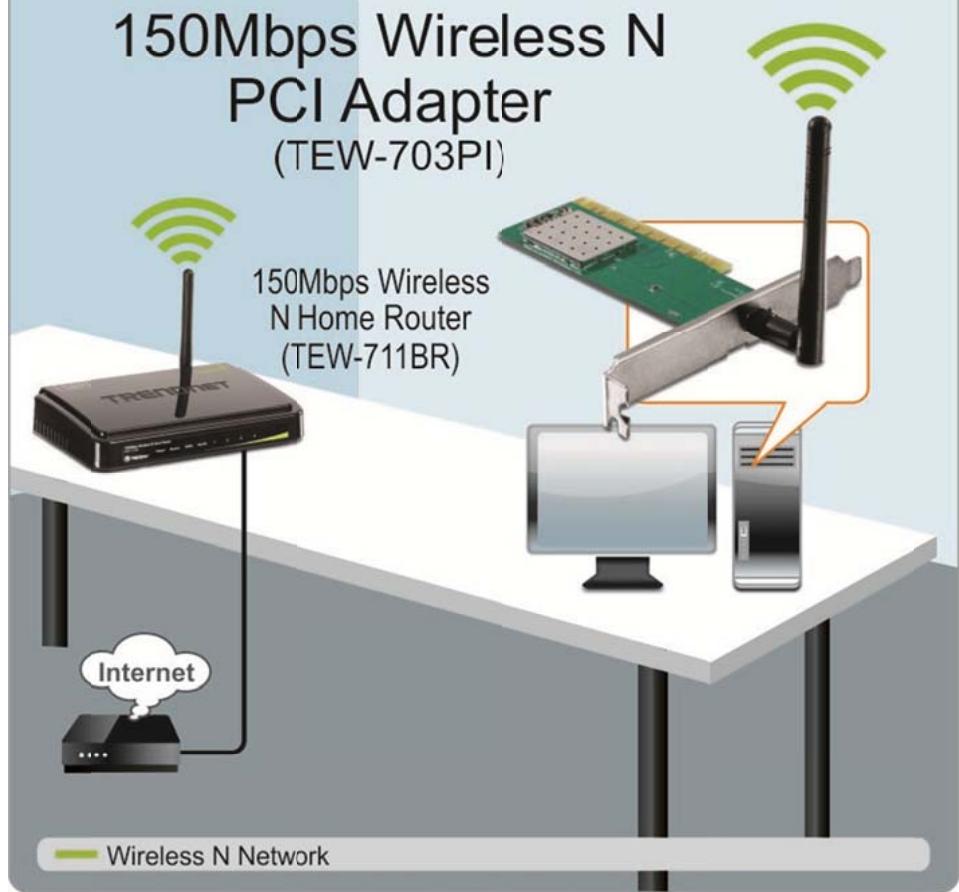
Application Diagram
Wireless Networking Solution
Software Installation and Configurations
Utility Installation
- Insert the Utility and Driver CD-ROM into your computer's CD-ROM drive and then click Install Utility & Driver button.
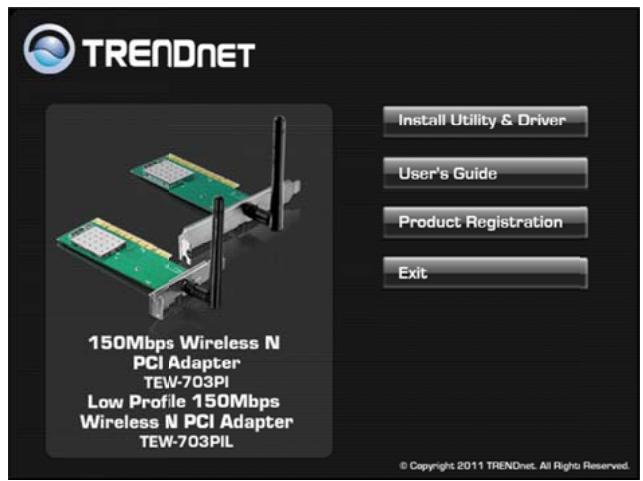
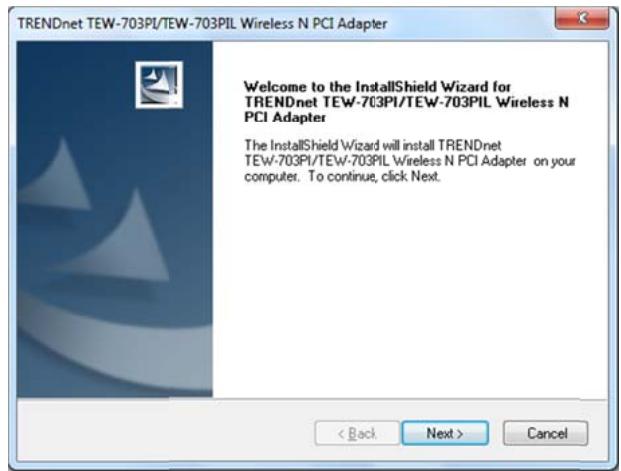
- Follow the InstallShield Wizard Instructions.
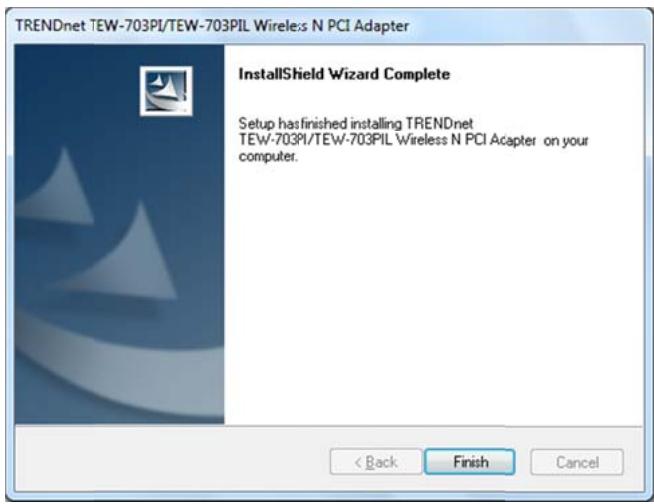
- Click Finish to restart the computer.
- After the computer is rebooted, plug the Wireless N USB Adapter into an available USB slot on your computer.
Utility Configurations
The user can configure the wireless settings using the Wireless Adapter Configuration Utility. Double-click the utility icon that appears in the taskbar.

3:50PM
The Wireless Adapter Configuration Utility is divided into six sections: General, Profile, Available Networks, Status, Statistics and WPS.
General
This screen shows the general information of the wireless adapter.
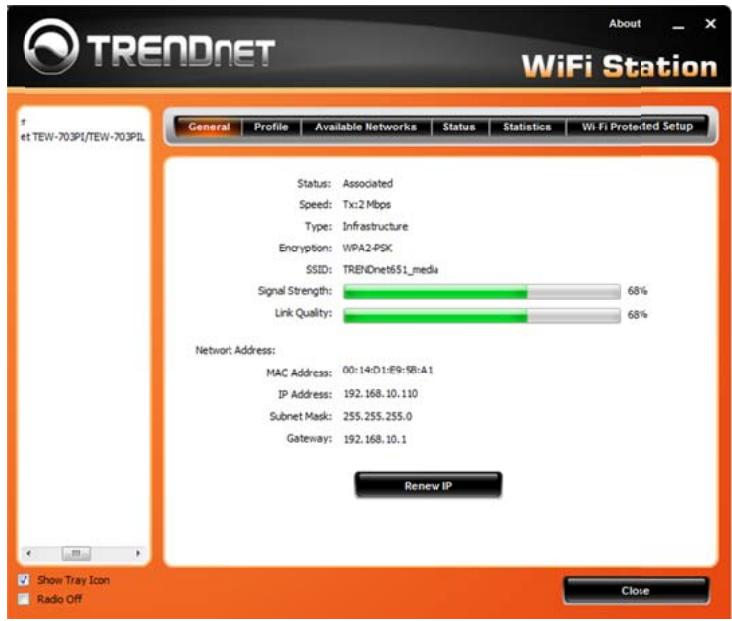
Status: Shows connection status.
Speed: Shows the transmission and the reception data rate.
Type: Shows the connection type, Infrastructure or Ad-Hoc mode.
Encryption: Shows the current encryption type used.
SSID: Shows the current SSID, which must be the same as your wireless access point or router in order to establish the connection correctly.
Wireless Mode: Shows the current wireless mode used.
Signal Strength: Shows the wireless signal strength of the connection between the adapter and the Access Point or router.
Link Quality: Shows the statistics of data transfer, and the calculation is based on the number of packets transmitted and received.
Network Address: Shows the MAC address and IP address of the adapter.
Profile
The user can create and manage the created profiles for home, work or public areas. By double-clicking on one of the created profile, the setting will adjust to the specific setting such as SSID, channel, and encryption as saved by that particular profile.
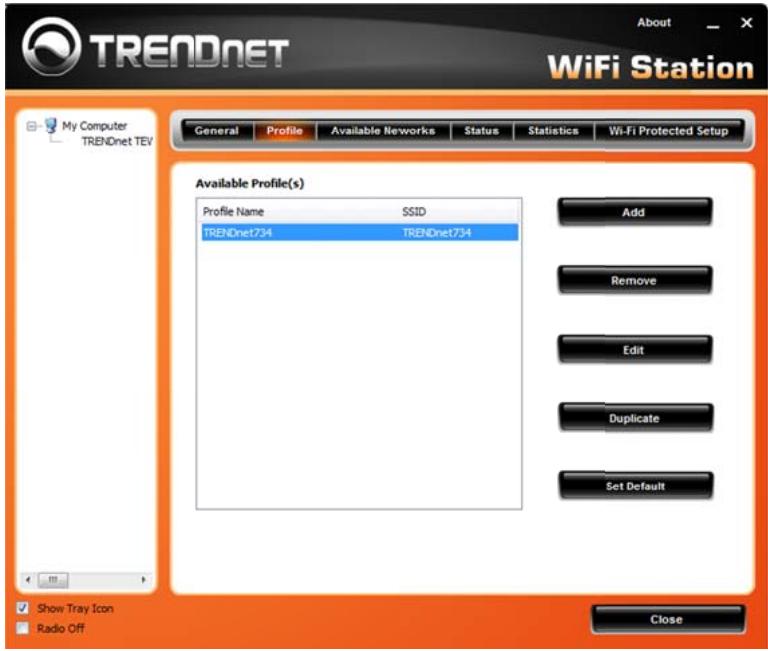
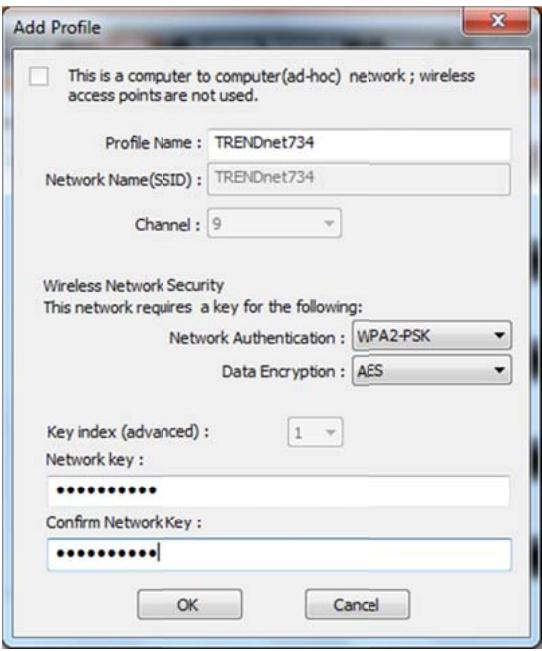
Add: Adds a profile. The following screen will appear. The user can enter the necessary information required for accessing the particular Access Point or Wireless Router. Or you can search the desire wireless router or AP under Available Networks section and click on Add Profile button to add the Profile.
Remove: deletes the selected profile
Edit: Edit an exist profile. The screen will back to profile. Edit the SSID and select the Wireless Mode, Authentication and Encryption then click Apply to save the profile. When the Profile name was changed, a new profile will be added in the list.
Duplicate: Duplicate the selected Profile.
Set Default: Set the selected Profile as default connection.
Wireless Network Security: The following options are available: Open System, Shared Key, WPA-PSK, WPA2-PSK, WPA EAP-TLS, WPA2 EPA-TLS. Select Open System, Shared Key for WEP data encryption feature.
Open or Shared Key
Open System and Shared Key require the user to set a WEP key to exchange data with other wireless clients that have the same WEP key. WEP is considered basic level of wireless encryption, if you would like higher security connection, WPA2 encryption is recommended.
Default Key: select one of the 4 keys to use.
Network Key: choose the encryption way, either in HEX or ASCII formats, and enter the password in the blank space.
Key Length: select 64 or 128 bits as the length of the keys Key Format: HEX or ASCII
| Key Length | Hex | ASCII |
| Type | characters 0-9, A-F, a-f | alphanumeric format |
| 64-bit | 10 characters | 5 characters |
| 128-bit | 26 characters | 13 characters |
WPA-PSK/WPA2-PSK
If using the WPA-PSK/WPA2-PSK authentication method, please select the Encryption type for TKIP or AES then enter the Passphrase key. The minimum length is 8 characters.
WPA EAP-TLS
If using the WPA/WPA2 EAP-TLS authentication method, please select the Encryption type for TKIP or AES then select the WPA/WPA2 Certificate from drop down list.
Available Networks
This screen allows the user to scan for available wireless network. It also allows the user to establish wireless communications with a target device.
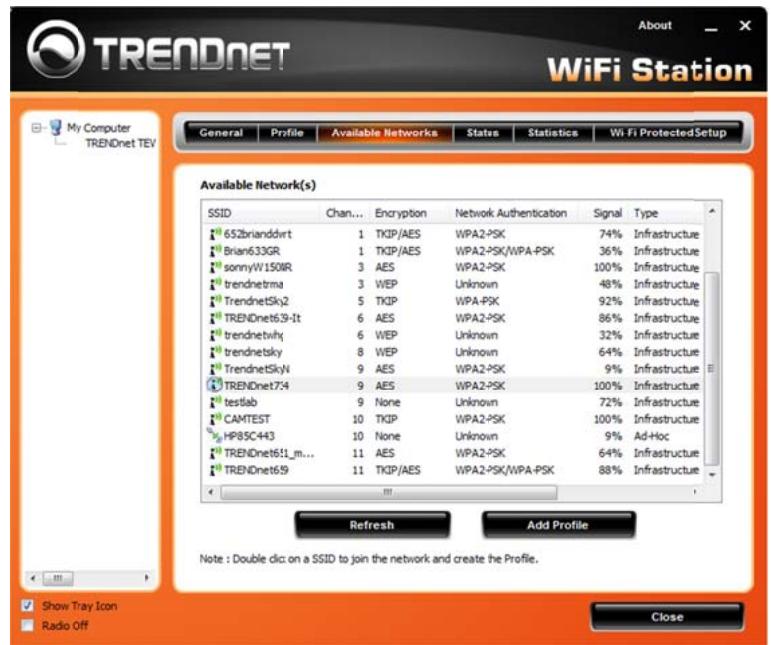
Available Networks - displays the wireless networks (wireless clients, access points or routers) that are within range.
Select any one of the wireless networks and connect to it by double-clicking.
Click the "Refresh" button to rescan for available networks.
Status
Display the information of the adapter including manufacturer, driver version, utility version, encryption, encryption type, region, adapter's MAC address, current connection data rate, channel, connection status, the associated router or Access Point's SSID, network type, associated device's MAC address, and Up time.
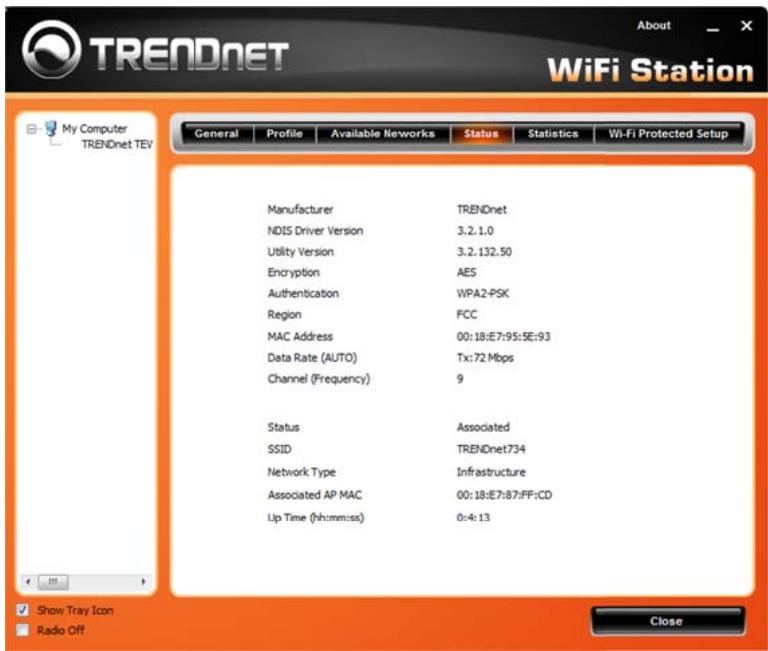
SSID: Service Set Identifier, which is a unique name shared among all wireless clients in a wireless network. The SSID must match the wireless access point or router's SSID that you are connecting to.
Network Type:
- Infrastructure – to establish wireless communication with the LAN and other wireless clients through the use of Access Points or Wireless Router. This is most common type of connection.
- Ad-Hoc – to establish point-to-point wireless communication directly with other wireless client devices.
Statistics
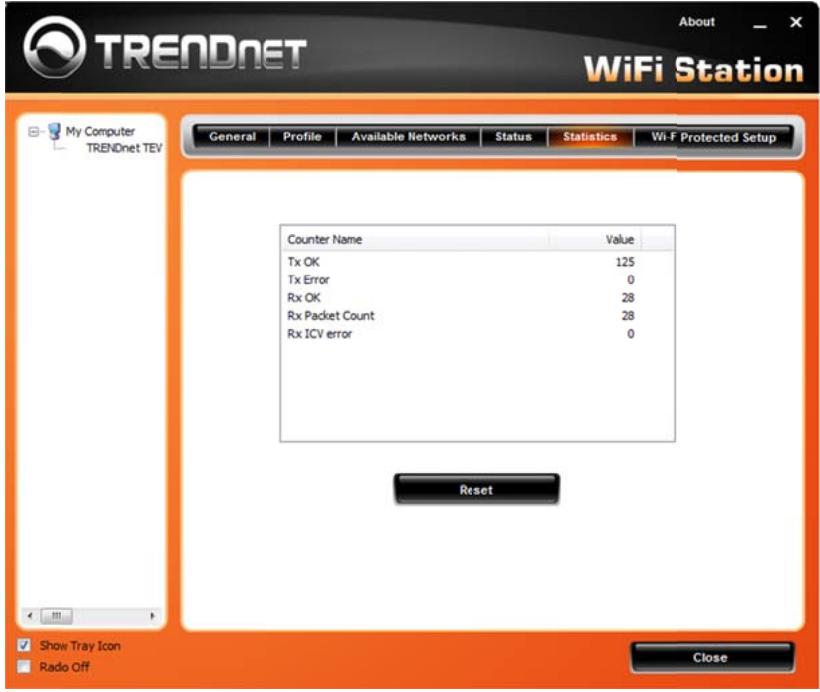
This section displays the statistics of the adapter connection. TX means transmission and RX means Reception.
WPS
Wi-Fi Protected Setup (WPS) is an optional certification program from the Wi-Fi Alliance that is designed to ease the task of setting up and configuring security on a wireless network. There are two methods used in the WPS as below instruction.
Push Button
Using the WPS configuration with the Push Button method, the configuration steps as below:
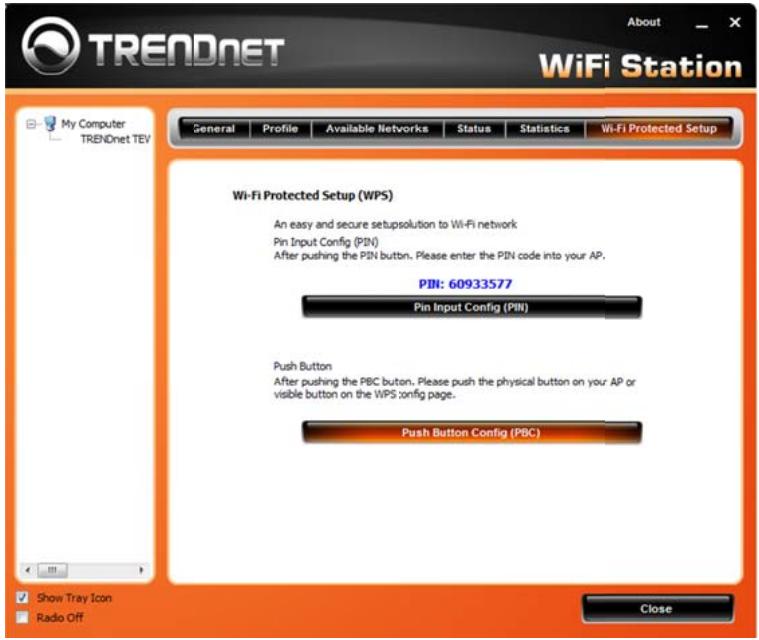
1) Click on the "Push Button Config (PBC)" button.
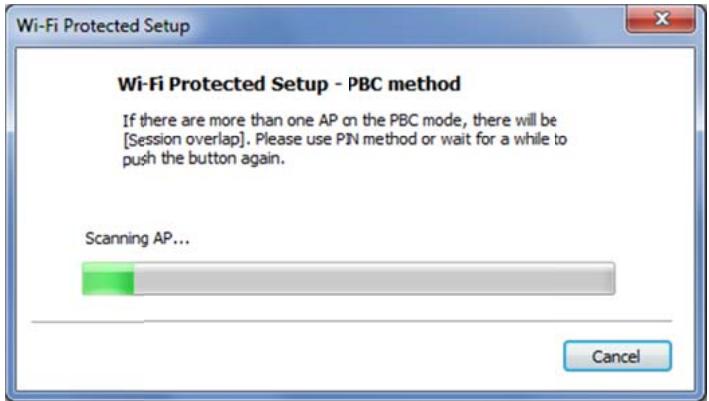
2) Push the WPS button on your wireless access point or router.
3) Click the Next button start the WPS configuration.
4) If the WPS configuration was successful, the follow window will show on.
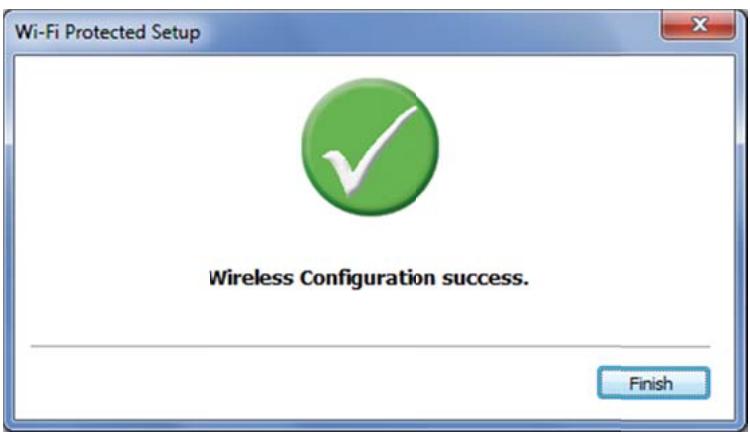
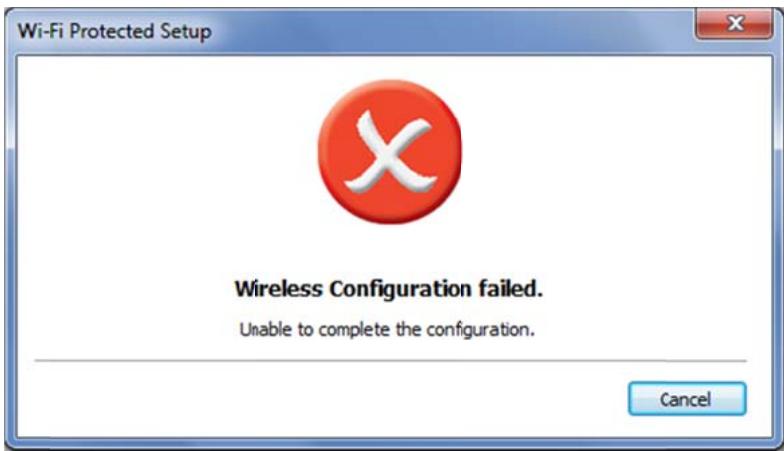
5) If the WPS configuration was failed, the follow window will show on.
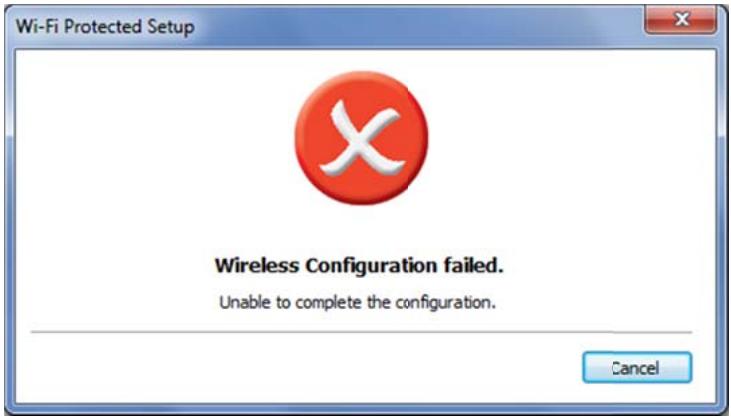
Enter a PIN
Using the WPS configuration with the PIN Input method, the configuration steps as below:
1) Click on the Pin Input Config (PIN) button, the PIN is shown on the button of the windows.
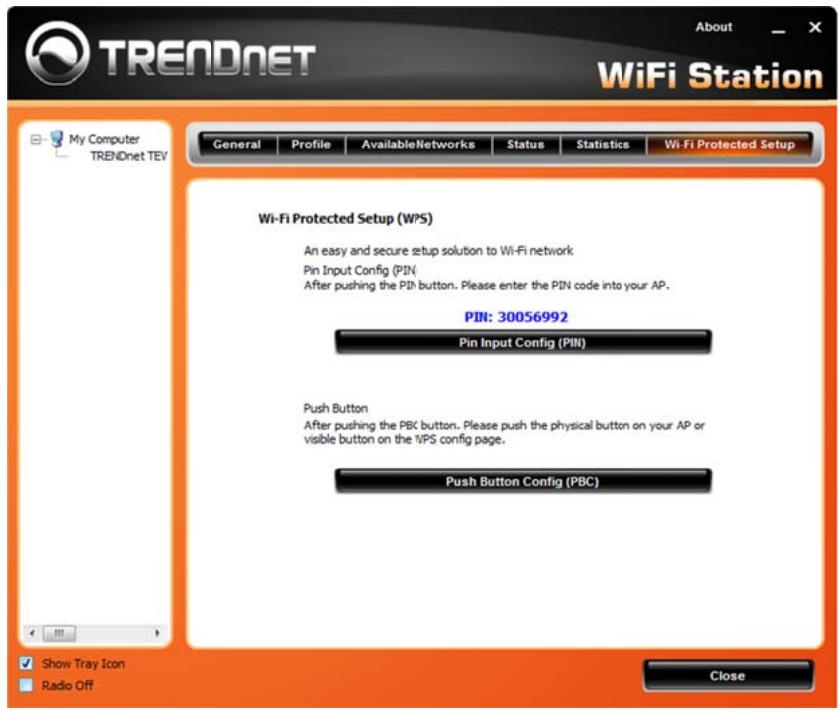
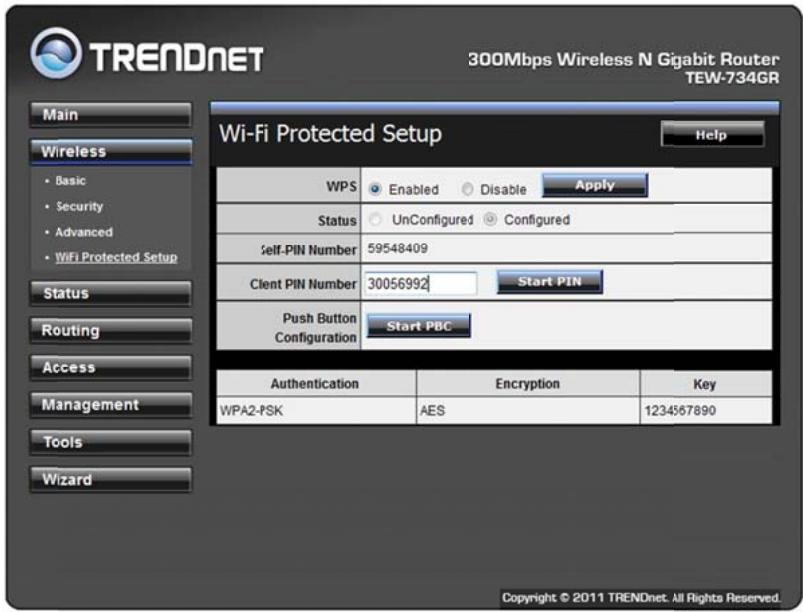
2) Enter the PIN code into the WPS "Client PIN number" of you wireless access point or router (in example, TRENDnet TEW-734GR 300Mbps Wireless N Gigabit Router) then click the Start PIN button, the wireless access point or router will start the WPS configuration process.
3) Choose to select the specific AP/Router or a WPS enabled device with client PIN entered.
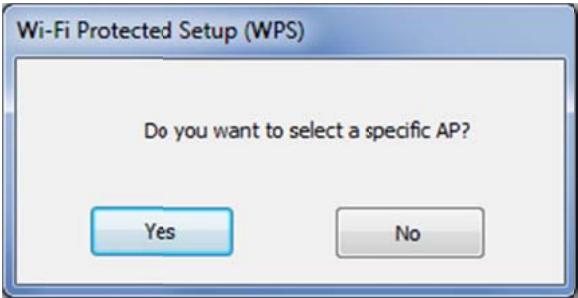
4) Select a wireless access point or router then click the Select button start the WPS configuration.
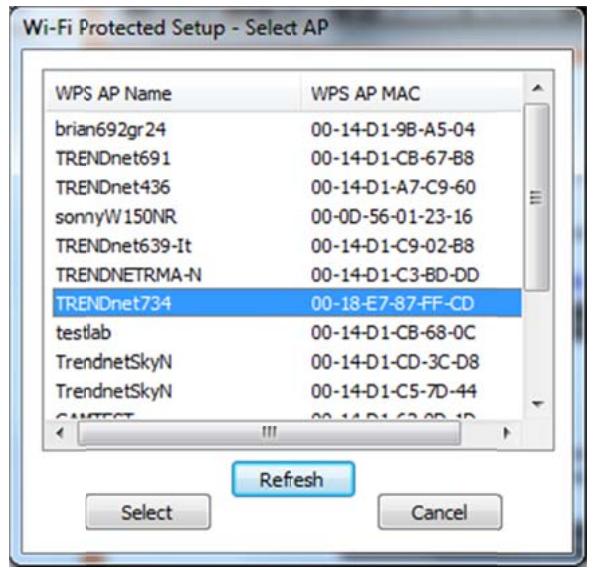
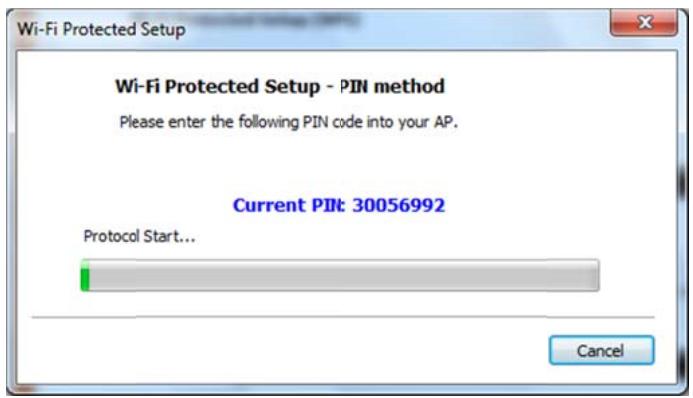
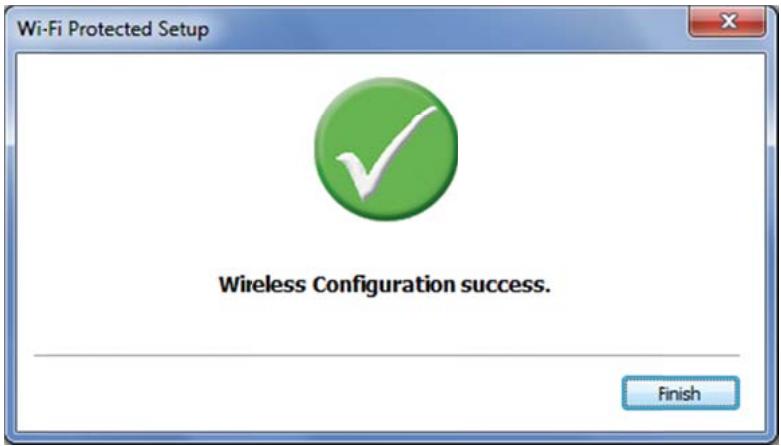
5) If the WPS configuration was successful, the follow window will show on.
6) If the WPS configuration was failed, the follow window will show on. Try to repeat the steps again if this screen appears.
Technical Specifications
| Hardware | |
| Interface | 32-Bit PCI 2.1 Bus |
| Standards | IEEE 802.11b, IEEE 802.11g, IEEE 802.11n |
| LED Indicator | Link/ Activity |
| Power Consumption | Receive mode: 350mA (max.)Transmit mode: 400mA (max.) |
| Supported OS | Windows 7 (32/64-bit), Vista (32/64-bit), XP (32/64-bit) |
| Dimensions | 120 x 44 mm (4.7 x 1.75 in.) |
| Weight | 55 g (1.8 oz) |
| Temperature | Operating: 0° ~ 40°C (32° ~ 104°F)Storage: -10° ~ 70°C (14° ~ 158°F) |
| Humidity | 95% max. (non-condensing) |
| Certifications | CE, FCC |
| Wireless | |
| Modulation | DBPSK/DQPSK/CCK/OFDM (BPSK/QPSK/16-QAM/64-QAM) |
| Antenna | 1 x 2dBi dipole detachable antenna with Reverse SMA connector |
| Frequency | 2.412 ~ 2.484 GHz |
| Data Rate (auto fallback) | 802.11b: up to 11Mbps802.11g: up to 54Mbps802.11n: up to 150Mbps |
| Output Power | 802.11b: 15dBm (typical)802.11g: 14dBm (typical) |
| 802.11n: 12dBm (typical) | |
| Receiving Sensitivity | 802.11b: -84dBm (typical) at 11Mbps 802.11g: -65dBm (typical) at 54Mbps 802.11n: -61dBm (typical) at 150Mbps |
| Encryption | 64/128-bit WEP (Hex & ASCII), WPA/WPA2 (TKIP/AES), WPA-PSK/WPA2-PSK |
| Channels | 1~11 (FCC), 1~13 (ETSI) |
Federal Communication Commission Interference Statement
This equipment has been tested and found to comply with the limits for a Class B digital device, pursuant to Part 15 of the FCC Rules. These limits are designed to provide reasonable protection against harmful interference in a residential installation. This equipment generates, uses and can radiate radio frequency energy and, if not installed and used in accordance with the instructions, may cause harmful interference to radio communications. However, there is no guarantee that interference will not occur in a particular installation. If this equipment does cause harmful interference to radio or television reception, which can be determined by turning the equipment off and on, the user is encouraged to try to correct the interference by one of the following measures:
Reorient or relocate the receiving antenna.
- Increase the separation between the equipment and receiver.
- Connect the equipment into an outlet on a circuit different from that to which the receiver is connected.
- Consult the dealer or an experienced radio/TV technician for help.
FCC Caution: Any changes or modifications not expressly approved by the party responsible for compliance could void the user's authority to operate this equipment.
This device complies with Part 15 of the FCC Rules. Operation is subject to the following two conditions: (1) This device may not cause harmful interference, and (2) this device must accept any interference received, including interference that may cause undesired operation.
IMPORTANT NOTE:
FCC Radiation Exposure Statement:
This equipment complies with FCC radiation exposure limits set forth for an uncontrolled environment. End users must follow the specific operating instructions for satisfying RF exposure compliance. To maintain compliance with FCC RF exposure compliance requirements, please follow operation instruction as documented in this manual.
This transmitter must not be co-located or operating in conjunction with any other antenna or transmitter.
SAR compliance has been established in typical laptop computer(s) with USB slot, and product could be used in typical laptop computer with USB slot. Other application like handheld PC or similar device has not been verified and may not compliance with related RF exposure rule and such use shall be prohibited.
The availability of some specific channels and/or operational frequency bands are country dependent and are firmware programmed at the factory to match the intended destination. The firmware setting is not accessible by the end user.
For Taiwan 警語:
Europe - EU Declaration of Conformity
This device complies with the essential requirements of the R&TTE Directive 1999/5/EC. The following test methods have been applied in order to prove presumption of conformity with the essential requirements of the R&TTE Directive 1999/5/EC:
EN60950-1:2006
Safety of Information Technology Equipment
EN 62311: 2008
Assessment of electronic and electrical equipment related to human exposure restrictions for electromagnetic fields (0 Hz - 300GHz)
EN 300 328 V1.7.1 (2006-10)
Electromagnetic compatibility and Radio spectrum Matters (ERM); Wideband transmission systems; Data transmission equipment operating in the 2,4 GHz ISM band and using wide band modulation techniques; Harmonized EN covering essential requirements under article 3.2 of the R&TTE Directive
EN 301 489-1 V1.8.1 (2008-04)
Electromagnetic compatibility and Radio Spectrum Matters (ERM); ElectroMagnetic Compatibility (EMC) standard for radio equipment and services; Part 1: Common technical requirements
EN 301 489-17 V1.3.2 (2008-04)
Electromagnetic compatibility and Radio spectrum Matters (ERM); ElectroMagnetic Compatibility (EMC) standard for radio equipment and services; Part 17: Specific conditions for 2,4 GHz wideband transmission systems and 5 GHz high performance WLAN equipment
This device is a 2.4 GHz wideband transmission system (transceiver), intended for use in all EU member states and EFTA countries, except in France and Italy where restrictive use applies.
In Italy the end-user should apply for a license at the national spectrum authorities in order to obtain authorization to use the device for setting up outdoor radio links and/or for supplying public access to telecommunications and/or network services.
This device may not be used for setting up outdoor radio links in France and in some areas the RF output power may be limited to 10 mW EIRP in the frequency range of 2454 - 2483.5 MHz. For detailed information the end-user should contact the national spectrum authority in France.

| cs Česky [Czech] | TRENDnet tímtó prohrašuje,že tento TEW-703PI / TEW-703PIL je ve shodě se základnímí požadavky a dalšími príslušnými ustanoveními směrnice 1999/5/ES. |
| dā Dansk [Danish] | Undertegnede TRENDnet erklærer herved, at følgende udstyr TEW-703PI / TEW-703PIL overholder de væsentlige krav og øvrige relevante krav i direktiv 1999/5/EF. |
| de Deutsch [German] | Hiermit erklärrt TRENDnet, dass sich das Gerät TEW-703PI / TEW- 703PIL in Übereinstimmung mit den grundlegenden Anforderungen und den übrigen einschlögigen Bestimmungen der Richtlinie 1999/5/EG befindet. |
| ē Eesti [Estonian] | Käesolevaga kinnitab TRENDnet seadme TEW-703PI / TEW-703PIL vastavust direktiivi 1999/5/EÜ põhinõuetele ja nimetatud direktiivist tulenevatele teistele asjakohastele sâtetele. |
| en English | Hereby, TRENDnet, declares that this TEW-703PI / TEW-703PIL is in compliance with the essential requirements and other relevant provisions of Directive 1999/5/EC. |
| es Español [Spanish] | Por medio de la presente TRENDnet declara que el TEW-703PI / TEW-703PIL cumple con los requisitos esencias y cualesquiera otras disponeciones aplicables o exigibles de la Direcita 1999/5/CE. |
| el Eλληνική [Greek] | ME THN ΠΑΡΟΥΣΑ TRENDnet ΔΗΛΩNEI OTI TEW-703PI / TEW- 703PIL ΣΥΜΜΟΦΩNETAI ΠΡΟΣ TΙΣ ΜΥΣΙΩΔΕΙΣ ΑΝΑΙΤΗΣΕΙΣ KΑΙ TΙΣ ΑΟΙΠΕΣ ΣχETAIKEΣ ΔΙΑΤΑΞΕΙΣ ΘΗ ΕΟΗΓΙΑΣ 1999/5/ΕΚ. |
| fr Français [French] | Par la présente TRENDnet déclare que l'appareil TEW-703PI / TEW-703PIL est conforme aux exigences essentielles et aux autres dispositions pertinentes de la directive 1999/5/CE. |
| it Italiano [Italian] | Con la presente TRENDnet dichiara che questo TEW-703PI / TEW- 703PIL è conforme ai requisiti essenziali ed alle altre disposizioni pertinenti stabilite alla direttiva 1999/5/CE. |
| Latviski [Latvian] | Ar šo TRENDnet deklarë, ka TEW-703PI / TEW-703PIL atbilst Direktīvas 1999/5/EK buttiskajām prisibām un citiem ar to saistītajiem noteikumiem. |
| Lietuvić [Lithuanian] | Šiuo TRENDnet deklaruoja, kad šis TEW-703PI / TEW-703PIL atitinka esminius reikalavimus irKitas 1999/5/EB Direktyvos nuostatas. |
| nL Netherlands [Dutch] | Hierbij verklaart TRENDnet dat het toestel TEW-703PI / TEW-703PIL in overeenstemming is met de essentiële eisen en de andere relevante bepalingen van richtlijn 1999/5/EG. |
| mtMalti [Maltese] | Hawnhekk, TRENDnet, jiddikjara li dan TEW-703PI / TEW-703PIL jikkonforma mal-htigi-jiet essenzjali u ma provvedimenti ohrajn relevanti li hemm fid-Dirrettiva 1999/5/EC. |
| huMagyar [Hungarian] | Alulírott, TRENDnet nyilatkozom, hogy a TEW-703PI / TEW-703PIL megfelel a vonatkozó alapvetö követelményeknek és az 1999/5/EC irányelv egyéb előirásainak. |
| plPolski [Polish] | Niniejszym TRENDnet oswiadzca, ze TEW-703PI / TEW-703PIL jest zgodny z zasadniczymi wymogami oraz pozostańymi stosownymi postanowieniami Dyrektywy 1999/5/EC. |
| ptPortuguês [Portuguese] | TRENDnet declares que este TEW-703PI / TEW-703PIL está conforme com os requisitos essenciais e outras dispositions da Directa 1999/5/CE. |
| slSlovensko [Slovenian] | TRENDnet izjavlja, da je ta TEW-703PI / TEW-703PIL v skladu z bistvenimi zahevami in ostalimi relevantnimi dolocili direktive 1999/5/ES. |
| Slovensky [Slovak] | TRENDnet týmto vyhlasuje, ze TEW-703PI / TEW-703PIL splna základné požiadavyk a věsetky príslušné ustanovenia Smernice 1999/5/ES. |
| fiSuomi [Finnish] | TRENDnet vakuuttaa täten että TEW-703PI / TEW-703PIL tyyppinen laite on direktivin 1999/5/EY olellisten vaatimusten ja sitä koskevien direktivin muiden ehtojen mukainen. |
| svSvenska [Swedish] | Härmed intygär TRENDnet attenna TEW-703PI / TEW-703PIL stár l’overensstammelse med de väsentliga egenskapskrav och övriga relevanta bestämmlser som framgår av direktiv 1999/5/EG. |
Limited Warranty
TRENDnet warrants its products against defects in material and workmanship, under normal use and service, for the following lengths of time from the date of purchase.
TEW-703PI / TEW-703PIL - 3 Years Warranty
AC/DC Power Adapter, Cooling Fan, and Power Supply carry 1 year warranty.
If a product does not operate as warranted during the applicable warranty period, TRENDnet shall reserve the right, at its expense, to repair or replace the defective product or part and deliver an equivalent product or part to the customer. The repair/replacement unit's warranty continues from the original date of purchase. All products that are replaced become the property of TRENDnet. Replacement products may be new or reconditioned. TRENDnet does not issue refunds or credit. Please contact the point-of-purchase for their return policies.
TRENDnet shall not be responsible for any software, firmware, information, or memory data of customer contained in, stored on, or integrated with any products returned to TRENDnet pursuant to any warranty.
There are no user serviceable parts inside the product. Do not remove or attempt to service the product by any unauthorized service center. This warranty is voided if (i) the product has been modified or repaired by any unauthorized service center, (ii) the product was subject to accident, abuse, or improper use (iii) the product was subject to conditions more severe than those specified in the manual.
Warranty service may be obtained by contacting TRENDnet within the applicable warranty period and providing a copy of the dated proof of the purchase. Upon proper submission of required documentation a Return Material Authorization (RMA) number will be issued. An RMA number is required in order to initiate warranty service support for all TRENDnet products. Products that are sent to TRENDnet for RMA service must have the RMA number marked on the outside of return packages and sent to TRENDnet prepaid, insured and packaged appropriately for safe shipment. Customers shipping from outside of the USA and Canada are responsible for return shipping fees. Customers shipping from outside of the USA are responsible for custom charges, including but not limited to, duty, tax, and other fees.
WARRANTIES EXCLUSIVE: IF THE TRENDNET PRODUCT DOES NOT OPERATE AS WARRANTED ABOVE, THE CUSTOMER'S SOLE REMEDY SHALL BE, AT TRENDNET'S OPTION, REPAIR OR REPLACE. THE FOREGOING WARRANTY AND REMEDIES ARE EXCLUSIVE AND ARE IN LIEU OF ALL OTHER WARRANTYES, EXPRESSED OR IMPLIED, EITHER IN FACT OR BY OPERATION OF LAW, STATUTORY OR OTHERWISE, INCLUDING
WARRANTIES OF MERCHANTABILITY AND FITNESS FOR A PARTICULAR PURPOSE. TRENDNET NEITHER ASSUMES NOR AUTHORIZES ANY OTHER PERSON TO ASSUME FOR IT ANY OTHER LIABILITY IN CONNECTION WITH THE SALE, INSTALLATION MAINTENANCE OR USE OF TRENDNET'S PRODUCTS.
TRENDNET SHALL NOT BE LIABLE UNDER THIS WARRANTY IF ITS TESTING AND EXAMINATION DISCLOSE THAT THE ALGED DEFECT IN THE PRODUCT DOES NOT EXIST OR WAS CAUSED BY CUSTOMER'S OR ANY THIRD PERSON'S MISUSE, NEGLECT, IMPROPER INSTALLATION OR TESTING, UNAUTHORIZED ATTEMPTS TO REPAIR OR MODIFY, OR ANY OTHER CAUSE BEYOND THE RANGE OF THE INTENDED USE, OR BY ACCIDENT, FIRE, LIGHTNING, OR OTHER HAZARD.
LIMITATION OF LIABILITY: TO THE FULL EXTENT ALLOWED BY LAW TRENDNET ALSO EXCULES FOR ITSELF AND ITS SUPPLIERS ANY LIABILITY, WHETHER BASED IN CONTRACT OR TORT (INCLUDING NEGLIGENCE), FOR INCIDENTAL, CONSEQUENTIAL, INDIRECT, SPECIAL, OR PUNITIVE DAMAGES OF ANY KIND, OR FOR LOSS OF REVENUE OR PROFITS, LOSS OF BUSINESS, LOSS OF INFORMATION OR DATE, OR OTHER FINANCIAL LOSS ASING OUT OF OR IN CONNECTION WITH THE SALE, INSTALLATION, MAINTENANCE, USE, PERFORMANCE, FAILURE, OR INTERRUPTION OF THE POSSIBILITY OF SUCH DAMAGES, AND LIMITS ITS LIABILITY TO REPAIR, REPLACEMENT, OR REFUND OF THE PURCHASE PRICE PAID, AT TRENDNET'S OPTION. THIS DISCLAIMER OF LIABILITY FOR DAMAGES WILL NOT BE AFFECTED IF ANY REMEDY PROVIDED HEREIN SHALL FAIL OF ITS ESSENTIAL PURPOSE.
Governing Law: This Limited Warranty shall be governed by the laws of the state of California.
Some TRENDnet products include software code written by third party developers. These codes are subject to the GNU General Public License ("GPL") or GNU Lesser General Public License ("LGPL").
Go to http://www.trendnet.com/gpl or http://www.trendnet.com Download section and look for the desired TRENDnet product to access to the GPL Code or LGPL Code. These codes are distributed WITHOUT WARRANTY and are subject to the copyrights of the developers. TRENDnet does not provide technical support for these codes. Please go to http://www.gnu.org/licenses/gpl.txt or http://www.gnu.org/licenses/lgpl.txt for specific terms of each license.
PWP05202009v2
2011/10/15
Product Warranty Registration
Please take a moment to register your product online. Go to TRENDnet's website at http://www.trendnet.com/register
TRENDnet
20675 Manhattan Place
Torrance, CA 90501. USA
- 150Mbps Wireless N PCI Adapter Low Profile 150Mbps Wireless N PCI Adapter
- Contents
- Product Overview. 1
- Software Installation and Configurations 3
- Technical Specifications 11
- Limited Warranty 15
- Product Overview
- Package Contents
- Features
- TEW-703PI
- TEW-703PIL
- Product Hardware Features
- Application Diagram
- Wireless Networking Solution
- Software Installation and Configurations
- Utility Installation
- Utility Configurations
- General
- Profile
- Open or Shared Key
- WPA-PSK/WPA2-PSK
- WPA EAP-TLS
- Available Networks
- Status
- Network Type:
- Statistics
- WPS
- Push Button
- Enter a PIN
- Federal Communication Commission Interference Statement
- IMPORTANT NOTE:
- FCC Radiation Exposure Statement:
- For Taiwan 警語:
- Europe - EU Declaration of Conformity
- Limited Warranty
- TEW-703PI / TEW-703PIL - 3 Years Warranty
- Product Warranty Registration
Brand : TRENDNET
Model : TEW-703PIL
Category : Wireless Access Point