 EasyManual
E0773 - Digital recorder HUMAX - Free user manual and instructions
Find the device manual for free E0773 HUMAX in PDF.


User questions about E0773 HUMAX
0 question about this device. Answer the ones you know or ask your own.
Ask a new question about this device
Download the instructions for your Digital recorder in PDF format for free! Find your manual E0773 - HUMAX and take your electronic device back in hand. On this page are published all the documents necessary for the use of your device. E0773 by HUMAX.
USER MANUAL E0773 HUMAX
The default password is 0000.
Thank you for purchasing a Humax HDR-FOX T2 Freeview+ HD product.
Freeview+ HD explained:
- Accurate recording
The start and end times of scheduled recordings will track the signal meaning the recording will start and stop at the times sent by the broadcasters. If a programme starts early or runs late the record time will automatically be adjusted to record the whole programme.
Series Recording
If a programme you wish to record is in a series, you can now record the whole series. If the programme changes to a different day or time the product will track these changes and still record the programme.
Alternate Instances
If a scheduled recording(s) overlap with other programmes set to record you will be given the option to record one of the programmes later that day or week, on the same channel or a different channel.
- Split Recordings
If a programme has two parts split by another entry in the Guide (e.g. a film divided in to two parts by a News programme) you will be given the option to set both parts to record.
Note: The above Freeview+ HD features are available on channels where the correct and accurate data is being broadcast. Some channels may not support all of the Freeview+ HD services.
For more information on Freeview+ HD please visit http://www.freeview.co.uk/HD.
Notice
Thank you for purchasing a HUMAX product. Please read this user's manual carefully to be able to safely install, use and maintain the product at maximum performance. Keep this user's manual next to your product for future reference. The information in this user's manual is subject to change without notice.
Copyright (Copyright © 2010 HUMAX Corporation)
Not to be copied, used or translated in part or whole without HUMAX's prior consent in writing except approval of ownership of copyright and copyright law.
Warranty
The warranty does not cover parts which may become defective due to misuse of the information contained in this manual.
Meaning of Symbols

To reduce the risk of electric shock, do not remove cover (or back). No user serviceable parts inside. Refer servicing to qualified service personnel.

This symbol indicates dangerous voltage inside the product that presents a risk of electric shock or personal injury.

This symbol indicates important instructions accompanying the product.
Warnings, Cautions and Notes
Throughout the whole manual, pay special attention to the following marks that indicate hazardous situations.
Warning
Indicates a hazardous situation which could result in serious injury.
Caution
Indicates a situation which could damage the equipment or other apparatus.
Note
Indicates additional information to make the user aware of possible problems and information of any importance to help understand, use and maintain the installation.
'WEEE' Instructions

This product should not be disposed with other household wastes at the end of its working life. Please separate this from other types of wastes and recycle it responsibly to promote the sustainable reuse of material resources. This will prevent possible harm to the environment or human health from uncontrolled waste disposal.
Domestic users:
Please contact either the retailer where you purchased this product or their local government office for details of where and how they can take this item for environmentally safe recycling.
Business users:
Contact your supplier and check the terms and conditions of the purchase contract. This product should not be mixed with other commercial wastes for disposal.
Trademarks
Manufactured under license from Dolby Laboratories.
Dolby and the double-D symbol are trademarks of Dolby Laboratories.
- HDMI, the HDMI Logo, and High-Definition Multimedia Interface are trademarks of registered trademarks of HDMI Licensing LLC.
Contents
Notice 1
Thank you for purchasing a Humax HDR-FOX T2
Freeview+ HD product. 1
Quick Start Guide 5
- Checking Accessories 5
2.Product Overview 5 - Connections 9
- Powering On 11
5.Installation Wizard 12 - Menu Overview 14
Basic Operation 15
Changing Channels 15
Volume/Mute/Audio 15
Display Format / Resolution 16
Programme Information (i-plate) 17
Sleep Timer 18
Subtitle 18
Option 18
Text and Interactive Services 19
Channel List 20
Changing Channels 20
Editing Channels in Channel List 21
Managing Channels 22
Editing Channels 22
Editing Favourite Channels 24
TV Guide 26
Watching Programmes 26
Setting Reminders 27
Finding Programmes 28
Scheduling Reminders and Recordings 29
Recording and Playback 30
Recording 30
Playback 34
Playback Controls 35
Pausing and Rewinding Live TV (TSR) 36
Media List 37
Using Video List 39
Using Music List 42
Using Photo List 44
HUMAX TV Portal 46
Preferences 47
Parental Control 47
Language Setting 48
Setting Power On/Off Timer 48
Video Setting 49
Audio Setting 50
Screen Display 51
Installation 52
Automatic Search 52
Manual Search 53
Software Update (OTA) 53
Antenna Power 55
Factory Default 55
System 56
System Information 56
Signal Detection 56
Power Management 57
Common Interface 57
Data Storage 58
Internet Setting 58
Appendix 59
Specification 59
Service and Support 60
Safety Warning 61
Trouble Shooting 63
Error Message 65
Glossary 66
Remote Control Code List 68
1. Checking Accessories
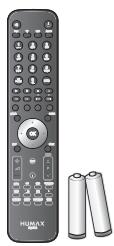
Remote Control & Batteries
Manual & Quick Start Guide
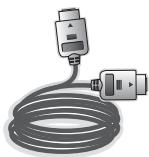
HDMI Cable
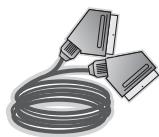
SCART Cable
Note: The accessories may vary according to area.
2. Product Overview
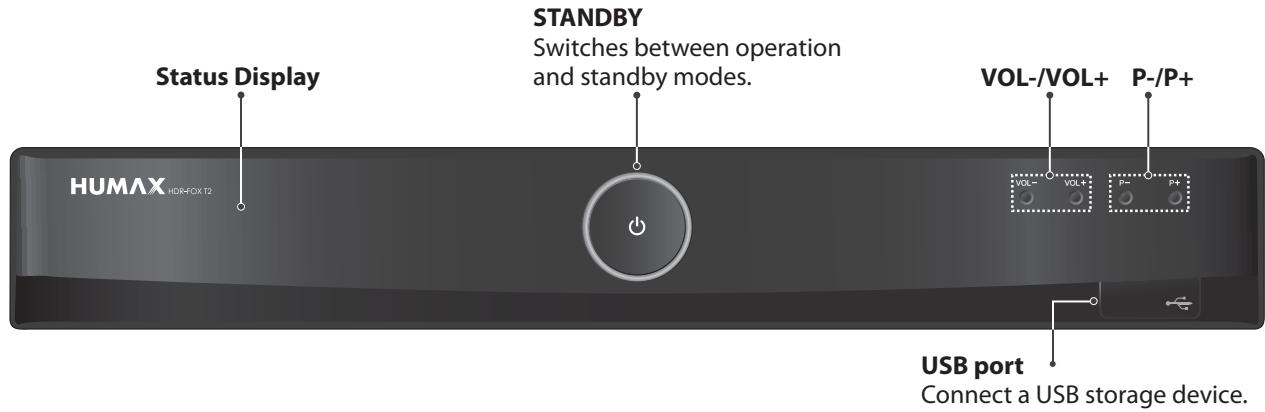
Front Panel
Note: The image shown may differ from the actual product.
Rear Panel
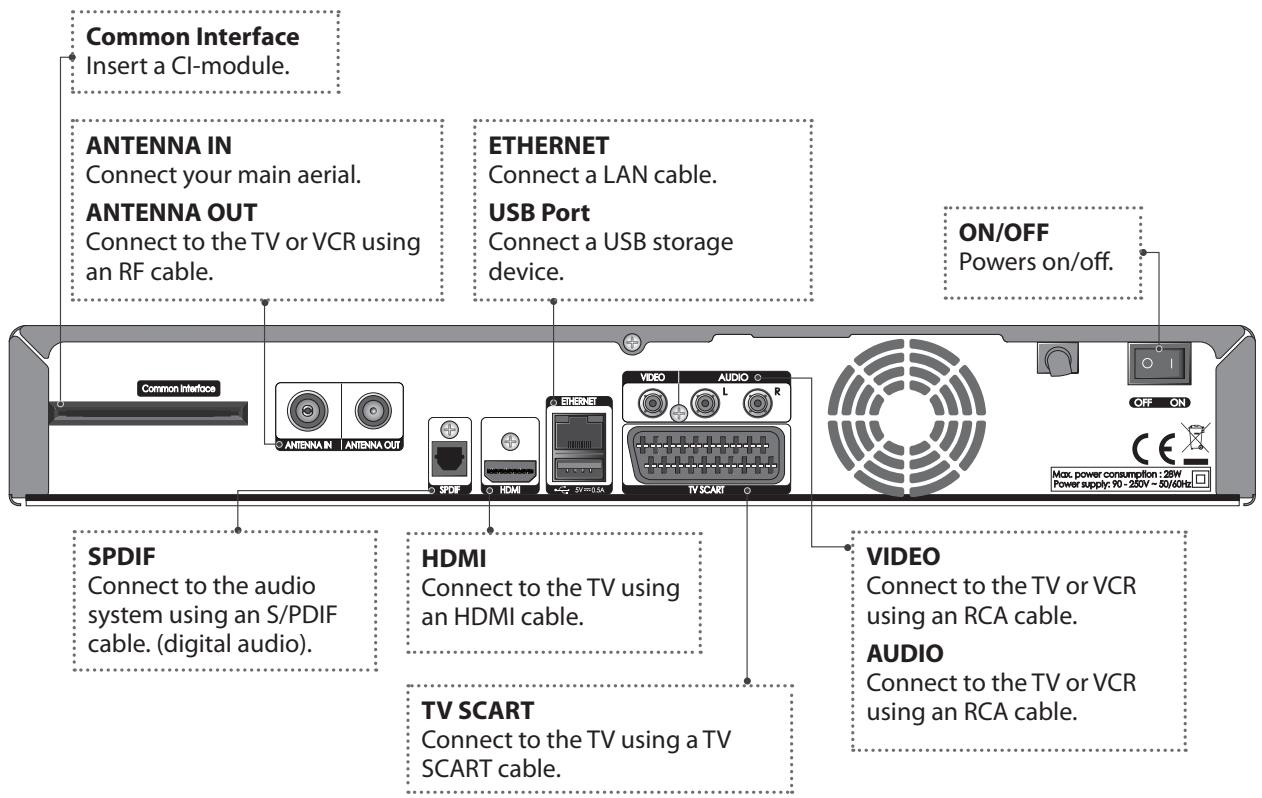
Note: The image shown may differ from the actual product.
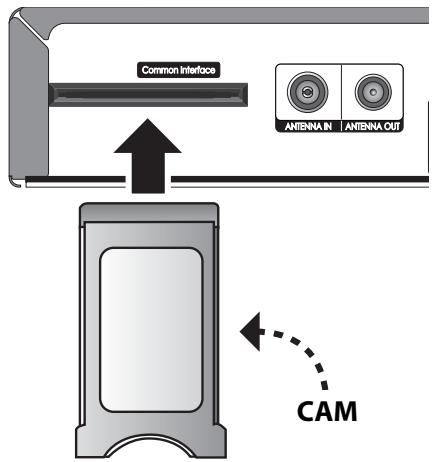
Conditional Access
Although most TV and radio services are free to air, others are available on a subscription basis and can only be enjoyed via a Conditional Access Module (CAM) and smartcard.
Insert the CAM into the Common Interface slot.
Note: The CAM and smartcard are not provided with the product and are available from the Pay TV provider.
Remote Control
To control the product please make sure that the PVR mode is selected on the remote control.
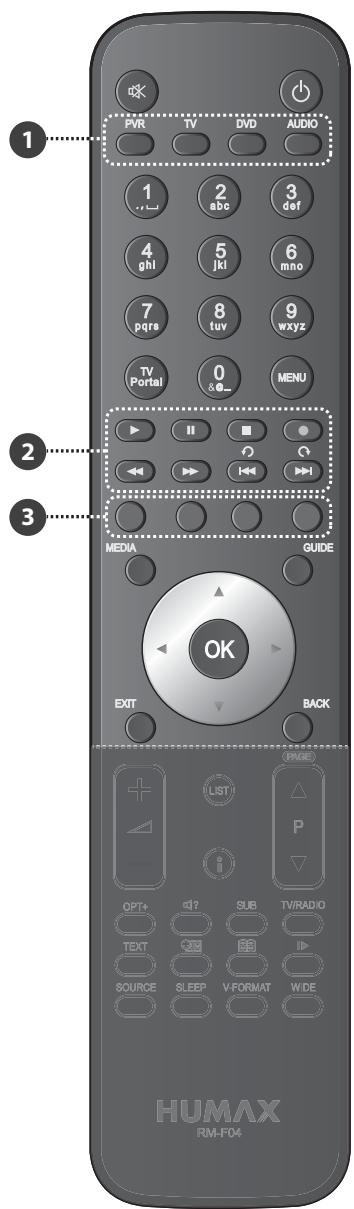
MUTE Mutes audio
STANDBY Switches between operation and standby modes.
1 MODE Changes the mode of remote.
NUMERIC (0-9)
TV Portal Access to Humax TV Portal.
MENUs Displays the main menu.

Playback Play,II Pause,■ Stop, Record Rewind,
Control Fast Forward, Previous,
Buttons Next,Instant Replay,Skip

COLOUR Colour keys for interactive applications.
Buttons
MEDIA Displays the media list.
GUIDE Displays the programme guide.
ARROW Moves the cursor up, down, left or right.
Buttons
OK Selects a menu or confirms.
EXIT Exits all On-Screen Display (OSD) screens.
BACK Returns to the previous screen.
Note:
The image shown may differ from the actual product.
- Some playback control buttons may not function depending on the content/media files you are viewing.
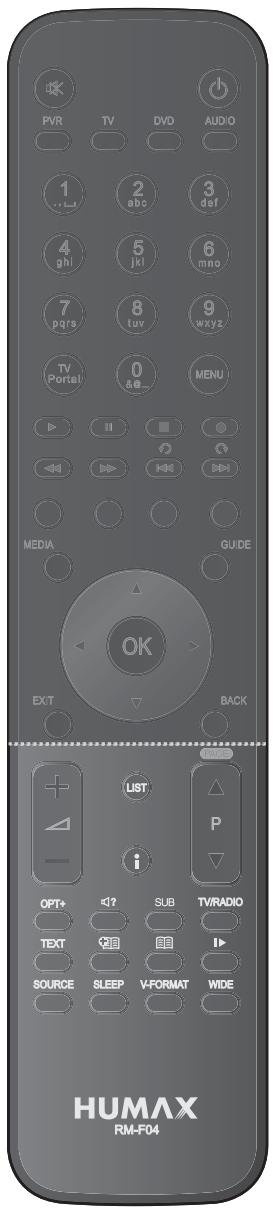
VOLUME Adjusts the audio volume.
P▲/P▼ Changes the channel or page.
LIST Displays the channel list.
i (Information) Displays the channel and programme information.
OPT+ Displays the channels attributes.
AUDIO Displays the audio list.
SUB Displays the subtitle language list.
TV/RADIO Switches between TV and radio modes.
TEXT Enters the digital text service.
SOURCE Controls the output of TV SCART.
SLEEP Sets the sleep timer.
V-FORMAT Sets the resolution of video.
WIDE Sets the display format.

AddBookmark/ShowBookmark List.

Slow Play
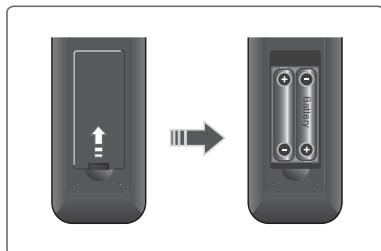
Inserting Batteries
- Press the hook upward and lift the battery cover off.
- Insert the batteries (supplied) matching the plus (+) and minus(-) at each end.
- Close the cover.
- Press the PVR button at the top of the remote control.
3. Connections
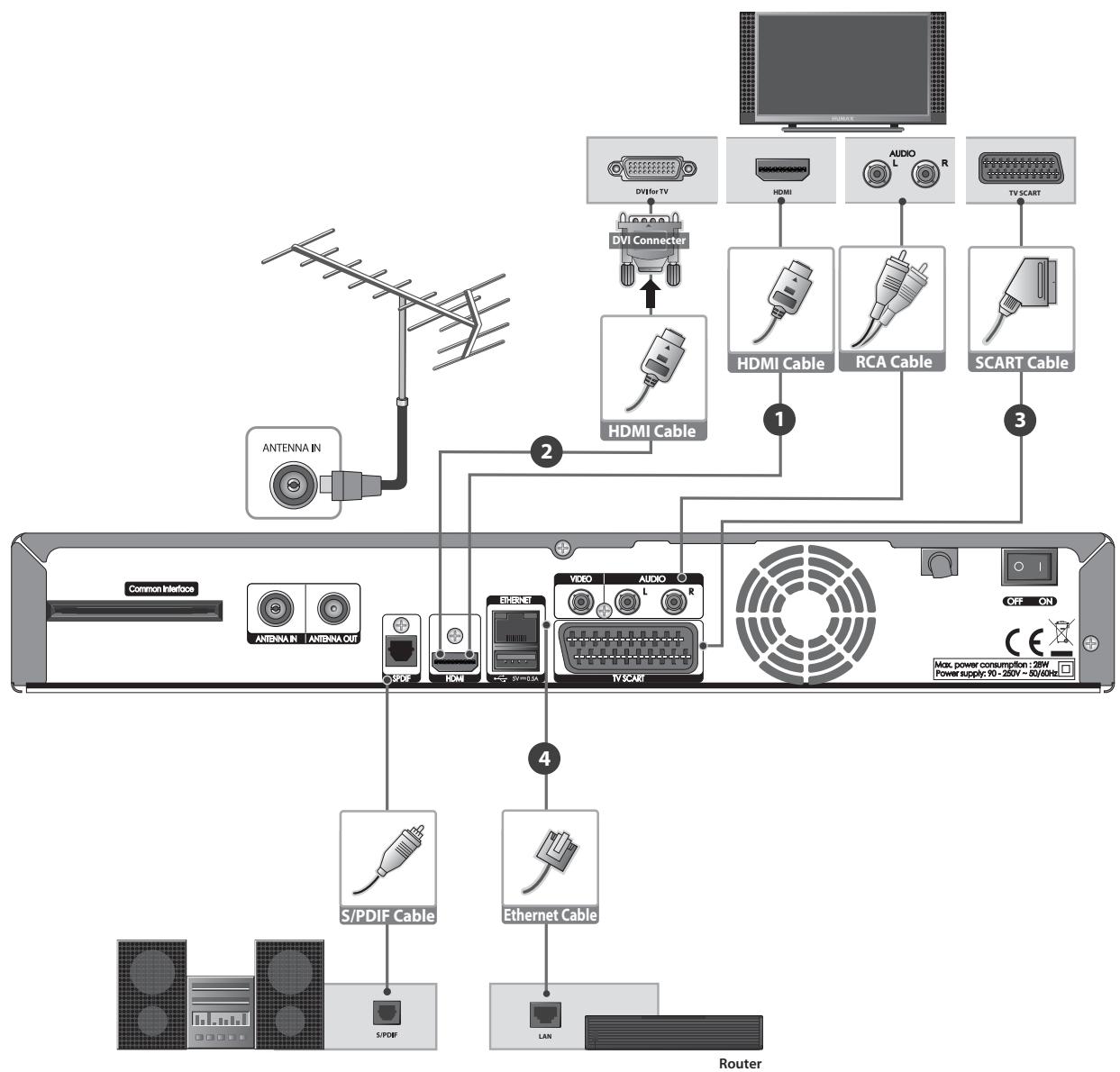
This section describes how to connect your product to match your particular devices setup and to gain optimum signal quality. The product provides various interfaces to connect to the TV, VCR or other devices. Select the most appropriate procedure depending on the device you have.
Note: If you encounter any problems setting up your product, please contact your local retailer or Humax Customer Helpline.
Quick Start Guide
Connecting the Antenna
Connect the aerial to the ANTENNA IN.
Connecting the TV
You can select one of the following connections depending on the device you have.
1 TV with the HDMI connector;
For the best picture quality, connect the product and TV using a HDMI cable.
When using a HDMI cable it is not necessary to also use a scart cable.
TV with the DVI connector;
For very good picture quality, connect the product and TV using a HDMI cable and a HDMI-to-DVI converter for video.
You will also require a RCA cable(Audio L/R) connected to the necessary connection(s) on your TV/Display for Audio.
Please refer to your TV/Display user manual for further information on the connections required for Audio.
3 TV with the SCART connector;
For good picture quality, connect the product and TV using a SCART cable.
For additional audio connections you can either
-
Connect the product and TV using an RCA cable (Audio L/R).
-
When using the digital audio system, connect the product and the digital audio system using a S/PDIF cable.
Connecting the Network
4 Connecting to the LAN;
Connect one end of the Ethernet cable to the receiver and the other end to the LAN router.
4. Powering On
- Connect the power cord of the product to a wall outlet.
- Ensure the power switch at the rear of the product is switched to ON.
- Power on by pressing the STANDBY button on the remote control or touching the STANDBY button at the front of the product.
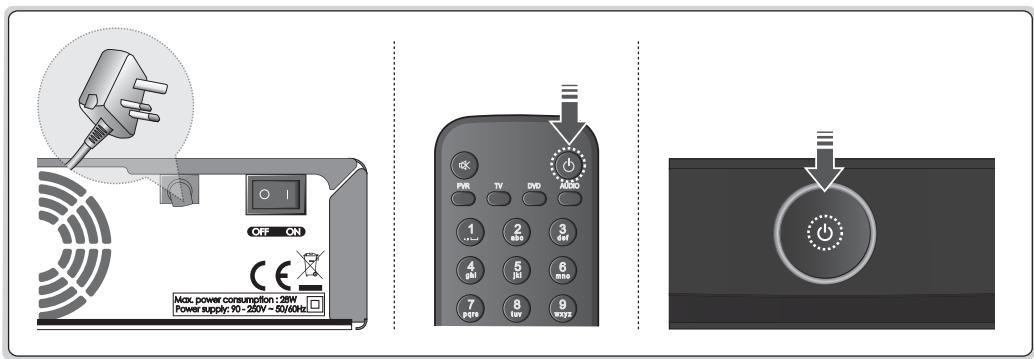
Note: To control the product please make sure that the PVR mode is selected on the remote control.
5. Installation Wizard
When powering on your product for the first time after purchase or performing the factory default in menu, the Installation Wizard will appear on your TV screen.
If you do not see the Installation Wizard please check:
- Your TV is switched on.
- The cables between the product and your TV are connected correctly.
- Your TV is on the correct input (AV channel) for the connection you are using. (Please refer to your TV/Display user manual for further information to select the correct Input/channel.)
Note: If you exit the installation wizard without fully completing the channel searching procedure, you may not have all of the channels available. In this case, you can use the Settings > Installation menu to search for more channels.
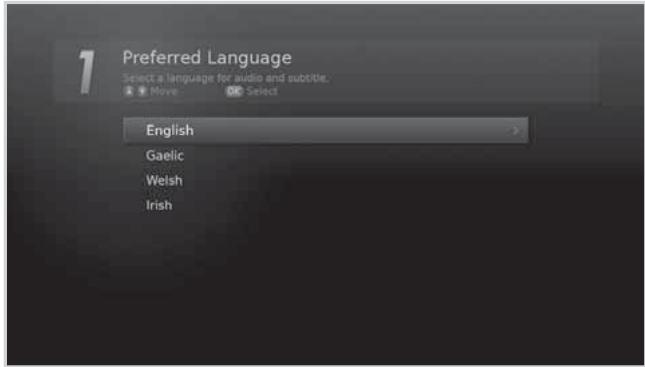
1. Preferred Language
Select a language for audio and subtitles and press the OK button.
2. Display
Set the video output settings you require. To continue to the next step select Next and press the OK button.
Screen Ratio:
16:9 - Widescreen TV
4:3: Traditional TV
Display Format:
Select your Required Display Format, the image at the bottom of the screen will indicate how the picture will appear on your TV.
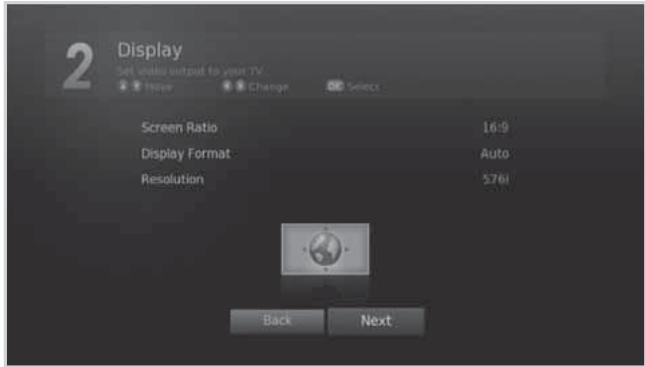
Resolution:
Select your Required Video Resolution (576i, 576p, 720p, 1080i, 1080p)
Note: Some TVs/Displays may not support all Video Resolutions, to change this in the future please use the V-FORMAT button on your remote control.
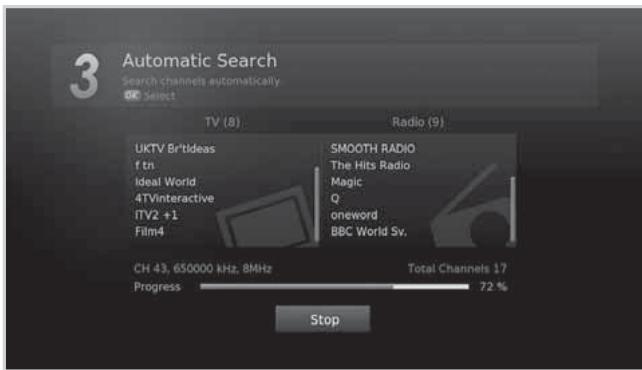
3. Automatic Search
Channel search will begin automatically. When the search has completed press the OK button to save the channels found during the search.
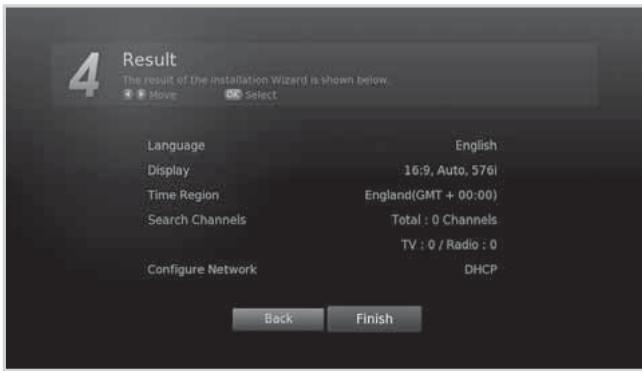
4. Result
The results of the Installation Wizard are displayed on screen.
Select Finish and press the OK button to complete the Installation Wizard.
6. Menu Overview
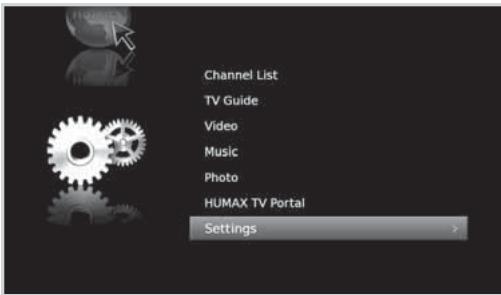
| Channel List | |
| TV Guide | |
| Video | |
| Music | |
| Photo | |
| HUMAX TV Portal | |
| Settings |
Preferences
Parental Control
Language
Time
Video
Audio
Recording
Screen Display
Edit Channels
Edit Favourite List
Edit Channel List
Installation
Automatic Search
- Manual Search
- Software Update
Antenna Power
Factory Default
System
System Information
Signal Detection
Power Management
Common Interface
Data Storage
Internet Setting
How to Navigate

Displays the Menu OSD

Selects (Enters) a menu or confirms a selection

Goes back to the previous screen

Exit all On-Screen

Moves among menus or options

Changes or adjusts the option

Enters the number (0 9)
Changing Channels
You can change the channels in several ways.
Press the P▲/P▼ button.
Enter the channel number directly. (0-9)
Go to the channel list or TV guide and select a channel.
Note: Press the TV/RADIO button to switch between TV and radio channels.
Volume / Mute / Audio
To adjust the audio volume, press the A + / A - button.
To mute the audio temporarily, press the MUTE button.
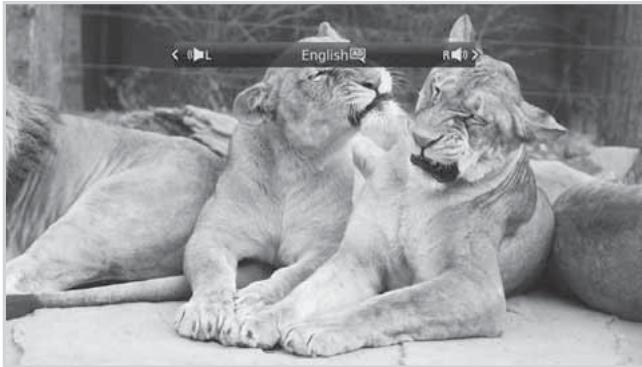
Setting Audio Options
Audio options are available only when the programme supports multiple audio languages.
- Press the AUDIO button.
Each time you press this button, the audio language changes or the Audio Description soundtrack will be selected. - Select the audio direction (if available) using the arrows.
Note:
- The mute function remains set while you change channels.
- You cannot set the audio direction when the programme is broadcast in Dolby Digital.

Display

Select

Confirm
Display Format / Resolution
Setting Display Format
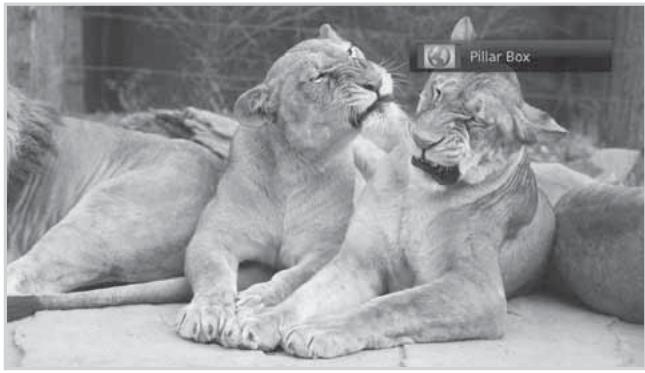
Press the WIDE button to set the display format according to the screen ratio.
Each time you press this button, the value changes.
Screen ratio 4:3: Auto - Letterbox 16:9 - Letterbox 14:9 - Centre
Screen ratio 16:9: Auto - Pillar Box - Zoom
Note: Refer to Display Format for details.

Display
Setting Resolution
Press the V-FORMAT button to set the resolution of the screen.
Each time you press this button, the value changes.
576i-576p-720p-1080i-1080p
Note: When connected with an HDMI cable you may only be able to change to the resolutions that the TV supports.

V-FORMAT
Display
Programme Information (i-plate)
The i-plate is an information banner that is displayed for a certain period of time whenever you change channels. Press the i button while watching a programme to display the i-plate. Press the EXIT button to hide.
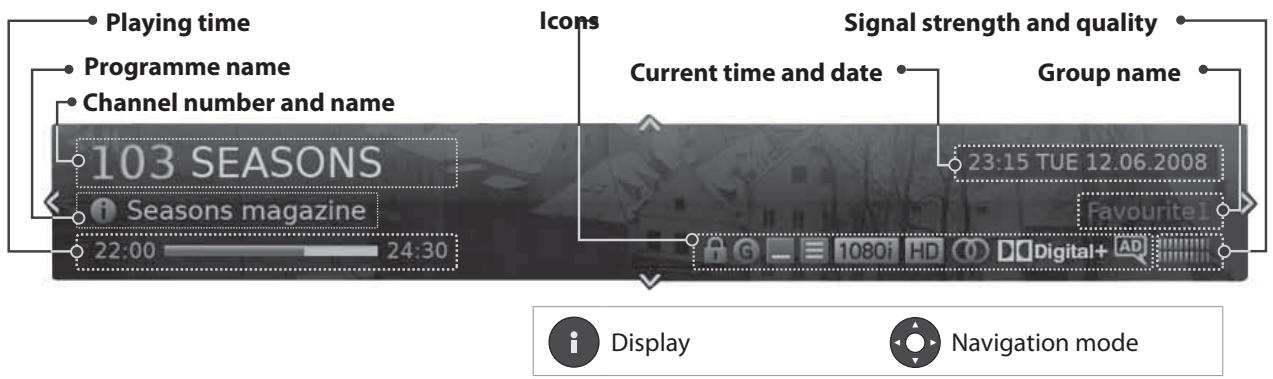
Viewing detailed programme information
Press the i button again while the i-plate is displayed.
Viewing previous/next programme information
Press the / button while the i-plate is displayed. Press the OK button to set reminders for future programmes.
Viewing programme information of other channels
Press the / button while the i-plate is displayed. Press the OK button to change to the selected channel.
Icons
The icons represent the information and services provided.
| Locked programme | Series Programme | ||
| Pay TV / encrypted programmes (CAS icons) | 1080i | Resolution | |
| G | Parental guidance programme | HD | HD programme |
| L | Scheduled programme (Red: Record, Blue: Reminder) | CD | Multiaudio |
| Subtitle | DOD DOD+ | Dolby Digital audio Dolby Digital Plus audio | |
| Audio Description |
Note: Programme information is not displayed when there is no programme information.
Sleep Timer
Press the SLEEP button to set the automatic turn off time.
Each time you press this button, the value changes.
Sleep Off - 10 - 20 - 30 - 60 - 90 - 120 minutes

Display
Subtitle
You can select the subtitle language when subtitle information is provided.
Press the SUB button.
Each time you press this button, the subtitle language changes.
Note:
- You can choose to always display the subtitle when available.
- The icon appears when the DVB subtitle is supported.

Display
Option
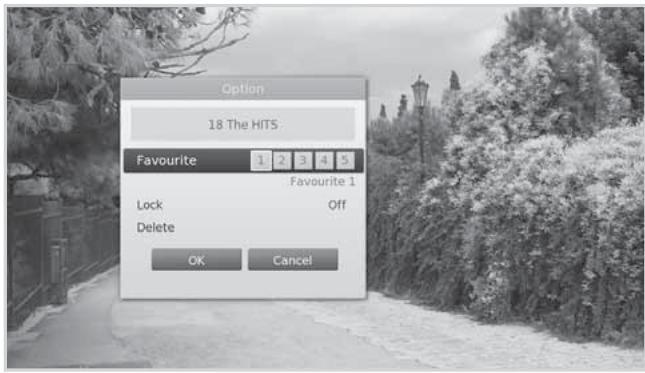
You can set the options for the watching channel.
- Press the OPT+ button.
- Select an option.
Favourite: Select the favourite group to add the channel
Lock: Select On or Off.
Delete: Press the OK button.
- Select OK to save and exit.

Display
Text and Interactive Services
If your chosen channel has digital text features, you can access them. Digital text services often load automatically shortly after the digital text window is displayed. In which case, simply follow the on screen instructions. (Press colour buttons)
- Press the TEXT button to access digital text.
- Press the TEXT button again to return to normal viewing.
- Press the P / P button to exit this service.
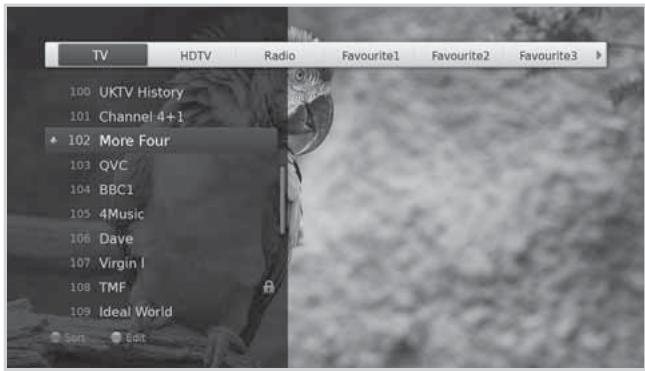
The channel list will help you find the channel you want to watch quickly and easily.
You can access the channel list in several ways.
Press the LIST button.
Press the MENU button and select Channel List.
Changing Channels
Select the channel you want to watch and press the OK button. The displayed channel will change.
Note:
: Locked channel, : Pay TV / encrypted programmes (CAS icons)
- Press the i button to view the detailed programme information.
- Press the LIST or EXIT button to exit.
Advanced Options
Changing Group
You can display the list of the selected channel group.
- Press the arrow.
- Select a channel group.
- Press the OK button.
Note: Press the TV/RADIO button to switch between TV and Radio groups.
Sorting Channels
Press the RED button to sort the list in numerical or alphabetical order.

Display/Change

Select

Confirm
Editing Channels in Channel List
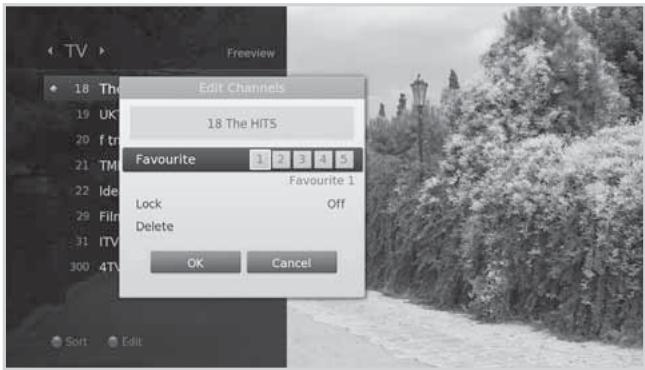
You can lock or delete each channel in the channel list, as well as in menu. To edit the multiple channels, go to MENU > Settings > Edit Channels.
Locking / Deleting Channels
- Select a channel you want to edit and press the GREEN button.
- Select an option.
Lock: Select On or Off.
Delete: Press the OK button.
- Select OK to save and exit.
Note: The default password is 0000. If you have forgotten your password, please contact Humax Customer Support.

Display

Select

Confirm
Setting Favourite Channels
You can select your favourite channels and include them in the five favourite groups.
- Select a channel and press the GREEN button.
- Select Favourite.
- Select a favourite group you want to include the channel in and press the OK button. To remove a channel from a favourite group, select the group and press the OK button again.
- Select OK to save and exit.
Managing Channels
Editing Channels
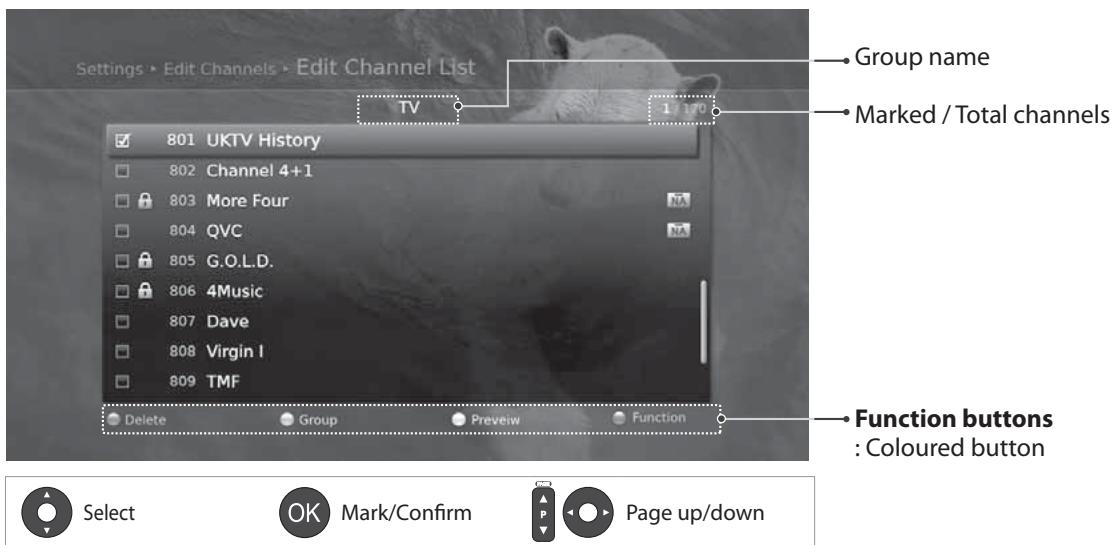
The Edit Channel List menu will help you delete or lock multiple channels.
MENU Settings Edit Channels Edit Channel List
Note:
: Locked channel, : Pay TV / encrypted programmes (CAS icons)
- Press the MENU or EXIT button to exit. Press the BACK button to return to the previous screen.
Deleting Channels
- Select the channels using the / and OK button.
- Press the RED button.
Locking / Unlocking Channels
- Select the channels using the / and OK button.
- Press the BLUE button.
- Select Lock. To unlock, select Unlock.
Advanced Options
Changing Group
To list the channels of other groups, press the GREEN button and select a group you want.
Note: Press the TV/RADIO button to switch between TV and Radio groups.
Changing Background
You can change the channel displayed in the background while editing.
- Select the channel you want to watch.
- Press the YELLOW button. The displayed channel will change.
Selecting / Releasing All Channels
- Press the BLUE button.
- Select Select All.
- To release all, select Release All.
Editing Favourite Channels
The Edit Favourite List menu will help you add or remove channels from the favourite groups.
MENU Settings Edit Channels Edit Favourite List
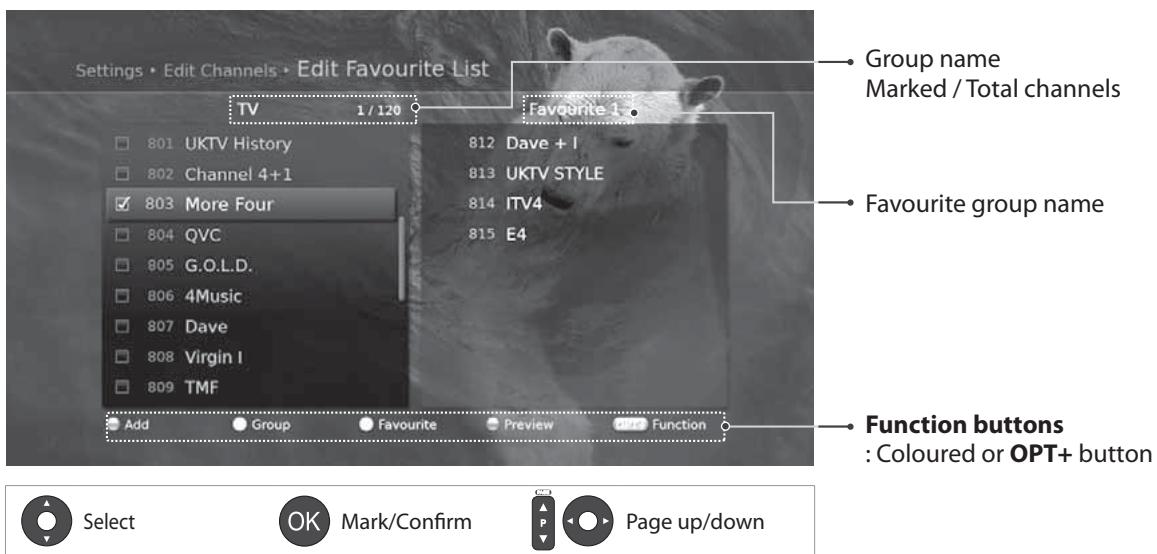
Note: Press the MENU or EXIT button to exit. Press the BACK button to return to the previous screen.
Adding / Removing Favourite Channels
- Press the YELLOW button and select the favourite group you want to edit.
- To add channels to the favourite list, select the channels you want to add using the / and OK button in the left column and then press the RED button. The added channels will appear in the right column.
- To remove channels from the favourite list, select the channels you want to remove in the right column and then press the RED button.
Moving Channels
- Select the channels using the / and OK button.
- Press the RED button.
- Move the selected channels to the location you want using the / and OK button.
Note: You can move the channels in the right column only.
Renaming Favourite Groups
- Press the YELLOW button and select the favourite group you want to edit.
- Press the OPT+ button
- Select Rename.
- Enter the name in the keyboard.
Advanced Options
Changing Group
To list the channels of other groups in the left column, press the GREEN button and select a group you want.
Note: Press the TV/RADIO button to switch between TV and Radio groups.
Changing Background
To list the channels of other groups in the left column, press the BLUE button and select a group you want.
Selecting / Releasing All Channels
- Press the OPT+ button.
- Select Select All.
- To release all, select Release All.
TV Guide
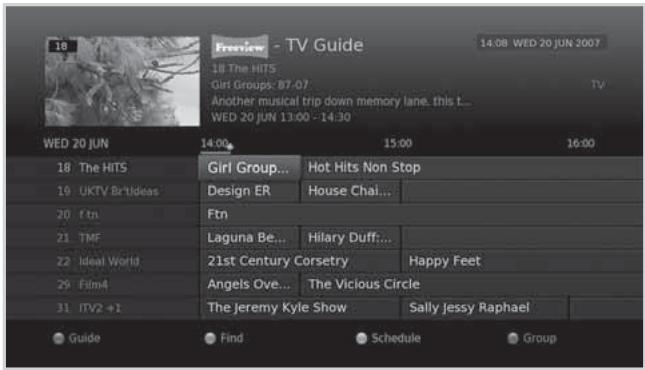
The TV guide is an on-screen guide of grid type which displays the programme information of channels in time and date order.
You can access the TV guide in several ways.
Press the GUIDE button.
Press the MENU button and select TV Guide.
Note: Press the GUIDE or EXIT button to exit. Press the BACK button to return to the previous screen.
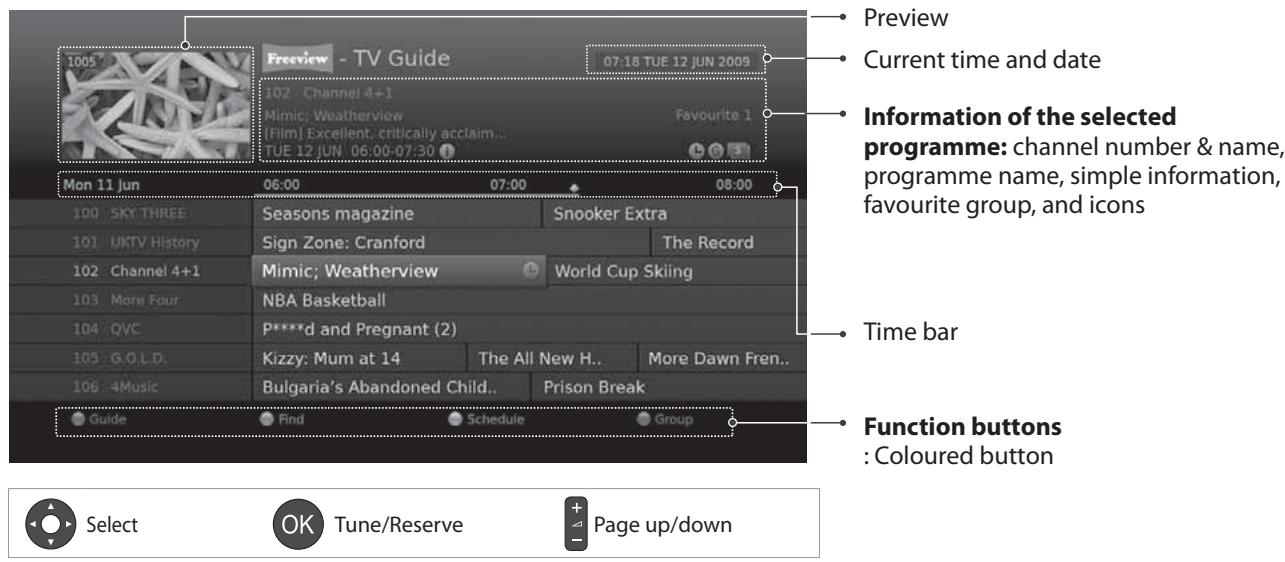
Note:
- Press the i button to view the detailed programme information.
- : Scheduled programme (Red: Record, Blue: Reminder), ⑨ : Recording programme,
:Present time
Watching Programmes
- Select a programme and press the OK button. The programme will be displayed in the preview.
- Press the OK button again to exit the TV guide and watch the programme.
Setting Reminders
- Select a future programme and press the OK button.
- Select Reminder and press the OK button.
Press the OK button again to cancel the reservation.
The reserved programmes will be added automatically in Schedule.
Note:
If the programme is overlapped with another programme, adjust the reservation appropriately.
If the channel is locked, you will be prompted to enter your password before watching.
The default password is 0000. If you have forgotten your password, please contact Humax Customer Support.
- In standby mode the product will switch on to the channel when the programme starts.
You can reschedule reminders or recordings. (Refer to Scheduling Reminders and Recordings.)
Advanced Options
Quick Navigation
Press the / button to move to the previous/next programme.
Press the button to jump back/ahead two hours.
Press the button to move to the previous/next day.
Changing Group
To list the channels of other groups, press the BLUE button and select a group you want.
Note:
- Press the TV/RADIO button to switch between TV and Radio groups.
- To search specific programmes, go to Find by pressing the GREEN button. (Refer to Finding Programmes.)
Finding Programmes
Find will help you find the programmes more specifically using the keyword or genre.
By Keyword
- Press the GREEN button.
- Select Keyword and press the button.
- Select a keyword and press the OK button.
- Press the YELLOW button to confirm.
Note: To enter a new keyword, select New Keyword.
By Genre
- Press the GREEN button.
- Select Genre and press the button.
- Select a genre and press the OK button.
- Select the specific genre and press the OK button. (if provided)
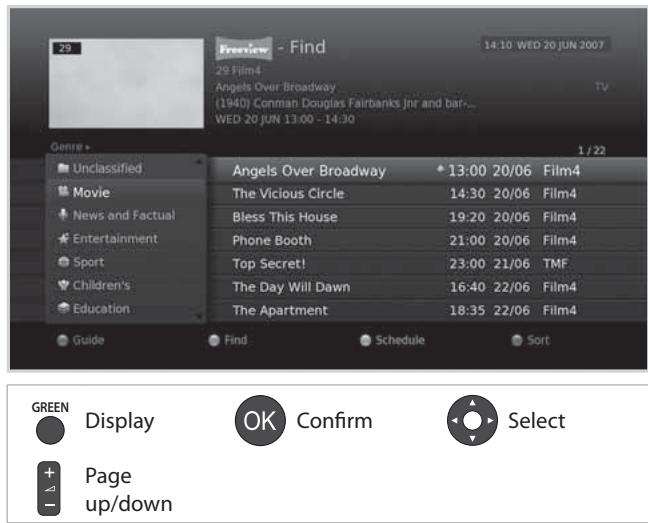
Note:
- Press the i button to view the detailed programme information.
- Press the OK button to watch a found programme. (Refer to Changing Channels.)
- You can set reminders or recordings for future programmes. (Refer to Setting Reminders or Recordings.)
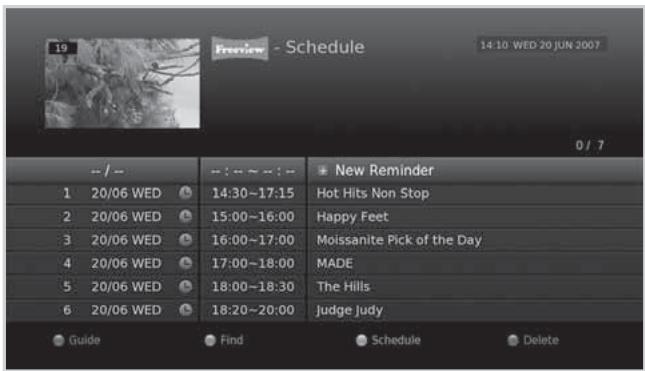
Scheduling Reminders and Recordings
Schedule lists reminders and will help you manage them in more detail.
- Press the YELLOW button.
- You can add, edit or delete your reminders.
To add, select New Reminder and press the OK button.
To edit, select a reminder and press the OK button.
To delete, select a reminder and press the BLUE button.
- Reservation will pop up. You can change the options you want using the / / , NUMERIC(0~9) and OK buttons.
- Select OK to save and exit.
Note:
- Press the i button to view the detailed programme information.
- You can easily set reminders or recordings in TV Guide, Find or i-plate navigation mode.
YELLOW
Display

Page up/down

Confirm

Select
Recording and Playback
You can record programmes in the built-in hard disk drive and playback the recorded programmes whenever you want.
Recording
You can watch another channel while recording a channel or record programmes from two different channels at the same time.
Instant Recording
You can record the currently watching programme instantly and change the recording duration.
To instantly record the current programme you are watching, press the RECORD button.
The recording will start from the current broadcast point and the record banner will be displayed for a few seconds.
Press the STOP button to stop recording the programme.
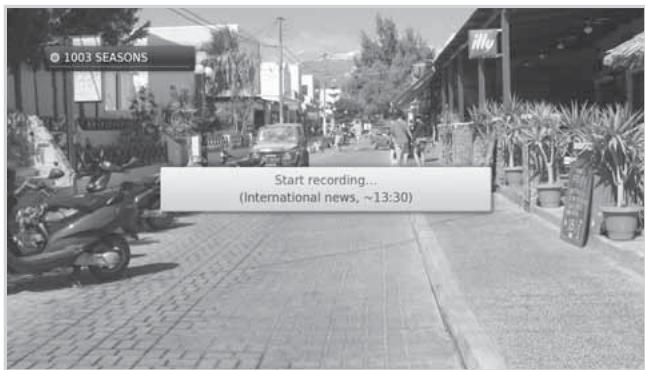
The recording will continue till the end of the
current programme. However, if the programme ends in less than ten minutes, it will continue till the end of the next programme. When no programme information is provided, the recording will continue for two hours.
Note: You can also press the Record button while in the Guide to start recording a current programme on a different channel.
Delayed Recording
You can record the scenes of a live broadcast you have been watching until now by rewinding with the time shifted recording function.
Find the starting point you want to record by using the REWIND, or buttons, then press the RECORD button.
The recording will start from the point you select.
Changing Recording Duration
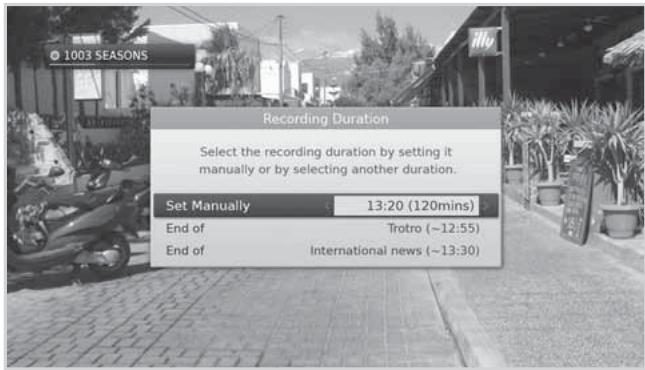
- Press the RECORD button on the currently recording channel.
- Set the duration manually or select till the end of the current prrogramme or the next programme.
Scheduled Recording
You can easily set the recording reservations in TV Guide, Schedule or i-plate navigation mode.
While in the TV Guide highlight a future programme and press the OK button.
Select from: Record Whole Series Record the Whole Programme
Press the OK button on a future programme in i-plate and select either Record Series or Record the Whole Programme. (Refer to Programme Information.)
The recording will start at the scheduled time and the record banner will be displayed for a few seconds.
Press the STOP button to stop recording the programme.
Note:
Press the GUIDE button to go to TV Guide.
- Press the GUIDE button and press YELLOW button to go to Schedule.
- Press the i button while watching a programme to display the i-plate.
Editing Recording Schedule
You can edit or delete your reservations in Schedule.
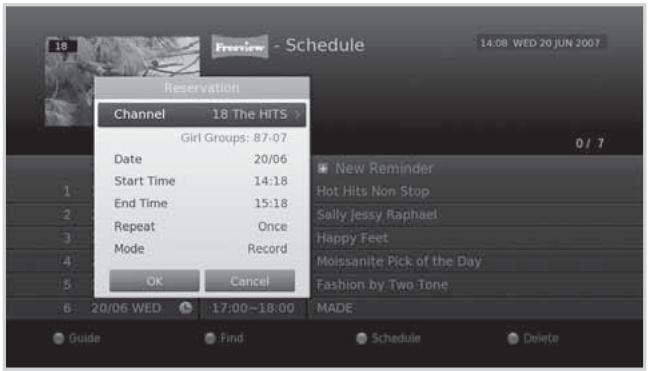
To edit, select a reservation and press the OK button. You can change the options such as channel, date, time, repeat mode, etc.
To delete, select a reservation and press the OPT+ button.
Recording and Playback
Recording Conflict
You can watch another channel while recording a channel or record programmes from two different channels at the same time.
Recording Duration Conflict
When an instant recording conflicts with one of the scheduled recordings (or reminders), you can either;
Record for the automatically modified duration.
Cancel either of the scheduled recordings (or reminders).
Cancel the previous recording.
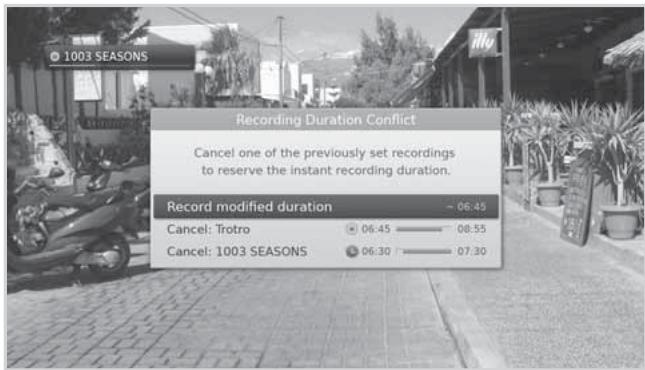
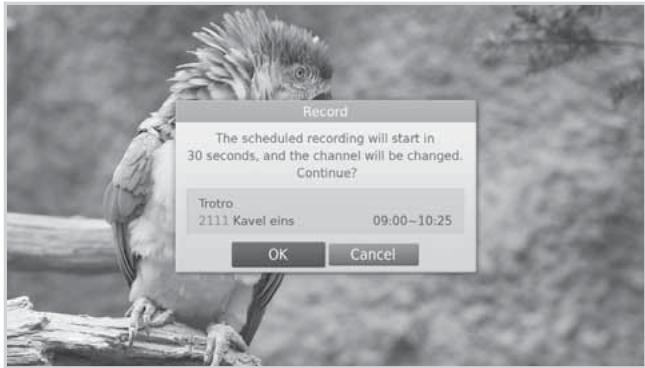
Watching Conflict
When a scheduled recording starts on a different channel while you are watching a channel and recording another channel, a record notice will pop-up 30 seconds before the scheduled recording starts.
OK: The channel will change at the start time and the scheduled recording will start automatically.
Cancel: The scheduled recording will be canceled.
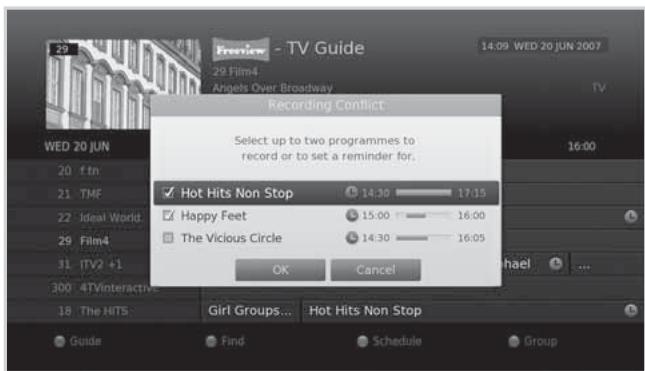
Scheduling Conflict
When a new scheduled recording conflicts with one of the previously set recordings (or reminders), you will be prompted to select up to two programmes you want to keep.
Select the programme using the / and OK button.
Setting Padding / Jump Time
MENU Settings Preferences Recording
Setting Padding Time
You can set the recording padding time in case the recording starts earlier or ends later than scheduled.
Start Padding Time : Additional recording time before the recording starts.
End Padding Time : Additional recording time after the recording ends.
Setting Jump Time
You can set the jump time to replay or skip scenes during playback or time shifted recording.
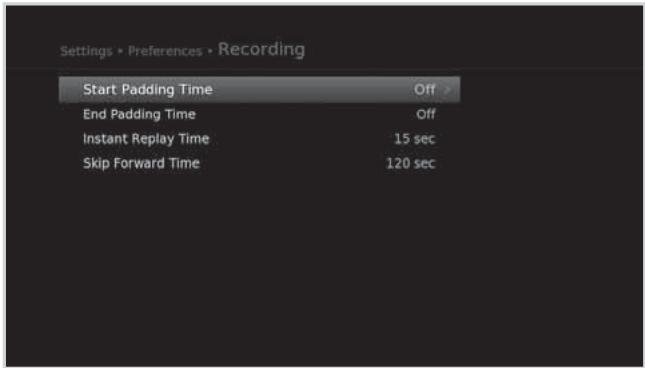
Instant Replay Time:7 sec,15 sec,30 sec
Skip Forward Time : 30 sec, 60 sec, 120 sec, 240 sec
Note:
You can record radio programmes also.
- The record banner will be displayed with the i-plate whenever pressing the i button.
- You can change the recording duration by using the RECORD button for instant recording or by going to MENU > TV Guide > Schedule for scheduled recording.
- When a new scheduled recording starts while a recording is already in progress, the record banner will be displayed for a few seconds to inform you that the recording has been started. If you are not watching the channel being recorded, a record notice will pop-up 30 seconds before the scheduled recording starts, and the channel will switch to the scheduled programme automatically at the start time.
- Pressing the STANDBY button while recording will not stop the recording. New recordings will start even in standby mode.
While watching a recording programme, you can trick-play using the playback control buttons such as pause, fast rewind, instant replay, slow, etc.
You can record the digital TV or radio programmes only. The external AV inputs cannot be recorded.
- Make sure that there is enough free space before recording. If the free space on the hard disk drive is insufficient, recording will stop. Recording HD programme requires more space than SD programme. Recording one hour of HD and SD programmes may require 8 GB and 2 3 GB of hard disk space, respectively. The space for recording one hour programme may differ depending on the programme.
To view the recorded programme list, press the MEDIA or MENU button and select Video. (Refer to Using Video List.)
Recording and Playback
Playback
You can playback the recorded programmes that are stored in the built-in hard disk drive.
Playing Recordings (Video)
You can access the recorded file list easily and play the recorded programmes.
Press the MEDIA button.
Press the MENU button and select Video.
Select a file and press the OK button. Playback will start.
You can perform fast rewind, fast forward, slow motion and pause while playing back a recorded file. The green playbar is displayed when pressing the PLAY, FAST FORWARD, REWIND, SLOW or PAUSE button while playing.
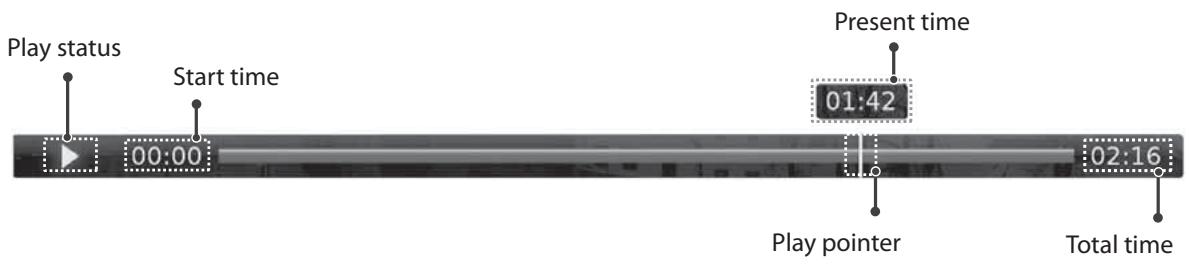
Playback Controls
| Play |
| Pause the scene. Press the PAUSE button again to go back to play mode. |
| Stop the playback of the current file and go to live TV. |
| Fast Rewind |
| Fast Forward |
| Move to the previous chapter and replay the scenes. |
| Move to the next chapter and skip scenes. |
| Jump to the previous or next scene. |
| Add or delete a bookmark in your desired scene. The bookmarked scene is shown as a yellow pointer. |
| Jump to bookmarked scenes directly. The play pointer will first move to the nearest bookmark. |
| Watch the recording in slow video. |
Note:
- When you press the BACK button during playback, the playback stops.
- Chapters are made by dividing the recorded programme into eight portions.
- Bookmarks are available only when playing back the recorded programmes.
- Up to four bookmarks can be used, and the bookmarks will remain even if you stop playback.
Refer to Media List > Using Video List for more details about the recorded files.
Pausing and Rewinding Live TV (TSR)
Time Shifted Recording (TSR) allows you to pause a live broadcast and return to it later and continue where you left off.
The TSR function automatically saves the programmes you watch to the built-in hard disk drive temporarily.
TSR lasts for 120 minutes.

To pause the programme you are watching,
Press the PAUSE button. Press the PLAY button to return. Pause makes a time gap between the live broadcasting point and watching point. The time gap is equivalent to the period the programme has been paused.
Press the STOP button to close the time gap and go to live programme.
To rewind and watch missed scenes,
Press the REWIND button. Press the PLAY button at the point where you want to start watching. You can pause, rewind or fast forward within the programme.
You can fast rewind to the start point. If you reach the start point while rewinding, the programme is automatically played at the normal speed.
To fast forward and skip scenes,
Press the FAST FORWARD button. You can fast forward only when there is a time gap between the current watching point and the live broadcasting point caused by pause, slow motion or fast rewind. You can fast forward up to the current broadcasting point. If you reach the live broadcasting point while fast forwarding, the programme is automatically played at normal speed.
Note: Press the PREVIOUS/NEXT button to instantly replay or skip scenes at regular intervals you set in the menu. (Refer to Setting Jump Time.)
To record the Time Shift Recording buffer
Rewind to the point you wish to record and press the Record button on the remote control.
Note: The recording will not appear immediately in the Media list as time is required to transfer the buffer into a recording.
You can retrieve video, music or photo files from the built-in hard disk drive, the USB storage devices, or the DLNA compliant devices.
You can access Media List in several ways.
Press the MEDIA button.
Press the MENU button and select Video, Music or Photo.
Connect a USB storage device for media and select your desired media type.
| Video | Lists TV/Radio recordings or XviD files. |
| Music | Lists MP3 files. |
| Photo | Lists JPEG files. |
Note:
- Press the MEDIA or EXIT button to exit. Press the BACK button to return to the previous screen.
- When you connect a USB storage device, the media type menu is displayed automatically.
- Select Copy to copy the media files to the different devices. (Refer to Using the Video List > Editing Files.)
Switching Storage
- Press the BLUE button to switch the storage.
- Select the storage and press the OK button.
HDD: Displays the internal HDD.
USB: Displays each partition of the connected USB storage devices. Select a USB.
Network: Displays the connected DLNA compliant devices. Select the server.
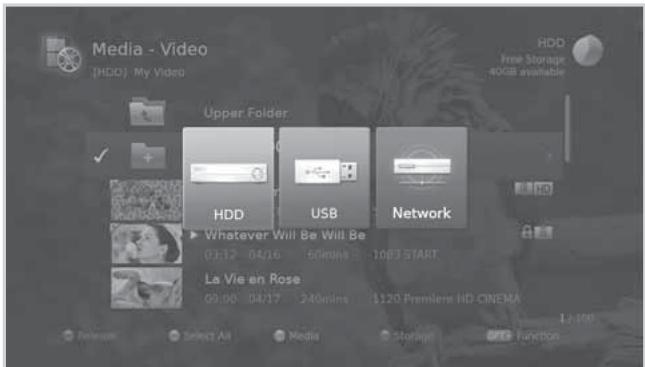
Switching Media
- Press the YELLOW button to switch the media type.
- Select the media type and press the OK button.
Video, Music, Photo
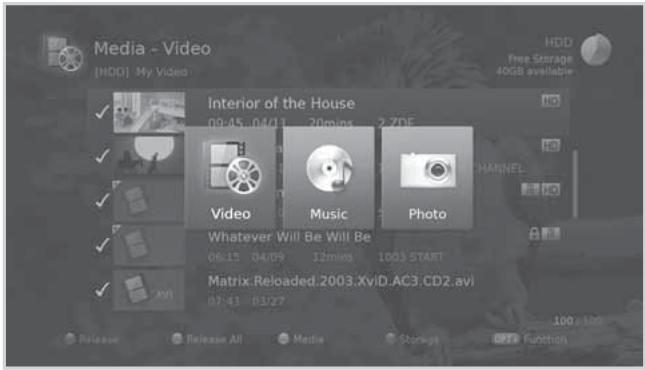
Note:
- Please use only the USB storage device which was formatted with ext3, FAT or NTFS file system.
- Compatible USB devices include portable flash memory (particularly keydrives) and digital audio players (MP3 players) of format FAT12/16/32. It is not possible to connect this unit to a personal computer for USB playback.
You can play back XviD/MP3/JPEG files (except files with copy-protection or restricted playback).
Supported features according to USB file system
ext3:Read,Copy(DigitalTV/Radio,MP3,JPEG,XviD)
FAT: Read, Copy (Digital TV/Radio, MP3, JPEG, XviD)
NTFS: Read (MP3, JPEG, XviD)
- USB ports on your product supply 800mA in total. This 800mA is shared among all devices connected to product.
- Please connect power to a USB storage device which requires an external power supply. If not, the device may not be recognized.
- Please connect a USB storage device with the cable offered by the device maker. If you use a cable which is not offered by the device maker or an excessively long cable (max 5m), the device may not be recognized.
- If the USB storage device is connected in standby mode, it will automatically be recognized when the product is turned on.
- A USB storage device using an automatic recognition programme may not be recognized.
- A USB storage device which uses its own driver may not be recognized.
The recognition speed of a USB storage device may depend on each device. - Please do not disconnect or turn off the USB storage device while playing back. When the USB storage device is suddenly separated or unplugged, the stored files or the USB storage device may be damaged.
- Be sure to back up important files since data stored in a USB storage device may be damaged. We will not be responsible for any data loss.
If your USB storage device has multiple partitions, or if you use a USB multi-card reader, you can use up to 4 partitions or USB memory devices.
If the USB memory stick does not work properly, disconnect and reconnect it. - Some USB storage devices may not be supported or operated smoothly.
- How fast a USB storage device is detected differs from device to device.
- USB storage devices below USB 2.0 are supported as well. But they may not work properly.
- The system may require a longer time to read large amounts of data stored in a USB device.
- Only one USB icon will appear even when there are more than one USB.
- The network icon is displayed only when the network has been connected.
HUMAX cannot guarantee compatibility (operation and/or bus power) with all USB mass storage devices and assumes no responsibility for any loss of data that may occur when connected to this unit.
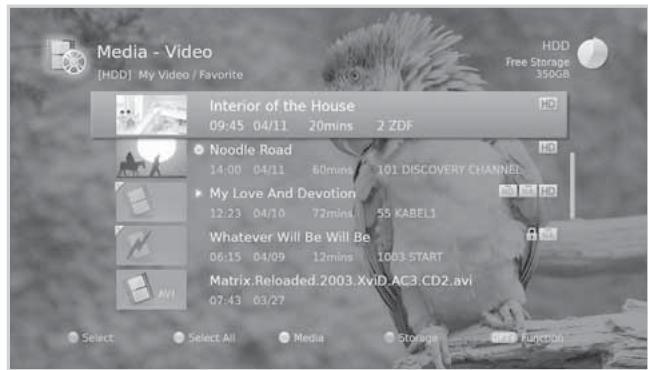
Using Video List
You can play TV/Radio recordings or XviD files from the built-in hard disk drive, the USB storage devices, or the DLNA compliant devices.
MENU Video
Note:
Press the YELLOW button to switch the media type.
- Press the BLUE button to switch the storage.
- Press the i button to view the detailed programme information.
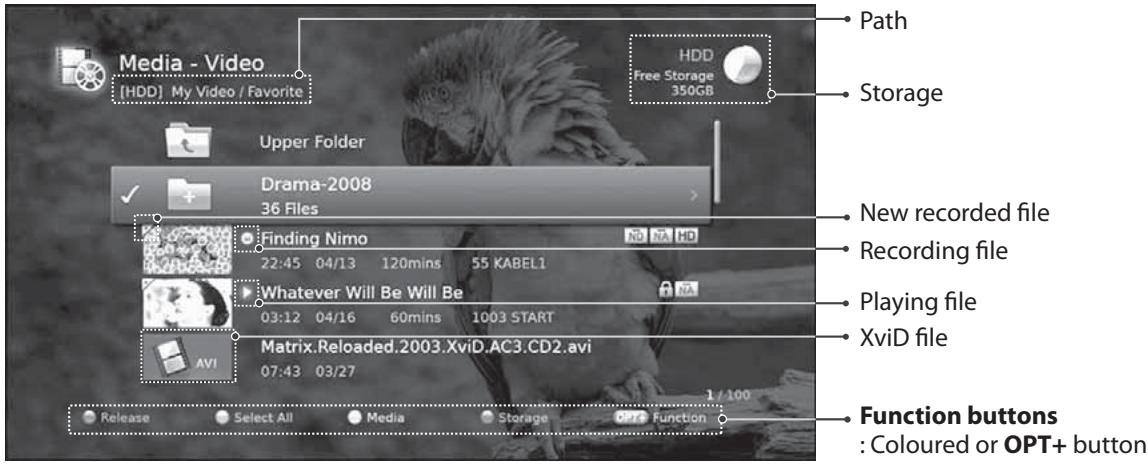
Note:
: Recording icon, : Playing icon , HD : HD icon, : CAS icon, : Lock icon
- When you record the whole series of the programme, the programmes will be recorded in the same series folder.
Playing Files
Select a file and press the PLAY button. Playback will start from the recently viewed point. To play multiple files successively, select the files using the RED button and press the PLAY button.
Using Play Options
- Select a file and press the OK button.
- Select a play option.
Resume Play: Plays from the recently viewed point.
Play from the Start: Plays from the start.
Delete: Deletes the selected files.
Rename: Renames the selected file.
Lock/Unlock: Locks or unlocks the selected files.
3. Press the OK button.
You can perform fast rewind, fast forward, slow motion and pause while playing back a recorded file. Refer to Recording and Playback > Playback for details on playback control and playbar.
Note:
- To play multiple files successively, select the files using the RED button and press the OK button. When multiple files are selected, Resume Play and Rename are not available in Play Options.
- You will be prompted to enter the password when playing the locked files or the files with guidance policy.
- Some playback control buttons may not function depending on the contents.
Editing Files
Sorting Files
- Press the OPT+ button.
- Select Sort and press the OK button. The files will be sorted in alphabetical order.
- To sort the files in time order, repeat the above procedure.
Note: Sorting files is available for video files only.
Deleting Files
- Select the file(s) you want to delete and press the OPT+ button.
- Select Delete and press the OK button.
- Select Yes and press the OK button.
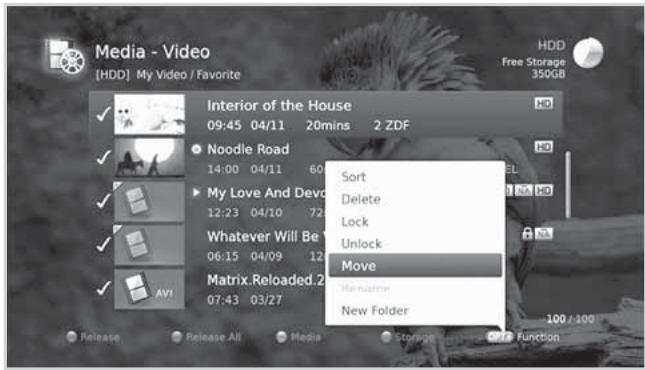
Locking Files
- Select the file(s) you want to lock and press the OPT+ button.
- Select Lock and press the OK button.
- To unlock, press the OPT+ button again and select Unlock.
- Enter the password.
Moving / Copying Files
- Select the file(s) you want to move and press the OPT+ button.
- Select Move and press the OK button.
- Select the folder or storage you want to move the file(s) to and press the OK button.
Moving the file(s) within the same storage: Select the folder you want to move the file(s) to and press the OK button.
Copying the file(s) to another storage: Select the storage and then select the folder to copy the file(s) to. Press the OPT+ button to create the folder.
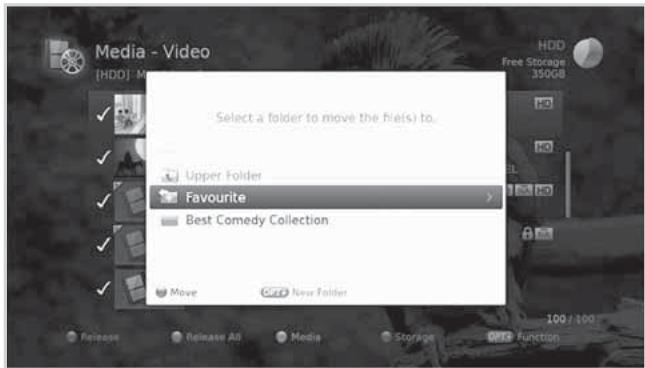
Note:
- When moving a locked file, you will be prompted to enter the password.
- When a file is moved to a different storage, it will be copied. However, video recordings cannot be copied to other storages.
Renaming Files
- Select the file you want to rename and press the OPT+ button.
- Select Rename and press the OK button.
- Enter the name of the file in the keyboard and press the YELLOW button.
Creating Folder
- Press the OPT+ button.
- Select New Folder and press the OK button.
- Enter the name of the folder in the keyboard and press the YELLOW button.
Using Music List
You can play MP3 audio files from the built-in hard disk drive, the USB storage devices, or the DLNA compliant devices.
MENU Music
Note:
Press the YELLOW button to switch the media type.
Press the BLUE button to switch the storage.
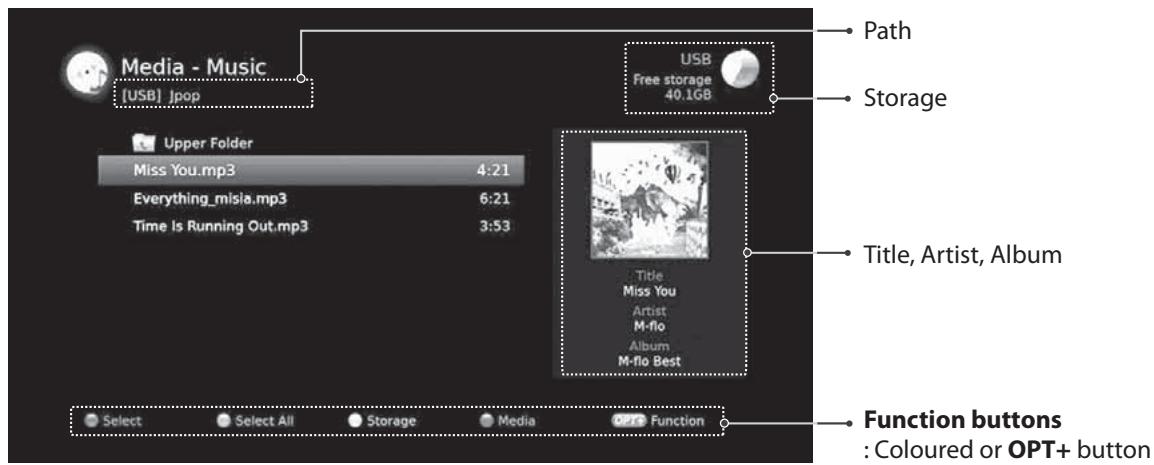
Playing Files
Select a file and press the OK or PLAY button. All files in the folder will be played successively. To play the selected files only, select the files using the RED button and press the OK or PLAY button.
Music Player
The music player is displayed while playing the music file(s).
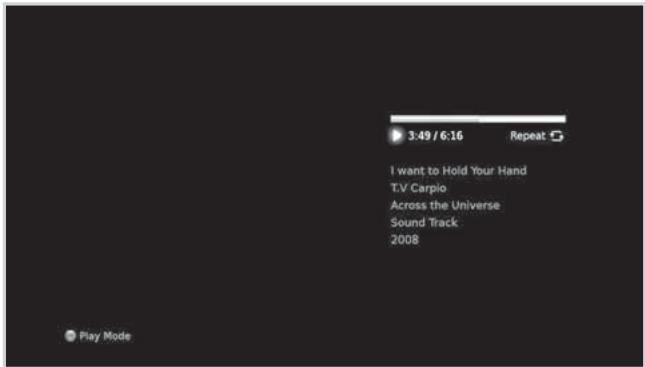
| OK | Plays or pauses | ▶ | Plays |
| ← | Plays the previous file | II | Pauses |
| → | Plays the next file | RED | Changes the play mode (once, repeat, repeat all, shuffle) |
| ← | Plays the first file | Stops the music player and displays the list | |
| → | Plays the last file | EXT | Exits the music player and goes to live TV |
Editing Files
Deleting, moving, renaming the music files or creating new folders are the same as in the video list. Refer to Using Video List > Editing Files.
Using Photo List
You can play JPEG photo files from the built-in hard disk drive, the USB storage devices, or the DLNA compliant devices.
MENU Photo
Note:
Press the YELLOW button to switch the media type.
Press the BLUE button to switch the storage.
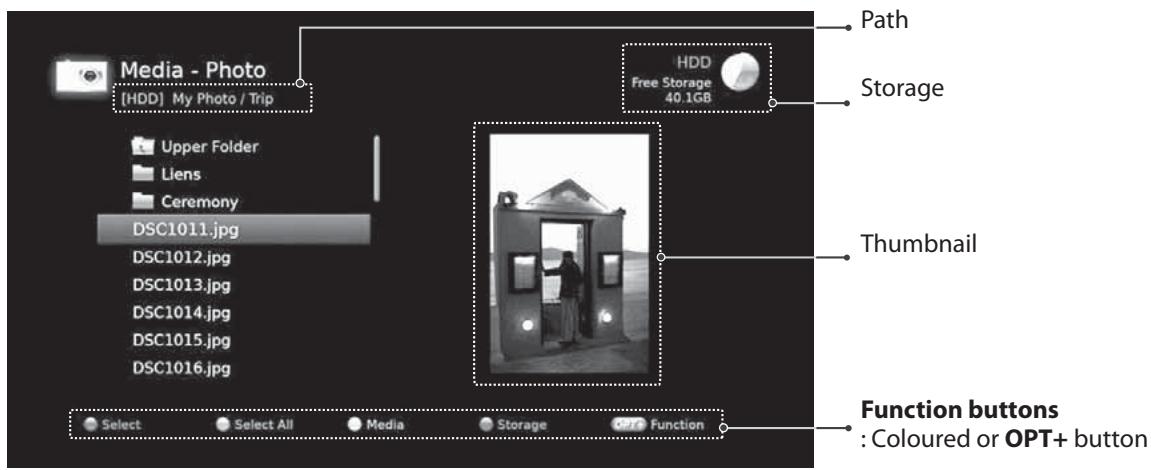
Photo Slideshow
Select a file and press the OK or PLAY button. All files in the folder will be shown successively. To slideshow the selected files only, select the files using the RED button and press the OK or PLAY button.
The info banner is displayed while slideshow is paused.
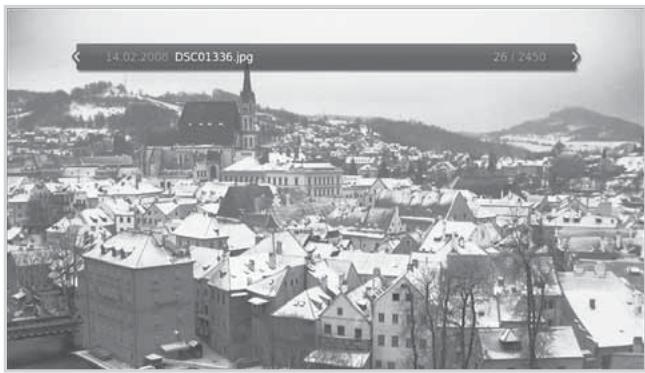
| OK | Pauses or plays | ▶ | Plays |
| ← | Shows the previous photo | II | Pauses |
| → | Shows the next photo | ◎ | Stops slideshow and displays photo list |
| ← | Shows the first photo | EXIT | Exits slideshow and goes to live TV |
| → | Shows the last photo |

Media On/Off

Select

Confirm

Enter 0~9
Editing Files
- Deleting, moving, renaming the photo files or creating new folders are the same as in the video list. Refer to Using Video List > Editing Files.
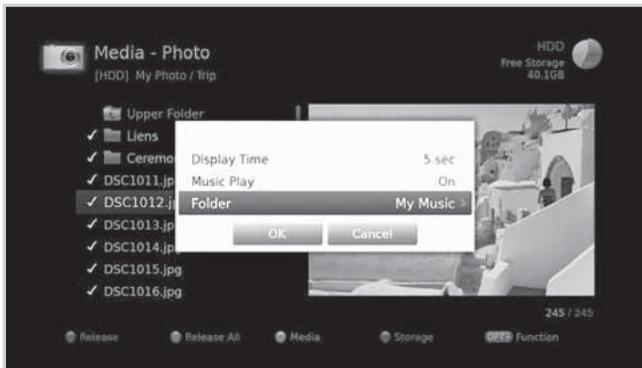
Slide Mode
You can play music files during slideshow.
- Press the OPT+ button.
- Select Slide Mode and press the OK button.
Display Time: The duration a photo is displayed
Music Play: Select On to play music files during slideshow.
Folder: Select the folder the music files in located in using the RED button.
- Select OK to save and exit.
HUMAX TV Portal provides Catch-up TV services and various web applications.
You can access HUMAX TV Portal in several ways.
Press the TV Portal button.
Press the MENU button and select HUMAX TV Portal.
Note:
- Press the TV Portal button to return to TV Portal home while using the portal service.
- Press the EXIT button to exit. Press the BACK button to return to the previous screen.
- Press the RED button to enter the simple mode.
- Press the BLUE button to display the HUMAX Privacy Policy.
HUMAX TV Portal is powered by independent service providers and the services are subject to change without notice.
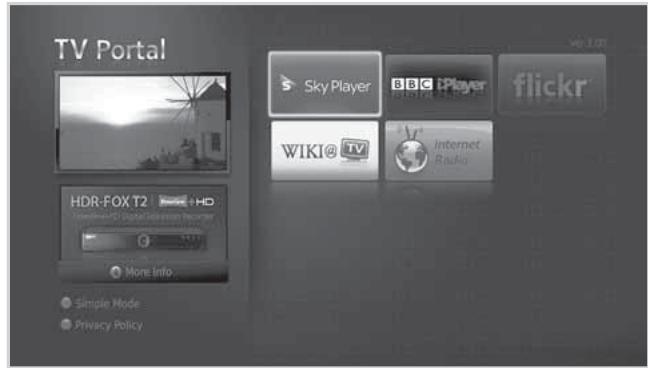
Sky Player
You can watch live TV programmes and TV on demand with a monthly subscription.
For more information please visit http://www.humaxdigital.co.uk/skyplayer
BBC iPlayer
You can watch live TV or radio programmes and watch them again for seven days after they are broadcast.
flickr / WIKI@TV
You can access Flickr to view photos on your TV. You can also browse Wikipedia on the TV screen.
Internet Radio
You can browse your favourite music and listen to them from the internet radio stations around the world with streaming audio technology.
Disclaimer: You agree that your use of the HUMAX TV Portal Service ("Service") is at your sole risk and acknowledge that the Service and anything contained therein, including, but not limited to, content, services, goods or advertisements (the "Items") are provided "AS IS" and that HUMAX makes no warranty of any kind, express or implied, as to the Items, including, but not limited to, merchantability, no infringement, title or fitness for a particular purpose or use. HUMAX is not responsible for the quality of the broadband, and any disruptions or discontinuation of the Services as a result of broadband provided by your Internet Service Provider ("ISP"). HUMAX does not warrant that the Service is compatible with your equipment or that the Service is free of errors or viruses and is not liable for any damage you may suffer as a result of such destructive features. You agree that HUMAX, its Suppliers and its third-party agents shall have no responsibility or liability for any injury or damages, whether caused by the negligence of HUMAX, its employees, subcontractors, agents, Suppliers or otherwise arising in connection with the Service and shall not be liable for any lost profits, losses, punitive, incidental or consequential damages or any claim against HUMAX by any other party or any fault, inaccuracy, omission, delay or any other failure in the Service caused by your equipment or arising from your use of the Service on such equipment. For any issues or questions about the compatibility with your broadband, please contact your ISP.
In this chapter you can set options for parental control, language, time, video, audio and screen display.
Note: Press the MENU or EXIT button to exit. Press the BACK button to return to the previous screen.
Parental Control
MENU Settings Preferences Parental Control
You will be prompted to enter the password to access this menu.
Note: The default password is 0000. If you have forgotten your password, please contact Humax Customer Support.
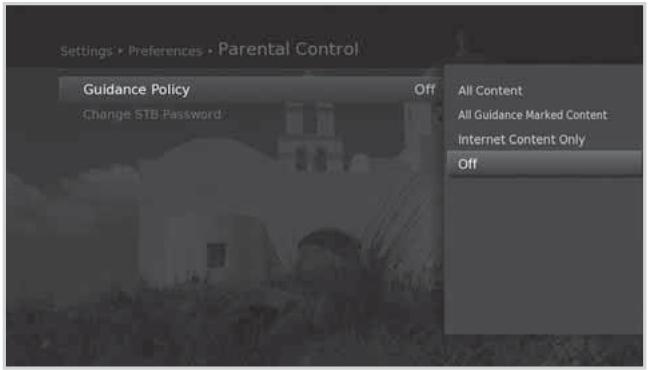
Guidance Policy
You can set the guidance on the recordings or internet contents during the watershed which is the time period (21:00 to 05:30) for adult contents.
- Select Guidance Policy.
- Select an option.
All Content
All Guidance Marked Content
Internet Content Only
Off
- Press the OK button.
Note: The password is required to view the blocked programmes.
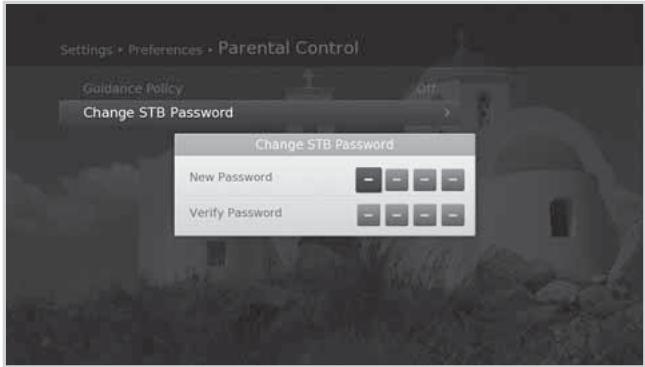
Changing Password
You can change the current password. This password is prompted every time a password blocked menu is accessed.
- Select Change STB Password.
- Enter the new password.
- Enter the new password for verification.
MENU
Menu On/Off

Select
OK
Confirm

Enter 0~9
Language Setting
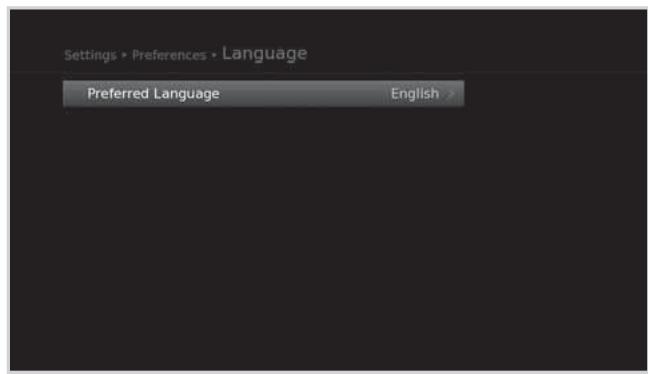
MENU Settings Preferences Language
You can set the preferred language for audio and subtitle.
- Select Preferred Language.
- Select the language.
Note:
- You can change the audio or subtitle language by pressing the AUDIO or SUB button while watching a programme.
- The Preferred Language will be the priority when you change channels or restart the product.
Setting Power On/Off Timer
MENU Settings Preferences Time
- To turn on the product automatically, select Power On Timer and select Set Timer.
- Enter the time.
- Set the options for the power on timer.
Channel: Select the channel to be displayed when powering on.
Volume: Adjust the volume of the audio when powering on.
Repeat: Select the repeat mode of the power on timer.
- To turn off the product automatically, select Power Off Timer and select Set Timer.
- Enter the time.
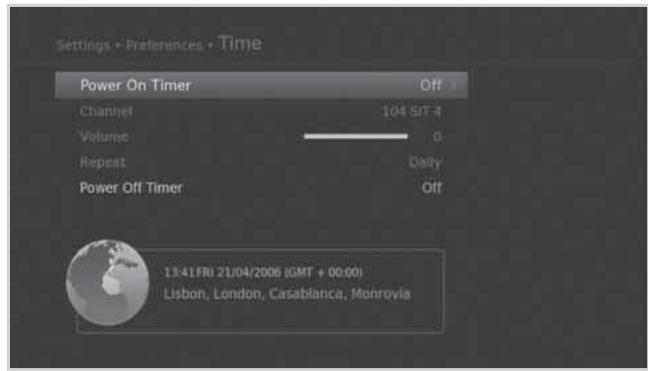
Note: The power on time and power off time should be set different from each other.
Video Setting
MENU Settings Preferences Video
Setting TV Screen Ratio
You can select the screen ratio of your TV.
- Select Screen Ratio.
- Select an option.
16:9-4:3
Setting Display Format
You can select the display format according to the screen ratio of your TV.
- Select Display Format.
- Select an option.
Screen ratio 4:3: Auto - Letterbox 16:9 -
Letterbox 14:9 - Centre
Screen ratio 16:9: Auto - Pillarbox - Zoom
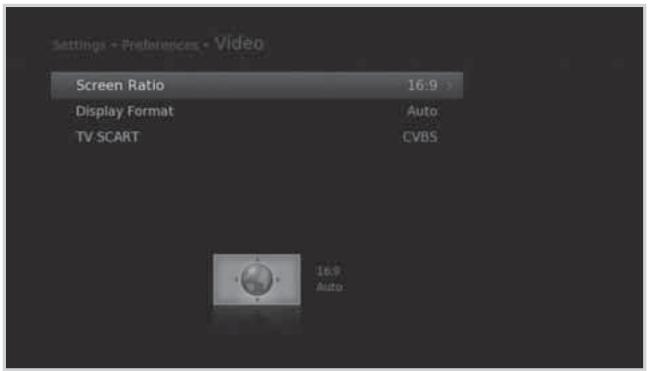
Note: You can set the display format by pressing the WIDE button while watching a programme. Refer to Display Format / Resolution.
| Screen ratio | Display Format | |||
| 4:3 | Auto | Letterbox16:9 | Letterbox14:9 | Centre |
| 16:9 | Auto | Pillarbox | Zoom | |
Setting TV SCART
You can select the video signal output option for the TV SCART.
- Select TV SCART.
- Select an option.
CVBS - RGB
Audio Setting
MENU Settings Preferences Audio
Setting Audio Description
You can set to narrate the on-screen visuals which is used for visually impaired viewers.
- Select Audio Description.
- Select an option.
On-Off
Note: Not all channels/programmes will provide Audio Description; for further information please contact the Broadcaster.
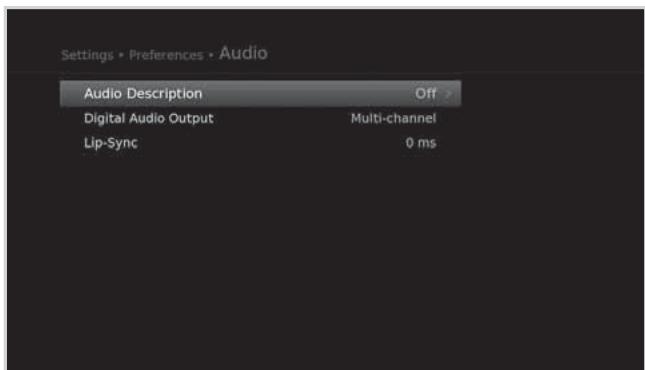
Setting Digital Audio Output
You can select the digital audio signal output of your product.
- Select Digital Audio Output.
- Select an option.
Multi-channel-Stereo
| Item | Audio | Digital Audio Output |
| Multi-channel | MPEG | PCM |
| DD | DD | |
| DD+ | DD | |
| Stereo | MPEG | PCM |
| DD | PCM | |
| DD+ | PCM |
Setting Lip-Sync
You can adjust the sound difference of audio and video.
- Select Lip-Sync.
- Adjust the lip-sync using the button. Pressing the right button increases the audio speed and pressing the left button decreases it.
Screen Display
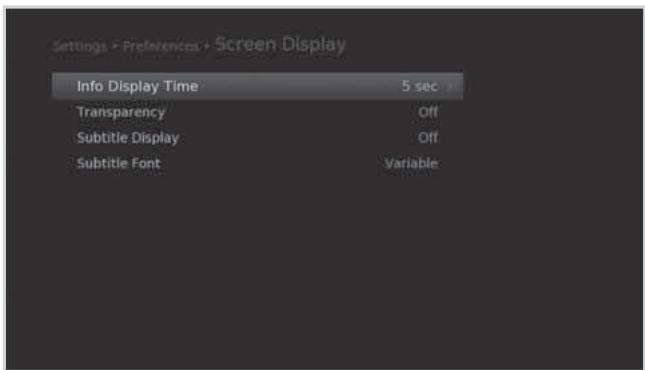
MENU Settings Preferences Screen Display
Setting Info Display Time
You can set the duration the information box is displayed every time the channel is switched.
- Select Info Display Time.
- Select an option.
Off-1~20 sec
Setting Transparency
You can set the transparency of the On-Screen Display.
- Select Transparency.
- Select an option.
Off - 25% - 50% - 75%
Setting Subtitle Display
You can set to display the subtitle automatically or not.
- Select Subtitle Display.
- Select an option.
On-Off
Setting Subtitle Font
You can adjust the subtitle font.
- Select Subtitle Font.
- Select an option.
Variable-Fixed
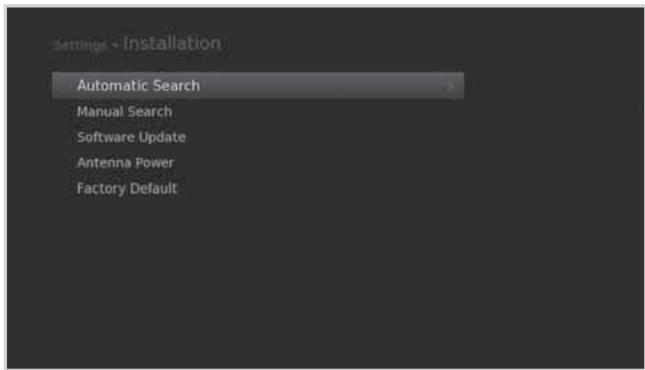
Installation menu allows you to search the available TV and radio channels. Software update, antenna power and factory default setting are also available in this section.
MENU Settings Installation
Note:
- You will be prompted to enter the password to access this menu. The default password is 0000. If you have forgotten your password, please contact Humax Customer Support.
- Press the BACK button to save the changes and return to the previous screen. Press the MENU or EXIT button to exit.
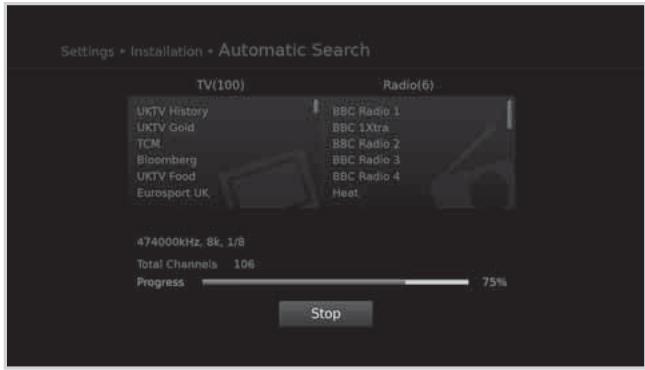
Automatic Search
You can search channels automatically without entering any other information.
- Select Automatic Search. Channel search starts.
- Select Save and press the OK button to save the results.
Note: Select Stop and press the OK button to stop the channel search.
Manual Search
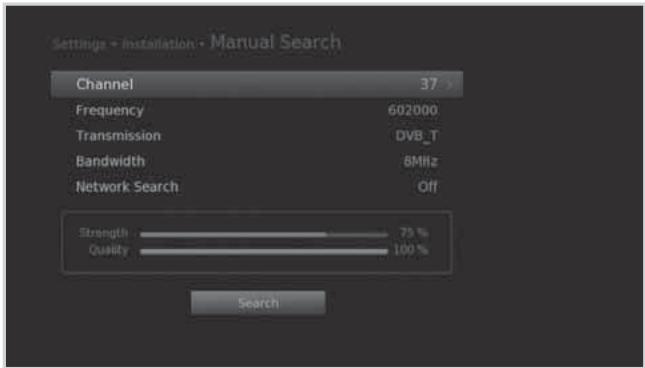
You can search channels manually by searching parameters.
- Select Manual Search.
- Configure the search options.
Channel: Select the channel.
Frequency: Enter the frequency.
Transmission: Select DVB-T or DVB-T2.
Bandwidth: Select the bandwidth.
Network Search: Select On or Off.
- Select Search and press the OK button.
- Select Save and press the OK button to save the results.
Note:
- Select Stop and press the OK button to stop the channel search.
For information on the correct channel numbers to use in your area please visit http://www.digitaluk.co.uk. Please select the "I am in the aerial installation trade" option when searching your postcode.
Software Update (OTA)
In order to maintain proper performance of the product, it is essential to have the most up-to-date software. Visit the HUMAX website to check the latest news and newly released software versions. (http:// www.humaxdigital.com) It is recommended that you periodically check for the availability of software update.
OTA, an abbreviation of Over-the-Air, means that the software can be downloaded through your aerial. The manufacturer reserves the right to decide when and where to release software by this process. You can also search and download new software manually.
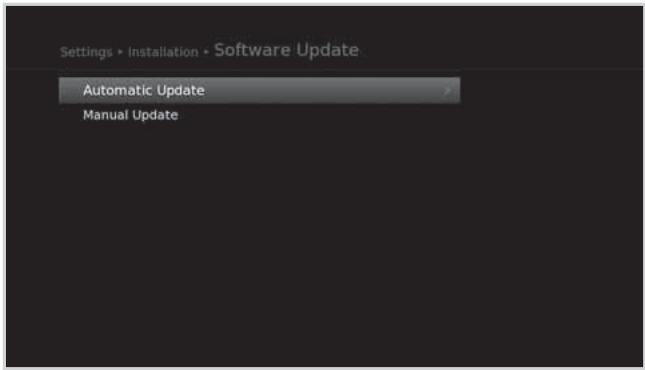
MENU Settings Installation Software Update
Automatic Update
- Select Automatic Update and press the OK button to search for new software
- When new software is detected, select Yes to start the update process now.
MENU
Menu On/Off

Select

Confirm

Enter 0~9
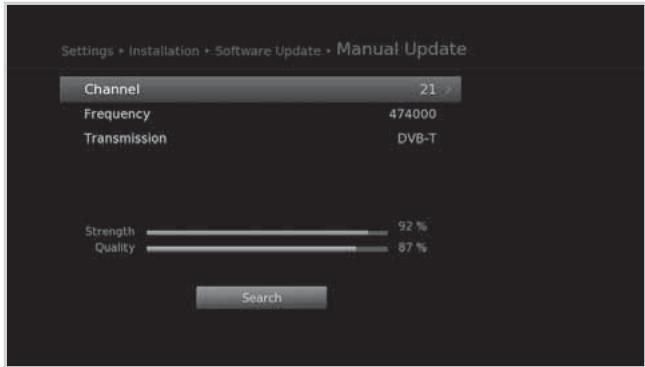
Manual Update
- Select Manual Update and press the OK button.
- Enter the options manually
Channel: Select the channel.
Frequency: Enter the frequency. The corresponding frequency value will be automatically displayed.
Transmission: Select DVB-T or DVB-T2. - Select Search and press the OK button to search for new software.
- When new software is detected, select Yes to start the update process now.
Please wait until the update is complete. When completing the software update, the product is automatically powered off and on again.
Note:
It may take 5~10 minutes to update software.
Other functions such as scheduling programmes will not activate while software update takes place.
- The software updates will only be downloaded over air if you are receiving the HD channels available. If you do not receive the HD channels at the current time please visit http://www.humaxdigital.co.uk/ update to upgrade via USB.
- Be sure to update software when the signal strength and quality is high. If the weather is not favorable and the signal strength and quality are not recommendable, perform the software update later.
- The product will search new software automatically during standby. If new software is detected, you can choose either to download immediately or later when you switch into operation mode. If you select Later, the message will be displayed again when you power on.
Caution:
- Please be careful to keep the power on and the power cord plugged in during software update. If the power is off during software update, fatal damage may be caused to the product.
- Please be careful not to pull out the signal line (RF cable) during software update. Update may be interrupted and the product may not operate.
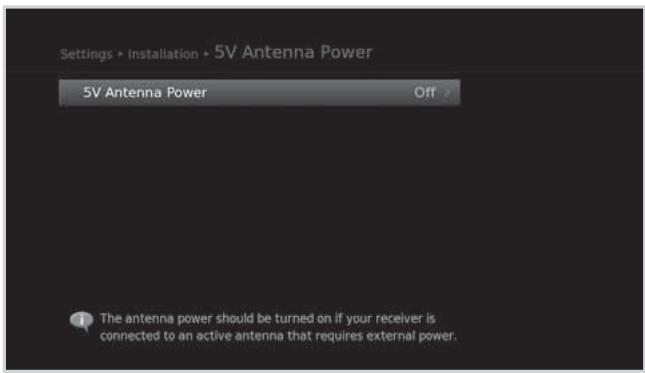
Antenna Power
MENU Settings Installation Antenna Power
Active antenna is a portable or indoor antenna which needs power supply from the product because it does not have power cord for itself. Connect an active antenna to the ANTENNA IN on the rear of the product.
- Select 5V Antenna Power.
- Select an option.
On: 5V power is supplied from the active antenna cable.
Off: No power supplied
Note: Most domestic aerial installation will not require the Antenna Power option to be switched on. Please check with your aerial installer if this is required for your aerial.
Factory Default
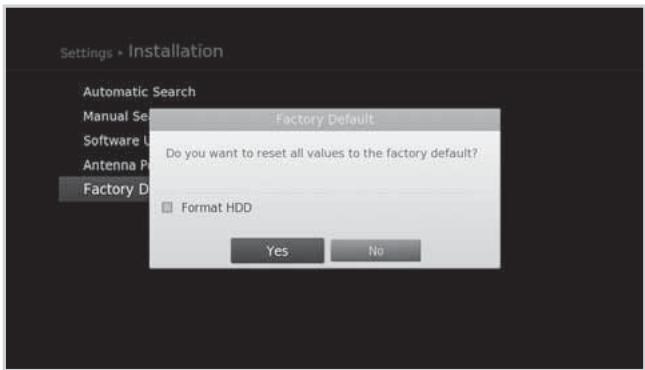
MENU Settings Installation Factory Default
- Select Factory Default.
- A popup will appear. Select Yes.
- You will be prompted to enter the password. Enter the password.
Note:
- The default password is 0000. If you have forgotten your password, please contact Humax Customer Support.
To format the HDD, mark Format HDD.
Warning:
- Please note that once you perform Factory Default, all user configuration/settings will be reset to the Factory settings. After completing the factory default, the installation wizard will appear automatically in a few seconds.
MENU
Menu On/Off

Select
OK
Confirm

Enter 0~9
System
In System, system information, signal detection, power management, common interface, data storage and internet setting are available.
Note: Press the MENU or EXIT button to exit. Press the BACK button to return to the previous screen.
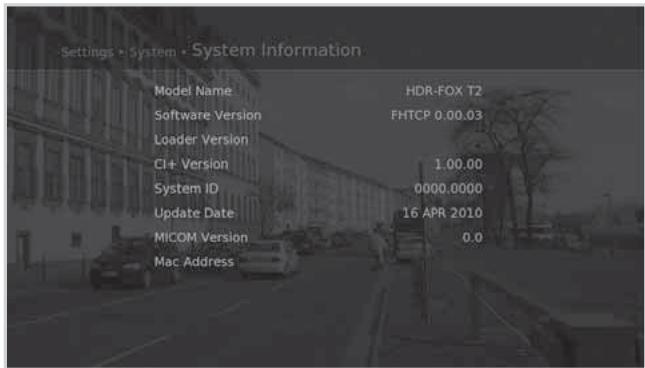
System Information
MENU Settings System System Information
The system information is displayed.
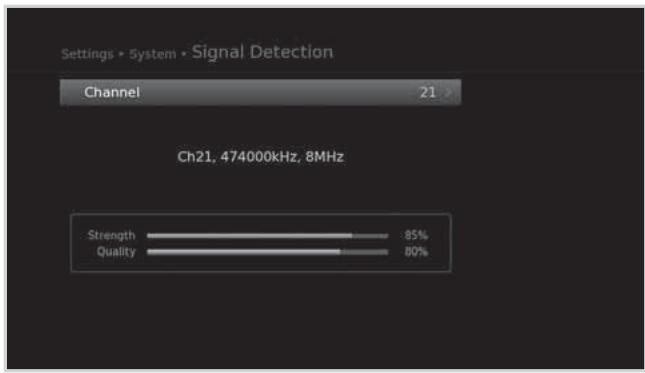
Signal Detection
MENU Settings System Signal Detection
You can check the signal strength and quality of the searched channels.
Note: We recommend that the Signal Strength is above 30% and the Signal Quality is above 70% in order to receive the channels without picture/sound breakup.
Power Management
MENU Settings System Power Management
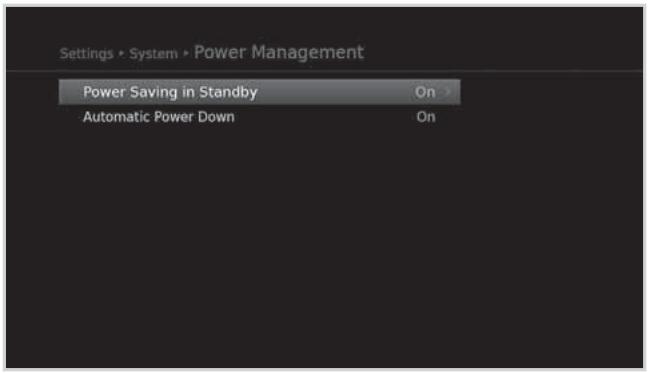
Setting Power Saving in Standby
You can minimise the standby power consumption to below 1W.
- Select Power Saving in Standby.
- Select On to deactivate the certain features and minimise the power consumption.
Note: When Power Saving in Standby is switched On the Time on the front display will not appear when in standby, nor will the Antenna Out loop-through the signal to a connected device.
Setting Automatic Power Down
The receiver automatically enters standby mode for power saving if no user interaction occurs for 3 hours.
- Select Automatic Power Down.
- Select On to enter standby mode automatically if no user interaction occurs for 3 hours.
Note: The message will be displayed before entering standby mode. If no selection is made for 30 seconds, the receiver enters standby mode automatically.
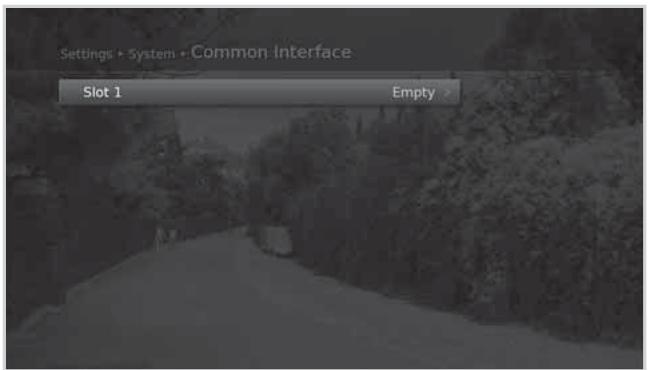
Common Interface
MENU Settings System Common Interface
The common interface information is displayed.
Data Storage
MENU Settings System Data Storage
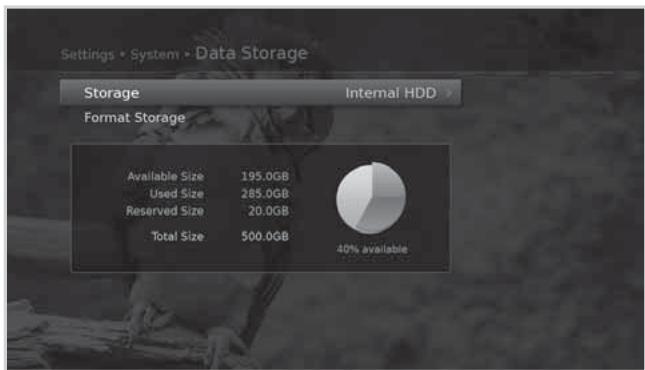
You can check the size of the internal HDD or external USB storage device.
- Select storage to display the details for the storage.
- To format the selected storage, select Format Storage. If you select Yes, you will be prompted to enter the password.
Note:
- The default password is 0000. If you have forgotten your password, please contact Humax Customer Support.
Supported Features according to USB file system.
Ext3: Read, Copy (Digital TV/Radio, MP3, JPEG, XviD)
FAT: Read, Copy (Digital TV/Radio, MP3, JPEG, XviD)
NTFS: Read (MP3, JPEG, XviD)
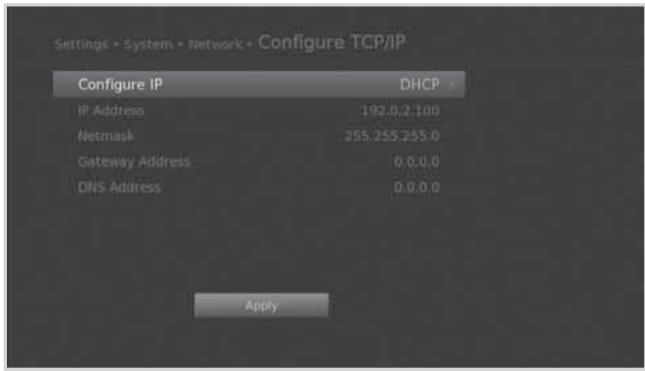
Internet Setting
MENU Settings System Internet Setting
Configuring IP (LAN)
- You can configure the Ethernet setting options.
DHCP: Apply the options according to the DHCP.
Manual: Enter the options manually,
- Select Apply and press the OK button.
Note: When entering the IP address manually, enter 3 digits in a row.
Specification
| Tuner & Channel | |
| Input Connector | IEC 169-2 Female |
| Frequency Range | 470 MHz to 862 MHz |
| Signal Level | -70 to -10 dBmV |
| Demodulation | OFDM |
| Mode | DVB-T: 2K, 8KDVB-T2: 1K, 2K, 4K, 8K, 16K, 32K |
| FEC Mode | DVB-T: 1/2, 2/3, 3/4, 5/6, 7/8DVB-T2: 1/2, 3/5, 2/3, 3/4, 4/5, 5/6 |
| Guard Intervals | DVB-T: 1/4, 1/8, 1/16, 1/32DVB-T2: 1/4, 1/8, 1/16, 1/32, 1/128, 19/128, 19/256 |
| Audio/Video Decoding | |
| Audio Decoding | Dolby Digital Plus |
| Audio Mode | Single channel/Dual channel/Joint stereo/Stereo |
| Video Decoding | HD MPEG2 /SD MPEG2 / MPEG4(H.264/AVC) |
| Video Format | 4:3, 16:9, Letter Box |
| Video Resolution | 1080p, 1080i, 720p, 576p, 576i |
| Memory | |
| Flash Memory | 32 MB |
| RAM | 320 MB |
| EEPROM | 8 KB |
| Audio/Video In/Out | |
| Video | TV-SCART, RCA, HDMI/HDCP |
| Audio | TV-SCART, Audio L/R, S/PDIF (Digital Audio Output) |
| Data In/Out | |
| USB | USB 2.0 Host (5 V = 500mA Max.) |
| RJ-45 | Ethernet 10/100 Mbps |
| Hard Disk | |
| HDD | 500 GB / 1 TB (Optional) |
Appendix
| Power Supply | |
| Input Voltage | 90-250 V a.c., 50/60 Hz |
| Type | SMPS |
| Power Consumption | Max. 28 W (Standby: Under 1 W) |
| Protection | Separate internal fuse. The input should be protected against lightning. |
| Physical Specification | |
| Size (w/h/d) | 380 mm x 55 mm x 252 mm |
| Weight | 2.8 Kg |
| Operating Temperature | 0 °C to +45 °C |
Note: The specifications are subject to change without notice.
Service and Support
Information concerning troubleshooting, software upgrade and product support is provided in the following websites and call centers. Should your product require warranty service, please contact HUMAX to obtain the appropriate authorization.
HUMAX Call Center
| UK | Tel: Opening Hours: E-mail: Website: Language: | 0844 669 8800 Mon - Fri 09:00 – 17:30 (excluding Bank Holidays) uksupport@humax-digital.co.uk www.humax-digital.co.uk English |
Safety Warning
This product has been manufactured to comply with international safety standards. Please read the following safety precautions carefully.
Safety Instructions and Precautions
1. MAINS SUPPLY
- Operate this product only from the type of power supply indicated on the marking label. If you are not sure of the type of power supplied to your home, consult your local power company.
- Disconnect the product from the mains before you start any maintenance or installation procedures.
2. OVERLOADING
- Do not overload a wall outlet, extension cord or adapter as this may result in electric fire or shock.
3. LIQUID
- The product should not be exposed to liquid of any kind. In addition, no objects filled with liquid should be placed on the apparatus.
4. CLEANING
- Disconnect the product from the wall outlet before cleaning.
- Use a light damp cloth (no solvents) to dust the product.
5. VENTILATION
- The slots on top of the product must be left uncovered to allow proper airflow into the unit.
- Do not stand the product on soft furnishings or carpets.
- Do not stack electronic equipments on top of the product.
6. ATTACHMENTS
- Do not use any unsupported attachments as these may be hazardous or cause damage to the product.
7. LIGHTNING, STORM OR NOT IN USE
- Unplug the product from the wall outlet and disconnect the antenna during a thunderstorm or when left unattended and unused for long periods of time. This will prevent damage to the unit due to lightning and power-surges.
8. EXTRANEOUS OBJECTS
- Do not insert anything through the openings in the unit, where they can touch dangerous voltage points or damage parts.
9. REPLACEMENT OF PARTS
- When replacement of parts is required, be sure the service technician uses replacement parts specified by the manufacturer or those that have the same characteristics as the original part. Unauthorized substitution may result in additional damage to the unit.
10. CONNECTION
[Satellite] CONNECTION TO THE SATELLITE DISH LNB
- Disconnect the product from the mains before connecting or disconnecting the cable from the satellite dish. Failure to do so can damage the LNB.
[Cable] CONNECTION TO THE CABLE TV SIGNAL
- Connect all components before plugging any power cords into the wall outlet. Always turn off the product, TV and other components before you connect or disconnect any cables.
[Terrestrial] CONNECTION TO THE AERIAL
- Disconnect the product from the mains before connecting or disconnecting the cable from the aerial. Failure to do so can damage the aerial.
11. CONNECTION TO THE TV
- Disconnect the product from the mains before connecting or disconnecting the cable from the TV. Failure to do so can damage the TV.
12. LOCATION
- Place the product indoors to avoid exposing it to lightning, rain or sun. Do not place it near a radiator or heat register.
We recommend that the product has 10cm clearance from any other appliances susceptible to electromagnetic influences, such as a TV or a VCR. - Do not block the openings with any object, and do not place the product on a bed, sofa, rug, or other similar surface.
If you place the product on a rack or a bookcase, ensure that there is adequate ventilation and that you have followed the manufacturer's instructions for mounting. - Do not place the product on an unstable cart, stand, tripod, bracket, or table where it can fall. A falling product can cause serious injury to a child or adult, and serious damage to the appliance.
Warning
1. To avoid damage of the power cord or plug;
- Do not modify or process the power cord or plug arbitrarily.
- Do not bend or twist the power cord.
- Make sure to disconnect the power cord holding the plug.
- Keep heating appliances as far as possible from the power cord in order to prevent the cover vinyl from melting.
- The mains plug, as a disconnection device, shall remain readily accessible by the user.
2. To avoid electrical shock;
- Do not open the main body.
- Do not insert metal or inflammable objects inside the product.
- Do not touch the power plug with wet hands.
- Disconnect the power cord in case of lightning.
3. To avoid damage of product;
- Do not use the product when it is out of order. If you continue to use the product when defective, serious damage can be caused. Make sure to contact your local product distributor if the product is out of order.
- Do not insert metal or alien substance into the slots for the modules or Smartcards. (where applicable) It may cause damage to the product and reduce its life span.
4. To avoid damage of the hard disk drive (PVR only)
- Do not move the product or turn the power off suddenly while the hard disk drive is running.
- The company shall not be liable for any corruption of data on the hard disk drive caused by carelessness or misuse.
Trouble Shooting
Before contacting your local service centre, please read the tips below carefully. If the problem persists after completing the following procedure, please contact your local product distributor or service centre for further instructions.
1. No message displayed on the front display. (The product will not switch on.)
- Check the main power cable and make sure it is plugged into a suitable power outlet.
- Check that the mains supply is switched on.
- Connect the power cable to a different power outlet.
- Check that the power switch is on at the rear of the product. (where applicable)
2. No picture
- Make sure that the product is powered on and in operation mode. (Press the STANDBY button)
- Make sure that the AV cable is firmly connected to the TV.
- Make sure that the antenna cable is properly connected to the product.
- Make sure that you have selected the correct AV Channel / Input on your TV set (refer to your TV user manual for more information)
- Be sure to activate channel search.
- Check the brightness level of the TV.
- Check if the channel is currently on air. Contact the broadcaster to ensure that the channel is running.
- Press the SOURCE button if the product is in external input mode. (where applicable)
- Satellite: Make sure that the antenna setting in the menu is correct.
3. Poor picture/sound quality
Install the antenna in an obstacle-free place.
- Make sure there is no mobile phone or microwave oven near the product.
- Keep the power and the antenna cables apart from each other.
- Check the signal levels and adjust your antenna if the level is too low. The signal level may be affected by weather conditions.
Note: If the antenna is covered with snow or the RF is weakened by heavy rain, the condition of the sound and picture may temporarily be poor. However, the poor sound and picture quality due to weather conditions cannot be accepted as a malfunction of product.
[Satellite] Check that your dish alignment is correct.
[Satellite] Change the satellite dish for a larger one as this will increase the signal levels received.
[Satellite] Replace the LNB with a lower noise factor in cases where the noise factor is too high.
[Satellite] Replace the LNB with a new one in case it is damaged or out of order.
- [Terrestrial] Adjust the antenna direction to get a better picture.
- [Terrestrial] Set the antenna power in menu to On, if you use the active antenna to improve the reception. (where applicable)
4. No or poor sound
- Check that your AV cable is connected correctly.
- Check the volume levels of your TV set and the product.
- Check if the product or TV is on mute.
- Check audio type or soundtrack option in the AV menu. (where applicable)
5. Remote control does not operate.
- To control the product, the top end of the remote control should point directly towards the receiving part of the product.
- Remove and reinsert the batteries in the remote control.
- Replace the batteries in the remote control for a new set.
- Set the remote control to STB or PVR mode, if you are using the universal remote control. (where applicable)
6. Cannot make reservations.
- Check that no previous reservations are conflicting with the new reservation.
7. No password information is given.
The default password is always 0000.
8. Channel search does not work.
- Satellite: Make sure that the antenna setting in the menu is correct.
- Terrestrial: Make sure that the antenna is connected correctly.
- Terrestrial: Use the appropriate antenna capable of receiving VHF or UHF channels for your area.
9. Cannot update new software.
- You can get an update. If the product does not show a message requesting update, this means no software is available.
10. The product makes a humming noise. (PVR only)
- The noise is from the fan; the hard disk is operating normally. This kind of noise is inevitable but seldom noticeable.
11. Cannot record programmes. (PVR only)
- The hard disk is full. Delete unnecessary programmes and make space for new recording.
- Check if recording is overlapped with another channel. Stop the current recording or wait until the recording is finished.
- Check that the product is switched on when recording starts.
12. Cannot operate TSR (Time Shifted Recording). (PVR only)
- TSR may not be available during recording. Wait until recording is finished.
- Delete unnecessary programmes and make space for new recording.
13. Cannot playback. (PVR only)
- To playback the recorded file of a scrambled channel, use the Smartcard. In case it has been a long time since you last recorded, this may not work. Contact the product distributor.
The signal during recording may be weak or the hard disk too full.
14. Cannot change channels while recording. (PVR only)
Certain channels may not be changed due to restriction of the tuner or connection type.
Error Message
| Error message | Possible causes | What to do |
| No or bad signal [Satellite] | The satellite dish is not pointing at the satellite. | Adjust dish alignment. |
| Signal is too weak. | Increase the LNB voltage or connect a signal amplifier. | |
| Satellite dish is too small. | Change to a larger dish. | |
| Problem with LNB. | Change the LNB. | |
| Wrong antenna setting. | Set the antenna correctly. | |
| No or bad signal [Cable] | The cable is not connected. | Make sure the cable is connected correctly. |
| The cable may be damaged or defective. | Exchange the cable. | |
| The channel is not broadcasting. | Exchange the cable. | |
| No or bad signal [Terrestrial] | The aerial is not pointing properly. | Adjust aerial. Check the cable from the aerial. If you cannot resolve the problem, you may need to have your aerial and installation tested by a professional. |
| The channel is scrambled or not available. | The channel has a signal, but no audio or video. | Confirm if the channel is currently on air. |
| The channel has been deleted by the broadcasting company. | Check if the channel is currently on air | |
| The channel is for data broadcasting. | Remove the channel from the channel list and check for new transponder details. | |
| The audio is not available. | The channel has a video signal, but no audio. | Press the audio button to confirm that the channel has audio options. |
| No access | No access | Make sure you are subscribed to the channel. |
| No authorization. | If the product has been turned off for a long time (standby or power off), please wait for authorization. It may take up to 60 minutes. |
Glossary
CVBS (Composite Video Baseband Signal)
A technology for transmitting video signals via a cable. Mixs luminance (brightness) and the chrominance (colour) signals together.
DiSEqC (Digital Satellite Equipment Control)
A DiSEqC compatible receiver relies on a switching box which detects the 22kHz tone pulsing rapidly on and off. In this way, a specially designed receiver can control numerous LNBs through a DiSEqC switching box.
Dolby Digital
An encoding system that digitally compresses up to 5.1 discrete channels of audio (left front, centre, right front, left surround, right surround) into a single Bitstream. A low frequency effect (LFE) channel is included providing the sound needed for special effects.
DVB (Digital Video Broadcasting)
Set of standards that define digital broadcasts using satellite, cable or terrestrial systems.
EPG (Electronic Programme Guide)
An electronic equivalent to a printed television listings magazine; it is an application used with digital set-top boxes and digital television sets to list current and scheduled programs that are or will be available on each channel, including a short summary or commentary for each program. The information supplied in the EPG is sent and updated by the channel broadcaster.
FEC (Forward Error Correction)
A technique for error control of data transmission.
Frequency
The property of a signal measured in cycles per second (= Hz)
FTA (Free-To-Air)
An unscrambled broadcaster allowing customers to view channels or services without paying any subscription.
HDD (Hard Disk Drive)
The primary computer storage medium, which is made of one or more aluminum or glass platters, coated with a ferromagnetic material.
HDMI (High-Definition Multimedia Interface)
An all-digital audio/video interface that supports standard, enhanced, or high-definition video, plus multi-channel digital audio on a single cable. It transmits all ATSC HDTV standards and supports 8-channel digital audio.
Hi-Fi (High Fidelity)
The characteristics of audio devices that can play back all the audio frequencies a person can detect, which is the range of 16Hz-20KHz. Sometimes it is used to indicate good quality of audio devices such as stereo tape recorders.
LNB (Low Noise Block)
A device that is mounted on an arm facing your satellite dish, focusing on satellite signals. A LNB converts signals received from satellite to a lower frequency and sends them to a satellite receiver via coaxial cable.
NVOD (Near Video On Demand)
A technology that allows customers to view the start of popular programmes or films within a short period from the time they make their selection. This is possible as the broadcaster sends multiple copies with staggered start times.
OSD (On Screen Display)
OSD displays the basic information necessary for the users to configure monitor or TV settings. OSD information may include brightness, contrast, tuning, RGB adjustment, and screen size and position.
OTA (Over the Air)
A standard for the transmission of software for equipment, through a broadcast system. Manufacturers reserve the right for deciding the release of the software for their products.
PID (Packet Identifier)
A set of numbers identifying stream packets contained within a single data stream.
Polarisation
The direction of the electrical and magnetic fields of a signal. Satellites use both vertical and horizontal polarisation. Means that a frequency can be used twice.
PVR (Personal Video Recorder)
Video recorder that can record and playback programmes directly using the embedded hard disk drive(s).
QPSK (Quaternary Phase Shift Keying)
Digital modulation technique in which the carrier phase can have one of four possible values.
RF (Radio Frequency)
Television signals are modulated onto RF signals and are then demodulated by your television's or STB's tuner.
RF Modulator
Enables you to output the receiver's digital signals to a TVs RF (Aerial) input, allowing you to connect the receiver to a TV set without a SCART connection.
RGB (Red - Green - Blue)
A technology for transmitting video signals via a cable. RGB is a system to represent red, green, and blue colours on a TV or monitor display. Red, green, and blue can be combined in various proportions to obtain any colour.
RS-232C
A connection to allow you to connect to a PC to update receiver's software.
SCART
A 21-pin connector standard to connect two pieces of Audio-Visual equipment such as a TV and a VCR. Each device will have a 21-pin female connection; a cable with male connection at both ends is used for connecting the devices.
Smartcard
A credit card sized card that contains updateable chip memory. It is used for accessing Pay TV (encrypted) channel or services when inserted into an appropriate receiver.
S/PDIF (Sony/Philips Digital Interface format)
A standard format for the transfer of digital audio signals. It allows the transfer of digital audio between two devices without any conversion to and from analogue, which could degrade the signal quality.
S-Video (Super-Video)
Sometimes referred to as Y/C video; a technology for transmitting video signals via a cable. It is a video signal transmission in which the luminance (brightness) and the chrominance (colour) signals are transmitted separately to achieve superior picture clarity.
Transponder
A satellite is divided up in parts called transponders. A transponder is one distribution section of the satellite. Each transponder can be used for distribution of several channels or services.
Trick-Play
Pause, Fast Forward/Fast Rewind, Slow Motion, Instant Replay, Commercial Skip, Repeat A-B.
TSR (Time Shifted Recording)
A function that records the present programme temporarily to support trick-play.
Remote Control Code List
1. Using the Universal Remote Control
- Select the mode(PVR, TV, DVD, AUDIO) you want to set by pressing the corresponding button on the remote control. The button will blink once.
- Keep pressing the button for 3 seconds until the button lights on.
- Enter the 3-digit code. Every time a number is entered, the button will blink. When the third digit is entered, the button will blink twice.
- If a valid 3-digit code is entered, the product will power off.
- Press the OK button and the mode button will blink three times. The setup is complete.
- If the product does not power off, repeat the instruction from 3 to 5.
Note:
- When no code is entered for one minute the universal setting mode will switch to normal mode.
Try several setting codes and select the code that has the most functions.
Remote Control Function List
The keys on the remote control function as in the list below.
Note: Some keys may not function depending on the product.
| Button | TV | DVD | AUDIO |
| STANDBY | POWER | POWER | POWER |
| MUTE | MUTE | MUTE | |
| PVR | |||
| TV | |||
| DVD | |||
| AUDIO | |||
| 1 | DIGIT 1 | 1 | INPUT 1 |
| 2 | DIGIT 2 | 2 | INPUT 2 |
| 3 | DIGIT 3 | 3 | INPUT 3 |
| 4 | DIGIT 4 | 4 | INPUT 4 |
| 5 | DIGIT 5 | 5 | INPUT 5 |
| 6 | DIGIT 6 | 6 | INPUT 6 |
| 7 | DIGIT 7 | 7 | INPUT 7 |
| 8 | DIGIT 8 | 8 | INPUT 8 |
| 9 | DIGIT 9 | 9 | INPUT 9 |
| 0 | DIGIT 0, 11 | 0 | INPUT 0 |
| TV Portal | |||
| MENU | MENU | MENU | MENU/MODE |
| ▶ | TEXT EXPAND | PLAY | PLAY |
| II | TEXT HOLD | PAUSE | PAUSE |
| ■ | PIP INPUT | STOP | STOP |
| ● | PIP MOVE | RECORD, OPEN CLOSE | RECORD |
| ← | PIP OFF | REWIND, SEARCH REVERSE; SCAN | DVD SEARCH REW, CD SEARCH REW, REW |
| ► | PIP | FAST FORWARD, SEARCH FORWARD; SCAN | FAST FORWARD, DVD SEARCH REW, CD SEARCH REW, REW |
| ← | TEXT MIX | SKIP -, TRACK -, CHAPTER - | DVD SKIP -, CD SKIP -, SKIP - |
| ► | TEXT OFF, TV | SKIP, TRACK +, CHAPTER + | DVD SKIP+, CD SKIP+, SKIP + |
| RED | RED | RED | RED |
| GREEN | GREEN | GREEN | GREEN |
| YELLOW | YELLOW | YELLOW | YELLOW |
| BLUE | BLUE | PROGRAMME | BLUE |
| MEDIA | |||
| GUIDE | GUIDE | GUIDE | DSP MODE |
| OK | OK | OK | OK |
| UP | UP | UP | UP |
| LEFT | LEFT | LEFT | LEFT |
| RIGHT | RIGHT | RIGHT | RIGHT |
| DOWN | DOWN | DOWN | DOWN |
| EXIT | EXIT | EXIT, RETURN | EXIT |
| BACK | LAST, RECALL; PP; LAST CHANNEL | CLEAR | REPEAT |
| VOL+ | VOL+ | VOL+ | VOL+ |
| VOL- | VOL- | VOL- | VOL- |
| INFO, OSD; DISPLAY | INFO, OSD; DISPLAY | INFO | |
| LIST | LIST | ||
| P+ | P+ | P+ | P+ |
| P- | P- | P- | P- |
| TEXT | TEXT | PVR MENU | |
| #E | AUDIO, LANGUAGE | SURROUND | |
| SUB | SUBTITLE, LANGUAGE; CC | SUBTITLE |
| TV/RADIO | TV/DTV ATV/DTV; D/A; DTV/TV; DTV; DIGITAL | HDD, DVD/HDD | BAND |
| OPT+ | RANDOM | ||
| TEXT SUBPAGE TEXT TIME | RANDOM | ||
| TEXT INDEX | TITLE | ||
| TEXT POSITION TEXT CANCEL; TEXT UPDATE | SLOW; STEP | ||
| SOURCE | SOURCE, AV, 55INPUT; TV/AV | SOURCE, TV/DVD, TV/DISK | SOURCE, FUNCTION |
| SLEEP | SLEEP | SLEEP | SLEEP |
| V-FORMAT | TEXT SIZE; TEXT EXPAND; FTB | ||
| WIDE | WIDE, FORMAT, 16:9, ASPECT; ZOOM | ZOOM |
2. TV Code List
| Brand | Code |
| Acer | 261, 278, 305 |
| Acoustic Solutions | 210, 312, 324, 370, 386, 428, 477 |
| Akai | 102, 006, 098, 144, 145, 111, 061, 043, 074, 148, 232, 280, 128, 122, 461, 109, 462, 489, 094, 084, 083, 065, 035, 034, 033, 028, 023, 011, 004, 002, 154, 321 |
| Alba | 006, 144, 134, 204, 087, 064, 036, 005, 108, 473, 455, 447, 388, 099, 084, 077, 072, 065, 059, 034, 023, 002 |
| Bang & Olufsen | 014 |
| Beko | 006, 144, 086, 145, 111, 064, 072, 172, 361, 405 |
| BenQ | 223, 328, 329 |
| Black Diamond | 444, 204, 211 |
| Brionvega | 006, 014, 062 |
| Bush | 102, 006, 144, 134, 204, 138, 087, 061, 043, 036, 005, 108, 376, 373, 370, 361, 355, 352, 327, 388, 430, 431, 432, 440, 448, 451, 473, 476, 477, 478, 002, 033, 035, 044, 045, 056, 059, 065, 066, 095, 133, 164, 210, 213, 229, 232, 250 |
| cello | 397, 410, 418, 419, 420 |
| Crown | 006, 144, 134, 204, 086, 145, 087, 111, 143, 064, 361, 135, 072, 071, 053, 033, 002 |
| Daewoo | 102, 006, 124, 444, 036, 441, 406, 341, 338, 271, 249, 195, 192, 190, 164, 133, 119, 091, 079, 066, 035, 034, 002 |
| Dell | 235, 278 |
| DMTech | 260, 438, 449, 454, 456 |
| Ferguson | 006, 120, 098, 103, 030, 204, 012, 020, 029, 046, 052, 054, 077, 292, 447, 476 |
| Finlux | 102, 006, 144, 145, 333, 327, 172, 122, 118, 094, 089, 084, 083, 070, 055, 035, 023, 018, 017, 014, 011, 010 |
| Fujitsu | 002, 011, 032, 035, 042, 137, 173, 187 |
| Fujitsu General | 002, 032, 035, 137 |
| Fujitsu Siemens | 172, 211, 230, 246, 268, 369 |
| Funai | 144, 134, 043, 275, 336, 369, 407 |
| GoldStar | 006, 144, 145, 111, 061, 001, 007, 020, 023, 027, 034, 035, 047, 067 |
| Gooding | 087 |
| Goodmans | 102, 006, 120, 144, 103, 134, 124, 444, 204, 087, 043, 036, 005, 478, 211, 232, 477, 250, 476, 271, 445, 355, 370, 373, 440, 376, 382, 383, 386, 002, 004, 011, 035, 047, 052, 054, 065, 066, 084, 091, 094, 119, 121, 133, 172, 195, 210 |
| Graetz | 144, 087, 061, 023, 053, 065, 211 |
| Grundig | 102, 006, 030, 087, 142, 005, 108, 498, 476, 448, 447, 445, 430, 405, 370, 271, 267, 250, 225, 135, 121, 010, 101, 096, 028, 077 |
| Grunkel | 211 |
| Hannspree | 262, 263, 264, 342, 401, 402, 463 |
| Hantarex | 006, 002, 094, 190, 260, 289 |
Appendix
| Hinari | 006, 043, 036, 005, 002, 033, 059, 077, 443 |
| Hisense | 102, 092, 165, 254, 265, 366, 491 |
| Hitachi | 006, 098, 124, 204, 208, 005, 019, 037, 146, 152, 153, 163, 169, 193, 197, 007, 206, 210, 217, 227, 295, 296, 330, 377, 399, 424, 483, 020, 021, 023, 027, 035, 054, 056, 060, 076, 081, 083, 084, 085, 089, 091, 094, 018, 106, 107, 011 |
| Humax | 505, 299, 506, 507, 245, 319, 322, 411, 433, 479 |
| Hyundai | 164, 190, 192, 241, 244, 271, 291, 317, 338, 340, 341, 439 |
| Inno Hit | 036, 002, 011, 035, 045, 047, 094, 211 |
| Irradio | 006, 036, 002, 047, 065, 147 |
| JVC | 111, 036, 005, 129, 130, 015, 029 065, 072, 137, 149, 207, 264, 362 408, 496 |
| Keymat | 258, 300, 398, 436, 437 |
| Lenoir | 002, 214 |
| LG | 102, 006, 144, 145, 138, 061, 064, 248, 281, 354, 367, 368, 384, 396, 416, 417, 425, 426, 215, 209, 067, 047, 035, 034, 027, 023, 002, 001, 236, 257 |
| Loewe | 006, 064, 014, 048, 093, 094, 123 131, 167, 414, 434 |
| Logik | 204, 001, 003, 029, 162, 195, 224, 292, 376, 464, 465, 466 |
| Logix | 134, 095 |
| Luxor | 098, 204, 061, 023, 033, 035, 047, 055, 056, 060, 083, 084, 122, 211 |
| Manhattan | 006, 134, 204, 164, 192, 237, 293 |
| Marantz | 102, 006, 071, 140, 277, 317 |
| Marks and Spencer | 420 |
| Matsui | 102, 006, 144, 030, 204, 087, 005, 080, 074, 153, 195, 097, 094, 369, 445, 077, 447, 065, 059, 056, 052, 044, 035, 033, 028, 011, 008, 004, 003, 002 |
| Mitsubishi | 102, 006, 204, 005, 019, 014, 015, 027, 093, 096, 191, 311 |
| Mivar | 034, 035, 047, 048, 094, 112 |
| NEC | 005, 002, 003, 025, 035, 040, 049, 066, 140, 239, 379 |
| Nokia | 098, 113, 111, 061, 023, 033, 049, 053, 055, 056, 066, 083, 084, 089, 122 |
| Nordmende | 006, 144, 103, 030, 020, 046, 054, 242, 280, 499 |
| Onida | 207, 226 |
| Orion | 102, 006, 144, 204, 467, 458, 457, 456, 448, 445, 443, 385, 218, 195, 131, 097, 094, 077, 071, 059, 050, 049, 003 |
| Online | 006, 036 |
| Ormond | 134, 204 |
| Orsowe | 094 |
| Pacific | 102, 144, 204, 208, 077, 256 |
| Packard Bell | 254, 293 |
| Panasonic | 006, 098, 061, 129, 038, 023, 063, 094, 187, 251, 294, 353, 359, 279, 306 |
| Panavision | 006, 070 |
| Philco | 006, 064, 014, 021, 072 |
| Philips | 102, 006, 061, 459, 435, 429, 395, 310, 302, 297, 247, 125, 110, 101, 073, 066, 054, 029, 014, 002 |
| Phonola | 102, 006, 014, 029, 034 |
| Pioneer | 006, 086, 061, 064, 020, 023, 024, 046, 073, 093, 136, 159, 233, 277, 286, 381 |
| Pionier | 086, 064, 327 |
| Radiomarelli | 006, 014, 094 |
| Relisys | 190, 192, 193, 194, 220, 221, 271, 310, 333, 338, 341, 355, 390 |
| Saba | 120, 098, 144, 103, 061, 014, 020, 023, 046, 052, 054, 090, 094, 335 |
| Sagem | 113, 080, 182, 253, 337 |
| Samsung | 102, 006, 043, 064, 108, 115, 231, 252, 276, 287, 332, 345, 350, 351, 372, 442, 474, 488, 490, 492, 228, 176, 175, 127, 095,047, 035, 034, 033, 027, 023, 011, 009, 002 |
| Sanyo | 204, 064, 005, 019, 442, 370, 363, 358, 357, 356, 222, 200, 150, 140, 097, 053, 048, 035, 034, 033, 025, 023, 017, 011, 008, 003, 002, 240 |
| Schaub Lorenz | 098, 144, 086, 111, 061, 056, 066, 215, 256, 267 |
| Schneider | 102, 006, 144, 134, 204, 061, 208, 036, 451, 450, 293, 128, 097, 095, 065, 056, 054, 042, 035, 023, 010 |
| SEG | 006, 134, 204, 087, 043, 036, 005, 285, 211, 210, 119, 062, 056, 035, 034, 002 |
| Sei-Sinudyne | 006, 014, 032, 094, 097 |
| Seleco | 023, 032, 042, 055, 062, 065, 070, 075, 099 |
| Sharp | 005, 130, 216, 015, 029, 088, 094, 177, 274, 334, 365, 409, 166, 288 |
| Siemens | 006, 030, 028, 096, 101 |
| SKY | 006, 195, 271, 300, 307, 308, 340, 341, 342, 343, 344, 391, 400, 421 |
| Sonoko | 006, 043, 002, 035, 045 |
| Sony | 006, 301, 005, 446, 412, 393, 375, 360, 325, 255, 203, 185, 174, 058, 003 |
| Strong | 210, 211 |
| Technika | 422, 428, 465, 468, 480, 493 |
| TechniSat | 102, 131, 237 |
| Technisson | 144, 242, 361 |
| Technosonic | 102, 120, 091, 195, 256, 258, 436, 437, 451, 468 |
| Telefunken | 006, 120, 144, 103, 086, 320, 202, 105, 090, 082, 055, 054, 052, 046, 020, 016, 012, 348 |
| Tevion | 102, 006, 144, 134, 204, 208, 468, 405, 403, 376, 355, 327, 298, 246, 242, 232, 230, 172, 128 |
| Thomson | 006, 120, 103, 020, 046, 052, 054, 056, 082, 335 |
| Toshiba | 030, 204, 005, 115, 129, 092, 447, 364, 313, 304, 242, 212, 211, 183, 100, 039, 022, 020, 010, 009, 004, 236, 257 |
| Tosumi | 451 |
| Vestel | 006, 134, 204, 035, 211, 333, 370 |
| Videocon | 092 |
| Viewsonic | 307, 308, 323, 335, 349, 391, 394, 259, 331 |
| Wharfedale | 102, 006, 095, 189, 256, 327, 370, 452, 453, 477, 502 |
| Yamaha | 169, 314, 330, 184 |
| Zanussi | 032, 035 |
| TV/VCR Combo | |
| Aiwa | 445 |
| Amstrad | 026 |
| Beko | 086 |
| Daewoo | 444, 119 |
| GoldStar | 006 |
| Grundig | 102, 006, 030, 101, 445 |
| Irradio | 147 |
| LG | 027 |
| Philips | 102, 006 |
| Saba | 120 |
| Samsung | 442 |
| Sanyo | 442 |
| Sharp | 015 |
| Thomson | 120 |
| United | 445 |
| TV/VCR/DVD Combo | |
| Grundig | 448 |
| Orion | 448 |
If the code for your equipment is not listed, visit the following website and see MDB1.3 for a complete list of supported codes. (http://www.humaxdigital.com/global/support/rcucodelist.asp)
OPEN SOURCE SOFTWARE NOTICE
HUMAX products use certain open source operating system software distributed pursuant to GNU GENERAL PUBLIC LICENSE Version 2 and GNU LESSER GENERAL LICENSE Version 2.1 each as defined and published by the Free Software Foundation, Inc.
The following GPL and LGPL software source codes used in this product can be provided and this offer is valid for up to three years from the date of original download of the software or purchase of product containing such software. Please contact us at gmail@humaxdigital.com.
GPL Software
linux
busybox
ntpclient
tinyftp
rt3070
e2fsprogs
This package, the ext2 filesystem utilities, are made available under the GNU Public License version 2, with the exception of the lib/ext2fs and lib/e2p libraries, which are made available under the GNU Library General Public License Version 2, the lib/uuid library which is made available under a BSD-style license and the lib/et and lib/ss libraries which are made available under an MIT-style license.
LGPL Software
uClibc
libexif
id3lib
FreeType License (FTL) Software
freetype
Portions of this software are copyright © <2007> The FreeType Project (www.freetype.org).
All rights reserved.
OpenSSL License Software
OpenSSL
This product includes cryptographic software written by Eric Young. (eay@cryptsoft.com)
This product includes software written by Tim Hudson. (tjh@cryptsoft.com)
This product includes software developed by the OpenSSL Project for use in the OpenSSL Toolkit.
(http://www.openssl.org)
The GNU General Public License (GPL)
Version 2, June 1991
Copyright (C) 1989, 1991 Free Software Foundation, Inc.
51 Franklin Street, Fifth Floor, Boston, MA 02110-1301, USA
Everyone is permitted to copy and distribute verbatim copies of this license document, but changing it is not allowed.
Preamble
The licenses for most software are designed to take away your freedom to share and change it. By contrast, the GNU General Public License is intended to guarantee your freedom to share and change free software--to make sure the software is free for all its users. This General Public License applies to most of the Free Software Foundation's software and to any other program whose authors commit to using it. (Some other Free Software Foundation software is covered by the GNU Lesser General Public License instead.) You can apply it to your programs, too.
When we speak of free software, we are referring to freedom, not price. Our General Public Licenses are designed to make sure that you have the freedom to distribute copies of free software (and charge for this service if you wish), that you receive source code or can get it if you want it, that you can change the software or use pieces of it in new free programs; and that you know you can do these things. To protect your rights, we need to make restrictions that forbid anyone to deny you these rights or to ask you to surrender the rights. These restrictions translate to certain responsibilities for you if you distribute copies of the software, or if you modify it.
For example, if you distribute copies of such a program, whether gratis or for a fee, you must give the recipients all the rights that you have. You must make sure that they, too, receive or can get the source code. And you must show them these terms so they know their rights.
We protect your rights with two steps: (1) copyright the software, and (2) offer you this license which gives you legal permission to copy, distribute and/or modify the software.
Also, for each author's protection and ours, we want to make certain that everyone understands that there is no warranty for this free software. If the software is modified by someone else and passed on, we want its recipients to know that what they have is not the original, so that any problems introduced by others will not reflect on the original authors' reputations.
Finally, any free program is threatened constantly by software patents. We wish to avoid the danger that redistributors of a free program will individually obtain patent licenses, in effect making the program proprietary. To prevent this, we have made it clear that any patent must be licensed for everyone's free use or not licensed at all.
The precise terms and conditions for copying, distribution and modification follow.
TERMS AND CONDITIONS FOR COPYING, DISTRIBUTION AND MODIFICATION
-
This License applies to any program or other work which contains a notice placed by the copyright holder saying it may be distributed under the terms of this General Public License. The "Program", below, refers to any such program or work, and a "work based on the Program" means either the Program or any derivative work under copyright law: that is to say, a work containing the Program or a portion of it, either verbatim or with modifications and/or translated into another language. (Hereinafter, translation is included without limitation in the term "modification".) Each licensee is addressed as "you". Activities other than copying, distribution and modification are not covered by this License; they are outside its scope. The act of running the Program is not restricted, and the output from the Program is covered only if its contents constitute a work based on the Program (independent of having been made by running the Program). Whether that is true depends on what the Program does.
-
You may copy and distribute verbatim copies of the Program's source code as you receive it, in any medium, provided that you conspicuously and appropriately publish on each copy an appropriate copyright notice and disclaimer of warranty; keep intact all the notices that refer to this License and to the absence of any warranty; and give any other recipients of the Program a copy of this License along with the Program. You may charge a fee for the physical act of transferring a copy, and you may at your option offer warranty protection in exchange for a fee.
-
You may modify your copy or copies of the Program or any portion of it, thus forming a work based on the Program, and copy and distribute such modifications or work under the terms of Section 1 above, provided that you also meet all of these conditions:
a) You must cause the modified files to carry prominent notices stating that you changed the files and the date of any change.
b) You must cause any work that you distribute or publish, that in whole or in part contains or is derived from the Program or any part thereof, to be licensed as a whole at no charge to all third parties under the terms of this License.
c) If the modified program normally reads commands interactively when run, you must cause it, when started running for such interactive use in the most ordinary way, to print or display an announcement including an appropriate copyright notice and a notice that there is no warranty (or else, saying that you provide a warranty) and that users may redistribute the program under these conditions, and telling the user how to view a copy of this License. (Exception: if the Program itself is interactive but does not normally print such an announcement, your work based on the Program is not required to print an announcement.)
These requirements apply to the modified work as a whole. If identifiable sections of that work are not derived from the Program, and can be reasonably considered independent and separate works in themselves, then this License, and its terms, do not apply to those sections when you distribute them as separate works. But when you distribute the same sections as part of a whole which is a work based on the Program, the distribution of the whole must be on the terms of this License, whose permissions for other
Licensees extend to the entire whole, and thus to each and every part regardless of who wrote it.
Thus, it is not the intent of this section to claim rights or contest your rights to work written entirely by you; rather, the intent is to exercise the right to control the distribution of derivative or collective works based on the Program.
In addition, mere aggregation of another work not based on the Program with the Program (or with a work based on the Program) on a volume of a storage or distribution medium does not bring the other work under the scope of this License.
- You may copy and distribute the Program (or a work based on it, under Section 2) in object code or executable form under the terms of Sections 1 and 2 above provided that you also do one of the following:
a) Accompany it with the complete corresponding machine-readable source code, which must be distributed under the terms of Sections 1 and 2 above on a medium customarily used for software interchange; or,
b) Accompany it with a written offer, valid for at least three years, to give any third party, for a charge no more than your cost of physically performing source distribution, a complete machine-readable copy of the corresponding source code, to be distributed under the terms of Sections 1 and 2 above on a medium customarily used for software interchange; or,
c) Accompany it with the information you received as to the offer to distribute corresponding source code. (This alternative is allowed only for noncommercial distribution and only if you received the program in object code or executable form with such an offer, in accord with Subsection b above.)
The source code for a work means the preferred form of the work for making modifications to it. For an executable work, complete source code means all the source code for all modules it contains, plus any associated interface definition files, plus the scripts used to control compilation and installation of the executable. However, as a special exception, the source code distributed need not include anything that is normally distributed (in either source or binary form) with the major components (compiler, kernel, and so on) of the operating system on which the executable runs, unless that component itself accompanies the executable.
If distribution of executable or object code is made by offering access to copy from a designated place, then offering equivalent access to copy the source code from the same place counts as distribution of the source code, even though third parties are not compelled to copy the source along with the object code.
- You may not copy, modify, sublicense, or distribute the Program except as expressly provided under this License. Any attempt otherwise to copy, modify, sublicense or distribute the Program is void, and will automatically terminate your rights under this License. However, parties who have received copies, or rights, from you under this License will not have their licenses terminated so long as such parties remain in full compliance.
- You are not required to accept this License, since you have not signed it. However, nothing else grants you permission to modify or distribute the Program or its derivative works. These actions are prohibited by law if you do not accept this License. Therefore, by modifying or distributing the Program (or any work based on the Program), you indicate your acceptance of this License to do so, and all its terms and conditions for copying, distributing or modifying the Program or works based on it.
- Each time you redistribute the Program (or any work based on the Program), the recipient automatically receives a license from the original licensor to copy, distribute or modify the Program subject to these terms and conditions. You may not impose any further restrictions on the recipients' exercise of the rights granted herein. You are not responsible for enforcing compliance by third parties to this License.
- If, as a consequence of a court judgment or allegation of patent infringement or for any other reason (not limited to patent issues), conditions are imposed on you (whether by court order, agreement or otherwise) that contradict the conditions of this License, they do not excuse you from the conditions of this License. If you cannot distribute so as to satisfy simultaneously your obligations under this License and any other pertinent obligations, then as a consequence you may not distribute the Program at all. For example, if a patent license would not permit royalty-free redistribution of the Program by all those who receive copies directly or indirectly through you, then the only way you could satisfy both it and this License would be to refrain entirely from distribution of the Program.
If any portion of this section is held invalid or unenforceable under any particular circumstance, the balance of the section is intended to apply and the section as a whole is intended to apply in other circumstances.
It is not the purpose of this section to induce you to infringe any patents or other property right claims or to contest validity of any such claims; this section has the sole purpose of protecting the integrity of the free software distribution system, which is implemented by public license practices. Many people have made generous contributions to the wide range of software distributed through that system in reliance on consistent application of that system; it is up to the author/donor to decide if he or she is willing to distribute software through any other system and a licensee cannot impose that choice.
This section is intended to make thoroughly clear what is believed to be a consequence of the rest of this License.
- If the distribution and/or use of the Program is restricted in certain countries either by patents or by copyrighted interfaces, the original copyright holder who places the Program under this License may add an explicit geographical distribution limitation excluding those countries, so that distribution is permitted only in or among countries not thus excluded. In such case, this License incorporates the limitation as if written in the body of this License.
- The Free Software Foundation may publish revised and/or new versions of the General Public License from time to time. Such new versions will be similar in spirit to the present version, but may differ in detail to address new problems or concerns.
Each version is given a distinguishing version number. If the Program specifies a version number of this License which applies to it and "any later version", you have the option of following the terms and conditions either of that version or of any later version published by the Free Software Foundation. If the Program does not specify a version number of this License, you may choose any version ever published by the Free Software Foundation.
- If you wish to incorporate parts of the Program into other free programs whose distribution conditions are different, write to the author to ask for permission. For software which is copyrighted by the Free Software Foundation, write to the Free Software Foundation; we sometimes make exceptions for this. Our decision will be guided by the two goals of preserving the free status of all derivatives of our free software and of promoting the sharing and reuse of software generally.
NO WARRANTY
- BECAUSE THE PROGRAM IS LICENSED FREE OF CHARGE, THERE IS NO WARRANTY FOR THE PROGRAM, TO THE EXTENT PERMITTED BY APPLICABLE LAW. EXCEPT WHEN OTHERWISE STATED IN WRITING THE COPYRIGHT HOLDERS AND/OR OTHER PARTIES PROVIDE THE PROGRAM "AS IS" WITHOUT WARRANTY OF ANY KIND, EITHER EXPRESSED OR IMPLIED, INCLUDING, BUT NOT LIMITED TO, THE IMPLIED WARRANTY OF MERCHANTABILITY AND FITNESS FOR A PARTICULAR PURPOSE. THE ENTIRE RISK AS TO THE QUALITY AND PERFORMANCE OF THE PROGRAM IS WITH YOU. SHOULD THE PROGRAM PROVE DEFECTIVE, YOU ASSUME THE COST OF ALL NECESSARY SERVICING, REPAIR OR CORRECTION.
- IN NO EVENT UNLESS REQUIRED BY APPLICABLE LAW OR AGREED TO IN WRITING WILL ANY COPYRIGHT HOLDER, OR ANY OTHER PARTY WHO MAY MODIFY AND/OR REDISTRIBUTE THE PROGRAM AS PERMITTED ABOVE, BE LIABLE TO YOU FOR DAMAGES, INCLUDING ANY GENERAL, SPECIAL, INCIDENTAL OR CONSEQUENTIAL DAMAGES ARISING OUT OF THE USE OR INABILITY TO USE THE PROGRAM (INCLUDING BUT NOT LIMITED TO LOSS OF DATA OR DATA BEING RENDERED INACCURATE OR LOSSES SUSTAINED BY YOU OR THIRD PARTIES OR A FAILURE OF THE PROGRAM TO OPERATE WITH ANY OTHER PROGRAMS), EVEN IF SUCH HOLDER OR OTHER PARTY HAS BEEN ADVISED OF THE POSSIBILITY OF SUCH DAMAGES.
END OF TERMS AND CONDITIONS
How to Apply These Terms to Your New Programs
If you develop a new program, and you want it to be of the greatest possible use to the public, the best way to achieve this is to make it free software which everyone can redistribute and change under these terms.
To do so, attach the following notices to the program. It is safest to attach them to the start of each source file to most effectively convey the exclusion of warranty; and each file should have at least the "copyright" line and a pointer to where the full notice is found.
One line to give the program's name and a brief idea of what it does.
Copyright (C) yyyy name of author
This program is free software; you can redistribute it and/or modify it under the terms of the GNU General Public License as published by the Free Software Foundation; either version 2 of the License, or (at your option) any later version.
This program is distributed in the hope that it will be useful, but WITHOUT ANY WARRANTY; without even the implied warranty of MERCHANTABILITY or FITNESS FOR A PARTICULAR PURPOSE. See the GNU General Public License for more details.
You should have received a copy of the GNU General Public License along with this program; if not, write to the Free Software Foundation, Inc., 51 Franklin Street, Fifth Floor, Boston, MA 02110-1301, USA.
Also add information on how to contact you by electronic and paper mail.
If the program is interactive, make it output a short notice like this when it starts in an interactive mode:
Gnomovision version 69, Copyright (C) year name of author Gnomovision comes with ABSOLUTELY NO WARRANTY; for details type show w'. This is free software, and you are welcome to redistribute it under certain conditions; typeshow c' for details.
The hypothetical commands show w' andshow c' should show the appropriate parts of the General Public License. Of course, the commands you use may be called something other than show w' andshow c'; they could even be mouse-clicks or menu items- whatever suits your program.
You should also get your employer (if you work as a programmer) or your school, if any, to sign a "copyright disclaimer" for the program, if necessary. Here is a sample; alter the names:
Yoyodyne, Inc., hereby disclaims all copyright interest in the program `Gnomovision' (which makes passes at compilers) written by James Hacker.
signature of Ty Coon, 1 April 1989
Ty Coon, President of Vice
This General Public License does not permit incorporating your program into proprietary programs. If your program is a subroutine library, you may consider it more useful to permit linking proprietary applications with the library. If this is what you want to do, use the GNU Library General Public License instead of this License.
GNU Lesser General Public License (LGPL)
Version 2.1, February 1999
Copyright (C) 1991, 1999 Free Software Foundation, Inc. 51 Franklin Street, Fifth Floor, Boston, MA 02110-1301 USA Everyone is permitted to copy and distribute verbatim copies of this license document, but changing it is not allowed.
[This is the first released version of the Lesser GPL. It also counts as the successor of the GNU Library Public License, version 2, hence the version number 2.1.]
Preamble
The licenses for most software are designed to take away your freedom to share and change it. By contrast, the GNU General Public Licenses are intended to guarantee your freedom to share and change free software--to make sure the software is free for all its users.
This license, the Lesser General Public License, applies to some specially designated software packages--typically libraries--of the Free Software Foundation and other authors who decide to use it. You can use it too, but we suggest you first think carefully about whether this license or the ordinary General Public License is the better strategy to use in any particular case, based on the explanations below.
When we speak of free software, we are referring to freedom of use, not price. Our General Public Licenses are designed to make sure that you have the freedom to distribute copies of free software (and charge for this service if you wish); that you receive source code or can get it if you want it; that you can change the software and use pieces of it in new free programs; and that you are informed that you can do these things.
Appendix
To protect your rights, we need to make restrictions that forbid distributors to deny you these rights or to ask you to surrender these rights. These restrictions translate to certain responsibilities for you if you distribute copies of the library or if you modify it.
For example, if you distribute copies of the library, whether gratis or for a fee, you must give the recipients all the rights that we gave you. You must make sure that they, too, receive or can get the source code. If you link other code with the library, you must provide complete object files to the recipients, so that they can relink them with the library after making changes to the library and recompiling it. And you must show them these terms so they know their rights.
We protect your rights with a two-step method: (1) we copyright the library, and (2) we offer you this license, which gives you legal permission to copy, distribute and/or modify the library.
To protect each distributor, we want to make it very clear that there is no warranty for the free library. Also, if the library is modified by someone else and passed on, the recipients should know that what they have is not the original version, so that the original author's reputation will not be affected by problems that might be introduced by others.
Finally, software patents pose a constant threat to the existence of any free program. We wish to make sure that a company cannot effectively restrict the users of a free program by obtaining a restrictive license from a patent holder. Therefore, we insist that any patent license obtained for a version of the library must be consistent with the full freedom of use specified in this license.
Most GNU software, including some libraries, is covered by the ordinary GNU General Public License. This license, the GNU Lesser General Public License, applies to certain designated libraries, and is quite different from the ordinary General Public License. We use this license for certain libraries in order to permit linking those libraries into non-free programs.
When a program is linked with a library, whether statically or using a shared library, the combination of the two is legally speaking a combined work, a derivative of the original library. The ordinary General Public License therefore permits such linking only if the entire combination fits its criteria of freedom. The Lesser General Public License permits more lax criteria for linking other code with the library.
We call this license the "Lesser" General Public License because it does Less to protect the user's freedom than the ordinary General Public License. It also provides other free software developers Less of an advantage over competing non-free programs. These disadvantages are the reason we use the ordinary General Public License for many libraries. However, the Lesser license provides advantages in certain special circumstances.
For example, on rare occasions, there may be a special need to encourage the widest possible use of a certain library, so that it becomes a de-facto standard. To achieve this, non-free programs must be allowed to use the library. A more frequent case is that a free library does the same job as widely used non-free libraries. In this case, there is little to gain by limiting the free library to free software only, so we use the Lesser General Public License.
In other cases, permission to use a particular library in non-free programs enables a greater number of people to use a large body of free software. For example, permission to use the GNU C Library in non-free programs enables many more people to use the whole GNU operating system, as well as its variant, the GNU/Linux operating system.
Although the Lesser General Public License is Less protective of the users' freedom, it does ensure that the user of a program that is linked with the Library has the freedom and the wherewithal to run that program using a modified version of the Library.
The precise terms and conditions for copying, distribution and modification follow. Pay close attention to the difference between a "work based on the library" and a "work that uses the library". The former contains code derived from the library, whereas the latter must be combined with the library in order to run.
TERMS AND CONDITIONS FOR COPYING, DISTRIBUTION AND MODIFICATION
- This License Agreement applies to any software library or other program which contains a notice placed by the copyright holder or other authorized party saying it may be distributed under the terms of this Lesser General Public License (also called "this License"). Each licensee is addressed as "you".
A "library" means a collection of software functions and/or data prepared so as to be conveniently linked with application programs (which use some of those functions and data) to form executables.
The "Library", below, refers to any such software library or work which has been distributed under these terms. A "work based on the Library" means either the Library or any derivative work under copyright law: that is to say, a work containing the Library or a portion of it, either verbatim or with modifications and/or translated straightforwardly into another language. (Hereinafter, translation is included without limitation in the term "modification".)
"Source code" for a work means the preferred form of the work for making modifications to it. For a library, complete source code means all the source code for all modules it contains, plus any associated interface definition files, plus the scripts used to control compilation and installation of the library.
Activities other than copying, distribution and modification are not covered by this License; they are outside its scope. The act of running a program using the Library is not restricted, and output from such a program is covered only if its contents constitute a work based on the Library (independent of the use of the Library in a tool for writing it). Whether that is true depends on what the Library does and what the program that uses the Library does.
- You may copy and distribute verbatim copies of the Library's complete source code as you receive it, in any medium, provided that you conspicuously and appropriately publish on each copy an appropriate copyright notice and disclaimer of warranty; keep intact all the notices that refer to this License and to the absence of any warranty; and distribute a copy of this License along with the Library.
You may charge a fee for the physical act of transferring a copy, and you may at your option offer warranty protection in exchange for a fee.
- You may modify your copy or copies of the Library or any portion of it, thus forming a work based on the Library, and copy and distribute such modifications or work under the terms of Section 1 above, provided that you also meet all of these conditions:
a) The modified work must itself be a software library.
b) You must cause the files modified to carry prominent notices stating that you changed the files and the date of any change.
c) You must cause the whole of the work to be licensed at no charge to all third parties under the terms of this License.
d) If a facility in the modified Library refers to a function or a table of data to be supplied by an application program that uses the facility, other than as an argument passed when the facility is invoked, then you must make a good faith effort to ensure that, in the event an application does not supply such function or table, the facility still operates, and performs whatever part of its purpose remains meaningful.
(For example, a function in a library to compute square roots has a purpose that is entirely well-defined independent of the application. Therefore, Subsection 2d requires that any application-supplied function or table used by this function must be optional: if the application does not supply it, the square root function must still compute square roots.)
These requirements apply to the modified work as a whole. If identifiable sections of that work are not derived from the Library, and can be reasonably considered independent and separate works in themselves, then this License, and its terms, do not apply to those sections when you distribute them as separate works. But when you distribute the same sections as part of a whole which is a work based on the Library, the distribution of the whole must be on the terms of this License, whose permissions for other licensees extend to the entire whole, and thus to each and every part regardless of who wrote it.
Thus, it is not the intent of this section to claim rights or contest your rights to work written entirely by you; rather, the intent is to exercise the right to control the distribution of derivative or collective works based on the Library.
In addition, mere aggregation of another work not based on the Library with the Library (or with a work based on the Library) on a volume of a storage or distribution medium does not bring the other work under the scope of this License.
- You may opt to apply the terms of the ordinary GNU General Public License instead of this License to a given copy of the Library. To do this, you must alter all the notices that refer to this License, so that they refer to the ordinary GNU General Public License, version 2, instead of to this License. (If a newer version than version 2 of the ordinary GNU General Public License has appeared, then you can specify that version instead if you wish.) Do not make any other change in these notices.
Once this change is made in a given copy, it is irreversible for that copy, so the ordinary GNU General Public License applies to all subsequent copies and derivative works made from that copy.
This option is useful when you wish to copy part of the code of the Library into a program that is not a library.
- You may copy and distribute the Library (or a portion or derivative of it, under Section 2) in object code or executable form under the terms of Sections 1 and 2 above provided that you accompany it with the complete corresponding machine-readable source code, which must be distributed under the terms of Sections 1 and 2 above on a medium customarily used for software interchange.
If distribution of object code is made by offering access to copy from a designated place, then offering equivalent access to copy the source code from the same place satisfies the requirement to distribute the source code, even though third parties are not compelled to copy the source along with the object code.
- A program that contains no derivative of any portion of the Library, but is designed to work with the Library by being compiled or linked with it, is called a "work that uses the Library". Such a work, in isolation, is not a derivative work of the Library, and therefore falls outside the scope of this License.
However, linking a "work that uses the Library" with the Library creates an executable that is a derivative of the Library (because it contains portions of the Library), rather than a "work that uses the library". The executable is therefore covered by this License. Section 6 states terms for distribution of such executables.
When a "work that uses the Library" uses material from a header file that is part of the Library, the object code for the work may be a derivative work of the Library even though the source code is not. Whether this is true is especially significant if the work can be linked without the Library, or if the work is itself a library. The threshold for this to be true is not precisely defined by law.
If such an object file uses only numerical parameters, data structure layouts and accessors, and small macros and small inline functions (ten lines or less in length), then the use of the object file is unrestricted, regardless of whether it is legally a derivative work. (Executables containing this object code plus portions of the Library will still fall under Section 6.)
Otherwise, if the work is a derivative of the Library, you may distribute the object code for the work under the terms of Section 6. Any executables containing that work also fall under Section 6, whether or not they are linked directly with the Library itself.
- As an exception to the Sections above, you may also combine or link a "work that uses the Library" with the Library to produce a work containing portions of the Library, and distribute that work under terms of your choice, provided that the terms permit modification of the work for the customer's own use and reverse engineering for debugging such modifications.
You must give prominent notice with each copy of the work that the Library is used in it and that the Library and its use are covered by this License. You must supply a copy of this License. If the work during execution displays copyright notices, you must include the copyright notice for the Library among them, as well as a reference directing the user to the copy of this License. Also, you must do one of these things:
a) Accompany the work with the complete corresponding machine-readable source code for the Library including whatever changes were used in the work (which must be distributed under Sections 1 and 2 above); and, if the work is an executable linked with the Library, with the complete machine-readable "work that uses the Library", as object code and/or source code, so that the user can modify the Library and then relink to produce a modified executable containing the modified Library. (It is understood that the user who changes the contents of definitions files in the Library will not necessarily be able to recompile the application to use the modified definitions.)
b) Use a suitable shared library mechanism for linking with the Library. A suitable mechanism is one that (1) uses at run time a copy of the library already present on the user's computer system, rather than copying library functions into the executable, and (2) will operate properly with a modified version of the library, if the user installs one, as long as the modified version is interface-compatible with the version that the work was made with.
c) Accompany the work with a written offer, valid for at least three years, to give the same user the materials specified in Subsection 6a, above, for a charge no more than the cost of performing this distribution.
d) If distribution of the work is made by offering access to copy from a designated place, offer equivalent access to copy the above specified materials from the same place.
e) Verify that the user has already received a copy of these materials or that you have already sent this user a copy.
For an executable, the required form of the "work that uses the Library" must include any data and utility programs needed for reproducing the executable from it. However, as a special exception, the materials to be distributed need not include anything that is normally distributed (in either source or binary form) with the major components (compiler, kernel, and so on) of the operating system on which the executable runs, unless that component itself accompanies the executable.
It may happen that this requirement contradicts the license restrictions of other proprietary libraries that do not normally accompany the operating system. Such a contradiction means you cannot use both them and the Library together in an executable that you distribute.
- You may place library facilities that are a work based on the Library side-by-side in a single library together with other library facilities not covered by this License, and distribute such a combined library, provided that the separate distribution of the work based on the Library and of the other library facilities is otherwise permitted, and provided that you do these two things:
a) Accompany the combined library with a copy of the same work based on the Library, uncombined with any other library facilities. This must be distributed under the terms of the Sections above.
b) Give prominent notice with the combined library of the fact that part of it is a work based on the Library, and explaining where to find the accompanying uncombined form of the same work.
- You may not copy, modify, sublicense, link with, or distribute the Library except as expressly provided under this License. Any attempt otherwise to copy, modify, sublicense, link with, or distribute the Library is void, and will automatically terminate your rights under this License. However, parties who have received copies, or rights, from you under this License will not have their licenses terminated so long as such parties remain in full compliance.
- You are not required to accept this License, since you have not signed it. However, nothing else grants you permission to modify or distribute the Library or its derivative works. These actions are prohibited by law if you do not accept this License. Therefore, by modifying or distributing the Library (or any work based on the Library), you indicate your acceptance of this License to do so, and all its terms and conditions for copying, distributing or modifying the Library or works based on it.
- Each time you redistribute the Library (or any work based on the Library), the recipient automatically receives a license from the original licensor to copy, distribute, link with or modify the Library subject to these terms and conditions. You may not impose any further restrictions on the recipients' exercise of the rights granted herein. You are not responsible for enforcing compliance by third parties with this License.
- If, as a consequence of a court judgment or allegation of patent infringement or for any other reason (not limited to patent issues), conditions are imposed on you (whether by court order, agreement or otherwise) that contradict the conditions of this License, they do not excuse you from the conditions of this License. If you cannot distribute so as to satisfy simultaneously your obligations under this License and any other pertinent obligations, then as a consequence you may not distribute the Library at all. For example, if a patent license would not permit royalty-free redistribution of the Library by all those who receive copies directly or indirectly through you, then the only way you could satisfy both it and this License would be to refrain entirely from distribution of the Library.
If any portion of this section is held invalid or unenforceable under any particular circumstance, the balance of the section is intended to apply, and the section as a whole is intended to apply in other circumstances.
It is not the purpose of this section to induce you to infringe any patents or other property right claims or to contest validity of any such claims; this section has the sole purpose of protecting the integrity of the free software distribution system which is implemented by public license practices. Many people have made generous contributions to the wide range of software distributed through that system in reliance on consistent application of that system; it is up to the author/donor to decide if he or she is willing to distribute software through any other system and a licensee cannot impose that choice.
This section is intended to make thoroughly clear what is believed to be a consequence of the rest of this License.
- If the distribution and/or use of the Library is restricted in certain countries either by patents or by copyrighted interfaces, the original copyright holder who places the Library under this License may add an explicit geographical distribution limitation excluding those countries, so that distribution is permitted only in or among countries not thus excluded. In such case, this License incorporates the limitation as if written in the body of this License.
- The Free Software Foundation may publish revised and/or new versions of the Lesser General Public License from time to time. Such new versions will be similar in spirit to the present version, but may differ in detail to address new problems or concerns.
Each version is given a distinguishing version number. If the Library specifies a version number of this License which applies to it and "any later version", you have the option of following the terms and conditions either of that version or of any later version published by the Free Software Foundation. If the Library does not specify a license version number, you may choose any version ever published by the Free Software Foundation.
- If you wish to incorporate parts of the Library into other free programs whose distribution conditions are incompatible with these, write to the author to ask for permission. For software which is copyrighted by the Free Software Foundation, write to the Free Software Foundation; we sometimes make exceptions for this. Our decision will be guided by the two goals of preserving the free status of all derivatives of our free software and of promoting the sharing and reuse of software generally.
NO WARRANTY
- BECAUSE THE LIBRARY IS LICENSED FREE OF CHARGE, THERE IS NO WARRANTY FOR THE LIBRARY, TO THE EXTENT PERMITTED BY APPLICABLE LAW. EXCEPT WHEN OTHERWISE STATED IN WRITING THE COPYRIGHT HOLDERS AND/OR OTHER PARTIES PROVIDE THE LIBRARY "AS IS" WITHOUT WARRANTY OF ANY KIND, Either EXPRESSED OR IMPLIED, INCLUDING, BUT NOT LIMITED TO, THE IMPLIED WARRANTY OF MERCHANTABILITY AND FITNESS FOR A PARTICULAR PURPOSE. THE ENTIRE RISK AS TO THE QUALITY AND
PERFORMANCE OF THE LIBRARY IS WITH YOU. SHOULD THE LIBRARY PROVE DEFECTIVE, YOU ASSUME THE COST OF ALL NECESSARY SERVICING, REPAIR OR CORRECTION.
- IN NO EVENT UNLESS REQUIRED BY APPLICABLE LAW OR AGREED TO IN WRITING WILL ANY COPYRIGHT HOLDER, OR ANY OTHER PARTY WHO MAY MODIFY AND/OR REDISTRIBUTE THE LIBRARY AS PERMITTED ABOVE, BE LIABLE TO YOU FOR DAMAGES, INCLUDING ANY GENERAL, SPECIAL, INCIDENTAL OR CONSEQUENTIAL DAMAGES ARISING OUT OF THE USE OR INABILITY TO USE THE LIBRARY (INCLUDING BUT NOT LIMITED TO LOSS OF DATA OR DATA BEING RENDERED INACCURATE OR LOSSES SUSTAINED BY YOU OR THIRD PARTIES OR A FAILURE OF THE LIBRARY TO OPERATE WITH ANY OTHER SOFTWARE), EVEN IF SUCH HOLDER OR OTHER PARTY HAS BEEN ADVISED OF THE POSSIBILITY OF SUCH DAMAGES.
END OF TERMS AND CONDITIONS
How to Apply These Terms to Your New Libraries
If you develop a new library, and you want it to be of the greatest possible use to the public, we recommend making it free software that everyone can redistribute and change. You can do so by permitting redistribution under these terms (or, alternatively, under the terms of the ordinary General Public License).
To apply these terms, attach the following notices to the library. It is safest to attach them to the start of each source file to most effectively convey the exclusion of warranty; and each file should have at least the "copyright" line and a pointer to where the full notice is found.
one line to give the library's name and an idea of what it does.> Copyright (C) year name of author
This library is free software; you can redistribute it and/or modify it under the terms of the GNU Lesser General Public License as published by the Free Software Foundation; either version 2.1 of the License, or (at your option) any later version.
This library is distributed in the hope that it will be useful, but WITHOUT ANY WARRANTY; without even the implied warranty of MERCHANTABILITY or FITNESS FOR A PARTICULAR PURPOSE. See the GNU Lesser General Public License for more details.
You should have received a copy of the GNU Lesser General Public License along with this library; if not, write to the Free Software Foundation, Inc., 51 Franklin Street, Fifth Floor, Boston, MA 02110-1301 USA
Also add information on how to contact you by electronic and paper mail.
You should also get your employer (if you work as a programmer) or your school, if any, to sign a "copyright disclaimer" for the library, if necessary. Here is a sample; alter the names:
Yoyodyne, Inc., hereby disclaims all copyright interest in the library `Frob' (a library for tweaking knobs) written by James Random Hacker.
signature of Ty Coon, 1 April 1990
Ty Coon, President of Vice