
VACI-ACE - Digital TV decoder HUMAX - Free user manual and instructions
Find the device manual for free VACI-ACE HUMAX in PDF.


| Product type | Digital satellite TV decoder |
| Brand | HUMAX |
| Model | VACI-ACE |
| Dimensions (W x H x D) | 260 mm x 50 mm x 182 mm |
| Net weight | 1.2 kg |
| Power supply voltage | AC 90-250 V, 50/60 Hz |
| Power consumption (operation) | Max. 30 W |
| Power consumption (standby) | Max. 9 W |
| Electrical protection | Separate internal fuse & lightning protection |
| Video resolution | 720 x 576, 720 x 480 |
| Screen formats | 4:3, 16:9 |
| Audio modes | Mono single/dual, Stereo, Joint stereo, Dolby Digital |
| Flash memory | 2 MB |
| System memory (MPEG) | 16 MB |
| EEPROM | 8 KB |
| RF modulator | UHF channels 21-69, default output CH 36 |
| TV standard | PAL I/G/B/D/K |
| Video connections | 2 x SCART (TV, VCR), 1 x RCA (CVBS), 1 x optical S/PDIF |
| Audio connections | 2 x RCA (L/R), optical S/PDIF |
| Control interface | RS-232C for software update |
| Conditional access | Smart card reader (Viaccess) + CI module slot |
| Remote control | Yes, with batteries (supplied) |
| Included accessories | Remote control, RF cable, user manual |
| Operating temperature | 0 °C to +45 °C |
Frequently Asked Questions - VACI-ACE HUMAX
User questions about VACI-ACE HUMAX
0 question about this device. Answer the ones you know or ask your own.
Ask a new question about this device
Download the instructions for your Digital TV decoder in PDF format for free! Find your manual VACI-ACE - HUMAX and take your electronic device back in hand. On this page are published all the documents necessary for the use of your device. VACI-ACE by HUMAX.
USER MANUAL VACI-ACE HUMAX
Common Interface Standard
www.humaxdigital.com
VACI-ACE
User's Manual
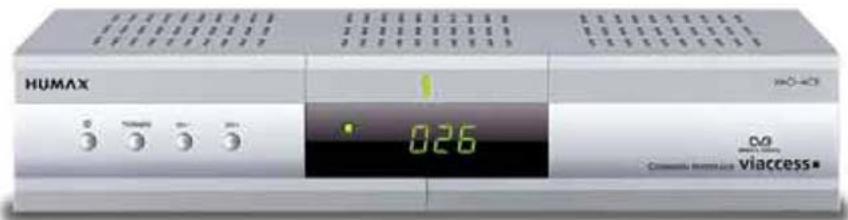
The product image may differ from the actual product.
Notice
Thank you for purchasing a HUMAX product. Please read this user manual carefully, to be able to safely install, use and maintain the product at maximum performance. Keep this user manual next to your product for future reference.
Throughout the whole manual, Note indicates additional product operation information to make the user aware of possible problems and information of any importance to help the user understand, use and maintain the installation.
Dolby and the double-D symbol are trademarks of Dolby Laboratories.
Manufactured under license from Dolby Laboratories.
All other trademarks are the properties of their respective owners.
Copyright © 2006 HUMAX Corporation
Not to be copied, used or translated in part or whole without HUMAX's prior consent in writing except approval of ownership of copyright and copyright law.
The information in this document is subject to change without notice.
The product has been manufactured to satisfy international safety standards. Please read the following safety precautions and warnings carefully.
- Disconnect the product from the mains before you start any maintenance or installation procedures.
- Do not overload a wall outlet, extension cord or adapter as this may result in electric fire or shock.
- The product should not be exposed to liquid of any kind. In addition, no objects filled with liquid, such as vases, should be placed on the apparatus.
- Do not stand the product on soft furnishings or carpets. Do not stack electronic equipments on top of the product.
- Do not use any unsupported attachments as these may be hazardous or cause damage to the product.
- Disconnect the product from the mains before connecting or disconnecting the cable from the antenna or TV.
- The LNB cable must be earthed to the system earth for the satellite dish.
- Place the product indoors to avoid exposing it to lightening, rain or sun. Do not place it near a radiator or heat register. Make sure it has more than 10cm clearance from any appliances susceptible to electromagnetic influences, such as a TV or a VCR.
Do not block these openings with any object, and do not place the product on a bed, sofa, rug or other similar surface. If you place the product on a rack or bookcase, ensure that there is adequate ventilation and that you have followed the manufacturer's instructions for mounting.
Do not place the product on an unstable cart, stand, tripod, bracket or table where it can fall. A falling product can cause serious injury to a child or adult, and serious damage to the appliance.
- Unplug the product from the wall outlet and disconnect the antenna during a thunderstorm or when left unattended and unused for long periods of time.
- Do not insert anything through the openings in the unit, where they can touch dangerous voltage points or damage parts.
- When replacement parts are required, be sure the service technician uses replacement parts specified by the manufacturer or those that have the same characteristics as the original part. Unauthorised substitution may result in additional damage to the unit.
1.Before Using the Product GB5
1.1 Package Contents GB5
1.2 Front Panel GB6
1.3 Rear Panel GB7
1.4 Conditional Access GB8
1.5 Remote Control GB10
2. Setup GB12
2.1 Connecting Antenna/TV/VCR GB12
2.2 Connecting Audio System GB13
2.3 Powering On GB14
3. Menu Map GB15
4. Searching Services GB17
4.1 Antenna Setting GB17
4.2 Manual Search GB18
4.3Satellite Setting GB19
4.4 Motor Limit Setting GB20
4.5 USALS Setting GB21
4.6 Automatic Search GB22
5. Basic Operation GB23
5.1 Viewing Programme GB23
5.2 Changing Language GB24
5.3 Teletext GB24
5.4 Setting Property of Service GB25
- Service List GB26
6.1 Switching Services GB26
6.2 Organising Services GB26
6.3 Organising Favourite Services GB28
6.4 Organising Networks GB29
6.5 Deleting Satellites GB30
- Programme Guide GB31
- Setting Preferences GB33
8.1 Parental Control GB33
8.2 System Setting GB33
- System Information GB35
9.1 Status GB35
9.2 Common Interface GB35
9.3 Default Setting GB36
- Utility GB37
- Software Update GB38
- Troubleshooting GB40
- Specification GB42
- Service and Support GB43
This chapter provides detailed instructions on the product and its accessories.
1.1 Package Contents
When you unpack your package contents, make sure you have all the necessary items shown in the figure below. If any of the items are missing or damaged, please contact your product dealer for replacement.

Remote Control

Batteries

User's Manual

RF Cable
Note: The product image may differ from the actual product.
1.2 Front Panel

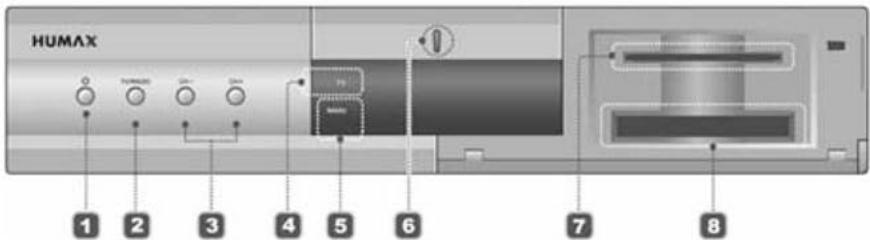
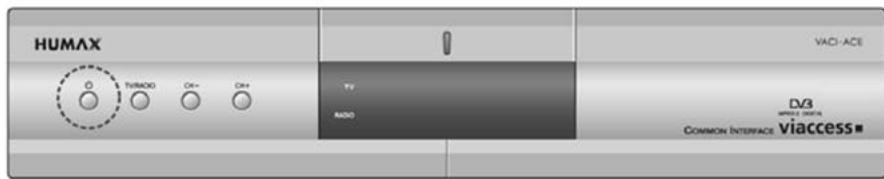
- STANDBY Button
Switches between operation and standby modes.
- TV/RADIO Button
Switches between TV and radio.
- CH-/CH+ Button
Moves the TV/radio service up/down.
- TV LED
Green light is emitted when the product is in TV mode.
Note: Refer to 1.4 Conditional Access when you insert the Smartcard.
- RADIO LED
Amber light is emitted when the product is in radio mode.
- STANDBY LED
Red light is emitted when the product is in standby mode.
- SMARTCARD SLOT
Slot for a Smartcard.
- CI MODULE SLOT
Slot for a CI module.
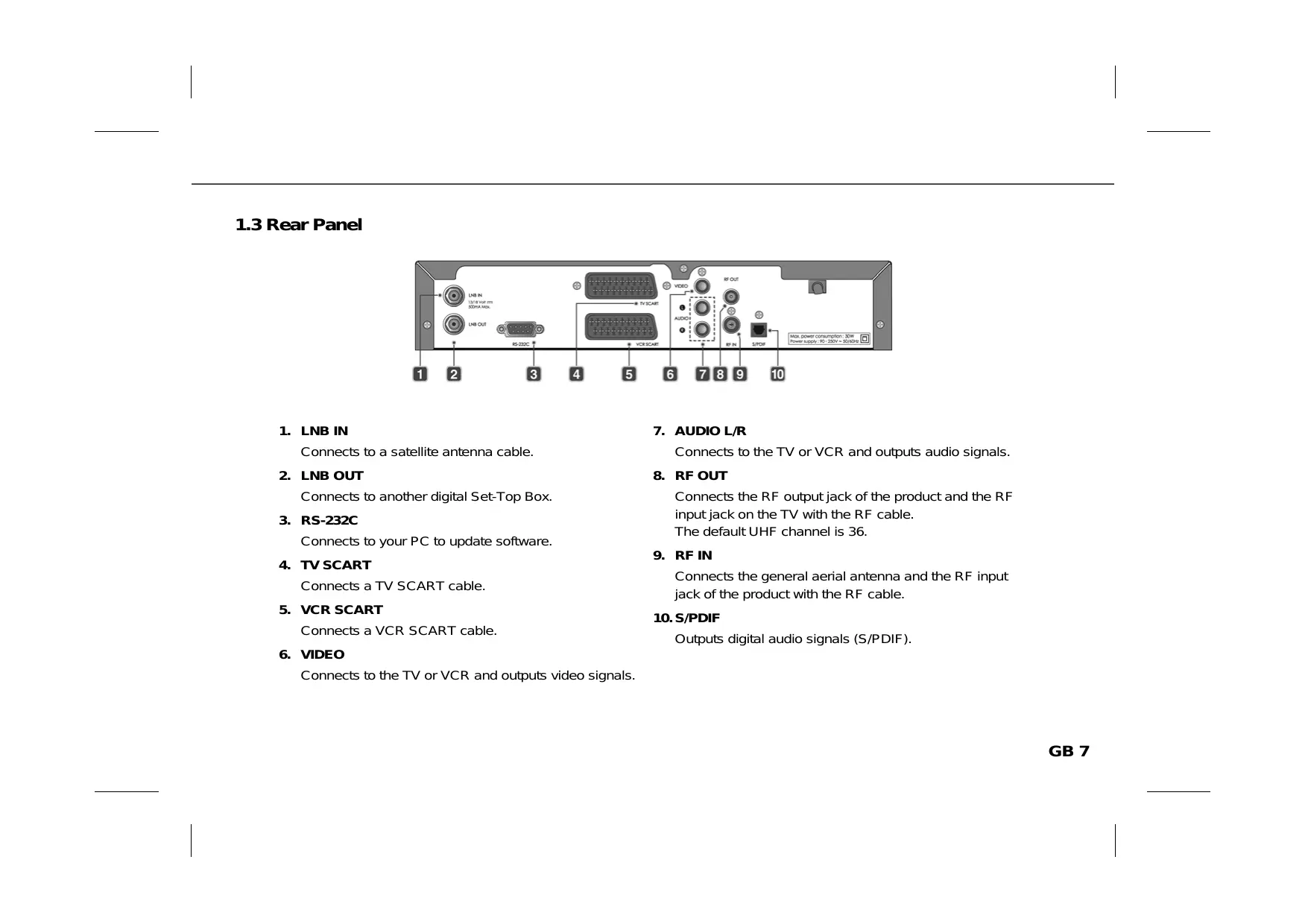
1.3 Rear Panel
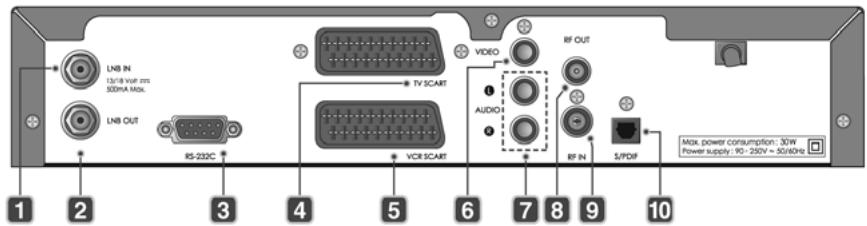
- LNB IN
Connects to a satellite antenna cable.
- LNB OUT
Connects to another digital Set-Top Box.
- RS-232C
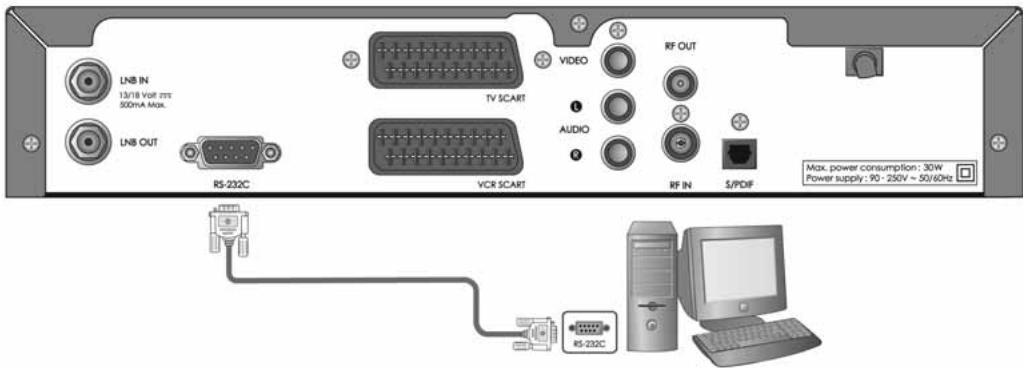
Connects to your PC to update software.
- TV SCART
Connects a TV SCART cable.
- VCR SCART
Connects a VCR SCART cable.
6.VIDEO
Connects to the TV or VCR and outputs video signals.
- AUDIO L/R
Connects to the TV or VCR and outputs audio signals.
- RF OUT
Connects the RF output jack of the product and the RF input jack on the TV with the RF cable. The default UHF channel is 36.
- RFIN
Connects the general aerial antenna and the RF input jack of the product with the RF cable.
- S/PDIF
Outputs digital audio signals (S/PDIF).
1.4 Conditional Access
Although some TV and radio services are free to air, most TV and radio/music services are available on a subscription basis and can only be enjoyed via Conditional Access component.
Inserting Smartcard
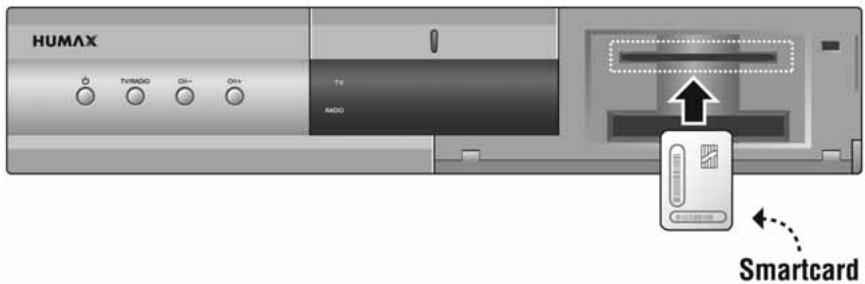
A Smartcard looks similar to a credit card and entitles you to view and listen to all the services you choose to subscribe to. The Smartcard slot on the product can be used for Viaccess Smartcard only.
- Open the right-hand flap on the front panel of the product.
- Hold the Smartcard horizontally with the electronic chip (small squared-shape, gold in colour) facing upwards.
- Insert the Smartcard into the top slot until the card is completely in.
Inserting Cl (Common Interface) Module
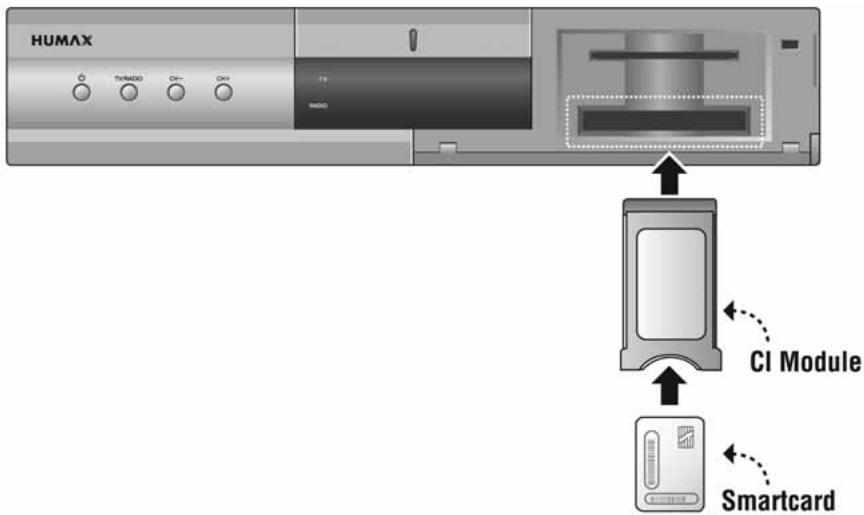
Your product is equipped with a slot for Common Interface (CI).
- Open the right-hand flap on the front panel of the product.
- Insert the Smartcard into the CI module, and the CI module into the slot.
1.5 Remote Control
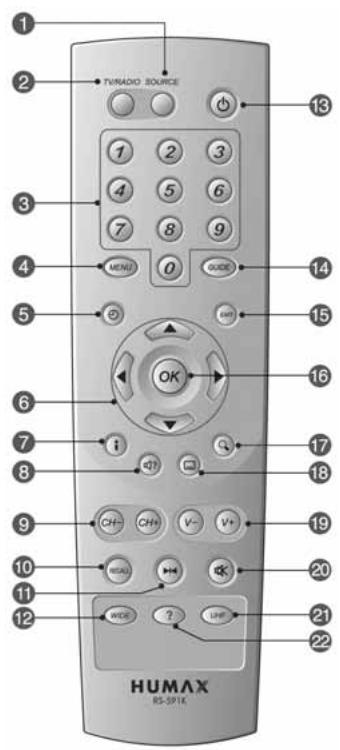
1. SOURCE
Selects the input source between TV and the product.
2. TV/RADIO
Switches between TV and radio.
3. NUMERIC BUTTONS
Enter a TV/radio service number or menu option number.
4. MENU
Displays the main menu.
5. TIME - WHITE
Displays the current time on the screen. To set the current time, refer to 8.2 System Setting.
6. ARROW BUTTONS
Changes services or moves the cursor up, down, left or right in menu option.
7. i (INFORMATION) - RED
Displays the information about the service and programme.
Displays the soundtrack list where available.
- CH-/CH+
Changes the service.
- RECALL
Returns to the previous screen.
- FREEZE
Freezes the TV screen you are watching. Does not cease audio.
12.WIDE
Changes the display format.
13.STANDBY
Switches between operation and standby modes.
- GUIDE
Displays the programme guide.
15.EXIT
Returns to the previous menu and exits all OSD screens.
- OK
Selects a menu or confirms the selection. Displays the service list while watching a programme.
- ZOOM - BLUE
Enlarges the picture.
- SUBTITLE - YELLOW
Displays the subtitle language list where available.
- V - / V +
Adjusts the audio volume.
20.MUTE
Mutes or unmutes the audio temporarily.
21.UHF
Displays the UHF menu.
- ? (HELP)
Displays the property of service on the screen.
Please refer to 5.4 Setting Property of Service.
** COLOUR BUTTONS (R/G/B/Y/W)
Select color keys for interactive applications.
2 Setup
This chapter describes how to set up the product. Select the most appropriate procedure depending on your requirements. Before you connect the product to any other equipment, you must disconnect all equipments from their power sources.
Note: If you encounter any problem when setting up the product, please contact your local product distributor.
2.1 Connecting Antenna/TV/VCR
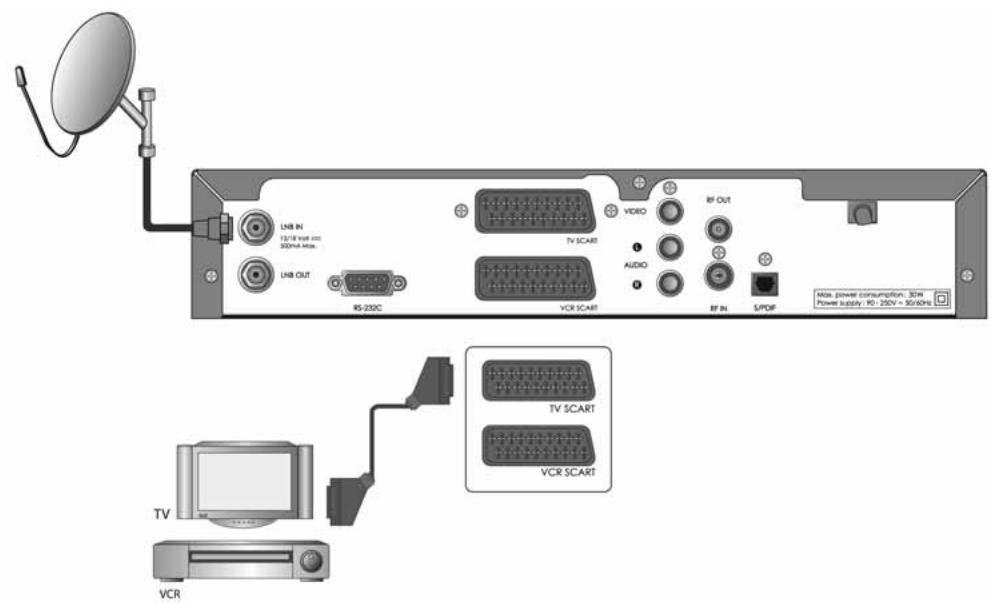
- Connect the antenna to the LNB IN of the product.
- The SCART cable is connected as in the figure above.
2.2 Connecting Audio System
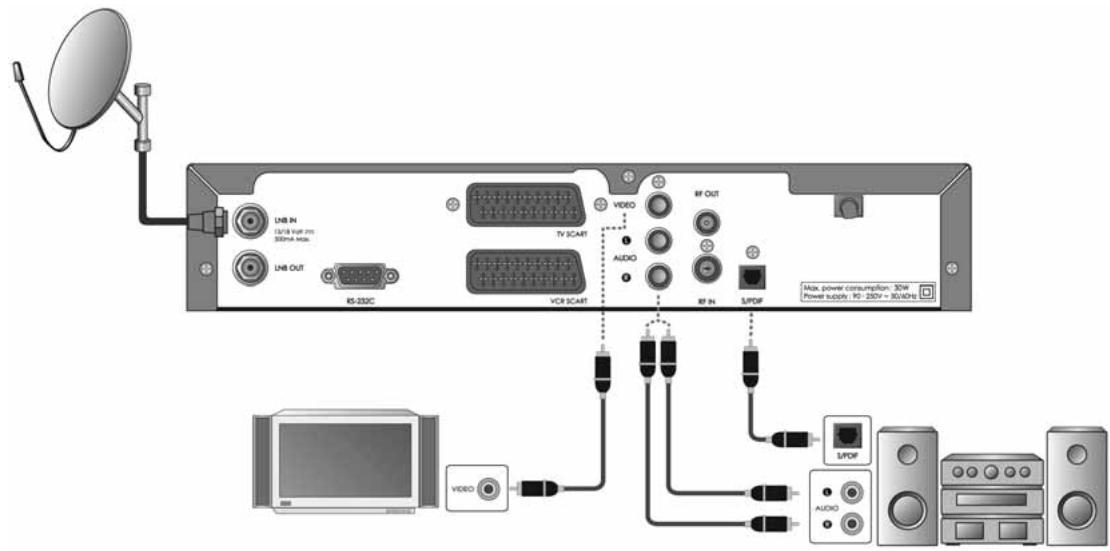
- Connect the optical S/PDIF terminal and Dolby Digital decoder to listen to higher quality sound.
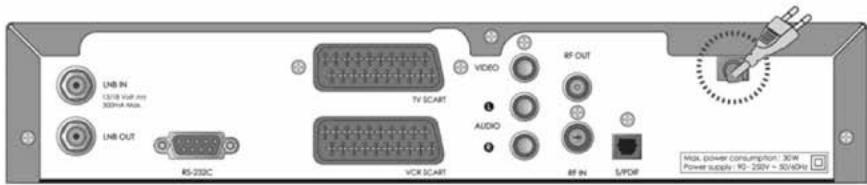
2.3 Powering On
- Connect the power cord of the product to a wall outlet.
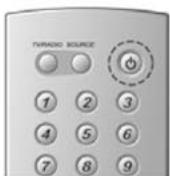
- Press the STANDBY button on the front of the product or on the remote control.
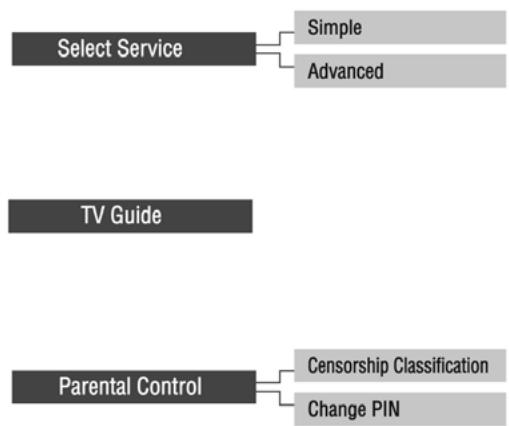
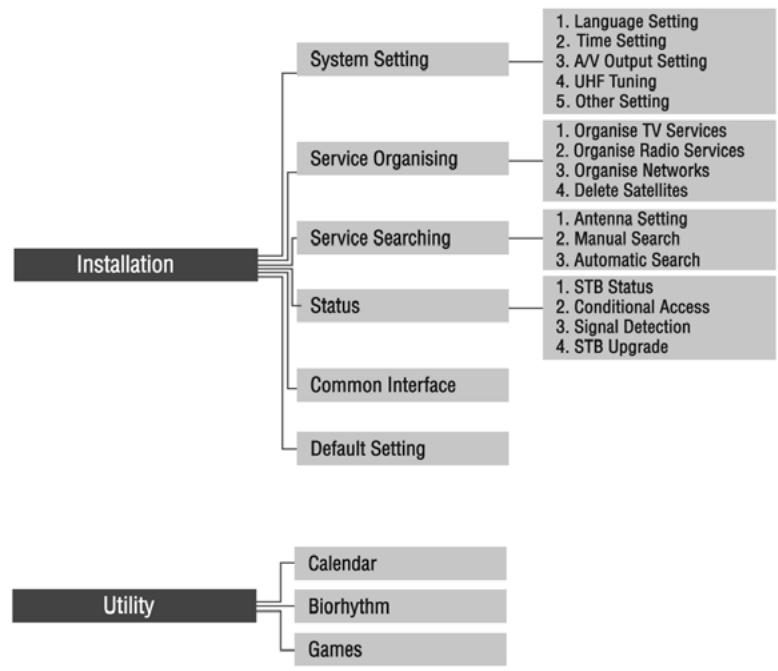
Menu structure varies according to the item and its operation. You can easily navigate the menu using the following instructions:
- Press the MENU button to display the main menu screen.
- Select the item you want using the / button.
- Press the OK button to move from a menu to a sub-menu.
- Press the / button to select option values.
- Press the NUMERIC buttons to enter the option values.
- Press the / button to open the option list and press the EXIT button to close the option list.
- Press the EXIT button to return to the parent-menu.
- Press the MENU button to exit the menu screen.
Note: Some menu items are access controlled. When accessing to the protected menu, you will be prompted to enter the PIN code. Enter your PIN code using the NUMERIC buttons. The default PIN code is set to "0000".
When powering on your product for the first time after purchase, the Selecting Language screen is automatically displayed. Select the required language using the / button and press the OK button. Then the Antenna Setting menu will be displayed.
4.1 Antenna Setting
You can set antenna and LNB information to search services using Antenna Setting (MENU-Installation-Service Searching-Antenna Setting).
- Antenna Alternative: Select antenna alternative which has different combinations of settings for search. Antenna Alternative 16 is predefined for SMATV.
- Satellite Name: Displays the satellite list in name order. If the desired satellite name is not listed, then select "User Defined". You can enter the Satellite Name using the keyboard displayed on the screen.
- LNB Frequency: Select the L.O (Local Oscillator) Frequency of the LNB.
- 22KHz Tone: When using the 22HKz tone switch, select "Enabled". Otherwise, select "Disabled".
- DiSEqC Input: If you are using DiSEqC (Digital Satellite Equipment Control) switch to connect multiple antennas or LNBs, select DiSEqC input to connect to antenna or LNB.
- Motorised System: When using motorized system, select from "DiSEqC 1.2" or "USALS". Otherwise, select "Disabled". When motorised system is set to "DiSEqC 1.2" or "USALS", DiSEqC input is disabled.
- LNB Voltage: You can select "Standard" voltage or "High" voltage.
- LNB Power: You can select "On" or "Off".
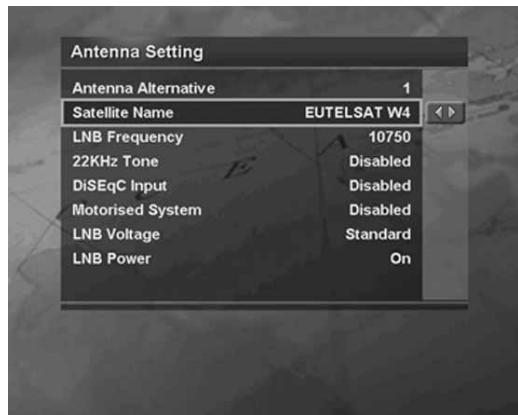
When you complete the settings, press the OK button to move to the Manual Search menu.
Note: When you press the i button after selecting "USALS" in Motorised System, USALS Setting screen will appear.
4.2 Manual Search
You can search services of the selected satellite by transponders using the transponder information.
- Antenna Alternative: Select antenna alternative which has different combinations of settings for search. Antenna Alternative 16 is predefined for SMATV.
Frequency: Enter transponder frequency. - Polarisation: Select the type of polarisation.
- Symbol Rate: Select or enter transponder symbol rate.
- FEC: Select FEC (Forward Error Correction).
Network Search: If you want to search services for multiple transponders, select "Yes". Otherwise, select "No".
Automatic Skip: When skipping all scrambled service search, select "Yes". Otherwise, select "No". - Advanced: In advanced mode, enter Video Packet ID (PID), Audio PID, and PCR PID.
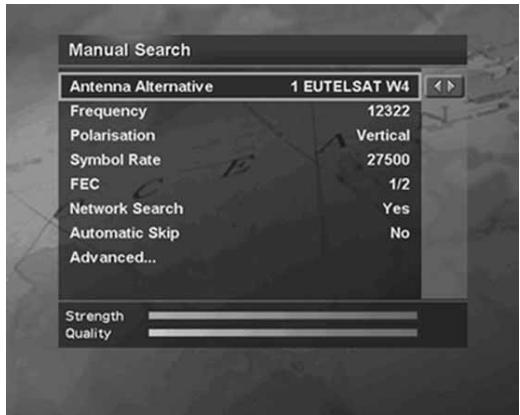
After setting the parameters of search, press the OK button to start service search. Wait until the operation is completed. After finishing search operation, the result window will be displayed. You can delete the services using the / / / and the RED button. To cancel deleting operation, press the RED button again. The screen also shows the number of the services found and the transponder information.
To save the found services, press the OK button.
Note:
If the antenna is properly set up, the signal strength bar and quality bar level, located at the bottom of the screen moves up.
- Press the EXIT button to stop search.
4.3 Satellite Setting
This menu appears only when you enable Motorised System in Antenna Setting menu and press the OK button while Antenna Alternative in Manual Search menu is selected.
- Satellite Name: Select a satellite to identify a motor antenna. If the desired satellite name is not listed, then select "other".
- Movement: In user mode, this is used to fine-tune the position of the motor. In installer mode, this is used to search for the position of the satellite manually.
-
Motor Control: You can select one option among "Search", "Go to", "Store" or "Reset".
-
Search: Searches for services on the selected transponder.
- Go to: Moves the motor to the saved position of the selected satellite.
- Store: Saves the current position of the motor for the selected satellite.
- Reset: Resets all saved positions of the motor relative to the 0 position. (Installer Mode Only)
- DiSEqC Command Mode: Select "Installer" or "User mode".
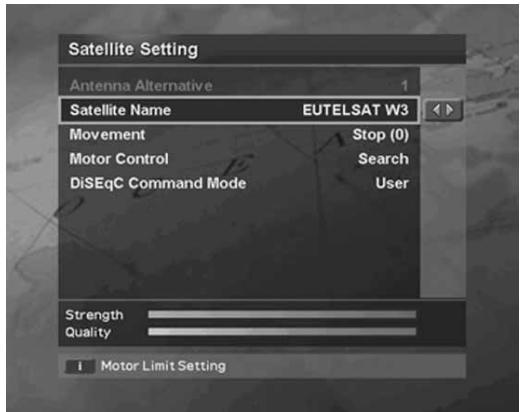
The following table shows the value of the motor setting options.
| DiSEqC Command Mode | Movement | Motor Control |
| Installer | East / Stop / West | Search / Go to / Store / Reset |
| User | Stop(60E) ~Stop(0) ~Stop(60W) | Search / Go to / Store |
To initialise the satellite position saved at Motor Antenna, set DiSEqC Command Mode to "Installer", set Motor Control to "Reset", then press the OK button. You will see a warning message. To continue the procedure, press the OK button.
To set the motor position for each satellite manually, select the Satellite Name, set DiSEqC Command Mode to "Installer", and then set Movement to one option among "East", "Stop" or "West". The motor starts moving. The level of signal strength and quality bar at the bottom of the screen will indicate the best position of the dish. Set Motor Control to "Store" when you find the best position, then press the OK button to save the position.
To move the motor to the pre-set position of the satellite, select the desired Satellite Name, set DiSEqC Command Mode to "User", set Motor Control to "Goto", and set Movement to the desired value. Movement is used to fine-tune the position of the motor. Press the OK button. The motor will move to the position of the selected satellite.
4.4 Motor Limit Setting
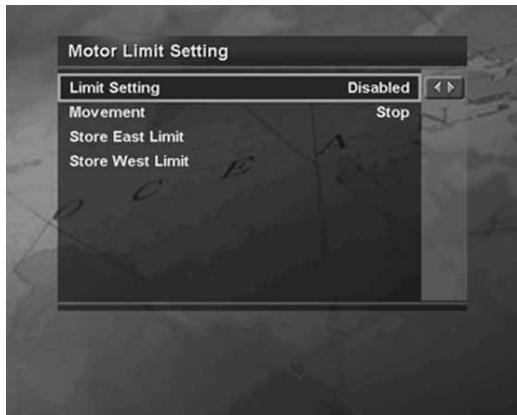
To enter this menu, press the RED button in Satellite Setting menu. You can set the maximum for both East and West to prevent damage to the antenna.
- Limit Setting: When Limit setting is set to "Enabled", the motor does not move exceeding the limit. When Limit setting is set to "Disabled", the setting is released.
- Movement: You can select one among "East", "Stop" or "West".
- Store East Limit: You can save the East Limit.
- Store West Limit: You can save the West Limit.
4.5 USALS Setting
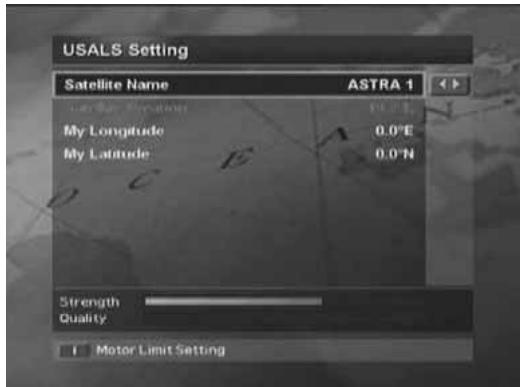
This menu appears only when you select "USALS" in Motorised System menu and press the i button in Antenna Setting menu.
- Satellite Name: Displays the satellite list in name order. If the required satellite name is not listed, select "User Defined". You can enter the satellite name using the keyboard displayed on the screen.
My Longitude: Enter the longitude.
My Latitude: Enter the latitude.
Note: The values for My Longitude and My Latitude will be saved after initial setting.
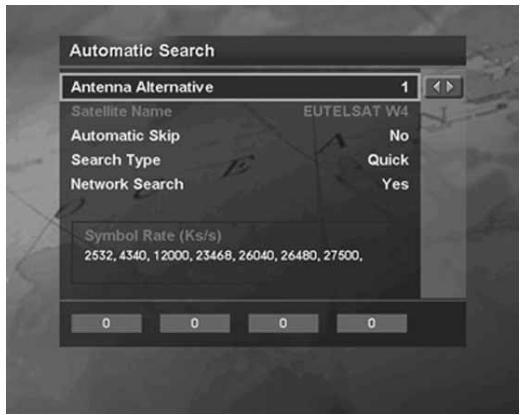
4.6 Automatic Search
If you select the satellite to search services according to Antenna Setting, you can automatically search the service without entering any other information.
To enter Automatic Search menu, press the MENU button, then select Installation-Service Searching-Automatic Search.
- Antenna Alternative: Select antenna alternative which has different combinations of settings for search. The Satellite Name is automatically displayed. Antenna Alternative 16 is predefined for SMATV.
Automatic Skip: When skipping all scrambled service search, select "Yes". Otherwise, select "No". - Search Type: If you want to search services through all field of tune (950~2150MHz), select "Detail". Otherwise, select "Quick" to search services with the preset parameters. In detail mode, you can add the desired Symbol Rate.
Network Search: If you want to search services for multiple transponders, select "Yes". Otherwise, select "No". When you complete the setting, press the OK button to start service search.
5.1 Viewing Programme
You can change the service using the CH-/CH+, ▲/▼ or NUMERIC buttons. You can also use the Service List or Programme Guide. You can adjust the audio volume using the V-IV+ or △/▶ button.
Programme Information (i-plate)
i-plate or the Information Box, is always displayed for a specific period of time whenever you switch services. You can view the programme information by pressing the i button while watching a programme. You can see the detailed information about the current programme by pressing the i button twice. If the detailed information is more than one page, use the / button to move to the previous or next page. Press the EXIT button to hide the i-plate.
You can adjust the display time of i-plate in MENU-Installation-System Setting-Other Setting-Info. Box Display Time.
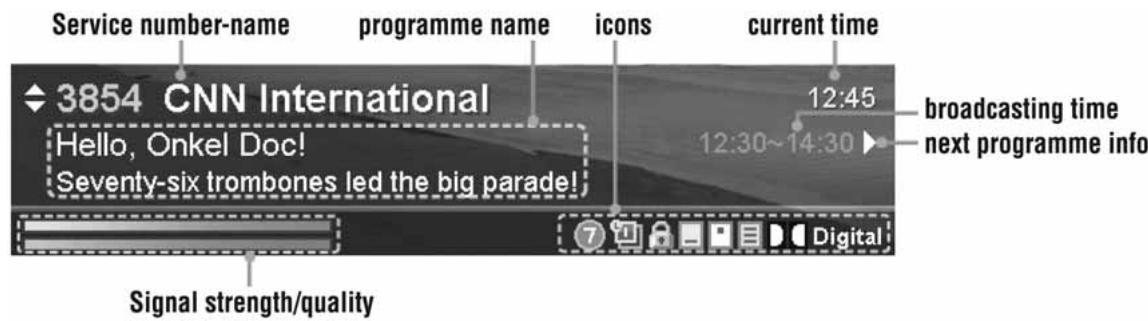

Represents parental level.
Indicates the minimum level of ages that the programme is targeted at.

Displayed only the programme is reserved.

Displayed only when the channel is a locked channel.

Displayed only when the channel is a scrambled channel.

Displayed only when subtitle information is available.

Displayed only when there is any teletext information.

Displayed only when the programme is braodcast in Dolby Digital.
5.2 Changing Language
If the current programme provides subtitle information, the subtitle icon will appear on the i-plate. You can select the language for the subtitle using the SUBTITLE button. You can select a default subtitle language in MENU-Installation-System Setting-Language Setting-Subtitle Language.
If the current programme is available in multiple audio languages, you can select the language that you wish to listen in using the SOUNDTRACK button. You can select the default audio language in MENU-Installation-System Setting-Language Setting-Audio Language.
You can also select a default OSD language in MENU-Installation-System Setting-Language Setting-Menu Language.
5.3. Teletext
When the service supports teletext, the teletext icon is displayed on the i-plate. To enter Teletext mode, use the SUBTITLE button to display teletext.
To display teletext menu, press the MENU button in teletext mode. Select your desired teletext function using the button and press the OK button. To view the teletext page, use the CH-/CH+, RECALL or NUMERIC buttons.
Teletext Functions
Index Returns to index page. If there is no index page, jumps to page 100.
Sub-page Searches the sub-page using the sub-code written by users. Displays the current time when not in teletext mode.
MIX Adjusts transparency of teletext screen.
Ex Cancel Hides the teletext except page number.
3? Reveal Displays the concealed information.
Double Size Displays the text size as double size.
Page Hold Holds the current page not updating it.
5.4 Setting Property of Service
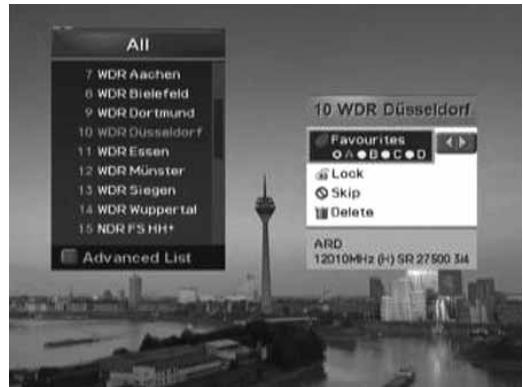
You can add the current service to Favourite group. In addition, you can lock, unlock, skip or delete the current service while watching a programme.
The operation is as follows:
- Press the OK button while watching a programme. The service list will appear on the screen. You can also display the service list using the MENU-Select Service-Simple (or Advanced). You can select the type of the service lists (All, Favourite, Network, Satellite, Alphabet) by pressing the COLOUR button.
- Press the MENU button while the service list is displayed.
- Select an option (Favourites/Lock or Unlock/Skip/Delete) using the / button, and press the OK or / button.
- After setting property of a service, press the OK button to save the changes.
Note:
- When unlocking a service, you will be prompted to enter your PIN code. The default PIN code is "0000".
- When switching to a locked service, you must enter the PIN code to view the service.
- You will not be able to watch skipped services by using the CH-/CH+ button. However, you can watch the skipped services using the NUMERIC buttons or Service List.
For detailed information about how to register all services as Favourite Service, refer to 6.3 Organising Favourite Services.
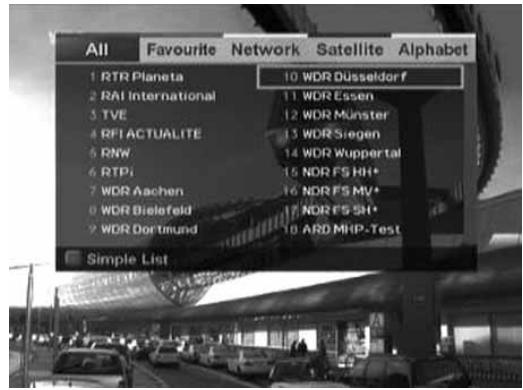
There are five types of service lists – All, Favourite, Network, Satellite, Alphabet - to find services you are interested in quickly and easily.
All service list display all searched TV or radio services sorted by service number. Favourite service list displays favourite services with automatic sub-groups and four sub-groups that you can organise services according to your preference. Network service list displays services with several network subgroups. Satellite service list displays services classified by satellites. Alphabet service list displays all searched TV or radio services sorted by service name.
6.1 Switching Services
- Press the OK button while watching a programme to display the service list. You can also display the service list using the MENU-Select Service-Simple (or Advanced).
- Press the COLOUR button to display the corresponding service list. RED (All service list), GREEN (Favourite service list), YELLOW (Network service list), BLUE (Satellite service list), WHITE (Alphabet service list)
- Select a service using the / , CH-/CH+ or NUMERIC buttons, and press the OK button to change to the selected service.
Note:
- Whenever you press the TV/RADIO button while the service list is displayed, the service list will be switched between TV and radio service list.
- You can also set the property of services in this service list. Press the MENU button while the service list is displayed. For more information, refer to 5.4 Setting Property of Service.
6.2 Organising Services
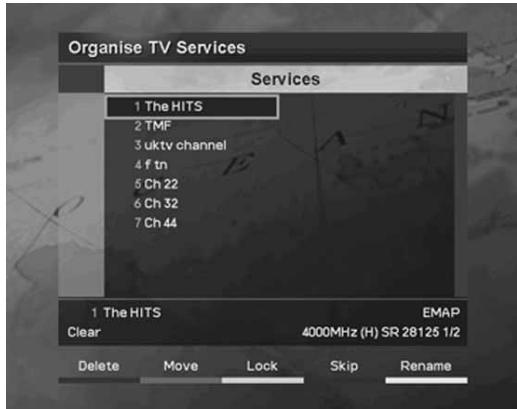
You can edit TV or Radio services using the Organise TV Services (MENU-Installation-Service Organising-Organise TV Services-Organise All Services) or Organise Radio Services (MENU-Installation-Service Organising-Organise Radio Services-Organise All Services). You will be prompted to enter your PIN code. The default PIN code is "0000". Before leaving Organise TV/Radio Services screen, you will be prompted to save the changes. If you would like to save the changes, select OK, and press the OK button.
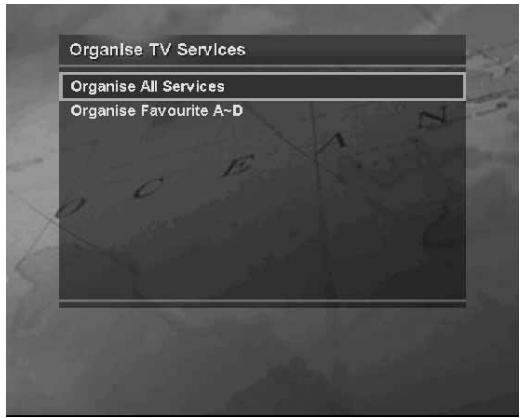
You can delete, move, lock or unlock, skip and rename services.
You can select a service using the / / / button, and press the COLOUR button to execute the corresponding operation as described on the screen.
When you rename a service, the keyboard will appear on the screen. You can change the name using the keyboard. Select a character using the / / / button, and press the OK button to enter the selected character. After entering the new name, press the YELLOW button to save it.
- To delete a character, press the BLUE button.
- To switch to the standard keyboard, press the RED button.
- To switch to the extended keyboard, press the GREEN button.
Note: You must enter your PIN code using the NUMERIC buttons to view the locked services.
6.3 Organising Favourite Services
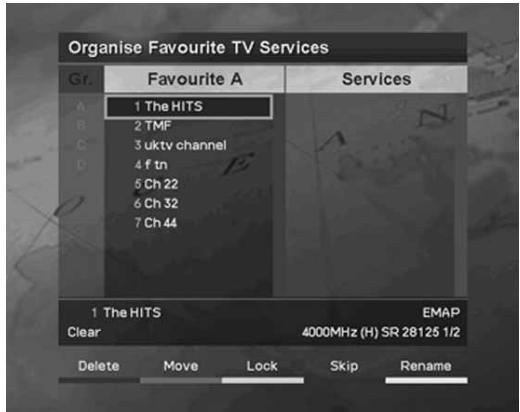
You can add services to Favourite groups using Organise Favourite TV Services (MENu-Installation-Service Organising-Organise TV Services-Organise Favourite A~D) or Organise Favourite Radio Services (MENu-Installation-Service Organising-Organise Radio Services-Organise Favourite A~D). Before leaving Edit Favourite Services screen, you will be prompted to save the changes. If you would like to save the changes, select OK, and press the OK button.
The Organise Favourite TV/Radio Services screen consists of Favourite Group and Favourite List on the left side of the screen and Service List on the right side. You can move the highlighter in order of Favourite Group, Favourite List, and Service List using the button. You can move the highlighter in reverse direction using the button.
To add services to Favourite List, select a service in Service List using the / button, and press the OK button.
For more information about how to edit the services in Favourite List, refer to 6.2 Organising Services.
6.4 Organising Networks
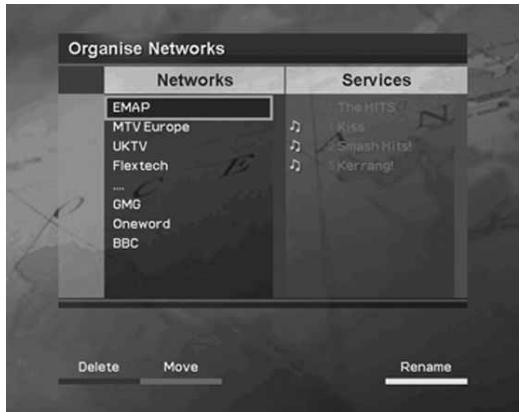
You can delete, move and rename networks. To enter Organise Networks menu, go to MENU-Installation-Service Organising-Organise Networks. You can select a network using the / button, and press the COLOUR button to execute the corresponding operation as described on the screen. You can move the highlighter in order of Network List and Service List using the button. You can move the highlighter in reverse direction using the button. For more information about how to rename a network, refer to 6.2 Organising Services.
6.5 Deleting Satellites
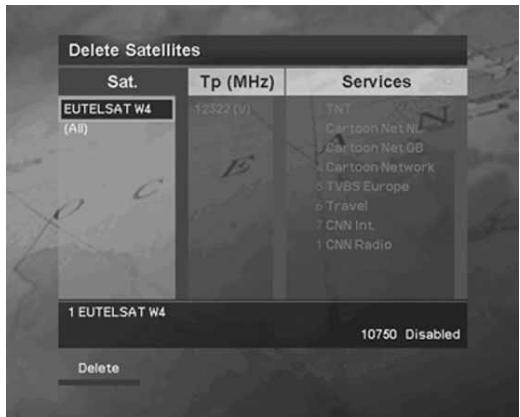
You can delete satellites and transponders.
To enter Delete Satelltes menu, go to MENU-Installation-Service Organising-Delete Satelltes.
The Delete Satellites screen consists of Satellite List on the left side of the screen and Transponder List and Service List on the right side. You can move the highlighter in order of Satellite List Transponder List, and Service List using the button. You can move the highlighter in reverse direction using the button.
You can select a satellite in Satellite List or transponder in Transponder List using the / button, and press the RED button to delete the selected satellite or transponder.
Note: You should turn on at least one satellite.
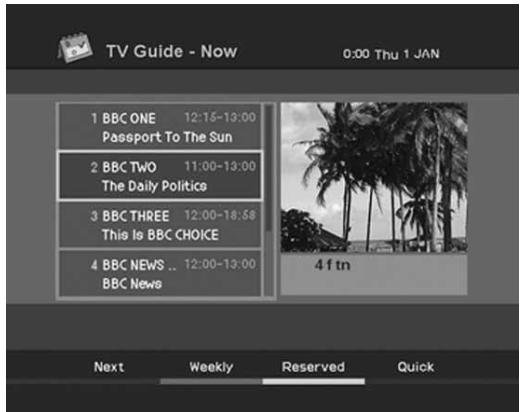
The programme guide provides the programme information for all services, based on date and time. In addition, it provides convenient ways to view programmes in "Now", "Next", "Weekly" or "Quick" mode - to search your desired programme and to watch or reserve it.
You can go to the programme guide screen by just pressing the GUIDE button or by using MENU-TV GUIDE. To close the guide screen, press the GUIDE or EXIT button.
You can navigate the guide using the following instructions:
- Press the RED button to display the current or next programme list.
- Press the GREEN button to display the programme list for a week.
- Press the YELLOW button to display the reserved programme list.
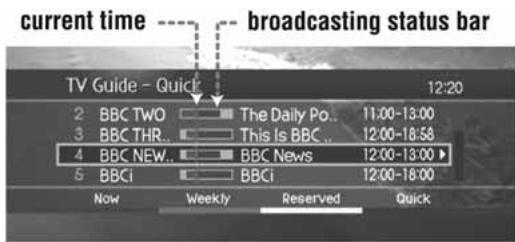
- Press the BLUE button to display the simple Guide. This is also called Quick Guide.
7 Programme Guide
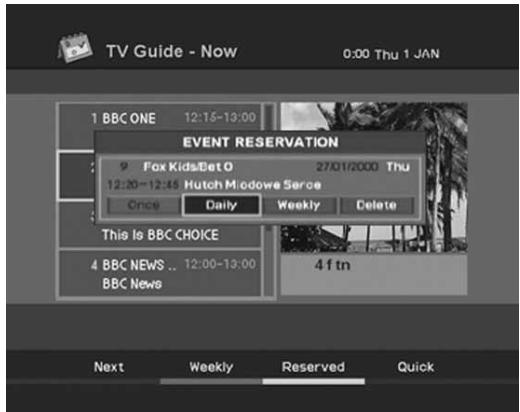
- Press the WHITE button to reserve the selected programme in "Now", "Next", "Weekly" or "Quick" mode.
- Press the WHITE button to change the reservation mode or to cancel the reservation in Reserved mode.
- Select a service using the / or CH-/CH+ button. When switching services using the / button, press the OK button to display the selected service on the right side of the screen.
- Select a day in "Weekly" mode using the / button, and press the OK button.
Note:
- Press the TV/RADIO button to switch to Radio Guide.
The reservation icons on the reserved programmes in the guide differ according to the reservation type.


Once
Reserve the programme once.
Daily
Reserve the programme everyday.
Weekly
Reserve the programme once a week.
- If the programme is overlapped with another programme, adjust the reservation appropriately. If the service is locked, restricted by watching time, you will be prompted to enter your PIN code to complete the reservation.
This chapter describes the menu which lets you customise your product according to your preference.
8.1 Parental Control
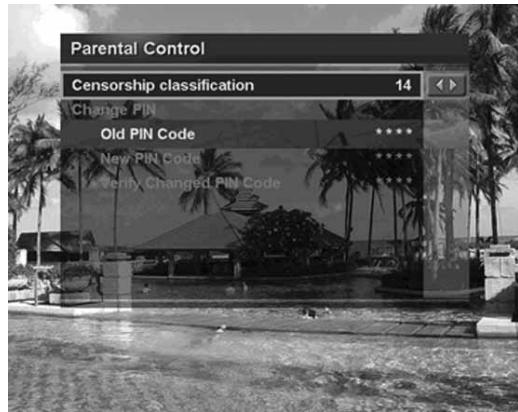
The Parental Control menu (MENU-Parental Control) lets you control the access to programmes by programme rating.
Set Censorship Classification by age level. "No Block" allows you to watch programmes without any blocking. You can block all programmes regardless of age level. The blocked programmes require your PIN code.
We recommend you to change the old PIN code to a new one periodically for security. If you have forgotten your PIN code, please contact your local product distributor.
8.2 System Setting
The System Setting menu (MENU-Installation-System Setting) lets you set language, time, audio/video output, UHF tuning, transparency of OSD, duration time of i-plate and switching mode to reserved service.
1. Language Setting
You can set the default language for menu, audio, and subtitle.
2. Time Setting
You can set the current time, and turn the product on or off automatically. Once you set the Wakeup time and Sleep time, the product is turned on and off everyday.
3. A/V Output Setting
This menu lets you adjust the audio and video output, match the screen ratio to your TV, select the display format according to the screen ratio, select the TV standard and set the NTSC mode.
You can choose the Dolby Digital audio stream whenever possible by selecting "On" in the Dolby Digital setting.
4. UHF Tuning
You can select UHF Channels for your TV and adjust fine tuning setting. The channel range and frequency change according to PAL Standard.
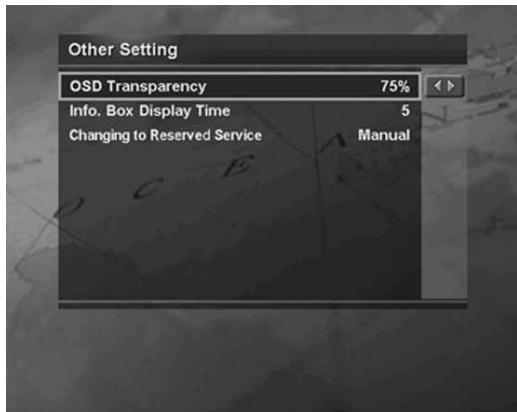
5. Other Setting
You can adjust the transparency level of On-Screen Display (OSD), set the display time of the i-plate when switching services and select automatic or manual mode to change to the reserved service.
9.1 Status
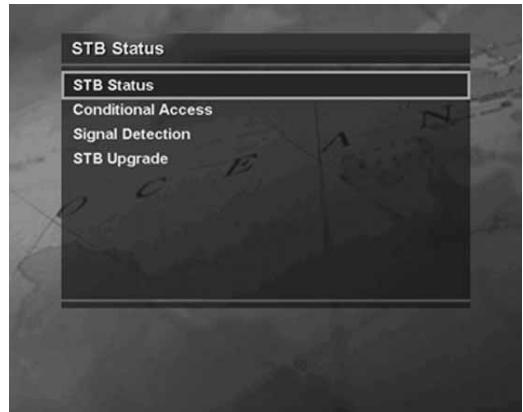
The Status menu (MENU-Installation-Status) provides checking tools such as status information of system and signal level of service.
1. STB Status
You can view the information on the product serial number, Smartcard version, CA Module version, Loader version, and S/W version. When you contact your service provider or local product distributor, this information may be required.
2. Conditional Access
You can check the information of Conditional Access component - CI Module and Smartcard.
3. Signal Detection
You can view the signal level and signal quality of the current service.
4. STB Upgrade
For detailed information about STB Upgrade, refer to 11.Software Update.
9.2 Common Interface
You can view the current status of the CI module.
9.3 Default Setting
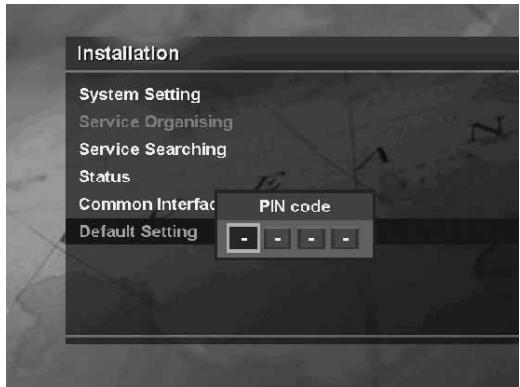
You can restore the product to the factory settings using the Default Setting menu (MENU-Installation-Default Setting). You will be prompted to enter your PIN code. The default PIN code is "0000".
After completing the default setting, the Searching Services screen will be displayed. For more information, refer to 4. Searching Services.
Warning:
Please note that once you perform Default Setting, all data except the customised PIN code will be restored to the factory settings.
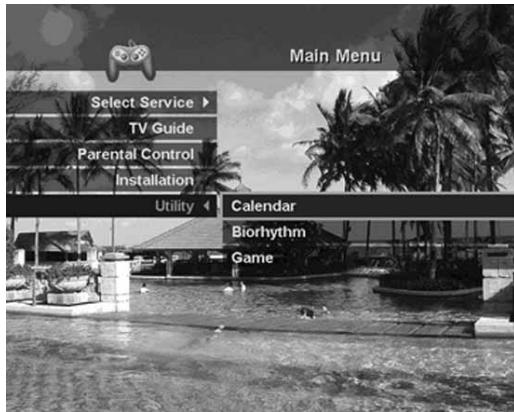
The product provides various utilities; calendar, biorhythm and games. To use utilities, go to MENU-UTILITY.
1. Calendar
You can see the specified monthly calendar. Press the / button to change the year. Press the / button to change the month. Press the OK or EXIT button to return to the previous menu.
2. Biorhythm
You can adjust your birth year and date to see your current biorhythm status. Press the button to move to the next step. Press the button to change a value in the step. Press the EXIT button to return to the previous menu.
3. Games
You can select games using the / button. Use the / , OK, COLOUR or EXIT button according to the instructions displayed on the screen.
11 Software Update
In order to maintain proper performance of the product, it is essential to have the most up-to-date software.
1. OTA (Over the Air)
OTA, an abbreviation of Over-the-Air, is a standard for the transmission of software for equipment through a broadcast system.
Over the Air (OTA) is simply an alternative method for downloading software versions. However, the operator reserves the right to decide when and where this software update can take place over the antenna.
The software update will only occur under the following circumstances:
- The equipment should have appropriate loader software.
Caution: Please note that if you don't have normal loader software, the equipment may not be updated or work after software update.
- The operator decides to release the software via a designated antenna system.
- The equipment must be tuned properly to the same channel that the operator uses.
- Upgrade software when the quality of receiving signal strength is high.
Caution:
- Please be careful to keep the power on and the power cord plugged in during software update. If the power is off during software update, it may cause fatal damage to the product.
- Please be careful not to pull out the signal line during software update. Update may be interrupted and the product may not work.
The product cannot work at all during software update. It may take 5-10 minutes to update software.
Updating software is largely divided into two ways, automatic detection and using the Software Update menu (MENU-Installation-Status-STB Upgrade).
New software can be found when powering on the product. The notice informing you of new software detection will appear on the screen. If you would like to update software, select Yes, and press the OK button. After completing the software upgrade, the product is automatically powered off and on again.
2. Software Update from PC
You can connect your product to the PC directly and upgrade your software by transferring the new software from the PC.
Follow these steps to download new software from PC to this product.
- Download new software file equivalent for this product model from our website into your computer (http://www.humaxdigital.com).
- Download and install download tool from our website into your computer.
- Connect your PC to this product with RS-232C serial cable.
- Execute installed download tool, and then follow the instructions on the download tool.
- Press the STANDBY button to operate product.
12 Troubleshooting
Before contacting your local service, please read the following instructions. If the product does not work normally after completing the following troubleshooting, please contact your local product distributor or service centre.
1. The LED on the front panel does not light.
- Check the main power cable and make sure that it is plugged into a suitable power outlet.
2. No picture
- Make sure that the product is in operation mode.
- Make sure that the AV Cable is firmly connected to the TV.
- Make sure that the antenna line is correctly connected to the equipment.
- Check the brightness level of TV.
- Check if the service is on air.
3. Poor picture or sound quality
- Make sure there is no mobile phone or microwave oven near the equipment.
- Check the signal strength and quality which can be influenced by weather.
- Change satellite dish into a bigger one if it is small.
- Replace the LNB with a one with low noise factor if the noise factor is high.
- Replace the LNB with a new one if it is damaged or out of order.
4. No/poor sound
- Check the volume level of the TV and product.
- Check the mute status of the TV and product.
-
Press the SOUNDTRACK button to change the audio type.
-
Remote control does not operate
-
To manipulate the equipment with the remote control, its emitting part should directly point towards its receiving part of the product.
-
Check the battery of the remote control.
-
Reservation is unavailable
-
Check if it is not overlapped with other reservation.
-
Check if the power is off.
-
Watching scrambled service is not available
-
Make sure the correct Smartcard is plugged in.
- Make sure the Smartcard is correctly inserted, and insert the Smartcard again.
- Check if the Smartcard is damaged.
- Make sure you have subscribed to the service.
MPEG Transport Stream A/V Decoding
| Aspect Ratio | 4:3, 16:9 |
| Video Resolution | 720 x 576, 720 x 480 |
| Audio Mode | Single /Dual mono/ Stereo /Joint stereo |
Memory
| Flash Memory | 2 Mbytes |
| Graphics(MPEG) & System Memory | 16 Mbytes |
| EEPROM | 8 Kbytes |
RF-Modulator
| Output Channel | CH 21 ~ 69 |
| TV standard | PAL I/G/B/D/K |
| Preset Channel | CH 36 |
A/V & Data In/Out
| TV SCART | Video Output (CVBS, RGB, S-Video) Audio Output |
| VCR SCART | Video Output (CVBS, S-Video) Video Input (CVBS, RGB, S-Video) Audio Output, Audio Input |
| S/PDIF | Digital Audio Output, Fiber-Optic (Resolution: 20 bits) |
| RCA | Video Output (CVBS) Audio Output |
Power Supply
| Input Voltage | AC 90 ~ 250V, 50/60Hz |
| Type | Switching Mode Power Supply (SMPS) |
| Power Consumption | Operation mode: Max. 30 W Standby mode: Max. 9 W |
| Protection | Separate internal fuse & Lightning protection |
Physical Specification
| Size | 260 mm X 50 mm X 182 mm |
| Weight (Net) | 1.2 kg |
| Operating Temperature | 0 °C to +45 °C |
| Storage Humidity | 5% ~ 95% RH (Non-condensing) |
Switzerland
Tel: 0900 90 40 40
E-mail: technik@belsat.ch
Website: www.belsat.ch
Language: German/French/Italian
Germany
Tel: 0180 577 8870 (€0,12/min)
Opening Hours: Mon-Sun 8:00-20:00
E-mail: techinfo@humax-digital.de
Website: www.humax-digital.de
Language: Deutsch/English
UK
Tel: 08702478800
Opening Hours: Mon-Fri 8:30-18:00
E-mail: uksupport@humax-digital.co.uk
Website: www.humax-digital.co.uk
Language: English
Middle East (Dubai, UAE)
Tel: +971 (0)4 359 2323
Opening Hours: Sat-Thurs 9:00-20:00 (Closed on Fri)
E-mail: callcenterME@humaxdigital.com
Website: www.humaxarabia.com
Language: Arabic/English
Australia
Tel: 1800613011
Opening Hours: Mon- Fri 9:00- 17:30
E-mail: techinfoau@humaxdigital.com
Website: www.humaxdigital.com/australia
Language: English
Italy
Tel: 899 100 080 (€1 + VAT/min.)
Opening Hours: Local time in Italy (GMT+1)
Mon-Fri 8:00-18:00
Language: Italian
14 Service and Support
Sweden
Tel: +46 (0)550 85527
Opening Hours: Mon-Fri 8:00-16:30
Language: Swedish/English
Finland
Tel: 0956186366
Opening Hours: Mon-Fri 8:00-16:00
Language: Finnish/English
Austria
Tel: Tel: 0820 400675 (€ 0,12/min)
Note: For hardware repair, please visit our website.