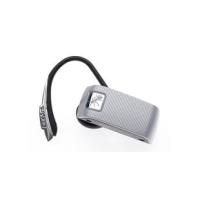
V1 - Wireless Earbuds BLUEANT - Free user manual and instructions
Find the device manual for free V1 BLUEANT in PDF.


| Product Type | Bluetooth Headset with Voice Control |
| Dimensions | 41 x 17.5 x 11.2 mm |
| Weight | 10 g (without ear hook) / 11 g (with ear hook) |
| Power | Rechargeable 3.7V lithium-polymer battery via USB (wall charger, car charger, computer) |
| Talk time | Up to 5 hours |
| Standby time | Up to 200 hours |
| Bluetooth Range | 10 meters |
| Bluetooth Version | 2.1 (headset and hands-free profile) |
| Main Functions | Voice control, Standard/Max voice isolation, pairing up to 8 devices, voice dialing, caller ID, call rejection, redial, mute, call transfer |
| Included Accessories | Rubber ear hook, clear ear hook, rubber ear tips (small and large), Comply foam tips (Small and Large), directional USB cable, USB adapter, car charger, wall charger |
| Care and Cleaning | Clean ear tips regularly; foam tips last for months if kept clean; avoid moisture |
| Safety | Maximum volume 101 dB; use at a comfortable level to protect hearing; do not use at high volume for more than 5 minutes per day |
| Spare Parts and Repairability | Rubber and foam ear tips, ear hooks, USB cable, adapters available. 2-year warranty (foam tips 3 months). No user-serviceable parts. |
| General Information | Brand: BLUEANT; Model: V1; Certifications: CE, FCC, BQB, RoHS/WEEE |
Frequently Asked Questions - V1 BLUEANT
User questions about V1 BLUEANT
0 question about this device. Answer the ones you know or ask your own.
Ask a new question about this device
Download the instructions for your Wireless Earbuds in PDF format for free! Find your manual V1 - BLUEANT and take your electronic device back in hand. On this page are published all the documents necessary for the use of your device. V1 by BLUEANT.
USER MANUAL V1 BLUEANT
The revolutionary BlueAnt V1 voice controlled portable headset marks the future of voice controlled Bluetooth devices. Its voice activated 'prompt and response' interface combined with the BlueAnt Voice Isolation Technology™ software, provide the BlueAnt V1 with high quality and easy to use voice communications. Its dual microphones provide clear and clean voice input enabling superb Noise Suppression, Echo Cancellation and Wind Noise Reduction.
Your headset is a Bluetooth 2.1 qualified product and supports both the Headset and Handsfree Bluetooth profiles. The V1 can store information and wirelessly interact with up to eight different Bluetooth compliant devices (backward and forward compatible), including mobile phones, PDA's, PC's / Mac's or any Bluetooth enabled device that supports Headset profile or Handsfree profile. This manual focuses on how to use your headset with your Bluetooth enabled phone.
The V1 can be used in Voice Control or Button Only modes. No voice training is required.
"PAIR ME" "TEACH ME" "WHAT CAN I SAY?" These voice commands get you to everything you need to use the BlueAnt V1.
There are two settings of Voice Isolation - STANDARD and MAX
Voice Isolation Standard is for use in normal environments and gives you a natural sounding voice removing mild noise. Voice Isolation Max gives you superior voice clarity in a wide variety of high noise areas.
Features of the BlueAnt V1
Voice Controlled user interface
- Two microphones for pure speech
Voice Isolation Technology™ BlueAnt's revolutionary Digital Signal Processor (DSP) software
During a call, users can switch between two Voice Isolation modes - Standard and Max
- This world class DSP provides echo suppression, noise reduction and wind noise reduction which separates the desired voice signal from background noise enabling crystal clear conversation in even the noisiest of environments
The V1 can be paired with 8 devices
- Different ringtones for known and unknown contacts (Phone Dependent)
- Innovative tie clip for attaching to shirt or cuff, when not in use
- Stylish, translucent ear hook plus a soft rubber ear hook
- Small and Large rubber ear gels, plus Small and Large Comply™ Foam Tips.
3 Charging options - Car, Wall and USB
- Small & lightweight (1.5" in length & weighs only 0.35 oz) (41mm & 10grams)
- Up to 5hrs talk-time or 200 hrs standby
2 Year Replacement Warranty
- Bluetooth v2.1

What is Bluetooth wireless technology?
Bluetooth is the most advanced cable-replacement technology available today. It enables effortless wireless connections between your Bluetooth devices within a range of up to 10m (30 ft).
What is Voice Control?
Voice control is the V1's method of controlling actions on it or the phone it is connected to. With simple commands you can activate most of the headsets functions. To answer a call with your voice just say "Answer", to reject a call say "Ignore". To "Call Home", just say the words, it's that simple. To initiate a new Bluetooth connection with your phone, just say "Pair Me". It's that easy. The BlueAnt V1 listens to YOU.
What's in the Package?
A BlueAnt V1 Voice Control Bluetooth Headset
1 rubberized metal ear hook
1 translucent ear hook
Small and Large rubber ear gels
Small and Large Comply™ Foam Tips
Gooseneck USB Cable
USB Adapter
USB Car Charger
AC Power Adaptor
Quick Start Guide
V1 User Manual
Warranty Card
Getting Started - Before you can use your headset, you must do the following:
- Fully charge your headset until the red LED goes out, using one of the chargers provided.
- Pair your headset with a Bluetooth enabled device, e.g. Cell phone, PDA, Computer
Charging
Your V1 comes with a built-in rechargeable battery. For first time use, you must fully charge your V1. During charging, the indicator shows a steady red light. When the battery is fully charged, the red light will turn off. It takes 120-150 minutes to fully charge the battery. The more you talk using your headset, the less standby time your battery has. Your headset will require longer charging times when not used over extended periods of time.
Charging the V1 with the Goosenck USB cable
- Plug the Gooseneck USB charging cable into the PC/Mac's USB port
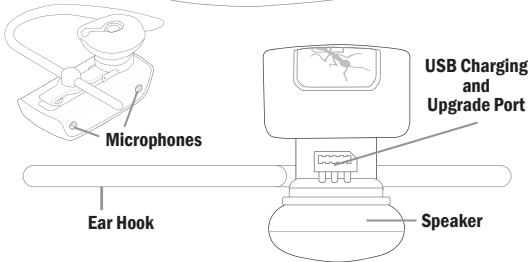
- Plug the other end of the USB charging cable into the charging port of your headset. Make sure the USB plug matches up to the USB socket on the headset. Do not force the plug into the socket, it should slide in easily. The red LED will turn ON.
- When charging is complete the red LED will turn OFF. Remove the charging adapter.
Charging the V1 with the AC Power Adapter
- Plug the AC Adapter into a power socket and the gooseneck USB cable into the wall charger.
- Plug the other end of the USB charging cable into the charging port of your headset. Make sure the USB plug matches up to the USB socket on the headset. Do not force the plug into the socket it should slide in easily. The red LED will turn ON.
- When charging is complete the red LED will turn OFF. Remove the charging adapter.
Using the USB Converter Plug
- Plug the adapter into the headset to give you the larger mini-usb connector most common with cell phones and USB devices.
- This allows you to use any standard USB cable to charge your headset.
Charging the V1 with the Car Charger
- Plug the car charger into your car's cigarette lighter, and the gooseneck USB cable into the car charger
- Plug the other end of the gooseneck USB charging cable into the charging port of your headset. Make sure the USB plug matches up to the USB socket on the headset. Do not force the plug into the socket it should slide in easily. The red LED will turn ON.
- When charging is complete the red LED will turn OFF. Remove the charger
Wearing the BlueAnt V1
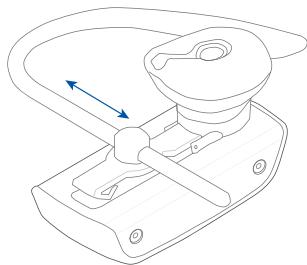
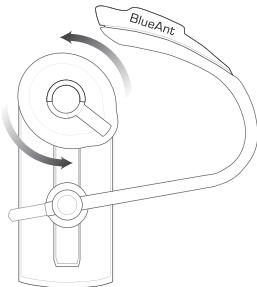
Push the ear hook through the ear hook hole which sits on the headset clip and adjust its length to fit comfortably on your ear. Ensure that the headset is pointing towards your mouth. You can wear the V1 on left or right ears, but for optimal performance, wear the V1 on the right ear and angle it so that it points towards your mouth.
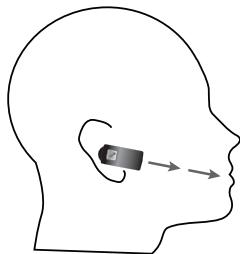
For optimal performance of the V1 headset, angle the headset so that it points towards your mouth.
Swapping and Fitting the Ear Gels and Comply™ Foam Tips
The V1 comes with four different options for Ear gels. The larger rubber ear gel is fitted on the unit already.
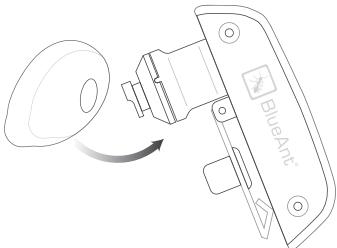
When trying the different options, carefully pull the ear gel off and replace as per below.
Rubber Gels
Gently lift to remove.
Gently press to attach. Push on firmly to click into place.
Right Ear
Left Ear
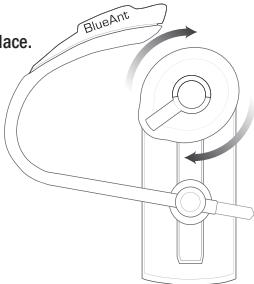
The rubber ear gels should be placed so that the tip of the rubber is directed into your ear canal.
In most cases the gel should be spun about 45 degrees from the tie clip as per below.
Comply™ Foam Tips
Gently pull to remove. Gently press to attach.
Push on firmly to make sure of correct attachment.
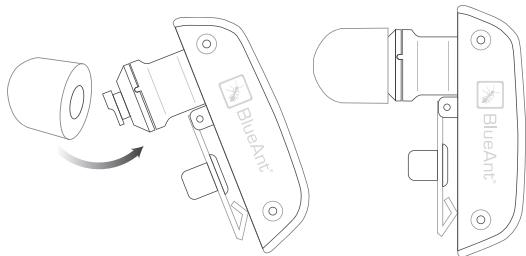
Note: The Foam tips will last for many months providing they are kept clean. We recommend carefully cleaning your ears before using these tips.
Disclaimer: The warranty period for the Comply™ Foam tips is 3 months only. This warranty covers workmanship and defects but does not cover normal use and wear and tear.
Compress the Comply Foam Tips™ around all sides by rolling the tip into a thin round cylinder, then insert into your ear. Hold the V1 in place while the foam expands. This should take around 30 seconds.
Comply™ Foam Tips use super soft memory foam providing a comfortable seal that securely holds the V1 in the ear while blocking outside noise.
To reorder Comply™ Foam Tips for BlueAnt devices go to www.blueantwireless.com/foamtips
VOICE CONTROL - "Say a command"
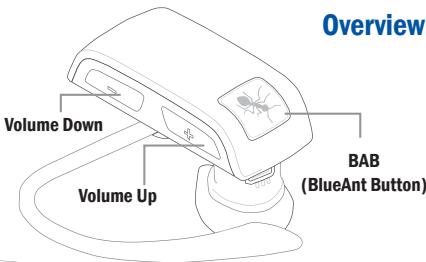
Step 1: Press the BlueAnt Button (BAB), a voice prompt asks you to "Say a command"
Step 2: Say one of the available commands such as "What Can I Say?"
A voice prompt responds and the headset makes the action.
VOICE CONTROL - Getting the best results
- After the "Say A Command" prompt, speak your command clearly.
- If the headset does not respond immediately to your command, say it again.
- Speak at a consistent speed and pronounce each syllable clearly.
- Make sure the microphone is not covered and is pointed towards your mouth.
- Speak louder than any background noise.
- Say "What Can I Say" for a reminder of the usable commands.
- You can say "cancel" in any menu.
- Press the BlueAnt Button to cancel at any time.
- Use the "Am I connected?" command to find out your headsets status
VOICE CONTROL - Set up your Speed Dials
There are two methods of inputting and activating the speed dials from your headset.
The first is to Set up the speed dialing in your phone. The second (used if your phone does not adhere to the Bluetooth specification for Speed Dialling) is to input the numbers into the headset.
We recommend to try the first method first.
Speed dials in the phone.
To use effectively you are required to store the associated numbers into each speed dial position on your phone as follows:
| Speed Dial Position | Contact to input |
| 1 | Voicemail |
| 2 | Home |
| 3 | Office |
| 4 | Favorite |
| 5 | Preset to Dial GOOG-411 |
| 6 | Your Choice |
| 7 | Your Choice |
| 8 | Your Choice |
| 9 | Your Choice |
Note: Call GOOG-411 is preset to dial GOOG-411.
Speed Dials in the V1
This method requires that you first receive an incoming call from the number you want to input into the headset for later dialing.
- Receive a call from the number you want the headset to later dial
- Press and Hold Vol - for 3 seconds
- The headset will ask you which voice command you would like to associate with the number.
VOICE CONTROL - Available Commands
The following is a comprehensive list of the commands available in the V1.
At any time you can use the "What can I say?" command to hear the available commands
Pair Me - Puts your V1 into pairing mode ready to connect with your phone. Follow the Prompts.
Teach Me - This menu helps you to understand and use the V1
Try it Now - Takes you through a program which lets you practice the voice commands.
Speed Dial Set Up - Assistance in how to set up the Speed list in your phone
Tips and Tricks - Some helpful information to get the most out of the kit
What Can I Say? - Gives you a list of all the available commands
Am I Connected? - Checks to see if there is a phone connected. If not it will attempt to connect to your phone.
Check Battery - Tells you the status of your battery charge level
Settings Menu - Puts you into the Settings menu
'Say a command' Prompt - Enables or Disables the 'Say a Command' prompt. With it disabled, you will hear a beep instead.
Incoming Call Function - Disable the Incoming call ID prompt and Voice Answer functions.
Turn Off Voice Control - Tums OFF the Voice Control. To re-enable, Hold Vol+ and Vol - for 6 seconds
Sensitivity Level - Choose from High Medium and Low. High will reject more, low will reject less.
LED Light - Turns the LED Lights OFF
Reset the V1 - Deletes all pairing information resets the Voice Interface and reboots the headset back into pairing mode
Phone Commands - Triggers the Voice Dial function of your cell phone (If your phone supports voice dialing)
Redial - Calls the number you last dialed
Call Back - Calls the last received number
Call Voice Mail - Calls your Voicemail
Call Home - Calls your Home
Call Office - Calls your Office
Call Favorite - Dials your favorite number
Call GOOG-411 - Connects you to the GOOG-411 service, see http://www.google.com/goog411/ for details
Call Speed Dial 6 - Dials the number you have set to Speed Dial 6
Call Speed Dial 7-Dials the number you have set to Speed Dial 7
Call Speed Dial 8 - Dials the number you have set to Speed Dial 8
Call Speed Dial 9 - Dials the number you have set to Speed Dial 9
Switch Headset Off - Turns the headset OFF
Cancel - Cancels the active operation
VOICE CONTROL - Voice Answer
On an incoming call the headset will announce the Caller ID.
It will then ask you if you want to Answer or Ignore the Call
Say "ANSWER" to accept the call
OR "IGNORE" to reject the call
Note : If the voice recognition in the V1 cannot understand you because of high noise or a loud ringtone coming from the phone, it will ask you to press the BAB once to answer or twice to Ignore the call.
BUTTON OPERATION
To Turn Voice Control ON or OFF
Press and Hold Vol + and Vol - for 6 Seconds
Pairing
Pairing need only be done once for each device you use. The V1 can store pairing information for up to 8 different Bluetooth devices. To pair another phone, make sure the first paired phone has Bluetooth switched off or is out of range. If you want to connect to a previously paired phone, use that phones Bluetooth Menu to connect.
Note: You can say 'Pair Me' to enter pair mode at any time, or follow the steps below
Pairing Procedure
(This is an example only and may differ from your phone, but the process will be the same.)
- First turn the phone OFF and then back ON again to refresh its memory.
- Bring the mobile phone to about 30cm from the V1 Device.
- Find the Bluetooth menu in your mobile phone. Turn Bluetooth ON. (Check your mobile phone user guide if necessary)
- With the V1 OFF, Press and Hold the BAB [N] for about 6 seconds. The LED will appear a solid Blue, and then will start flashing. The V1 is now in Pairing mode and ready to be found in searches by other Bluetooth devices. Pairing mode will be active for 2 minutes.
- Perform a Bluetooth device discovery on your mobile phone to add a new device. (It takes a few seconds to search for and find other Bluetooth devices around you).
- When Bluetooth devices are found, the phone will display "BlueAnt V1". Scroll to it and press OK to confirm that you want to Pair with it.
- Enter Passkey "0000" when your phone prompts you. The phone and V1 will now Pair.
- An additional security setting in your phone may be needed to allow the headset and phone to connect automatically without confirmation each time you connect your V1. Generally in the options for the BlueAnt V1, it will be referred to as "set as authorized", "add to trusted devices", "allow connection" or similar.
- If required for first time connection, select the BlueAnt V1 to connect with your phone. OR, Click the BAB on the V1, to connect with the phone.
Basic Headset Functions
For easy reference, also see the Button/Function Matrix and the Quick Start Guide.
- Power ON: Press and Hold the BAB for 3 seconds. The solid Blue LED will light up. If the battery is low a solid Red LED will be displayed. After powering ON, your headset will automatically connect to your last used phone if it is in operating range. If this phone is not range, the V1 will enter idle mode after 60 seconds. If no phone has yet been Paired, it will enter the welcome prompt.
- Power OFF: Press and Hold the BAB for 3 seconds. The Red LED flashes three times. Power Off works on Standby/ Idle mode.
- Enter Pairing Mode: With the V1 OFF, Press and Hold the BAB for about 6 seconds until the LED flashes Blue. The V1 will stay in pairing mode for 2 minutes then will go into idle mode. To re-enter pairing mode, repeat this step, or say "Pair Me"
- Make a Call: Dial the number using your phones keypad as normal. Audio will automatically transfer to the headset.
- To Answer a call: Click the BAB once when there is an incoming call.
- To End a call: Double Click the BAB to end the call.
- Reject: Double Click the BAB to reject an incoming call.
- Redial the last call : Press and Hold Vol ① for about 3 seconds. To cancel Redial, click the BAB
- Activate Phone Commands (Voice Dialling)*: While connected to a phone, press the BAB once. Voice commands must have been previously recorded into your phone (see your phones user guide for specific instructions. (Button Only Mode)
-
Reconnect: To reconnect your phone to the V1, simply turn the V1 ON. Or if already powered ON, Click Volume and Volume together. Alternatively, you can use the menu of your Bluetooth phone.
-
Volume level: Click Volume or Volume during a call to adjust the desired level. Volume changes will be remembered for the next call. Be sure to use the headset at a comfortable and safe volume level. Note: Volume levels for Voice Prompts and Active calls are independent.
- Mute/Unmute the microphone. Press and Hold Vol and Vol for 3 seconds during a call.
Advanced Headset Functions
- Disconnect / Transfer: To transfer the audio to the phone, Click Volume and Volume together once. To transfer audio back to the V1, Click Volume and Volume together again
- Disable/Enable the LED indicators: (for night time driving): When your headset is in idle or standby mode Press and Hold Volume and Volume together for 3 seconds. After turning the headset OFF and back ON, the LED Indicators will be active again by default. Note the LED's are turned OFF while a call is active.
- Turn Voice Control ON/OFF: Press and Hold Vol and Vol for 6 Seconds
- V1 Reset: To reset the V1 to factory settings; while in idle mode (not connected to any device), Click Volume , Volume and BAB together (3 buttons). The V1 will refresh its memory, delete all current pairing information and the welcome message will play in the headset.
Button Function Matrix
| V1 Function | Button | Time | Status |
| Power ON/OFF | BAB | 3 Seconds | From Off/Standby/Idle |
| Activate Voice Control | BAB | Click | Idle/Standby |
| Enter Pairing Mode | BAB | 6 Seconds | From OFF |
| Answer Call | BAB | Click | Ringing |
| End Call | BAB | Double Click | Active Call |
| Reject Call | BAB | Double Click | Ringing |
| Redial Last Number | Vol | 3 Seconds | Standby |
| Phone Commands (Button Only mode) | BAB | Click | Standby |
| Switch Voice Isolation between Standard and Max | BAB | Click | Active Call |
| Volume Up | Vol | Click | Active Call |
| Volume Down | Vol | Click | Active Call |
| Mute | Vol | 3 Seconds | Active Call |
To cancel a command, simply click BAB at any time.
Standby Mode
means connected to a device but not on a call.
Idle Mode
means the V1 is ON but not connected to any device
Multiple
button presses mean click together
Advanced Button Function Matrix
| Advanced V1 Functions | |||
| V1 Function | Button | Time | Status |
| Transfer Audio to phone | Vol ⊕ & Vol ⊢ | Click | Audio on Headset |
| Transfer Audio to headset | Vol ⊕ & Vol ⊢ | Click | Audio on Phone |
| Set up Speed dials directly in the V1 | Vol ⊙ | 3 Seconds | Standby |
| Turn LED's OFF/ON | Vol ⊕ & Vol ⊢ | 3 Seconds | Idle/Standby |
| Turn Voice Control ON/OFF | Vol ⊕ & Vol ⊢ | 6 Seconds | Idle/Standby |
| Reset the V1 | BAB ⊥ & ⊕ ⊕ | Click | Idle/Standby/Active call |
LED Indicator Chart
| Power ON | Solid Blue for 5 Seconds |
| Power OFF | Red flash 3 times |
| Pairing Mode | Blue flashing |
| Reset | Blue flashing |
| Charging | Solid Red |
| Charging with Power ON | Solid Red with a Purple Flash |
| Charging Complete | Red indicator OFF |
| Low Battery | All LED's change to Red |
| Idle | Blue flash every 8 seconds |
| Standby | 2 Blue flashes every 5 seconds |
| Ongoing call | NO LED's |
Pairing your headset with multiple Bluetooth devices
The V1 can be paired with 8 devices. If you want to connect to a previously paired phone, use that phones Bluetooth Menu to connect.
- Make sure the last phone used has Bluetooth switched off or is out of range.
- Follow the procedure in 'Pairing Procedure' above for each device you want to pair.
Firmware upgrade
The BlueAnt V1 is firmware upgradeable via the USB port and provided USB cable.
Please see the support section at www.blueantwireless.com for information and downloads of available upgrades.
BlueAnt Voice Isolation Technology™
You can switch between two settings of Voice Isolation - STANDARD and MAX.
Voice Isolation Standard - For use in normal everyday environments and gives you a natural sounding voice while removing mild noise.
Voice Isolation Max - Gives you more intelligible voice in a wide variety of high noise environments. HOW DO I SWITCH?
To switch between Standard and Max: Click the BAB while on a call
- When switching between Standard and Max you will hear a confirmation voice tag played from the V1 speaker.
- When you first turn the headset ON, it will be in the Standard setting.
- After switching the headset OFF and back ON, the headset will return to the Standard setting by default.
- Standard and Max both use the same amount of battery power.
What Voice Isolation mode should I use when?
| STANDARD | MAX |
| Office | In Vehicle, Restaurant |
| Home | Walking |
| Quiet environment | Music in background |
Further Information
Setting up a Phone Profile (different to Bluetooth Profiles)
In your phone, set up a Profile with appropriate ringing volumes and keypad tones and select and activate when using with the V1. Some phones can automatically activate a desired profile when connecting to a Car Kit or Headset Accessory. E.g. Go to Enhancement Settings and select a Default Profile to activate when the headset connects. With some phones you can also personalize levels to make suitable for yourself (see your phone's user manual for instructions on using and activating Phone Profiles). Typical phone Profiles are General, Outdoor, Meeting, Silent, Handsfree, Headset, Portable handsfree and Carkit.
Phone/PDA/Computer Software
Please make sure you have the latest firmware upgrade for your phone especially if you are using a PDA Phone. Go to the support section of the manufacturers' website to check that you have the latest version. Many new mobile phones, PDA's and computer phones require a Bluetooth patch to improve Bluetooth functionality from the original released version.
Resetting Your Phone/PDA
Phones and PDA's can become prone to software and memory issues which may cause Bluetooth reconnection problems. This can be fixed simply by turning the phone OFF and back ON again. The phone will be reset and the working memory cleared. Resetting your phone weekly can help maintain it's functionality including Bluetooth.
Troubleshooting and Support Documents
See the support section of www.blueantwireless.com for troubleshooting and Frequently Asked Questions (FAQ) as well as info on using with computers for VOIP application\s.
Specifications
| General Specification | > Bluetooth v2.1 > Up to 10 meters RF coverage > CE, FCC, BQB, Cstick, RoHS / WEEE Compliant > Headset Profile, Hands-Free profile |
| RF Spec. | > Carrier Frequency 2.402 ~ 2.480GHz > < 0.1% BER at -80 dBm > 0 ± 4 dBm (Class 2) |
| User Interface | > Blue color LED for operation indication. > Red color LED for low battery indication. > Mini USB for Charging battery or F/W upgrade |
| Audio | 3GPP with DSP solution |
| Battery type | 3.7V Lithium Polymer battery |
| Talk Time | Up to 5.0 Hours |
| Stand-By time | 200hrs. |
| Weight | 0.35 oz / 10 grams without ear hook or 11 grams with ear-hook |
| Dimensions | 1.5 x 0.69 x 0.44 (inches) / 41 x 17.5 x 11.2 (mm) |
FAQ V1 Bluetooth Headset
- Is my phone compatible?
If your phone has Bluetooth it more than likely supports a Handsfree or Headset Bluetooth profile, and so will work with the V1. Check your phones manual for up to date information.
- What is the passcode/passkey of the V1?
The Passcode for the V1 is "0000".
- Can I connect more than one device to my V1 at the same time?
No, the V1 can store pairing information for 8 phones but can connect to only one phone or device at a time.
- My V1 worked great but now it won't connect. What can I do?
As newer phones are increasingly like mini-computers, they may become corrupt over time and you may need to reset them every so often (at least once a week is good). Simply switch off your phone remove the battery for a few seconds, replace and reboot. The V1 should now connect. If not, remove existing pairing and re-pair the devices.
- I am having trouble pairing a second phone. What can I do?
When pairing a second mobile phone, make sure the first is off or out of range. If you cannot connect to a previously paired and connected phone, go to the Bluetooth menu in the phone, select the V1 and Press Connect. Some phones may require this if it is the second device used. You do not have to re-pair the devices just manually connect.
- The incoming caller ID does not play and I cannot answer the call using my voice. Why?
Some phones that support in-band ringtones do not send the caller ID number to the headset on an incoming call. In-band ringtones basically mean the ability of your phone to play a MP3 or music file instead of a standard ringtone. If you wish to use the Voice Answer feature you will need to use a standard ringtone.
- Phone commands (Your phones inbuilt voice dialing if it has it) are not successful every time. What can I do?
Using your headset to record the voice tags can enhance the recognition rate. Please refer to the user guide of your phone. Noisy environments can affect voice recognition. Record your voice commands in a quiet environment.
- How do I upgrade the firmware for my V1?
Log onto the support section of our web site www.blueantwireless.com and follow the links to download the V1 upgrade instructions and the V1 Upgrade zip files. Unzip both files to your computer then follow the instructions to upgrade the firmware.
- Can I transfer an ongoing call back to my phone to continue it there?
Yes. Simply short press the Volume Up & Volume Down buttons simultaneously to disconnect from the V1 and transfer the call to the phone.
- I have read all the solutions in this document but I still cannot get my V1 to work properly. What can I do?
Log onto our website for more extensive troubleshooting and FAQ, make an enquiry to customercare@myblueant.com or call the BlueAnt Nth America Customer Service Team on 1866 891-3032
Help
BlueAnt Warranty Process
- Should you be having difficulties in operation please refer to the online FAQ and support documents, or call us. Our number is on the back page of this manual
- Check our website for more information, updated manuals and troubleshooting. www.blueantwireless.com
- Call us and speak to one of the BlueAnt Wireless Customer Service Team We will clarify whether you have a hardware or connection issue.
- If your unit is confirmed to be faulty, a Return Merchandise Authorization (RMA) will be issued.
- Return the unit directly to BlueAnt for testing and replacement of faulty items.
Warranty Terms and Conditions
- BlueAnt Warrant the original purchaser of this product only.
- BlueAnt will replace or repair any faulty product provided it has not been misused or abused in any way.
- There are no user serviceable parts inside this product. Using a non-authorized repairer will void the warranty.
- The Warranty is valid for 2 years (24 months) from the date of purchase. (excluding the Comply™ Foam Tips)
Proof of purchase must be provided to obtain warranty service.
- Headset must be in original packaging with serial number for warranty to be valid.
- The warranty period for the Comply™ Foam tips is 3 months only. This warranty covers workmanship and defects but does not cover normal use and wear and tear.
- Warranties are effective from the proof of purchase date and not from the date of any subsequent repair or replacement.

Disclaimers:
This manual is published by BlueAnt. The information contained in this document is subject to change without notice. All rights reserved. The Bluetooth word, mark and logos are owned by the Bluetooth SIG, Inc. and any use of such marks by BlueAnt is under license. Comply is are registered trademark of Hearing Components. Manufactured under Hearing Components U.S. Patent number 4,880,076 and international equivalent. Google, GOOG-411, and the Google Logo are trademarks of Google Inc. Other trademarks and trade names are those of their respective owners.
Please protect your ears.
Warning: This headset can reach a maximum volume of 101 decibels. Prolonged use of a headset at high volumes may affect your hearing capacity. Using for extensive time periods may result in noise induced hearing loss (NIHL). Hearing loss may occur if the headset is used at maximum volumes for more than 5 minutes per day. Hearing loss may occur if the headset is used at medium volumes if used for more than 1 hour per day. Exposure to sound at such a close range may result in hearing loss, even at low levels. Do not listen at high volume levels. Remember that your ears will adapt to the volume level set and if you change to higher levels your ear may feel no discomfort but may be doing damage to your ear.
Correct Disposal of This Product (Waste Electrical & Electronic Equipment)

(Applicable in the European Union and other European countries with separate collection)
This marking shown on the product or its literature, indicates that it should not be disposed with other household wastes at the end of its working life. To prevent possible harm to the environment or human health from uncontrolled waste disposal, please separate this from other types of wastes and recycle it responsibly to promote the sustainable reuse of material resources. Household users should contact either the retailer where they purchased this product, or their local government office, for details of where and how they can take this item for environmentally safe recycling. Business users should contact their supplier and check the terms and conditions of the purchase contract. This product should not be mixed with other commercial wastes for disposal.
This equipment is in compliance with the essential requirements and other relevant provisions of Directive 1999/5/EC
FCC Notices
This device contains FCC ID: VHFLBLUEANTV1 which complies with part 15 of the FCC rules. Operation is subject to the following two conditions: (1) This device may not cause harmful interference, and (2) This device must accept any interference received, including interference that may cause undesired operation.
FCC RF Exposure requirements:
"This device and its antenna(s) must not be co-located or operating in conjunction with any other antenna or transmitter."

BlueAnt®
Mode d'emploi du V1
Introduction
customercare@myblueant.com
1866891-3032

BlueAnt
www.blueantwireless.com
- Features of the BlueAnt V1
- What is Bluetooth wireless technology?
- What is Voice Control?
- What's in the Package?
- Getting Started - Before you can use your headset, you must do the following:
- Charging
- Charging the V1 with the Goosenck USB cable
- Charging the V1 with the AC Power Adapter
- Using the USB Converter Plug
- Charging the V1 with the Car Charger
- Wearing the BlueAnt V1
- Swapping and Fitting the Ear Gels and Comply™ Foam Tips
- Rubber Gels
- Comply™ Foam Tips
- VOICE CONTROL - "Say a command"
- VOICE CONTROL - Getting the best results
- VOICE CONTROL - Set up your Speed Dials
- Speed dials in the phone.
- Speed Dials in the V1
- VOICE CONTROL - Available Commands
- VOICE CONTROL - Voice Answer
- BUTTON OPERATION
- To Turn Voice Control ON or OFF
- Pairing
- Pairing Procedure
- Basic Headset Functions
- Advanced Headset Functions
- Standby Mode
- Idle Mode
- Multiple
- Advanced Button Function Matrix
- LED Indicator Chart
- Pairing your headset with multiple Bluetooth devices
- Firmware upgrade
- BlueAnt Voice Isolation Technology™
- What Voice Isolation mode should I use when?
- Further Information
- Setting up a Phone Profile (different to Bluetooth Profiles)
- Phone/PDA/Computer Software
- Resetting Your Phone/PDA
- Troubleshooting and Support Documents
- FAQ V1 Bluetooth Headset
- Help
- BlueAnt Warranty Process
- Warranty Terms and Conditions
- Disclaimers:
- Please protect your ears.
- Correct Disposal of This Product (Waste Electrical & Electronic Equipment)
- FCC Notices
- BlueAnt®
- Mode d'emploi du V1
- Introduction
Brand : BLUEANT
Model : V1
Category : Wireless Earbuds