 ManualGo.com
 KD-X250BTE - Car stereo JVC - Free user manual and instructions
Find the device manual for free KD-X250BTE JVC in PDF.


Download the instructions for your Car stereo in PDF format for free! Find your manual KD-X250BTE - JVC and take your electronic device back in hand. On this page are published all the documents necessary for the use of your device. KD-X250BTE by JVC.
USER MANUAL KD-X250BTE JVC
Warning Do not operate any function that takes your attention away from safe driving.
Caution Information on Disposal of Old Electrical and Electronic Equipment and Batteries (applicable for EU countries that have adopted separate waste collection systems) Products and batteries with the symbol (crossed-out wheeled bin) cannot be disposed as household waste. Old electrical and electronic equipment and batteries should be recycled at a facility capable of handling these items and their waste by-products. Contact your local authority for details in locating a recycle facility nearest to you. Proper recycling and waste disposal will help conserve resources whilst preventing detrimental effects on our health and the environment. Notice: The sign “Pb” below the symbol for batteries indicates that this battery contains lead.
Volume setting: Adjust the volume so that you can hear sounds outside the car to prevent accident. Lower the volume before playing digital sources to avoid damaging the speakers by the sudden increase of the output level. General: Avoid using the USB device or iPod/iPhone if it might hinder driving safety. Make sure all important data has been backed up. We shall bear no responsibility for any loss of recorded data. Never put or leave any metallic objects (such as coins or metal tools) inside the unit, to prevent a short circuit. USB rating is indicated on the main unit. To view, detach the faceplate.
|ޓENGLISH KD-X250BT_E_EN
How to attach/detach the faceplate
Contents Preparation 4 Canceling the display demonstration Setting the clock Basic operations 4 Radio 6
How to reset your unit Your preset adjustments will also be erased.
USB 8 iPod/iPhone 9 External components 10 Bluetooth姞 connection 10 Bluetooth mobile phone 13
Maintenance Cleaning the unit Wipe off dirt on the faceplate with a dry silicon or soft cloth.
Cleaning the connector Detach the faceplate and clean the connector with a cotton swab gently, taking care not to damage the connector.
Bluetooth audio player 17 Sound adjustments 18 Menu operations 19 Additional information 22 Troubleshooting 24 Specifications 26 Installation/Connection 27
How to read this manual:
This manual mainly explains operations using the buttons on the faceplate. < > indicates the displays on the faceplate. [XX] indicates the initial setting of a menu item.
ENGLISH |ޓ3 KD-X250BT_E_EN
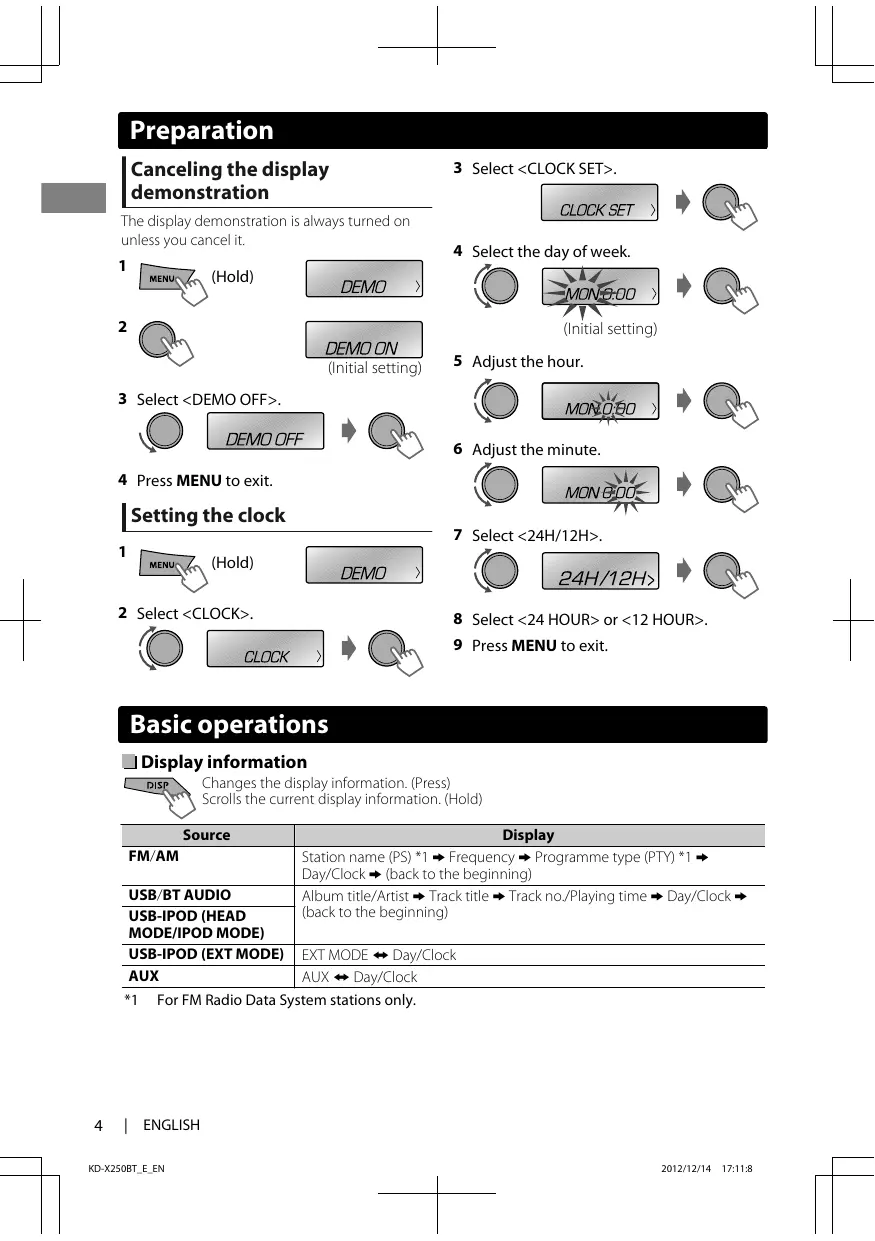
Preparation Preparation Canceling the display demonstration The display demonstration is always turned on unless you cancel it.
3 Select <CLOCK SET>.
4 Select the day of week.
(Initial setting) (Initial setting)
3 Select <DEMO OFF>. 6 Adjust the minute. 4 Press MENU to exit.
Display Station name (PS) *1 - Frequency - Programme type (PTY) *1 Day/Clock - (back to the beginning) Album title/Artist - Track title - Track no./Playing time - Day/Clock (back to the beginning) EXT MODE) Day/Clock AUX) Day/Clock
For FM Radio Data System stations only.
|ޓENGLISH KD-X250BT_E_EN
General function Turns on. Turns off. (Hold) Press the SOURCE button on the faceplate and turn the volume knob within 2 seconds to select the source. Press repeatedly to select the source. Adjusts the volume level. Selects items. Mutes the sound or pauses playback. Press the button again to cancel muting or resume playback. Confirms selection. Selects the preset stations. Stores the current station into the selected number button. (Hold) (' page 6) Enters the hands-free menu (' page 14), or answers incoming call when the unit rings. Ends a call. (Hold) Activates/deactivates TA Standby Reception. (' page 7) Enters PTY Search mode. (Hold) (' page 7) Returns to the previous menu. Selects MP3/WMA folder. (' page 8) Selects group/folder. (' page 17) Searches for a station automatically. (' page 6) Searches for a station manually. (Hold) Selects track. (' page 8, 9, 17) Fast-forwards or reverses track. (Hold)
ENGLISH |ޓ5 KD-X250BT_E_EN
Radio Radio Searching for a station
B Select <FM> or <AM>. Auto search. (Press) Manual search. (Hold) “M” flashes, then press the button repeatedly.
“ST” lights up when receiving an FM stereo broadcast with sufficient signal strength.
Storing stations in memory
Selecting a preset station
Manual presetting You can preset up to 18 stations for FM and 6 stations for AM. While listening to a station...
- - - - - - - - or - - - - - - - -
(Hold) The preset number flashes and “MEMORY” appears. The current station is stored to the selected number button (1 - 6). - - - - - - - - or - - - - - - - -
2 Select preset number.
The preset number flashes and “MEMORY” appears.
Auto presetting (FM only) SSM (Strong-station Sequential Memory) You can preset up to 18 stations for FM.
Setting the Radio Timer You can tune in to a preset station at a specific time regardless of the current source.
3 Select the preset station.
-<TUNER> -<SSM> -<SSM 01 – 06> “SSM” flashes. When all the stations are stored, “SSM” stops flashing. To preset <SSM 07 – 12>/<SSM 13 – 18>, repeat steps 1 and 2.
4 Set the activation day and time.
5 Press MENU to exit.
-<TUNER> -<RADIO TIMER> -<OFF>/<ONCE>/ <DAILY>/<WEEKLY> Cancels Radio Timer. Activates once. Activates daily. Activates weekly.
lights up after the Radio Timer has been set. Only one timer can be set. Setting a new timer will override the previous setting. The Radio Timer will not activate if the unit is turned off or if <AM> is set to <OFF> in <SRC SELECT> after selecting an AM station for the timer.
|ޓENGLISH KD-X250BT_E_EN
Radio The following features are available only for FM Radio Data System stations.
Searching for your favorite Programmes—Programme Type (PTY) Search 1
2 Select a PTY code.
PTY Search starts. If there is a station broadcasting a programme of the same PTY code as you have selected, that station is tuned in. PTY codes NEWS, AFFAIRS, INFO, SPORT, EDUCATE, DRAMA, CULTURE, SCIENCE, VARIED, POP M (music), ROCK M (music), EASY M (music), LIGHT M (music), CLASSICS, OTHER M (music), WEATHER, FINANCE, CHILDREN, SOCIAL, RELIGION, PHONEIN, TRAVEL, LEISURE, JAZZ, COUNTRY, NATION M
(music), OLDIES, FOLK M (music), DOCUMENT NEWS Standby Reception 1
-<TUNER> -<NEWS-STBY> -<ON>/<OFF> The unit will temporarily switch to News Programme if available. If the volume is adjusted during reception of Traffic Announcement or News Bulletin or Alarm, the adjusted volume is automatically memorized. It will be applied the next time the unit switches to Traffic Announcement or News.
Tracking the same programme —Network-Tracking Reception When driving in an area where FM reception is not sufficient enough, this unit automatically tunes in to another FM Radio Data System station of the same network, possibly broadcasting the same programme with stronger signals.
Activating TA/News Standby Reception Standby Reception allows the unit to switch temporarily to Traffic Announcement (TA) or NEWS programme from any source other than AM.
TA Standby Reception
AF-REG ON OFF Automatically searches for another station broadcasting the same programme in the same Radio Data System network with better reception when the current reception is poor. Switches to another station only in the specific region using the AF control. Cancels.
* AF-REG: Alternative Frequencies-Regional
The unit will temporarily switch to Traffic Announcement (TA) if available.
Automatic station selection— Programme Search
Not yet activated. Tune in to another station providing the Radio Data System signals.
To deactivate, press again.
When the signal of a preset station you have selected is weak, this unit searches for another station possibly broadcasting the same programme as the original preset station is broadcasting. <P-SEARCH> (' page 20) ENGLISH |ޓ7
USB USB Playing a USB device USB input terminal USB 2.0 cable* (not supplied)
The source changes to “USB” and playback starts. * Do not leave the cable in the car when not in use.
This unit can play MP3/WMA files stored in USB mass storage device (such as a USB memory and Digital Audio Player).
Selecting a folder/track Selects folder.
Selects track. (Press) Fast-forwards or reverses the track. (Hold)
Selecting a track/folder from the list 1
If the USB device contains many folders or tracks, you can fast search for the desired folder or track by turning the volume knob quickly.
Selecting the playback modes You can select one of the following playback modes at a time.
1 Press 6 for REPEAT. Press 5 for RANDOM.
2 Press the button repeatedly.
REPEAT RPT OFF Cancels repeat playback.
TRACK RPT Repeats current track.
FOLDER RPT Repeats current folder.
“FOLDER RPT” is not applicable for JPC/JMC file. RANDOM RND OFF Cancels random playback.
FOLDER RND Randomly plays all tracks of current folder, then tracks of next folders.
ALL RND Randomly plays all tracks.
2 Select a folder. (For MP3/WMA)
- - - - - - - - or - - - - - - - -
Select the desired list. (For JVC Playlist Creator (JPC) and JVC Music Control (JMC) file) (' page 23)
iPod/iPhone Playing an iPod/iPhone USB input terminal USB 2.0 cable* (accessory of the iPod/iPhone)
Selecting a track from the list Applicable under <HEAD MODE> only.
1 2 Select the desired list.
The source changes to “USB”-“USB-IPOD” and playback starts. * Do not leave the cable in the car when not in use.
Selecting the control mode -<HEAD MODE>/<IPOD MODE>/ <EXT MODE>
HEAD MODE Controls music playback only from this unit.
IPOD MODE Controls music playback from both the unit and iPod/iPhone.
EXT MODE Controls music playback only from the iPod/iPhone.
You can also change the setting using <IPOD SWITCH> in the menu. (' page 21)
PLAYLISTS)ARTISTS)ALBUMS)SONGS) PODCASTS)GENRES)COMPOSERS) (back to the beginning)
3 Select the desired track.
Repeat this step until the desired track is selected. If the selected menu contains many tracks, you can fast search for the desired track by turning the volume knob quickly.
Selecting the playback modes Applicable under <HEAD MODE> only. You can select one of the following playback modes at a time.
1 Press 6 for REPEAT. Press 5 for RANDOM.
Selecting a track Applicable under <HEAD MODE>/<IPOD MODE> only. Selects track/chapter. (Press) Fast-forwards or reverses the track. (Hold)
2 Press the button repeatedly.
REPEAT ONE RPT Functions the same as “Repeat One” of the iPod.
ALL RPT Functions the same as “Repeat All” of the iPod.
RANDOM RND OFF Cancels random playback.
SONG RND Functions the same as “Shuffle Songs” of the iPod.
ALBUM RND Functions the same as “Shuffle Albums” of the iPod.
“ALBUM RND” is not applicable for some iPod/ iPhone.
ENGLISH |ޓ9 KD-X250BT_E_EN
External components External components You can connect an external component to the AUX (auxiliary) input jack on the faceplate. For details, refer also to the instructions supplied with the external components. .
Playing an external component from AUX 3.5 mm stereo mini plug with “L” shaped connector (not supplied)
1 Connect to AUX terminal on the faceplate. 2 Select <AUX>. 3 Turn on the connected component and start playing the source.
Portable audio player, etc. Use a 3-terminal plug head stereo mini plug for optimum audio output.
Bluetooth姞 connection You can operate Bluetooth devices using this unit. If you turn off the unit or detach the faceplate during a phone call conversation, the Bluetooth connection is disconnected. Continue the conversation using your mobile phone. This unit supports the following Bluetooth profiles Hands-Free Profile (HFP 1.5) Object Push Profile (OPP 1.1) Phonebook Access Profile (PBAP 1.0) Advanced Audio Distribution Profile (A2DP 1.2) Audio/Video Remote Control Profile (AVRCP 1.3)
Connecting the microphone Secure using cord clamps (not supplied) if necessary.
Microphone (supplied) MIC (Microphone input terminal)
MIC Adjust the microphone angle.
Bluetooth姞 connection
Pairing a Bluetooth device When connecting a Bluetooth device to the unit for the first time, perform pairing between the unit and the device. Up to five Bluetooth devices can be registered in this unit. A maximum of two Bluetooth phones and one Bluetooth audio device can be connected at any time. This unit supports Secure Simple Pairing (SSP).
1 Search and select “JVC UNIT” on the Bluetooth device. “BT PAIRING” flashes on the display. For some Bluetooth devices, you may need to enter the Personal Identification Number (PIN) code immediately after searching.
2 Perform (A) or (B) depending on what scrolls on the display. For some Bluetooth devices, pairing sequence may vary from the steps described below
(A) If “[Device Name]”#“XXXXXX”# “VOL – YES”#“BACK – NO” scrolls on the display, “XXXXXX” is a 6-digit passkey randomly generated during each pairing.
(B) If “[Device Name]”#“VOL – YES”# “BACK – NO” scrolls on the display,
Select “YES” to start the pairing.
Ensure that the passkey which appears on the unit and Bluetooth device is the same. Select “YES” to confirm the passkey.
(1) If “PAIRING”#“PIN 0000” scrolls on the display, enter the PIN code “0000” into the Bluetooth device.
Operate the Bluetooth device to confirm the passkey.
You can change to a desired PIN code before pairing. (' page 21)
(2) If only “PAIRING” appears, operate the Bluetooth device to confirm pairing.
After pairing is successful, “PAIRING COMPLETED” appears on the display. The unit will establish a connection with the newly paired Bluetooth device, “” lights up on the display and you can now control the Bluetooth device through the unit.
“” will light up when a phone is connected. “” will light up when an audio device is connected. Once the connection is established, the device is registered to the unit and there is no need to perform the pairing again unless you delete the registered device. Some Bluetooth devices may not be able to connect to the unit after pairing. Connect the device to the unit manually. Refer to the instruction manual of the Bluetooth device for more information.
See page 12 for Bluetooth compatibility check mode operation.
ENGLISH |ޓ11 KD-X250BT_E_EN
Bluetooth姞 connection
Connecting/Disconnecting a registered device manually
You can check the connectivity of the supported profile between the Bluetooth device and the unit.
-<BLUETOOTH> -<PHONE>/<AUDIO> -<CONNECT>
3 Select the desired device.
“CONNECTING”#“[Device Name]” scrolls on the display when the unit is connecting to the device. “CONNECTED”#“[Device Name]” scrolls on the display when the device is connected.
4 Press MENU to exit.
-<BLUETOOTH> -<PHONE>/<AUDIO> -<DISCONNECT>
3 Select the desired device.
“DISCONNECT”#“[Device Name]” scrolls on the display when the device is disconnected.
4 Press MENU to exit.
Deleting a registered device 1
2 Select <DELETE YES>.
-<BLUETOOTH> -<DELETE PAIR> - [Device name] -<DELETE YES> “DELETED” appears when the device is deleted.
(Hold about 3 seconds)
“BLUETOOTH”)“CHECK MODE” appears. “SEARCH NOW USING PHONE”#“PIN IS 0000” scrolls on the display.
2 Search and select “JVC UNIT” on the Bluetooth device within 3 minutes. 3 Perform pairing (A), (B) or (C) depending on what appears on the display. (A) “PAIRING”#“XXXXXX” (6-digit passkey): Ensure that the same passkey appears on the unit and Bluetooth device, then operate the Bluetooth device to confirm the passkey. (B) “PAIRING”#“PIN IS 0000”: Enter “0000” on the Bluetooth device. (C) “PAIRING”: Operate the Bluetooth device to confirm pairing. After pairing is successful, “PAIRING OK”# “[Device Name]” appears and Bluetooth compatibility check starts. If “CONNECT NOW USING PHONE” appears, operate the Bluetooth device to allow phonebook access to continue. The connectivity result flashes on the display. “H.FREE OK” *1 and/or “A. STREAM OK” *2 # “[Device Name]”: Compatible “CONNCT FAIL”)“TRY CONNECT”: Not compatible *1 : Compatible with Hands-Free Profile (HFP) *2 : Compatible with Advanced Audio Distribution Profile (A2DP) After 30 seconds, “PAIRING DELETED” appears to indicate that pairing has been deleted, and the unit exits check mode.
To cancel check mode, turn off the unit by pressing and holding SOURCE. Delete the pairing on the Bluetooth device before pairing with this unit. (' page 11)
3 Press MENU to exit.
12 |ޓENGLISH KD-X250BT_E_EN
Bluetooth mobile phone Adjustments during a call
Phone volume(00 — 50) [VOLUME 15]: Volume adjustments made during a call will not affect the other sources.
To receive a call When there is an incoming call, the source automatically changes to Bluetooth Phone mode. “RECEIVING” appears on the display, followed by the phone number or name.
Microphone level (01— 03)[02]: As the number increases, the microphone becomes more sensitive.
Echo cancellation (01 — 10)[04]: Set the echo cancellation delay time for clearer sound.
When <AUTO ANSWER> is set to a selected time, the unit answers incoming call automatically. (' page 16)
To reject an incoming call or end a call
Text message notification (Hold)
To deactivate/activate hands-free mode During a phone conversation...
When a text message is received, the unit rings and “RCV MESSAGE”#“[Device name]” appears. <MSG NOTICE> must be set to <ON>. (' page 16) You cannot read, edit, or send a message through the unit. To clear the message, press any button. This feature is only available on certain phones.
Operations may vary according to the connected Bluetooth device.
Switching between two connected mobile phones When two mobile phones are connected to the unit, you can access to both hands-free menus.
Press to enter 1st phone’s hands-free menu. Press twice to enter 2nd phone’s hands-free menu. Press to return to 1st phone’s handsfree menu.
2 Select a calling method (see following table). Repeat this step until the desired item is selected.
RECENT CALL Select the name/phone number
“>” indicates call received, “<” indicates call made, “M” indicates missed call. “NO HISTORY” appears if there is no recorded call history.
If the phonebook contains many numbers, you can fast search for the desired number by turning the volume knob quickly, or use Quick Search (see below). “NO DATA” appears if no entries are found in the Bluetooth device’s phonebook. “SEND P.BOOK MANUALLY” appears if <P.BOOK SEL> is set to <PB IN UNIT> or the phone does not support PBAP. (' page 16) Enter the phone number to dial. Select number/character Move the entry position Call
Repeat these steps until you finish entering the phone number.
VOICE Activates Voice Recognition of the phone. (' page 15)
Quick Search If you have many contacts, you can search through them quickly according to the first character (A to Z, 0 to 9 and OTHERS). “OTHERS” appears if the first character is not A to Z or 0 to 9. While in the <PHONEBOOK> setting...
1 Select the desired character.
2 Select your desired contact.
14 |ޓENGLISH KD-X250BT_E_EN
Bluetooth mobile phone
Making a call from memory You can store up to 6 contacts in the memory of this unit for speed dialing.
If two phones are connected, Select the desired phone Enter “phone list”
2 When “VOICE CTRL”#“[Device Name]” scrolls on the display, speak the name of the contact you want to call or the voice command to control the phone functions.
Supported voice recognition features vary for each phone. Please refer to the instruction manual of the connected phone for details. This unit also supports the intelligent personal assistant function of iPhone.
Deleting a contact (name/ phone number) Only when <P.BOOK SEL> is set to <PB IN UNIT>. (' page 16)
1 Enter the hands-free menu.
(Hold) “MEMORY PX” flashes. The contact is stored to the selected number button (1 - 6). To erase a contact from preset memory, select <DIAL NUMBER> in step 2 and store a blank number.
2 Select a call method.
-<RECENT CALL>/ <PHONEBOOK>
3 Select the contact (name/phone number) to be deleted. Name Phone Number or
2 Select and call the contact. 4 Enter “Delete Entries” menu. (Hold)
“NO PRESET” appears if there are no contacts stored in memory.
5 Select <DELETE> or <DELETE ALL>.
Using voice recognition You can use the voice recognition features of the connected phone through this unit. “NOT SUPPORT” appears if the connected phone does not support this feature.
1 Enter voice recognition mode. If only one phone is connected,
DELETE DELETE ALL Selected name/phone number from step 3 is deleted. All names/phone numbers from selected menu in step 2 are deleted.
3 Repeat this step to perform the necessary settings.
2 Select <SETTINGS>.
To return to the previous menu, press . To exit from the menu, press .
The following settings are applicable to the paired device. If another device is paired, perform the settings again. Menu item
Selectable setting (Initial: [XX])
[PB IN PHONE]: The unit browses the phonebook of the connected phone. PB IN UNIT: The unit browses the phonebook registered in the unit. (You can copy the phonebook memory using <P.BOOK WAIT> (' page 21).)
03 SEC/05 SEC/10 SEC: The unit answers incoming calls automatically in 3/5/10 seconds. [OFF]: Cancels.
[IN UNIT]: The unit rings to notify you when a call/text message comes in. – CALL: Select your preferred ring tone (TONE 1 — 5) for incoming calls. – MESSAGE: Select your preferred ring tone (TONE 1 — 5) for incoming text messages. Default ring tone is different according to the paired device. IN PHONE: The unit uses the connected phones’ ring tone to notify you when a call/text message comes in. (The connected phone will ring if it does not support this feature.)
(01 — 10)[04]: Adjust the echo cancellation delay time until the least echo is being heard during a phone conversation.
(01 — 03)[02]: The sensitivity of the microphone increases as the number is increased.
[ON]: The unit rings and “RCV MESSAGE”#“[Device Name]” appears to notify you of an incoming text message. OFF: Cancels.
* Selectable only when the connected phone supports PBAP.
16 |ޓENGLISH KD-X250BT_E_EN
Bluetooth audio player
Bluetooth audio player
Playing a Bluetooth audio player Select <BT AUDIO>.
A Operate the Bluetooth audio player to start playback.
Operations and display indications may differ according to their availability on the connected device.
Basic operations Pauses or resumes playback.
Selecting the playback modes For Bluetooth devices that support AVRCP 1.3.
1 Press 6 for REPEAT. Press 5 for RANDOM.
Selects group/folder.
Reverse skips or forward skips. (Press) Fast-forwards or reverses the track. (Hold)
2 Press the button repeatedly.
REPEAT RPT OFF Cancels repeat playback.
TRACK RPT Repeats current track.
ALL RPT Repeats all tracks.
GROUP RPT Repeats all tracks of the current group.
RANDOM RND OFF Cancels random playback.
ALL RND Randomly plays all tracks.
GROUP RND Randomly plays all tracks of the current group.
ENGLISH |ޓ17 KD-X250BT_E_EN
Sound adjustments Sound adjustments This unit memorizes sound settings adjusted for each individual source.
Selecting the preset sound You can select a preset sound mode, for each individual source, suitable for the music genre.
-<EQ SETTING> -<EQ PRESET>
3 3 Select the desired sound mode. Adjust the sound elements of the selected tone. FLAT-NATURAL-DYNAMICVOCAL BOOST-BASS BOOST-USER- (back to the beginning)
Storing your own adjustments While listening, you can adjust and store the tone level for each individual source.
[Q1.0]/Q1.25/Q1.5/Q2.0
Q Q0.75/Q1.0/[Q1.25]
[10.0]/12.5/15.0/17.5 kHz
4 Repeat steps 2 and 3 to adjust other tones. The adjustments are stored and <USER> is activated.
5 Press MENU to exit. (Initial: [XX]) SUB.W *
The adjustments are stored and <USER> is activated. * Available only when <L/O MODE> is set to <SUB.W> and <SUB.W> is set to <ON>. (' page 19)
If no operation is done for about 60 seconds, the operation will be canceled.
Selectable setting (Initial: [XX]) For settings, ' page 4. For settings, ' page 18.
L/O MODE (Line output mode) SUB. W *3 (Subwoofer) SUB.W LPF *4 (Subwoofer lowpass filter) SUB.W LEVEL *4 (Subwoofer level) BEEP (Keytouch tone) AMP GAIN (Amplifier gain)
R06 — F06[00]: Adjusts the front and rear speaker output balance. L06 — R06[00]: Adjusts the left and right speaker output balance. +01/+02: Select your preferred bass boost level. [OFF]: Cancels. [LOW]/HIGH: Boosts low or high frequencies to produce a well-balanced sound at a low volume level. OFF: Cancels. -05 — +05[00]: Presets the volume adjustment level of each source, compared to the FM volume level. Before adjustment, select the source you want to adjust. (“VOL ADJ FIX” appears if “FM” is selected.) Select if the REAR/SW terminals are used for connecting the speakers or subwoofer (through an external amplifier). SUB.W: Subwoofer [REAR]: Rear speakers OFF: Cancels. [ON]: Turns on the subwoofer output. [THROUGH]: All signals are sent to the subwoofer. LOW 55Hz/MID 85Hz/HIGH 120Hz: Audio signals with frequencies lower than 55 Hz/85 Hz/120 Hz are sent to the subwoofer. -08 — +08[00]: Adjusts the subwoofer output level. [ON]/OFF: Activates or deactivates the keypress tone. LOW POWER: Limits the maximum volume level to 30. (Select if the maximum input power of each speaker is less than 50 W to prevent damaging the speakers.) [HIGH POWER]: The maximum volume level is 50.
If you are using a two-speaker system, set the fader level to “00”. This adjustment will not affect the subwoofer output. Displayed only when <L/O MODE> is set to <SUB.W>. Displayed only when <SUB.W> is set to <ON>.
ENGLISH |ޓ19 KD-X250BT_E_EN
Selectable setting (Initial: [XX]) For settings, ' page 4. For settings, ' page 4. [AUTO]: The built-in clock is synchronized with the Clock Time (CT) data received from the FM Radio Data System station. OFF: Cancels. ON/[OFF]: Activates or deactivates clock display when the unit is turned off. Selects the display and button illumination adjusted in the <BRIGHTNESS> setting. [AUTO]: Changes between the Day and Night adjustments when you turn off/on the car headlights. *5 ON: Selects the Night adjustments. OFF: Selects the Day adjustments. DAY/NIGHT: Brightness settings for the display and button illumination for day and night. BUTTON ZONE/DISP ZONE: Sets the brightness levels 00 — 31. [ONCE]: Scrolls the display information once. AUTO: Repeats scrolling (at 5-second intervals). OFF: Cancels. [ON]: Shows the TAG information while playing MP3/WMA tracks. OFF: Cancels. For settings, ' page 6. (Displayed only when the source is “FM”.) For settings, ' page 7. For settings, ' page 7. (Displayed only when the source is “FM”.) SEARCH ON/[SEARCH OFF]: Activates Programme Search (if <AF-REG> is set to <AF ON> or <AF-REG ON>) or deactivates. Displayed only when the source is “FM”. [OFF]: Enables stereo FM reception. ON: Improves the FM reception but stereo effect will be lost. [AUTO]: Increases the tuner selectivity to reduce interference noises between adjacent stations. (Stereo effect may be lost.) WIDE: Subject to interference noises from adjacent stations, but sound quality will not be degraded and the stereo effect will remain. For settings, ' page 6.
The illumination control wire connection is required. (' page 29) Initial: DAY (BUTTON ZONE[25], DISP ZONE[31])/NIGHT (BUTTON ZONE[09], DISP ZONE[12]) Some characters or symbols will not be shown correctly (or will be blanked) on the display. Only for FM Radio Data System stations.
20 |ޓENGLISH KD-X250BT_E_EN
CONNECT/DISCONNECT: Connects or disconnects the JVC Smart Music Control *10 in the smart phone. For settings, ' page 12. Copies up to 400 numbers from the phonebook memory of a connected phone to the unit via OPP. Changes the PIN code (1 to 6-digits). (Default PIN code: 0000) Turn the volume knob to select a number, press / to move to the entry position. After entering the PIN code, press the volume knob to confirm. [ON]: Establishes connection automatically with the Bluetooth device when the unit is turned on. OFF: Cancels. YES: Initializes all the Bluetooth settings (including stored pairing, phonebook, and etc.). [NO]: Cancels. PH CNNT DEV/AU CNNT DEV/APP CNT DEV *11: Displays connected phone/audio/application device name. MY BT NAME: Displays the unit name (JVC UNIT). MY ADDRESS: Displays the address of this unit. BT VERSION: Displays the Bluetooth version of this unit. [ON]/OFF: Enables or disables “AM” in source selection.
[ON]/OFF: Enables or disables “AUX” in source selection.
BLUETOOTH DELETE PAIR P. BOOK WAIT SET PINCODE AUTO CNNCT INITIALIZE INFORMATION SRC SELECT Selectable setting (Initial: [XX]) [HEAD MODE]/IPOD MODE/EXT MODE: For settings, ' page 9. (Displayed only when the source is “USB-IPOD”.) CONNECT/DISCONNECT: Connects or disconnects the Bluetooth phone/ audio device. (' page 12)
*9 <CONNECT> will not be displayed if two Bluetooth phones are connected at the same time. *10 JVC Smart Music Control is designed to view JVC car receiver status and perform simple control operations on Android smart phones. For JVC Smart Music Control operations, visit JVC website: <http://www3.jvckenwood.com/english/car/index.html> (English website only). *11 Displayed only when a Bluetooth phone/audio player/application is connected. *12 Displayed only when the unit is in any source other than the corresponding source “AM/AUX”.
ENGLISH |ޓ21 KD-X250BT_E_EN
Additional information Additional information About audio files Playable files
File extensions: MP3(.mp3), WMA(.wma) Bit rate: MP3: 8 kbps - 320 kbps WMA: 32 kbps - 192 kbps Sampling frequency: MP3: 48 kHz, 44.1 kHz, 32 kHz, 24 kHz, 22.05kHz, 16 kHz, 12 kHz, 11.025 kHz, 8 kHz WMA: 48 kHz, 44.1 kHz, 32 kHz Variable bit rate (VBR) files. (The elapsed time for VBR files will not be displayed correctly.)
This unit can show WMA Tag and ID3 Tag Version 1.0/1.1/2.3/2.4 (for MP3). The search function works but search speed is not constant.
When connecting a USB cable, use the USB 2.0 cable. You cannot connect a computer or portable HDD to the USB input terminal of the unit. Connect only one USB device to the unit at a time. Do not use a USB hub. USB devices equipped with special functions such as data security functions cannot be used with the unit. Do not use a USB device with 2 or more partitions. This unit cannot recognize a USB device whose rating is other than 5 V and exceeds 1 A. This unit may not recognize a memory card inserted into the USB card reader. This unit may not play back files in a USB device properly when using a USB extension cord. Depending on the shape of the USB devices and connection ports, some USB devices may not be attached properly or the connection might be loose. Operation and power supply may not work as intended for some USB devices. The maximum number of characters for: – Folder names: 63 characters – File names: 63 characters – MP3 Tag: 60 characters – WMA Tag: 60 characters This unit can recognize a total of 65 025 files, 255 folders (255 files per folder including folder without unsupported files), and of 8 hierarchies.
Do not pull out and attach the USB device repeatedly while “READING” is shown on the display. Electrostatic shock at connecting a USB device may cause abnormal playback of the device. In this case, disconnect the USB device then reset this unit and the USB device. Do not leave a USB device in the car, expose to direct sunlight, or high temperature. Failure to do so may result in deformation or cause damages to the device.
22 |ޓENGLISH KD-X250BT_E_EN
Additional information
iPod/iPhone that can be connected to this unit: - iPod touch (4th generation) - iPod touch (3rd generation) - iPod touch (2nd generation) - iPod touch (1st generation) - iPod classic - iPod with video (5th generation)* - iPod nano (6th generation) - iPod nano (5th generation) - iPod nano (4th generation) - iPod nano (3rd generation) - iPod nano (2nd generation) - iPod nano (1st generation)* - iPhone 4S - iPhone 4 - iPhone 3GS - iPhone 3G - iPhone *<IPOD MODE>/<EXT MODE> are not applicable. It is not possible to browse video files on the “Videos” menu in <HEAD MODE>. The song order displayed on the selection menu of this unit may differ from that of the iPod. When operating an iPod/iPhone, some operations may not be performed correctly or as intended. In this case, visit the following JVC website: <http://www3.jvckenwood.com/english/car/ index.html> (English website only).
About JVC Playlist Creator and JVC Music Control
This unit supports the PC application JVC Playlist Creator and Android™ application JVC Music Control. When you play audio file with song data added using the JVC Playlist Creator or JVC Music Control, you can search for audio file by Genres, Artists, Albums, Playlists, and Songs. JVC Playlist Creator and JVC Music Control are available from the following website: <http://www3.jvckenwood.com/english/car/ index.html> (English website only).
Depending on the Bluetooth version of the device, some Bluetooth devices may not be able to connect to this unit. This unit may not work with some Bluetooth devices. Signal conditions vary, depending on the surroundings. For more information about Bluetooth, visit the following JVC website: <http://www3.jvckenwood.com/english/car/ index.html> (English website only)
ENGLISH |ޓ23 KD-X250BT_E_EN
Troubleshooting Troubleshooting Symptom 4 General No sound, sound interrupted or static noise.
“MISWIRING CHK WIRING THEN RESET UNIT”/“WARNING CHK WIRING THEN RESET UNIT” appears on the display and no operations can be done. The unit does not work at all. Source cannot be selected. The correct characters are not displayed (e.g. album name). 4 FM/AM SSM automatic presetting does not work. 4 USB/iPod/iPhone “READING” keeps flashing on the display. Tracks/folders are not played back in the order you have intended. “NO FILE” appears on the display. “NOT SUPPORT” appears on the display and track skips. “CANNOT PLAY” flashes on the display. The unit cannot detect the connected device.
Remedy/Cause Check the cords, aerial and cable connections. Check the condition of the connected device and recorded tracks. Ensure to use the recommended stereo mini plug when connecting to an external component. (' page 10) Ensure the terminals of the speaker wires are properly insulated with tape before resetting the unit. (' page 3) If the message does not disappear, consult your JVC car audio dealer or kits supplying company.
Reset the unit. (' page 3) Check the <SRC SELECT> setting. (' page 21) This unit can only display letters (upper case), numbers, and a limited number of symbols. Store stations manually.
A longer readout time is required. Do not use too many hierarchical levels and folders. Reattach the USB device. The playback order is determined by the file name.
Check whether the selected folder, the connected USB device, or the iPod/iPhone contains a playable file. Check whether the track is a playable file format.
The iPod/iPhone does not turn on or does not work.
Check whether the connected device is compatible with this unit. (USB: ' page 26) (iPod/iPhone: ' page 23) Ensure that the device contains files in the supported formats. (' page 22) Reattach the device. Check the connection between this unit and iPod/iPhone. Detach and reset the iPod/iPhone using hard reset. For details on resetting the iPod/iPhone, refer to the instruction manual supplied with the iPod/iPhone. Check whether <IPOD SWITCH> setting is appropriate. (' page 9)
If you still have troubles, reset the unit. (' page 3)
24 |ޓENGLISH KD-X250BT_E_EN
Troubleshooting Symptom 4 Bluetooth No Bluetooth device is detected. Pairing cannot be made.
“PAIRING FULL” scrolls on the display when trying to perform pairing. Echo or noise occurs. Phone sound quality is poor.
The unit does not respond when you try to copy the phonebook to the unit. Sound is being interrupted or skipped during playback of a Bluetooth audio player.
The connected Bluetooth audio player cannot be controlled.
“VOICE” calling method is not successful.
“NOT SUPPORT” appears when trying to perform voice dial. “ERROR CNNCT” appears on the display. “ERROR” appears on the display. “PLEASE WAIT” appears on the display. “HW ERROR” appears on the display. “BT DEVICE NOT FOUND” appears on the display.
Remedy/Cause Search from the Bluetooth device again. Reset the unit. (' page 3) Make sure you have entered the same PIN code to both the unit and Bluetooth device. Delete pairing information from both the unit and the Bluetooth device, then perform pairing again. You have already registered the maximum of five Bluetooth devices in the unit. To pair another device, delete an existing paired device from the unit first. (' page 12) Adjust the microphone unit’s position. Check the <ECHO CANCEL> setting. (' page 16) Reduce the distance between the unit and the Bluetooth device. Move the car to a place where you can get a better signal reception. You may have tried to copy the same entries (as stored) to the unit. Press DISP or to exit.
Reduce the distance between the unit and the Bluetooth audio player. Turn off, then turn on the unit and try to connect again. Other Bluetooth devices might be trying to connect to the unit. Check whether the connected Bluetooth audio player supports Audio/Video Remote Control Profile (AVRCP). (Refer to the instructions of your audio player.) Disconnect and connect the Bluetooth player again. Use “VOICE” calling method in a more quiet environment. Reduce the distance from the microphone when you speak the name. Change the <ECHO CANCEL> setting (' page 16), then try again. Make sure the same voice as the registered voice tag is used. The connected phone does not support this feature.
The device is registered but the connection has failed. Connect the device manually. (' page 12) Try the operation again. If “ERROR” appears again, check if the device supports the function you have tried. The unit is preparing to use the Bluetooth function. If the message does not disappear, turn off and turn on the unit, then connect the device again (or reset the unit). (' page 3) Reset the unit and try the operation again. If “HW ERROR” appears again, consult your nearest JVC car audio dealer. The unit failed to search for the registered Bluetooth devices during Auto Connect. Turn on Bluetooth from your device and connect manually. (' page 12)
ENGLISH |ޓ25 KD-X250BT_E_EN
Specifications Specifications AUDIO AMPLIFIER SECTION Maximum Power Output Continuous Power Output (RMS) Load Impedance Frequency Response Signal-to-Noise Ratio Line-Out, Subwoofer-Out Level/Impedance Output Impedance
50 W per channel 20 W per channel into 4Ω, 40 Hz to 20 000 Hz at less than 1% total harmonic distortion. 4Ω (4Ω to 8Ω allowance) 40 Hz to 20 000 Hz 80 dB 2.5 V/20 kΩ load (full scale) ≤ 600Ω
TUNER SECTION FM AM Frequency Range Usable Sensitivity 50 dB Quieting Sensitivity Alternate Channel Selectivity (400 kHz) Frequency Response Stereo Separation Frequency Range Sensitivity/Selectivity
87.5 MHz to 108.0 MHz (50 kHz step) 9.3 dBf (0.8 μV/75Ω) 16.3 dBf (1.8 μV/75Ω) 65 dB 40 Hz to 15 000 Hz 40 dB MW : 531 kHz to 1 611 kHz (9 kHz step) LW : 153 kHz to 279 kHz (9 kHz step)
MW: 20 μV/40 dB, LW: 50 μV USB SECTION USB Standard Data Transfer Rate (Full Speed) Compatible Device Compatible File System Playable Audio Format Maximum Supply Current
USB 1.1, USB 2.0 Max. 12 Mbps Mass storage class FAT 32/16/12
MP3/WMA DC 5 V " 1 A BLUETOOTH SECTION Version Power Class Service Area Profile
Bluetooth 2.1 certified (+EDR) Class 2 Radio 10 m HFP 1.5, OPP 1.1, A2DP 1.2, AVRCP 1.3, PBAP 1.0
GENERAL Power Requirement (Operating Voltage) Grounding System Allowable Operating Temperature Dimensions Installation Size (W × H × D) Panel Size Weight
DC 14.4 V (11 V to 16 V allowance) Negative ground 0°C to +40°C approx. 182 mm × 53 mm × 159 mm approx. 188 mm × 59 mm × 13 mm 0.87 kJ (excluding accessories)
Subject to changes without notice.
26 |ޓENGLISH KD-X250BT_E_EN
Installation/Connection Part list for installation Faceplate (x1)
Installation/Connection Warning
! Mounting sleeve (x1)
The unit can only be used with a 12V DC power supply, negative ground. Disconnect the battery’s negative terminal before wiring and mounting. Do not connect the Battery wire (yellow) and Ignition wire (red) to the car chassis or Ground wire (black) to prevent short circuit. Insulate unconnected wires with vinyl tape to prevent short circuit. Be sure to ground this unit to the car’s chassis again after installation.
Caution For safety’s sake, leave wiring and mounting to professionals. Consult the car audio dealer. Install this unit in the console of your vehicle. Do not touch the metal parts of this unit during and shortly after the use of the unit. Metal parts such as the heat sink and enclosure become hot. Do not connect the wires of speaker to the car chassis, Ground wire (black), or in parallel. Connect speakers with a maximum power of more than 50 W. If the maximum power of the speakers is lower than 50 W, change the <AMP GAIN> setting to avoid damaging the speakers. (' page 19) Mount the unit at an angle of 30˚ or less. If your vehicle wiring harness does not have the ignition terminal, connect Ignition wire (red) to the terminal on the vehicle’s fuse box which provides 12V DC power supply and is turned on and off by the ignition key. After the unit is installed, check whether the brake lamps, blinkers, wipers, etc. of the car are working properly. If the fuse blows, first make sure the wires are not touching car’s chassis, then replace the old fuse with one that has the same rating.
# Wiring harness (x1)
$ Extraction keys (x2)
Basic procedure 1 Remove the key from the ignition switch, then disconnect the terminal of the car battery. 2 Connect the wires properly. (' page 29) 3 Install the unit to your car. (' page 28) 4 Reconnect the terminal of the car battery. 5 Reset the unit. (' page 3)
ENGLISH |ޓ27 KD-X250BT_E_EN
Installation/Connection
Installing the unit In-dash mounting
Do the required wiring. (A page 29)
Bend the appropriate tabs to hold the sleeve firmly in place. Make sure the direction of the trim plate.
When installing without the mounting sleeve Flat or round head screws (not supplied) M5 × 8 mm
Pocket Bracket (not supplied)
How to remove the unit
28 |ޓENGLISH KD-X250BT_E_EN
Installation/Connection
Wiring connection Signal cord*1
Remote wire*1 JVC Amplifier
MIC (Microphone input terminal) (A page 10) Rear/subwoofer output
MIC To Blue/white wire of
wiring harness D Rear ground terminal
Aerial terminal To the steering wheel remote control adapter
STEERING WHEEL REMOTE For some VW/Audi or Opel (Vauxhall) automobiles You may need to modify the wiring of the supplied wiring harness D as illustrated. If the unit does not turn on with modified wiring 1, use modified wiring 2 instead. Y: Yellow
D A6 Orange/white: Car light control switch A7 Red: Ignition (ACC) A8 Black: Earth (ground) connection B1 Purple F Rear speaker B2 Purple/black G (right)
or Modified wiring 2
B3 Gray F B4 Gray/black G Front speaker (right)
B5 White F B6 White/black G Front speaker (left)
B7 Green F B8 Green/black G Rear speaker (left)
IMPORTANT: A custom wiring harness (separately purchased) which is suitable for your car is recommended for connection. (B) If your car does NOT have an ISO terminal (A) If your car has an ISO terminal Custom wiring harness (separately purchased)
Custom wiring harness (separately purchased) or D
Installation/Raccordement Avertissement
Installation/Raccordement
Installation/Raccordement
Microsoft and Windows Media are either registered trademarks or trademarks of Microsoft Corporation in the United States and/or other countries. The Bluetooth姞 word mark and logos are registered trademarks owned by Bluetooth SIG, Inc. and any use of such marks by JVCKENWOOD Corporation is under license. Other trademarks and trade names are those of their respective owners. “Made for iPod” and “Made for iPhone” mean that an electronic accessory has been designed to connect specifically to iPod, or iPhone, respectively, and has been certified by the developer to meet Apple performance standards. Apple is not responsible for the operation of this device or its compliance with safety and regulatory standards. Please note that the use of this accessory with iPod, or iPhone may affect wireless performance. iPhone, iPod, iPod classic, iPod nano, and iPod touch are trademarks of Apple Inc., registered in the U.S. and other countries. Android is trademark of Google Inc.