USER MANUAL BD-F5500 SAMSUNG
Blu-ray™ Disc Player user manual
imagine the possibilities
Thank you for purchasing this Samsung product.
To receive more complete service,
please register your product at
www.samsung.com/register
ENGLISH
Warning
TO REDUCE THE RISK OF ELECTRIC SHOCK, DO NOT REMOVE THE COVER (OR BACK). NO USER-SERVICEABLE PARTS ARE INSIDE. REFER SERVICING TO QUALIFIED SERVICE PERSONNEL.

The lighting flash and Arrowhead within the triangle is a warning sign alerting you to dangerous voltage inside the product.
CAUTION
RISK OF ELECTRIC SHOCK DO NOT OPEN
CAUTION: TO REDUCE THE RISK OF ELECTRIC SHOCK, DO NOT REMOVE THE COVER (OR BACK). NO USER SERVICEABLE PARTS ARE INSIDE. REFER SERVICING TO QUALIFIED SERVICE PERSONNEL.

The exclamation point within the triangle is a warning sign alerting you to important instructions accompanying the product.
WARNING
- To reduce the risk of fire or electric shock, do not expose this appliance to rain or moisture.
FCC NOTE (for U.S.A)
This equipment has been tested and found to comply with the limits for a Class B digital device, pursuant to Part 15 of the FCC rules. These limits are designed to provide reasonable protection against harmful interference in a residential installation. This equipment generates, uses and can radiate radio frequency energy and, if not installed and used in accordance with the instructions, may cause harmful interference to radio or television reception, which can be determined by turning the equipment off and on.
The user is encouraged to try to correct the interference by one or more of the following measures:
- Reorient or relocate the receiving antenna.
- Increase the separation between the equipment and receiver.
- Connect this equipment into an outlet on a circuit different from that to which the receiver is connected.
- Consult the dealer or an experienced radio/ TV technician for help.
This class B digital product meets all requirements of the Canadian Interference - Causing Equipment Regulations.
Note to CATV system installer
This reminder is provided to call the CATV system installer's attention to Article 820-40 of the National Electrical Code (Section 54 of Canadian Electrical Code, Part I) that provides guidelines for proper grounding and, in particular, specifies that the cable ground shall be connected to the grounding system of the building as close to the point of cable entry as practical.
CLASS 1 LASER PRODUCT
This Compact Disc player is classified as a CLASS 1 LASER product. Use of controls, adjustments or performance of procedures other than those specified herein may result in hazardous radiation exposure.
DANGER:
- VISIBLE AND INVISIBLE LASER RADIATION WHEN OPEN. AVOID DIRECT EXPOSURE TO BEAM. (FDA 21 CFR)
CAUTION :
CLASS 3B VISIBLE AND INVISIBLE LASER RADIATION WHEN OPEN. AVOID EXPOSURE TO THE BEAM. (IEC 60825-1)
THIS PRODUCT UTILizes A LASER. USE OF CONTROLS OR ADJUSTMENTS OR PERFORMANCE OF PROCEDURES OTHER THAN THOSE SPECIFIED HEREIN MAY RESULT IN HAZARDOUS RADIATION EXPOSURE. DO NOT OPEN COVER AND DO NOT REPAIR YOURSELF. REFER SERVICING TO QUALIFIED PERSONNEL.
CLASS 1
LASER PRODUCT
KLASSE 1
LASER PRODUKT
LUOKAN
LASER LAITE
KCLASS 1
LASER APPARAT
PRODUCTO
LASER CLASE 1
NOTES
- If the Region number of a Blu-ray Disc/DVDs does not correspond to the Region number of this player, the player cannot play the disc.
Precautions
Important Safety Instructions
Read these operating instructions carefully before using the unit. Follow all the safety instructions listed below.
Keep these operating instructions handy for future reference.
- Read these instructions.
- Keep these instructions.
- Heed all warnings.
- Follow all instructions.
- Do not use this apparatus near water.
- Clean only with a dry cloth.
- Do not block any ventilation openings. Install in accordance with the manufacturer's instructions.
- Do not install near any heat sources such as radiators, heat registers, stoves, or other apparatus (including AV receivers) that produce heat.
- Do not defeat the safety purpose of the polarized or grounding-type plug. A polarized plug has two blades with one wider than the other. A grounding type plug has two blades and a third grounding prong. The wide blade or the third prong are provided for your safety. If the provided plug does not fit into your outlet, consult an electrician for replacement of the obsolete outlet.
- Protect the power cord from being walked on or pinched particularly at plugs, convenience receptacles, and the point where it exits the apparatus.
- Only use attachments/accessories specified by the manufacturer.
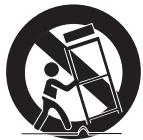
- Use only with the cart, stand, tripod, bracket, or table specified by the manufacturer, or sold with the apparatus. When a cart is used, use caution when moving to combination to avoid in
- Unplug this apparatus during lightning storms or when unused for long periods of time.
- Refer all servicing to qualified service personnel. Servicing is required when the apparatus has been damaged in any way, such as when the power-supply cord or plug is damaged, liquid has been spilled or objects have fallen into the apparatus, the apparatus has been exposed to rain or moisture, does not operate normally, or has been dropped.
Disc Storage & Management
- Holding Discs
- Fingersprints or scratches on a disc may reduce sound and picture quality or cause skipping
- Avoid touching the surface of a disc where data has been recorded.
- Hold the disc by the edges so that fingerprints will not get on the surface.
- Do not stick paper or tape on the disc.
- Cleaning Discs
- If you get fingerprints or dirt on a disc, clean it with a mild detergent diluted in water and wipe with a soft cloth.
- When cleaning, wipe gently from the inside to the outside of the disc.

Handling Cautions
- Do not expose this apparatus to dripping or splashing. Do not put objects filled with liquids, such as vases on the apparatus.
- To turn this apparatus off completely, you must pull the power plug out of the wall socket. Consequently, the power plug must be easily and readily accessible at all times.
- Do not plug multiple electric devices into the same wall socket. Overloading a socket can cause it to overheat, resulting in a fire.
- Before connecting other components to this player, be sure to turn them off.
- If you move your player suddenly from a cold place to a warm place, condensation may occur on the operating parts and lens and cause abnormal disc playback. If this occurs, unplug the player, wait for two hours, and then connect the plug to the power outlet. Then, insert the disc, and try to play back again.
- If the product makes an abnormal noise or produces a burning smell or smoke, turn off the power switch immediately and disconnect the power plug from the wall outlet. Then, contact the nearest customer service center for technical assistance. Do not use the product. Using the product as it is may cause a fire or an electric shock.
Copyright
© 2013 Samsung Electronics Co., Ltd. All rights reserved; No part or whole of this user's manual may be reproduced or copied without the prior written permission of Samsung Electronics Co., Ltd.
Contents
Warning. 2
Precautions 2
Disc Storage & Management 3
Handling Cautions 3
Copyright 3
GETTING STARTED
Before using the User Manual. 4
Logos of Discs the player can play 4
Accessories 6
Front Panel 6
Rear Panel. 6
Remote Control 7
CONNECTIONS
Connecting to a TV. 7
Connecting to an Audio System 8
Connecting to a Network Router 8
SETTINGS
The Initial Settings Procedure. 9
Menu Navigation. 9
Accessing the Settings Menu 9
Display Settings. 9
Audio Settings 10
Network Settings 11
System Settings 12
Language Settings. 13
Security Settings. 13
General Settings 13
Support Settings 13
Playing a Commercially Recorded Disc.....14
Playing Files on a USB Device 14
Playing a Disc with User Recorded Content ..15
Playing Content Located in Your PC............15
Controlling Video Playback 16
Controlling Music Playback. 16
Playing Photo Contents 17
APPENDIX
Troubleshooting 18
Specifications 19
Getting Started
Before using the User Manual
Disc Types and Contents your player can play
| Media | Disc Type | Details |
| VIDEO | Blu-ray Disc | BD-ROM or BD-RE/-R recorded in the BD-RE format. |
| DVD-VIDEO | |
| DVD-RW | DVD-VIDEO, recorded DVD+RW/DVD-RW(V)/DVD-R/+R that have been recorded and finalized, or a USB storage media containing MKV or MP4 contents. |
| DVD-R | |
| DVD+RW | |
| DVD+R | |
| MUSIC | CD-RW/-R, | Music recorded on CD-RW/-R, DVD-RW/-R, BD-RE/-R or a USB storage media containing MP3 or WMA contents. |
| DVD-RW/-R, | |
| BD-RE/-R | |
| PHOTO | CD-RW/-R, | Photos recorded on CD-RW/-R, DVD-RW/-R, BD-RE/-R or a USB storage media containing JPEG contents. |
| DVD-RW/-R, | |
| BD-RE/-R | |

NOTES
- The player may not play certain CD-RW/-R and DVD-R because of the disc type or recording conditions.
- If a DVD-RW/R has not been recorded properly in DVD video format, it will not be playable.
- Your player will not play content that has been recorded on a DVD-R at a bit-rate that exceeds 10 Mbps.
- Your player will not play content that has been recorded on a BD-R or USB device at a bitrate that exceeds 25 Mbps.
- Playback may not work for some types of discs, or when you use specific functions, such as angle change and aspect ratio adjustment. Information about the discs is written in detail on the disc box. Please refer to this if necessary.
- When you play a BD-J title, loading may take longer than a normal title or some functions may perform slowly.
Disc types your player cannot play
HD DVD
DVD-ROM/PD/ MV,etc
DVD-RAM
Super Audio CD (except CD layer)
DVD-RW (VR mode) 3.9 GB DVD-R for
CVD/CD-ROM/ CDV/CD-G/CD-I/LD (CD-Gs play audio only, not graphics.)
Region Code
Both players and discs are coded by region. These regional codes must match for a disc to play. If the codes do not match, the disc will not play.
The Region Code for this player is displayed on the rear panel of the player.
| Disc Type | Region Code | Area |
| Blu-ray Disc | | North America, Central America, South America, Korea, Japan, Taiwan, Hong Kong and South East Asia. |
| DVD-VIDEO | | The U.S., U.S. territories and Canada |
Logos of Discs the player can play

Blu-rayDisc
Blu-ray Disc

BD-LIVE

NTSC broadcast system in U.S.A, Canada, Korea, Japan
Notes on the USB connection
- Your player supports USB storage media, MP3 players, digital cameras, and USB card readers.
- The player does not support folder or file names longer than 128 characters.
- Some USB/External HDD/digital camera devices may not be compatible with the player.
- Your player supports the FAT16, FAT32, and NTFS file systems.
- Connect USB devices directly to the player's USB port. Connecting through a USB cable may cause compatibility problems.
- Inserting more than one memory device into a multi-card reader may cause the reader to operate improperly.
- The player does not support the PTP protocol.
- Do not disconnect a USB device during a "loading" process.
- The bigger the image resolution, the longer the image takes to display.
- This player cannot play MP3 files with DRM (Digital Rights Management) downloaded from commercial sites.
- Your player only supports video with a frame rate under 30fps (frames per second).
- Your player only supports USB Mass Storage Class (MSC) devices such as thumb drives and USB HDD. (HUB is not supported.)
- Certain USB HDD Devices, multi-card readers and thumb drives may not be compatible with this player.
-
If some USB devices require excessive power, they may be limited by the circuit safety device.
-
If playback from a USB HDD is unstable, provide additional power by plugging the HDD into a wall socket.
If the problem continues, contact the USB HDD manufacturer.
- You must remove the USB storage device safely by performing the "Safely Remove USB" function to prevent possible damage to the USB memory.
Press the HOME button to move to the home screen, press the YELLOW (C) button, and then press the C button.
- SAMSUNG is not responsible for any data file damage or data loss.
- Your player does not support NTFS compressed files, sparse files, or encrypted files.
- You can repair or format a USB device on your Desktop PC. (MS-Windows OS only)
Video File Support
| File Extension | Container | Video Codec | Audio Codec | Resolution |
| *.avi | AVI | MP4v3 | MP3 Dolby Digital DTS WMA PCM | 1920x1080 |
| H.264 BP/MP/HP | 1920x1080 |
| *.mkv | MKV | VC-1 AP | MP3 Dolby Digital DTS | 1920x1080 |
| H.264 BP/MP/HP | 1920x1080 |
| *.wmv | WMV (wmv9) | VC-1 AP | WMA | 1920x1080 |
| VC-1 SM | 1920x1080 |
| *.mp4 | MP4 | MP4 (mp4v) | AAC | 1920x1080 |
| H.264 BP/MP/HP | 1920x1080 |
| *.mpg | PS | MPEG1 | MP1, 2 Dolby Digital DTS | 1920x1080 |
| *.mpeg | | MPEG2 | 1920x1080 |
| H.264 BP/MP/HP | 1920x1080 |
- Limitations
- Even when a file is encoded by a supported codec listed above, the file might not be played if its content has a problem.
- Normal playback is not guaranteed if the file's container information is wrong or the file itself is corrupted.
- Files having a higher Bit rate/frame rate than standard may stutter during sound/video playback.
- The Seek (skip) function is not available if the file's index table is damaged.
Video decoder
Supports up to H.264 Level 4.1 and AVCHD
- Does not support H.264 FMO/ASO/RS and VC1 SP/MP/AP L4
-MPEG4SP,ASP:
Below 1280 x 720 : 60 frames max
Above 1280 x 720 : 30 frames max
- Does not support GMC 2 or higher
Audio decoder
- Supports WMA 7, 8, 9 and STD
- Does not support WMA sampling rate of 22050Hz mono.
- AAC: Max sampling rate: 96Khz (8, 11, 12, 16, 22, 24, 32, 44.1, 48, 64, 88.2, 96)
Max bitrate: 320kbps
Music File Support
| File Extension | Container | Audio Codec | Support Range |
| *.mp3 | MP3 | MP3 | - |
| *.wma | WMA | WMA | * Sampling rates (in kHz) - 8, 11, 16, 22, 32, 44.1, 48
* Bit rates - All bit-rates from 5kbps to 355kbps |
Picture File Support
| File Extension | Type | Resolution |
| *.jpg | | |
| *.jpeg | JPEG | 15360x8640 |
| *.jpe | | |
| *.png | PNG | 15360x8640 |
AVCHD (Advanced Video Codec High Definition)
- This player can play back AVCHD format discs. These discs are normally recorded and used in camcorders.
- The AVCHD format is a high definition digital video camera format.
- The MPEG-4 AVC/H.264 format compresses images with greater efficiency than the conventional image compressing format.
- Some AVCHD discs use the "x.v.Color" format. This player can play back AVCHD discs that use "x.v.Color" format.
" x.v.Color" is a trademark of Sony Corporation.
- "AVCHD" and the AVCHD logo are trademarks of Matsushita Electronic Industrial Co., Ltd. and Sony Corporation.

NOTES
- Some AVCHD format discs may not play, depending on the recording condition. AVCHD format discs need to be finalized.
"X.v.Color" offers a wider color range than normal DVD camcorder discs.
- Some MKV and MP4 format discs may not play, depending on the video resolution and frame rate condition.
Accessories
Check for the supplied accessories shown below.

Batteries for Remote Control (AAA Size)
User Manual
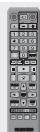
Remote Control
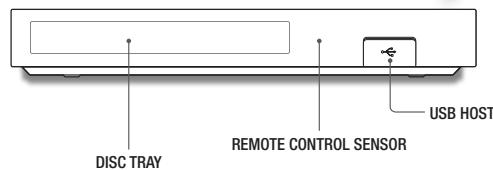
Front Panel
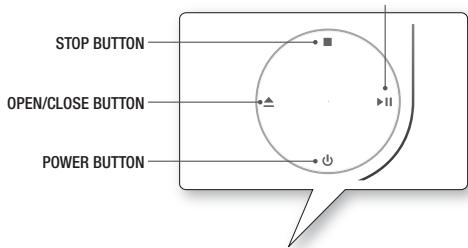
PLAY/PAUSE BUTTON

NOTES
- When the player displays the Blu-ray Disc menu, you cannot start the movie by pressing the Play button on the player or the remote. To play the movie, you must select Play Movie or Start in the disc menu, and then press the button.
- You can perform software upgrades using the USB Host jack with a USB flash memory stick only.
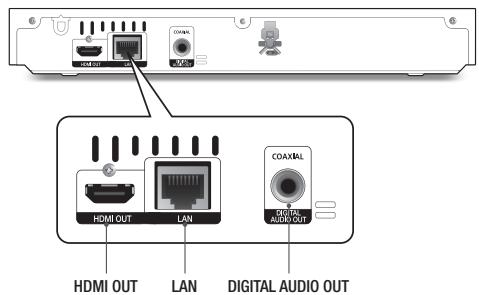
Rear Panel
Remote Control
Tour of the Remote Control
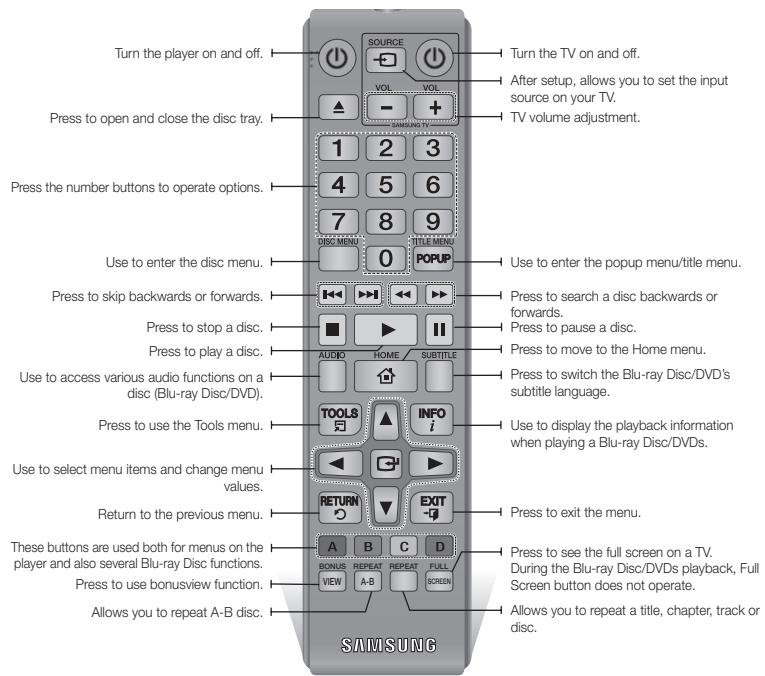
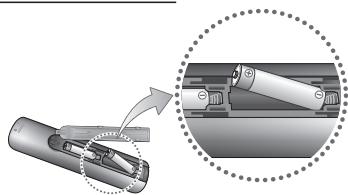
Installing batteries
NOTES
If the remote does not operate properly:
- Check the polarity (+/-) of the batteries.
- Check if the batteries are drained.
- Check if the remote sensor is blocked by obstacles.
- Check if there is any fluorescent lighting nearby.
!CAUTION
- Dispose of batteries according to local environmental regulations. Do not put them in the household trash.
Connections
Connecting to a TV
Connect an HDMI cable (not supplied) from the HDMI OUT jack on the back of the product to the HDMI IN jack on your TV.
- Do not connect the power cord to the wall outlet until you have made all the other connections.
- When you change the connections, turn off all devices before you start.
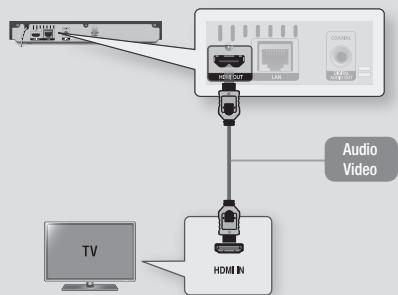

NOTES
- If you use an HDMI-to-DVI cable to connect to your display device, you must also connect the Digital Audio Out on the player to an audio system to hear audio.
- An HDMI cable outputs digital video and audio, so you don't need to connect an audio cable.
- Depending on your TV, certain HDMI output resolutions may not work. Please refer to the user manual of your TV.
- When you connect the player to your TV using the HDMI cable or to a new TV, and then turn it on for the first time, the player automatically sets the HDMI output resolution to the highest supported by the TV.
- A long HDMI cable may cause screen noise. If this occurs, set HDMI Deep Color to Off in the menu.
- To view video in the HDMI 720p, 1080i, or 1080p output mode, you must use a High speed (category 2) HDMI cable.
- HDMI outputs only a pure digital signal to the TV. If your TV does not support HDCP (High-bandwidth Digital Content Protection), random noise appears on the screen.
Connecting to an Audio System
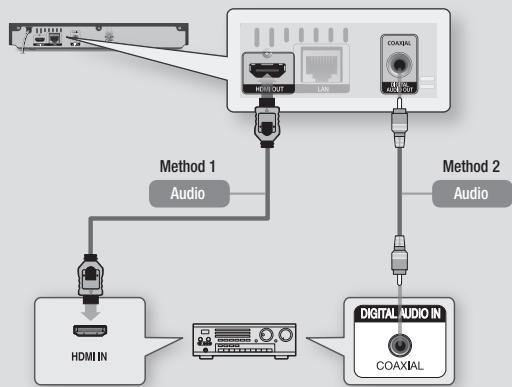
You can connect the Blu-ray player to an audio system using one of the methods illustrated below.
- Do not connect the power cord to the wall outlet until you have made all the other connections.
- When you change the connections, turn off all devices before you start.
Method 1 Connecting to an HDMI supported AV receiver
- Connect an HDMI cable (not supplied) from the HDMI OUT jack on the back of the product to the HDMI IN jack on your receiver.
Best quality (Recommended)
Method 2 Connecting to an AV receiver with Dolby Digital or a DTS decoder
- Using a digital Coaxial cable (not supplied), connect the Coaxial Digital Audio Out jack on the product to the Digital Coaxial In jack of the receiver.
Good quality
- You will hear sound only through the front two speakers with Digital Output set to PCM.
Connecting to a Network Router
You can connect your player to your network router using one of the methods illustrated below. To use the DLNA network functionality, you must connect your PC to your network as shown in the illustrations.
Wired Network
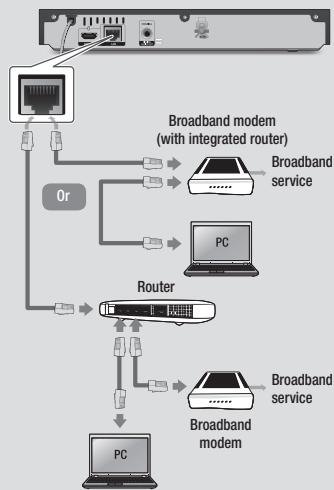

NOTES
- Internet access to Samsung's software update server may not be allowed, depending on the router you use or your ISP's policy. For more information, contact your ISP (Internet Service Provider).
- DSL users, please use a router to make a network connection.
Settings
The Initial Settings Procedure
- The Home screen will not appear if you do not configure the initial settings.
- The OSD (On Screen Display) may change in this player after you upgrade the software version.
- The access steps may differ depending on the menu you selected.
- After the initial settings process is complete, you can then operate the panel buttons and remote control.
The Initial Settings Procedure appears when you turn on player for the first time and lets you set the OSD and menu languages, configure the connection to your home network, and choose the aspect ratio output (screen size and format) that is correct for your TV. Follow the directions that appear on the screen.

NOTES
The Home menu will not appear if you do not configure the initial settings except as noted below.
If you press the BLUE (D) button during network setup, you can access the Home menu even if the network setup is not completed yet.
- When you return to the Home menu, the full screen mode is cancelled automatically.
- If you want to display the Initial Setting screen again to make changes, press the button on the front panel of the player for more than 5 seconds with no disc inserted. This resets the player to its default settings.
After the initial settings process is complete, you can operate the HDMI-CEC function.
If you want to use the Anynet+ (HDMI-CEC) function to aid in the initial set up process, please follow the instructions below. 1) Connect the player to an Anynet+ (HDMI- CEC) compliant Samsung TV using HDMI Cable. 2) Set the Anynet ^+ (HDMI-CEC) feature to On in both the TV and the player. 3) Set the TV to the Initial Settings Procedure.
If you leave the player in the stop mode for more than 5 minutes without using it, a screen saver will appear on your TV. If the player is left in the screen saver mode for more than 25 minutes, the power will automatically turn off.
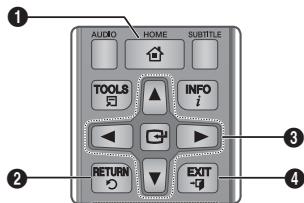
| 1 | HOME Button: Press to move to the Home menu. |
| 2 | RETURN Button: Return to the previous menu. |
| 3 | Enter/DIRECTION Button:
Move the cursor or select an item.
Activate the currently selected item.
Confirm a setting. |
| 4 | EXIT Button: Press to exit the current menu. |
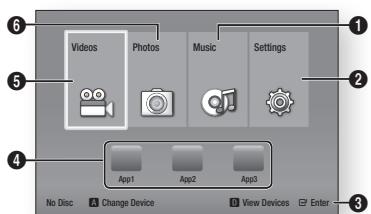
Home Menu
| 1 | Selects Music. |
| 2 | Selects Settings. |
| 3 | Displays the buttons you can use on the remote to access functions. |
| 4 | Selects applications. |
| 5 | Selects Videos. |
| 6 | Selects Photos. |

NOTES
- The Videos, Photos, and Music options require that you have an appropriate disc inserted into the player or a USB flash device attached to the player.
To access the Settings menu and sub-menus, follow these steps:
- Press the POWER button. The Home Menu appears.
- Press the buttons to select Settings, and then press the button.
- Press the buttons to select the desired submenu, and then press the button.
- Press the buttons to select the desired item, and then press the button.
- Press the EXIT button to exit the menu.

NOTES
- The access steps may differ depending on the menu you selected. The OSD (On Screen Display) may change in this player after you upgrade the software version.
Display Settings
You can configure various display options such as the TV Aspect Ratio, Resolution, etc.
TV Aspect Ratio
Depending on the type of television you have, you may want to adjust the screen size setting.

NOTES
- Depending on the disc type, some aspect ratios may not be available.
- If you select an aspect ratio and option which is different than the aspect ratio of your TV screen, the picture might appear to be distorted.
BD Wise (Samsung TVs only)
BD Wise is Samsung's latest inter-connectivity feature.
When you connect a Samsung player and a Samsung TV with BD Wise to each other via HDMI, and BD Wise is on in both the player and TV, the player outputs video at the video resolution and frame rate of the Blu-ray Disc/DVDs.

NOTES
- When BD Wise is on, the Resolution setting automatically defaults to BD Wise and BD Wise appears in the Resolution menu.
- If the player is connected to a device that does not support BD Wise, you cannot use the BD Wise function.
For proper operation of BD Wise, set the BD Wise menu of both the player and the TV to On.
Resolution
Lets you set the output resolution of the HDMI video signal to Auto, 1080p, 1080i, 720p or 480p. The number indicates the number of lines of video per frame. The i and p indicate interlaced and progressive scan, respectively. The more lines, the higher the quality.
Resolution according to the output mode
- Blu-ray Disc/E-contents/Digital Contents playback
| Output Setup | HDMI / connected |
| HDMI Mode |
| Blu-ray Disc | E-contents/ Digital contents |
| BD Wise | Resolution of Blu-ray Disc | 1080p |
| Auto | Max. Resolution of TV input | Max. Resolution of TV input |
| 1080p@60F (Movie Frame : Off) | 1080@60F | 1080@60F |
| Movie Frame : Auto (24Fs) | 1080@24F | 1080p@24F |
| 1080i | 1080i | 1080i |
| 720p | 720p | 720p |
| 480p | 480p | 480p |
DVD playback
| Output Setup | HDMI / connected |
| HDMI Mode |
| BD Wise | 480i |
| Auto | Max. Resolution of TV input |
| 1080p | 1080p |
| 1080i | 1080i |
| 720p | 720p |
| 480p | 480p |
NOTES
- If the TV you connected to the player does not support Movie Frame or the resolution you selected, the message "If no pictures are shown after selecting 'Yes', please wait for 15 seconds to return to the previous resolution. Do you want to change the resolution?" appears. If you select Yes, the TV's screen will go blank for 15 seconds, and then the resolution will revert to the previous resolution automatically.
- If the screen stays blank after you have changed the resolution, remove all discs, and then press and hold the button on the front of the player for more than 5 seconds. All settings are restored to the factory default. Follow the steps on the previous page to access each mode and select the Display Setup that your TV will support.
- When the factory default settings are restored, all stored user BD data is deleted.
- The Blu-ray Disc must have the 24 frame feature for the player to use the Movie Frame (24Fs) mode.
Movie Frame (24Fs)
Setting the Movie Frame (24Fs) feature to Auto allows you to adjust the player's HDMI output to 24 frames per second for improved picture quality.
You can enjoy the Movie Frame (24Fs) feature only on a TV supporting this frame rate.
You can select Movie Frame only when the player is in the HDMI 1080i or 1080p output resolution modes.
Lets you set the color space format for HDMI output to match the capabilities of the connected device (TV, monitor, etc).
HDMI Deep Color
Lets you output video from the HDMI OUT jack with Deep Color. Deep Color provides more accurate color reproduction with greater color depth.
Progressive Mode
Lets you improve picture quality when viewing DVDs.
Audio Settings
Digital Output
Lets you select the digital audio output format that is suitable for your TV or AV Receiver. For more details, please refer to the Digital Output Selection table below.
Digital Output Selection
| Setup | PCM | Bitstream(Unprocessed) | Bitstream(Re-encodedDTS) | Bitstream(Re-encodedDolby D) |
| Connection | HDMIReceiver | Coaxial | HDMIReceiver | Coaxial | HDMI Receiver orCoaxial | HDMI supportedAV receiver orCoaxial |
| Audio Streamon Blu-rayDisc | PCM | Up to 7.1ch | PCM 2ch | PCM | PCM 2ch | Re-encoded DTS | Re-encodedDolby Digital * |
| Dolby Digital | PCM 2ch | PCM 2ch | Dolby Digital | Dolby Digital | Re-encoded DTS | Re-encodedDolby Digital * |
| Dolby Digital Plus | PCM 2ch | PCM 2ch | Dolby DigitalPlus | Dolby Digital | Re-encoded DTS | Re-encodedDolby Digital * |
| Dolby TrueHD | PCM 2ch | PCM 2ch | Dolby TrueHD | Dolby Digital | Re-encoded DTS | Re-encodedDolby Digital * |
| DTS | PCM 2ch | PCM 2ch | DTS | DTS | Re-encoded DTS | Re-encodedDolby Digital * |
| DTS-HD HighResolution Audio | PCM 2ch | PCM 2ch | DTS-HD HighResolutionAudio | DTS | Re-encoded DTS | Re-encodedDolby Digital * |
| DTS-HD MasterAudio | PCM 2ch | PCM 2ch | DTS-HDMaster Audio | DTS | Re-encoded DTS | Re-encodedDolby Digital * |
| Audio Streamon DVD | PCM | PCM 2ch | PCM 2ch | PCM 2ch | PCM 2ch | PCM 2ch | PCM 2ch |
| Dolby Digital | PCM 2ch | PCM 2ch | Dolby Digital | Dolby Digital | Dolby Digital | Dolby Digital |
| DTS | PCM 2ch | PCM 2ch | DTS | DTS | DTS | DTS |
| Definition forBlu-ray Disc | Any | Decodes main featureaudio and BONUSVIEWaudio stream togetherinto PCM audio and AddNavigation Sound Effects. | Outputs only main featureaudio stream so that yourAV receiver can decode theaudio bitstream.You will not hear BONUSVIEWaudio and NavigationSoundEffects. | Decodes main featureaudio andBONUSVIEW audio stream together into PCM audio and addNavigationSound Effects, then re-encodes thePCM audio into DTSbitstream | Decodes main feature audio andBONUSVIEW audio stream together into PCM audio and addNavigationSound Effects, then re-encodes the PCM audio into DolbyDigital bitstream |
- If Source Stream is 2ch, "Re-encoded Dolby D" Settings are not applied.
Blu-ray Discs may include three audio streams :
- Main Feature Audio : The audio soundtrack of the main feature.
- BONUSVIEW audio : An additional soundtrack such as the director or actor's commentary.
- Navigation Sound Effects : When you choose a menu navigation selection, a Navigation Sound Effect may sound. Navigation Sound Effects are different on each Blu-ray Disc.

NOTES
- Be sure to select the correct Digital Output or you will hear no sound or just loud noise.
- If the HDMI device (AV receiver, TV) is not compatible with compressed formats (Dolby Digital, DTS), the audio signal outputs as PCM.
- Regular DVDs do not have BONUSVIEW audio and Navigation Sound Effects.
Some Blu-ray Discs do not have BONUSVIEW audio and Navigation Sound Effects.
- If you play MPEG audio soundtracks, the audio signal outputs as PCM regardless of your Digital Output selections (PCM or Bitstream).
- If your TV is not compatible with compressed multi-channel formats (Dolby Digital, DTS), the player may output PCM 2ch downmixed audio even though you selected Bitstream (either Re-encoded or Unprocessed) in the setup menu.
- If your TV is not compatible with PCM sampling rates over 48kHz , the player may output 48kHz downsampled PCM audio even though you set PCM Downsampling to Off.
PCM Downsampling
Lets you choose to have 96KHz PCM signals downsampled to 48KHz before they are outputted to an amplifier. Choose only if your amplifier or receiver is not compatible with a 96KHz signal.
Dynamic Range Control
Lets you apply dynamic range control to Dolby Digital, Dolby Digital Plus, and Dolby True HD audio.
- Auto: Automatically controls the dynamic range of Dolby TrueHD audio, based on information in the Dolby TrueHD soundtrack.
Also turns dynamic range control on for Dolby Digital and Dolby Digital Plus.
- Off : Leaves the dynamic range uncompressed, letting you hear the original sound.
- On: Turns dynamic range control on for all three Dolby formats. Quieter sounds are made louder and the volume of loud sounds is reduced.
Downmixing Mode
Lets you select the multi-channel downmix method that is compatible with your stereo system. You can choose to have the player downmix to normal stereo or to surround compatible stereo.
Network Settings
Please contact your ISP to find out if your IP address is static or dynamic. If it is dynamic - and most are - we recommend using the Auto procedure for network setup. This is easiest and will work in the majority of cases. If it is static, you must use the manual set up procedure.
Network setup directions start below.

NOTES
- This unit can only be connected to a Network via a wired connection.
Wired Network Settings
- In the Home menu, press the buttons to select Settings, and then press the button.
- Press the buttons to select Network, and then press the button.
- Press the buttons to select Wired Network Settings, and then press the button. The Wired Network Settings screen appears.
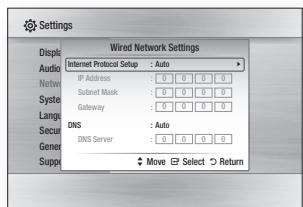
- In the Internet Protocol Setup field, select Auto if it is not selected. (Press to select Auto, and then press.)
- The Auto Function acquires and fills in the values for IP Address, Subnet Mask, etc., automatically.

NOTES
This process can take up to five minutes.
- After the Network Function has acquired the network values, press the RETURN button.
- Select Network Test, and then press to ensure the player has connected to your network.
- When the Network Test is complete, press the RETURN twice to return to the Main Menu.
- If the Network Function does not acquire the network values, go to the directions for Manual Setup.
Manual Network Setup
Before you start manual network setup, you need the network setting values.
To get the network setting values, contact your ISP (Internet Service Provider) or your network administrator.
To enter the Network Settings into your player, follow these steps:
- In the Home menu, press the buttons to select Settings, and then press the button.
-
Press the buttons to select Network, and then press the button.
-
Press the buttons to select Wired Network Settings, and then press the button. The Wired Network Settings screen appears.
- Select the Internet Protocol Setup field, and then press the button.
- Press the buttons to select Manual, and then press the button.
- Press the button to go to the first entry field (IP Address).
- Use the number buttons on your remote to enter numbers.
- When done with each field, use the button to move to the next field. You can also use the other arrow buttons to move up, down, and back.
- Enter the IP Address, Subnet Mask, and Gateway values in the same way.
- Press the button to go to DNS.
- Press the button to go to the first DNS entry field.
- Enter the numbers as above.
- Press the RETURN button on your remote control.
- Run a Network Test to ensure the player has connected to your network.
Network Test
Use this menu item to check whether your network connection is working or not.
Network Status
Use to check whether a connection to a network and the Internet has been established.
BD-Live Internet Connection
Set to allow or prohibit an Internet connection when you use the BD-LIVE service.
- Allow (All): The Internet connection is allowed for all BD-LIVE contents.
- Allow (Valid Only): The Internet connection is allowed only for BD-LIVE contents containing a valid certificate.
- Prohibit: No Internet connection is allowed for any BD-LIVE content.

NOTES
What is a valid certificate?
When the player uses BD-LIVE to send the disc data and a request to the server to certify the disc, the server uses the transmitted data to check if the disc is valid and sends the certificate back to the player.
The Internet connection may be restricted while you are using BD-LIVE contents.
Using BD-LIVE™
Once the player is connected to the network, you can enjoy various movie-related service contents using a BD-LIVE compliant disc.
- Attach a USB memory stick to the USB jack on the front of the player, and then check its remaining memory. The memory device must have at least 1GB of free space to accommodate the BD-LIVE services.
- Insert a Blu-ray Disc that supports BD-LIVE.
- Select an item from various BD-LIVE service contents provided by the disc manufacturer.

NOTES
- The way you use BD-LIVE and the provided contents may differ, depending on the disc manufacturer.
The DLNA Function
DLNA lets you play music, video, and photo files located in your PC or NAS on the player.
To use DLNA with your player, you must connect the player to your network. (See pages 11~12).
To use DLNA with your PC, you must install DLNA software on your PC.
If you have NAS, you can use DLNA without any additional software.
To download DLNA software
- Go to Samsung.com
- Click Support, enter your player's product number in the field that appears, and then click Product.
- On the next screen, click Get downloads under Downloads.
- Click Software on the next page.
- Click the icon in the DLNA line under File to start the download.
For instructions explaining how to play content located on your PC, see pages 15~16.
System Settings
Initial Settings
By using the Initial Settings function, you can set the language, Network Settings, etc.
For more information about the Initial Settings function, refer to the Initial Settings section of this user manual (page 9).
Quick Start
You can turn on the power quickly by decreasing the boot time.
NOTES
- If this function is set to On, Standby power consumption will be increased.
Anynet+ (HDMI-CEC)
Anynet+ is a convenient function that offers linked operations with other Samsung players that have the Anynet+ feature.
To operate this function, connect this player to an Anynet+ Samsung TV with an HDMI cable. With Anynet+ on, you can operate this player using a Samsung TV remote control and start disc playback simply by pressing the PLAY
( l ) button on the TV's remote control. For more information, please see the TV user manual.

NOTES
This function is not available if the HDMI cable does not support CEC.
- If your Samsung TV has an Anynet+ logo, then it supports the Anynet+ function.
- Depending on your TV, certain HDMI output resolutions may not work. Please refer to the user manual of your TV.
Language Settings
You can select the language you prefer for the Home menu, disc menu, audio, and subtitles.

NOTES
- The selected language will only appear if it is supported on the disc.
Security Settings
When you access this function for the first time, the PIN screen appears. Enter the default PIN - 0000 - using the number buttons. To change the PIN, use the Change PIN function (page 13). Each time you access the Security Settings hereafter, you must enter that four digit PIN. If you don't change the PIN, continue using the default PIN.
BD Parental Rating
Prevents playback of Blu-ray Discs with specific age ratings unless the 4 digit PIN is entered.
DVD Parental Rating
This function works in conjunction with DVDs that have been assigned an age rating or numeric rating that indicates the maturity level of the content. These numbers help you control the types of DVDs that your family can watch. Select the rating level you want to set. For example, if you select Level 6, discs rated above 6 - Level 7 and 8 - will not play. A larger number indicates more mature content. When the DVD Parental Rating function is on, you must enter the 4 digit PIN to play discs with restricted rating levels.
Change PIN
Change the 4-digit password used to access security functions.
To change the PIN, follow these steps:
- Select Change PIN, and then press the button. The Enter old PIN screen appears.
- Enter the old PIN. If you never changed the PIN, enter the default PIN: 0000. The Enter new PIN screen appears.
- Enter the new PIN in the Enter new PIN fields.
- Re-enter the new PIN in the Confirm new PIN fields. The "PIN is changed successfully." message appears.
- Press the button.
If you forget your password
- Remove any discs.
- Press and hold the button on the front panel for 5 seconds or more. All settings will revert to the factory settings.
NOTES
- When the factory default settings are restored, all the user stored BD data will be deleted.
General Settings
Time Zone
Lets you specify the time zone that is applicable to your area.
Support Settings
Software Upgrade
The Software Upgrade menu allows you to upgrade the player's software for performance improvements or additional services.
By Online
To upgrade By Online, follow these steps:
- Select By Online, and then press the button. The Connecting to Server message appears.
- A popup message will appear if an update is available.
- If you select Yes, the player will turn off automatically before restarting. (Never turn the player on or off manually during an upgrade.)
- The update progress popup will appear. When the update is completed, the player will turn off automatically.
- Press the POWER button to turn on the player.
NOTES
- The Update is complete when the player turns off after restarting. Press the POWER button to turn on the updated player for your use.
- Never turn the player off or back on manually during the update process.
Samsung Electronics takes no legal responsibility for player malfunction caused by an unstable Internet connection or consumer negligence during a software upgrade.

By USB
To upgrade by USB, follow these steps:
- Visit www.samsung.com/bluraysupport.
- Download the latest USB software upgrade zip archive to your computer.
- Unzip the zip archive to your computer. You should have a single RUF file with the same name as the zip file.
- Copy the RUF file to a USB flash drive.
- Make sure there is no disc in the player, and then insert the USB flash drive into the USB port of the player.
- In the player's menu, go to Settings > Support > Software Upgrade.
- Select By USB.
NOTES
- No disc should be in the product when you upgrade the software using the USB Host jack.
- When the software upgrade is done, check the software details in the software Upgrade menu.
- Do not turn off the player during the software upgrade. It may cause the player to malfunction.
- Software upgrades using the USB Host jack must be performed with a USB flash memory stick only.
Auto Upgrade Notification
If you have connected the player to your network, and then set Auto Upgrade Notification on, the player automatically notifies you when a new software version is available for the player.
To set Auto Upgrade Notification on, follow these steps:
- Select Auto Upgrade Notification, and then press the button.
- Use the buttons to select On, and then press the button.
If there is a new software version available, the player notifies you with a popup message.
- To upgrade the firmware, select Yes in the Pop-up. The player turns off automatically, then restarts, and begins the download. (Never turn the player on or off manually during an upgrade.)
- The update progress popup appears.
- When the update is complete, the player turns off again automatically.
- Press the POWER button to turn on the player.
NOTES
- The update is complete when the player turns off after restarting. Press the POWER button to turn on the updated player for your use.
- Never turn the player off or on manually during the update process.
Samsung Electronics takes no legal responsibility for player malfunction caused by an unstable Internet connection or consumer negligence during software upgrade.
Provides contact information for assistance with your player.
Terms of Service Agreement
Lets you view the general disclaimer regarding third party contents and services.
Reset
Returns all settings to their factory defaults except for the network settings.
Playing a Commercially Recorded Disc
- Press the 4 button to open the disc tray.
- Place a disc gently into the disc tray with the disc's label facing up.
- Press the button to close the disc tray. Playback starts automatically.
Playing Files on a USB Device
You can play multimedia files located on a USB storage device.
- Move to the Home menu.
- In Stop mode, connect the USB storage device to the USB port on the front panel of the player. The message "Do you want to access the device?" is displayed.
- Press the button to select Yes, and then press the button.
- If you have a disc in the Blu-ray player, press the RED (A) or BLUE (D) button. If you do not, go to Step 6. If you pressed the RED (A) button, go to Step 5. If you pressed the BLUE (D) button, go to Step 5-1.
- Press the buttons to select USB, and then press the button.
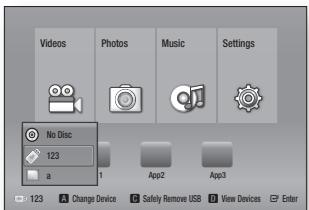
- Press the buttons to select Videos, Music, or Photos, and then press the button. Go to Step 7.
5-1. Press the buttons to select USB, then press the button.
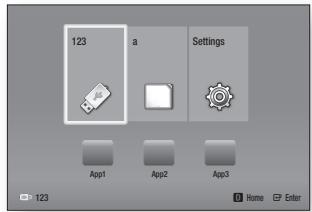
6-1. Press the buttons to select Videos, Music or Photos, and then press the button.
7. A screen appears listing the contents of the device. Depending on how the contents are arranged, you will see either folders, individual files, or both.
8. If necessary, use the buttons to select a folder, and then press the button.
9. Use the buttons to select a file to view or play, and then press the button.

NOTES
-
Even though the player will display folders for all content types, it will only display files of the Content Type you selected in Step 6 or Step 6-1. For example, if you selected music, you will only be able to see music files. You can change this selection by returning to the Home screen and following the directions from Step 4.
-
Press the RETURN button one or more times to exit a current screen, exit a folder, or to return to the Home screen. Press the EXIT button to return directly to the Home Screen.
- The controls and tools you use to control and play videos, music, and pictures located on a USB device are identical to those you use to play videos, music, and pictures on a disc. Go to pages 15~17 for instructions.

NOTES
- You must remove the USB storage device safely by performing the "Safely Remove USB" function in order to prevent possible damage to the USB memory. Press the MENU button to move to the Home menu, select the YELLOW (C) button, and then press the button.
- If you insert a disc when playing a USB storage device, the device mode changes to Blu-ray, DVD or CD automatically.
Playing a Disc with User Recorded Content
You can play multimedia files you have recorded on Blu-ray, DVD, or CD discs.
- Place a user recorded disc into the disc tray with the disc's label facing up, and then close the tray. The Device Connected pop-up appears.
- Use the buttons to select the type of content you want to view or play - Videos, Photos, or Music - and then press the button.

NOTES
Even though the player will display folders for all content types, it will only display files of the Content Type you selected in Step 2. For example, if you selected music, you will only be able to see music files. You can change this selection by returning to the Home screen and repeating Step 2.
3. A screen appears listing the contents of the disc. Depending on how the contents are arranged, you will see either folders, individual files, or both.
4. If necessary, use the buttons to select a folder, and then press the button.
5. Use the buttons to select a file to view or play, and then press the button.
6. Press the RETURN button one or more times to exit a current screen, exit a folder, or to return to the Home screen. Press the EXIT button to return directly to the Home Screen.
7. Go to pages 15~17 for instructions that explain how to control playback of videos, music, and pictures on a disc.
Playing Content Located in Your PC
To play content located in your PC on your Blu-ray disc player, you must connect the Blu-ray player to your network. (See pages 11~12.) and install DLNA Software on your PC.
To Play Content From Your PC
- Go to the Home Menu.
- Press the BLUE (D) button on your remote (Device).
- In the Device screen that appears, select your PC, and then press the button.
- Use the buttons to select the type of content you want to view or play - Videos, Photos, or Music - and then press the button.

NOTES
-
Even though the player will display folders for all content types, it will only display files of the Content Type you selected in Step 4. For example, if you selected music, you will only be able to see music files. You can change this selection by returning to the Home screen and repeating Step 4.
-
A screen appears listing the contents on your PC. Depending on how the contents are arranged, you will see either folders, individual files, or both.
- If necessary, use the buttons to select a folder, and then press the button.
-
Use the buttons to select a file to view or play, and then press the button.
-
Press the RETURN button one or more times to exit a current screen, exit a folder, or to return to the Home screen. Press the EXIT button to return directly to the Home Screen.
- Go to pages 15~17 for instructions that explain how to control playback of videos, music, and pictures on a PC.
Controlling Video Playback
You can control the playback of video content located on a Blu-ray disc, DVD, CD, USB device, or you computer. Depending on the media, some of the functions described in this manual may not be available.
During Blu-ray or DVD disc playback, the Full screen button does not operate.
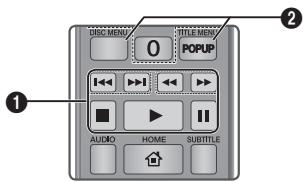
The player does not play sound in Search, Slow or Step mode.
- To return to normal speed playback, press the button.
| 按钮 | Starts playback. |
| 按钮 | Stops playback. |
| 按钮 | Pauses playback. |
| Fast Motion Play | During playback, press the <or button.
Each time you press the <or button, the playback speed will change. |
| Slow Motion Play | In pause mode, press the > button.
Each time you press the > button, the playback speed will change. |
| Step Motion Play | In pause mode, press the button.
Each time you press the button, a new frame appears. |
| Skip Motion Play | During playback, press the <or button.
Each time you press the <or button, the disc moves to the previous or next chapter or file. |
Using the disc menu, title menu, dropdown menu, and title list
| DISC MENU button | During playback, press this button to start the disc menu function. |
| TITLE MENU button | During playback, press this button to start the title menu function. |
| POUP MENU button | During playback, press this button to start the popup menu function. |
Controlling Music Playback
You can control the playback of music located on a Blu-ray disc, DVD, CD, USB device, or your computer.
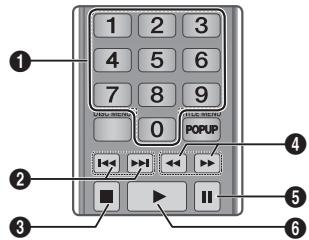
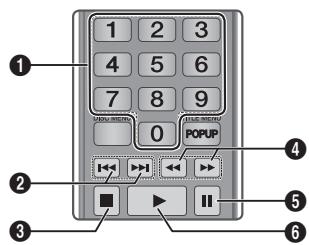
| 1 | NUMBER buttons (Audio CD (CD-DA) only):
During Playlist playback, press the desired track number.
The selected track is played. |
| 2 | Skip: During playback, press the ➔ or ➔ button to move to the previous or next file of the playlist. |
| 3 | ● button: Stops a track. |
| 4 | Fast Play (Audio CD (CD-DA) only)
During playback, press the ➔ or ➔ button.
Each time you press the ➔ or ➔ button, the playback speed will change. |
| 5 | Pause: Pauses a track. |
| 6 | ● button: Plays the currently selected track. |
Repeat an Audio CD (CD-DA)/ MP3
- During Playlist playback, press the TOOLS button.
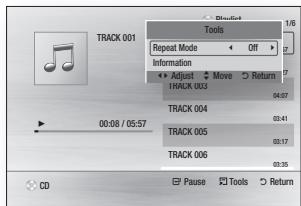
- Press the buttons to select Track, All, Shuffle, or Off.
- Press the button.
| Off | Songs are played in the order in which they were recorded. |
| (CD) Track | The current song is repeated. |
| (CD) All | All songs are repeated. |
| (XX) Shuffle | Shuffle plays songs in random order. |
Playlist
- To move to the Music List, press the or RETURN button. The Music List screen appears.
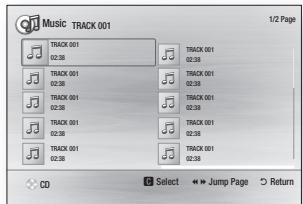
- Press the buttons to move to a desired track, and then press the YELLOW (C) button. A check appears on the track. Repeat this procedure to select additional tracks.
- To remove a track from the list, move to the track, and then press the YELLOW (C) button again. The check on the track is cancelled.
- When done, press the button. The tracks you selected are displayed on the right side of the screen. The player plays the first track.
- To change the play list, press the RETURN button to return to the Music List. Repeat Steps 2, 3, and 4.
- To cancel the play list and return to the Home screen, press the RETURN or EXIT button.

NOTES
- You can create a playlist with up to 99 tracks on Audio CDs (CD-DA).
- If you remove all the tracks from a play list and then press the button, the player lists and plays all the tracks on the disc.
Playing Photo Contents
You can control the playback of photo content located on a Blu-ray disc, DVD, CD, USB device, or your computer.
During playback, press the TOOLS button.
| Start Slide Show/ Stop Slide Show | Select to start or stop the slide show. |
| Slide Show Speed | Select to set a slide show's speed. |
| Background Music | Select to listen to music while viewing a slide show. |
| Zoom | Select to enlarge the current picture. (Enlarge up to 4 times) |
| Rotate | Select to rotate the picture. (This will rotate the picture either clockwise or counter clockwise.) |
| Information | Shows the picture information. |

NOTES
Depending on the disc or storage device, the Tools menu may differ.
- To enable the background music function, the photo file must be in the same storage media as the music file. However, the sound quality can be affected by the bit rate of the MP3 file, the size of the photo, and the encoding method.
- You can't enlarge the subtitle and PG graphic in the full screen mode.
Appendix
Troubleshooting
Before requesting service, please try the following solutions.
| PROBLEM | SOLUTION |
| No operation can be performed with the remote control. | ·Check the batteries in the remote control. They may need replacing.
·Operate the remote control at a distance of no more than 20 feet from the player.
·Remove batteries and hold down one or more buttons for several minutes to drain the microprocessor inside the remote control to reset it. Reinstall batteries and try to operate the remote control again. |
| Disc does not play. | ·Ensure that the disc is installed with the label side facing up.
·Check the region number of the Blu-ray Disc/DVD. |
| Disc Menu does not appear. | ·Ensure that the disc has disc menus. |
| The prohibition message appears on the screen. | ·This message appears when an invalid button is pressed.
·The Blu-ray Disc/DVD's software doesn't support the feature (e.g., angles).
·You've requested a title or chapter number or search time that is out of range. |
| Play mode differs from the Setup Menu selection. | ·Some of the functions selected in the Setup Menu may not work properly if the disc is not encoded with the corresponding function. |
| The screen ratio cannot be changed. | ·The Screen Ratio is fixed on your Blu-ray Disc/DVD.
·This is not a problem with the player. |
| No audio. | ·Make sure you have selected the correct Digital Output in the Audio Options Menu. |
| The screen is blank. | ·If the HDMI output is set to a resolution your TV cannot support (for example, 1080p), you may not see a picture on your TV.
·Press the ■ button (on front panel) for more than 5 seconds with no disc inside. All settings will revert to the factory settings.
·When the factory default settings are restored, all stored user BD data is deleted. |
| PROBLEM | SOLUTION |
| Forgot password | • Press the ■ button (on front panel) for more than 5 seconds with no disc inside. All settings including the password will revert to the factory settings. Don't use this unless absolutely necessary.
• When the factory default settings are restored, all stored user BD data is deleted. |
| The picture is noisy or distorted | • Make sure that the disc is not dirty or scratched.
• Clean the disc. |
| No HDMI output. | • Check the connection between the TV and the HDMI jack of the player.
• Check if your TV supports 480p, 720p, 1080i, or 1080p HDMI input resolutions. |
| Abnormal HDMI output screen. | • If random noise appears on the screen, it means that TV does not support HDCP (High-bandwidth Digital Content Protection). |
| If you experience other problems. | • Go to the contents and find the section of the user manual that contains the explanations regarding the current problem, and follow the procedure once again.
• If the problem still cannot be solved, please contact your nearest Samsung authorized service center. |
| DLNA function | |
| I can see folders shared through DLNA, but I cannot see the files. | • DLNAs shows only files corresponding to the Image, Music, and Movie categories. Files that do not correspond to these categories are not displayed. |
| Video is played intermittently. | • Check if the network is stable.
• Check if the network cable is properly connected and if the network is overloaded. |
| DLNA connection between Player and PC is unstable. | • The IP address under the same subnetwork should be unique. If they are not, IP interference can cause this phenomenon.
• Check if you have a firewall enabled. If so, disable the firewall function. |
| BD-LIVE | |
| I cannot connect to the BD-LIVE server. | ·Check whether the network connection is working or not by using the Network Status menu.
·Check whether the USB memory device is connected to the player.
·The memory device must have at least 1GB of free space to accommodate the BD-LIVE service.
You can check the available size in BD Data Management.
·Check whether the BD-LIVE Internet Connection menu is set to Allow(All).
·If all above fails, contact the contents provider or update the player to the latest firmware. |
| When using the BD-LIVE service, an error occurs. | ·The memory device must have at least 1GB of free space to accommodate the BD-LIVE service.
You can check the available size in BD Data Management. |

NOTES
- When the factory default settings are restored, all stored user BD data is deleted.
Repairs
If you contact us to repair your player, an administration fee may be charged if either:
- An engineer is called out to your home at your request and there is no defect in the product.
- You bring the unit to a repair center and there is no defect in the product.
We will provide you with the amount of the administration fee before we make a home visit or begin any work on your player.
We recommend you read this manually thoroughly, search for a solution on line at www.samsung.com, or contact Samsung Customer Care before seeking to repair your player.

| Specifications |
| General | Weight | 2.2 lbs |
| Dimensions | 10.6 (W) X 7.6 (D) X 1.6 (H) inches |
| Operating Temperature Range | +41°F to +95°F |
| Operating Humidity Range | 10 % to 75 % |
| USB | Type A | USB 2.0 |
| DC output | 5V 500mA Max. |
| HDMI | Video | 1080p, 1080i, 720p, 480p |
| Audio | PCM, Bitstream |
| Audio Output | Digital Audio Output | Coaxial |
| Network | Ethernet | 100BASE - TX Terminal |
- Network speeds equal to or below 10Mbps are not supported.
- Design and specifications are subject to change without prior notice.
- For the power supply and power consumption, refer to the label attached to the player.
- Weight and dimensions are approximate.
Compliance and Compatibility Notice
NOT ALL discs are compatible
- Subject to the restrictions described below and those noted throughout this Manual, including the Disc Type and Characteristics section of this user manual, disc types that can be played are: pre-recorded commercial BD-ROM, DVD-VIDEO, and Audio CD (CD-DA) discs; BD-RE/-R, DVD-RW/-R discs; and CD-RW/-R discs.
- Discs other than those listed above cannot be and are not intended to be played by this player. Some of the discs listed above may not play due to one or more reasons provided below.
- Samsung cannot assure that this player will play every disc bearing the BD-ROM, BD-RE/-R, DVD-VIDEO, DVD-RW/-R, DVD+RW/+R and CD-RW/-R logos, and this player may not respond to all operating commands or operate all features of every disc. These and other disc compatibility and player operation issues with new and existing format discs are possible because:
- Blu-ray is a new and evolving format and this player may not operate all features of Blu-ray Discs because some features may be optional, additional features may have been added to the Blu-ray Disc format after the production of this player, and certain available features may be subject to delayed availability;
- not all new and existing disc format versions are supported by this player;
- new and existing disc formats may be revised, changed, updated, improved and/or supplemented;
- some discs are produced in a manner that allows specific or limited operation or restricts features during playback;
- some discs bearing the BD-ROM, BD-RE/-R, DVD-VIDEO, DVD-RW/-R, DVD+RW/+R and CD-RW/-R logos may still be non-standardized discs;
- some discs may not be played depending on their physical state or recording conditions;
- problems and errors can occur during the creation of Blu-ray Disc or DVD software and/or the manufacture of discs;
- this player operates differently than a standard DVD player or other AV equipment; and/or
- for reasons noted throughout this user manual and for other reason(s) discovered and posted by SAMSUNG customer care center.
- If you encounter disc compatibility or player operation problems, please contact SAMSUNG customer care center.
You may also contact SAMSUNG customer care center for possible updates on this player.
-
For additional information on playback restrictions and disc compatibility, refer to the Precautions, Before Reading the user manual, Disc Types and Characteristics, and Before Playing sections of this user manual.
-
For Blu-ray Disc Player progressive scan output : CONSUMERS SHOULD NOTE THAT NOT ALL HIGH DEFINITION TELEVISION SETS ARE FULLY COMPATIBLE WITH THIS product AND MAY CAUSE ARTIFACTS TO BE DISPLAYED IN THE PICTURE. IN CASE OF PROGRESSIVE SCAN PICTURE PROBLEMS, IT IS RECOMMENDED THAT THE USER SWITCH THE CONNECTION TO THE 'STANDARD DEFINITION' OUTPUT. IF THERE ARE QUESTIONS REGARDING OUR TV SET COMPATIBILITY WITH THIS product, PLEASE CONTACT OUR CUSTOMER SERVICE CENTER.
Copy Protection
- Because AACs (Advanced Access Content System) is approved as the content protection system for the Blu-ray Disc format, similar to use of CSS (Content Scramble System) for the DVD format, certain restrictions are imposed on playback, analog signal output, etc., of AACs protected contents.
The operation of this product and restrictions on this product may vary depending on your time of purchase as those restrictions may be adopted and/or changed by AACS after the production of this product. Furthermore, BD-ROM Mark and BD + are additionally used as content protection systems for the Blu-ray Disc format, which imposes certain restrictions including playback restrictions for BD-ROM Mark and/or BD + protected contents. To obtain additional information on AACS, BD-ROM Mark, BD + , or this product, please contact SAMSUNG customer care center.
- Many Blu-ray Disc/DVDs are encoded with copy protection. Because of this, you should only connect your Player directly to your TV, not to a VCR. Connecting to a VCR results in a distorted picture from copy-protected Blu-ray Disc/DVDs.
- Under the U.S. Copyright laws and Copyright laws of other countries, unauthorized recording, use, display, distribution, or revision of television programs, videotapes, Blu-ray Discs, DVDs, and other materials may subject you to civil and/or criminal liability.
- Cinavia Notice : This product uses Cinavia technology to limit the use of unauthorized copies of some commercially-produced film and videos and their soundtracks. When a prohibitet use of an unauthorized copy is detected, a message will be displayed and playback or copying will be interrupted. More information about Cinavia technology is provided at the Cinavia Online Consumer Information Center at http://www.cinavia.com. To request additional information about Cinavia by email, send a postcard with your mailing address to: Cinavia Consumer Information Center, P.O. Box 86851, San Diego CA, 92138, USA.
This product incorporates proprietary technology under licence from Verance Corporation and is protected by U.S. Patent 7,369,677 and other U.S. and worldwide patents issued and pending as well as copyright and trade secret protection for certain aspects of such technology. Cinavia is a trademark of Verance Corporation. Copyright 2004-2010 Verance Corporation. All right reserved by Verance. Reverse engineering or disassembly is prohibited.
Network Service Disclaimer
All content and services accessible through this device belong to third parties and are protected by copyright, patent, trademark and/or other intellectual property laws. Such content and services are provided solely for your personal noncommercial use. You may not use any content or services in a manner that has not been authorized by the content owner or service provider. Without limiting the foregoing, unless expressly authorized by the applicable content owner or service provider, you may not modify, copy, republish, upload, post, transmit, translate, sell, create derivative works, exploit, or distribute in any manner or medium any content or services displayed through this device.
THIRD PARTY CONTENT AND SERVICES ARE PROVIDED "AS IS." SAMSUNG DOES NOT WARRANTY CONTENT OR SERVICES SO PROVIDED, Either EXPRESSLY OR IMPLIEDLY, FOR ANY PURPOSE. SAMSUNG EXPRESSLY DISCLAIMS ANY IMPLIED WARRANTYES, INCLUDING BUT NOT LIMITED TO, WARRANTYIES OF MERCHANTABILITY OR FITNESS FOR A PARTICULAR PURPOSE. SAMSUNG DOES NOT GUARANTEE THE ACCURACY, VALIDITY, TIMELINESS, LEGALITY, OR COMPLETENESS OF ANY CONTENT OR SERVICE MADE AVAILABLE THROUGH THIS DEVICE AND UNDER NO CIRCUMSTANCES, INCLUDING NEGLIGENCE, SHALL SAMSUNG BE LIABLE, WHETHER IN CONTRACT OR TORT, FOR ANY DIRECT, INDIRECT, INCIDENTAL, SPECIAL OR CONSEQUENTIAL DAMAGES, ATTORNEY FEES, EXPENSES, OR ANY OTHER DAMAGES ASING OUT OF, OR IN CONNECTION WITH, ANY INFORMATION CONTAINED IN, OR AS A RESULT OF THE USE OF ANY CONTENT OR SERVICE BY YOU OR ANY THIRD PARTY, EVEN IF ADVISED OF THE POSSIBILITY OF SUCH DAMAGES.
Third party services may be terminated or interrupted at any time, and Samsung makes no representation or warranty that any content or service will remain available for any period of time. Content and services are transmitted by third parties by means of networks and transmission facilities over which Samsung has no control. Without limiting the generality of this disclaimer, Samsung expressly disclaims any responsibility or liability for any interruption or suspension of any content or service made available through this device.
Samsung is neither responsible nor liable for customer service related to the content and services. Any question or request for service relating to the content or services should be made directly to the respective content and service providers.
License
- Manufactured under license from Dolby Laboratories. Dolby and the double-D symbol are trademarks of Dolby Laboratories.

TRUEHD
DIGITAL PLUS
- Manufactured under license under U.S. Patent Nos: 5,956,674; 5,974,380; 6,487,535 & other U.S. and worldwide patents issued & pending. DTS, the Symbol & DTS and the Symbol together are registered trademarks & DTS 2.0+Digital Out is a trademark of DTS, Inc. Product includes software. © DT Reserved.

- The terms HDMI and HDMI High-Definition Multimedia Interface, and the HDMI Logo are trademarks or registered trademarks of HDMI Licensing LLC in the United States and other countries.

- Oracle and Java are registered trademarks of Oracle and/or its affiliates. Other names may be trademarks of their respective owners

-
Open Source License Notice
-
In the case of using open source software, Open Source Licenses are available on the product menu.
-
Blu-ray Disc^TM , Blu - ray^TM and the logos are trademarks of the Blu-ray Disc Association.
-
DLNA®, the DLNA Logo and DLNA CERTIFIED® are trademarks, service marks, or certification marks of the Digital Living Network Alliance.


SAMSUNG
LIMITED WARRANTY TO ORIGINAL PURCHASER
Samsung Electronics Canada Inc.(SECA), warrants that this product is free from defective material and workmanship.
SECA further warrants that if this product falls to operate properly within the specified warranty period and the failure is due to improper workmanship or defective materials, SECA will repair or replace the product at its option.
All warranty repairs must be performed by a SECA Authorized Service Center. (The name and address of the location nearest you can be obtained by calling toll free: 1-800-SAMSUNG)
LABOR
One year (Carry-in)
PARTS
One year
On carry-in models, transportation to and from the service center is the customer's responsibility.
The original dated sales receipt must be retained by the customer and is the only acceptable proof of purchase. It must be presented to the authorized service center at the time service is requested.
EXCLUSIONS (WHAT IS NOT COVERED)
This warranty does not cover damage due to accident, fire, flood and/ or other acts of God; misuse, incorrect line voltage, improper installation, improper or unauthorized repairs, commercial use or damage that occurs in shipping. Exterior and interior finish, lamps, glass are not covered under this warranty. Customer adjustments which are explained in the instruction manual are not covered under the terms of this warranty. This warranty will automatically be voided for any unit found with a missing or altered serial number. This warranty is valid only on products purchased and used in Canada.
HEADQUARTERS
SAMSUNG ELECTRONICS CANADA INC.,
CUSTOMER SERVICE
55 STANDISH COURT MISSISSAUGA, ONTARIO L5R 4B2 CANADA
If you have any questions or comments relating to Samsung products, please contact the SAMSUNG customer care center.
| Area | Contact Center | Web Site |
| ■ North America |
| CANADA | 1-800-SAMSUNG(726-7864) | www.samsung.com/ca
www.samsung.com/ca_fr (French) |
| MEXICO | 01-800-SAMSUNG(726-7864) | www.samsung.com |
| ■ Latin America |
| ARGENTINE | 0800-333-3733 | www.samsung.com |
| BRAZIL | 0800-124-421
4004-0000 | www.samsung.com |
| CHILE | 800-SAMSUNG(726-7864)
From mobile 02-482 82 00 | www.samsung.com |
| Bolivia | 800-10-7260 | www.samsung.com |
| COLOMBIA | 01-8000112112 | www.samsung.com |
| COSTA RICA | 0-800-507-7267 | www.samsung.com |
| DOMINICA | 1-800-751-2676 | www.samsung.com |
| ECUADOR | 1-800-10-7267 | www.samsung.com |
| EL SALVADOR | 800-6225 | www.samsung.com |
| GUATEMALA | 1-800-299-0013 | www.samsung.com |
| HONDURAS | 800-27919267 | www.samsung.com |
| JAMAICA | 1-800-234-7267 | www.samsung.com |
| NICARAGUA | 00-1800-5077267 | www.samsung.com |
| PANAMA | 800-7267 | www.samsung.com |
| PERU | 0-800-777-08 | www.samsung.com |
| PUERTO RICO | 1-800-682-3180 | www.samsung.com |
| TRINIDAD & TOBAGO | 1-800-SAMSUNG(726-7864) | www.samsung.com |
| VENEZUELA | 0-800-100-5303 | www.samsung.com |
To upgrade By Online, follow these steps: