
BD-J6300 - Blu-ray player SAMSUNG - Free user manual and instructions
Find the device manual for free BD-J6300 SAMSUNG in PDF.


| Product Type | Blu-ray Player |
| Brand | Samsung |
| Model | BD-J6300 |
| Dimensions (W x D x H) | 430 x 205 x 42 mm |
| Weight | 1.5 kg |
| Power Consumption | 17 W (standby: 0.3 W) |
| Power Supply | 100-240 V, 50/60 Hz |
| Supported Disc Formats | BD-ROM, BD-R/RE, DVD-Video, DVD±R/±RW, CD-R/RW |
| Connectivity | HDMI 1.4 (output), Ethernet, USB 2.0, Built-in Wi-Fi |
| Video Output | 1080p Full HD (upscaling possible) |
| Audio Output | Dolby Digital Plus, DTS-HD Master Audio (HDMI) |
| Smart Features | Samsung Smart Hub, Netflix, YouTube, Web browser |
| Regional Code | Region B (Blu-ray) / Region 2 (DVD) |
| Maintenance and Cleaning | Use a soft, dry cloth. Do not use solvents. |
| Safety | Do not open the casing. Do not expose to moisture. |
| Spare Parts and Repairability | Laser lens, optical block, power supply, motherboard. Professional repair recommended. |
| Warranty | 2 years (except normal wear) |
Frequently Asked Questions - BD-J6300 SAMSUNG
User questions about BD-J6300 SAMSUNG
0 question about this device. Answer the ones you know or ask your own.
Ask a new question about this device
Download the instructions for your Blu-ray player in PDF format for free! Find your manual BD-J6300 - SAMSUNG and take your electronic device back in hand. On this page are published all the documents necessary for the use of your device. BD-J6300 by SAMSUNG.
USER MANUAL BD-J6300 SAMSUNG
Blu-ray™ Disc Player
USER MANUAL

natural_image
Simple line drawing of a rectangular device with a small square and a USB symbol on the side (no text or labels)For further instructions, refer to the Web Manual.
Web manual : www.samsung.com → SUPPORT →
TV / Audio / Video → Blu-ray →
Product name search : BD-J6300 → PDF file download.
1 Safety Information
Warning
CAUTION
RISK OF ELECTRIC SHOCK. DO NOT OPEN.
CAUTION : TO REDUCE THE RISK OF ELECTRIC SHOCK, DO NOT REMOVE THE COVER (OR BACK). THERE ARE NO USER SERVICEABLE PARTS INSIDE. REFER ALL SERVICING TO QUALIFIED PERSONNEL.

Class II product : This symbol indicates that it does not require a safety connection to electrical earth (ground).

AC voltage : This symbol indicates that the rated voltage marked with the symbol is AC voltage.

DC voltage : This symbol indicates that the rated voltage marked with the symbol is DC voltage.

Caution, Consult instructions for use: This symbol instructs the user to consult the user manual for further safety related information.
- The slots and openings in the cabinet and in the back or bottom are provided for necessary ventilation. To ensure reliable operation of this apparatus, and to protect it from overheating, these slots and openings must never be blocked or covered.
- Do not place this apparatus in a confined space, such as a bookcase, or built-in cabinet, unless proper ventilation is provided.
- Do not place this apparatus near or over a radiator or heat register, or where it is exposed to direct sunlight.
- Do not place vessels (vases etc.) containing water on this apparatus. A water spill can cause a fire or electric shock.
- Do not expose this apparatus to rain or place it near water (near a bathtub, washbowl, kitchen sink, or pool, etc.). If this apparatus accidentally gets wet, unplug it and contact an authorised dealer immediately.

This symbol indicates that high voltage is present inside. It is dangerous to make any kind of contact with any internal part of this product.

This symbol indicates that important literature concerning operation and maintenance has been included with this product.
- This apparatus uses batteries. In your community, there might be environmental regulations that require you to dispose of these batteries properly. Please contact your local authorities for disposal or recycling information.
- Do not overload wall outlets, extension cords or adaptors beyond their capacity, since this can result in fire or electric shock.
- Route power-supply cords so that they are not likely to be walked on or pinched by items placed on or against them. Pay particular attention to cords at the plug end, at wall outlets, and the point where they exit from the apparatus.
- To protect this apparatus from a lightning storm, or when it is left unattended and unused for long periods of time, unplug it from the wall outlet and disconnect the antenna or cable system. This will prevent damage to the set due to lightning and power line surges.
- Before connecting the AC power cord to the DC adaptor outlet, make sure the voltage designation of the DC adaptor corresponds to the local electrical supply.
- Never insert anything metallic into the open parts of this apparatus. Doing so may create a danger of electric shock.
- To avoid electric shock, never touch the inside of this apparatus. Only a qualified technician should open this apparatus.
- Make sure to plug the power cord in until it is firmly seated. When unplugging the power cord from a wall outlet, always pull on the power cord's plug. Never unplug by pulling on the power cord. Do not touch the power cord with wet hands.
- If this apparatus does not operate normally - in particular, if there are any unusual sounds or smells coming from it - unplug it immediately and contact an authorised dealer or service Centre.
- Maintenance of Cabinet.
- Before connecting other components to this product, be sure to turn them off.
- If you move your product suddenly from a cold place to a warm place, condensation may occur on the operating parts and lens and cause abnormal disc playback. If this occurs, unplug the product, wait for two hours, and then connect the plug to the power outlet. Then, insert the disc, and try to play back again.
- Be sure to pull the power plug out of the outlet if the product is to remain unused or if you are leaving the house for an extended period of time (especially when children, elderly, or disabled people will be left alone in the house).
- Accumulated dust can cause an electric shock, an electric leakage, or a fire by causing the power cord to generate sparks and heat or the insulation to deteriorate.
- Contact an authorised service Centre for information if you intend to install your product in a location with heavy dust, high or low temperatures, high humidity, chemical substances, or where it will operate 24 hours a day such as in an airport, a train station, etc. Failing to do so may lead to serious damage of your product.
- Use only a properly grounded plug and wall outlet. - An improper ground may cause electric shock or equipment damage. (Class 1 Equipment only.)
- To turn this apparatus off completely, you must disconnect it from the wall outlet. Consequently, the wall outlet and power plug must be readily accessible at all times.
• Do not allow children to hang on the product. - Store the accessories (battery, etc.) in a location safely out of the reach of children.
- Do not install the product in an unstable location such as a shaky self, a slanted floor, or a location exposed to vibration.
- Do not drop or strike the product. If the product is damaged, disconnect the power cord and contact a service Centre.
-
To clean this apparatus, unplug the power cord from the wall outlet and wipe the product using a soft, dry cloth. Do not use any chemicals such as wax, benzene, alcohol, thinners, insecticide, air fresheners, lubricants, or detergent. These chemicals can damage the appearance of the product or erase the printing on the product.
-
Do not expose this apparatus to dripping or splashing. Do not put objects filled with liquids, such as vases on the apparatus.
• Do not dispose of batteries in a fire. - Do not plug multiple electric devices into the same wall socket. Overloading a socket can cause it to overheat, resulting in a fire.
- There is danger of an explosion if you replace the batteries used in the remote with the wrong type of battery. Replace only with the same or equivalent type.
- WARNING - TO PREVENT THE SPREAD OF FIRE, KEEP CANDLES AND OTHER ITEMS WITH OPEN FLAMES AWAY FROM THIS PRODUCT AT ALL TIMES.
• To reduce the risk of fire or electric shock, do not expose this appliance to rain or moisture.

▷ CLASS 1 LASER product
This Compact Disc player is classified as a CLASS
1 LASER product. Use of controls, adjustments or performance of procedures other than those specified herein may result in hazardous radiation exposure.
CAUTION :
- THIS PRODUCT USES AN INVISIBLE LASER BEAM WHICH CAN CAUSE HAZARDOUS RADIATION EXPOSURE IF DIRECTED. BE SURE TO OPERATE PRODUCT CORRECTLY AS INSTRUCTED. - THIS PRODUCT UTILIZES A LASER. USE OF CONTROLS OR ADJUSTMENTS OR PERFORMANCE OF PROCEDURES OTHER THAN THOSE SPECIFIED HEREIN MAY RESULT IN HAZARDOUS RADIATION EXPOSURE. DO NOT OPEN COVERS AND DO NOT REPAIR YOURSELF. REFER SERVICING TO QUALIFIED PERSONNEL.
This product satisfies CE regulations when shielded cables and connectors are used to connect the unit to other equipment. To prevent electromagnetic interference with electric appliances, such as radios and televisions, use shielded cables and connectors for connections.
CLASS 1 LASER PRODUCT KLASSE 1 LASER PRODUKT LUOKAN 1 LASER LAITE KLASS 1 LASER APPARAT PRODUCTO LÁSER CLASE 1
If the Region number of a Blu-ray Disc/DVDs does not correspond to the Region number of this product, the product cannot play the disc.
IMPORTANT NOTE
The mains lead on this equipment is supplied with a molded plug incorporating a fuse. The value of the fuse is indicated on the pin face of the plug.
If it requires replacing, a fuse approved to BS1362 of the same rating must be used.
Never use the plug with the fuse cover omitted if the cover is detachable. If a replacement fuse cover is required, it must be of the same colour as the pin face of the plug. Replacement covers are available from your dealer.
If the fitted plug is not suitable for the power points in your house or the cable is not long enough to reach a power point, you should obtain a suitable safety approved extension lead or consult your dealer for assistance.
However, if there is no alternative to cutting off the plug, remove the fuse and then safely dispose of the plug. Do not connect the plug to a mains jack, as there is a risk of shock hazard from the bared flexible cord.
To disconnect the apparatus from the mains, the plug must be pulled out from the mains socket, therefore the mains plug shall be readily operable.
The product unit accompanying this user manual is licenced under certain intellectual property rights of certain third parties.
Using the 3D function
IMPORTANT HEALTH AND SAFETY INFORMATION FOR 3D PICTURES.
Read and understand the following safety information before using the 3D function.
- Some viewers may experience discomfort while viewing 3D TV such as dizziness, nausea, and headaches. If you experience any such symptom, stop viewing 3D TV, remove the 3D Active Glasses, and rest.
- Watching 3D images for an extended period of time may cause eye strain. If you feel eye strain, stop viewing 3D TV, remove your 3D Active Glasses, and rest.
- A responsible adult should frequently check on children who are using the 3D function.
If there are any reports of tired eyes, headaches, dizziness, or nausea, have the child stop viewing 3D TV and rest. - Do not use the 3D Active Glasses for other purposes (such as general eyeglasses, sunglasses, protective goggles, etc.).
-
Do not use the 3D function or 3D Active Glasses while walking or moving around. Using the 3D function or 3D Active Glasses while moving around may cause you to bump into objects, trip, and/or fall, and cause serious injury.
-
If you want to enjoy 3D content, connect a 3D device (3D compliant AV receiver or TV) to the player's HDMI OUT port using a high-speed HDMI cable. Put on 3D glasses before playing the 3D content.
- The player outputs 3D signals only through HDMI cable connected to the HDMI OUT port.
- The video resolution in 3D play mode is determined by the resolution of the original 3D video. You can not change the resolution.
- Some functions such as BD Wise, screen size adjustment, and resolution adjustment may not operate properly in 3D play mode.
- You must use a high-speed HDMI cable for proper output of the 3D signal.
- Stay at least three times the width of the screen from the TV when watching 3D images. For example, if you have a 46-inch screen, stay 3.5 meters from the screen.
- Place the 3D video screen at eye level for the best 3D picture.
- When the player is connected to some 3D devices, the 3D effect may not function properly.
• This player does not convert 2D content into 3D. - “Blu-ray 3D” and “Blu-ray 3D” logo are trademarks of the Blu-ray Disc Association.
2 Remote Control
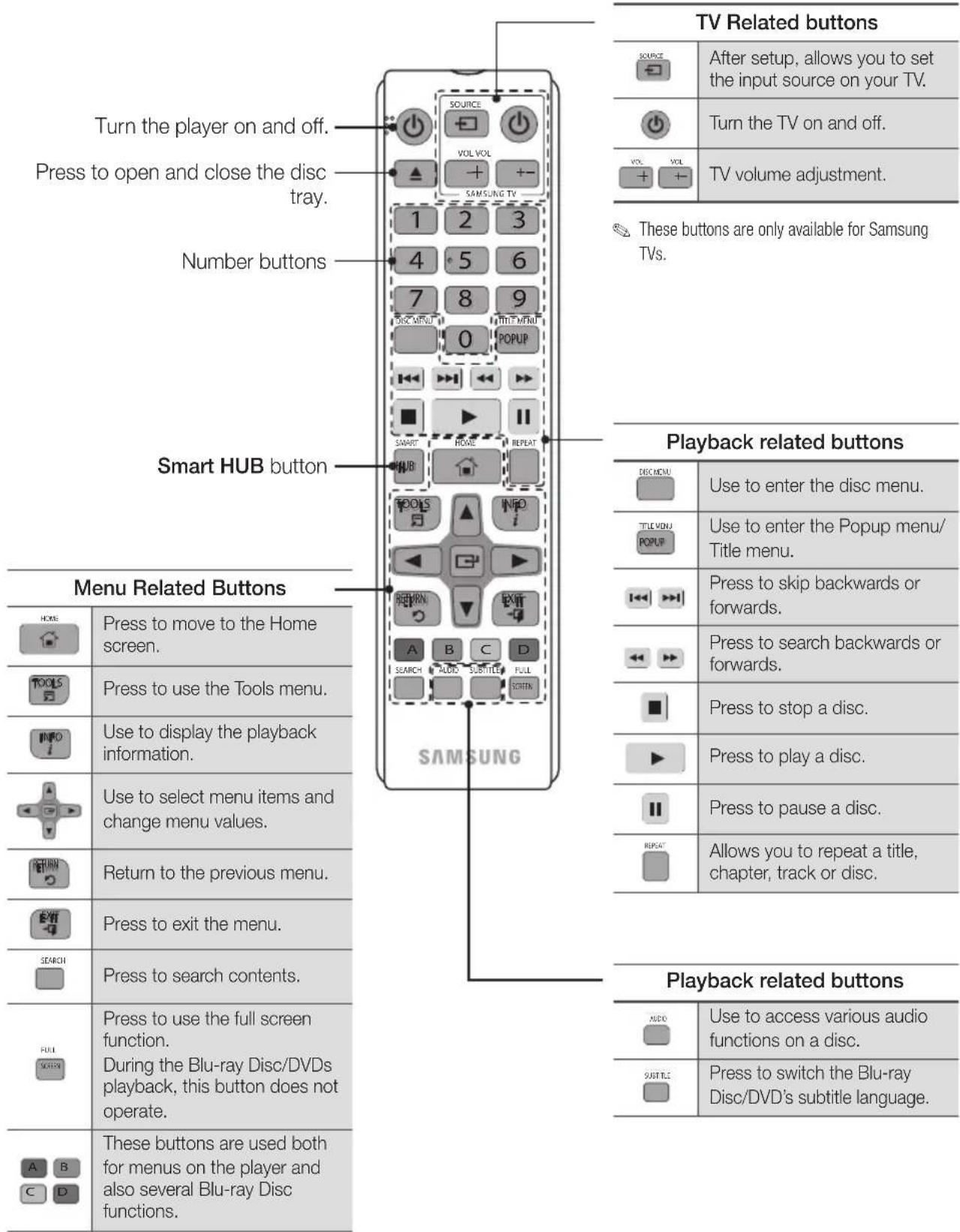
3 Front Panel and Rear Panel
Front Panel
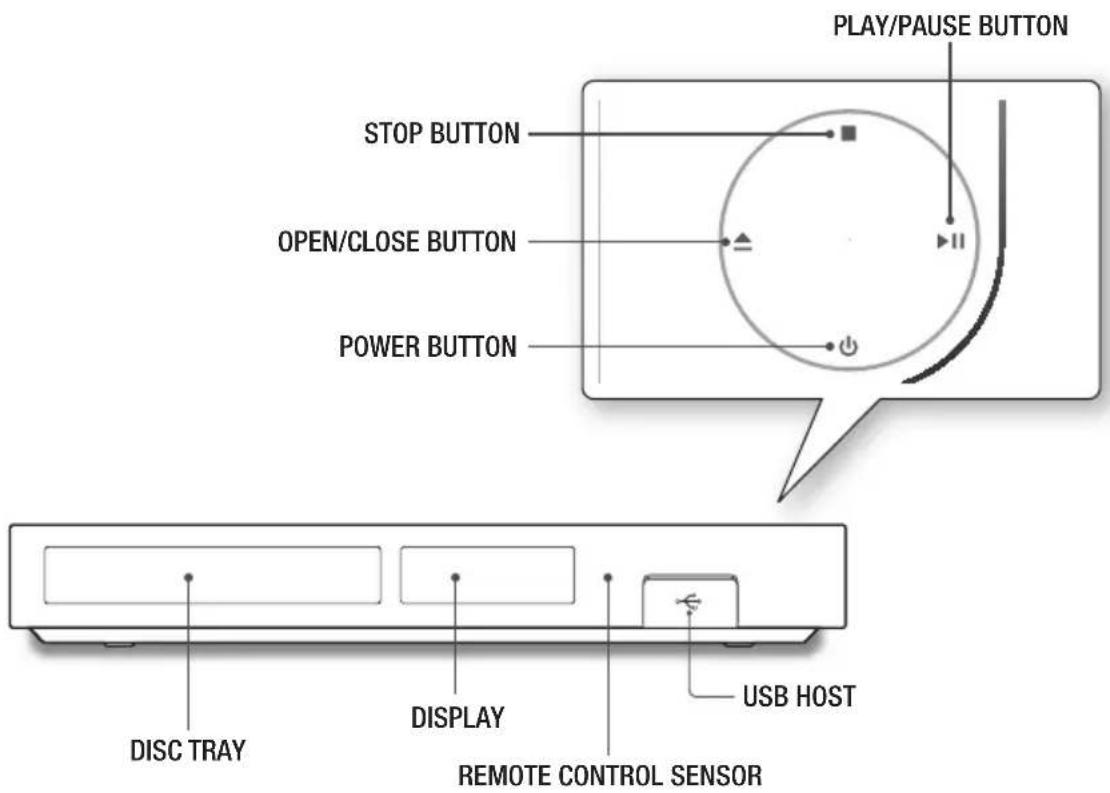
Rear Panel
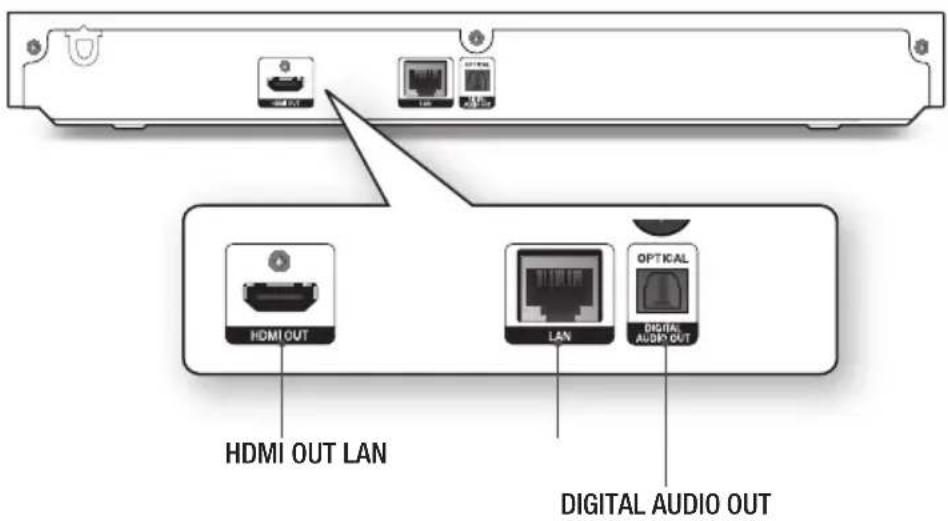
4 Connections
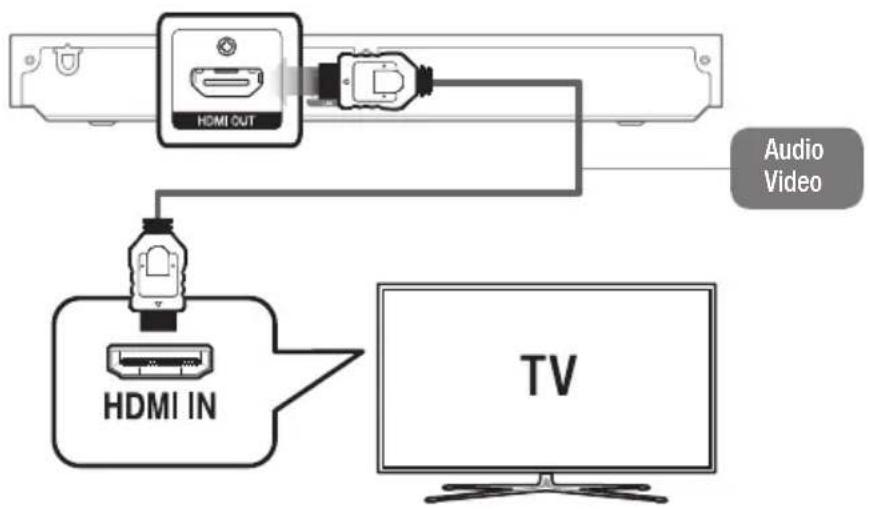
Connecting to a TV
Connecting to an Audio System
▶ Method 1 Connecting to an HDMI compatible AV receiver
▶ Method 2 Connecting to an AV receiver with a Digital Optical cable

flowchart
graph TD
    A["Method 1"] --> B["AV Receiver"]
    C["Method 2"] --> D["AV Receiver"]
    B --> E["DIGITAL AUDIO IN"]
    D --> F["DIGITAL AUDIO IN"]
    B --> G["HDMI IN"]
    D --> H["OPTICAL"]
    G --> I["HVDC OUT"]
    H --> J["HVDC OUT"]
Connecting to a Network Router
▶ Wired Network

natural_image
Diagram of a USB cable connector showing internal port and external wiring (no text or symbols)Use Cat 7 (*STP Type) cable for the connection. (*Shielded Twist Pair)
▶ Wireless Network

5 The Initial Settings Procedure
- Plug in the Blu-ray player, turn on your TV, and then turn on the Blu-ray player by pressing the POWER button on the remote.
- Follow the directions for the initial setup displayed on the screen.
- When the initial setup is completed, a tutorial screen explaining how to use the Home menu will appear. To exit this screen, press the EXIT button on the remote.
▶ Home Screen

| 1PLAY DISC | Lets you play photos, videos, or music content from a Disc. | 6SAMSUNG APPS | Gives you access to various applications you can download. |
| 2MULTIMEDIA | Lets you play photos, videos, or music content from USB or mobile devices or PCs. | 7RECOMMENDED | Gives you direct access to recommended applications. |
| 3Sign In | Lets you log into your Samsung account. | 8MY APPS | Apps downloaded from MY APPS are displayed. |
| 4Search | Lets you search for content in Apps and YouTube by entering corresponding search words. | 9Screen Mirroring | Lets you view the screen of your smart phone or android tablet on a TV you have connected to this product. |
| 5Help | The tutorial screen explaining how to use the Home menu will appear. | 10Settings | Opens the product's menu. In the menu, you can set various functions to suit your personal preferences. |
6 Playing Media Content
Case 1
Playing Media Content Saved on a Disc or USB

natural_image
Illustration showing two hands using a tool to interact, one holding a device and the other applying material (no text or symbols present)Case 2
Playing Media Content Saved in a Mobile Device
Enable your mobile device's DLNA function, and then select and allow the [BD]J6300. Open Network Device, and then select the mobile device.
▶ Multimedia Screen HOME > MULTIMEDIA
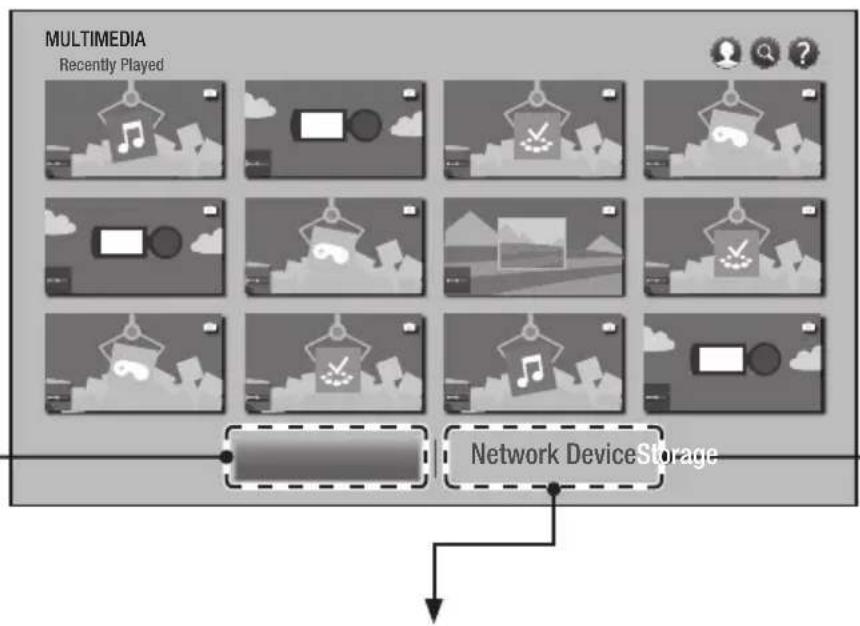
flowchart
graph TD
    A["MultiMedia"] --> B["Recently Played"]
    B --> C["Video Block 1"]
    C --> D["Video Block 2"]
    D --> E["Video Block 3"]
    E --> F["Video Block 4"]
    F --> G["Video Block 5"]
    G --> H["Video Block 6"]
    H --> I["Video Block 7"]
    I --> J["Video Block 8"]
    J --> K["Video Block 9"]
    K --> L["Video Block 10"]
    L --> M["Network Device Storage"]
    M --> N["Output"]
Case 3
Playing Media Content Saved in a Computer
To play content on your PC, you must install DLNA software or already have DLNA software installed on your PC and connect the BD Player to your PC via your network.
7 Additional Functions
SAMSUNG APPS
You can download applications from the Internet, and access various application and view them on your TV. To access some applications, you need to have a Samsung account.

| 1 RECOMMENDED | Displays recommended contents managed by Samsung. You cannot delete Recommended Apps. |
| 2 MY APPS | Displays your personal gallery of applications modifiable on the MY APPS screen. |
| 3 Most Popular, What's New and Categories | Select to view and download additional apps. |
Web Browser
You can access the Internet using the Web Browser application.
HOME > WebBrowser
Screen Mirroring
The Screen Mirroring function lets you view the screen of your smart phone or android tablet on the TV you have connected to the product.
- HOME > Screen Mirroring
- Launch AllShare Cast or Screen Mirroring on your device.
- On your device, find the name of the Player in the list of available devices and then select it.
Upgrading Software
- Home > Settings > Support > Software Update > Update now
- The product searches on line for the latest software version.
- If it finds a new version, the Update Request pop-up appears. Select OK.

Never turn the product off or back on manually during the update process.
Make sure there is no disc in the player before you start the upgrade process.
You can set the Auto Update function so that the product downloads new upgrade software automatically.
You can also download the latest firmware file from the Samsung website, copy the files from the PC to a USB memory stick, insert the stick into the front USB port, and then select Update now.
8 Specifications
| General | Weight 1.2 kg | |
| Dimensions 360.0 (W) X 40.0 (H) X 196.0 (D) mm | ||
| Operating Temperature Range +5°C to +35°C | ||
| Operating Humidity Range 10 % to 75 % | ||
| USB | Type A USB 2.0 | |
| DC output 5V 500mA Max. | ||
| HDMI | Video | 2D : 2160p, 1080p, 1080i, 720p, 576p/480p3D : 1080p, 720p |
| Audio PCM, Bitstream | ||
| Audio Output Digital Audio Output Optical | ||
| Network | Ethernet 100BASE - TX Terminal | |
| Wireless LAN Built-in | ||
| Security | WEP (OPEN/SHARED)WPA-PSK (TKIP/AES)WPA2-PSK (TKIP/AES) | |
| WPS(PBC) Supported | ||
| Wireless device output power | Wi-Fi max transmitter power | 100mW at 2.4GHz – 2.4835GHz, 5.15GHz – 5.35GHz and 125mW at 5.47GHz – 5.725GHz |
• Network speeds equal to or below 10Mbps are not supported.
- Design and specifications are subject to change without prior notice.
- For the power supply and power consumption, refer to the label attached to the product.
• Weight and dimensions are approximate.
• An administration fee may be charged if either
(a) an engineer is called out at your request and there is no defect in the product (i.e. where you have failed to read this user manual).
(b) you bring the unit to a repair centre and there is no defect in the product (i.e. where you have failed to read this user manual).
- The amount of such administration charge will be advised to you before any work or home visit is carried out.
Licences
- Manufactured under licence from Dolby Laboratories. Dolby, Dolby Audio and the double-D symbol are trademarks of Dolby Laboratories.

DOLBY
AUDIO
- For DTS patents, see http://patents.dts.com. Manufactured under licence from DTS Licencing Limited. DTS, the Symbol, DTS in combination with the Symbol, the DTS-HD logo, and DTS-HD Master Audio are registered trademarks or trademarks of DTS, Inc. in the United States and/or other countries. © DTS, Inc. All Rights Reserved.


Master Audio
• DivX
This DivX Certified ^® device has passed rigorous testing to ensure it plays DivX ^® video.
To play purchased DivX movies, first register your device at vod.divx.com. Find your registration code in the DivX VOD section of your device setup menu.
DivX Certified ^® to play DivX ^® video up to HD 1080p, including premium content.
DivX®, DivX Certified® and associated logos are trademarks of DivX, LLC and are used under licence.
Covered by one or more of the following U.S. patents: 7,295,673; 7,460,668; 7,515,710; 8,656,183; 8,731,369; RE45,052.

HD
- The terms HDMI and HDMI High-Definition Multimedia Interface, and the HDMI Logo are trademarks or registered trademarks of HDMI Licencing LLC in the United States and other countries.

HISKDEFINITION MULTIMEDIA INTERFACE
- Oracle and Java are registered trademarks of Oracle and/or its affiliates. Other names may be trademarks of their respective owners.

Java™
POWERED
• Open Source Licence Notice
- In the case of using open source software, Open Source Licences are available on the product menu.
- Blu-ray Disc™, Blu-ray™ and the logos are trademarks of the Blu-ray Disc Association.
• Hereby, Samsung Electronics, declares that this equipment is in compliance with Directive 2014/53/EU.
The full text of the EU declaration of conformity is available at the following internet address: http://www.samsung.com go to Support > Search Product Support and enter the model name. This equipment may be operated in all EU countries.
The 5GHz WLAN(Wi-Fi or SRD) function of this equipment may only be operated indoors.

9 Supported Formats
▶ Disc types and contents your product can play
| Media Disc Type Details | ||
| VIDEO | Blu-ray Disc3D Blu-ray Disc | BD-ROM or BD-RE/-R recorded in the BD-RE format. |
| DVD-VIDEO DVD-RW DVD-R DVD+RW DVD+R | DVD-VIDEO, recorded DVD+RW/DVD-RW(V)/DVD-R/+R that have been recorded and finalised, or a USB storage media containing DivX, MKV, MP4 contents. | |
| MUSIC | CD-RW/-R, DVD-RW/-R, BD-RE/-R | Music recorded on CD-RW/-R, DVD-RW/-R, BD-RE/-R or a USB storage media containing MP3 or WMA contents. |
| PHOTO | CD-RW/-R, DVD-RW/-R, BD-RE/-R | Photos recorded on CD-RW/-R, DVD-RW/-R, BD-RE/-R or a USB storage media containing JPEG contents. |
▶ Supported Video Formats
| File Extension | Container Video | Codec Resolution | Frame rate (fps) | Bit rate (Mbps) | Audio Codec | |
| *.avi*.mkv*.asf*.wmv*.mp4*.mov*.3gp*.vro*.mpg*.mpeg*.ts*.tp*.trp*.mov*.flv*.vob*.svi*.m2ts*.mts*.divx*.ps | AVIMKVASFMP43GPMOVFLVVROVOBPSTSVAF | MVC | 1920x1080 | 24/25/30 60 | 30 | AC3LPCMADPCM(IMA, MS)AACHE-AACWMADD+MPEG(MP3)DTS (Core, LBR) |
| Motion JPEG | FHD: MAX 30 HD: MAX 60 | |||||
| H.264 BP/MP/HP | ||||||
| DivX 3.11 / 4 / 5 / 6 | ||||||
| MPEG4 SP/ASP | ||||||
| Window Media Video v9(VC1) | ||||||
| AVS | ||||||
| MPEG2 | ||||||
| MPEG1 | ||||||
| Microsoft MPEG-4 v3 | 1280x720 | MAX 30 | ||||
| Window Media Video v7(WMV1), v8(WMV2) | ||||||
| H 263 Sorrenson | 720x576 | |||||
| Microsoft MPEG-4 v1, v2 | ||||||
| VP6 640x480 | 6~30 4 | |||||
| *.webm | WebM VP8 | 1920x1080 | 6~30 20 Vorbis | |||
| *.rmvb | RMVB | RV8/9/10 (RV30/40) | 1920x1080 | 6~30 20 RealAudio 6 |
The RMVB format is supported only by models made for China and Hong Kong.
The AVS codec is supported only by models made for China.
The *.ps file extension is supported only by models made for China.
The DivX codec is not supported by models made for America.
▶ Supported Subtitle File Formats
| Name File Extension | ||
| External | MPEG-4 Timed text | .txt |
| SAMI | .smi | |
| SubRip | .srt | |
| SubViewer | .sub | |
| Micro DVD | .sub or .txt | |
| SubStation Alpha | .ssa | |
| Advanced SubStation Alpha | .ass | |
| Powerdivx | .psb | |
| SMPTE-TT Text | .xml | |
| Internal | Xsub | AVI |
| SubStation Alpha | MKV | |
| Advanced SubStation Alpha | MKV | |
| SubRip | MKV | |
| VobSub | MKV | |
| MPEG-4 Timed text | MP4 | |
| TTML in smooth streaming | MP4 | |
| SMPTE-TT TEXT | MP4 | |
| SMPTE-TT PNG | MP4 | |
▶ Supported Music File Formats
| File Extension | Type Codec Support Range | ||
| *.mp3 | MPEG | MPEG1 Audio Layer 3 | - |
| *.m4a*.mpa*.aac | MPEG4 | AAC - | |
| *.flac | FLAC | FLAC | Supports up to two channels. |
| File Extension | Type Codec Support Range | ||
| *.ogg | OGG | Vorbis | Supports up to two channels. |
| *.wma | WMA | WMA | For WMA.Supports up to 10 Pro 5.1 channels.WMA lossless audio is not supported.Supports up to M2 profile. |
| *.wav | wav | wav - | |
| *.mid*.midi | midi | midi | Type 0, type 1 and Seek is not supported.Only available with USB. |
| *.ape | ape | ape | NonSmart is not supported. |
| *.aif*.aiff | AIFF | AIFF - | |
| *.m4a | ALAC | ALAC - | |
▶ Supported Picture File Formats
| File Extension Type Resolution | ||
| *.jpg*.jpeg | JPEG | 15360x8640 |
| *.png | PNG | 4096x4096 |
| *.bmp | BMP | 4096x4096 |
| *.mpo | MPO | 15360x8640 |
If you have any questions or comments relating to Samsung products, please contact the SAMSUNG customer care centre.
| Country | Contact Centre | Web Site |
| U.K 0330 SAMSUNG (7267864) www.samsung.com/uk/support | ||
| IRELAND (EIRE) 0818 717100 www.samsung.com/le/support | ||
| GERMANY 06196 9340275 www.samsung.com/de/support | ||
| FRANCE 01 48 63 00 00 www.samsung.com/fr/support | ||
| ITALIA 800-SAMSUNG (800.7267864) www.samsung.com/it/support | ||
| SPAIN 34902172678 www.samsung.com/es/support | ||
| PORTUGAL 808 20 7267 www.samsung.com/pt/support | ||
| LUXEMBURG | 261 03 710 | www.samsung.com/be_fr/support |
| NETHERLANDS 088-9090100 (lokaal tarief) www.samsung.com/ni/support | ||
| BELGIUM | 02-201-24-18 | www.samsung.com/be/support(Dutch)www.samsung.com/be_fr/support (French) |
| NORWAY | 815 56480 | www.samsung.com/no/support |
| DENMARK 70 70 19 70 www.samsung.com/dlk/support | ||
| FINLAND | 030-6227 515 | www.samsung.com/li/support |
| SWEDEN | 0771 726 786 www.samsung.com/se/support | |
| POLAND | 801-172-678* lub +48 22 607-93-33 * *(koszt połączenia według taryfy operatora) | www.samsung.com/pl/support |
| HUNGARY | 0680SAMSUNG (0680-726-786)0680PREMIUM (0680-773-648) | www.samsung.com/hu/support |
| AUSTRIA | 0800-SAMSUNG (0800-7267864)[Only for Premium HA] 0800-366661[Only for Dealers] 0810-112233 | www.samsung.com/at/support |
| Country Contact Centre | Web Site | |
| SWITZERLAND | 0800 726 78 64 (0800-SAMSUNG) | www.samsung.com/ch/support(German)www.samsung.com/ch_fr/support (French) |
| CZECH | 800 - SAMSUNG (800-726786) www.samsung.com/cz/support | |
| SLOVAKIA | 0800 - SAMSUNG (0800-726 786) | www.samsung.com/sk/support |
| CROATIA | 072 726 786 www.samsung.com/hr/support | |
| BOSNIA | 055 233 999 www.samsung.com/support | |
| MONTENEGRO | 020 405 888 www.samsung.com/support | |
| SLOVENIA | 080 697 267 (brezplačna številka) | www.samsung.com/si |
| SERBIA | 011 321 6899 www.samsung.com/rs/support | |
| BULGARIA | *3000 Цена в мрежата0800 111 31 , Безплатна телефонна линия | www.samsung.com/bg/support |
| ROMANIA | *8000 (apel in retea)08008-726-78-64 (08008-SAMSUNG)Apel GRATUIT | www.samsung.com/ro/support |
| CYPRUS 8009 4000 only from landline, toll free | www.samsung.com/gr/support | |
| GREECE | 80111-SAMSUNG (80111 726 7864) onlyfrom land line (+30) 210 6897691 frommobile and land line | |
| LITHUANIA | 8-800-77777 | www.samsung.com/lb/support |
| LATVIA | 8000-7267 | www.samsung.com/lw/support |
| ESTONIA | 800-7267 | www.samsung.com/ee/support |
Correct disposal of batteries in this product
(Applicable in the European Union and other European countries with separate battery return systems.)
This marking on the battery, manual or packaging indicates that the batteries in this product should not be disposed of with other household waste at the end of their working life. Where marked, the chemical symbols Hg, Cd or Pb indicate that the battery contains mercury, cadmium or lead above the reference levels in EC Directive 2006/66. If batteries are not properly disposed of, these substances can cause harm to human health or the environment.
To protect natural resources and to promote material reuse, please separate batteries from other types of waste and recycle them through your local, free battery return system.

Correct Disposal of This Product (Waste Electrical & Electronic Equipment)
(Applicable in the European Union and other European countries with separate collection systems)
This marking on the product, accessories or literature indicates that the product and its electronic accessories (e.g. charger, headset, USB cable) should not be disposed of with other household waste at the end of their working life. To prevent possible harm to the environment or human health from uncontrolled waste disposal, please separate these items from other types of waste and recycle them responsibly to promote the sustainable reuse of material resources. Household users should contact either the retailer where they purchased this product, or their local government office, for details of where and how they can take these items for environmentally safe recycling.
Business users should contact their supplier and check the terms and conditions of the purchase contract. This product and its electronic accessories should not be mixed with other commercial wastes for disposal.
Blu-ray™ Disc Player
BEDIENUNGSANLEITUNG

natural_image
Simple line drawing of a rectangular device with a small rectangular block on top, no text or symbols present.natural_image
Diagram showing two Ethernet cable connectors connected via a USB port, with no text or symbols present.- Manufactured under licence from Dolby Laboratories. Dolby, Dolby Audio and the double-D symbol are trademarks of Dolby Laboratories.

DOLBY
AUDIO
- For DTS patents, see http://patents.dts.com. Manufactured under licence from DTS Licencing Limited. DTS, the Symbol, DTS in combination with the Symbol, the DTS-HD logo, and DTS-HD Master Audio are registered trademarks or trademarks of DTS, Inc. in the United States and/or other countries. © DTS, Inc. All Rights Reserved.


Master Audio
• DivX
- The terms HDMI and HDMI High-Definition Multimedia Interface, and the HDMI Logo are trademarks or registered trademarks of HDMI Licencing LLC in the United States and other countries.

natural_image
Simple line drawing of a device casing with a rectangular panel and a small USB symbol on the side (no text or labels)CLASS 1 LASER PRODUCT
KLASSE 1 LASER PRODUKT
LUOKAN 1 LASER LAITE
KLASS 1 LASER APPARAT
PRODUCTO LÁSER CLASE
1
natural_image
Diagram showing two Ethernet cable connectors connected via a USB port, with no text or symbols present.natural_image
Illustration showing two hand positions: one holding a tool on a flat surface, the other holding a tool with a small object (no text or symbols)Cas 2
- Manufactured under licence from Dolby Laboratories. Dolby, Dolby Audio and the double-D symbol are trademarks of Dolby Laboratories.

DOLBY
AUDIO
- For DTS patents, see http://patents.dts.com. Manufactured under licence from DTS Licencing Limited. DTS, the Symbol, DTS in combination with the Symbol, the DTS-HD logo, and DTS-HD Master Audio are registered trademarks or trademarks of DTS, Inc. in the United States and/or other countries. © DTS, Inc. All Rights Reserved.


Master Audio
• DivX
- The terms HDMI and HDMI High-Definition Multimedia Interface, and the HDMI Logo are trademarks or registered trademarks of HDMI Licencing LLC in the United States and other countries.

Samsung Electronics France
Samsung Electronics Switzerland
GmbH, Binzalle 4, CH-8055 Zürich
natural_image
Simple line drawing of a rectangular device with a small square and a USB symbol on the side (no text or labels)natural_image
Diagram of a USB cable connector showing two Ethernet ports connected by an Ethernet cable (no text or labels)natural_image
Illustration showing two hands using a tool to interact, one holding a device and the other applying material (no text or symbols present)Caso 2
- Manufactured under licence from Dolby Laboratories. Dolby, Dolby Audio and the double-D symbol are trademarks of Dolby Laboratories.

DOLBY
AUDIO
- For DTS patents, see http://patents.dts.com. Manufactured under licence from DTS Licencing Limited. DTS, the Symbol, DTS in combination with the Symbol, the DTS-HD logo, and DTS-HD Master Audio are registered trademarks or trademarks of DTS, Inc. in the United States and/or other countries. © DTS, Inc. All Rights Reserved.


Master Audio
DivX
- The terms HDMI and HDMI High-Definition Multimedia Interface, and the HDMI Logo are trademarks or registered trademarks of HDMI Licencing LLC in the United States and other countries.

HIGH-DEFINITION MULTIMEDIA INTERFACE
samsung.com/uk/aboutsamsung/samsungelectronics/corporate citizenship/data_corner.html
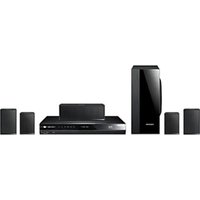
- Blu-ray™ Disc Player
- USER MANUAL
- Safety Information
- Warning
- CAUTION
- RISK OF ELECTRIC SHOCK. DO NOT OPEN.
- ▷ CLASS 1 LASER product
- CAUTION :
- CLASS 1 LASER PRODUCT KLASSE 1 LASER PRODUKT LUOKAN 1 LASER LAITE KLASS 1 LASER APPARAT PRODUCTO LÁSER CLASE 1
- IMPORTANT NOTE
- Using the 3D function
- Remote Control
- Front Panel and Rear Panel
- Front Panel
- Rear Panel
- Connections
- Connecting to a TV
- Connecting to an Audio System
- Connecting to a Network Router
- ▶ Wired Network
- ▶ Wireless Network
- The Initial Settings Procedure
- Playing Media Content
- Case 1
- Case 2
- Case 3
- Additional Functions
- SAMSUNG APPS
- Web Browser
- Screen Mirroring
- Upgrading Software
- Specifications
- Licences
- Supported Formats
- Correct disposal of batteries in this product
- Correct Disposal of This Product (Waste Electrical & Electronic Equipment)
- BEDIENUNGSANLEITUNG
- Cas 2
- Samsung Electronics France
- Caso 2
Brand : SAMSUNG
Model : BD-J6300
Category : Blu-ray player