BD-C8900M - Blu-ray player SAMSUNG - Free user manual and instructions
Find the device manual for free BD-C8900M SAMSUNG in PDF.


Pick your language and provide your email: we'll send you a specifically translated version.
| Product Type | Blu-ray Player |
| Brand | Samsung |
| Model | BD-C8900M |
| Dimensions (W x D x H) | 430 x 250 x 45 mm |
| Weight | 2.5 kg |
| Power Supply | AC 100-240 V, 50/60 Hz |
| Power Consumption | 25 W (max), 0.5 W standby |
| Video Resolution | Full HD 1080p, 3D |
| Supported Disc Formats | Blu-ray, DVD, CD |
| Connectivity | HDMI, Ethernet, Wi-Fi, USB 2.0 |
| Network Features | Smart TV, video streaming, DLNA |
| Multimedia Features | USB playback, DivX, MKV codecs |
| Maintenance and Cleaning | Use a soft dry cloth, avoid liquids |
| Safety | Read safety instructions, avoid moisture |
| Spare Parts and Repairability | Contact Samsung support for replacement parts |
| Included Accessories | Remote control, HDMI cable, user manual |
| Manufacturer Reference | BD-C8900M |
| Warranty | 2 years |
Frequently Asked Questions - BD-C8900M SAMSUNG
How do I connect my Samsung BD-C8900M to the internet?
Use an Ethernet cable plugged into the LAN port on the back of the player, or connect via built-in Wi-Fi. For Wi-Fi, go to Settings > Network > Network Settings and select your wireless network. Enter your password using the on-screen keyboard. A stable connection is required for streaming services and firmware updates.
Can the Samsung BD-C8900M play 3D Blu-ray discs?
Yes, the BD-C8900M supports 3D Blu-ray playback. You need a 3D-capable TV and compatible 3D glasses. Insert a 3D Blu-ray disc; the player will automatically output the 3D signal over HDMI. Ensure your TV is set to the correct 3D mode.
How can I update the firmware on my BD-C8900M?
You can update by connecting to the internet and selecting Settings > Support > Software Update > Update Now. Alternatively, download the latest firmware from Samsung’s website onto a USB stick, then plug it into the player and follow the on-screen prompts. Do not power off during the update.
Which file formats are supported via USB on the BD-C8900M?
The player supports common video formats like AVI, MKV, MP4, and WMV; audio formats like MP3, WMA, and AAC; and image formats like JPEG and PNG. For best compatibility, use a USB drive formatted in FAT32 or NTFS. Some codecs may not be supported, so check the manual for detailed specifications.
How do I reset the Samsung BD-C8900M to factory default settings?
Press the HOME button on the remote, go to Settings, then Support, and select Reset. Confirm the action. The player will restart with all settings cleared. This can resolve playback issues or network connectivity problems.
Does the BD-C8900M support streaming services like Netflix?
Yes, if the player is connected to the internet and in a region where these services are available. The Smart Hub provides access to streaming apps such as Netflix, YouTube, and others. You may need an active subscription and a Samsung account for some features.
What is the best way to clean the optical lens of the BD-C8900M?
Clean the lens with a soft, dry cotton swab or a commercial lens cleaning disc. Do not use any liquids or sprays. Gently wipe the lens in a circular motion. If problems persist, contact Samsung support for professional servicing.
Why is my BD-C8900M not playing a DVD?
Check that the disc is not damaged or dirty. Clean the disc with a soft cloth from the center outward. Ensure the disc is inserted with the label facing up. If the area code of the DVD does not match your region, it may not play. Also, verify that the player's region code matches the DVD's region.
Can I control the Samsung BD-C8900M with a smartphone?
Yes, download the Samsung Smart View app (if compatible) or use a universal remote app that supports Samsung players. The player must be on the same Wi-Fi network. Some features may require the player to be enabled for remote control in Settings.
How can I improve the picture quality when playing regular DVDs on the BD-C8900M?
The player includes an HD Upconverter that scales standard-definition DVDs to near-HD quality. In Settings > Display, enable HDMI Deep Color and set the resolution to 1080p. Use a high-quality HDMI cable and ensure your TV's picture mode is optimized for movies.
User questions about BD-C8900M SAMSUNG
0 question about this device. Answer the ones you know or ask your own.
Ask a new question about this device
No questions yet. Be the first to ask one.
Download the instructions for your Blu-ray player in PDF format for free! Find your manual BD-C8900M - SAMSUNG and take your electronic device back in hand. On this page are published all the documents necessary for the use of your device. BD-C8900M by SAMSUNG.
USER MANUAL BD-C8900M SAMSUNG
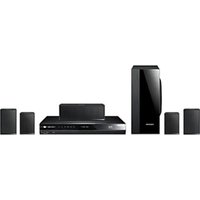
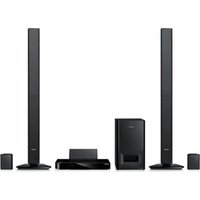
Manual assistant
Powered by Anthropic
Waiting for your message
Product information
Brand : SAMSUNG
Model : BD-C8900M
Category : Blu-ray player