VP2765-LED - Monitor VIEWSONIC - Free user manual and instructions
Find the device manual for free VP2765-LED VIEWSONIC in PDF.


User questions about VP2765-LED VIEWSONIC
0 question about this device. Answer the ones you know or ask your own.
Ask a new question about this device
Download the instructions for your Monitor in PDF format for free! Find your manual VP2765-LED - VIEWSONIC and take your electronic device back in hand. On this page are published all the documents necessary for the use of your device. VP2765-LED by VIEWSONIC.
USER MANUAL VP2765-LED VIEWSONIC
IMPORTANT: Please read this User Guide to obtain important information on installing and using your product in a safe manner, as well as registering your product for future service. Warranty information contained in this User Guide will describe your limited coverage from ViewSonic Corporation, which is also found on our web site at http:// www.viewsonic.com in English, or in specific languages using the Regional selection box in the upper right corner of our website. "Antes de operar su equipo lea@cuidadosamente las instrucciones en este manual"
-User Guide
- Guide de l'utilisateur
- Bedienungsanleitung
- Guía del usuario
Guidedell'utente
- Guia do usuario
- Användarhandbok
- Kayttoopas
Podręcznik uzytkownikka
- Hasznalati utmutató
-PykoBoDCTBO noIb3OBaTeJIa
- Uživotelská píruka
- Kullanici kilavuzu
- Gebruikshandleiding
- Oδnyóç xρnστών
- Manual de utiliser
-Инструкции 3a уnotpe6a
- Návod na obsluhu
- Korisnički vodič
- Uputstvo za korišćenje
- Uporabniški priročnik
- KepiBnTBo KopncTyBaaya
- 使用手册(繁體)
- 使用手册(简体)
-사용자信息系统
- 一一
- p_1 即为
TCO Information
Congratulations!
This display is designed for both you and the planet!

The display you have just purchased carries the TCO Certified label. This ensures that your display is designed, manufactured and tested according to some of the strictest quality and environmental requirements in the world. This makes for a high performance product, designed with the user in focus that also minimizes the impact on the climate and our natural environment.
TCO Certified is a third party verified program, where every product model is tested by an accredited impartial test laboratory. TCO Certified represents one of the toughest certifications for displays worldwide.
Some of the Usability features of the TCO Certified for displays:
- Good visual ergonomics and image quality is tested to ensure top performance and reduce sight and strain problems. Important parameters are luminance, contrast, resolution, black level, gamma curve, color and luminance uniformity, color rendition and image stability.
- Product have been tested according to rigorous safety standards at an impartial laboratory.
- Electric and magnetic fields emissions as low as normal household background levels.
- Low acoustic noise emissions.
Some of the Environmental features of the TCO Certified for displays:
- The brand owner demonstrates corporate social responsibility and has a certified environmental management system (EMAS or ISO 14001).
- Very low energy consumption both in on- and standby mode minimize climate impact.
- Restrictions on chlorinated and brominated flame retardants, plasticizers, plastics and heavy metals such as cadmium, mercury and lead (RoHS compliance).
- Both product and product packaging is prepared for recycling.
- The brand owner offers take-back options.
The requirements can be downloaded from our web site. The requirements included in this label have been developed by TCO Development in co-operation with scientists, experts, users as well as manufacturers all over the world. Since the end of the 1980s TCO has been involved in influencing the development of IT equipment in a more user-friendly direction.
Our labeling system started with displays in 1992 and is now requested by users and ITmanufacturers all over the world. About 50% of all displays worldwide are TCO certified.
For displays with glossy bezels the user should consider the placement of the display as the bezel may cause disturbing reflections from surrounding light and bright surfaces.
For more information, please visit
www.tcodevelopment.com
Contents
Compliance Information. 1
Important Safety Instructions 2
Declaration of RoHS Compliance 3
Copyright Information 4
Product Registration 4
Getting Started
Package Contents 5
Precautions 5
Quick Installation 6
7
To Raise and Lower the display 7
Wall Mounting (Optional) 8
Using the LCD Display
Setting the Timing Mode 9
OSD and Power Lock Settings 9
Adjusting the Screen Image 10
Main Menu Controls 12
Other Information
Specifications 16
Troubleshooting 17
Customer Support 18
Cleaning the LCD Display 19
Limited Warranty 20
Mexico Limited Warranty 22
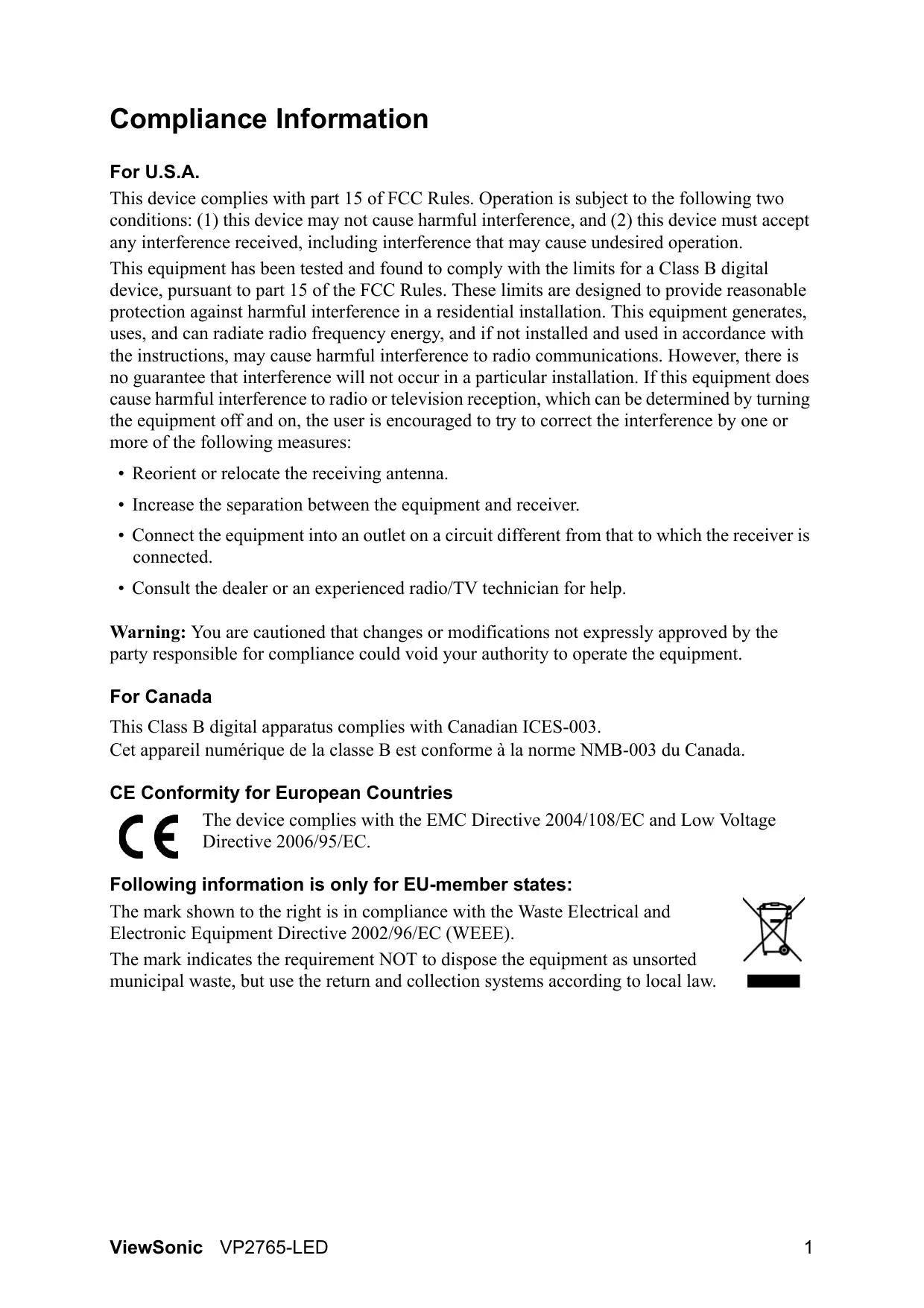
Compliance Information
For U.S.A.
This device complies with part 15 of FCC Rules. Operation is subject to the following two conditions: (1) this device may not cause harmful interference, and (2) this device must accept any interference received, including interference that may cause undesired operation.
This equipment has been tested and found to comply with the limits for a Class B digital device, pursuant to part 15 of the FCC Rules. These limits are designed to provide reasonable protection against harmful interference in a residential installation. This equipment generates, uses, and can radiate radio frequency energy, and if not installed and used in accordance with the instructions, may cause harmful interference to radio communications. However, there is no guarantee that interference will not occur in a particular installation. If this equipment does cause harmful interference to radio or television reception, which can be determined by turning the equipment off and on, the user is encouraged to try to correct the interference by one or more of the following measures:
- Reorient or relocate the receiving antenna.
- Increase the separation between the equipment and receiver.
- Connect the equipment into an outlet on a circuit different from that to which the receiver is connected.
- Consult the dealer or an experienced radio/TV technician for help.
Warning: You are cautioned that changes or modifications not expressly approved by the party responsible for compliance could void your authority to operate the equipment.
For Canada
This Class B digital apparatus complies with Canadian ICES-003.
CE Conformity for European Countries

The device complies with the EMC Directive 2004/108/EC and Low Voltage Directive 2006/95/EC.
Following information is only for EU-member states:
The mark shown to the right is in compliance with the Waste Electrical and Electronic Equipment Directive 2002/96/EC (WEEE).
The mark indicates the requirement NOT to dispose the equipment as unsorted municipal waste, but use the return and collection systems according to local law.

Important Safety Instructions
-
Read these instructions completely before using the equipment.
-
Keep these instructions in a safe place.
-
Heed all warnings.
-
Follow all instructions.
-
Do not use this equipment near water. Warning: To reduce the risk of fire or electric shock, do not expose this apparatus to rain or moisture.
-
Clean with a soft, dry cloth. If further cleaning is required, see "Cleaning the Display" in this guide for further instructions.
-
Do not block any ventilation openings. Install the equipment in accordance with the manufacturer's instructions.
-
Do not install near any heat sources such as radiators, heat registers, stoves, or other devices (including amplifiers) that produce heat.
-
Do not attempt to circumvent the safety provisions of the polarized or grounding-type plug. A polarized plug has two blades with one wider than the other. A grounding type plug has two blades and a third grounding prong. The wide blade and the third prong are provided for your safety. If the plug does not fit into your outlet, consult an electrician for replacement of the outlet.
-
Protect the power cord from being tread upon or pinched, particularly at the plug, and the point where if emerges from the equipment. Be sure that the power outlet is located near the equipment so that it is easily accessible.
-
Only use attachments/accessories specified by the manufacturer.
-
Use only with the cart, stand, tripod, bracket, or table specified by the manufacturer, or sold with the equipment. When a cart is used, use caution when moving the cart/equipment combination to avoid injury from tipping over.

-
Unplug this equipment when it will be unused for long periods of time.
-
Refer all servicing to qualified service personnel. Service is required when the unit has been damaged in any way, such as: if the power-supply cord or plug is damaged, if liquid is spilled onto or objects fall into the unit, if the unit is exposed to rain or moisture, or if the unit does not operate normally or has been dropped.
Declaration of RoHS Compliance
This product has been designed and manufactured in compliance with Directive 2002/95/EC of the European Parliament and the Council on restriction of the use of certain hazardous substances in electrical and electronic equipment (RoHS Directive) and is deemed to comply with the maximum concentration values issued by the European Technical Adaptation Committee (TAC) as shown below:
| Substance | Proposed Maximum Concentration | Actual Concentration |
| Lead (Pb) | 0.1% | < 0.1% |
| Mercury (Hg) | 0.1% | < 0.1% |
| Cadmium (Cd) | 0.01% | < 0.01% |
| Hexavalent Chromium (Cr6+) | 0.1% | < 0.1% |
| Polybrominated biphenyls (PBB) | 0.1% | < 0.1% |
| Polybrominated diphenyl ethers (PBDE) | 0.1% | < 0.1% |
Certain components of products as stated above are exempted under the Annex of the RoHS Directives as noted below:
Examples of exempted components are:
- Mercury in compact fluorescent lamps not exceeding 5mg per lamp and in other lamps not specifically mentioned in the Annex of RoHS Directive.
- Lead in glass of cathode ray tubes, electronic components, fluorescent tubes, and electronic ceramic parts (e.g. piezoelectronic devices).
- Lead in high temperature type solders (i.e. lead-based alloys containing 85% by weight or more lead).
- Lead as an allotting element in steel containing up to 0.35% lead by weight, aluminium containing up to 0.4% lead by weight and as a cooper alloy containing up to 4% lead by weight.
Copyright Information
Copyright © ViewSonic® Corporation, 2011. All rights reserved.
Macintosh and Power Macintosh are registered trademarks of Apple Inc.
Microsoft, Windows, Windows NT, and the Windows logo are registered trademarks of Microsoft Corporation in the United States and other countries.
ViewSonic, the three birds logo, OnView, ViewMatch, and ViewMeter are registered trademarks of ViewSonic Corporation.
VESA is a registered trademark of the Video Electronics Standards Association. DPMS and DDC are trademarks of VESA.
ENERGY STAR® is a registered trademark of the U.S. Environmental Protection Agency (EPA).
As an ENERGY STAR® partner, ViewSonic Corporation has determined that this product meets the ENERGY STAR® guidelines for energy efficiency.
Disclaimer: ViewSonic Corporation shall not be liable for technical or editorial errors or omissions contained herein; nor for incidental or consequential damages resulting from furnishing this material, or the performance or use of this product.
In the interest of continuing product improvement, ViewSonic Corporation reserves the right to change product specifications without notice. Information in this document may change without notice.
No part of this document may be copied, reproduced, or transmitted by any means, for any purpose without prior written permission from ViewSonic Corporation.
Product Registration
To meet your future needs, and to receive any additional product information as it becomes available, please register your product on the Internet at: www.viewsonic.com. The ViewSonic Wizard CD-ROM also provides an opportunity for you to print the registration form, which you may mail or fax to ViewSonic.
| For Your Records | |
| Product Name: | VP2765-LED |
| ViewSonic Widescreen LCD Display | |
| Model Number: | VS13963 |
| Document Number: | VP2765-LED-1_UG_ENG Rev. 1A 12-24-10 |
| Serial Number: | ___________ |
| Purchase Date: | ___________ |
Product disposal at end of product life
ViewSonic respects the environment and is committed to working and living green. Thank you for being part of Smarter, Greener Computing. Please visit ViewSonic website to learn more.
USA & Canada: http://www.viewsonic.com/company/green/recycle-program/
Europe: http://www.viewsoniceurope.com/uk/support/recycling-information/
Taiwan: http://recycle.epa.gov.tw/recycle/index2.aspx
Getting Started
Congratulations on your purchase of a ViewSonic® LCD display.
Important! Save the original box and all packing material for future shipping needs.
NOTE: The word "Windows" in this user guide refers to the following Microsoft operating systems: Windows XP, Windows Vista, and Windows 7.
Package Contents
Your LCD display package includes:
- LCD display
Power cord
D-Sub cable - DisplayPort cable
- USB cable
- ViewSonic Wizard CD-ROM (available in some countries only)
- Quick Start Guide
NOTE: The CD includes the User Guide PDF files and INF/ICM display optimization files. The INF file ensures compatibility with Windows operating systems, and the ICM file (Image Color Matching) ensures accurate on-screen colors. ViewSonic recommends that you install both the INF and ICM files.
Precautions
- Sit at least 18" from the LCD display.
- Avoid touching the screen. Skin oils are difficult to remove.
- Never remove the rear cover. This LCD display contains high-voltage parts. You may be seriously injured if you touch them.
- Avoid exposing the LCD display to direct sunlight or another heat source. Orient the LCD display away from direct sunlight to reduce glare.
-
Always handle the LCD display with care when moving it.
-
Place the LCD display in a well ventilated area. Do not place anything on the LCD display that prevents heat dissipation.
- Ensure the area around the LCD display is clean and free of moisture.
- Do not place heavy objects on the LCD display, video cable, or power cord.
- If smoke, an abnormal noise, or a strange odor is present, immediately switch the LCD display off and call your dealer or ViewSonic. It is dangerous to continue using the LCD display.
- Do not rub or apply pressure to the LCD panel, as it may permanently damage the screen.
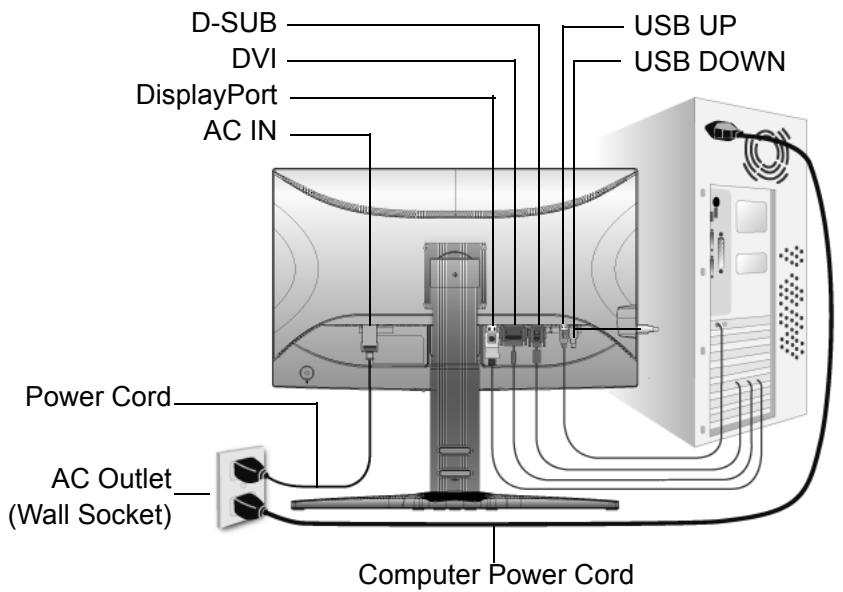
Quick Installation
1. Connect power cord (and AC/DC adapter if required)
2. Connect video cable
- Make sure both the LCD display and computer are turned OFF
- Remove rear panel covers if necessary
- Connect the video cable from the LCD display to the computer
Macintosh users: Models older than G3 require a Macintosh adapter. Attach the adapter to the computer and plug the video cable into the adapter.
To order a ViewSonic® Macintosh adapter, contact ViewSonic Customer Support.
3. Turn ON LCD display and computer
Turn ON the LCD display, then turn ON the computer. This sequence (LCD display before computer) is important.
NOTE: Windows users may receive a message asking them to install the INF file. This is on the CD.
4. Insert the ViewSonic Wizard CD into the computer's CD drive.
Follow the on-screen instructions. If your computer does not have a CD-ROM drive, please refer to Customer Support page.
- Wait for the CD-ROM to auto-start.
NOTE: If the CD-ROM does not auto-start: double-click on the CD-ROM icon in the Windows Explorer, then double-click on viewsonic.exe. - Follow the on-screen instructions.
5. Windows users: Set the timing mode (resolution and refresh rate)
Example: 1920 × 1080 @ 60 ~Hz .
For instructions on changing the resolution and refresh rate, see the graphics card's user guide.
Installation is complete. Enjoy your new ViewSonic LCD display.
To be best prepared for any future customer service needs: print this user guide and write the serial number in "For Your Records" on page 4. (See back of LCD display.)
You can register your product online at the ViewSonic website for your region. See the Customer Support table in this guide.
The ViewSonic Wizard CD-ROM also provides an opportunity for you to print the registration form which you may mail or fax to ViewSonic.
Landscape/Portrait Modes
The LCD display can operate in either Landscape or Portrait mode.
Landscape
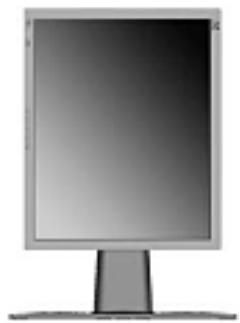
Portrait
For information about compatible graphics cards and approved hardware configurations, go to the ViewSonic website,
http://www.viewsonic.com
To switch from Landscape (default) to Portrait mode, do the following:
- From the front, gently raise the LCD display to allow more clearance.
- Pull the bottom of the LCD display outward and away from the base.
- Manually rotate the LCD display counterclockwise 90 degrees as shown above.
To Raise and Lower the display
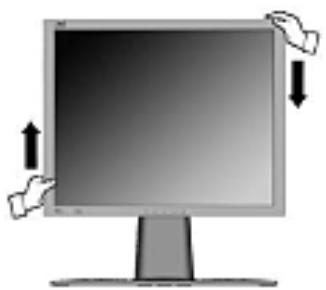
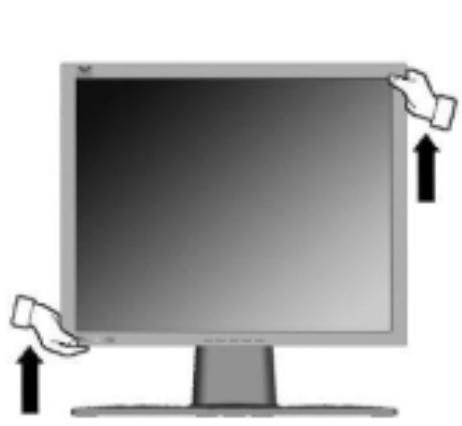
You can easily raise and lower the display panel (the head) manually. As you face the front of the display, take hold of each side of the head and pull up or down. The panel should move easily.
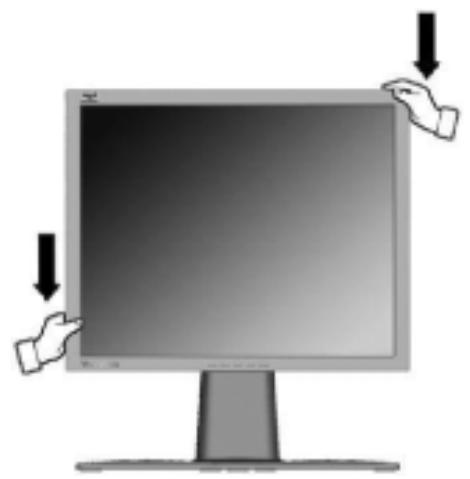
Wall Mounting (Optional) For use only with UL Listed Wall Mount Bracket
To obtain a wall-mounting kit, contact ViewSonic® or your local dealer. Refer to the instructions that come with the base mounting kit. To convert your LCD display from a desk-mounted to a wall-mounted display, do the following:
Step 1. Verify that the power button is turned Off, then disconnect the power cord.
Step 2. Lay the LCD display face down on a towel or blanket.
Step 3. Remove the four screws attaching the base.
Step 4. Attach the mounting bracket from the VESA compatible wall mounting kit (100 mm x 100 mm distance), using screws of correct length.
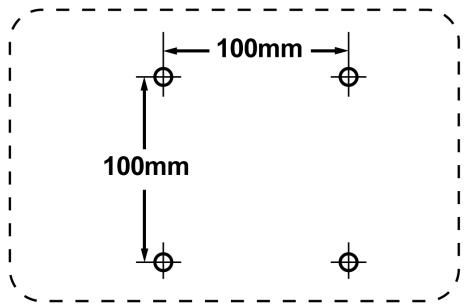
Step 5. Attach the LCD display to the wall, following the instructions in the wall-mounting kit.
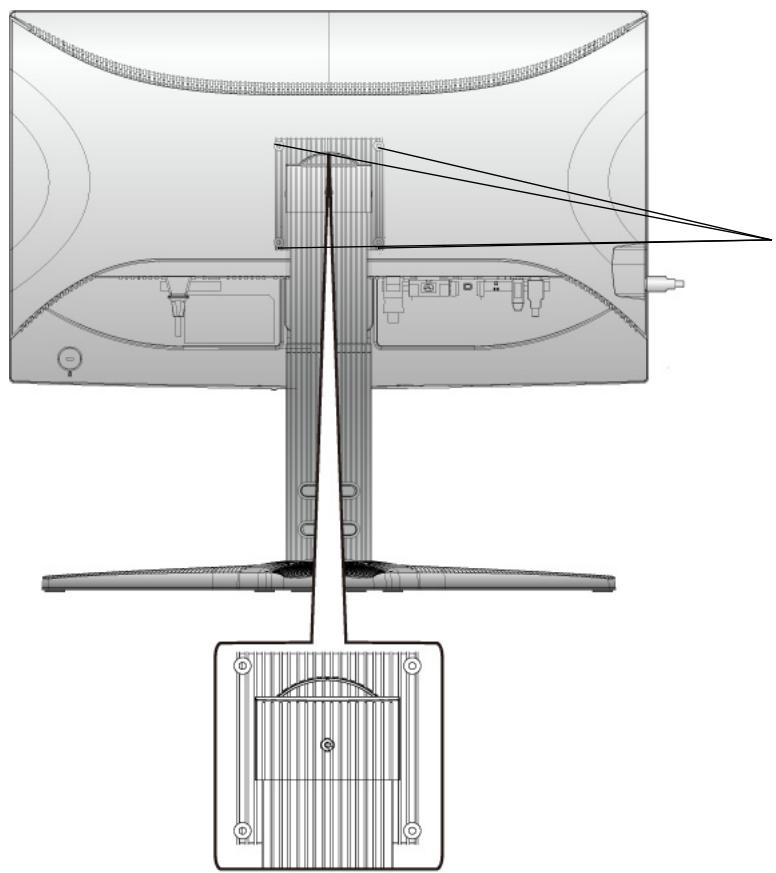
Step 3-4. Four screws attaching the base
Using the LCD Display
Setting the Timing Mode
Setting the timing mode is important for maximizing the quality of the screen image and minimizing eye strain. The timing mode consists of the resolution (example 1920 × 1080 ) and refresh rate (or vertical frequency; example 60 ~Hz ). After setting the timing mode, use the OSD (On-screen Display) controls to adjust the screen image.
For the best picture quality set your LCD display timing mode to:
VESA 1920 x 1080 @ 60Hz.
To set the Timing Mode:
- Set the resolution: Right-click on the Windows desktop > Properties > Settings > set the resolution.
- Set the refresh rate: See your graphic card's user guide for instructions.
WARNING: Do not set the graphics card in your computer to exceed the maximum refresh rate of 75Hz ; doing so may result in permanent damage to your LCD display.
OSD and Power Lock Settings
- OSD Lock: Press and hold [1] and the up arrow for 10 seconds. If any buttons are pressed the message OSD Locked will display for 3 seconds.
- OSD Unlock: Press and hold [1] and the up arrow again for 10 seconds.
- Power Button Lock: Press and hold [1] and the down arrow for 10 seconds. If the power button is pressed the message Power Button Locked will display for 3 seconds. With or without this setting, after a power failure, your LCD display's power will automatically turn ON when power is restored.
- Power Button Unlock: Press and hold [1] and the down arrow again for 10 seconds.
- Color Space Mode Settings: Under digital input mode, press and hold [] for 5 seconds to change color space mode.
Adjusting the Screen Image
Use the buttons on the front control panel to display and adjust the OSD controls which display on the screen. The OSD controls are explained at the top of the next page and are defined in "Main Menu Controls" on page 12.
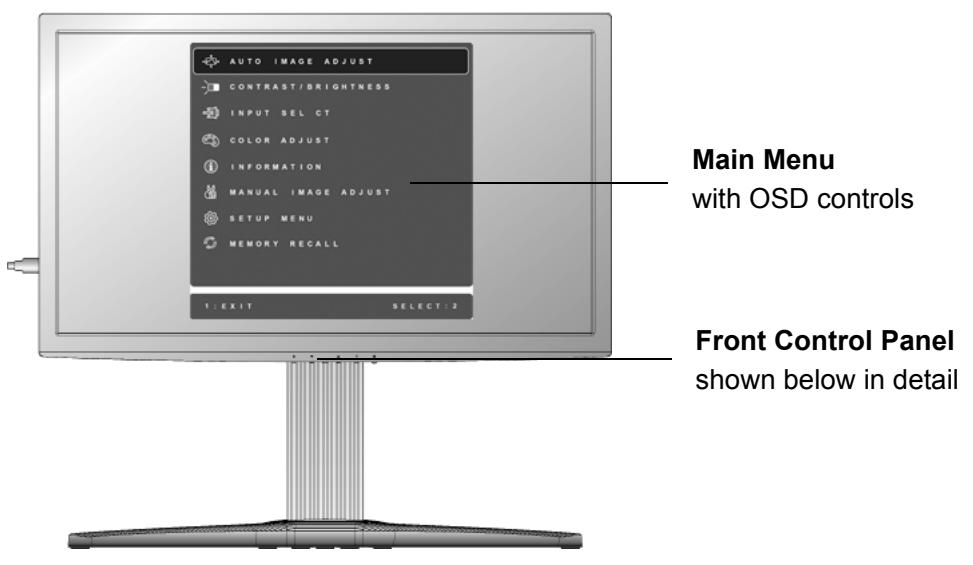
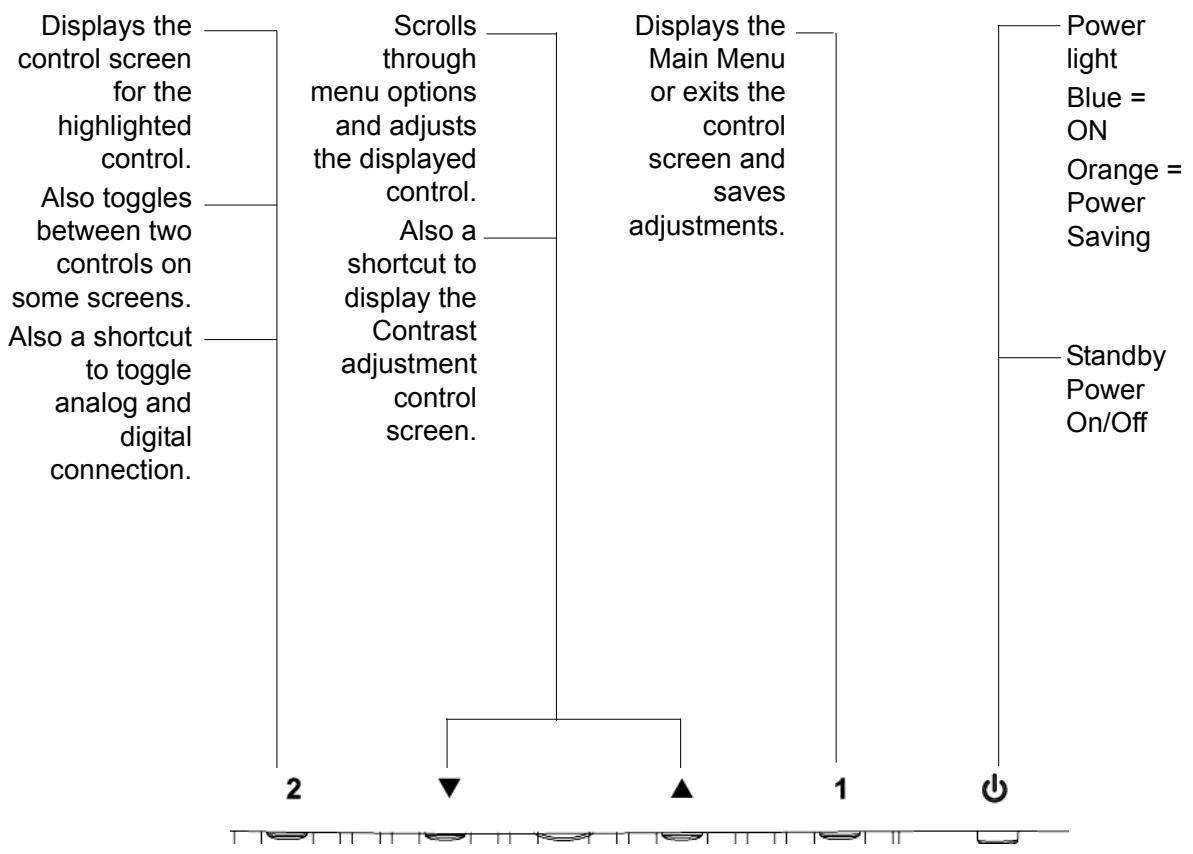
Do the following to adjust the display setting:
- To display the Main Menu, press button [1].
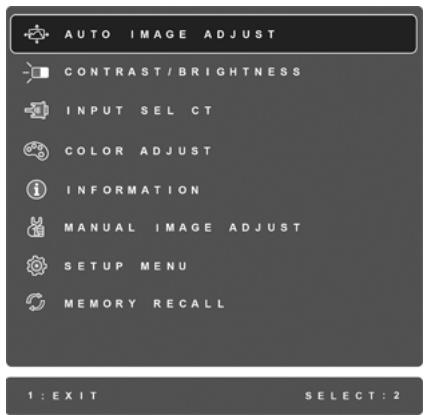
NOTE: All OSD menus and adjustment screens disappear automatically after about 15 seconds. This is adjustable through the OSD timeout setting in the setup menu.
- To select a control to adjust, press or to scroll up or down in the Main Menu.
- After the desired control is selected, press button [2]. A control screen like the one shown below appears.
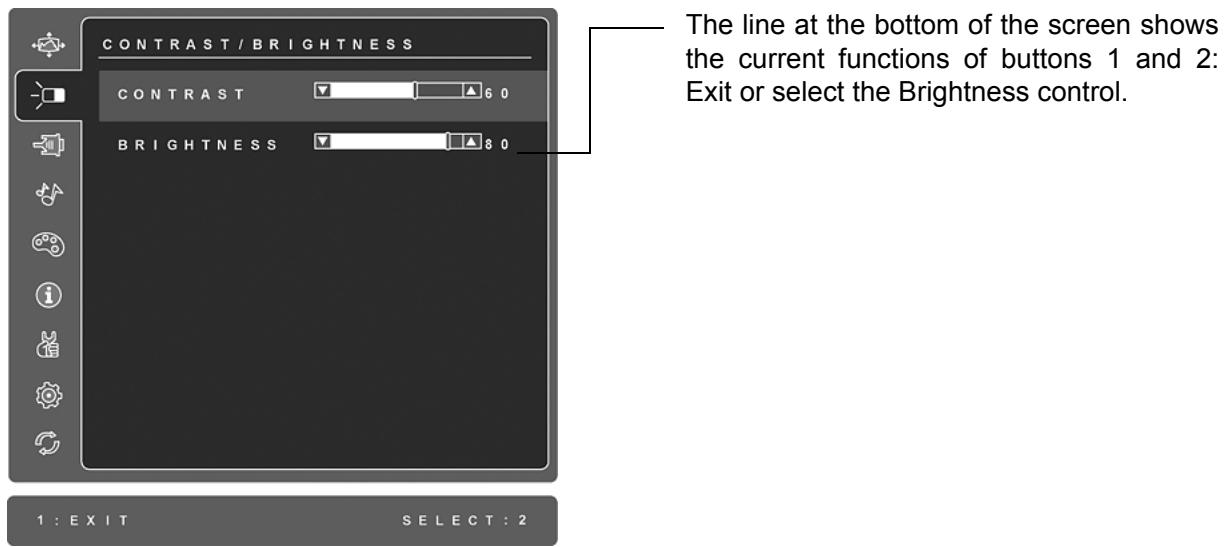
- To adjust the control, press the up or down buttons.
- To save the adjustments and exit the menu, press button [1] twice.
The following tips may help you optimize your display:
- Adjust the computer's graphics card so that it outputs a 1920 × 1080 @ 60Hz video signal to the LCD display. (Look for instructions on "changing the refresh rate" in the graphics card's user guide.)
- If necessary, make small adjustments using H. POSITION and V. POSITION until the screen image is completely visible. (The black border around the edge of the screen should barely touch the illuminated "active area" of the LCD display.)
Main Menu Controls
Adjust the menu items shown below by using the up and down buttons.
Control Explanation

Auto Image Adjust automatically sizes, centers, and fine tunes the video signal to eliminate waviness and distortion. Press the [2] button to obtain a sharper image.
NOTE: Auto Image Adjust works with most common video cards. If this function does not work on your LCD display, then lower the video refresh rate to 60Hz and set the resolution to its pre-set value.

Contrast adjusts the difference between the image background (black level) and the foreground (white level).

Brightness adjusts background black level of the screen image.

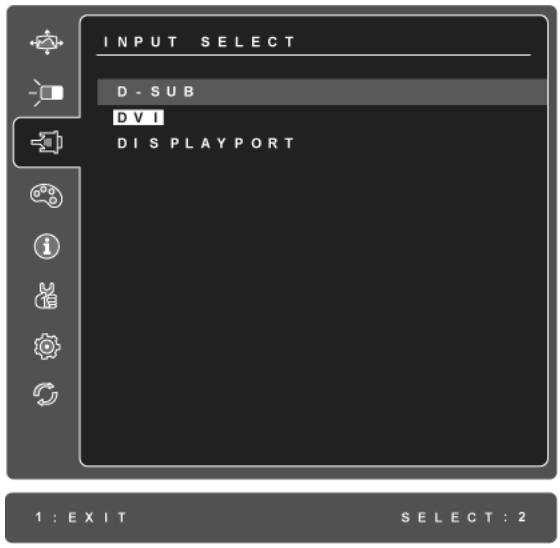
Input Select toggles between inputs if you have more than one computer connected to the LCD Display.

Color Adjust provides several color adjustment modes, including preset color temperatures and a User Color mode which allows independent adjustment of red (R), green (G), and blue (B). The factory setting for this product is 6500K (6500 Kelvin).
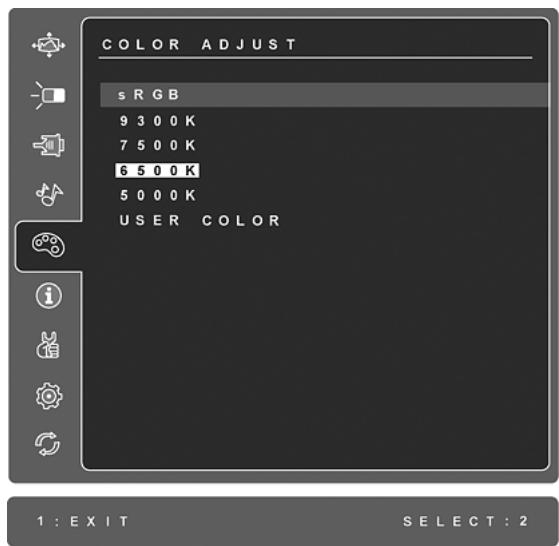
sRGB-This is quickly becoming the industry standard for color management, with support being included in many of the latest applications. Enabling this setting allows the LCD display to more accurately display colors the way they were originally intended. Enabling the sRGB setting will cause the Contrast and Brightness adjustments to be disabled.
9300K-Adds blue to the screen image for cooler white (used in most office settings with fluorescent lighting).
7500K-Adds blue to the screen image for cooler white (used in most office settings with fluorescent lighting).
6500K-Adds red to the screen image for warmer white and richer red.
5000K-Adds red to the screen image for warmer white and richer red.
User Color Individual adjustments for red (R), green (G), and blue (B).
- To select color (R, G or B) press button [2].
- To adjust selected color, press and .
Important: If you select RECALL from the Main Menu when the product is set to a Preset Timing Mode, colors return to the 6500K factory preset.

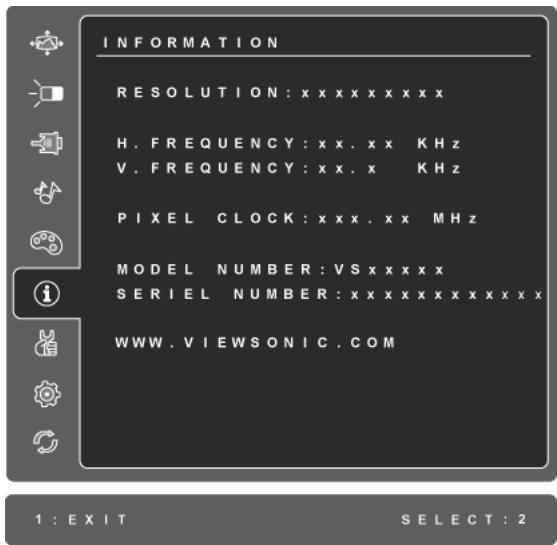
Information displays the timing mode (video signal input) coming from the graphics card in the computer, the LCD model number, the serial number, and the ViewSonic® website URL. See your graphics card's user guide for instructions on changing the resolution and refresh rate (vertical frequency). NOTE: VESA 1920 x 1080 @ 60Hz (recommended) means that the resolution is 1920 x 1080 and the refresh rate is 60 Hertz.

Manual Image Adjust displays the Manual Image Adjust menu.
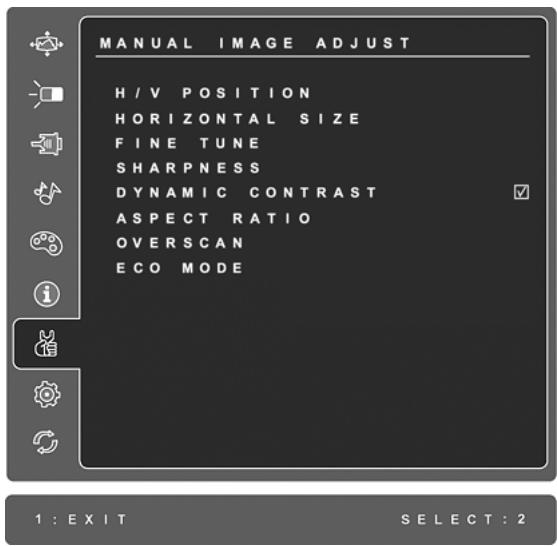
H./V. Position (Horizontal/Vertical Position) moves the screen image left or right and up or down.
H. Size (Horizontal Size) adjusts the width of the screen image.
Fine Tune sharpens the focus by aligning text and/or graphics with pixel boundaries.
NOTE: Try Auto Image Adjust first.
Sharpness adjusts the clarity and focus of the screen image.
Dynamic Contrast allows the user to turn the contrast ratio enhancement on or off.
Aspect ratio selects the image size for 1:1, fill aspect ratio & full screen.
Overscan allows the user to cut off extra area around the image.
ECO Mode provides the lower power consumption by reducing the brightness.
Standard: The default brightness setting.
Optimize: Decreases the brightness by 25% .
Conserve: Decreases the brightness by 50% .

Setup Menu displays the menu shown below:
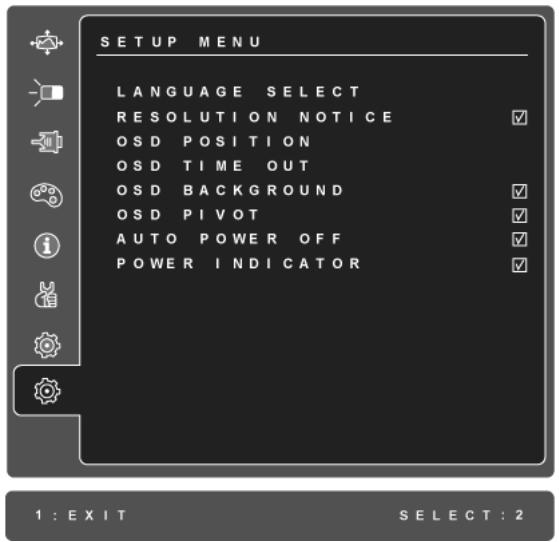
Language Select allows the user to choose the language used in the menus and control screens.
Resolution Notice advises the optimal resolution to use.
OSD Position allows the user to move the OSD menus and control screens.
OSD Timeout sets the length of time the OSD screen is displayed. For example, with a "15 second" setting, if a control is not pushed within 15 seconds, the display screen disappears.
OSD Background allows the user to turn the OSD background On or Off.
OSD Pivot is used to rotate the OSD menu, changing the OSD screen to Landscape or Portrait mode.
Auto Power Off, if enabled, will power off the display automatically when no signal is detected for 3 minutes.
Power Indicator allows the user to select the Power Indicator On/Off for Power On/Off mode.

Memory Recall returns the adjustments back to factory settings if the display is operating in a factory Preset Timing Mode listed in the Specifications of this manual.
Exception: This control does not affect changes made with the Language Select or Power Lock setting.
Other Information
Specifications
| LCD | Type | TFT (Thin Film Transistor), Active Matrix 1920 x 1080 LCD, 0.31125mm pixel pitch Metric: 68 cm | |
| Color Filter Glass Surface | Imperial: 27" (27" viewable) RGB vertical stripe Anti-Glare | ||
| Input Signal | Video Sync | RGB analog (0.7/1.0 Vp-p, 75 ohms)/ TMDS Digital (100ohms) Composite Sync, Separate Sync, Sync on Green fH:24-82 kHz, fV:50-75 Hz | |
| Compatibility | PC Macintosh¹ | Up to 1920 x 1080 Non-interlaced Power Macintosh up to 1920 x 1080 | |
| Resolution | Recommended and supported | 1920 x 1080 @ 60 Hz | 1152 x 870 @ 75 Hz |
| 1680 x 1050 @ 60 Hz | 1152 x 864 @ 75 Hz | ||
| 1600 x 1200 @ 60 Hz | 1024 x 768 @ 60, 70, 72, 75 Hz | ||
| 1440 x 900 @ 60, 75 Hz | 832 x 624 @ 75 Hz | ||
| 1400 x 1050 @ 60 Hz | 800 x 600 @ 56, 60, 72, 75 Hz | ||
| 1360 x 768 @ 60 Hz | 720 x 576 @ 50 Hz | ||
| 1280 x 1024 @ 60, 75 Hz | 720 x 480 @ 60 Hz | ||
| 1280 x 960 @ 60, 75 Hz | 720 x 400 @ 70 Hz | ||
| 1280 x 768 @ 60, 75 Hz | 640 x 480 @ 60, 67, 72, 75 Hz | ||
| 1280 x 720 @ 60 Hz | 640 x 400 @ 60, 70 Hz | ||
| 1152 x 900 @ 67 Hz | 640 x 350 @ 70 Hz | ||
| Power | Voltage | 100-240 VAC, 50-60 Hz (auto switch) | |
| Display area | Full Scan | 597.6 mm (H) x 336.15 mm (V) 23.49" (H) x 13.23" (V) | |
| Operating conditions | Temperature Humidity Altitude | +32° F to +104° F (0°C to +40°C) 20% to 90% (non-condensing) To 10,000 feet | |
| Storage conditions | Temperature Humidity Altitude | -4° F to +140° F (-20°C to +60°C) 5% to 90% (non-condensing) To 40,000 feet | |
| Dimensions | Physical | 642 mm (W) x 466 mm (H) x 388.48 mm (D) 25.27" (W) x 18.34" (H) x 15.29" (D) | |
| Weight | Physical | 18.59 lb (8.45 kg) | |
| Regulations | BSMI, CCC, PSB, C-Tick, CE, GS, Gost-R/Hygienic, Ukraine, TCO 5.1, UL/cUL, FCC-B, ICES-B, ENERGY STAR® | ||
| Power saving modes | On Off | <55W (blue LED) <1W | |
- Preset Timing Mode (pre-adjusted to VESA® 1920 x 1080 @ 60 Hz)
- Warning: Do not set the graphics card in your computer to exceed these refresh rates; doing so may result in permanent damage to the LCD display.
1 Macintosh computers older than G3 require a ViewSonic® Macintosh adapter. To order an adapter, contact ViewSonic.
Troubleshooting
No power
- Make sure power button (or switch) is ON.
- Make sure A/C power cord is securely connected to the LCD display.
- Plug another electrical device (like a radio) into the power outlet to verify that the outlet is supplying proper voltage.
Power is ON but no screen image
- Make sure the video cable supplied with the LCD display is tightly secured to the video output port on the back of the computer. If the other end of the video cable is not attached permanently to the LCD display, tightly secure it to the LCD display.
- Adjust brightness and contrast.
- If you are using an Macintosh older than G3, you need a Macintosh adapter.
Wrong or abnormal colors
- If any colors (red, green, or blue) are missing, check the video cable to make sure it is securely connected. Loose or broken pins in the cable connector could cause an improper connection.
- Connect the LCD display to another computer.
- If you have an older graphics card, contact ViewSonic® for a non-DDC adapter.
Control buttons do not work
- Press only one button at a time.
Customer Support
For technical support or product service, see the table below or contact your reseller.
NOTE: You will need the product serial number.
| Country/Region | Website | T = Telephone F = FAX | |
| Australia/New Zealand | www.viewsonic.com.au | AUS= 1800 880 818 NZ= 0800 008 822 | service@au.viewsonic.com |
| Canada | www.viewsonic.com | T (Toll-Free)= 1-866-463-4775 T (Toll)= 1-424-233-2533 F= 1-909-468-3757 | service.ca@viewsonic.com |
| Europe | www.viewsoniceurope.com | www.viewsoniceurope.com/uk/support/call-desk/ | |
| Hong Kong | www.hk.viewsonic.com | T= 852 3102 2900 | service@hk.viewsonic.com |
| India | www.in.viewsonic.com | T= 1800 11 9999 | service@in.viewsonic.com |
| Ireland (Eire) | www.viewsoniceurope.com /uk/ | www.viewsoniceurope.com/uk/support/call-desk/ | service_ie@viewsoniceurope.com |
| Korea | www.kr.viewsonic.com | T= 080 333 2131 | service@kr.viewsonic.com |
| Latin America (Argentina) | www.viewsonic.com/la/ | T= 0800-4441185 | soporte@viewsonic.com |
| Latin America (Chile) | www.viewsonic.com/la/ | T= 1230-020-7975 | soporte@viewsonic.com |
| Latin America (Columbia) | www.viewsonic.com/la/ | T= 01800-9-157235 | soporte@viewsonic.com |
| Latin America (Mexico) | www.viewsonic.com/la/ | T= 001-8882328722 | soporte@viewsonic.com |
| Renta y Datos, 29 SUR 721, COL. LA PAZ, 72160 PUEBLA, PUE. Tel: 01.222.891.55.77 CON 10 LINEAS Electroser, Av Reforma No. 403Gx39 y 41, 97000 Mérida, Yucatán. Tel: 01.999.925.19.16 Other places please refer to http://www.viewsonic.com/la/soporte/index.htm#Mexico | |||
| Latin America (Peru) | www.viewsonic.com/la/ | T= 0800-54565 | soporte@viewsonic.com |
| Macau | www.hk.viewsonic.com | T= 853 2870 0303 | service@hk.viewsonic.com |
| Middle East | ap.viewsonic.com/me/ | Contact your reseller | service@ap.viewsonic.com |
| Puerto Rico & Virgin Islands | www.viewsonic.com | T= 1-800-688-6688 (English) T= 1-866-379-1304 (Spanish) F= 1-909-468-3757 | service.us@viewsonic.com soporte@viewsonic.com |
| Singapore/Malaysia/Thailand | www.viewsonic.com.sg | T= 65 6461 6044 | service@sg.viewsonic.com |
| South Africa | ap.viewsonic.com/za/ | Contact your reseller | service@ap.viewsonic.com |
| United Kingdom | www.viewsoniceurope.com /uk/ | www.viewsoniceurope.com/uk/support/call-desk/ | service_gb@viewsoniceurope.com |
| United States | www.viewsonic.com | T (Toll-Free)= 1-800-688-6688 T (Toll)= 1-424-233-2530 F= 1-909-468-3757 | service.us@viewsonic.com |
Cleaning the LCD Display
- MAKE SURE THE LCD DISPLAY IS TURNED OFF.
- NEVER SPRAY OR POUR ANY LIQUID DIRECTLY ONTO THE SCREEN OR CASE.
To clean the screen:
- Wipe the screen with a clean, soft, lint-free cloth. This removes dust and other particles.
- If the screen still not clean, apply a small amount of non-ammonia, non-alcohol based glass cleaner onto a clean, soft, lint-free cloth, and wipe the screen.
To clean the case:
- Use a soft, dry cloth.
- If the case still not clean, apply a small amount of a non-ammonia, non-alcohol based, mild non-abrasive detergent onto a clean, soft, lint-free cloth, then wipe the surface.
Disclaimer
- ViewSonic® does not recommend the use of any ammonia or alcohol-based cleaners on the LCD display screen or case. Some chemical cleaners have been reported to damage the screen and/or case of the LCD display.
- ViewSonic will not be liable for damage resulting from use of any ammonia or alcohol-based cleaners.
Limited Warranty VIEWSONIC® LCD DISPLAY
What the warranty covers:
ViewSonic warrants its products to be free from defects in material and workmanship, under normal use, during the warranty period. If a product proves to be defective in material or workmanship during the warranty period, ViewSonic will, at its sole option, repair or replace the product with a like product. Replacement product or parts may include remanufactured or refurbished parts or components.
How long the warranty is effective:
ViewSonic LCD displays are warranted for 3 years for all parts including the light source and 3 years for all labor from the date of the first consumer purchase.
Who the warranty protects:
This warranty is valid only for the first consumer purchaser.
What the warranty does not cover:
-
Any product on which the serial number has been defaced, modified or removed.
-
Damage, deterioration or malfunction resulting from:
a. Accident, misuse, neglect, fire, water, lightning, or other acts of nature, unauthorized product modification, or failure to follow instructions supplied with the product.
b. Any damage of the product due to shipment.
c. Removal or installation of the product.
d. Causes external to the product, such as electrical power fluctuations or failure.
e. Use of supplies or parts not meeting ViewSonic's specifications.
f. Normal wear and tear.
g. Any other cause which does not relate to a product defect.
-
Any product exhibiting a condition commonly known as "image burn-in" which results when a static image is displayed on the product for an extended period of time.
-
Removal, installation, one way transportation, insurance, and set-up service charges.
How to get service:
- For information about receiving service under warranty, contact ViewSonic Customer Support (Please refer to Customer Support page). You will need to provide your product's serial number.
- To obtain warranty service, you will be required to provide (a) the original dated sales slip, (b) your name, (c) your address, (d) a description of the problem, and (e) the serial number of the product.
- Take or ship the product freight prepaid in the original container to an authorized ViewSonic service center or ViewSonic.
- For additional information or the name of the nearest ViewSonic service center, contact ViewSonic.
Limitation of implied warranties:
There are no warranties, express or implied, which extend beyond the description contained herein including the implied warranty of merchantability and fitness for a particular purpose.
4.3: ViewSonic LCD Warranty
Page 1 of 2
LCD_LW02 Rev. 1e 06-11-07
Exclusion of damages:
ViewSonic's liability is limited to the cost of repair or replacement of the product. ViewSonic shall not be liable for:
- Damage to other property caused by any defects in the product, damages based upon inconvenience, loss of use of the product, loss of time, loss of profits, loss of business opportunity, loss of goodwill, interference with business relationships, or other commercial loss, even if advised of the possibility of such damages.
- Any other damages, whether incidental, consequential or otherwise.
- Any claim against the customer by any other party.
- Repair or attempted repair by anyone not authorized by ViewSonic.
Effect of state law:
This warranty gives you specific legal rights, and you may also have other rights which vary from state to state. Some states do not allow limitations on implied warranties and/or do not allow the exclusion of incidental or consequential damages, so the above limitations and exclusions may not apply to you.
Sales outside the U.S.A. and Canada:
For warranty information and service on ViewSonic products sold outside of the U.S.A. and Canada, contact ViewSonic or your local ViewSonic dealer.
The warranty period for this product in mainland China (Hong Kong, Macao and Taiwan Excluded) is subject to the terms and conditions of the Maintenance Guarantee Card.
For users in Europe and Russia, full details of warranty provided can be found in www.viewsoniceurope.com under Support/Warranty Information.
Mexico Limited Warranty
VIEWSONIC® DISPLAYPRODUCTS
What the warranty covers:
ViewSonic warrants its products to be free from defects in material and workmanship, under normal use, during the warranty period. If a product proves to be defective in material or workmanship during the warranty period, ViewSonic will, at its sole option, repair or replace the product with a like product. Replacement product or parts may include remanufactured or refurbished parts or components & accessories.
How long the warranty is effective:
ViewSonic LCD displays are warranted for 3 years for all parts including the light source and 3 years for all labor from the date of the first consumer purchase.
Who the warranty protects:
This warranty is valid only for the first consumer purchaser.
What the warranty does not cover:
- Any product on which the serial number has been defaced, modified or removed.
- Damage, deterioration or malfunction resulting from:
a. Accident, misuse, neglect, fire, water, lightning, or other acts of nature, unauthorized product modification, unauthorized attempted repair, or failure to follow instructions supplied with the product.
b. Any damage of the product due to shipment.
c. Causes external to the product, such as electrical power fluctuations or failure.
d. Use of supplies or parts not meeting ViewSonic's specifications.
e. Normal wear and tear.
f. Any other cause which does not relate to a product defect.
- Any product exhibiting a condition commonly known as "image burn-in" which results when a static image is displayed on the product for an extended period of time.
- Removal, installation, insurance, and set-up service charges.
How to get service:
For information about receiving service under warranty, contact ViewSonic Customer Support (Please refer to the attached Customer Support page). You will need to provide your product's serial number, so please record the product information in the space provided below on your purchase for your future use. Please retain your receipt of proof of purchase to support your warranty claim.
For Your Records
Product Name:
Document Number:
Purchase Date:
Model Number:
Serial Number:
Extended Warranty Purchase? (Y/N)
If so, what date does warranty expire?
- To obtain warranty service, you will be required to provide (a) the original dated sales slip, (b) your name, (c) your address, (d) a description of the problem, and (e) the serial number of the product.
- Take or ship the product in the original container packaging to an authorized ViewSonic service center.
- Round trip transportation costs for in-warranty products will be paid by ViewSonic.
Limitation of implied warranties:
There are no warranties, express or implied, which extend beyond the description contained herein including the implied warranty of merchantability and fitness for a particular purpose.
Exclusion of damages:
ViewSonic's liability is limited to the cost of repair or replacement of the product. ViewSonic shall not be liable for:
- Damage to other property caused by any defects in the product, damages based upon inconvenience, loss of use of the product, loss of time, loss of profits, loss of business opportunity, loss of goodwill, interference with business relationships, or other commercial loss, even if advised of the possibility of such damages.
- Any other damages, whether incidental, consequential or otherwise.
- Any claim against the customer by any other party.
- Repair or attempted repair by anyone not authorized by ViewSonic.
4.3: ViewSonic Mexico Limited Warranty
LCD_LW03 Rev. 1a 06-11-07
| Contact Information for Sales & Authorized Service (Centro Autorizzato de Servizio) within Mexico: | |
| Name, address, of manufacturer and importers:México, Av. de la Palma #8 Piso 2 Despacho 203, Corporativo Interpalmas, Col. San Fernando Huixquilucan, Estado de MéxicoTel: (55) 3605-1099http://www.viewsonic.com/la/soporte/index.htm | |
| NUMERO Gratis DE ASISTENCIA TÉCNICA PARA TODO MÉXICO: 001.866.823.2004 | |
| Hermosillo:Distribuciones y Servicios Computaciones SA de CV.Calle Juarez 284 local 2Col. Bugambillas C.P: 83140Tel: 01-66-22-14-9005E-Mail: disc2@hmo.megared.net.mx | Villahermosa:Compumantenimietnos Garantizados, S.A. de C.V.AV. GREGORIO MENDEZ #1504COL, FLORIDA C.P. 86040Tel: 01 (993) 3 52 00 47 / 3522074 / 3 52 20 09E-Mail: compumantenimientos@prodigy.net.mx |
| Puebla, Pue. (Matrix):RENTA Y DATOS, S.A. DE C.V. Domicilio:29 SUR 721 COL. LA PAZ72160 PUEBLA, PUE.TeL: 01(52).222.891.55.77 CON 10 LINEASE-Mail: datos@puebla.megared.net.mx | Veracruz, Ver.:CONEXION Y DESARROLLO, S.A DE C.V. AvAmericas # 419ENTRE PINZON Y ALVARADOFracc. Reforma C.P. 91919Tel: 01-22-91-00-31-67E-Mail: gacosta@qplus.com.mx |
| ChihuahuaSolutiones Globales en ComputaciónC. Magisterio # 3321 Col. MagisterialChihuahua, Chih.Tel: 4136954E-Mail: Cefeo@soluglobales.com | CuernavacaCompusupport de Cuernavaca SA de CVFrancisco Leyva # 178 Col. Miguel HidalgoC.P. 62040, Cuernavaca MorelosTel: 01 777 3180579 / 01 777 3124014E-Mail: aquevedo@compusupportcva.com |
| Distrito Federal:QPLUS, S.A. de C.V.Av. Coyoacán 931Col. Del Valle 03100, México, D.F.Tel: 01(52)55-50-00-27-35E-Mail: gacosta@qplus.com.mx | Guadalajara, Jal.:SERVICRECE, S.A. de C.V.Av. Niños Héros # 2281Col. Arcos Sur, Sector Juárez44170, Guadalajara, JaliscoTel: 01(52)33-36-15-15-43E-Mail: mmiranda@servicrece.com |
| Guerrero AcapulcoGS Computación (Grupo Sesicomp)Progreso #6-A, Colo Centro39300 Acapulco, GuerreroTel: 744-48-32627 | Monterrey:Global Product ServicesMar Caribe # 1987, Esquina con Golfo PérsicoFracc. Bernardo Reyes, CP 64280Monterrey N.L. MéxicoTel: 8129-5103E-Mail: aydeem@gpsl.com.mx |
| MERIDA:ELECTROSERAV Reforma No. 403Gx39 y 41Mérida, Yucatán, México CP97000Tel: (52) 999-925-1916E-Mail: rrrb@sureste.com | Oaxaca, Oax.:CENTRO DE DISTRIBUTUCION Y SERVICIO, S.A. de C.V.Murguía # 708 P.A., Col. Centro, 68000, OaxacaTel: 01(52)95-15-15-22-22Fax: 01(52)95-15-13-67-00E-Mail: gpotai2001@hotmail.com |
| Tijuana:STDAv Ferrocarril Sonora #3780 L-CCol 20 de NoviembreTijuana, Mexico | FOR USA SUPPORT:ViewSonic Corporation381 Brea Canyon Road, Walnut, CA. 91789 USATel: 800-688-6688 (English); 866-323-8056 (Spanish);Fax: 1-800-685-7276E-Mail: http://www.viewsonic.com |