 ManualGo.com
TX-NR626 - AV Receiver ONKYO - Free user manual and instructions
Find the device manual for free TX-NR626 ONKYO in PDF.



Download the instructions for your AV Receiver in PDF format for free! Find your manual TX-NR626 - ONKYO and take your electronic device back in hand. On this page are published all the documents necessary for the use of your device. TX-NR626 by ONKYO.
USER MANUAL TX-NR626 ONKYO
SERVICE PERSONNEL. [WARNING |] AVIS SK CIM ShOK | RSQUE D CC ELECTION GONG oral NEMS OUR The lightning flash with arrowhead symbol, within an equilateral triangle, is intended to alert the A user to the presence of uninsulated “dangerous voltage” within the products enclosure that may be of sufficient magnitude to constitute a risk of electric shock to persons. The exclamation point within an equilateral triangle is intended to alert the user to the presence of important operating and maintenance (servicing) instructions in the literature accompanying the appliance. Important Safety Instructions Read these instructions. Keep these instructions. Heed all warnings. Follow all instructions. Do not use this apparatus near water. Clean only with dry cloth. Do not block any ventilation openings. Install in NPHBEWN = accordance with the manufacturer's instructions. Do not install near any heat sources such as radiators, heat registers, stoves, or other apparatus (including amplifiers) that produce heat.
Do not defeat the safety purpose of the polarized or grounding-type plug. À polarized plug has two blades with one wider than the other. A grounding type plug has two blades and a third grounding prong. The wide blade or the third prong are provided for your safety. If the provided plug does not fit into your outlet, consult an electrician for replacement of the obsolete outlet. Protect the power cord from being walked on or pinched particularly at plugs, convenience receptacles, and the point where they exit from the apparatus. Only use attachments/accessories specified by the manufacturer. Use only with the cart, stand, tripod, bracket, or table specified by the manufacturer, or sold with » the apparatus. When a cart is used, use caution when moving the cart/apparatus combination to avoid injury **#* from tip-over. Unplug this apparatus during lightning storms or when unused for long periods of time.
PORTABLE GART WARNING
. Refer all servicing to qualified service personnel. Servicing is required when the apparatus has been damaged in any way, such as power-supply cord or plug is damaged, liquid has been spilled or objects have fallen into the apparatus, the apparatus has been exposed to rain or moisture, does not operate normally, or has been dropped. Damage Requiring Service Unplug the apparatus from the wall outlet and refer servicing to qualified service personnel under the following conditions: A. When the power-supply cord or plug is damaged, À En2 Y
Safety Information and Introduction . lfliquid has been spilled, or objects have fallen into the apparatus, C. Ifthe apparatus has been exposed to rain or water, D. lfthe apparatus does not operate normally by following the operating instructions. Adjust only those controls that are covered by the operating instructions as an improper adjustment of other controls may result in damage and will often require extensive work by a qualified technician to restore the apparatus to its normal operation, E. lfthe apparatus has been dropped or damaged in any way, and F. When the apparatus exhibits a distinct change in performance this indicates a need for service. Object and Liquid Entry Never push objects of any kind into the apparatus through openings as they may touch dangerous voltage points or short-out parts that could result in a fire or electric shock. The apparatus shall not be exposed to dripping or splashing and no objects filled with liquids, such as vases shall be placed on the apparatus. Don't put candles or other burning objects on top of this unit. Batteries Always consider the environmental issues and follow local regulations when disposing of batteries. If you install the apparatus in a built-in installation, such as a bookcase or rack, ensure that there is adequate ventilation. Leave 20 cm (8") of free space at the top and sides and 10 cm (4") at the rear. The rear edge of the shelf or board above the apparatus shall be set 10 cm (4") away from the rear panel or wall, creating a flue-like gap for warm air to escape. #5 ©
Recording Copyright—Unless it's for personal use only, recording copyrighted material is illegal without the permission of the copyright holder. . AC Fuse—The AC fuse inside the unit is not user- serviceable. If you cannot turn on the unit, contact your Onkyo dealer. . Care—Occasionally you should dust the unit all over with a soft cloth. For stubborn stains, use a soft cloth dampened with a weak solution of mild detergent and water. Dry the unit immediately afterwards with a clean cloth. Don't use abrasive cloths, thinners, alcohol, or other chemical solvents, because they may damage the finish or remove the panel lettering. . Power WARNING BEFORE PLUGGING IN THE UNIT FOR THE
FIRST TIME, READ THE FOLLOWING SECTION
CAREFULLY. AC outlet voltages vary from country to country. Make sure that the voltage in your area meets the voltage requirements printed on the unit's rear panel (e.g., AC 230 V, 50 Hz or AC 120 V, 60 Hz). The power cord plug is used to disconnect this unit from the AC power source. Make sure that the plug is readily operable (easily accessible) at all times. For models with [POWER] button, or with both [POWER] and [ON/STANDBY] buttons: Pressing the [POWER] button to select OFF mode does not fully disconnect from the mains. If you do not intend to use the unit for an extended period, remove the power cord from the AC outlet. For models with [ON/STANDBY] button only: Pressing the [ON/STANDBY] button to select Standby mode does not fully disconnect from the mains. If you do not intend to use the unit for an extended period, remove the power cord from the AC outlet.
5. Preventing Hearing Loss
Caution Excessive sound pressure from earphones and headphones can cause hearing loss.
6. Batteries and Heat Exposure
Warning Batteries (battery pack or batteries installed) shall not be exposed to excessive heat as sunshine, fire or the like.
7. Never Touch this Unit with Wet Hands—Never
handle this unit or its power cord while your hands are wet or damp. If water or any other liquid gets inside this unit, have it checked by your Onkyo dealer.
+_lf you need to transport this unit, use the original packaging to pack it how it was when you originally bought it. Do not leave rubber or plastic items on this unit for a long time, because they may leave marks on the case. This unit's top and rear panels may get warm after prolonged use. This is normal. If you do not use this unit for a long time, it may not work properly the next time you turn it on, so be sure to use it occasionally. For U.S. and Canadian models FCC CAUTION Changes or modifications not expressly approved by the party responsible for compliance could void the user's authority to operate the equipment. Note: This equipment has been tested and found to comply with the limits for a Class B digital device, pursuant to
part 15 of the FCC Rules. These limits are designed
to provide reasonable protection against harmful À En3 Y Safety Information and Introduction interference in a residential installation. This equipment generates, uses and can radiate radio frequency energy and, if not installed and used in accordance with the instructions, may cause harmful interference to radio communications. However, there is no guarantee that interference will not occur in a particular installation. If this equipment does cause harmiul interference to radio or television reception, which can be determined by turning the equipment off and on, the user is encouraged to try to correct the interference by one or more of the following measures: —Reorient or relocate the receiving antenna. —Increase the separation between the equipment and receiver. —Connect the equipment into an outlet on a circuit different from that to which the receiver is connected. —Consult the dealer or an experienced radio/TV technician for help. This device complies with Industry Canada licence- exempt RSS standard(s). Operation is subject to the following two conditions: (1) this device may not cause interference, and (2) this device must accept any interference, including interference that may cause undesired operation of the device. Le présent appareil est conforme aux CNR d'industrie Canada applicables aux appareils radio exempts de licence. L'exploitation est autorisée aux deux conditions suivantes : (1) l'appareil ne doit pas produire de brouillage, et (2) l'utilisateur de l'appareil doit accepter tout brouillage radioélectrique subi, même si le brouillage est susceptible d'en compromettre le fonctionnement. This transmitter must not be co-located or operated in conjunction with any other antenna or transmitter. #5 ©
RF Exposure Compliance This equipment complies with FCC/IC radiation exposure limits set forth for an uncontrolled environment and meets the FCC radio frequency (RF) Exposure Guidelines in Supplement C to OET65 and RSS-102 of the IC radio frequency (RF) Exposure rules. This equipment has very low levels of RF energy that it deemed to comply without maximum permissive exposure evaluation (MPE). But it is desirable that it should be installed and operated keeping the radiator at least 20 cm or more away from person's body (excluding extremities: hands, wrists, feet and ankles). Cet équipement est conforme aux limites d'exposition aux rayonnements énoncées pour un environnement non contrôlé et respecte les régles les radioélectriques (RF) de la FCC lignes directrices d'exposition dans le Supplément C à OET65 et d'exposition aux fréquences radioélectriques (RF) CNR-102 de l'IC. Cet équipement émet une énergie RF trés faible qui est considérée conforme sans évaluation de l'exposition maximale autorisée. Cependant, cet équipement doit être installé et utilisé en gardant une distance de 20 cm ou plus entre le dispositif rayonnant et le corps (à l'exception des extrémités : mains, poignets, pieds et chevilles). For Canadian Models
NOTE: THIS CLASS B DIGITAL APPARATUS
JUSQU'AU FOND. For British models Replacement and mounting of an AC plug on the power supply cord of this unit should be performed only by qualified service personnel. IMPORTANT The wires in the mains lead are coloured in accordance with the following code: Blue: Neutral Brown: Live As the colours of the wires in the mains lead of this apparatus may not correspond with the coloured markings identifying the terminals in your plug, proceed as follows: The wire which is coloured blue must be connected to the terminal which is marked with the letter N or coloured black. The wire which is coloured brown must be connected to the terminal which is marked with the letter L'or coloured red. À En4 Y Safety Information and Introduction IMPORTANT The plug is fitted with an appropriate fuse. If the fuse needs to be replaced, the replacement fuse must approved by ASTA or BSI to BS1362 and have the same ampere rating as that indicated on the plug. Check for the ASTA mark or the BSI mark on the body of the fuse. If the power cord's plug is not suitable for your socket outlets, cut it off and fit a suitable plug. Fit a suitable fuse in the plug. For European Models Declaration of Conformity We declare, under our sole responsibility, that this product complies with the standards: —Safety —Limits and methods of measurement of radio disturbance characteristics —Limits for harmonic current emissions —Limitation of voltage changes, voltage fluctuations and flicker —RoHS Directive, 2011/65/EU —Hereby, Onkyo Corporation, declares that this TX-NR626 is in compliance with the essential requirements and other relevant provisions of Directive 1999/5/EC. —C HacroaueTo, Onkyo Corporation, aeknapupa, 4e TX-NR626 e B CHOTBETCTBHE CBC CHLLECTBEHUTE U3NCKBAHUA U APYTATENPAIOXAMU pasnopenôU Ha Aupekrusa 1999/5/EC. —Onkyo Corporation timto prohlaëuje, Ze TX-NR626 splñuje zäkladni poZadavky a véechna prisluënä ustanoveni Smérnice 1999/5/ES. —Undertegnede Onkyo Corporation erklærer herved, at folgende udstyr TX-NR626 overholder de væsentlige krav og ovrige relevante krav i direktiv 1999/5/EF.
Thank you for purchasing an Onkyo AV Receiver. Please read this manual thoroughly before making connections and plugging in the unit. Following the instructions in this manual will enable you to obtain optimum performance and listening enjoyment from your new AV Receiver. Please retain this manual for future reference. Supplied Accessories Make sure you have the following accessories: Indoor FM antenna (> page 19) AM loop antenna (> page 19) Power cord (Taiwanese models) (> page 21) Speaker cable labels (> page 12) Speaker setup microphone (> page 25) Remote controller (RC-866M) and two batteries (AA/R6) Quick Start Guide ‘In catalogs and on packaging, the letter at the end of the product name indicates the color. Specifications and operations are the same regardless of color. #5 ©
Table of Contents Important Safety Instructions . Precautions . Supplied Accessories. Table of Content: Features Front & Rear Panels. Front Panel Display … Rear Panel 10 Remote Controller. 11 Controlling the AV Receiver 11 Connecting Your Speakers . Connecting the TV/AV components. About RIHD-compatible components. Operations that can be performed with RIHD connection Confirm the settings Connection Tips... Connecting the Antennas. Connecting Onkyo RI Componen Using Headphones.. Turning On & Basic Operat Turning On/Off the AV Rec Connecting the Power Cord Turning On Turning Off Firmware Update Notification. About the HYBRID STANDBY indicator. Initial Setup . Selecting the Language for the On-screen Setup Menus . Audyssey MultEQ: Auto Setup Source Connection . Remote Mode Setup Network Connection Terminating the Initial Setup Using the Automatic Speaker Setup 24 Perlorming Wireless LAN Setup Playback Playback Controlling Contents of USB or Network Devices Understanding Icons on the Display Playing an Audio from Bluetooth-enabled Device Playing a USB Device Listening to Tuneln . Registering Other In! Changing the Icon Layout on the Network Service Screen... Playing Music Files on a Server (DLNA) Playing Music Files on a Shared Folder . Remote Playback Listening to AM/FM Radio Playing Audio and Video from Separate Sources. Using the Listening Modes . Displaying Source Information Using the Sleep Timer Settng the Display Brightness: Changing the Input Display. Muting the AV Receiver Using the Home Menu À En6 Y Safety Information and Introduction Advanced Operatio On-screen Setup. Using the Quick Setup Using the Audio Settings of Quick Setup. Using the Setup Menu (HOME Setup Menu Items... Input/Output Assign . Speaker Setup... Audio Adjust ... Source Setup . Listening Mode Presel
Controlling Zone 2 Compone: 0 Coi olling Other Components Controlling Other Components. Preprogrammed Remote Control Codes . Looking up for Remote Control Codes Entering Remote Control Codes. Remapping Colored Buttons Remote Control Codes for Onkyo Components Connected via RI.. Resetting the REMOTE MODE Button Resetting the Remote Controller Controlling Other Components Using the Onkyo Dock... Controlling Your iPod/iPhone . RRRRE] Appendi Troubleshooting.. Firmware Update About HDMI... Network/USB Features. License and Trademark Information Specifications.
To reset the AV receiver, see page 77. #5 ©
Features Amplifier +95 Watts/Channel @ 8 ohms (FTC) +160 Watts/Channel @ 6 ohms (IEC) +175 Watts/Channel @ 6 ohms (JEITA) + WRAT-Wide Range Amplifier Technology (5 Hz to 100 kHz bandwidth) + Optimum Gain Volume Circuitry + H.C.P.S. (High Current Power Supply) Massive High Power Transformer Processing + Incorporates QdeoT" technology for HDMI Video Upscaling (to 4K Compatible) + HDMI (Audio Return Channel, 3D, DeepColor, x.v.Color, Lip Sync, 4K (up-scaling and Passthrough), DTS-HD Master Audio, DTS-HD High Resolution Audio, Dolby TrueHD, Dolby Digital Plus, DSD and Multi-CH PCM) + Dolby TrueHD and DTS-HD Master Audio + Dolby Pro Logic 1Iz + Non-Scaling Configuration - A-Form Listening Mode Memory + Direct Mode - Pure Audio Mode (European, Australian and Asian models) - Music Optimizer for Compressed Digital Music files + Phase Matching Bass System + 192 kKHz/24-bit D/A Converters + Powerful and Highly Accurate 32-bit Processing DSP + Jitter Cleaning Circuit Technology Connections + 6 HDMI Inputs and 2 Outputs + 4K (up-scaling and Passthrough')-compatible HDMI Inputs
- Compatible with HDMI IN 1 to HDMI IN 4 only + Onkyo RIHD for System Control - 3 Digital Inputs (1 Optical/2 Coaxial) + Component Video Switching (1 Input/1 Output) + Banana Plug-Compatible Speaker Posts
- In Europe, using banana plugs to connect speakers to an audio amplifier is prohibited. + Powered Zone 2 - Bi-Amping Capability for FL/FR with SBL/SBR + Internet Radio Connectivity - Network Capability for Streaming Audio Files + Wi-Fi (Wireless LAN) Connectivity + Wireless Music Playback via Bluetooth - Front-Panel USB Input for Memory Devices + MHL-Enabled HDMI IN 1 Miscellaneous + 40 FM/AM Presets + Audyssey MultEQ® to correct room acoustic problems + Audyssey Dynamic EQ® for loudness correction - Audyssey Dynamic Volume® to maintain optimal listening level and dynamic range + Crossover Adjustment (40/50/60/70/80/90/100/120/150/200 Hz) + A/V Sync Control Function (up to 800 ms) - Auto Standby Function + On-Screen Display via HDMI + Preprogrammed RI-Compatible Remote À En7 Y Safety Information and Introduction
Front & Rear Panels Safety Information and Introduction Front Panel (North American and Taiwanese models) O 2806 60 890 0€ (PRET) (European, Australian and Asian models)
EE J\ | © © Œ) © à GIE) For detailed information, see the pages in parentheses. @ ON/STANDBY button (21) © MUSIC OPTIMIZER button (North American and Taiwanese models) (50) @ ZONE 2, OFF buttons (70) @ Wi-Fi indicator (27) ® Remote control sensor (11) © Display (9) @ LISTENING MODE buttons (41) DIMMER button (North American and Taiwanese models) (46) @ MEMORY button (38) TUNING MODE button (38) @ DISPLAY button (45) @ HOME button (47) @ TUNING 4/Y (38), PRESET </> (38), cursor and ENTER buttons RETURN button & MASTER VOLUME control (29) @ BLUETOOTH button and indicator (31, 68) @ PHONES jack (20) @ TONE and Tone Level buttons (49) Input selector buttons (29) À Ens Y & AUX INPUT AUDIO/VIDEO jacks © USB port (32) @ SETUP MIC jack (25) & HYBRID STANDB)Y indicator (22) @ RT/PTY/TP button (European, Australian and Asian models) (39) @ PURE AUDIO button and indicator (European, Australian and Asian models) (41) #5 ©
Safety Information and Introduction For detailed information, see the pages in parentheses. @ 22 (Zone 2) indicator (70) @ 3D indicator This lights when a 3D input signal is detected. @ Headphone indicator (20) © »-, 11 and cursor indicators (32) ® Listening mode and format indicators (41, 62) © Audyssey indicator (24, 58) Dynamic EQ indicator (59) Dynamic Vol indicator (59) © M.Opt (Music Optimizer) indicator (50) Tuning indicators RDS indicator (excluding North American and Taiwanese models) (39) AUTO indicator (38) TUNED indicator (38) FM STEREO indicator (38) © MUTING indicator (46) Input indicators (18) HDM indicator (65) DIGITAL indicator © ARC (Audio Return Channel) indicator (66) @ USB indicator (32) À En9 Y
Safety Information and Introduction (North American, European, Australian and Asian models) (Taiwanese models)
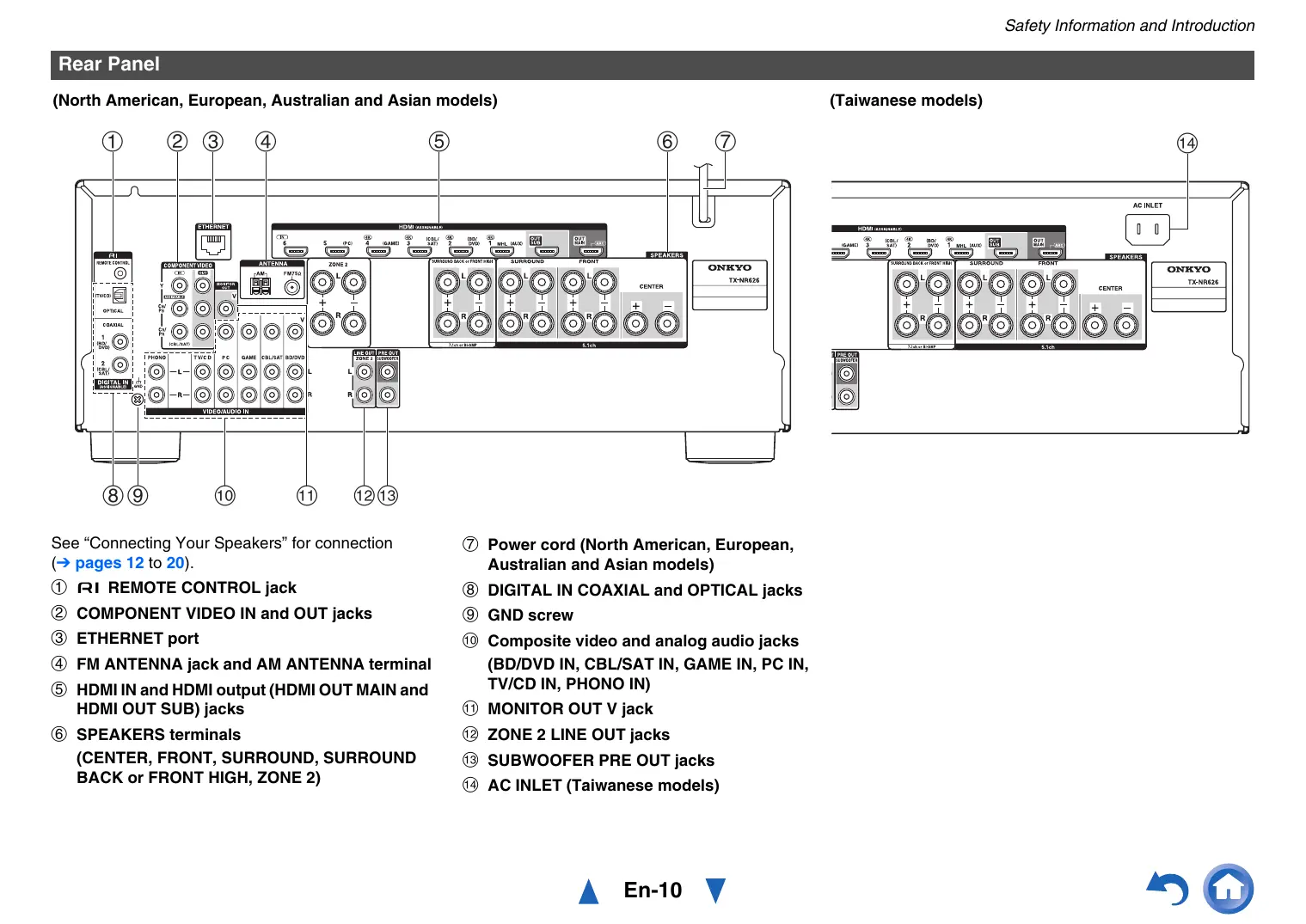
GO] () Oo CO See “Connecting Your Speakers” for connection @ Power cord (North American, European, (> pages 12 to 20). Australian and Asian models) ®© m1 REMOTE CONTROL jack DIGITAL IN COAXIAL and OPTICAL jacks @ COMPONENT VIDEO IN and OUT jacks © GND screw @ ETHERNET port Composite video and analog audio jacks @ FM ANTENNA jack and AM ANTENNA terminal (BD/DVD IN, CBL/SAT IN, GAME IN, PC IN, © HDMI IN and HDMI output (HDMI OUT MAIN and TV/CD IN, PHONO IN) HDMI OUT SUB) jacks © MONITOR OUT V jack © SPEAKERS terminals @ ZONE 2 LINE OUT jacks (CENTER, FRONT, SURROUND, SURROUND @ SUBWOOFER PRE OUT jacks BACK or FRONT HIGH, ZONE 2) AC INLET (Taiwanese models) À En10 Y LD) O
Remote Controller g the AV Receiver To control the AV receiver, press RECEIVER to select Receiver mode. For detailed information, see the pages in parentheses. @ RECEIVER button (21) @ REMOTE MODE/INPUT SELECTOR buttons (29) © A/Y/</»> and ENTER buttons @ Q SETUP button (48) ® Listening Mode buttons (41) © DIMMER button (46) @ MUTING button (46) DISPLAY button (45) © VOL 4/Y button (29) RETURN button @ HOME button (47) @ SLEEP button (45) Tip + You can also use the remote controller to control Onkyo Blu-ray Disc/DVD player, CD player, and other components. See “Entering Remote Control Codes” for more details € page 71). E Controlling the tuner To control the AV receiver's tuner, press TUNER (or RECEIVER). You can select AM or FM by pressing TUNER repeatedly. © A/Y buttons (38) © D.TUN button (38) © DISPLAY button © CH +/- button (39) © Number buttons (38) À Enti Y Safety Information and Introduction “_ To control a component, you must first enter the remote control code. See “Entering Remote Control Codes” for more details (> page 71). ‘2 These buttons can also be used when a REMOTE MODE other than Receiver mode is selected. BAiming the remote controller To use the remote controller, point it at the AV receiver's remote control sensor, as shown below. Remote control sensor AV receiver Approx. 16 ft. (5 m) Binstalling the batteries
Batteries (AA/R6) Note + Ifthe remote controller doesn't work reliably, try replacing the batteries. + Don't mix new and old batteries or different types of batteries. + Ifyouintend not to use the remote controller for a long time, remove the batteries to prevent damage from leakage or corrosion. + Remove expired batteries as soon as possible to prevent damage from leakage or corrosion.
Connections Connecting the AV Receiver Front speakers Center speaker Surround speakers Subwoofer(s) Surround back speakers Front high speakers Speaker Configuration The following table indicates the channels you should use depending on the number of speakers that you have. No matter how many speakers you use, a powered subwoofer is recommended for a really powerful and solid bass. To get the best from your surround sound system, you need to set the speaker settings automatically (> page 24) or manually (> page 55). Number of speakers AENIE Front speakers vi Center speaker “ W Surround speakers vv Surround back speaker 1 Surround back speakers" 1 v Front high speakers"!
Speaker Configuration 5.1-channel: D © ®@ @ © © 7.1-channel: DO@@6E + 7.1-channel: DO DE E +] “1 Front high and surround back speakers cannot be used atthe same time. Using Powered Subwoofers Comer position 1/3 of wall position Connections To find the best position for your subwoofer, while playing a movie or some music with good bass, experiment by placing your subwoofer at various positions within the room, and choose the one that provides the most satisfying results. You can connect the powered subwoofer with two SUBWOOFER PRE OUT jacks respectively. The same signal is output from each jack. Tip + If your subwoofer is unpowered and you're using an external amplifier, connect the subwoofer pre out jack to an input on the amplifier. Attaching the Speaker Cable Labels The speaker terminals are color-coded for identification purpose. Speaker Color Front left, Front high left, Zone 2 left |White Front right, Front high right, Zone 2 |Red right Center Green Surround left Blue Surround right Gray Surround back left Brown Surround back right Tan The supplied speaker cable labels are also color- coded and you should attach them to the positive (+) side of each speaker cable in accordance with the table above. Then all you need to do is to match the color of each label to the corresponding speaker terminal. #5 ©
Connecting the Speaker Cables/Powered Subwoofers Please connect D , ©, ® ,@ , ® and @ for 5.1-channel surround. If you're using only one surround back speaker, connect it to the SURROUND per sente BACK or FRONT HIGH L terminals.
Center speaker ces] Tan L_ Brown L'Blue Powered Pouered Suround Surround back or Surround back or Surround subwooler subwooler speaker À Front high speaker R Front high speaker L_ speaker L © © © fa El @ + Pay close attention to speaker wiring polarity. In other words, connect positive (+) terminals only to positive (+) terminals, and negative (-) terminals only to negative (—) terminals. If you get them the wrong way around, the sound will be out of phase and will sound unnatural. À En-:13 Y Connections Before connecting the power cord, connect all of your speakers and AV components. A setup wizard is launched upon first-time use to let you perform the settings. + Read the instructions supplied with your speakers. + By default, speakers for 7.1-channel surround are configured to use: front right/front left/center/ surround right/surround left/surround back right/ surround back left/subwoofer. E Screw-type speaker terminals Strip 1/2" to 5/8" (12 to 15 mm) of insulation from the ends of the speaker cables, and twist the bare wires tightly, as shown. 1/2" to se (12 to 15 mm)
<= se > ei B Banana Plugs (North American models) + If you are using banana plugs, tighten the speaker terminal before inserting the banana plug. + Do not insert the speaker code directly into the center hole of the speaker terminal.
ll Speaker Connection Precautions + (North American and Taiwanese models) You can connect speakers with an impedance of between 6 and 16 ohms. If you use speakers with a lower impedance, and use the amplifier at high volume levels for a long period of time, the built-in amp protection circuit may be activated. - (European, Australian and Asian models) You can connect speakers with an impedance of between 4 and 16 ohms. If the impedance of any of the connected speakers is 4 ohms or more, but less than 6 ohms, be sure to set the minimum speaker impedance to “ohms” (> page 55). If you use speakers with a lower impedance, and use the amplifier at high volume levels for a long period of time, the built-in protection circuit may be activated. + Unnecessarily long, or very thin speaker cables may affect the sound quality and should be avoided. - Be careful not to short the positive and negative wires. Doing so may damage the AV receiver. + Make sure the metal core of the wire does not have contact with the AV receiver's rear panel. Doing so may damage the AV receiver. + Don't connect more than one cable to each speaker terminal. Doing so may damage the AV receiver. + Don't connect one speaker to several terminals.
[616] À Ent4 Y Connections Bi-amping the Front Speakers Important: + When making the bi-amping connections, be sure to remove the jumper bars that link the speakers’ tweeter {high) and woofer (Iow) terminals.
- Bi-amping can be used only with speakers that support bi-amping. Refer to your speaker manual. Bi-amping provides improved bass and treble performance. When bi-amping is used, the AV receiver is able to drive up to a 5.1 speaker system in the main room. Perform bi-amping connections by using FRONT terminals and SURROUND BACK or FRONT HIGH terminals as shown below. Once you've completed the bi-amping connections and turned on the AV receiver, you must set the speaker setting to enable bi-amping (+ page 55).
Connecting the TV/AV components Before connecting the power cord, connect all of your speakers and AV components. To display the setup menu on the TV screen, connecting the TV to HDMI OUT MAIN is required.
If you select the input selector button, the signal from the component connected to the assigned jack is played. Input !_ selector 7 buttons - Before making any AV connections, read the manuals supplied with your AV components. - Push plugs in all the way to make good connections (loose connections can cause noise or malfunctions). - To prevent interference, keep audio and video cables away from power cords and speaker cables. Connections Use this jack to connect to the HDMI input of the TV. If your TV doesn't support Audio Return Channel (ARC)'1, you need to connect an optical digital cable together with the HDMI cable to jack El. Another TV can be connected to the HDMI OUT SUB jack. “1 ARC is the function that carries the audio signal from the TV to jack [1]. With ARC, a single HDMI cable can connect the TV and the AV receiver. Use this jack to connect to your Blu-ray Disc/DVD player, etc. À En:15 Y Connections Use this jack to connect to the Satellite/cable set- top box, etc.
Use this jack to connect to the game consoles, etc.
Use this port to connect to a LAN port on a router so the AV receiver can be connected to your home network. Use jack and terminal here to connect the supplied FM antenna and AM loop antenna.
Use this jack to make connections using an analog audio cable. With this connection, you can also enjoy analog audio from external components while you are in Zone 2. Use this jack to make connections using a component video cable. Use this jack to connect to the camcorder/MHL- enabled mobile device, etc. Tip + To listen to the audio of a component connected via HDMI through your TV's speakers, enable “HDMI Through" (2 page 65) and set the AV receiver to standby mode. + In the case of Blu-ray Disc/DVD players, if no sound is output despite following the above-mentioned procedure, set your Blu-ray Disc/DVD players HDMI audio settings to PCM. + Connect a turntable (MM) that has a built-in phono preamp to TV/CD IN, or connect it to PHONO IN with the phono preamp turned off. If your turntable (MM) doesn't have a phono preamp, connect it to PHONO IN. If your tumntable has a moving coil (MC) type cartridge, you'll need a commercially available MC head amp or MC transformer to connect to PHONO IN. See your turntable's manual for details. If our turntable has a ground wire, connect it to the AV receiver's GND screw. With some turntables, connecting the ground wire may produce an audible hum. If this happens, disconnect it.
Æ MHL (Mobile High-Definition Link) With its support for MHL (Mobile High-Definition Link), HDMI IN 1 allows you to deliver high-definition video from a connected mobile device. MHL-enabled mobile device, etc. Connecting to the Network (Optional) The following diagram shows how you can connect the AV receiver to your home network. In this example, it's connected to a LAN port on a router, which has a 4-port 100Base-TX switch built-in. Network connection by wireless LAN is possible. See “Performing Wireless LAN Setup” for connections (> page 27). Internet radio C3 Computer or media server Do not connect the AV receiver's USB port to a USB port on your computer. Music on your computer cannot be played through the AV receiver in this way. The default of the assignment for the input selector buttons and jacks are as shown below. These settings can be changed. (The assignment for the composite video jacks and the analog audio jacks cannot be changed.) Input selector buttons | HDMI jacks COMPONENT VIDEO |DIGITAL IN COAXIAL |Composite video and jacks and OPTICAL jacks _ |analog audio jacks BD/DVD HDMI IN 2 DIGITAL IN VIDEO/AUDIO IN
À En-:16 Y Connections RIHD The AV receiver allows interoperability of the CEC (Consumer Electronics Control) specified in the HDMI standard, which is known as RIHD. Various linked operations can be performed by connecting the AV receiver to an RIHD-compatible TV, player, or recorder. Default setting is set to off, so it is required to change the setting to on. Perform this setting after the initial setup. About RIHD-compatible components The following components are R1H+HID-compatible (As of January 2013). BTV + Sharp TV B Players/Recorders + Onkyo and Integra R1HID-compatible players + Toshiba players and recorders + Sharp players and recorders (only when used together with Sharp TV)
- Models other than those mentioned above may have some interoperability if compatible with CEC, which is part of the HDMI Standard, but operation cannot be guaranteed. Note + For proper linked operations, do not connect more RUHD-compatible components than the quantities specified below, to the HDMI input terminal. — Blu-ray Disc/DVD players: up to three. — Blu-ray Disc/DVD recorders/Digital Video Recorders: up to three. — Cable/Satellite Set-top boxes: up to four. + Do not connect the AV receiver to another AV receiver/AV amplifier via HDMI. + Proper linked operations are not guaranteed when more RIHID-compatible components than the above- mentioned quantities are connected.
Operations that can be performed with RIHD connection B For RIHD-compatible TV The following linked operations are enabled by connecting the AV receiver to an RIHID-compatible TV. + The AV receiver will enter standby mode when the TVis set to standby. + You can set on the menu screen of the TV to either output the audio from the speakers connected to the AV receiver, or from the speakers of the TV. - Itis possible to output the audio coming from the tuner or auxiliary input of your TV to the speakers of the AV receiver. (A connection such as an optical digital cable or similar is required in addition to the HDMI cable.) + Input to the AV receiver can be selected with the remote controller of the TV. + Operations such as volume adjustment or similar for the AV receiver can be performed from the remote controller of the TV. B For RIHD-compatible players/recorders The following linked operations are enabled by connecting the AV receiver to an R1IHID-compatible player/recorder. + When playback is started on the player/recorder, AV receiver will switch to the HDMI input of the player/recorder that is playing back. + Operation of the player/recorder is possible using the remote controller supplied with the AV receiver.
- Depending on the model used, not all operations may be available. Note + Do not assign an HDMI IN to the TV/CD selector at this time, otherwise appropriate CEC (Consumer Electronics Control) operation will not be guaranteed. Confirm the settings
1. Turn on the power for all connected components.
2. Turn off the power of the TV, and confirm that the
power of the connected components is turned off automatically with the link operation.
3. Turn on the power of the Blu-ray Disc/DVD
player/recorder, and verify the following: + The AV receiver automatically turns on, and selects the input to which the Blu-ray Disc/DVD player/recorder is connected. + The TV automatically turns on, and selects the input to which the AV receiver is connected.
5. Following the operating instructions of the TV,
select “Use the TV speakers” from the menu screen of the TV, and confirm that the audio is output from the speakers of the TV, and not from the speakers connected to the AV receiver.
6. Select “Use the speakers connected from the AV
receiver” from the menu screen of the TV, and confirm that the audio is output from the speakers connected to the AV receiver, and not from the TV speakers. Note + Audio from DVD-Audio or Super Audio CD may not output from the TV speakers. You will be able to output the audio from the TV speakers by setting the audio output of the DVD player to 2ch PCM. (It may not be possible depending on the player models.) + Even if you set to output audio on the TV speakers, audio will be output from the speakers connected to the AV receiver when you adjust the volume or switch the input on the AV receiver. To output audio from the TV speakers, re- do the corresponding operations on the TV. + In case of an RIHD connection with RI and RI audio control compatible components, do not connect the RI cable at the same time. À Eni7 Y Connections + On the TV, when you select anything other than the HDMI jack to which the AV receiver is connected, the input on the AV receiver will be switched to “TV/CD”. + The AV receiver will automatically power on in conjunction when it determines it to be necessary. Even if the AV receiver is connected to an RAIHD compatible TV or player/recorder, it will not power on if it is not necessary. It may not power on in conjunction when the TV is set to output audio from the TV. + Linked functions with the AV receiver may not work depending on the component model connected. In such cases, operate the AV receiver directly. The video and audio signal flow Connect the AV receiver between the AV components and the TV. The signal from the AV components is carried through the AV receiver. You can enjoy the audio of the TV through the AV receiver. Blu-ray Disc/DVD player, etc. L_] 1 video, audio Audio { [ video, audio TV, projector, etc. Video components can be connected by using any one of the following video connection formats: composite video, component video, or HDMI, the latter offering the best picture quality. Video input signals flow through the AV receiver as shown, with composite video and component video sources all being upconverted for the HDMI output(s). #5 ©
MONITOR OUT Composite Component HDMI Ÿ y y The composite video and component video outputs pass through their respective input signals as they are. Note + In order for the AV receiver to upconvert component input to HDMI output, the source output must be set to 480i/576i. When signal is input at resolution of 480p/576p and more, error message will be displayed. Signal Selection If signals are present at more than one input, the inputs will be selected automatically in the following order of priority: HDMI, component video, composite video. However, for component video only, regardless of whether a component video signal is actually present, if a component video input is assigned to the input selector, that component video input will be selected. And if no component video input is assigned to the input selector, this will be interpreted as no component video signal being present. In the Signal Selection Example shown below, video signals are present at both the HDMI and composite video inputs. However, the HDMI signal is automatically selected as the source and the video is output by the HDMI outputs. Signal Selection Example Blu-ray Disc/DVD player, etc.
Composite Component HDMI AV receiver Composite
Ÿ Ÿ + To by-pass the upconversion, set the “Picture Mode” setting to “Bypass” (> page 61). Audio components can be connected by using any of the following audio connection formats: analog, optical, coaxial, or HDMI. When choosing a connection format, bear in mind that the AV receiver does not convert digital input signals for analog line outputs and vice versa. If signals are present at more than one input, the inputs will be selected automatically in the following order of priority: HDMI, digital, analog. Audio Signal Flow Chart Blu-ray Disc/DVD player, etc. Analog Oplical Coaxial HDMI AV receiver TV, projector, etc. “1 Depends on the “Audio TV Out (Main)” or “Audio TV Out (Sub)" setting (> page 65). 2 This is possible when “Audio Return Channel” is set to “Auto” (> page 66), the TV/CD input selector is selected, and your TV is ARC capable. À En18 Y Connections Tip + When a signal is input via HDMI and the corresponding input selector is selected, the HDMI indicator lights. In the case of an optical or coaxial connection, the DIGITAL indicator lights. In the case of an analog connection, neither of the HDMI and DIGITAL indicators light. AV Cables and Jacks B HDMI HDMI connections can carry digital video and audio. ID ce" B Component video Component video separates the luminance (Y) and color difference signals (PB, PR), providing the best picture quality (some TV manufacturers label their component video sockets slightly differently). Y U Green Ca/Pa "© Bie CS "© ri E Composite video Composite video is commonly used on TVs, DVDs, and other video equipment. CBn— ‘© Yellow
B Optical Optical digital connections allow you to enjoy digital sound such as PCM'1, Dolby Digital or DTS. The audio quality is the same as coaxial. _ ä B Coaxial digital audio Coaxial digital connections allow you to enjoy digital sound such as PCM'1, Dolby Digital or DTS. The audio quality is the same as optical. <CUD— Orange B Analog audio (RCA) Analog audio connections (RCA) carry analog audio. a— © Wie "© roi “1 For PCM signals, the supported sampling rates are 32/44.1/48/88.2/96 kHz. With HDMI connections, 176.4 and 192 kHz are also supported. Note + The AV receiver does not support SCART plugs. + The AV receivers optical digital jacks have shutter-type covers that open when an optical plug is inserted and close when it's removed. Push plugs in all the way. - To prevent shutter damage, hold the optical plug straight when inserting and removing. Connec: Connections g the Antennas This section explains how to connect the supplied indoor FM antenna and AM loop antenna. The AV receiver won't pick up any radio signals without any antenna connected, so you must connect the antenna to use the tuner. Ke SE Push. Insert wire. Release. (North American and Taiwanese models)
Insert the plug fully into the jack. (European, Australian and Asian models)
Insert the plug fully into the jack. Assembling the AM loop antenna e-#:-Q
- Be careful not to injure yourself when using thumbtacks. es Thumbtacks, etc. AM loop antenna (supplied) Note
Indoor FM antenna (supplied) + Once your AV receiver is ready for use, you'll need to tune into a radio station and position the antenna to achieve the best possible reception. + Keep the AM loop antenna as far away as possible from your AV receiver, TV, speaker cables, and power cords. Tip + If you cannot achieve good reception with the supplied indoor FM antenna, try a commercially available outdoor FM antenna instead. + If you cannot achieve good reception with the supplied indoor AM loop antenna, try using it with a commercially available outdoor AM antenna. À En-19 Y #5 ©
Connecting Onkyo RI Components Make sure that each Onkyo component is connected with an analog audio cable (connection [8] in the hookup examples) (> page 15). 2 Make the RI connection (see the illustration). 3 If you're using an RI Dock, or cassette tape deck, change the Input Display (> page 46). With RI (Remote Interactive), you can use the following special functions: MB System On/Auto Power On When you start playback on a component connected via RI, while the AV receiver is on standby, the AV receiver will automatically turn on and select that component as the input source. Direct Change When playback is started on a component connected via RI, the AV receiver automatically selects that component as the input source. HRemote Control You can use the AV receiver's remote controller to control your other RI-capable Onkyo components, pointing the remote controller at the AV receivers remote control sensor instead of the component. You must enter the appropriate remote control code first (> page 72). Note + Use only RI cables for I connections. RI cables are supplied with Onkyo components. + Some components have two fRI jacks. You can connect either one to the AV receiver. The other jack is for connecting additional RI-capable components. + Connect only Onkyo components to RI jack. Connecting other manufacturers components may cause a malfunction. + Some components may not support all FI functions. Refer to the manuals supplied with your Onkyo components. + While Zone 2 is on, the System On/Auto Power On and Direct Change fRI functions do not work. À En20 Y Connections Using Headphones 1 Connect a pair of stereo headphones with a Standard plug (1/4 inch or 9 6.3 mm) to the PHONES jack. While the headphones plug is inserted in the PHONES jack, © indicator lights. Note + Always tum down the volume before connecting your headphones. + While the headphones plugis inserted in the PHONES jack, the speakers are tumed off. (The Zone 2 speakers are not tumed off.) + When you connect a pair of headphones, the listening mode is set to Stereo, unless it's already set to Stereo, Mono, Direct, or Pure Audio (European, Australian and Asian models).
Turning On & Basic Operations Turning On/Off the AV Receiver Connecting the Power Cord 1 (Maiwanese models) Connect the supplied power cord to the AV receiver’s AC INLET. To AC wall outlet 2 Plug the power cord into an AC wall outlet. Note + Before connecting the power cord, connect all of your speakers and AV components. + Tuning on the AV receiver may cause a momentary power surge that might interfere with other electrical equipment on the same circuit. If this is a problem, plug the AV receiver into a different branch circuit. + Do not use a power cord other than the one supplied with the AV receiver. The supplied power cord is designed exclusively for use with the AV receiver and should not be used with any other equipment. + Never disconnect the power cord from the AV receiver while the other end is still plugged into a wall outlet. Doing s0 may cause an electric shock. Always disconnect the power cord from the wall outlet first, and then the AV receiver. 1 Press OON/STANDBY on the front panel.
Press RECEIVER followed by ÔRECEIVER on the remote controller. The AV receiver comes on and its display lights. HE Smooth Operation in a Few Easy Steps (Initial Setup) To ensure smooth operation, here’s a few easy steps to help you configure the AV receiver before you use it for the very first time. These settings only need to be made once. See “initial Setup” for details (> page 22). À En21 Y Turning On & Basic Operations Turning Off 1 Press OON/STANDBY on the front panel.
Press RECEIVER followed by ÔRECEIVER on the remote controller. The AV receiver will enter standby mode. To prevent any loud surprises when you turn on the AV receiver, always turn down the volume before you turn it off. Tip + The HYBRID STANDBY indicator may light depending on the status of settings (> page 22). + For details on power management settings, see “Auto Standby" (> page 66). + Ifthe HDMI Through setting is not set in standby mode, an MHL-enabled mobile device cannot be charged even if it is connected.
Firmware Update Notification When a new version of the firmware is available, the notification window “Firmware Update Available” pops up. This notification only appears when the AV receiver is connected to the Internet (> pages 16, 27). To perform the fimware update, follow the instructions on screen. Use A/Y and ENTER on the AV receiver or remote controller to select one of the options. > Update Now: Starts the fimware update. Refer to “Firmware Update” (> page 85). >Remind me Later: The update notification will pop up again the next time you turn the AV receiver on. > Never Remind me: Disables the automatic update notification. Tip + The update notification window can be enabled or disabled in “Update Notice” (> page 67). About the HYBRID STANDBY indicator By way of optimized circuitry, this function reduces power consumption when the AV receiver is in standby mode. The HYBRID STANDBY indicator will light in either of the following conditions: —“HDMI Through” is enabled (the HDMI indicator is off). —“Network Standby” is enabled (the NET indicator is off). Note + If Zones are turned on or, if a mobile device connected to HDMI IN 1 (MHL) is charging, the HYBRID STANDBY indicator won't light. Initial Setup This section explains the settings that we recommend you to make before using the AV receiver for the very first time. À setup wizard is launched upon first-time use to let you perform those settings. Tip + The on-screen menus appear only on a TV that is connected to HDMI OUT MAIN. Selecting the age for the O: screen Setup Menus This step determines the language used for the on- screen setup menus. See “Language” in “OSD Setup” (> page 64). Tip + Pressing HOME will close the setup wizard. To restart the initial setup, select “Initial Setup” in the “Hardware Setup” menu (> page 68). After selecting the language for on-screen setup menus, a welcome screen is displayed. Anal Setup Welcome nl setup. Have you connected al the speakers and devices? Bolre starting passe connect spears and sources. ou ou you ke o start Ina setup? Step : Audyssey Mu: ut Setup 204 Sep: Source Connection Sr Step: Remote Mode Setup 4 Sep: Notwork Connection
HOUE Ext À En22 Y Turning On & Basic Operations 1 Use A/Y on the AV receiver or remote controller to select one of the following options, and then press ENTER. »Yes: Continues to “Audyssey MultEQ: Auto Setup”. > No: Skips the settings and terminates the initial setup. The setup wizard goes to “Terminating the Initial Setup” (> page 23). You can always restart the initial setup by selecting “initial Setup” in the “Hardware Setup” menu (> page 68). Audyssey MultE o Setup This step performs the automatic speaker setup. 1 Use A/Y to select one of the following options, and then press ENTER. > Do it Now: The automatic speaker setup is performed following instructions on screen. Refer to step 2 of “Using the Automatic Speaker Setup” (> page 24). When this setting is complete, the setup wizard continues to “Source Connection”. » Doit Later: Skips this setting. Press ENTER and continue to “Source Connection”. #5 ©
Source Connection This step checks the connection of source components. 1 Use A/Y to select one of the following options, and then press ENTER. » Yes, Continue: Performs the checkings. » No, Ski Skips this step and continues to “Remote Mode Setup”. 2 Select the input selector for which you want to check the connection and press ENTER. The picture and sound of the corresponding source should appear on screen with a verification prompt. 3 When prompted, use 4/Y to select one of the following options and then press ENTER. >Yes: Confirms that the source is properly displayed. > No: Displays an error report. Follow the troubleshooting instructions and recheck the source. 4 Use A/Y to select one of the following options, and then press ENTER. »Yes: Returns to step 2. » No, Done Checking: The setup wizard continues to “Remote Mode Setup”. Remote Mode Setup With this step, you can enter remote control codes for the components you want to operate. 1 Use 4/Y to select one of the following options, and then press ENTER. »Yes: Performs the remote control code input. Refer to step 5 of “Looking up for Remote Control Codes” (> page 71). » No, Skip: Skips this step and continues to “Network Connection”. 2 When you're finished, select one of the following options and press ENTER. » Yes, Done: The setup wizard continues to “Network Connection”. > No, not yet: You can enter other remote control codes. N rk Connection This step checks your network connection. 1 Use 4/Y to select one of the following options, and then press ENTER. »Yes: Performs the checkings. » No, Skip: Skips this step and terminates the initial setup. À En23 Y Turning On & Basic Operations 2 Follow the instructions on screen to perform the network checking. The checking is complete when the message “Successfully connected." appears at the middle of the screen. Press ENTER to terminate the initial setup. Tip + If you have selected “Wireless”, you need to perform the wireless LAN setup. See “Performing Wireless LAN Setup” (> page 27). This completes the initial setup. If an error message appears, select one of the following options and press ENTER. »Retry: Performs the checking again. > No, Doit Later: Skips this step and terminates the initial setup. The setup wizard goes to “Terminating the Initial Setup”. Terminating the Initial Setup This step ends the initial setup process. 1 Press ENTER. To restart the initial setup, select “initial Setup” in the “Hardware Setup” menu (> page 68).
Using the Automatic Speaker Setup With the supplied calibrated microphone, Audyssey MultEQ® automatically determines the number of speakers connected, their size for purposes of bass management, optimum crossover frequencies to the subwoofer (if present), and distances from the primary listening position. Audyssey MultEQ then removes the distortion caused by room acoustics by capturing room acoustical problems over the listening area in both the frequency and time domain. The result is clear, well-balanced sound for everyone. Audyssey MultEQ can be used with Audyssey Dynamic EQ® and Audyssey Dynamic Volume® (> page 59). Before using this function, connect and position all of your speakers. Audyssey MultEQ offers two ways of measuring: the “Audyssey Quick Start” and “Audyssey MultEQ Full Calibration”. - “Audyssey Quick Start” uses the measurement from one position to perform the speaker setting only. - “Audyssey MultEQ Full Calibration” uses the measurement from six positions to correct room response in addition to the speaker setting. The more positions are used in measuring, the better the listening environment will become. We recommend using a measurement from six positions to create the best listening environment. The Quick Start takes 2 minutes and Full Calibration takes about 15 minutes. Total measurement time varies depending on the number of speakers. Measurement procedure To create a listening environment in your home theater that all listeners will enjoy, Audyssey MultEQ takes measurements at up to six positions within the listening area. Position the microphone at ear height of a seated listener with the microphone tip pointed directly at the ceiling using a tripod. Do not hold the microphone in your hand during measurements as this will produce inaccurate results. B First measurement position Also referred to as the Main Listening Position, this refers to the most central position where one would normally sit within the listening environment. Audyssey MultEQ uses the measurements from this position to calculate speaker distance, level, and the optimum crossover value for the subwoofer. E Second-sixth measurement positions These are the other listening positions (i.e., the places where the other listeners will sit). You can measure up to six positions. : Listening area © to @): Listening position À En24 Y Turning On & Basic Operations Note + Make the room as quiet as possible. Background noise and Radio Frequency Interference (RFI) can disrupt the room measurements. Close windows, televisions, radios, air conditioners, fluorescent lights, home appliances, light dimmers, or other devices. Turn off the cell phone (even if itis not in use) or place it away from all audio electronics. + The microphone picks up test tones played through each speaker as Audyssey MultEQ Room Correction and Speaker Setup runs. + Audyssey MultEQ Room Correction and Speaker Setup cannot be performed while a pair of headphones is connected.
1 Turn on the AV receiver and the connected TV. 4 Adjust the subwoofer volume level to 75 dB,
On the TV, select the input to which the AV receiver is connected. Set the speaker setup microphone at the Main Listening Position (), and connect it to the SETUP MIC jack. SETUP MIC jack Speaker setup microphone The speaker setting menu appears. Note + The on-screen menus appear only on a TV that is connected to HDMI OUT MAIN. If your TV is connected to other video outputs, use the AV receivers display when changing settings. When you've finished making the settings, press ENTER. EG: Auto Setup Speakers Type (Front) a >
Surround Back Vos Perform the “2. Speaker Setup” according to your speaker configuration: Speakers Type (Front) (> page 55) Powered Zone 2 (> page 55) Surround Back/Front High (> page 56) Subwoofer (> page 56) If you use a powered subwoofer(s), go to step 4. If not, go to step 5. and then press ENTER. Test tones are played through the subwoofer. Use the volume control on the subwoofer. Note + If your subwoofer does not have a volume control, disregard the displayed level and press ENTER to proceed to the next step. + If you set the subwoofer's volume control to its maximum and the level displayed is lower than 75 dB, leave the subwoofer's volume control at its maximum and press ENTER to proceed to the next step. 5 Use A/Y to select “Audyssey Quick Start” or “Audyssey MultEQ Full Calibration”, and then press ENTER. 6 Press ENTER. Audyssey MultEQ® Room Correction and Speaker Setup starts. Test tones are played through each speaker as Audyssey MultEQ Room Correction and Speaker Setup runs. This process takes a few minutes. Please refrain from talking during measurements and do not stand between speakers and the microphone. Do not disconnect the speaker setup microphone during Audyssey MultEQ Room Correction and Speaker Setup, unless you want to cancel the setup. If you select “Audyssey Quick Start”, you will go to step 9. 7 Place the speaker setup microphone at the next position, and then press ENTER. Audyssey MultEQ performs more measurements. This takes a few minutes. 8 When prompted, repeat step 7. À En25 Y Turning On & Basic Operations 9 Use A/Y to select an option, and then press ENTER. means
simocte % Pa pa un) Ce (rs Je nl ea Él , Er Fa Surround Back 120Hz 8 Ex € Surround Back Ch 2h — ® ê
Canesi The options are: > Save: Save the calculated settings and exit Audyssey MultEQ Room Correction and Speaker Setup. > Cancel: Cancel Audyssey MultEQ Room Correction and Speaker Setup. Tip + You can view the calculated settings for the speaker configuration, speaker distances, and speaker levels by using 4». 10 Use A/Y to select a target, and use </»> to change the setting. After the results of Audyssey MultEQ have been saved, the menu will display the “Audyssey” ( page 58), “Dynamic EQ" (> page 59), “Dynamic Volume” (> page 59) settings. Note + When “Audyssey Quick Start” has been used for measurement, “Audyssey” cannot be selected. + These settings are applied to all input selectors. 11 Press ENTER. 12 Disconnect the speaker setup microphone. #5 ©
Note + You can cancel Audyssey MultEQ® Room Correction and Speaker Setup at any point in this procedure simply by disconnecting the setup microphone. + Do not connect or disconnect any speakers during Audyssey MultEQ Room Correction and Speaker Setup. + Ifthe AV receiver is muted, it will be unmuted automatically when Audyssey MultEQ Room Correction and Speaker Setup starts. + Changes to the room after Audyssey MultEQ Room Correction and Speaker Setup requires you run Audyssey MultEQ Room Correction and Speaker Setup again, as room EQ characteristics may have changed. Error Messages While Audyssey MultEQ Room Correction and Speaker Setup is in progress, one of the error messages below may appear. MED: Auto Set TASSE)
Bei Caneal Error message The options are: > Retry: Try again. » Cancel: Cancel Audyssey MultEQ Room Correction and Speaker Setup. + Ambient noise is too high. The background noise is too loud. Remove the source of the noise and try again. + Speaker Matching Error! The number of speakers detected was different from that of the first measurement. Check the speaker connection. + Writing Error! This message appears if saving fails. Try saving again. If this message appears after 2 or 3 attempts, contact your Onkyo dealer. + Speaker Detect Error This message appears if a speaker is not detected. “No” means that no speaker was detected. Tip + See “Speaker Configuration” for appropriate settings (> page 12). À En26 Y Turning On & Basic Operations The setup of the speaker can be done manually (> page 55). The setup of the volume level of each speaker also can be done manually (> pages 56, 57). Using a Powered Subwoofer If you're using a powered subwoofer and it outputs very low-frequency sound at a low volume level, it may not be detected by Audyssey MultEQ Room Correction and Speaker Setup. lfthe “Subwoofer” appears on the “Review Speaker Configuration” screen as “No”, increase the subwoofer's volume to the half-way point, set it to its highest crossover frequency, and then try running Audyssey MultEQ Room Correction and Speaker Setup again. Note that if the volume is set too high and the sound distorts, detection issues may occur, so use an appropriate volume level. If the subwoofer has a low-pass filter switch, set it to Off or Direct. Refer to your subwoofer's instruction manual for details.
'erforming eless LAN Setup A wireless LAN (WLAN) is a local area network that relies on wireless communication. To achieve a wireless network connection, you will need the following component: B Access point Also known as the base station, it links your AV receiver (wireless client) with a PC or network. Access points fall into two categories: the bridge type that only performs data relay in a local area network, or the router type that has a built-in router functionality. To achieve a wireless network connection, it is necessary to perform the wireless LAN setup. The setup can be done either automatically or manually. You use your AV receiver as a wireless client (wireless terminal) and connect it to a PC or to the Internet. Automatic wireless LAN setup Press RECEIVER followed by HOME. Use </»> or A/Y to select “Setup”, and then press ENTER. Use 4/Y to select “Hardware Setup”, and then press ENTER. Use A/Y to select “Network”, and then press ENTER. R © NN 5 Use A/ to select “Network Connection”, and + to select “Wireless”, and then press ENTER (> page 67). The “Wireless Setup” menu is displayed on screen. Tip + The same setting is available even if “Wireless” is selected in “Network Connection” in initial setup (> page 23). 6 Press A/Y to select (North American models) “Push Button Configuration (Other Routers)”"1/(excluding North American models) “Push Button Configuration (Select from Router)”, and press ENTER. The method to make settings by “Push Button Configuration” is displayed, providing the following two options: Tip “1 (North American models) To connect to Linksys E/EA Router, select “Push Button Configuration (Linksys E/EA Router)” and make settings following the instructions on the screen. Push Button method
1. Use 4/Y to select “Push Button” and then
2. Press the WPS button on your Access Point
device. Tip + How long the WPS button should be pressed differs depending on the type of Access Point device. Refer to the instruction manual provided with your Access Point device for operations. À En27 Y Turning On & Basic Operations M PIN code method
1. Use 4/Y to select “PIN Code” and then press
it PIN code is displayed. The PIN code is displayed scrolling on the AV receiver's display.
2. Input the provided code in your Access Point.
For information on the registration process, please refer to the instruction manual provided with your Access Point device. Press ENTER to confirm. Connection to your Access Point starts and Wi-Fi indicator flashes. After the connection to your Access Point is completed, Wi-Fi indicator lights and the connection status is displayed on the screen. This completes the wireless LAN setup. You can review your setup with the “Status” option on the “Wireless Setup” menu. Note + If Wi-Fi indicator doesn't light, the connection to your Access Point is not done successfully. Configure this setting again (> page 80).
Manual wireless LAN setup Press RECEIVER followed by HOME. Use </»> or A/Y to select “Setup”, and then press ENTER. Use 4/Y to select “Hardware Setup”, and then press ENTER. Use A/Y to select “Network”, and then press ENTER. Use 4/Y to select “Network Connection”, and </»> to select “Wireless”, and then press ENTER (> page 67). The “Wireless Setup” menu is displayed on screen. OO R & NN — Tip + The same setting is available even if “Wireless” is selected in “Network Connection” in initial setup (> page 23). 6 Use AJ to select “Search Wireless Network” and then press ENTER. A list of available Access Points is displayed. Tip + If Access Point you wish to connect to is not displayed in the list of available Access Points, the setting also can be made by entering “SSID”, “Security”, and “Password” manually after selecting “Direct Input”. 7 Use A/Y to select the Access Point you wish to connect to, and then press ENTER. Depending on your encryption settings, the security of your Access Point will provide one of the following patterns: BWEP method
1. Use 4/Y to select “Default Key ID” and then
2. Use 4/Y to choose an ID between 1 and 4,
and then press ENTER.
3. Use 4/Y to select “Password” and then press
4. Use the keyboard on screen to enter the
password and confirm with “OK”. E WPA/WPA2 method
1. Use 4/Y to select “Password” and then press
2. Use the keyboard on screen to enter the
password and confirm with “OK”. B No encryption If your Access Point device is not secured by encryption, there is no need to input any secret key. Tip + When you select the Access Point you wish to connect to from the list of available Access Points, “SSID” and “Security” are automatically displayed. These settings can be changed manually. À En28 Y Turning On & Basic Operations 8 Select “OK” and press ENTER. Connection to your Access Point starts and Wi-Fi indicator flashes. After the connection to your Access Point is completed, Wi-Fi indicator lights and the connection status is displayed on the screen. This completes the wireless LAN setup. You can review your setup with the “Status” option on the “Wireless Setup” menu. Note + If Wi-Fi indicator doesn't light, the connection to your Access Point is not done successfully. Configure this setting again (> page 80).
Playback Playback This section describes the basic operation such as playback, listening mode, and other useful functions. Reading this manual from the beginning to this section helps you to understand the basic connection/setup/operation. Bi Screen Saver If there is no video signal on the current input source and no operation for a specific time (three minutes by default), a screen saver automatically comes on. Tip - The time until the screen saver activates itself can be changed in the “Screen Saver” setting (> page 64). - The screen will return to its previous state if the AV receiver is operated. See also: + “Playing an Audio from Bluetooth-enabled Device” (> page 31) + “Playing a USB Device” (> page 32) + “Listening to Tuneln” (> page 32) + “Registering Other Internet Radio” (> page 34) + “Playing Music Files on a Server (DLNA)" (> page 34) + “Playing Music Files on a Shared Folder” (> page 36) + “Remote Playback” (> page 37) + “Listening to AM/FM Radio” (> page 38) + “Playing Audio and Video from Separate Sources” (> page 40) + “Controlling Other Components” (> page 71) + “Using the Onkyo Dock” (> page 75) (Actual location of buttons depends on the country.) 1 Turn on the AV receiver, the TV and the AV components.
- When you operate the AV receiver with the remote controller, press the RECEIVER button first. À En29 Y Playback 2 Select the input on the AV receiver to play the AV components. Press the input selector button to which the AV components to be played is connected. Press the TV/CD button to play the audio of the TV. Switching the input on the TV is also required. Select the input to which the AV receiver is connected by using the TV remote controller.
- For the CEC compatible TV and the AV components connected with HDMI connections, switching the input is automatically performed. Switch the input manually for other AV components. 3 Select the desired listening mode. You can enjoy various types of listening mode. The listening mode is switched by pressing Listening mode button on the AV receiver or the remote controller. 4 Adjust the volume. You can enjoy the surround sound. Tip + When listening to an HDMI component through the AV receiver, set the HDMI component so that its video can be seen on the TV screen (on the TV, select the input of the HDMI component connected to the AV receiver). If the TV power is off or the TV is set to another input source, this may result in no sound from the AV receiver or the sound may be cut off.
Controlling Contents of USB or Network Devices ( page 31) Press USB or NET first. ONKYO Playback
@ | TOP MENU @ |REPEAT
This button displays the top menu for each media or Press this button repeatedly to cycle through the repeat service. modes. @ |A/Y and ENTER These buttons navigate through the menus. Tip LIL This button cycles through pages.
This button starts playback. He@ This button selects the beginning of the current song. Pressing this button twice selects the previous song.
This button fast-reverses the current song.
This button pauses playback. SEARCH You can toggle between the playback screen and the list screen during playback. DISPLAY This button switches between song information during playback. Press this button while the list screen is displayed to return to the playback screen.
This button fast-forwards the current song.
This button selects the next song.
This button stops playback. ®&| @| © ©, © RANDOM This button performs random playback. À En30 Y + See “Controlling Other Components” about the operation of other components (> page 71). + The AV receiver supports Album art display, and displaying image file format of JPEG, PNG, and BMP is possible. The image file format cannot be displayed in either of the following cases: — Total number of horizontal and vertical pixels is more than 2048 x 2048. — Image data size (JPEG/PNG) is more than 4 MB. Note + The buttons you can use will differ depending on the devices and media used for playback. + When you select the NET input selector on the AV receiver forthe first time, “DISCLAIMER" screen is displayed on TV. Please read the contents thoroughly before using network service. Select “Agree” if you agree with the content. If you disagree, network service is not available on the AV receiver (> page 84).
Understanding Icons on the Display This section describes icons that appear on the AV receiver's display during media playback. Icon Description Folder Track Playback Pause Fast Forward Fast Reverse Artist Album Repeat One Track Repeat Folder (USB Device) Repeat Shuffle Playing an Audio from Bluetooth- enabled Device About the Bluetooth Wireless Technology Bluetooth wireless technology is a short-range wireless technology that enables wireless data communication between digital devices. Bluetooth wireless technology operates within a range of about 15 meters (49 feet). You do not need to use a cable for connection, nor is it necessary for the devices to face one another, such is the case with infrared technology. Tip + The on-screen menus appear only on a TV that is connected to HDMI OUT MAIN. + If your Bluetooth-enabled device supports A2DP protocol, its audio file will play through the AV receiver. + Connection is not guaranteed for all Bluetooth-enabled devices. Operating on the Remote Controller The Bluetooth-enabled device can be operated by the supplied remote controller. Tip + To operate your Bluetooth-enabled device by the remote controller, the Bluetooth-enabled device must support profile: AVRCP. + Operation by the remote controller is not guaranteed for all Bluetooth-enabled devices. À Ensi Y Playback Pairing the AV receiver with a Bluetooth- enabled device Pairing is an operation where Bluetooth-enabled devices register with each other beforehand. Use the procedure below to pair the AV receiver with your Bluetooth-enabled device. Once a pairing operation is performed, it does not need to be performed again. 1 Place the Bluetooth-enabled device within 1 meter (3.3 feet) from the AV receiver. 2 Select “BLUETOOTH” in “Input” in Quick Setup, and press ENTER ( page 48). BLUETOOTH indicator flashes and the AV receiver is put to pairing mode. “Now Pairing” appears on the AV receiver's display. Tip + The same operation can be done by pressing BLUETOOTH button on the AV receiver. + When connecting a Bluetooth-enabled device paired with the AV receiver to the AV receiver, BLUETOOTH input selector is automatically selected. + If you connect the AV receiver to another Bluetooth- enabled device, hold down BLUETOOTH button until BLUETOOTH indicator flashes or make settings in “Status” of “Bluetooth” for pairing (> page 68). + Some Bluetooth-enabled device may need to re- establish pairing for each connection. Note + “BLUETOOTH” cannot be selected, if you've selected NET or USB as input selector in Zone 2. #5 ©
3 During this period (about 2 minutes), you can operate the Bluetooth-enabled device to pair with the AV receiver. Note + When establishing a connection with the AV receiver, select the profile (A2DP, AVRCP) at the Bluetooth- enabled device. If the Bluetooth-enabled device does not support the AVRCP profile, you cannot perform playback or other operations with the AV receiver. Tip + For details on the Bluetooth connection, refer to the instruction manual of the Bluetooth-enabled device. 4 Once the AV receiver is detected and the model name of the AV receiver appears on the display of your Bluetooth-enabled device, select the model name. When a Bluetooth connection is established successfully, BLUETOOTH indicator will light. Tip + The model name appeared on the display of your Bluetooth-enabled device is “Onkyo TX-NR626”. 5 If passkey: is required on the display of the Bluetooth-enabled device, enter “0000”. The AV receiver only supports numerical passkey up to 4 digits.
- Passkey may be called “Passcode”, “PIN code”, “PIN number” or “Password”. 6 Play back the desired music on the Bluetooth- enabled device. The audio is output from the AV receiver. Tip + The AV receiver may not work as normal depending on the circumstance even though the AV receiver is placed within the 15 meters range. In such cases, get the Bluetooth- enabled device closer to the AV receiver and retry the operation. + When disconnecting on your Bluetooth-enabled device, BLUETOOTH indicator on the AV receiver will go off. + Ifthere is no sound output even after the pairing is done successfully, consult the instruction manual of the Bluetooth-enabled device, and then select the model name of the AV receiver as the audio output device. + While connected to a Bluetooth-enabled device, the AV receiver cannot be detected and a connection cannot be established from another Bluetooth-enabled device. + If you cannot connect with a paired Bluetooth-enabled device, perform the pairing operation between the AV receiver and the Bluetooth-enabled device again. Note + Due to the characteristic of Bluetooth wireless technology, the sound played on the AV receiver may slightiy delay from the sound played on the Bluetooth-enabled device. Tip + The on-screen menus appear only on a TV that is connected to HDMI OUT MAIN. This section explains how to play music files from a USB device (e.g., USB flash drives and MP3 players). See also: + “Network/USB Features” (> page 89). 1 Press USB to select the “USB” input. 2 Plug your USB device into the AV receiver’s USB port. The USB indicator lights. It will flash if the AV receiver cannot read the USB device. 3 Press ENTER. A list of the device’s contents appears. To open a folder, use A/Y to select it, and then press ENTER. 4 Use AY to select a music file, and press ENTER or æ- to start playback. À En32 Y Playback Note + While the message “Connecting... appears on the AV receiver's display, do not disconnect the USB cable supplied with the USB device from the USB port. Listening to Tuneln You need to connect the AV receiver to your home network (> pages 16, 27). Tip + The on-screen menus appear only on a TV that is connected to HDMI OUT MAIN. Tuneln is a new radio service which offers the music, sports and news all over the world. Over 70,000 radio stations and 2 million on-demand programs are registered, and you can easily enjoy them by selecting stations or programs of your choice. Tuneln is preprogrammed on the AV receiver. 1 Press NET. The network service screen appears, and the NET indicator lights. If it flashes, the AV receiver is not connected to the network correctly. If wired LAN connection is selected, verify that the Ethernet cable is firmly connected to the AV receiver. |f wireless LAN connection is selected, verify that the Wi-Fi indicator lights. Tip + The same operation can be done by selecting “Network Service” in the Home menu. 2 Use A/Y/</> to select “Tuneln” and then press ENTER. #5 ©
3 Use A/Y to select a station or a program, and then press ENTER. Playback starts. tunein
Muse Great ait AyFarorte Goto lens Either of the following menus can be selected by pressing the MENU button on the remote controller or pressing ENTER button to select “Go to Menu”. > Add to My Presets In this menu, stations or programs can be stored in “My Presets”. > Remove from My Presets In this menu, stations or programs stored in “My Presets” can be deleted. > Report a problem This menu is used to report problems on Tuneln service or resolve the problems in a wizard style. »> View Schedule In this menu, program listings of stations or programs can be displayed. > Clear recents In this menu, all the stations and programs stored in “Recents” can be deleted. > Add to My Favorites In this menu, stations or programs can be stored in “My Favorites”. Setting an Tuneln account To create a user account for Tuneln, open a browser window such as Internet Explorer®, and connect to tunein.com website. With a Tuneln account, you can quickly search and browse for stations and programs at tunein.com website and save as your favorites which will automatically appear in your AV receiver My Presets account. lf you have a Tuneln account, select “Login” and then “I have a Tuneln account” on the top list. Enter your user name and password to login. Tip + Select “Login with a registration code”, and associate a device from my page on Tuneln website by using a registration code displayed on the screen. This allows you to login without entering a user name and a password. Adding Tuneln radio stations or programs to My Favorites/My Presets There are two ways you can register specific Internet radio stations (programs) from the Tuneln. + Adding to My Favorites The selected program will be added to “My Favorites” on the network service screen, which appears when pressing NET.
1. Select radio stations or programs, and press
MENU button on the remote controller.
2. Use 4/Y to select “Add to My Favorites”, and
3. Use 4/Y/</» to select “OK”, and press ENTER.
Tip + You can rename the stations saved in “My Favorites” (> page 34). À Ens33 Y Playback + Adding Tuneln radio stations or programs to My Presets Select "Tuneln", and press ENTER button to display a folder of “My Presets” on the screen that displays Category/Area, etc. Store your favorite stations or programs in this folder.
1. Select radio stations or programs, and press
MENU button on the remote controller.
2. Use 4/Y to select “Add to My Presets”, and
press ENTER. Tip + Ifno radio stations or programs are stored in “My Presets”, “My Presets” folder will not be displayed.
Regjistering Other Internet Radi: You need to connect the AV receiver to your home network (> pages 16, 27). Tip + The on-screen menus appear only on a TV that is connected to HDMI OUT MAIN. Internet radio URLS in the following formats are supported: PLS, M3U, and podcast (RSS). However, depending on the type of data or audio format used by the Internet radio station, you may not be able to listen to some stations. To listen to other Internet radio stations, you must register your station in “My Favorites” of the network service screen, as described below. Note + Services available may vary depending on the region. See the separate instructions for more information. + Certain network service or contents available through this device may not be accessible in case the service provider terminates its service. 1 Select “Network” on the Setup menu to verify your IP address (> page 67). Take a note of the IP address. On your computer, start your web browser.
Enter the AV receiver's IP address in the browser’s Internet address (URL) field. If you are using Internet Explorer®, you can also enter the URL by selecting “Open...” on the “File” menu. Information on the AV receiver is then shown on your Internet browser (Web Setup). 4 Click on the “My Favorites” tab, and enter the Internet radio station’s name and URL. LA] 5 Click “Save” to save the Internet radio station. The Internet radio station is then added to “My Favorites”. To play the registered station, press NET, and then select “My Favorites” on the network service screen. A list of registered Internet radio stations appears. Select the one that you saved and press ENTER. Tip + If you want to add a new station directly from “My Favorites”, select an empty slot in the list and press MENU. Then, select “Create New Station” and press ENTER. Pressing ENTER again will display the keyboard screen. Use that keyboard to enter the station's name and URL respectively, and then press ENTER. + If you want to delete a station saved in “My Favorites”, press MENU with the station selected or while the station is playing. Then, use A/Y to select “Delete from My Favorites” and press ENTER. You can also delete stations from the Web Setup. + If you want to rename a station, select the desired station and press MENU. Then, use A/Y to select “Rename this station” and press ENTER. + You can save up to 40 Internet radio stations. À En34 Y Playback Changing the Icon Layout on the Network Service Screen Tip + You need to connect your TV to the HDMI output (HDMI OUT MAIN) to make the following on-screen setting. The layout of icons can be customized by switching their positions on the network service screen. 1 Press NET. The network service screen appears. Tip + The same operation can be done by selecting “Network Service” in the Home menu. Press MODE/D (blue) on the remote controller. œ N Use A/Y/</»> to select an icon to move, and then press ENTER. Use 4/Y/</> to select another icon as the destination, and then press ENTER. The icons switch positions and the message “Completed!” appears. Playing Music Files on a Server (DLNA You need to connect the AV receiver to your home network (> pages 16, 27).
Tip + The on-screen menus appear only on a TV that is connected to HDMI OUT MAIN. This section explains how to play music files on a computer or media server through the AV receiver (Server Playback). #5 ©
Windows Media Player Setup Windows Media Player 11 Setup This section explains how to configure Windows Media Player 11 so that the AV receiver can play the music files stored on your computer. 1 Start Windows Media Player 11. 2 On the “Library” menu, select “Media Sharing”. The “Media Sharing” dialog box appears. 3 Select the “Share my media” check box, and then click “OK”. A list of the supported devices appears. 4 Select the AV receiver in the list, and then click “Allow”. The corresponding icon will be checked. 5 Click “OK” to close the dialog box. This completes the Windows Media Player 11 configuration. You can now play the music files in your Windows Media Player 11 library through the AV receiver. Tip + Windows Media Player 11 can be downloaded for free from the Microsoft web site. Æ Windows Media Player 12 Setup This section explains how to configure Windows Media Player 12 so that the AV receiver can play the music files stored on your personal computer. 1 Start Windows Media Player 12. 2 On the “Stream” menu, select “Turn on media streaming”. A dialog box appears. Tip + Ifthe media streaming is already activated, clicking on “More streaming options.” in the “Stream” menu will display a list of the playback devices connected to the network. You can skip step 3. 3 Move your cursor and click on “Turn on media streaming”. A list of media server appears. Wording may vary slightly depending on the network location. 4 On the “Media streaming options”, select the AV receiver and confirm that it is set to “Allowed”. 5 Click “OK” to close the dialog box. This completes the Windows Media Player 12 configuration. You can now play the music files in your Windows Media Player 12 library. Playing music files on a server (DLNA) 1 Start your computer or media server. 2 Press NET. The network service screen appears, and the NET indicator lights. If it flashes, the AV receiver is not connected to the network correctly. If wired LAN connection is selected, verify that the Ethernet cable is firmly connected to the AV receiver. |f wireless LAN connection is selected, verify that the Wi-Fi indicator lights. Tip + The same operation can be done by selecting “Network Service” in the Home menu. À Ens35 Y
Playback Use A/Y/</»> to select “DLNA”, and press ENTER. Use 4/Y to select a server, and then press ENTER. The menu is displayed according to the server functions. Note + The search function does not work with media servers which do not support this function. + Photos and movies stored on a media server cannot be accessed from the AV receiver. + Depending on the sharing settings in the media server, the AV receiver may not able to access the content. See the instruction manual of the media server. Use A/Y to select an item, and then press ENTER or æ- to start playback. dina
At fa song 1 D: 7200 Arist name ly favorite album Note + Depending on the media server, #4/»»/HE may not work. + Ifthe message “No Item." appears, this means that no information can be retrieved from the server. In this case, check your server, network, and AV receiver connections. #5 ©
ic Files on a Shared Folder g M This section explains how to play music files on a computer or NAS (Network Attached Storage) through the AV receiver. Windows 8/Windows 7 Setup B Setting the sharing options 1 Select “Choose homegroup and sharing options” on the Control Panel. Tip + Ifthis optionis not available, verify that “View by!” is set to “Category”. Select “Change advanced sharing settings”.
3 Under “Home or Work”, verify that the following items are checked: “Turn on network discovery”, “Turn on file and printer sharing”, “Turn on sharing so anyone with network access can read and write files in the Public folders”, and “Turn off password protected sharing”. 4 Select “Save changes” and click “OK” on the confirmation screen. E Creating a shared folder O Où À À N Right-click the folder that you want to share. Select “Properties”. On the “Sharing” tab, select “Advanced Sharing”. Check the check box of “Share this folder” and then click “OK”. Under “Network File and Folder Sharing”, select “Share”. Select “Everyone” from the pull-down menu, click “Add”, and then click “Share”. Tip + With this setting, everyone is allowed to access the folder. If you want to assign a user name and password to the folder, make the corresponding settings for “Permissions” in “Advanced Sharing” of the “Sharing” tab. + Verify that “Workgroup” is properly set. Note + When using NAS (Network Attached Storage), refer to the instruction manual provided with your NAS unit. À En36 Y Playback Playing music files on a shared folder In order to enjoy Home Media, you must first create a shared folder on your computer.
Press NET. The network service screen appears, and the NET indicator lights. If it flashes, the AV receiver is not connected to the network correctly. If wired LAN connection is selected, verify that the Ethernet cable is firmly connected to the AV receiver. lf wireless LAN connection is selected, verify that the Wi-Fi indicator lights. Tip + The same operation can be done by selecting “Network Service” in the Home menu. Use A/Y/</»> to select “Home Media”, and press ENTER. Use 4/Y to select a server, and then press ENTER. Tip + The server name of your computer can be viewed on the computer properties screen. Use 4/Y to select the desired shared folder and then press ENTER. 5 When asked for a user name and password, enter the necessary login information. Tip + The login information will be remembered for the next time you log in. + The login information is that of the user account set when creating a shared folder. Use A/Y to select a music file and then press ENTER or m. The playback of the selected file starts. #5 ©
Remote Playback You need to connect the AV receiver to your home network (> pages 16, 27). Tip + The on-screen menus appear only on a TV that is connected to HDMI OUT MAIN. Remote playback is supported by Windows Media Player 12. Remote Playback means you can play the music files stored on a media server or personal computer with the AV receiver by operating the controller device in the home network. Windows Media Player 12 Setup This section explains how to configure Windows Media Player 12 so that the AV receiver can play the music files stored on your personal computer.
Start Windows Media Player 12. On the “Stream” menu, select “Turn on media streaming”. A dialog box appears. Tip + Ifthe media streaming is already activated, clicking on “More streaming options.” in the “Stream” menu will display a list of the playback devices connected to the network. You can skip step 3. Move your cursor and click on “Turn on media streaming”. A list of media server appears. Wording may vary slightly depending on the network location. On the “Media streaming options”, select the AV receiver and confirm that it is set to “Allowed”. 5 Click “OK” to close the dialog box. This completes the Windows Media Player 12 configuration. You can now play the music files in your Windows Media Player 12 library. Tip + On the “Stream” menu, confirm that “Allow remote control of my Player... is checked. Using Remote Playback 1 Turn onthe AV receiver. 2 Start Windows Media Player 12. To enable remote playback, you must first configure Windows Media Player 12. 3 On Windows Media Player 12, right-click on a music file. The right-click menu appears. Tip + For selecting another media server, select the desired media server from the “Other Libraries” menu on Windows Media Player 12. 4 Select the AV receiver in “Remote playback”. The “Play to” window appears and playback on the AV receiver starts. Operations during remote playback can be made from the “Play to” window of Windows 8/Windows 7 on your personal computer. A playback screen will be displayed on the connected TV. Tip + Ifthe operating system of your personal computer is Windows 8, click “Play to” and select the AV receiver. À Ens37 Y Playback 5 Adjusting the Volume. You can adjust the volume by adjusting the volume bar in the “Remote playback” window. The default maximum volume level is 64. If you wish to change this, enter the value from the Web Setup in your browser. Refer to step 3 of “Registering Other Internet Radio” for details (> page 34). The volume value of the remote window and the volume value of the AV receiver may not always match. Adjustments you make to the volume in the AV receiver will not be reflected in the “Remote playback” window. Note + Remote playback cannot be used in any of the following cases: — Network services are being used. — Contents are being played from a USB device. —“Agree” is not selected on the “DISCLAIMER screen displayed on the TV when you select the NET input selector on the AV receiver for the first time.
tening to AM/FM Radio This section describes the procedure of using the buttons on the front panel, unless otherwise specified. Using the Tuner With the built-in tuner you can enjoy AM and FM radio stations. You can store your favorite stations as presets for quick selection. You can also change the frequency steps (> page 64). 1 Press TUNER to select either “AM” or “FM”. In this example, FM has been selected. Each time you press TUNER, the radio band changes between AM and FM. Band Frequency (Actual display depends on the country.) Tuning into Radio Stations B Auto tuning mode 1 Press TUNING MODE so that the AUTO indicator lights on the AV receiver’s display. 2 Press TUNING 4/Y. Searching stops when a station is found. When tuned into a station, the TUNED indicator lights. When tuned into a stereo FM station, the FM STEREO indicator lights as shown. »> TUNED 4 AUTO FM 7 — Tip + Tuning into weak FM stereo stations Ifthe signal from a stereo FM station is weak, it may be impossible to get good reception. In this case, switch to manual tuning mode and listen to the station in mono. BE Manual tuning mode In manual tuning mode, FM stations will be in mono. 1 Press TUNING MODE so that the AUTO indicator goes off on the AV receiver's display. 2 Press and hold TUNING 4/Y. The frequency stops changing when you release the button. Press the buttons repeatedly to change the frequency one step at a time. À Ens38 Y Playback B Tuning into stations by frequency You can tune into AM and FM stations directly by entering the appropriate frequency. 1 On the remote controller, press TUNER repeatedly to select “AM” or “FM”, followed by D.TUN. (Actual display depends on the country.) 2 Within 8 seconds, use the number buttons to enter the frequency of the radio station. For example, to tune to 87.5 (FM), press 8, 7, 5 or 8,7,5,0. If you have entered the wrong number, you can retry after 8 seconds. Presetting AM/FM Stations You can store a combination of up to 40 of your favorite AM/FM radio stations as presets. 1 Tune into the AM/FM station that you want to store as a preset. See the previous section. 2 Press MEMORY. The preset number flashes.
(Actual display depends on the country.) 3 While the preset number is flashing (about 8 seconds), use PRESET </> to select a preset from 1 through 40.
4 Press MEMORY again to store the station or channel. The station or channel is stored and the preset number stops flashing. Repeat this procedure for all of your favorite AM/FM radio stations. El Selecting Presets 1 To select a preset, use PRESET </»> on the AV receiver, or the remote controller’'s CH +/—. Tip + You can also use the remote controller's number buttons to select a preset directly. B Deleting Presets 1 Select the preset that you want to delete. See the previous section. 2 While holding down MEMORY, press TUNING MODE. The preset is deleted and its number disappears from the AV receiver's display. Using RDS (excluding North American and Taiwanese models) When tuned into an RDS station, the RDS indicator lights. When the station is broadcasting text information, the text can be displayed. E What is RDS? RDS stands for Radio Data System and is a method of transmitting data in FM radio signals. lt was developed by the European Broadcasting Union (EBU) and is available in most European countries. Many FM stations use it these days. In addition to displaying text information, RDS can also help you find radio stations by type (e.g., news, sport, rock, etc.). The AV receiver supports four types of RDS information: PS (Program Service) When tuned to an RDS station that's broadcasting PS information, the station's name will be displayed. Pressing DISPLAY will display the frequency for 3 seconds. RT (Radio Text) When tuned to an RDS station that's broadcasting text information, the text will be shown on the AV receiver's display. PTY (Program Type) This allows you to search for RDS radio stations by type. TP (Traffic Program) This allows you to search for RDS radio stations that broadcast traffic information (> page 40). Note + RDS works only in areas where RDS broadcasts are available. + In some cases, the text characters displayed on the AV receiver may not be identical to those broadcast by the radio station. Also, unexpected characters may be displayed when unsupported characters are received. This is not a malfunction. + Ifthe signal from an RDS station is weak, RDS data may be displayed intermittently or not at all. À Ens9 Y Playback Displaying Radio Text (RT) 1 Press RT/PTY/TP once. The RT information scrolls across the AV receiver's display. Note + The message “Waiting” may appear while the AV receiver waits for the RT information. + Ifthe message “No Text Data” appears, no RT information is available. BFinding Stations by Type (PTY) You can search for radio stations by type. 1 Press RT/PTY/TP twice. The current program type appears on the AV receiver's display. 2 Use PRESET </> to select the type of program you want. See the table shown later in this chapter. 3 To start the search, press ENTER. The AV receiver searches until it finds a station of the type you specified, at which point it stops briefly before continuing with the search. 4 When a station you want to listen to is found, press ENTER. If no stations are found, the message “Not Found” appears.
Listening to Traffic News (TP) You can search for stations that broadcast traffic news. 1 Press RT/PTY/TP three times. If the current radio station is broadcasting TP (Traffic Program), “[TP]" will appear on the AV receiver's display. If “TP” without square brackets appears, this means that the station is not broadcasting TP. 2 To locate a station that is broadcasting TP, press ENTER. The AV receiver searches until it finds a station that's broadcasting TP. If no stations are found, the message “Not Found” appears. RDS program types (PTY) Type Display None None News reports News Current affairs Affairs Information Info Sport Sport Education Educate Drama Drama Culture Culture Science andtechnology Science Varied Varied Pop music Pop M Rock music Rock M Middle of the road music |EasyM Light classics Light M Serious classics Classics Other music Other M Weather Weather Finance Finance Children's programmes |Children Social affairs Social Religion Religion Phone in Phone In Travel Travel Leisure Leisure Jazz music Jazz Country music Country National music Nation M Oldies music Oldies Folk music Folk M Documentary Document Alarm test TEST Alarm Alarm! À En-40 Y Playback Playing Audio and Video from Separate Sources You can listen to the audio of one input source while watching the video of another. This function takes advantage of the fact that when an audio-only input source (PHONO, TV/CD, TUNER) is selected, the video input source remains unchanged. The following procedure shows how to listen to a CD player's audio source connected to TV/CD IN while watching a Blu- ray Disc/DVD players video source connected to BD/DVD. Tip + To use an input selector as audio-exclusive, you must assign all video inputs to “-----" (> page 54). 1 Press BD/DVD. 2 Press TV/CD. The audio output changes to the CD source, but the video of previously-selected BD/DVD is retained. 3 Start playback on your Blu-ray Disc/DVD and CD players. You can now enjoy watching your Blu-ray Disc/DVD with the sound of your CD player.
Using the Listening Modes About Listening Modes The AV receiver's listening modes can transform your listening room into a movie theater or concert hall, With high fidelity and stunning surround sound. Selecting Listening Modes Listening Mode Buttons Press RECEIVER first. MUSIC {North American and Taiwanese models)
MOVIE/TV, MUSIC, GAME
(European, Australian and Asian models)
PURE AUDIO MOVIE/TV, MUSIC, GAME
MOVIE/TV button This button selects the listening modes intended for use with movies and TV. MUSIC button This button selects the listening modes intended for use with music. GAME button This button selects the listening modes intended for use with video games. STEREO button This button selects the Stereo listening mode and All Channel Stereo listening mode. À En4ai Y Playback PURE AUDIO button and indicator (European, Australian and Asian models) This button selects the Pure Audio listening mode. When this mode is selected, the AV receiver's display and analog video circuitry are turned off. Only video signals input through HDMI input can be output from the HDMI output. The indicator lights when this mode is selected. Pressing this button again will select the previous listening mode. Note + The Dolby Digital and DTS listening modes can only be selected if your Blu-ray Disc/DVD player is connected to the AV receiver with a digital audio connection (coaxial, optical, or HDMI). + The listening modes you can select depends on the format ofthe input signal. To check the format, see “Displaying Source Information” (> page 45). + While a pair of headphones is connected, you can select the following listening modes: Pure Audio (European, Australian and Asian models), Mono, Direct, and Stereo.
Input Source The following audio formats are supported by the listening modes. This is mono (monophonic) sound. This is stereo (stereophonic) sound. Two independent audio signal channels are reproduced through two speakers. This is 5.1-channel surround sound. This surround system has five main channels of sound and a sixth subwoofer channel (called the point-one channel). This is 7.1-channel surround sound. This is a further sound enhancement to 5.1-channel sound with two additional speakers that provide greater sound envelopment and more accurate positioning of sounds. This is DTS-ES surround sound. This surround system can produce a discrete or a matrix-encoded sixth channel from existing DTS 5.1 encoded material. This is Dolby Digital EX surround sound. This provides a center back surround channel from 5.1-channel sources. Speaker Layout Theillustration shows which speakers are activated in each channel. See “Speaker Configuration” for the speaker setup (+ page 55). ET [Ex]
\9 020 HE Onkyo-Original DSP Listening Modes Playback Listening Mode Descri Speaker Layout Orchestra Suitable for classical or operatic music, Ex Orchestra this mode emphasizes the surround channels in order to widen the stereo image, and simulates the natural reverberation of a large hall. Unplugged Unplugged Suitable for acoustic instruments, vocals and jazz, this mode emphasizes the front stereo image, giving the impression of being right in front of the stage. Suitable for rock or pop music, listening to music in this mode creates a lively sound field with a powerful acoustic image, like being at a club or rock concert. TV Logic This mode adds realistic acoustics to TV _ shows produced in a TV studio, TV Logic surround effects to the entire sound, and clarity to voices. Game-RPG In this mode, the sound has à dramatic feel with a similar atmosphere to Game-RPG Orchestra mode. Game-Action Game-Action In this mode, sound localization is distinct with emphasis on bass. Game-Rock Game-Rock In this mode, sound pressure is emphasized to heighten live feel. Game-Sports Game-Sports Suitable for audio source with much reverberation. AII Ch Stereo AII Ch Stereo Ideal for background music, this mode fils the entire listening area with stereo sound from the front, surround, and surround back speakers. Full Mono Full Mono In this mode, all speakers output the same sound in mono, so the sound you hear is the same regardless of where you are within the listening room. À En4 Y
Playback Listening Mode Description Input |Speaker Listening Mode Input |Speaker Source |Layout Source |Layout T-D (Theater- With this mode you can enjoy a virtual [PEN 215.161 DSD'4 In this mode, audio from the input source |EKETE |5:1(6:1] Dimensional) surround sound even with only two or ms is output without surround-sound three speakers. This works by ET processing. The speaker configuration en controlling how sounds reach the Dolby Digital (presence of speakers), crossover listeners left and right ears. Good us frequency, speaker distance, A/V Sync results may not be possible if there's too _P912Y 2 |and much of the processing set via the much reverb, so we recommend that Dolby Digital Plus® |audio setup are enabled. See “On- you use this mode in an environment ESC screen Setup” for more details with little or no natural reverb. (> page 48). Dolby TrueHD Listening Modes Dolby TrueHD Listening Mode Description Input |Speaker DTS Source |Layout _ Pure Audio" 12 In this mode, the display and video ET 216161 SSD He nine en DTS-HD High circuitry are turned off, minimizing 3 . ; Lure Ace possible noise sources for the ulimate in | KEY Resolution Audio high-fidelity audio reproduction. (As the DTS-HD HR analog video circuitry is turned off, only video signals input through HDMI IN can be output from the HDMI output.) Direct Direct In this mode, audio from the input source is output without surround-sound processing. The speaker configuration {presence of speakers) and speaker distance settings are enabled, but much of the processing set via the audio setup is disabled. See “On-screen Setup” for more details (> page 48). DTS-HD Master Audio DTS-HD MSTR DTS Express DTS Express Stereo Stereo Sound is output from the front left and right speakers and subwoofer. Mono Mono Use this mode when watching an old movie with a mono soundtrack, or use it with the foreign language soundtracks recorded in the left and right channels of some movies. It can also be used with DVDs or other sources containing multiplexed audio, such as karaoke DVDs. DTS 96/24'6 DTS 96/24 This mode is for use with DTS 96/24 sources. This is high-resolution DTS with a 96 kHz sampling rate and 24-bit resolution, providing superior fidelity. Use it with DVDs that bear the DTS 96/24 logo. Multichannel Multich This mode is for use with PCM multichannel sources. DTS-ES Discrete 7 ES Discrete This mode is for use with DTS-ES Discrete soundtracks, which use a discrete surround back channel for true 6.1/7.1-channel playback. The seven totally separate audio channels provide better spatial imaging and 360-degree sound localization, perfect for sounds that pan across the surround channels. Use it with DVDs that bear the DTS-ES logo, especially those with a DTS-ES. Discrete soundtrack.
Playback Listening Mode Description Input |Speaker Listening Mode Input |Speaker Source |Layout Source |Layout DTS-ES Matrix 7 This mode is for use with DTS-ES Matrix Dolby Pro Logic llz _|Dolby Pro Logic IIz Height is designed |SIE=Q soundtracks, which use a matrix- Height to more effectively use existing program |REKETM ES Matrix encoded back-channel for 6.1/7.1- channel playback. Use it with DVDs that bear the DTS-ES logo, especially those with a DTS-ES Matrix soundtrack. PLIz Height Dolby Pro Logic IIx'® Dolby Pro Logic Il PLI Movie PLI Music PLI Game PLIx Movie PLIx Music PLIx Game Dolby Pro Logic IIx expands any 2- channel source for 7.1-channel playback. It provides a very natural and seamless surround-sound experience that fully envelops the listener. As well as music and movies, video games can also benefit from the dramatic spatial effects and vivid imaging. If you're not using any surround back speakers, Dolby Pro Logic II will be used instead of Dolby Pro Logic IIx. + Dolby PLIIx Movie Use this mode with any stereo or Dolby Surround (Pro Logic) movie (e.g. TV, DVD, VHS). Dolby PLIIx Music Use this mode with any stereo or Dolby Surround (Pro Logic) music source (e.g., CD, radio, cassette, TV, VHS, DVD). Dolby PLIIx Game Use this mode with video games, especially those that bear the Dolby Pro Logic II logo. material when height channel speaker outputs are present. Dolby Pro Logic Iiz Height can be used to upmix a variety of sources from movies and music, but are particularly well-suited to upmix game content. Dolby EX Dolby EX Dolby D EX These modes expand 5.1-channel sources for 6.1/7.1-channel playback. They're especially suited to Dolby EX soundtracks that include a matrix- encoded surround back channel. The additional channel adds an extra dimension and provides an enveloping surround sound experience, perfect for rotating and fly-by sound effects. DTS Neo:6 Neo:6 Cinema Neo:6 Music Dolby PLIIx Movie Dolby PLIIx Music These modes use the Dolby Pro Logic 1x modes to expand 5.1-channel sources for 7.1-channel playback. Neo:6 This mode expands any 2-channel source for up to 7.1-channel playback. It uses seven full-bandwidth channels of matrix decoding for matrix-encoded material, providing a very natural and seamless surround sound experience that fully envelops the listener. + DTS Neo:6 Cinema Use this mode with any stereo movie (e.g., TV, DVD, VHS). + DTS Neo:6 Music Use this mode with any stereo music source (e.g., CD, radio, cassette, TV, VHS, DVD). + DTS Neo:6 This mode uses DTS Neo:6 to expand 5.1-channel sources for 6.1/7.1- channel playback. À En-44 Y
Note ‘1 (North American and Taiwanese models) This listening mode is not available. Pure Audio cannot be selected when Zone 2 is active. Besides, if you activate Zone 2 while Pure Audio is selected, the listening mode will automatically switch to Direct. Based on the audio channel signal contained in the source, the corresponding speakers will output the sound. The AV receiver can input the DSD signal from HDMI IN. Depending on the player, setting the output on the player side to PCM might bring better sound. For the Blu-ray Discs, Dolby Digital is used in a 3.1/5.1- channel speaker system. DTS is used depending on the configuration of the AV receiver. If there are no surround back speakers, DTS is used. If there are no surround back speakers, Dolby Pro Logic ILis used. ä + The listening mode may not be selected depending on the input signal. The signal input from the external AV components can be displayed by the function as follows. Displaying Source Information You can display various information about the current input source as follows. Press RECEIVER once followed by DISPLAY repeatedly to cycle through the available information. Tip + Alternatively, you can use DISPLAY on the AV receiver. The following information can be typically displayed. Input source & volume"! Listening mode = Signal format 2 Sampling frequency"? Input signal resolution Output resolution “1 When AM or FM radio is used, the band, preset number, and frequency are displayed. “2 Ifthe input signal is digital, the signal format is displayed. Information is displayed for about three seconds, then the previously displayed information reappears. À En45 Y Playback Using the Sleep Timer With the sleep timer, you can set the AV receiver to turn off automatically after a specified period. 1 Press RECEIVER once followed by SLEEP repeatedly to select the required sleep time. The sleep time can be set from 90 to 10 minutes in 10 minute steps. The SLEEP indicator lights on the AV receivers display when the sleep timer has been set. The specified sleep time appears for about 5 seconds, then the previous display reappears. Tip + If you need to cancel the sleep timer, press SLEEP repeatedly until the SLEEP indicator goes off. + To check the time remaining until the AV receiver sleeps, press SLEEP. Note that if you press again on SLEEP as the time being displayed is 10 minutes or less, the sleep timer will go off.
Setting the Display Brightness You can adjust the brightness of the AV receiver's display. Press RECEIVER once followed by DIMMER repeatedly to switch between: normal, dim, or dimmer brightness. Tip + (North American and Taiwanese models) Alternatively, you can use DIMMER on the AV receiver. Changing the Input Display When you connect an Rl-capable Onkyo component, you must configure the input display so that RI can work properly. This setting can be done only from the front panel. 1 Press TV/CD or GAME. “TV/CD” or “GAME” appears on the AV receiver's display. 2 Press and hold down the same button (about 3 seconds) to change the input display. Repeat this step to select the desired input display.
M GAME: GAME <> DOCK
Note + “DOCK" can be selected for the “TV/CD" or “GAME” input selector, but not at the same time. + Enter the appropriate remote control code before using the remote controller for the first time (> page 72). Muting the AV Receiver You can temporarily mute the output of the AV receiver. 1 Press RECEIVER followed by MUTING. The output is muted and the MUTING indicator flashes on the AV receiver's display. Tip + To unmute, press MUTING again or adjust the volume. + Muting is automatically cancelled when the AV receiver is set to standby. À En-46 Y Playback
Using the Home Menu The Home menu provides quick access to frequently used menus. Tip + The on-screen menus appear only on a TV that is connected to HDMI OUT MAIN. 1 Press RECEIVER followed by HOME. The Home menu will be superimposed on the TV screen. Tip + Alternatively, you can use HOME on the AV receiver. 2 Use </> or A/Y and ENTER to make the desired selection. Press HOME to close the menu. E Setup > With this selection, you can access the common settings of the on-screen Setup menu. Press ENTER to display the Setup menu (> page 52). Tip + You can also access frequently used settings from Quick Setup (> page 48). HinstaPrevue > With this selection, you can preview audio/video streams coming from HDMI inputs (HDMI IN 1/2/3/4/5). Even with multiple components connected through HDMI, you can easily switch between inputs as their previews are displayed on a single screen. Press ENTER to display the main preview (currently selected HDMI input) and the additional previews (other HDMI inputs). Using A/Y or </»> to select a preview thumbnail and pressing ENTER will switch the AV receiver to that input source. Tip + If no video signals are present, the thumbnails will be filled in black. + You can specify the number of preview thumbnails as well as their positioning on screen (> page 66). Note + This function cannot be selected when: —HDMIL IN 6 is the current HDMI input source, or —No signal is present on the current input source. + Depending on video signals, the picture may not be properly rendered on the preview thumbnails of InstaPrevue. B Firmware Update > With this selection, you can update the firmware of the AV receiver. Note that this selection will be grayed out for a short while after the AV receiver is turned on. Please wait until it becomes operable. Press ENTER to start the procedure (> page 85). E Network Service You need to connect the AV receiver to your home network (> page 16, 27). > With this selection, you can use various Internet radio services or play the contents stored in media connected to your home network (> pages 32 to 36). Note that this selection will be grayed out for À En47 Y Playback a short while after the AV receiver is turned on. Please wait until it becomes operable. Press ENTER to display the network service screen. |f you want to use the Internet radio services, use A/Y/</» to select the desired service. Pressing ENTER again switches to that selection. If you want to play music files on a computer or media server, use A/V/</» to select “DLNA” and then press ENTER. If you want to play music files on a computer or NAS (Network Attached Storage), use A/Y/</»> to select “Home Media” and then press ENTER. EUSB > With this selection, you can play contents of portable players and USB storage devices connected to the AV receiver's USB port (> page 32). Note that this selection will be grayed out for a short while after the AV receiver is turned on. Please wait until it becomes operable. Press ENTER to select a drive or browse the contents of the media connected, followed by A/Y to select the desired folder or track. Pressing ENTER as a track is selected will start playback.
Advanced Operations On-screen Setup This section describes the procedure for using the remote controller unless otherwise specified. With the AV receiver connected to a TV, there are two ways of changing the settings on-screen: using the Quick Setup or the Setup Menu (HOME). BE Quick Setup The Quick Setup provides quick access to frequently used settings. You can change settings and view the current information. BE Setup menu (HOME) The Setup menu (HOME) provides a convenient way to change the AV receiver's various settings. Settings are organized into 9 categories. Tip - The on-screen menus appear only on a TV that is connected to HDMI OUT MAIN. Using the Quick Setup ENTER, ANT
1 Press RECEIVER followed by Q SETUP. The Quick Setup will be superimposed on the TV screen. information Listening Mode 2 Use A/Y and ENTER to make the desired selection. Press Q SETUP to close the menu. Press RETURN to return to the previous menu. Binput > You can select input sources and view the following information: the name of input selectors, input assignments, the name of the device paired with the AV receiver via Bluetooth, radio information, and ARC function setting. À En48 Y Advanced Operations In addition, previews of the video streams coming from HDMI inputs (HDMI IN 1/2/3/4/5) are displayed."2 Use 4/Y to select an input source and view the related information. Pressing ENTER switches to the selected input source. M Audio (> page 49) » You can change the following settings: “Bass”, “Treble”, “Phase Matching Bass”, “Subwoofer Level”, “Center Level”, “Audyssey”, “Dynamic EQ”, “Dynamic Volume”, “Late Night”, “Music Optimizer” and “Cinema Filter”. H Video‘: » You can change the following settings: “Wide Mode” and “Picture Mode’ 4”. See also:
- “Picture Adjust” (> page 61) informations } You can view the information of the following items: “Audio”, “Video” and “Tuner”. Æ Listening Modes } You can select the listening modes that are grouped in the following categories: “MOVIE/TV", “MUSIC”, “GAME”. Use 4/Y to select the category and <> to select the listening mode. Press ENTER to switch to the selected listening mode. Note “1 “BLUETOOTH cannot be selected, if you've selected NET or USB as input selector in Zone 2. 2 + The video preview is not displayed when: HDMI IN 6 is the current HDMI input source, or —No signal is present on the current input source. + The video of the currentiy-selected input is displayed on the main screen, not on a preview thumbnail. ‘3 + When the “Monitor Out” setting is set to “Sub”, “Video” cannot be selected (> page 53).
+ This setting cannot be used with the NET, USB and BLUETOOTH input selectors. Oniy when you have selected “Custom” in the ‘Picture Mode” (> page 61), pressing ENTER allows you to adjust the following items via the Quick Setup: “Brightness”, “Contrast”, “Hue” and“Saturation”. Press RETURN to return to the “Picture Mode” setting. Depending on the input source and listening mode, not all channels shown here output the sound. “6 + This setting is not available in either of the following cases: —The “Audio TV Out (Main)" setting is set to “On” (> page 65) or “Audio TV Out (Sub) setting is set to “On” (> page 65) and you're listening through your TV speakers. “HDMI CEC (RIHD)" is set to “On” (> page 64) and you're listening through your TV speakers. Explanatory Notes @—— Phase Matching Bass >On @ Setting target @ Setting options (default setting underlined) Using the Au Setup Settings of Quick You can change various audio settings from the Quick Setup (> page 48). Note + These settings are not available in either of the following cases: —The “Audio TV Out (Main) setting is set to “On” {> page 65) or “Audio TV Out (Sub)" setting is set to “On” (> page 65) and you're listening through your TV speakers. — “HDMI CEC (RIHD)" is set to “On” (> page 64) and yourre listening through your TV speakers. Tone Control BBass »>-10dB to OdB to +10dB in 2 dB steps. You can boost or cut low-frequency sounds output from the front speakers. mTreble »-10dB to OdB to +10dB in 2 dB steps. You can boost or cut high-frequency sounds output from the front speakers. You can adjust the bass and treble for the front speakers, except when Direct or Pure Audio (European, Australian and Asian models) listening mode is selected. Operating on the AV receiver Press TONE repeatedly to select either “Bass” or “Treble”. 2 Use-and + to adjust. À En4 Y Advanced Operations Phase Matching Bass B Phase Matching Bass » Off >On From the warm low notes produced by a cello to the deep frequencies of electronic music, a good audio system should be able to deliver plenty of bass resonance. While traditional enhancement systems effectively boost low-frequency sound, they are often prone to the effects of phase shifting, which can overwhelm mid-range frequencies and muddy the sound. Our Phase-Matching Bass Boost technology effectively preserves mid-range clarity-allowing vocals and strings to shine-while maintaining a smooth, powerful bass response at all volume levels. Note + The Phase Matching Bass is disabled when the Direct or Pure Audio (European, Australian and Asian models) listening mode is selected. + Ifthe “Subwoofer” setting is set to “No”, this setting is fixed to “ONF”. Operating on the AV receiver 1 Press TONE repeatediy to select “PM Bass”. Use — and + to change the setting. (> page 48) #5 ©
Speaker Levels & Subwoofer Level »-15dB to OdB to +12dB in 1 dB steps. M Center Level > -12dB to OdB to +12dB in 1 dB steps. You can adjust the volume of each speaker while listening to an input source. These temporary adjustments are cancelled when the AV receiver is set to standby. To save the setting you made here, go to “Level Calibration” (> page 57) before setting the AV receiver to standby. Note + You cannot use these function while the AV receiver is muted. + These settings cannot be used while a pair of headphones is connected. + Speakers that are set to “No” or “None” in “Speaker Configuration” (> page 55) cannot be adjusted. Audyssey® B Audyssey See “Audyssey” in “4. Source Setup” (> page 58). B Dynamic EQ See “Dynamic EQ” in “4. Source Setup” (> page 59). B Dynamic Volume See “Dynamic Volume” in “4. Source Setup” (> page 59). Note + These technologies can be used when all the following conditions are met: — Room Correction and Speaker Setup is completed. Note that “Audyssey” requires the “Audyssey MultEQ Full Calibration” method. — Any listening mode other than Direct or Pure Audio (European, Australian and Asian models) is selected. — A pair of headphones is not connected. + The setting is stored individually for each input selector. Late Night E Late Night For Dolby Digital and Dolby Digital Plus sources, the options are: > off > Low: Small reduction in dynamic range. > High: Large reduction in dynamic range. For Dolby TrueHD sources, the options are: > Auto: The Late Night function is set to “On” or “Off” automatically. »off >On Turn this setting on to reduce the dynamic range of Dolby Digital material so that you can still hear quiet parts even when listening at low volume levels —ideal for watching movies late at night when you don't want to disturb anyone. Note + The effect of the Late Night function depends on the material that you are playing and the intention of the original sound designer, and with some material there will be litle or no effect when you select the different options. + The Late Night function can be used only when the input source is Dolby Digital, Dolby Digital Plus, or Dolby TrueHD. + The Late Night function is set to “Off” when the AV receiver is set to standby. For Dolby TrueHD sources, it will be set to “Auto”. + With Dolby TrueHD sources, the Late Night function cannot be used when ‘TrueHD Loudness Management’ is set to “Ofr”. À En-50 Y Advanced Operations Music Optimizer B Music Optimizer » Off >On The Music Optimizer function enhances the sound quality of compressed music files. When set to “On”, the M.Opt indicator lights on the AV receivers display. Tip + (North American and Taiwanese models) Alternatively, you can use MUSIC OPTIMIZER on the AV receiver. Note + The Music Optimizer function only works with PCM digital audio input signals with a sampling rate below 48 KHz and analog audio input signals. When NET or USB input selector is selected, this function even works with digital audio input signals with a sampling rate below 48 kHz (except DSD signals and Dolby TrueHD signals) regardless of the PCM digital audio input signals with a sampling rate below 48 kHz. + The Music Optimizer is disabled when the Direct or Pure Audio (European, Australian and Asian models) listening mode is selected. + The setting is stored individually for each input selector. (3 page 48) #5 ©
Advanced Operations CinemaFILTER B Cinema Filter » Off >On Turn this setting on to soften overly bright movie soundtracks, which are typically mixed for reproduction in a movie theater. CinemaFILTER can be used with the following listening modes: Dolby Digital, Dolby Digital EX, Dolby Digital Plus, Dolby TrueHD, Dolby Pro Logic lIx Movie, Dolby Pro Logic Il Movie, Dolby Pro Logic l1z Height, Multichannel, DTS, DTS-ES, DTS Neo:6 Cinema, DTS 96/24, DTS Neo:6, DTS-HD High Resolution Audio, DTS-HD Master Audio and DTS Express. Note + The CinemaFILTER may not work when used with certain input sources. À En-51 Y ( page 48) DD) O
Using the Setup Menu (HOME) Remote indicator RECEIVER ENTER, PULLS RETURN Press RECEIVER followed by HOME. Use </»> or A/Y to select “Setup”, and then press ENTER. Use A/Y to select a main menu item, and then press ENTER. Use 4/Y to select a sub menu item, and then press ENTER. Use 4/Y to select a setting target, and use </> to change the setting. Press HOME to close the menu. Press RETURN to return to the previous menu. GO À À N Note + This procedure can also be performed on the AV receiver by using HOME, the cursor buttons, and ENTER. + During Audyssey MultEQ® Room Correction and Speaker Setup, messages, etc., that are displayed on the TV screen will appear on the AV receiver's display. Setup Menu Items Main menu item
Monitor Out On the “Monitor Out” settings, you can select whether or not to have the video sources’ images output through the HDMI output. If you connect your TV to HDMI output, “Monitor Out” setting is automatically set and composite video and component video sources are upconverted' and output. Composite video, component video
Composite video, component video Note + See “The video and audio signal flow” (> page 17) for charts showing how the “Monitor Out” and “Resolution” settings affect the video signal flow through the AV receiver. B Monitor Out > Main: Select this if your TV is connected to HDMI OUT MAIN. > Sub: Select this if your TV is connected to HDMI OUT SUB. »Both: Select this if your TVs are connected to HDMI OUT MAIN and HDMI OUT SUB. Video signals are output from both HDMI outputs at the resolution supported by both TVs. À Ens53 Y Advanced Operations Note + The “HDMI Through” setting is only available for the HDMI OUT MAIN jack (> page 65). BResolution > Through: Select this to pass video through the AV receiver at the same resolution and with no conversion. > Auto: Select this to have the AV receiver automatically convert video at resolutions supported by your TV. > 480p (480p/576p), 720p, 1080i, 1080p'1: Select the desired output resolution. >4k: Select this for an output resolution four times that of 1080p. Depending on the resolution supported by your TV, it will result in either 3840 x 2160 or 4096 x 2160 pixels. You can specify the output resolution for HDMI OUT MAIN and have the AV receiver upconvert the picture resolution as necessary to match the resolution supported by your TV. Tip + You can see the picture by pressing ENTER to check the “Resolution” setting for HDMI OUT MAIN (excluding NET, USB and BLUETOOTH input source). Note + With some TVs, video signals are processed in the same way as “Through” when this setting is set to “4K”. + Ifthe “Monitor Out” setting is set to “Sub”, this setting is fixed to “Through”. + Ifthe “Monitor Out” setting is set to “Both”, this setting is fixed to “Auto”. ‘1 When signal is 1080p input at 24 frames per second, it will be 1080p output at 24 frames per second. procedure (> page 52) #5 ©
HDMI Input If you connect a video component to an HDMI input, you must assign that input to an input selector. For example, if you connect your Blu-ray Disc/DVD player to HDMI IN 1, you must assign “HDMI1/MHL" to the “BD/DVD” input selector. If you've connected your TV to the AV receiver with an HDMI cable, composite video and component video sources can be upconverted” and output by the HDMI output. You can set this for each input selector by selecting the “----- option. See “The video and audio signal flow” for more information on video signal flow and upconversion (+ page 17). Composite video, component video HDMI
OUT ) Composite video, component video Here are the default assignments. Input selector Default assignment
TV/CD PHONO 5 BD/DVD, CBL/SAT, GAME, PC, AUX, TV/CD, PHONO > HDMH/MHL, HDMI2, HDMI3, HDMI4, HDMI5, HDMI6: Select the input to which the component has been connected. Output composite video and component video sources from the HDMI output. The video output signal from the HDMI output is the one configured in “Component Video Input”. Each HDMI input cannot be assigned to two input selectors or more. When HDMI - HDMI6 have already been assigned, you must first set any unused input selectors to “- ---- or you will be unable to assign HDMI - HDMI6 to other input selectors. Note + Ifno video component is connected to the HDMI input (even if the HDMI input is assigned), the AV receiver selects the video source based on the setting of “Component Video Input”. + When an HDMI IN is assigned to an input selector as explained here, the same HDMI IN will be set as a priority in the “Digital Audio Input”. In this case, if you want to use the coaxial or optical audio input, make the appropriate selection in the “Audio Selector” setting (> page 62). + Do not assign an HDMI IN to the TV/CD selector while “HDMI CEC (RIHD)" is set to “On” (> page 64), otherwise appropriate CEC (Consumer Electronics Control) operation will not be guaranteed. + If you assign “---- -" to an input selector that is currently selected in “HDMI Through” (> page 65), the “HDMI Through" setting will be automatically switched to “Off”. + In order for the AV receiver to upconvert component input to HDMI output, the source output must be set to 480i/576i. When signal is input at resolution of 480p/576p and more, error message will be displayed. À Ens54 Y Advanced Operations Component Video Input If you connect a video component to a component video input, you must assign that input to an input selector. For example, if you connect your Blu-ray Disc/DVD player to COMPONENT VIDEO IN, you must assign “IN1” to the “BD/DVD” input selector. Here are the default assignments. Input selector BD/DVD CBL/SAT GAME
AUX TV/CD PHONO Default assignment & BD/DVD, CBL/SAT, GAME, PC, AUX, TV/CD, PHONO > INT: Select the input to which the component has been connected. Output composite video sources from the HDMI output. Note + When composite video and component video sources are upconverted for HDMI OUT SUB, only signals with a resolution of 480i/576i are output and the resolution remains the same. If your TV doesn't support this resolution, there will be no picture (> page 84). (> page 52) #5 ©
Digital Audio Input If you connect a component to a digital audio input, you must assign that input to an input selector. For example, if you connect your CD player to the COAXIAL IN 1, you must assign “COAXIAL1” to the “TV/CD" input selector. Here are the default assignments. Input selector Default assignment
AUX TV/CD PHONO B BD/DVD, CBL/SAT, GAME, PC, AUX, TV/CD, PHONO > COAXIAL1, COAXIAL2, OPTICAL: Select the input to which the component has been connected.
Select if the component is connected to an analog audio input. Note + When an HDMI IN is assigned to an input selector in “HDMI Input” (> page 54), the same HDMI IN will be set as a priority in this assignment. In this case, if you want to use the coaxial or optical audio input, make the appropriate selection in the “Audio Selector” (> page 62). + Supported sampling rates for PCM signals (stereo/mono) from a digital input (optical and coaxial) are 32/44.1/48/88.2/96 KHz/16, 20, 24 bit.
Here you can check the settings made by Audyssey MultEQ® Room Correction and Speaker Setup function, or set them manually, which is useful if you change one of the connected speakers after using Audyssey MultEQ Room Correction and Speaker Setup function (> page 24). Note + These settings are not available in either of the following cases: a pair of headphones is connected. —The “Audio TV Out (Main) setting is set to “On” {> page 65) or “Audio TV Out (Sub)" setting is set to “On” (> page 65) and you're listening through your TV speakers. — “HDMI CEC (RIHD)" is set to “On” (> page 64) and yourre listening through your TV speakers. Speaker Settings If you change these settings, you must run Audyssey MultEQ Room Correction and Speaker Setup again (> page 24). If you bi-amp the front speakers, you must change the “Speakers Type (Front)” setting. For details on speaker wire connection, see “Bi-amping the Front Speakers” (> page 14). Note + When bi-amping is used, the AV receiver is able to drive up to 5.1 speakers in the main room. + Before you change these settings, turn down the volume. = Speaker Impedance (European, Australian and Asian models) > 4ohms: Select if the impedance of any speaker is 4 ohms or more but less than 6. À En55 Y Advanced Operations > 6ohms: Select if the impedances of all speakers are between 6 and 16 ohms. Note + (North American and Taiwanese models) Speakers with an impedance of less than 6 ohms are not supported. E Speakers Type (Front) > Normal: Select this if you've connected your front speakers normally. »Bi-Amp: Select this if you've bi-amped your front speakers. BH Powered Zone 2 »No Yes: Zone 2 speakers can be used (Powered Zone 2 enabled). Note + Ifthe “Speakers Type (Front) setting is set to “Bi-Amp”, Powered Zone 2 cannot be used. + When the “Powered Zone 2” setting is set to “Yes” and Zone 2 is turned on, the surround back and front high speakers cannot be used. Speaker Configuration This setting is set automatically by Audyssey MultEQ Room Correction and Speaker Setup function (> page 24). With these settings, you can specify which speakers are connected and a crossover frequency for each speaker. Specify “Full Band” for speakers that can output low frequency bass sounds adequately, for example, speakers with a good sized woofer. For smaller speakers, specify a crossover frequency. Sounds below the crossover frequency will be output #5 © (> page 52)
by the subwoofer instead of the speaker. Refer to your speakers manuals to determine the optimum crossover frequencies. E Subwoofer Yes > No BFront > Full Band > 40Hz to 100Hz, 120Hz, 150Hz, 200Hz Note + Ifthe “Subwoofer” setting is set to “No”, the “Front” setting is fixed at “Full Band”. BE Center'!, Surround'i > Full Band > 40Hz to 100Hz, 120Hz, 150Hz, 200Hz > None B Front High: 1235 > Full Band > 40Hz to 100Hz, 120Hz, 150Hz, 200Hz » None & Surround Back > Full Band > 40Hz to 100Hz, 120Hz, 150Hz, 200Hz > None Note “_ “Full Band” can be selected only when “Full Band’ is selected in the “Front” setting. Ifthe “Surround” setting is set to “None”, this setting cannot be selected. Ifthe “Speakers Type (Front)" setting is set to “Bi-Amp”, or the “Powered Zone 2” setting is set to “Yes” together with Zone 2 tumed on, this setting cannot be selected. If anything else than “None” is selected in “Front High”, this setting is automatically set to “None”. If anything else than “None” is selected in “Surround Back”, this setting is automatically set to “None”. & Surround Back Ch »1ch: Select if only one surround back speaker L is connected. >2ch: Select if two (left and right) surround back speakers are connected. Note + Ifthe “Surround Back” setting is set to “None”, this setting cannot be selected. BLPF of LFE (Low-Pass Filter for the LFE Channel) > 80Hz, 90Hz, 100Hz, 120Hz »Off: Low-Pass Filter is not applied. With this setting, you can specify the cutoff frequency of the LFE channel's low-pass filter (LPF), which can be used to filter out unwanted hum. The LPF only applies to sources that use the LFE channel. M Double Bass This setting is NOT set automatically by Audyssey MultEQ® Room Correction and Speaker Setup function (> page 24). >On »Off Turn this setting on to boost bass output by feeding bass sounds from the front left, right, and center channels to the subwoofer. Default setting: “- ---" Note + When the “Subwoofer” setting is set to “No” or the “Front” setting to anything other than “Full Band’, this setting is fixed to “---". + This setting is set to “On” automatically when the “Subwoofer” and “Front” settings are set for the first time to “Yes” and “Full Band” respectively. À En:56 Y Advanced Operations Speaker Distance This setting is set automatically by Audyssey MultEQ Room Correction and Speaker Setup function (> page 24). Here you can specify the distance from each speaker to the listening position so that the sound from each speaker arrives at the listener's ears as the sound designer intended. BUnit » feet: Distances can be set in feet. Range: 1.0ft to 30.0ft in 1.0 foot steps. > meters: Distances can be set in meters. Range: 0.30m to 9.00m in 0.30 meter steps. (The default setting varies from country to country.) B Left, Front High Left, Center, Front High Right, Right, Surround Right, Surround Back Right, Surround Back Left, Surround Left, Subwoofer > Specify the distance from each speaker to your listening position. Note + Speakers that you set to “No” or “None” in “Speaker Configuration” cannot be selected (> page 55). + When the “Powered Zone 2” setting is set to “Yes” and Zone 2 is tumed on, the surround back and front high speakers cannot be used. procedure (> page 52) #5 ©
Level Calibration This setting is set automatically by Audyssey MultEQ® Room Correction and Speaker Setup function (> page 24). Audio Adjust With the Audio Adjust functions and settings, you can adjust the sound and listening modes as you like. Multiplex/Mono Here you can adjust the level of each speaker with the built-in test tone so that the volume of each speaker is the same at the listening position. B Left, Front High Left, Center", Front High Right, Right, Surround Right, Surround Back Right, Surround Back Left, Surround Left >-12dB to OdB to +12dB in 1 dB steps. EH Subwoofer: »-15dB to OdB to +12dB in 1 dB steps. Note + These settings cannot be calibrated when the AV receiver is muted. + Speakers that you set to “No” or “None” in “Speaker Configuration” cannot be selected (> page 55). + When the “Powered Zone 2” setting is set to “Yes” and Zone 2 is tumed on, the surround back and front high speakers cannot be used. “1. For the center speaker and subwoofer, the level settings made by using the Quick Setup are saved in this menu (> page 50). Tip + If you're using a handheld sound level meter, adjust the level of each speaker so that it reads 75 dB SPL at the listening position, measured with C-weighting and slow reading. BE Multiplex Input Channel » Main > Sub > Main/Sub This setting determines which channel of a stereo multiplex source is output. Use it to select audio channels or languages with multiplex sources, multilingual TV broadcasts, and so on. EH Mono Input Channel » Left + Right » Left » Right This setting specifies the channel to be used for playing any 2-channel digital source such as Dolby Digital, or 2-channel analog/PCM source in the Mono listening mode. Dolby BPL lix Music (2ch Input) These settings apply to only 2-channel stereo sources. If you're not using any surround back speakers, these settings apply to Dolby Pro Logic Il, not Dolby Pro Logic IIx. Panorama >On » off À Ens57 Y Advanced Operations With this setting, you can broaden the width of the front stereo image when using the Dolby Pro Logic lIx Music listening mode. Dimension »-3 to O to +3 With this setting, you can move the sound field forward or backward when using the Dolby Pro Logic lix Music listening mode. Higher settings move the sound field backward. Lower settings move it forward. Ifthe stereo image feels too wide, or there's too much surround sound, move the sound field forward to improve the balance. Conversely, if the stereo image feels like it's in mono, or there's not enough surround sound, move it backward. Center Width >Oto3to7 With this setting, you can adjust the width of the sound from the center speaker when using the Dolby Pro Logic 1x Music listening mode. Normally, if you're using a center speaker, the center channel sound is output from only the center speaker. (If you're not using a center speaker, the center channel sound will be distributed to the front left and right speakers to create a phantom center.) This setting controls the front left, right, and center mix, allowing you to adjust the weight of the center channel sound. BPL IIz Height Gain >Low » Mid > High The Height Gain Control in Dolby Pro Logic 11z enables the listener to select how much gain is applied to the front high speakers. There are three settings, “Low”, “Mid” and “High”, and the front high speakers are accentuated in that order. While “Mid” is the default listening setting, the listener may adjust the Height Gain Control to their personal preference. #5 © (> page 52)
Note + Ifthe “Front High” settings is set to “None” (> page 56), this setting cannot be selected. + Ifthe “Powered Zone 2” setting is set to “Yes” and Zone 2 is tumed on, this setting cannot be selected. M Dolby EX > Auto: Ifthe source signal contains a Dolby EX flag, the Dolby EX listening mode is used. > Manual: You can select any available listening mode. This setting determines how Dolby EX encoded signals are handled. This setting is unavailable if no surround back speakers are connected. This setting is effective with Dolby Digital, Dolby Digital Plus and Dolby TrueHD only. Note + Ifthe “Surround Back” setting is set to “None” (> page 56), this setting cannot be selected. + Ifthe “Powered Zone 2” setting is set to “Yes” and Zone 2 is tumed on, this setting cannot be selected. + Ifthe “Front High” setting is enabled (> page 56), this setting is fixed to “Manual”. & TrueHD Loudness Management »Off This setting specifies whether or not to apply the Late Night processing on a Dolby TrueHD source. Note + When this setting is set to “Off”, the Late Night function for Dolby TrueHD sources is automatically fixed to “Off”. DTS M Neo:6 Music Center Image >Oto2to5 The DTS Neo:6 Music listening mode creates 6- channel surround sound from 2-channel stereo sources. With this setting, you can specify by how much the front left and right channel output is attenuated in order to create the center channel. Changing the value from “0” to “5” will spread the sound of the center channel to left and right (outwards). Theater-Dimensional Æ Listening Angle > Wide: Select if the listening angle is greater than 30 degrees. > Narrow: Select if the listening angle is less than 30 degrees. With this setting, you can optimize the Theater- Dimensional listening mode by specifying the angle of the front left and right speakers relative to the listening position. Ideally, the front left and right speakers should be equidistant from the listening position and at an angle close to one of the two available settings. Front left speaker 7) {}Front right speaker ‘ Listening angle: 30° Advanced Operations Note + For best results, we recommend setting “Narrow” to 20° and “Wide” to 40°.
Items can be set individually for each input selector. Press the input selector buttons to select an input source. Audyssey® The tone for each speaker is set automatically by Audyssey MultEQ® Room Correction and Speaker Setup. To enable the following settings, you must first perform the Room Correction and Speaker Setup (> page 24). + These technologies cannot be used when a pair of headphones is connected. BE Audyssey »off > Movie: Select this setting for movie material. The Audyssey indicator will light. » Music: Select this setting for music material. The Audyssey indicator will light. Note + When “Audyssey Quick Start’ has been used for measurement, “Audyssey” cannot be selected. + Audyssey equalizing does not work with DSD sources. (> page 52) #5 ©
B Dynamic EQ Off On: Audyssey Dynamic EQ® becomes active. The Dynamic EQ indicator will light. With Audyssey Dynamic EQ, you can enjoy great sound even when listening at low volume levels. Audyssey Dynamic EQ solves the problem of deteriorating sound quality as volume is decreased by taking into account human perception and room acoustics. It does so by selecting the correct frequency response and surround volume levels moment-by-moment so that the content sounds the way it was created at any volume level — not just at reference level. BReference Level Audyssey Dynamic EQ Reference Level Offset > OdB: This should be selected for movie contents. »5dB: Select this setting for content that has a very wide dynamic range, such as classical music. »10dB: Select this setting for jazz or other music that has a wider dynamic range. This setting should also be selected for TV content as that is usually mixed at 10 dB below film reference. »15dB: Select this setting for pop/rock music or other program material that is mixed at very high listening levels and has a compressed dynamic range. Movies are mixed in rooms calibrated for film reference. To achieve the same reference level in a home theater system each speaker level must be adjusted so that -30 dBFS band-limited (500 Hz to 2000 Hz) pink noise produces 75 dB sound pressure level at the listening position. À home theater system automatically calibrated by Audyssey MultEQ® will play at reference level when the master volume control is set to the 64 position. At that level you can hear the mix as the mixers heard it. Audyssey Dynamic EQ is referenced to the standard film mix level. It makes adjustments to maintain the reference response and surround envelopment when the volume is turned down from 64. However, film reference level is not always used in music or other non-film content. Audyssey Dynamic EQ Reference Level Offset provides three offsets from the film level reference (5 dB, 10 dB, and 15 dB) that can be selected when the mix level of the content is not within the standard. Note + If“ Dynamic EQ" setting is set to “Off”, this technology cannot be used. BE Dynamic Volume »Of » Light: Activates Light Compression Mode. > Medium: Activates Medium Compression Mode. > Heavy: Activates Heavy Compression Mode. This setting affects volume the most. It quiets the loud parts, such as explosions, and boosts the quiet parts so they can be heard. Note + If you make Dynamic Volume active, “Dynamic EQ' is set to “On”. The Dynamic Vol indicator will light. + When “Dynamic EQ'is set to “Off”, “Dynamic Volume” is automatically switched to “Off”. À Ens59 Y Advanced Operations About Audyssey Dynamic EQ@ Audyssey Dynamic EQ solves the problem of deteriorating sound quality as volume is decreased by taking into account human perception and room acoustics. Dynamic EQ selects the correct frequency response and surround levels moment-by-moment at any user-selected volume setting. The result is bass response, tonal balance and surround impression that remain constant despite changes in volume. Dynamic EQ combines information from incoming source levels with actual output sound levels in the room, a prerequisite for delivering a loudness correction solution. Audyssey Dynamic EQ works in tandem with Audyssey MultEQ to provide well- balanced sound for every listener at any volume level. About Audyssey Dynamic Volume® Audyssey Dynamic Volume solves the problem of large variations in volume level between television programs, commercials, and between the soft and loud passages of movies. Dynamic Volume looks at the preferred volume setting by the user and then monitors how the volume of program material is being perceived by listeners in real time to decide whether an adjustment is needed. Whenever necessary, Dynamic Volume makes the necessary rapid or gradual adjustments to maintain the desired playback volume level while optimizing the dynamic range. Audyssey Dynamic EQ is integrated into Dynamic Volume so that as the playback volume is adjusted automatically, the perceived bass response, tonal balance, surround impression and dialog clarity remain the same whether watching movies, flipping between television channels or changing from stereo to surround sound content. (> page 52) #5 ©
IntelliVolume BintelliVolume »-12dB to OdB to +12dB in 1 dB steps With IntelliVolume, you can set the input level for each input selector individually. This is useful if one of your source components is louder or quieter than the others. Use 4/> to set the level. If a component is noticeably louder than the others, use < to reduce its input level. If it's noticeably quieter, use > to increase its input level. Note + IntelliVolume does not work for Zone 2. AN Sync HA/V Sync > Omsec to 800msec in 10 msec steps When using progressive scanning on your Blu-ray Disc/DVD player, you may find that the picture and sound are out of sync. With this setting, you can correct this by delaying the audio signals. Press ENTER to view the TV picture while setting the delay when the video source is output to HDMI OUT MAIN. To return to the previous screen, press RETURN. The range of values you can adjust will depend on whether your TV or display supports HDMI Lip Sync and if the “Lip Sync” setting is set to “On” or not (> page 66). Note + This setting is not available in either of the following cases: — The “Audio TV Out (Main)" setting is set to “On” (> page 65) or “Audio TV Out (Sub)" setting is set to “On” (> page 65) and you're listening through your TV speakers. —“HDMI CEC (RIHD)" is set to “On” (> page 64) and you're listening through your TV speakers. + AN Sync is disabled when the Pure Audio (European, Australian and Asian models) or Direct listening mode is used with an analog input source. + This setting cannot be used with the NET, USB and BLUETOOTH input selectors. Name Edit You can enter a custom name for each individual input selector and radio preset for easy identification. When entered, the custom name will appear on the display. The custom name is edited using the keyboard screen. H Name 1 Use A/Y/<r to select a character, and then press ENTER. Repeat this step to enter up to 10 characters. 2 To store a name when you're done, be sure to select “OK” by using 4/Y/</»>, and then press ENTER. À En-60 Y Advanced Operations Name input area 4-4.Name Est BDD abedetghiixim no pars tu vw x y 2 1234867890 - "1 is eti Space su - Back Space OK ET DT Baëk: ok pe F
© Toggles between lower and upper case characters." © Moves the cursor left or right in the Name input area. @ Moves the cursor backward and deletes one character."? @ Enters a space character. @® Confirms your entry. Tip + To name a radio preset, use TUNER to select AM or FM, and then select the preset (> page 38). + To restore a name to its default, erase all characters with CLR, select “OK” and then press ENTER. “1_ This can also be performed by using +10 on the remote controller. “2 Press CLR on the remote controller to delete all the characters you have input. Note + This setting cannot be used for the NET, USB and BLUETOOTH input selectors. procedure (> page 52)
Picture Adjust Using Picture Adjust, you can adjust the picture quality and reduce any noise appearing on the screen. Press ENTER to view the TV picture while setting when the video source is output to HDMI OUT MAIN. To return to the previous screen, press RETURN. & Wide Mode: 16 This setting determines the aspect ratio. D © » Full:
» Auto: According to the input signals and monitor output setting, the AV receiver automatically selects the “4:3”, “Full”, “Zoom” or “Wide Zoom” mode. See “Monitor Out” for details on the monitor output setting (> page 53). m Picture Mode‘ > Custom: All settings can be performed manually. »> Cinema: Select when the picture source is a movie or alike. > Game: Select when the video source is a game console. > Standard: Does not adjust picture quality (changes resolution). > Bypass: Does not adjust picture quality (does not change resolution). With “Picture Mode”, you can change the following settings to be suitable for the movie or game screen by one operation: “Game Mode”, “Film Mode”, “Edge Enhancement”, “Noise Reduction”, “Brightness”, “Contrast”, “Hue”, “Saturation” or “Color Temperature”. BH Game Mode 234 »off >On If video signal delay occurs during playback on a video component (i.e., game console), select the corresponding input source and set the “Game Mode” setting to “On”. The delay will decrease but in return the picture quality will become poor. À En61 Y Advanced Operations M Film Mode?4 » Video: “Film Mode” detection is not applied and the input signal is handied as a video source. > Auto: Detects whether the input signal is a video or a movie. lf it is a movie, the appropriate conversion is applied. The AV receiver will adjust to the picture source, automatically converting it to the appropriate progressive signal and reproducing the natural quality of the original picture. B Edge Enhancement 215 > off >Low > Mid > High With this setting, you can make the picture appear sharper. B Noise Reduction2"45 > of >Low > Mid > High With this setting, you can reduce noise appearing on the screen. Select the desired level. BBrightness' 124 >-50 to 0 to +50 With this setting, you can adjust the picture brightness. “50” is the darkest. “+50” is the brightest. B Contrast 124 >-50 to 0 to +50 With this setting, you can adjust contrast. “-50” is the least. “+50” is the greatest. (> page 52) #5 ©
BHuer24 »-50 to 0 to +50 With this setting, you can adjust the color hue between “-50” and “+50”. B Saturationi24 »-50 to 0 to +50 With this setting, you can adjust saturation. “-50" is the weakest color. “+50” is the strongest color. B Color Temperature? > Warm > Normal > Cool With this setting, you can adjust the color temperature. Note + “Picture Adjust” cannot be used when: —The NET, USB or BLUETOOTH input selector is selected, or —“Monitor Out” is set to “Sub”. This procedure can also be performed on the remote controller by using the Quick Setup (> page 48). When the “Picture Mode” setting is set to anything other than “Custom’”, this setting cannot be used. Ifthe “Resolution” setting is set to “4K” (> page 53), this setting is fixed at “Off”. Press CLR if you want to reset to the default value. Ifthe “Game Mode” setting is set to “On”, this setting is fixed at “Off”. When a 3D video source is input, “Wide Mode” is fixed to “Full”. Audio Selector M Audio Selector > ARC: The audio signal from your TV tuner can be sent to HDMI OUT MAIN of the AV receiver."1 With this selection, the TV's audio can be automatically selected as a priority among other assignments. > HDMI: This can be selected when HDMI IN has been assigned as an input source. If both HDMI (HDMI IN) and digital audio inputs (COAXIAL IN or OPTICAL IN) have been assigned, HDMI input is automatically selected as a priority. > COAXIAL: This can be selected when COAXIAL IN has been assigned as an input source. If both coaxial and HDMI inputs have been assigned, coaxial input is automatically selected as a priority. »OPTICAL: This can be selected when OPTICAL IN has been assigned as an input source. If both optical and HDMI inputs have been assigned, optical input is automatically selected as a priority. > Analog: The AV receiver always outputs analog signals. You can set priorities of audio output when there are both digital and analog inputs. Note + This setting can be made only for an input source that is assigned to HDMI IN, COAXIAL IN, or OPTICAL IN. + This setting cannot be used with the NET, USB and BLUETOOTH input selectors. “1° You can select “ARC” if you select the TV/CD input selector. But you cannot if you've selected “Off” in the “Audio Return Channel” setting (> page 66). À En62 Y Advanced Operations Setting the Incoming Digital Signal (Fixed Mode) BFixed Mode » Off: © The format is detected automatically. If no digital input signal is present, the corresponding analog input is used instead. >PCM: Only 2-channel PCM format input signals will be heard. If the input signal is not PCM, the PCM indicator will flash and noise may also be produced. >DTS: Only DTS (but not DTS-HD) format input signals will be heard. If the input signal is not DTS, the dis indicator will flash and there will be no sound. When “HDM/”, “COAXIAL" or “OPTICAL" is selected in the “Audio Selector” setting, you can then specify the signal type in “Fixed Mode”. Normally, the AV receiver detects the signal format automatically. However, if you experience either of the following issues when playing PCM or DTS material, you can manually set the signal format to PCM or DTS. + lfthe beginnings of tracks from a PCM source are cut off, try setting the format to PCM. + If noise is produced when fast forwarding or reversing a DTS CD, try setting the format to DTS. Note + The setting will be reset to “Off” when you change the setting in “Audio Selector”. procedure (> page 52) #5 ©
Listening Mode Preset You can assign a default listening mode to each input source that will be selected automatically when you select each input source. For example, you can set the default listening mode to be used with Dolby Digital input signals. You can select other listening modes during playback, but the mode specified here will be resumed once the AV receiver has been set to standby. 1 Use A/Y to select the input source that you want to set, and then press ENTER. The following menu appears.
51. Listening Mode Preset B0DvD
AnalogPCU LastVai 4 > Monoñluliplx Soure Last 2eh Sous Last Dolby Delb D Pls/TrueHD Last DTSIDTS ESIDTS-HD Last Other Huïieh Source Last Default Hstaning moe for analag and PCA sources. 2 Use A/Y to select the signal format that you want to set, and then use </> to select a listening mode. Only listening modes that can be used with each input signal format can be selected (> pages 41 to 45). The “Last Valid” option means that the listening mode selected last will be used. The “Straight Decode” option means that Straight decoding listening mode (Dolby Digital, DTS, etc.) is selected. Note + For the ‘TUNER’ input selector, only “Analog” will be available. + For the “NET or “USB” input selector, “Digital” and “TrueHD* will be available. + For the “BLUETOOTH” input selector, only “Digital” is available. B Analog/PCM/Digital With this setting, you can specify the listening mode used when an analog (CD, TV, LD, VHS, MD, turntable, radio, cassette, cable, satellite, etc.) or PCM digital (CD, DVD, etc.) audio signal is played. E Mono/Multiplex Source With this setting, you can specify the listening mode used when a mono digital audio signal is played (DVD, etc.). m2ch Source With this setting, you can specify the listening mode used when 2-channel (2/0) stereo digital sources, such as Dolby Digital or DTS, are played. & Dolby D/Dolby D Plus/TrueHD With this setting, you can specify the listening mode used when Dolby Digital or Dolby Digital Plus format digital audio signals are played (DVD, etc..). Specifies the default listening mode for Dolby TrueHD sources, such as Blu-ray or HD DVD (input via HDMI).
With this setting, you can specify the listening mode used when DTS or DTS-HD High Resolution format digital audio signals are played (DVD, LD, CD, etc.). Specifies the default listening mode for DTS- HD Master Audio sources, such as Blu-ray or HD DVD (input via HDMI). M Other Multich Source Specifies the default listening mode for multichannel PCM sources from HDMI IN such as DVD-Audio, and DSD multichannel sources such as Super Audio CD. À En563 Y Advanced Operations
Volume Setup B Maximum Volume > Off, 30 to 79 With this setting, you can limit the maximum volume. To disable this setting, select “Off”. M Power On Volume > Last, Min, 1 to 79 or Max With this preference, you can specify the volume setting to be used each time the AV receiver is turned on. To use the same volume level that was used when the AV receiver was turned off, select “Last”. The “Power On Volume” setting cannot be set higher than the “Maximum Volume” setting. BE Headphone Level »-12dB to OdB to +12dB With this setting, you can specify the headphone volume relative to the main volume. This is useful if there's a volume difference between your speakers and your headphones. pr 2 (> page 52)
»off This preference determines whether operation details are displayed on-screen when an AV receiver function is adjusted. Even when “On' is selected, operation details may not be output if the input source is connected to an HDMI IN. M Language (North American models) > English, Deutsch, Français, Español, Italiano, Nederlands, Svenska (European, Australian and Asian models) > English, Deutsch, Français, Español, Italiano, Nederlands, Svenska, Pycckuÿ a3bIK, WC (Taiwanese models) > English, Deutsch, Français, Español, Italiano, Nederlands, Svenska, 1% This setting determines the language used for the on- screen menus. B Screen Saver 5min, 10min With this setting, you can set the time until the screen saver activates itself. Once active, the screen saver will go off and the screen will return to its previous state if the AV receiver is operated in any way. BAM/FM Frequency Step (North American and Taiwanese models) > 10kHz/200kHz: » 9kHz/50kHz: Select the frequency step according to your area. BH AM Frequency Step (European, Australian and Asian models) >10kHz: > kHz Select the frequency step according to your area. For AM/FM tuning to work properly, you must specify the AM/FM frequency step used in your area. Note + When this setting is changed, all radio presets will be deleted. HDMI B HDMI CEC (RIHD) »off >On Turn this setting on to allow R1H+i1D-compatible components connected via HDMI to be controlled by the AV receiver (> page 16). À En64 Y Advanced Operations Note + When the setting is set to “On” and the menu is closed, the names of connected FuH1D -compatible components and “RIHD On” are displayed on the AV receiver. “Search...” > “(name)" > “RIHD On” When the AV receiver cannot receive the name of the component, itis displayed as “Player or “Recorder”, etc. ("shows up and indicates the number of components, when two or more are received). + When an RHID-compatible component is connected to the AV receiver via an HDMI cable, the name of the connected component is displayed on the AV receiver display. For example, while you are watching TV broadcasting, if you operate a Blu-ray Disc/DVD player (being powered on) with the remote control of the AV receiver, the name of the Blu-ray Disc/DVD player will be displayed on the AV receiver. + Set it to “Off” when a connected piece of equipment is not compatible or it is unclear whether the equipment is compatible or not. + operation is not normal when set to “On”, change the setting to “Off”. + Refer to the connected component's instruction manual for details. + When the “HDMI CEC (RIHD)" setting is set to “On'”, the power consumption on standby mode slightly increases. (Depending on the TV status, the AV receiver will enter standby mode as usual.) + The RIHID control does not support HDMI OUT SUB. Use HDMI OUT MAIN instead. + When the source equipment is connected with the FI connection, it may malfunction if “HDMI CEC (RIHD)" is set to “On”. (> page 52) #5 ©
B HDMI Through off > BD/DVD, CBL/SAT, GAME, PC, AUX, TV/CD, PHONO: Selects the input source for which the HDMI Through function is enabled. > Last: The HDMI Through function is activated on the input source selected at the time of setting the AV receiver to standby mode. When enabling the HDMI Through function, regardiess of whether the AV receiver is on or in standby, both audio and video streams from an HDMI input will be output to the TV or other components via HDMI connection. The HDMil indicator will be dimly-lit in standby mode. Note that the indicator may not light under certain conditions (> page 22). This setting is fixed to “Auto” automatically when the above “HDMI CEC (RIHD)" setting is set to “On”, resulting in automatic input source selection. Note + Only an input source assigned to an HDMI IN via “HDMI Input” setting is enabled (> page 54). + The power consumption in standby mode will increase during the HDMI Through function; however in the following cases, the power consumption can be saved: —The TV is in standby mode. — You are watching a TV program. + Refer to the connected component's instruction manual for details. + Depending on the connected component, the correct input source may not be selected with the setting fixed to “Auto”. + This setting is set to “Off” automatically when the “HDMI CEC (RIHD)" setting is set to “Off”. + This function is only available for the HDMI OUT MAIN jack. B Audio TV Out (Main) » off >On This preference determines whether the incoming audio signal is output from HDMI OUT MAIN. You may want to turn this preference on if your TV is connected to HDMI OUT MAIN and you want to listen to the audio from a connected component through your TV's speakers. Normally, this should be set to “Off”. Note + If“ On" is selected and the audio can be output from the TV, the AV receiver will output no sound through its speakers. In this case, ‘TV Speaker’ appears on the AV receivers display by pressing DISPLAY. + When “HDMI CEC (RIHD)" is set to “On'”, this setting is fixed to “Auto”. + This setting is fixed to “Off” when “Monitor Out’ is set to Sub” (> page 53). + With some TVS and input signals, no sound may be output even when this setting is set to “On”. + When ‘Audio TV Out (Main)" or “HDMI CEC (RIHD)"is set to “On” and you're listening through your TV's speakers, turning up the AV receiver's volume control will make the sound be output from the AV receivers front left and right speakers. To stop the AV receiver's speakers producing sound, change the settings, change your TV's settings, or tu down the AV receivers volume. + Listening mode cannot be changed when this setting is set to “On” and the audio is output from the TV. + Ifthe audio signal from the player is not supported by the TV, the audio is not output from the TV even if this setting is enabled. When the audio cannot be output from the TV, {When “Monitor Out” is set to “Both”, the audio cannot be output form the TV connected to both HDMI OUT MAIN and HDMI OUT SUB) the audio is output from the speakers connected to the AV receiver. À En565 Y Advanced Operations M Audio TV Out (Sub) > of >On This preference determines whether the incoming audio signal is output from HDMI OUT SUB. You may want to turn this preference on if your TV is connected to HDMI OUT SUB and you want to listen to the audio from a connected component through your TV's speakers. Normally, this should be set to “Off”. Note + If“On'’is selected and the audio can be output from the TV, the AV receiver will output no sound through its speakers. In this case, ‘TV Speaker” appears on the AV receiver's display by pressing DISPLAY. + This setting is fixed to “Off” when “Monitor Out” is set to “Main” (> page 53). + When “Monitor Out” is set to “Both” (> page 53), and this setting is enabled, set audio output of source component to 2ch PCM. + With some TVs and input signals, no sound may be output even when this setting is set to “On”. + When “Audio TV Out (Sub)" is set to “On” and you're listening through your TV's speakers, turning up the AV receivers volume control will make the sound be output from the AV receiver's front left and right speakers. To stop the AV receivers speakers producing sound, change the settings, change your TV's settings, or tum down the AV receivers volume. + Listening mode cannot be changed when this setting is set to “On” and the audio is output from the TV. + When “Monitor Out” is set to “Both” (> page 53) and only “Audio TV Out (Sub) is set to “On”, the audio is not output from the TV connected to HDMI OUT SUB except in the case the audio input is via HDMI. + Ifthe audio signal from the player is not supported by the TV, the audio is not output from the TV even if this setting is enabled. When the audio cannot be output from the TV, (When “Monitor Out” is set to “Both”, the audio cannot be output form the TV connected to both HDMI OUT MAIN and HDMI OUT SUB) the audio is output from the speakers connected to the AV receiver. (> page 52)
B Audio Return Channel »Off > Auto: The audio signal from your TV tuner can be sent to HDMI OUT MAIN of the AV receiver. The audio return channel (ARC) function allows an ARC capable TV to send the audio stream to HDMI OUT MAIN of the AV receiver. To use this function, you must select the TV/CD input selector and your TV must be ARC capable. The ARC indicator will light when the audio signal is detected. Default setting: Note + This setting is fixed to “- - - -" when the “HDMI CEC (RIHD)" setting is set to “Off”. + This setting is set to “Auto” automatically when the “HDMI CEC (RIHD)" setting is set to “On” for the first time. + If you set “Audio Return Channel” to “Auto”, the “Audio Selector” settings of the TV/CD input selector will be automatically switched to “ARC” (> page 62). Tip + After changing the settings of the “HDMI CEC (RIHD)", “HDMI Through" or “Audio Return Channel”, turn off the power on all connected pieces of equipment and then turn them on again. Refer to the users manuals for all connected pieces of equipment. ÆLip Sync »Off > On This function allows the AV receiver to automatically correct any delay between the video and the audio, based on the data from the connected monitor. Note + This function works only if your HDMl-compatible TV supports HDMI Lip Sync. MinstaPrevue These settings apply to “InstaPrevue” of the Home menu (> page 47) and specify the preview display of HDMI video streams. Sub Window > Mu © Displays preview thumbnails all at once. »> Single: Displays preview thumbnails one-by-one. With this setting, you can set the number of preview thumbnails displayed. Position (with “Sub Window” set to “Multi”) > Top, Bottom, Left, Right (with “Sub Window” set to “Single”) > Upper Left, Upper Right, Lower Left, Lower Right With this setting, you can set the position of preview thumbnails on the TV screen. Note + Depending on video signals, the picture may not be properly rendered on the preview thumbnails of InstaPrevue. Auto Standby B Auto Standby »off >On When “Auto Standby” is set to “On”, the ASb indicator lights and the AV receiver will automatically enter standby mode if there is no operation for 30 minutes with no audio and no video signal input. “Auto Standby” will appear on the AV receiver's display and OSD 30 seconds before the Auto Standby comes on. À En566 Y Advanced Operations Default setting: On (European, Australian and Asian models), Off (North American and Taiwanese models) Note + Set to “On”, the Auto Standby function may activate itself during playback with some sources. + The Auto Standby function does not work when Zone 2 is on. B HDMI Through > of >On This setting enables or disables the Auto Standby during HDMI Through by detecting the audio/video input signal. When this setting is set to “On”, the AV receiver will automatically enter standby mode if there is no audio and no video signal input during HDMI Through for 30 minutes. (The Auto Standby function does not work when Zone 2 is on.) When this setting is set to “Off”, the status of HDMI Through is continued regardliess of audio/video input signal. Tip + Entering standby mode is possible by setting “HDMI CEC (RIHD)" to “On” and using CEC-compatible component regardless of the above-mentioned setting. See “HDMI CEC (RIHD)" in ‘7. Hardware Setup” for linked operation (> page 64). + When the HDMI Through is enabled, the power consumption slightly increases. Note + This setting is fixed to “Off” when “Auto Standby” is set to “Off. procedure (> page 52) #5 ©
Network This section explains how to configure the AV receiver's network settings manually. After modifying the network settings, you must confirm the changes by executing “Save”. If your router's DHCP server is enabled, you don't need to change any of these settings, as the AV receiver is set to use DHCP to configure itself automatically by default (i.e., DHCP is set to “Enable”). lf, however, your router's DHCP server is disabled (you're for example using static IP), you'll need to configure these settings yourself, in which case, a knowledge of Ethernet networking is essential. What's DHCP? DHCP (Dynamic Host Configuration Protocol) is used by routers, computers, the AV receiver, and other devices to automatically configure themselves on a network. What's DNS? The DNS (Domain Name System) translates domain names into IP addresses. For example, when you enter a domain name such as www.onkyousa.com in your Web browser, before accessing the site, your browser uses DNS to translate this into an IP address, in this case 63.148.251.142. Network Connection > Wired > Wireless This setting determines whether you connect the AV receiver to network by wired LAN or wireless LAN. If you connect by wireless LAN, select “Wireless”. See “Performing Wireless LAN Setup” for setting (> page 27). Tip + The same setting is available even if “Wireless” is selected in “Network Connection” in initial setup (> page 23). B MAC Address This is the AV receiver's MAC (Media Access Control) address. This address cannot be changed. BDHCP > Enable > Disable This setting determines whether or not the AV receiver uses DHCP to automatically configure its IP Address, Subnet Mask, Gateway, and DNS Server settings. Note + If you select “Disable”, you must configure the “IP Address”, “Subnet Mask”, “Gateway”, and “DNS Server” settings yourself. MIP Address »> Class A: “10.0.0.0” to “10.255.255.255" » Class B: “172.16.0.0" to “172.31.255.255" > Class C: “192.168.0.0” to “192.168.255.255” Enter a static IP address provided by your Internet Service Provider (ISP). Most routers use Class C IP addresses. H Subnet Mask Enter the subnet mask address provided by your ISP (typically 255.255.255.0). E Gateway Enter the gateway address provided by your ISP. BH DNS Server Enter the DNS server address provided by your ISP. E Proxy URL To use a Web proxy, enter its URL here. À En67 Y Advanced Operations BE Proxy Port If you're using a Web proxy, enter a proxy port number here. E Network Standby >On » off This setting enables or disables control over the network. When enabled, the NET indicator will be dimly-lit while the AV receiver is in standby mode. Note that the indicator may not light under certain conditions (> page 22). Note + When set to “On”, the power consumption slightiy increases in standby mode. BH Update Notice > Enable > Disable When this setting is enabled, you will be notified if a firmware update via network of high importance is available. Note + Selecting “Never Remind me” on the notification window will switch this setting to “Disable” (> page 22). + For details on the update notification, see “Firmware Update Notification” (> page 22). (> page 52) #5 ©
Bluetooth This setting enables the AV receiver to pair with Bluetooth-enabled device. Status Press ENTER button to display “Now Pairing” and start pairing. Tip + If pairing setting is not set, “Ready” appears on-screen display. The name of the device paired with the AV receiver is displayed if pairing setting is set. + For details on the Bluetooth connection, refer to the instruction manual of the Bluetooth-enabled device. + The pairing can be done by holding down BLUETOOTH button on the AV receiver until BLUETOOTH indicator flashes. Note + This setting cannot be selected if you've selected NET or USB as input selector in Zone 2. jal Setup If you skipped the initial setup wizard, for example on first-time use, you can reaccess it from here. See “initial Setup” (> page 22). Note + This setting cannot be selected if the “Monitor Out” setting is set to “Sub”.
8. Remote Controller Setup
Remote ID BH Remote ID »1,2,0r3 When several Onkyo components are used in the same room, their remote ID codes may overlap. To differentiate the AV receiver from other components, you can change its remote ID from “1”, to “2” or “3”. Note + If you do change the AV receiver's remote ID, be sure to change the remote controller to the same ID (see below), otherwise, you won't be able to control it with the remote controller. Changing the remote controller’s ID 1 While holding down RECEIVER, press and hold down Q SETUP until the remote indicator lights (about 3 seconds). 2 Use the number buttons to enter ID 1, 2, or 3. The remote indicator flashes twice. Remote Mode Setup See “Looking up for Remote Control Codes” (> page 71). À En58 Y Advanced Operations Lock Setup With this preference, you can protect your settings by locking the setup menus. E Setup > Locked > Unlocked When “Locked” is selected, the setup menus will be locked and you cannot change any setting. (> page 52) #5 ©
Advanced Operations Zone 2 In addition to the main listening room, you can also enjoy playback in another room, or as we call Zone 2. And, you can select a different source for each room. Making Zone 2 Connections Connecting Your Zone 2 Speakers Directly to the AV receiver Connecting the Zone Speakers to an Additional Amplifier This setup allows you to select different sources for Main room and Zone 2. This is This setup allows 7.1-channel playback in your main listening room and 2-channel called Powered Zone, as the Zone 2 speakers are powered by the AV receiver. stereo playback in Zone 2. To use this setup, you must activate the Powered Zone 2 setting (> page 55). | Main room Main room = 5 E o O (e AV receiver So © Zone 2 Zone 2 offo rlONOÏ \ Receiver/ integrated amp Note Note + With this setup, the volume of Zone 2 is controlled by the AV receiver. + The volume of Zone 2 must be set on the Zone 2 amplifier. + When Powered Zone 2 is used, playback in the main room is reduced to 5.1 channels. À En69 Y 4 O
Controlling Zone 2 Components B Operating on the AV receiver Input selector buttons
1 To turn on Zone 2 and select an input source, press ZONE 2 followed by an input selector button within 8 seconds. Zone 2 turns on, the Z2 indicator lights on the AV receiver's display. To select the same source as the main room's, press ZONE 2 twice. “Z2 Sel: Source” appears on the AV receiver's display. 2 To turn off Zone 2, press OFF. The zone is turned off. B Operating on the remote controller To control Zone 2, you must press ZONEZ2 on the remote controller first. ORECEIVER 1 Press ZONE2, then point the remote controller at the AV receiver and press ORECEIVER. Zone 2 turns on, the Z2 indicator lights on the AV receiver's display. 2 To select an input source for Zone 2, press ZONE2, followed by an INPUT SELECTOR button. 3 To turn off Zone 2, press ZONE2, followed by ORECEIVER. The zone is turned off. Adjusting the Volume for Zone 2 E Operating on the remote controller 1 Press ZONE2. 2 Use VOL av. E Operating on the AV receiver 1 Press ZONE 2 (the Z2 indicator on the AV receiver’s display flashes). 2 Use MASTER VOLUME control within 8 seconds. If your Zone 2 speakers are connected to a receiver or integrated amplifier in Zone 2, use its volume control to adjust the volume. Muting Zone 2 E Operating on the remote controller 1 Press ZONEZ followed by MUTING. À En70 Y Advanced Operations Tip + To unmute, press ZONEZ2 followed by MUTING again. Zone can also be unmuted by adjusting the volume. Note + Only analog, NET or USB input source is output from the ZONE 2 LINE OUT jacks and ZONE 2 L/R terminals. + You cannot select different AM or FM radio stations for your main room and Zone 2. The same AM/FM radio station will be heard in each room. Namely, if you have selected an FM station for the main room, that station will also be output in Zone 2. + You cannot select different input selector NET or USB for your main room and Zone 2. Namely, if you have selected USB input selector for Zone 2, USB input selector will be selected in main room even if NET has been selected for main room. + BLUETOOTH cannot be selected as input selector in Zone 2. If you play audio from Bluetooth-enabled device in Zone 2, select “Z2 Sel: Source”, and BLUETOOTH as input selector in Main room. + When Zone 2 is activated and its input selector is selected, the power consumption of standby mode slightly increases. + While Zone 2 is on, fRI functions will not work. + When setting the AV receiver to standby mode while Zone 2 is active, the Z2 indicator is dimly lit. + Activating Zones in the main room when the listening mode is set to Pure Audio (European, Australian and Asian models) will automatically switch it to Direct.
Controlling Other Components You can use the AV receiver's remote controller to control your other AV components, including those made by other manufacturers. This section explains how to enter the remote control code for a component that you want to control: DVD, TV, CD, etc. Preprogrammed Remote Control Codes The following REMOTE MODE buttons are preprogrammed with remote control codes for controlling the components listed. You do not need to enter a remote control code to control these components. For details on controlling these components, see the indicated pages. BD/DVD Onkyo Blu-ray Disc player (> page 73) TV/CD Onkyo CD player (> page 72) PC Apple TV Looking up for Remote Control Codes You can look up for an appropriate remote control code from the on-screen menu. Note + You need to connect your TV to the HDMI output (HDMI OUT MAIN) to make the following on-screen setting. 1 Press RECEIVER followed by HOME. 2 Use </> or A/Y to select “Setup”, and then press ENTER. SZ Use A/ to select “Remote Controller Setup”, and then press ENTER. 4 Use AY to select “Remote Mode Setup”, and then press ENTER. 5 Use A/Y to select a remote mode, and then press ENTER. The menu of category selection appears. 6 Use A! to select a category, and then press ENTER. The keyboard screen for brand name input appears. 7 Use A/Y/<}r> to select a character, and then press ENTER. Repeat this step for the first three characters of the brand name. When you have entered the 3rd character, select “Search” and press ENTER. A list of brand names is retrieved. If the desired brand name is not found: Use » to select “Not Listed”, and then press ENTER. The keyboard screen for brand name input appears. & Use AJ to select a brand, and then press ENTER. A remote control code with its instructions are displayed. Follow the procedure. 9 1f you can control the component, use 4/Y to select “OK”, and then press ENTER. The on-screen menu returns to the “Remote Mode Setup” front screen. If you cannot control the component, use A/Y to select “Try Next Code” and press ENTER. The next code is displayed. À En7i Y 3 Wi Controlling Other Components Entering Remote Control Codes You'll need to enter a code for each component that you want to control. 1 ‘ook up the appropriate remote control code in the separate Remote Control Codes list. The codes are organized by category (e.g., DVD player, TV, etc.). 2 While holding down the REMOTE MODE button to which you want to assign a code, press and hold down DISPLAY (about 3 seconds). The remote indicator lights. Note + Remote control codes cannot be entered for RECEIVER and the multi zone button. + Only TV remote control codes can be entered for TV. + Except for RECEIVER, TV, and the multi zone button, remote control codes from any category can be assigned for the REMOTE MODE buttons. However, these buttons also work as input selector buttons, so choose a REMOTE MODE button that corresponds with the input to which you connect your component. For example, if you connect your CD player to the CD input, choose TV/CD when entering its remote control code. in 30 seconds, use the number buttons to enter the 5-digit remote control code. The remote indicator flashes twice. If the remote control code is not entered successfully, the remote indicator will flash once slowly. Note + Though the provided remote control codes are correct at the time of release, they are subject to change. pr 2 (> page 52)
Remapping Colored Buttons You can change the configuration of colored buttons, with which REMOTE MODE buttons are preset. 1 While holding down the REMOTE MODE button that you want to program, press and hold down A (Red) until the remote indicator lights (about 3 seconds). You can only change colored buttons for components whose codes belong to categories of the Remote Control Codes list (BD/DVD player, TV, cable set-top box, etc). 2 Within 30 seconds, press the colored buttons in the order that you want to reassign them. The button presses are assigned to each button from left to right. The remote indicator flashes twice, indicating that the sequence has been successfully assigned. If the sequence is not successfully assigned, the remote indicator will flash once slowly. Tip + To reset the REMOTE MODE buttons to their default settings, see “Resetting the REMOTE MODE Buttons”. Note + If any other button than the colored buttons is pressed, the operation will be cancelled. + This operation cannot be done while the AV receiver is in Receiver mode or when Zone 2 is active. Remote Control Codes for Onkyo Components Connected via RI Onkyo components that are connected via RI are controlled by pointing the remote controller at the AV receiver, not the component. This allows you to control components that are out of view, in a rack, for example. 1 Make sure the Onkyo component is connected with an RI cable and an analog audio cable (RCA). See “Connecting Onkyo RI Components” for details (> page 20). 2 Enter the appropriate remote control code for a REMOTE MODE button, by referring to the previous section. »42157: Onkyo cassette tape deck with RI » 81993: Onkyo Dock with RI 3 Press the REMOTE MODE button, point the remote controller at the AV receiver, and operate the component. Controlling Onkyo components without RI If you want to control an Onkyo component by pointing the remote controller directly at it, or you want to control an Onkyo component that's not connected via RI, use the following remote control codes: > 30627: Onkyo DVD player without RI »71817: Onkyo CD player without RI > 32900/33100/33500: Onkyo Blu-ray Disc player À En72 Y Controlling Other Components » 32901/33104/33504: Onkyo HD DVD player > 70868: Onkyo MD recorder without RI » 71323: Onkyo CD recorder without RI > 82990: Onkyo Dock without R1 Resetting the REMOTE MODE Buttons You can reset a REMOTE MODE buïton to its default remote control code. 1 While holding down the REMOTE MODE button that you want to reset, press and hold down HOME until the remote indicator lights (about 3 seconds). 2 Within 30 seconds, press the REMOTE MODE button again. The remote indicator flashes twice, indicating that the button has been reset. Each REMOTE MODE button is preprogrammed with a remote control code. When a button is reset, its preprogrammed code is restored. Resetting the Remote Controller You can reset the remote controller to its default settings. 1 While holding down RECEIVER, press and hold down HOME until the remote indicator lights (about 3 seconds). 2 Within 30 seconds, press RECEIVER again. The remote indicator flashes twice, indicating that the remote controller has been reset. #5 ©
Col By pressing the REMOTE MODE button that's been programmed with the remote control code for your component, you can control your component as described below. For details on entering a remote control code for other components, see “Entering Remote Control Codes” (> page 71). olling Other Components Controlling a TV TV is preprogrammed with the remote control code for controlling a TV that supports the R1HD'1 (limited to some models). The TV must be able to receive remote control commands via F+1D and be connected to the AV receiver via HDMI. If controlling your TV via F1HID doesn't work very well, program your TV's remote control code into TV and use the TV remote mode to control your TV. Use the following remote control codes: »11807/13100/13500: TV with RIHID Controlling Apple TV By programming the supplied remote controller with the appropriate remote control code, you can use it to operate your Apple TV. Use the following remote control codes: » 02615: Apple TV Controlling MHL-Enabled Mobile Device Controlling Other Components By programming the supplied remote controller with the appropriate remote control code, you can use it to operate your MHL-enabled mobile device. Connect your MHL-enabled mobile device to the HDMI IN 1 jack. We advise you to program the remote control code on the AUX button. Use the following remote control codes: (North American and Taiwanese models) »33101: MHL-enabled mobile device (European, Australian, and Asian models) »32910: MHL-enabled mobile device Note + With some mobile devices, reliable operation cannot be guaranteed. Controlling a Blu-ray Disc/DVD Player, HD DVD Player or DVD Recorder Press the appropriate REMOTE MODE button first. BD/DVD is preprogrammed with the remote control code for controlling a component that supports the MRIHD "(limited to some models). The component must be able to receive remote control commands via RIHD and be connected to the AV receiver via HDMI. Use the following remote control codes: »32910/33101/33501/31612: Blu-ray Disc/DVD player with R1HD “1 The RIHD supported by the AV receiver is the CEC system control function of the HDMI standard. À En73 Y saone purs
BTV operation BE DVD player/DVD recorder operation Controlling Other Components BE Satellite receiver/Cable receiver operation Available buttons Available buttons Available buttons @ |6, INPUT, TV VOL 4/7, |® | Number: 1 to 9, 0 @ [TOP MENU SOURCE @ |GUIDE SOURCE MUTING Number: +10°1 © la/t/ 4», ENTER © | DISPLAY © lA/v/4/>, ENTER © |DISPLAY
@ |GUIDE © [DISPLAY @ |SETUP @ |MUTING @ |SETUP © [MUTING
© |A/V/4/>, ENTER © |CH #- Om Um, <<», |©|CH+/- 6, , oo», [© |CH#- @ |SETUP @ |PREV CH 64, DD DISC + HA, DD @ |PREV CH ©lm,IL M, << >>, |G |RETURN © |A (Red) @ | MENU © |A (Red) @ [RETURN HA, D» @ AUDIO‘ B (Green) @ |RETURN B (Green) @ |AuDIO © |A (Red): & [CLR C (Yellow) 1 @ |AUDIO‘ C (Yellow) & |CLR B (Green) 1 D (Blue)! @ |CLR D (Blue) C (Yellow) t @ |Number: 1 to 9, 0 @ Number: 1 to 9, 0 D (Blue)! Number: +10"! Number: +10 B Blu-ray Disc player/HD DVD player operation BE VCR/PVR operation E CD player/CD recorder/MD recorder operation Available buttons Available buttons Available buttons @ [TOP MENU ÔSOURCE @ |GUIDE SOURCE © |a/v/<>, ENTER @ |Number: 1 to 9, 0 © lA/Y/</>, ENTER © [DISPLAY © A/V/4/>, ENTER © |DISPLAY @ |SETUP Number: +10 @ |SETUP @ | MUTING @ |SETUP © |MUTING ® Enr, OSOURCE Om, ILE, <>», [© |CH#- G] , <>», [O|CH+#- anse © |DISPLAY HA, D» DISC + 64, DD @ |PREV CH © | SEARCH © |MUTING © |A (Red) @ |MENU @ | Number: 1 to 9, 0 @ RETURN REPEAT © |pisc + B (Green) @ [RETURN Number: +10 @ [CLR RANDOM & |CLR C (Yellow) @ |AuDIo* . MODE D (Blue) @ (cr E Cassette tape deck operation @ Number: 1 to 9, 0 Available buttons Note Number: +10°: ® =, -« (Reverse SOURCE + With some components, certain buttons may not work as Playback), M, <<, >>, |Q |MUTING expected, and some may not work at all. HA, D» + See “Controlling Your iPod/iPhone” about the operation of À En74 Y iPod/iPhone (> page 76). “The RIHD function is not supported. The R1HID supported by the AV receiver is the CEC system control function of the HDMI standard. #5 ©
Using the Onkyo Dock RI Dock With the RI Dock, you can easily play the music of your iPod/iPhone, or watch the slideshows and videos of your iPod/iPhone on a TV. In addition, the on-screen display (OSD) allows you to view, navigate, and select your iPod/iPhone model's contents on your TV, and with the supplied remote controller, you can control your iPod/iPhone from the comfort of your sofa. You can even use the AV receiver's remote controller to operate your iPod/iPhone. Note + Enter the appropriate remote control code before using the AV receivers remote controller for the first time (> page 72). + Connect the RI Dock to the AV receiver with an FI cable (> page 20). + Set the RI Docks RI MODE switch to “HDD" or “HDD/DOCK”. + Set the AV receiver's Input Display to “DOCK" (> page 46). BE System Function System On When you turn on the AV receiver, the RI Dock and iPod/iPhone turn on automatically. In addition, when RI Dock and iPod/iPhone are on, the AV receiver can be turned on by pressing SOURCE. Auto Power On If you press the remote controller's m- (Playback) while the AV receiver is on standby, the AV receiver will automatically turn on, select your iPod/iPhone as the input source, and your iPod/iPhone will start playback. Direct Change If you start iPod/iPhone playback while listening to another input source, the AV receiver will automatically switch to the input to which the RI Dock is connected. Other Remote Operations You can use the remote controller that came with the AV receiver to control other iPod/iPhone functions. The available functionality depends on the AV receiver. Note + If you use your iPod/iPhone with any other accessories, iPod/iPhone playback detection may not work. + The System On function may not work depending on the RI Dock. iPod Alarm If you use the Alarm function on your iPod to start playback, the AV receiver will turn on at the specified time and select your iPod as the input source automatically. Note + Depending on your iPod/iPhone model and generation, some of the linked operations may not be available. + This linked operation won't work while a video is being played or when the sound set for the alarm is a built-in sound (Beep). + This linked operation won't work with models on which music files cannot be used to set the alarm sound. E Operating Notes + Use the AV receiver’s volume control to adjust the playback volume. + While your iPod/iPhone is inserted in the RI Dock, its volume control has no effect. + If you do adjust the volume control on your iPod/iPhone while it's inserted in the RI Dock, be careful that it's not set too loud before you reconnect your headphones. À En75 Y Controlling Other Components The Dock is sold separately. Models sold are different depending on the region. For the latest information on the Onkyo Dock components, see the Onkyo web site at: http:/www.onkyo.com Before using the Onkyo Dock components, update your iPod/iPhone with the latest software, available from the Apple web site. For supported iPod/iPhone models, see the instruction manual of the Onkyo Dock.
By pressing the REMOTE MODE button that's been programmed with the remote control code for your Dock, you can control your iPod/iPhone in the Dock with the buttons described further in this section. See “Entering Remote Control Codes” for details on entering a remote control code (+ page 71). See the Dock's instruction manual for more information. RI Dock + Set the RI Dock's RI MODE switch to “HDD” or “HDD/DOCK". + SOURCE may not work with a remote control code (without R1). In this case, make an RI connection and enter the remote control code 81993 (with R1). M With the RI Control Make an RI connection and enter the remote control code 81993 (with R1). + Set the AV receiver’s Input Display to “DOCK"” (@ page 46). & Without the RI Control You must enter the remote control code 82990 first ( page 72). Press the appropriate REMOTE MODE button first. RECENER zone?
Ponte ONKY. À En76 Y Controlling Other Components BE RI Dock operation Available buttons @ |TOP MENU"! @® |CSOURCE ? @ |A/V/<4/>, ENTER © DISPLAY: PLAYLIST <> @ [MUTING (®] Er, ALBUM +/- anis © |VOL ar @ |REPEAT © [MENU RANDOM @ [MODE + + With some iPod/iPhone models, generations and RI Docks, certain buttons may not work as expected. + For detailed operation of iPod/Phone, please refer to the instruction manual of the I Dock. “TOP MENU works as the mode button when used with the DS-A2 RI Dock. This button does not turn the Onkyo DS-A2 or DS-A2X RI Dock on or off. Also, your iPod/iPhone may not respond the first time you press this button, in which case you should press it again. This is because the remote controller transmits the On and Standby commands alternately, so if our iPod/iPhone is already on, it will remain on when the remote controller transmits the On command. Similarly, if your iPod/Phone is already off, it will remain off when the remote controller transmis the Off command. DISPLAY turns on the backlight for a few seconds. Resume mode With the Resume function, you can resume playback of the song that was playing when you removed your iPod/iPhone from the Onkyo DS-A2 RI Dock.
Troubleshooting If you have any trouble using the AV receiver, look for a solution in this section. If you can't resolve the issue yourself, contact your Onkyo dealer. If you can't resolve the issue yourself, try resetting the AV receiver before contacting your Onkyo dealer. To reset the AV receiver to its factory defaults, turn it on and, while holding down CBL/SAT, press dON/STANDBY. “Clear” will appear on the AV receiver's display and the AV receiver will enter standby mode. Note that resetting the AV receiver will delete your radio presets and custom settings. Remote indicator RECEIVER
To reset the remote controller to its factory defaults, while holding down RECEIVER, press and hold down HOME until the remote indicator lights (about 3 seconds). Within 30 seconds, press RECEIVER again. The on-screen menus appear only on a TV that is connected to HDMI OUT MAIN. B Can't turn on the AV receiver Make sure that the power cord is properly plugged into the wall outlet. Unplug the power cord from the wall outlet, wait five seconds or more, then plug it in again. = The AV receiver turns off unexpectedly The AV receiver will automatically enter standby mode when Auto Standby has been set and launches. (> page 66) = The AV receiver turns off and after restoring the power, it turns off again The protection circuit has been activated. Remove the power cord from the wall outlet immediately. Make sure that all speaker cables and input sources are properly connected, and leave the AV receiver with its power cord disconnected for 1 hour. After that, reconnect the power cord and turn the power on. If the AV receiver turns off again, avoid resetting it and unplug the power cord. Then contact your Onkyo dealer. (> page 14) Caution: + “CHECK SP WIRE” appears on the AV receiver's display, the speaker cables may be shorting.
+ Ifsmoke, smell or abnormal noise is produced by the AV receiver, unplug the power cord from the wall outlet immediately and contact your Onkyo dealer. À En77 Y Appendix M There’s no sound, or it's very quiet Make sure that the digital input source is selected properly. (> page 55) Make sure that all audio connecting plugs are pushed in all the way (> page 15). Make sure that the inputs and outputs of all components are connected properly. (> pages 15 to 20) Make sure that the polarity of the speaker cables is correct, and that the bare wires are in contact with the metal part of each speaker terminal. (> page 13) Make sure that the input source is properly selected. (> page 29) Make sure that the speaker cables are not shorting. (> page 14) Check the volume. The AV receiver is designed for home theater enjoyment. It has a wide volume range, allowing precise adjustment. If the MUTING indicator is flashing on the AV receivers display, press the remote controllers MUTING button to unmute the AV receiver. (> page 46) While a pair of headphones is connected to the PHONES jack, no sound is output from the speakers. (> page 20) If there's no sound from a DVD player connected to an HDMI IN, check the DVD players output settings, and be sure to select a supported audio format. Check the digital audio output setting on the connected device. On some game consoles, such as those that support DVD, the default setting is off. With some DVD-Video discs, you need to select an audio output format from a menu. If your tumtable uses an MC cartridge, you must connect an MC head amp, or an MC transformer. Make sure that none of the connecting cables are bent, twisted, or damaged. Not all listening modes use all speakers. (> page 41) Specify the speaker distances and adjust the individual speaker levels. (> page 56, 57) Make sure that the speaker setup microphone is not still connected.
Ifthe input signal format is set to “PCM or “DTS”. Set it to “Off. (> page 62) M Only the front speakers produce sound When the Stereo or Mono listening mode is selected, only the front speakers and subwoofer produce sound. (> page 43) Make sure the speakers are configured correctly. (> page 55) H Only the center speaker produces sound If you use the Dolby Pro Logic IIx Movie, Dolby Pro Logic 1x Music, or Dolby Pro Logic lIx Game listening mode with a mono source, such as an AM radio station or mono TV program, the sound is concentrated in the center speaker. Make sure the speakers are configured correctly. (> page 55) &The surround speakers produce no sound When the T-D (Theater-Dimensional), Stereo or Mono listening mode is selected, the surround speakers produce no sound. Depending on the source and current listening mode, not much sound may be produced by the surround speakers. Try selecting another listening mode. (> page 41) Make sure the speakers are configured correctly. (> page 55) &The center speaker produces no sound When the Stereo or Mono listening mode is selected, the center speaker produces no sound. Make sure the speakers are configured correctly. (> page 55) &The front high and surround back speakers produce no sound Depending on the current listening mode, no sound may be produced by the front high and surround back speakers. Select another listening mode. (> page 41) Depending on the sources, the sound produced by the front high and surround back speakers may be weak. Make sure the speakers are configured correctly. € page 55) When Powered Zone 2 is used, playback in the main room is reduced to 5.1channels and the front high and surround back speakers produce no sound. = The subwoofer produces no sound When you play source material that contains no information in the LFE channel, the subwoofer produces no sound. Make sure the speakers are configured correctiy. (> page 55) There's no sound with a certain signal format Check the digital audio output setting on the connected device. On some game consoles, such as those that support DVD, the default setting is off. With some DVD-Video discs, you need to select an audio output format from a menu. Depending on the input signal, some listening modes cannot be selected. (> pages 41 to 45) E Can't select the Pure Audio listening mode (European, Australian and Asian models) The Pure Audio listening mode cannot be selected while Zone 2 is on. H Can't get 6.1/7.1 playback If no surround back speakers and front high speakers are connected, or the Zone 2 speakers are being used, 6.1/7.1 playback is not possible. Depending on the number of connected speakers, it is not always possible to select all of the listening modes. (> pages 41 to 45) The speaker volume cannot be set as required Check to see if a maximum volume has been set. (> page 63) If the volume level of each individual speaker has been adjusted to high positive values, then the maximum master volume possible may be reduced. Note that the individual speaker volume levels are set automatically after the Audyssey MultEQ® Room Correction and Speaker Setup has been performed. (> pages 24, 57) À En78 Y Appendix M Noise can be heard Using cable ties to bundie audio cables with power cords, speaker cables, and the like may degrade the audio performance, so refrain from doing it. An audio cable may be picking up interference. Try repositioning your cables. &The Late Night function doesn't work Make sure the source material is Dolby Digital, Dolby Digital Plus, and Dolby TrueHD. (> page 50) Make sure that the “TrueHD Loudness Management” setting is not set to “Off”. The Late Night function doesn't work when this setting is disabled. (> page 58) M About DTS signals When DTS program material ends and the DTS bitstream stops, the AV receiver remains in DTS listening mode and the dis indicator remains on. This is to prevent noise when you use the pause, fast forward, or fast reverse function on your player. If you switch your player from DTS to PCM, you may not hear any sound because the AV receiver does not switch formats immediately. In such case, you should stop your player for about three seconds and then resume playback. With some CD and LD players, you won't be able to playback DTS material properiy even though your player is connected to a digital input on the AV receiver. This is usually because the DTS bitstream has been processed (e.g., output level, sampling rate, or frequency response changed) and the AV receiver doesn't recognize it as a genuine DTS signal. In such cases, you may hear noise. Playing DTS program material, using the pause, fast forward, or fast reverse function on your player may produce a short audible noise. This is not a malfunction. &The beginning of audio received by an HDMI IN can't be heard Since it takes longer to identify the format of an HDMI signal than it does for other digital audio signals, audio output may not start immediately. #5 ©
BThere’s no picture Make sure that all video connecting plugs are pushed in all the way. (> page 18) Make sure that each video component is properly. connected. (> page 15) If your TV is connected to the HDMI output(s), select = in the “HDMI Input” setting to watch composite video, and component video sources. (> page 54) Ifthe video source is connected to a component video input, you must assign that input to an input selector, and your TV must be connected to either the HDMI output(s) or COMPONENT VIDEO OUT. (> pages 15, 54) Ifthe video source is connected to a composite video input, your TV must be connected to the HDMI output(s) or the corresponding composite video output. (> page 15) Ifthe video source is connected to an HDMI input, you must assign that input to an input selector, and your TV must be connected to the HDMI output(s). (> pages 15, 54) (European, Australian and Asian models) While the Pure Audio listening mode is selected, the analog video circuitry is tumed off and only video signals input through HDMI IN can be output. (> page 41) On your TV, make sure that the video input to which the AV receiver is connected is selected. When the “Monitor Out” setting is set to “Both”, the “HDMI Through” setting is only available for the HDMI OUT MAIN jack. (> pages 53, 65) &There’s no picture from a source connected to an HDMI IN Reliable operation with an HDMi-to-DVI adapter is not guaranteed. In addition, video signals from a PC are not guaranteed. (> page 88) When the resolution is set to any resolution not supported by the TV, no video is output from the HDMI outputs. ( page 53) Ifthe message “Resolution Error” appears on the AV receiver's display, this indicates that your TV does not support the current video resolution and you need to select another resolution on your DVD player. The on-screen menus don't appear On your TV, make sure that the video input to which the AV receiver is connected is selected. When the AV receiver is not connected to a TV via HDMI OUT MAIN, on-screen menus are not displayed. The on-screen display does not appear Depending on the input signal, the on-screen display may not appear when the input signal from HDMI IN is output to a device connected to HDMI OUT MAIN. Tuner BReceptionis noisy, FM stereo receptionis noisy, or the FM STEREO indicator doesn't light Relocate your antenna. Move the AV receiver away from your TV or computer. Listen to the station in mono. (> page 38) When listening to an AM station, operating the remote controller may cause noise. Passing cars and airplanes can cause interference. Concrete walls weaken radio signals. If nothing improves the reception, install an outdoor antenna. Remote C. oller m The remote controller doesn't work Before operating this unit, be sure to press RECEIVER. Make sure that the batteries are installed with the correct polarity. (> page 11) Install new batteries. Don't mix different types of batteries, or old and new batteries. (> page 11) Make sure that the remote controller is not too far away from the AV receiver, and that there's no obstruction between the remote controller and the AV receivers remote control sensor. (> page 11) Make sure that the AV receiver is not subjected to direct sunshine or inverter-type fluorescent lights. Relocate if necessary. À En79 Y Appendix If the AV receiver is installed in a rack or cabinet with colored-glass doors, the remote controller may not work reliably when the doors are closed. Make sure you've selected the correct remote controller mode. (> pages 11, 73) When using the remote controller to control other manufacturers’ AV components, some buttons may not work as expected. Make sure you've entered the correct remote control code. € page 71) Make sure to set the same ID on both the AV receiver and remote controller. (> page 68) B Can't control other components Ifits an Onkyo component, make sure that the RI cable and analog audio cable are connected properly. Connecting only an fRI cable won't be enough. (> page 20) Make sure you've selected the correct remote controller mode. (> pages 11, 73) If you've connected an cassette tape deck to the TV/CD IN jack, or an RI Dock to the TV/CD IN or GAME IN jacks, for the remote controller to work properly, you must set the input display appropriately. (> page 46) If you cannot operate it, you will need to enter the appropriate remote control code. (> page 71) To control another manufactures component, point the remote controller at that component. (> page 71) To control an Onkyo component that's connected via RI, point the remote controller at the AV receiver. Be sure to enter the appropriate remote control code first. € page 72) To control an Onkyo component that's not connected via RI, point the remote controller at the component. Be sure to enter the appropriate remote control code first. (> page 72) The entered remote control code may not be correct. If more than one code is listed, try each one. #5 ©
RI Dock for iPo hone mThere’s no sound Make sure your iPod/iPhone is actually playing. Make sure your iPod/Phone is properly inserted in the Dock. Make sure the AV receiver is turned on, the correct input source is selected, and the volume is turned up. Make sure the plugs are pushed in all the way. Try resetting your iPod/iPhone. M There's no video Make sure that your iPod/iPhone model's TV OUT setting is set to On. Make sure the correct input is selected on your TV or the AV receiver. Some versions of the iPod/iPhone do not output video. The AV receiver’s remote controller doesn't control my iPod/iPhone Make sure your iPod/iPhone is properly inserted in the Dock. If your iPod/iPhone is in a case, it may not connect properly to the Dock. Always remove your iPod/iPhone from the case before inserting it into the Dock. The iPod/iPhone cannot be operated while its displaying the Apple logo. Make sure you've selected the right remote mode. (> page 76) When you use the AV receiver's remote controller, point it toward your AV receiver. If you still can't control your iPod/iPhone, start playback by pressing your iPod/iPhone model's Play button. Remote operation should then be possible. Try resetting your iPod/iPhone. Depending on your iPod/iPhone, some buttons may not work as expected. &The AV receiver unexpectedly selects my iPod/iPhone as the input source Always pause iPod/iPhone playback before selecting a different input source. If playback is not paused, the Direct Change function may select your iPod/iPhone as the input source by mistake during the transition between tracks. BiPod/iPhone doesn't work properly Try reconnecting your iPod/iPhone. mThere’s no sound Audio can be output only when analog, NET or USB input source is selected in Zone 2. The Zone 2 speakers produce no sound Powered Zone 2 cannot be used if “Speakers Type {Front)" is set to “Bi-Amp”. (> page 55) (Wireless LAN) Network E Cannot access to Wi-Fi (Wireless LAN) network or Sound playback is interrupted and communication doesn't work The setting of SSID and encryption (WEP, etc.) is not correct. Make the same settings for network and the AV receiver. Cannot receive radio wave due to a bad connection. Shorten the distance from wireless LAN access point or remove obstacles for a good visibility, and try again. Place the AV receiver away from microwave ovens or other access points.
2.4 GHz band for wireless LAN may not be enough.
Connect the ETHERNET port and router with the Ethernet cable after selecting “Wired” in “Network Connection” setting in “Network”. (> pages 16, 67) Place the AV receiver away from the devices emitting electromagnetic waves on the 2.4 GHz band (microwave ovens, game consoles, etc.). If this does not solve the problem, stop using other devices which emit electromagnetic waves. When other wireless LAN devices are used near the AV receiver, several issues such as interrupted playback and communication may occur. You can avoid these issues by changing the channel of your Wi-Fi router. For instructions on changing channels, see the instruction manual provided with your Wi-Fi router. Ifthere is a metallic object near the AV receiver, wireless LAN connection may not be possible as the metal can effect on the radio wave. À Ens0 Y Appendix If there is more than one access point in the network, Separate each access point. Itis recommended to place the Wi-Fi router (access point) and the AV receiver in the same room. Bluetooth B Music playback is unavailable on the AV receiver even after successful Bluetooth connection. Depending on the characteristics or specifications of your Bluetooth-enabled device, playback on the AV receiver is not guaranteed. &The audio quality is poor after connection with a Bluetooth-enabled device. The Bluetooth reception is poor. Move the Bluetooth- enabled device closer to the AV receiver or remove any obstacle between the Bluetooth-enabled device and the AV receiver. M Cannot connect with the AV receiver. The Bluetooth-enabled device does not support the profiles required for the AV receiver. The Bluetooth function of the Bluetooth-enabled device is not enabled. Refer to the user manual of the Bluetooth- enabled device for how to enable the function. M Bluetooth connection cannot be built When building a Bluetooth connection between the AV receiver and your Bluetooth-enabled device for the first time, if the connection is fail, you need to power off your Bluetooth-enabled device and power on again to clear the device name, and build the connection again. If there is metallic object near the AV receiver, Bluetooth connection may not be possible as the metal can effect on the radio wave. Ifthe wireless LAN and Bluetooth connections are used at the same time, try to connect the ETHERNET port and router with the Ethernet cable after selecting “Wired” in “Network Connection” setting in “Network” for a better connection. (> pages 16, 67) #5 ©
usic Server and Internet Radio B Can't access the server or Internet radio Certain network service or contents available through this device may not be accessible in case the service provider terminates its service. Check the network connection between the AV receiver and your router or switch. (> page 16) Make sure that your modem and router are properly connected, and make sure they are both turned on. Make sure the server is up and running and compatible with the AV receiver. (> page 89) Check the “Network”settings. (> page 67) Playback stops while listening to music files on the server Make sure your server is compatible with the AV receiver. (> page 89) If you download or copy large files on your computer, playback may be interrupted. Try closing any unused programs, use a more powerful computer, or use a dedicated server. If the server is serving large music files to several networked devices simultaneously, the network may become overloaded and playback may be interrupted. Reduce the number of playback devices on the network, upgrade your network, or use a switch instead of a hub. H Can’t connect to the AV receiver from a Web browser If you're using DHCP, your router may not always allocate the same IP address to the AV receiver, so if you find that you can't connect to a server or Internet radio station, recheck the AV receivers IP address on the “Network” screen. (> page 67) Check the “Network” settings. (> page 67) USB Device Playback H Can't access the music files on a USB device Make sure the USB device is plugged in properly. The AV receiver supports USB devices that support the USB mass storage device class. However, playback may not be possible with some USB devices even if they conform to the USB mass storage device class. (> page 89) Depending on the type of format, the playback from a USB device may not be performed normally. Check the type of the file formats that is supported. (> page 90) USB memory devices with security functions cannot be played. E Standby power consumption In the following cases, the power consumption in standby mode may reach up to a maximum of 8.6 W: —The “HDMI CEC (RIHD)" setting is set to “On”. (Depending on the TV status, the AV receiver will enter standby mode as usual.) —The “HDMI Through’ setting is set to other than “Off”. —The “Network Standby” setting is set to “On”. (> pages 64, 65, 67) If an MHL-enabled mobile device connected to HDMI IN 1 is charged, the power consumption in standby mode will increase than the figure above. (> page 16) The sound changes when | connect my headphones When a pair of headphones is connected, the listening mode is set to Stereo, unless it's already set to Stereo, Mono, Direct, or Pure Audio (European, Australian and Asian models). The speaker distance cannot be set as required The values entered may be automatically adjusted with values best-suited for your home theater. The display doesn't work The display is turned off when the Pure Audio (European, Australian and Asian models) listening mode is selected. E How do | change the language of a multiplex source Use the “Multiplex” setting in the “Audio Adjust” menu to select “Main” or “Sub”. (> page 57) À Ensi Y Appendix mThe RI functions don't work To use I, you must make an fRI connection and an analog audio connection (RCA) between the component and AV receiver, even if they are connected digitally. (> page 20) While Zone 2 is selected, the RI functions don't work. {> page 20) &The functions System On/Auto Power On and Direct Change don't work for components connected via RI These functions don't work when Zone 2 is turned on. (> page 20) E When performing Automatic Speaker Setup, the measurement fails and the message “Ambient noise is too high.” is displayed. This can be caused by a malfunction in your speaker unit. Check if the unit produces normal sounds. &The following settings can be made for the composite video inputs You must use the buttons on the unit to make these settings. On the AV receiver, press the input selector for the input source that you want to set and the HOME button simultaneously. While holding down the input selector button, press HOME until “Video ATT :On' appears on the AV receiver's display. Then, release both buttons. To turn the setting off, repeat the above process so that “Video ATT :Off" appears on the AV receiver's display, and release the buttons. + Video Attenuation This setting can be made for the BD/DVD, CBL/SAT, GAME, PC or AUX input. If you have a game console connected to the composite video input, and the picture isn't very clear, you can attenuate the gain. Video ATT :Off: (default). leo ATT :On: Gain is reduced by 2 dB. #5 ©
if the picture on your TV/monitor connected to the HDMI output(s) is unstable, try switching the DeepColor function off To turn off the DeepColor function, simultaneously press the GAME and ON/STANDBY buttons on the AV receiver. While holding down GAME, press dON/STANDBY until “Deep Color:Off’ appears on the AV receiver's display. Then, release both buttons. To reactivate the DeepColor function, repeat the above process until “Deep Color:On” appears on the AV receiver's display and release the buttons. Radio Wave Caution The AV receiver uses a 2.4 GHz radio wave frequency, which is a band used by other wireless systems as 1 and 2 described below.
1. Devices which use a 2.4 GHz radio wave
frequency + Cordless phones + Cordless facsimiles Microwave ovens Wireless LAN devices (IEEE802.1 1b/g/n) Wireless AV equipment Wireless controllers for game systems Microwave oven-based health aids Video transmitter Specific type of external monitor and LCD display
2. Less common devices which use a 2.4 GHz
radio wave frequency + Anti-theft systems + Amateur radio stations (HAM) + Warehouse logistic management systems + Discrimination systems for train or emergency vehicles If these devices and the AV receiver are used at the same time, the audio may be undesirably stopped or disturbed due to a radio wave interference. Suggestions for improvement + Switch off the devices which emit the radio wave. + Place the interfering devices away from the AV receiver. - The AV receiver uses radio wave, and a third person can receive the wave on purpose or accidentally. Do not use the communication for important or fatal matters. À En8 Y Appendix + We assume no responsibility whatsoever for any error or damage of network environment or access device resulting from the use of this apparatus. Confirm with the provider or access device maker for more information. Scope of Opera Use of the AV receiver is limited to home use. (Transmission distances may be reduced depending on communication environment.) In the following locations, poor condition or inability to receive radio waves may cause the audio to be interrupted or stopped: + In reinforced concrete buildings or steel framed or iron framed buildings. + Near large metallic furniture. In a crowd of people or near a building or obstacle. + In a location exposed to the magnetic field, static electricity or radio wave interference from radio communication equipment using the same frequency band (2.4 GHz) as the AV receiver, such as a 2.4 GHz wireless LAN device (IEEE802.1 1b/g/n) or microwave oven. + If you live in a heavily populated residential area (apartment, townhouse, etc.) and if your neighbor's microwave oven is placed near your AV receiver, you may experience radio wave interference. If this occurs, move your AV receiver to a different place. When the microwave oven is not in use, there will be no radio wave interference.
Radio Wave Reflections The radio waves received by the AV receiver include the radio wave coming directly from the devices and waves coming from various directions due to reflections by walls, furniture and building (reflected waves). The reflected waves (due to obstacles and reflecting objects) further produce a variety of reflected waves as well as variation in reception condition depending on locations. If the audio cannot be received properly due to this phenomenon, try moving the location of the wireless LAN device a little. Also note that audio may be interrupted due to the reflected waves when a person crosses or approaches the space between the AV receiver and the wireless LAN device. + We assume no responsibility whatsoever for any damages resulting from the use of this apparatus except in the cases deemed acceptable under the applicable laws and regulations. - Operation in all environment is not guaranteed for wireless LAN. The communication may not be possible or have desirable communication speed. Precautions + Do not use this apparatus near an electronic device handling high-accuracy controls or weak signals. Doing so may cause an accident due to a malfunction of the device. + Do not use this apparatus in use prohibited location such as an aircraft equipment or a hospital. Doing so may cause an accident due to a malfunction of an electronic device or an electro-medical apparatus. Follow the instructions of the medical facilities. Electronic device which requires cautions Hearing aid, pace maker, other medical electronic devices, fire alarm, automatic door, and other automatic control device. When using a pace maker or other medical electronic devices, confirm with the medical electronic device maker or dealer for the effect of the radio wave. The AV receiver contains a microcomputer for signal processing and control functions. In very rare situations, severe interference, noise from an external source, or static electricity may cause it to lockup. In the unlikely event that this happens, unplug the power cord from the wall outlet, wait at least five seconds, and then plug it back in. Onkyo is not responsible for damages (such as CD rental fees) due to unsuccessful recordings caused by the unit's malfunction. Before you record important data, make sure that the material will be recorded correctly. Before disconnecting the power cord from the wall outlet, set the AV receiver to standby. À Ens3 Y Appendix
DISCLAIMER Through this device you are able to link to other services or websites which are not under the control of any company which has designed, manufactured or distributed/have distributed this device, andits affiliates (collectively, “Company”. We have no control over the nature, content and availability of those services. The inclusion of any links does not necessarily imply a recommendation or endorse the views expressed within them. All information, content and services available through this device belong to third parties and are protected by copyright, patent, trademark and/or other intellectual property laws of applicable countries. The information, content and services provided through this device are for your personal, noncommercial use only. Any information, content or services may not be used in any manner other than previously approved by the appropriate content owner or service provider. You may not modify, copy, republish, translate, exploit, create derivative works, upload, post, transmit, sell or distribute in any manner any information, content or services available through this device, unless expressiy permitted by the appropriate copyright, patent, trademark and/or other intellectual property owner, including, without imitation, content owner or service provider. THE CONTENT AND SERVICES AVAILABLE THROUGH THIS DEVICE ARE PROVIDED “AS IS”. COMPANY DOES NOT WARRANT INFORMATION, CONTENT OR SERVICES SO PROVIDED, EITHER EXPRESSLY OR IMPLIEDLY, FOR ANY PURPOSE. COMPANY EXPRESSLY DISCLAIMS ANY WARRANTIES, EXPRESS OR IMPLIED, INCLUDING BUT NOT LIMITED TO, WARRANTIES OF TITLE, NON-INFRINGEMENT, MERCHANTABILITY OR FITNESS FOR À PARTICULAR PURPOSE. Company makes no representation or warranty of any kind, express or implied, about the completeness, accuracy, validity, legality, reliability, suitability or availability with respect to the information, content or services available through this device. Company shall not be liable, whether in contract or tort, including negligence and strict liability, for any direct, indirect, special, incidental or consequential damages or any other damages arising out of, or in connection with, any information contained in, or as a result of the use of any content or service by you or any third party, even if Company has been advised of the possibility of such damages, nor shall Company be liable for any third party claims against users of this device or any third party. In no event shall Company be responsible nor liable for, without limiting the generality of the foregoing, any interruption or suspension of any information, content or service available through this device. Company is neither responsible nor liable for customer service related to the information, content and services available through this device. Any question or request for service relating to the information, content or services should be made directly to the appropriate content owners and services providers. À En Y Appendix deo Resolution Cha The following tables show how video signals at different resolutions are output by the AV receiver. v': Output available Input ar O0p24 | 1o80p soi 20 480wS76p | asous78i HDMI ak C2 1080p24 (2 C2 ogoi
Output [Component Composite rs 1080p osoï 720 HDMI ak 1080p/24 1080p soi 720p a00p/S7Sp A8ouS7i Component |1080p 2 ogoi (2 720p v a00p/7ep v A8ouS7Ei v Composite A80/S7 v Supported resolutions: [8840 x 2160 30 Hz], [3840 x 2160 25 Hz], [3840 x 2160 24 Hz], [4096 x 2160 24 Hz] 2 The AV receiver is compatible with HDMI IN 1 to HDMI IN 4. However, the number of the player that outputs video signal at 4K resolution or the same level at the same time may be up to three. ‘8 Supported resolutions for HDMI OUT SUB. #5 ©
Firmware Update To update the firmware of the AV receiver, you can choose from the following two methods: update via network, or update via USB storage. Choose the one that best suits your environment. Before proceeding with the update, please read the corresponding explanations carefully. BE Update via network You need a Internet connection to update the firmware. Æ Update via USB storage (> page 86) Please prepare a USB storage device such as a USB flash memory stick. You need at least 32 MB of available space to update the fimware. Note + Check the network connection before updating. + Do not touch any cable or device connected to the AV receiver during the update process. + Do not attempt to access the AV receiver from your PC while it is being updated. + Do not shutdown the power of the AV receiver while it is being updated. + The storage media in the USB card reader may not work. + Ifthe USB device is partitioned, each section will be treated as an independent device. + Ifthe USB device contains à lot of data, the AV receiver may take a while to read it. + Operation is not guaranteed for all USB devices, which includes the ability to power them. + Onkyo takes no responsibility whatsoever for the loss or damage of data resulting from the use of a USB device with the AV receiver. Onkyo recommends that you back up your important music files beforehand. + If you connect a USB hard disk drive to the USB port, Onkyo recommends that you use its AC adapter to power it. + USB hubs and USB devices with hub functions are not supported. Do not connect your USB device via a USB hub. + USB devices with security functions are not supported. Limitation of liability The program and accompanying online documentation are furnished to you for use at your own risk. Onkyo will not be liable and you will have no remedy for damages for any claim of any kind whatsoever concerning your use of the program or the accompanying online documentation, regardless of legal theory, and whether arising in tort or contract. In no event will Onkyo be liable to you or any third party for any special, indirect, incidental, or consequential damages of any kind, including, but not limited to, compensation, reimbursement or damages on account of the loss of present or prospective profits, loss of data, or for any other reason whatsoever. See the Onkyo web site for latest information. Updating the Firmware via Network The AV receiver allows you to update the firmware using network connection. Note + Make sure your AV receiver and TV are turned on and the AV receiver is connected to the Internet. + Never unplug or turn off the AV receiver while it is being updated. + Never plug or unplug an HDMI or Ethernet cable during the update process. + Do not attempt to access the AV receiver from your PC while it is being updated. + Never unplug the power cord during the update process. + Ittakes up to 20 minutes to complete the firmware update. + The AV receiver will retain all your settings after the update is finished. À Ens5 Y Appendix Before Starting + Set the “HDMI CEC (RIHD)" setting to “Off” (> page 64). + Turn off the controller device connected via network. + Turn off Multi Zone if this function is present. + Stop playback of contents from Internet Radio, USB or servers, etc. Update Procedure 1 Press RECEIVER followed by HOME on the remote controller. The Home menu appears on the TV screen. 2 Select “Firmware Update” and press ENTER. Note that the “Firmware Update” option will be grayed out for a short while after the AV receiver is turned on. Please wait until it becomes operable. 3 Select “Update via NET” and press ENTER. Note that this option will not be available if there is no firmware file newer than the currently installed version. lf the AV receiver is not connected to the internet, “Update via NET" is not displayed. 4 Select “Update” and press ENTER. The update process will begin. During the update process, the on-screen display may disappear depending on the updated program. When this occurs, you can still view the update progress on the AV receiver's display. The on-screen display will reappear after the update is complete, and upon turning the AV receiver off and on again. 5 The message “Completed!” appears on the AV receiver’s display, indicating that the update has been completed. procedure (> page 52)
6 Press 0ÜON/STANDBY on the front panel. The AV receiver will enter standby mode. Do not use ORECEIVER on the remote controller. The AV receiver will enter standby mode automatically in 3 minutes regardless of whether dON/STANDBY is pressed. Congratulations! You now have the latest fimware installed on your Onkyo AV receiver. Troubleshooting Case 1: If an error occurs, “Error!! *-**’ is displayed on the AV receiver's display. (Alpha-numeric characters on the front display are denoted by asterisks.) Refer to the following table and take appropriate action. BErrors during an update via network Error Code [Description *-01, 7-10 The Ethernet cable was not detected. Reconnect the cable properly. Internet connection error. Check the following items: + Make sure the IP address, subnet mask, gateway address, and DNS server are configured properiy. + Make sure the router is tumed on. + Make sure the AV receiver and the router are connected with an Ethernet cable. + Make sure your router is configured properly. See the instruction manual of the router. + If your network allows only one client connection and there is any other device already connected, the AV receiver will not be able to access the network. Consult your Intemet Service Provider (ISP). + If your modem does not function as a router, you will need a router. Depending on your network, you may need to configure the proxy server if necessary. See the document provided by your ISP. If you are still unable to access the Internet, the DNS or proxy server may be temporarily down. Contact your ISP. Others Rety the update procedure from the beginning. If the error persists, please contact Onkyo Support and provide the error code. À Ens6 Y Appendix Case 2: If an error occurs during the update process, disconnect then reconnect the AC power cord and try again. Case 3: If you do not have an Internet connection to the network, please contact Onkyo Support. Updating the Firmware via USB The AV receiver allows you to update the firmware using a USB device. Note + Never unplug or turn off the AV receiver during the update process. + Never plug or unplug an HDMI cable or a USB device during the update process. + Never unplug the USB storage device containing the firmware file or the AC power cord during the update process. + Do not attempt to access the AV receiver from your PC: while itis being updated. + Ittakes up to 20 minutes to complete the firmware update. + The AV receiver will retain all your settings after the update is finished. Before Starting + Set the “HDMI CEC (RIHD)" setting to “Off” (> page 64). + Turn off the controller device connected via network. + Turn off Multi Zone if this function is present. + Stop playback of contents from Internet Radio, USB or servers, etc. + lfthere is any data in the USB device, remove it first. (> page 52) #5 ©
Update Procedure 1 Connect a USB device to your PC. If there is any data in the USB device, remove it first. 2 Download the firmware file from the Onkyo web site. The file name is as follows: ONKAVRE titre 7j Unzip the downloaded file. The numbers of folders and files differ according to the model. 3 Copy all the extracted folders including all folders and files to the root folder of the USB device. Be careful not to copy the zip file. 4 Remove the USB device from your PC and connect it to the USB port on the AV receiver. 5 Make sure the AV receiver and TV are turned on. If the AV receiver is in standby mode, press dON/STANDBY on the AV receiver to light up the front display. 6 Select the USB input source. “Now Initializing...” appears on the AV receiver's display and then the name of the USB device is displayed. It takes 20 to 30 seconds to recognize the USB device. 7 Press RECEIVER followed by HOME on the remote controller. The Home menu appears on the TV screen. Select “Firmware Update” and press ENTER. 9 Select “Update via USB” and press ENTER. Note that this option will not be available if there is no firmware file newer than the currently installed version. lf the AV receiver is not connected to the internet, “Update via USB” is not displayed. 10 Select “Update” and press ENTER. The update process will begin. During the update process, the on-screen display may disappear depending on the updated program. When this occurs, you can still view the update progress on the AV receiver's display. The on-screen display will reappear after the update is complete, and upon turning the AV receiver off and on again. Do not turn off the AV receiver and do not remove the USB device during the update process. 11 The message “Completed!” appears on the AV receiver’s display, indicating that the update has been completed. Remove the USB device. 12 Press OON/STANDBY on the front panel. The AV receiver will enter standby mode. Do not use ORECEIVER on the remote controller. The AV receiver will enter standby mode automatically in 3 minutes regardiess of whether dON/STANDBY is pressed. Congratulations! You now have the latest firmware installed on your Onkyo AV receiver. À Ens87 Y Appendix Troubleshooting Case 1: If an error occurs, “Error!! *-**" is displayed on the AV receiver's display. (Alpha-numeric characters on the front display are denoted by asterisks.) Refer to the following table and take appropriate action. BErrors during an update via USB Error Code :-01,°-10 Description The USB device was not detected. Make sure the USB flash memory or USB cable is properly connected to the USB port. If the USB storage device has its own power supply, use it to power the USB device. “05,13, |The firmware file was not found in the root 20, “-21 folder of the USB device, or the firmware file is for another model. Retry and download the file on the support page of the web site, following the on-site instructions. If the error persists, please contact Onkyo Support and provide the error code. Retry the update procedure from the beginning. If the error persists, please contact Onkyo Support and provide the error code. Others Case 2: If an error occurs during the update process, disconnect then reconnect the AC power cord and try again. (> page 52) #5 ©
About HDMI Designed to meet the increased demandés of digital TV, HDMI (High Definition Multimedia Interface) is a new digital interface standard for connecting TVs, projectors, Blu-ray Disc/DVD players, set-top boxes, and other video components. Until now, several separate video and audio cables have been required to connect AV components. With HDMI, a single cable can carry control signals, digital video, and up to eight channels of digital audio (2-channel PCM, multichannel digital audio, and multichannel PCM). The HDMI video stream (i.e., video signal) is compatible with DVI (Digital Visual Interface)'1, so TVs and displays with a DVI input can be connected by using an HDMI-to-DVI adapter cable. (This may not work with some TVs and displays, resulting in no picture.) The AV receiver uses HDCP (High-bandwidth Digital Content Protection)2, so only HDCP-compatible components can display the picture. The AV receivers HDMI interface is based on the following: Audio Return Channel, 3D, x.v.Color, DeepColor, Lip Sync, 4K (up-scaling and Passthrough), DTS-HD Master Audio, DTS-HD High Resolution Audio, Dolby TrueHD, Dolby Digital Plus, DSD and Multichannel PCM. Supported Audio Formats - 2-channel linear PCM (32-192 kHz, 16/20/24 bit) + Multichannel linear PCM (up to 7.1 ch, 32-192 kHz, 16/20/24 bit) - Bitstream (DSD, Dolby Digital, Dolby Digital Plus, Dolby TrueHD, DTS, DTS-HD High Resolution Audio, DTS-HD Master Audio) Your Blu-ray Disc/DVD player must also support HDMI output of the above audio formats. À Ens8 Y Appendix About Copyright Protection The AV receiver supports HDCP (High-bandwidth Digital Content Protection)’2, a copy-protection system for digital video signals. Other devices connected to the AV receiver via HDMI must also support HDCP. DVI (Digital Visual Interface): The digital display interface standard set by the DDWG:3 in 1999. HDCP (High-bandwidth Digital Content Protection): The video encryption technology developed by Intel for HDMI/DVI. Its designed to protect video content and requires a HDCP-compatible device to display the encrypted video. DDWG (Digital Display Working Group): Lead by Intel, Compaq, Fujitsu, Hewlett Packard, IBM, NEC, and Silicon Image, this open industry group's objective is to address the industry's requirements for a digital connectivity specification for high-performance PCs and digital displays. Note + The HDMI video stream is compatible with DVI (Digital Visual Interface), so TVs and displays with a DVI input can be connected by using an HDMi-to-DVI adapter cable. {Note that DVI connections only carry video, so you'll need to make a separate connection for audio.) However, reliable operation with such an adapter is not guaranteed. In addition, video signals from a PC are not supported. + The HDMI audio signal (sampling rate, bit length, etc.) may be restricted by the connected source component. If the picture is poor or there's no sound from a component connected via HDMI, check its setup. Refer to the connected component's instruction manual for details. #5 ©
Network/USB Features M Ethernet Network For the best results, a 100Base-TX switched Ethernet network is recommended. Although it's possible to play music on a computer that's connected to the network wirelessly, playback may be unreliable, so it is recommended to use wired connections. M Ethernet Router A router manages the network, data-routing and supplying of IP addresses. Your router must support the following: + NAT (Network Address Translation). NAT allows several networked computers to access the Internet simultaneously via a single Internet connection. The AV receiver needs Internet access for Internet radio. + DHCP (Dynamic Host Configuration Protocol). DHCP supplies IP addresses to the network devices, allowing them to configure themselves automatically. + A router with a built-in 100Base-TX switch is recommended. Some routers have a built-in modem, and some Internet Service Providers (ISP) require you to use specific routers. Please consult your ISP or computer dealer if you're unsure. M CAT5 Ethernet cable Use a shielded CAT5 Ethernet cable (straight-type) to connect the AV receiver to your home network. internet Access (for Internet radio) To receive Internet radio, your Ethernet network must have Internet access. A narrowband Internet connection (e.g., 56K modem, ISDN) will not provide satisfactory results, so a broadband connection is strongly recommended (e.g., cable modem, xDSL modem, etc.). Please consult your ISP or computer dealer if you're unsure. Note + To receive Internet radio with the AV receiver, your broadband Internet connection must be working and able to access the Web. Consult your ISP if you have any problems with your Internet connection. + The AV receiver uses DHCP to configure its network settings automatically. If you want to configure these settings manually, see “Network” (> page 67). + The AV receiver does not support PPPOE settings, so if you have a PPPOE-type Internet connection, you must use a PPPOE-compatible router. + Depending on your ISP, you may need to specify a proxy server to use Internet radio. If your computer is configured to use a proxy server, use the same settings for the AV receiver (> page 67). Server Requirements E Server playback The AV receiver can play digital music files stored on a computer or media server and supports the following technologies: + Windows Media Player 11 + Windows Media Player 12 + DLNA-certified media server + The computer or media server must be on the same network as the AV receiver. + Up to 20,000 folders can be displayed, and folders may be nested up to 16 levels deep. Note + Depending on the media server, the AV receiver may not recognize it, or may not be able to play its music files. BE Remote playback + Windows Media Player 12 + DLNA-certified (within DLNA Interoperability Guidelines version 1.5) media server or controller device. À Enso Y Appendix The setting varies depending on the media server or controller devices. Refer to your devices’ instruction manual for details. If the operating system of your personal computer is Windows 8/Windows 7, Windows Media Player 12 is already installed. For more information, see the Microsoft web site. SB Device Requ
+ USB mass storage device class (but not always guaranteed). + FAT16 or FAT32 file system format. - If the storage device has been partitioned, each section will be treated as an independent device. + Up to 20,000 folders can be displayed, and folders may be nested up to 16 levels deep. + USB hubs and USB devices with hub functions are not supported. Note + Ifthe media you connect is not supported, the message “No Storage” will be displayed. + If you connect a USB hard disk drive to the AV receivers USB port, we recommend that you use its AC adapter to power it. + The AV receiver supports USB MP3 players that support the USB Mass Storage Class standard, which allows USB devices to be connected to computers without the need for special drivers or software. Note that not all USB MP3 players support the USB Mass Storage Class standard. Refer to your USB MP3 players instruction manual for details. + Protected WMA music files on an MP3 player cannot be played. + Onkyo accepts no responsibility whatsoever for the loss or damage to data stored on a USB device when that device is used with the AV receiver. We recommend that you back up your important music files beforehand. + MP3 players containing music files that are managed with special music software are not supported. #5 ©
+ Operation is not guaranteed for all USB devices, which includes the ability to power them. + Do not connect your USB device via a USB hub. The USB device must be connected directly to the AV receiver's USB port. + Ifthe USB device contains à lot of data, the AV receiver make take a while to read it. + USB devices with security functions cannot be played. Supported Au File Formats For server playback and playback from a USB device, the AV receiver supports the following music file formats. Variable bit-rate (VBR) files are supported. However, playback times may not display correctly. Note + With remote playback, the AV receiver does not support the following music file formats: FLAC, Ogg Vorbis, DSD and Dolby TrueHD. + In the case of server playback, the above-mentioned file formats may not be played depending on the server type. BE MP3 (.mp3 or .MP3) + MP3 files must be MPEG-1/MPEG-2 Audio Layer 3 format with sampling rates of 8 kHz, 11.025 kHz, 12 kHz, 16 kHz, 22.05 kHz, 24 kHz, 32 kHz,
44.1 kHz, 48 kHz and bitrates of between 8 kbps
and 320 kbps. Incompatible files cannot be played. BWMA («wma or .WMA) WMA stands for Windows Media Audio and is an audio compression technology developed by Microsoft Corporation. Audio can be encoded in WMA format by using Windows Media® Player. + WMA files must have the copyright option turned off. + Sampling rates of 8 kHz, 11.025 kHz, 12 kHz, 16 kHz, 22.05 kHz, 24 KHz, 32 kHz, 44.1 KHz, 48 kHz, bitrates of between 5 kbps and 320 kbps, and WMA DRM are supported. + WMA Pro/Voice formats are not supported. = WMA Lossless (.wma or .WMA) + Sampling rates of 44.1 KHz, 48 kHz, 88.2 kHz, 96 kHz are supported. + Quantization bit: 16 bit, 24 bit E WAV (.wav or .WAV) WAV files contain uncompressed PCM digital audio. + Sampling rates of 8 KHz, 11.025 kHz, 12 kHz, 16 kHz, 22.05 kHz, 24 KHz, 32 kHz, 44.1 kHz, 48 kHz, 64 KHz, 88.2 kHz, 96 kHz, 176.4 kHz and 192 kHz are supported. + Quantization bit: 8 bit, 16 bit, 24 bit
- For playback from a USB device, sampling rates of
176.4 kHz and 192 kHz are not supported.
BAAC (-aac/.m4a/.mp4/.3gp/.3g2/.AAC/.M4A/.MP4/ .3GP or .3G2) AAC stands for MPEG-2/MPEG-4 Audio. + Sampling rates of 8 KHz, 11.025 kHz, 12 kHz, 16 kHz, 22.05 kHz, 24 KHz, 32 kHz, 44.1 kHz, 48 kHz, 64 KHz, 88.2 kHz, 96 kHz and bitrates of between 8 kbps and 320 kbps are supported. BFLAC (.flac or .FLAC) FLAC is a file format for lossiess audio data compression. + Sampling rates of 8 KHz, 11.025 kHz, 12 kHz, 16 kHz, 22.05 kHz, 24 KHz, 32 kHz, 44.1 kHz, 48 kHz, 64 KHz, 88.2 kHz, 96 kHz, 176.4 kHz and 192 kHz are supported. + Quantization bit: 8 bit, 16 bit, 24 bit E Ogg Vorbis (.ogg or .0GG) + Sampling rates of 8 KHz, 11.025 kHz, 12 kHz, 16 kHz, 22.05 kHz, 24 KHz, 32 kHz, 44.1 kHz, 48 kHz and bitrates of between 48 kbps and 500 kbps are supported. Incompatible files cannot be played. À En90 Y Appendix Æ LPCM (Linear PCM) + Sampling rates of 8 kHz, 11.025 kHz, 12 kHz, 16 kHz, 22.05 kHz, 24 KHz, 32 kHz, 44.1 KHz, 48 kHz, 64 kHz, 88.2 kHz and 96 kHz are supported. + Quantization bit: 8 bit, 16 bit, 24 bit
- Only for playback via network. B Apple Lossless (.m4a/.mp4/.M4A/.MP4) + Sampling rates of 8 kHz, 11.025 kKHz, 12 kHz, 16 kHz, 22.05 kHz, 24 KHz, 32 kHz, 44.1 KHz, 48 kHz, 64 kHz, 88.2 kHz and 96 kHz are supported. + Quantization bit: 16 bit, 24 bit M DSD (.dsf or .DSF) + The sampling rate of 2.8224 MHz is supported. B Dolby TrueHD (.vr/.mip/.VR/.MLP) + Sampling rates of 48 kHz, 64 kHz, 88.2 kHz, 96 kHz, 176.4 KHz and 192 kHz are supported.
- For playback from a USB device, sampling rates only of 48 kHz and 64 kHz are supported.
DLNA The Digital Living Network Alliance is an international, cross-industry collaboration. Members of DLNA develop a concept of wired and wireless interoperable networks where digital content such as photos, music, and videos can be shared through consumer electronics, personal computers, and mobile devices in and beyond the home. The AV receiver complies with the DLNA Interoperability Guidelines version 1.5. #5 ©
License and Trademark Information “x.v.Color’ is a trademark of Sony Corporation. Sdtsun Manufactured under license under U.S. Patent Nos: 5,956,674; 5,974,380; 6,226,616: 6,487,535; 7,212,872; 7,333,929; 7,392,195; 7,272,567 & other U.S. and worldwide patents issued & pending. DTS-HD, the Symbol, & DTS-HD and the Symbol together are registered trademarks & DTS-HD Master Audio is a trademark of DTS, Inc. Product includes software. © DTS, Inc. All Rights Reserved. DoLBY TRUEIE “PROLOGIE IE Manufactured under license from Dolby Laboratories. Dolby, Pro Logic and the double-D symbol are trademarks of Dolby Laboratories. Music Optimizer" and “WRAT” are trademarks of Onkyo Corporation. Hom “The terms HDMI and HDMI High-Definition Multimedia Interface, and the HDMI Logo are trademarks or registered trademarks of HDMI Licensing LLC in the United States and other countries.” InsEsPrevue- InstaPrevue and the InstaPrevue logo are trademarks or registered trademarks of Silicon Image, Inc. in the United States and other countries. Apple, iPod and iPhone are trademarks of Apple Inc., registered in the U.S. and other countries. Apple TV is a trademark of Apple Inc., registered in the U.S. and other countries.
MULTEG DYNAMIC VOLUME Manufactured under license from Audyssey Laboratories""Inc. U.S. and foreign patents pending. Audyssey MultEQ®, Audyssey Dynamic EQ® and Audyssey Dynamic Volume® are registered trademarks of Audyssey Laboratories, Inc. “DLNA®, the DLNA Logo and DLNA CERTIFIED® are trademarks, service marks, or certification marks of the Digital Living Network Alliance.” MPEG Layer-3 audio coding technology licensed from Fraunhofer IIS and Thomson. This product is protected by certain intellectual property rights of Microsoft. Use or distribution of such technology outside of this product is prohibited without a license from Microsoft. Windows and the Windows logo are trademarks of the Microsoft group of companies. Qdeo and QuietVideo are trademarks of Marvell or its affiliates. À Ent Y Appendix *MHL. Mobile High-Definition Link “MHL, the MHL Logo, and Mobile High-Definition Link are trademarks or registered trademarks of MHL LLC in the United States and other counties.” The Wi-Fi CERTIFIED Logo is a certification mark of the Wi-Fi Alliance. Wi-Fi certified logo shows international association certifying interoperability “Wi-Fi Alliance” ensures the product has passed the test for compatibility with other Wi-Fi certified equipment. @ Bluetooth The Bluetooth® word mark and logos are registered trademarks owned by Bluetooth SIG, Inc. and any use of such marks by Onkyo is under license. Other trademarks and trade names are those of their respective owners. Onkyo does not guarantee Bluetooth compatibility between the AV receiver and all Bluetooth-enabled devices. For compatibility between the AV receiver and another device with Bluetooth technology, consult the device's documentation and dealer. In some countries, there may. be restrictions on using Bluetooth devices. Check with your local authorities.
Specifications Amplifier Section Rated Output Power All channels: 95 watts minimum continuous power per channel, 8 ohm loads, 2 channels driven from 20 Hz to 20 kHz, with a maximum total harmonic distortion of 0.08% (FTC) 115 watts minimum continuous power per channel, 6 ohm loads, 2 channels driven at 1 KHz, with a maximum total harmonic distortion of 0.7% (FTC) {North American) 7 ch x 160 Wat 6 ohms, 1 kHz, 1 ch driven of 1% (IEC) (Others) Maximum Effective Output Power 7 ch x 175 Wat 6 ohms, 1 kHz, 1 ch driven (JEITA) (Asian) Dynamic Power” *IEC60268-Short-term maximum output power 240 W (3 Q, Front) 210 W (4 Q, Front) 120 W (8 Q, Front) THD4N (Total Harmonic Distortion+Noise) 0.08% (20 Hz - 20 kHz, half power) Damping Factor 60 (Front, 1 kHz, 8 Q) Input Sensitivity and Impedance (Unbalance) 200 mV/47 kQ (LINE)
87.5 MHz - 107.9 MHz
(North American and Taiwanese)
87.5 MHz - 108.0 MHz, RDS (Others)
AM Tuning Frequency Range 522/580 kHz - 1611/1710 kHz Preset Channel 40 Network Section Ethemet LAN Wireless LAN Compatible standards: IEEE 802.11 b/g/n standard (Wi-Fi® standard) WEP 64 bit, WEP 128 bit, WPA/WPA2- PSK (AES), WPA/WPA2-PSK (TKIP) Transmission frequency 1-11 ch (North American and Taiwanese) 10-13 ch (France) 1-18 ch (Others) (Wi-Fi® standard)
10BASE-T/100BASE-TX Security: Radio frequency À En9 Y Communication system Bluetooth Specification version 2.1 + EDR (Enhanced Data Rate) Maximum communication range Line of sight approx. 15 m°1
Frequency band “1° The actual range will vary depending on factors such as obstacles between devices, magnetic fields around a microwave oven, static electricity, cordiess phone, reception sensitivity, antenna's performance, operating system, software application, etc.
General Power Supply AC 120 V, 60 Hz {North American and Taiwanese) AC 220 - 240 V, 50/60 Hz (Others) Power Consumption _ 6.3 À (North American and Taiwanese) 600 W (Others) No-sound Power Consumption 85 W (North American and Taiwanese) 70 W (European and Australian) 70 W (230 V) 80 W (240 V) (Others) Stand-by Power Consumption
0.15 W (North American and Taiwanese)
Dimensions (W x H x D) 435 mm x 173.5 mm x 328 mm 17-1/8" x 6-18/16" x 12-15/16" Weight 9.8 kg (21.6 lbs.) {North American and Taiwanese)
B HDMI Input INT.IN2,IN3, IN 4,IN5, IN 6 Output OUT MAIN, OUT SUB Video Resolution 4K Audio Format Dolby TrueHD, DTS-HD Master Audio, DVD-Audio, DSD Supported 3D, Audio Return Channel, DeepColor, xv.Color, LipSync, CEC (RIHD), 4K (up- scaling and Passthrough) B Video Inputs Component IN Composite BD/DVD, CBL/SAT, GAME, PC, AUX li Video Outputs Component OUT Composite MONITOR OUT B Audio Inputs Digital Optical: 1 Coaxial: 2 Analog BD/DVD, CBL/SAT, GAME, PC, TV/CD, PHONO, AUX B Audio Outputs Analog ZONEZ LINE OUT Subwoofer Pre Outputs
Speaker Outputs Main (L, R, C, SL, SR, SBL/FHL, SBR/FHR) + ZONE2 (L, R) Phones 1(06.3) M Others Setup Mic 1 RI 1 USB 1 (Front) Ethernet 1 Specifications and features are subject to change without notice. À En-93 Y Appendix
ONKYO Using Internet Radio Using Multiple Accounts The AV receiver supports multiple user accounts, which means you can freely switch between several Com Procedures in Internet Radio logins. After registering user accounts, login is Menu performed from the “Users” screen. Note 1 Press MENU while the Users screen is + Available services may vary depending on the region. displayed. + Certain network service or contents available through this The following menu items appear: device may not be accessible in case the service provider Add new user: terminates its service. Remove this user: You can either store a new user account, or 1 Press NET. delete an existing one. A list of the network services appears, and the NET indicator lights. If it flashes, verify that the Ethernet cable is firmly connected to the AV Tip receiver. + Some of the services don't allow the use of multiple user . : accounts. 2 Select the desired service and press ENTER. + You can store up to 10 user accounts. The top page of the selected service appears. + To switch between accounts you must first log out from the current account, and log in again on the “Users” screen. À En1 Y Using Internet Radio Pandora® internet radio Getting Started (U.S. only)... Using Rhapsody (U.S. only)... Using the SiriusXM Internet Radio (North American only). Using Last.fm Internet Radio... Using Slacker Personal Radio Using MP3tunes
andora® internet radio Getting Started (U.S. only) Pandora is a free, personalized Internet radio service that plays the music you know and helps you discover music you'll love. 1 Use A/Y to select “I have a Pandora Account” or “l’m new to Pandora” and then press ENTER. If you are new to Pandora select ‘l’m new to Pandora”. You will see an activation code on your TV screen. Please write down this code. Go to an Internet connected computer and point your browser to www.pandora.com/onkyo Enter your activation code and then follow the instructions to create your Pandora account and your personalized Pandora Internet radio stations. You can create your stations by entering your favorite tracks and artists when prompted. After you have created your account and stations you can return to your Onkyo receiver and press enter to begin listening to your personalized Pandora Internet radio. If you have an existing Pandora account, you can add your Pandora account to your Onkyo receiver by selecting “! have a Pandora Account” and logging in with your email and password. Tip + If you want to use multiple user accounts, see “Using Multiple Accounts” (> page 1). Login can be made from the “Users” screen. 2 Toplaya station, use A/Y to selectthe station from your station list, and then press ENTER. Playback starts and the playback screen appears. Create a New Station: Enter the name of a track, artist, or genre and Pandora will create a unique radio station for you based on the musical qualities of that track, artist, or genre. M Menu ltems Like this track: Give a track “thumbs-up” and Pandora will play more music like it. I don't like this track: Give a track “thumbs-down” and Pandora will ban that track from the current station. Why is this track playing?: Discover some of the musical attributes that Pandora uses to create your personal radio stations. lm tired of this track: If you are tired of a track, you can put the track to sleep and Pandora will not play it for one month. Create station from this artist: Creates a radio station from this artist. À En2 Y Using Internet Radio Delete this station: This will permanently delete a station from your Pandora account. All of your thumbs feedback will be lost should you choose to re-create the station with the same track or artist. Create station from this track: Creates a radio station from this track. Rename this station: Lets you rename the current radio station. Bookmark this artist: Pandora will bookmark your favorite artist for your profile on www.pandora.com. Bookmark this track: Pandora will bookmark the current track and allow you to buy them all from Amazon or iTunes in one step! Add to My Favorites: Adds a station to My Favorites list. PANDORA PANDORA, the PANDORA logo, and the Pandora trade dress are trademarks or registered trademarks of Pandora Media, Inc. Used with permission.
Using Rhapsody (U.S. only) 1 Use A/Y to select “Sign in to your account” and then press ENTER. To use Rhapsody, you need an account. If you don't have one yet, you can create a new account at www.rhapsody.com/onkyo If you have an existing Rhapsody account, select “Sign in to your account” and press ENTER. Enter your user name (usually your email) and password in the next keyboard screen, or in Web Setup. E Using the keyboard screen
1. Use 4/Y/</» and ENTER to enter your user
3. Press ENTER. The “Confirm your entries”
Tip + If you want to use multiple user accounts, see “Using Multiple Accounts” (> page 1). Login can be made from the “Users” screen. 2 Use A/Y to select the menu, then press ENTER. Search: You can search for music by Artist, Album, or Track. Music Guide: You can play tracks from Genres, Top Artists, Top Albums, Top Tracks, New Releases, and Staff Picks. Rhapsody Channels: Listen to radio channels programmed by Rhapsody's top-notch editors. Playlists: Play your own personal playlists. My Library: Bookmark your favorite albums and tracks from the Rhapsody catalog using My Library. Account Info: Confirm your account information. Sign Out: Sign out from your Rhapsody account. À En3 Y Using Internet Radio 3 Use A/Y to select a channel, and press ENTER or m- to start playback. Playback starts and the playback screen appears. You can control the tracks with the buttons on the remote control. Enabled buttons: mm, 1, M, <<, >>, @<«, »>»>1, RANDOM, REPEAT Note + On Rhapsody Channels, some of the buttons don't work. m Menu ltems Add track to My Library: Bookmark currently-playing tracks. Add album to My Library: Bookmark currently-playing albums. Add playlist to My Library: Bookmark currently-playing playlists. Add channel to My Channels: Bookmark currently-playing Rhapsody radio channels. Add to My Favorites: Adds a track, channel or playlist to My Favorites list. Tip + You can remove bookmarked tracks, albums, and Rhapsody Channels from My Library.
Using the SiriusXM Internet Radio (North American only) Your Onkyo AV receiver includes a free trial of SiriusXM Internet Radio. The “Account Info” screen shows how many days are left in your trial. After the trial period expires, if you want to continue listening to the service, you must subscribe. To subscribe go to www.siriusxm.com/internetradio with your computer. When you subscribe, you will be provided with a username and password which has to be entered into the AV receiver. To use SiriusXM Internet Radio, you must have your AV receiver connected to the Internet. Using the remote control, follow these steps: 1 Use A/Y to select “Sign In”, and then press ENTER. If you have an existing SIRIUS account, you can sign in by selecting “Sign In”. Enter your user name and password in the next keyboard screen, or in Web Setup. If you don't know your username or password, call Sirius XM at (888) 539-7474 for assistance. Tip + If you want to use multiple user accounts, see “Using Multiple Accounts” (> page 1). Login can be made from the “Users” screen. M Using the keyboard screen
1. Use 4/Y/</» and ENTER to enter your user
3. Press ENTER. The “Confirm your entries”
“Please wait...” appears and then “SiriusXM Internet Radio” screen appears which displays the category available for selection. 2 Use A/Y to select the category and then press ENTER. The channel list screen for the selected category appears. À En4 Y Using Internet Radio 3 Use 4/Y to select the desired channel and then press ENTER. The playback screen for the selected channel appears and you can listen to SiriusXM Internet Radio. You can control the tracks with the buttons on the remote control. Enabled buttons: M Menu ltems Add to My Favorites: Adds a channel to My Favorites list. ((Siriusxmi)) SiriusXM Internet Radio subscriptions are sold separately and are governed by the Sirius Terms and Conditions (see www.sirius.com). Be sure to read this agreement before you purchase your subscription. Sirius, XM and all related marks and logos are trademarks of Sirius XM Radio Inc. and its subsidiaries. All rights reserved.
Using Last.fm Internet Radio Last.fm is a music service that learns what you love... Your new Onkyo AV receiver is very clever. lf you have a free Last.fm account, it will keep track of all the songs you've just played. When you visit the Last.fm website, you can see personal charts of the music you've enjoyed, share them with friends and see what they like, too. With thousands of biographies, reviews and an endiess choice of personalised, ad-free radio stations, Last.fm is a great way to discover music. Pick up your free Last.fm account today at www.last.fm/join Get a subscription and you can enjoy the best of ad- free Last.fm Radio on your Onkyo AV receiver without a computer! Recommended Radio: Discover smart personalised recommendations that adapt as your tastes change. Artist Ra Pick any artist and we’ll play you a whole station of music inspired by your choice. My Library: Sit back and enjoy selections from all the music you've heard since you joined Last.fm. Tag Radio: Polish funk? Death pop? Think of a style and we'll entertain you with it for hours. Start your free trial straight away when you create your account and see for yourself what it's like to have the world's music at your fingertips. Latest prices and full information are available at www.last.fm/subscribe 1 Use A/Y to select “Sign in to your account”, and then press ENTER. If you have the existing Last.fm account, you can sign in to your account to select “Sign in to your account”. Enter your user name and password in the next keyboard screen. M Using the keyboard screen
1. Use 4/Y/</»> and the ENTER to enter your
user name and password.
3. Press ENTER. The “Confirm your entries”
“Please wait...” appears and then “Last.fm Internet Radio” screen appears. Tip + If you want to use multiple user accounts, see “Using Multiple Accounts” (> page 1). Login can be made from the “Users” screen. 2 Use A/Y to select menu and then press ENTER. Search Station: You can search station by Artist, Tag, or User Name. Top Artists Station: You can play tracks of top-rated artists. Top Tags Station: You can play tracks of top-rated tags. Personal Station: + You can play tracks from personalized station (‘Your Library”, “Your Neighbourhood” and “Your Recommendations”). À Ens5 Y Using Internet Radio Profile: You can play tracks from “Recently Listened Tracks”, “Library” and “Neighbours”. Account Info: Confirm your account information. Sign Out: It signs out from your account. 3 Use A/Y to select a station, and press ENTER orm to start playback. Playback starts and the playback screen appears. M Menu ltems I Love this track: Track information is saved in Last.fm server, and playback frequency increases. Ban this track: Track information is saved in Last.fm server, and playback frequency reduces. Add to My Favorites: Adds a station to My Favorites list. B Using scrobbling control Use 4/Y to select “Enable”, and then press ENTER. Internet radio services provided by a third party may be terminated with or without notice. Internet radio services may not be available in some areas.
If you do not have an account, create one on the Slacker website (www.slacker.com) with your computer. If you already have a Slacker account, select “Sign in to your account” and then press ENTER. The keyboard screen appears. You can enter information from the remote control or the keys on the main unit. If there are no mistakes in the information you have entered, use A/Y/</»> to select “OK” then press ENTER. An account information confirmation screen appears. If you do not have an account, select “Access without Sign In” and press ENTER to use a restricted version of the service. Note that use will be restricted. Tip + If you want to use multiple user accounts, see “Using Multiple Accounts” (> page 1). Login can be made from the “Users” screen. Use A/Y to select a menu item and then press ENTER. To sign out, use 4/Y to select “Sign out” from this screen and then press ENTER. Use 4/Y to select a station and then press ENTER or æ- to start playback from the station. The playback screen appears. 6 You can control the tracks with the buttons on the remote control. Enabled buttons: m, HE, M, »->1 M Menu ltems Rate Song as Favorite: Stores information to server, making it more likely that the song will be played again. Ban Song: Stores information to server, making it less likely that the song will be played again. Ban Artist: Stores information to server, making it less likely that the songs from this artist will be played again. Mark Favorite: Adds the currently playing station to your favorites. Unmark Favorite: Deletes the currently playing station from your favorites. Add song to Library: Addés the currently playing track to your library. Delete song from Library: Deletes the currently playing track from your library. Add to My Favorites: Adds a station or song to My Favorites list. À En6 Y Using Internet Radio
Using MP3tunes Listen to your music collection on your home stereo in complete digital fidelity without a personal computer plus safely backup all your songs. Here's how: Creating an Account on your Computer 1 From your computer, open a web browser and go to: www.mp3tunes.com/signup 2 Create an account. Click the Upload link (www.mp3tunes.com/upload) to add files to your Locker. LA] 4 View, edit and listen to your files by clicking on Player (www.mp3tunes.com/player). Playing Contents on the AV Receiver Tip + Before proceeding, you need to select the MP3tunes service as described in “Common Procedures in Internet Radio Menu” (> page 1). 1 Use A/Y to select “Sign in to your account”, and then press ENTER. 2 Enter the e-mail address and password you used when creating your account, select “OK” and press ENTER. The keyboard screen appears. You can enter your user name and password from the remote controller or the buttons on the AV receiver. 3 If there are no mistakes in the information you have entered, select “OK” and press ENTER. An account information confirmation screen appears. Tip + If you want to use multiple user accounts, see “Using Multiple Accounts” (> page 1). Login can be made from the “Users” screen. 4 Use AY to select the menu, then press ENTER. Music: The place to find your Artists, Albums, and Playlists. Shuffle: Starts playing a random selection of tracks from your Locker. Search: Find a specific Album, Artist, or Song. Account Info: Your MP3tunes account information. Sign Out: Log out of your MP3tunes account. À En7 Y Using Internet Radio The track at the top of the music list is automatically played back. 5 Use A/Y to select a track and press ENTER or »- to start playback. A playback screen appears. You can control the tracks with the buttons on the remote control. Enabled buttons: m M Menu ltems Go to Menu: Displays additional menu options. You can view or change your MP3tunes account settings by going to www.mp3tunes.com/account.
“Confirm your entries”.
“Confirm your entries”.
“Confirm your entries”.
ONKYO Using Internet Radio in Int mn t R i Using Multiple Accounts Us g e e ad o The AV receiver supports multiple user accounts, Using Last.fm Internet Radio... which means you can freely switch between several Com Procedures in Internet Radio logins. After registering user accounts, login is Menu performed from the “Users” screen. Note 1 Press MENU while the Users screen is + Available services may vary depending on the region. displayed. + Certain network service or contents available through this The following menu items appear: device may not be accessible in case the service provider Add new user: terminates its service. Remove this user: You can either store a new user account, or 1 Press NET. delete an existing one. A list of the network services appears, and the NET indicator lights. If it flashes, verify that the Ethernet cable is firmly connected to the AV Tip receiver. + Some of the services don't allow the use of multiple user . : accounts. 2 Select the desired service and press ENTER. + You can store up to 10 user accounts. The top page of the selected service appears. + To switch between accounts you must first log out from the current account, and log in again on the “Users” screen. À Ent Y D)
Using Last.fm Internet Radio Last.fm is a music service that learns what you love... Your new Onkyo AV receiver is very clever. lf you have a free Last.fm account, it will keep track of all the songs you've just played. When you visit the Last.fm website, you can see personal charts of the music you've enjoyed, share them with friends and see what they like, too. With thousands of biographies, reviews and an endiess choice of personalised, ad-free radio stations, Last.fm is a great way to discover music. Pick up your free Last.fm account today at www.last.fm/join UK and Germany only: Get a subscription and you can enjoy the best of ad- free Last.fm Radio on your Onkyo AV receiver without a computer! Recommended Radi Discover smart personalised recommendations that adapt as your tastes change. Artist Radio: Pick any artist and we’ll play you a whole station of music inspired by your choice. My Library: Sit back and enjoy selections from all the music you've heard since you joined Last.fm. Tag Radio: Polish funk? Death pop? Think of a style and we'll entertain you with it for hours. Start your free trial straight away when you create your account and see for yourself what it's like to have the world's music at your fingertips. Latest prices and full information are available at www.last.fm/subscribe 1 Use A/Y to select “Sign in to your account”, and then press ENTER. If you have the existing Last.fm account, you can sign in to your account to select “Sign in to your account”. Enter your user name and password in the next keyboard screen. M Using the keyboard screen
1. Use 4/Y/</»> and the ENTER to enter your
user name and password.
3. Press ENTER. The “Confirm your entries”
“Please wait...” appears and then “Last.fm Internet Radio” screen appears. Tip + If you want to use multiple user accounts, see “Using Multiple Accounts” (> page 1). Login can be made from the “Users” screen. 2 Use A/Y to select menu and then press ENTER. Search Station: You can search station by Artist, Tag, or User Name. Top Artists Station: You can play tracks of top-rated artists. Top Tags Station: You can play tracks of top-rated tags. Personal Station: You can play tracks from personalized station (“Your Library”, “Your Neighbourhood” and “Your Recommendations”). À En2 Y Using Internet Radio Profile: You can play tracks from “Recently Listened Tracks”, “Library” and “Neighbours”. Account Info: Confirm your account information. Sign Out: It signs out from your account. 3 Use A/Y to select a station, and press ENTER orm to start playback. Playback starts and the playback screen appears. Enabled buttons: =, M, »->1 M Menu ltems I Love this track: Track information is saved in Last.fm server, and playback frequency increases. Ban this track: Track information is saved in Last.fm server, and playback frequency reduces. Add to My Favorites: Adds a station to My Favorites list. B Using scrobbling control Use 4/Y to select “Enable”, and then press ENTER. Internet radio services provided by a third party may be terminated with or without notice. Internet radio services may not be available in some areas.
DISPLAY Remote Control Codes While holding down the REMOTE MODE button to which you want to assign a code, press and hold down [DISPLAY] (about 3 seconds). The REMOTE MODE button/Remote indicator lights. On Integra products, button names are capitalized. For example, “Remote Mode” button and “Display” button. Notes: + Remote control codes cannot be entered for [RECEIVER] and the multi zone button. + Only TV remote control codes can be entered for [TV]. + Except for [RECEIVER], [TV], and the multi zone button, remote control codes from any category can be assigned for the REMOTE MODE buttons. However, these buttons also work as input selector buttons, so choose a REMOTE MODE button that corresponds with the input to which you connect your component. For example, if you connect your CD player to the CD input, choose [TV/CD] when entering its remote control code. Within 30 seconds, use the number buttons to enter the 5-digit remote control code. The REMOTE MODE button/Remote indicator flashes twice. If the remote control code is not entered successfully, the REMOTE MODE button/Remote indicator will flash once slowly. Notes: + The flashing element of the remote controller wil differ according to your AV receiver s model. + The remote controller is preconfigured with remote controller presets of different components. By entering a code from the Remote Control Code list, you can activate the relevant preset for that component. + When there are multiple codes related to one manufacturer, try and enter them one-by-one until it matches your component. + Depending on the model and year of your component, compatibility is not guaranteed. + With some models, the remote controller may not not work or its compatibility may be limited to part of the components functionality. + Besides, it is not possible to add new codes to the existing remote controller presets. + Though the provided remote control codes are correct at the time of printing, they are subject to change by the manufacturer.