
MU-5000FS - Surveillance Camera AIRLIVE - Free user manual and instructions
Find the device manual for free MU-5000FS AIRLIVE in PDF.


| Product type | Network storage server (NAS) |
| Brand | AIRLIVE |
| Model | MU-5000FS |
| Network interfaces | 1 Ethernet port 10/100 Mbps Auto-MDIX |
| USB interfaces | 2 USB 2.0 ports compatible USB 1.1 |
| Power supply | 5V DC, 2.4 A |
| Supported protocols | Samba (SMB), FTP, HTTP |
| Compatible operating systems | Windows 98/ME/NT/2000/XP, Linux SMB |
| Management | Web interface, Easy Search utility |
| Main functions | File sharing, FTP server, scheduled download (FTP/HTTP), UPnP support |
| Security | IP address filtering (Allow/Deny), user account mode |
| LED indicators | Power, LAN, Mode (green/red) |
| Buttons | Reset (4 seconds), Unmount |
| Operating temperature | 0 °C to 50 °C |
| Operating humidity | 10% to 90% non-condensing |
| Network standards | IEEE 802.3, IEEE 802.3u |
| Compliance | FCC Class B, CE Class B, VCCI |
| Package contents | Server, power adapter, quick installation guide, CD-ROM |
| Maintenance and cleaning | No special maintenance; clean with a dry cloth |
| Spare parts and repairability | Device not repairable by user; contact support |
Frequently Asked Questions - MU-5000FS AIRLIVE
User questions about MU-5000FS AIRLIVE
0 question about this device. Answer the ones you know or ask your own.
Ask a new question about this device
Download the instructions for your Surveillance Camera in PDF format for free! Find your manual MU-5000FS - AIRLIVE and take your electronic device back in hand. On this page are published all the documents necessary for the use of your device. MU-5000FS by AIRLIVE.
USER MANUAL MU-5000FS AIRLIVE
Powered by OvisLink Corp.
TABLE OF CONTENTS
ABOUT THIS GUIDE 4
1. INTRODUCTION 5
GENERAL FEATURES 6
PACKAGE CONTENTS 7
PRODUCT VIEW 8
LEDs 9
Reset Button 9
Unmount Button 9
2. INSTALLATION 10
NETWORKING APPLICATION 10
INSTALLING THE FILE SERVER 11
Connecting to the Network 11
Connecting to a Client Workstation 11
Expanding the USB Devices 11
USING THE FILE SERVER 12
Configuring a Dynamic IP Address 12
Accessing the File Server 15
EASY SEARCH 17
This manual provides instructions and illustrations on how to use your Network File Server, including:
- Chapter 1, Introduction, provides the general information on the product.
- Chapter 2, Installation, describes the hardware installation procedure for the product, and how to access to the file server.
- Chapter 3, Web Configuration, completes the configuration using the web browser.
- Chapter 4, Downloading Files, helps you to set up downloading schedule.
Chapter 5, Product Specification.
Please note that the illustrations or setting values in this manual are FOR YOUR REFERENCE ONLY. The actual settings and values depend on your system and network. If you are not sure about the respective information, please ask your network administrator or MIS staff for help.
INTRODUCTION
Congratulations on purchasing your Network File Server, the easiest and fastest way to share data, file, and resource in your network.
This entry-level file server is the value-added equipment in your network that allows you to control file-sharing needs within a small office/home office (SOHO) environment. With expandable function (through its two USB ports) in a compact form-factor, the Network File Server is ideal for sharing data, rich-media files, and for storage in a small office, remote corporate office or residential gateway environments.
General Features
Compact-sized design.
Compliant with USB1.1 and USB2.0.
Provide one 10/100Mbps auto-MDIX fast Ethernet LAN port.
Support "Hot-plug" function.
Two operating modes support: Open mode and Account mode.
Support Auto-IP function.
Support IP assignment for DHCP and Auto-IP.
Support IP address filtering for Ethernet access with either DENY or ALLOW setting.
Support external USB storage (Hard-disk, flash disk, CD-ROM, MO, and Micro Drive).
Provide download assistance, making users download files without PC and schedule-able (support ftp and http).
Support NTP (network time protocol).
Web-based administrative program is stored in flash ROM of the file server.
No setup necessary in open mode.
Firmware upgrade-able by Web-based administrative program.
Support Windows 98/ME/NT/2000/XP and Linux SMB.
Provide FTP Server service.
Support UPnP for windows XP.
Provide an easy-search program for different IP domain setting.
Package Contents
Unpack the package and check all the items carefully, and be certain that you have:
One Network File Server.
One AC Power Adapter suitable for your country's electric power service.
One Quick Installation Guide.
One Installation CD-ROM containing the manual files (PDF).
If any item contained is damaged or missing, please contact your local dealer immediately. Also, keep the box and packing materials in case you need to ship the unit in the future.
Product View
This section describes the externally visible features of the file server.
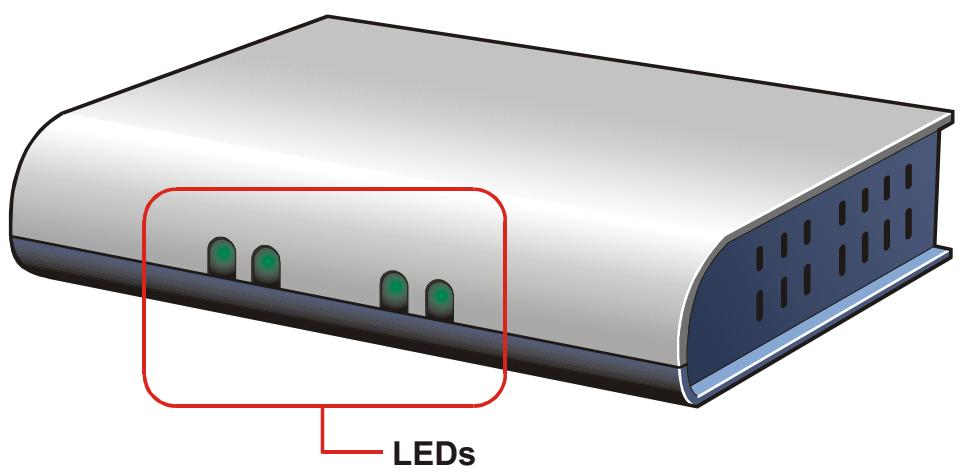
Front View
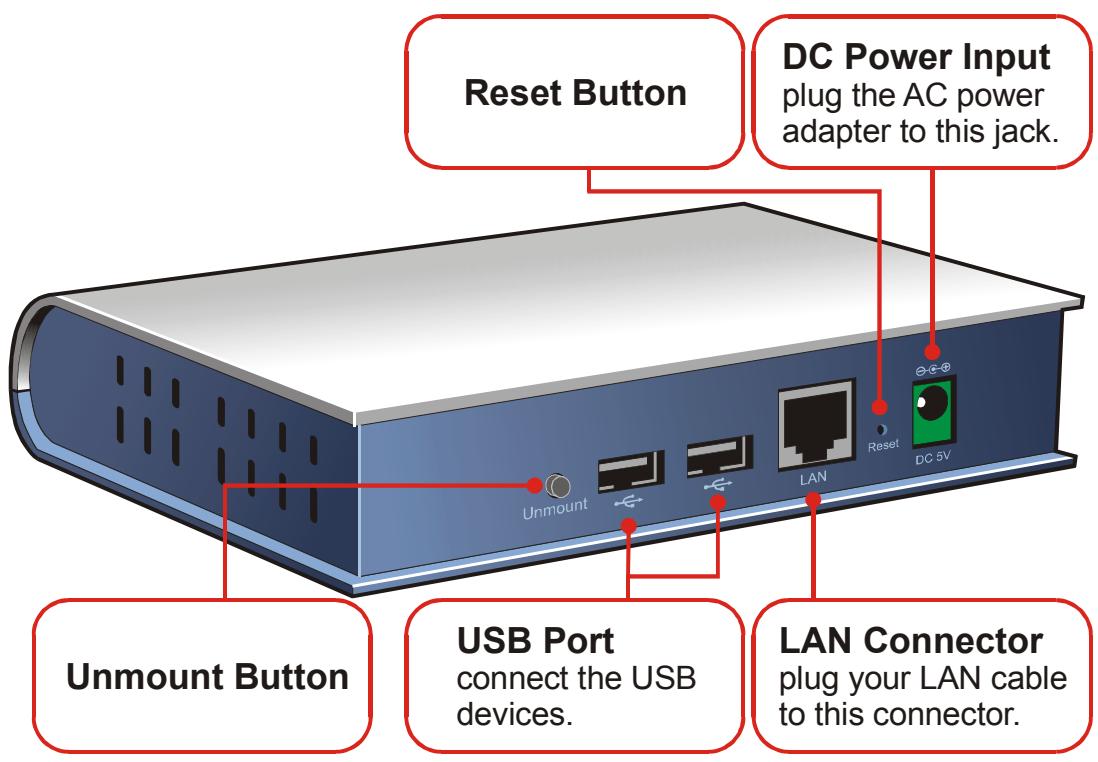
Rear View
LEDs
There are three LEDs on the front panel (four for wireless model):
| LEDs | Description |
| Power | A steady Green light confirms that the file server is powered on. |
| LAN | A steady Green light confirms that the file server has a good connection to your network. When it blinks, the file server is receiving/transmitting data from/to the network. |
| WLAN (for wireless model) | A steady Green light confirms that the file server has a good connection to your wireless network. When it blinks, the file server is receiving/transmitting data from/to the wireless network. |
| Mode (green/red) | Off: no devices attached to the file server. Green: when you connect a USB device to the file server, it starts blinking Green slowly; when the system has detected the device, it lights Green steadily to indicate that the attached device is OK. Red: when you press the Unmount Button to remove the attached device, it starts blinking Red slowly. If the last connected device failed, it lights Red steadily; you have to re-connect the device. |
Reset Button
Press and hold the Reset Button for 4 seconds to reset the file server.
Unmount Button
Press this button to remove the connected USB device safely.
INSTALLATION
Networking Application
The following diagram explains the application of your print server.
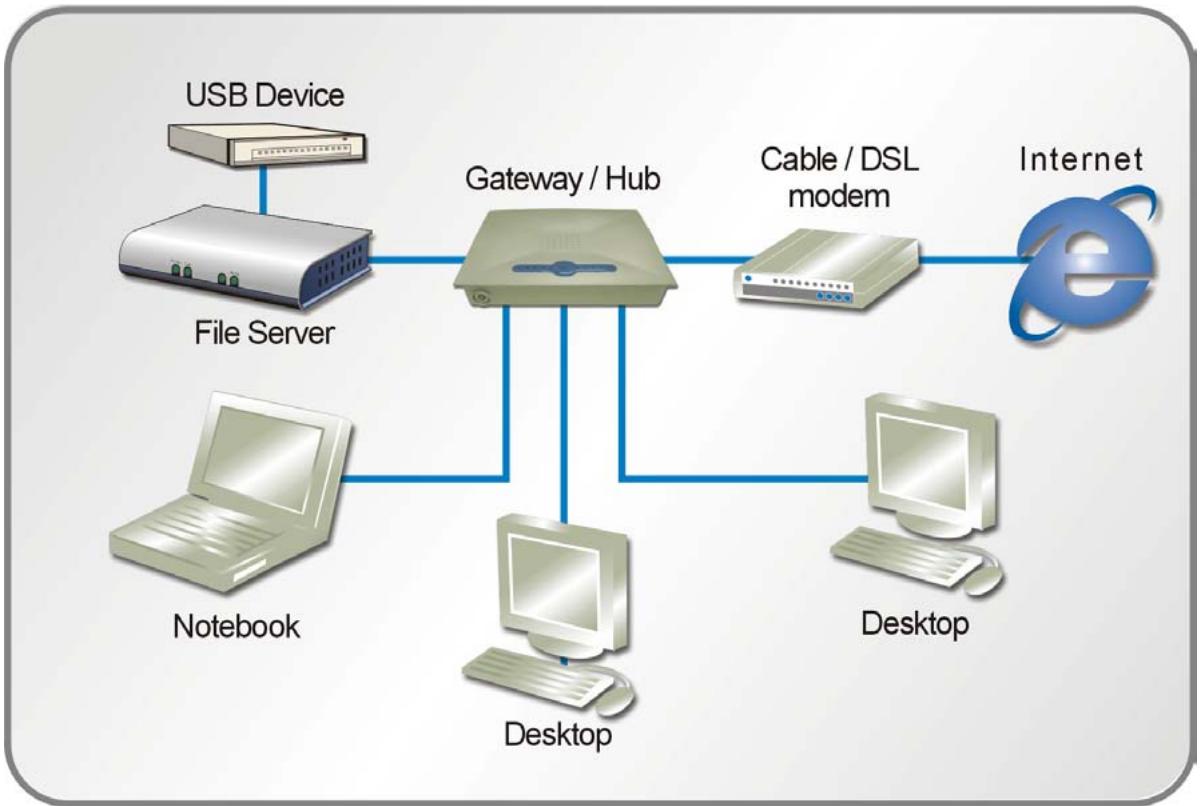
File Server in Your Network Environment
Installing the File Server
Follow these steps for a trouble-free start of file server operations with your Network File Server.
Connecting to the Network
- Confirm proper operation of the gateway/hub to be connected in the network.
- Connect the file server to the gateway/hub through the RJ-45 cable.
- Connect the power adapter of the file server to the wall outlet. This will supply power to the file server immediately.
Connecting to a Client Workstation
For some reasons, you may need to connect the file server to a client workstation directly. For example, you build a direct connection between your desktop PC and the file server to configure the file server. In this event, you should set up the computer's IP address as instructions in next section.
Expanding the USB Devices
The file server provides two USB ports that allow you to expand the file server's function, such as connecting a large storage device.
To connect the USB device, simply plug the USB device into one of the file server's USB ports. Alternately, you can connect the USB device through a USB cable.
Using the File Server
Configuring a Dynamic IP Address
When you connect your computer to the file server directly to configure the file server, you need to check the computer's IP address, and set up the IP address within the file server's IP address range.
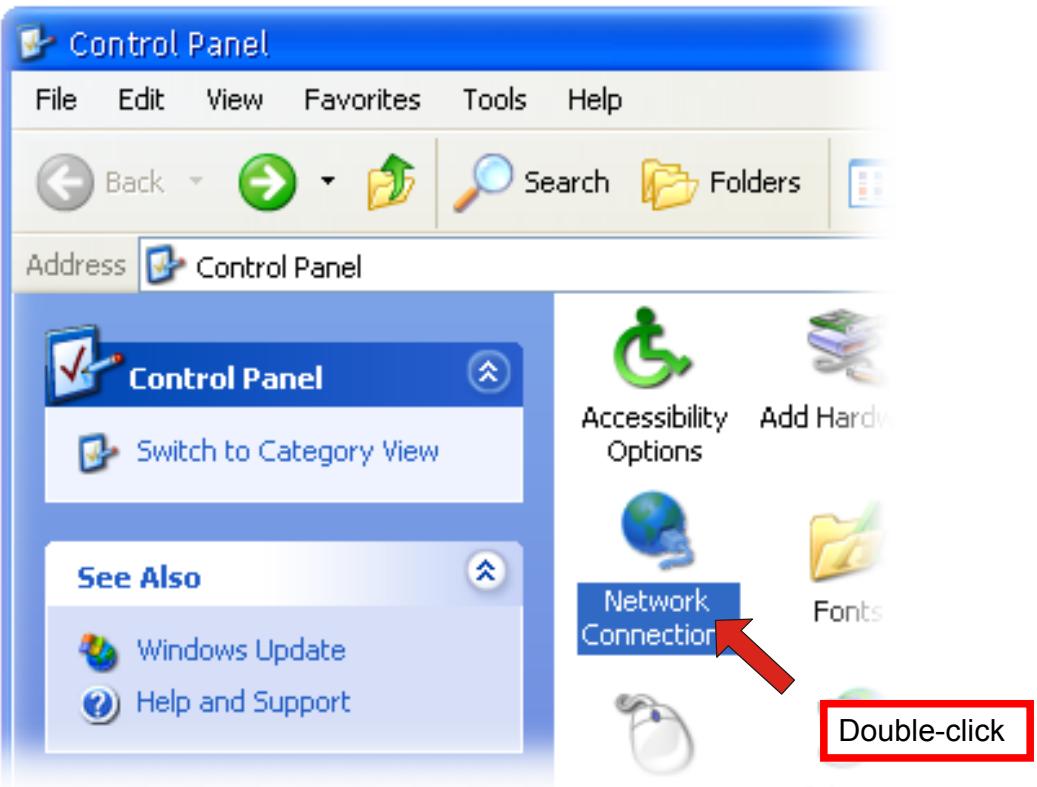
- Click Start and choose Control Panel to open the Control Panel window.
- Double-click the Network Connection icon to open the Network Connection window.
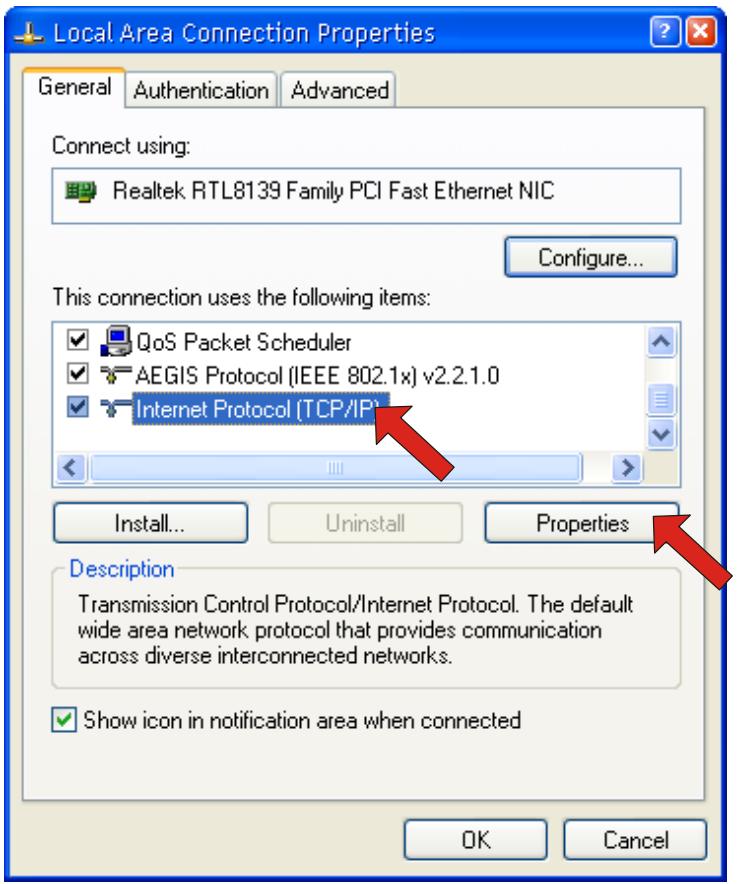
- Right-click the Local Area Connection icon and click Properties from the shortcut menu.

- When the Local Area Connection Properties window appears, choose General tab and select Internet Protocol [TCP/IP], and then click Properties to bring up the Internet Protocol [TCP/IP] Properties window.
- To configure a fixed IP address, check the "Use the following IP address" option. Then, enter an IP address into the empty field. Suggested IP Address is 192.168.1.x (x is 3~254), and suggested Subnet Mask is 255.255.255.0.
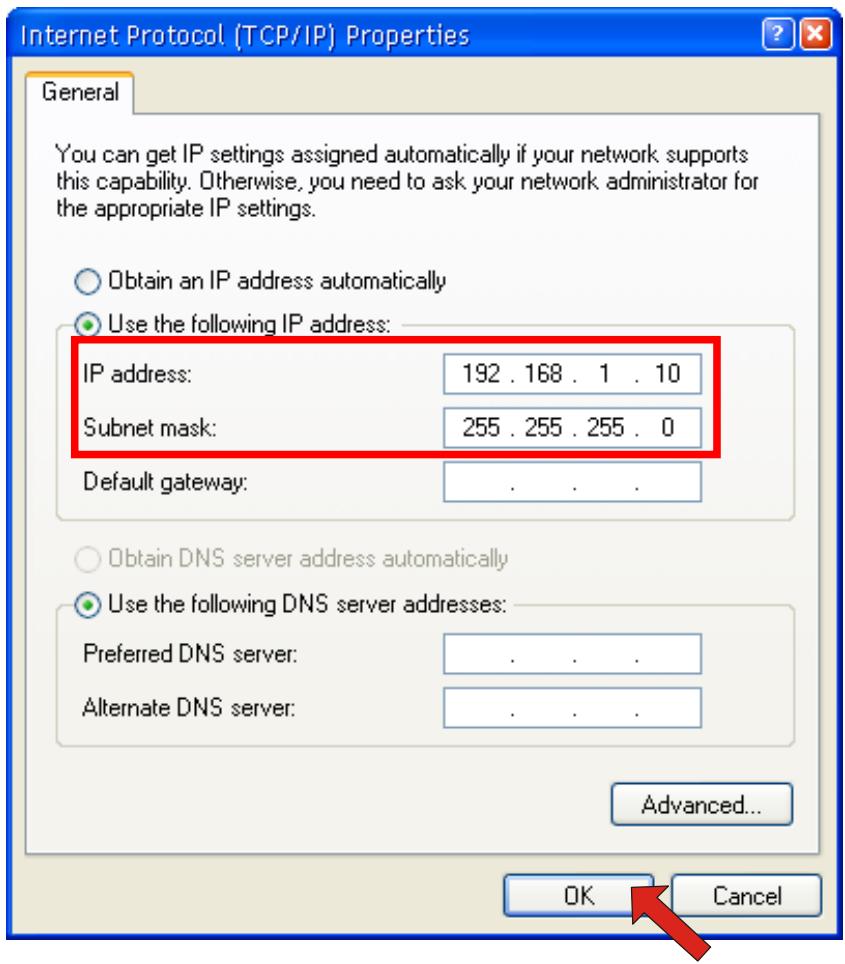
- Click OK to complete the configuration.
Accessing the File Server
Since you have made the connection between your computer and the file server, and configured the computer's IP address, you can access the file server through the following steps.
1. Click Start and choose My Network Places.
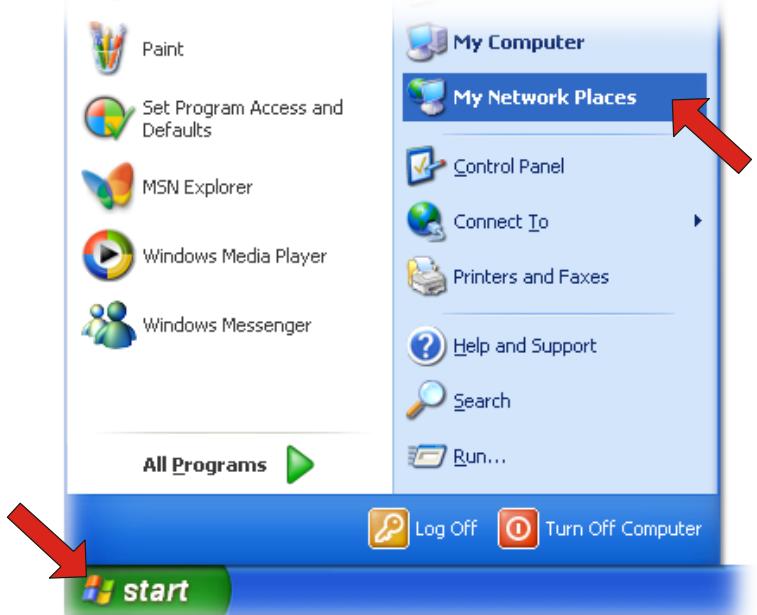
2. The file server is named as Sambe_server. If you connect the USB device, it also appears in the window.
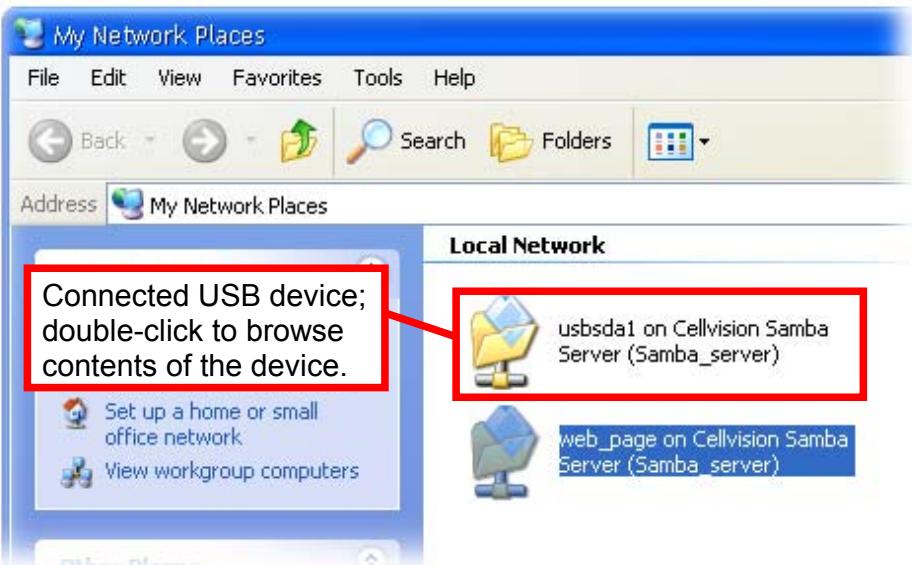
- Double-click the web_page shared folder, and then double-click the goweb item to launch your web browser and enter the web configuration utility. The login window will show as below.
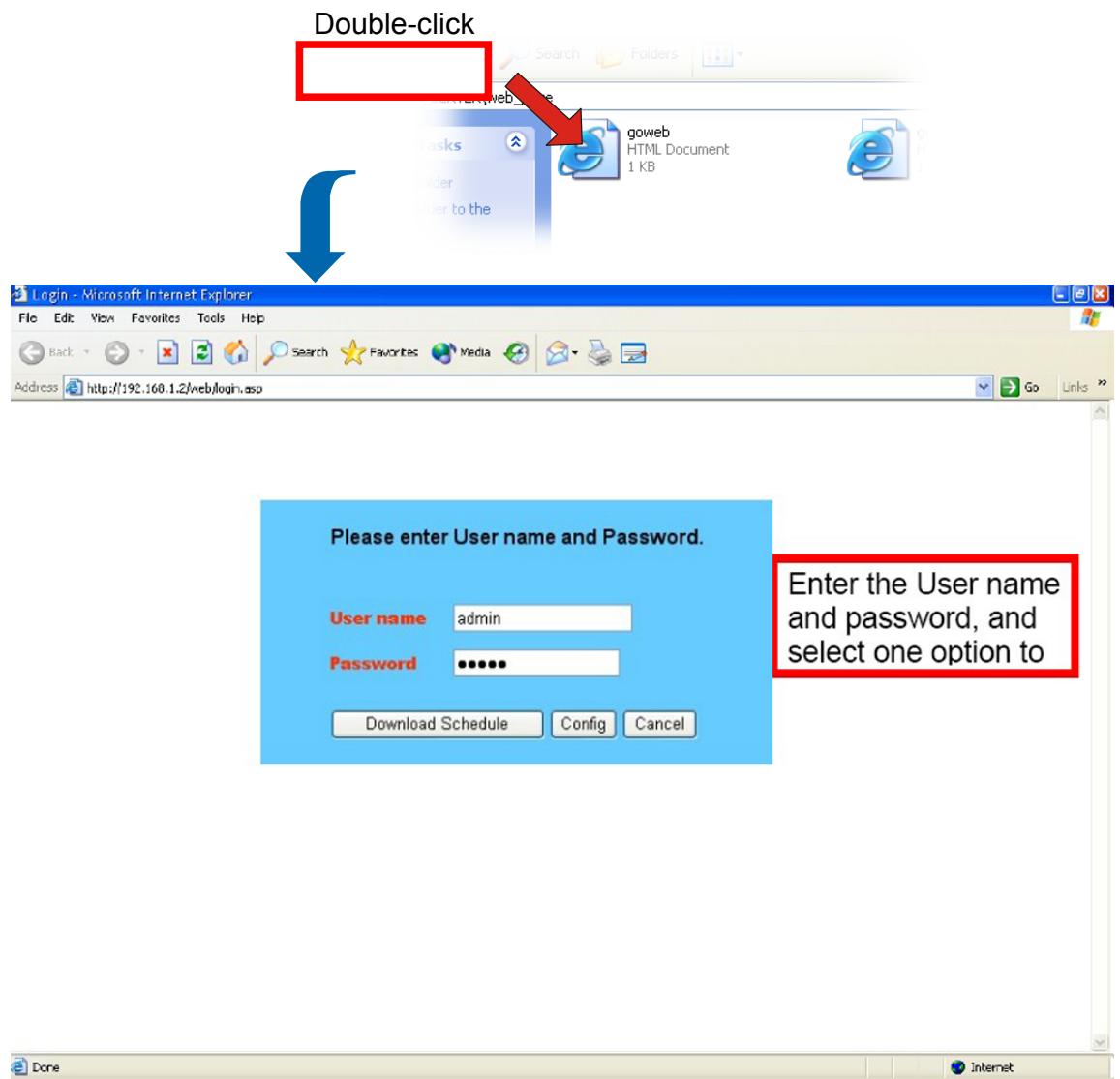
Login Window of Web Configuration Utility
To enter the configuration utility, type admin in User name box and airlive in Password box. Select the Config to login
TIP: Selecting the Download schedule option allows you to enter the Download page.
Easy Search
To access and manage the file server easily, the conveniently utility Easy Search is provided for you in the Installation CD-ROM. Easy Search is a tool that allows you to set up the file server's connection.
To use Easy Search:
- Insert the Installation CD-ROM into your computer's CD-ROM drive to initiate the Auto-Run program.
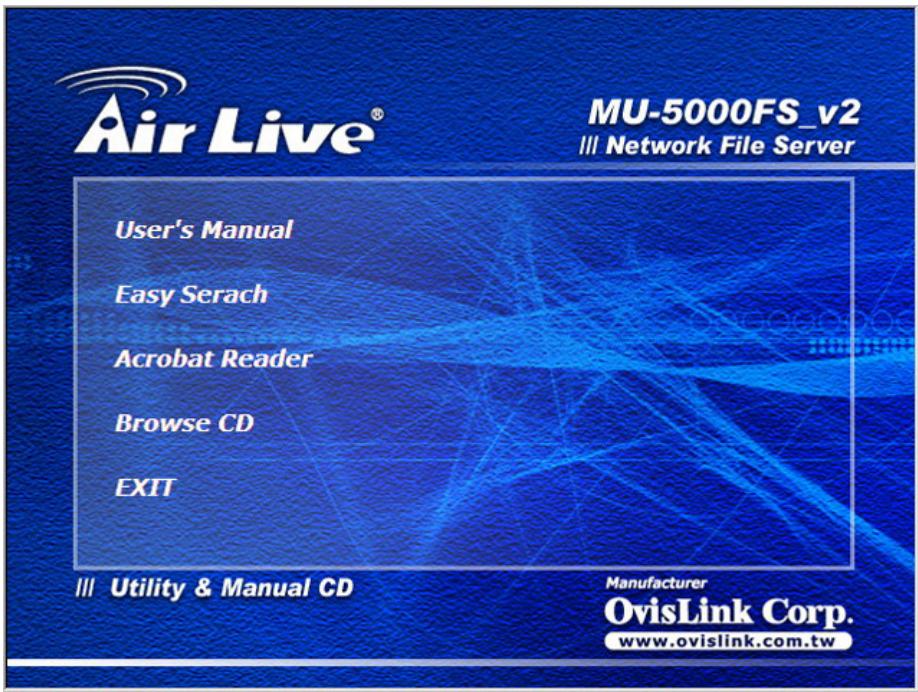
Autorun Screen of Installation CD-ROM
- Click the Easy Search item to launch the utility. The control panel will appear as below.
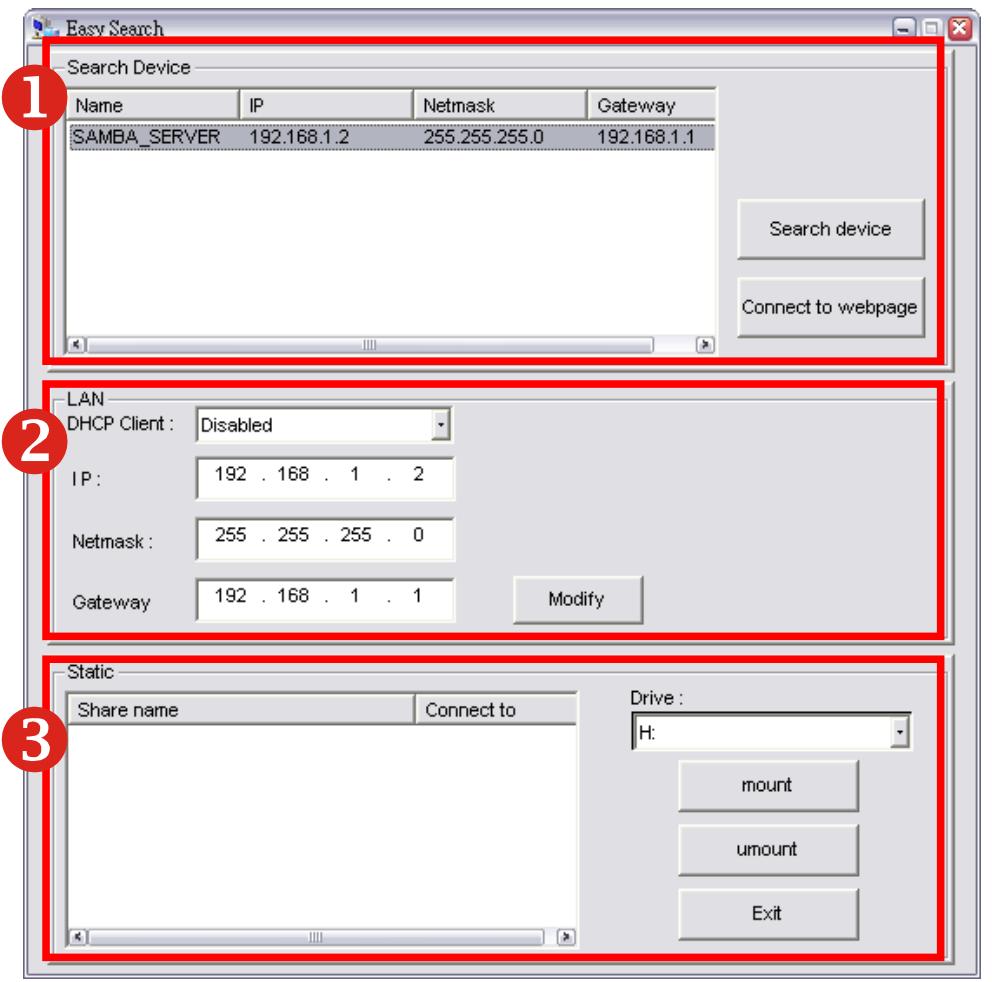
Control Panel of Easy Search
Search Device - when launching the utility, it will search the connected file server(s) automatically, and display the results in the list. To refresh the list, click the Search device button again. Clicking the Connect to webpage button will lead you to the web configuration utility.
LAN - select one file server in the device list, and you can change its settings in this field. When you change the settings, click the Modify button to apply changed configuration.
3 Static - when you connect the USB device to the file server, click the mount/amount button to attach/remove the device to your system. Click the Exit button to close the utility.
WEB CONFIGURATION
You can access and manage the File Server through a web browser. This chapter provides you with instructions of the Web Configuration Utility, and explains how to set up your file server with the web browser.
Web Configuration Utility
First, login the web configuration utility as described in the previous section. The Home menu will display as below.
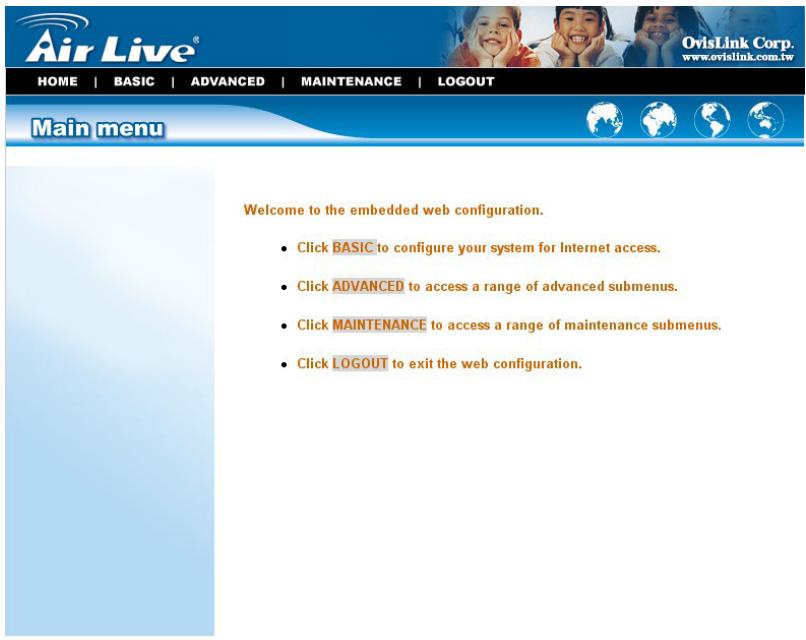
There is a menu bar in the top of the configuration page, containing five items that allow you to set up your file server.

The Menu Bar
- Home - main screen of the utility, providing the brief instructions of the buttons on menu bar.
- Basic - allows you to configure your file server for Internet access through a step-by-step procedure.
- Advanced – contains more submenus that allow you to set up advanced configuration.
- Maintenance - provides maintenance tasks for the file server, such as upgrading firmware and reloading factory defaults.
- ☆ ↓ ● ↓ ● ↓ ● ↓ ● ↓ ● ↓ ● ↓ ● ↓ ● ↓ ● ↓ ● ↓ ● ↓ ● ↓ ● ↓ ● ↓ ● ↓ ● ↓ ● ↓ ● ↓ ● ↓ ● ↓ ● ↓ ● ↓ ● ↓ ● ↓ ● ↓ ● ↓ ● ↓ ● ↓ ● ↓ ● ↓ ● ↓ ● ↓ ● ↓ ● ↓ ● ↓ ● ↓ ● ↓ ● ↓ ● ↓ ● ↓ ● ↓ ● ↓ ● ↓ ● ↓ ● ↓ ● ↓ ● ↓ ● ↓ ● ↓ ● ↓●
TIP: The computer's IP address must correspond with the file server's IP address in the same segment for the two devices to communicate. Extensive knowledge of LAN will be helpful in configuring the file server.
Configuration - Basic
The Basic menu contains three steps that will guide you through the basic configuration for the file server. Click Basic in the top menu bar to start the step-by-step configuration.

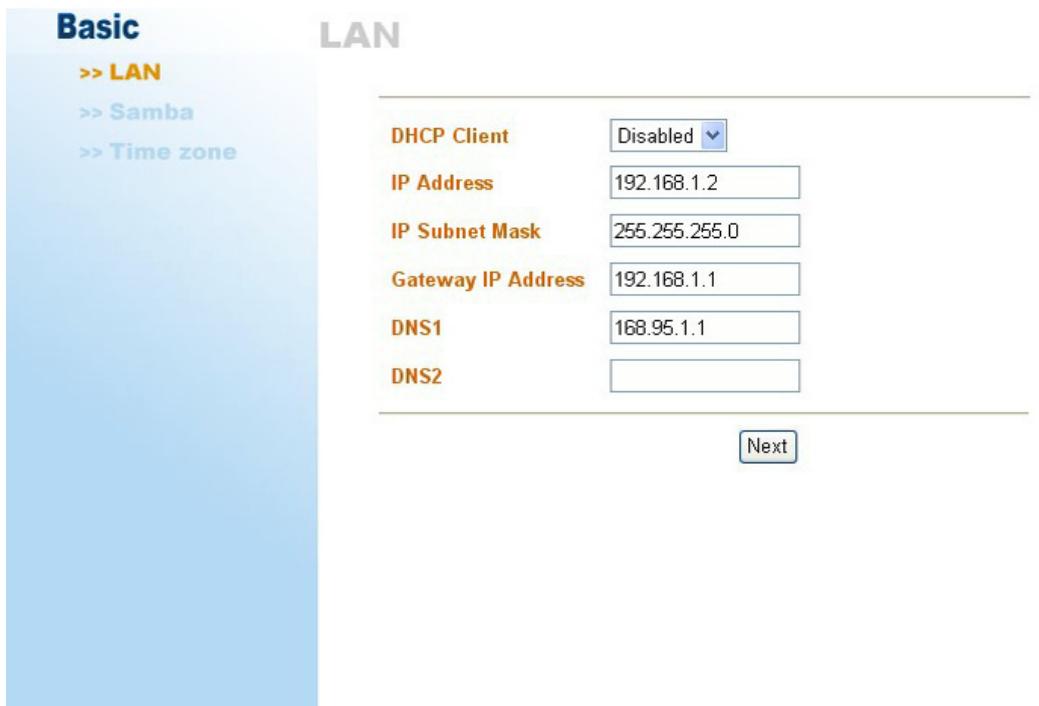
Basic Menu - LAN
Basic LAN
The first step is to configure the LAN settings. These options in this step display the current IP address and DHCP service of the file server, and can be modified manually. When complete, click Next.
Basic Samba
This screen allows you to set up the Workgroup name for the file server. You can also change the name and description of the file server.

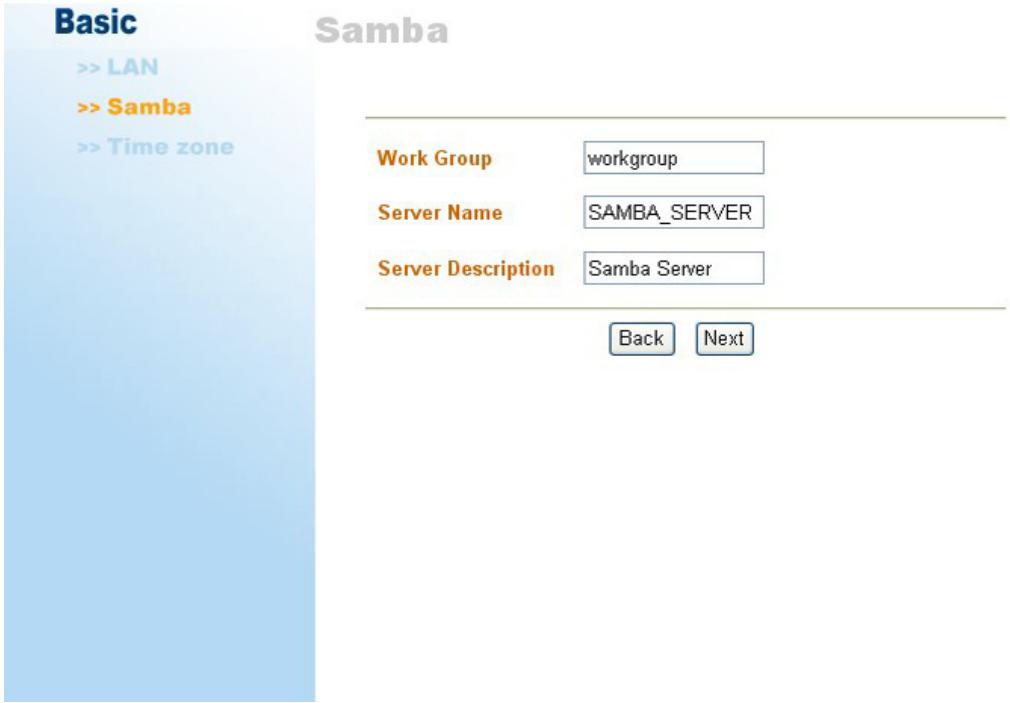
Basic Menu - Samba
When complete, click Next.
Basic Time Zone
This screen displays the current time setting of the file server. For system management purpose, a correct time setting is critical to have accurate time stamps on the system logs.
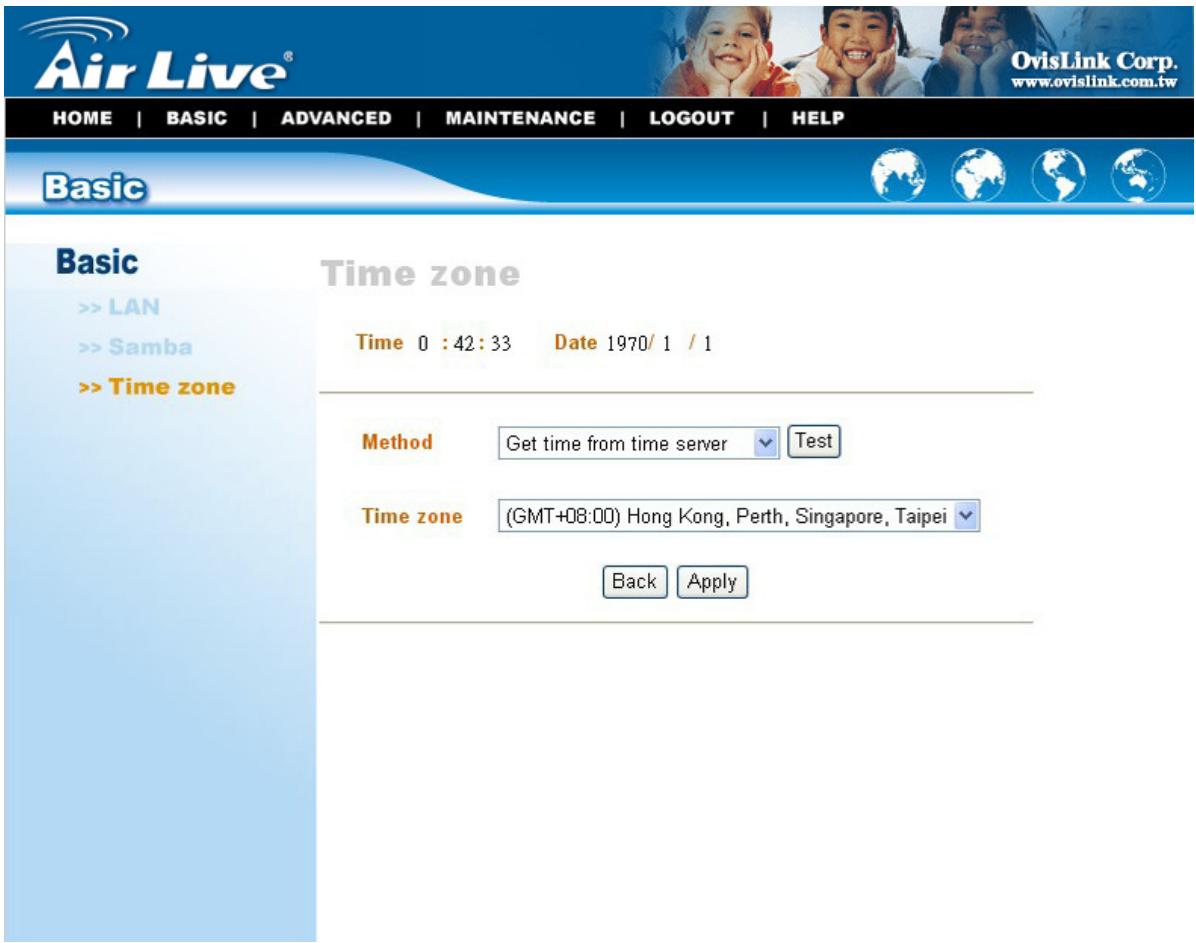
Basic Menu - Time Zone
The Method pull-down menu allows you to set up the correct time by getting time from the computer or time server (need an Internet connection). In the Time Zone pull-down menu, select a time zone according to your location.
When complete, click Apply.
Configuration - Advanced
The Advanced menu contains six submenus: Account, Samba, LAN, Time zone, FTP server, and Status.
Advanced Account
The Account submenu contains the options that allow you to add/delete users. Also, you can manage the users of the file server.

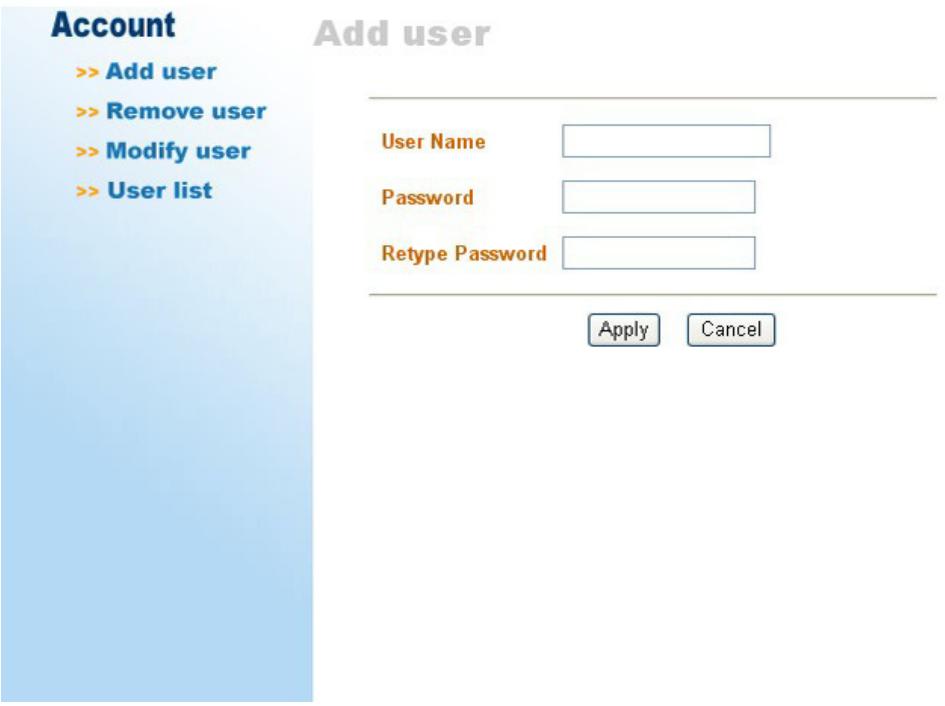
Advanced Menu - Account
- Add user: You can add user of the file server by entering a name in the User name box, and the corresponding password in the Password box. When complete, click Apply to activate the user's account.
- Remove user: You can delete an existing user's account in this option. Check the box associated to the user you want to delete and click Apply.
- Modify user: You can change the password of an existing user's account. Select the radio button associated to the user you want to modify and click Apply. Enter the original password in the Old password box, and then enter a new password twice in the New password and Retype new password boxes. When complete, click Apply.
- User list: Click this item to display the existing users of the file server.
NOTE:
- The file server uses four pre-defined accounts in the firmware, which cannot be used as the users' account names, including: root, admin, ftp, and nobody.
- The password you entered in the Password box must be longer than five characters.
Advanced Samba
The Samba submenu allows you to set up the Workgroup name for the file server, and change the name and description of the file server. You can also manage the session in this submenu.
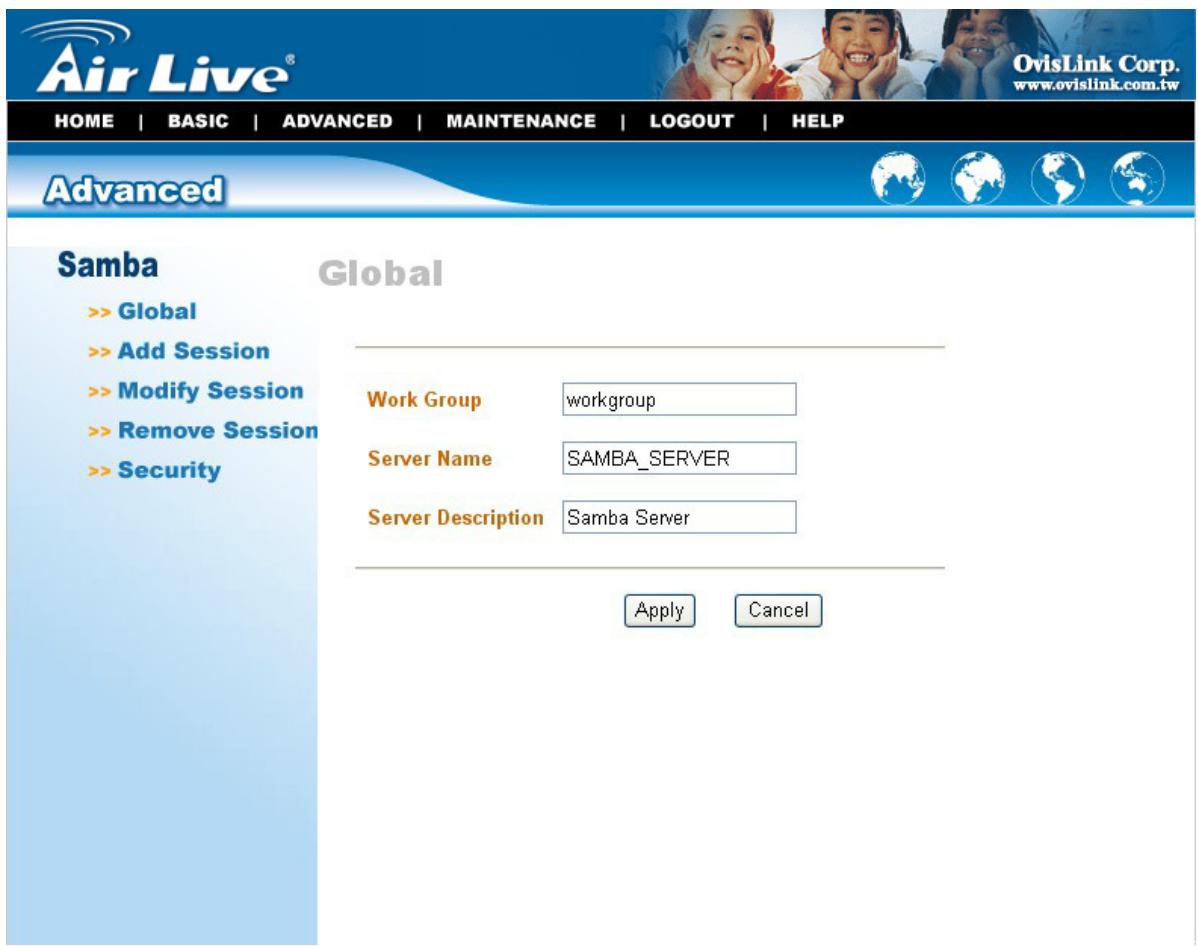
Advanced Menu – Samba
- Global: Enter the Workgroup name for the file server; and you can change the name and description of the file server
- Add/Modify/Remove Session: You can add/modify/remove the tasks in these relative options.
Security: You can configure the security function by selecting NO, Allow IP, and Deny IP through the Filter Action pull-down menu.
Advanced LAN
The LAN submenu displays the current IP address and DHCP service of the file server, and can be modified manually.

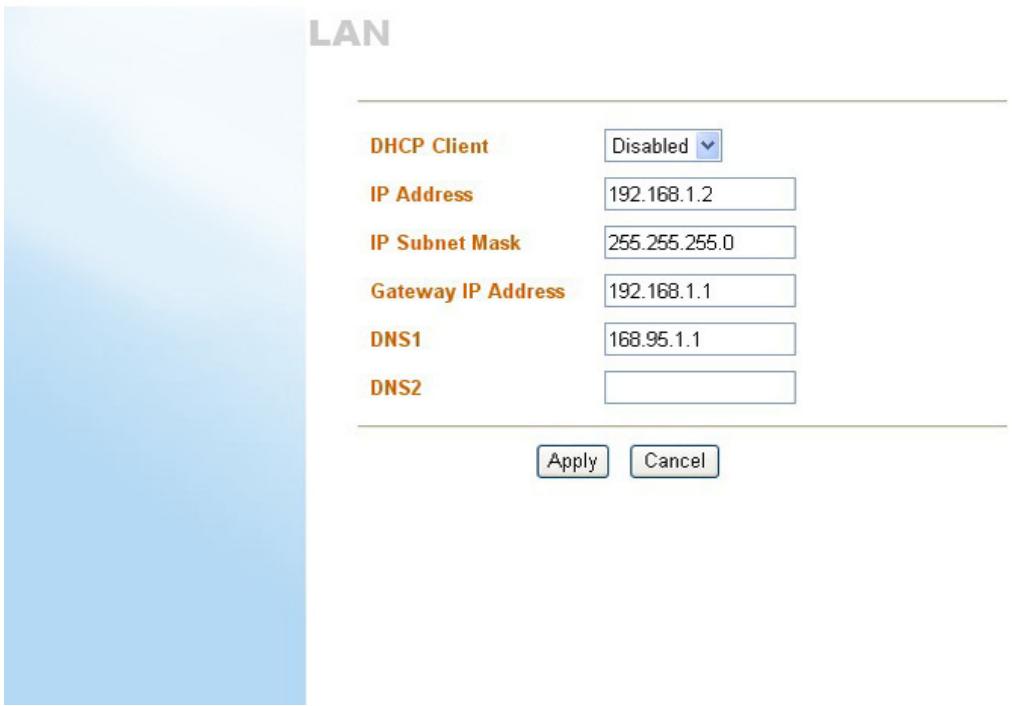
Advanced Menu - LAN
Advanced Time Zone
The Time zone submenu displays the current time setting of the file server. For system management purpose, a correct time setting is critical to have accurate time stamps on the system logs.
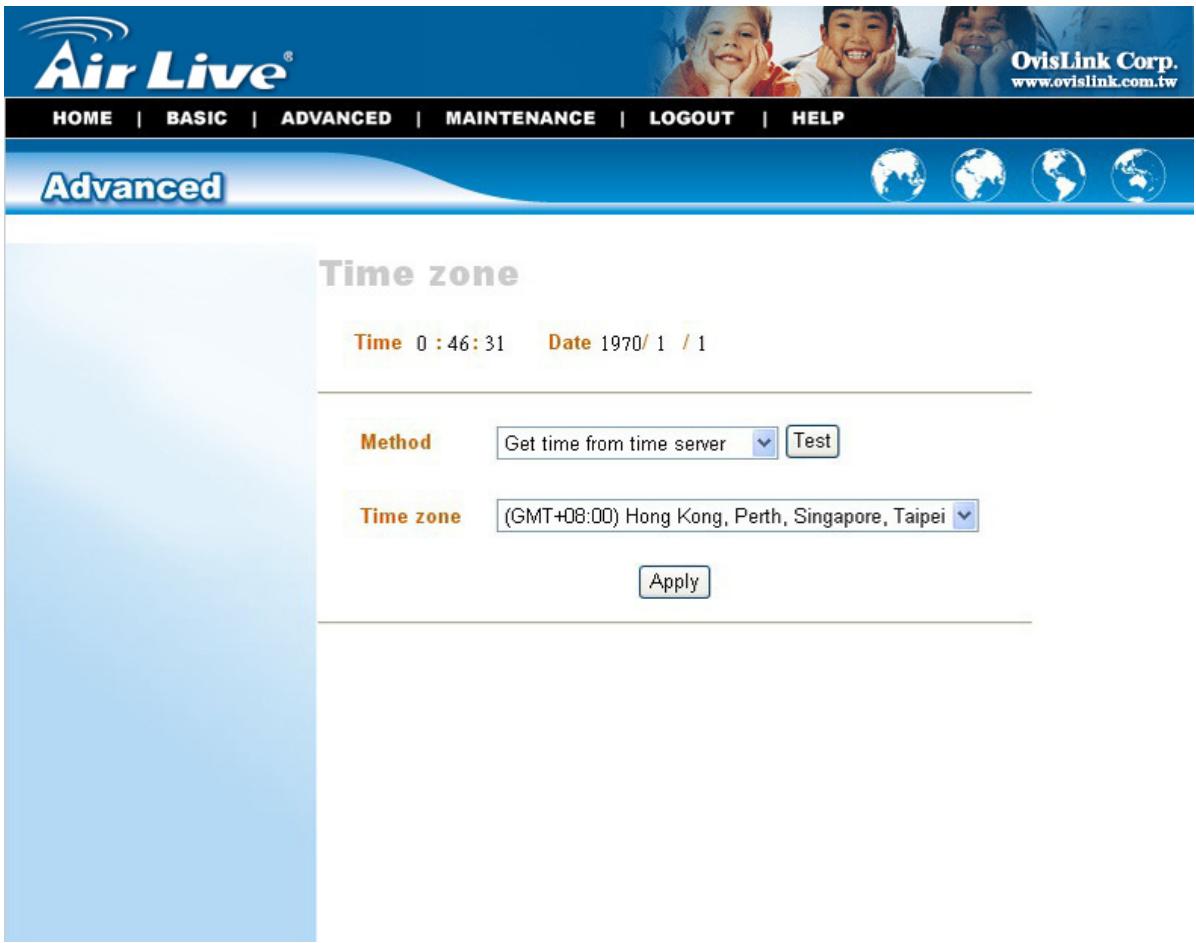
Advanced Menu - Time Zone
The Method pull-down menu allows you to set up the correct time by getting time from the computer or time server (need an Internet connection). In the Time Zone pull-down menu, select a time zone according to your location.
Advanced FTP Server
The FTP server submenu contains the options that allow you to enable/disable the FTP service of the file server, as well as the relative FTP settings.
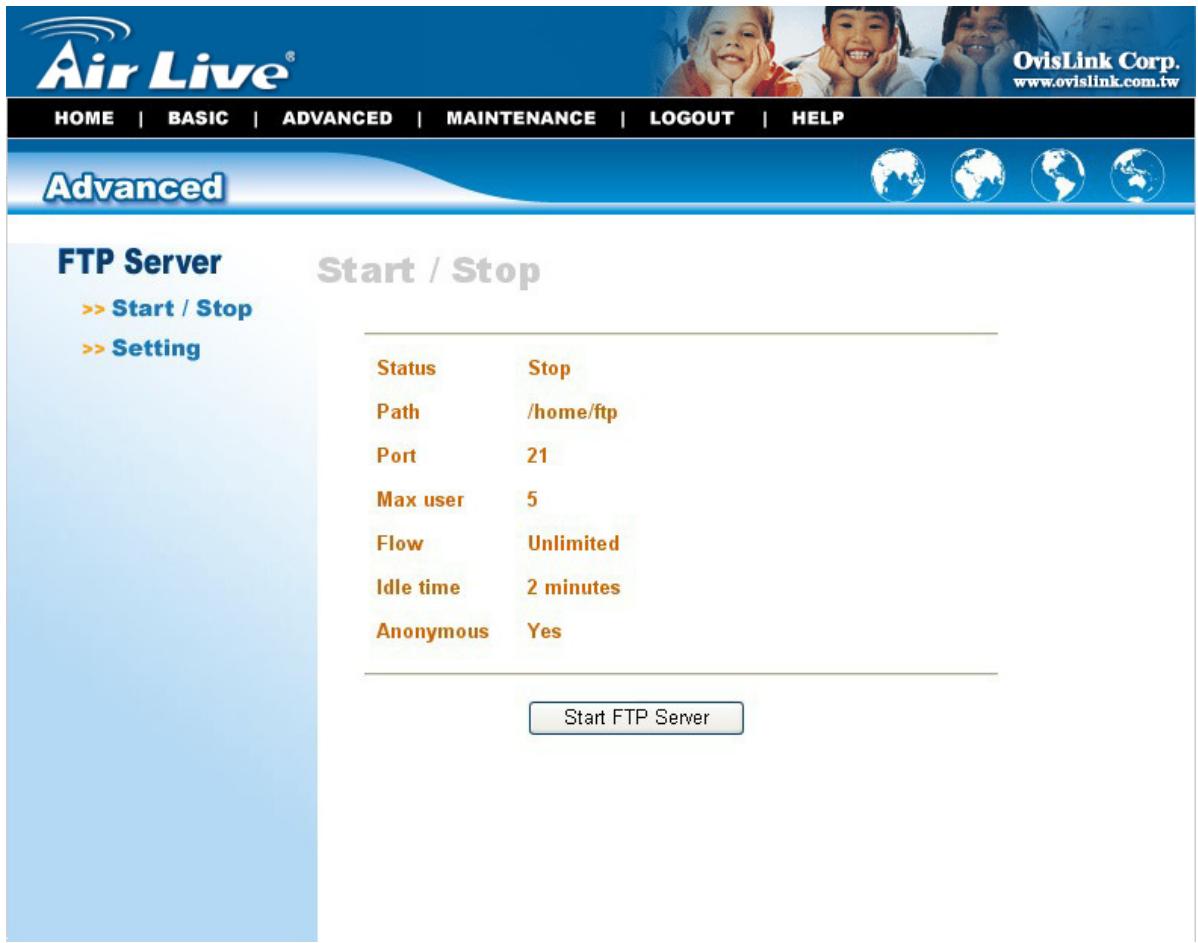
Advanced Menu - FTP Server
-
Start/Stop: Click Start FTP Server to enable the FTP server of the file server. The status field displays the information of your FTP server settings. Once you enabled the FTP server, click Stop FTP Server to disable the service.
-
Setting: This option contains the relative FTP server settings.
-
Path: Choose a destination for your FTP server.
- Port: Assign a port (1~65535).
- Max user: The users allowed to connect to the FTP server (1~10).
- Anonymous: Choose Yes will allow the user connect to the FTP server anonymously.
- Idle time: Set up the idle time for the FTP server (1~10 minutes).
- Flow: Give limit on transmission flow of the FTP server.
Advanced Status
The Status submenu contains information of the file server, including its basic status and the Samba server status.

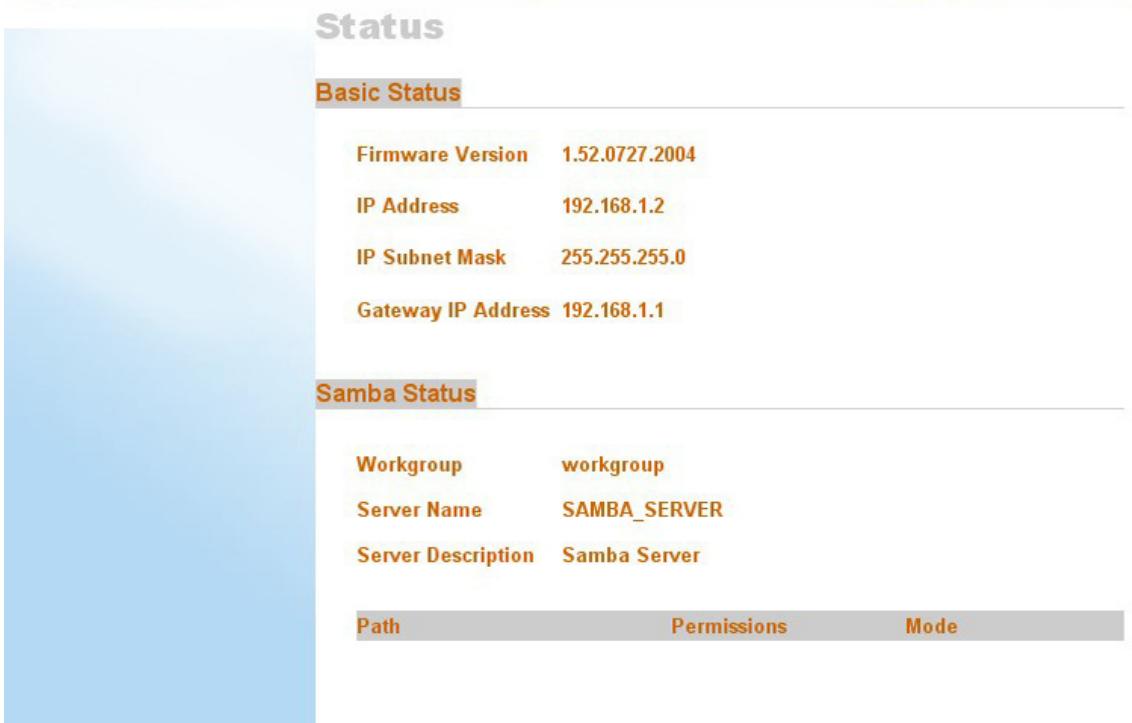
Advanced Menu – Status
Configuration - Maintenance
The Maintenance menu contains two submenus: Firmware upload and Configuration.
Maintenance Firmware Upload
The Firmware upload subroutine allows you to update the firmware of your file server once you obtained a latest version of firmware. Click Browse to point to the firmware file, and then click Upload.
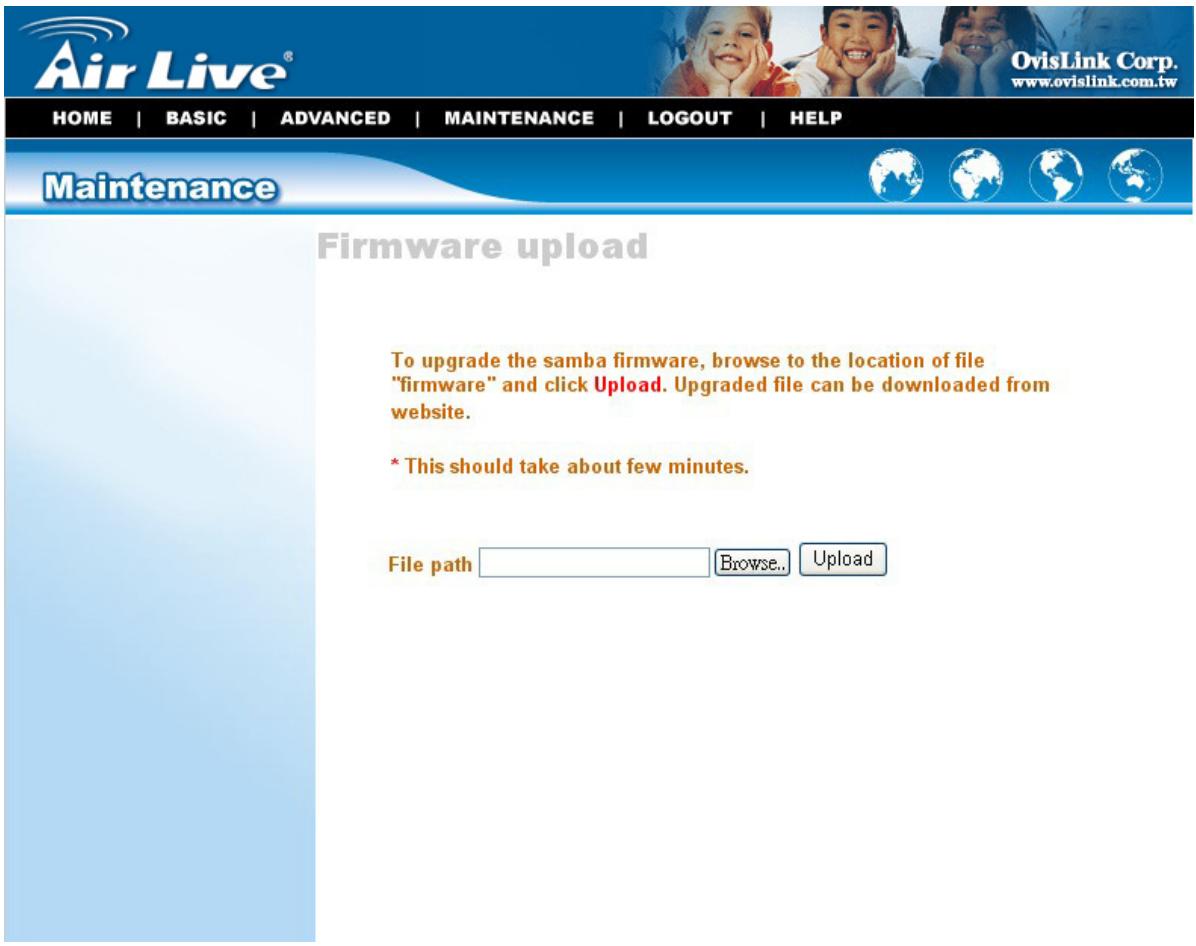
Maintenance Menu – Firmware Upload
Maintenance Configuration
The Configuration submenu allows you to reload the factory default settings of the file server. Also, you can set up the Idle time in thissubmenu.

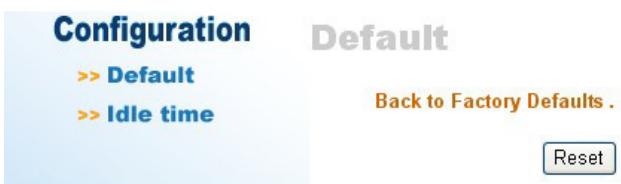
Maintenance Menu - Configuration
- Default: Clicking Reset allows you to resume the factory default settings of the file server. This function is the same as pressing the Reset button on the machine.
- Idle time: If the user does nothing within the specified time in this option, then, the system would automatically logout. The idle time must be larger than 0.
Configuration -Logout
Click theLogout button to exit the web configuration utility, and it will return to the login screen of the utility.
Please enter User name and Password.
User name
admin
Password
··
Download Schedule
Config
Cancel
You can re-login using the admin User name. Alternately, if you set up a new user for the file server, you can login the utility using the given user account.
DOWNLOADING FILES THROUGH FILE SERVER
Entering Download Page
- If you are in the configuration mode, click Logout to exit the web configuration utility, and re-login the utility's download page by selecting the Download schedule item on the login dialog box.
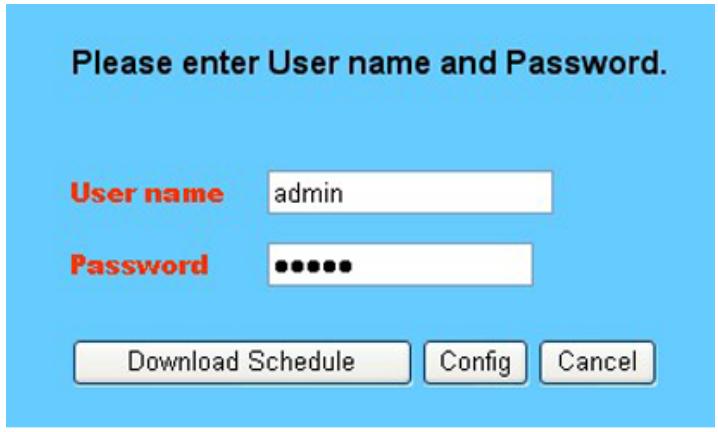
TIP: If the administrator has added users of the file server, the users can login the Download page with their user name and password.
2. The Main menu of Download page will display as below.

Welcome to the embedded web configuration.
- Click DOWNLOAD SCHEDULING to set your schedule.
- Click SCHEDULE LIST to list your download scheduling.
-
Click LOGOUT to exit the web configuration.
-
Home - main screen of the download page, providing the brief instructions of the buttons on menu bar.
- Download Scheduling - clicks to set up your download schedule.
- Schedule List - contains the information of scheduled download tasks.
- ☆ ↓ ● ↓ ● ↓ ● ↓ ● ↓ ● ↓ ● ↓ ● ↓ ● ↓ ● ↓ ● ↓ ● ↓ ● ↓ ● ↓ ● ↓ ● ↓ ● ↓ ● ↓ ● ↓ ● ↓ ● ↓ ● ↓ ● ↓ ● ↓ ● ↓ ● ↓ ● ↓ ● ↓ ● ↓ ● ↓ ● ↓ ● ↓ ● ↓ ● ↓ ● ↓ ● ↓ ● ↓ ● ↓ ● ↓ ● ↓ ● ↓ ● ↓ ● ↓ ● ↓ ● ↓ ● ↓ ● ↓ ● ↓ ● ↓ ● ↓ ● ↓●
Scheduling Download Task
Click the Download Scheduling menu to set up your download tasks. Enter the required information in the relative fields.

Download Scheduling
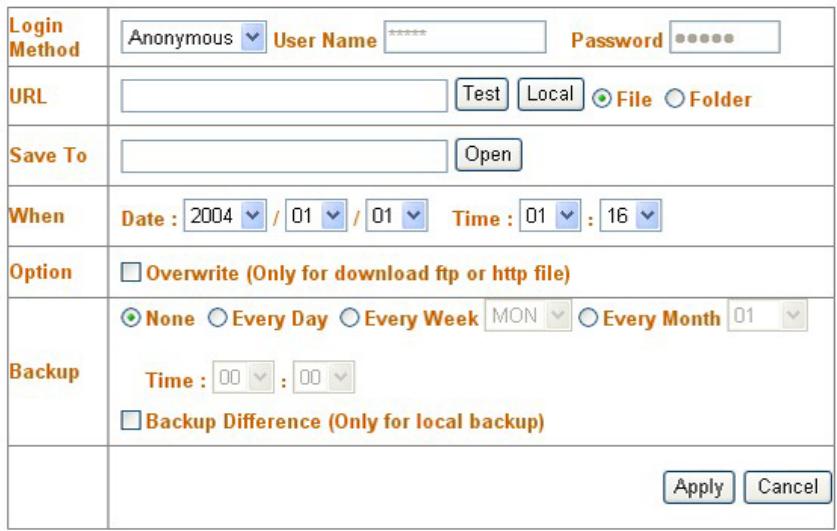
Setup Screen of Download Scheduling
- Login Method: According to the settings of target server, choose Anonymous or Account from pull-down menu. When you choose Account, you have to enter the correct User name and Password.
-
URL: Enter the URL address of target server. Click test to test the connection.
-
Save to: Click open to bring up the following window that allows you to assign the destination folder to save the downloaded files. When completed, click OK.
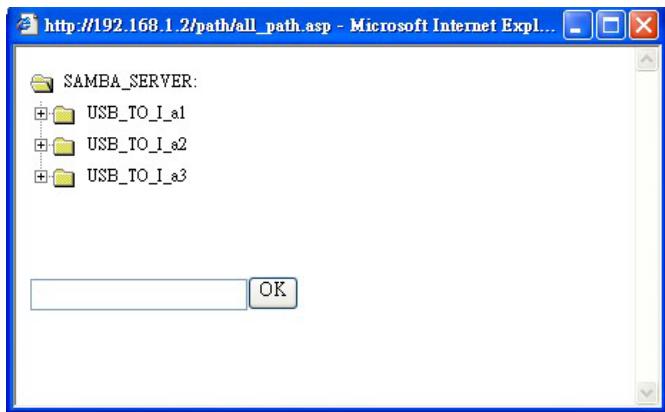
- When: You have to set up the start-up time to download files from the pull-down menu of the Date and Time options.
- Overwrite: When the downloaded files have the same filename as the files in the destination folder, checking this option will overwrite the old file in the folder.
When completed, click Apply to save this download task to the Schedule List.
Schedule List
Click the Schedule List menu to display the scheduled download tasks as below.
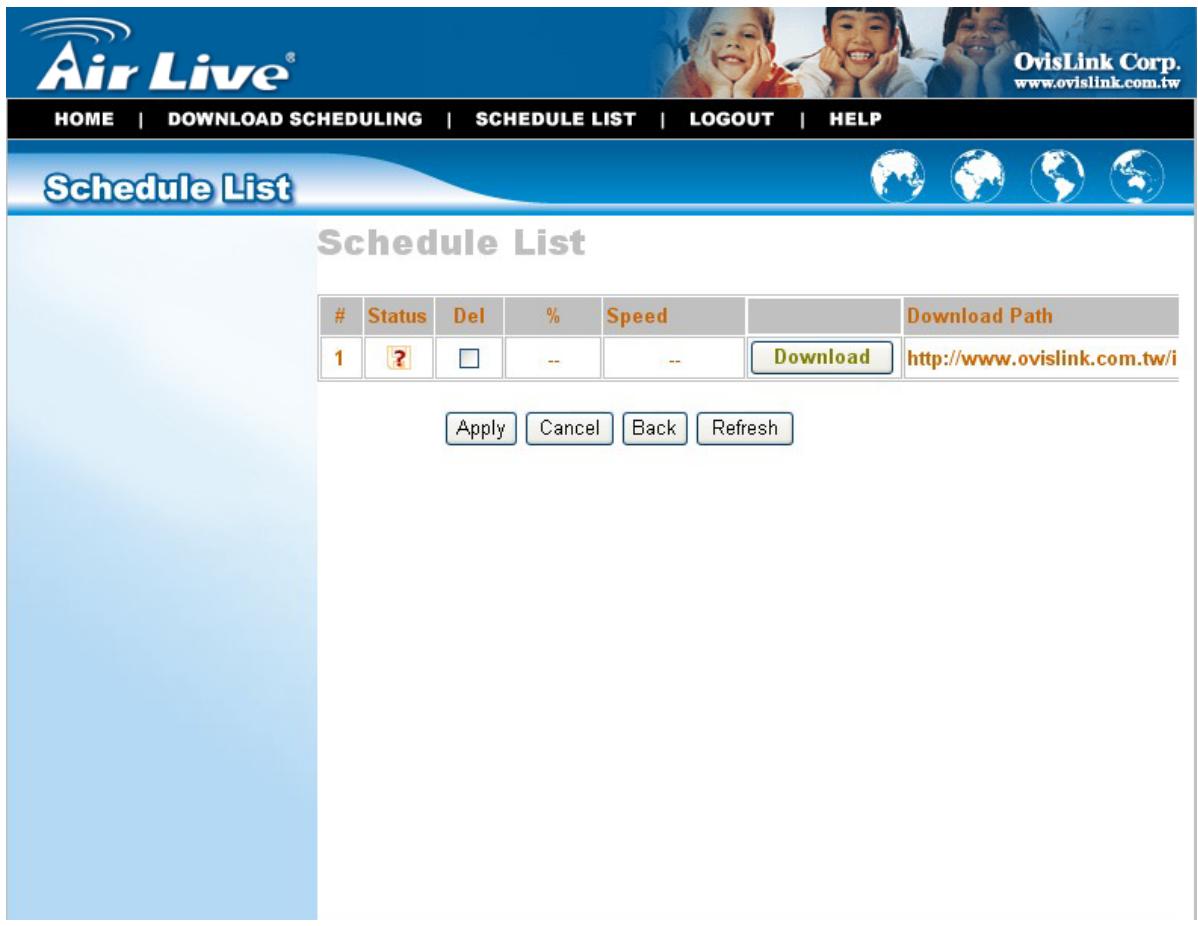
Scheduled Download Tasks
You can edit, delete and view these download tasks from the list. When you change the settings of selected task, click Apply to save the configuration. Click Refresh to reload the status of these tasks.
Logout
Click theLogout button to exit the download page, and it will return to the login screen of the utility.
Please enter User name and Password.
UserID
admin
Password

Download Schedule
Config
Cancel
PRODUCT SPECIFICATION
Standards
Network Standards: IEEE 802.3, IEEE 802.3u.
USB Interface: USB 2.0, USB 1.1.
Connecting Ports
- One 10/100 RJ-45 connector (Auto MDI-X).
- Two USB 2.0 ports.
- One Power jack.
Buttons
Reset Button and Mode Button.
LEDS
Power, LAN, Mode, and WLAN (for wireless model).
Management
- Web-based administrative program
- Easy Search
Operating System Support
- Windows 98/ME, Windows NT, Windows 2000/XP;
- Linux SMB.
Environmental and Physical
Power Supply: 5VDC, 2.4 Amp.
Operating Temperature: 0^ C to 50^ C .
Storage Temperature: -20^ to 50^ .
Humidity: 10% to 90% , non-condensing at 30^ .
EMI Compliance
FCC Class B, CE Class B, VCCI.
- TABLE OF CONTENTS
- INTRODUCTION 5
- INSTALLATION 10
- INTRODUCTION
- General Features
- Package Contents
- Product View
- LEDs
- Reset Button
- Unmount Button
- INSTALLATION
- Networking Application
- Installing the File Server
- Connecting to the Network
- Connecting to a Client Workstation
- Expanding the USB Devices
- Using the File Server
- Configuring a Dynamic IP Address
- Accessing the File Server
- Click Start and choose My Network Places.
- The file server is named as Sambe_server. If you connect the USB device, it also appears in the window.
- Easy Search
- WEB CONFIGURATION
- Web Configuration Utility
- The Menu Bar
- Configuration - Basic
- Basic → LAN
- Basic → Samba
- Basic → Time Zone
- Configuration - Advanced
- Advanced → Account
- NOTE:
- Advanced → Samba
- Advanced → LAN
- Advanced → Time Zone
- Advanced → FTP Server
- Advanced → Status
- Configuration - Maintenance
- Maintenance → Firmware Upload
- Maintenance → Configuration
- Maintenance Menu - Configuration
- Configuration -Logout
- DOWNLOADING FILES THROUGH FILE SERVER
- Entering Download Page
- The Main menu of Download page will display as below.
- Scheduling Download Task
- Setup Screen of Download Scheduling
- Schedule List
- Logout
- PRODUCT SPECIFICATION
- Standards
- Connecting Ports
- Buttons
- Management
- Operating System Support
- Environmental and Physical
- EMI Compliance
Brand : AIRLIVE
Model : MU-5000FS
Category : Surveillance Camera