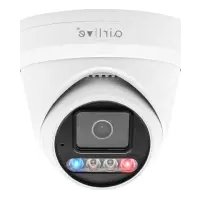
IP-200PHD-24 - Surveillance Camera AIRLIVE - Free user manual and instructions
Find the device manual for free IP-200PHD-24 AIRLIVE in PDF.


Pick your language and provide your email: we'll send you a specifically translated version.
| Product Type | Surveillance Camera |
| Brand | AirLive |
| Model | IP-200PHD-24 |
| Image Sensor | 2 Megapixel CMOS (1/2.8") |
| Resolution | 1920 x 1080 (Full HD) |
| Lens | Fixed, 3.6mm, F1.8 |
| Night Vision | IR LEDs, up to 20m |
| Power Supply | PoE (802.3af) or DC 12V |
| Weatherproof Rating | IP66 |
| Dimensions | 70 x 70 x 150 mm |
| Weight | 600 g |
| Connectivity | Ethernet RJ45 |
| Key Functions | Motion detection, ONVIF compatible, remote viewing |
| Installation | Wall or ceiling mount, PoE simplifies wiring |
| Cleaning | Use a soft dry cloth; avoid solvents or water |
| Security Features | Password protection, firmware upgrade, encrypted transmission |
| Spare Parts & Repairability | Contact AirLive support for replacements; limited user-serviceable parts |
| General Information | Bullet style design, suitable for indoor and outdoor use |
| Operating Temperature | -10°C to 50°C |
| Storage | Micro SD card (up to 128GB) or NVR/DVR |
Frequently Asked Questions - IP-200PHD-24 AIRLIVE
How do I reset the IP-200PHD-24 to factory defaults?
Press and hold the reset button for 10 seconds using a paperclip. The camera will reboot with default settings. Default IP is usually 192.168.1.168.
What is the default username and password?
The default username is admin and password is airlive. It is strongly recommended to change these upon initial setup.
Can the camera work with PoE?
Yes, the IP-200PHD-24 supports Power over Ethernet (PoE 802.3af). Simply connect it to a PoE switch or injector for both data and power.
How to access the camera remotely?
Ensure the camera is connected to the internet and port forwarding is configured on your router. Use the AirLive DDNS service or a static IP to access via web browser or mobile app.
What is the maximum SD card size supported?
The camera supports Micro SD cards up to 128GB. Format the card to FAT32 before use.
How do I enable motion detection?
Log into the camera web interface, go to Event > Motion Detection, enable it, and draw detection zones. Adjust sensitivity as needed.
The camera is not showing any video. What should I do?
Check power and Ethernet connections. Ensure the camera is on the same network as your computer. Try pinging the camera IP. If still not working, perform a factory reset.
Is the camera waterproof?
Yes, it has an IP66 rating, meaning it is protected against dust and powerful water jets, suitable for outdoor use.
Can I use the camera with a third-party NVR?
Yes, the camera supports ONVIF protocol (Profile S), so it is compatible with most ONVIF-compliant NVRs and software.
How to update the firmware?
Download the latest firmware from the AirLive website. Log into the camera, go to System > Upgrade, upload the file, and follow prompts. Do not power off during update.
User questions about IP-200PHD-24 AIRLIVE
0 question about this device. Answer the ones you know or ask your own.
Ask a new question about this device
No questions yet. Be the first to ask one.
Download the instructions for your Surveillance Camera in PDF format for free! Find your manual IP-200PHD-24 - AIRLIVE and take your electronic device back in hand. On this page are published all the documents necessary for the use of your device. IP-200PHD-24 by AIRLIVE.
USER MANUAL IP-200PHD-24 AIRLIVE
Manual assistant
Powered by Anthropic
Waiting for your message
Product information
Brand : AIRLIVE
Model : IP-200PHD-24
Category : Surveillance Camera