 EasyManual
 MYSTRAL - Mobile Phone TRIUM - Free user manual and instructions
Find the device manual for free MYSTRAL TRIUM in PDF.


User questions about MYSTRAL TRIUM
0 question about this device. Answer the ones you know or ask your own.
Ask a new question about this device
Download the instructions for your Mobile Phone in PDF format for free! Find your manual MYSTRAL - TRIUM and take your electronic device back in hand. On this page are published all the documents necessary for the use of your device. MYSTRAL by TRIUM.
USER MANUAL MYSTRAL TRIUM
by MITSUBISHI ELECTRIC
This guide describes the operation of the Trium dual band GSM/GPRS telephones
Aura - Mystral - Odyssey
Edition 1, 2002. Mitsubishi Electric Telecom Europe, 2002
Whilst every effort has been made to ensure the accuracy of the instructions contained in this guide, Mitsubishi Electric reserves the right to make improvements and changes to the product described in this guide and/or to the guide itself, without prior notice.
SAR
THIS AURA, MYSTRAL OR ODYSSEY PHONE MEETS THE EU REQUIREMENTS FOR EXPOSURE TO RADIO WAVES.
Before a phone model is available for sale to the public, compliance with the European R&TTE directive (1999/5/CE) must be shown. This directive includes as one essential requirement the protection of the health and the safety for the user and any other person. Your mobile phone is a radio transmitter and receiver. It is designed and manufactured not to exceed the limits for exposure to radiofrequency (RF) energy recommended by The Council of the European Union1. These limits are part of comprehensive guidelines and establish permitted levels of RF energy for the general population. The guidelines were developed by independent scientific organisations through periodic and thorough evaluation of scientific studies. The limits include a substantial safety margin designed to assure the safety of all persons, regardless of age and health.
The exposure standard for mobile phones (CENELEC standard EN 50360: 2000) employs a unit of measurement known as the Specific Absorption Rate, or SAR. The SAR limit2 recommended by The Council of the European Union is 2.0W / kg . Tests for SAR have been conducted using standard operating positions (with reference to CENELEC standard EN 50361: 2000) with the phone transmitting at its highest certified power level in all tested frequency bands3. Although the SAR is determined at the highest certified power level, the actual SAR level of the phone while operating can be well below the maximum value. This is because the phone is designed to operate at multiple power levels so as to use only the power required to reach the network. In general, the closer you are to a base station antenna, the lower the power output.
The highest SAR value for this Trium Aura, Mystral or Odyssey model when tested for compliance against the standard was 1.120 W/kg. While there may be differences between the SAR levels of various phones and at various positions, they all meet the EU requirements for RF exposure.
There are a number of independent sources of information available to users including: Royal Society of Canada: www.rsc.ca
The International Commission on Non-Ionizing Radiation Protection (ICNIRP): www.icnirp.de
The US Food and Drug Administration:
www.fda.gov/cdrh/ocd/mobilphone.html
The World Health Organization: www.who.int/emf
Mitsubishi Electric belongs to the MMF, an international association of radio equipment manufacturers.
The MMF produces information such as this in accordance with its purpose of developing and presenting industry positions to independent research organisations, government and other research bodies.
Mobile Manufacturers Forum
Diamant Building, 80 Blvd. A. Reyers
B-1030 Brussels
Belgium
www.mmfai.org
- European recommendation 1999/519/CE
- The SAR limit for mobile phones used by the public is 2.0 watts/kilogram (W/kg) averaged over ten grams of tissue. The limit incorporates a substantial margin of safety to give additional protection for the public and to account for any variations in measurements
- The maximum level of GSM emitted power is 250mW at 900 MHz and 125mW at 1800 MHz according to the GSM standard.
Aura, Mystral and Odyssey at a glance (key shape varies slightly depending on model)
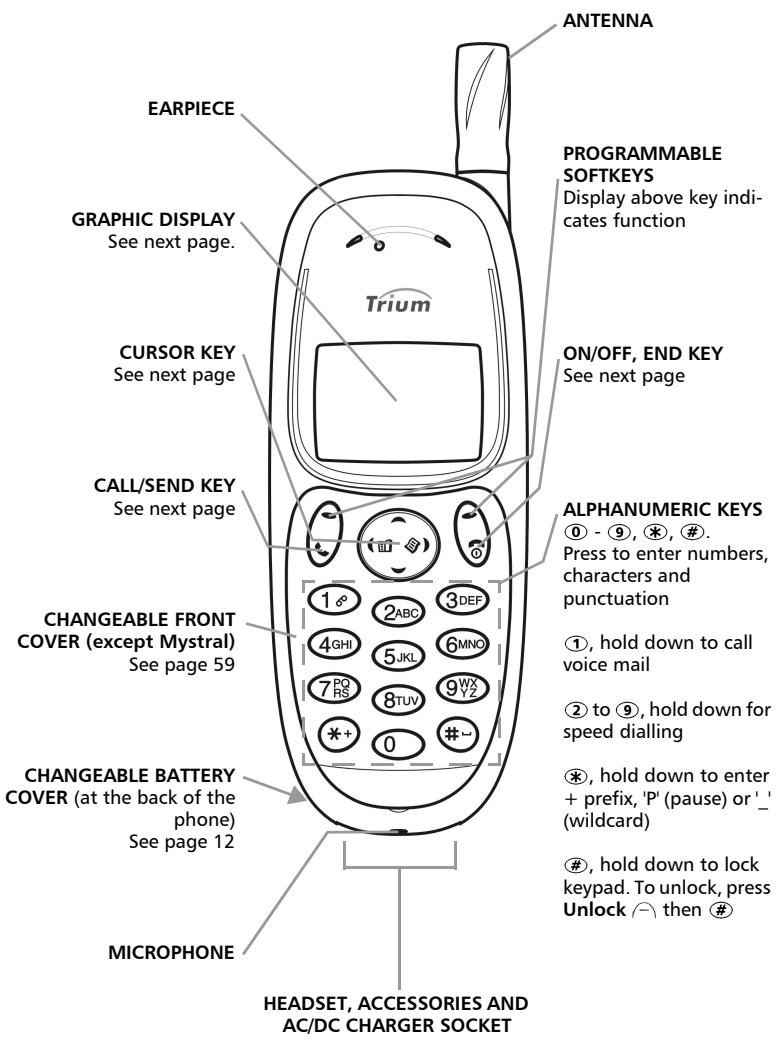
Using the keys to follow the actions described in this guide
To help you quickly understand your way around this manual we have used symbols and expressions that are present on the keys and in the display.
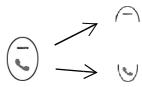
LEFT SOFTKEY. The function of the softkey appears in the graphic display above the key.
CALL/SEND key. Press to make/answer a call. In stand-by, press to display the last dialled numbers you dialled.
RIGHT SOFTKEY.
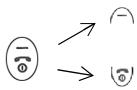
END key. Hold down to turn the phone on/off. Press to end a call or return to stand-by.
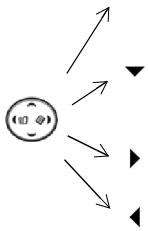
UP ARROW on the cursor key. Press to scroll up menus (while in the menu). In stand-by, press to access the volume control.
DOWN ARROW on the cursor key. Press to scroll down menus (while in the menu). In stand-by, press to access the alert mode (ring, silent, vibrate, etc.)
Function
RIGHT ARROW on the cursor key. Press to access the main menu or select a menu option.
LEFT ARROW on the round cursor key. Press to access the phone book or return to the previous display.
Softkey with the corresponding function name.
For example, Internet means press the softkey under the word Internet.
Messages
Words in this format are the words in the display.
Select
means use and on the cursor key to scroll to the required item in the menu and validate by pressing . For example, "select Phone Book" means scroll to the menu item
Phone Book and validate by pressing
Press
means press the corresponding key.
Press means press the SEND key.
Graphic display
The display shows icons, alphabet characters, numbers, menu list and instructions to the user. Use the above keys to navigate to the phone book, Internet/WAP™ and the menu. The rest of this guide gives the procedures to access these functions. Icons in the display are described on page 5.
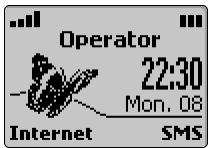
Understanding the icons
| Icons in the display have the following meaning: | |
| SIM memory in use | |
| Phone memory in use. When you enter a name and address you can choose the icon you want to go with it. | |
| Roaming. Displayed when the phone is logged on to a network different from its home network. | |
| Short message service (SMS). Displayed when you have one or more messages to read. It flashes when the SMS message bank is full and cannot store new messages. Delete one or more old messages to make space. The availability of this feature is network dependent. | |
| Voice mail. Displayed when you have a voice mail message to read. The availability of this feature is network dependent. | |
| Call diverting. Indicates whether incoming calls are permanently being diverted. The availability of this feature is network dependent. | |
| Battery level indicator. Permanently displayed to indicate the current charge level of the battery. Three levels are shown. low, medium, full. It flashes when the battery is almost empty. | |
| Arrow keys. Displayed during menu operation to indicate that more items in the menu can be displayed if or are pressed. | |
| Line 2. Indicates the second line is in use. The availability of this feature is network dependent. | |
| Unanswered call. Displayed when an incoming call is unanswered. Signal strength level. It indicates the strength of the received signal. The more bars the stronger the signal. If no network is available the display remains blank. | |
| Keypad lock. Indicates whether keypad lock is on or off. | |
| Alarm clock icon. | |
| Vibrator alert icon. | |
| Ring tone off. All tones are off. | |
| Mute icon. | |
| Tegic edit mode icon. | |
| WAP™ 'live' connection icon. | |
| WAP™ 'live' connection in security mode icon. | |
| GPRS attached in idle mode icon | |
| WAP™ GPRS connection icon. | |
| WAP™ GPRS connection in security mode icon. | |
| Auto-switch function activated icon. |
Introduction
Thank you for purchasing the Trium Aura, Mystral or Odyssey dual band mobile telephone. The mobile telephone described in this guide is approved for use on all GSM 900/1800 and GPRS networks. Services and display messages may be different. This depends on your operator's implementation.
As with all types of radio transceivers this mobile telephone emits electromagnetic waves and conforms to international regulations when it is used under normal conditions and in accordance with the safety and warning messages given below and on page 13.
General safety
It is important to follow any special regulations regarding the use of radio equipment, due to the possibility of radio frequency, RF, interference.
Please follow the safety advice given below. More safety information is described on page 13.

Switch off phone and remove the battery when in an aircraft. The use of mobile telephones in an aircraft may endanger the operation of the aircraft, disrupt the cellular mobile phone network and is illegal. Failure to observe this instruction may lead to suspension or denial of mobile telephone services to the offender, or legal action, or both.

Respect national regulations on the use of mobile telephones in vehicles. Do not use a handheld phone while driving. If you don't have a hands free car kit, stop and park your vehicle safely before using your phone.

Switch off phone when at any refuelling point or near inflammable material.

Switch off phone in hospitals and any other place where medical equipment may be in use.

Respect restrictions on the use of radio equipment in fuel depots, chemical plants or where blasting operations are in progress.

There may be a hazard associated with the operation of phones close to inadequately protected personal medical devices such as hearing aids and pacemakers. Consult your doctor or the manufacturers of the medical device to determine if it is adequately protected.

Operation of phone close to other electronic equipment may also cause interference if the equipment is inadequately protected. Observe any warning signs and manufacturers recommendations.

Avoid prolonged contact between the antenna and your skin when the phone is switched on.
This apparatus is intended for use only when supplied with power from AC/DC adaptor chargers (FZ14130070, FZ14130060, FZ14130050, FZ14130080, FZ14130090 or FZ14130100) and the vehicle kit (FZ14180040).
Use of any other charger or adaptor will invalidate any approval given to this apparatus and may be dangerous.
Table of contents
1. Getting started.... 8
Preparing to make your
first call 8
Making your first call 9
Battery 11
2. Safety information.. 13
Vehicle safety 13
Emergency calls. 13
Care and maintenance .... 13
AC/DC adaptor chargers.. 14
Battery use 14
Your responsibility. 15
Security codes 15
Disposing of waste
packaging 15
3. Using your phone.... 16
Standby display. 16
Important icons. 16
Dialling from memory.... 17
Last dialled numbers 17
Speed dialling 18
Silent and vibrate
alert modes 18
Hands free features. 18
Muting 18
Volume adjustment. 19
Sending DTMF tones..... 19
Pause feature 19
Holding and retrieving
a call. 20
Call waiting, swapping
and multi-party
conference calls. 20
4. The menu 22
Access to the menus 22
Menu map 22
Entering text 22
Network services 25
Phone book. 25
Messages (SMS) 29
Calls & Times 33
Settings - customising your phone 36
Using the office tools... 51
Games. 53
Currency-converter. 53
Internet/Wireless Application Protocol (WAPTM) 54
GSM man machine interface codes. 57
5. Accessories 58
Using the headset 58
Changing the front cover
(for Aura and Odyssey only) 59
6. Appendix 60
Glossary 60
Trouble shooting 62
Error messages 63
Guarantee 66
7.Declaration of compliance 67
Getting started
In order to become familiar with the phone quickly, follow these simple steps.
Preparing to make your first call
Inserting the SIM card
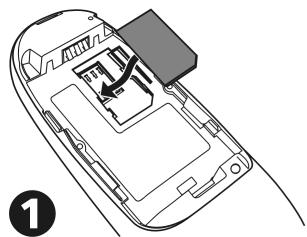
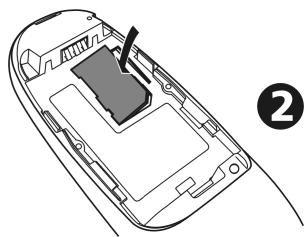
Unpack the phone and insert the SIM card into the holder, as shown below, with the gold contacts facing down.
Fitting the battery
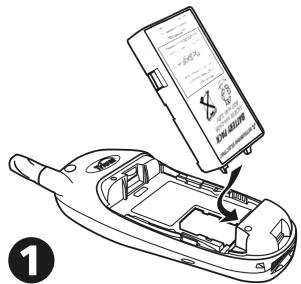
Connect the battery as shown below.
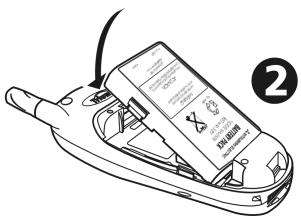
Placing the battery cover
Place the battery cover as shown below.
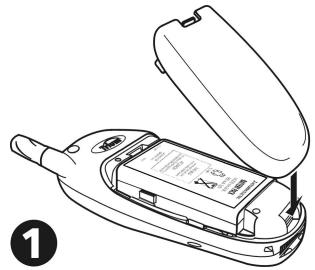
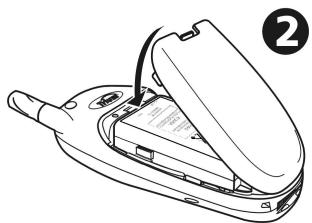
If there is not enough charge in the battery to power the phone follow the instructions for battery charging on page 11.
Turning on the phone
Press and hold down for two seconds. If this is the first time you have used the phone or you removed and replaced the battery, the phone prompts you for the date and time. If you inserted the SIM card incorrectly, the error message Check SIM! appears. Remove the cover and battery and make sure the SIM is inserted with the gold contacts facing down.
If the mobile is locked, Code: appears. Enter the 4 digit phonelock code and press OK . The default is 4 zeros, e.g. 0000.
3 If your SIM is PIN protected, Enter PIN: appears. Enter the PIN code and press OK. An animated screen icon appears, then the stand-by display.
See page 41 to change your PIN and lock codes!
Stand-by display
From the stand-by display:
| Press... | to... |
| ▶ | enter phone menu. |
| ← | directly access to numbers stored in phone books. |
| ▲ | access volume control. |
| ▼ | access alert tones. |
| ü | access the last dialled numbers list. |
| ü | stop the dialling or end a call. |
| ➀ - ➂ | enter numbers in the display (see also "Speed dialling", page 18). |
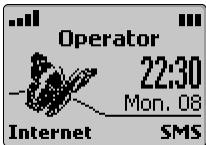
See page 44 to set the time and date.
Making a call
The phone can only make and receive calls when it is switched on, unlocked (see page 16), has a valid SIM card inserted and has GSM/GPRS* network service coverage. If the phone cannot find a valid network the display remains blank.
1 Enter the desired telephone number using the numeric keys (0 - 9). You can enter a maximum of 46 digits. Correct any mistakes by pressing Clear. Hold down this key or press to clear the whole display.
To dial (send) the number press

The phone rings and the call connects like a normal telephone. A call timer appears.
√ You can prefix international calls with 00 or +. To enter the + symbol before a number press and hold down 念
You can also get the following messages if the call does not connect or you use the second line:
| Your phone displays... | if the... |
| Busy | called party is engaged. |
| Not allowed (fixed dialling) | number dialled is not authorised by the FDN list (see page 28). |
| 囧 | call is made using the second line (see page 36). |
If the dialled number matches one stored in the phone book then the name of the called person appears in the display.
Receiving a call
The phone rings (or vibrates, see page 37 to set) when it receives a call. See page 38 to set the incoming ring tone. See page 39 to set the backlight.
Answering the call
Press
If the ring tone volume is set to zero (off) or if the phone has been set to 'Vibrate' mode, no audible sound is heard.
No ring
Pressing No ring stops the sound of the ring tone, which allows you to, for example, go out of a room before pressing
Service number presentation
If you have the service number presentation your phone displays the following information.
| Your phone displays... | if the number is... |
| Unknown number, then Call1 when connected | unavailable. |
| the caller's number | available but not in phone books. |
| Withheld number, then Call1 when connected | withheld. |
If you have a second line, 出 appears if the call has been received on your line 2 number (see page 20 for details).
Rejecting the call
To reject, or return a busy signal to the caller:
Press 0
Ending a call
Press . The call timer stops and disappears.
Waiting a few seconds or pressing the Exit softkey returns the phone to the stand-by display.
The phone stores the caller's number, if available, in the received calls log (see page 33).
Turning off the phone
Press and hold down
The mobile turns off.
Battery
Low battery warning
When the battery power falls to its lowest level the message Low Battery! appears and a low battery warning tone sounds.
If you are on a call, terminate the call and turn off the phone by pressing and holding down
Recharge the battery as shown below or swap it for a charged one.
Do not turn off the phone by removing the battery, data can be lost.
Charging the battery
To ensure a long life for your battery, re-charge it only when the Low Battery! warning appears and the 'low battery' tone is heard.
Connect the charger to the phone as shown.
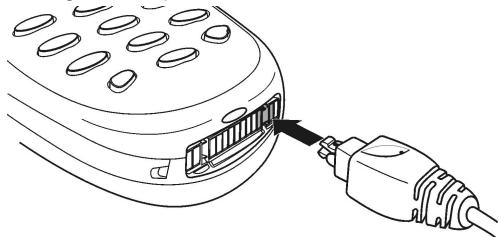

While inserting the plug in the phone AC/DC connector make sure the Trium logo () appears on top.
Plug the charger into the wall socket and turn on the mains. The battery starts to charge. The phone can be used while charging but this increases the charging time.
Charging indicators when the mobile is off
During charging Charging... appears. When charging is finished, Battery full appears.
It is normal for the battery to get warm during charging.
Charging indicators when the mobile is on
During charging the icon flashes 1-2-3 bars continuously. When charging completes the battery indicator shows three solid bars.
Disconnecting the charger
At the end of charging, disconnect the charger from the phone (see below), switch off and remove the plug from the mains.
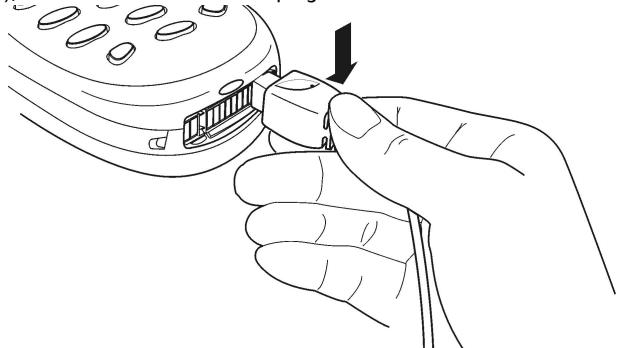
Typical charging times using the AC/DC adaptors (FZ14130070, FZ14130060, FZ14130050, FZ14130080, FZ14130090 or FZ14130100)
| Battery type | Typical charging time |
| Standard battery (FZ14130130) | 2 hours 10 minutes |
Removing the battery
Remove the battery as shown below.
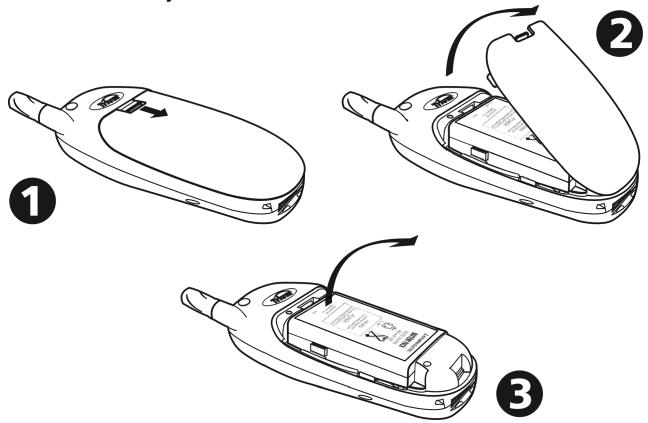
Safety information
Vehicle safety
- Respect national regulations on the use of mobile telephones in vehicles.
- Road safety always comes first! Always give your full attention to driving.
- Do not use a hand-held phone while driving. If you do not have a 'hands free' car kit, stop and park your vehicle safely before using your phone.
- If equipped with a correctly installed vehicle kit allowing 'hands free' operation and you need to make or receive a call, ensure that it is done sensibly and safely. Use pre-programmed numbers where possible and keep calls short and routine.
- If incorrectly installed in a vehicle the operation of mobile telephones can interfere with the correct operation of the vehicle electronics, such as ABS anti-lock brakes or air bags. To avoid such problems ensure that only qualified personnel carry out the installation. Verification of the protection and operation of the vehicle electronics should form part of the installation. If in doubt consult the manufacturer.
- Do not place the phone on the passenger seat or where it could break loose during sudden breaking or a collision. Always use the holder.
- The use of an alert device to operate a vehicle's lights or horn on public roads is not permitted.
Emergency calls
In Europe, provided the phone has GSM service, emergency calls can be made using the European standard emergency number, 112, even if you do not have a SIM in the phone. Emergency calls can even be made if the phone is PIN or electronically locked or call barred. In some countries local emergency numbers can still be used for emergency purposes but the phone may have to contain a valid SIM card. When making an emergency call remember to give all the necessary information as accurately as possible. The phone may be the only means of communication at the scene of an emergency therefore do not cut off the call until told to do so.
- Mobile phones rely on wireless and landline networks which cannot be guaranteed in all conditions. Therefore you should never rely solely on wireless phones for essential emergency communications.
Care and maintenance
This mobile telephone is the product of advanced engineering, design and craftsmanship and should be treated with care. The suggestions below can help you to enjoy this product for many years.
- Do not expose the phone to any extreme environment where the temperature or humidity is high.
- Do not expose or store in cold temperatures. When the phone warms up after switch on, to its normal temperature, moisture can form inside which can damage the electrical parts.
- Do not attempt to disassemble the phone. There are no user serviceable parts inside.
-
Do not expose the phone to water, rain or spilt beverages. It is not waterproof.
-
Do not abuse this phone by dropping, knocking or violent shaking. Rough handling can damage it.
- Do not clean the phone with strong chemicals or solvents. Wipe it only with a soft, slightly dampened cloth.
- Do not place the telephone alongside computer discs, credit or travel cards or other magnetic media. The information contained on discs or cards may be affected by the phone.
- Do not connect incompatible products.
The use of third party equipment or accessories, not made or authorised by Mitsubishi Electric, invalidates the warranty of your phone and can be a safety risk.
- Do not remove the labels. The numbers on it are important for service and other related purposes.
- Do contact an authorised service centre in the unlikely event of a fault.
AC/DC adaptor chargers
This apparatus is intended for use only when supplied with power from AC/DC adaptor chargers (FZ14130070, FZ14130060, FZ14130050, FZ14130080, FZ14130090 or FZ14130100). Use of any other charger or adaptors will invalidate any approval given to this apparatus and may be dangerous.
Battery use
You can charge a battery hundreds of times but gradually it wears out. When the operating time (stand-by and talk time) is noticeably shorter than normal it is time to buy a new battery.
- Do not leave batteries connected to a charger longer than necessary. Overcharging shortens battery life.
- Disconnect battery chargers from the power source when not in use.
- Do not expose batteries to high temperatures or humidity.
- Do not dispose of the batteries in fire. They can explode.
- Avoid putting the batteries into contact with metal objects which can short circuit the battery terminals (e.g. keys, paper clips, coins, chains etc.).
- Do not drop or subject the batteries to strong physical shocks.
- Do not try to disassemble any of the battery packs.
- Use only the recommended battery chargers (see page 6).
- If the battery terminals become soiled, clean them with a soft cloth.
- It is normal for batteries to become warm during charging.
- Old batteries must be returned to the place of sale or to a place where used batteries are properly disposed of. Do not dispose of old batteries together with household waste.
Battery disposal
In compliance with European environmental protection directives, used batteries must be returned to the place of sale, where they are collected free of charge.
Don't throw away your batteries in your household waste.
Your responsibility
This GSM mobile telephone is your responsibility. Please treat it with care respecting all local regulations. It is not a toy; please keep it in a safe place at all times and out of the reach of children.
Become familiar with and use the security features to block unauthorised use if your phone and/or SIM card are lost or stolen. Call your service provider immediately to prevent illegal use.
When not in use lock, turn off the phone and remove the battery.
Security codes
The phone and SIM card are delivered to you pre-programmed with codes that protect the phone and SIM card against unauthorised use. A short description of each follows. See page 42 to change your PIN and phonelock codes.
PIN and PIN2 codes (4-8 digits)
All SIM cards have a PIN (Personal Identity Number). It protects the card against unauthorized use.
Some SIM cards also have a PIN2 code that protects specific features such as fixed dialling numbers.
Entering the wrong PIN code three times in succession disables the SIM card and the message SIM Restricted. Enter PUK: appears. To unblock the SIM you need the PUK (PIN Unblock Key) code, obtainable only from your service provider.
PUK and PUK2 codes (8 digits)
Obtain the PUK code from your service provider. Use it to unblock a disabled SIM card (see page 43).
The PUK2 code is required to unblock the PIN2 code (see above).
Call barring password (4 digits)
This password is used to bar various types of calls, made or received, from the phone (see page 43).
Voice mail password
This password protects you against unauthorised access to your voice mail.
Phonelock code (4 digits)
This code is set to all zeros on delivery. You can change it. Once changed it cannot be identified by the manufacturer over the phone. Please refer to page 41 for more details.
You must remember and make yourself familiar with the purpose and operation of these codes.
Disposing of waste packaging
The packaging used for this phone is made of recyclable materials and as such should be disposed of in accordance with your national legislation on the protection of the environment.
Please take care to separate the cardboard and plastic elements and to dispose of them in the correct manner.
Using your phone
For turning on/off the mobile and making/receiving calls, see pages 8 to 11.
Standby display
Keypad lock
To prevent accidental operation of the phone, turn on keypad lock. You can still answer calls by pressing . When you end a call, the keypad lock reactivates automatically.
To turn keypad lock on:
Press and hold down # appears.
To turn keypad lock off:
Press Unlock 一 plus # or press and hold #.
You can also use the menu:
Press▶. Select Settings.
2 Select Phone settings. Select Keypad lock to turn keypad lock on.
3 Press Unlock plus # to turn keypad lock off or press and hold #.
Internet/Wireless Application Protocol (WAPTM)
Press Internet in the stand-by display to access the internet main menu to access your home page or any WAP™ portal. You can configure up to 5 WAP™ profiles and 10 bookmarks. See page 54 for more information.
Messages (SMS)
Press SMS in the stand-by display to access the short messages menu. You can also access it from the main menu. See page 29 for more information.
Backlight operation
The backlight is normally off. When a key is pressed the display and key-pad backlight turns on for 10 seconds. If an incoming call is received the backlight turns on and remains on for 10 seconds after the call is answered.
Important icons
- displays when you do not answer one or more calls. Press Read to view the callers' numbers if available and the date and time the call was received. Press to call the number. The phone stores unanswered call numbers in the unanswered calls log (see page 33 for details).
- 6° appears when you receive one or several messages. Press Read to view the message or press ① to speed dial your voice mail message centre (see pages 5 and 40 for more details).
- appears when you receive one or several SMS messages. Press Read to view the SMS inbox message.
If flashes, your inbox is full. Delete one or more old messages to make space for one or more new messages (see page 29 for more details).
The display shows the number and type of messages:
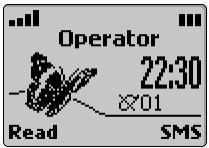
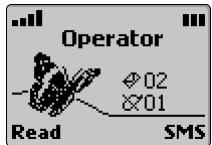
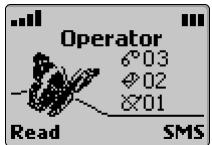
Press Read to select the type of message you want to read. Press Select or to view the message.
When one indicator displays the date is temporarily cleared. When two or three indicators display the time and date are temporarily cleared.
Dialling from memory
You can dial any number stored in the SIM, or the phone memory. To do this: from the phone book
Press to enter the phone book list.
Use or to scroll to the name required.
3 Press V.
In case of a SIM memory contact or of a phone memory contact with one number assigned, the phone dials the number. In case of a phone memory contact with many numbers assigned, use or to scroll to the number required and press . The phone dials the number.
See page 25.
from the calls log memory list
The phone stores the last 10 numbers dialled, the last 10 unanswered call numbers (if available) and the last 10 received answered numbers.
Press▶Select Calls & Times.
Select Calls log.
3 Select Last dial, Unanswered or Received.
Use or to scroll to the number required.
Press to dial the number.
See page 33.
Last dialled numbers
Quick access to the last 10 dialled numbers can also be obtained by pressing
1 In the stand-by mode pressing displays a list of the last dialled numbers.
Use or to scroll to the number required.
Press to dial the number.
The phone stores the last dialled numbers in the phone memory, not in the SIM.
Speed dialling
You can assign any key to any telephone number stored in the SIM. To dial such a number:
Press and hold down the key (1 - 9) . The number appears and attempts to connect.
By default, ① is always allocated to the voice mail number (see page 44). See page 40 to allocate numbers to the speed dialling keys.
Silent and vibrate alert modes
To avoid disturbing others you can silence the incoming ring and alert tones.
Turning on
1 Press
2 Select Silent, Vibrate or Vibrate then Ring.
displays when the silent alert mode feature is activated. , displays when the Vibrate or Vibrate then Ring features are activated.
Turning off
1 Press
2 Select Ring or Vibrate & Ring.
If the ring tone volume is set to 0 a warning message appears in the display.
Hands free features
When you want to share your call with an audience, or you are in your car, use the "hands free" feature.
Turning the hands free feature on
When making a call:
Press Speak.on to turn the hands free feature on during the calling process.
When receiving a call:
Press Speak.on to accept the incoming call.
Turning the hands free feature off
Press Speak/off
Muting
You can mute the microphone during a call, e.g. when you want to talk to someone nearby without the person on the phone hearing.
Turning the microphone off
1 Press Options
2 Select Mute and select Yes. A warning message appears in the display. also appears.
Turning the microphone on
1 Press Options A.
2 Select Unmute. A warning message appears in the display. 48 disappears.
A new call restores the microphone to on.
Volume adjustment
To adjust the volume:
Use or to increase or decrease the volume and press OK
Press Exit or wait 2 seconds to return to the previous display.
See also page 38.
Sending DTMF tones
Some remote access services require DTMF tones. These tones are used by regular telephones when you dial and when you answer questions from an automated voice service. If you are in a conversation and manually entering the numbers, no extra configuration is necessary. If, however, you want to send a number stored in memory, you must set DTMF to automatic.
Manually
To send individual DTMF tones directly from the keypad during a conversation:
Press the required keys.
The tones are heard in the earpiece and sent immediately.
Automatically
To send a consecutive string of DTMF tones during a conversation:
1 Press Options A.
2 Select Auto DTMF.
3 Enter the DTMF numbers into the display either directly using the keypad or from a number stored in the phone book (under Names).
4 Press OK. The phone sends the tones and then shows the normal conversation display.
DTMF tones cannot be sent when a call is on hold.
Pause feature
You can enter and store telephone numbers and a sequence of DTMF tones together as long as you separate them by a 'pause'. To enter a pause between numbers, press and hold down ※ . The letter p appears. The phone can store several pauses together for a maximum of 20-46 characters (dependent upon the SIM and the phone memory capacity).
Holding and retrieving a call
To put a call on hold during a conversation:
Press
To retrieve a call:
Press
To make a second call when one call is on hold:
1 Enter a number in the display. Press to dial the number.
After the second call has been established press to swap between the two calls.
3 To end either the current call or the held call select End active or End held in the Options menu. The remaining call is automatically retrieved.
Press to end the remaining call.
Both calls can be ended at the same time by pressing
Alternatively, use Options to display a menu of the actions described above. Scroll to the required option and press Select or (see also "Multi-party or conference calls", page 21).
Call waiting, swapping and multi-party conference calls
Call waiting
Use call waiting, a network feature, to receive a second incoming call when already engaged in a call. This puts an existing call 'on hold' while you answer or make a second call.
To turn the call waiting service on or off:
Press▶. Select Settings. Select GSM Services.
2 Select Call waiting.
3 Select Activate or Cancel. The network confirms your request. The confirmation can take several seconds.
4 Press Exit or to return to the standby display.
Action when receiving a second call
You hear a 'double beep' when your phone receives a second call. An animated phone icon and the telephone number (if available) also appear. To accept the second call
Press . This answers the second call and puts the first call on hold.
To reject the second call:
Press Reject. This returns a busy signal to the second caller.
To swap between the two connected calls:
Press
Multi-party or conference calls
Use this feature to make or receive between 2 to 5 calls at the same time with all parties being able to hear and talk with each other.
Make and establish a call in the normal way and press
2 Enter another number into the display and press . The first call is put on hold when the second call becomes active.
3 Press Options for the following menu:
| Option | Description |
| Auto DTMF | to enter a DTMF string to the active call only |
| Swap | Swaps between active and call on hold |
| Join | Joins active and call on hold to make a multi-party or conference call |
| Mute/Unmute | Turns on or off the microphone |
| End held | Ends the call on hold |
| End active | Ends the active call and connects with the call on hold |
| End all | Ends all the calls |
| * Private with | Allows you to select and have a private conversation with one of the conference callers while putting all the other calls on hold |
| Hold/Retrieve | Holds or retrieves the conference call |
| * End one | Allows you to select and end one of the conference call participants |
- These items in the Options menu appear if more than 2 calls are joined in the conference call.
Throughout the conference call the display confirms and shows the actions you selected from the options menu.
For alternate line service (ALS), you cannot make subscribers conference calls between Line 1 and Line 2.
The menu
Use the round cursor key to access the menu system. Your menu options can vary. Some may not appear. This depends on your network operator and your subscription.
Access to the menus
Press to view all stored telephone numbers.
Press to enter the main menu.
Hold down Exit or press to exit the menus (if no call is in progress).
Menu map
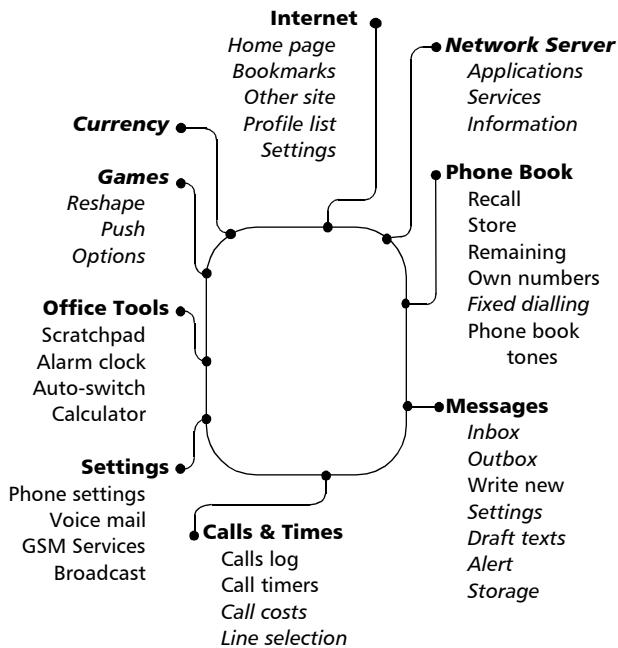
Items in italics depend on your subscription and your network operator.
Entering text
To add names to the phone books (see page 25) and write text messages (see page 30) you must enter text. The phone displays a^p in lower case mode and a^p in upper case mode when you can enter text. Use the keypad to enter/edit text. You can enter text/numbers using T9 text entry or Multitap text entry.
T9 text entry
Press to swap between T9 text entry and the Multitap method.
To enter text with T9:
Press the key with the required letter only once.
Do not be put off if the character you want is not immediately displayed.
The 'active' word changes as you type, so type to the end of the word.
3 If your word is not displayed, press ① for other matching words.
4 If your word is not recognised, press to swap to the Multitap method to complete the word.
Use or to locate the cursor in the text to insert characters or make corrections.
Tips and operation
| Key | Action |
| * | Shift - upper/ lower case |
| Clear | Clear or backspace |
| Press and hold | Numbers |
| # | Space |
| ① | Another matching word |
| ① | Smart punctuation |
| ▼ | Swap between T9 and Multitap method |
Example
To enter Card in the display:
- Press and select Messages.
- Select Write new.
- Press T appears.
- Press ②. A appears.
- Press ②. Ca appears.
- Press ⑦. Car appears.
- Press ③ . Case appears.
If the displayed word is not the one you want, press ⑨ as many times as necessary to view Card.
- Press ^ to exit from this example and return to the stand-by display.
Multitap text entry
Press on to swap between T9 text entry and the Multitap method.
To enter text with multitap:
Press the key with the required letter. If it is not the first letter, press key repeatedly until the letter appears. See the table that follows for a key to character correspondence.
Enter the next character. If two characters are on the same key wait for the display at the top of the screen to clear or press before pressing the same key again.
To access special characters (23 available), hold down . A table appears. Press the key that corresponds to the character.
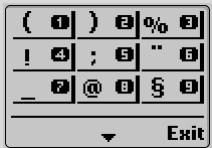
4 Press Clear briefly to correct back one letter. Hold down to clear all text.
Press or to move the cursor in the text to insert characters or make corrections.
The following table displays the available English characters. Other languages display different character sets.
| Key | Character | |
| Lower case | Upper case | |
| ① | 1 , -' @ :? | |
| ② | a b c 2 | A B C 2 |
| ③ | d e f 3 | D E F 3 |
| ④ | g h i 4 | G H I 4 |
| ⑤ | j k l 5 | J K L 5 |
| ⑥ | m n o 6 | M N O 6 |
| ⑦ | p q r s 7 | P Q R S 7 |
| ⑧ | t u v 8 | T U V 8 |
| ⑨ | w x y z 9 | W X Y Z 9 |
| ⑩ | 0 | 0 |
| * | Short press swaps next letter between upper or lower case. Long press swaps all next letters between upper or lower case. | |
| # | Short press, enters space. Long press gives access to special characters. ( ) % ! ; " _ @ § + # * / & = < > ¥ $ f i £ € | |
| ←▶ | Short press moves the cursor through the text one place. | |
| ✓ | Swap between Multitap and T9. | |
Example
To enter Card in the display:
- Press and select Messages.
- Select Write new.
- Press and hold 串 until A appears. Press ② briefly three times, C appears.
- Wait for the available characters to go from the display, press and hold ※ until a appears. Press ② briefly once, a appears.
- Press ⑦ briefly three times, r appears.
- Press ③ briefly once, d appears. The word Card appears.
- Press to exit from this example and return to the stand-by display.
Your network operator provides value added services and contact phone numbers. Depending on your operator's implementation Applications, Services, and/or Information appears in the display. Press and select Network Services to access these menus.
Phone book

The phone book stores data, usually names and telephone numbers, in the phone or SIM memory.
- The phone can store up to 100 'phone phone book cards' which can contain: family name, first name, icon, home phone number, work phone number, cellular phone number and a note.
- SIMs can store up to 255 'SIM phone book cards'. Actual numbers and capacity depends on your SIM. SIM phone book cards only contain the name and number.
Both the SIM and the phone memories are searched when you use the phone book.
Storing names and telephone numbers
You can enter the names and numbers in the phone book manually or copy them from SMS messages, scratchpad or last dialled number lists, etc. You can store the characters *, +, P (pause), # and _ together with numbers. See page 22 to learn how to enter text.
Store numbers in international format using the +1 prefix (or 00) before the country code followed by the telephone number. This ensures that the number can also be dialled from abroad.
There are several ways to store numbers into the phone or SIM memory:
Phone memory
- Directly from the stand-by display:
1 Enter the number. Press Store
2 Select Phone names.
A list appears.
Select the item corresponding to the number you entered: home, work or cellular.
4 The following fields appear:
| Field | Purpose |
| Family name | Family or last name |
| First name | First name |
Enter the requested data. Confirm each entry by pressing OK

6 Select an icon.
The icons correspond to 1 - 6 keys on the keypad. Press the key corresponding to the required icon.
In this example pressing ② selects
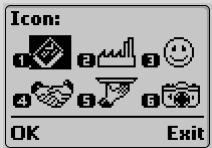
The following fields appear:
| Field | Purpose |
| Phone number (Home) | Home phone number |
| Phone number (Work) | Work phone number |
| Phone number (Cellular) | Cellular phone number |
| Note | Note or comments for this card |
3 Enter the requested data. Press OK
Confirmation and number of free locations appear.
9 Press Exit or to return to the stand-by display.
Using the menu:
Press▶. Select Phone Book.
2 Select Store. Select Phone names.
3 Follow the steps in the previous procedure ("Directly from the stand-by display") starting with step 4.
- From last dialled, received and unanswered lists:
1 Display a number from one of the above, then press Options A.
2 Select Store. Select Phone names.
3 Follow the steps in the "Directly from the stand-by display" procedure starting with step ③.
During number and name entry a short press on Clear clears the last character. A long press clears the whole display.
SIM phone book memory
You can enter the SIM memory from the stand-by display, menu or other locations.
- Directly from the stand-by display:
1 Enter the number. Press Store
2 Select SIM names. Press OK
3 Modify or confirm the number and press OK
4 Enter the name. Press OK Confirmation and number of free locations appear.
Press Exit or to return to the stand-by display.
Using the menu:
Press▶. Select Phone Book.
2 Select Store. Select SIM names.
Enter the number and press OK. Enter the name and press OK. Confirmation and number of remaining locations appears.
4 Press Exit or to return to the stand-by display.
From other stored locations
Numbers stored in the last dialled, received, unanswered, scratchpad and SMS message locations can all be stored in the phone book:
1 Display a number from one of the above then press Options
2 Follow the steps from the previous procedure "Using the menu" starting with step ②.
During number and name entry a short press on Clear clears the last character. A long press clears the whole display.
A warning message appears when selecting the phone book when the SIM or phone memory is full.
Free space in the phone book
To see the remaining free space in the SIM or phone:
Press▶. Select Phone Book.
2 Select Remaining and use or to display the remaining memory spaces in the phone or SIM.
Press Exit or to return to the stand-by display.
If available, the free memories in the FDN list also appears.
Viewing and calling numbers in the phone book
You can edit, delete, copy, move or access phone book entries stored in the phone or SIM. There are two ways to view and call numbers in the phone book:
- Directly from the stand-by display:
Press to display the phone book list.
Using the menu:
Press and select Phone Book.
2 Select Recall.
Either press OK or enter up to the first 3 initials of the name required and then press OK.
Pressing or scrolls through the phone book. To go directly to another entry press the corresponding alphabet key. For example to go directly to entries starting with 'N' press ⑥ twice.
If you did not enter any initials, the phone book displays the first entry.
4 Press to dial the number. If there is a choice of numbers for the phone book entry, these appear. Select the one that corresponds and press.

Pressing Options displays the following menu choices:
| Item | Function |
| Edit | Edits the name and number entry |
| Delete | Deletes the entry |
| Send SMS | Sends SMS message |
| Copy | Copies the entry to the SIM or the phone or vice versa. You can edit before copying |
| Move | Moves the entry to another position. You can edit before moving |
| Call | Calls the number displayed |
Press Exit or to return to the stand-by display.
Own number display
The phone can display to your correspondent your main 'Line 1' voice mobile number, the voice mobile number for Line 2 (Alternate Line Service) and your data and fax numbers. The SIM stores these numbers. You can enter them manually and name them. For example, you can name Line 1 'Office'. To view, name and edit your own display number(s):
Press Select Phone Book.
2 Select Own numbers. The mobile number for Line 1 appears.
Use or to view line 2, data and fax numbers.
4 To add or edit a name or number press Edit
Press Exit or to return to the stand-by display.
Fixed dialling numbers (FDN)
Fixed dialling only allows you to call a group of numbers. All other numbers are rejected. FDN also prevents call diverting and sending SMS messages to numbers not in the FDN list. You can use wildcards to define the groups. As this is a SIM dependent feature, some SIMs might not support it. SIM capacity determines the maximum number of FDN numbers you can configure. To activate/deactivate FDN you must have the PIN2 code.
To turn on or off FDN operation:
Press▶Select Phone Book.
2 Select Fixed Dialling. Select Status.
3 Select On or Off. Enter the PIN2 number.
4 Press OK to confirm the setting.
To view the numbers in the list:
Press▶Select Phone Book.
2 Select Fixed Dialling.
3 Select View and use or to scroll through the entries. Press Options to edit, delete and copy numbers to the phone or SIM.
To enter, edit or delete numbers in the FDN list:
Press▶. Select Phone Book.
2 Select Fixed Dialling.
3 Select Add new. Enter the PIN2 number if asked. Add, edit, delete or copy new numbers to the phone or SIM.
√ You can use wild card spaces with numbers stored in the FDN list. For example the number + 44 1707 278_ _ 9 allows you to call all numbers between 278009 to 278999.
Phone book tones
30 pre-set ring tones are available, 10 with tri-tones (generally sound better) and 20 with mono-tones. Storage of up to 40 ring tones is possible. That is, you can add one self-composed ring tone and 9 other ring tones you download in addition to the existing 30 ring tones. If you want, you can replace any of these ring tones except the Trium ring tone. You cannot replace the memory space used for the self-composed ring tone.
To have different tones for incoming calls where the identities are known in the SIM or phone memory:
Press▶Select Phone Book.
Select Phone Book Tones.
3 Select Phone names or SIM names. Press Select
4 Select the tone you want and press Select. The phone stores your selection.
Messages (SMS)

You can exchange short text messages of up to 160 characters with other mobile phones with SMS. You can also store, edit and forward messages and save any of the numbers they contain.
Reading a received SMS message
When the phone receives an SMS message a new SMS alert tone sounds and appears. The SIM stores the message. If flashes there is no more space in the SIM to store new messages. Delete previous messages to make space for new ones.
Press Read to read all received messages (Inbox).
Reading stored SMS messages
Press Select Messages.
2 Select Inbox to display the first message header.
Use and to select the message.
Press or select Options√Read text to read the message text.
You can now read all stored messages. For a given message, shows the message is new. shows you have already read the message.

Managing received and stored SMS messages
After reading the SMS message press Options for the following menu:
| Item | Function |
| Read text | Displays the remainder of the text |
| Delete | Deletes the message |
| Reply | Replies to the sender of the message |
| Reply (+ text) | Replies to the sender of the message with the initial text |
| Forward | Forwards the message to another user |
| Forward to n | Forwards a set of several (5 maximum) messages to 5 different addressees |
| Numbers | Stores or calls the number(s) contained in the SMS header or text |
The items of this menu depend on the type of message received.
Turning on or off the message alert tone
Each time a message is received the SMS alert tone sounds. To turn on or off this tone:
Press Select Messages.
2 Select Alert. Select On or Off.
Press Exit or to return to the stand-by display.
Preparing the phone to send SMS messages
You can write and send text messages. To use SMS, check that the number for the message centre is configured:
Press▶Select Messages.
Select Settings.
3 Select Message centre.
If a number appears do nothing. If empty, enter the number manually (in international format) or from a stored memory. If you do not have this number, ask your service provider for it.
4 Press Exit or to return to the stand-by display.
If required you can also choose the validity period, format, paid reply request and request a delivery report. Default settings are assumed if not set.
| Option | Description | Default |
| Validity Period | Time held at message centre. 12 hours, 1 day, 2 days or Maxi-mum (defined by operator) | Maximum |
| Format | Selects format of message, text, voice, fax or pager | Text |
| Paid Reply to | Reply requested | Off |
| Status report to | Delivery report | Off |
Creating a draft text
Parts of a message are often the same, such as the greeting or signature.
To save time, you can create a draft text with these parts. Then when you want to write a message, you access the draft text and only write the specific part of the message. You can set up to 10 message drafts, which can hold up to 50 characters each. Your total message, when complete can only be up to 160 characters. The mobile memory stores the drafts.
To create a draft text:
Press▶. Select Messages.
2 Select Draft texts.
Choose any blank template ([...]) and press Edit.
4 Enter the draft text and press OK
5 Press Exit or to return to the stand-by display.
Editing a draft text
Press▶Select Messages.
2 Select Draft texts.
3 Select the draft text to modify and press Edit
4 Edit the text and press OK
5 Press Exit or to return to the stand-by display.
Sending a new SMS message to one addressee
Press▶Select Messages.
2 Select Write new.
3 You can either choose a draft text (if you set one up) or enter the message text and press OK
4 Select Send.
5 Choose a message template and then enter the destination number or select Names to choose a number from a phone book entry.
Press to validate your choice. Press OK.
Sending and sent confirmation appears for each addressee.
Press Exit or to return to the stand-by display.
Sending a new SMS message to many addressees
Press▶Select Messages.
2 Select Write new.
3 You can either choose a draft text (if you set one up) or enter the message text and press OK
4 Select Multicast.
5 Choose a message template. Enter up to 5 destination numbers or select Names to choose up to 5 numbers in the phone book.
Press to validate your choice. Press OK. Sent confirmation appears.
Press Exit or to return to the stand-by display.
Storing a new SMS message
Press▶. Select Messages.
2 Select Write new.
You can either choose a draft text or enter the message text and press OK.
4 Select Store.
Press Exit or to return to the stand-by display.
Modifying and re-sending messages in the outbox
The outbox contains unsent draft messages, stored sent messages and sent but undelivered messages. You can modify and re-send these as new messages.
To select an outbox message:
Press▶. Select Messages.
2 Select Outbox and use or to scroll to the desired message.
Messages are either "transmitted" (☑) or "to be sent" (☑).
Press Options to read, delete, request a status report, send (or re-send) to one addressee, edit a sent message and send (or re-send) to many addressees.
4 Follow the instructions displayed on the screen.
Status request on sent messages
If you request the status of a delivered message the delivery date and time appears. If you request the status of a sent message the network sends a status report (if this feature is supported). Press OK to acknowledge the report.
To act upon a received status report and its related message:
1 Press Options. The following menu appears:
| Item | Action |
| Delete message | Deletes the corresponding sent SMS message and the status report |
| Clear | To acknowledge the status report and clear the display |
| Associated message | Displays the corresponding sent SMS message |
| Send again | Sends the same message again |
2 Select the action required and press OK
Re-usable message templates
The Msg templates menu option appears in the Messages - Settings menu if your SIM supports this feature. Message templates are sets of message parameters and are stored in SIM memory. You can name and select the templates when needed.
To create a message template:
Press▶. Select Messages. Select Settings.
2 SelectMsgtemplates.Chooseanyblank template([...]).
3 Enter the template Name, Message centre number, Validity period and Format.
Default settings for pay reply and status are assumed 'off' unless set and are common to all templates. If you only set one template the phone uses it by default. Otherwise select the template you want when sending a message.
Storage consumption
To consult the memory used by SMS:
Press Select Messages.
2 Select Storage.
Use or to view all the SMS storage information (SMS storage, SMS outbox and SMS inbox).
4 Press Exit or to return to the stand-by display.
Calls & Times

Access the Calls & Times menu to check the details of individual incoming and outgoing calls, the duration of the last call or the total time for all previous calls.
Calls log
Calls log stores the identity, time, date and call duration of the last 10 numbers dialled, the last 10 received unanswered calls and the last 10 received calls. The call logs are common for both Line 1 and Line 2.
Press .Select Calls & Times.
2 Select Calls Log.
3 Select Last dial, Unanswered or Received.
Use or to scroll through the list.
If the caller's number is not available Unknown number appears (unanswered and received lists).
Pressing while on a displayed number calls that number.
Pressing Options accesses the following menu:
| Item | Action |
| Store | Stores the number in the phone book |
| Delete | Deletes the entry |
| Delete all | Deletes all the entries |
| Edit | Edits the displayed number |
| Details | Views the details - name, number, time and date and call duration of the highlighted number |
| Call | Makes a call to the number |
| Send SMS | Sends SMS message |
Use or to select the required option and follow the display prompts.
Press Exit or to return to the stand-by display.
Press when in stand-by display to access the last 10 dialled calls.
Call times
Call times stores the duration of the last call, total accumulated time of all

calls and total time for Line 1 and Line 2. The Details (-) sub-menu stores times for calls made and received through the subscription network and through other (national and international) networks.
Press. Select Calls & Times.
2 Select Call timers.
3 Select Show.
4 If you reset the call timers (see page 35) the date of the last reset of the counters appears briefly. Use or to view all the timer information.
The call type and the accumulated times of outgoing and incoming calls appear.
All calls

00:12:47
<<01:07:48
Details

Exit
Press Details to display details of roaming and international calls.
Press or Exit to return to the previous display.
Press and hold Exit or to return to the stand-by display.
If Line 2 is subscribed to 'All Calls' for Line 1 and Line 2 appear separately.
Balance information (subscription service only)
Some networks provide your remaining airtime balance. You have to call a specific number (given by your network operator) in order to get this information.
Contact your service provider for availability and details.
Press▶. Select Calls & Times.
2 Select Call timers.
3 Select Balance information.
4 Select Set number (only necessary the first time you use this service) to check that the balance information centre number is set. If not, enter the number provided by your service provider and press OK
Select Call. The phone calls the centre. Press when you want to end the call.
Press Exit or to return to the stand-by display.
Reminder - Call duration
You can set a call duration reminder in multiples of 1 minute (1 - 59 min.) intervals. It beeps at the set intervals.
Press▶. Select Calls & Times.
2 Select Call timers.
3 Select Reminder.
4 Select On (or Off).
5 Select the period (between 1 and 59 mins).
6 Press OK
7 Press Exit or to return to the stand-by display.
Call timer - reset
To reset all the call timers, you need the 4 digit phone lock code.
Press▶. Select Calls & Times.
2 Select Call timers.
3 Select Reset.
4 Select Yes or No.
5 Enter the phone lock code and press OK
Press Exit or to return to the stand-by display.
Call costs - management (subscription service only)
An Advice of Charge (AoC) subscription service shows the cost of the last call made, the accumulated total cost of all calls and the remaining balance in units or currency of any 'cost limit' you set. Check with your service provider to see if they offer this feature.
Select the currency and cost per unit; otherwise call costs display in generic units.
To set currency and cost per unit:
Press. Select Calls & Times.
2 Select Call costs.
3 Select Display cost type.
4 Select Currency. The present currency settings appear.
5 Press Edit A. Enter the PIN 2 code and press OK A.
⑥ Enter the abbreviated letters of the currency. Press OK
Enter the cost per unit in the selected currency. Press OK
Press Exit or to return to the stand-by display.
To set call cost type to units:
Press▶. Select Calls & Times.
2 Select Call costs.
3 Select Display cost type.
4 Select Units.
Press Exit or to return to the stand-by display.
When you set the cost type to units the credit limit and the remaining credit appear in units.
Setting the credit limit - in units or currency
You can set a credit limit in units or currency. The phone prevents making and receiving all chargeable calls when the phones reaches the credit limit. You can still make emergency calls.
Press▶. Select Calls & Times.
2 Select Call costs.
3 Select Credit Limit. The present credit limit setting appears.
4 Press Edit. Enter the PIN 2 code and press OK
Enter the credit limit (use # to enter a decimal point). Press OK to validate.
Press Exit or to return to the stand-by display.
When you enter a credit limit the selection from the 'Credit Limit' displays Edit or Set No Limit.
Show costs
Press. Select Calls & Times.
2 Select Call costs.
3 Select Show.
Use or to display the cost of the Last Call, All Calls and the Remaining credits.
Press Exit or to return to the stand-by display.
The Cost Type menu units or currency setting determines whether the remaining credit displays units or currency.
Call costs - resetting all costs to zero
To reset all the call costs to zero you need the PIN 2 code.
Press▶. Select Calls & Times.
2 Select Call costs.
3 Select Reset.
4 Select Yes to reset the costs or No to exit. If you select Yes, enter the PIN 2 number and press OK All Costs Reset appears briefly.
Press Exit or to return to the stand-by display.
Alternate line service - selecting line 2 (subscription service)
Some GSM 1800 operators support the use of a second line for users. You can have two mobile phone numbers, e.g. a business and personal line. To select the line for outgoing calls:
Press▶. Select Calls & Times.
2 Select Line selection.
The current line selection appears.
Use or to scroll to the line required and press Select or to validate your choice.
4 Press Exit or to return to the stand-by display.
- You can assign names to Line 1 and Line 2, e.g. Office and Home. See page 28 for details. You must select the line to make outgoing calls. You can receive calls from either line.
Settings - customising your phone

Phone settings
Keypad lock
See page 16 for more information.
Language selection
To select the language of your choice:
Press▶. Select Settings.
2 Select Phone settings. Select Language.
Use or to select a language from the displayed list. Press to validate.
4 Press Exit or to return to the stand-by display.
To reset the phone to the language of the SIM enter *#0000#.
To reset the phone language to English enter *#0044#.
Tones - Alert mode
To turn on or off the audible incoming ring tone, alert and alarm
tones:
Using the menu:
Press▶. Select Settings.
2 Select Phone settings. Select Tones.
3 Select Alert tones.
4 Select Ring, Vibrate, Vibrate & ring or Vibrate then ring.
Press Exit or to return to the stand-by display.
- Directly from the stand-by display:
Press displays Ring, Silent, Vibrate, Vibrate & ring or Vibrate then ring.
Scroll to the desired setting. Press to validate your choice. (If any of the vibrate options are selected the phone briefly vibrates). appears.
- If you select Ring but the ring tone volume is off the 空 icon appears.
- appears if you select Vibrate, Vibrate & ring or Vibrate then ring. It takes precedence over
- When the phone is connected to either the Desk Top Charger, HF kit, CLA or AC adaptor the phone rings instead of vibrates.
- If you choose the 'Vibrate' or 'Vibrate then ring' option, the vibrating action replaces all the alert and alarm tones.
Ring tone selection
To choose an incoming ring tone:
Press▶. Select Settings.
2 Select Phone settings. Select Tones.
3 Select Melodies.
To help you identify incoming calls you can give the Standard/ Line 1, Phone names, SIM names and Line 2 calls and Alarm different ring tones.
Use or to highlight the required call type and press to select it.
Use or to listen to the different ring tones. Press to select the current tone.
6 Press Exit or to return to the stand-by display.

Volume adjustments
To individually adjust the volume level of the ring tone, key tones, alarm tones and incoming audio from the stand-by display, press . Alternatively, access Volume control from the Settings menu:
1 Press▶. Select Settings.
2 Select Phone settings. Select Tones.
3 Select Volume.
4 Select Ring, Keys, Conversation or Alarm.
The display confirms the selection, naming the volume to be adjusted.
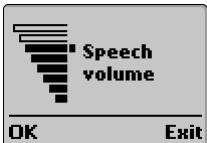
Use or to adjust the setting.
Press OK to validate the setting.
Press Exit or to return to the stand-by display.
During a call, you can adjust the conversation volume by using or .
If the ring tone volume level is set to 0 × displays.
Ramping
Ramping causes the incoming ring tone to increase in increments to the maximum volume level.
Press▶. Select Settings.
2 Select Phone settings. Select Tones.
3 Select Volume.
4 Select Ramping.
5 Select On or Off.
Press Exit or to return to the stand-by display.
When turned on the volume of the incoming ring tone starts from the minimum and rises to the maximum volume until answered.
Melody composer
To compose your own melodies:
Press▶. Select Settings.
Select Phone settings. Select Tones.
3 Select Melody composer.
4 Select Edit.
Enter notes using the keypad (see table below):
| Note | C | D | E | F | G | A | B |
| Key | ① | ② | ③ | ④ | ⑤ | ⑥ | ⑦ |
6 Select OK. The phone stores your melody
Select Play to play your melody or Delete to delete it.
Press Exit or to return to the stand-by display.
Use the actions in the following table to modify the notes. The tempo
is fixed.
| Symbol | Action |
| P | Use * to insert the 'P', which inserts a pause |
| +/- | Press ▲ after a note to increase it one octave (+ appears) or press ↓ to decrease it one octave (- appears) |
| # | Use # after a note to increase the note one half-tone |
| 2, 3 or 4 | Use keys ⑧, ⑨ and ⑩ after a note to increase the length of the note by 400 ms, 600 ms or 800 ms |
Melody download
You can also download melodies from the Trium web site. This site downloads the melodies to your phone using SMS. When the download completes,
Press Options and then select Play to play the melody. Press Options and then select Install to store the melody.
Backlight - setting
To set the backlight during key entry or incoming ring tone, you have two options:
- On for 10 sec.: the display and key backlight stays on for 10 seconds after the last key press or incoming call.
- Off: the backlight stays off.
Press▶. Select Settings.
2 Select Phone settings. Select Display.
3 Select Backlight.
4 Select one of the two settings. Press to validate.
Press Exit or to return to the stand-by display.
Display contrast
To modify the display contrast because of bad light conditions:
Press▶. Select Settings.
2 Select Phone settings. Select Display.
3 Select Contrast.
4 Adjust the contrast using or .
Press OK to validate the setting.
Press Exit or to return to the stand-by display.
Menu graphics
Choose from a set of graphics to personalise your main menu images, and icons. There are 5 menu themes which all have night and day idle screens. The idle screen changes to the night one at 9 p.m. and to the day one at 7 a.m.
To change the menu graphics:
Press▶. Select Settings.
2 Select Phone settings. Select Menu graphics.
Use or to scroll to the sets of menu graphics and press Select or to validate your choice.

4 Press Exit or to return to the stand-by display.
Any key answer
To enable any key (except and No ring /) to be pressed to answer an incoming call:
Press▶. Select Settings.
2 Select Phone settings. Select Keys.
3 Select Any key answer.
4 Select On or Off.
Press Exit or to return to the stand-by display.
Softkeys - programming the softkeys
You can change the function of the softkeys. There are two ways:
- Directly from the stand-by display:
Press and hold down the left or right.
Use or to scroll through the choice of softkey options.
Press Select to validate your choice.
4 The screen confirms your selection and returns to the stand-by display showing your new softkey function.
Using the menu:
Press▶Select Settings.
2 Select Phone settings. Select Keys.
3 Select Softkeys functions.
4 Select Left softkey or Right softkey.
5 Press Select on the softkey option of your choice.
Press Exit or to return to the stand-by display.
(……) in the display means that a previously SIM dependent or subscription service assigned to that softkey is no longer available. For example Line 2 selection.
Speed dialling
You can assign phone book numbers to keys ② - ⑨ . Hold down the key to dial the number. The phone reserves ① exclusively for the voice mail number. The phone assigns this automatically when you (or the SIM) store(s) the voice mail number (see Voice mail, page 44).
You can select any stored number.
To assign phone book numbers to the speed dialling keys:
Press▶. Select Settings.
2 Select Phone settings. Select Keys.
3 Select Speed Dial.
Use or to scroll to the next key.
5 Select Names to choose the phone book entry and press Select to validate your choice.
Press Exit or to return to the stand-by display.
If you delete the number from the phone book this deletes it from the key.
Auto answer
This feature only works when you connect the phone to a hands free car kit or headset. The phone automatically answers an incoming call after approximately 5 seconds.
Press▶. Select Settings.
2 Select Phone settings. Select Auto features.
3 Select Auto-answer.
4 Select On or Off.
Press Exit or to return to the stand-by display.
Auto-retry
To automatically retry the number of a failed call (up to 10 times):
Press▶. Select Settings.
2 Select Phone settings. Select Auto features.
3 Select Auto-retry.
4 Select On or Off.
Press Exit or to return to the stand-by display.
When activated, Auto-retry and a countdown timer to the next call attempt appears. An auto-retry warning tone sounds each time the phone attempts a new retry. If successful, proceed with the call as normal. Press Exit or any key during the retrying process to cancel auto-retry and end the dialling process for that call.
Security features
The security features described in this section protects your phone from unauthorised use.
For all codes
When requested, enter the code, which appear as asterisks (^*) and press OK
If you make a mistake press Clear () and enter the correct digit(s) before pressing OK () .
Avoid using codes similar to emergency numbers such as 999 or 112 to prevent accidental dialling of these numbers.
KEEP A RECORD OF YOUR CODES AND KEEP THEM IN A SAFE PLACE.
FAILURE TO DO SO CAN CAUSE YOU CONSIDerable INCONVENIENCE.
Phone lock code
A phone lock code prevents unauthorised access to the phone and WAP™ settings. You also need it to reset the call timers. The factory setting is 0000. Reset this code and keep it in a safe place, separate from the phone. When enabled the phone asks for the code each time the phone is turned on.
To change the phone lock code:
Press▶. Select Settings.
2 Select Phone settings. Select Security.

3 Select Phone lock.
4 Select Change code and follow the display prompts.
5 Press OK to validate the new code.
Press Exit or to return to the stand-by display.
To turn on or off the phone lock code:
Press▶. Select Settings.
Select Phone settings. Select Security.
3 Select Phone lock.
4 Select On or Off.
The phone requests the phone lock code to authorise your selection.
Press Exit or to return to the stand-by display.
Phone lock still enables you to make emergency calls.
PIN code
The 4-8 digit PIN code for the SIM protects it from unauthorized use. When enabled the phone requests the PIN code each time the phone is turned on. If you enter the wrong PIN code three times in succession your SIM card is blocked and you need the 8 digit PUK code from your service provider (see page 43). To turn on and off the PIN:
Press▶. Select Settings.
2 Select Phone settings. Select Security.
If already off, PIN enable appears.
If already on, PIN disable and PIN change appear.
Press Select and follow the display prompts.
4 Press OK to validate your entry. PIN enabled or PIN disabled appear briefly to confirm your action.
Press Exit or to return to the stand-by display.
To change the PIN code (PIN must first be enabled):
Press▶. Select Settings.
2 Select Phone settings. Select Security.
3 Select PIN change and follow the display prompts.
4 Press OK to validate your new PIN.
Press Exit or to return to the stand-by display.
PIN2 code
The PIN2 code prevents unauthorised access to FDN operations, modifying the FDN phone book, setting calls costs to zero, modifying the costs display features. You can change it but you can not turn it on or off.
To change the PIN2 code:
Press▶. Select Settings.
2 Select Phone settings. Select Security.
3 Select PIN2 change and follow the display prompts.
4 Press OK to validate your new PIN2 code.
Press Exit or to return to the stand-by display.
PUK code
Only your service provider can give you the 8 digit PUK (PIN unblock key). Use it to 'unblock' a PIN whose code has been entered incorrectly three times. A PUK code cannot be changed.
Enter the PUK code and press OK. Enter a new PIN code by following the display prompts.
If you enter the wrong PUK code 10 times in succession your SIM card cannot be used again. Contact your service provider for a new card.
PUK2 code
Only your service provider can give you the 8 digit PUK2. Use it to unblock a PIN2 whose code has been entered incorrectly three times. You cannot change the PUK2 code.
Enter the PUK2 code. Enter a new PIN2 code by following the display prompts.
If you enter the wrong PUK2 code 10 times in succession you are unable to use the features requiring the PIN2 code. Contact your service provider for a new card.
Call barring password
Use the call barring password to select the call barring levels outlined in the GSM Services - Call barring menu (see page 48). Your service provider gives you the initial password. To change the password:
Press▶. Select Settings.
Select GSM Services. Select Call barring.
3 Select Change password and follow the display prompts.
4 Press OK to validate.
Press Exit or to return to the stand-by display.
Summary of code/password entry chart
| Password | Length | Number of tries allowed | If blocked or forgotten |
| Phone unlock code | 4 digits | Unlimited | Return phone to manufac-turer |
| PIN | 4-8 digits | 3 tries | Unblocked by use of PUK code |
| PIN2 | 4-8 digits | 3 tries | Unblocked by use of PUK2 code |
| PUK | 8 digits | 10 tries | Contact your service pro-vider |
| PUK2 | 8 digits | 10 tries | Contact your service pro-vider |
| Call barring password | 4 digits | Network determined | Contact your service pro-vider |

Time & date setting
To set the current time and/or date:
Press▶. Select Settings.
2 Select Phone settings. Select Time & date.
3 Select Set time or Set date.
4 Enter the time (in 24 hour format) or date in the format shown. (If required use and
Press OK to validate your selection.
Press Exit or to return to the stand-by display.
- An error message appears if you make a wrong entry.
- The time/date displays when the phone is on. It does not show the year.
- An internal battery maintains the date and time setting for up to 3 hours when the phone is switched off and without a battery, or with a completely discharged battery attached. After this time you must reset the clock (if needed) when you switch on the phone.
Default (factory) settings
Use the Settings menu to return to the factory settings. This does not affect the phone book entries, phone lock code or SIM.
Press▶. Select Settings.
2 Select Phone settings. Select Default settings.
3 Select Yes or No.
4 Press Exit or to return to the stand-by display.
The following are the factory default settings:
| Feature | Factory setting |
| Alert Tones | Ring |
| Ring Tones | Trium |
| Volumes, Ring, Key, Speech and Alarm. | Mid values |
| Backlight and Contrast | On for 10 sec. and mid value |
| Any Key, Auto-Retry and Auto Answer features. | Off |
| Ramping | Off |
| Menu graphics | Trium |
Voice mail
Voice mail operates like an answering machine. Contact your service provider for details.
Storing a voice mail centre number
If your SIM does not automatically include the voice mail centre number, you must manually set it:
Press▶. Select Settings.
2 Select Voice Mail.
3 Select Number. When prompted enter the number manually or from a stored memory.
4 Press OK to validate your entry.
Press Exit or to return to the stand-by display.
If you subscribe to the 'Line 2' service, store the voice mail centre number separately for that line. The phone automatically assigns the voice mail number to speed dial location number 1 (see Speed dialling on page 40).
Turning on/off the voice mail alert tone
To turn on/off the voice mail alert tone:
Press▶. Select Settings.
2 Select Voice Mail.
3 Select Alert. Select On or Off.
4 Press Exit or to return to the stand-by display.
Calling the voice mail centre to check for messages
There are two ways:
- To dial the voice mail centre directly after the receipt of a message:
Press and hold down ①.
- Or from the menu:
Press▶. Select Settings.
2 Select Voice Mail.
3 Select Call.
Dialling proceeds as for a normal call.
If a voice mail number is not stored when you select Call, the phone asks you to enter the voice mail number. Proceed as described in Storing a voice mail centre number, page 44.
GSM services
Diverting incoming calls (network service)
Call diverting diverts incoming calls, whether voice, fax or data, to another number.
To turn on call divert:
Press▶. Select Settings.
2 Select GSM Services. Select Call diverting to access the following menu:
| Divert options | Action |
| Always | Diverts all incoming voice calls unconditionally |
| When not reachable | Diverts all voice calls when the phone cannot be reached, i.e. out of service |
| On no reply | Diverts all voice calls when the phone does not answer |
| When busy | Diverts all voice calls when the phone is busy |
| All conditions | Diverts all voice calls when Not Reachable, No Reply and When Busy |
| Cancel all | Cancels all diverts |
| All FAX calls | Diverts unconditionally all incoming fax calls |
| All DATA calls | Diverts unconditionally all incoming data calls |
Use or to select the divert condition and validate by pressing Select or
4 Select Activate.

Use or to choose between Voice Mail, Names or Number.
Press Select or to validate your selection. The display confirms your request.
Press Exit or to return to the stand-by display.
- If you select 'On no reply' option you must also enter a delay period of 5, 15 or 30 seconds. 2. Call diverts for both Line 1 and Line 2 must be set individually. Select the out-going line before following the above procedure. To carry out a call divert on the other line you must select this other line first (menu Calls & Times - Line selection).
To turn off or check the status of call divert:
Press▶. Select Settings.
2 Select GSM Services. Select Call diverting.
3 Select from the divert options and press
4 Select Cancel or Status. The phone confirms your selection.
Press Exit or to return to the stand-by display.
To cancel all (multiple) diverts:
Press▶. Select Settings.
2 Select GSM Services. Select Call diverting.
3 Select Cancel all. The phone confirms your selection.
4 Press Exit or to return to the stand-by display.
This action cancels all voice diverts (for voice, faxes and data calls) for the line currently in use. To cancel call diverts for the other line you must select this other line first (menu Calls & Times - Line selection).
Caller Line Identity - showing/ hiding your mobile number
Most networks allow the Caller Line Identity feature (CLI) i.e. showing the incoming number (ID) while receiving a call. Selecting Receiving caller ID allows you to check its availability from the network.
Receiving caller ID
To find out whether a network presents the ID of incoming calls:
Press▶. Select Settings.
2 Select GSM Services. Select Receiving caller ID. The network returns either Presentation available or Presentation unavailable.
Press Exit or to return to the stand-by display.
To hide your number, on a call by call basis, add #31# before the number you are calling. Alternatively you can ask your service operator to always disable the sending of your mobile number. In this case to reveal your number, on a call by call basis, add *31# before the number you wish to call.
Standard network setting
To reset the standard network setting for sending your mobile ID:
Press▶. Select Settings.
2 Select GSM Services. Select Sending my ID.
3 Select My settings.
4 Select Preset. The phone resets to the network setting agreed with your service provider.
Press Exit or to return to the stand-by display.
Hiding or showing your number
Press▶. Select Settings.
Select GSM Services. Select Sending my ID.
3 Select My settings.
4 Select Hide my ID or Show my ID.
Press Exit or to return to the stand-by display.
Finding out your current ID setting
Press▶. Select Settings.
2 Select GSM Services. Select Sending my ID.
Select Status.
The phone displays your current setting, taking into account both network and phone settings.
4 Press Exit or to return to the stand-by display.
Network
When turned on, the phone automatically searches for the last network it was registered on. If this is not available, the phone automatically searches and, if able and allowed, selects a network.
Editing the preferred list
You can change the order and names in the preferred networks list stored in your SIM by choosing from the list in your phone. This is useful while roaming if you know a network provider that is more economical than another.
Press▶. Select Settings.
2 Select GSM Services. Select Network.
3 Select Preferred list. A list of networks appears.
Use or to view the list.
Press Options A to change it. The following items appear:
| Option | Description |
| Modify by list | Displays the general list of all known networks contained in the phone in alphabetical order |
| Modify by code | Edits or enters a network number (MCC MNC) if you know this information. |
| Delete | Deletes an entry |
Press Select A to confirm the selection.
7 Press Exit or to return to the stand-by display.
Your SIM may contain a forbidden list of networks which cannot be

used. To view the forbidden list or show the home network:
Press▶. Select Settings.
2 Select GSM Services. Select Network.
3 Select either Forbidden or Home network.
A list of the forbidden networks or the home network appears.
4 Press Exit or to return to the stand-by display.
Selecting manual search
To select a specific network, e.g. one which provides better coverage in your current location:
Press▶Select Settings.
2 Select GSM Services. Select Network.
3 Select Search.
4 Select Manual. A confirmation screen and Scanning for networks... appears.
Use or to select a network from the list shown.
Press to confirm the selection.
Requesting... followed by the name of the network appears. The phone then returns to the stand-by display.
√ You cannot delete a network from the forbidden list. This list is automatically updated when you perform the manual network selection.
Selecting automatic search (normal default setting)
To perform an automatic search from the preferred list:
Press▶. Select Settings.
2 Select GSM Services. Select Network.
3 Select Search.
4 Select Automatic.
Press Exit or to return to the stand-by display.
Call barring (network service)
To stop different types of calls being made and received on the phone, you need a call barring password available only from your service provider.
Press▶. Select Settings.
Select GSM Services. Select Call barring.
3 Select Outgoing calls or Incoming calls. Choose:
| Select | Meaning | |
| Outgoing | - All outgoing | Bars all outgoing calls |
| - Int'nal calls | Bars only all outgoing international calls | |
| - Int'nal excl. home | Bars all outgoing international calls except to other subscribers within the users home network | |
| Incoming | - All incoming | Bars all incoming calls |
| - Roaming only | Bars all incoming calls when not on the home network |
4 Select the option using or . Press Select.
Select Activate. Enter the password and press OK. The network confirms the selection.
Press Exit or to return to the stand-by display.
To cancel or check the status of a call bar:
Press▶. Select Settings.
2 Select GSM Services. Select Call barring.
Use or to select the bar to cancel or check the status and Press
You must have the password to cancel a call bar.
4 Press Exit or to return to the stand-by display.
To change the password:
Press▶. Select Settings.
2 Select GSM Services. Select Call barring.
3 Select Change password.
Enter the old password once and the new password twice when prompted. The phone confirms the change.
4 Press Exit or to return to the stand-by display.
Broadcast - cell broadcast messages (Network Service)
Networks can broadcast messages to all GSM users that can give information about local area dialling codes, weather reports, traffic news etc. You can decide what type of information to receive by choosing the corresponding number. You can program to receive up to 5 different types of messages.
You can select from a list of 16 standard message types. New message types can be programmed into the selection list using the 3 digit cell broadcast type number. Contact your service provider for more details.
Enter at least one message type into the selection list or you cannot activate the service.
To enter a message type in the selection list
You can enter up to 5 different message types.
Press▶. Select Settings.
2 Select Broadcast.
3 Select Message types. Press Options A
4 Select Modify by list (or Modify by code if type number is known).
Scroll to the message type required. Press Select to validate your selection. The display confirms your choice.
Press Options again to select more message types from the list, enter a message type number if known, or delete a message type.
7 Press Exit or to return to the stand-by display.

To turn on or off the broadcast service
Press▶. Select Settings.
2 Select Broadcast.
3 Select On/Off.
4 Select On or Off.
Press Exit or to return to the stand-by display.
Reading broadcast messages
Broadcast messages appear in the stand-by display only. The phone suppresses them during conversation or menu operation. A message can be up to 93 characters in length and cover several pages. Pages scroll automatically about every five seconds. To scroll down, press .
Options during message display
Press on Exit to clear the message currently displayed. Press to dial the number displayed in the message.
Pressing Options displays the following menu:
| Option | Action |
| Delete | Delete the current message |
| Delete All | Delete all messages stored in the queue |
| Numbers | Display all phone numbers found in the mes-sage text. This allows dialling or storing them in the scratchpad if required |
| Broadcast Off | Turns off cell broadcast |
Turning the broadcast alert tone on or off
To turn on or off the alert tone the phone gives when a broadcast message arrives:
Press▶. Select Settings.
2 Select Broadcast.
3 Select Alert.
4 Select On or Off.
Press Exit or to return to the stand-by display.
Deleting or editing a message type from the list
To delete or edit a message type:
Press▶. Select Settings.
2 Select Broadcast.
3 Select Message types. Press Options A
4 Select Delete, Edit or Get from list.
Press Exit or to return to the stand-by display.
Broadcast language
To select the broadcast language:
Press▶. Select Settings.
2 Select Broadcast.
3 Select Language.
Use ▲ or ▼ to select a language from the displayed list. Press ▷ to validate.
Press Exit or to return to the stand-by display.
Using the office tools

The Office Tools menu contains a scratchpad, an alarm clock, an auto-switch feature and a calculator.
Scratchpad
You can store up to 5 separate entries of 36 characters in the scratchpad.
Press Select Office Tools.
2 Select Scratchpad.
3 Select Read. Use or to scroll through the entries.
Select Write to make a new scratchpad entry.
Press Options when reading entries to access the following menu:
| Item | Action |
| Store | Save a number to the phone book |
| Edit | Modify an entry |
| Delete | Delete an entry |
| Delete all | Delete all entries |
| Call | Call the number displayed in the entry |
Alarm clock
To set a daily 'Reminder Alarm':
Press Select Office Tools.
2 Select Alarm clock.
3 Select On and enter the alarm time (in 24 hour format) or press OK to accept the displayed time. Confirmation appears.
4 Press Exit or 5 to return to the stand-by display. A appears.
When 'on' the alarm activates at the same time every day until turned off.
The alarms sounds for up to 1 minute. Alarm clock and a vibrating bell symbol appear with the current time and the softkeys, Valid. and No ring. During a call, the alarm also sounds.
To stop the alarm:
Press Valid.
To use as a Reminder or Snooze Alarm:
Press No ring, or any other key (except Valid.) to stop the alarm. The alarm icons remain in the display and the alarm rings again 3 minutes later.
You can repeat the snooze for up to 15 minutes, after which the phone returns to its previous state, either off or on stand-by.
To turn off the alarm:
Press Select Office Tools.
2 Select Alarm clock.
3 Select Off. Confirmation appears.
4 Press Exit or to return to the stand-by display.
Caution - Please remember to turn off the alarm feature when boarding an aircraft where the use of a mobile phone is not permitted and is illegal. Alternatively, you can remove the battery after turning off the phone. See the General safety warnings on page 6.
Auto-switch
You can set your phone to switch on and off automatically. Turning it off helps to conserve battery life. Please note that during auto-switch on, you must re-enter your PIN code. The phone does not go into power saving mode until you enter your code. To activate the auto-switch:
Press▶. Select Office Tools.
2 Select Auto-switch.
3 Select Auto-switch-on.
4 Select On.
Enter the time you want the phone to turn on and press OK Confirmation appears.
Select Auto-switch-off.
7 Select On.
3 Enter the time you want the phone to turn off and press OK
Press Exit or to return to the stand-by display. The icon appears in the stand-by display.
To turn off the auto-switch:
Press. Select Office Tools.
2 Select Auto-switch.
3 Select Auto-switch-on.
4 Select Off. Stored appears.
Select Auto-switch-off.
Select Off. Stored appears.
Press Exit or to return to the stand-by display.
Calculator
To access and use the calculator:
Press▶. Select Office Tools.
2 Select Calculator.
Enter a number and press 念 several times to choose +,-,^* or I.
4 Enter the second number and either repeat step or select = 一 to compute. Select Clear to correct any mistakes or clear the display.
Press to return to the stand-by display.
The availability and appearance of the games depends on your network operator.
There are at least two games in the phone: Reshape and Push.
Game instructions appear when you select the game.
Select sound effects from the menu item Options.
To select a game:
Press▶. Select Games.
Choose the game and press Select or
3 Select Help for instructions and controls.
4 If you have already played the game and reached a certain skill level, select Code to enter and play the game at that level.
5 Select Play to start the game.
Reshape and Push have skill levels. When you win a level, you go to the next level. After successfully playing 'X' number of levels the game gives you a code to enable you to re-enter the game at your previously attained skill level. The game can record player names and scores. If you receive a call while playing, answer in the normal way. The game resumes when the call finishes. To exit from the games menu press Exit or press to return to the stand-by display.
Currency-converter

To use the converter, set the currencies and the exchange rate:
Press▶. Select Currency.
2 Select Settings.
3 Enter the first currency name (e.g. Dollar). Press OK. Enter the second currency name (e.g. Yen). Press OK
4 Enter the exchange rate using # to enter a comma.
Press OK to validate the entry.
Press Exit or to return to the stand-by display.
To use your Currency-converter as a Euro converter for participating currencies in the European Monetary Union ("Euroland currencies"), please enter the complete Euro exchange rate with six significant figures. For example: 1 Euro = £ 0.61871.
To calculate the conversion between the chosen currencies:
Press▶. Select Currency.
2 Select one of the two first options. In our example: either Dollar->Yen or Yen->Dollar.
Enter the amount to be converted. Press # to insert a comma, if needed. Press OK. The converted amount appears.
4 Press Exit or to return to the stand-by display.
Conversion from one Euroland currency to another, or to non-Euroland currencies, normally follows "triangulation" rules (i.e. conversion of local currency to Euro and then Euro to other local currency). Your Currency-converter does not provide this possibility. Accordingly, your result is only a close approximation.
Internet/Wireless Application Protocol (WAP™)
Your phone has an WAP™ internet browser to access services, such as stock buying, news, sports, weather, TV listings etc., supplied by your operator and/or your internet provider. The types of services offered depend on the internet provider and network operator.
You must have a DATA subscription to access these services.
Either your phone is pre-programmed with the settings or you must enter them.
See below to enter the settings. If you cannot access the settings, they are pre-programmed.
Access to the connection settings depend upon whether the settings have been pre-programmed prior to shipment from the factory. In some cases and to avoid errors these settings are 'locked' and are not user programmable.
Configuring General Packet Radio Service (GPRS) access points*
To use the faster speed packed data service (higher data rate than GSM) you must configure at least one GPRS access point.
If you just use circuit switching skip this procedure.
If you use both packet and circuit perform this procedure.
You can configure up to 10 access points.
For further information about GPRS, the services available and the charges, please contact your service provider.
To configure one GPRS access point:
Press▶Select Internet.
2 Select Settings. Select GPRS access points *.
3 Select an empty profile ([...]) and press New A.
4 Enter the Alias name and press OK. Enter the Full name and press OK. Enter the Login name and press OK. Enter the Login password and press OK.
Storing/editing connection settings (operator provided)
You can enter up to 5 different profiles.
To enter and store the profile details:
Press▶. Select Internet.
2 Select Profile list.
3 Select an empty profile ([...]) and press Options A.
4 Select Edit. Enter the 4 digit phone lock code (default code 0000) and press OK
Enter the Proxy name and press OK. Select the connection mode (Circuit, Packets or Circuit+packets).
Depending on your choice of connection mode, the questions that follow vary. Follow the column that corresponds to your choice, entering or selecting and confirming with OK or Select:
| Circuit | Packets | Circuit+Packets |
| Phone number | Access point | Access Point |
| Analog or numeric | IP address | Phone number |
| 9600 or 14400 | Home page: http:// | Analog or numeric |
| Login name | Activate security | 9600 or 14400 |
| Login password | - | Login name |
| IP address | - | Login password |
| Home page: http:// | - | IP address |
| Activate security | - | Home page: http:// |
| - | - | Activate security |
To activate the required profile, use or to select it from the displayed list.
Press Options A and select Select to validate.
7 Press Exit or to return to the stand-by display.
- You can also access the Internet menu directly by pressing the Internet softkey from the stand-by display (provided you have not personalised the left softkey).
- If the phone number, login names and password, Home page http address and IP address are not predefined, get these from your network operator and/or internet provider.
Personalising your connection settings
Optimise the behaviour of your phone while connected to the internet with the following settings:
Press▶Select Internet.
2 Select Settings.
3 Scroll to the following items and turn on or off as required:
| Option | Action |
| Clear cache | Cleared the memory used to store information that you downloaded. To clear this memory, select the Yes option. |
| Download pictures | Select the Off option to reject picture downloading. This decreases the page downloading time. |
| Scripting | Used to allow or forbid the execution of scripts with- in a page. |
| Auto-disconnect | Disconnects the mobile from the internet after a set period of inactivity for packets or circuit connections. Enter the period (0 - 60 minutes) and press OK ¬. 0 deactivates the auto-disconnect function. |

| Option | Action |
| Preferred bearer | Choose your preferred connection circuit or packets. If your preferred connection is not available, the phone asks to use the other bearer. |
| GPRS access points * | Choose the GPRS access point you want used first. At least one must be defined if you choose packet bearer. The access point is operator specific. When roaming you must change the access point. |
4 Press Exit or to return to the stand-by display.
Going online
To go online:
Press▶Select Internet.
2 Select Home page.
3 Connecting to followed by your proxy name appears. Then the word Loading... (of the home page) appears.
Once connected, your provider specific menu options appear. The icon indicates a 'live' circuit connection. The icon indicates a GPRS* connection. By default the connection is not secure.
To have a secure connection, set "Security on" (see page 54). The icon indicates a 'live' secure circuit connection. The icon indicates a secure GPRS* connection.
Using while online
Press while online presents the following options:
| Item | Action |
| Back | Returns to the previous page |
| Zoom +/- | Increases or decreases the displayed text size |
| Add bookmarks | Adds a current card to the list of bookmarks |
| Go to bookmarks | Goes to a bookmark |
| Reload | Reloads the current page |
| Home page | Reloads the home page |
| Other Site | Enter a different site |
| Disconnect | Disconnects the browser from the network but leaves the current page locally active |
| Close session | Disconnects the phone from the internet |
The appearance of these items depends on the operator and/or values in the Settings menu.
Ending the online connection
To end the online connection:
Press ⑥.
√ You can also select Close session item under the options menu.
Creating bookmarks
To revisit specific cards more quickly, use bookmarks to store the card address. This function depends on your provider. You can create a maximum of 10 bookmarks. Create bookmarks from the stand-by display or while viewing a page.
Directly from the stand-by display:
Press▶. Select Internet.
2 Select Bookmarks.
Press Options, select Modify and enter the following:
| Option | Action |
| Alias | Name you wish to give to your bookmark |
| Address | Home page address |
4 Press OK to validate each entry.
Press Exit or to return to the stand-by display.
During a live connection while viewing page:
Press to display the options menu.
2 Select Add bookmark, enter the Alias name and press OK
Bookmarks can only be Edited or Deleted from the Bookmarks item under the Internet menu options while offline.
Using bookmarks
Bookmarks can be used from the stand-by display or while browsing.
- Directly from the stand-by display:
Press▶Select Internet.
2 Select Bookmarks.
3 Select the bookmark name you require.
To access the Internet directly use the Internet softkey (if not personalised).
While browsing the internet:
Press to display the options menu.
2 Select Go to bookmarks.
3 Select the bookmark name you require.
Other site
You can enter another internet address directly by using the Other site option from the Internet menu. Addresses are not stored and must be entered each time.
GSM man machine interface codes
The phone supports the standard GSM key sequences using the * and # characters sent directly from the keypad to the network. These sequences are used to activate all the supplementary services provided by the network. Consult your service provider for a complete list.

Accessories
Using the headset
Connecting the headset
Insert the headset plug in the phone headset connector as shown below.
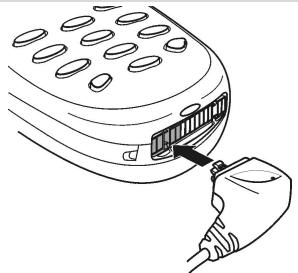
While inserting the headset plug in the phone headset connector make sure the Tium logo
() appears on top. Otherwise the headset does not work properly.
Using the headset
Place the headset earpiece in your ear.
The headset microphone is then at a convenient level for operation.
You can answer, reject and end calls using or (see page 9).
Adjust the earpiece volume level using or
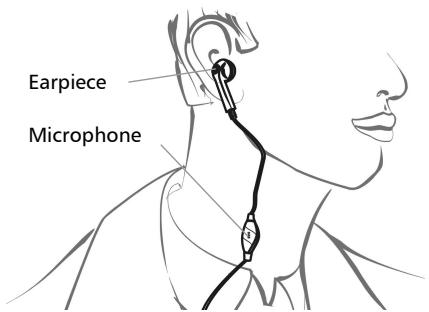
Disconnecting the headset
Tilt the headset plug down as shown below.
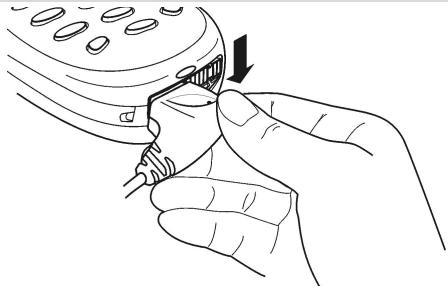
Changing the front cover (for Aura and Odyssey only)
Before changing the cover always switch off the phone and disconnect from any charging device or car kit.
Removing the cover
Remove the front cover as shown below.
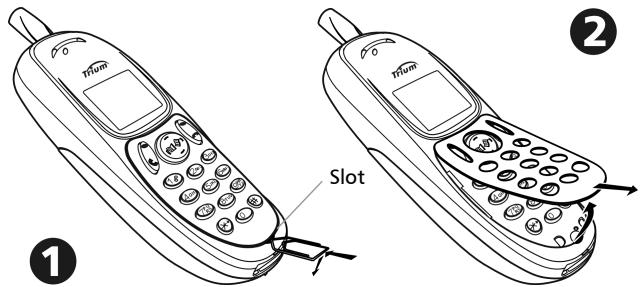
Replacing the cover
Replace the front cover as shown below.
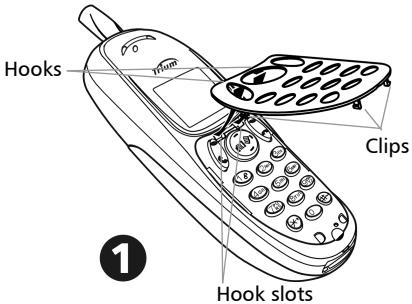
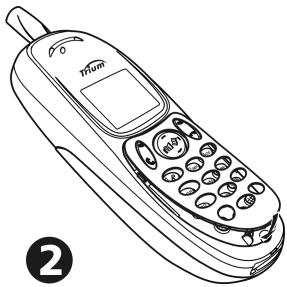
Do not use unnecessary force when changing the cover. Avoid excessive bending. Avoid removing and replacing the front cover too often: this can weaken the front cover hooks and clips. Do not leave in direct sunlight. Always use the phone with the cover attached. Do not clean the phone and/or front cover with alcohol, strong chemicals or solvents. Wipe it only with a soft, slightly dampened cloth. Read the Care and maintenance instructions, page 13.
Appendix
Glossary
| Expression | Meaning |
| AC/DC charger | Alternating Current/Direct Current charger |
| Active call | The call currently in conversation |
| ALS | Alternate Line (Line 2) Service |
| AoC | Advise of Charge - subscription service |
| APN | GPRS Access Point Name |
| CB | Cell Broadcast |
| CLI | Caller Line Identity - displays callers telephone number |
| Conversation mode | When the phone is making or receiving a call |
| DES | Data Encryption standard |
| Diverting | Diverts incoming calls to the phone to another number |
| DTC | Desk Top Charger |
| DTMF | Dual Tone Multifrequency Tones |
| FDN | Fixed Dialling Number |
| GPRS | General Packet Radio Service |
| GSM | Global System for Mobile communications |
| http | HyperText Transfer Protocol |
| IN | Information Numbers of your operator |
| IP | Internet Protocol |
| LCD | Liquid Crystal Display |
| MMI | Man machine Interface |
| PIN/PIN2 | Personal Identification Number. Supplied by your net-work/service provider |
| PPP | Point to Point Protocol |
| PUK/PUK2 | PIN Unblocking Key. Used to unlock PIN and PIN2. Supplied by your network/service provider |
| Roaming (Rm) | The ability to use your telephone at home or abroad. |
| SDN | Service Dialling Number. Of your operator or service provider |
| SIM | Subscriber Identity Module. Supplied by your network/service provider |
| SMS | Short Message Service |
| SPN | Service Provider Name |
| SR | Status Report - relates to SMS messages |
| Stand-by mode | When the phone is on, registered onto a network but not making or receiving a call |
| URL | Uniform Resource Locator |
| WAE | Wireless Application Environment |
| WAP™ | Wireless Application Protocol |
| WSP | Wireless Session Protocol |
| WTP | Wireless Transport Protocol |
| Problem | Possible cause and solution |
| Phone will not switch on | Check that the battery is fully charged and correctly connected to the phone. |
| No flashing battery icon | There may be no mains supply. Try a different electrical socket. The AC/DC charger may be faulty. Return to your dealer and try substitution with another Mitsubishi adaptor. If faulty contact your dealer. |
| Short stand-by and talk times | Cell broadcast is permanently on, using more battery power. Phone is in a poor signal area and therefore always on full power. Incorrect charging and discharging. Always charge and discharge your battery fully. The battery is wearing out. Replace the battery. |
| Calls cannot be made or received | Check that you have at least one signal strength bar (a000). Try in a stronger signal strength area. If the name of a network is not displayed, check your SIM is OK, check registration with your network/service provider. Call barring option is turned on. Turn it off (see page 48). Call cost limit is reached (see page 35). |
| Stored telephone numbers cannot be recalled | Fixed Dialled Number or Call Barring features are turned on. Check features and turn them off (see pages 28 and 48). |
| Numbers cannot be entered in the display | Keypad lock is on (♂ appears). Press Unlock ⌒ and ⍠ to turn off. |
| Phone switches on but there is no display | Display contrast is turned down too low. Reset contrast (see page 39). |
| Battery icon not flashing 1-2-3 during charging | Indicates a charging or battery problem. Turn off and disconnect the charger. Reconnect and try again. If the problem remains contact your dealer. |
| Flashing ⌒ | There is not enough memory to store another SMS message. You must delete one or more of the existing stored messages (see page 29). |
| (......) softkey | Function no longer available in the SIM or was subscription dependent. Reprogram the softkey (see page 40). |
| Allowed credit reached! | You are trying to place an outgoing call and the allowed credit is already reached. The allowed credit limit is reached during an outgoing call (the call is then aborted). |
| Busy | You are trying to make a call and the call fails because the destination number is already engaged in conversation. |
| Call failed | The user is unreachable. The outgoing call fails due to: the network cannot take the call due to system busy or the number is out of order or the number is unreachable or the network does not answer or the option to hide your phone number when calling is not supported by the network Control the ability to hide your ID when making a call (service availability in network). |
| Cancelled. No type se- lected | Cell broadcast activation has been requested but no message type has been selected. |
| Cannot execute com- mand | You have made a request which is impossible to be ex- ecuted in the current call situation. |
| Can't display message | The short message text cannot be displayed (characters not recognised, incorrect format etc.) |
| Check SIM! | There is no SIM present or the SIM is incorrectly insert- ed. See page 8 for more details. |
| Check your password | You changed the call barring password or You changed the call barring service status. The entered password seems to be wrong or incorrect. |
| Check your request | You made a request for a service that seems to be im- possible to fulfil. |
| Check your subscri- tion | You tried to activate a GSM service. You are requested to check your subscription regarding the related service rights of use/access. |
| Error! | The network cannot perform your request and genera- ates an error result. |
| Failed | An SMS sending process failed (the short message cannot be sent). |
| Incorrect entry | You entered a character string with a syntax error. |
| Invalid number | You tried to make a call and the call is rejected by the network because the network does not recognise the phone number structure or you tried to store a phone number that is too long to be stored in the selected location or you tried to move a phone entry to a location that is unable to receive the phone number (phone number too long) |
| Keypad locked "Unlock" # to unlock | A press on any key is made with keypad locked. |
| Low battery! | This text appears when the battery becomes too low and the mobile soon switches off automatically. |
| Network busy | You tried to make a call. The call is rejected by the network due to congestion problems. |
| Network not allowed | When selecting network manual search, you have selected a network that rejects the connection. |
| New PIN incorrect. Try again | Changing PIN: the new PIN code values differ (value control). |
| New PIN2 incorrect. Try again | Changing PIN2: the new PIN2 code values differ (value control). |
| No action performed | When a copy/move operation is made on memories but no conditions have been changed (same memory, number and name). |
| No response | You made a call to a remote user and no response has been received. |
| Not allowed | Your number/character entry is not allowed. |
| Not allowed (fixed dialling) | A call is tried, but cancelled due to fixed dialling control (the number dialled does not match with one of the fixed dialling numbers in memory). |
| Not Available | There is no more SIM storage. |
| Number changed | The called number has changed. |
| PIN blocked | A wrong PIN code has been entered 3 times. |
| PIN2 blocked | A wrong PIN2 code has been entered 3 times. |
| PUK2 blocked | A wrong PUK2 code has been entered 10 times. The SIM services protected by the PIN2 code have now been permanently disabled. |
| Reaching allowed credit! | The cost limit is about to be reached. The connected call ends automatically when the limit is reached. |
| Ring volume Off | The ring volume is set to 0 (no volume). |
| Service not available | Activating some GSM services that are not available on the network |
| SIM blocked. Contact provider | A wrong PUK has been entered 10 times. The SIM card has been permanently disabled and needs to be replaced by a new one. |
| SIM blocked. Enter PUK: | A wrong PIN code has been entered 3 times. Enter the PUK code to unblock the SIM card. |
| SIM fixed full SIM names full Phone names full | The corresponding memory is full. |
| SMS memory locations are full | The storage of new messages (when writing a new SMS) is impossible. |
| Wrong code. Try again | A wrong phone lock code has been entered. |
| Wrong new code. Try again | The new phone lock codes do not match (value control). |
| Wrong PIN, try again Wrong PIN2, try again Wrong PUK, try again Wrong PUK2, try again | The wrong code has been entered. |
Pan European Service
If you require service, then in the first instance, you should contact your supplier.
Should you experience any difficulty then please contact your nearest MITSUBISHI location listed below for information on other service centres.
UNITED KINGDOM
Tel: (0800) 912 00 20
FRANCE
Tel: (0825) 86 82 83
DEUTSCHLAND
Tel: (01803) 33 71 84
ESPANA
Tel: (902) 11 68 58
ITALIA
Tel: (800) 27 59 02
IRELAND
Tel: (1800) 92 70 12
BELGIUM
Tel: (0800) 775733
SWITZERLAND
Tel: 032 843 65 11
THE NETHERLANDS
Tel: (0800) 0223825
To obtain Warranty Service, you will require your original equipment purchase invoice or irrefutable proof of purchase.
Please see warranty terms and conditions for in warranty service.
Pan-European GSM End-user Guarantee Conditions
-
You can benefit from this guarantee only if you are the original end-user purchaser.
-
MITSUBISHI guarantees that for a period of twelve (12) months from the date of purchase from your dealer, the Product shall be free from defects in materials and workmanship. Subject to the conditions below, Mitsubishi will indemnify you against all cost of parts and labour for repairs to or replacement of the product or parts (which may include equipment of similar type) where conducted by an authorised MITSUBISHI GSM service centre. MITSUBISHI shall be entitled to retain product which has been replaced.
-
Any claims must be made to an authorised MITSUBISHI GSM service centre in the countries mentioned in the service card enclosed with the product. In case of difficulty you can contact the Mitsubishi companies listed in the service card to obtain details of your nearest authorised MITSUBISHI GSM service centre. As a condition of this guarantee, the date of your purchase must be confirmed by producing your original invoice from your supplier or your sales receipt, showing the serial number, together with the service card. Final determination of guarantee claim eligibility shall be made by MITSUBISHI. MITSUBISHI shall not be liable for shipment costs to and from an authorised GSM MITSUBISHI service centre; the product travels at your risk.
4.This guarantee does not cover:
a)battery defects of any nature;
b)non-compliance with directions for use;
c)installation or removal charges where the product is installed in a vehicle;
d)defects or failures caused by accident, misuse, improper installation or improper repair by an unauthorized repairer, alteration or modification, neglect, failure to use for normal purpose, Acts of God, water ingress, use in adverse environmental conditions (humidity or temperature);
e)cost of or performance of modifications to product to adapt or adjust to conform to national or local safety laws, where such safety laws go beyond harmonised European Union standards;
f)loss of use of the product or consequential loss of any nature;
g)loss of use of air-time, loss of use of any loaned equipment or ancillary equipment;
h)provision of incorrect or insufficient signal on air-time network, upgrading of product software to changes in network operating parameters, mains supply voltage fluctuations, incorrect SIM card (memory card) parameters for connection to airtime retailer; i)damage caused by non-MITSUBISHI accessories.
- Any guarantee claim or service does not extend the original guarantee period unless so required by prevailing national law.
6.This guarantee is valid only if the product is purchased and used in the European Union, Norway, Iceland or Switzerland.
THIS GUARANTEE DOES NOT AFFECT YOUR STATUTORY RIGHTS.
Name Mitsubishi Electric Telecom Europe S.A.
RCS Nanterre B 307 593 129
Identification of the product
Nature : Mobile Cell Telephone
Type : Dual band GSM 900/DCS 1800
Sales reference : MT-060
Other information
Identification of the notified organization
Procedure followed : Annex III of the directive 1999/5/CE
Declares under its entire responsibility that the product described above complies with the following basic applicable requirements (and in particular those in the 1999/5/CE directive):
Article 3.1a: (health protection and user safety)
73/23/CEE, ES 59005
Article 3.1b: (protection requirements concerning electromagnetic compatibility)
89/336/CEE, ETS 300 342-1
Article 3.2: (proper use of the radio-electric spectrum so as to avoid damaging interference)
EN 301 511
To this effect, declares that all the radio test series have been carried out.
6 June 2001,

Viet Mailam
Managing Director
DECLARATION OF COMPLIANCE
| Name | : Mitsubishi Electric Telecom Europe S.A. RCS Nanterre B 307 593 129 |
| Address | : 25, boulevard des Bouvets |
| Town | : Nanterre Cedex |
| Postal code | : 92741 |
| Identification of the product | |
| Nature | : Mobile Cell Telephone |
| Type | : Dual band GSM 900/DCS 1800 |
| Sales reference | : MT-160 |
| Other information | : |
| Identification of the notified organization | |
| Name | Autorité de Régulation des Télécommunications (ART) |
| Identification number | 0165 |
| Procedure followed | Annex III of the directive 1999/5/CE |
| Declaress under its entire responsibility that the product described above complies with the following basic applicable requirements (and in particular those in the 1999/5/CE directive): |
| Article 3.1a: (health protection and user safety)73/23/CEE, ES 59005 |
| Article 3.1b: (protection requirements concerning electromagnetic compatibility)89/336/CEE, ETS 300 342-1 |
| Article 3.2: (proper use of the radio-electric spectrum so as to avoid damaging interference)EN 301 511 |
| To this effect, declares that all the radio test series have been carried out. |
6 June 2001,

Viet Mailam Managing Director
Name Mitsubishi Electric Telecom Europe S.A.
RCS Nanterre B 307 593 129
Identification of the product
Nature :Mobile Cell Telephone
Type : Dual band GSM 900/DCS 1800
Sales reference : MT-260
Other information
Identification of the notified organization
Procedure followed : Annex III of the directive 1999/5/CE
Declares under its entire responsibility that the product described above complies with the following basic applicable requirements (and in particular those in the 1999/5/CE directive):
Article 3.1a: (health protection and user safety)
73/23/CEE, ES 59005
Article 3.1b: (protection requirements concerning electromagnetic compatibility)
89/336/CEE, ETS 300 342-1
Article 3.2: (proper use of the radio-electric spectrum so as to avoid damaging interference)
EN 301 511
To this effect, declares that all the radio test series have been carried out.
6 June 2001,

Viet Mailam
Managing Director
Index
A
Alarm Clock 51
Alert mode 37
Alert tone Turning on/off 30
Alias 54
Any key answer 40
Auto Answer 41
Retry 41
Auto disconnect 55
Automatic search 48
Auto-switch 52
B
Backlight 16,39
Balance Info 34
Balance information 34
Barring password Call 43
Basic operations
SMS 16
Unanswered call 16
Voice mail 16
Battery 8 Alarm volume 38
Charging 11
Disposal 14
Fitting 11
Low battery warning 11
Removing 11
Safety information 14
Use 14
Battery cover Replacing 8
Bookmarks Creating 57
Delet ing 57
Using 57
Broadcast 49
Alert 50
Language 50
Message types 49, 50
On/Off 50
C
Cache memory Clearing 55
Calculator 52
Call Conference 21
Duration 34
Holding 20
Multi-party 21
Reminder 34
Retrieving 20
Times 33
Waiting 20
Call barring 48
Password 15
Call costs Reset 36
Call timer Reset 35
Caller line identity 46
Calling 9
Calls & Times 33
Call costs 35, 36
Call timers 34, 35
Calls log 33
Costs 35
Line selection 36
Calls Log 33
Care and maintenance 13
CB 49
CB messages Delet ing 50
Editing 50
Reading 50
Cell broadcast 49
CLI 46
Conference call 21
Connection profile 54
Cost management 35
Cover changing 59
removing 59
Replacing 59
Creating a draft text 30, 31
Credit limit 35
Currency-converter 53
D
Date setting 44
Default settings 44
Dialling Calls Log memory 17 Phonebook 17
Dialling from memory 17
Display contrast 39
Diverting 45
Draft text Creating 30 Editing 31
DTMF tones 19
E
Emergency calls 13
Ending a call 10
Entering text 22
Error messages 63
F
FDN 28
Fixed dialling numbers 28
Front cover Replacing 59
Full name 54
G
Games 53
General
Safety 6
Getting started 8
Glossary 60
GSM man machine interface codes 57
GSM Services 45
Call barring 43, 48, 49
Call diverting 45, 46
Network 47, 48
Receiving caller ID 46
Sending my ID 47
Guarantee 66
H
Handsfree features 18
Headset Use 58
Holding a call 20
1
In-call options 22
Incoming Calls Diverting 45
Internet 16,54
Alias 54
Bookmarks 57
Full name 54
Going online 56
Home page 56
Login name 54
Other site 57
Personalising 55
Profile list 54
Proxy name 54
Settings 54, 55
K
Keypad lock 16,36
L
Language selection 37
Last dialled numbers 17
Line 1 28,33,34,36,46
Line 2 28,33,34 36,40,45,46
Login name 54
M
Making a call 9
Managing SMS messages 30
Melodies 37
Melody composer 38
Melody download 39
Menu 22
Menu graphics 39
Menu map 22
Message templates 32
Messages 16,29
Alert 30
Draft texts 31
Inbox 29
Msg. Templates 32
Outbox 32
Settings 30
Storage 33
Write new 31, 32
Mobile number
Hiding 46
Showing 46
Multi-party call 21
Muting 18
N
Network 47
Network services 25
0
Office Tools
Alarm clock 52
Scratchpad 51
Office tools 51
Online connection 56
Bookmarks 57
Ending 56
Personalising 55
Outbox 32
Own number 28
P
Pause feature 19
Phone
Customising 36
Phone Book
Calling numbers 27
Fixed Dialling 28
Free space 27
Own numbers 28
Recall 27
Remaining 27
Store 26
Viewing numbers 27
Phone lock 41
Code 15,41
Phone settings 36
Phonebook 25
PIN code 42
PIN/PIN2 codes 15
PIN2 code 42
Problems 63
Programmable
Softkeys 40
Speed dialling 18
Proxy name 54
PUK code 43
PUK/PUK2 Codes 15
PUK2 code 43
Push 53
R
Ramping 38
Reading an SMS message 29
Receiving a call 10
Reminder - call time 34
Reshape 53
Responsibility 15
Retrieving a call 20
Ring 37
Ring tone 37
s
Safety information 6
Battery 14
Care and maintenance ... 13
Emergency calls 13
Responsibility 13
Security codes 13
Vehicle safety 13
Scratchpad 51
Scripting 55
Second call 20
Security 41
Codes 15
Features 41
Sending an SMS message .... 31
Settings 36
Auto features 41
Broadcast 49,50
Default settings 44
Display 39
GSM Services .43,45,46, 47. 48,49
Internet 54
Keypad lock 16
Keys 40
Language 37
Menu graphics 39
Phone settings 16,37,38, 39,40,41,42,44
Security 41, 42
Time & date 44
Tones 37, 38
Voice Mail 44, 45
Show costs 36
Silent 37
Silent alert mode 18
SIM
Card 8
SMS 16,29
SMS messages
Managing 30
Preparing your phone .... 30
Reading 29
Sending 31
Storing 32
Softkey programming 40
Solutions 62, 63
Speed dialling 18, 40
Standby display 9
Storage consumption 33
Storing an SMS message 32
Storing names and numbers. 25
T
T9 text entry 23
Tegic (T9) 23
Time & date 44
Time settings 44
Trouble shooting 62
Turning
Off 11
On 9
V
Vehicle safety 13
Vibrate 37
&ring 37
then ring 37
Vibrate alert modes 18
Voice Mail
Alert 45
Call 45
Number 44
Voice mail 44
Password 15
Volume 18
Adjustment 18
Alert mode 38
Conversation 38
Keys tones 38
Ring tone 38
W
WAPTM 54