
ANTI-VIRUS MOBILE 6.0 - Mobile antivirus KASPERSKY LAB - Free user manual and instructions
Find the device manual for free ANTI-VIRUS MOBILE 6.0 KASPERSKY LAB in PDF.


User questions about ANTI-VIRUS MOBILE 6.0 KASPERSKY LAB
0 question about this device. Answer the ones you know or ask your own.
Ask a new question about this device
Download the instructions for your Mobile antivirus in PDF format for free! Find your manual ANTI-VIRUS MOBILE 6.0 - KASPERSKY LAB and take your electronic device back in hand. On this page are published all the documents necessary for the use of your device. ANTI-VIRUS MOBILE 6.0 by KASPERSKY LAB.
USER MANUAL ANTI-VIRUS MOBILE 6.0 KASPERSKY LAB
Revision date: September 2007
Contents
CHAPTER 1. KASPERSKY ANTI-VIRUS MOBILE 6.0
1.1.Hardware and software requirements 7
1.2.Product package 7
CHAPTER 2. KASPERSKY ANTI-VIRUS FOR SYMBIAN OS SERIES 60............8
2.1. Installing Kaspersky Anti-Virus 8
2.2. Using the application 11
2.2.1. Activating the program 11
2.2.2. Starting the application 12
2.2.3. Graphical user interface 13
2.2.4. General Settings 14
2.2.5.Real-time protection 15
2.2.6. On-demand scan 18
2.2.6.1. Initiating a scan manually 18
2.2.6.2.Scheduled scan 20
2.2.7. Using the Quarantine 20
2.2.8. Using Anti-Spam 22
2.2.8.1. Anti-Spam modes 23
2.2.8.2. Editing the black and white lists 23
2.2.8.3. Anti-Spam settings 24
2.2.8.4. Actions to be performed with messages 26
2.2.9. Updating the anti-virus databases 27
2.2.9.1. Select the update method 27
2.2.9.2. Manual updating 30
2.2.9.3. Scheduled updating 30
2.2.10.Licence extension 30
2.3. Removing the program 31
CHAPTER 3. KASPERSKY ANTI-VIRUS FOR SYMBIAN UIQ OS 34
3.1. Installing Kaspersky Anti-Virus 34
3.2. Using the application 37
3.2.1. Activating the program 37
3.2.2. Starting the application 38
3.2.3. Graphical user interface 39
3.2.4. General Settings 40
3.2.5.Real-time protection 41
3.2.6. On-demand scan 44
3.2.6.1. Initiating a scan manually 44
3.2.6.2.Scheduled scan 46
3.2.7. Using the Quarantine 47
3.2.8. Using Anti-Spam 50
3.2.8.1. Anti-Spam modes 50
3.2.8.2. Editing the black and white lists 50
3.2.8.3. Anti-Spam settings 52
3.2.8.4. Actions to be performed with messages 53
3.2.9. Updating the anti-virus databases 54
3.2.9.1. Select the update method 55
3.2.9.2. Manual updating 58
3.2.9.3. Scheduled updating 58
3.2.10.Licence extension 59
3.3. Removing the program 60
CHAPTER 4. KASPERSKY ANTI-VIRUS FOR SYMBIAN OS 7.0 SERIES 80 UI....62
4.1. Installing Kaspersky Anti-Virus 62
4.2. Using the application 63
4.2.1. Activating the program 63
4.2.2. Starting the application 64
4.2.3. Graphical user interface 64
4.2.4. Anti-virus scan and protection 65
4.2.4.1. On-demand scan 66
4.2.4.2.Scheduled scan 67
4.2.4.3.Real-time protection 68
4.2.5. Using the Quarantine 70
4.2.6. Using Anti-Spam 71
4.2.6.1. Editing the white and the black lists 72
4.2.6.2. Actions to be performed with messages 73
4.2.7. Updating the anti-virus database 73
4.2.8.Licence extension 75
4.3. Removing the program 75
CHAPTER 5. KASPERSKY ANTI-VIRUS FOR MICROSOFT WINDOWS
MOBILE 78
5.1. Installing Kaspersky Anti-Virus 78
5.2. Using the application 79
5.2.1. Activating the program 79
5.2.2. Starting the application 80
5.2.3. Graphical user interface 81
5.2.4. Anti-virus scan and protection 83
5.2.4.1. On-demand scan 83
5.2.4.2. Scheduled scan 86
5.2.4.3.Real-time protection 87
5.2.5. Using the Quarantine 88
5.2.6. Using Anti-Spam 89
5.2.6.1. Editing the white and the black lists 89
5.2.6.2. Actions to be performed with messages 90
5.2.7. Updating the anti-virus database 91
5.2.8.Licence extension 93
5.3. Removing the program 94
APPENDIX A. KASPERSKY LAB 98
5.4. Other Kaspersky Lab Products 99
5.5. Contact Us 109
APPENDIX B. LICENSE AGREEMENT 111
CHAPTER 1. KASPERSKY ANTI-VIRUS MOBILE 6.0
Kaspersky Anti-Virus® Mobile (hereafter also referred to as Kaspersky Anti-Virus) is designed to protect smartphones and Pocket PC against malicious programs and unwanted messages and provides the following features:
Real-time protection of the smartphone's file system - interception and scan of:
- all incoming objects, transferred by means of wireless connections (infra-red port, Bluetooth), EMS and MMS messages, during synchronization with a personal computer and loading files through a browser;
- files, opened on the smartphone;
-
programs, installed using the smartphone interface.
-
On-demand or scheduled scans of file system objects stored either on your smartphone or on memory extension cards.
- Secure isolation of infected objects in Quarantine.
- Updating of the anti-virus databases used to detect malicious applications and delete unsafe objects.
- Blocking of unwanted SMS and MMS messages.
The user can customize Kaspersky Anti-Virus settings, monitor current protection status, and view application log with the results of application activities.
The application has an easy-to-use menu and a user-friendly interface.
Upon detection of a malicious application, Kaspersky Anti-Virus can delete the infected object or relocate it to Quarantine. The application does not cure infected objects or save backup copies of deleted objects.
1.1. Hardware and software requirements
Kaspersky Anti-Virus can be installed on smartphones and Pocket PC running one of the following operating systems:
- Symbian 6.1, 7.0s, 8.0, 8.1, 9.1, 9.2 and Series 60 UI.
Symbian 7.0 Series UIQ UI.
Symbian OS 7.0 Series 80 UI. - Microsoft Windows Mobile 2003, 2003SE.
- Microsoft Windows Mobile 5.0.
- Microsoft Windows Mobile 6.0.
1.2. Product package
Kaspersky Anti-Virus Mobile can be purchased via the Internet, enabling the download of the installation program and electronic documentation.
You can also purchase Kaspersky Anti-Virus Mobile at mobile service offices. For purchase details, please contact your mobile operator.
CHAPTER 2. KASPERSKY ANTI-VIRUS FOR SYMBIAN OS SERIES 60
This chapter contains description of the operation of Kaspersky Anti-Virus Mobile for smartphones, running Symbian version 6.1, 7.0s, 8.0, 9.1, 9.2 or Series 60 UI operating system. Application version designed to be used with smartphones running Symbian Series UIQ operating system is discussed in detail in Chapter 3 on page 34. The application version for smart phones running Symbian S80 is described in Chapter 4 on page 62.
2.1. Installing Kaspersky Anti-Virus
In order to install Kaspersky Anti-Virus Mobile, perform the following steps:
- Copy the application installation package to your smartphone.
- Run installation (open the package file on your smartphone).
- If a protection warning appears, select Yes (see Fig. 1).
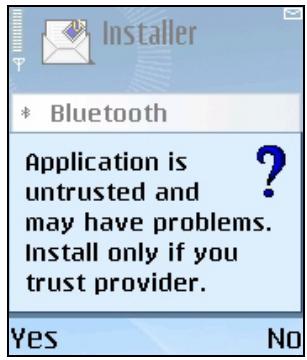
Figure 1. Protection warning
- To confirm installation, select Yes (see Fig. 2).
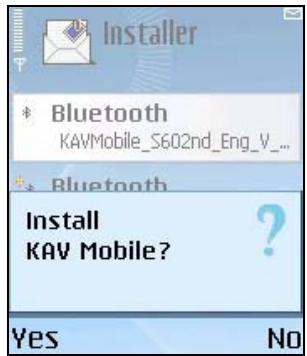
Figure 2. Request to confirm installation
- Use the Options menu, which opens next, to select Install (see Fig. 3).
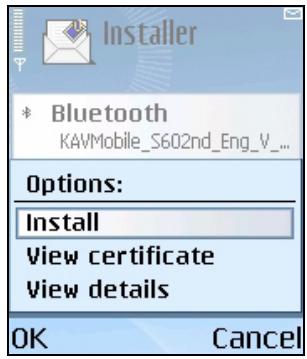
Figure 3. Installer menu
- Select where to install the application: in the smartphone's memory or on a memory extension card (see Fig. 4).
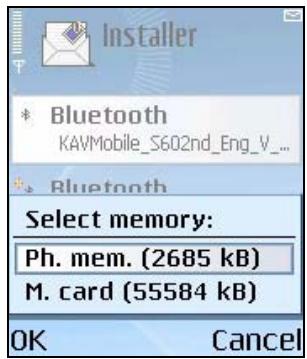
Figure 4. Select the location to install the application
- If the language of the operating system differs from the language of Kaspersky Anti-Virus, a corresponding message appears (see Fig. 5). To continue installation in English, select YES.
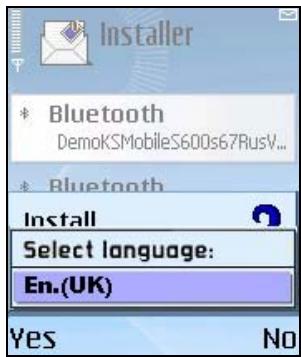
Figure 5. Selecting the application language
- Read the Licence Agreement. If you agree to all the terms, select OK. To abort the installation, click Cancel (see Fig. 6).
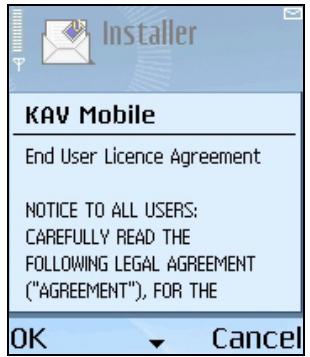
Figure 6. Licence Agreement
Attention!
This software is not intended to be backed/restored.
2.2. Using the application
This section contains information about configuration of the settings of the antivirus and real-time protection, SMS and MMS messages filtering, smartphone anti-virus scan and the application updates.
2.2.1. Activating the program
At the first launch the program will display a dialog with an offer to activate Kaspersky Anti-Virus (see Figure 7).
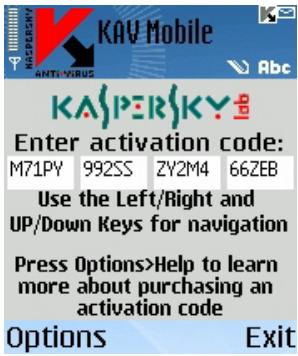
Figure 7. Program activation dialog
Program activation is required to enable all the features of Kaspersky Anti-Virus. You can receive your activation code at the web site of Kaspersky Lab.
Attention!
A GPRS connection is required to activate Kaspersky Anti-Virus Mobile 6.0 on a smartphone.
If your phone supports WLAN connection, you can activate the program in Wi-Fi network areas.
The activation code consists of Latin characters and digits, it is not case-sensitive. Enter the code into 4 provided fields successively. Use the "Up/Down" buttons to move to the next/previous field.
As soon as you enter the activation code, select the Start Activation command from the Options menu. The program will send a HTTP request to an activation server of Kaspersky Lab, and then it will download and install a licence key.
If the activation code that you have entered turns out to be invalid for some reason, the program will display a corresponding notification.
2.2.2. Starting the application
To launch Kaspersky Anti-Virus Mobile, perform the following:
- Open the main menu on your smartphone.
- Select the KAV Mobile icon and start the application choosing the Open item in the Options menu.
After the applications startup the smartphone will display a window containing the status of the main components of Kaspersky Anti-Virus (see Figure 8).
Real-Time Protection - the use of the real-time protection mode. Details see section 2.2.5 on page 15.
- Last Full Scan - date of the last anti-virus smartphone scan.
- Databases date - date of release of the database used by the application.
- Anti-Spam Config. - Anti-spam operating mode. Details of the operating modes see section 2.2.8.1 on page 23.
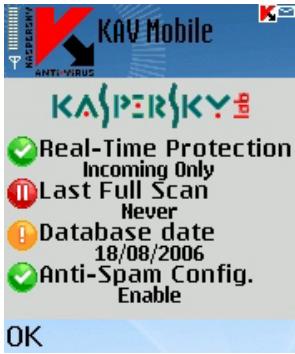
Figure 8. Application components status window
In order to switch to the application interface, press OK.
2.2.3. Graphical user interface
The graphical user interface (GUI) contains five tabs:
- Using the Scan tab you can perform an anti-virus scan of the smartphone, edit the anti-virus scan and real-time protection mode settings and configure the auto scan schedule.
- Using the Quarantine tab you can manage the quarantine - a special-purpose storage for infected and suspicious objects.
- Using the Update tab you can update the anti-virus database, edit the updating settings and configure the updating schedule.
- Using the Anti-Spam tab you can configure filtering of incoming SMS and MMS messages.
- Using the Info tab you can view the logs of the operation of the application's components; general information about the application and about the anti-virus database used and edit the general settings of the application's operation.
To navigate from one tab to another, use the joystick of your smartphone or select the Open Page item in the Options menu (see Figure 9).
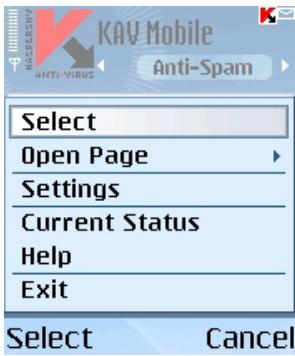
Figure 9. The Options menu
In order to return to the application components status window, select the Current Status item in the Options menu.
2.2.4. General Settings
Parameters within the Info tab of the Settings page (see Figure 10) allow you to configure the following application features:
- The mode of Anti-Spam operation (Config. Anti-Spam). Select Enable to activate full Anti-Spam functionality. Select B/W Lists Only to make the Anti-Spam use your black and white lists only. Select Disable to deactivate Anti-Spam (please refer to section 2.2.8 on page 22 for details on using Anti-Spam).
- Program addition to your Favorites folder (Add to Favorites). Select Yes if you wish to add the application's shortcut to the Favorites folder.
This feature is unavailable for smartphones running Symbian version 9.1, 9.2 and Series 60 UI.
- An option to display the current status each time the program is started (Show Status Screen).
The number of records preserved in application log (Log Size). - The use of screen backlighting while scanning the file system for virus presence (Screen Backlighting).
- The use of sounds (Play Sound) for notification about specific events (detection of an infected object, information about program status, etc.). Select On if you wish to hear sound notifications.
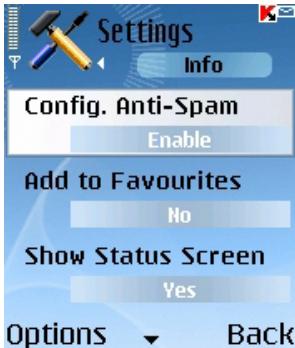
Figure 10. The Settings menu
In order to edit the values of the settings, use the smartphone's joystick or select the Change item in the Options menu.
2.2.5. Real-time protection
In the real-time protection mode, the resident part of Kaspersky Anti-Virus constantly remains in your smartphone's memory, monitoring either all data or incoming data only (depending on the selected settings).
Real-time protection remains active from the moment the smartphone is turned on to the moment the smartphone is turned off (unless the use of this mode is disabled by the settings).
Scan results are recorded in the application log. To view the log, select the Reports item of the Info tab.
To modify real-time protection settings:
- Launch Kaspersky Anti-Virus (see section 2.2.2 on page 12).
- On the Scan tab, select the Settings item (see Fig. 11).
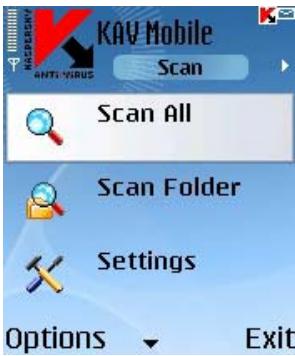
Figure 11. The Scan tab
- Use the menu that opens next to configure the settings as necessary (see Fig. 12):
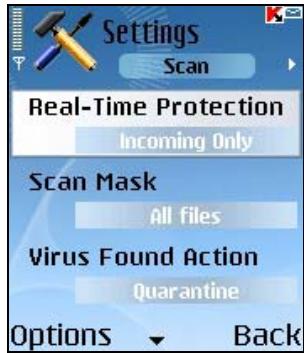
Figure 12. The Settings menu
- Enable / disable the real-time protection (the Real-Time Protection parameter).
By default, In the real-time protection mode the application scans all incoming data (the Incoming Only option is selected).
To configure Kaspersky Anti-Virus to scan all incoming files and the entire file system, select Scan All.
To disable real-time protection, select Off.
- Select the types of files to scan (the Scan Mask):
All files - scan files of all formats.
- Executable files - scan executable files only (e.g., files with the .exe, .sis, .mdl, or .app extensions).
- Define the action that will be performed upon detection of an infected object (the Virus Found Action parameter).
If you want to receive confirmation requests before performance of the specified action, select Ask User.
If you want Kaspersky Anti-Virus to automatically delete infected messages without prompting the user, select Auto Delete.
Select Quarantine if you want the application to relocate detected objects to Quarantine. This is the action that is used for infected objects by default.
- Enable / disable scanning of the smartphone's ROM memory (the Scan ROM parameter).
In some cases, the ROM memory can be vulnerable to malicious applications. To configure Kaspersky Anti-Virus to scan this memory, select Yes.
To disable ROM scanning, select No.
-
Enable / disable unpacking of SIS archives (the Unpack Archives parameter). Select Yes in order to make Kaspersky Anti-Virus unpack SIS archives while scanning. If you do not need unpacking of SIS archives during the scanning procedure, disable the feature selecting No.
-
Enable / disable scanning of new memory card (the Scan New Card parameter). To make Kaspersky Anti-Virus scan automatically flash memory cards installed into your smartphone, select AutoScan. Select Disable to turn off automatic scanning of flash memory cards. In order to make Kaspersky Anti-Virus Mobile display an offer to scan a new card each time it is inserted, select Ask User.
-
Show / hide the real-time protection icon (the Show RTP Icon parameter).
To make the application display its icon whenever the real-time protection is enabled, select Always. If you want it to display its icon in smartphone's menu only, select Only in Menu. To hide the icon, select Never.
In order to edit the parameter values, use the joystick of your smartphone or the Change item from the Options menu.
By default, the application uses the settings recommended by Kaspersky Lab experts. If you want to restore these default settings, open the Scan tab and select Set Default item from the Options menu.
2.2.6. On-demand scan
In the on-demand scanning mode, the application scans your smartphone for the presence of malicious programs at the user's request or at scheduled time.
Kaspersky Anti-Virus can perform a full scan of the file system of your smartphone, including objects stored on memory extension cards.
Scan results are recorded to the application log. To view the log, select the Reports item of the Info tab.
The real-time protection settings discussed in section 2.2.5 on page 15 also apply to the on-demand scan. In addition, on-demand scans have several supplementary parameters discussed below in more detail.
2.2.6.1. Initiating a scan manually
To launch an on-demand scan manually, perform the following steps:
- Launch Kaspersky Anti-Virus (see section 2.2.2 on page 12).
- Use the Scan tab (see Fig. 13) to select Scan All if you wish to check the entire file system of your smartphone or Scan Folder if you wish to scan the contents of an individual folder.
Selection of the Scan Folder command opens a window, which displays the file system of your smartphone. You can use the joystick buttons to navigate the file system. In order to start folder scanning, position the pointer over that folder and select Scan from the Options menu.
As soon as the procedure starts, a scan progress screen opens, displaying the current status: number of scanned objects, path to the object currently being scanned, and a progress bar showing the percentage of objects scanned (see Fig. 13).
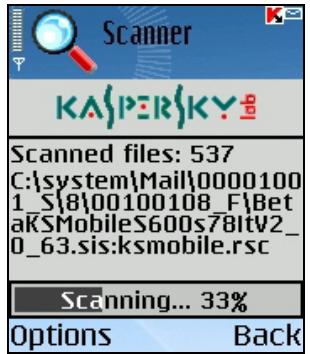
Figure 13. Scan progress screen
Upon detection of an infected object you will be offered to remove the affected file (the Delete action), relocate it to Quarantine (the Move to Quarantine action) or leave the file unchanged (the Skip action).
The application will display an offer to select further action only if the Virus Found Action parameter has been set to Ask User (see section 2.2.5 on page 15 for details).
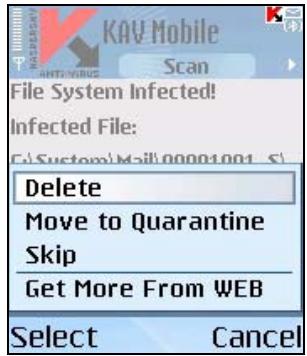
Figure 14. Notification about virus detection
After the scan completes, the overall statistics of infected /deleted objects will be displayed.
To prevent the screen backlight from going off while scanning, switch to the Info tab, open the Settings menu and set the Screen Backlighting parameter to On. By default, when the smartphone's keys are not pressed for a while, backlight will be switched off to preserve battery charge.
2.2.6.2. Scheduled scan
With Kaspersky Anti-Virus, you can schedule automatic scans to start at specified time. Scanning will be running in background mode. Upon detection of an infected object, the application performs the action specified in its scan settings (see section 2.2.4 on page 14).
Scheduled scanning is disabled by default.
To configure a scheduled scan, perform the following steps:
Use the Scan page to select the Schedule item and configure the Auto Scan parameters (see Fig. 15):
- Daily - your smartphone will be scanned every day. In the field below, specify the Auto Scan Time.
Weekly - your smartphone will be scanned every week. In the field below, specify the Auto Scan Day and Auto Scan Time.

Figure 15. The Schedule menu
2.2.7. Using the Quarantine
Quarantine is one of new features introduced in Kaspersky Anti-Virus® Mobile 6.0 after version 1.7. Quarantined infected objects are unable to harm your smartphone and you can delete or restore them later.
The application can relocate detected infected objects to Quarantine automatically or after your confirmation.
If you wish to configure the application to quarantine infected objects automatically, open the Scan page, select the Settings item and select Quarantine as the value of the Virus Found Action parameter.
If you have selected Ask User as the action to be performed, then upon detection of an infected object Kaspersky Anti-Virus will offer you to delete or quarantine it.
You can use the Quarantine page to access the main features of the Quarantine (see Fig. 16).
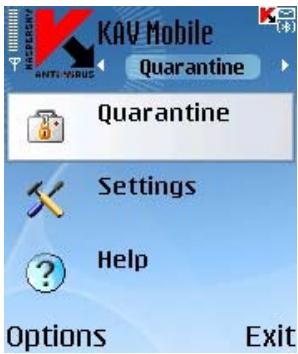
Figure 16. The Quarantine menu
Select Quarantine to display a list of all quarantined objects (see Fig. 17).
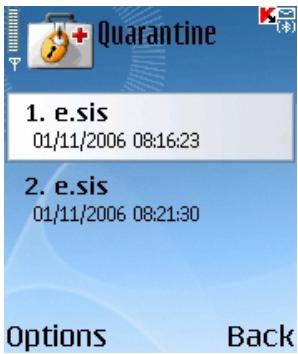
Figure 17. Infected objects in Quarantine
The Options menu in this window allows you to:
- View detailed information about any object stored in Quarantine (View Details).
- Delete the current object (Remove File).
- Purge Quarantine removing all objects stored in it (Remove All).
-
Restore the current object from Quarantine to its original folder (Restore File).
-
Display help on work with Quarantine (Help).
Attention!
The Restore File, Remove File, Remove All items in the Options menu are not accessible if the Quarantine is empty.
If you wish to configure the Quarantine parameters, use the Settings menu on the Quarantine page (see Fig. 18).
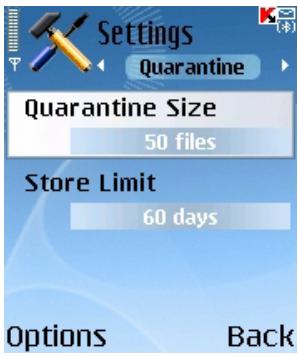
Figure 18. Quarantine settings
The Quarantine Size parameter defines the maximum number of infected objects that can be preserved in Quarantine. You can specify 20, 50 or 100 files as its value.
The Store Limit parameter defines the period during which infected objects may remain in Quarantine. The application will automatically delete infected objects when the specified period expires.
If you wish to restore Quarantine settings recommended by Kaspersky Lab experts, select Set Default in the Options menu.
2.2.8. Using Anti-Spam
Anti-Spam is another new feature introduced in Kaspersky Anti-Virus Mobile 6.0. It is intended for smartphone protection against unwanted SMS and MMS messages.
The employed principle of message filtering is based on the so-called black and white lists. Anti-Spam will block incoming messages from phone numbers added to your black list. Messages from numbers added to the white lists will not be blocked. While creating the mentioned lists, you can also specify the type of messages (SMS or MMS), which must be blocked or allowed.
2.2.8.1. Anti-Spam modes
In order to configure Anti-Spam, open the Info tab and select General Settings. Define one of the following modes using the Anti-Spam parameter:
- Enable. In that mode Anti-Spam filters incoming messages using your black and white lists. When a message arrives from a number not included into any of those lists, Anti-Spam outputs a notification with an offer to block or allow message receipt and to add the phone number to a white or black list.
- B/W Lists Only. In that mode Anti-Spam filters incoming messages using the white and black lists only. Receipt of messages from phone numbers not included into any of those lists is allowed without requests to user.
- Disable. Anti-Spam is disabled in that mode. Incoming messages will not be filtered.
2.2.8.2. Editing the black and white lists
The "Black" list contains phone numbers from which the receipt of SMS and/or MMS messages is blocked by Anti-Spam.
The "White" list contains phone numbers from which the receipt of SMS and/or MMS messages is allowed.
Messages from numbers that can not be found in either list will not be blocked!
In order to edit your black or white list, open the Anti-Spam page (see Fig. 19) and select the necessary list.
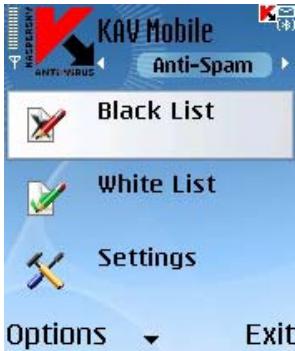
Figure 19. The Anti-Spam menu
Use the Options menu to edit the list:
- Add Record - add a new record to the selected list.
- Edit Record - edit the current record.
- Remove Record - delete the current record from list.
- Remove All - reset the list removing all records.
Attention!
The Edit Record, Remove Record, Remove All items in the Options menu are not accessible if the corresponding white (black) list is empty.
If you select the Add Record or Edit Record items, you will have to specify the following record parameters:
- Message Type. Specify the type of incoming messages, which should be blocked (for a black list) or allowed (for a white list). Possible values: SMS only, MMS only or All Messages.
- Enter phone number. Specify the phone number acting as the source of messages, which should be blocked or allowed. The number may start with a digit or the "+" symbol; it must consist of digits only.
Having specified the values for the above parameters press the Back button to save the record and return to the list viewing window (see Fig. 20).
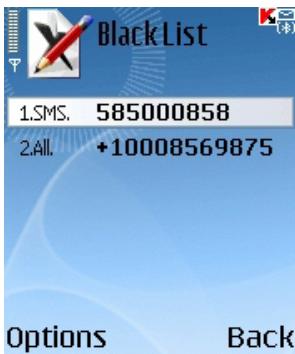
Figure 20. Black list
2.2.8.3. Anti-Spam settings
In order to configure the Anti-Spam parameters, open the Anti-Spam Page and select the Settings item (see Fig. 21).
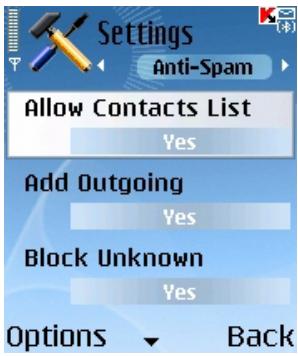
Figure 21. Anti-Spam settings
In the settings menu you can customize the following Anti-Spam parameters:
- Allow Contacts List. If the parameter is set to Yes, Anti-Spam will not block receipt of messages from phone numbers included into your phonebook. If the option is disabled (the parameter is set to No), then Anti-Spam will filter messages checking their presence in the white or black list.
- Add Outgoing. If the parameter is set to Yes, Anti-Spam will automatically add to the white list all phone numbers that you use to send SMS or MMS messages. Select No to disable the option.
- Block Unknown. If the parameter is set to No, Anti-Spam will not block incoming messages from hidden phone numbers. Select Yes to enable this option.
- Separate Msg. Types. If the parameter is set to No, then All Messages will be used as the value for the message type in new records of the white or black list (please refer to section 2.2.8.2 on page 23 for details about parameters of list records) otherwise records will be created for specific message types (SMS or MMS).
This parameter will only affect the records created by Anti-Spam in one of the following cases:
- Addition of outgoing numbers to the white list (the Add Outgoing option is enabled).
-
Addition of new phone numbers from which messages arrive to one of the lists (see section 2.2.8.4 on page 26 for details).
-
In order to edit the parameter values, use the joystick of your smartphone or the Change item from the Options menu.
2.2.8.4. Actions to be performed with messages
When you receive an SMS or MMS message from a phone number, which is not included into your black or white list, Anti-Spam intercepts the message and displays a corresponding notification (see Fig. 22).
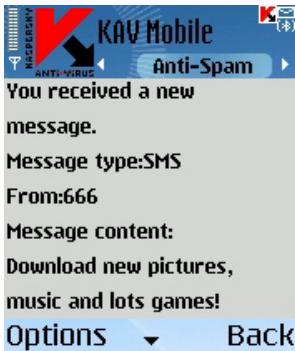
Figure 22. Anti-Spam notification
You can use the Options menu to select one of the following actions to be applied to the message:
- Add to White List - allow message receipt and add sender's phone number to white list.
- Add to Black List - block message receipt and add sender's phone number to black list.
- Skip message - allow message receipt. The sender's phone number will not be added in that case to any of the lists.
If the Separate Msg. Types parameter in Anti-Spam settings is set to No then selection of the Add to White List or Add to Black List action will create a respective record for all messages in a corresponding list (Message Type - All Messages), otherwise the type will be defined by the type of the received message. Please refer to section 2.2.8.2 on page 23 for details on list record parameters.
Information about blocked messages will be added to the application log. To review the log, open the Info tab and select the Reports item.
2.2.9. Updating the anti-virus databases
Kaspersky Anti-Virus detects viruses using the records from its anti-virus databases containing descriptions of all currently known malicious programs. It is extremely important to keep your smartphone safe by updating the anti-virus databases frequently.
You can start the updating procedure manually or schedule it to start automatically at specified time. Updates can be downloaded from either Kaspersky Lab's update servers or a local folder (see section 2.2.9.1 on page 27 about updating methods).
You can configure the application to scan automatically the file system of your smartphone each time after updating completes. To do so, use the Update page to access the Settings item and set the Scan on Update option to On.
The Scan Quar. on Update. parameter enables or disables scanning of quarantined objects after each update of the anti-virus databases. Scanning is enabled by default. To disable it, select Off.
If you do not wish to select an access point for each update, set the Ask for Access Point parameter to Off. Then the program will memorize the last access point used for a successful update and perform subsequent updates connecting through that point.
The Update Server parameter defines the source of updates for the anti-virus databases: update servers of Kaspersky Lab or a server specified by the user. If the parameter is set to user defined, the list of options will be extended to include one more URL name. You can specify an alternative update server, if necessary.
To view information about the database currently in use, open the Info tab and select Database Info.
Information about updating is recorded in the application log. To review the log, open the Info tab and select the Reports item.
2.2.9.1. Select the update method
To select the update source, perform the following steps:
- Launch Kaspersky Anti-Virus (see section 2.2.2 on page 12).
- Use the Update page to access the Settings item (see Fig. 23).
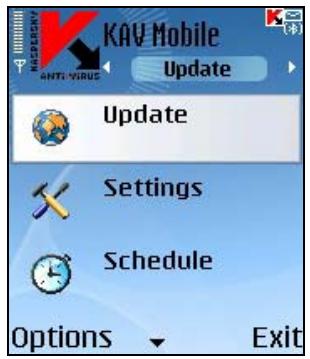
Figure 23. The Update page
-
Select the update source:
-
Local updates: the application will use database updates on your smartphone. To select that update type, set the value to Search on phone.
- Web-based updates: the application will download updates from the servers of Kaspersky Lab. To select that update type, set the value to Update via WAP if you wish to use WAP or Update via HTTP if you wish to download updates using HTTP. Select Use Browser if you want to retrieve updates using the browser of your smartphone.
To update the database via the Internet, your smartphone must have a GPRS connection (for updating via HTTP) or a WAP connection.
If your phone supports WLAN connection, you can download updates in Wi-Fi network areas.
If you configured Kaspersky Anti-Virus to update from a local file, copy the new database file to your smartphone using any convenient method. When updating starts, Kaspersky Anti-Virus automatically detects the latest database file and copies to its directory replacing the old database file with the new one.
If you selected updating using a web browser, then Kaspersky Anti-Virus, once it is started, will launch the smartphone's web browser, download the updates and will then automatically copy them into its working directory.
If you configured Kaspersky Anti-Virus to update from the Internet:
- Enable / disable the access point request (the Ask for Access Point setting).
You can set up an access point using the information provided by your mobile operator.
If you select Off, then connection will occur via the access point used during the last update.
If the request is enabled, you will see an offer to select the access point from the list of available points (see Fig. 24).
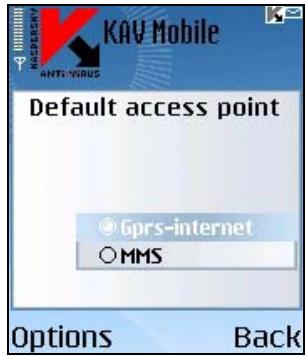
Figure 24. Selecting an access point
- If necessary use the Update URL command to specify the update server address.
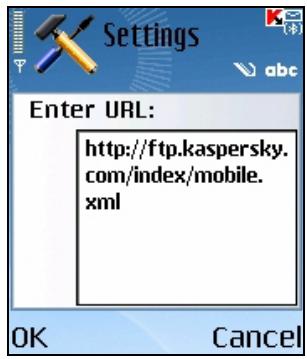
Figure 25. Update server URL
By default, updates are retrieved from a Kaspersky Lab's update server at: http://ftp.kaspersky.com/index/mobile.xml.
Irrespective of whether the internet connection was opened earlier, it will be closed once the update is completed
2.2.9.2. Manual updating
To initiate updating of the anti-virus databases manually:
- Launch Kaspersky Anti-Virus (see section 2.2.2 on page 12).
- Select the update source (see section 2.2.9.1 on page 27).
- Use the Update tab to select the Update item (see Fig. 23).
2.2.9.3. Scheduled updating
To configure scheduled updates of the anti-virus databases,
- Launch Kaspersky Anti-Virus (see section 2.2.2 on page 12).
- Select the update source (see section 2.2.9.1 on page 27).
-
Use the Update tab to select the Schedule item and configure the Auto Update parameters:
-
Daily - perform update once a day. Specify the Auto Update Time.
- Weekly - perform update once a week. Specify the Auto Update Day and Auto Update Time.
2.2.10. Licence extension
In order to extend your licence to use the program, perform the following steps:
- Launch Kaspersky Anti-Virus (see section 2.2.2 on page 12).
- Open the Info Page tab, select the Licence item and then select Renew Licence item.
- Follow the instructions in section 2.2.1 on page 11 to enter the new code in the activation key entry window.
You can also view the information about the current key and its validity period using the Key Info command from the KAV Licence menu (see Fig. 26).
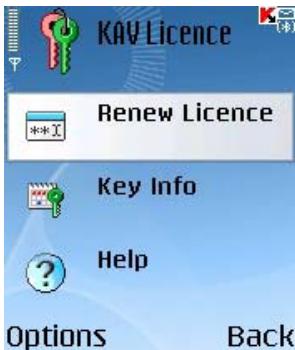
Figure 26. Licence management
2.3. Removing the program
To remove Kaspersky Anti-Virus from your smartphone:
- Exit the program. To do so:
Press and hold Menu button.
- Select KAV Mobile in the list of running application. Then press Options button.
- Select menu item Exit (see fig. 27).
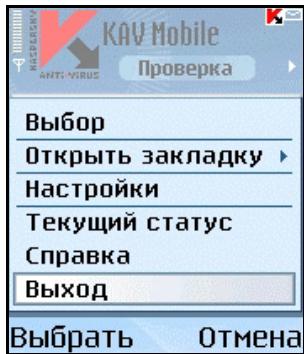
Figure 27. Exiting program
-
Remove Kaspersky Anti-Virus:
-
Press Menu button and select Application manager item (see fig. 28).
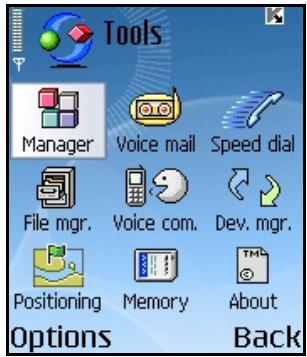
Figure 28. Application manager start
- Select KAV Mobile in the list of running application. Then press Options button (see fig. 29).
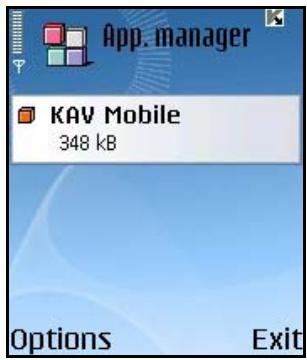
Figure 29. Selecting program
- Select menu item Remove (see fig. 30).
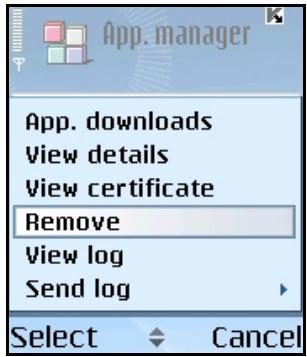
Figure 30. Removing program
To confirm program remove press Yes button (see fig. 31).
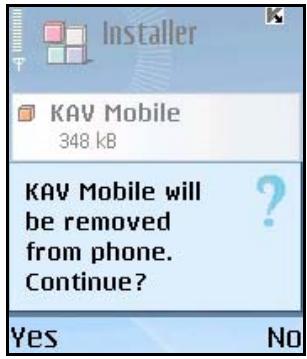
Figure 31. Removing program confirmation
CHAPTER 3. KASPERSKY ANTI-VIRUS FOR SYMBIAN UIQ OS
This chapter contains description of the operation of Kaspersky Anti-Virus Mobile for smartphones running Symbian Series UIQ operating system. Application version designed to be used with smartphones running Symbian 6.1, 7.0s, 8.0 or Series 60 UI operating system is discussed in detail in Chapter 2.
3.1. Installing Kaspersky Anti-Virus
In order to install Kaspersky Anti-Virus Mobile, perform the following steps:
- Copy the application installation package to your smartphone.
- Run installation (open the package file on your smartphone).
- If a protection warning appears, select Yes (see Figure 32) ^2 .
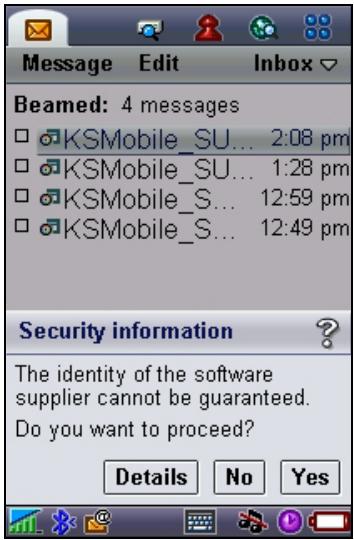
Figure 32. Protection warning
- To confirm installation, select Yes (see Figure 33).
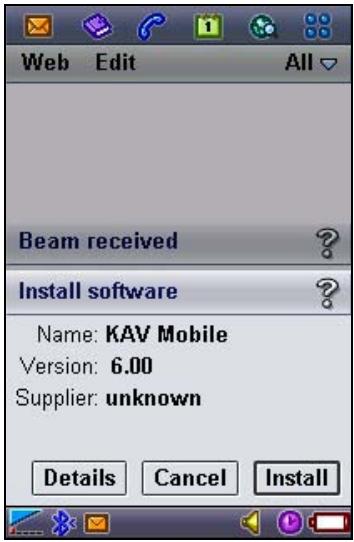
Figure 33. Request to confirm installation
- Select where to install the application: in the smartphone's memory or on a memory extension card (see Figure 34).
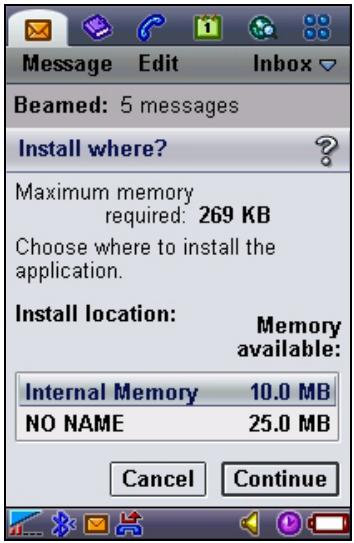
Figure 34. Select the location to install the application
- Read the Licence Agreement. If you agree to all the terms, press Yes. To abort the installation, click Cancel (see Figure 35).
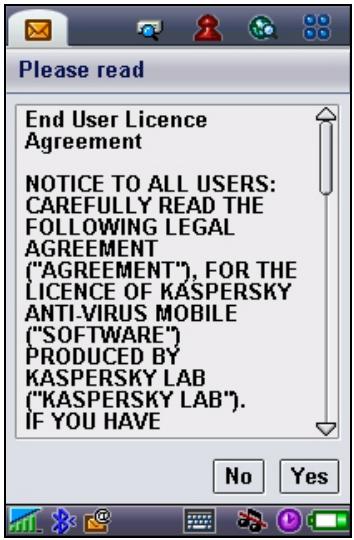
Figure 35. Licence Agreement
3.2. Using the application
This section contains information about configuration of the settings of the antivirus and real-time protection, SMS and MMS messages filtering, smartphone anti-virus scan and the application updates.
3.2.1. Activating the program
At the first launch the program will display a dialog with an offer to activate Kaspersky Anti-Virus (see Fig. 31).
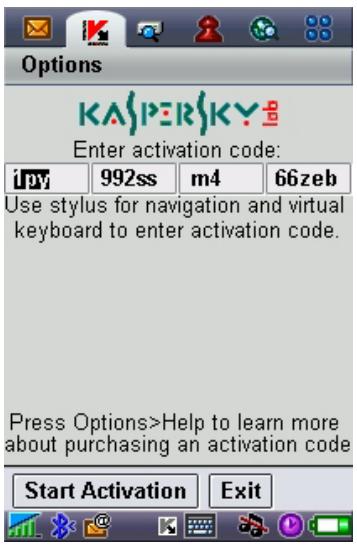
Figure 36. Program activation dialog
Program activation is required to enable all the features of Kaspersky Anti-Virus. You can receive your activation code at the web site of Kaspersky Lab.
Attention!
A GPRS connection is required to activate Kaspersky Anti-Virus Mobile 6.0 on a smartphone.
The activation code consists of Latin characters and digits, it is not case-sensitive. Enter the code into 4 provided fields successively. Use the "Up/Down" buttons to move to the next/previous field.
As soon as you enter the activation code, select the Start Activation command from the Options menu. The program will send a HTTP request to an activation server of Kaspersky Lab, then it will download and install a licence key.
If the activation code that you have entered turns out to be invalid for some reason, the program will display a corresponding notification.
3.2.2. Starting the application
To launch Kaspersky Anti-Virus Mobile, perform the following:
- Open the list of applications installed in your smartphone.
- Select the KAV Mobile icon and start the application choosing the Open item in the Options menu.
After the applications startup the smartphone will display a window containing the status of the main components of Kaspersky Anti-Virus (see Figure 37).
- Real-Time Protection - the use of the real-time protection mode. Details see section 3.2.5 on page 41.
- Last Full Scan - date of the last anti-virus smartphone scan.
- Databases date - date of release of the database used by the application.
- Anti-Spam Config. - Anti-spam operating mode. Details of the operating modes see section 3.2.8.1 on page 50.
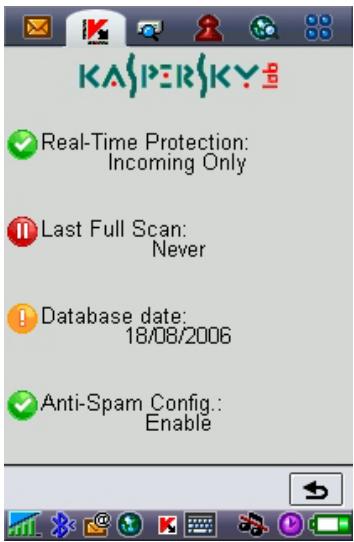
Figure 37. Application components status window
In order to switch to the application interface, press
3.2.3. Graphical user interface
The graphical user interface (GUI) contains five tabs:

Using the Scan tab you can perform an anti-virus scan of the smartphone, edit the anti-virus scan and real-time protection mode settings and configure the auto scan schedule.

Using the Quarantine tab you can manage the quarantine - a special-purpose storage for infected and suspicious objects.

Using the Update tab you can update the anti-virus database, edit the updating settings and configure the updating schedule.

Using the Anti-Spam tab you can configure filtering of incoming SMS and MMS messages.

Using the Info tab you can view the logs of the operation of the application's components, general information about the application and about the antivirus database used and edit the general settings of the application's operation.
To navigate from one tab to another, use the joystick of your smartphone or select the necessary item in the Options menu (see Figure 38).
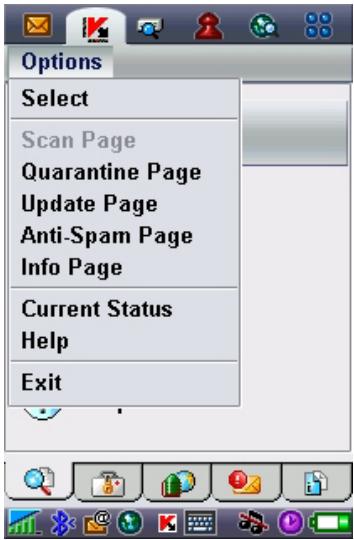
Figure 38. The Options menu
In order to return to the application components status window, select the Current Status item in the Options menu.
3.2.4. General Settings
Parameters within the Info tab of the General Settings page (see Figure 39) allow you to configure the following application features:
- The mode of Anti-Spam operation (Configure Anti-Spam). Select Enable to activate full Anti-Spam functionality. Select B/W Lists Only to make the Anti-Spam use your black and white lists only. Select Disable to deactivate Anti-Spam (please refer to section 3.2.8 on page 50 for details on using Anti-Spam).
- Program addition to your Favorites folder (Add to Favorites). Select Yes if you wish to add the application's shortcut to the Favorites folder.
- An option to display the current status each time the program is started (Show Status Screen).
The number of records preserved in application log (Log Size). -
The use of screen backlighting while scanning the file system for virus presence (Screen Backlighting).
-
The use of sounds (Play Sound) for notification about specific events (detection of an infected object, information about program status, etc.). Select On if you wish to hear sound notifications.
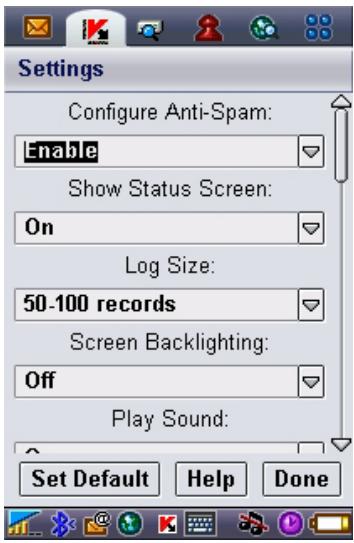
Figure 39. The Settings menu
In order to edit the values of the settings, use the smartphone's joystick or select the Change item in the Options menu.
3.2.5. Real-time protection
In the real-time protection mode, the resident part of Kaspersky Anti-Virus constantly remains in your smartphone's memory, monitoring either all data or incoming data only (depending on the selected settings).
Real-time protection remains active from the moment the smartphone is turned on to the moment the smartphone is turned off (unless the use of this mode is disabled by the settings).
Scan results are recorded in the application log. To view the log, select the View Reports item of the Info tab.
To modify real-time protection settings:
- Launch Kaspersky Anti-Virus (see section 3.2.2 on page 38).
- On the Scan tab, select the Settings item (see Figure 40).
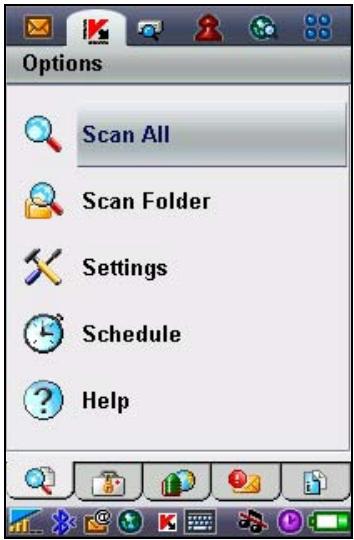
Figure 40. The Scan tab
- Use the menu that opens next to configure the settings as necessary (see Figure 41):
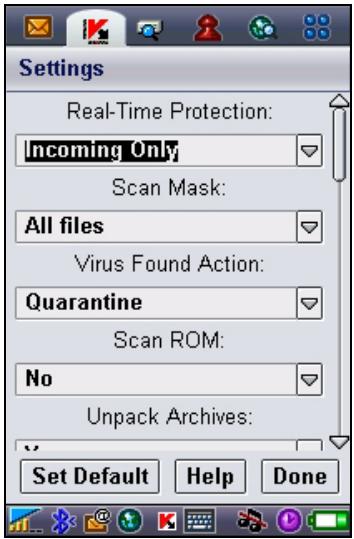
Figure 41. The Settings menu
- Enable / disable the real-time protection (the Real-Time Protection parameter).
By default, In the real-time protection mode the application scans all incoming data (the Incoming Only option is selected).
To configure Kaspersky Anti-Virus to scan all incoming files and the entire file system, select Scan All.
To disable real-time protection, select Off.
- Select the types of files to scan (the Scan Mask):
All files - scan files of all formats.
- Executable files - scan executable files only (e.g., files with the .exe, .sis, .mdl, or .app extensions).
- Define the action that will be performed upon detection of an infected object (the Virus Found Action parameter).
If you want to receive confirmation requests before performance of the specified action, select Ask User.
If you want Kaspersky Anti-Virus to automatically delete infected messages without prompting the user, select Auto Delete.
Select Quarantine if you want the application to relocate detected objects to Quarantine.
- Enable / disable scanning of the smartphone's ROM memory (the Scan ROM parameter).
In some cases, the ROM memory can be vulnerable to malicious applications. To configure Kaspersky Anti-Virus to scan this memory, select Yes.
To disable ROM scanning, select No.
- Enable / disable unpacking of SIS archives (the Unpack Archives parameter). Select Yes in order to make Kaspersky Anti-Virus unpack SIS archives while scanning. If you do not need unpacking of SIS archives during the scanning procedure, disable the feature selecting No.
- Enable / disable scanning of new memory card (the Scan New Card parameter). To make Kaspersky Anti-Virus scan automatically flash memory cards installed into your smartphone, select AutoScan. Select Disable to turn off automatic scanning of flash memory cards. In order to make
Kaspersky Anti-Virus Mobile display an offer to scan a new card each time it is inserted, select Ask User.
- Show / hide the real-time protection icon (the Show RTP Icon parameter).
To make the application display its icon whenever the real-time protection is enabled, select Always. If you want it to display its icon in smartphone's menu only, select Only in Menu. To hide the icon, select Never.
In order to edit the parameter values, use the joystick of your smartphone or the Change item from the Options menu.
By default, the application uses the settings recommended by Kaspersky Lab experts. If you want to restore these default settings, open the Scan tab and select Set Default item from the Options menu.
3.2.6. On-demand scan
In the on-demand scanning mode, the application scans your smartphone for the presence of malicious programs at the user's request or at scheduled time.
Kaspersky Anti-Virus can perform a full scan of the file system of your smartphone, including objects stored on memory extension cards.
Scan results are recorded to the application log. To view the log, select the View Reports item on the Info tab.
The real-time protection settings discussed in section 3.2.5 on page 41 also apply to the on-demand scan. In addition, on-demand scans have several supplementary parameters discussed below in more detail.
3.2.6.1. Initiating a scan manually
To launch an on-demand scan manually, perform the following steps:
- Launch Kaspersky Anti-Virus (see section 3.2.2 on page 38).
- Use the Scan tab (see Figure 40) to select Scan All if you wish to check the entire file system of your smartphone or Scan Folder if you wish to scan the contents of an individual folder.
Selection of the Scan Folder command opens a window, which displays the file system of your smartphone. You can use the joystick buttons to navigate the file system. In order to start folder scanning, position the pointer over that folder and select Scan from the Options menu.
As soon as the procedure starts, a scan progress screen opens, displaying the current status: number of scanned objects, path to the object currently being scanned, and a progress bar showing the percentage of objects scanned (see Figure 42).
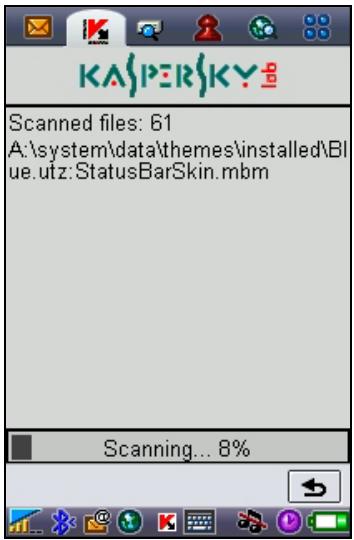
Figure 42. Scan progress screen
Upon detection of an infected object you will be offered to remove the affected file (the Delete action), relocate it to Quarantine (the Move to Quarantine action) or leave the file unchanged (the Skip action).
The application will display an offer to select further action only if the Virus Found Action parameter has been set to Ask User (see section 3.2.5 on page 41 for details).
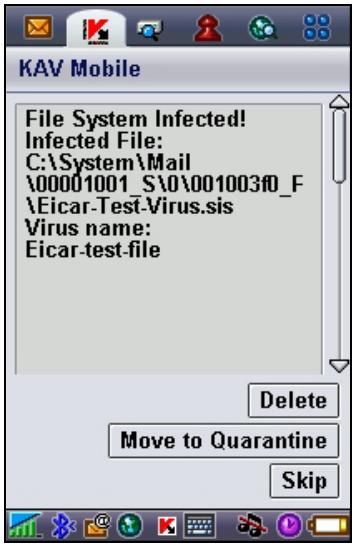
Figure 43. Notification about virus detection
After the scan completes, the overall statistics of infected /deleted objects will be displayed.
To prevent the screen backlight from going off while scanning, switch to the Info tab, open the General Settings menu and set the Screen Backlighting parameter to On. By default, when the smartphone's keys are not pressed for a while, backlight will be switched off to preserve battery charge.
3.2.6.2. Scheduled scan
With Kaspersky Anti-Virus, you can schedule automatic scans to start at specified time. Scanning will be running in background mode. Upon detection of an infected object, the application performs the action specified in its scan settings (see section 3.2.4 on page 40).
Scheduled scanning is disabled by default.
To configure a scheduled scan, perform the following steps:
Use the Scan page to select the Schedule item and configure the Auto Scan parameters (see Figure 44):
-
Daily - your smartphone will be scanned every day. In the field below, specify the Auto Scan Time.
-
Weekly - your smartphone will be scanned every week. In the field below, specify the Auto Scan Day and Auto Scan Time.
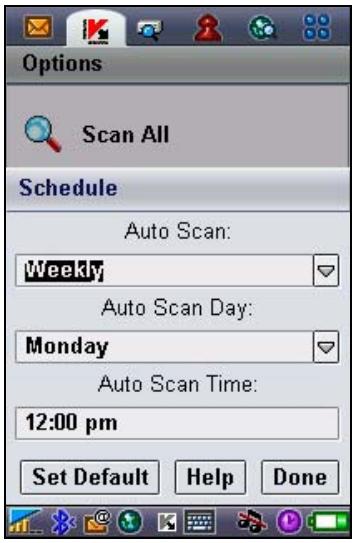
Figure 44. The Schedule menu
3.2.7. Using the Quarantine
Quarantine is one of new features introduced in Kaspersky Anti-Virus® Mobile 6.0 after version 1.7. Quarantined infected objects are unable to harm your smartphone and you can delete or restore them later.
The application can relocate detected infected objects to Quarantine automatically or after your confirmation.
If you wish to configure the application to quarantine infected objects automatically, open the Scan page, select the Settings item and select Quarantine as the value of the Virus Found Action parameter.
If you have selected Ask User as the action to be performed, then upon detection of an infected object Kaspersky Anti-Virus will offer you to delete or quarantine it.
You can use the Quarantine page to access the main features of the Quarantine (see Figure 45).
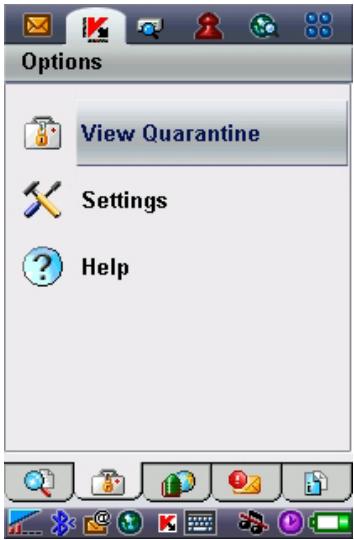
Figure 45. The Quarantine menu
Select Quarantine to display a list of all quarantined objects (see Figure 46).
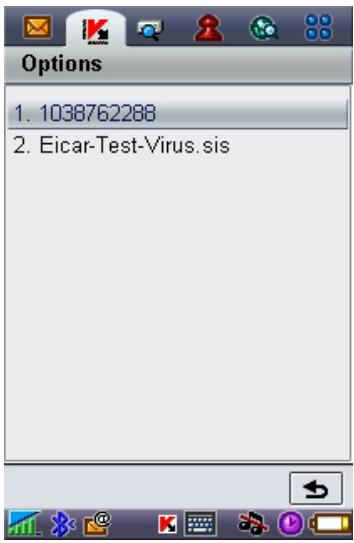
Figure 46. Infected objects in Quarantine
The Options menu in this window allows you to:
- View detailed information about any object stored in Quarantine (View Details).
- Delete the current object (Remove File).
- Purge Quarantine removing all objects stored in it (Remove All).
- Restore the current object from Quarantine to its original folder (Restore File).
- Display help on work with Quarantine (Help).
If you wish to configure the Quarantine parameters, use the Quarantine Settings menu on the Quarantine page (see Figure 47).
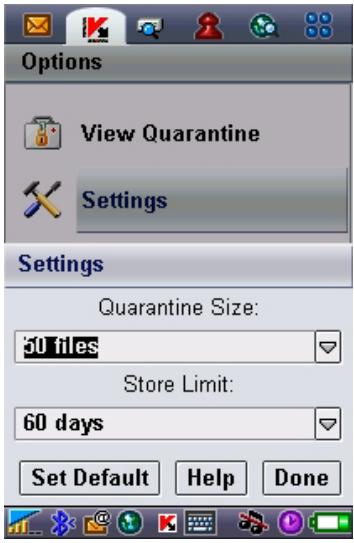
Figure 47. Quarantine settings
The Quarantine Size parameter defines the maximum number of infected objects that can be preserved in Quarantine. You can specify 20, 50 or 100 files as its value.
The Store Limit parameter defines the period during which infected objects may remain in Quarantine. The application will automatically delete infected objects when the specified period expires.
If you wish to restore Quarantine settings recommended by Kaspersky Lab experts, select Set Default in the Options menu.
3.2.8. Using Anti-Spam
Anti-Spam is another new feature introduced in Kaspersky Anti-Virus Mobile 6.0. It is intended for smartphone protection against unwanted SMS and MMS messages.
The employed principle of message filtering is based on the so-called black and white lists. Anti-Spam will block incoming messages from phone numbers added to your black list. Messages from numbers added to the white lists will not be blocked. While creating the mentioned lists, you can also specify the type of messages (SMS or MMS), which must be blocked or allowed.
3.2.8.1. Anti-Spam modes
In order to configure Anti-Spam, open the Info tab and select General Settings. Define one of the following modes using the Configure Anti-Spam parameter:
- Enable. In that mode Anti-Spam filters incoming messages using your black and white lists. When a message arrives from a number not included into any of those lists, Anti-Spam outputs a notification with an offer to block or allow message receipt and to add the phone number to a white or black list.
- Black/White Lists Only. In that mode Anti-Spam filters incoming messages using the white and black lists only. Receipt of messages from phone numbers not included into any of those lists is allowed without requests to user.
- Disable. Anti-Spam is disabled in that mode. Incoming messages will not be filtered.
3.2.8.2. Editing the black and white lists
Anti-Spam uses the "black" and "white" lists to identify phone numbers incoming messages received from which will be correspondingly blocked or allowed.
In order to edit your black or white list, open the Anti-Spam page (see Figure 48) and select the necessary list.
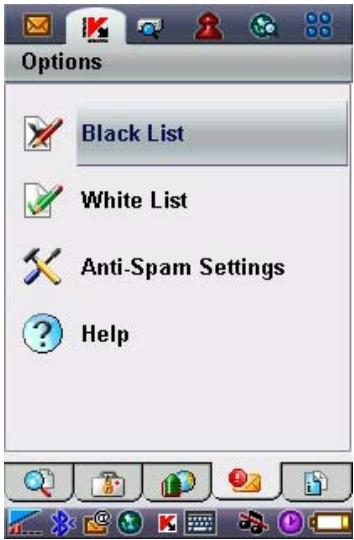
Figure 48. The Anti-Spam menu
Use the Options menu to edit the list:
- Add Record - add a new record to the selected list.
- Edit Record - edit the current record.
- Remove Record - delete the current record from list.
- Remove All - reset the list removing all records.
If you select the Add Record or Edit Record items, you will have to specify the following record parameters:
- Message Type. Specify the type of incoming messages, which should be blocked (for a black list) or allowed (for a white list). Possible values: SMS only, MMS only or All Messages.
- Enter phone number. Specify the phone number acting as the source of messages, which should be blocked or allowed. The number may start with a digit or the "+" symbol; it must consist of digits only.
Having specified the values for the above parameters press the OK button to save the record and return to the list viewing window (see Figure 49).
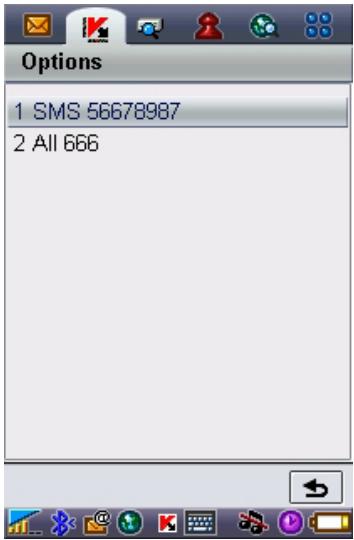
Figure 49. Black list
3.2.8.3. Anti-Spam settings
In order to configure the Anti-Spam parameters, open the Anti-Spam tab and select the Anti-Spam Settings item (see Figure 50).
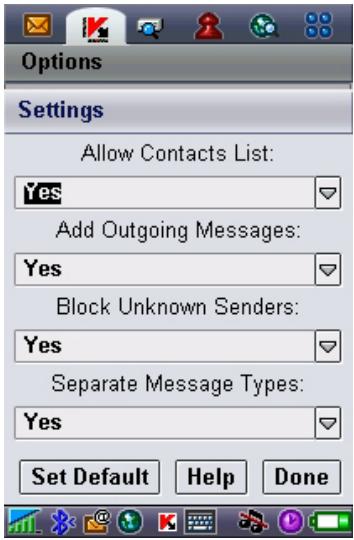
Figure 50. Anti-Spam settings
In the settings menu you can customize the following Anti-Spam parameters:
- Allow Contacts List. If the parameter is set to Yes, Anti-Spam will not block receipt of messages from phone numbers included into your phonebook. If the option is disabled (the parameter is set to No), then Anti-Spam will filter messages checking their presence in the white or black list.
- Allow Outgoing Messages. If the parameter is set to Yes, Anti-Spam will automatically add to the white list all phone numbers that you use to send SMS or MMS messages. Select No to disable the option.
- Block Unknown Senders. If the parameter is set to No, Anti-Spam will not block incoming messages from hidden phone numbers. Select Yes to enable this option.
- Separate Message Types. If the parameter is set to No, then All Messages will be used as the value for the message type in new records of the white or black list (please refer to section 3.2.8.2 on page 50 for details about parameters of list records) otherwise records will be created for specific message types (SMS or MMS).
This parameter will only affect the records created by Anti-Spam in one of the following cases:
- Addition of outgoing numbers to the white list (the Allow Outgoing Messages option is enabled).
- Addition of new phone numbers from which messages arrive to one of the lists (see section 3.2.8.4 on page 53 for details).
3.2.8.4. Actions to be performed with messages
When you receive an SMS or MMS message from a phone number, which is not included into your black or white list, Anti-Spam intercepts the message and displays a corresponding notification (see Figure 51).
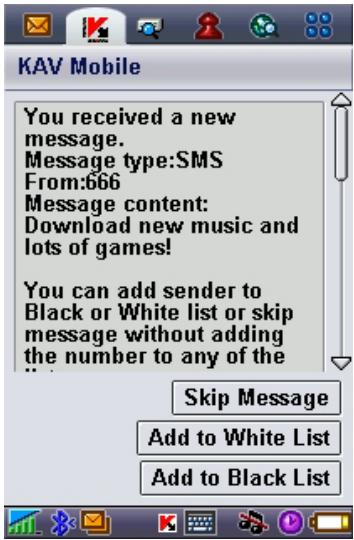
Figure 51. Anti-Spam notification
You can use the Options menu to select one of the following actions to be applied to the message:
- Add to White List - allow message receipt and add sender's phone number to white list.
- Add to Black List - block message receipt and add sender's phone number to black list.
- Skip message - allow message receipt. The sender's phone number will not be added in that case to any of the lists.
If the Separate Message Types parameter in Anti-Spam settings is set to No then selection of the Add to White List or Add to Black List action will create a respective record for all messages in a corresponding list (Message Type - All Messages), otherwise the type will be defined by the type of the received message. Please refer to section 3.2.8.2 on page 50 for details on list record parameters.
Information about blocked messages will be added to the application log. To review the log, open the Info tab and select the View Reports item.
3.2.9. Updating the anti-virus databases
Kaspersky Anti-Virus detects viruses using the records from its anti-virus databases containing descriptions of all currently known malicious programs. It is
extremely important to keep your smartphone safe by updating the anti-virus databases frequently.
You can start the updating procedure manually or schedule it to start automatically at specified time. Updates can be downloaded from either Kaspersky Lab's update servers or a local folder (see section 3.2.9.1 on page 55 about updating methods).
You can configure the application to scan automatically the file system of your smartphone each time after updating completes. To do so, use the Update page to access the Update Settings item and set the Scan on Update option to On.
The Scan Quar. on Update. parameter enables or disables scanning of quarantined objects after each update of the anti-virus databases. Scanning is enabled by default. To disable it, select Off.
If you do not wish to select an access point for each update, set the Ask for Access Point parameter to Off. Then the program will memorize the last access point used for a successful update and perform subsequent updates connecting through that point.
The Update Server parameter defines the source of updates for the anti-virus databases: update servers of Kaspersky Lab or a server specified by the user. If the parameter is set to user defined, the list of options will be extended to include one more URL name. You can specify an alternative update server, if necessary.
To view information about the database currently in use, open the Info tab and select AV Database Info.
Information about updating is recorded in the application log. To review the log, open the Info tab and select the View Reports item.
3.2.9.1. Select the update method
To select the update source, perform the following steps:
- Launch Kaspersky Anti-Virus (see section 3.2.2 on page 38).
- Use the Update page to access the Update Settings item (see Figure 52).
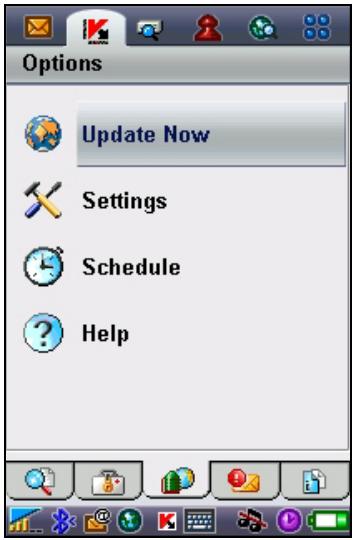
Figure 52. The Update page
3. Select the update source:
- Local updates: the application will use database updates on your smartphone. To select that update type, set the value to Search on phone.
- Web-based updates: the application will download updates fro the servers of Kaspersky Lab. To select that update type, set the value to Update via WAP if you wish to use WAP or Update via HTTP if you wish to download updates using HTTP. Select Use Browser if you want to retrieve updates using the browser of your smartphone.
To update the database via the Internet, your smartphone must have a GPRS connection (for updating via HTTP) or a WAP connection.
If you configured Kaspersky Anti-Virus to update from a local file, copy the new database file to your smartphone using any convenient method. When updating starts, Kaspersky Anti-Virus automatically detects the latest database file and copies to its directory replacing the old database file with the new one.
If you selected updating using a web browser, then Kaspersky Anti-Virus, once it is started, will launch the smartphone's web browser, download the updates and will then automatically copy them into its working directory.
If you configured Kaspersky Anti-Virus to update from the Internet:
- Enable / disable the access point request (the Ask for Access Point setting).
You can set up an access point using the information provided by your mobile operator.
If you select Off, then connection will occur via the access point used during the last update.
If the request is enabled, you will see an offer to select the access point from the list of available points (see Figure 53).
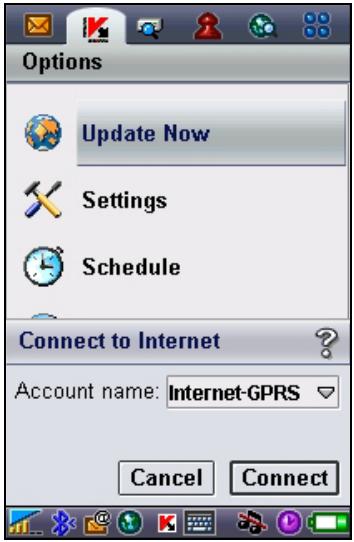
Figure 53. Selecting an access point
- If necessary use the Update URL command to specify the update server address.
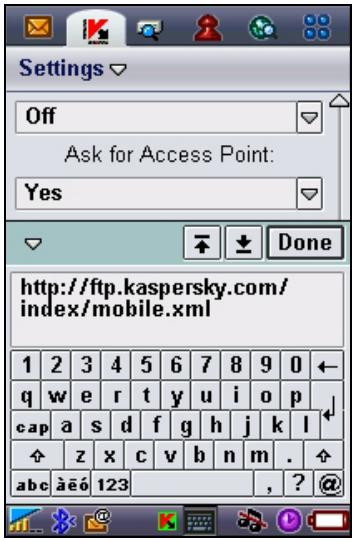
Figure 54. Update server URL
By default, updates are retrieved from a Kaspersky Lab's update server at: http://ftp.kaspersky.com/index/mobile.xml.
Irrespective of whether the internet connection was opened earlier, it will be closed once the update is completed.
3.2.9.2. Manual updating
To initiate updating of the anti-virus databases manually:
- Launch Kaspersky Anti-Virus (see section 3.2.2 on page 38).
- Select the update source (see section 3.2.9.1 on page 55).
- Use the Update tab to select the Update Now item (see Figure 52).
3.2.9.3. Scheduled updating
To configure scheduled updates of the anti-virus databases,
- Launch Kaspersky Anti-Virus (see section 3.2.2 on page 38).
-
Select the update source (see section 3.2.9.1 on page 55).
-
Use the Update tab to select the Schedule item and configure the Auto Update parameters:
-
Daily - perform update once a day. Specify the Auto Update Time.
- Weekly - perform update once a week. Specify the Auto Update Day and Auto Update Time.
3.2.10. Licence extension
In order to extend your licence to use the program, perform the following steps:
- Launch Kaspersky Anti-Virus (see section 3.2.2 on page 38).
- Open the Info Page tab, select the Licence item and then select Renew Licence item.
- Follow the instructions in section 3.2.1 on page 37 to enter the new code in the activation key entry window.
You can also view the information about the current key and its validity period using the Key Info command from the KAV Licence menu (see Figure 55).
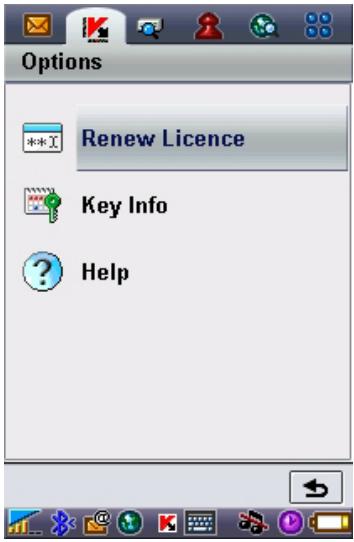
Figure 55. Licence management
3.3. Removing the program
To remove Kaspersky Anti-Virus:
- Select menu item Uninstall in the Applications menu (see fig. 56).
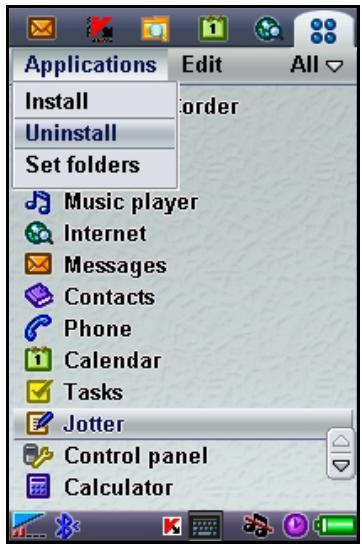
Figure 56. Starting uninstall procedure
- Select KAV Mobile in the list of installed applications. Then press Uninstall button (see fig. 57).
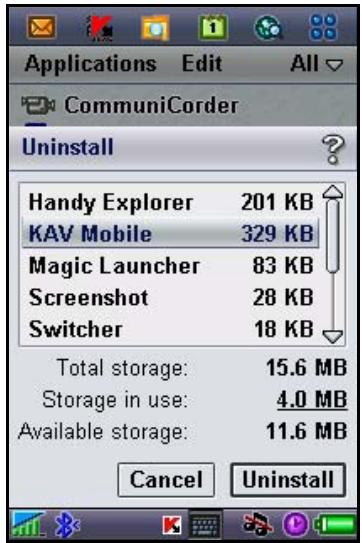
Figure 57. Selecting program to uninstall
- To confirm program uninstallation press Yes button (see fig. 58).
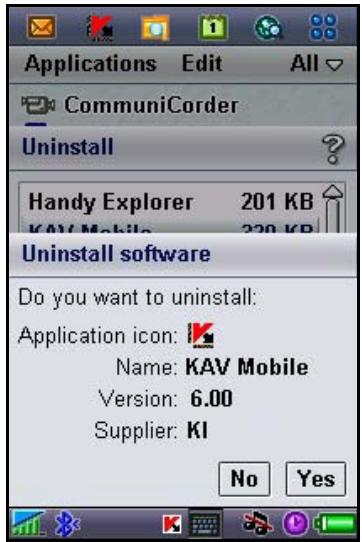
Figure 58. Uninstall confirmation
CHAPTER 4. KASPERSKY ANTI-VIRUS FOR SYMBIAN OS 7.0 SERIES 80 UI
This chapter contains description of the operation of Kaspersky Anti-Virus Mobile for smartphones running Symbian OS 7.0 Series 80 UI.
4.1. Installing Kaspersky Anti-Virus
In order to install Kaspersky Anti-Virus Mobile, perform the following steps:
- Copy the distribution package to your smartphone.
- Run the installation file (open the cab archive with the distribution package on your smartphone).
- Read the text of the licence agreement. If you agree to all the terms, press the OK command button. To abort the installation, press the Cancel command button (see Figure 59)3.
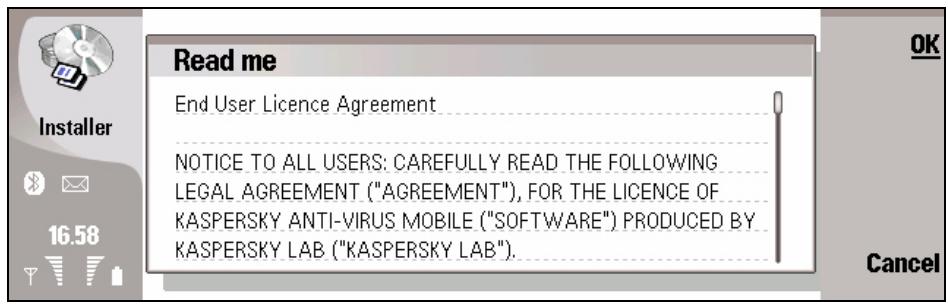
Figure 59. Licence Management
4.2. Using the application
This section contains information about configuration of the settings of the antivirus and real-time protection, SMS and MMS messages filtering, smartphone anti-virus scan and the application updates.
4.2.1. Activating the program
At the first launch the program will display a dialog with an offer to activate Kaspersky Anti-Virus (see Figure 60).
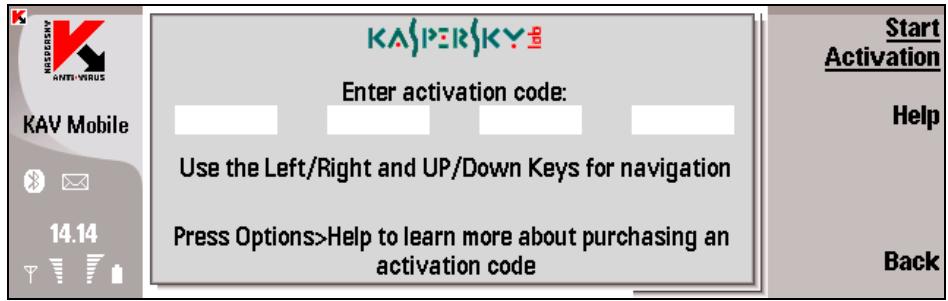
Figure 60. Program activation window
Program activation is required to enable all the features of Kaspersky Anti-Virus. You can receive your activation code at the web site of Kaspersky Lab.
Attention!
A GPRS connection is required to activate Kaspersky Anti-Virus Mobile 6.0 on a smartphone.
The activation code consists of Latin characters and digits, it is not case-sensitive. Enter the code into 4 provided fields successively. Use the "Up/Down" buttons to move to the next/previous field.
As soon as you enter the activation code, press the Start Activation command button. The program will send a HTTP request to an activation server of Kaspersky Lab, then it will download and install a licence key.
If the activation code that you have entered turns out to be invalid for some reason, the program will display a corresponding notification.
4.2.2. Starting the application
To launch Kaspersky Anti-Virus Mobile, perform the following:
- Switch to the desktop on your smartphone.
- Select the KAV Mobile icon.
- Press the Open command button to start the application.
After the applications startup the smartphone will display a window containing the status of the main components of Kaspersky Anti-Virus (see Figure 61).
Real-time protection - the use of the real-time protection mode (see section 4.2.4.3xx).
- Last Full Scan - date of the last anti-virus smartphone scan.
- Database date - date of release of the database used by the application.
- Anti-spam Config. - Anti-spam operating mode used for filtering SMS messages.
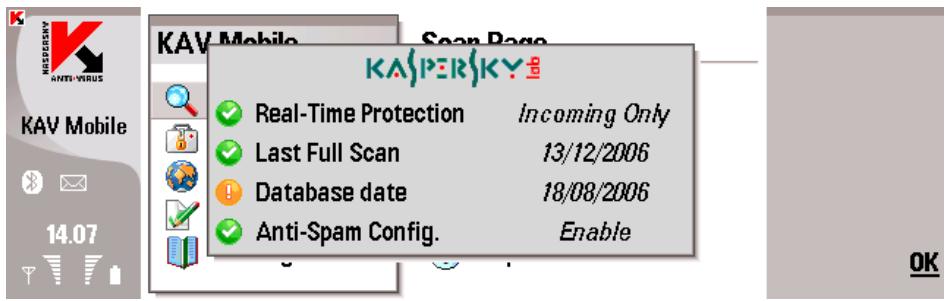
Figure 61 Application components status window
In order to start using the application, press the OK command button.
4.2.3. Graphical user interface
The graphical user interface (GUI) of the application consists of two windows (see Figure 48xx), namely, the main KAV Mobile window (left) and a window with five tabs (right):
-
Using the Scan tab you can perform an anti-virus scan of the smartphone, edit the anti-virus scan and real-time protection mode settings and configure the auto scan schedule.
-
Using the Quarantine tab you can manage the quarantine - a special-purpose storage for infected and suspicious objects.
- Using the Update tab you can update the anti-virus database, edit the updating settings and configure the updating schedule.
- Using the Anti-Spam tab you can configure filtering of incoming SMS and MMS messages.
- Using the Info tab you can view the logs of the operation of the application's components, general information about the application and about the anti-virus database used, edit the general settings of the application's operation and manage licences.
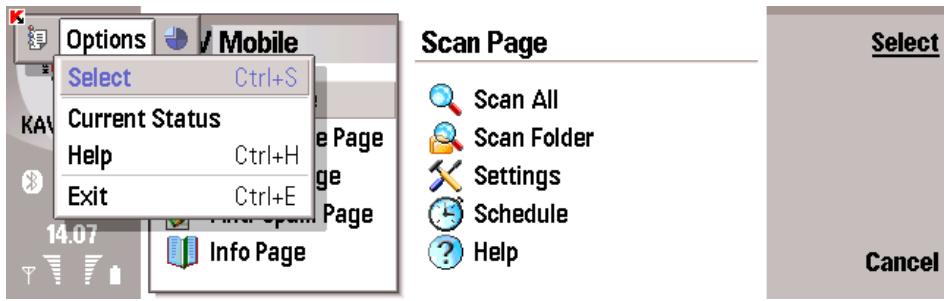
Figure 62. Main KAV Mobile window
In order to switch to the required tab, select its name in the main window and press the Select command button. You can also switch to the required tab using a joystick.
In order to return to the software component status window, select the Current Status item in the Functions menu.
In order to close the application press the Exit command button in the main application window.
4.2.4. Anti-virus scan and protection
Using the Scan tab, you can perform an anti-virus scan of the entire file system and memory of the smartphone or a scan of an individual file or directory. You can also modify the anti-virus scan settings and the anti-virus protection mode, view a report about the scan results or configure a schedule of an automatic scan launch. This section contains information about the execution of each of the above tasks.
4.2.4.1. On-demand scan
Kaspersky Anti-Virus allows performing a full scan of the entire file system of the smartphone, including analysis of objects located on the extension memory cards connected to the phone.
Information about results of the scan will be entered into the report. You can view the report by selecting the View Reports item on the Info tab.
In order to modify the on-demand scan settings, do the following:
- Select Settings on the Scan tab.
-
Specify the type of files to be scanned. In order to do it select the File Type item and specify using the Change command button:
-
Executable - scan only executable files.
All files - scan files of all types -
Specify the action to be performed by the application upon detection of an infected object by selecting one of the following possible values for the Virus Found Action parameter:
-
Auto Delete—delete infected objects detected
- Quarantine - quarantine infected objects detected
-
Ask User - display a message about the virus detection on the screen with a suggestion to either delete the infected object or move to the quarantine.
-
Specify whether the scan should include unpacking and scanning of SiS archives. In order to do it, select the Unpacking archives setting and then select Yes or Now suing the Change command button.
In order to start an anti-virus scan:
- Start Kaspersky Anti-Virus (see section 4.2.2 on page 64).
- Select the Scan All time on the Scan tab (see Figure 62) if you wish to scan the entire file system of the smartphone or Scan Folder if you wish to scan an individual folder.
When the Scan Folder item is selected, you will switch to the window that displays the smartphone's file system. In order to start a folder scan, select the required folder using your joystick and press the Select button.
After the scan is started, a scan window will open that displays the current status, the number of objects scanned, the path to the object being currently scanned and the progress percentage (see Figure 63).
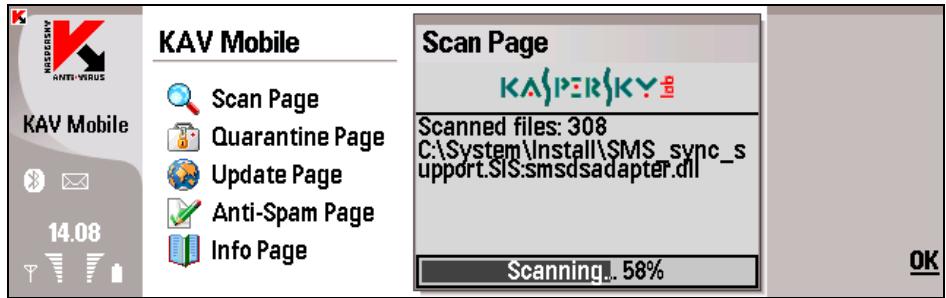
Figure 63. The scan window
Upon a detection of an infected object you will be offered to either delete the infected file (Auto Delete action) or move it to the quarantine (Move To Quarantine action).
The application will prompt you for an action to be performed with the object only if the Virus Found Action setting is set to Ask User (see above).
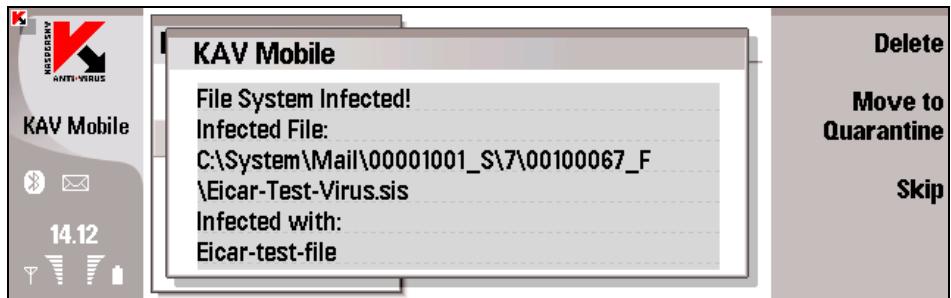
Figure 64. Notification of a virus detection
After the scan is completed, the application will display the statistics about total number of scanned object, the total scan time and the number of malicious objects that have been detected, deleted or moved to the quarantine.
4.2.4.2. Scheduled scan
With Kaspersky Anti-Virus, you can schedule automatic smartphone scans to start at specified time. Scanning will be running in background mode. Upon a detection of an infected object, the application performs the action specified in its scan settings (see section Scan settings).
Scheduled scanning is disabled by default.
To configure a scheduled scan, perform the following steps:
Use the Scan page to select the Schedule item, press the Select command button and then select the Auto Scan item in the Schedule window that will open (see Figure 65). Using the Change button select:
- Weekly – the scan will be performed every week. The scan day and time are determined by the Auto scan day and Auto Scan Time parameters.
- Daily - the scan will be performed every day. The scan time is determined by the Auto Scan Time parameter.
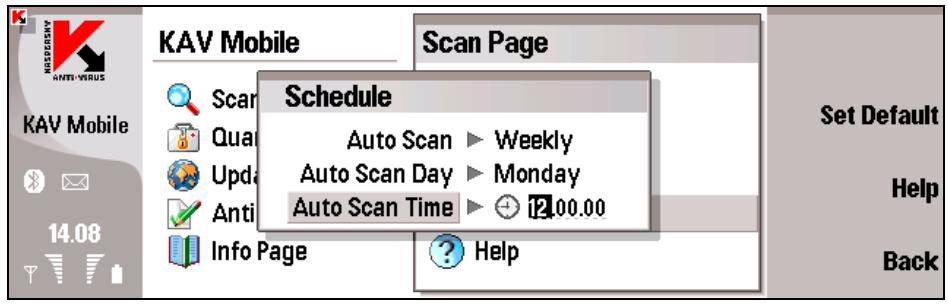
Figure 65. The Schedule window
4.2.4.3. Real-time protection
In the real-time protection mode, the resident part of Kaspersky Anti-Virus constantly remains in your smartphone's memory, monitoring either all data or incoming data only (depending on the selected settings).
Real-time protection remains active from the moment the smartphone is turned on to the moment the smartphone is turned off (unless the use of this mode is disabled by the settings).
Information about the scan results is recorded in the application log. To view the log, select the Reports item of the Information tab.
To modify real-time protection settings:
- Select Settings on the Scan tab.
-
Define the scope of the real-time protection. In order to do it, select the Real-time protection item and using the Change command button, specify:
-
Incoming Only - perform real-time protection of the incoming objects only.
All - perform real-time protection of all objects.
-
Specify the types of files to be scanned. In order to do it select the Scan mask item and specify using the Change command button:
-
Executable - scan only executable application files (for example, .exe, .sis, .mdl, .app).
All files - perform real-time protection of all objects. -
Define the action that will be performed upon detection of an infected object by selecting one of the Virus Found Action parameter values.
-
Auto Delete - delete infected objects detected
- Quarantine - quarantine infected objects detected
-
Ask User - display a message about the virus detection on the screen with a suggestion to either delete the infected object or quarantine it.
-
Specify whether the scan scope must include the scan of the smartphone RAM that, under some circumstances may be vulnerable to malware. In order to do it, select the Scan ROM item and select the Yes or the No option using the Change command button.
- Specify whether the scan must include unpacking and scanning of the content of SiS and ZIP archives. In order to do it, select the Unpack archives item and select the Yes or the No option using the Change command button.
-
Configure the new flash card scan settings. In order to do it, select the Scan New card option and specify using the Change button:
-
Ask user - display a message with the prompt for the scan of a flash card after it is connected.
-
AutoScan - always scan after it is connected to the flash card.
-
Specify whether the Kaspersky Anti-Virus icon must be displayed. In order to do it select the Show RTP Icon item and specify using the Change button:
-
Always - always display the Kaspersky Anti-Virus icon on the smart phone screen.
- Never - the Kaspersky Anti-Virus icon.
4.2.5. Using the Quarantine
Quarantine is a storage for infected objects. Quarantined infected objects are unable to harm your smartphone and you can delete or restore them later.
The application can relocate detected infected objects to the Quarantine automatically or after your confirmation.
If you wish to configure the application to quarantine infected objects automatically during the on-demand or real-time protection, open the Scan page, select the Settings item and set the Virus Found Action parameter to Auto Quarantine.
If you have selected Ask User as the action to be performed, then upon detection of an infected object Kaspersky Anti-Virus will offer you to delete or quarantine it.
To view the Quarantine content switch to the Quarantine tab and select the Quarantine item (see Figure 66).
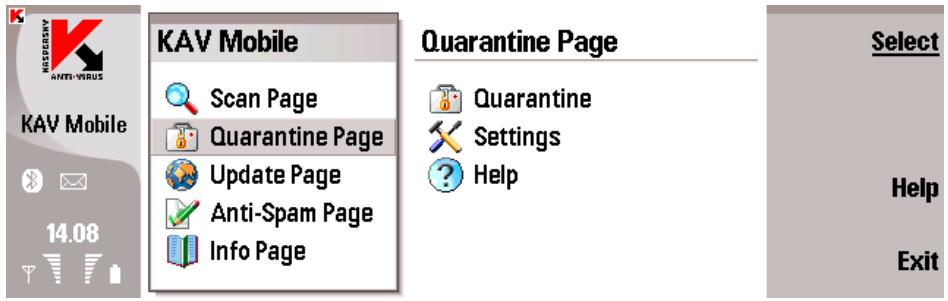
Figure 66. Quarantine
The Options menu accessible in the Quarantine window allows you to:
- View detailed information about any object stored in Quarantine (View Details).
- Delete the current object (Remove File).
- Purge Quarantine removing all objects stored in it (Remove All).
- Restore the current object from Quarantine to its original folder (Restore File).
You can also configure the quarantine settings. In order to do it select the Settings on the Quarantine tab. In the window that will open (see Figure 67), configure the following settings:
- Quarantine Size - the number of files stored in the quarantine. Using the Change command button you can select 20, 50 or 100 files. The default value is 50 files.
- Store Limit - the number of days during which the object will be stored in the quarantine. Using the Change command button, you can select 7, 30 or 60 days or configure unlimited time for the files to be stored (option Unlimited). By default value 60 days is selected.
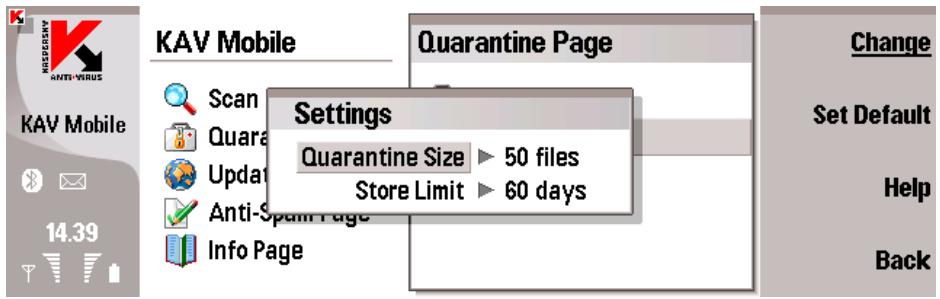
Figure 67. Configuring quarantine
4.2.6. Using Anti-Spam
Anti-Spam is another new feature of Kaspersky Anti-Virus Mobile 6.0. It is intended for smartphone protection against unwanted SMS and MMS messages.
The employed principle of message filtering is based on the so-called black and white lists. Anti-Spam will block incoming messages from phone numbers added to your black list. Messages from numbers added to the "white" list will not be blocked.
In order to change the Anti-Spam settings:
- Select Settings on the Anti-Spam tab.
- Specify whether you allow receipt of message from phone numbers in your contact list. In order to do it select the Allow Contacts List item and select Yes or No using the Change command button.
- Specify whether you allow receipt of messages from unlisted one numbers. In order to do it select the Block Unknown item and select Yes or No using the Change command button.
- Specify whether you want the application to distinguish between types of messages (SMS or MMS) and whether you want the Anti-Spam rules to be applied to all messages irrespective of their type. In order to do it select the Separate Msg. Type item and select Yes or No using the Change command button.
4.2.6.1. Editing the white and the black lists
The "Black" list contains phone numbers from which the receipt of messages is blocked by Anti-Spam.
The "White" list contains phone numbers from which the receipt of messages is allowed.
In order to edit your black or white list, open the Anti-Spam page (see Figure 68) and select the necessary list.
KAV Mobile

Scan Page

Quarantine Page

Update Page

Anti-Spam Page

Info Page
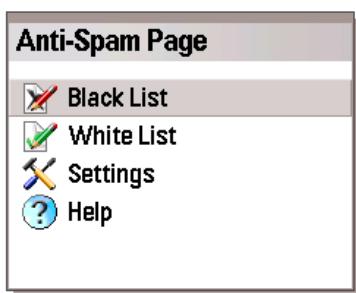

Figure 68. The Anti-Spam menu
To edit the list use the commands of the Functions menu:
- Add record - add a new record to the selected list.
- Edit record - edit an existing record in the list.
- Remove record - delete the current record from the list.
- Delete all records - Remove All
After you selected the Add record item, specify:
- type of message from the specified phone number to which the Anti-Spam rules will be applied. This option is available if the types of messages are configured to be distinguished in the Anti-Spam settings (see 4.2.6). Using the Change button you can select Only SMS, Only MMS or All messages.
- phone number that you would like to include into the list. The number can begin with a digit or character "+" and can only contain digits.
After you are done with editing the list, press the Back command button to return to the Anti-Spam page.
4.2.6.2. Actions to be performed with messages
When you receive an SMS message from a phone number, which is not included into your black or white list, provided that you allowed receipt of messages from unknown numbers (see section 4.2.6 on page 71), Anti-Spam will display a warning on the smartphone display (see Figure 69).
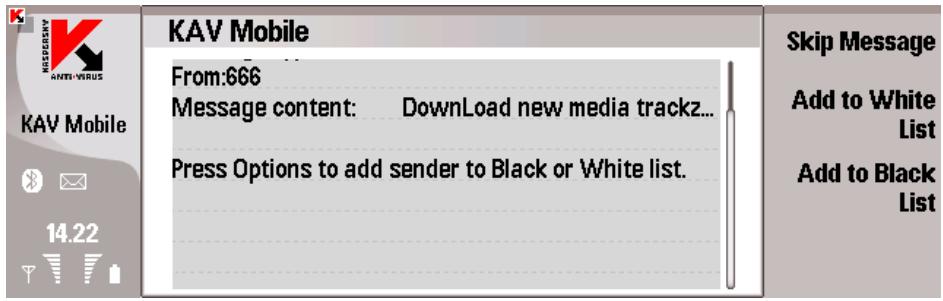
Figure 69. Anti-Spam warning
Using the menu select one of the following actions to be performed with the message:
- Add to White List - allow message receipt and add sender's phone number to white list.
- Add to Black List - block message receipt and add sender's phone number to black list.
In order to allow the receipt of the message press the Skip button. In this case the sender's phone number will not be added to either list.
Information about blocked messages will be added to the application log. To review the log select the Reports item in the Information tab.
4.2.7. Updating the anti-virus database
Kaspersky Anti-Virus detects viruses using the records from its anti-virus database containing descriptions of all currently known malicious programs. It is extremely important to keep your smartphone safe by updating the anti-virus databases frequently.
You can update the database manually or schedule an update. In order to configure and start the update, use the Update Menu tab (see Figure 70). The update can be performed via internet from the Kaspersky Lab's servers or from the local file system of your smartphone.
If the update is performed via internet, the internet connection will be closed after the update is completed.
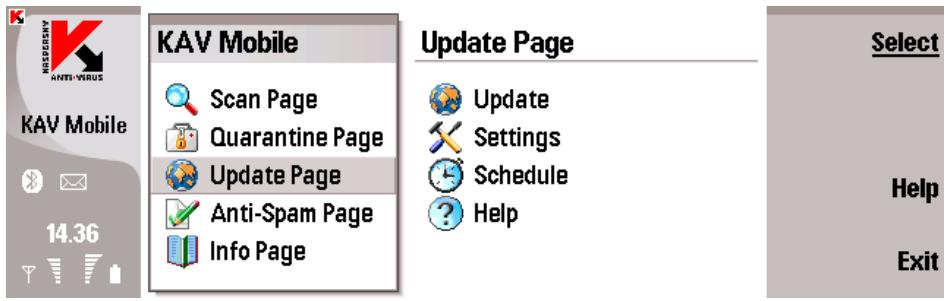
Figure 70. The Update tab
Information about the database updates is recorded in the log. You can view the log by selecting the Reports item in the Information tab.
In order to manually start updating of the anti-virus database from the Kaspersky Lab's update servers:
- Start Kaspersky Anti-Virus (see section 5.2.2 on page 80) and switch to the Update tab.
- Select the Update item in order to start the updating process.
In order to start an anti-virus database update from the folder in the smartphone's file system:
- Download the updated anti-virus database from the Kaspersky Lab's update servers and move the downloaded files into a folder in the file system of your smartphone.
- Start Kaspersky Anti-Virus (see section 5.2.2 on page 80) and switch to the Update Menu tab.
- Select the Settings item in the window that will open and assign the Updates type item value. Press the Back command button to save the settings and return to the Updates tab.
As the result Kaspersky Anti-Virus will scan the smartphone file system for the presence of the anti-virus database. Once the database is detected, it will be automatically updated.
In order to configure a schedule for automatic updating of the anti-virus database:
-
Start Kaspersky Anti-Virus (see section 5.2.2 on page 80) and switch to the Update tab.
-
Select the Schedule item in order to switch to editing the automatic update settings.
-
Using the Change command button specify the frequency of updates as the value of the Automatic update setting:
-
Daily - perform the update every day. Additionally, specify the Update time for the updates to be performed.
- Weekly - perform the update every week. Additionally, specify the Update day and the Update Time for the updates to be performed.
4.2.8. Licence extension
In order to extend your licence to use the program, perform the following steps:
- Start Kaspersky Anti-Virus (see section 5.2.2 on page 80).
- Open the Info Page tab and select the Licence item.
- In the window that will open (see Figure 71) specify the Renew a Licence (In order to view information about the current licence, select the Key information item).
- Follow the instructions in section 4.2.1 on page 63) to enter the new activation code in following window.
KAV Mobile

Scan Page

Quarantine Page

Update Page

Anti-Spam Page

Info Page
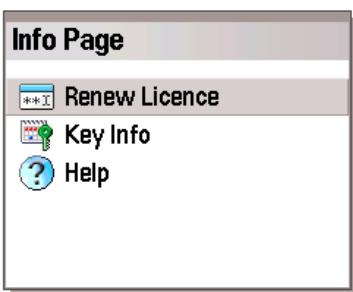
Figure 71. Licence management
4.3. Removing the program
To remove Kaspersky Anti-Virus:
- Select item Control Panel in Service menu (see fig. 72).
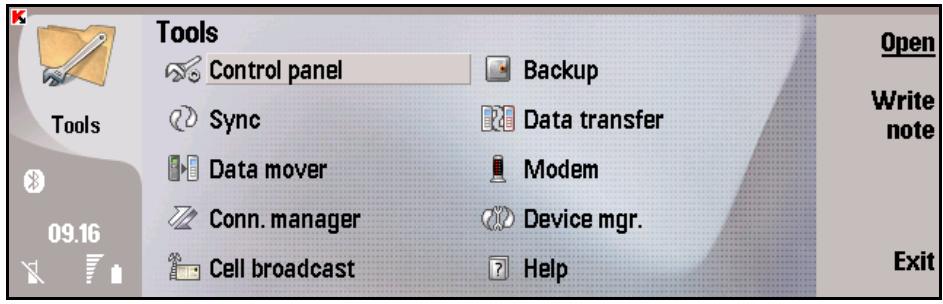
Figure 72. Opening smartphone Control Panel
- In the left part of the screen select Data manager. Then in the right part select Application manager (see fig. 73).
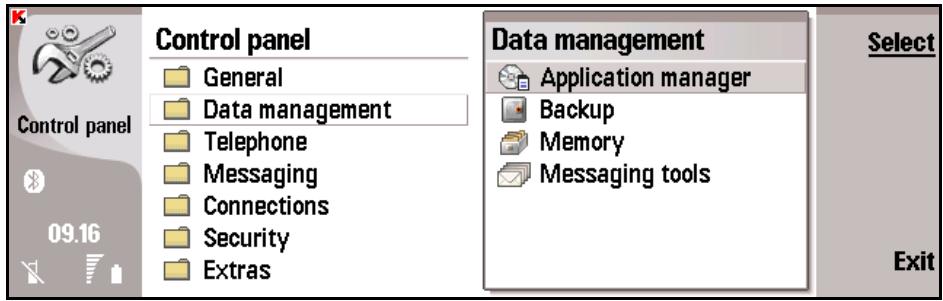
Figure 73. Application manager start
- Select KAV Mobile in the list of installed application. Then press Remove button (see fig. 74).
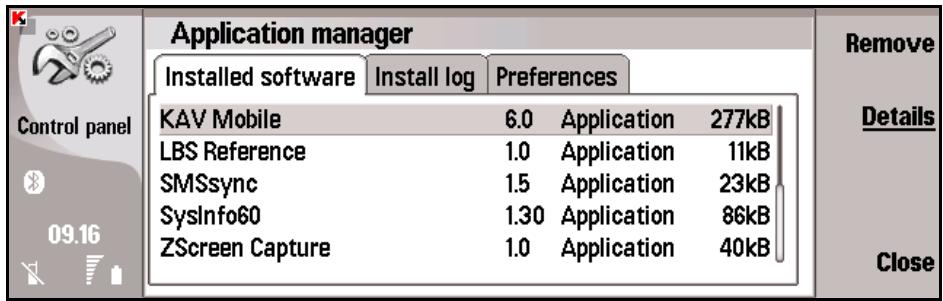
Figure 74. Selecting application
- Press OK in confirmation alert window (see fig. 75).
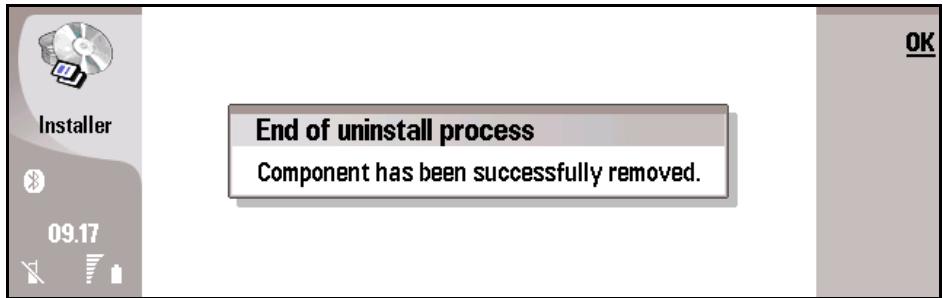
Figure 75. Remove finishing
CHAPTER 5. KASPERSKY ANTI-VIRUS FOR MICROSOFT WINDOWS MOBILE
This chapter contains description of the operation of Kaspersky Anti-Virus Mobile for smartphones and Pocket PC running one of the following operating systems:
- Microsoft Windows Mobile 2003, 2003SE,
- Microsoft Windows Mobile 5.0.
- Microsoft Windows Mobile 6.0.
5.1. Installing Kaspersky Anti-Virus
In order to install Kaspersky Anti-Virus Mobile, perform the following steps:
- Copy the cab archive with application installation package to your smartphone.
- Run the installation file (open the cab archive with the distribution package on your smartphone).
- Read the text of the licence agreement. If you agree to all the terms, press OK. To abort the installation, press Cancel (see Figure 76).
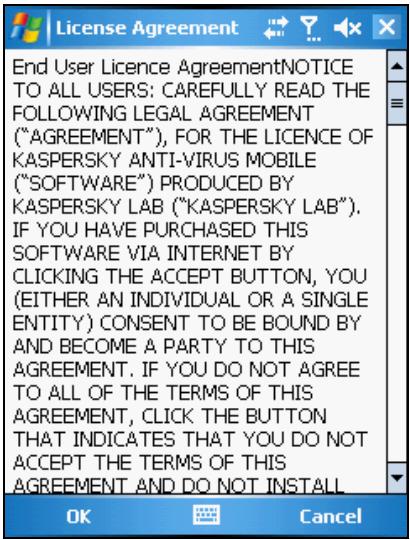
Figure 76. Licence Agreement
5.2. Using the application
This section contains information about configuration of the settings of the antivirus and real-time protection, SMS and MMS messages filtering, smartphone anti-virus scan and the application updates.
5.2.1. Activating the program
At the first launch the program will display a dialog with an offer to activate Kaspersky Anti-Virus (see Figure 77).
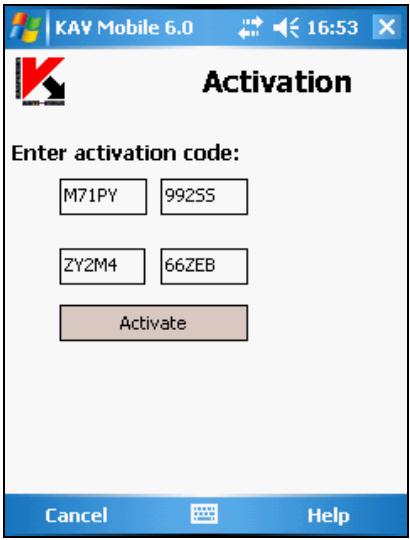
Figure 77. Program activation dialog
Program activation is required to enable all the features of Kaspersky Anti-Virus. You can receive your activation code at the web site of Kaspersky Lab.
Attention!
A GPRS connection is required to activate Kaspersky Anti-Virus Mobile 6.0 on a smartphone.
To activate Kaspersky Anti-Virus on PDA Microsoft Active Sync should be used.
The activation code consists of Latin characters and digits, it is not case-sensitive. Enter the code into 4 provided fields successively. Use the "Up/Down" buttons to move to the next/previous field.
As soon as you enter the activation code, select the Start Activation command from the Options menu. The program will send a HTTP request to an activation server of Kaspersky Lab, and then it will download and install a licence key.
If the activation code that you have entered turns out to be invalid for some reason, the program will display a corresponding notification.
5.2.2. Starting the application
To launch Kaspersky Anti-Virus Mobile, perform the following:
- Open the Applications menu on your smartphone.
- Select the KAV Mobile icon and start the application.
After the applications startup the smartphone will display a window containing the status of the main components of Kaspersky Anti-Virus (see Figure 78).
- Last Full Scan - date of the last anti-virus smartphone scan.
- Database release date - date of release of the database used by the application.
Real-time protection is on/off - the use of real-time protection. Details see section 5.2.4.3 on page 87. - Anti-spam is on/off - Anti-spam operating mode used for filtering SMS messages.
On PDA Anti-spam component is unavailable!
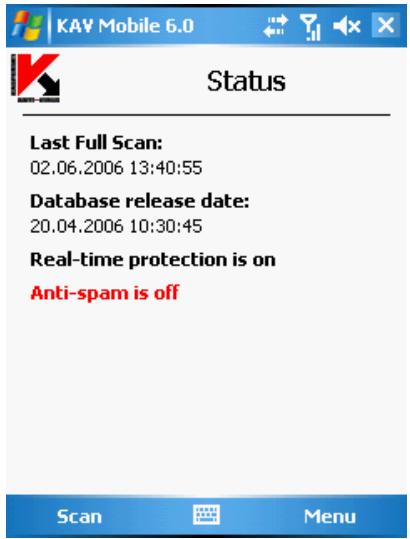
Figure 78 Application components status window
5.2.3. Graphical user interface
The graphical user interface (GUI) contains five tabs that you can access using the Menu (see Figure 79):
- Using the Scan tab you can perform an anti-virus scan of the smartphone, edit the anti-virus scan and real-time protection mode settings and configure the auto scan schedule.
- Using the Anti-Spam tab you can configure filtering of incoming SMS and MMS messages.
- Using the Update Menu tab you can update the anti-virus database, edit the updating settings and configure the updating schedule.
- Using the Quarantine tab you can manage the quarantine - a special-purpose storage for infected and suspicious objects.
- Using the Info tab you can view the logs of the operation of the application's components, general information about the application and about the anti-virus database used and edit the general settings of the application's operation.
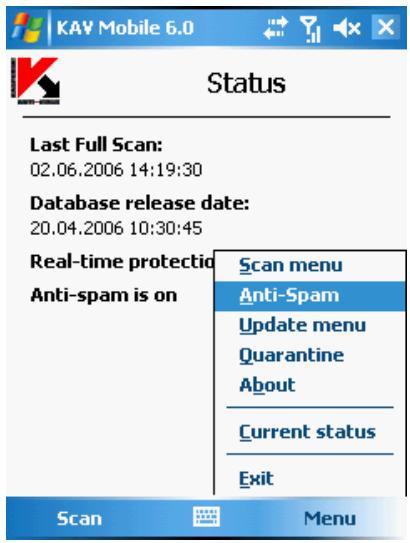
Figure 79. The application Menu
In order to return to the application components status window, select the Show Status Screen item.
In order to close the application select Exit.
5.2.4. Anti-virus scan and protection
Using the Scan tab, you can perform an anti-virus scan of the entire file system and memory of the smartphone or a scan of an individual file or directory. You can also modify the anti-virus scan settings and the anti-virus protection mode, view a report about the scan results or configure a schedule of an automatic scan launch. This section contains information about the execution of each of the above tasks.
5.2.4.1. On-demand scan
Kaspersky Anti-Virus allows performing a full scan of the entire file system of the smartphone, including analysis of objects located on the extension memory cards connected to the phone.
Information about results of the scan will be entered into the report. You can view the report by selecting the Scan report item on the Scan tab.
In order to change the on-demand scan settings, do the following:
- Select Scan settings on the Scan tab.
-
Specify the action to be performed by the application upon detection of an infected object by selecting one of the following possible values for the Virus Found Action parameter:
-
Ask User - display a message about the virus detection on the screen with a suggestion to either delete the infected object, quarantine or skip it.
- Delete - delete infected objects detected
- Quarantine - quarantine infected objects detected
- Skip - do not perform any action with the infected objects
In order to start an anti-virus scan:
- Start Kaspersky Anti-Virus (see section 5.2.2 on page 80).
- Select the Full scan time on the Scan tab (see Figure 80) if you wish to scan the entire file system of the smartphone or Scan folder if you wish to scan an individual folder.
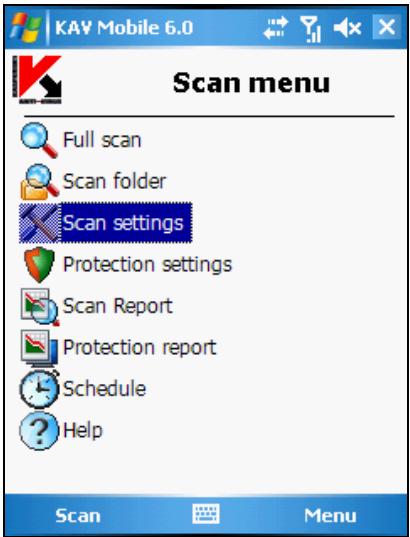
Figure 80. The Scan tab
When the Scan folder item is selected, you will switch to the window that displays the smartphone's file system. In order to start a folder scan, move the cursor to the folder to be scanned and press the Done button.
After the scan is started, a scan window will open that displays the current status, the number of objects scanned and the path to the object being currently scanned (see Figure 81).
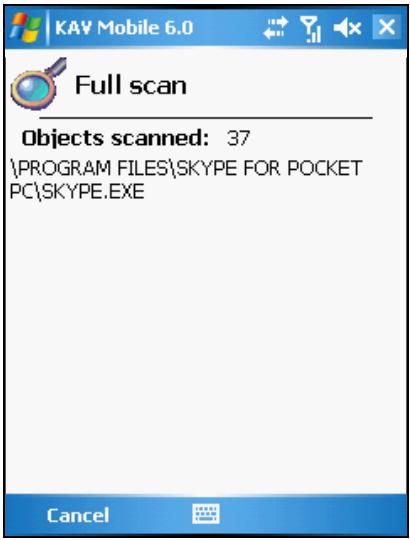
Figure 81. The scan window
Upon a detection of an infected object you will be offered to either skip the file without making changes to it (Skip), delete the infected file (Action Delete) or move it to the quarantine (Action Quarantine).
The application will prompt you for an action to be performed with the object only if the Virus Found Action setting is set to Ask User (see above).
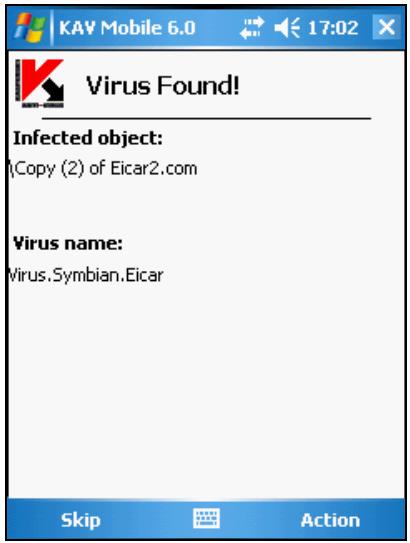
Figure 82. Notification of a virus detection
After the scan is completed, the application will display the general statistics about detected and deleted malicious objects.
5.2.4.2. Scheduled scan
With Kaspersky Anti-Virus, you can schedule automatic smartphone scans to start at specified time. Scanning will be running in background mode. Upon a detection of an infected object, the application performs the action specified in its scan settings (see section Scan settings).
Scheduled scanning is disabled by default.
To configure a scheduled scan, perform the following steps:
Use the Scan page to select the Schedule item and configure the Auto Scan parameters (see Figure 83):
- Daily - the scan will be performed every day. The scan time is determined by the Time parameter.
- Weekly – the scan will be performed every week. The scan day and time are determined by the Week day and Time parameters.
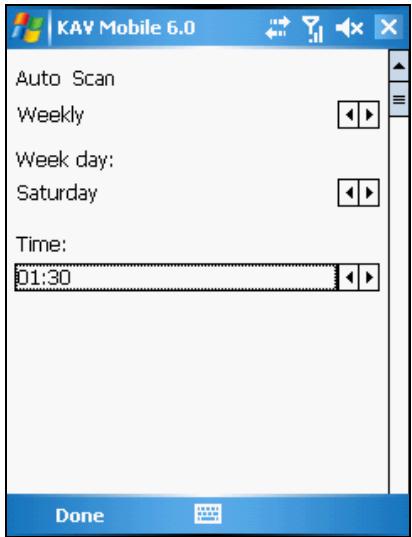
Figure 83. The Schedule menu
5.2.4.3. Real-time protection
In the real-time protection mode, the resident part of Kaspersky Anti-Virus constantly remains in your smartphone's memory, monitoring either all data or incoming data only (depending on the selected settings).
Real-time protection remains active from the moment the smartphone is turned on to the moment the smartphone is turned off (unless the use of this mode is disabled by the settings).
Scan results are recorded in the application log. To view the log, select the Protection report item of the Scan tab.
To modify real-time protection settings:
- Select Protection settings on the Scan tab.
- Enable / disable the real-time protection by selecting the corresponding value of the Real-Time Protection parameter.
-
Define the action that will be performed upon detection of an infected object by selecting one of the Virus Found Action parameter values.
-
Ask User - display a message about the virus detection on the screen with a suggestion to either delete the infected object, quarantine or skip it.
-
Delete - delete infected objects detected
-
Quarantine - quarantine infected objects detected
- Skip - do not perform any action with the infected objects
5.2.5. Using the Quarantine
Quarantine is one of new features introduced in Kaspersky Anti-Virus® Mobile 6.0 after version 1.7. Quarantined infected objects are unable to harm your smartphone and you can delete or restore them later.
The application can relocate detected infected objects to the Quarantine automatically or after your confirmation.
If you wish to configure the application to quarantine infected objects automatically, open the Scan page, select the Scan settings item and set the Virus Found Action parameter to Quarantine.
If you have selected Ask User as the action to be performed, then upon detection of an infected object Kaspersky Anti-Virus will offer you to delete or quarantine it.
You can use the Quarantine page to view the Quarantine content (see Figure 84).
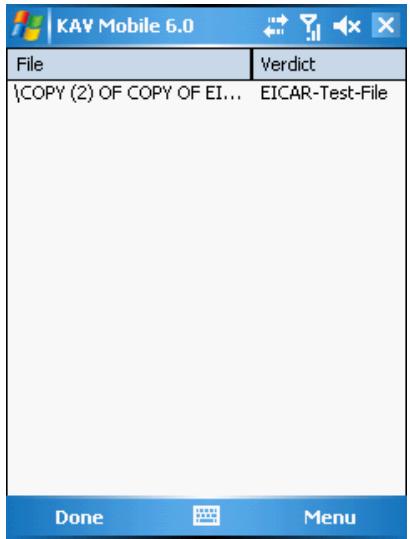
Figure 84. Quarantine
The Options menu accessible in the Quarantine window allows you to:
-
View detailed information about any object stored in Quarantine (Details).
-
Delete the current object (Delete).
- Purge Quarantine removing all objects stored in it (Delete All).
- Restore the current object from Quarantine to its original folder (Restore).
5.2.6. Using Anti-Spam
Anti-Spam is another new feature introduced in Kaspersky Anti-Virus Mobile 6.0. It is intended for smartphone protection against unwanted SMS messages.
On PDA Anti-spam component is unavailable!
The employed principle of message filtering is based on the so-called black and white lists. Anti-Spam will block incoming messages from phone numbers added to your black list. Messages from numbers added to the white lists will not be blocked.
In order to change the Anti-Spam settings:
- Select Settings on the Anti-Spam tab.
- Enable/disable the use of Anti-Spam by checking or unchecking the Enable Anti-Spam box.
- Specify whether you allow receipt of SMS message from phone numbers not included into either list by checking or unchecking the Receive SMS: from unknown senders' box.
- Specify whether you allow receipt of SMS message from phone numbers in your contact list by checking or unchecking the Receive SMS: from people in my contact list box.
5.2.6.1. Editing the white and the black lists
The "Black" list contains phone numbers from which the receipt of SMS messages is blocked by Anti-Spam.
The "White" list contains phone numbers from which the receipt of SMS messages is allowed.
In order to edit your black or white list, open the Anti-Spam page (see Figure 68) and select the necessary list.
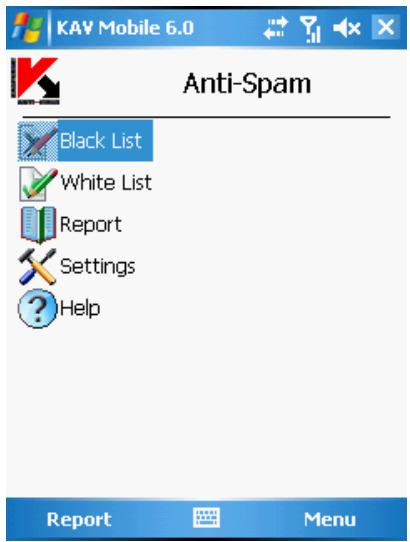
Figure 85. Anti-Spam menu
To edit the list use the Menu:
- Add record - add a new record to the selected list.
- Delete record - delete the current record from list.
After you selected the Add record item, specify the phone number you would like to add to the list. The number can begin with a digit or with a "+" sign and can only contain digits.
After you are done with editing the list, press OK to return to the Anti-Spam page.
5.2.6.2. Actions to be performed with messages
When you receive an SMS message from a phone number, which is not included into your black or white list, provided that you allowed receipt of messages from unknown numbers (see section 5.2.6 on page 89), Anti-Spam will display a warning on the smartphone display (see Figure 86).
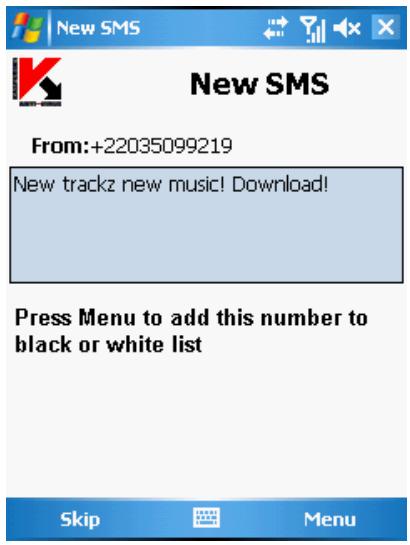
Figure 86. Anti-Spam warning
You can use Menu to select one of the following actions to be performed with the message:
- Add to White List - allow message receipt and add sender's phone number to white list.
- Add to Black List - block message receipt and add sender's phone number to black list.
In order to allow the receipt of the message press the Skip button. In this case the sender's phone number will not be added to either list.
Information about blocked messages will be added to the application log. To review the log, open the Anti-Spam tab and select the Report item.
5.2.7. Updating the anti-virus database
Kaspersky Anti-Virus detects viruses using the records from its anti-virus database containing descriptions of all currently known malicious programs. It is extremely important to keep your smartphone safe by updating the anti-virus databases frequently.
You can update the database manually or schedule an update. In order to configure and start the update, use the Update Menu tab (see Figure 87). The update can be performed via internet from the Kaspersky Lab's servers or from the local file system of your smartphone.
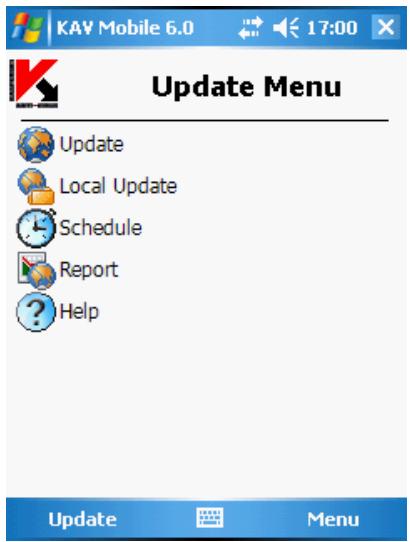
Figure 87. The Update Menu tab
Information about the database updates is recorded in the log. In order to view the log, switch to the Update Menu tab and select the Report item.
In order to manually start updating of the anti-virus database from the Kaspersky Lab's update servers:
- Start Kaspersky Anti-Virus (see section 5.2.2 on page 80) and switch to the Update Menu tab.
- Select Update in order to start the updating process.
In order to start an anti-virus database update from the folder in the smartphone's file system:
- Download the updated anti-virus database from the Kaspersky Lab's update servers and move the downloaded files into a folder in the file system of your smartphone.
- Start Kaspersky Anti-Virus (see section 5.2.2 on page 80) and switch to the Update Menu tab.
- Select Local Update and using the window that will open switch to the folder that contains the updated files.
In order to start an anti-virus database update from the folder in the smartphone's file system:
- Download the updated anti-virus database from the Kaspersky Lab's update servers and move the downloaded files into a folder in the file system of your smartphone.
- Start Kaspersky Anti-Virus (see section 5.2.2 on page 80) and switch to the Update Menu tab.
- Select Local Update and using the window that will open switch to the folder that contains the updated files.
In order to configure a schedule for automatic updating of the anti-virus database:
- Start Kaspersky Anti-Virus (see section 5.2.2 on page 80) and switch to the Update Menu tab.
- Select Schedule in order to switch to editing the automatic update settings.
-
Specify the frequency of the updates by modifying the value of the Automatic update setting:
-
Daily - perform the update every day. Additionally, specify the Time for the updates to be performed.
- Weekly - perform the update every week. Additionally, specify the Week day and the Time for the updates to be performed.
- Monthly - perform the update every month. Additionally, specify the Month day and the Time for the updates to be performed.
5.2.8. Licence extension
In order to extend your licence to use the program, perform the following steps:
- Start Kaspersky Anti-Virus (see section 5.2.2 on page 64).
- Open the Info Page tab and click the Activate button (s. Figure 88).
- Follow the instructions in section 5.2.1 on page 79 to enter the new code in the activation key entry window.
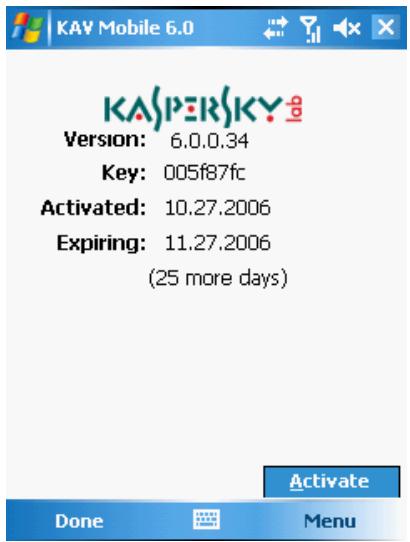
Figure 88. Licence management
5.3. Removing the program
To remove Kaspersky Anti-Virus:
- Disable self-defense (see 5.2.4.3 on p. 87 for details);
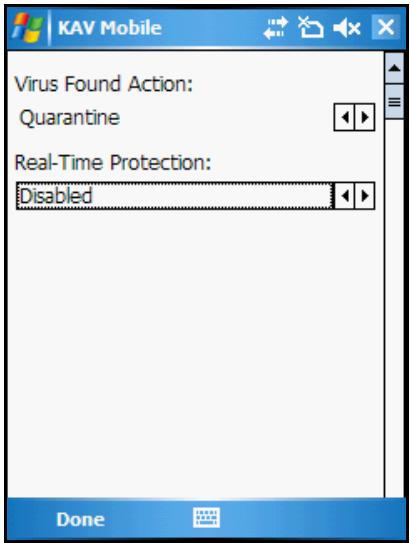
Figure 89. Disabling self-defense
- Exit Kaspersky Anti-Virus. To do so select Exit in program menu (see fig. 90).
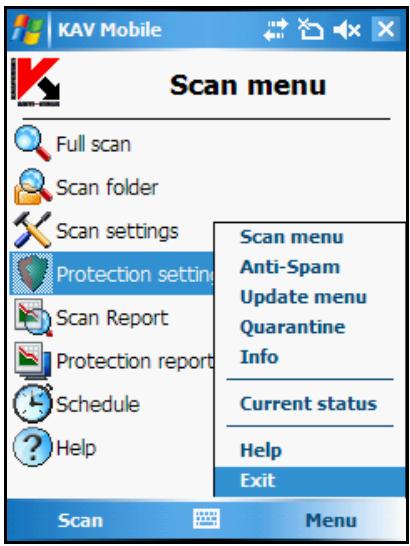
Figure 90. Exiting program
3. Remove program. To do so:
- Click the Start button, select Settings and then select Remove programs (see fig. 91):
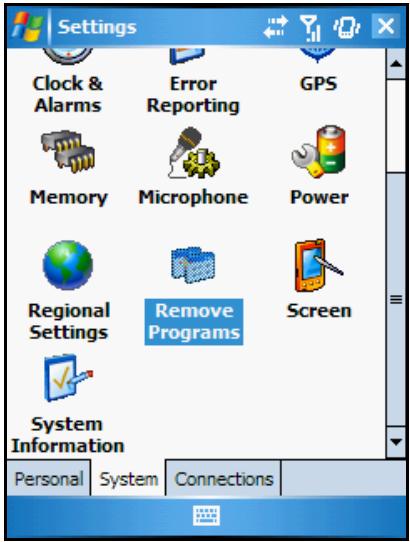
Figure 91. Remove program start
- Select KAV Mobile in the list of installed applications and then click the Remove button (see fig. 92).
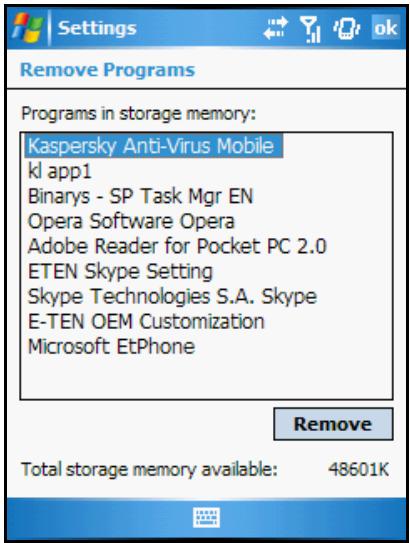
Figure 92. Program selection
To confirm removing click Yes (see fig. 93).
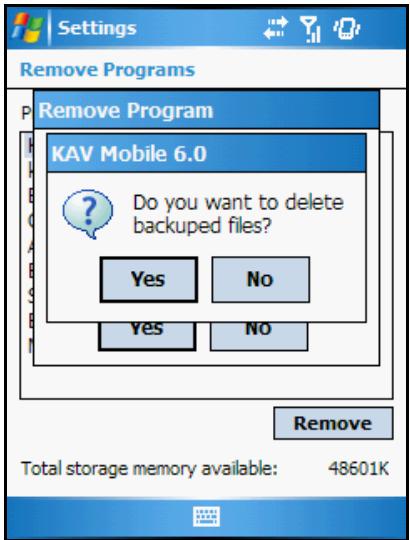
Figure 93. Removing program confirmation
APPENDIX A. KASPERSKY LAB
Founded in 1997, Kaspersky Lab has become a recognized leader in information security technologies. It produces a wide range of data security software and delivers high-performance, comprehensive solutions to protect computers and networks against all types of malicious programs, unsolicited and unwanted email messages, and hacker attacks.
Kaspersky Lab is an international company. Headquartered in the Russian Federation, the company has representative offices in the United Kingdom, France, Germany, Japan, USA (CA), the Benelux countries, China, Poland, and Romania. A new company department, the European Anti-Virus Research Centre, has recently been established in France. Kaspersky Lab's partner network incorporates more than 500 companies worldwide.
Today, Kaspersky Lab employs more than 450 specialists, each of whom is proficient in anti-virus technologies, with 10 of them holding M.B.A. degrees, 16 holding Ph.Ds, and senior experts holding membership in the Computer Anti-Virus Researchers Organization (CARIO).
Kaspersky Lab offers best-of-breed security solutions, based on its unique experience and knowledge, gained in over 14 years of fighting computer viruses. A thorough analysis of computer virus activities enables the company to deliver comprehensive protection from current and future threats. Resistance to future attacks is the basic policy implemented in all Kaspersky Lab's products. At all times, the company's products remain at least one step ahead of many other vendors in delivering extensive anti-virus coverage for home users and corporate customers alike.
Years of hard work have made the company one of the top security software manufacturers. Kaspersky Lab was one of the first businesses of its kind to develop the highest standards for anti-virus defense. The company's flagship product, Kaspersky Anti-Virus, provides full-scale protection for all tiers of a network, including workstations, file servers, email systems, firewalls, Internet gateways, and hand-held computers. Its convenient and easy-to-use management tools ensure advanced automation for rapid virus protection across an enterprise. Many well-known manufacturers use the Kaspersky Anti-Virus kernel, including Nokia ICG (USA), F-Secure (Finland), Aladdin (Israel), Sybari (USA), G Data (Germany), Deerfield (USA), Alt-N (USA), Microworld (India) and BorderWare (Canada).
Kaspersky Lab's customers benefit from a wide range of additional services that ensure both stable operation of the company's products, and compliance with specific business requirements. Kaspersky Lab's anti-virus database is updated every hour. The company provides its customers with a 24-hour technical support service, which is available in several languages to accommodate its international clientele.
5.4. Other Kaspersky Lab Products
Kaspersky Lab News Agent
The News Agent is intended for timely delivery of news published by Kaspersky Lab, notifications about the current status of virus activity, and fresh news. The program reads the list of available news feeds and their content from the Kaspersky Lab news server at specified intervals.
News Agent enables users to;
See the current virus forecast in the system tray
- Subscribe to and unsubscribe from news feeds
- Retrieve news from each selected feed at the specified interval and receive notifications about fresh news
Review news on the selected feeds
Review the list of feeds and their status
- Open full article text in your browser
News Agent is a stand-alone Microsoft Windows application that can be used independently or may be bundled with various integrated solutions offered by Kaspersky Lab Ltd.
Kaspersky® OnLine Scanner
This program is a free service provided to the visitors of Kaspersky Lab's corporate website. The service delivers an efficient online anti-virus scan of your computer. Kaspersky OnLine Scanner runs directly from your browser. This way, users receive quick responses to questions regarding potential infectionson their computers. Using the service, visitors can:
Exclude archives and e-mail databases from scanning
- Select standard/extended databases for scanning
- Save a report on the scanning results in .txt or .html formats
Kaspersky® OnLine Scanner Pro
The program is a subscription service available to the visitors of Kaspersky Lab's corporate website. The service delivers an efficient online anti-virus scan of your computer and disinfects dangerous files. Kaspersky OnLine Scanner Pro runs directly from your browser. Using the service, visitors can:
Exclude archives and e-mail databases from scanning
- Select standard/extended databases for scanning
- Save a report on the scanning results in .txt or .html formats
Kaspersky Anti-Virus 7.0
Kaspersky Anti-Virus 7.0 is designed to safeguard personal computers against malicious software as an optimal combination of conventional methods of antivirus protection and new proactive technologies.
The program provides for complex anti-virus checks, including:
- Anti-virus scanning of e-mail traffic on the level of data transmission protocol (POP3, IMAP and NNTP for incoming mail and SMTP for outgoing messages), regardless of the mail client being used, as well as disinfection of e-mail databases.
Real-time anti-virus scanning of Internet traffic transferred via HTTP. - Anti-virus scanning of individual files, folders, or drives. In addition, a preset scan task can be used to initiate anti-virus analysis exclusively for critical areas of the operating system and start-up objects of Microsoft Windows.
Proactive protection offers the following features:
- Controls modifications within the file system. The program allows users to create a list of applications, which it will control on a per component basis. It helps protect application integrity against the influence of malicious software.
- Monitors processes in random-access memory. Kaspersky AntiVirus 7.0 in a timely manner notifies users whenever it detects dangerous, suspicious or hidden processes or in case when unauthorized changes in active processes occur.
- Monitors changes in OS registry due to internal system registry control.
- Hidden Processes Monitor helps protect from malicious code concealed in the operating system using rootkit technologies.
Heuristic Analyzer. When scanning a program, the analyzer emulates its execution and logs all suspicious activity, such as, opening or writing to a file, interrupt vector intercepts, etc. A decision is made based on this procedure regarding possible infection of the program with a virus. Emulation occurs in an isolated virtual environment which reliably protects the computer of infection. - Performs system restore after malware attacks by logging all changes to the registry and computer file system and rolls them back at user's discretion.
Kaspersky® Internet Security 7.0
Kaspersky Internet Security 7.0 is an integrated solution for protection of personal computers against the major information- threats (viruses, hackers, spam and spyware). A single interface enables fusers to configure and manage all the program's components.
The anti-virus protection features include:
- Anti-virus scanning of e-mail traffic on the level of data transmission protocol (POP3, IMAP and NNTP for incoming mail and SMTP for outgoing messages), regardless of the mail client being used. The program includes plug-ins for popular e-mail clients (such as Microsoft Office Outlook, Microsoft Outlook Express/Windows Mail, and The Bat!) and supports disinfection of their e-mail databases.
Real-time anti-virus scanning of Internet traffic transferred via HTTP. - File system protection: anti-virus scanning of individual files, folders or drives. In addition, the application can perform anti-virus analysis exclusively for critical areas of the operating system and Microsoft Windows start-up objects.
- Proactive protection: the program constantly monitors application activity and processes running in random-access memory, preventing dangerous changes to the file system and registry, and restores the system after malicious influence.
Protection against Internet-fraud is ensured by recognition of phishing attacks, thereby preventing confidential data leaks (above all passwords, bank account and credit card numbers) and blocking execution of dangerous scripts on web pages, pop-up windows and advertisement banners. The autodialer blocking feature helps identify software that attempts to use your modem for hidden unauthorized connections to paid phone services and blocks such activity. Privacy Control module keeps your confidential information secure from unauthorized access and transmission. Parental Control is a Kaspersky Internet Security component that monitors user access to the Internet.
Kaspersky Internet Security 7.0 registers attempts to scan the ports of your computer, which frequently precede network attacks, and successfully defends against typical network attacks. The program uses defined rules as a basis for control over all network transactions tracking all incoming and outgoing data packets. Stealth Mode (owing to the SmartStealth™ technology) prevents computer detection from outside. When you switch to Stealth Mode, the system blocks all network activity except for a few transactions allowed in user-defined rules.
The program employs an all-inclusive approach to anti-spam filtering of incoming e-mail messages:
- Verification against black and white lists of recipients (including addresses of phishing sites)
Inspection of phrases in message body
Analysis of message text using a learning algorithm
Recognition of spam sent in image files
Kaspersky Anti-Virus Mobile
Kaspersky® Anti-Virus Mobile provides antivirus protection for mobile devices running Symbian OS and Microsoft Windows Mobile. The program provides comprehensive virus scanning, including:
- On-demand scans of the mobile device's onboard memory, memory cards, an individual folder, or a specific file; if an infected file is detected, it is moved to Quarantine or deleted
Real-time scanning - all incoming and outgoing files are automatically scanned, as well as files when attempts are made to access them
Protection from text message spam
Kaspersky Anti-Virus for File Servers
This software package provides reliable protection for file systems on servers running Microsoft Windows, Novell NetWare, Linux and Samba from all types of malware. The suite includes the following Kaspersky Lab applications:
Kaspersky Administration Kit.
Kaspersky Anti-Virus for Windows Server.
Kaspersky Anti-Virus for Linux File Server.
Kaspersky Anti-Virus for Novell Netware.
Kaspersky Anti-Virus for Samba Server.
Features and functionality:
- Protects server file systems in real time: All server files are scanned when opened or saved on the server
Prevents virus outbreaks; -
On-demand scans of the entire file system or individual files and folders;
-
Use of optimization technologies when scanning objects in the server file system;
- System rollback after virus attacks;
- Scalability of the software package within the scope of system resources available;
Monitoring of the system load balance; - Creating a list of trusted processes whose activity on the server is not subject to control by the software package;
- Remote administration of the software package, including centralized installation, configuration, and administration;
- Saving backup copies of infected and deleted objects in case you need to restore them;
- Quarantining suspicious objects;
- Send notifications on events in program operation to the system administrator;
Log detailed reports; - Automatically update program databases.
Kaspersky Open Space Security
Kaspersky Open Space Security is a software package withal new approach to security for today's corporate networks of any size, providing centralized protection information systems and support for remote offices and mobile users.
The suite includes four programs:
Kaspersky Work Space Security
Kaspersky Business Space Security
Kaspersky Enterprise Space Security
Kaspersky Total Space Security
Specifics on each program are given below.
Kaspersky WorkSpace Security is a program for centralized protection of workstations inside and outside of corporate networks from all of today's Internet threats (viruses, spyware, hacker attacks, and spam).
Features and functionality:
-
Comprehensive protection from viruses, spyware, hacker attacks, and spam;
-
Proactive Defense from new malicious programs whose signatures are not yet added to the database;
- Personal Firewall with intrusion detection system and network attack warnings;
- Rollback for malicious system modifications;
Protection from phishing attacks and junk mail; - Dynamic resource redistribution during complete system scans;
- Remote administration of the software package, including centralized installation, configuration, and administration;
Support for Cisco® NAC (Network Admission Control); - Scanning of e-mail and Internet traffic in real time;
- Blocking of popup windows and banner ads when on the Internet;
- Secure operation in any type of network, including Wi-Fi;
- Rescue disk creation tools that enable you to restore your system after a virus outbreak;
- An extensive reporting system on protection status;
Automatic database updates;
Full support for 64-bit operating systems; - Optimization of program performance on laptops (Intel® Centrino® Duo technology);
- Remote disinfection capability (Intel® Active Management, Intel® vPro™).
Kaspersky Business Space Security provides optimal protection of your company's information resources from today's Internet threats. Kaspersky Business Space Security protects workstations and file servers from all types of viruses, Trojans, and worms, prevents virus outbreaks, and secures information while providing instant access to network resources for users.
Features and functionality:
-
Remote administration of the software package, including centralized installation, configuration, and administration;
Support for Cisco® NAC (Network Admission Control); -
Protection of workstations and file servers from all types of Internet threats;
- iSwift technology to avoid rescanning files within the network;
Distribution of load among server processors; - Quarantining suspicious objects from workstations;
- Rollback for malicious system modifications;
- scalability of the software package within the scope of system resources available;
- Proactive Defense for workstations from new malicious programs whose signatures are not yet added to the database;
- Scanning of e-mail and Internet traffic in real time;
- Personal Firewall with intrusion detection system and network attack warnings;
Protection while using Wi-Fi networks;
Self-Defense from malicious programs; - Quarantining suspicious objects;
- automatic database updates.
Kaspersky Enterprise Space Security
This program includes components for protecting linked workstations and servers from all today's Internet threats. It deletes viruses from e-mail, keeping information safe while providing secure access to network resources for users.
Features and functionality:
- Protection of workstations and file servers from viruses, Trojans, and worms;
Protection of Sendmail, Qmail, Postfix and Exim mail servers; - Scanning of all e-mails on Microsoft Exchange Server, including shared folders;
- Processing of e-mails, databases, and other objects for Lotus Domino servers;
Protection from phishing attacks and junk mail; -
preventing mass mailings and virus outbreaks;
-
scalability of the software package within the scope of system resources available;
- Remote administration of the software package, including centralized installation, configuration, and administration;
Support for Cisco® NAC (Network Admission Control); - Proactive Defense for workstations from new malicious programs whose signatures are not yet added to the database;
- Personal Firewall with intrusion detection system and network attack warnings;
- Secure operation while using Wi-Fi networks;
- Scans Internet traffic in real time;
- Rollback for malicious system modifications;
- Dynamic resource redistribution during complete system scans;
- Quarantining suspicious objects;
- An extensive reporting system on protection system status;
- automatic database updates.
Kaspersky Total Space Security
This solution monitors all inbound and outbound data streams (e-mail, Internet, and all network interactions). It includes components for protecting workstations and mobile devices, keeps information safe while providing secure access for users to the company's information resources and the Internet, and ensures secure e-mail communications.
Features and functionality:
- Comprehensive protection from viruses, spyware, hacker attacks, and spam on all levels of the corporate network, from workstations to Internet gateways;
- Proactive Defense for workstations from new malicious programs whose signatures are not yet added to the database;
Protection of mail servers and linked servers; -
Scans Internet traffic (HTTP/FTP) entering the local area network in real time;
-
scalability of the software package within the scope of system resources available;
- Blocking access from infected workstations;
Prevents virus outbreaks;
Centralized reporting on protection status; - Remote administration of the software package, including centralized installation, configuration, and administration;
Support for Cisco® NAC (Network Admission Control);
Support for hardware proxy servers; - Filters Internet traffic using a trusted server list, object types, and user groups;
- iSwift technology to avoid rescanning files within the network;
- Dynamic resource redistribution during complete system scans;
- Personal Firewall with intrusion detection system and network attack warnings;
- Secure operation for users on any type of network, including Wi-Fi;
Protection from phishing attacks and junk mail; - Remote disinfection capability (Intel® Active Management, Intel® vPro™);
- Rollback for malicious system modifications;
Self-Defense from malicious programs; - full support for 64-bit operating systems;
- automatic database updates.
Kaspersky Security for Mail Servers
This program is for protecting mail servers and linked servers from malicious programs and spam. The program includes application for protecting all standard mail servers (Microsoft Exchange, Lotus Notes/Domino, Sendmail, Qmail, Postfix and Exim) and also enables you to configure a dedicated e-mail gateway. The solution includes:
Kaspersky Administration Kit.
Kaspersky Mail Gateway.
Kaspersky Anti-Virus for Lotus Notes/Domino.
Kaspersky Anti-Virus for Microsoft Exchange.
Kaspersky Anti-Virus for Linux Mail Server.
Its features include:
- Reliable protection from malicious or potentially dangerous programs;
- Junk mail filtering;
- Scans incoming and outgoing e-mails and attachments;
- Scans all e-mails on Microsoft Exchange Server for viruses, including shared folders;
- Processes e-mails, databases, and other objects for Lotus Notes/Domino servers;
- Filters e-mails by attachment type;
- Quarantines suspicious objects;
- Easy-to-use administration system for the program;
Prevents virus outbreaks; - Monitors protection system status using notifications;
- Reporting system for program operation;
- scalability of the software package within the scope of system resources available;
- automatic database updates.
Kaspersky Security for Internet Gateways
This program provides secure access to the Internet for all an organization's employees, automatically deleting malware and riskware from the data incoming on HTTP/FTP. The solution includes:
Kaspersky Administration Kit.
Kaspersky Anti-Virus for Proxy Server.
Kaspersky Anti-Virus for Microsoft ISA Server.
Kaspersky Anti-Virus for Check Point FireWall-1.
Its features include:
- Reliable protection from malicious or potentially dangerous programs;
-
Scans Internet traffic (HTTP/FTP) in real time;
-
Filters Internet traffic using a trusted server list, object types, and user groups;
- Quarantines suspicious objects;
- Easy-to-use administration system;
Reporting system for program operation; - Support for hardware proxy servers;
- Scalability of the software package within the scope of system resources available;
Automatic database updates.
Kaspersky® Anti-Spam
Kaspersky® Anti-Spam is a cutting-edge software suite designed to help organizations with small- and medium-sized networks wage war against the onslaught of unsolicited e-mail messages (spam). The product combines the revolutionary technology of linguistic analysis with modern methods of e-mail filtration, including DNS Black Lists and formal letter features. Its unique combination of services allows users to identify and wipe out up to 95% of unwanted traffic.
Installed at the entrance to a network, where it monitors incoming e-mail traffic streams for spam, Kaspersky® Anti-Spam acts as a barrier to unsolicited e-mail. The product is compatible with any mail system and can be installed on either an existing mail server or a dedicated one.
Kaspersky® Anti-Spam's high performance is ensured by daily updates to the content filtration database, adding samples provided by the Company's linguistic laboratory specialists. Databases are updated every 20 minutes.
Kaspersky Anti-Virus® for MIMESweeper
Kaspersky Anti-Virus® for MIMESweeper provides high-speed scanning of traffic on servers running Clearswift MIMESweeper for SMTP / Clearswift MIMESweeper for Exchange / Clearswift MIMESweeper for Web.
The program is a plug-in and scans for viruses and processes inbound and outbound e-mail traffic in real time.
5.5. Contact Us
If you have any questions, comments, or suggestions, please refer them to one of our distributors or directly to Kaspersky Lab. We will be glad to assist you in any matters related to our product by phone or via email. Rest assured that all of
your recommendations and suggestions will be thoroughly reviewed and considered.
| Technical support | Please find the technical support information at http://www.kaspersky.com/supportinter.html Helpdesk: www.kaspersky.com/helpdesk.html |
| General information | WWW: http://www.kaspersky.com http://www.viruslist.com Email: info@kaspersky.com |
APPENDIX B. LICENSE
AGREEMENT
NOTICE TO ALL USERS: CAREFULLY READ THE FOLLOWING LEGAL AGREEMENT ("AGREEMENT") FOR THE LICENSE OF SPECIFIED SOFTWARE ("SOFTWARE") PRODUCED BY KASPERSKY LAB. ("KASPERSKY LAB").
IF YOU HAVE PURCHASED THIS SOFTWARE VIA INTERNET BY CLICKING THE ACCEPT BUTTON, YOU (EITHER AN INDIVIDUAL OR A SINGLE LEGAL ENTITY) CONSENT TO BE BOUND BY AND BECOME A PARTY TO THIS AGREEMENT. IF YOU DO NOT AGREE TO ALL OF THE TERMS OF THIS AGREEMENT, CLICK THE BUTTON THAT INDICATES THAT YOU DO NOT ACCEPT THE TERMS OF THIS AGREEMENT, AND DO NOT INSTALL THE SOFTWARE.
IF YOU HAVE PURCHASED THIS SOFTWARE ON A PHYSICAL MEDIUM, HAVING BROKEN THE CD'S SLEEVE, YOU (EITHER AN INDIVIDUAL OR A SINGLE ENTITY) ARE CONSENTING TO BE BOUND BY THIS AGREEMENT. IF YOU DO NOT AGREE TO ALL OF THE TERMS OF THIS AGREEMENT DO NOT BREAK THE CD'S SLEEVE, DOWNLOAD, INSTALL OR USE THIS SOFTWARE. IF YOU HAVE BROKEN THE CD'S SLEEVE OR OPENED THE BOX, YOU WILL NOT BE ENTITLED TO RETURN THE SOFTWARE FOR REFUND. SOFTWARE FOR HOME USE (KASPERSKY ANTI-VIRUS PERSONAL, KASPERSKY ANTI-VIRUS PERSONAL PRO, KASPERSKY ANTI-HACKER, KASPERSKY SECURITY FOR PDA) PURCHASED AS A DOWNLOAD VIA THE INTERNET MAY BE RETURNED FOR A FULL REFUND WITHIN 14 DAYS AFTER PURCHASE FROM KASPERSKY LAB, IT'S AUTHORIZED DISTRIBUTOR OR RESELLER. OTHER PRODUCTS ARE NON REFUNDABLE. THE RIGHT TO RETURN AND REFUND EXTENDS ONLY TO THE ORIGINAL PURCHASER.
All references to "Software" herein shall be deemed to include the software activation key ("Key Identification File") with which you will be provided by Kaspersky Lab as part of the Software.
- License Grant. Subject to the payment of the applicable license fees, and subject to the terms and conditions of this Agreement, Kaspersky Lab hereby grants to you the non-exclusive, non-transferable right to use one copy of the specified version of the Software and the accompanying documentation (the "Documentation") for the term of this Agreement solely for your own internal business purposes. You may install one copy of the Software on one computer, workstation, personal digital assistant, or other electronic device for which the Software was designed (each, a "Client Device"). If the Software is licensed as a suite or bundle with more than one specified Software product, this license
applies to all such specified Software applications, subject to any restrictions or usage terms specified on the applicable price list or application packaging that apply to any such Software applications individually.
1.1 Use. The Software is licensed as a single application; it may not be used on more than one Client Device or by more than one user at a time, except as set forth in this Section.
1.1.1 The Software is "in use" on a Client Device when it is loaded into the temporary memory (i.e., random-access memory or RAM) or installed into the permanent memory (e.g., hard disk, CD-ROM, or other storage device) of that Client Device. This license authorizes you to make only as many back-up copies of the Software as are necessary for its lawful use and solely for back-up purposes, provided that all such copies contain all of the Software's proprietary notices. You will maintain records of the number and location of all copies of the Software and Documentation and will take all reasonable precautions to protect the Software from unauthorized copying or use.
1.1.2 If you sell the Client Device on which the Software is installed, you will ensure that all copies of the Software have been previously deleted.
1.1.3 You shall not decompile, reverse engineer, disassemble or otherwise reduce any party of this Software to a humanly readable form nor permit any third party to do so. The interface information necessary to achieve interoperability of the Software with independently created computer programs will be provided by Kaspersky Lab on request on payment of its reasonable costs and expenses for procuring and supplying such information. In the event Kaspersky Lab notifies you that it does not intend to make such information available for any reason, including (without limitation) costs, you shall be permitted to take such steps to achieve interoperability provided that you only reverse engineer or decompile to the extent permitted by law.
1.1.4 You shall not permit any third party to copy (other than as expressly permitted herein), make error corrections to, or otherwise modify, adapt, or translate the Software nor create derivative works of the Software.
1.1.5 You shall not rent, lease or lend the Software to any other person, nor transfer or sub-license your license rights to any other person.
1.1.6 You shall not use this Software in automatic, semi-automatic or manual tools designed to create virus signatures, virus detection routines, any other data or code for detecting malicious code or data.
1.2 Server-Mode Use. You may use the Software on a Client Device or on or as a server ("Server") within a multi-user or networked environment ("Server-Mode") only if such use is permitted in the applicable price list or application packaging for the Software. A separate license is required for each Client Device or "seat" that may connect to the Server at any time, regardless of whether such licensed Client Devices or seats are concurrently connected to or actually accessing or using the Software. Use of software or hardware that reduces the
number of Client Devices or seats directly accessing or utilizing the Software (e.g., "multiplexing" or "pooling" software or hardware) does not reduce the number of licenses required (i.e., the required number of licenses would equal the number of distinct inputs to the multiplexing or pooling software or hardware "front end"). If the number of Client Devices or seats that can connect to the Software exceeds the number of licenses you have obtained, then you must have a reasonable mechanism in place to ensure that your use of the Software does not exceed the use limits specified for the license you have obtained. This license authorizes you to make or download such copies of the Documentation for each Client Device or seat that is licensed as are necessary for its lawful use, provided that each such copy contains all of the Documentation proprietary notices.
1.3 Volume Licenses. If the Software is licensed with volume license terms specified in the applicable application invoicing or packaging for the Software, you may make, use or install as many additional copies of the Software on the number of Client Devices as the volume license terms specify. You must have reasonable mechanisms in place to ensure that the number of Client Devices on which the Software has been installed does not exceed the number of licenses you have obtained. This license authorizes you to make or download one copy of the Documentation for each additional copy authorized by the volume license, provided that each such copy contains all of the Document's proprietary notices.
- Duration. This Agreement is effective for the period specified in the Key File (the unique file which is required to fully enable the Software, please see Help/ about Software or Software about, for Unix/Linux version of the Software see the notification about expiration date of the Key File) unless and until earlier terminated as set forth herein. This Agreement will terminate automatically if you fail to comply with any of the conditions, limitations or other requirements described herein. Upon any termination or expiration of this Agreement, you must immediately destroy all copies of the Software and the Documentation. You may terminate this Agreement at any point by destroying all copies of the Software and the Documentation.
3. Support.
(i) Kaspersky Lab will provide you with the support services ("Support Services") as defined below for a period of one year following:
(a) payment of its then current support charge, and;
(b) successful completion of the Support Services Subscription Form as provided to you with this Agreement or as available on the Kaspersky Lab website, which will require you to produce the Key Identification File which will have been provided to you by Kaspersky Lab with this Agreement. It shall be at the absolute discretion of Kaspersky Lab whether or not you have satisfied this condition for the provision of Support Services.
(ii) Support Services will terminate unless renewed annually by payment of the then-current annual support charge and by successful completion of the Support Services Subscription Form again.
(iii) By completion of the Support Services Subscription Form you consent to the terms of the Kaspersky Lab Privacy Policy which is attached to this Agreement, and you explicitly consent to the transfer of data to other countries outside your own as set out in the Privacy Policy.
(iv) "Support Services" means
(a) Daily updates of anti-virus database;
(b) Free software updates, including version upgrades;
(c) Extended technical support via E-mail and phone hotline provided by Vendor and/or Reseller;
(d) Virus detection and curing updates in 24-hours period.
-
Ownership Rights. The Software is protected by copyright laws. Kaspersky Lab and its suppliers own and retain all rights, titles and interest in and to the Software, including all copyrights, patents, trademarks and other intellectual property rights therein. Your possession, installation, or use of the Software does not transfer any title to the intellectual property in the Software to you, and you will not acquire any rights to the Software except as expressly set forth in this Agreement.
-
Confidentiality. You agree that the Software and the Documentation, including the specific design and structure of individual programs and the Key Identification File constitute confidential proprietary information of Kaspersky Lab. You shall not disclose, provide or otherwise make available such confidential information in any form to any third party without the prior written consent of Kaspersky Lab. You shall implement reasonable security measures to protect such confidential information, but without limitation to the foregoing shall use best endeavors to maintain the security of the Key Identification File.
-
Limited Warranty
(i) Kaspersky Lab warrants that for [90] days from first download or installation the Software will perform substantially in accordance with the functionality described in the Documentation when operated properly and in the manner specified in the Documentation.
(ii) You accept all responsibility for the selection of this Software to meet your requirements. Kaspersky Lab does not warrant that the Software and/or the Documentation will be suitable for such requirements nor that any use will be uninterrupted or error free;
(iii) Kaspersky Lab does not warrant that this Software identifies all known viruses, nor that the Software will not occasionally erroneously report a virus in a title not infected by that virus;
(iv) Your sole remedy and the entire liability of Kaspersky Lab for breach of the warranty at paragraph (i) will be at Kaspersky Lab option, to repair, replace or refund of the Software if reported to Kaspersky Lab or its designee during the warranty period. You shall provide all information as may be reasonably necessary to assist the Supplier in resolving the defective item;
(v) The warranty in (i) shall not apply if you (a) make or cause to be made any modifications to this Software without the consent of Kaspersky Lab, (b) use the Software in a manner for which it was not intended or (c) use the Software other than as permitted under this Agreement;
(vi) The warranties and conditions stated in this Agreement are in lieu of all other conditions, warranties or other terms concerning the supply or purported supply of, failure to supply or delay in supplying the Software or the Documentation which might but for this paragraph (v) have effect between the Kaspersky Lab and your or would otherwise be implied into or incorporated into this Agreement or any collateral contract, whether by statute, common law or otherwise, all of which are hereby excluded (including, without limitation, the implied conditions, warranties or other terms as to satisfactory quality, fitness for purpose or as to the use of reasonable skill and care).
7. Limitation of Liability
(i) Nothing in this Agreement shall exclude or limit Kaspersky Lab's liability for (i) the tort of deceit, (ii) death or personal injury caused by its breach of a common law duty of care or any negligent breach of a term of this Agreement, (iii) any breach of the obligations implied by s.12 Sale of Goods Act 1979 or s.2 Supply of Goods and Services Act 1982 or (iv) any liability which cannot be excluded by law.
(ii) Subject to paragraph (i), the Supplier shall have no liability (whether in contract, tort, restitution or otherwise) for any of the following losses or damage (whether such losses or damage were foreseen, foreseeable, known or otherwise):
(a) Loss of revenue;
(b) Loss of actual or anticipated profits (including for loss of profits on contracts);
(c) Loss of the use of money;
(d) Loss of anticipated savings;
(e) Loss of business;
(f) Loss of opportunity;
(g) Loss of goodwill;
(h) Loss of reputation;
(i) Loss of, damage to or corruption of data, or;
(j) Any indirect or consequential loss or damage howsoever caused (including, for the avoidance of doubt, where such loss or damage is of the type specified in paragraph (ii), (a) to (ii), (i).
(iii) Subject to paragraph (i), Kaspersky Lab's liability (whether in contract, tort, restitution or otherwise) arising out of or in connection with the supply of the Software shall in no circumstances exceed a sum equal to the amount equally paid by you for the Software.
8. The construction and interpretation of this Agreement shall be governed in accordance with the laws of England and Wales. The parties hereby submit to the jurisdiction of the courts of England and Wales save that Kaspersky Lab as claimant shall be entitled to initiate proceedings in any court of competent jurisdiction.
9. (i) This Agreement contains the entire understanding of the parties with respect to the subject matter hereof and supersedes all and any prior understandings, undertakings and promises between you and Kaspersky Lab, whether oral or in writing, which have been given or may be implied from anything written or said in negotiations between us or our representatives prior to this Agreement and all prior agreements between the parties relating to the matters aforesaid shall cease to have effect as from the Effective Date. Save as provided in paragraphs (ii) - (iii), you shall not have any remedy in respect of an untrue statement made to you upon which you relied in entering into this Agreement ("Misrepresentation") and Kaspersky Lab shall not have any liability to the other than pursuant to the express terms of this Agreement.
(ii) Nothing in this Agreement shall exclude or limit Kaspersky Lab's liability for any Misrepresentation made by it knowing that it was untrue.
(iii) The liability of Kaspersky Lab for Misrepresentation as a fundamental matter, including a matter fundamental to the maker's ability to perform its obligations under this Agreement, shall be subject to the limitation of liability set out in paragraph 7(iii).