MSR2010 - Audio System JENSEN VOYAGER - Free user manual and instructions
Find the device manual for free MSR2010 JENSEN VOYAGER in PDF.



| Product Type | Marine Audio System |
| Brand | JENSEN VOYAGER |
| Model | MSR2010 |
| Power Supply | 12 V DC, negative ground |
| Output Power | 40 W x 4 (max) |
| Speaker Impedance | 4-8 ohms per channel |
| FM Frequency Range | 87.5 - 107.9 MHz (USA) / 87.5 - 108 MHz (Europe) |
| AM Frequency Range | 530 - 1710 kHz (USA) / 522 - 1620 kHz (Europe) |
| FM Sensitivity | 4 µV (S/N=30dB) |
| Image Rejection | 45 dB |
| Stereo Separation | 25 dB |
| Dimensions (approx.) | Standard DIN (1 DIN) |
| Audio Functions | Equalizer (POP, JAZZ, CLASSIC, BEAT, ROCK), IX-Bass, bass/treble (-6 to +6), balance, fader |
| Connectivity | Auxiliary input (AUX), Sirius (optional), iPod (30-pin cable), antenna |
| Display | LCD with contrast adjustment |
| iPod Compatibility | iPod 3G, 4G, 5G, Mini, Nano (gen. 1-3); not iPod Touch or iPhone |
| Protection | Do not immerse; avoid high temperatures, dust, and vibrations |
| Maintenance | Wipe with a damp cloth; no chemicals |
| Safety | Use recommended accessories; disconnect battery before installation |
| Max Drain Current | 15 A |
Frequently Asked Questions - MSR2010 JENSEN VOYAGER
User questions about MSR2010 JENSEN VOYAGER
0 question about this device. Answer the ones you know or ask your own.
Ask a new question about this device
Download the instructions for your Audio System in PDF format for free! Find your manual MSR2010 - JENSEN VOYAGER and take your electronic device back in hand. On this page are published all the documents necessary for the use of your device. MSR2010 by JENSEN VOYAGER.
USER MANUAL MSR2010 JENSEN VOYAGER
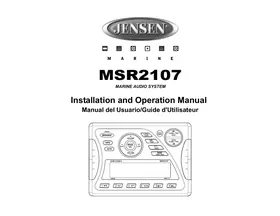
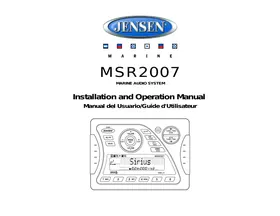
Installation and Operation Manual
Safety Information 1
Installation 2
Wiring 3
Basic Operation 4
Tuner Operation 6
SIRIUS Radio Operation 7
iPod Operation 8
Care and Maintenance. 9
Troubleshooting 9
Specifications 10
CONTENIDO
Keep the volume level low enough to be aware of your surroundings.
Protect from Water
Do not submerge the product directly in water, as this can cause electrical shorts, fire or other damage.
Protect from High Temperatures
Exposure to direct sunlight for an extended period of time can produce very high temperatures inside your vessel. Give the interior a chance to cool down before starting playback.
Do not mount radio within close proximity of engine compartment.
Use the Proper Power Supply
This product is designed to operate with a 12 volt DC negative ground battery system.
WARNING:
- TO REDUCE THE RISK OF FIRE OR ELECTRIC SHOCK, DO NOT SUBMERGE THIS EQUIPMENT DIRECTLY IN WATER.
- TO REDUCE THE RISK OF FIRE OR ELECTRIC SHOCK AND INTERFERENCE, USE ONLY THE RECOMMENDED ACCESSORIES.
INSTALLATION
Before You Begin
Before you begin, always disconnect the battery negative terminal.
Important Notes
- Before final installation, test the wiring connections to make sure the unit is connected properly and the system works.
- Use only the parts included with the unit to ensure proper installation. The use of unauthorized parts can cause malfunctions.
- Consult with your nearest dealer if installation requires the drilling of holes or other modifications to your vessel.
- Install the unit where it does not interfere with driving and cannot injure passengers if there is a sudden or emergency stop.
If the installation angle exceeds 30° from horizontal, the unit might not give optimum performance. - Avoid installing the unit where it will be subject to high temperatures from direct sunlight, hot air, or from a heater, or where it would be subject to excessive dust, dirt or vibration.
DIN Front Mount
- Check the dashboard opening size by sliding the radio into it. If the opening is not large enough, carefully cut or file as necessary until the radio slides into the opening. Check that there will be sufficient space behind the dashboard for the radio chassis.
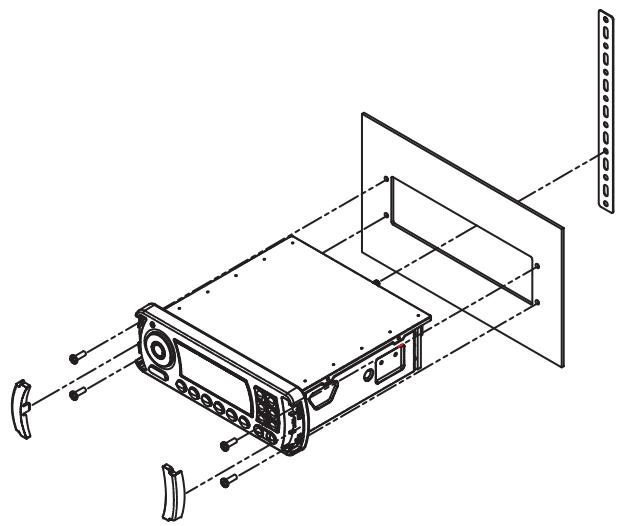
CAUTION: The rear of the radio must be supported with the strap to prevent damage to the radio and supporting structures.
-
Place the radio in front of the dashboard opening so the wiring can be brought through the opening.
-
Follow the wiring diagram carefully and make certain all connections are secure to ensure proper operation.
- After completing the wiring connections, turn the unit on to confirm operation (vessel accessory switch must be on). If the unit does not operate, recheck all wiring until the problem is corrected. Once proper operation is achieved, turn the accessory switch off and proceed with final mounting of the chassis.
- Carefully slide the radio into the opening, making sure it is right-side-up.
- Secure the radio to the dashboard using the screws provided.
- Replace the covers on either side of the radio.
- Attach one end of the perforated support strap (supplied) to the screw stud on the rear of the chassis using the hex nut and spring washer provided. Fasten the other end of the perforated strap to a secure part of the dashboard either above or below the radio using the screw and plain washer provided. Bend the strap, as necessary, to position it.
- Test radio operation by referring to the operating instructions for the unit.
Removing the Unit
To remove the radio after installation, remove the covers and unscrew the installation screws, and then pull the radio out.
Reconnect Battery
When wiring is complete, reconnect the battery negative terminal.
WIRING
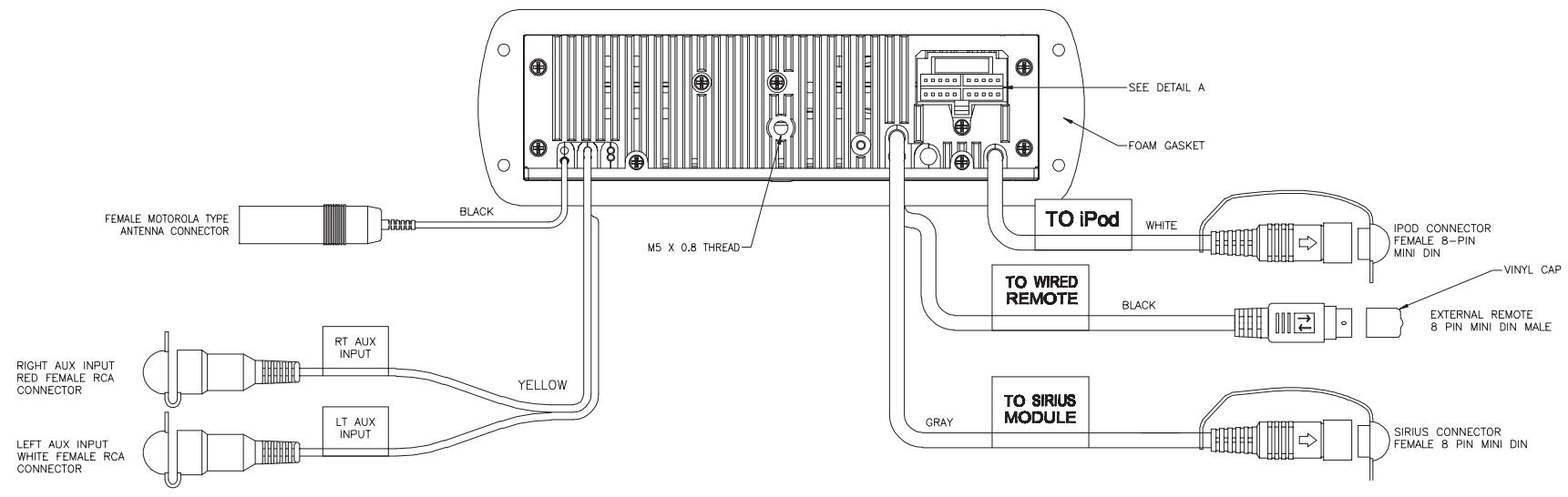
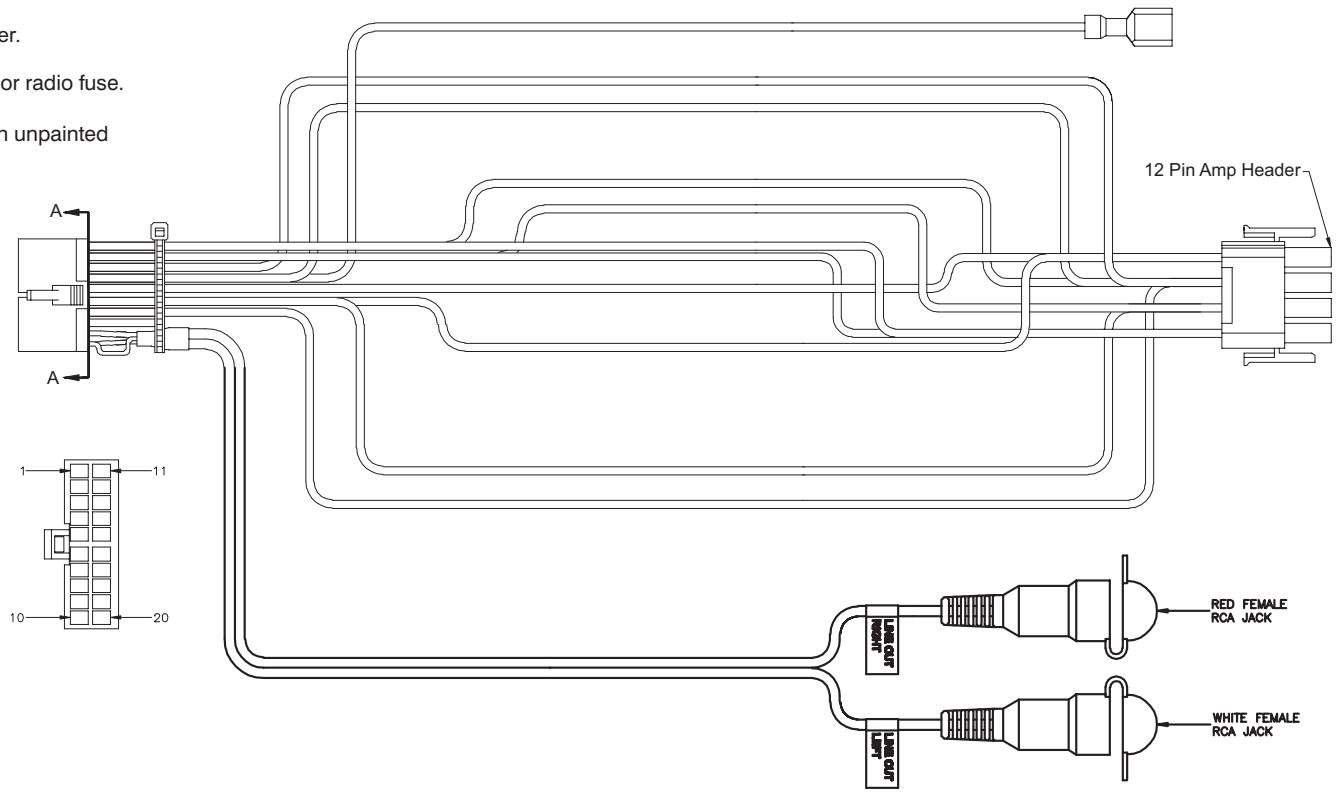
Power Antenna: Connect to power antenna or amplifier.
12V TURN ON +ACC: Connect to existing radio wire or radio fuse.
Chassis Ground: Connect to ground terminal or clean unpainted metal part of chassis.
VIEW A-A
WIRE INSERTION VIEW
| PIN NO. | WIRE COLOR | DESCRIPTION |
| 1 | GRAY/BLACK | RIGHT FRONT SPEAKER (-) |
| 2 | GRAY | RIGHT FRONT SPEAKER (+) |
| 3 | VIOLET | RIGHT REAR SPEAKER (+) |
| 4 | VIOLET/BLACK | RIGHT REAR SPEAKER (-) |
| 5 | EMPTY | NO CONNECTION |
| 6 | GREEN | LEFT REAR SPEAKER (+) |
| 7 | GREEN/BLACK | LEFT REAR SPEAKER (-) |
| 8 | EMPTY | NO CONNECTION |
| 9 | BLACK/SHIELD | REAR LINE AUDIO NEGATIVE |
| 10 | RED | REAR RIGHT LINE LEVEL OUT |
| 11 | WHITE | LEFT FRONT SPEAKER (+) |
| 12 | WHITE/BLACK | LEFT FRONT SPEAKER (-) |
| 13 | EMPTY | NO CONNECTION |
| 14 | BLUE | POWER ANTENNA |
| 15 | RED | ACCESSORY/IGNITION (+) |
| 16 | BLACK | GROUND |
| 17 | EMPTY | NO CONNECTION |
| 18 | EMPTY | NO CONNECTION |
| 19 | EMPTY | NO CONNECTION |
| 20 | WHITE | REAR LEFT LINE LEVEL OUT |
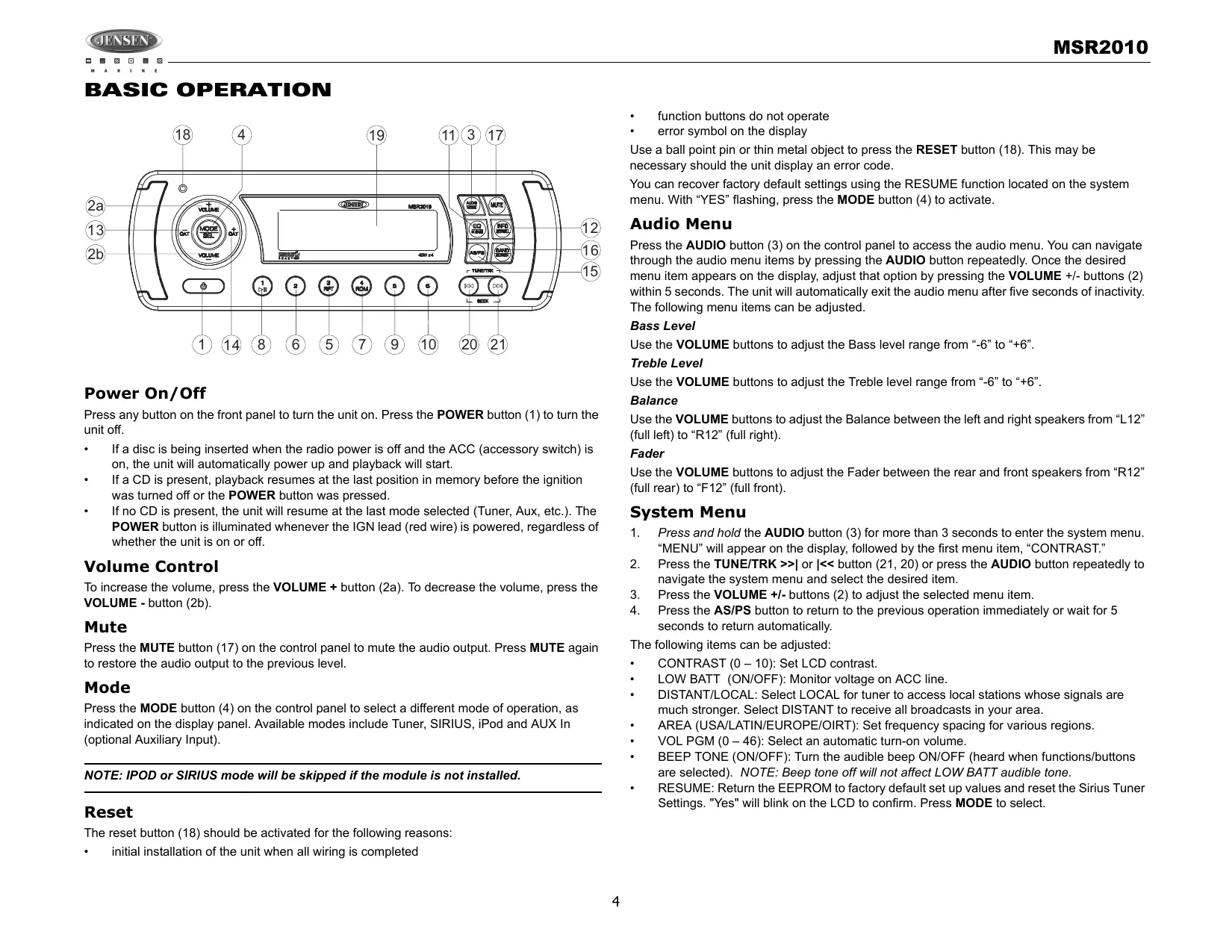
BASIC OPERATION
Power On/Off
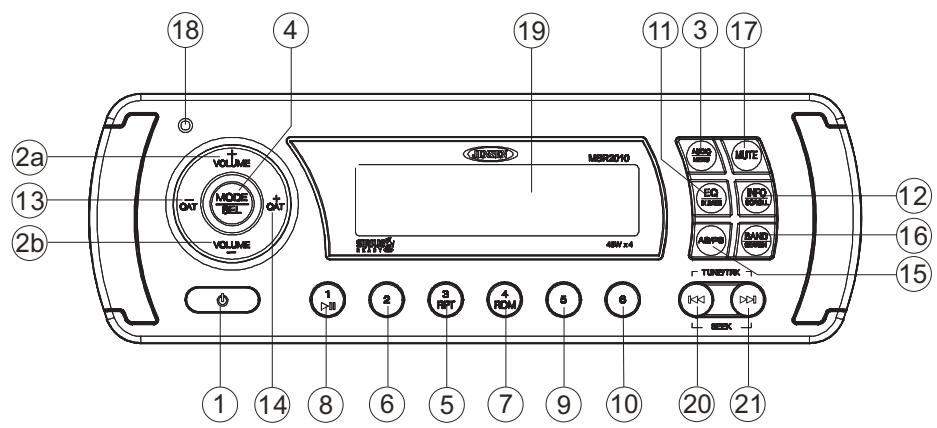
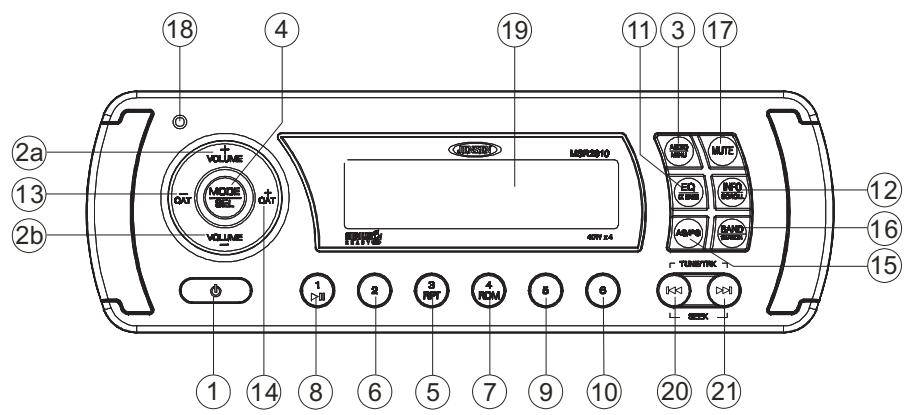
Press any button on the front panel to turn the unit on. Press the POWER button (1) to turn the unit off.
- If a disc is being inserted when the radio power is off and the ACC (accessory switch) is on, the unit will automatically power up and playback will start.
- If a CD is present, playback resumes at the last position in memory before the ignition was turned off or the POWER button was pressed.
- If no CD is present, the unit will resume at the last mode selected (Tuner, Aux, etc.). The POWER button is illuminated whenever the IGN lead (red wire) is powered, regardless of whether the unit is on or off.
Volume Control
To increase the volume, press the VOLUME + button (2a). To decrease the volume, press the VOLUME - button (2b).
Mute
Press the MUTE button (17) on the control panel to mute the audio output. Press MUTE again to restore the audio output to the previous level.
Mode
Press the MODE button (4) on the control panel to select a different mode of operation, as indicated on the display panel. Available modes include Tuner, SIRIUS, iPod and AUX In (optional Auxiliary Input).
NOTE: IPOD or SIRIUS mode will be skipped if the module is not installed.
Reset
The reset button (18) should be activated for the following reasons:
initial installation of the unit when all wiring is completed
function buttons do not operate
- error symbol on the display
Use a ball point pin or thin metal object to press the RESET button (18). This may be necessary should the unit display an error code.
You can recover factory default settings using the RESUME function located on the system menu. With "YES" flashing, press the MODE button (4) to activate.
Audio Menu
Press the AUDIO button (3) on the control panel to access the audio menu. You can navigate through the audio menu items by pressing the AUDIO button repeatedly. Once the desired menu item appears on the display, adjust that option by pressing the VOLUME +/- buttons (2) within 5 seconds. The unit will automatically exit the audio menu after five seconds of inactivity. The following menu items can be adjusted.
Bass Level
Use the VOLUME buttons to adjust the Bass level range from " -6" to " +6".
Treble Level
Use the VOLUME buttons to adjust the Treble level range from “-6” to “+6”.
Balance
Use the VOLUME buttons to adjust the Balance between the left and right speakers from "L12" (full left) to "R12" (full right).
Fader
Use the VOLUME buttons to adjust the Fader between the rear and front speakers from "R12" (full rear) to "F12" (full front).
System Menu
- Press and hold the AUDIO button (3) for more than 3 seconds to enter the system menu. "MENU" will appear on the display, followed by the first menu item, "CONTRAST."
- Press the TUNE/TRK >>| or | button (21, 20) or press the AUDIO button repeatedly to navigate the system menu and select the desired item.
- Press the VOLUME + / - buttons (2) to adjust the selected menu item.
- Press the AS/PS button to return to the previous operation immediately or wait for 5 seconds to return automatically.
The following items can be adjusted:
- CONTRAST (0 - 10): Set LCD contrast.
- LOW BATT (ON/OFF): Monitor voltage on ACC line.
- DISTANT/LOCAL: Select LOCAL for tuner to access local stations whose signals are much stronger. Select Distant to receive all broadcasts in your area.
AREA (USA/LATIN/EUROPE/OIRT): Set frequency spacing for various regions.
VOL PGM (0 - 46): Select an automatic turn-on volume. - BEEP TONE (ON/OFF): Turn the audible beep ON/OFF (heard when functionsbuttons are selected). NOTE: Beep tone off will not affect LOW BATT audible tone.
- RESUME: Return the EEPROM to factory default set up values and reset the Sirius Tuner Settings. "Yes" will blink on the LCD to confirm. Press MODE to select.
LOW BATTERY Operation
If LOW BATT is set to "ON", a alarm will sound (8 beeps every 30 sec) when the voltage drops to 10.8V ( + / - 0.03V ) . A visual warning (LOBA) will appear flashing (8 flashes every 30 sec) in the lower left corner of the LCD display.
NOTE: "OFF" is the default setting for LOW BATT. If the audio is muted or the volume is set to 0, the audible beep will not be heard.
Equalizer
Press the EQ button (11) to turn on the equalization function and select between five predefined bass and treble curves: OFF > POP > JAZZ > CLASSIC > BEAT > ROCK.
iX-Bass
Press and hold the EQ/IX-BASS button (11) toggle true loudness on/off. When listening to music at low volumes, this feature will boost the bass and treble ranges to compensate for the characteristics of human hearing.
Auxiliary Input
To access an auxiliary device:
- Connect the portable audio player to the AUX IN line in on the back of the unit.
- Press the MODE button (4) to select Aux In mode.
- Press MODE again to cancel Aux In mode and go to the next mode.
Liquid Crystal Display (LCD)
The current frequency and activated functions are shown on the LCD panel (19).
NOTE: LCD panels may take longer to respond when subjected to cold temperatures for an extended period of time. In addition, the visibility of the numbers on the LCD may decrease slightly. The LCD display will return to normal when the temperature increases to a normal range.
Scroll
When the information is too long to be displayed on the LCD, press and hold the INFO/SCROLL button (12) to view the entire title. The information will scroll twice and then return to abbreviated text.
Quick Exit Hot Key
In the following modes and conditions, press the AS/PS button < 3 seconds to quickly exit the current operation without waiting for the system default time out:
System menu operation
- Searching mode
Audio menu operation
TUNER OPERATION
Select a Band
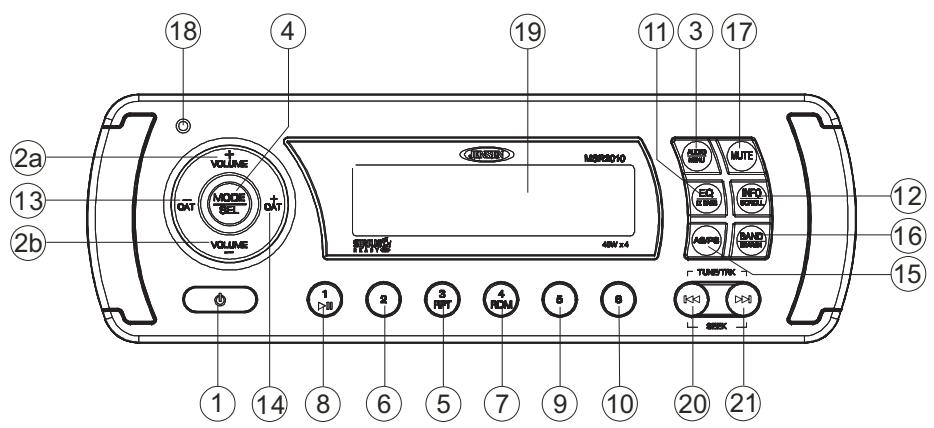
Press the BAND button (16) to change between three FM bands and two AM (MW) bands.
Manual Tuning
Press the TUNE/TRK >>| or | buttons (20, 21) to seek stations up/down step by step.
Auto Seek Tuning
Press and hold the TUNE/TRK >>| or << buttons (20, 21) to automatically seek the next or previous strong station.
Preset Stations
Six numbered preset buttons store and recall stations for each band.
Store a Station
Select a band (if needed), then select a station. Press and hold a preset button (5-10) for two seconds. The preset number will appear in the display.
Recall a Station
Select a band (if needed). Press a preset button (5-10) to select the corresponding stored station.
Automatically Store / Preset Scan (AS/PS)
Automatically Store
Select a band (if needed). Press and hold the AS/PS (15) button for more than three seconds to automatically select six strong stations and store them in the current band. The new stations replace any stations already stored in that band.
NOTE: During Auto Store (AS), the tuner will default to "Local" mode while scanning the band initially. After scanning the entire band once, the unit will switch to "Distant" mode for all subsequent Auto Store tuning.
Preset Scan
Select a band (if needed). Press AS/PS (15) to scan stations stored in the current band. The unit will pause for ten seconds at each preset station. Press AS/PS again to stop scanning when the desired station is reached.
Switching to SIRIUS Mode
Press the MODE button (4) to change the mode to Sirius radio mode.
Accessing your SIRIUS ID
- In Sirius mode, press and hold the BAND/SEARCH button (16) to select DIRECT mode.
- Press the MODE button (4) to activate Direct mode.
- Press the MODE button for each digit to enter "000".
- Press MODE again to confirm. This will display the Sirius ID number for your tuner.
- The Sirius ID number will scroll twice and then freeze with the first 11 digits on the display. Press the INFO/SCROLL button (12) to display the remaining digit.
Selecting a Band
In Sirius mode, press the BAND button (16) to access the Sirius user-preset channel groups in the following order: S1, S2, S3.
Category Tuning
- Press the CAT - /+ buttons (13/14) to change the category. Each category title and song title will be displayed in increments.
- While in the category mode, press the CAT - /+ buttons again to view category names. (The lowest channel number within the chosen category will always be the default first channel tuned.)
- Press the MODE button (4) or the TUNE/TRK |<< / >>| buttons (20/21) to choose desired channels in that category.
- Press the TUNE/TRK buttons to select a channel within the chosen category.
- Press MODE to confirm channel selection.
Channel Up/Down Tuning
Press the TUNE/TRK |<< / >>| buttons (20/21) to search for a channel. Press and hold the TUNE/TRK buttons to fast search.
Storing Preset Channels
The preset buttons (5-10) can be used to store 6 channels, allowing convenient access to your favorite channels.
Programming Channels
- Select the channel you want to store in memory.
- Press and hold a preset button (5-10) until the corresponding preset button number appears.
- Repeat steps 1 and 2 to program additional channels.
Quick Tuning
Press one of the six preset buttons (5-10) to select a preset channel directly.
Channel Direct Access Searching
- Press and hold the BAND/SEARCH button (16) to access Direct Tune mode. "DIRECT-T" appears on the display for a few seconds.
- Press the MODE button (4) to confirm.
- Press the TUNE/TRK |<< / >>| buttons (20/21) to move between the three digits.
- Use the VOLUME +/- buttons (2) to select a number for each position.
- Press the MODE button to confirm each digit.
- Press the MODE button again to tune to the selected file.
Alternate Display Information
Press INFO/SCROLL button (12) to change the display information in the following order: ARTIST NAME > SONG TITLE > CATEGORY > CHANNEL NAME.
Satellite Signal Strength
The display will indicate satellite reception strength as shown below.
| Signal Strength | Strength Display |
| No Signal | ☆☆☆☆☆ |
| Weak | ☆☆☆☆☆ |
| Good | ☆☆☆☆☆ |
| Excellent | ☆☆☆☆☆ |
iPod OPERATION
This unit is equipped with an iPod ready function that will allow you to control your iPod (if compatible) using the control panel control buttons. The following iPod versions are supported:
- iPod 3G (firmware version 2.2 only)
- iPod Mini
- iPod 4G
- iPod Photo
- iPod Nano (1st, 2nd and 3rd generation)
iPod 5G (Video)
NOTE: iPod Touch and iPhone are not supported. iPod and iPod Cable sold separately.
Accessing iPod Mode
The unit will automatically switch to iPod mode when an iPod is plugged into the iPod cable.
To return to the iPod menu from any other source, press the MODE button (4) on the control panel or remote control until "iPod" appears on the display.
Turning the iPod On/Off
The iPod power turns on automatically when an iPod is connected to 30-pin iPod cable, as long as the vehicle ignition is turned on. You can turn the iPod off by disconnecting it from the cable or by turning the ignition off. When the ignition is turned
off, the iPod will pause and then enter sleep mode after 2 minutes. While the iPod is connected, the power cannot be turned on or off from the iPod itself.
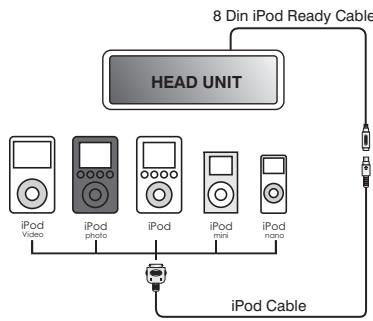
NOTE: The iPod will continuously recharge when connected to the unit, as long as the vehicle ignition is turned on. Please note that the MSR2010 will not support charging of the iPod Nano 4th generation (Chromatic) or any iPod models released after September 2008.
ControllingPlayback
Pausing Playback
During playback, press the 1/> button (8) to pause the iPod player. "Pause" will appear on the LCD. Press 1/> again to resume playback.
Repeat Play
During playback, press the 3/RPT button (5) to repeat the current song. "Repeat" will appear on the LCD. Press 3/RPT again to stop repeat playback.
Random Play
During playback, press the 4/RDM button (7) to play all songs in the current category in random order. Random play will begin once the current song has finished playing. "Shuffle" will appear on the LCD. Press 4/RDM again to stop random playback.
Selecting Tracks
During playback, press the TUNE/TRK |<< / >>| button (20/21) to play the previous or next track in the current category. Press the TUNE/TRK |<< button (20) once to play the song from the start position or press TUNE/TRK |<< twice to play the previous track.
Press and hold the TUNE/TRK |<< / >>| button (20/21) to fast reverse/forward the song.
NOTE: If you press and hold the TUNE/TRK |<</>>| button to change the current song to the previous/next song, you will exit fast reverse/forward mode.
Alternate Display Information
Press INFO/SCROLL button (12) to change the display information in the following order: ARTIST NAME > SONG TITLE > FOLDER NAME.
Search Mode
Press and hold the BAND/SEARCH button (16) to enter iPod search mode. Press BAND/SEARCH again to access Playlist, Artist, Album, Genre, Song, orComposer (consecutively).
When search mode is selected, press the MODE button (4) to confirm selection. Use the VOLUME +/- buttons (2) to navigate through various list selections. Press MODE (4) to make your final selection.
CARE AND MAINTENANCE
- Keep the product dry. If it does get wet, wipe it dry immediately. Liquids might contain minerals that can corrode the electronic circuits.
- Keep the product away from dust and dirt, which can cause premature wear of parts.
- Handle the product gently and carefully. Dropping it can damage circuit boards and cases, and can cause the product to work improperly.
- Wipe the product with a dampened cloth occasionally to keep it looking new. Do not use harsh chemicals, cleaning solvents, or strong detergents to clean the product.
- Use and store the product only in normal temperature environments. High temperature can shorten the life of electronic devices, damage batteries, and distort or melt plastic parts.
Ignition
The most common source of noise in reception is the ignition system. This is a result of the radio being placed close to the ignition system (engine). This type of noise can be easily detected because it will vary in intensity of pitch with the speed of the engine.
Usually, the ignition noise can be suppressed considerably by using a radio suppression type high voltage ignition wire and suppressor resistor in the ignition system. (Most vessels employ this wire and resistor but it may be necessary to check them for correct operation.) Another method of suppression is the use of additional noise suppressors. These can be obtained from most electronic supply shops.
Interference
Radio reception in a moving environment is very different from reception in a stationary environment (home). It is very important to understand the difference.
AM reception will deteriorate when passing under a bridge or when passing under high voltage lines. Although AM is subject to environmental noise, it has the ability to receive at great distance. This is because broadcasting signals follow the curvature of the earth and are reflected back by the upper atmosphere.
TROUBLESHOOTING
| Symptom | Cause | Solution |
| No power | The vessel's power is not on | If the power supply is properly connected to the vessel's accessory terminal, switch the ignition key to "ACC". |
| The fuse is blown | Replace the fuse. | |
| No sound | Volume too low or Mute is on | Adjust volume to audible level. |
| Fader is set incorrectly | Press AUDIO button to access menu and adjust FADER setting. | |
| Wiring is not properly connected | Check wiring connections. | |
| Unit unresponsive | Control panel not properly installed | Reinstall control panel. |
| The built-in microcomputer is not operating properly | Set RESUME in menu. | |
| Cannot tune to radio station, auto-seek does not work | The antenna cable is not connected. | Insert the antenna cable firmly. |
| The signals are too weak. | Select a station manually. |
SPECIFICATIONS
FM Radio
Frequency Range (USA) 87.5 to 107.9 MHz
Frequency Range (Europe). 87.5 to 108 MHz
Sensitivity (S/N=30dB) 4μV
Image Rejection 45 dB
Stereo Separation . 25 dB
AM/MW
Frequency Range (USA). 530-1710 kHz
Frequency Range (Europe). 522-1620 kHz
Sensitivity (S/N=20dB) 36 dB
General
Operating Voltage DC 12 Volts
Grounding System Negative Ground
Speaker Impedance 4-8 ohms per channel
Tone Controls:
Bass (at 100 Hz) :±10 dB
Treble (at 10 kHz). :±10 dB
Power Output 40W x 4
Current Drain. 15 Ampere (max.)
Dimensions 178 x 20.5 x 68.5mm
Press the MUTE button (17) on the control panel to mute the audio output. Press MUTE again to restore the audio output to the previous level.
Mode
Agudos (at 10 kHz) :±10 dB
Aigu (at 10 kHz) :±10 dB
Dimensions 178 x 20.5 x 68.5mm

THE MOBILE ELECTRONICS COMPANY SINCE 1977
ASA Electronics Corporation
www.asaelectronics.com
www.jensenmarinedirect.com
©2009 ASA Electronics Corporation
v.020609
- INSTALLATION AND OPERATION MANUAL
- CONTENIDO
- PROTECT FROM WATER
- PROTECT FROM HIGH TEMPERATURES
- USE THE PROPER POWER SUPPLY
- WARNING
- INSTALLATION
- BEFORE YOU BEGIN
- IMPORTANT NOTES
- DIN FRONT MOUNT
- REMOVING THE UNIT
- RECONNECT BATTERY
- WIRING
- BASIC OPERATION
- POWER ON/OFF
- VOLUME CONTROL
- MUTE
- MODE
- RESET
- AUDIO MENU
- BASS LEVEL
- TREBLE LEVEL
- BALANCE
- FADER
- SYSTEM MENU
- LOW BATTERY OPERATION
- EQUALIZER
- IX-BASS
- AUXILIARY INPUT
- LIQUID CRYSTAL DISPLAY (LCD)
- SCROLL
- QUICK EXIT HOT KEY
- TUNER OPERATION
- SELECT A BAND
- MANUAL TUNING
- AUTO SEEK TUNING
- PRESET STATIONS
- STORE A STATION
- RECALL A STATION
- AUTOMATICALLY STORE / PRESET SCAN (AS/PS)
- AUTOMATICALLY STORE
- PRESET SCAN
- SWITCHING TO SIRIUS MODE
- ACCESSING YOUR SIRIUS ID
- SELECTING A BAND
- CATEGORY TUNING
- CHANNEL UP/DOWN TUNING
- STORING PRESET CHANNELS
- PROGRAMMING CHANNELS
- QUICK TUNING
- CHANNEL DIRECT ACCESS SEARCHING
- ALTERNATE DISPLAY INFORMATION
- SATELLITE SIGNAL STRENGTH
- IPOD OPERATION
- ACCESSING IPOD MODE
- TURNING THE IPOD ON/OFF
- CONTROLLINGPLAYBACK
- PAUSING PLAYBACK
- REPEAT PLAY
- RANDOM PLAY
- SELECTING TRACKS
- SEARCH MODE
- CARE AND MAINTENANCE
- IGNITION
- INTERFERENCE
- TROUBLESHOOTING
- SPECIFICATIONS
- FM RADIO
- AM/MW
- GENERAL
Brand : JENSEN VOYAGER
Model : MSR2010
Category : Audio System