
CDT-300 - DVD player CLASSE AUDIO - Free user manual and instructions
Find the device manual for free CDT-300 CLASSE AUDIO in PDF.


| Product Type | DVD Player (Lecteur DVD) |
| Brand | CLASSE AUDIO |
| Model | CDT-300 |
| Dimensions (W x D x H) | 445 mm x 419 mm x 121 mm |
| Net Weight | 12 kg |
| Packaged Weight | 16 kg |
| Power Supply | 100V, 120V, 230V or 240V AC depending on country (factory set, not modifiable) |
| Power Consumption | 55 W |
| Supported Formats | CD, CD-R, CD-RW, DVD Video, DVD Audio, VCD, SVCD, MP3, AAC, WMA, DTS CD, DVD-R, DVD+R, DVD-RW, DVD+RW |
| Digital Audio Outputs | 1 x RCA Coaxial S/PDIF, 1 x XLR AES/EBU, 1 x Toslink Optical |
| Analog Video Outputs | Component (Y, Pb, Pr), S-Video, Composite |
| Digital Video Output | HDMI |
| Video Resolutions | 480i, 480p, 720p, 1080i, 1080p (depending on output) |
| LCD Touchscreen | Yes, on the front panel for navigation and settings |
| Infrared Remote Control | Included, with backlighting |
| Main Functions | CD/DVD playback, programming, repeat, shuffle, audio delay, parental control, firmware update |
| Control Connections | IR In/Out (mini-jack), Trigger In/Out, RS-232, CAN Bus (RJ-45) |
| Maintenance and Cleaning | Clean with a soft cloth and isopropyl alcohol; never apply liquid directly |
| Safety | Do not open the cover; risk of electric shock. Unplug during storms or prolonged non-use |
| Spare Parts and Repairability | No user-serviceable parts; contact an authorized Classé dealer |
| General Information | CE certified, RoHS/WEEE compliant; recommended burn-in period of 300 hours |
Frequently Asked Questions - CDT-300 CLASSE AUDIO
User questions about CDT-300 CLASSE AUDIO
0 question about this device. Answer the ones you know or ask your own.
Ask a new question about this device
Download the instructions for your DVD player in PDF format for free! Find your manual CDT-300 - CLASSE AUDIO and take your electronic device back in hand. On this page are published all the documents necessary for the use of your device. CDT-300 by CLASSE AUDIO.
USER MANUAL CDT-300 CLASSE AUDIO
WARNING: TO REDUCE THE RISK OF FIRE OR ELECTRIC SHOCK, DO NOT EXPOSE THIS APPLIANCE TO RAIN OR MOISTURE.

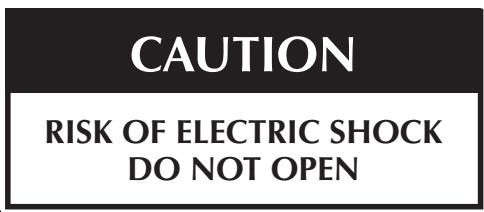
CAUTION: TO REDUCE THE RISK OF ELECTRICAL SHOCK, DO NOT REMOVE COVER. NO USER-SERVICEABLE PARTS INSIDE. REFER SERVICING TO QUALIFIED PERSONNEL.
NOTICE
All of us at Classé take extreme care to ensure that your purchase will remain a prized investment. We are proud to inform you that all Classé components have been officially approved for the European Community (CE) mark.
This means that your Classé product was subjected to the most rigorous manufacturing and safety tests in the world. The CE mark certifies that your purchase meets or exceeds all European Community requirements for unit-to-unit consistency and consumer safety.
This equipment has been tested and found to comply with the limits for a Class B digital device, pursuant to Part 15 of the FCC Rules. These limits are designed to provide reasonable protection against harmful interference in a residential installation. This equipment generates, uses and can radiate radio frequency energy and, if not installed and used in accordance with the instructions, may cause harmful interference to radio communications. However, there is no guarantee that interference will not occur in a particular installation. If this equipment does cause interference to radio or television reception, which can be determined by turning the equipment on and off, the user is encouraged to try to correct the interference by one or more of the following measures:
Reorient or relocate the receiving antenna;
- Increase the separation between the equipment and the receiver;
- Connect the equipment into an outlet on a circuit different from that to which the receiver is connected;
- Consult the dealer or an experienced radio/TV technician for help.
CAUTION: Changes or modifications to this equipment not expressly approved by the manufacturer could void the user's authority to operate the equipment.
This product incorporates copyright protection technology that is protected by U.S. patents and other intellectual property rights. Use of this copyright protection technology must be authorized by Macrovision, and is intended for home and other limited viewing uses otherwise authorized by Macrovision. Reverse engineering or disassembly is prohibited.
The information contained in the manual is subject to change without notice. The most current version of this manual will be posted on our web site at http://www.classeaudio.com.

Marking by the "CE" symbol (shown left) indicates compliance of this device with the EMC (Electromagnetic Compatibility) and LVD (Low Voltage Directive) standards of the European Community.

Classé products are designed to comply with international directives on the Restriction of Hazardous Substances (RoHS) in electrical and electronic equipment and the disposal of Waste Electrical and Electronic Equipment (WEEE). The crossed wheelie bin symbol indicates compliance and that the products must be appropriately recycled or processed in accordance with these directives.
Please record the serial number for your new Classé component here for future reference.
Serial #:
Important Safety Instructions
-
Read these instructions.
-
Keep these instructions.
-
Heed all warnings.
-
Follow all instructions.
-
Do not use this apparatus near water.
-
Clean only with dry cloth.
-
Do not block any ventilation openings. Install in accordance with the manufacturer's instructions.
-
Do not install near any heat sources such as radiators, heat registers, stoves, or other apparatus (including amplifiers) that produce heat.
-
Do not defeat the safety purpose of the polarized or grounding-type plug. A polarized plug has two blades with one wider than the other. A grounding type plug has two blades and a third grounding prong. The wide blade or the third prong are provided for your safety. If the provided plug does not fit into your outlet, consult an electrician for replacement of the obsolete outlet.
-
Protect the power cord from being walked on or pinched particularly at plugs, convenience receptacles, and the point where they exit from the apparatus.
-
Only use attachments/accessories specified by the manufacturer.
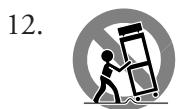
Use only with the cart, stand, tripod, bracket, or table specified by the manufacturer, or sold with the apparatus. When a cart is used, use caution when moving the cart/apparatus combination to avoid injury from tip-over.
- Unplug this apparatus during lightning storms or when unused for long periods of time.
- Refer all servicing to qualified service personnel. Servicing is required when the apparatus has been damaged in any way, such as power-supply cord or plug is damaged, liquid has been spilled or objects have fallen into the apparatus, the apparatus has been exposed to rain or moisture, does not operate normally, or has been dropped.
- Do not expose this apparatus to dripping or splashing and ensure that no objects filled with liquids, such as vases, are placed on the apparatus.
- To completely disconnect this apparatus from the AC Mains, disconnect the power supply cord plug from the AC receptacle.
- The mains plug of the power supply cord shall remain readily operable.
- Do not expose batteries to excessive heat such as sunshine, fire or the like.
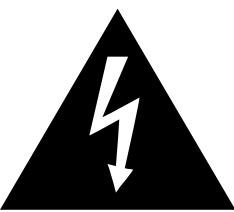
The lightning flash with arrowhead symbol within an equilateral triangle is intended to alert the user to the presence of uninsulated "dangerous voltage" within the product's enclosure that may be of sufficient magnitude to constitute a risk of electric shock to persons.

The exclamation point within an equilateral triangle is intended to alert the user to the presence of important operating and maintenance (servicing) instructions in the literature accompanying the product.
WARNING : To reduce the risk of fire or electric shock, do not expose this apparatus to rain or moisture .
Contents
Welcome to the Classé family. 6
a word about installation 6
Unpacking and Placement 7
unpacking your unit 7
placement 7
ventilation 7
custom installations. 7
serial number 8
register your purchase! 8
operating voltage. 8
warm up/break-in period 9
please read this manual. 9
Special Design Features 10
flexible GUI 10
highly refined circuit design 10
extensive listening tests 10
extraordinary longevity 10
Front Panel. 11
Rear Panel 13
coaxial digital output 14
AES/EBU digital output 14
optical digital output. 14
The Remote Control. 18
Using the CDT-300 22
CD operational menu 22
* 22
controls menu. 23
repeat mode 23
shuffle 23
time display 23
program 23
DVD operational menu 24
the home screen 24
controls 24
The Menu System 25
main menu system 25
system setup 25
teach IR 26
display setup. 26
triggers. 26
remote Fkeys 27
cautionary note on Fkey use 27
status 28
version info. 28
sensors. 28
display setup menu 29
brightness 29
timeout 29
language 30
temporary display 30
volume display 30
System Setup 31
the system setup menu system 31
audio setup 31
audio delay. 32
digital output 32
video setup 33
video standard 33
aspect ratio 34
resolution 34
edge enhancement 35
color space 35
preference 35
audio format 35
audio language 35
subtitle language. 35
CD autopsy 35
navigation 36
parental control 36
Updating Your Unit 37
Troubleshooting 38
Care & Maintenance. 40
Specifications 41
Dimensions 82
Welcome to the Classé family
Congratulations on your purchase of a Classé product. It is the result of many years of continuous refinement, and we are sure that you will enjoy it for many years to come.
We value our relationship with our customers. Please allow us to stay in touch with you by registering your warranty on the Classé website (www.classeaudio.com) or by returning your warranty card now, before you pack up the shipping carton of your new product and forget all about it. Doing so will enable us to let you know about any possible future upgrades or updates that might become available for your Classé component.
Registering your warranty also means that warranty service can be obtained easily and quickly, even if you have misplaced your original sales slip.
You will find the warranty registration card at the end of the separate warranty policy booklet, enclosed.
Please, take a few minutes to register your product on-line or fill out the warranty registration card, and drop it in the mail.
a word about installation
Every effort has been made to make the Classé CDT-300 simple and straightforward to install and use.
Still, we have no way to evaluate other variables such as the size and shape of your room, its acoustics, and the associated equipment you have chosen to use with your DVD transport. All of these factors influence the ultimate performance of your system.
For this reason, we strongly encourage you to have your system installed and calibrated by your dealer, whose experience, training, and specialized equipment can make a profound difference in the final performance of the system.
| Unpacking your unit | Carefully unpack your DVD transport according to the supplied instructions, and remove all accessories from the carton. |
| Important! | Keep all packing materials for future transport of your Classé product. Shipping your new component in anything other than its purpose-designed packing material may result in damage that is not covered by the warranty. |
| placement | The CDT-300 has been designed to operate optimally on any stable and level surface. Incorporating vibration damping within the CDT-300's feet and CD/DVD Drive Assembly, a high level of isolation from external disturbances is incorporated. As with any digital component, it is best to place the CDT-300 somewhat apart from your most sensitive analog electronics, particularly turntables and preamplifiers. Generally, placing it on its own shelf should suffice. Note that adequate clearance for the AC cord and connecting cables must be left behind the CDT-300. We suggest leaving eight inches (20 cm) off free space behind your DVD transport to allow all cables sufficient room to bend without crimping or undue strain. |
| ventilation | Classé recommends that the unit not be placed directly on the top surface of a power amplifier (or any other heat source). Your Classé DVD transport generates a certain amount of heat in the course of normal operation. Be sure to allow three inches (75mm) of clearance above it and three inches (75mm) to each side to allow heat dissipation through air circulation. Avoid placement on soft surfaces that would restrict airflow (such as plush carpeting). |
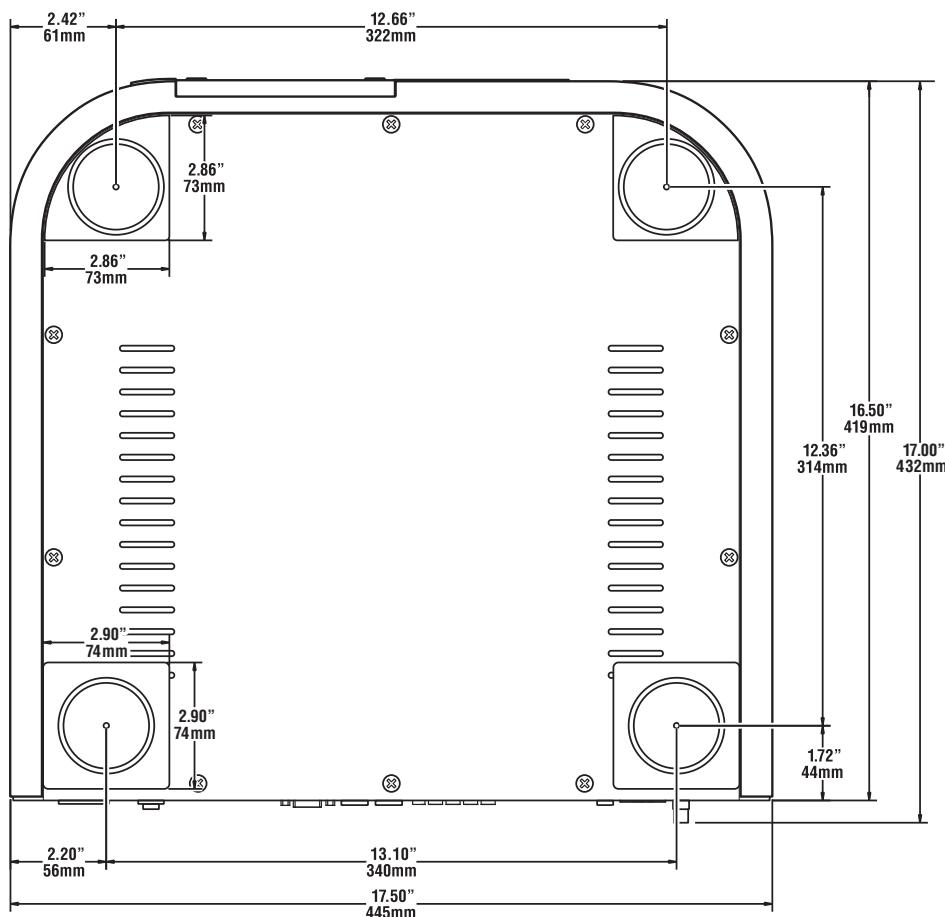
| custom installations | Drawings are included in this manual to facilitate special installations and custom cabinetry (see the section Dimensions). An optional, purpose-designed rack mount kit is available for this product. Contact your Classé dealer for more information. |
serial numberregister your purchase!
operating voltage
The serial number for your DVD transport is found on the rear of the unit. Please note and record this number on the page entitled Important Safety Instructions for your future reference.
Having found the serial number, now would be a good time to register your product on the Classé web site or fill out the registration card. Please register your purchase so we can advise you of updates and other items of interest.
It will take only a minute or so. Please register your product on line or complete the card now, before you forget.
The CDT-300 disc transport is set at the factory (internally) for 100V, 120V, 230V, or 240V AC mains operation, as appropriate for the country in which it is to be sold. (230V only in European Union countries, in compliance with CE regulations.) The voltage setting may not be changed by the user.
Make sure that the label on the rear panel of your DVD transport indicates the correct AC operating voltage for your location. Attempting to operate your DVD transport at an incorrect voltage may damage the unit.

Warning:
The voltage setting of your DVD transport may not be changed by the user. There are no user-serviceable parts within the unit. Please refer any problems to an authorized Classé service center.
If the AC mains voltage indicated on your DVD transport is incorrect, please contact your local authorized Classé dealer or distributor.
The CDT-300 includes protection circuitry that will prevent the transport from operating at dangerously high or low voltages.
- At startup: the AC mains voltage must be within a range of approximately -15% to +10% of its nominal value at startup, or the transport will not turn on. For example, a 120V unit requires the AC mains to be between approximately 95V-135V in order to turn on.
- Overvoltage during operation: if the AC mains voltage surges by roughly 10% or more during operation, the transport will enter protection mode and shut down. The standby LED (Light-Emitting Diode) will flash to indicate the protection mode has been engaged. An error message will be displayed on the LCD touchscreen.
- Under-voltage during operation: if the AC mains voltage sags by 15% or more, the transport will continue to play (since this does not present a particular danger to the transport), but note that it may not be able to achieve its usual standard of performance under these compromised conditions. The Standby LED will flash to indicate the condition.
warm up/break-in period
Your new Classé DVD transport will deliver outstanding performance immediately. However, you should expect to hear it improve somewhat as it reaches its normal operating temperatures and its various components "break-in." It has been our experience that the greatest changes occur within the first 300 hours, as the transport reaches thermal equilibrium and the capacitors fully form. After this initial break-in period, the performance of your new product should remain quite consistent for years to come.
please read this manual...
The only exception to this rule is if the unit is placed in standby or unplugged for an extended period of time, allowing it to cool down. Depending on the degree of cooling involved, you should expect a brief warm-up period before the its sound quality is at its best. Unless your DVD transport was allowed to become quite chilled, subsequent thermal re-stabilization should not take long. Fortunately, you should never have to repeat the initial 300 hour break-in period.
Please take a few minutes to review this manual, and to familiarize yourself with your new DVD transport. We understand that you are anxious to plug everything in and get started. However, reading this manual and following the advice it gives will ensure that you get all the benefits you deserve from having purchased such a fine piece of equipment.
| flexible GUI | The LCD touchscreen on the front panel of your new component supports an extremely flexible and versatile graphical user interface (GUI) while maintaining a clean, uncluttered appearance. The CDT-300 provides a range of controls that might otherwise require dozens of buttons and knobs on the front panel. Despite this power and flexibility, it remains simple to operate in day-to-day use. |
| highly refined circuit design | Classé products are designed to deliver consistent, state-of-the-art performance over many years of use. With this in mind, our engineers have developed electronic circuitry that offers both exceptional performance and stability in equal measure. |
| Starting with innovative circuit designs, we engineer them to optimum levels by applying meticulous attention to detail at all phases of the design and component selection process. By measuring, listening and viewing in an interactive manner we conclude whether our design goals have been met. | |
| Finally, our designs are subjected to extensive testing to ensure longevity, reliability, and stability. | |
| extensive listening tests | Throughout the development phase, perhaps the most important testing of all is listening and viewing our work. Subjective listening is highly valued at Classé, as striking a balance between products that both measure exceptionally and sound fabulous is our aim. We take the same approach with video, wherein sophisticated video measuring equipment is used in conjunction with subjective viewing. |
| extraordinary longevity | Another benefit of having worked with highly refined circuit designs so extensively over many years is that we have vast experience in what works well over the long term. |
| By using only the highest quality parts to begin with, and then using them in an informed way as a result of both accelerated aging experiments and actual long-term experience, we are able to design and manufacture products which we are confident will stand the test of time. | |
| We are confident that your new Classé DVD transport will give you many years of trouble-free reliability and musical enjoyment, just as previous Classé products have given their owners. |
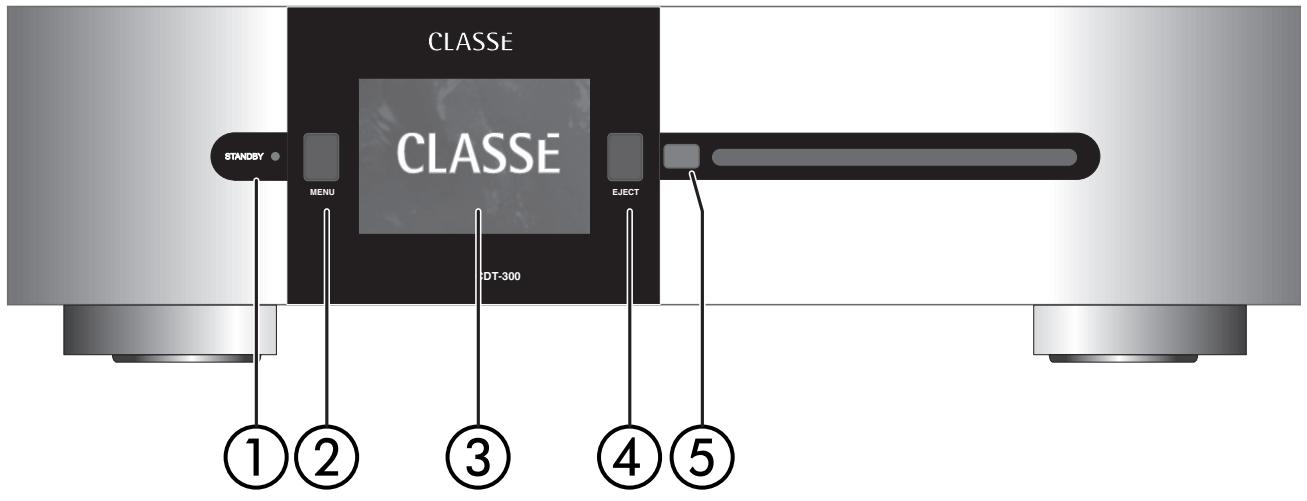
Front Panel
1 Standby button & LED indicator
The front panel Standby button will toggle the transport between its fully operational status and a standby mode that leaves the transport off, yet ready to respond to system commands via any of the supported control options (e.g. IR input, DC trigger, CAN Bus, or RS-232).
The current state of the transport is indicated by the LED on the Standby button on the front panel. When the unit is powered and switched on, this LED indicates the following:
- On = standby
- Flashing (on power-up) = initialization
- Off = operate
- Flashing (after power-up) = AC mains voltage out of range
If you are not going to use the transport for an extended period of time, e.g. vacation or other travel, we suggest you disconnect it from the AC mains. Please be certain that the transport is in standby prior to disconnecting it from the AC mains.
Also, it is a good practice to physically disconnect any and all valuable electronics from the AC mains during electrical storms, as a lightning strike anywhere near your home can put a tremendous surge on the AC mains that will easily jump across a simple power switch. The resulting surge (which may be many thousands of volts) can damage any piece of electronics, no matter how well designed and protected. The best protection in the case of severe electrical storms is simply to remove the electronics from any connection with the power grid.
2 Menu button
Pressing the front panel Menu button will call up the menu system, replacing the normal status display in the LCD touchscreen of the CDT-300.
3 LCD touchscreen
Most of your interaction with the CDT-300 will be with the front panel LCD touchscreen (and with the CDT-300's supplied remote control). It will usually display the information you are accustomed to seeing on the front of most CD and DVD transports (track number, time, etc.), as well as the basic transport controls. In addition, the touchscreen can be used to preview videos you may be "cueing up" for friends or family, and to navigate DVD-Audio discs' menu systems without the distraction of having to turn on your main video display.
By pressing the Menu button, you can also call up the menu system of the CDT-300, which gives you control over many of the operational details of the DVD transport, including system setup options, various display options (including the language in which the menu system itself displays), and several custom-installation capabilities that allow superior integration of the CDT-300 into complex systems.
For more information, see the section The Menu System later in this manual.
4 Eject button
The front panel Eject button operates the slot-loading mechanism of the CDT-300. It will eject a loaded disc. There may be a short delay prior to ejection whilst a disc is playing, in order to give the disc time to come to a stop.
A blue light illuminates the slot when there is no disc loaded.
5 IR window
The infrared (IR) receiver and transmitter are located behind this window. Ordinarily, your Classé CDT-300 must be able to "see" the remote control from this window in order to respond to remote control commands.
If your DVD transport will be located behind closed doors, or for any other reason will not be able to "see" the remote control during normal operation, you may use the rear panel IR input and output mini-jacks and an IR repeater system to solve the problem. For more information about using an infrared repeater system to route signals to and from the CDT-300, refer to the section Rear Panel later in this manual, or contact your local Classé dealer.
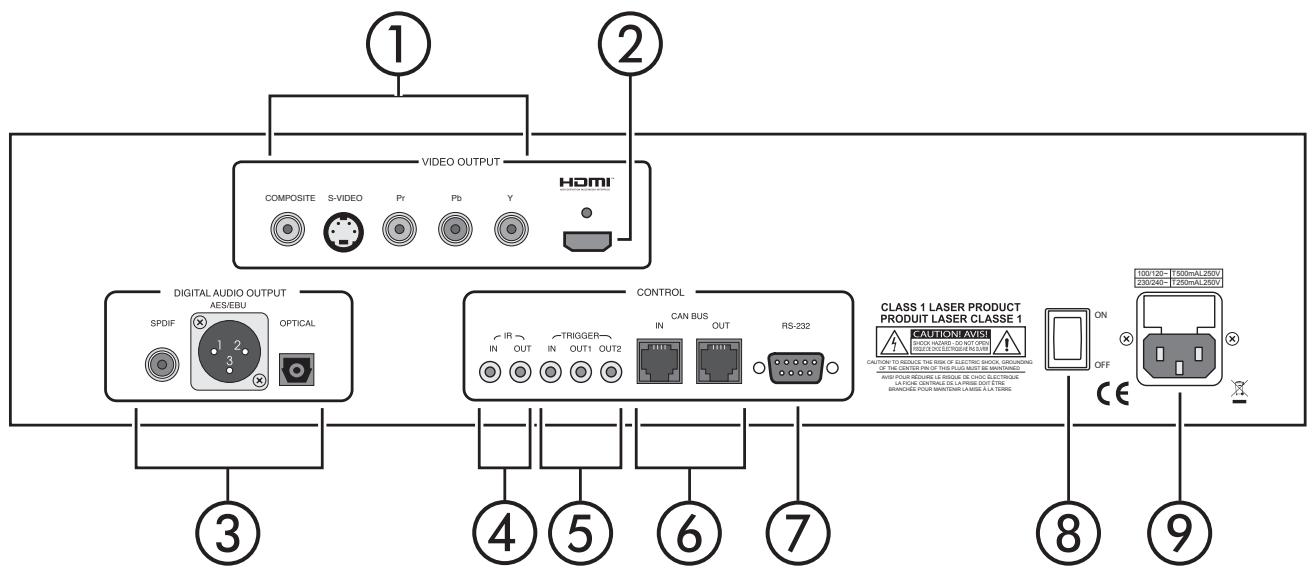
Rear Panel
1 Analog Video Outputs
The CDT-300 is equipped with a complete set of analog video outputs: Component (Y, Pb, Pr), S-Video, and Composite. The S-Video output employs the standard S-Video (mini-DIN) connector, while the Component and Composite outputs employ high quality RCA connectors.
Note that the three analog video standards offer varying degrees of performance:
- Component video renders the best analog video quality, and provides compatibility with progressive and high definition video signals. As a result, the component outputs are the analog outputs you will want to use in order to take full advantage of the video scaling and processing capabilities of the CDT-300. (The HDMI output also supports video scaling and processing.)
- S-Video is capable of rendering a high quality video image, but is limited to standard definition, interlaced signals.
- Composite video is the most common analog video interface, available on almost all display devices. Like S-video, it is also limited to standard definition, interlaced signals.
For this reason, you are advised to use component video connections whenever possible.
All three analog video outputs are active simultaneously. Connect the appropriate video output(s) of the CDT-300 to the corresponding inputs of your A/V preamplifier/processor using high quality video cables. Your Classé dealer can assist you in making an appropriate cable selection.
2 HDMI Digital Video Output
The HDMI output of the CDT-300 provides for a direct, digital video connection to your display. Digital display devices such as LCD and DLP™ are used increasingly in modern home theater settings; HDMI allows you to keep the video signal in its digital form all the way to the display, offering stunning clarity and realism.
In addition, HDMI carries the multichannel audio signal and some additional data about the signal being played. When fully implemented, it can become the only connection between the DVD transport and the A/V preamplifier/processor. (The A/V preamp retains the audio signal and passes the video along to the display device.) More often, people prefer to run separate audio and video cables since doing so offers some additional flexibility as well as the potential for higher audio performance via AES/EBU connection.
If your display has a DVI input rather than an HDMI input, contact your Classé dealer about a suitable adapter cable. The DVI standard lacks the audio capabilities of HDMI, and is growing less popular in the consumer electronics world. A simple and inexpensive adapter can convert from the HDMI connector to the DVI connector, and the electrical characteristics of the digital video signals are the same.
3 Digital Outputs
coaxial digital output
The CDT-300 has three digital outputs, all of which carry the same information. You may use whichever connection you prefer, consistent with the available connections on your A/V preamplifier/processor. Only one of the three connections is needed.
AES/EBU digital output
The coaxial digital output provides a digital audio signal via a 75 coaxial cable equipped with RCA-type connectors. Connect this output to a corresponding coaxial digital input on your preamplifier/processor.
optical digital output
The AES/EBU output provides a digital audio signal via a 110 balanced cable equipped with XLR-type connectors. Connect this output to a corresponding AES/EBU digital input on your preamplifier/processor.
The optical digital output provides a digital audio signal via a standard EIAJ (“Toslink™”) optical cable. Connect this output to a corresponding optical digital input on your preamplifier/processor.
Making any one of these connections allows you to feed the signal in its digital form directly to your A/V preamplifier for further digital processing.
4 IR Input and Output
Your Classé DVD transport includes two 18 -inch mono mini-jacks in order to support the infrared (IR) remote controls that are ubiquitous today. Infrared commands exist (for example) for toggling the transport between operate and standby, in addition to discrete command codes for either operate or standby. These codes may be used in "macros" for sophisticated remote control systems, facilitating the control of the transport in the larger context of a complete system.
The list of commands available is quite extensive, enabling even complex macros (chains of commands strung together) to operate flawlessly. If this capability is of interest to you, we strongly recommend discussing it with your authorized Classé dealer.
Note that IR Input and Output is a bit of a misnomer: the input and output of these plugs is electrical in nature, not infrared. They are used with standard IR receivers, distribution amplifiers, and emitters (available from your dealer) to translate the remote's IR signal to an electrical signal and vice versa. The big advantages here include being able to easily route the signals anywhere they might need to go and the reliability of a solid electrical connection.
Since an IR distribution system such as your dealer may design for you usually must control many products, your DVD transport includes both an IR input (for the control of this product) and an IR output (so as to pass along the same signal to the next product). This allows you to "daisy chain" your control wires from one product to the next.

Note:
Many IR repeater systems do not yet support the stripped-carrier signal format required by your DVD transport. If yours does not, a Delta IR Interface may be required to ensure compatibility between your IR repeater system and your Delta-series Classé equipment.
Your dealer can assist you in designing an effective IR repeater system.
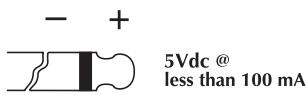
The transport is designed to respond to IR commands of 5VDC, with the tip of the mono mini-jacks defined to be "positive" relative to the shank of the plug.
5 DC Trigger Input and Output
Many audio/video components can supply a DC control voltage to associated equipment in order to induce desired behavior. Your Classé DVD transport can take advantage of these capabilities in order to be switched between operate and standby automatically, usually in concert with the A/V preamp itself.
The 1/8^th -inch mono mini-jack Trigger In provides for remote-controlled turn-on (that is, toggling between operate and standby) of the transport.
Two 1/8^th -inch mono mini-jacks provide individually controllable DC trigger outputs which can be used for any of a number of purposes, as described in The Menu System. For example, your dealer can program Trigger Out to toggle your Classé power amplifier between operate and standby with your CDT-300.
The remote Trigger In will respond to the presence of 5-12VDC, with tip polarity as shown below:
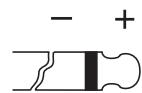
5-12 volts @ less than 100 mA
Similarly, the Trigger Outs will create a 12VDC signal that can support up to 100mA of current.
6 Classé CAN Bus Control Ports
These RJ-45 connectors are reserved for future control and communication applications using Classé Audio's implementation of the Controller Area Network (CAN) Bus specification.
7 RS-232 Control Port
This port has two purposes:
- downloading new operating software into your DVD transport (should new features ever be added, for example)
- external control of your preamplifier by systems such as i-Command™, AMX® and Crestron™
For more information, please contact your dealer and ask about home automation systems.
Danger!
8 AC Mains Power Switch
The main power switch for the CDT-300 is located at the right side of the rear panel. The transport should be in standby mode before being switched off. Switching the unit on puts it in standby mode.
Potentially dangerous voltages and current capabilities exist within your DVD transport, even when disconnected from AC mains. Do not attempt to open any portion of the transport's cabinet. There are no user-serviceable parts inside your DVD transport. All service of this product must be referred to a qualified authorized Classé dealer or distributor.
9 AC Mains Input
An IEC standard power cord (supplied) is used with the CDT-300. Plug the cord into the IEC outlet provided, and the other end into a suitable wall outlet.
The AC inlet assembly includes a built-in fuse for the protection of the unit in case of major AC mains problems and/or component failure.
If your CDT-300 ever behaves as though it were not connected to the AC mains (meaning it seems completely dead), remove the AC cord from the unit and open the fuse holder immediately above the AC cord inlet. If the fuse is blown, replace it with the spare fuse contained in the fuse holder. If the spare fuse blows, take the unit to your qualified Classé dealer immediately.

Caution:
There are no user-serviceable parts inside the CDT-300. Do not attempt to diagnose the problem yourself.
The Remote Control
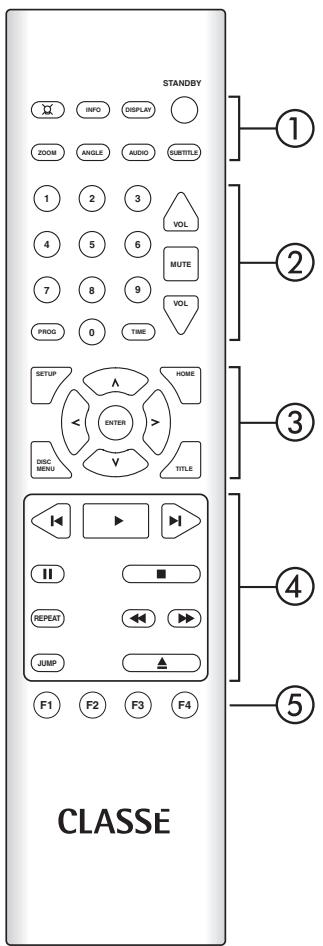
Your new DVD transport comes with a versatile remote control which can control both the CDT-300 itself and several aspects of the rest of a Classé-based system. The keys are arranged in logical groups according to their functions.
1 Basic Functions
This section along the top of the remote control includes two groups of four functions that control your basic interactions with the CDT-300. The general group is located in the topmost row, and includes:
- Light switches the backlighting of the remote control on, for better visibility under low-light conditions. After a few moments of inactivity, the backlight switches off automatically.
- Info takes you directly to the status screen in the LCD menu system, displaying several items of information about the CDT-300 and its current operational status.
- Disp (for Display) cycles through the three brightness settings of the screen display.
- Standby toggles the CDT-300 between standby and operate.
The DVD-specific group addresses secondary features of the DVD standard which you may have seen on other DVD transports, namely:
- Zoom cycles through the available "zoomed in" or magnified views of the DVD.
- Angle cycles through the available camera angles of the DVD being watched. (Relatively few discs take advantage of this optional feature of the DVD standard.)
- Audio cycles through the various available soundtracks on the disc being played. (You can set your preference in the menu system, and it will become the default; this button cycles you through the other options, should you want to explore them.)
- Subtitle cycles through the available subtitles in various languages.
2 Numeric Keypad, Programming & Volume
The next section down on the remote control provides the numeric keypad for use in directly accessing particular tracks on the CD/DVD you are playing, as well as two keys that are frequently used in conjunction with the numeric keys. The Volume and Mute controls are also in this section.
-
The Numeric Keypad can be used to access specific tracks/chapters directly from your remote control. Simply press the appropriate number key (or keys) followed by the Play key. The CDT-300 will go directly to your selection and begin to play. For example, to play track 12, press the 1, 2, and Play keys in sequence.
-
Time cycles through the four time display modes: time elapsed on track time elapsed on disc time remaining on track time remaining on disc
-
Prog (for Program) allows you to quickly and easily create a programmed sequence of tracks (or chapters) to be played on the current disc. Pressing Prog will take you directly to the program page of the menu system, regardless of where you might be. Once on the program page, you can change the highlighted track using the Up and Down buttons, and can use the Enter button to toggle whether it is included in the current program. Pressing Prog a second time returns you to wherever you had been. (Note that the program function is not available during play or pause, only when the CDT-300 is in stop.)
3 Navigation Keys
The central section of the remote control contains the navigation keys. This array of keys is similar to what you may have seen on remote controls for DVD transports, and is used for navigation of the menu system of the CDT-300.
- Setup serves two functions: it calls up the menu system when you need it in order to adjust something to your preference; once within the menu system, pressing Setup returns you to the previous level of the menu system. If you press Setup when at the top level of the menu system, it will take you back out of the menu system to the normal display.
- Home returns you to the normal display of chapter/track, time, and transport controls shown on the LCD screen on the front panel of the CDT-300. This provides a quick way to get back to normal operation, regardless of how deep you might be in the menu system.
The DVD standard supports two levels of menus:
1) a menu of available "titles" on the disc (e.g., the main movie, plus extra "bonus" materials like documentaries, etc.);
2) each "title" then has a subordinate menu of chapters within the title.
- Disc Menu presents the menu of available chapters, within whatever title you are watching at the moment. (See explanation of DVD menus in this section.)
-
Title gives you a list of available "titles" on the disc you are watching. (See explanation of DVD menus in this section.)
-
Up/Down/Left/Right keys allow you to move within a particular menu screen, changing the highlighted item up/down/ left/right as you like, from the comfort of your chair.
- The Enter key allows you to select the highlighted item, having the same effect as if you had pressed the button on the LCD touchscreen.
4 Transport Controls
You will find the transport controls used to control the day-to-day playback of discs just below the navigation keys.
- (previous) will move backward through the chapters or tracks (or the playlist, if you have created one), one step at a time. As with most DVD players, the single exception to this is the first time you press the key, which will take you to the beginning of the track currently playing. Pressing the key again within approximately one second will then take you to the previous track.
- (play) will start the disc spinning (if necessary) and start playing the music, as expected.
- (next) will move forward through the tracks (or the playlist, if you have created one), one track at a time.
- II (pause) will stop the music but allow the disc to continue spinning; when you press Play, the music will start almost immediately, and it will pick up from where you left off.
- (stop) applies to both the music and the spinning of the disc. When you press Play, the disc will need to take a few moments to get up to speed prior to playing, and it will play from the beginning of the disc or the playlist (if one has been created for the disc).
- Repeat will cycle the CDT-300 through its repeat modes.
- (scan reverse) provides a "rewind" function, the nature of which is dictated by your navigation preference selection in the menu system. (See The Menu System for more information.)
- (scan forward) provides a "fast forward" function, the nature of which is dictated by your navigation preference selection in the menu system. (See The Menu System for more information.)
- (eject) will cause the inserted disc to spin down and then eject.
5 System Controls
The CDT-300 remote control also can control user-defined functions as well as the volume and mute functions on a Classé system.
- F1/F2/F3/F4 keys are available for controlling aspects of the CDT-300 not covered by the other buttons on the remote control. You are able to choose what the CDT-300 should do in response to receiving the infrared signal that a particular "Fkey" has been pressed. The list of possible functions is quite extensive, and is found in the menu system (see The Menu System section, of this manual). For example, if you are using one of the DC triggers on your CDT-300, you can toggle its state manually using one of the Fkeys.
Note:
The Fkeys on all Classé remote controls issue the same infrared commands. This saves you from having to be sure you have grabbed the proper remote, since all your Classé remotes will perform the same function for each Fkey.
Using the CDT-300
Your CDT-300 includes a versatile touchscreen LCD display which supports both an attractive information display and a flexible menu system. Because of this flexibility, the CDT-300 can present different controls and capabilities when playing a CD, and when playing a DVD. We will present these separately.
CD operational menu
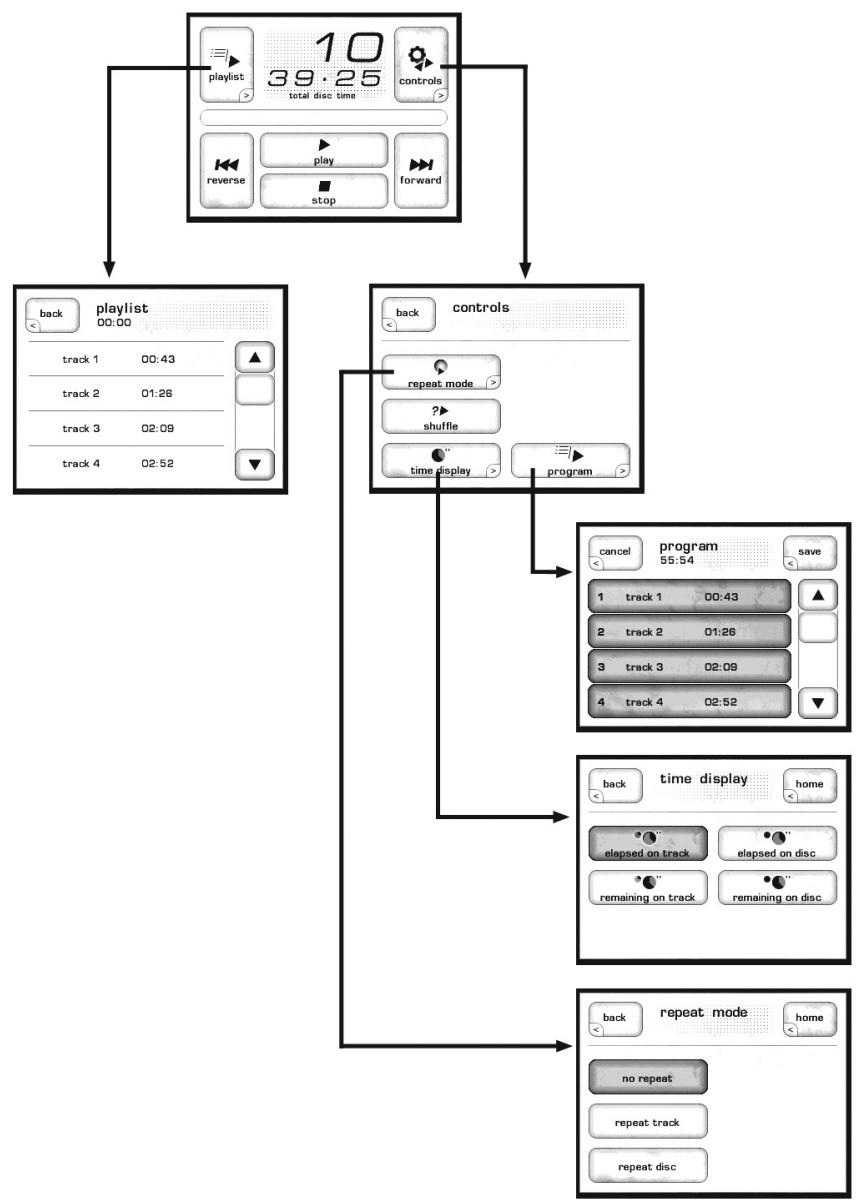
The operational menu consists of several screens that can be accessed directly from the normal display one sees when playing a CD. They are as follows:
停放
Pressing the playlist button on the display brings up the playlist for the current disc. If you have not created a custom program for the disc, the playlist will simply be a list of all the available tracks on the CD, in order. If you have created a custom program (see below), it will be presented to you here. Note that this display is mainly informational; you cannot edit the playlist from this screen. You may, however, jump to any track by touching it on the screen.
controls menu
The controls button on the operational display brings up a menu of controls, including repeat mode, shuffle, time display, and program.
repeat mode
Pressing the repeat mode button on the controls menu displays a screen on which you may select any of the three repeat modes available: no repeat, repeat track, and repeat disc. (If you have created a program, repeat disc will repeat the program.)
shuffle
Pressing shuffle on the controls menu will engage the shuffle mode, which shuffles the playback order of the tracks on the current CD.
time display
Pressing the time display button on the controls menu presents a screen with four possible selections for how the current time of the disc playing is displayed: elapsed on track, elapsed on disc, remaining on track, remaining on disc.
program
Pressing the program button on the controls menu takes you to the programming screen.
When you first load a CD, the default program for the disc is to play all the tracks in their normal order (as you might expect). This is shown on the programming screen as a list consisting of track 1 followed by track 2, track 3, and so on. A sequence number appears to the left of each track, indicating its place in the playlist.
The CDT-300 is capable of storing thousands of playlists.
If there is a song on the disc that you prefer to skip over, simply scroll to the track in question by pressing the up or down arrows along the right side, and then press the large button with the track number you do not want to hear. It will no longer be highlighted, indicating that it has been removed from the playlist for that CD. You can repeat this process for as many tracks as you would like to delete.
If you want to create a completely different order in which the songs are played, turn off the highlighting for all the tracks by touching each of their buttons in turn. Then highlight the tracks one at a time, in your desired order. The CDT-300 will build a new playlist based on your preferred sequence.
To remove a playlist, simply deselect all tracks and press the save button.
DVD operational menu
When a DVD is inserted in the CDT-300, a different set of controls is displayed.
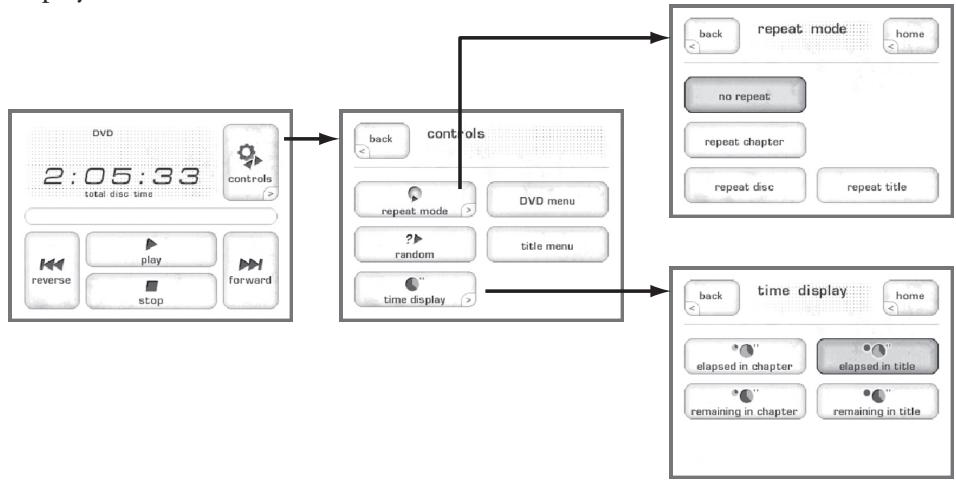
the home screen
The home screen for DVDs is presented at left in the graphic above, and contains basic information about where you are within the disc, as well as basic navigation buttons similar to those on your remote control.
controls
Pressing the controls button in the top right corner of the home screen takes you to the controls screen. It contains six buttons:
- back will return you to the home screen
- repeat mode takes you to another screen in which you can select any of the available repeat modes (no repeat, repeat chapter, repeat disc, and repeat title).
- random will play chapters within the current title in random order. This can be used to good advantage when watching a concert DVD, or when listening to a DVD-Audio disc, in order to shuffle the order in which songs are played.
- time display changes the way in which the CDT-300 will display the time information of the disc being played. Your choices are: elapsed in chapter, remaining in chapter, elapsed in title, remaining in title.
DVD menu button will return you to the DVD menu of the disc - title menu button will return you to the title menu of the disc.
The Menu System
The CDT-300 uses its versatile touchscreen display to make a wide variety of setup choices and system defaults readily available. Using these menus, you can easily customize the behavior of your DVD transport to suit your particular system's configuration, as well as your personal preferences.
main menu system
Pressing the Menu button to the left of the LCD touchscreen brings up a comprehensive menu system, the top two levels of which are shown below.
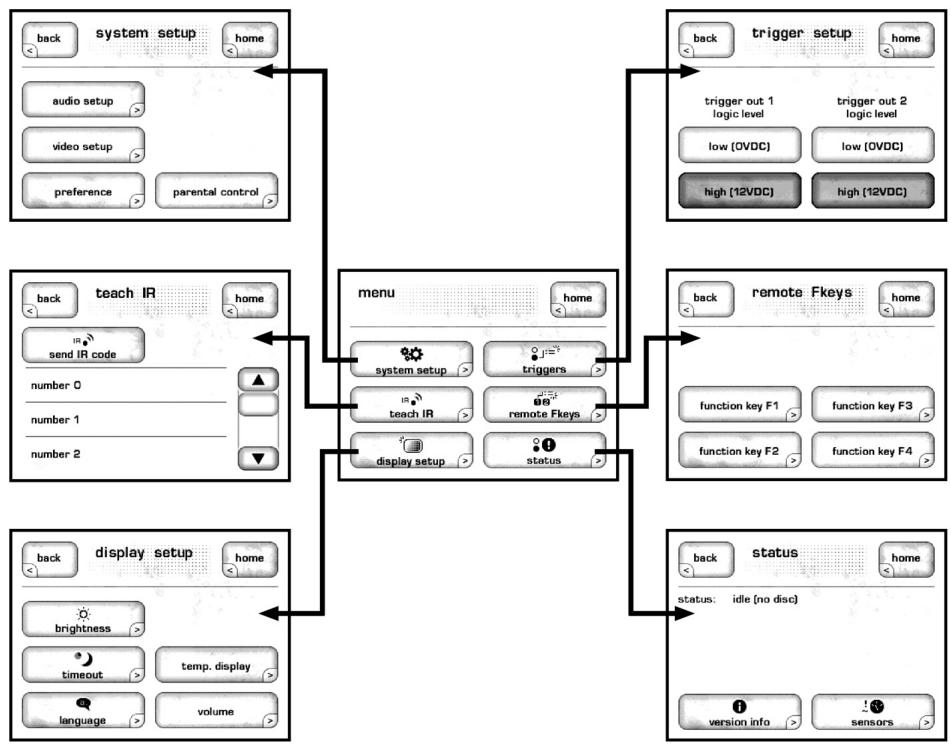
This menu system provides access to many installation-specific features that let you customize how the CDT-300 works within the context of your particular system.
system setup
The most extensive part of the menu system is under the system setup button. This section is both comprehensive and essential to taking full advantage of the remarkable capabilities of the CDT-300. As such, it is described more fully in its own, dedicated section of this manual. See System Setup for all the details.
teach IR
The CDT-300 provides discrete infrared (IR) command codes for all its functions, a list that extends far beyond what is required by normal remote controls. However, many of these functions are critical if you plan to create a customized remote control with macros that take command of your entire system. Without these discrete codes, many of the macros you might want to create will simply not work reliably.
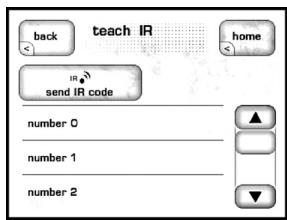
The teach IR screen provides a scrolling list of all the available IR codes in the CDT-300. By scrolling to the command your macro-capable remote needs to learn, and then pressing the send IR code button, the CDT-300 will send the appropriate command code out its front panel—where it can be learned by your third-party remote control.
For more information on such control systems, we recommend you speak with your authorized Classé dealer.
display setup
This button brings up the display setup menu, which itself has subordinate menus. This menu system is detailed below, immediately after the corresponding menu illustration. (It allows you to configure the CDT-300's LCD screen brightness, the display timeout, the language used in the touchscreen and menu system, the temporary display, and how volume settings are displayed if you use the variable volume capability of the CDT-300.)
triggers
Each of the CDT-300 DC Triggers may be programmed as to its "logic level," which is to say, whether its voltage is low (essentially 0V), or high (approximately 12VDC) when the trigger is activated. The ability to change the level of a trigger's on state can solve installation-specific problems that otherwise require external devices that add to both the cost and complexity of your system.
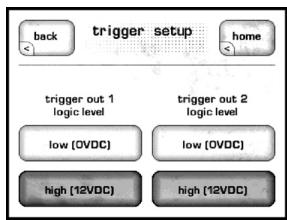
If this seems an obscure point, that's okay. It is a feature designed to solve problems you may not even have, but your installation professional appreciates being able to solve such problems when they occur.
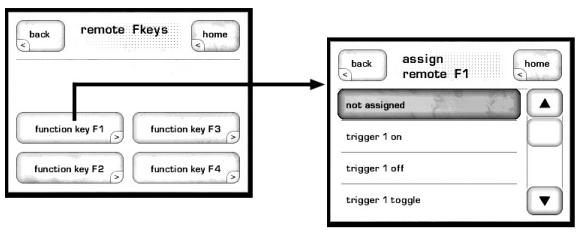
The remote control supplied with your Classé product includes four user-programmable function keys, or "Fkeys." They are labeled F1, F2, F3, and F4, and are located near the bottom of the remote control. The "remote Fkeys" menu allows you to define how your CDT-300 will respond to seeing one of these Fkey signals. You can use the Fkeys to give you instant access to specific system functions that might otherwise be buried in a menu somewhere.
For example, if you use the shuffle mode frequently, you may want to consider programming one of the Fkeys to toggle that function on and off. Doing so will save you having to access the control menu, followed by pressing the shuffle button (which might be hard to see from across the room, even though you could do so from the remote control with an Fkey assignment).
The remote Fkey menu has four buttons, one each for the four Fkeys on your remote control. Pressing any of these buttons on the LCD touchscreen takes you to a subordinate, scrolling list of possible functions for that particular Fkey.
Selecting the one you want is as simple as scrolling through the list (by touching either the up or down arrows on the right), and then touching the specific function in the list that you want that Fkey to perform.
cautionary note on Fkey use
Note that all Classé remote controls provide these same four Fkeys, so that you need not worry about which remote you happen to pick up. Thus F1 on the preamplifier's remote control sends the same infrared signal as F1 on the CDT-300 remote control.
While this is intended to minimize confusion amongst different remotes (since this aspect of them will all perform identically), you should take care when assigning different functions on different components to the same Fkey. Doing so would result in two components doing two different things at once, in response to a single press of a button on the remote control. This can sometimes be useful. As an example, F1 could set the preamplifier to the CD input, and also set the DVD transport to Play, both from the press of a single Fkey.
status
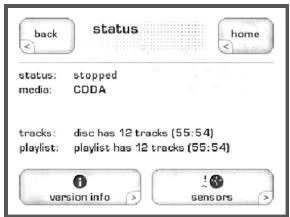
The status screen provides several items of information on the currently playing disc, as well as access to information on the software used in and the internal sensors of the CDT-300.
version info
The version info button on the status screen takes you to the version information screen. From time to time Classé develops new software that adds features or enhances the operation of the DVD transport. Each new software version has its own Version Number. The Version Info Screen displays the Version Number of the software that your unit is running. The latest software is always posted on the Classé website (www.classeaudio.com). If the version number displayed on the Version Info Screen is lower than the version posted on the Classé website, you may want to update your unit. Simple and detailed updated instructions are also provided on the website. If you ever have occasion to call our technical support people to ask a question not covered in this manual, they may want to know precisely what software your unit is running. Having this information available will help them to give you the best possible service.
sensors
The sensors button on the status screen takes you to the sensors screen, which displays information about several internal sensors within the CDT-300. It is unlikely you might ever need the sensor information, unless directed to do so by a customer service representative at Classé in order to help troubleshoot some unexpected problem.
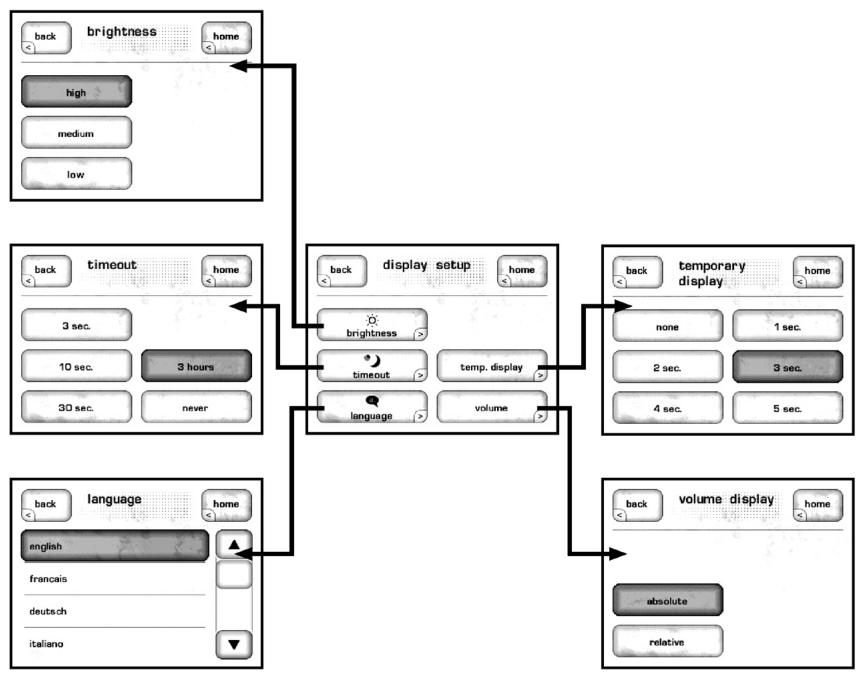
The display setup menu allows you to define your preferences for three aspects of the CDT-300's LCD display: the brightness of the backlighting, the timeout of the backlighting, and the language used.
brightness
The brightness setting of the CDT-300 has three possible values: low, medium, and high. Select the appropriate setting based on the level of ambient light typically found in your listening room while using the system. A high brightness setting usually works best in brightly-lit rooms; you may find that a lower setting is less visually intrusive under more subdued lighting conditions.
timeout
If you prefer listening to music in a dimly-lit or darkened room, you may find even the low brightness setting of the display somewhat distracting. If so, you can vary the timeout of the backlighting so as to turn it off entirely after a period of inactivity you select.
In this context, activity refers to any use of the user interface. This includes hard buttons, the LCD touchscreen, and the remote control.
For example, if you reduce the timeout to its minimum setting, the backlighting will illuminate the display as soon as you interact with any of the CDT-300 controls, and stay on for only three seconds—just long enough for you to check on something. If you continue to use any of the controls (at least once every three seconds), the display will remain lit. It will then extinguish itself after three seconds of inactivity on your part.
If you prefer the display of the CDT-300 to remain on whenever not in standby, choose the never timeout setting. The lamp in the LCD display was designed for harsh automotive environments and will give you many years of reliable operation. If you plan to leave the unit on continuously, however, we recommend that you keep the timeout delay set to less than one minute. (Note that setting the brightness to a lower setting does not increase the life of the lamp.)
| language | The language menu offers you any of five different languages supported by the CDT-300. Classé have provided our international distributors with a software tool that makes it possible for them to customize the translations to suit their local customs and terminology, in an effort to ensure that the CDT-300's operation is as intuitive to use in every country as it is in our home country of Canada. |
| temporary display | When playing a DVD, the CDT-300 displays the picture information on its LCD touchscreen in a “preview” mode. This can be helpful in cueing up material before sending the picture to the main display (saving your guests from the otherwise inevitable FBI warnings). It is also a wonderful way of navigating through DVD-Audio disc menu systems without having to turn on your main video display simply to enjoy some music. |
| volume display | When you make use of any of the control functions of the CDT-300, the display will change from its normal preview mode to display the user interface screens. The temporary display setting determines how long this user interface remains displayed before the touchscreen reverts to its usual preview mode. |
| If you elect to use the variable volume capability of the CDT-300, you have two choices as to how the volume setting is displayed. | |
| • Absolute is how most volume controls work, namely that a setting of “0” indicates no sound, while larger numbers represent higher volumes. • In the relative system, there is a calibrated, reference volume at which movies are played in theaters, which is duplicated in your environment and referred to as “0 dB.” Regardless of how large or how small the theater, a setting of “0 dB” is always the same, known volume. Changes from that volume level are shown as either positive (louder) or negative (quieter). People who have spent any time making recordings will recognize that this is similar to the notion of “0 dB” on a record level meter. |
System Setup
Pressing the menu button to the left of the LCD touchscreen, followed by pressing the on screen system setup button, will bring you to a menu system that gives you a wide range of control over how the CDT-300 works both on its own and as a part of your overall system.
the system setup menu system
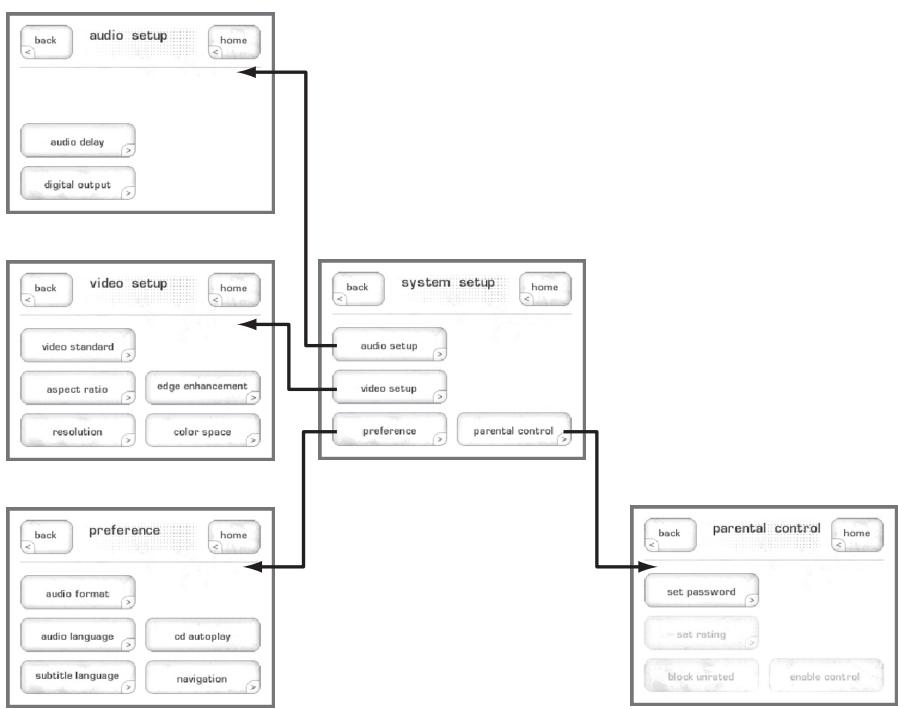
There are four submenus that can be accessed from the system setup menu. Each will be covered in turn.
audio setup
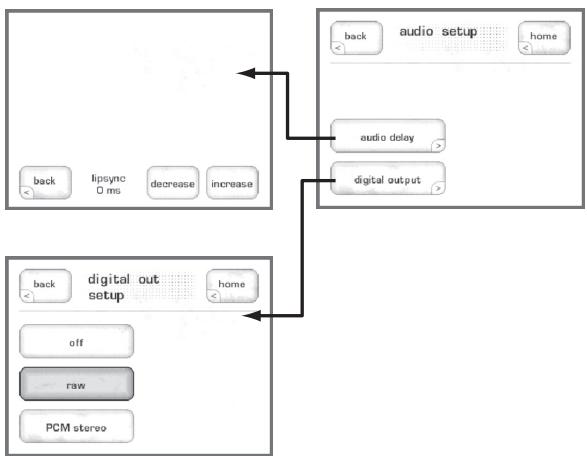
The audio setup button gives you access to six controls pertaining to how your DVD transport handles various audio details.
audio delay
When a disc has been incorrectly authored, the audio can be out of sync with the video. Audio delay allows you to compensate for this by inserting a delay that repositions the audio in relation to the video and brings them into sync. The delay is adjustable in 10ms steps and operates within a range of ± 200 ms.
Modern video displays make extensive use of video processing (as does the CDT-300 itself). This circuitry converts standard definition video (480i or 576i, depending on your local broadcast standard) to a format that is compatible with modern fixed matrix displays such as LCD, DLP or plasmas.
However, this conversion process takes some small amount of time, causing a "lip sync" problem between the audio (which has not been delayed appreciably) and the video (which has been delayed for processing). While some people are more sensitive to this problem than others, anyone who perceives a consistent lag between the audio and video will find it quite annoying.
The audio delay function of the CDT-300 addresses this by delaying the audio by anywhere by up to 200 milliseconds. This range of adjustment should be adequate to handle any video processing delay you might find in your system.
Note that the best use of this delay is to compensate for any delay introduced by the CDT-300's own video processing (assuming you are one of the ones who are sensitive to this sort of thing). The CDT-300 can only delay audio coming from itself, and has no control over (for example) broadcast television you may be watching. If your television introduces enough video processing delay to be noticeable, you would be better off using the audio delay feature of your A/V preamplifier/processor (assuming it has this capability—which Classé processors do have.)
digital output
The digital outputs of the CDT-300 can be configured in any of three ways, based on how you plan to use the transport:
- off — selecting this feature will only enable audio output via HDMI.
- raw — which passes along the native signal of whatever disc is playing, whether that is PCM, Dolby Digital, DTS, or anything else. This setting assumes that your external processor can handle anything you might send its way.
- PCM stereo — if the soundtrack you are playing contains multichannel information, it will be "downmixed" to a two-channel PCM signal that would be compatible with stereo playback, or further processing with Dolby Pro Logic II or DTS Neo:6 (as examples).
video setup
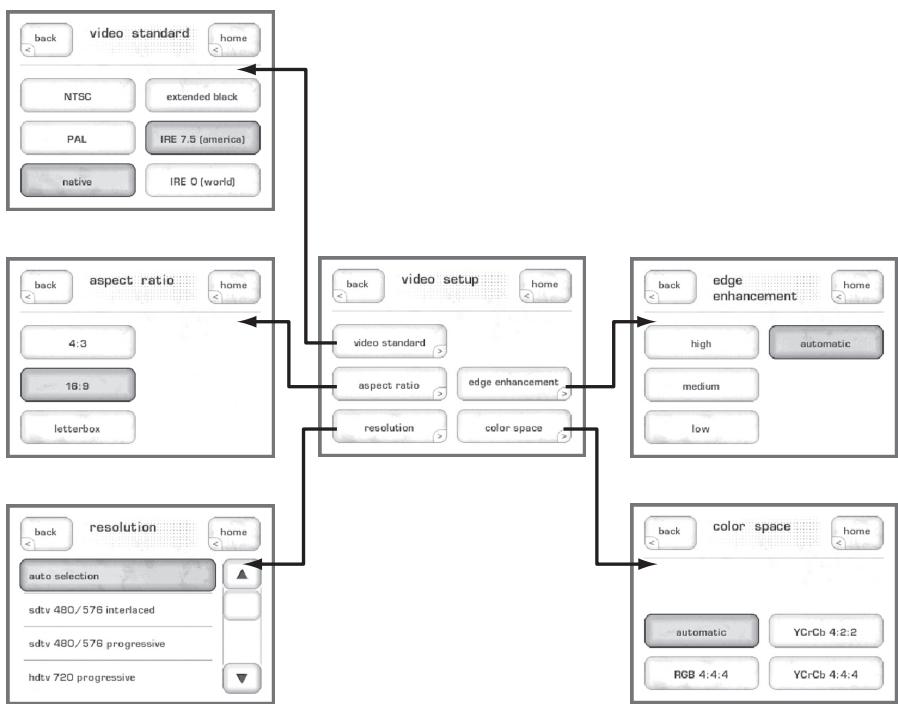
Taking full advantage of the CDT-300's extensive video capabilities is simple. Three menus will take care of everything.
video standard
These settings are usually preset for the geographic market in which you purchase the CDT-300. However, should you need to change the output of the CDT-300 to conform with a different standard, your choices are:
- NTSC/PAL/native — either choose the broadcast standard for your area, or set the CDT-300 to play the disc in its native format. This last option requires that you have a suitable multistandard display that can handle both NTSC and PAL.
- IRE 7.5 or 0 — the "video setup" in North America assumes that black is reproduced at a video level of 7.5 IRE units, while most of the rest of the world assumes that video black is represented by a video level of 0 IRE units. The CDT-300 can operate either way; you should pick the standard common to your area for compatibility with the rest of your video sources.
- Extended Black — the CDT-300 offers a choice between PC (extended black) and CE black levels. Use Extended Black to pass "blacker than black" video when connected to a Consumer Electronic display (not a PC monitor.)
aspect ratio
You have three choices for the way widespread movies will be displayed on your television. The choice should be determined by the capabilities of your television as well as your personal preference.
- 4:3 — If you have a 4:3 display and prefer to have it filled at all times, the CDT-300 will look for an available 4:3 version of the movie on any disc you insert, and play that version.
- 16:9 — If you have a modern, widescreen display that support different aspect ratios (including an anamorphic mode), select the 16:9 option. Doing so passes the contents of the disc to your television without addressing the aspect ratio. In effect, you are telling the CDT-300 that the television will be responsible for handling the aspect ratio duties.
- letterbox — If you have a 4:3 display, but prefer to see widescreen movies in their original form, the CDT-300 can create a “letterbox” version of the movie for you within the 4:3 frame of your television. This will result in black bars above and below the picture, but will show you all of the picture as the director and cinematographer originally framed it.
resolution
The CDT-300 has the ability to "upconvert" standard definition DVDs to higher display rates that are more suitable for HDTV displays. Note that this capability exists only through its HDMI outputs.
You can select from among the following video display rates:
- auto selection — If you use the HDMI digital interface between the CDT-300 and your display, the two components will automatically negotiate the optimal resolution for your display device. The auto selection capabilities of the CDT-300 apply only to the HDMI output.
- sdtv 480/576 interplaced — 480i (60 Hz) is the standard in NTSC countries; 576i (50 Hz) is standard in PAL countries.
- sdtv 480/576 progressive—480p (60 Hz) is the deinterlaced version of the standard for NTSC countries; 576p (50 Hz) is the deinterlaced version of the standard in PAL countries.
- hdtv 720 progressive — at 720 by 1280 pixels, this is the most common rate for plasma displays and many LCD displays, and the second-most common HD broadcast standard. It is shown at 50Hz in PAL countries, and at 60Hz in NTSC countries.
- hdtv 1080 interlaced — the 1080i standard is the most commonly broadcast HDTV format in use today, at 1080 by 1920 pixels (interlaced).
- hdtv 1080 progressive — available only through the HDMI output, 1080p is the highest-quality HDTV standard. It displays 1080 by 1920 pixels per frame.
edge enhancement
Select this feature when an increase in picture sharpness is desired.
color space
- Auto: automatically optimizes color space for your display.
- RGB 4: 4: 4: select this feature if you require your DVD transport to output Pluge.
- Ycrcb 4:2:2: Chroma upsampling by 1/2
- Ycrcb 4:4:4: Chromo upsampling by 1/1 .
preference
The DVD standard supports multiple soundtracks and languages, all on the same disc. This versatility can make playing a DVD more complicated than you might like. By establishing your preferences, the CDT-300 will be able to select the right soundtrack and language without you having to search through menus.
audio format
Many DVDs have multiple soundtracks, in different formats. You can state your preference (assuming it is available) by pressing the audio format button.
- automatic — selects the "best" available soundtrack automatically. Preference is given to soundtracks with a greater number of discrete channels (e.g., 5.1 rather than 2.0).
- PCM — if you prefer uncompressed digital audio, even if it means fewer channels, select the PCM option.
- Dolby 5.1 — states a preference for 5.1 channel Dolby Digital soundtracks if they are available.
- Dolby stereo — indicates a preference for soundtracks intended to be reproduced via Dolby Pro Logic or Dolby Pro Logic II decoding matrix.
- DTS — when selected, the CDT-300 will automatically play the DTS (Digital Theater Systems) soundtrack, if one is available.
audio language
You can also set a preference for the spoken language used in the soundtrack being played. Automatic defers to the default soundtrack on the disc itself. If you prefer, you can insist that the CDT-300 play an English, French, German, Spanish, or Italian soundtrack (assuming one is available).
subtitle language
Similarly, you can establish a preference for the language used in the subtitles. Your choices are English, French, German, Spanish, or Italian.
CDplay
When this button is highlighted, the transport will automatically start playback when a CD is inserted.
navigation
Historically, navigating within a CD and a DVD has worked differently. Specifically, the "fast forward" and "rewind" functions on a CD required you to press and hold the button during the scanning process. By contrast, the same action on a DVD required only a button click — in fact, additional button clicks would accelerate the rate at which the scanning would occur.
If you want to have all discs operate as per the DVD way of doing things, select latching as your navigation preference.
If you prefer the CD way of doing things, choose non-latching instead.
If you want the CDT-300 to behave like a CD player when playing a CD, and like a DVD when playing a DVD, choose adaptive.
parental control
The CDT-300 includes a set of parental controls, similar to what you may have on your cable or satellite TV service.
- The set password button allows you to set a four-digit numeric password, which will be required to play any disc that exceeds the rating you select.
- The set rating button gives you a list of eight ratings, with the corresponding movie ratings listed (e.g., level 6 is the same as an R-rated movie). The level you select here determines the maximum rating that can be played without the password being entered. (Note that this button is only enabled after you have set a password.)
- The block unrated button prevents unrated movies from playing without the password.
- The enable control button enables the parental control feature of the CDT-300.
Updating Your Unit
From time to time Classé designs new software that will enhance your component's performance. Updating your unit with the latest software is a matter of downloading a file from the Classe website (www.classeaudio.com) so it is worth ensuring that your component is fully updated.
Details of the software your DVD transport is running can be found on the Version Information Screen. This screen is accessed by pressing the Info button on the remote control followed by Version Info on the LCD touchscreen, or by pressing the Menu button beside the LCD touchscreen, then selecting Status from the touchscreen menu, followed by Version Info.
The Version Info screen displays the Version Number of the software your unit is running. The latest software is always on the Classé website, so if the Software Version Number on your Version Info screen is lower than the Software Version Number posted on the Classe website, then you should consider updating your unit.
Simple update instructions are posted on the Classe website, together with release notes and the software itself, so it is very easy to update your component and make it perform to its maximum potential.
Troubleshooting
In general, refer any service problems to your Classé dealer. Before contacting your dealer, however, check to see if the problem is listed here. If it is, try the suggested solutions. If none of these solves the problem, contact your Classé dealer.
1 My disc is skipping.
Gently clean the disc itself using a damp, soft cloth, wiping along the radius of the disc rather than around the circumference. (Cleaning discs in the manner minimizes the chance of damaging the disc.)
- The disc itself may already be damaged. Try several other discs, to see whether the problem is widespread or limited to a particular disc.
2 There is no sound and the Standby LED is not lit.
Ensure the transport is plugged into the AC mains, and that the AC mains are operating normally.
Check that the main power switch on the rear of the unit is on.
- Your display may be set to timeout, and the CDT-300 may simply be in pause or stop. Touch the screen to reactivate it so you can see the state of the unit, or simply press the Play key on the remote control.
Unplug the unit for at least thirty seconds and then plug it in again; try powering it up. (Sometimes a brownout or short-term loss of power might require a restart.)
Verify that the AC mains is not out of range. The unit will automatically attempt to protect itself from improper AC mains voltages by not powering up.
If none of these solutions work, please consult your Classé dealer for assistance. There are no user-serviceable parts inside your unit.
3. A disc was inserted, but the machine rejected it and asked for another disc to be inserted.
Check that the disc is compatible with your unit. The CDT-300 will play CD Audio, DVD-Video, DVD-Audio, DualDisc, MP3, WMA, AAC, Video-CD, and S-VCD discs.
Ensure that the disc surface is clean, and try reinserting it.
Check that the label side of the CD is facing up.
4. The disc is spinning but there is no sound in one or both channels.
- Check that both interconnect cables are properly connected between the outputs of the CDT-300 and the inputs of your preamplifier.
Ensure that the preamplifier/amplifier units being used are properly configured. (You may need to consult those units' owner's manuals for more information.)
5. The screen shows an error message and the Eject button does not eject the disc (or the transport shows some other anomalous behavior).
Press the Standby button so the screen dims and the blue light goes on.
Using the rear panel power switch, turn off the unit for at least thirty seconds. Then turn the power back on and press Standby to restart the unit.
6. The IR remote control seems not to function.
Ensure that there are no obstacles between the IR remote and the IR sensor (located to the right of the Mute button).
If the batteries are weak, replace them with fresh ones.
Care & Maintenance
To remove dust from the cabinet of your DVD transport, use a feather duster or a lint-free soft cloth. To remove dirt and fingerprints, we recommend isopropyl alcohol and a soft cloth. dampen the cloth with alcohol first and then lightly clean the surface of the transport with the cloth. Do not use excessive amounts of alcohol that might drip off the cloth and into the transport.
Caution!
At no time should liquid cleaners be applied directly to the transport, as direct application of liquids may result in damage to electronic components within the unit.
Specifications
All specifications are accurate at the time of printing. Classé reserves the right to make improvements without notice.
■ Formats supported CD, CD-R, CD-RW, DVD Audio, DVD Video,
VCD, SVCD, MP3, AAC, WMA, DTS CD,
DVD-R, DVD+R, DVD-RW, DVD+RW
Audio outputs Coax S/PDIF 1 x RCA, AES/EBU 1 x XLR,
Optical 1 × Toslink
Video outputs HDMI, Component (progressive scan),
S-Video, Composite
Internal Scaling 480i (via all video outputs),
480p (via component and HDMI)
720p/1080i/1080p (via HDMI)
■ Power consumption 55W
■ Mains voltage determined by the needs of country for which
the unit was manufactured; cannot be reset by dealer or user
Overall dimensions Width: 17.5" (445mm)
Depth: 16.5" (419mm)
Height: 4.75^ (121mm)
Net weight 26 lbs (12 kg)
Shipping weight 35 lbs (16 kg)
For more information, see your Classé dealer, or contact:
Classé Audio
5070 François Cusson
Lachine, Quebec
Canada H8T 1B3
Telephone +1 (514) 636-6384
FAX +1 (514)636-1428
Internet: http://www.classeaudio.com
email: cservice@classeaudio.com
ATTENTION : POUR RÉDUIRE TOUT RISQUE D'ÉLECTRISATION OU D'INCENDIE, NE JAMAIS EXPOSER CET APPAREIL À LA PLUIE OU L'HUMIDITÉ.

ATTENTION
RISQUE D'ÉLECTROCUTION NE PAS OUVRIR
Telephone +1 (514) 636-6384
Fax +1 (514)636-1428
internet: http://www.classeaudio.com
email : cservice@classeaudio.com
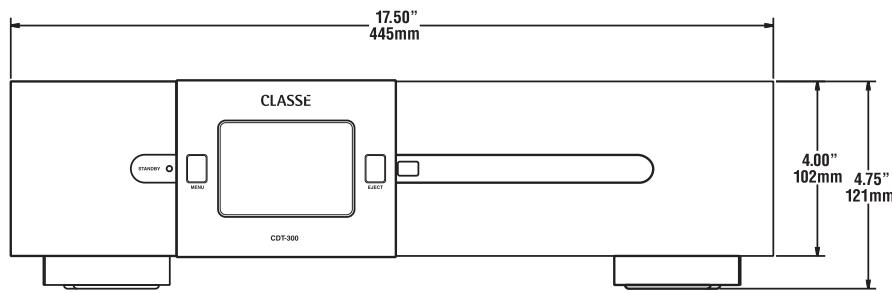
Dimensions
CLASSE
Classé Audio
5070 François Cusson
Lachine, Quebec
Canada H8T 1B3
+1 (514) 636-6384
+1 (514) 636-1428 (fax)
http://www.classeaudio.com
email: cservice@classeaudio.com
North America: 18003703740
email: classe@bwgroupusa.com
Europe: 44 (0) 1903 221 700
email: classe@bwgroup.com
Asia: (852) 2790 8903
email: classe@bwgroup.hk
All Others: +1 514 636 6394
email: cservice@classeaudio.com