 EasyManual
AVA6 - To scan AVISION - Free user manual and instructions
Find the device manual for free AVA6 AVISION in PDF.


User questions about AVA6 AVISION
0 question about this device. Answer the ones you know or ask your own.
Ask a new question about this device
Download the instructions for your To scan in PDF format for free! Find your manual AVA6 - AVISION and take your electronic device back in hand. On this page are published all the documents necessary for the use of your device. AVA6 by AVISION.
USER MANUAL AVA6 AVISION
Microsoft is a U.S. registered trademark of Microsoft Corporation. Windows and MS-DOS are trademarks of Microsoft Corporation. IBM, PC, AT, XT are registered trademarks of International Business Machines Corp. Other brands and product names herein are trademarks or registered trademarks of their respective holders.
Copyright
All rights reserved. No part of this publication may be reproduced, transmitted, transcribed, stored in a retrieval system, or translated into any language or computer language, in any form or by any means, electronic, mechanical, magnetic, optical, chemical, manual, or otherwise, without the prior written permission of Avision Inc.
Material scanned by this product may be protected by governmental laws and other regulations, such as copyright laws, the customer is solely responsible for complying with all such laws and regulations.
Warranty
The information contained in this document is subject to change without notice.
Avision makes no warranty of any kind with regard to this material, including, but not limited to, the implied warranties of fitness for a particular purpose.
Avision shall not be liable for errors contained herein or for incidental or consequential damages in connection with the furnishing, performance, or use of this material.
FCC Radio Frequency Interference Statement
This equipment has been tested and found to comply with the limits for a class B digital device, pursuant to Part 15 of the FCC rules. These limits are designed to provide reasonable protection against harmful interference in a residential installation. This equipment generates, uses, and can radiate radio frequency energy and, if not installed and used in accordance with the instruction manual, may cause harmful interference to radio communication. However, there is no guarantee that interference will not occur in a particular installation. If this equipment does cause harmful interference to radio or television reception, which can be determined by turning the equipment off and on, the user is encouraged to try to correct the interference by one or more of the following measures:
Reorient or relocate the receiving antenna.
- Increase the separation between the equipment and receiver.
- Connect the equipment into an outlet on a circuit different from that to which the receiver is connected.
- Consult the dealer or an experienced radio/TV technician for help.
CAUTION: Any changes or modifications not expressly approved by the manufacture of this device could void the user's authority to operate the equipment.
EC Declaration of Conformity
According to EN45014
Manufacturer's Name: AVISION INC.
Manufacturer's Address: No. 20, Creation
Road I, Science-Based
Industrial Park,
Hsinchu, Taiwan,
R.O.C.
declare that the product
Model Number : AVA6
conforms to the following Product Specifications:
Emission: EN 50081-1 (1992)
EN 55022 (Class B)
(Conducted Radiated) (1994)
EN 60555-2 (Harmonics) (1987)
EN 60555-3 (Flicker) (1987)
Immunity:
EN50082-1 (1992)
IEC 1000-4-2 (ESD) (1995)
IEC 1000-4-3 (RS) (1995)
IEC 1000-4-4 (EFT/Burst) (1995)
IEC 1000-4-5 (SURGE) (1995)
System Requirements
Windows
IBM compatible PC Pentium III 600 or higher
Microsoft Windows 98 / 98SE / Me / 2000 / XP
USB port (Hi-Speed with USB 2.0 card only) (Compatible with USB 1.1)
At least 100 MB of free hard disk space
At least 128 MB of system memory
A CD-ROM drive
Table of Contents
-
INTRODUCTION 1-1
-
SOFTWARE INSTALLATION 2-1
2.1 INSTALLING THE CD SOFTWARE 2-1
- SCANNER INSTALLATION 3-1
3.1 REMOVING THE SHIPPING LOCK 3-2
3.2 CONNECTING THE CABLES 3-3
- COMPLETING YOUR FIRST SCAN 4-1
4.1 LOADING YOUR PAPER 4-1
4.2 SCANNING WITH IMAGE EDITING SOFTWARE 4-2
- EDITING YOUR IMAGE 5-1
5.1 USING THE BASIC FEATURES 5-1
4.2 USING THE ADVANCED FEATURES 5-11
4.3 USING OTHER TOOLS 5-19
- USING THE BUTTONS 6-1
6.1 CUSTOMIZING YOUR BUTTON SETTINGS 6-1
6.2 USING THE BUTTONS 6-3
- TECHNICAL SERVICE 7-1
- SPECIFICATIONS 8-1
1. Introduction
Congratulations on your purchase of the AVA6 color image scanner. Avision is one of the leading companies in the world to develop high performance sheet-fed scanners.
Before you install and operate the new scanner, please take a few minutes to read through this manual. It provides proper instructions for you to unpack, install, operate and maintain the scanner.
The following figure indicates the package contents. Please check all the items against your checklist. If you do not receive all the items, please contact your authorized local dealer immediately.
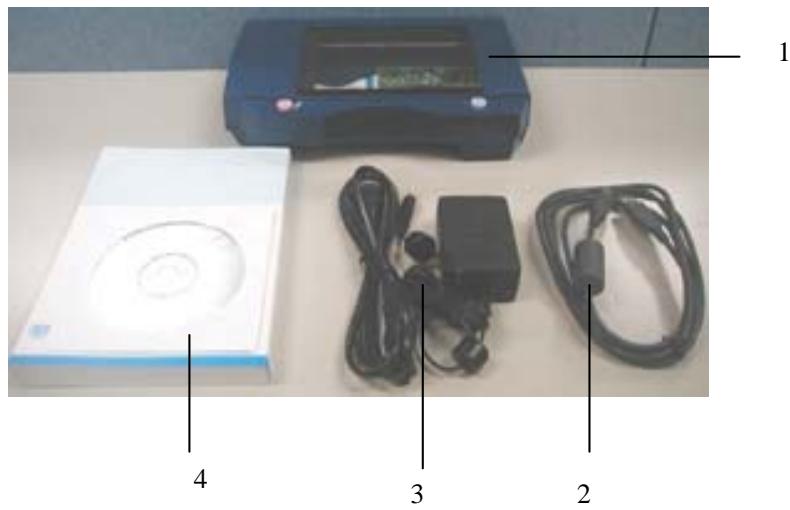
- AVA6 Main Unit
- USB Cable
- Power Adapter/cord
- Quick Guide/CD
2. Software Installation
2.1 Installing the CD Software
- Insert the supplied CD into your CD-ROM. The installation menu appears, as shown below:
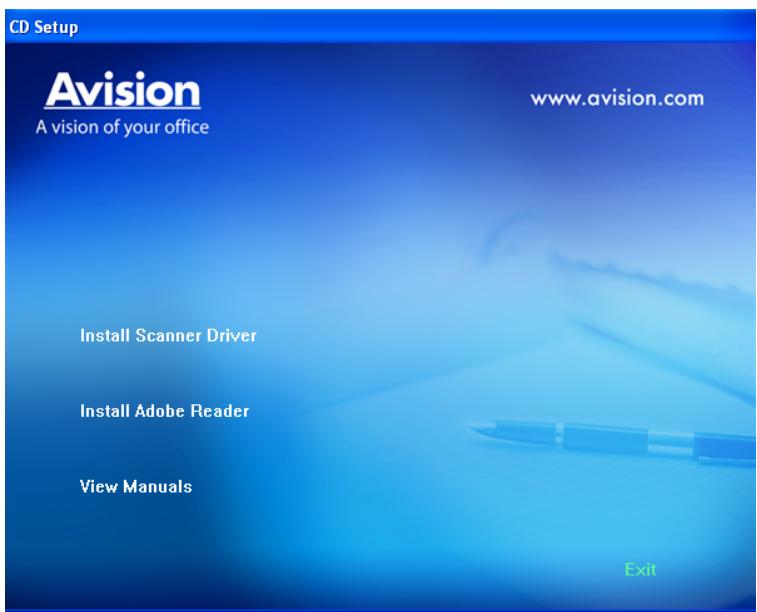
Note: If the Installation menu fails to appear, an alternative method is to click the Start button on the task bar, choose Run, and type "d:\cdsetup.exe" (D: your CD-ROM drive in use) and click O.K.
- Click "Install Scanner Driver" to install the TWAIN driver.
- Click "Install AVCapture" to install the application software.
- Follow the on-screen instructions to install applications respectively.
- Restart the PC after installing all software applications
3. Scanner Installation
Precautions
- Keep the scanner out of direct sunlight. Direct exposure to the sun or excessive heat may cause damage to the unit.
- Do not install the scanner in a humid or dusty place.
- Be sure to use the proper AC power source.
- Place the scanner securely on an even, flat surface. Tilted or uneven surfaces may cause mechanical or paper-feeding problems.
- Retain the scanner box and packing materials for shipping purposes.
- Use only the SINO-AMERICAN AC adapter (SAL124A-2410U-6) included with the machine. Using other AC adapters may damage the machine and void the warranty.
3.1 Removing the shipping lock
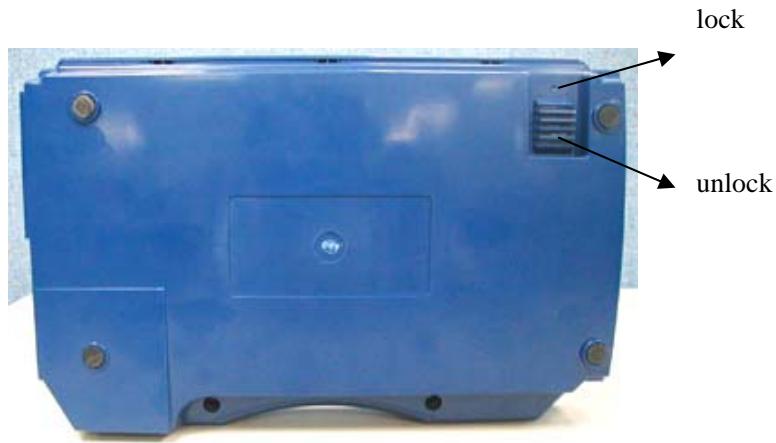
Unlock the scanner by moving the lock switch beneath it to the "Unlock" position. (Refer to the Lock/Unlock figure as below.)
3.2 Connecting the Cables
Make sure the power of scanner is off.
3.2.1 Connecting to Power
Plug the small end of the power adaptor into the power jack of your scanner. Insert the other end to an appropriate power outlet.
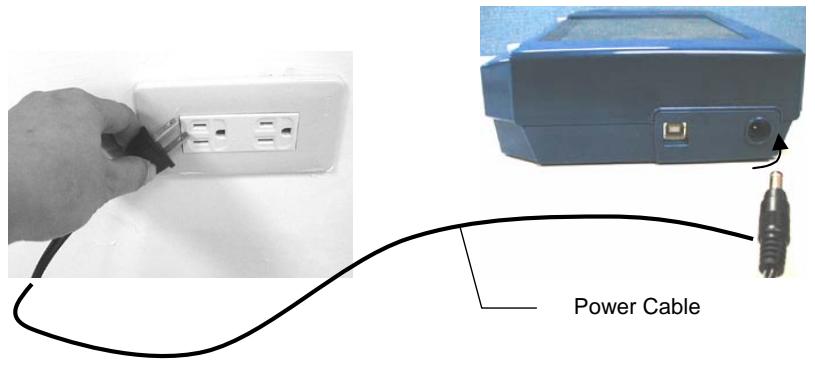
3.2.2 Connecting to Computer
- Connect the square end of the USB cable to the USB port of your scanner. Connect the rectangle end to the USB port of your computer.
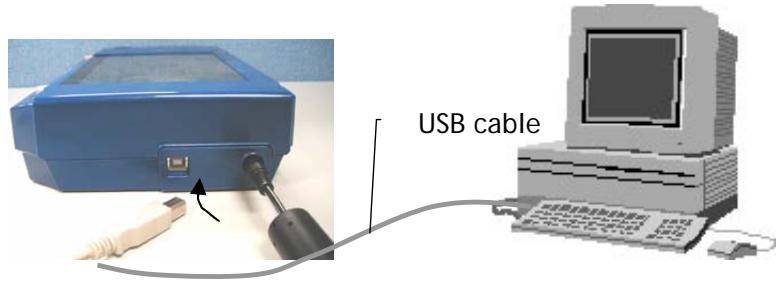
- The computer should detect a new USB device and prompt a "New Hardware Found" messa
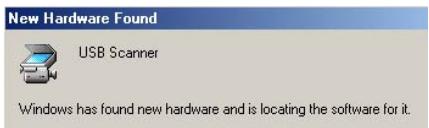
(Windows 9X/Windows ME)
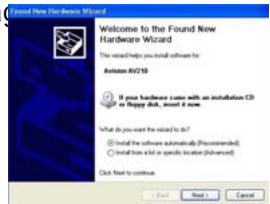
(Windows 2000/XP)
- In Windows 9X or Windows ME, confirm that the "Search for a better driver." is selected and click the "Next" button.
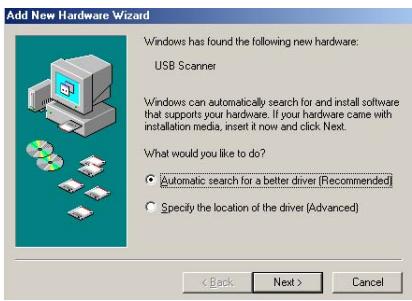
In Windows XP, click the Next button to continue.
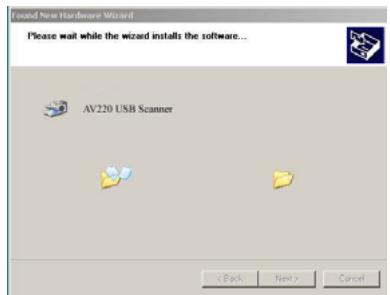
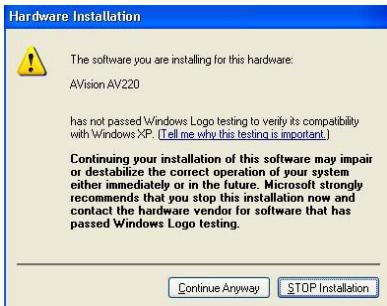
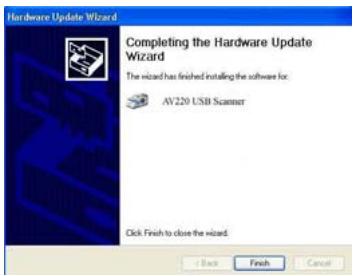
- During the process, the Windows XP certification screen will appear. Ignore the contents and choose "Continue Anyway" to complete the installation.
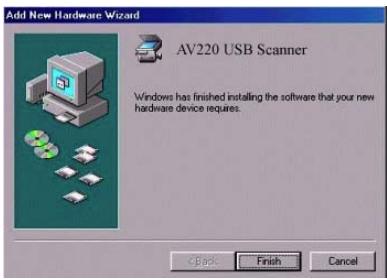
- When the Finish dialog is prompted, click the Finish button.
(Windows 9X/Windows ME)
(Windows 2000/XP)
4. Completing Your First Scan
4.1 Loading Your Paper
Align the document to the reference mark, as indicated.
reference mark
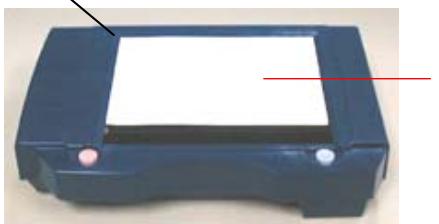
Document (the text face down)
4.2 Scanning with image editing software
The scanner driver is not a stand-alone program, it has to be started from within a TWAIN-compliant or plug-in software application and then the scanner driver is able to scan and load the image to your computer. The command to start the scanner driver may vary due to different software applications.
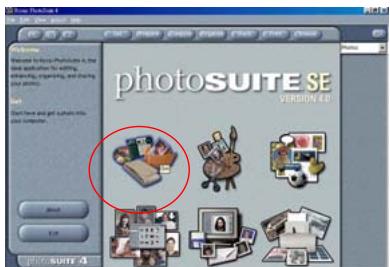
- Start a TWAIN compliant software application such as Roxio PhotoSuite 4 SE which is bundled in the CD.
- Click Get>Scanner (TWAIN).
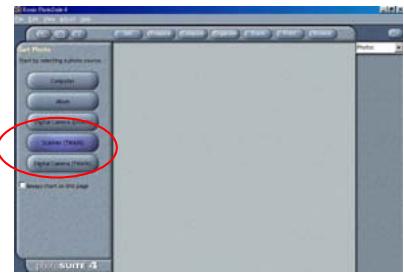
- Choose AVA6 as your scanning source. (You only need to do this once.)
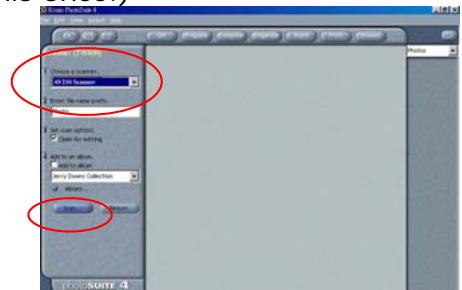
- Place the document FACE DOWN on the document glass.
- Click the Scan button to prompt the TWAIN user interface.
- Click Preview to get an initial scan of your document. Allocate your scanned area and choose Scan button to
scan the document.
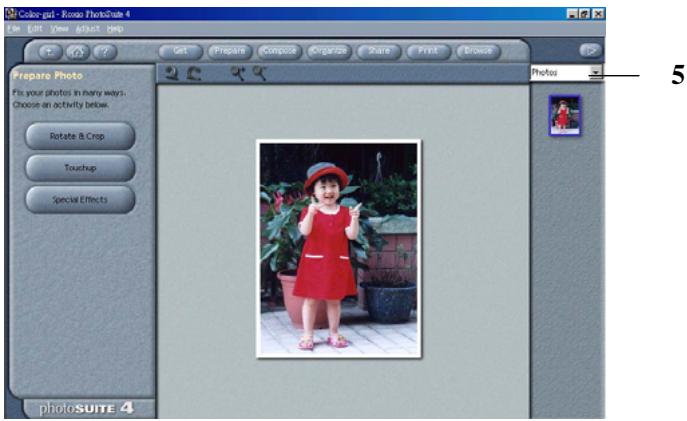
- Click Exit to return to the main screen and click Open Library and Photos at the upper-right corner to open your scanned image.
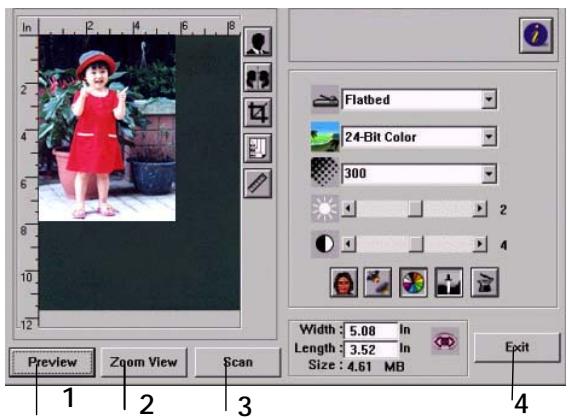
- Preview
- Zoom View
- Scan
- Exit
- Photos
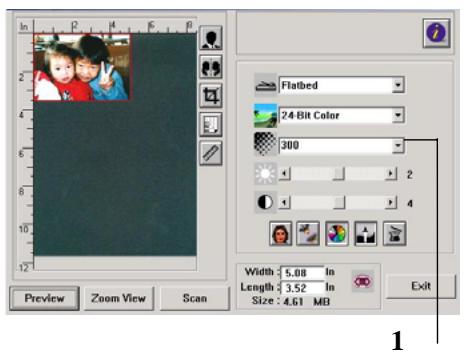
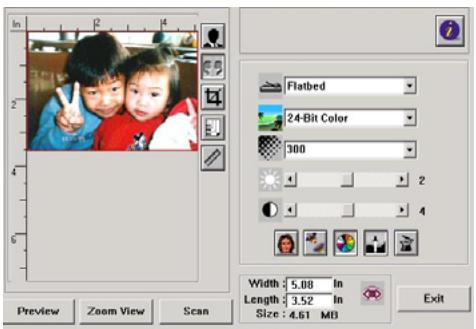
4.2.1 A Glance of the user interface
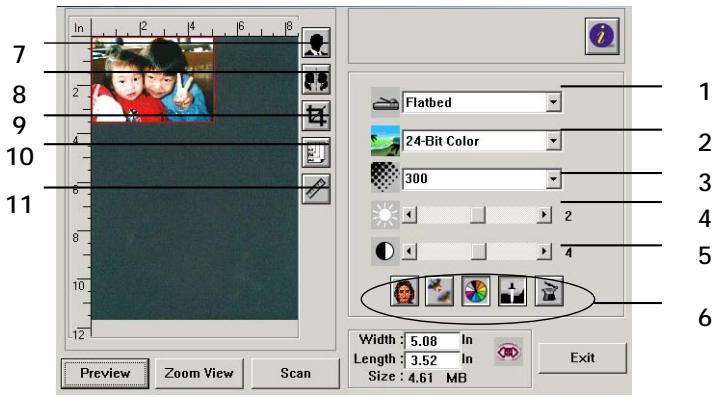
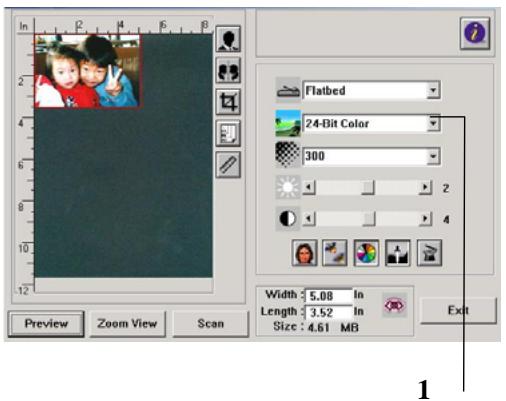
| 1. Original Source | Choice: Flatbed |
| 2. Image Type | Choice: Black & White, Halftone, 8-bit Gray, 8-bit Color, 24-bit Color. |
| 3. Resolution | Choice: 50, 72, 100, 144, 150, 200, 300, 600, 1200 (dpi). |
| 4. Brightness: | Adjust the brightness level from -100 to +100. |
| 5. Contrast | Adjust the contrast level from -100 to +100. |
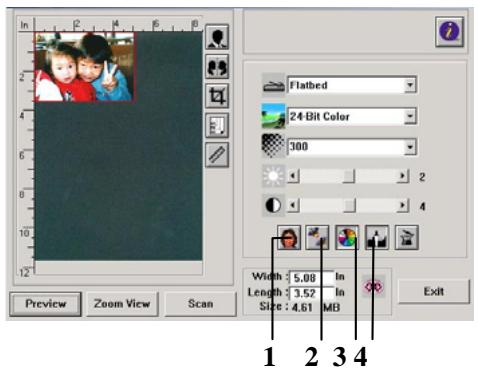
| 6. Further Tools | Descreen, Sharpen, Color Adjustment, Auto Level , Advanced Settings (From left to right). |
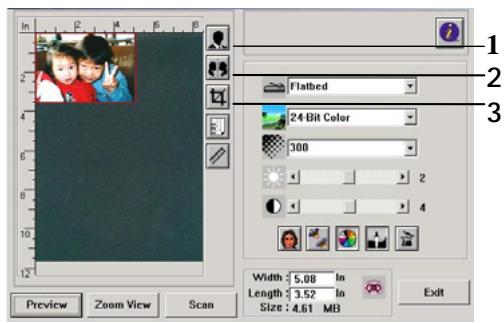
| 7. Invert | Reverse the color of your scanned image. |
| 8. Mirror Function | Flap your image. |
| 9. Crop | Resize your scanned area. |
| 10. Paper Size | Select your paper size from Card 4"x2.5", Photo 5"x3", Photo 6"x4", A5, B5, A4, Letter, Legal, or scanner maximum. |
| 11. Measuring Unit | Choice: cm, Inch, and Pixel. |
5. Editing Your Image
5.1 Using the Basic Features
5.1.1 Choosing Your Scan Method
- Scan Method Choice:flatbed
5.1.2 Selecting a Proper Image Type
1. Image Type
Please see following table for a choice of an ideal image type.
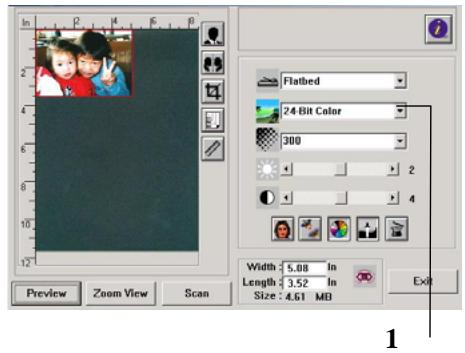
| Black & White | Choose B&W if your original contains only B&W text, pencil or ink sketch. |
| Halftone | Halftones are reproduction of image that gives the illusion gray. An example of halftone imaged would be the pictures you see in newspapers. |
| 8-bit Gray | 8-bit Gray images contain actual shades of gray. |
| 8-bit Color | 8-bit Color image provides 256 levels of color hues. |
| 24-bit Color | Choose 24-bit Color if you wish to scan a color image. |
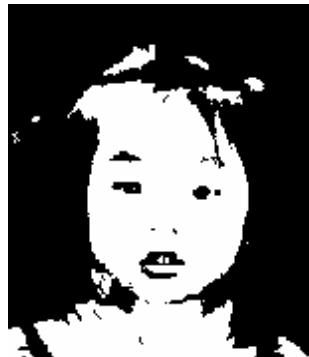
Black & White
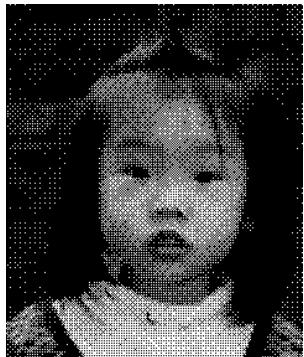
Halftone

Gray
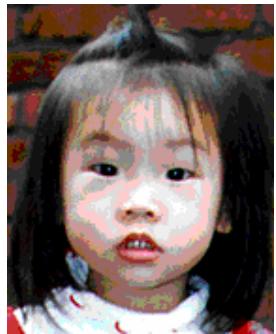
8-bit Color

24-bit Color
4.1.3 Determining a Proper Resolution
1. Resolution
A proper resolution reproduces a clear image with good details. The resolution is measured by dots per inch (dpi).
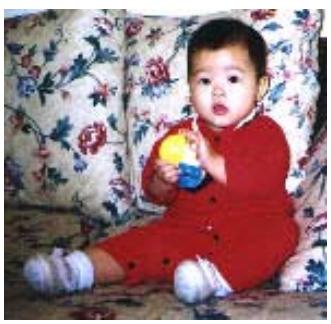
Resolution: 50 dpi
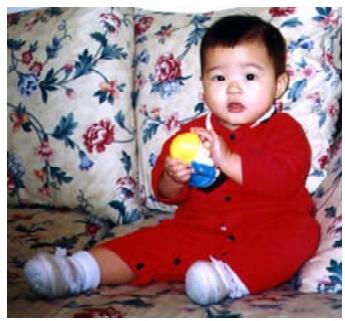
Resolution: 100 dpi
Note
For your information, an A4 size color image scanned at 300 dpi at True Color mode consumes approximately 25 MB of disk space. A higher resolution (usually means over 600 dpi) is only recommended when you need to scan a small area at True Color mode.
4.1.4 Adjusting the Brightness and Contrast
1. Brightness
Adjusts the lightness or darkness of an image. The higher the value, the brighter the image.
2. Contrast
Adjusts the range between the darkest and the lightest shades in the image. The higher the contrast, the bigger the different grayscale.
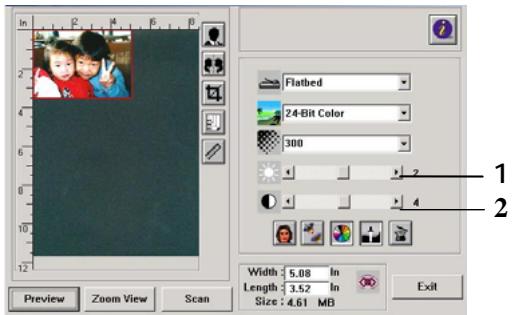

Decrease Brightness

Normal

Increase Brightness

Decrease

Normal

Increase Contrast
Contrast
4.1.5 Enlarging Previewed Image
1. Zoom View
Enlarge your previewed image to the max. of the preview window.
Note this function only enlarging your preview image. This does not enlarge your real image.
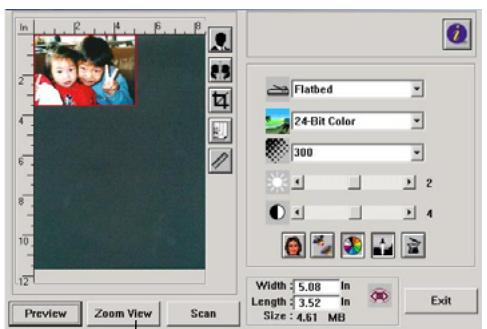
1
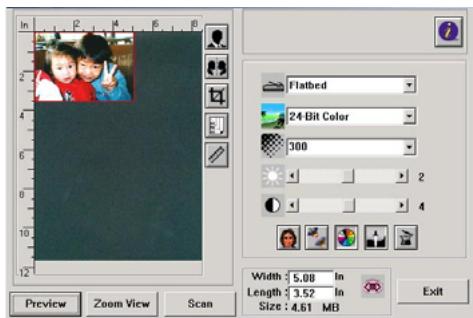
Before Zoom
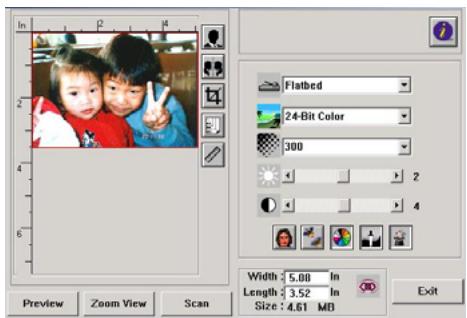
After Zoom
4.1.6 Inverting and Selecting Your Image
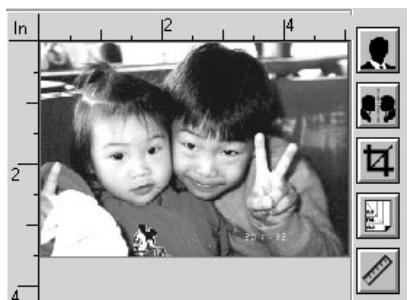
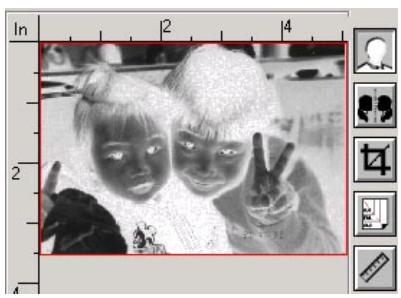
1. Invert
The invert command reverses the brightness and the color in the image. For color images, each pixel will be changed into its complementary color at the command of Invert.
Before Invert
After Invert
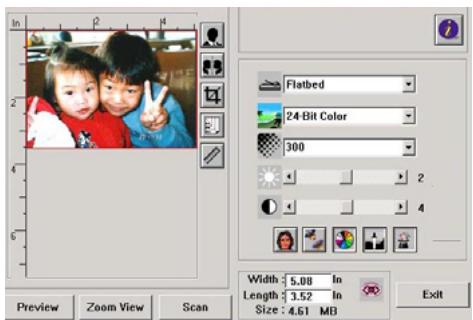
2. Mirror Function
Reverse the right and left side of your image.
Before Mirror
After Mirror
3. Auto Select Image
Automatically set the whole image as your scan area. (Or you may resize the area by "drag and drop" diagonally.)
4.1.7 Enhancing Your Image
1. Desscreen
Eliminates the moire patterns* commonly found in printed matter.
2. Sharpen
Sharpen the scanned image.
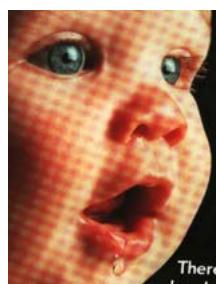
Before Descreen

After Descreen

Before Sharpen

After Sharpen
*Moire pattern: An undesirable pattern in a color printing resulting from incorrect screen angle of overprinting halftone.
3. Color Adjustment
Adjusts the color quality of the image so that it comes close to the original. This function uses default parameters to adjust the image.

Normal

After Color Matching
4. Auto Level
Automatically adjusts the highlight and shadow areas of the scanned image to optimize your image.

Normal

After Auto Level
4.2 Using the Advanced Features
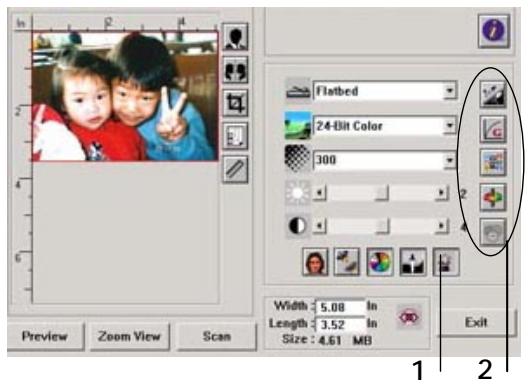
4.2.1 The Switch button
-
Click the button to pop up the advanced settings bar at the right side. The advanced settings include Highlight/Shadow, Hue/Saturation/Lightness, Curve, Color Balance, Color Dropout.
-
The Advanced Settings bar
4.2.2 Adjusting Highlight/Shadow Levels

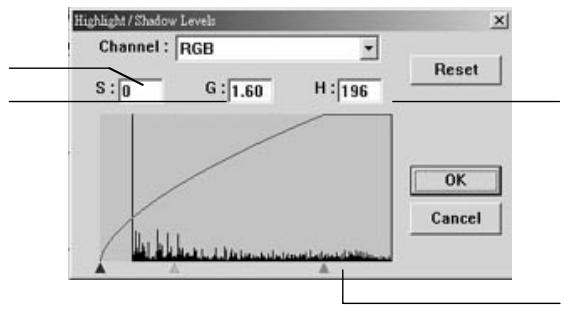
Highlight refers the lightest point in a scanned image while shadow refers the darkest point. Using Highlight and Shadow tool together allows you to extend the range of color and reveal more details in a gray or color image.
1 2
3
- Shadow: The darkest point of an image.
- Gamma: The midtones of the image.
- Highlight: The lightest point of an image.
- Pointer: Move the pointer to change the value.
When the value of gamma changes, the image changes accordingly.

Gamma Value: 1.0

Gamma Value: 1.4

Gamma Value: 2.0
When the value of highlight and shadow change, the image changes accordingly.
Highlight: 255/Shadow: O(Normal)

Highlight: 200/Shadow:0
Highlight: 210/Shadow: 10

Highlight: 255/Shadow: 50


4.2.3 Adjusting the Brightness Curve

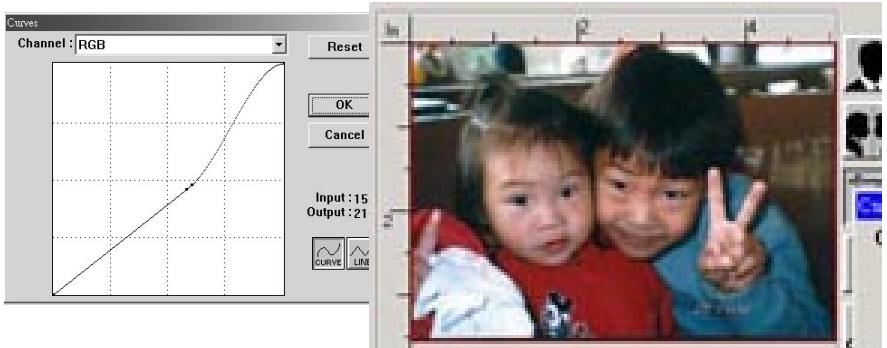
Adjusts the midtones of the image without dramatically altering then lightest and the darkest areas.
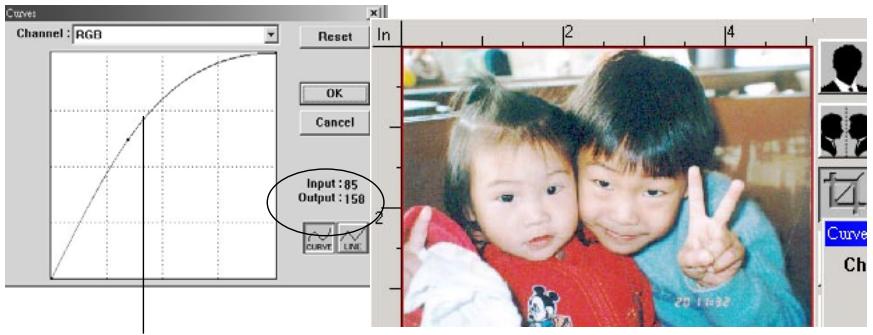
When the curve is moved up or down, the image turn brighter or darker.
4.2.4 Changing Color Hue/Saturation/Lightness

Improve your image by changing the level of hue/saturation/lightness.
(1)
(2)
(3)
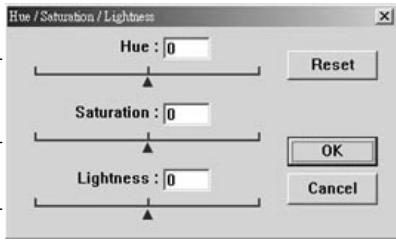
| (1). Hue | Adjust the hue by moving the triangle to the right or left. (Note the level of intensity for the color will be changed simultaneously when the hue adjustment is made). |
| (2). Saturation | Move the triangle to the right to increase the saturation level or to the left to decrease the level. The level of saturation decides if the color is pale or rich. |
| (3). Lightness | Increase the lightness by moving the triangle to the right or to the left to decrease the lightness. |
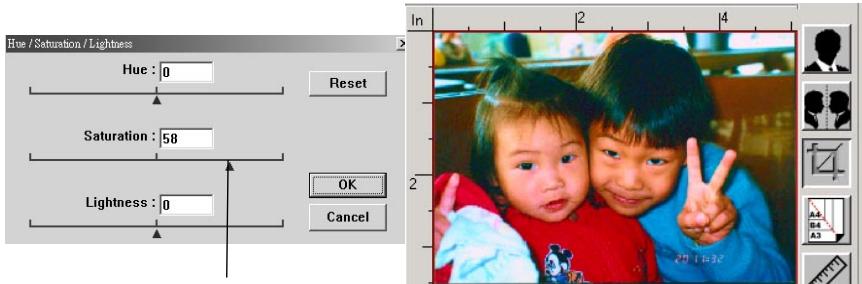
Move the Saturation pointer to the right, the color turns rich.
4.2.5 Using Color Balance

The Color Balance allows you to obtain an optimal image quality.
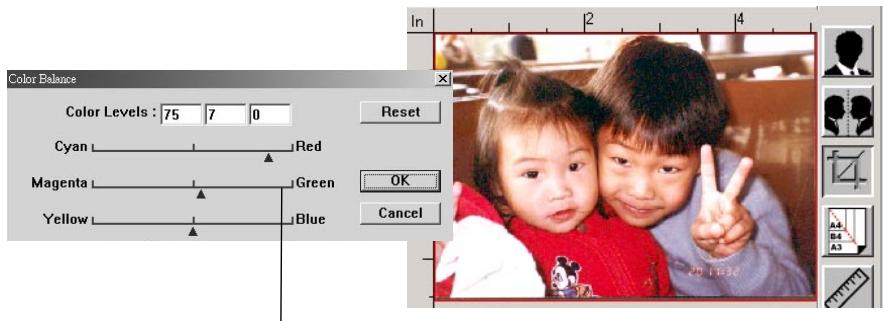
Move the pointer toward Red, the image turns into a reddish hue.
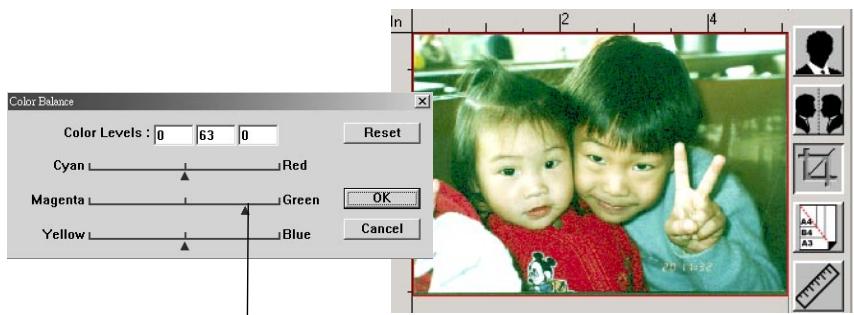
Move the pointer toward Green, the image turns into a greenish hue.
4.2.6 Color Drop-out

Click the button and a dialog box in below will be displayed. This dialog allows you to remove one of the R (Red), G (Green), or B (Blue) color channel. This function is particularly useful when you need to convert text using OCR software.
Note that this function supports only black & white and gray image. Therefore, be sure to choose any black & white or gray image type while applying this function.
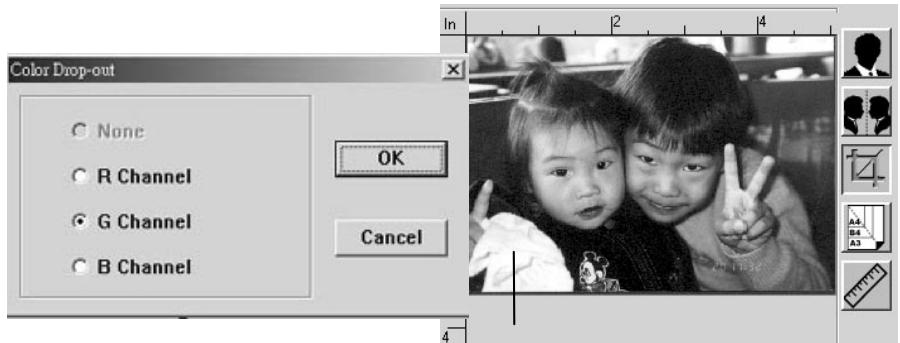
The effect on image after removing the G channel.
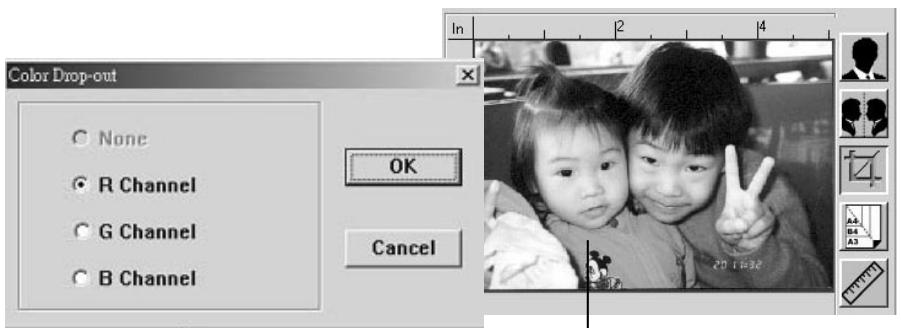
The effect on image after removing the R channel.
4.3 Using other Tools
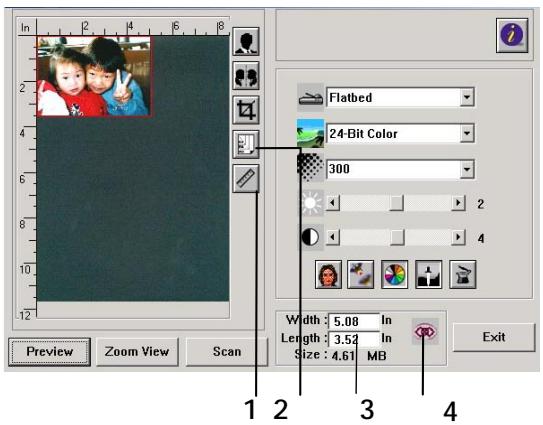
| 1. Measuring Unit | A reminder of the measuring system in use. By clicking the button, you can change the measuring unit. Choice: Inch, cm, Pixel. |
| 2. Paper Size | Provide frequently scan sizes. Choice: Card 4"x2.5", Photo 5"x3", Photo 6"x4", B5, A5, A4, Letter, and Scanner Maximum. |
| 3. Image Size | Display image size for the scanned area. |
| 4. Lock Image | Fix your output width and height. |
6. Using the Buttons
6.1 Customizing your button settings
After you have successfully installed the scanner driver on your computer, please customize your button settings to use the buttons properly.
To Customize your Button Preferences,
- Start your Button program by clicking Start> All Programs> AVA6 PLUS >Preferences to prompt the Preferences dialog.
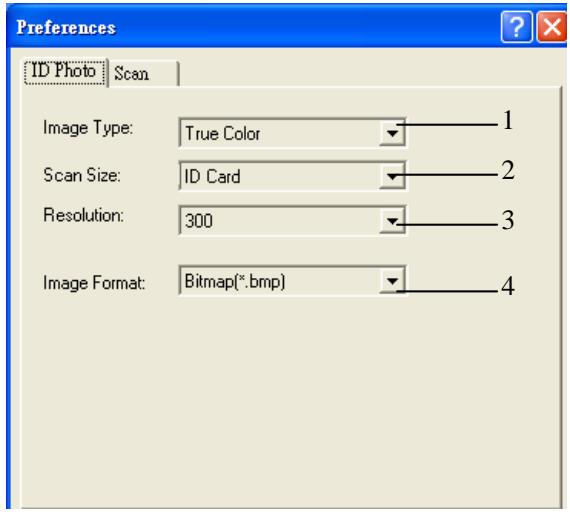
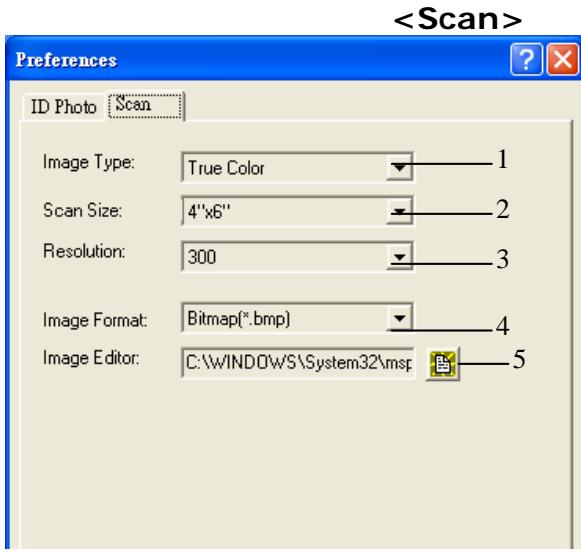
- Image Type: Choose a proper image type.
- Scan Size: Choose your scan size.
- Resolution: Choose a proper resolution.
- Image Format: Choose an image format.
- Image Editor: Choose your favorite image editing application.
6.2 Using the Buttons
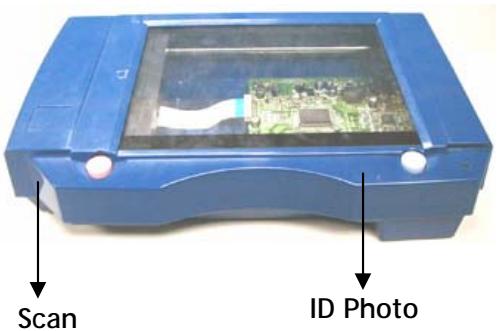
Press the button you desire.
ID Photo :
Scan and load your scanned image to your default image editing software application.
Scan:
Scan and load your scanned image to your chosen image editing software application.
7. Technical Service
Before contact Avision, please prepare the following information:
- Scanner serial & revision number (located on the bottom of the scanner);
- Hardware configuration (e.g., your host CPU type, RAM size, free disk space, display card, interface card);
- The name and version of your scanning software application;
The version of your scanner driver.
Please call us at:
Headquarter
Avision Inc.
No. 20, Creation Road I, Science-Based Industrial Park, Hsinchu 300, Taiwan, ROC
TEL: +886 (3) 578-2388
FAX: +886 (3) 577-7017
E-MAIL: service@avision.com.tw
Web Site: http://www.avision.com.tw
US and Canada Area
Avision Labs, Inc.
6815 Mowry Ave., Newark CA 94560, USA
TEL: +1 (510) 739-2369
FAX: +1 (510) 739-6060
E-MAIL: support@avision-labs.com
Web Site: http://www.avision.com
8. Specifications
All specifications are subject to change without notice.
Scanner Type: Desktop flatbed
Optical Resolution: 600 dpi * 1200 dpi
Scanning Modes: Black & White mode
8-bit gray scale
24-bit color
Max. Document Size: 105mmx148mm
Interface: USB
Power Source: 24V, 0.8A
Power Consumption: 12W
Dimensions: (WxHxD) 253 mm x 160 mm x 55 mm
Weight: 0.8 ~kgs