NETDELIVER @V2500 - Photocopier AVISION - Free user manual and instructions
Find the device manual for free NETDELIVER @V2500 AVISION in PDF.

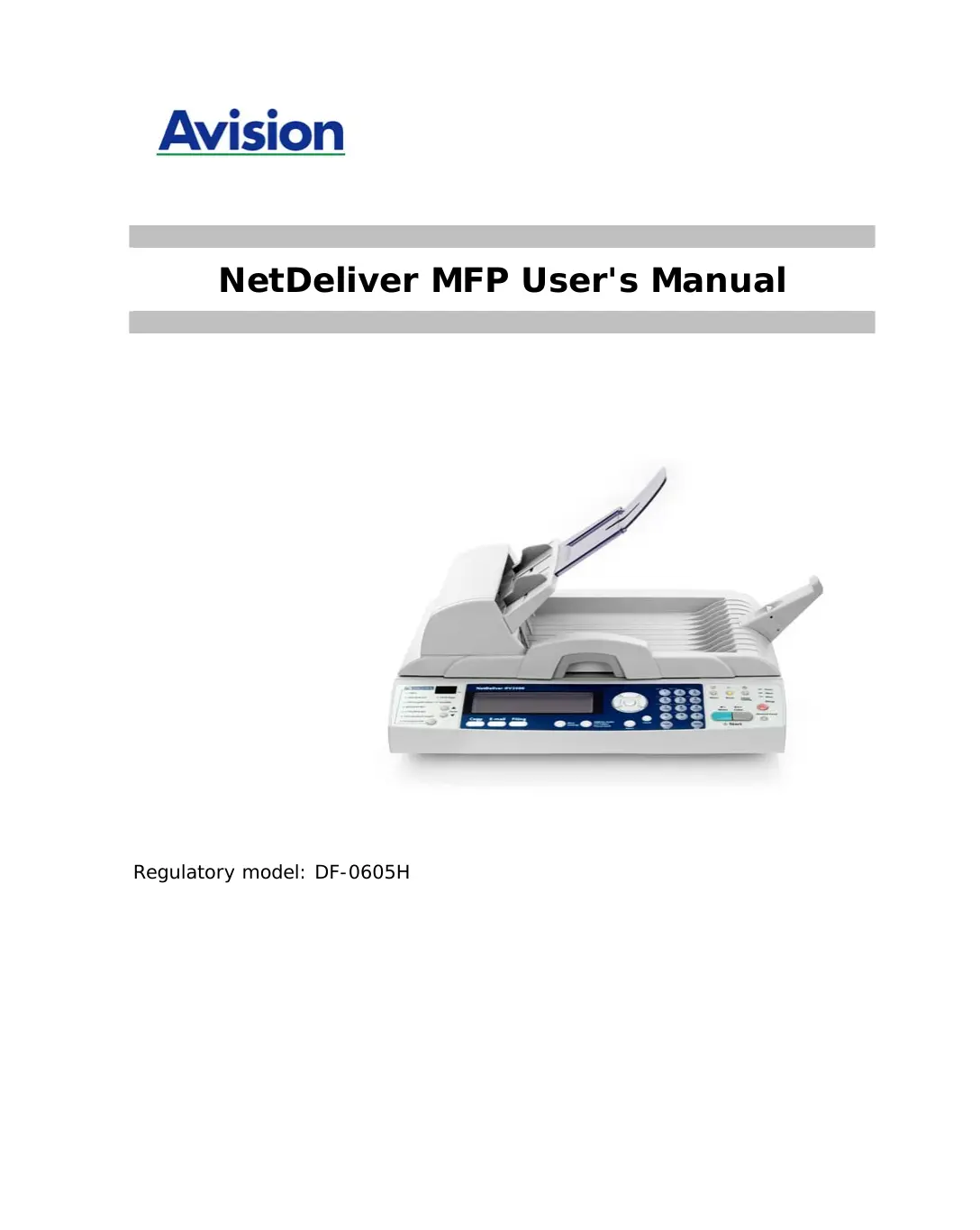

| Product Type | Multifunction network copier (scan, copy, email, archiving) |
| Brand and model | AVISION NETDELIVER @V2500 (regulatory model: DF-0605H) |
| Dimensions (W × D × H) | 444 × 391 × 272 mm |
| Weight | 6.2 kg (with automatic document feeder) |
| Power supply | 24 V DC / 2 A (power adapter included, models 077-242090-13 or HEG42-240200-7L) |
| Power consumption | Less than 36 W |
| Main functions | Scan to email, Scan to file (FTP/HTTP/HTTPS/CIFS/AVPP), Digital copy, Address book and profile management, Watermark printing, Reduce/Enlarge (25%–400%) |
| Automatic document feeder (ADF) capacity | 50 sheets (up to 8.5 × 14 inches / Legal) |
| Optical scanning resolution | 600 × 600 dpi |
| Output formats | PDF, JPEG, TIFF, MTIFF, PCX, GDI (depending on function) |
| Recommended duty cycle | 1,000 pages per day |
| Maintenance and cleaning | Cleaning the glass and white strip with isopropyl alcohol (95%); cleaning the ADF rollers and pad; replacing the rubber pad module (after ~50,000 pages) |
| Safety | Do not remove covers other than those specified; unplug by pulling the plug, not the cord; use only the mentioned adapters; place on a flat and stable surface |
| Spare parts and repairability | Replaceable ADF pad module (reference at reseller); external power supply; accessible roller assembly for cleaning |
| Additional general information | Memory: 192 MB SDRAM + 8.5 MB Flash; LCD screen 240 × 64 pixels; connections: RJ-45 (Ethernet 10/100), USB (copy), USB keyboard, ADF port; network protocols: TCP/IP, SMTP, POP3, FTP, HTTP, HTTPS, CIFS, AVPP, DHCP, DNS, LDAP |
Frequently Asked Questions - NETDELIVER @V2500 AVISION
User questions about NETDELIVER @V2500 AVISION
0 question about this device. Answer the ones you know or ask your own.
Ask a new question about this device
Download the instructions for your Photocopier in PDF format for free! Find your manual NETDELIVER @V2500 - AVISION and take your electronic device back in hand. On this page are published all the documents necessary for the use of your device. NETDELIVER @V2500 by AVISION.
USER MANUAL NETDELIVER @V2500 AVISION
NetDeliver MFP User's Manual
Regulatory model: DF-0605H
Safety Information
When using this equipment, the following safety precautions should always be followed.
Safety During Operation
In this manual, the following important symbols are used:
WARNING:
Indicates potentially hazardous situations, which if instructions are not followed, could result in death or serious injury.
CAUTION:
Indicates a potentially hazardous situation which, if instructions are not followed, may result in minor or moderate injury or damage to property.
Important:
Indicates operational requirements and restrictions. Please read and follow these instructions to ensure a proper operation and to avoid damage to the machine.
Note:
Indicates further explanation or clarification. Reading this is highly recommended.
WARNING:
To avoid hazardous electric shock or fire, do not remove any covers or screws other than those specified in this manual.
CAUTION:
Disconnect the power plug by pulling the plug, not the cable.
Do not touch the metal fingers of the ADF pad module. The edges are sharp and touching them may result in injury.
Precautions
- Do not install the equipment near heating or air conditioning units.
- Do not install the equipment in a humid or dusty place.
- Use only the AC adapters (077-242090-13 by Ya Hsin/ HEG42-240200-7L by HITRON) included with the machine. Using other AC adapters may damage the machine and void the warranty.
- Place the equipment securely on an even, flat surface. Tilted or uneven surfaces may cause mechanical or paper-feeding problems.
- Retain the box and packing materials for shipping purposes.
Notice
Important
- Do not make copies of any item for which copying is prohibited by law.
- Copying the following items are normally prohibited by the local law:
- Bank bills, revenue stamps, bonds, stock certificates, bank drafts, checks, pass-ports, driver's licenses.
- This machine is equipped with a function that prevents making counterfeit bank bills. Due to this, images similar to bank bills may not be copied properly.
Copyrights and Trademarks
Ethernet is a registered trademark of Xerox Corporation.
Microsoft, Windows, Windows NT and Windows XP are registered trademarks of Microsoft Corporation in the United States and/or other countries.
Other product names used herein are for identification purposes only and may be trademarks of their respective companies. We disclaim any and all rights to those marks.
The proper names of the Windows operating systems are as follows:
Warranty
The information contained in this document(s) is subject to change without notice.
The manufacturer makes no warranty of any kind with regard to this material, including, but not limited to, the implied warranties of fitness for a particular purpose.
The manufacturer shall not be liable for errors contained herein or for incidental or consequential damages in connection with the furnishing, performance, or use of this material.
Table of Contents
1 Getting Started. 1-1
Introduction 1-1
Features 1-1
External View 1-3
Preinstallation Information. 1-10
Internet Communication Features. 1-13
2 Installing Your Machine 2-1
Minimum Configuration Requirements 2-1
Checking Package Contents 2-2
Unlocking the Scan Unit 2-3
Installing the Rubber Support 2-4
Installing the Paper Feed Tray 2-5
Connecting the Cables. 2-6
3 Configuring the Machine. 3-1
Specifying the Administration Information 3-2
Specifying Network Configurations 3-9
Specifying Mail Server 3-15
4 Managing the Address Book 4-1
Managing Your E-mail Address Book 4-1
Managing Your Groups 4-9
5 Specifying FTP Folder Template and Profile.... 5-1
The Settings of Filing Server 5-1
Specifying the FTP Folder Template by the Control Panel............5-13
Adding a New Profile on the Control Panel 5-18
Illustrating CIFS and HTTP Profile Settings 5-22
Specifying the FTP Folder Template by the Product's Web Page......5-37
Adding a New Profile by the Product's Web Page............5-39
Modifying Current Profiles 5-43
Deleting Profiles. 5-46
6 Setting up Account Management 6-1
7 Creating Billing Log Settings 7-1
8 Administration 8-1
Administering the Product by the Control Panel 8-1
Administering the Product by Web Page 8-3
Summary of Administrator Activities 8-5
9 Operation 9-1
Loading Paper 9-2
Sending Your Document to E-mails. 9-5
Sending Your Document to Filing Servers 9-9
Making Copies 9-14
10 Troubleshooting 10-1
Information Codes/Message 10-1
Clearing a Paper Jam. 10-10
Removing the Abnormal Line Image 10-11
Cleaning the ADF 10-12
Replacing the Snap-in Pad Module 10-13
Cleaning the Glass. 10-15
Appendix
Quick Guide.
Specifications. d
Index
1 Getting Started
Introduction
Thank you for purchasing the product, an internet appliance. The product offers an unprecedented document delivery technology, transmitting paper documents electronically over the internet. With the product, you can instantly scan paper-based document and deliver the electronic image to various destinations including e-mail addresses, printers, ftp servers, web site, or someone else's computer on the network. The new way to distribute documents is faster, more cost effective, and safer than any traditional methods such as fax, mail, or courier.
Features
Scan to E-mail:
Connected to an ethernet network and a SMTP server, the product allows you to transmit document(s) over the internet via e-mail. With a touch of the e-mail key and the selection of your recipients' e-mail addresses, the document(s) is/are first scanned and converted into an image file, and then transmitted to remote recipients within minutes.
Scan to File:
The product allows you to send scanned documents to a server or a personal computer's file folder over intranet with FTP (File Transfer Protocol), HTTP (Hypertext Transfer Protocol), HTTPS (a secure way of using HTTP), CIFS (Common Internet File System), AVPP (Avision Post Processing) protocol. The scan-to-file feature off-loads the mail server from handling large attachments.
Digital Copying:
Connected to a color or black and white laser printer, the product becomes a digital copier. With an intuitive control panel, making digital copy becomes fast and easy.
Multiple Pages Sending:
With the optional Auto Document Feeder, the product allows a stack of 50-page document(s) to be continuously scanned at one time in reliable quality to increase your efficiency.
Post Processing
The product can be used as a paper-scan input device with thin client ability. It can display server's requirements or menus on LCD, pass user's inputs back to server, and direct the backend server to do various customized post processing. All these can be achieved via AVPP.
Address Book/Profiles Managing:
The product provides a convenient way to manage all the e-mail addresses and profiles (filing destinations). By simply typing the machine's IP address in the URL field of your browser, the product web page will be prompted. This web page allows you to create up to 2000 e-mail addresses and several filing destinations to manage your document.
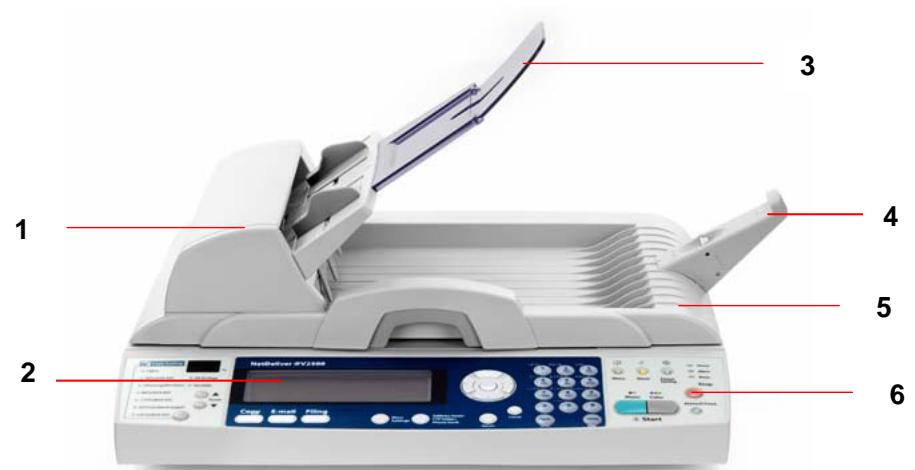
THE FRONT VIEW
-
ADF Front Cover
-
Paper Stopper
-
LCD-display
-
Document Cover
-
ADF Paper Tray
-
Control Panel
THE REAR VIEW

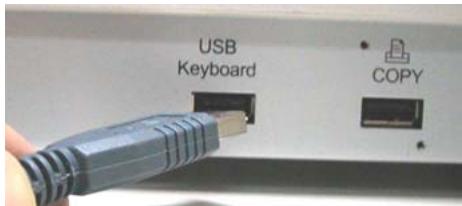
- USB Keyboard: To connect a USB keyboard.
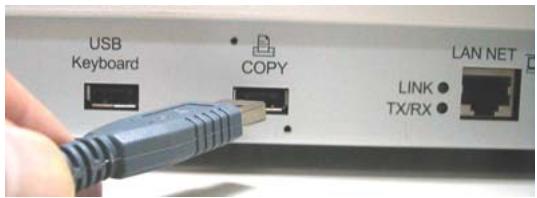
- Copy: To connect a printer.
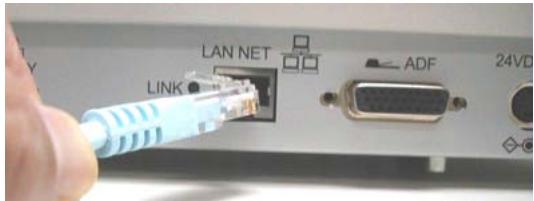
- LAN NET: To connect an Ethernet cable.
- ADF: To connect the ADF cable.
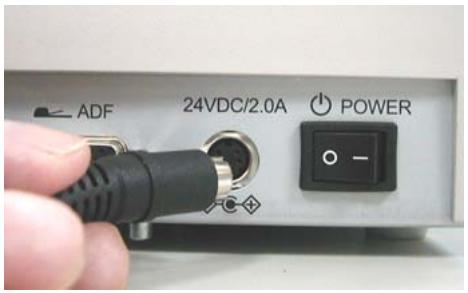
- 24VDC/2.0A: To connect the power cable.
- Power: Power switch.
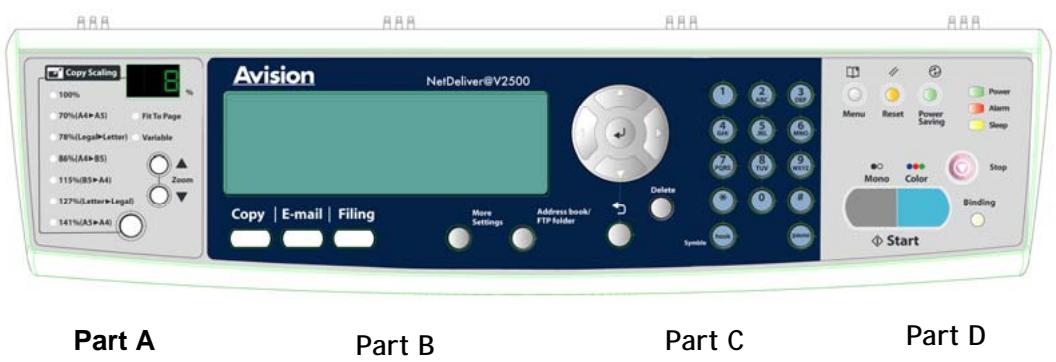
Part A: Scaling Area:
Used to reduce document(s) down to 25% or enlarge up to 400% .
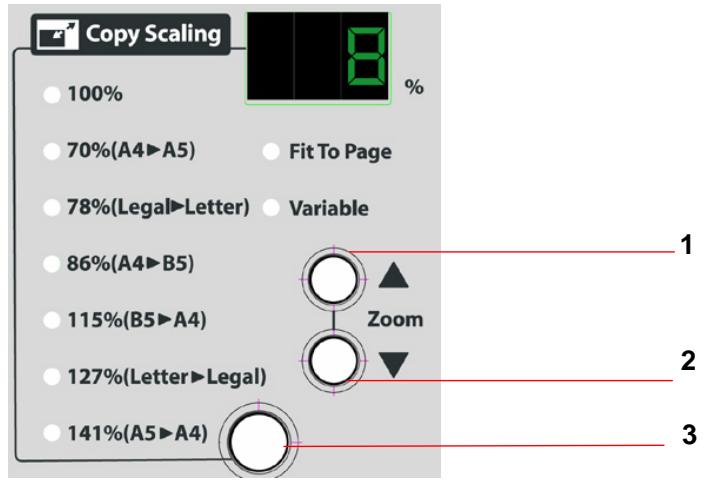
- Increase scaling in 1% increment up to 400% .
- Decrease scaling in 1% Decrement down to 25%
- Select scaling from the preset percentages
Part B: LCD-display & Function Keys:
Used to display current operation and select key working mode.
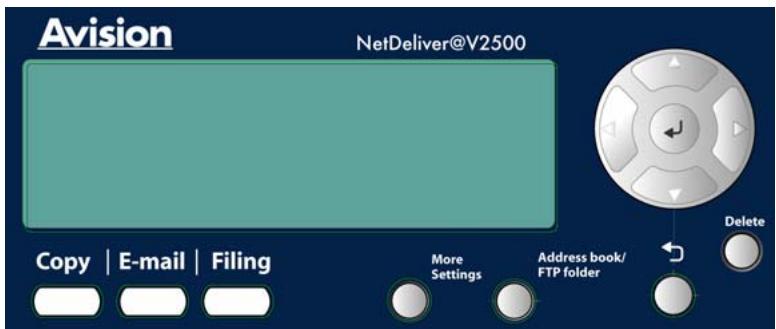
Function Keys and others:
| Copy | Press to use the Copy function |
| Press to use the email function (also the default working mode). | |
| Filing | Press to use the filing function. |
| More Settings | Press to setup more settings for copy, e-mail or filing individually. |
| Address book/FTP folder | Press to select an e-mail address from an address book or select a profile from a profile list. |
| ← | Press to return to previous screen or input. |
| The button with white arrow is used to move to Up/Down/left/right. The button with black arrow , is used to select a command. | |
Used to cancel a command or delete a character.
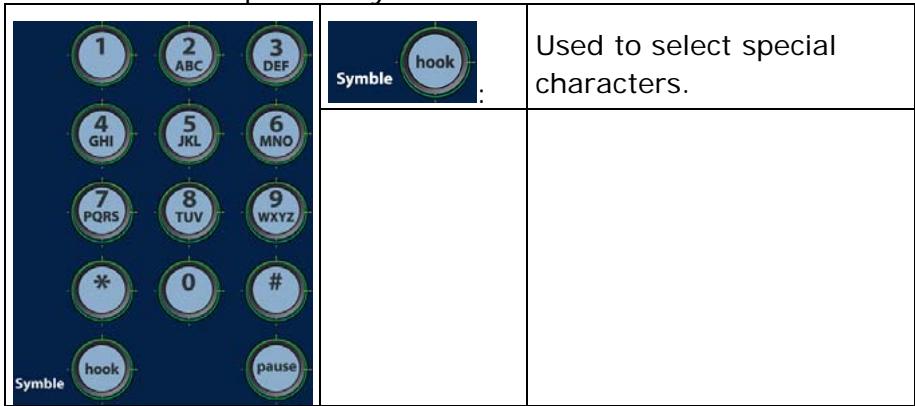
Part C: The Numeric/Character Keypad:
Used to be a simplified keyboard.
Part D: Start & Other Keys:
Used to select special requirements or the start key to start sending or copying your document(s).
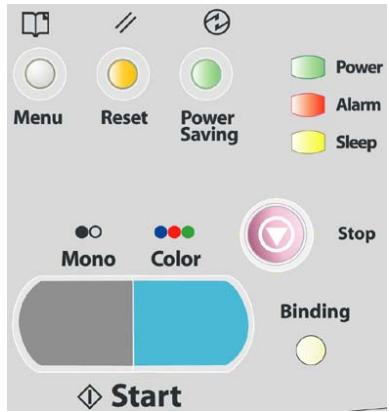
| Menu | Select to enter administrator menu. |
| Reset | Select to clear current settings and return to panel default settings. |
| Power Saving | Select to enter power saving mode. |
| Power Alarm Sleep | The Power LED – Used to indicate power on and ready status. The Alarm LED – Used to indicate error. The sleep LED – Used to indicate power-saving status. |
| Stop | Select to stop processing. |
| Binding | Select to scan and send multi-page documents on the document glass continuously or from the auto document feeder batch by batch. |
| Mono | Select to start copying, e-mailing, or filing in black and white mode. |
| Color | Select to start copying, e-mailing, or filing in color mode. |
The product has to be setup properly on your network to perform e-mail and filing functions. Before using the product, please setup the product properly on you network for e-mail and filing function. The following network parameters have to be collected from your network administrator.
| 1. DHCP enable: | |
| 2. IP Address: | . . . |
| 3. Subnet mask: | . . . |
| 4. Gateway IP: | . . . |
| 5. DNS server: | . . . |
| 6. SMTP server: | |
| 7. SMTP port: | 25 |
| 8. POP3 server: | |
| 9. POP3 port: | |
| 10. LDAP server: | . . . |
| 11. LDAP port: |
Explanation of contents:
| 1. *DHCP Enable: | Choose Yes to obtain IP/subnet/gateway addresses automatically from DHCP server. |
| 2. *IP Address: | The Internet Protocol (IP) address assigned to your machine by your network administrator or by DHCP Server. |
| 3. Subnet Mask: | The net mask address assigned by your network administrator or by DHCP Server. |
| 4. Gateway IP: | The gateway IP address assigned by your network administrator or by DHCP Server or by DHCP Server. |
| 5. *DNS server: | The IP address of DNS Server assigned by your network administrator. |
| 6. *SMTP Server: | The IP address of your SMTP Mail Server assigned by your network administrator. |
| 7. SMTP Port: | The port number of your SMTP Mail Server. |
| 8. *POP3 Server: | The IP address of your POP3 server. |
| 9. *POP3 Port | The port number of your POP3 Server. |
| 10. *LDAP Server: | The IP address of your LDAP server. |
| 11. LDAP Port: | The port number of your LDAP server. |
Note:
- DHCP server: With DHCP (Dynamic Host Configuration Protocol), a host can automatically be given a unique IP address each time it connects to a network--making IP address management an easier task for network administrators. If the DHCP server is available from your network, you do not need to enter TCP/IP, subnet mask, gateway, and DNS information. Instead, this information will be automatically given for the product.
- IP Address: An IP (Internet Protocol) address uniquely identifies a host connection to an IP network. System administrator or network designer assigns the IP address. The IP address consists of two parts, one identifying the network and the one identifying your node. The IP address is usually written as four numbers separated by periods. Each number can be zero to 255. For example, 10.1.30.186 could be an IP address.
- SMTP: Stands for Simple Mail Transfer Protocol. It is the main communication protocol used to send and receive e-mail on the Internet.
- DNS: Stands for Domain Name System. The DNS server identifies hosts via names instead of IP addresses. If the DNS server is available on your network, you can enter the domain name instead of digits for the IP address, such as Avision.com.tw instead of 120.3.2.23.
- POP3: POP3 is the latest Post Office Protocol 3, this is a service that stores and serves e-mails for various client machines that are not connected to the Internet 24 hours a day. E-mails are held in POP3 until you log on.
- LDAP: Stands for Lightweight Directory Access Protocol. LDAP enables users to access directories and address books directly from external networked devices to simplify document distribution.
SCAN TO E-MAIL
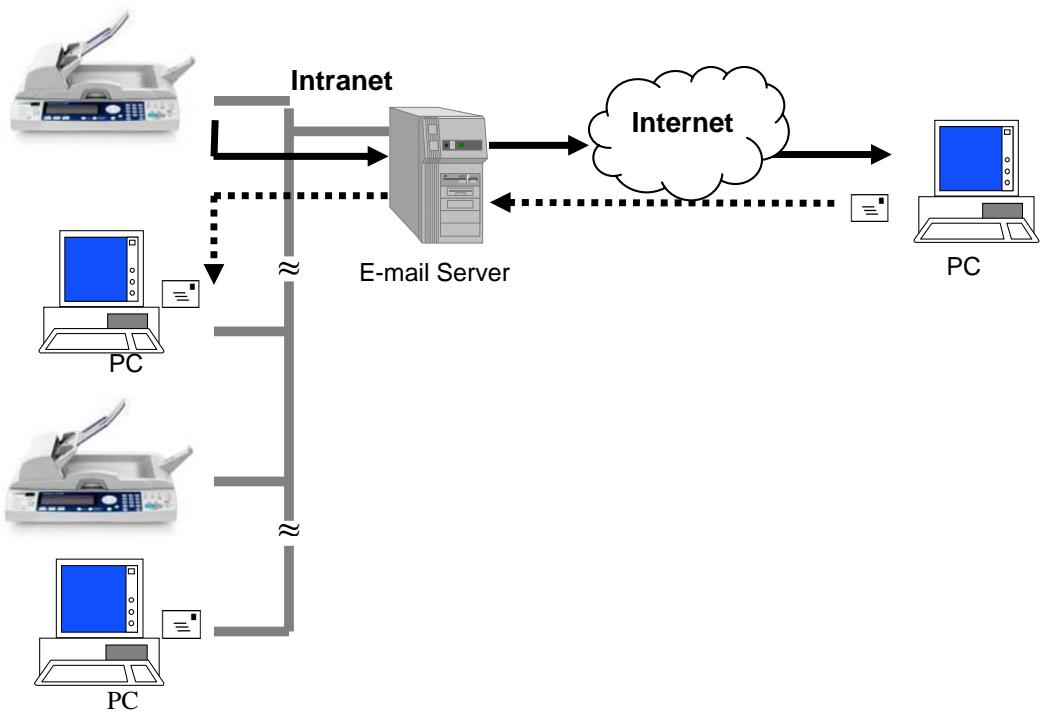
The product allows you to deliver your scanned document to e-mail addresses on the network. The document is first scanned and converted to a standard PDF, JPEG, TIFF, or MTIF (Multi-page TIFF) file format and then transmitted to remote recipients simultaneously as an e-mail attachment.
When you send an e-mail to someone via the product, the product uses Simple Mail Transfer Protocol (SMTP) to transfer your outgoing e-mails to your SMTP mail server, and then send these e-mails to your recipients through internet.
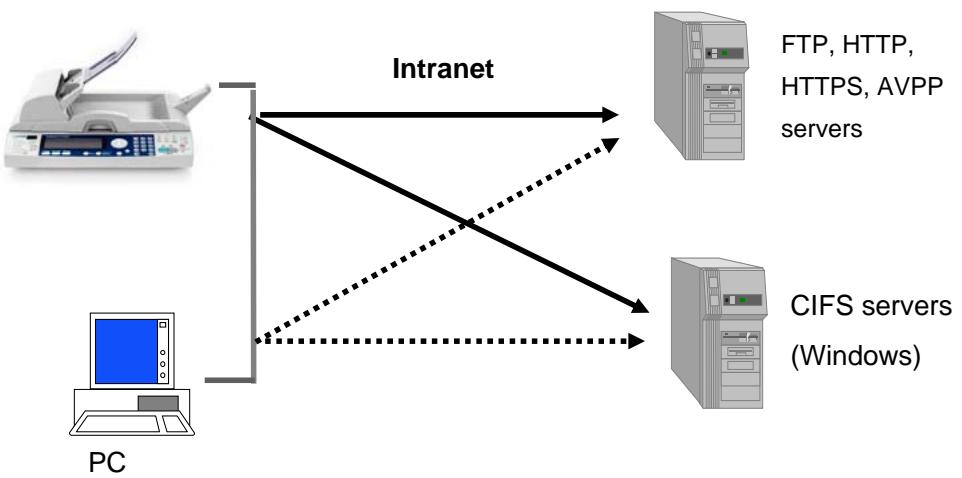
Through the intranet with FTP (File Transfer Protocol), HTTP (Hypertext Transfer Protocol), HTTPS (a secure way of using HTTP), CIFS (Common Internet File System), or AVPP (Avision Post Processing Protocol), the product allows you to save scanned document directly to a designated server or a personal computer on the network in a standard PDF, JPEG, TIFF, or MTFF file format.
CIFS is the sharing system of Microsoft Windows. What's unique about this filing function is to let entire corporate users share one machine to send documents to each desired file folder on a designated server or individual computer.
The product uses an AVPP (Avision Post-processing Protocol) protocol to provide the post processing mechanism for filing document. The AVPP is a protocol developed by Avision. The distinguishing feature of such AVPP's post processing is to treat the product as a workstation's input device and a simplified post-processing controller. Before and after a document is filed, the product will inquire a user how to manage the document further by following the applications (usually made of page programs like ASP, PHP, JSP etc...) on the post-end server. Such an architecture enables a single server to serve multiple sets of the product simultaneously.
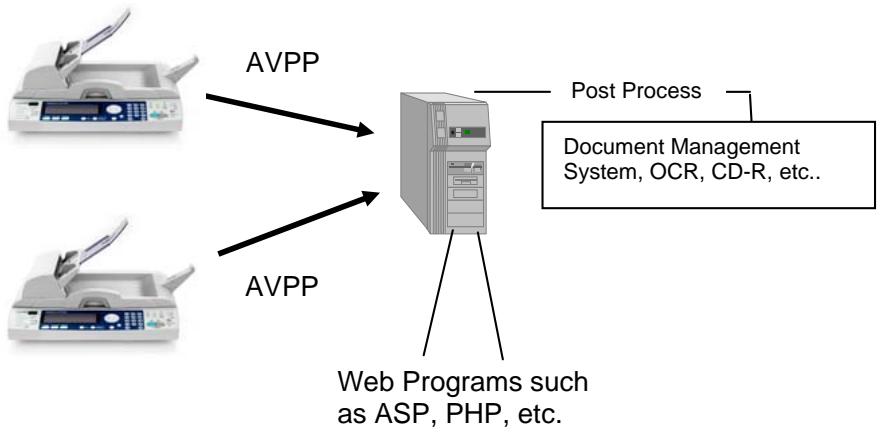
Note:
The usage of AVPP needs to develop and deploy the back-end server page programs. These programs are not included in this product service, please consult with professional web page developers to provide a customized application system.
2 Installing Your Machine
This chapter is specifically targeted to the persons who are responsible for the administration of the product. It is recommended that the administrator read this chapter before installing the machine.
Minimum Configuration Requirements
To make the best use of the product, the following configuration is required:
To send e-mails from the product:
TCP/IP network
- A SMTP and a optional POP3 server
To file document(s) via intranet
- FTP, HTTP, HTTPS, CIFS, or AVPP Protocol environment
- Windows 95, Windows 98, Windows NT, Windows 2000, Windows Me, Windows XP, HTTP or FTP server
To make copies from the product:
- A printer supporting GDI Printer language, such as OKI C3100, OKI C5500 and Avision AM6120P
Checking Package Contents
Unpack the box and check its components. If there is any item missing, contact your dealer immediately.
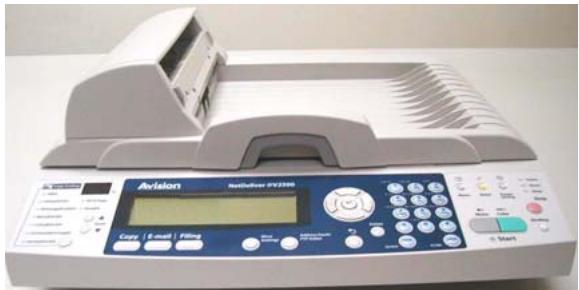
Main Unit
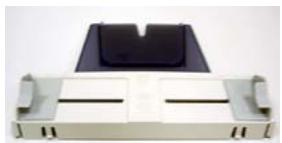
Paper Feed Tray
Paper Stopper

Adapter
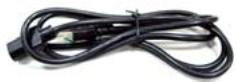
Power Cable
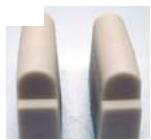
Rubber Support
Unlocking the Scan Unit
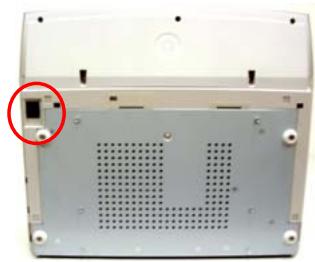
The scan unit is locked during transport to protect the scanning mechanism from being damaged. Be sure to unlock the scan unit before using the machine.
1). Locate the lock switch beneath the scanner.
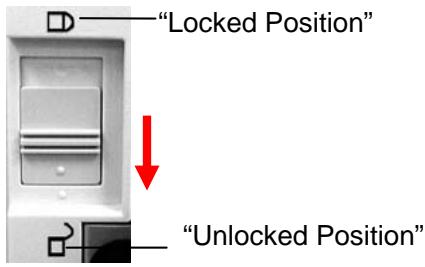
2). Move the lock switch to the "unlocked position".
Note:
If you need to move the product for repair or any other reason, be sure to lock the product before moving. To lock the product, please do the following,
- Turn off the product.
- If the scan unit is not located at the front of the glass, turn on the product. After the scan unit returns to the front end, turn off the product.
- Move the lock switch to the "Locked Position".
Installing the Rubber Support
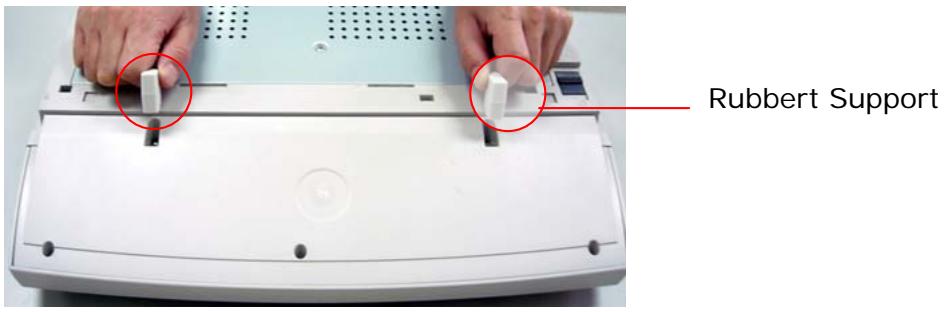
It is highly recommended to install the rubber supports beneath the product. The rubber supports are designed to prevent the product from being slanted downward during operation. To install the rubber supports, please first turn the machine over, and then insert the rubber supports to the slots beneath the machine as illustrated.
Installing the Paper Feed Tray
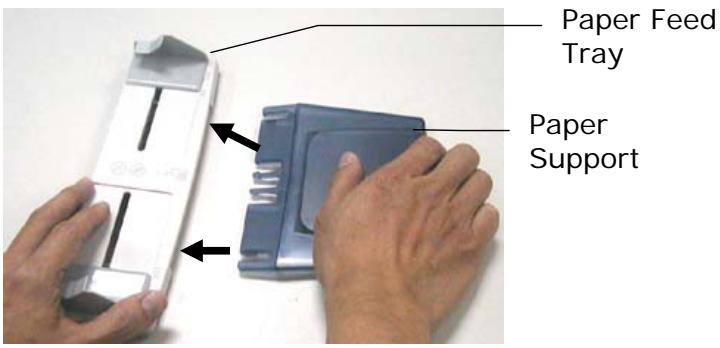
- Attach the Paper Support to the Paper Feed Tray.
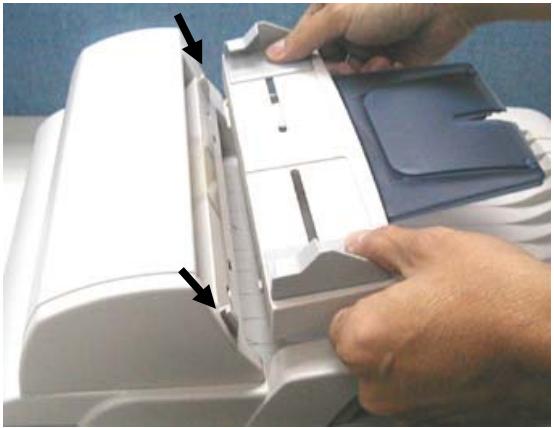
- Then, attach the Paper Feed Tray to the machine.
CONNECTING THE ADF CABLE
Connect the ADF (Auto Document Feeder) cable (attached to the document cover) to the ADF port at the back of the product.
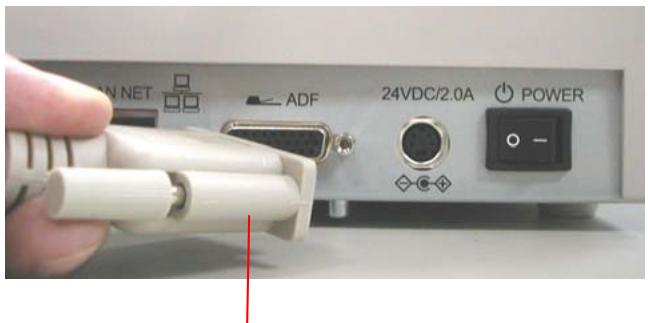
ADF Cable
CONNECTING THE ETHERNET CABLE
- Connect one end of your Ethernet LAN cable to an available port of your Ethernet Hub.
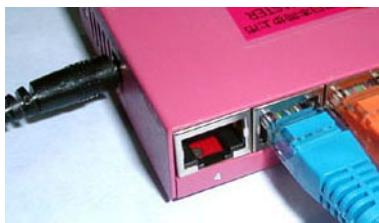
- Connect the other end to the LAN NET port at the back of the product.
CONNECTING THE KEYBOARD CABLE
Connect the cable of the keyboard to the USB Keyboard port at the back of the product.
CONNECTING THE PRINTER CABLE
- Connect one end of the printer cable to the printer.
- Connect the other end to the Copy port of the product.
Note:
To make copy through printer, please first turn on the printer and then turn on the product. Otherwise, you may encounter problem in making copies through the printer.
CONNECTING THE POWER AND TURNING ON THE MACHINE
- Press the power switch to the "0" position to turn off the product.
- Connect the small end of the power cable to the power port of the product.
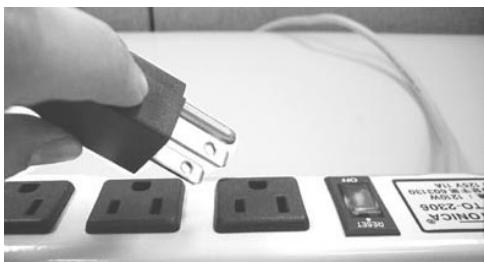
- Connect the other end to an appropriate power outlet.
- Press the power switch to the " - " position to turn on the product. After showing the booting up message, the LCD display prompts the preset ready status.

Note:
You can press the Power Saving button on the control panel to switch to the power saving mode. If the product is idle for four hours, it automatically shuts off the scanning lamp. Press any key except the Power Saving button to return to the ready status.
3 Configuring the Machine
This chapter is specifically targeted to the persons who are responsible for the administration of the product. Administrator activities are password protected with privileges that are denied to the ordinary users.
The following settings or destinations must be defined by the system administrator before the product is used to distribute the scanned document on the network.
Network and E-mail parameters: Defines the parameters for TCP/IP, SMTP, and POP3 protocols to send your scanned document to e-mail addresses.
- Filing destinations: Defines the protocols and destinations to send your scanned document to FTP servers, web, or any personal computers on the network.
Note:
If the system administrator has chosen DHCP, then the IP address of TCP/IP, gateway, subnet mask, and DNS server will be automatically given.
- When installing the product for the first time, it is recommended that the Administrator retain the default system settings. The settings can be customized at a later date once you are familiar with the operation and functionality.
The Administration information is password protected and available to the Administrator only. When the machine is shipped, the login name and password for the administrator left blank. It is recommended that system administrator of the product create a new login name and password before using the machine. The administrator can either use the control panel or the product's web page to specify the administration information.
SPECIFYING THE ADMINISTRATION INFORMATION BY THE CONTROL PANEL
- Press Menu button the login name me
on the control panel. This prompts
Login name:
- Press the Select button

as the default login name. This
prompts the input password message.
Input Password:
- Press the Select button

as the default password. This
prompts part of the following Administrator screen.
- Information
- General
- Network Settings
- Mail Server
Press the Up/Down arrow button
or
repeatedly to scroll through the top menu level. The
complete top menu level, Administrator screen, is shown as
below:
- Information
- General
- Network Settings
- Mail Server
- Copy
- FTP folder Template
- Account Management
- Billing Log Setting
-
Management
11.Exit -
Press the Up/Down arrow button
to select
Management, and then press the Select button following Management screen appears.

The
- Admin.profile
- Add "To" Addr.:ON
- Add Profile after filing:No
- PowSave Delay Time:240 min
- Standby Time:180sec
- Language:Eng
- Default Mode:E-Mail
- Save & Exit
- Exit


- Press the Up/Down arrow button an item.
to select - Press the Select button
to enter the next menu level. - Press the Up/Down arrow button an item.
to select -
Press the Select button input content.
and then enter or select an -
Press the Select button again after entering an input content.
Or
Press the Select button again after pressing the Left/Right
arrow button
to select an input content.

- Press the Return button screen.
back to the Management
- Press the Up/Down arrow button

or
to select
Save & Exit to save your desired settings.
Refer to the following table for the detail of each setting:
| Admin. Profile | Allow the system administrator to change his or her login name, password, or e-mail address. Choice: 1. Login name (up to 16 characters or digits) 2. Password (up to 8 characters or digits) 3. E-mail address (up to 64 characters or digits) |
| Add “To” Addr. | Choose yes to add the “To” address to current address book after sending the e-mail from the product. Choice: ON, OFF |
| Add Profile after filing | Choose yes to add the new profile to current profile list after sending the scanned document to the server from the product. Choice: ON, OFF |
| PowSave Delay Time | Set how long the machine will automatically enter the power saving mode after the latest action. Choice: 5 min, 15 min,30 min,60 min,240 min |
| Stand-by Time | Specify the stand- by time. Choice: 20 sec, 40 sec, 60 sec, 120 sec,180 sec |
| Language | Choose the language you wish to show on the LCD-display. Choice: English/Native |
| Default Mode | Specify a default mode. Choice: E-Mail, Copy, and Filing |
| Save and Exit | Choose this to save the above settings and exit. |
| Exit | Choose this to exit without saving the above settings. |
SPECIFYING ADMINISTRATOR INFORMATION BY THE PRODUCT'S WEB PAGE
- Type the IP address of the product in the URL field of your browser and then press Enter. The address in the URL field automatically changes to http://IPaddress/index.htm, and then the product web page appears.
For example:
http://10.1.30.149 becomes http://10.1.30.149/index.htm
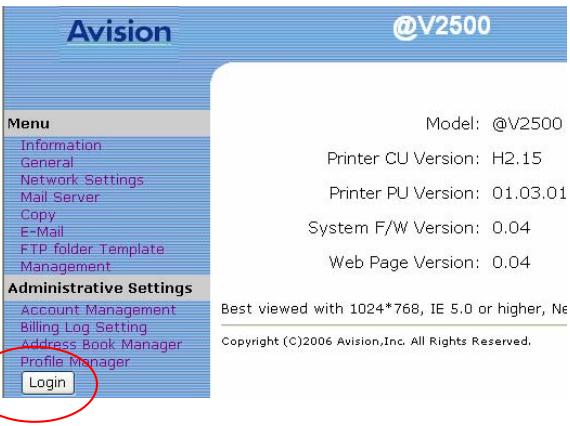
- Click the Login button to prompt the Login screen.
The Login button will be changed to theLogout button after you successfully log in. A user without privilege can modify the settings on this web page if you do not click theLogout
button after finishing your settings.
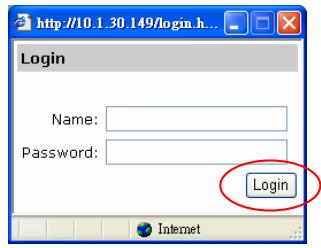
- Click Login since the machine is shipped with no specific login name and password, and then click Management to prompt the Management dialog box.
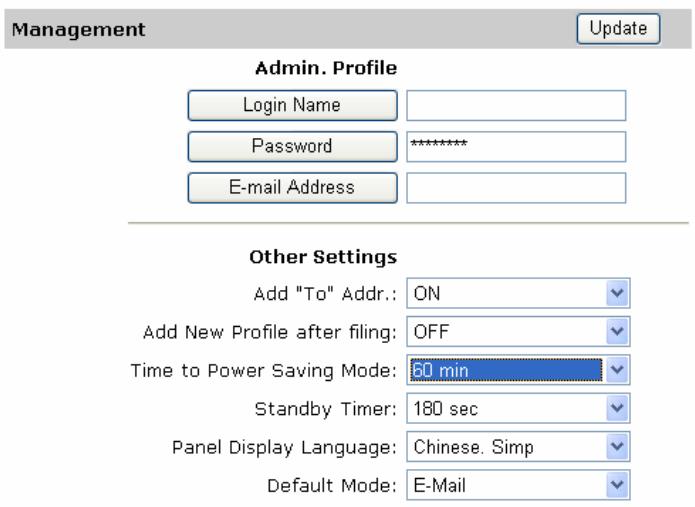
Select a button or a dropdown list, follow on-screen instructions, click Submit (If required), and then finally click Update to save your settings.
Note :
You must click the Login Name, Password or E-mail Address button to set them up respectively.
(Refer to the previous section for the setting detail.)
Before the product is used to distribute document to e-mail addresses, the network administrator must assign an IP address, subnet mask, and gateway to the product. The administrator can assign these parameters either using the control panel or using the product's web page.
SPECIFYING NETWORK CONFIGURATION BY THE CONTROL PANEL
- After turning on the product, press Menu button Menu on the control panel. This prompts the login name message.
Login name:
- Press the Select button if the administrator has not created a login name. This prompts the input password message.
Input Password:
-
Press the Select button if the administrator has not created a new input password. This prompts part of the following Administrator screen.
-
Information
- General
- Network Settings
-
Mail Server
-
Press the Up/Down arrow button
to select
Network Settings, and then press the Select button

The following Network Settings screen appears.
- DHCP Enable:
- IP address:
- Subnet mask:
- Gateway IP:
- DNS server:
- Save & Exit
-
Exit
-
Enter or select each network parameter respectively and press
the Select button to complete all settings as you did for the Management screen
Refer to the following table for the detail of each setting:
| 1. DHCP Enable: | Choose Yes to obtain IP/subnet/gateway addresses automatically from DHCP server. |
| 2. IP Address: | The Internet Protocol (IP) address assigned to your machine by your network administrator. |
| 3. Subnet Mask: | The net mask address assigned by your network administrator. |
| 4. Gateway IP: | The gateway IP address assigned by your network administrator. |
| 5. DNS Server: | The IP address of DNS Server assigned by your network administrator. |
For example:
- DHCP Enable: No
- IP address: 10.1.40.185
- Subnet mask: 255.255.255.12
- Gateway IP: 10.1.40.135
- DNS server: 10.1.45.23
- Save & Exit
- Exit
Note:
If you have a DHCP server available on your network and the DHCP has been selected, the above IP, subnet mask, gateway, and DNS server will be automatically given.
- Use the Up/Down arrow button
to select
Save & Exit to save your desired settings.
- Type the IP address of the product in the URL field of your browser and then press Enter to launch the product web.
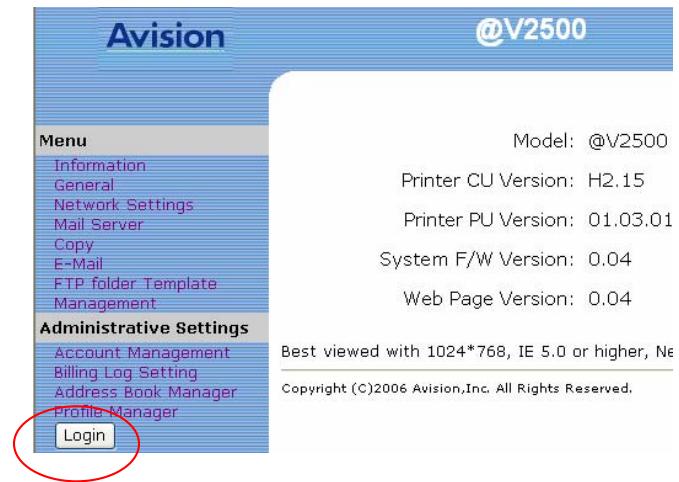
- Click the Login button to open the Login screen. (The Login button will be changed toLogout after you have successfully logged in. A user without privilege can modify the settings on this web page if you do not click theLogout button after finishing your settings.)
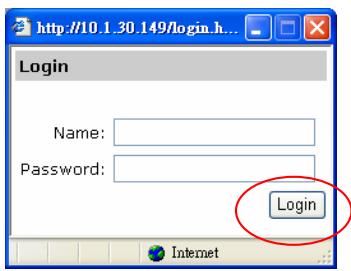
- Click Login since the machine is shipped with no specific login name and password, and then click Network Configuration to prompt the Network Configuration screen.
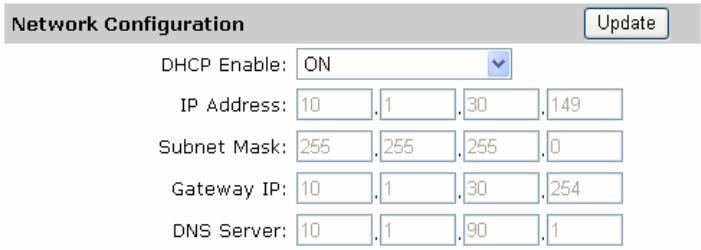
- Enter or select an input parameter respectively, and then finally click Update to save your settings. (Refer to page 3-11 for the detail of each setting).
Before the product is used to distribute document to e-mail addresses, the network administrator must assign SMTP to the product. The administrator can assign these parameters either using the control panel or using the product's web page.
SPECIFYING MAIL SERVER BY THE CONTROL PANEL
- After turning on the product, press Menu button Menu on the control panel. This prompts the login name message.
Login name:
- Press the Select button if the administrator has not created a login name. This prompts the input password message.
Input Password:
-
Press the Select button if the administrator has not created a new input password. This prompts part of the following Administrator screen.
-
Information
- General
- Network Settings
-
Mail Server
-
Press the Up/Down arrow button
to select
Mail Server, and then press the Select button. The following Mail Server screen appears.
- SMTP Server:
- SMTP Port: 25
- POP3 Server:
- POP3 Port: 0
- External Address Book
- Device Email Account
- Save & Exit
-
Exit
-
Enter or select each mail server parameter respectively and
press the Select button to complete all settings as you did for the Man
Refer to the following table for the detail of each setting:
| 1. SMTP Server: | The IP address of your SMTP Mail Server |
| 2. SMTP Port: | The port number of your SMTP Mail Server. |
| 3. POP3 Server: | The IP address of your POP3 server. |
| 4. POP3 Port | The port number of your POP3 Server. |
| 5. External Address Book | If you wish to link external e-mail address book from other devices, enter your LDAP server here. Choice: 1. LDAP server URL: Enter your LDAP server URL here. 2. Port: Enter port number of the LDAP server. 3. Login name: Enter login name of the LDAP server. 4. Password: Enter password of the LDAP server. |
| 6. Device Email Address Account | Enter logon information for SMTP or POP3 authentication. Choice: 1.Email address: (default “From” address) 2Authentication method: SMTP, POP3 3 Login name: (Login name for SMTP or POP3 authentication.) 4 Password: (Password for SMTP or POP3 authentication.) |
- Use the Up/Down arrow button
or

to select
Save & Exit to save your desired settings.
SPECIFYING THE MAIL SERVER BY THE PRODUCT'S WEB PAGE
- Type the IP address of the product in the URL field of your browser and then press Enter to launch the product web.
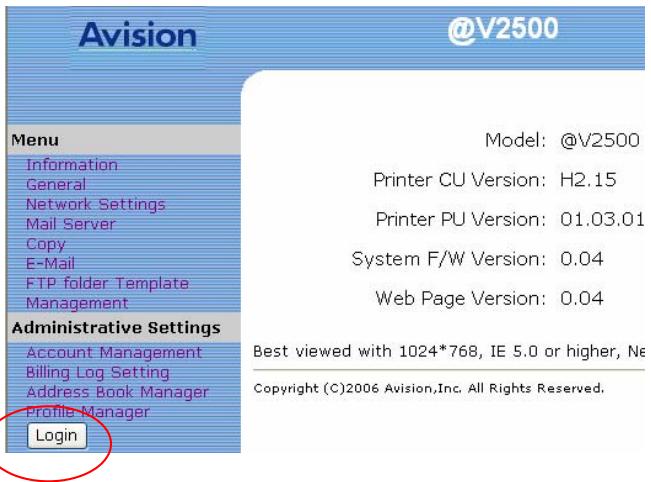
- Click the Login button to open the Login screen.
(The Login button will be changed to theLogout button after you have successfully logged in. A user without privilege can modify the settings on this web page if you do not click theLogout button after finishing your settings.)
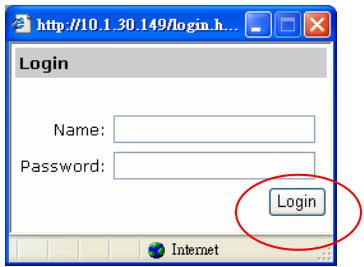
- Click Login since the machine is shipped with no specific login name and password, and then click Mail Server to prompt the Mail Server screen.
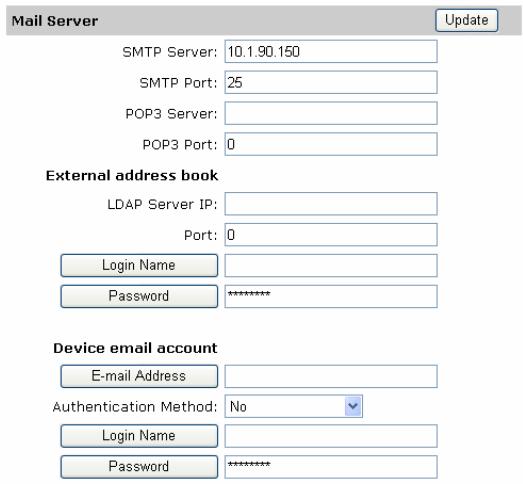
- Enter or select an input parameter respectively, and then finally click Update to save your settings. (Refer to page 3-17 for the detail of each setting).
4 Managing the Address Book
Our Java-Manager is a convenient browser-based tool to manage the address book of the product remotely. Since only the administrator can manage the address book, it is highly recommended that the administrator read this chapter before manage the product.
Managing Your E-mail Address Book
ADDING AN E-MAIL ADDRESS
To add an e-mail address,
- Start your browser, Microsoft I.E. 5.0 or higher, or Netscape Communicator 6.0 or higher.
- Type IP address of the product in the URL field. For example, http://10.1.30.83.
The product web page appears as shown below.
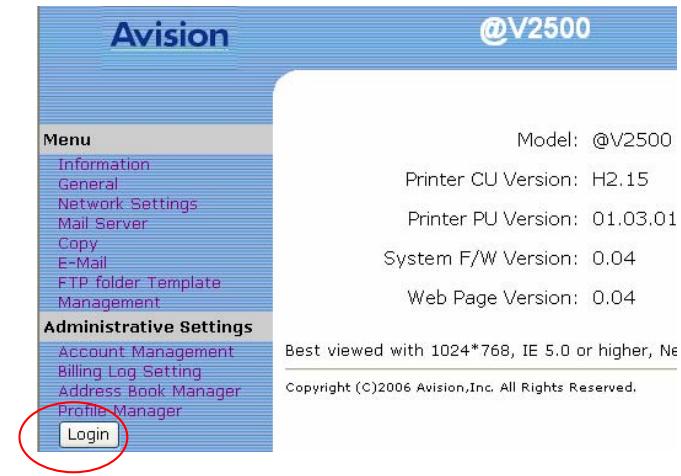
Note:
The web page is best viewed at a 1024 x 768 dpi resolution.
- Click the Login button to open the Login screen. (The Login button will be changed to theLogout button after you have successfully logged in. A user without privilege can modify the settings on this web page if you do not click theLogout button after finishing your settings.)
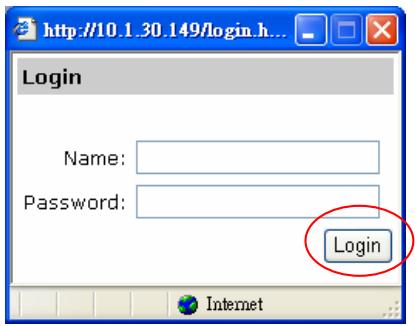
- Click Login since the machine is shipped with no specific login name and password, and then click Address Book Manager to prompt the Address Book Manager screen.
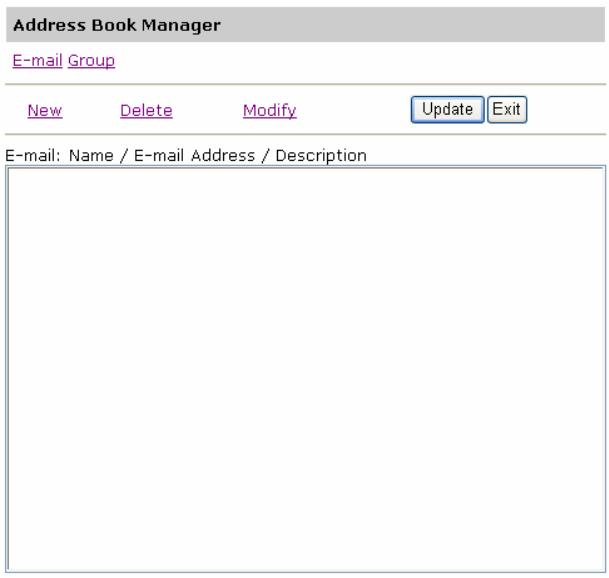
- Click the E-mail icon and choose New to prompt the Add a New E-Mail Address dialog.
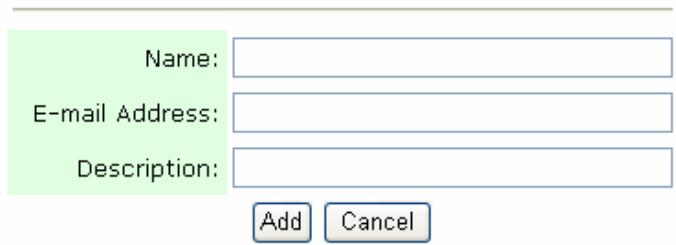
Add a New E-Mail Address
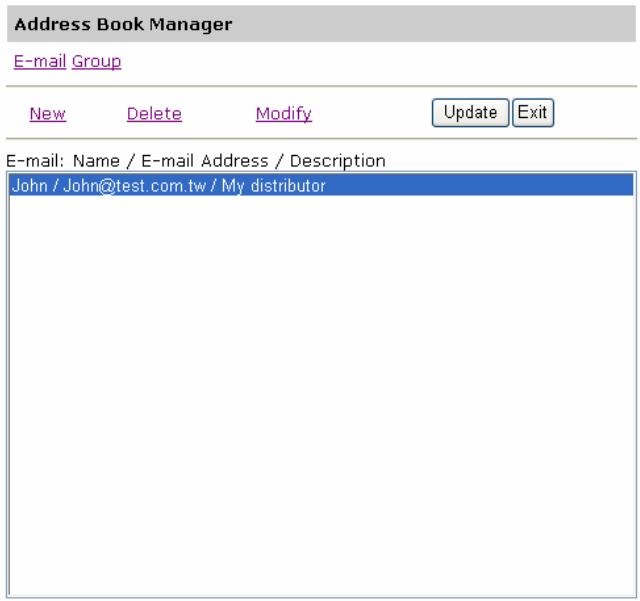
- Enter a local user's name, an e-mail address, and a description and click Add to temporarily save the latest data or Cancel to return to the Address Book Manager screen.
Address Book Manager
E-mail Group
New
Delete
Modify
Update
Exit
E-mail: Name / E-mail Address / Description
John / John@test.com.tw / My distributor
- Click Update to permanently save all the latest change on the product, or Exit to leave without saving any latest change.
To modify an e-mail address,
1. Repeat Step 1 to Step 3 from the previous section,
Adding an E-mail Address. The Address Book Manager dialog appears.
2. Click the E-mail icon and choose the address you want to modify from the list. Choose Modify to prompt the Modify an E-Mail Address dialog.
Modify an E-Mail Address
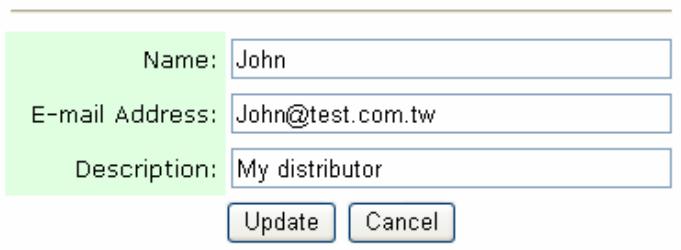
- Modify your address data.
- Click Update to temporarily save the latest data, or Cancel to return to the Address Book Manager screen.
- Click Update to permanently save all the latest change on the product, or Exit to leave without saving any change.
To delete an e-mail address,
- Repeat Step 1 to Step 3 from the previous section, Adding An E-mail Address. The Address Book Manager dialog appears.
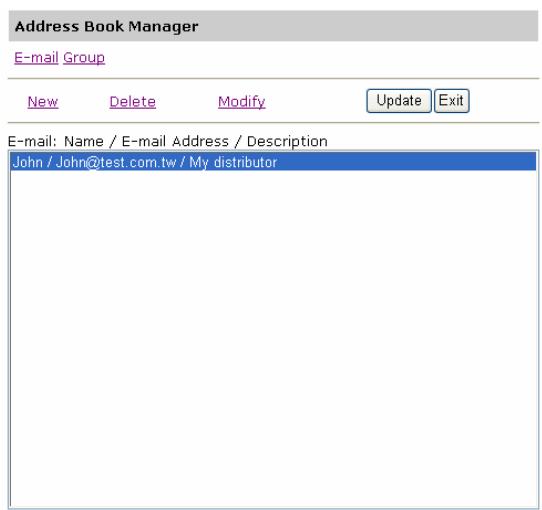
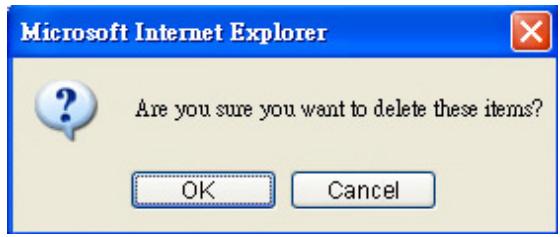
- Click the E-mail icon and choose the address you want to delete from the list. Choose Delete to erase the address. A warning message appears to confirm your deletion. Click OK to confirm or Cancel to exit.
- Click Update to permanently save all the latest change on the product, or Exit to leave without saving any latest change.
ADDING A NEW GROUP
To add new groups,
- Repeat Step 1 to Step 3 from the previous section, Adding An E-mail Address. The Address Book Manager dialog appears.
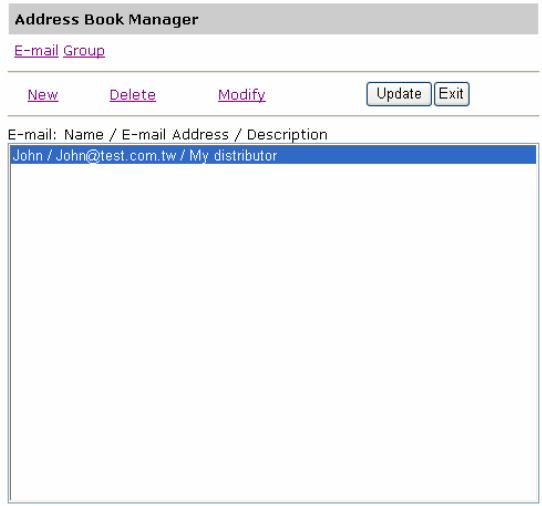
2. Click the Group icon and choose New to prompt the Add a New Group Set dialog.
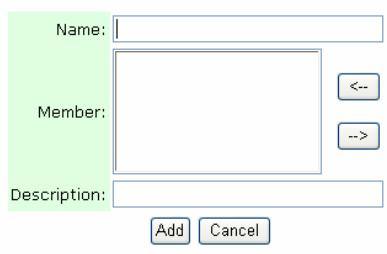
Add a New Group Set
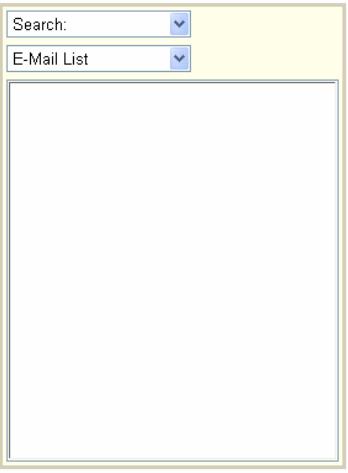
3. Enter your group name.
- Choose the address from the right side and click ← to add a member to the group.
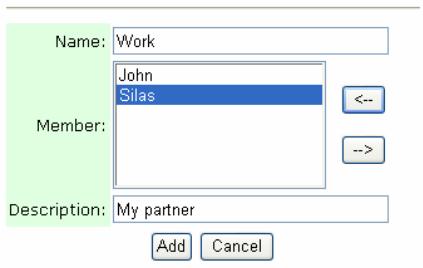
Add a New Group Set
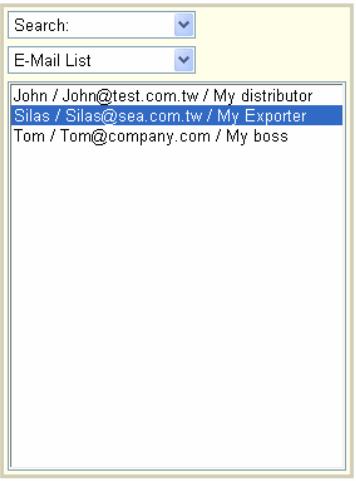
- Click Add to temporarily save the latest data, or Cancel to return to the Address Book Manager screen.
- Click Update to permanently save all the latest change on the product, or Exit to leave without saving any latest change.
To modify a group,
- Repeat Step 1 to Step 3 from the previous section, Adding An E-mail Address. The Address Book Manager dialog appears.
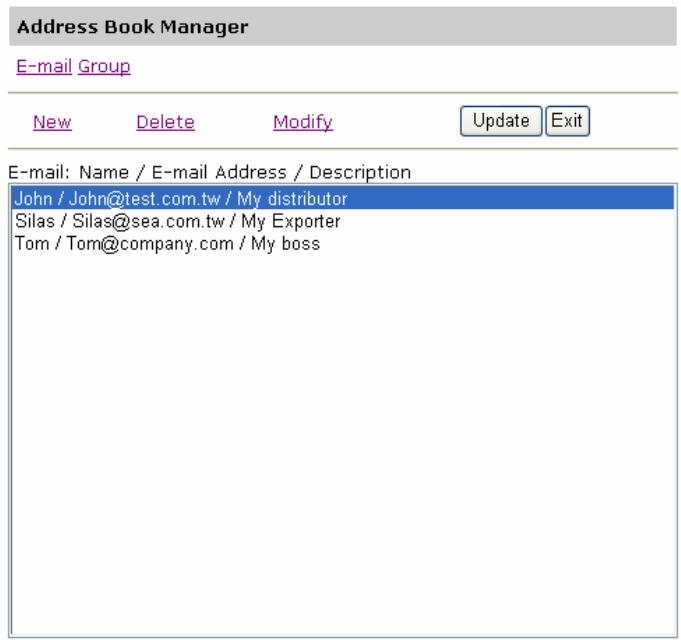
2. Click the Group icon and choose Modify to prompt the Modify a Group Set dialog.
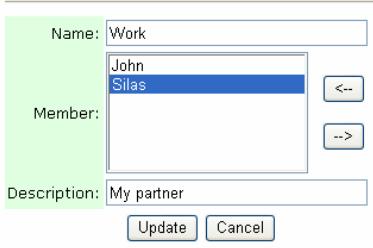
Modify a Group Set
Search:
E-Mail List

John / John@test.com.tw / My distributor
Silas / Silas@sea.com.tw / My Exporter
Tom / Tom@company.com / My boss
- Choose one member you want to modify from the group and click the → key to delete an old member from the group or click the ← key to add a new member to the group.
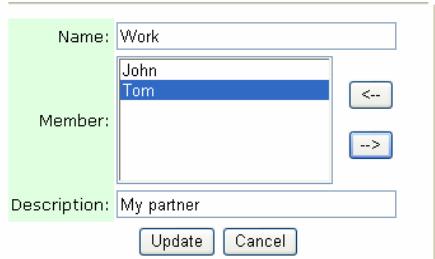
Modify a Group Set
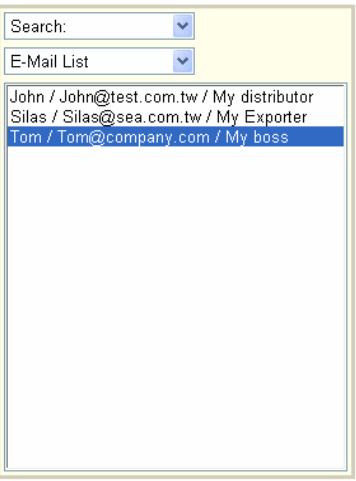
- Click Update to temporarily save the latest data, or Cancel to return to the Address Book Manager screen..
- Click Update to permanently save all the latest change on the product, or Exit to leave without saving any latest change.
To delete a group,
- Repeat Step 1 to Step 3 from the previous section, Adding An E-mail Address. The Address Book Manager dialog appears.
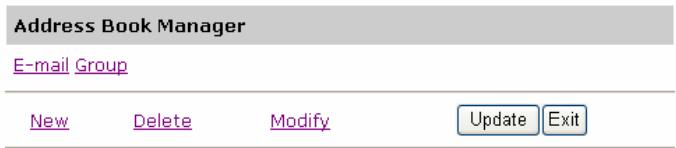
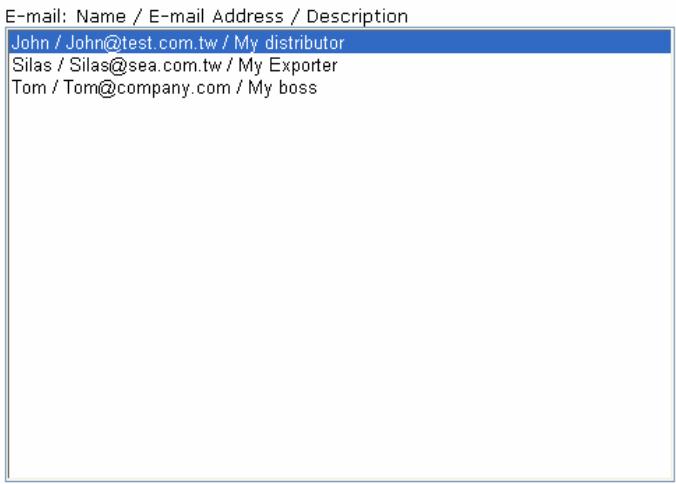
- Click the Group icon and choose a group to delete. Click Delete to erase the group. A warning message appears to confirm your deletion. Click OK to confirm or Cancel to exit.
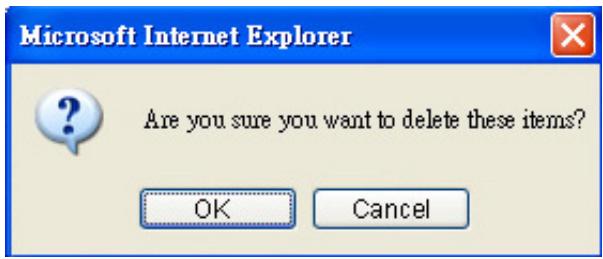
- Click Update to permanently save all the latest data on the product, or Exit to leave without saving any latest data.
5 Specifying FTP Folder Template and Profile
We know that the first thing you want to do is jump right in and create a profile to send a document to your desired server and even though we have made the whole process as easy as possible, there are still things you need to be aware of before you start. The following will introduce you to several server systems used with the product.
The Settings of Filing Server
FTP
FTP Stands for "File Transfer Protocol." It is a common method of transferring files via the Internet from one computer to another. FTP use RFC 959[FTP] as their protocol, and the default Port is usually 21. Therefore, please make sure you have legal FTP account with the privilege of writing under the directory to save the files and the password before using FTP to save the files. To add a sub-directory from the product, you need to have the privilege of adding a new directory.
HTTP AND AVPP
Both HTTP and AVPP use RFC 2616[HTTP 1.1] as their protocol, and the default Port is usually 80. If you are not using the HTTP port or AVPP port 80 to save the files, you must change the HTTP Port or AVPP Port of the product to the port for the Web Server.
Generally speaking, Web Server, such as IIS or the other HTTP server, will use anonymous account for authentication, so that the user can link directly to the web page without entering the user name and password first. Hence, if the HTTP or AVPP Server allows anonymous account for authentication when you use the product to keep the files, there is no need for setting any text in the field of Login name and Password of the product.
On the other hand, if IIS or HTTP server does not allow anonymous account for authentication connecting to the web page, the user will be prompted to enter the user name and password first while connecting to the web site. In this mode, the file saving feature is available only when entering the user name and password permitted by the server in the field of Login name and Password for the product respectively.
Therefore, please make sure the mode that your Web Server allows before using HTTP or AVPP for files saving. If anonymous access mode is not allowed, you must have legal HTTP account and password.
Since the product will check whether the directory for file saving really exists before proceeding file saving and then writing the file after scanning to the specified directory, you have to set the directory for files saving as "browse" and allow for writing in Web Server; otherwise, the product will not be able to write the file into the directory.
If you wish to use the product to save files, in addition to making some settings in Web Server, you will have to confirm the account with the privilege of writing for connecting Web Server; otherwise, the product will not be able to "write" the scanned file in the file system.
The following uses the IIS setting for anonymous access to Microsoft Windows 2000 as an example, and assumes the AVPP application is installed in the root directory of IIS,
C:\Inetpub\wwwroot\Xcabinet, and the directory for files saving is in C:\Inetpub\wwwroot\Xcabinet. For non-anonymous access, refer to IIS for more detail information.
The settings for IIS anonymous access is as below:
- Start "Internet service manager" in "Control Panel", select "Default Web site" and right click C:\Inetpub\wwwroot\Xcabinet, and select "Properties".
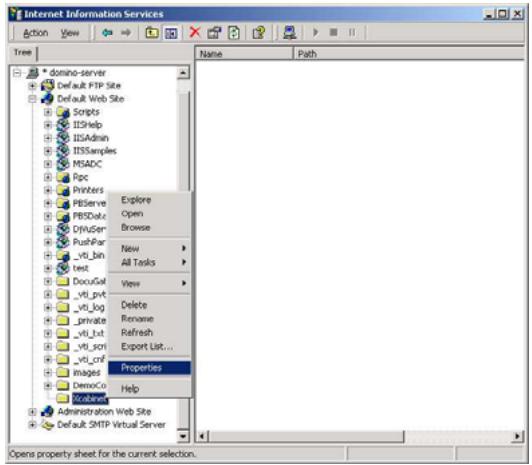
- In the Xcabinet dialog box, select "Directory security" tab, and click "Edit" for "Anonymous Access and Authentication Control". Please make sure "Anonymous Access" is selected in "Authentication Methods" dialog box.
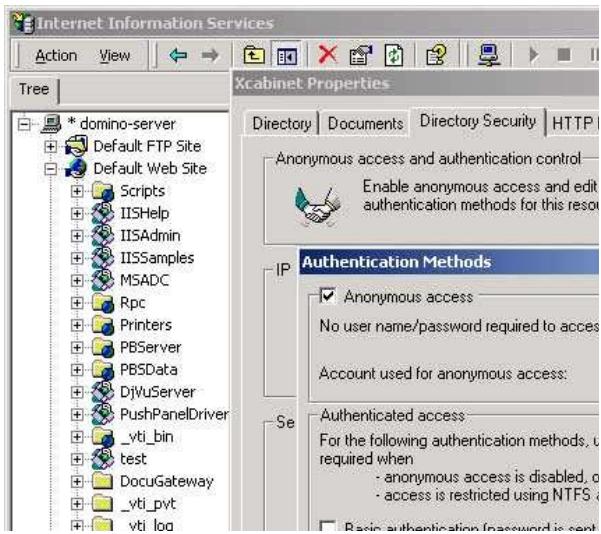
- Click on "Edit" to Open "Account for anonymous access".
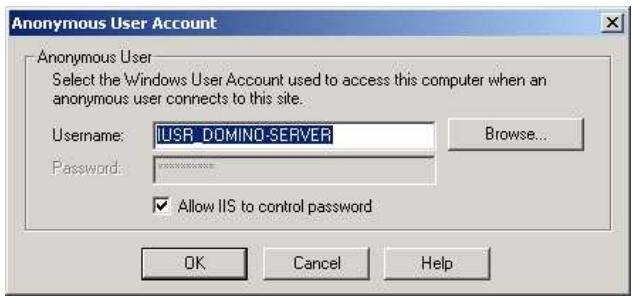
Please make sure that the account, stored in your computer system, in the "username" filed is with sufficient privilege to access the file system.
The settings for IIS privilege is as below:
- Like the setting in anonymous access, start "Internet service manager" and select "Default Web site", and right click C:\Inetpub\wwwroot\Xcabinet, and select "Properties".
- Select "Directory" tab in the Properties page. Please ensure the privileges for "Read", "Write" and "Directory Browsing" are selected.
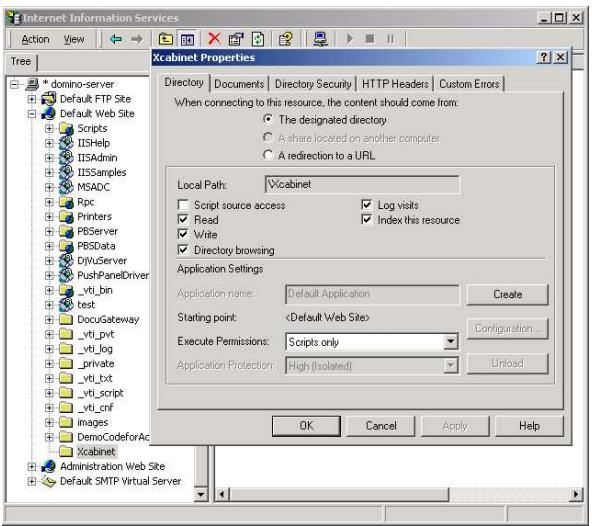
The settings for directory is as below:
If the file management system in your server is NTFS, in order to allow IIS to use an anonymous account to access the files in the directory of C:\Inetpub\wwwroot\Xcabinet, you have to make sure the anonymous account is with sufficient privilege. You may make the following settings:
- Select C:\Inetpub\wwwroot\Xcabinet directory in Windows Explorer, and right click to select "Properties".
- Select "Security" tab in the File dialog box, and select "Everyone". Select the privileges for "Read and Execute", "Folder Properties List", "Read" and "Write".
After that "every user" has the privilege to manage all files in the directory of files saving.
Note: For the actual security concern of the scanned files, we should not allow the group of "Everyone" to have full privileges of the file directory. Therefore, when setting the access privilege for your file system, it is recommended to set the privilege of the directory for file saving to IIS anonymous account or the other users and groups that can use the directory only.
Note:
- Please note that HTTP and AVPP cannot add server sub-directory from the product.
- When using Apache as HTTP server, you need to have a HTTP/1.1 put add-in module since the product uses chunked Transfer-encoding. In addition, the Apache will have to be set to accept HTTP PUT command in order to accept the product for files saving. For more information, refer to the related document of Apache.
- For IIS 6.0 on Windows 2003, you need to enable WebDAV in Server Extension folder.
HTTPS
HTTPS is a secure way of using HTTP. HTTP provides almost no security feature. It contains only basic authentication mechanisms, and supports little privacy. HTTPS solves this problem by adding SSL, a secure transport layer over insecure TCP.
To send scanned document to servers using HTTPS, you must install SSL on the destination servers. How to install SSL properly on the server, please refer to the server's manual. After SSL has been installed well, please check if the SSL port is editable and the directory security has been selected. The following illustrations show how to check the SSL port and directory security in Windows 2000 Server system.
To check if SSL port and directory security have been selected,
- Click Start>Program>Administrator Tools>Internet Service Manager in succession.
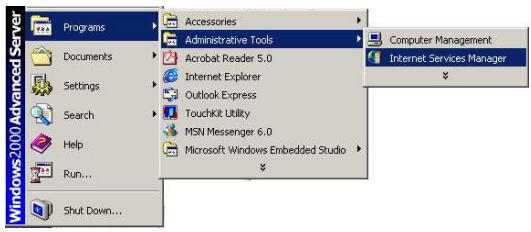
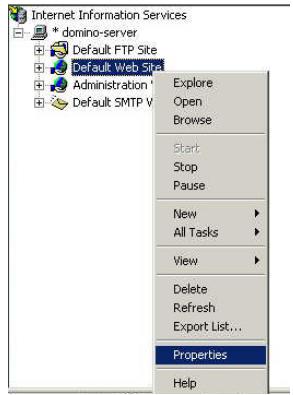
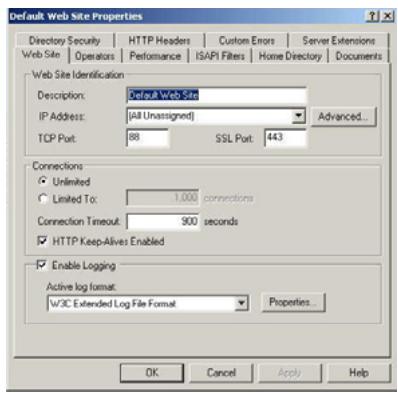
- Click Default Web Site and click the right mouse button and choose Properties. The Default Web Site Properties dialog box appears. Click the Web Site tab and check if SSL port is editable.
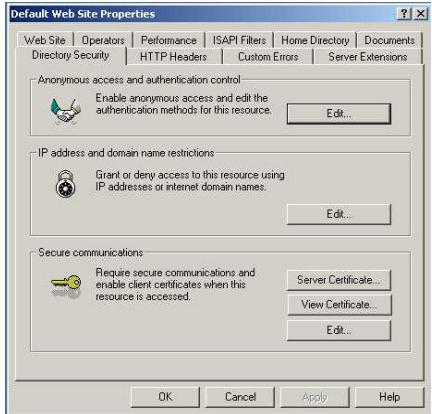
- In the Default Web Site Properties dialog, click the Directory Security tab and then click the Edit button from the Secure communication field. The Secure Communication dialog appears.
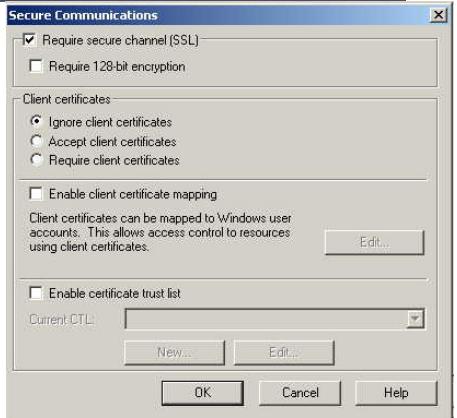
- Check if "Require secure channel (SSL)" and "Ignore client certificates" have been selected.
Or
You may simply type "netstat" in a MS-DOS command. If the https has been established as below, then the server is ready to receive scanned document from the product via HTTPS.
C:>netstat
Active Connections
Proto
TCP
TCP
TOF TCD
16
Local Address
domino-server:kerberos
domino-server:https
domino-server:1066
Foreign Address
domino-server:1065
domino-server:1066
domino-server:https
State
TIME_WAIT
ESTABLISHED
ESTABLISHED
C:>
CIFS
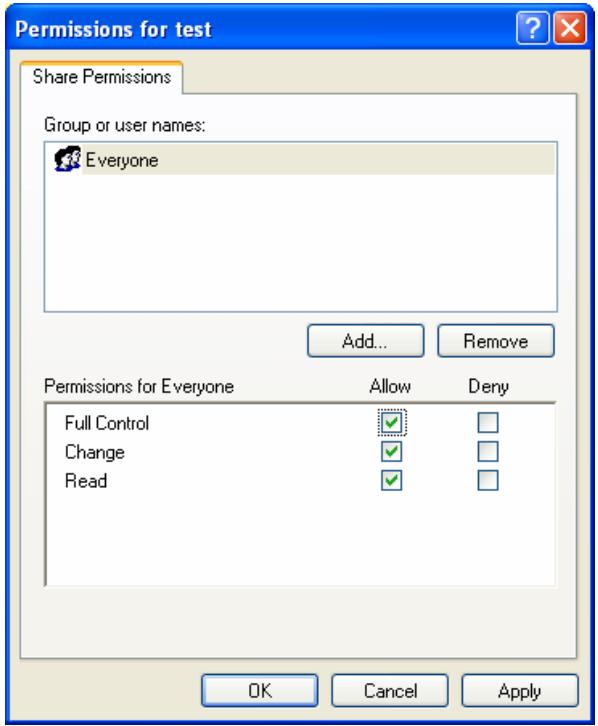
CIFS (Windows Network Share) is a file saving protocol generally used for "recourse sharing" of network in Microsoft Windows systems. Please set up the "shared directory" per the network settings for sharing in MS Windows. Generally, on the shared directory Properties dialog box under the Windows XP, select "Sharing" tab, and select "Share this folder". Click "Permissions" button to open "Permissions for the shared directory" dialog box.
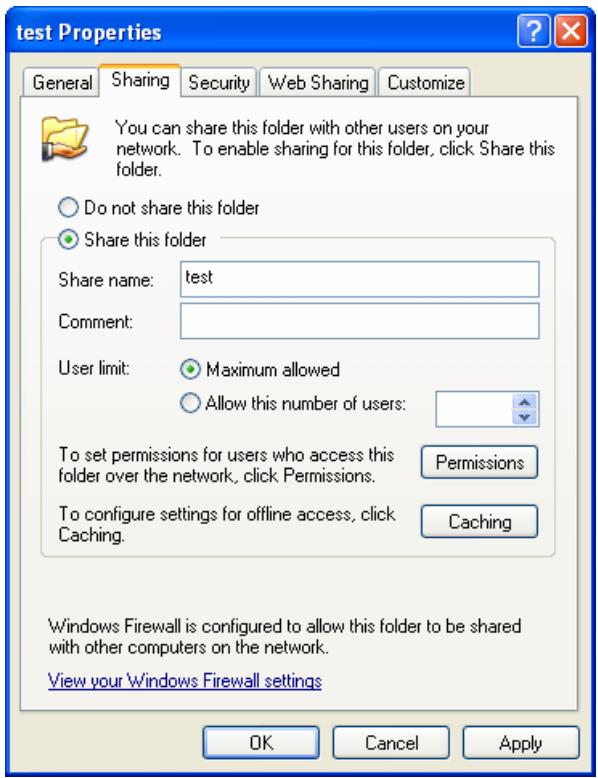
Check the "Full Control" to have full privileges of the shared directory.
Specifying the FTP Folder Template by the Control Panel
To simplify the filing operation, the administrator can set up the filing parameters including protocols, directory, file name and other scanning parameters as a template. When you add a new profile, all settings of a template will be automatically copied to your new profile settings. Setting up the FTP folder Template parameters can be done either by the control panel or by the product's web page.
- Press Menu button
on the control panel. This prompts
Login name:
- Press the Select button

if the administrator has not
created a login name. This prompts the input password message.
Input Password:
- Press the Select button
created a new input password. This prompts the
Administrator screen.

if the administrator has not
d. This prompts the
or

to select
- Press the Up/Down arrow button
FTP Folder Template, and then press the Select button

The following FTP Folder Template screen appears.
- Protocol:
- Target URL:
- Port:
- File Name:
- Color Output Format
- B&W Output Format
- Resolution: 200
- Density: 4
- Sub Folder: OFF
- Report to e-mail:
- Document Size: A4
- Auto Deskew: ON
- Save & Exit:
-
Exit
-
Enter or select each FTP folder Template parameter
respectively and press the Select button to complete all settings as you did for the Management screen.
Refer to the following table for the detail of each setting:
| Item | Description |
| Protocol | Choose the protocol you desire to store your scanned image. Choice: *FTP, *HTTP, *CIFS, *HTTPS, *AVPP |
| Target URL | Specify the filing server address and path. Important note: You must use this CIFS filing format, file:\IP\computer name\folder name, to set CIFS URL. |
| Port | The port number for your filing server. Default value: ftp:21, http:80, CIFS:139, AVPP:80, https:443 If the default value is different from the real case, input the correct port number in this field. |
| File Name | The file name for filing a document The system will remind you if the field is not filled. |
| Color Output Format | File format for documents to be sent in colors via filing from the product. Choice: 1. File format: PDF, JPEG, TIFF, JPEG+EXIF, MTIF(Multi-page TIFF) Note: Choose MTIFF or PDF when you need to scan multi-page document and convert it to a single image file. 2. Compression rate: Low, Medium, High (If TIFF or MTIFF is selected as a file format, the compression rate is defined as RAW only.) |
| B&W Output Format | File format for documents to be sent in black and white via filing from the product. Choice: 1. Multi-level B&W/Gray: ON,OFF 2. File format: PDF, PCX, MTIFF(Multi-page TIFF), TIFF 3. Compression rate: Low, Medium, High (If you choose ON from Multi-level B&W/Gray, the file formats include PDF, JPEG, TIF, MTIF, and JPEG+EXIF. If TIF or MTIFF is selected as your file format, the compression rate is limited to RAW only. If you choose OFF from Multi-level B&W/Gray, the file formats include PDF, PCX, TIF, and MTIF. The compression rate of MTIF or TIF includes G3, G4, and Raw.) |
| Resolution | The scanning resolution you choose to scan from the product. The higher resolution makes a clearer image, but occupies more space. Choice: 75, 100, 150, 200, 300, 400, 600 (dpi) |
| Density | Choose the density level. Choice: 1,2,3,4,5,6,7. (1 means weakest density, and 7 means strongest density.) |
| Sub folder | Input a name of the sub folder if you want. (Make sure you have a privilege to create a sub folder under the server.) Choice: ON, OFF |
| Report to e-mail | Enter an e-mail address if you wish to send the filing report to the e-mail. |
| Document Size | Choose your document size. Choice: A4, A5, B5, Legal, Letter |
| Auto Deskew | Use this option to automatically deskew a document. Choice: ON , OFF |
- Use the Up/Down arrow button or to select Save & Exit to save your desired settings.
Adding a New Profile on the Control Panel
A profile contains a list of information including the type of your protocol, target directory, file name, file format, and scanning parameters for your scanned document to be sent to your filing servers. Create some new profiles you frequently use to speed up the filing process. In addition, if you have already specified the FTP folder template, all settings of the template will be automatically copied to your new profile settings so that you don't need to retype the same settings when adding a new profile.

-
Press on the control panel, and the Profile list that is often used will appear.
-
Choose <<New Profile>> , and then press the Select button. The following Profile Parameters screen will appear.
-
Profile Name:
- Protocol: FTP
- Target URL: ftp://
- Port : 21
- User Name:
- Password:
- File Name :
- Color Output Format :
- B&W Output Format:
- Resolution: 200
- Density: 4
- Sub Folder: OFF
- Report to E-mail:
- Document Size:A4
-
Auto Deskew: ON
-
Enter your profile name and choose your desired protocol. Note that the root of the target URL will automatically change due to the protocol you have selected.
Use or to scroll between items and press Select button to complete each entry.
Note:
If you do not know how to first set up servers such as CIFS and HTTP, please skip to the following section, Illustrating CIFS and HTTP profile settings, and then return to Step 3.
File size v.s. resolution
| File size | TIFF | JPEG | |
| B&W 200 dpi, A4 | 34K | 484K | N/A |
| 300 dpi, A4 | 59K | 1089K | N/A |
| Color 150 dpi, A4 | 144K | 6550K | 141K |
| 200 dpi, A4 | 235K | 24576K | 234K |
- The above file size information is for your reference. The data may vary due to the contents of your original.
Note:
The default settings: Profile name: None, Protocol: FTP, Target URL: ftp://, Port: 21, File name: None, Color output format: PDF, B&W output format: PDF, Resolution: 200, Density: 4, Subfolder: No, report to-email: None.
- After you have completed your entry, press
to send
your document(s) in black and white, or press document(s) in colors.
to send your
- After your input, the machine begins scanning and sending the scanned document to the filing server. After this is completed, the screen will enquire if you wish to include the new profile to your profile list if you have chosen "Yes" in the "Add profile after filing" from the submenu of Management when you press Menu button.
Save new profile?

- Use the right arrow button to select Yes and press Select button to complete. The new profile will be added to the profile list as below.
Most Used Profiles:
1.test
2.
B&W=TIFF/TEXT
Note:
- On the control panel, you can add new profiles only. Modifying or deleting profiles is available on the product's web page.
- You can set up a maximum of 50 profiles. The Filing main screen can show up to 5 profiles. If your profile name does not appear in the Filing main screen, please press "Address book/FTP folder" to choose your desired profile name from the list.
Illustrating CIFS and HTTP Profile Settings
Using two examples to illustrate CIFS and HTTP profile settings
The following two examples provide enough information for you to get to grips with applying your profile in real cases.
Example 1: Illustrating CIFS profile settings
Suppose you create a shared folder, test, in the C disk under the Windows XP, which will be used to store this product's scanned image, as shown below.
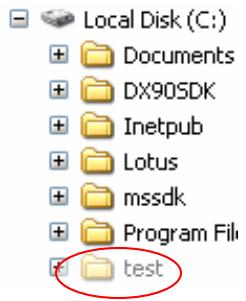
In addition, suppose your computer's IP is "10.1.30.77", and your computer name is "Silas".
Right click test folder, and select "Properties" to open test Properties dialog box.
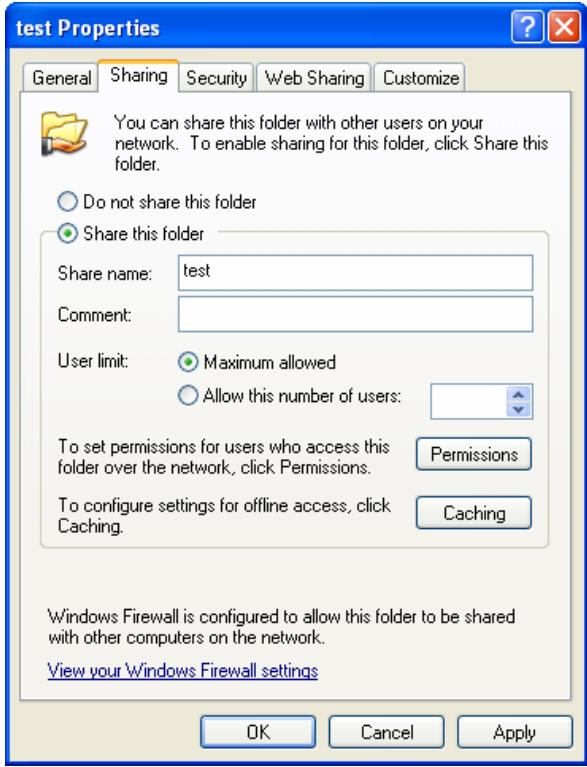
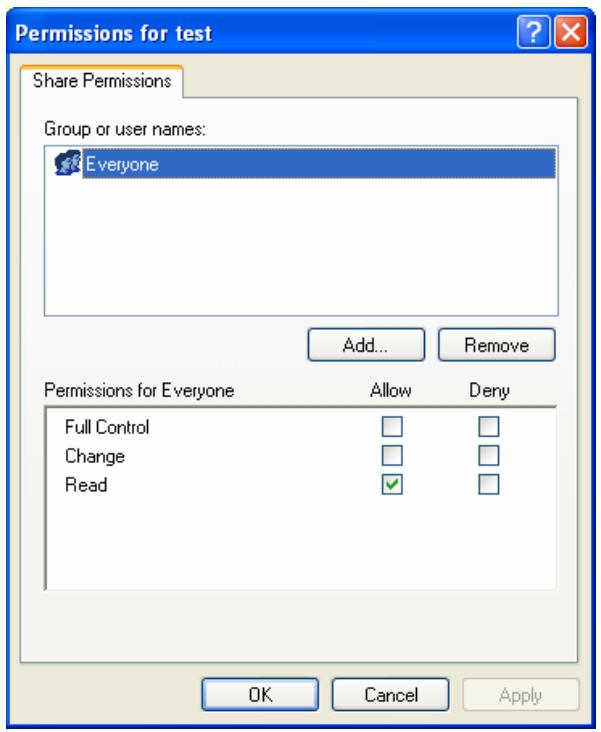
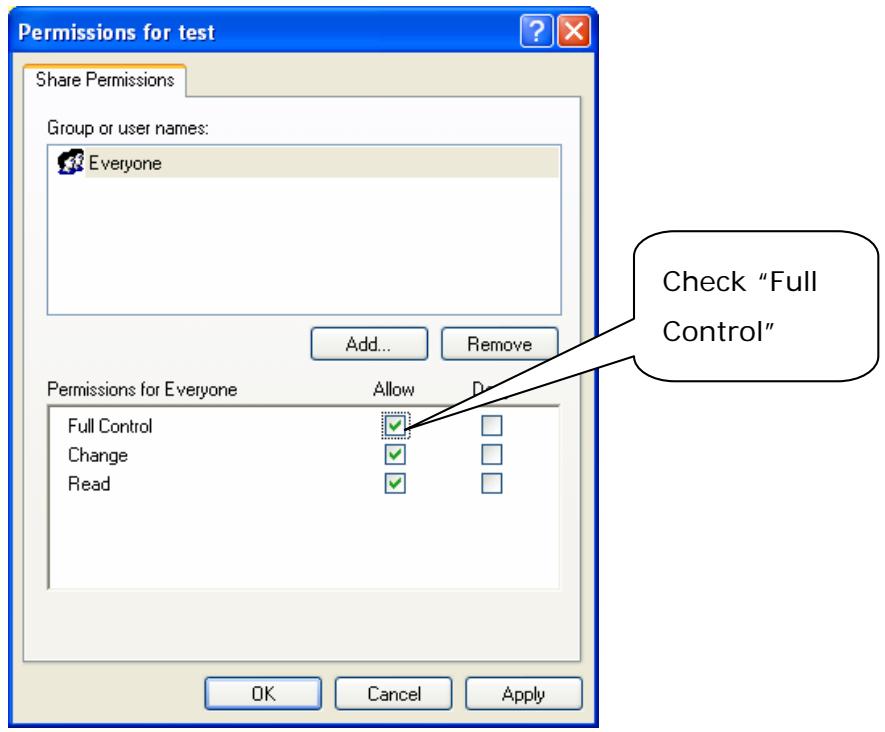
In the test Properties dialog box, select "Sharing" tab, and select "Share this folder". Click "Permissions" button to open "Permissions for test" dialog box.
Note:
The share name and the specified folder name do not necessarily share the same name. For clarity, we just use the folder name as the share name.
For simplicity, suppose you allow the group of "Everyone" to have full privileges of the test directory. Check "Full Control".
Suppose you set the following Profile Parameters for the CIFS server you just set up.
- Profile Name: CIFS test
- Protocol : CIFS
- Target URL : file:\10.1.30.77\Silas\test
- Port : 139
- User Name: tess516
- Password: xxxxxx
- File Name: test#D#n
- Color Output Format: PDF
- B&W Output Format: PDF
- Resolution: 200
- Density: 4
- Sub Folder: ON
- Report to e-mail: bess@test.com.tw
- Document Size: A4
- Auto Deskew: ON
Example 2: Illustrating HTTP profile settings
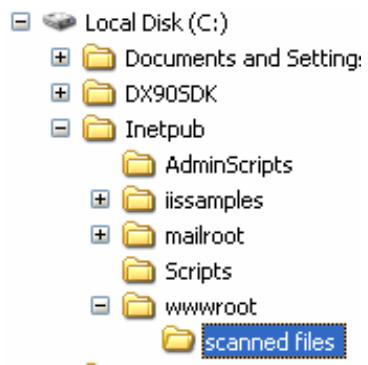
Suppose you install an IIS server in the C disk under the Windows XP, create a new folder for saving files, named scanned files, under the root directory of IIS, as shown below.
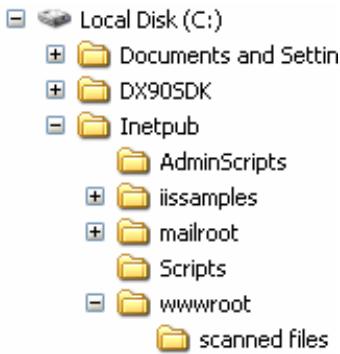
In addition, suppose your HTTP server's IP is "10.1.30.77".
Start "Administrative Tools" in "Control Panel", select "Internet Information Services", select "Default Web site" and right click scanned files, and select "Properties", as shown below.
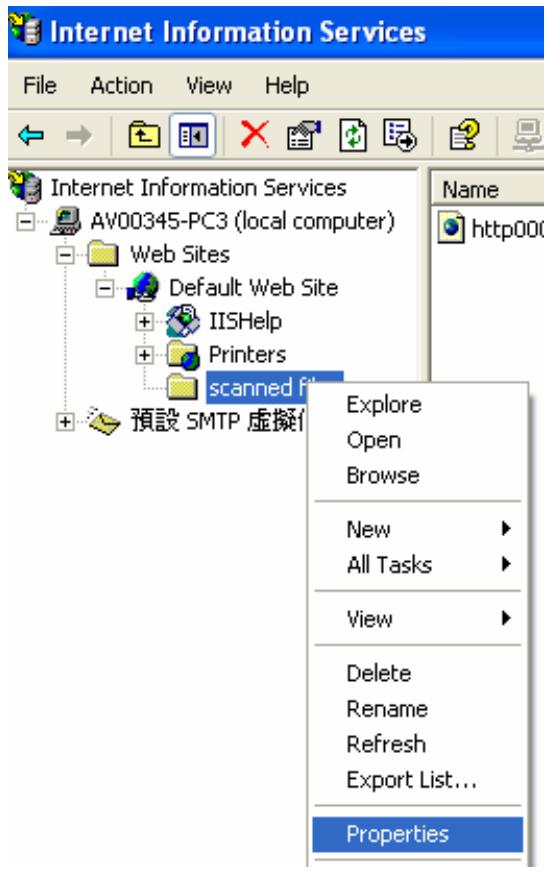
When the scanned files properties dialog box appears, select "Directory Security" tab.
Select "Edit..." button.

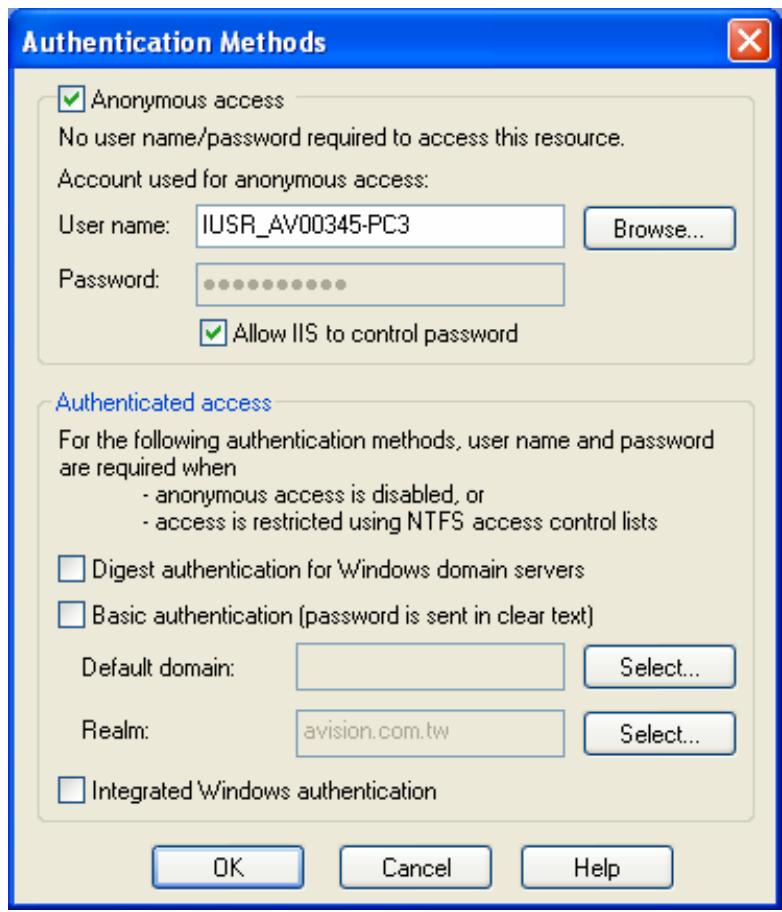
Check "Anonymous access", and then click "OK" button.
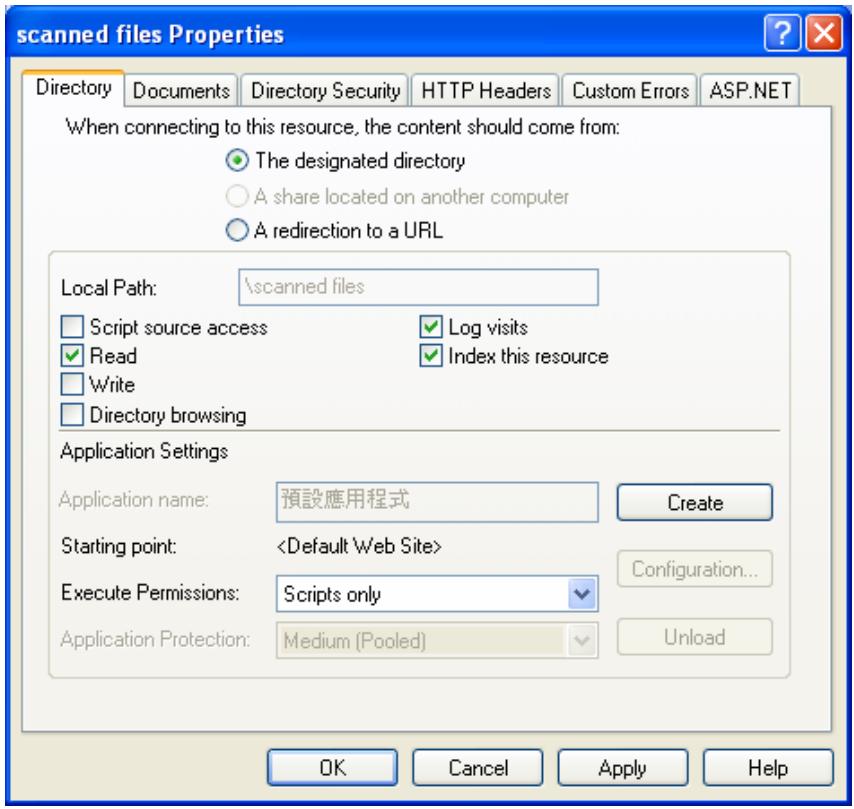
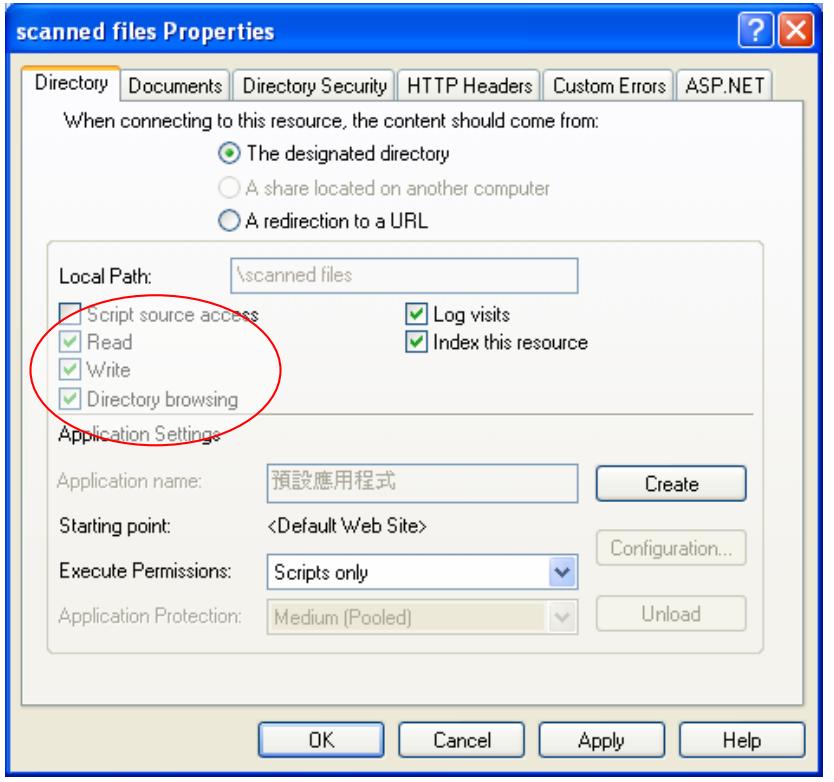
When the scanned files Properties dialog box returns, select "Directory" tab, and then check "Read", "Write", and "Directory browsing". Finally, click "Apply" button and "OK" button.
In Windows Explorer, select "C:\Inetpub\wwwroot\scanned files" and right click to select "Properties".
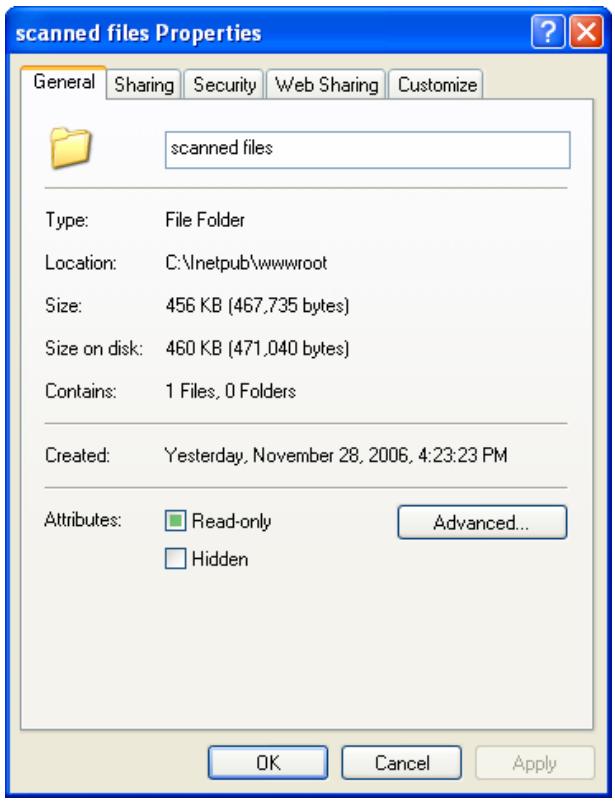
When the scanned files Properties dialog box pops up, Select
"Security" tab in the scanned files Properties dialog box.
For simplicity, suppose you allow the group of "Internet Guest" Account to have full privileges of the directory, and check "Full Control".
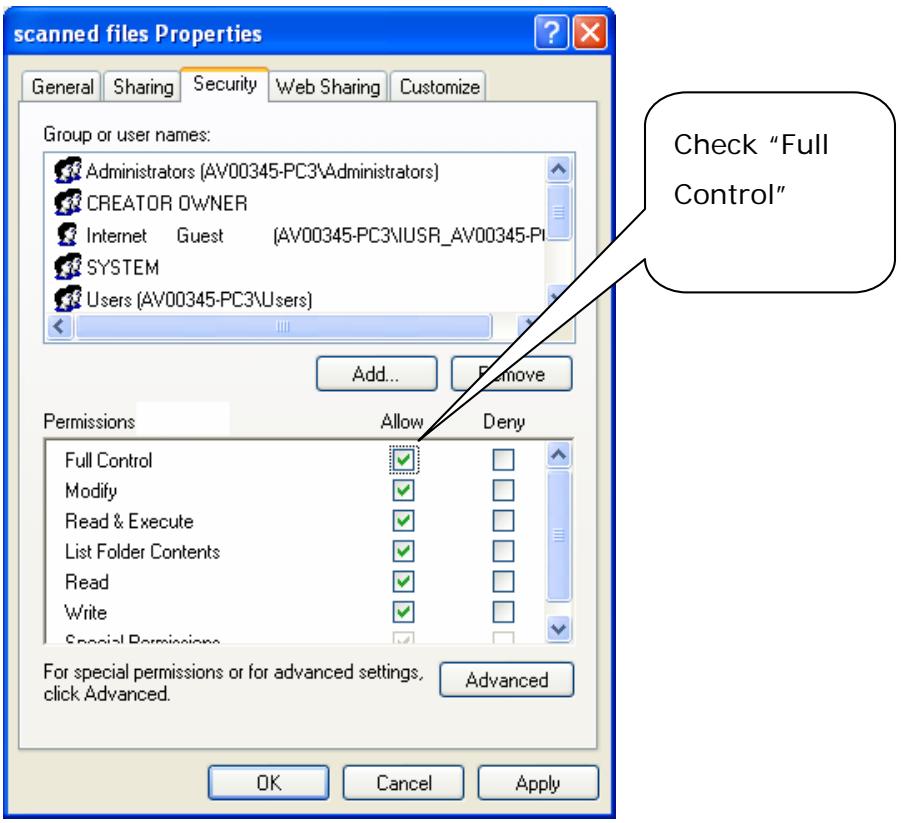
Suppose you set the following Profile Parameters for the HTTP server you just set up.
- Profile Name: HTTP test
- Protocol : HTTP
- Target URL : http://10.1.30.77/ scanned files
- Port : 80
- User Name: John
- Password: xxxxxx
- File Name: test#D#n
- Color output format: JPEG
- B&W Output Format: TIFF
- Resolution: 200
- Density: 4
- Sub Folder: ON
- Report to e-mail: bess@test.com.tw
- Document Size: A4
- Auto Deskew:ON
Specifying the FTP Folder Template by the Product's Web Page
- Type the IP address of the product in the URL field of your browser and then press Enter to launch the product web.
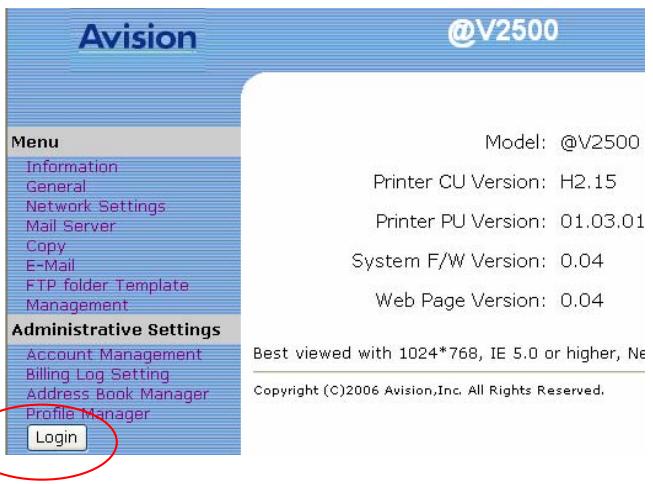
- Click the Login button to open the Login screen.
The Login button will be changed to theLogout button after you successfully log in. A user without privilege can modify the settings on this web page if you do not click theLogout button after finishing your settings.)
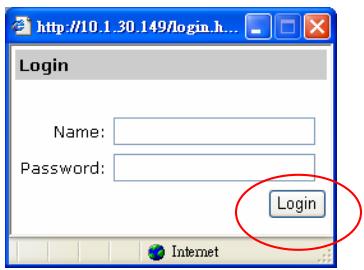
- Click Login since the machine is shipped with no specific login name and password, and then click FTP FOLDER TEMPLATE to prompt the FTP FOLDER TEMPLATE screen.
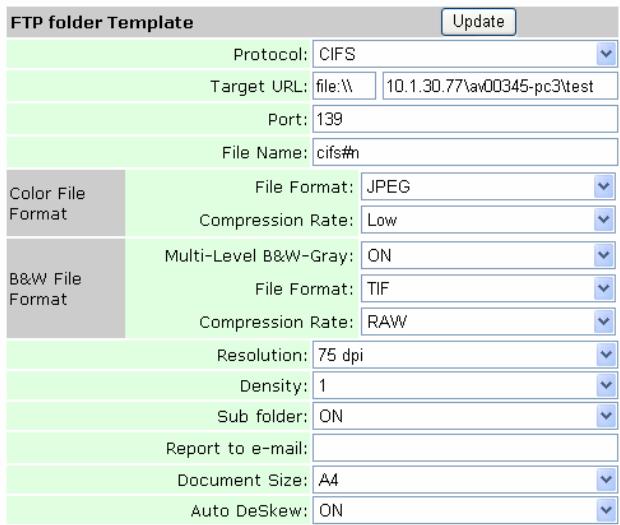
- Enter or select an input parameter respectively, and then finally click Update to save your settings.
(All of the settings are the same as those in the section, specify the FTP Folder Template by the Control Panel.)
Adding a New Profile by the Product's Web Page
To add a new profile,
- Repeat Step 1 to 2 from the previous chapter, Specifying the FTP folder Template by the product's Web page.
- Click Login since the machine is shipped with no specific login name and password, and then click Profile Manager to prompt the Profile Manager screen.
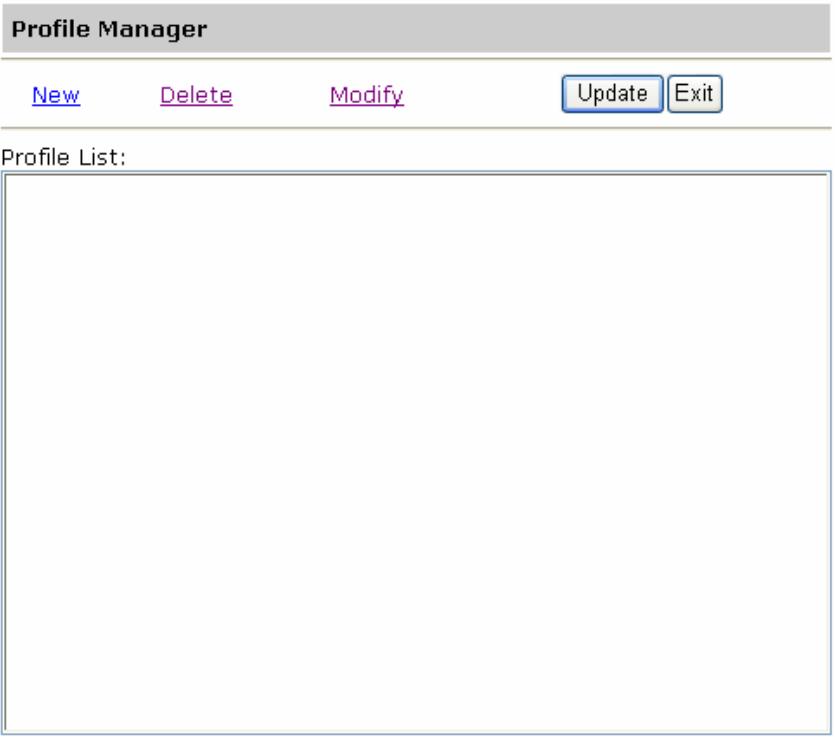
3. Click New to prompt the New Profile dialog.
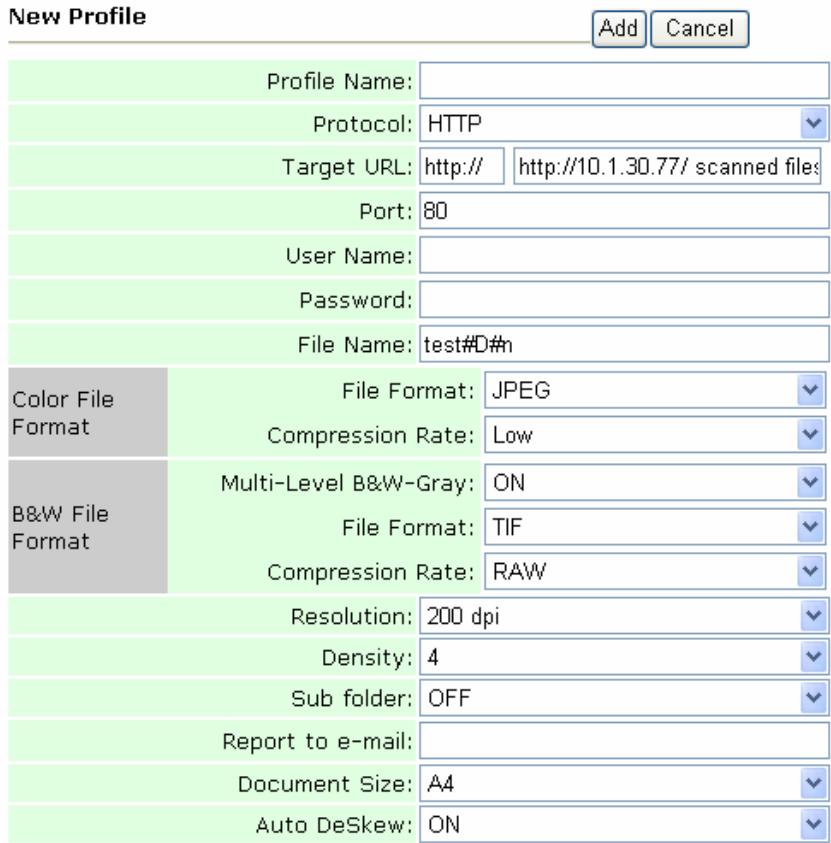
Note:
If you have already specified the FTP Folder Template, all the settings of the template will be automatically copied to your new profile settings so that you don't need to retype the same settings when adding a new profile.
- Enter your profile information.
For simplicity, suppose you want to use the same settings as the FTP folder template's.
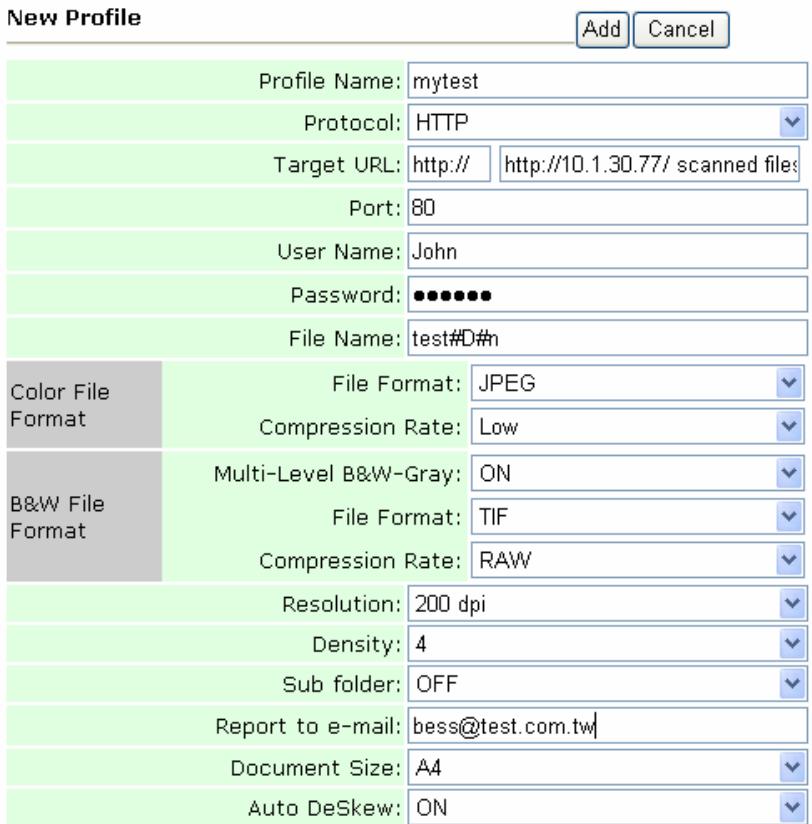
- Click Add to temporarily save the latest data and return to the main screen.
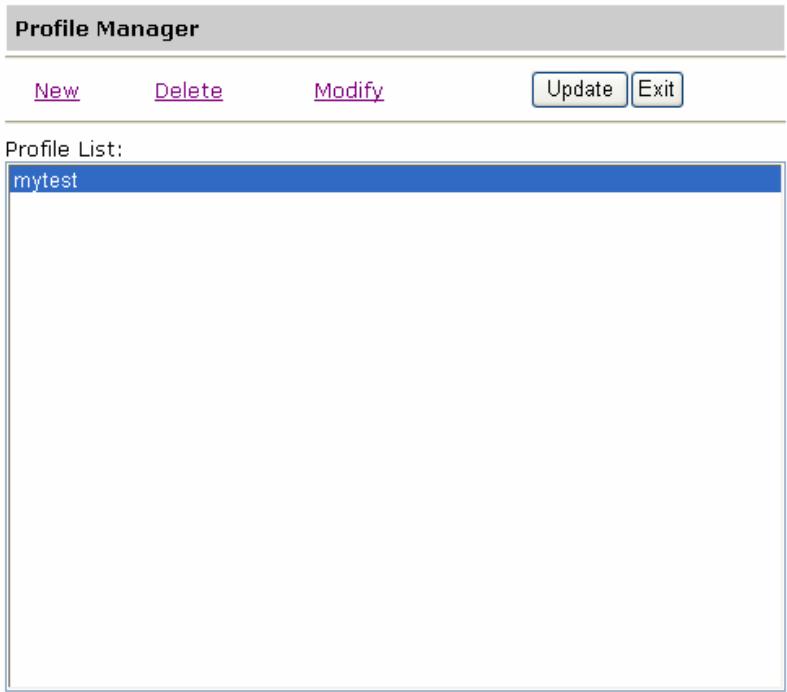
- Click Update to permanently save all the latest change on the product, or Exit to leave without saving any change.
Modifying Current Profiles
You can modify or delete profiles only by the web page.
To modify a current profile,
-
Repeat Step 1 to 2 from the previous chapter, Specifying the FTP folder template by the product's web page.
-
Click Login since the machine is shipped with no specific login name and password, and then click Profile Manager to prompt the Profile Manager screen.
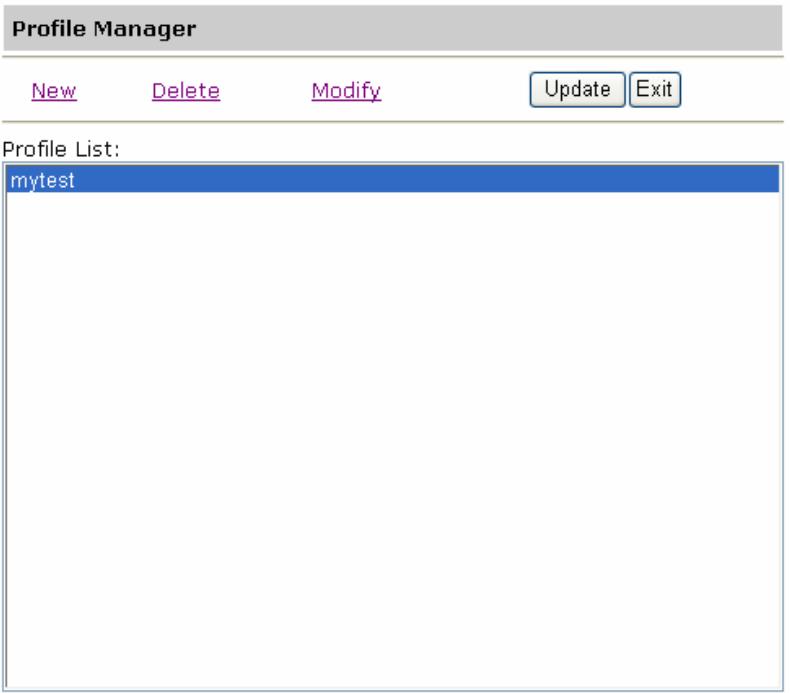
- Choose the profile you wish to modify and click Modify to prompt Modify Profile dialog as shown below:
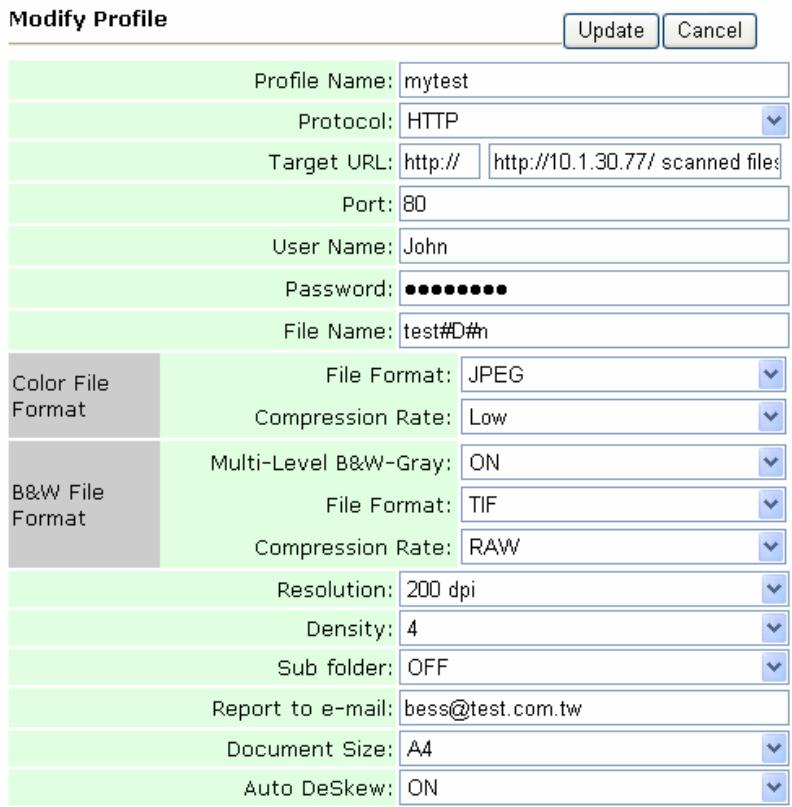
- Modify your profile content. For example,
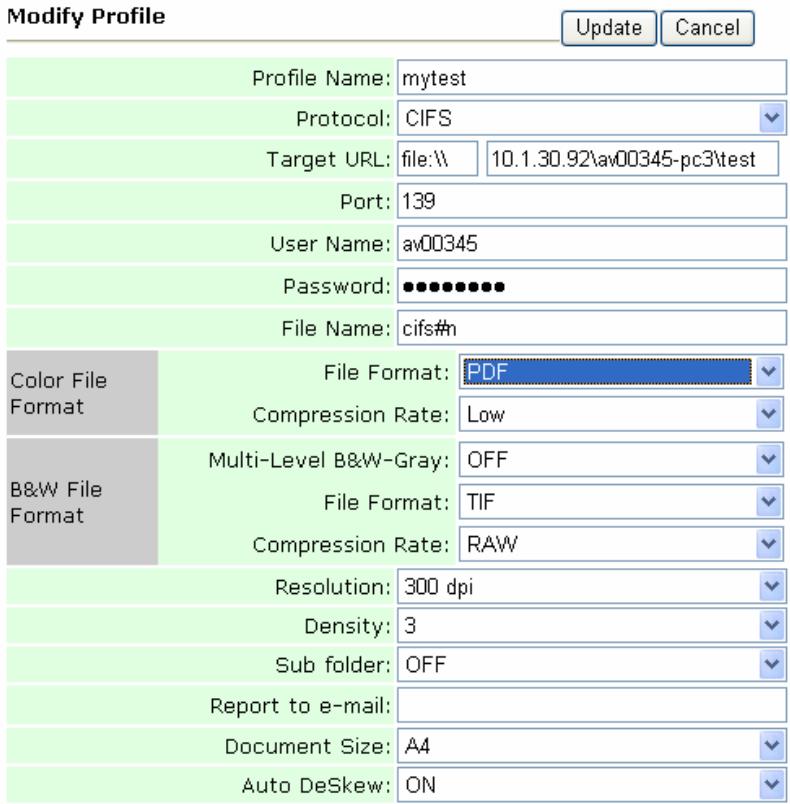
- Click Update to temporarily save the latest data, or Cancel to exit and then the main screen returns.
- Click Update to permanently save all the latest change on the product, or Exit to leave without saving any latest change.
Deleting Profiles
To delete a profile,
- Repeat Step 1 to 2 from the previous chapter, Specifying the FTP folder Template by the product's Web page.
- Click Login since the machine is shipped with no specific login name and password, and then click Profile Manager to prompt the Profile Manager screen.
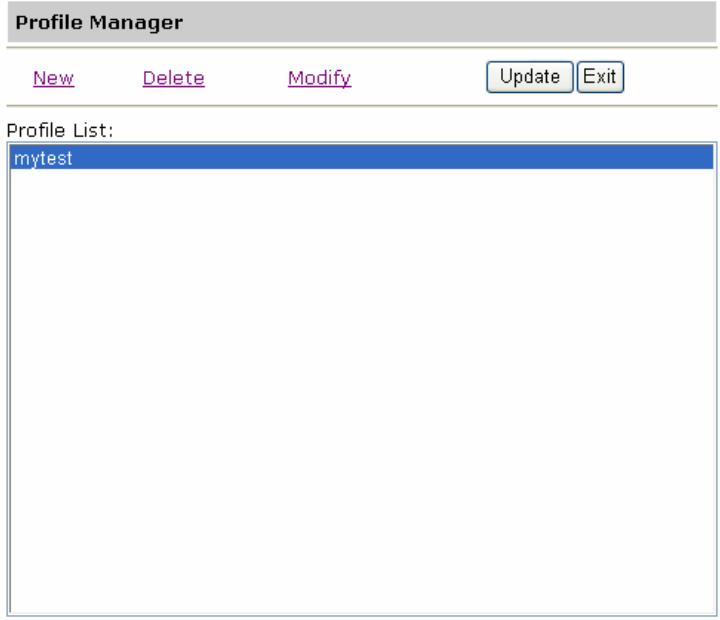
-
Choose the profile you wish to delete.
-
Click Delete to erase the profile. A warning message appears to confirm your deletion. Click OK to confirm or Cancel to exit.
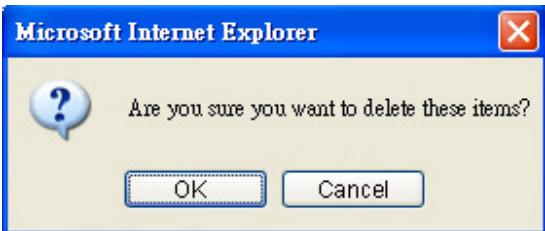
- Click Update to permanently save all the latest change on the product, or Exit to leave without saving any latest change.
6 Setting up Account Management
This chapter is specifically targeted to the persons who are responsible for the administration of the product. If you are the administrator of this product, please read this chapter before using the product.
This chapter describes how to set up the Account Management. The Account Management on the product web page must be set up first if you permit someone to have limited use on the Copy, E-mail, or Filing function. The Account Management on the control panel allows you only to switch desired servers without entering the product web page again.
After the administrator has set up Account Management and restarted the product or logged out due to time out, a user is required to create login name/password and quota to use the product. The access to the Account Management is blocked by the administrator password. It is recommended that an administrator create a password before performing these activities. Both Login and Password leave blank by default.
SETTING UP ACCOUNT MANAGEMENT BY THE PRODUCT'S WEB PAGE
- Type the IP address of the product in the URL field of your browser and then press Enter.
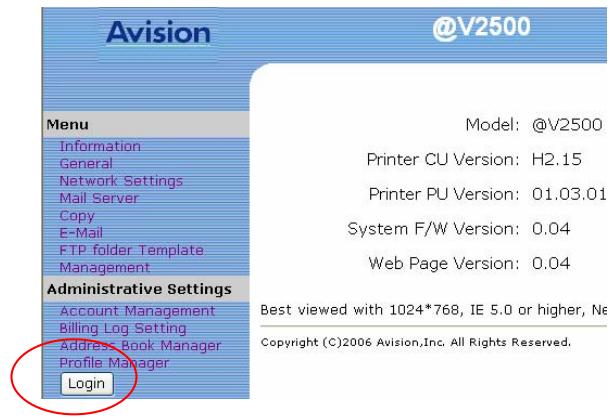
- Click the Login button to open the Login screen.
(The Login button will be changed to theLogout button after you have successfully logged in. A user without privilege can modify the settings on this web page if you do not click theLogout button after finishing your settings.)
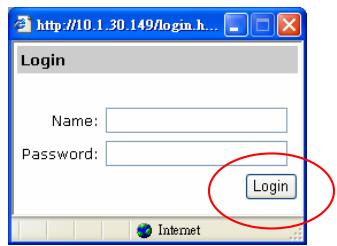
- Click Login since the machine is shipped with no specific login name and password, and then click Account Management to prompt the Account Management dialog box.
Account Management
Basic Settings Account List
Basic Settings
Update
Type: NO
Server URL:
Port:0
Reset Account Counter:
Weekly(at 8:00 am. on Monday)
- Under the Basic Settings tab, select a server type from the Type dropdown list, type in your server URL in the Server URL field, type in your server port in the Port field, and select a counter reset option from Reset Account Counter dropdown list. Finally click Update to save your settings.
Refer to the following table for the detail of each setting:
| Type | Allow the system administrator to define the security type Choice: No, Local, HTTP, LDAP, SMTP Note: “No” means no security type is applied. “Local” means using the product as the security type, and the name and password entered in the Account management are saved in the product memory. “HTTP, LDAP, or SMTP” means using a HTTP, LDAP, or SMTP server as a security type, and a HTTP, LDAP, or SMTP server will be assumed to know the name and password entered in the account management. |
| Server URL | Define the location of the security server. |
| Port | Enter the port number if you choose HTTP, LDAP, or SMTP as your security type. |
| Reset Account Counter | Reset the Counter by the following schedule choice. Choice: Weekly(at 8:00 am. on Monday) Monthly(at 8:00 am. the First day) |
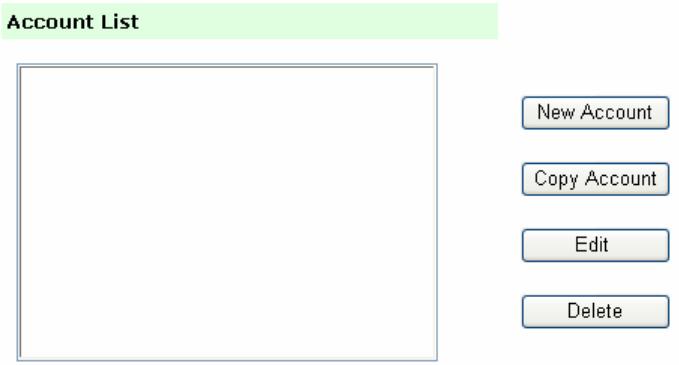
- Click the Account List tab to open the Account List dialog box, as shown below.
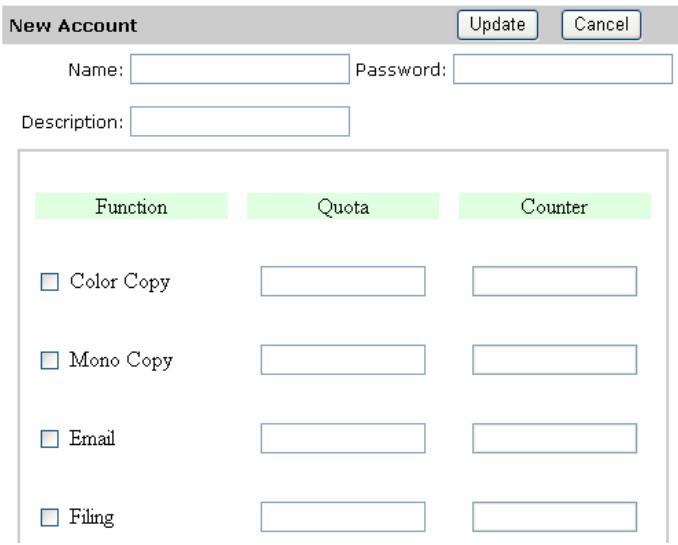
- Click the New Account button to open the New Account dialog box, as shown below.
-
Set up your user name and password respectively in the Name and Password fields. Give an alias or name in the Description field if necessary.
-
Check some of function items under the Function column, type in a number in the relevant Quota column.
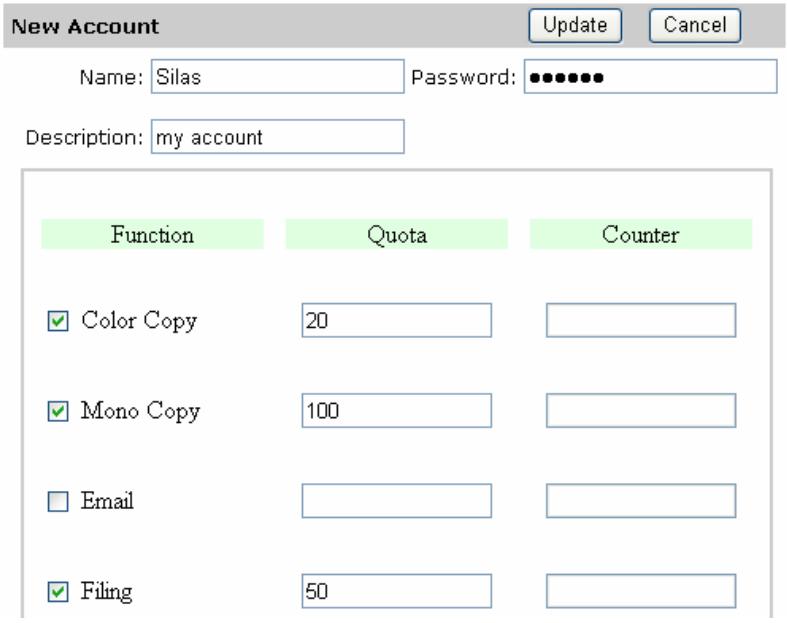
For example, the administrator allows the user, Silas, to perform 20 pieces of documents on the Color Copy function, 100 pieces of documents on the Mono Copy function, and 50 pieces of documents on the Filing function, but does not allow Email function. The New Account settings are demonstrated below.
Note:
Quota means how many pieces of documents you allow each function to perform. The number shown in the Counter column will be increased by one after the relevant function performs one piece of document. When the number of Counter is equal to that of Quota, the specified user can no longer use that function again.
- Click Update button back to the Account List screen.
Account List
Silas
New Account
Copy Account
Edit
Delete
Click the Copy Account button if you want to permit other persons to use the same amount of quota for each given function. You only need to give new names and passwords for different persons without retyping the rest.
Click the Edit button if you want to modify something for the specified person account.
Click the Delete button if you want to delete the specified person account.
7 Creating Billing Log Settings
If you are the administrator of this product, please read this chapter before setting up the machine.
Billing Log Setting allows you to send the log result by e-mail or by protocol. You can also select a sending log schedule by hour, by day, or by week. The access to the Billing Log Setting is blocked by the administrator password. It is recommended that an administrator create a password before performing these activities. Both Login and Password leave blank by default.
CREATING BILLING LOG SETTINGS BY THE CONTROL PANEL

- Press Menu button Menu on the control panel. This prompts the login name message.
Login name:
- Press the Select button as the default login name. This prompts the input password message.
Input Password:
- Press the Select button

as the default password. This
prompts part of the following Administrator screen.
- Information
- General
- Network Settings
- Mail Server
Press the Up/Down arrow button
repeatedly to scroll through the top menu level. The
complete top menu level, Administrator screen, is shown as
below:
- Information
- General
- Network Settings
- Mail Server
- Copy
- FTP Folder Template
- Account Management
- Billing Log Setting
-
Management
11.Exit -
Press the Up/Down arrow button
or

to select
Billing Log Setting, and then press the Select button

The following Billing Log Setting screen appears.
- Log Information
- Send Log to
- Mail Subject:
- Send Log Schedule: No
- Time for Sending Log:
- Clear Job Logs
- Save & Exit
-
Exit
-
Press the Up/Down arrow button an item.
or

to select
- Press the Select button

to enter the next menu level.
- Press the Left/Right arrow button an item or enter an input content.

or

to select
- Press the Select button

again.
- Press the Up/Down arrow button

or

to select
Save & Exit to save your settings.
Refer to the following table for the detail of each setting:
| Log Information | Shows Start date, End date, Total Job Logs, and Remaining space. Choice: Start date means the date of the first piece of log. End date means the date of the last piece of log. Total Job Logs means the number of logs. Remaining Space means the remaining memory space. |
| Send Log to | Select a protocol or enter an e-mail address to send your billing result. Choice: Protocol, Email address,Server URL, Port, Login name, Password, Send Notification to |
| Mail Subject | Enter your preferred Email subject. |
| Send Log Schedule | Select a sending log schedule by hour, by day, or by week. Choice: No, Full, Hourly, Daily, Weekly Note: Full means the product will send a log when the memory is full. |
| Clear Job Logs | Deletes all the log data stored in the memory. Choice: No, Yes |
| Save and Exit | Choose this to save the above settings and exit. |
| Exit | Choose this to exit without saving the above settings. |
CREATING BILLING LOG SETTINGS BY THE PRODUCT'S WEB PAGE
- Type the IP address of the product in the URL field of your browser and then press Enter.
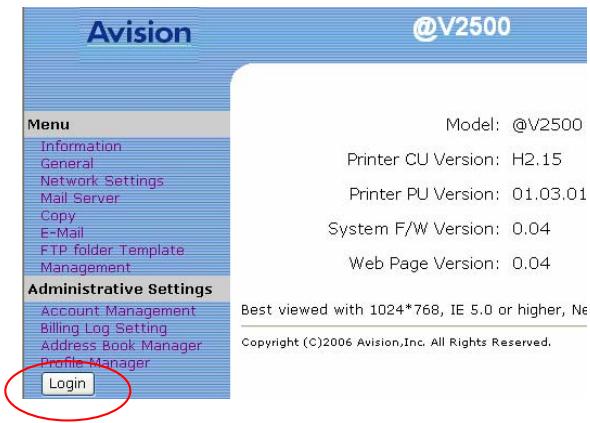
- Click the Login button to open the Login screen.
(The Login button is changed to theLogout button after you successfully log in. A user without privilege can modify the settings on this web page if you do not click theLogout button after finishing your settings.)
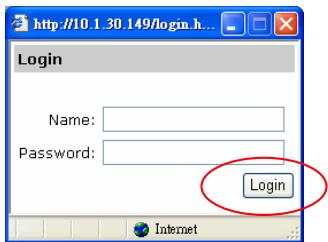
- Click Login since the machine is shipped with no specific login name and password, and then click Billing Log Setting to prompt the Billing Log Setting dialog box.
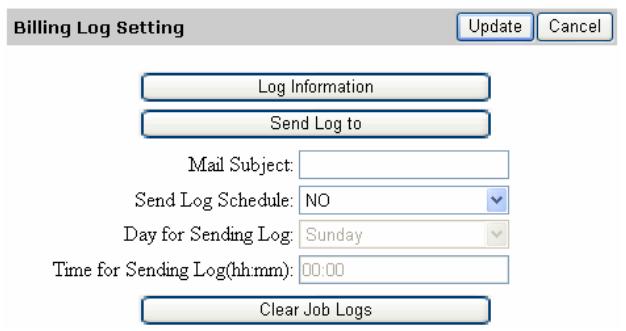
- Click the Send Log to button to prompt the Send Log to screen, as shown below.
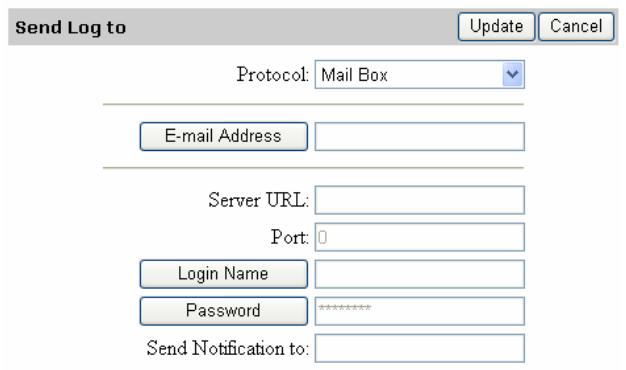
- From the Protocol dropdown list, select Mail Box if you want to send the log by Email, or FTP/CIFS/HTTP if you want to send the log to a server.
- Click the E-mail Address button to enter a new Email address if you Select Mail Box option in the previous step.
Or
Enter your server URL in the Server URL field, your server port in the Port field, click Login Name button to enter your server's login name, click Password button to enter your server's password, and enter your notification Email address (This Email owner will be notified when the specified server receives a log.) in the Send Notification to field if you Select the FTP/CIFS/HTTP option in the previous step.
- Click Update button to return to the Billing Log Setting screen.
- Enter your log subject in the Mail Subject field.
- Select a sending log schedule from the Send Log schedule list.
- Select a day for the sending log from the Day for Sending Log dropdown list if you select Weekly in the previous step.
- Enter a time for the sending log from the Time for Sending Log dropdown list if you select Hourly, Weekly, or Daily in step 9.
- Click Clear Job Logs if you want to delete all the log information stored in the product memory.
- Click Update to save your settings or Cancel to leave without saving any latest change.
(Refer to page 7-4 for the detail of each setting).
8 Administration
This chapter describes how to perform the administrator activities either by the control panel or by the product web page. If you are the administrator of this product, please read this chapter before using the product.
The access to the administrator activities is blocked by the administrator password. It is recommended that an administrator create a password before performing these activities. Both Login and Password leave blank by default.
Administering the Product by the Control Panel

-
Press Menu button Menu . This prompts the login name and input password messages respectively. After you enter the login name and input password, the Administrator Setting screen appears as below.
-
Information
- General
- Network Settings
- Mail Server
- Copy
- FTP Folder Template
- Account Management
- Billing Log Setting
-
Management
11.Exit -
Use the Up/Down arrow button or to scroll between the menus. Press the Select button to enter each menu level.
-
Press the Left/Right arrow button or to select an input content, and then press the Select button
-
Press Save & Exit on the LCD screen and then press the Select button to save the changes and exit from the menu.
-
To exit from the menu, press the Return button
-
For the contents of each menu, please see the subsequent section, Summary of Administrator Activities.
Before administering the product by the web page, please set up the Network Settings first.
To administer the product by the web page,
- Type the IP address of the product in the URL field of your browser and then press Enter.
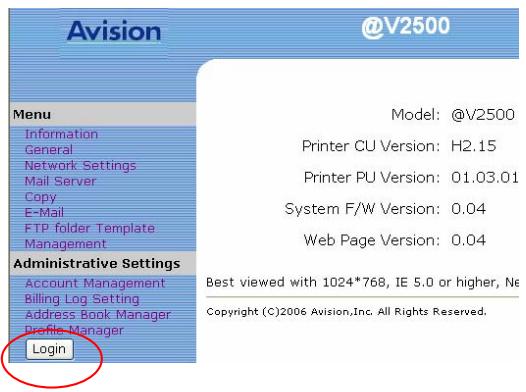
- Click the Login button to open the Login screen.
(The Login button will be changed to theLogout button after you have successfully logged in. A user without privilege can modify the settings on this web page if you do not click theLogout button after finishing your settings.)
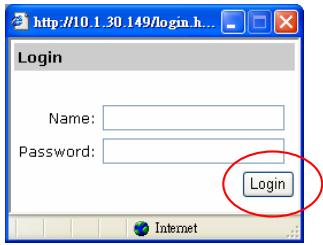
- Click Login since the machine is shipped with no specific login name and password, and then click one of the items on the left side. For the contents of each item on the left side, please see the subsequent section, Summary of Administrator Activities.
Press Menu button Menu on the control panel. After you type the login name and password, the following Administrator screen will appear.
- Information
- General
- Network Settings
- Mail Server
- Copy
- FTP Folder Template
- Account Management
- Billing Log Setting
- Management
11.Exit
Choose Information and the following contents will appear.
| Model | Display the model name. |
| Manufacturer | Display the manufacturer. |
| Serial No. | Display serial number. |
| Mac Address | Display current Mac address for the product |
| F/W Version | Display firmware version. |
| Scan Counting | The count for all scanned documents. Sub items: 1. Total: 2. B&W Copy: 3. Color Copy : 4. B&W E-mail : 5. Color E-mail: 6. B&W Filing : 7. Color Filing: 8. B&W USB Scan: 9. Color USB Scan: 10. ADF Scan : 11. Job Counting: |
| Menu Map | Print the menu map on the product. |
| Exit | Exit the screen. |
Choose General and the following settings will appear.
| Device Name | Display the model name. You can input the device name. |
| Date | Current date |
| Time | Current time |
| Time Zone | Time zone of your location. (Based on Greenwich Mean Time (GMT). |
| Save & Exit | Save the above settings and exit. |
| Exit | Exit the screen without saving. |
Choose Network Settings and the following settings will appear.
| DHCP enable | Select Yes if you wish to enable DHCP. |
| IP address | IP address of the product |
| Subnet mask | The subnet mask of the product |
| Gateway IP | The IP address of your gateway. |
| DNS server | IP address of your DNS server. |
| Save & Exit | Save the above settings and exit. |
| Exit | Exit the screen without saving. |
Choose Mail Server and the following settings will appear.
| 1. SMTP Server: | The IP address of your SMTP Mail Server |
| 2. SMTP Port: | The port number of your SMTP Mail Server. |
| 3. POP3 Server: | The IP address of your POP3 server. |
| 4. POP3 Port | The port number of your POP3 Server. |
| 5. External Address Book: | If you wish to link external e-mail address book from other devices, enter your LDAP server here. Choice: 1. LDAP server URL: Enter your LDAP server URL here. 2. Port: Enter port number of the LDAP server. 3. Login name: Enter login name of the LDAP server. 4. Password: Enter password of the LDAP server. |
| 6. Device Email Address Account: | Enter logon information for SMTP or POP3 authentication. Choice: 1. E-mail address: (default “From” address) 2. Authentication method: SMTP, POP3 3. Login name: (Login name for SMTP or POP3 authentication.) 4. Password: (Password for SMTP or POP3 authentication.) |
| 7. Save & Exit | Save the above settings and exit. |
| 8. Exit | Exit the screen without saving. |
Choose Copy and the following settings will appear.
| Model | The printer model name connected to the product. |
| Input Tray | Input trays available to the printer |
| (Input Tray) Paper Size | Choice: A5 to A3 (This choice depends on printer model connected to the product.) |
| (Input Tray) Media type | Choice: Plain, LTRHead, Bond, Recycled, Rough (This choice depends on printer model connected to the product.) |
| Watermark | Enter the words for watermark. |
| Background Remove | Remove the background color of your B&W document. Choice: Yes, No |
| Collate | Choose to enable automatic sorting. Choice: ON, OFF |
| N-Up | Print 1 original image reduced to fit onto one sheet of paper. Choice: 1 in 1 |
| Edge Erase | Cut off some areas by the specified distance around the border of your scanned image. Choice: 0 mm,6 mm,13 mm,19 mm, 25 mm |
| Margin Shift-R | The Margin Shift-R allows you to shift your scanned image to the right by the specified distance. Choice: 0 mm,6 mm,13 mm,19 mm, 25 mm |
| Margin Shift-B | The Margin Shift-B allows you to shift your scanned image to the bottom by the specified distance. Choice: 0 mm,6 mm,13 mm,19 mm, 25 mm |
| Duplex | Choose if you wish to use duplex (double-sided) function if duplex is available for your printer. Choice: ON, OFF |
| Save & Exit | Save the above settings and exit. |
| Exit | Exit the screen without saving. |
Note:
The copy settings depend on the type of printer connected to the product.
Choose E-mail and the following settings will appear.
| Def. Subject | Default text for the Subject field in e-mail messages from the product. Up to 64 characters are allowed. The default subject is displayed when users press the E-mail button from the product. |
| Color Output Format | File format for documents to be sent in colors via E-mail from the product. Choice: 1. File format: PDF, JPEG, TIFF, JPEG+EXIF, MTIF(Multi-page TIFF) Note: Choose MTIFF or PDF when you need to scan multi-page document and convert it to a single image file. 2. Compression rate: Low, Medium, High (If TIF or MTIFF is selected as a file format, the compression rate is defined as RAW only.) |
| B&W Output Format | File format for documents to be sent in black and white via E-mail from the product. Choice: 1. Multi-level B&W/Gray: ON,OFF 2. File format: PDF, PCX, MTIFF(Multi-page TIFF), TIFF 3. Compression rate: Low, Medium, High (If you choose ON from Multi-level B&W/Gray, the file formats include PDF, JPEG, TIF, MTIF, and JPEG+EXIF. If TIF or MTIFF is selected as your file format, the compression rate is limited to RAW only. If you choose OFF from Multi-level B&W/Gray, the file formats include PDF, PCX, TIF, and MTIF. The compression rate of MTIF or TIF includes G3, G4, and Raw.) |
| Resolution | The scanning resolution you choose to scan from the product. Choice: 75, 100, 150, 200, 300, 400, 600 (dpi) |
| Separation Limit | Limit the maximum space for each incoming e-mail mainly the attachment. Choice: 1M, 3M, 5M, 10M, 30M, No Limit |
| Density | Choose the density level. Choice: 1,2,3,4,5,6,7. (1 means weakest density, and 7 means strongest density.) |
| Document Size | Choose your document size. Choice: A4, A5,B5,Legal,Letter |
| Save & Exit | Save the above settings and exit. |
| Exit | Exit without saving the above settings. |
Choose FTP Folder Template and the following settings will appear.
| Protocol | Choose the protocol you desire to store your scanned image. Choice: *FTP, *HTTP, *CIFS, *HTTPS, *AVPP |
| Target URL | Specify the filing server address and path. Important note: You must use this CIFS filing format, file:\IP\computer name\folder name, to set CIFS URL. |
| Port | The port number for your filing server. Default value: ftp:21, http:80, CIFS:139, AVPP:80, https:443 If the default value is different from the real case, input the correct port number in this field. |
| File Name | The file name for filing a document The system will remind you if the field is not filled. |
| Color Output Format | File format for documents to be sent in colors via filing from the product. Choice: 1. File format: PDF, JPEG, TIFF, JPEG+EXIF, MTIF(Multi-page TIFF) Note: Choose MTIFF or PDF when you need to scan multi-page document and convert it to a single image file. 2. Compression rate: Low, Medium, High (If TIF or MTIFF is selected as a file format, the compression rate is defined as RAW only.) |
| B&W Output Format | File format for documents to be sent in black and white via filing from the product. Choice: 1. Multi-level B&W/Gray: ON,OFF 2. File format: PDF, PCX, MTIFF(Multi-page TIFF), TIFF 3. Compression rate: Low, Medium, High (If you choose ON from Multi-level B&W/Gray, the file formats include PDF, JPEG, TIF, MTIF, and JPEG+EXIF. If TIF or MTIFF is selected as your file format, the compression rate is limited to RAW only. If you choose OFF from Multi-level B&W/Gray, the file formats include PDF, PCX, TIF, and MTIF. The compression rate of MTIF or TIF includes G3, G4, and Raw.) |
| Resolution | The scanning resolution you choose to scan from the product. The higher resolution makes a clearer image, but occupies more space. Choice: 75, 100, 150, 200, 300, 400, 600 (dpi) |
| Density | Choose the density level. Choice: 1, 2, 3, 4, 5, 6, 7. (1 means weakest density, and 7 means strongest density.) |
| Sub folder | Input a name of the sub folder if you want. (Make sure you have a privilege to create a sub folder under the server.) Choice: ON, OFF |
| Report to e-mail | Enter an e-mail address if you wish to send the filing report to the e-mail. |
| Document Size | Choose your document size. Choice: A4, A5, B5, Legal, Letter |
| Auto Deskew | Use this option to automatically despew a document. Choice: ON, OFF |
Choose Account Management and the following settings will appear.
| Type | Select a server type Choice: No, Local, SMTP, LDAP, HTTP |
| Server URL | Enter your server URL. |
| Port | Enter your server port. |
| Save and Exit | Choose this to save the above settings and exit. |
| Exit | Choose this to exit without saving the above settings. |
Choose Billing Log Setting and the following settings will appear.
| Log Information | Shows Start date, End date, Total Job Logs, and Remaining space. Choice: Start date means the date of the first piece of log. End date means the date of the last piece of log. Total Job Logs means the number of logs. Remaining Space means the remaining memory space. |
| Send Log to | Select a protocol or enter an e-mail address to send your billing result. Choice: Protocol, Email address, Server URL, Port, Login name, Password, Send Notification to |
| Mail Subject | Enter your preferred Email subject. |
| Send Log Schedule | Select a sending log schedule by hour, by day, or by week. Choice: No, Full, Hourly, Daily, Weekly Note: “Full” means the product will send a log when the memory is full. |
| Clear Job Logs | Deletes all the log data stored in the memory. Choice: No, Yes |
| Save and Exit | Choose this to save the above settings and exit. |
| Exit | Choose this to exit without saving the above settings. |
Choose Management and the following settings will appear.
| Admin. Profile | Allow the system administrator to change his or her login name, password, or e-mail address. Choice: 1. Login name (up to 16 characters or digits) 2. Password (up to 8 characters or digits) 3. E-mail address (up to 64 characters or digits) |
| Add “To” Addr. | Choose yes to add the “To” address to current address book after sending the e-mail from the product. Choice: ON, OFF |
| Add Profile after filing | Choose yes to add the new profile to current profile list after sending the scanned document to the server from the product. Choice: ON, OFF |
| PowSave Delay Time | Set how long the machine will automatically enter the power saving mode after the latest action. Choice: 5 min, 15 min,30 min,60 min,240 min |
| Stand-by Time | Specify the stand- by time. Choice: 20 sec, 40 sec, 60 sec, 120 sec,180 sec |
| Language | Choose the language you wish to show on the LCD-display. Choice: English/Native |
| Default Mode | Specify a default mode. Choice: E-Mail, Copy, and Filing |
| Save and Exit | Choose this to save the above settings and exit. |
| Exit | Choose this to exit without saving the above settings. |
9 Operation
With an intuitive control panel, the product is designed to be easy-to-use. After the administrator has completed the configuration of the machine, basically, operating the product takes only a few simple steps as follows.
- Place your paper either in the ADF or on the glass.

E-mail 3.If you are pressing, enter an e-mail address or select Filing one address from the address book. If you are pressing choose your desired profile.
The following sections describe the advanced steps on how to make copy of your scanned document or how to distribute your document over the internet.
The product can scan and send document(s) either in the ADF (Automatic Document Feeder) or on the glass. If you need to send multiple pages, please load your papers in the ADF. The ADF can hold up to 50 pages at one time. If you need to send pages from books, newspaper clippings, or paper with wrinkles or curls, please place your paper on the glass.
NOTICE ON USING THE ADF
Before using the ADF, please make sure that your paper meets the following specifications:
- Document(s) can range in size from 4.5 by 5.5 inches to 8.5 by 14 inches (Legal).
- Document(s) can range in weight from 16 to 28 lbs (0.002" to 0.006").
- Document(s) should be square or rectangular and in good condition (not fragile or worn).
- Document(s) should be free of curl, wrinkle, tears, wet ink, or punch holes.
- Document(s) should be free of staples, paper clips, paper sticky notes.
- Keep the glass clean without document placed on it.
Note:
To transmit irregular types of document(s), place the document(s) on the glass or make a copy first and then transmit the copy instead.
- Make sure your document is free of staples, paper clips and is not tore out.
- If you have multiple pages, fan your document(s) to avoid occasional paper jam. The ADF holds up to 50 pages at one time.
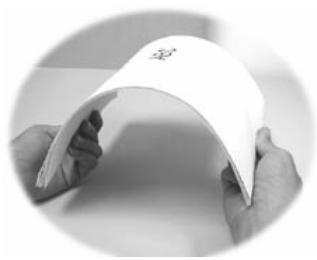
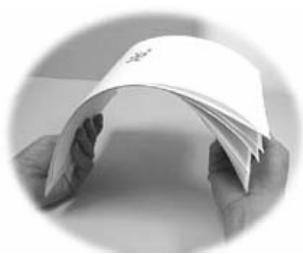
- Place your document(s) with the text FACE UP in the ADF and make sure that the top of each page feeds in first.
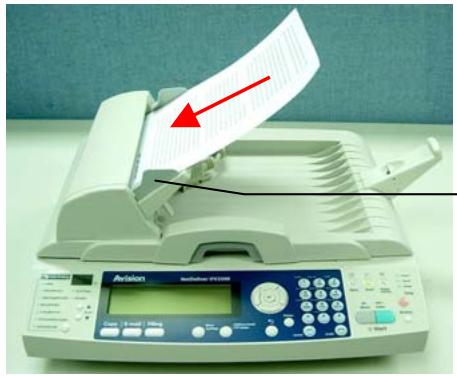
Paper Guide
-
Adjust the Paper Guides to center the document(s) in the ADF.
-
Open the document(s) cover to reveal the glass.
- Place your document with the text FACE DOWN on the glass and align the document in the upper-left corner.
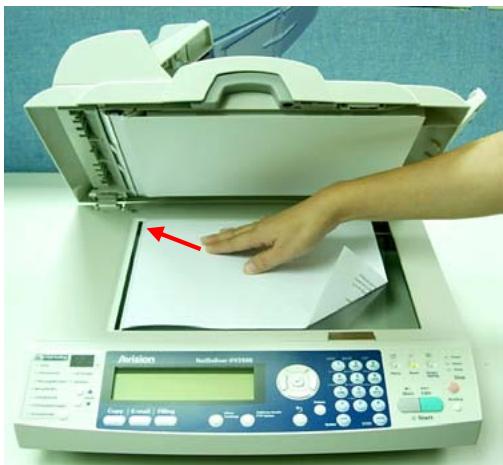
- Close the document cover.
BASIC OPERATION
-
Place your document(s) with text FACE UP in the ADF or FACE DOWN on the glass.
-
Press the E-mail button, E-mail. The following E-mail screen will appear.
To:
Subj:
CC:
BCC:
Memo:
-Manual Feed
You can enable multi-batch document scanning.

Press on the panel when loading more than 50 pages on the ADF(For example, load the first 50 pages on the ADF, wait for the first 50 pages to finish scanning, and then load another 50 pages to finish scanning.) or more than one page on the flatbed. Manual Feed is valid when the LED is lit.
- Enter your e-mail address on the control panel.
Or you may select an e-mail address from the Address Book
by pressing the Address book/FTP folder on the control panel. Use the Up/Down arrow button or to select multiple e-mail addresses and press the
Select button. Or you may simply type the initial letter of the e-mail address for a fast operation. Press the Return
to return to the E-mail main screen.
- Enter or select CC and BCC address as well, if necessary. Enter the subject for your E-mail. If not entered, Default Subj. will be displayed.
-
Enter your e-mail message in the Memo field.
-
Press to send your document(s) in black and white. Or press to send your document(s) in color.
If you are not satisfied with the scanned image, learn to use the advanced features to enhance your scanned image.
To use the advanced features, press

and then
on
the control panel to prompt the More settings screen. Refer to the following table to modify the scanning settings.
| Attachment | File name for the scanned document. |
| From | Enter your From address. This is also the “From” address in your e-mail when you receive an e-mail from the product. |
| Reply To Address | Enter “Reply To Address” address if you wish to specify a reply address which is different from the “From” address. |
| Color Output Format | File format for documents to be sent in colors via E-mail from the product. Choice: 1. File format: PDF, JPEG, TIFF, JPEG+EXIF, MTIF(Multi-page TIFF) Note: Choose MTIFF or PDF when you need to scan multi-page document and convert it to a single image file. 2. Compression rate: Low, Medium, High (If TIF or MTIFF is selected as a file format, the compression rate is defined as RAW only.) |
| B&W Output Format | File format for documents to be sent in black and white via E-mail from the product. Choice: 1. Multi-level B&W/Gray: ON,OFF 2. File format: PDF, PCX, MTIFF(Multi-page TIFF), TIFF |
| 3. Compression rate: Low, Medium, High (If you choose ON from Multi-level B&W/Gray, the file formats include PDF, JPEG, TIF, MTIF, and JPEG+EXIF. If TIF or MTIFF is selected as your file format, the compression rate is limited to RAW only. If you choose OFF from Multi-level B&W/Gray, the file formats include PDF, PCX, TIF, and MTIF. The compression rate of MTIF or TIF includes G3, G4, and Raw.) | |
| Resolution | Choose the scanning resolution for the scanned document from a selection of 75, 100, 150, 200, 300, 400, 600 dpi. A higher resolution reproduces your image with greater details yet it requires more disk space. (Refer to page 6-3) |
| Separation limit | Limit the maximum space for each incoming e-mail mainly the attachment. Choice: No Limit, 1M, 3M, 5M, 10M, 30M |
| Density | If your original comes with a lighter or darker contrast, choose the density level from 1 to 7 to optimize your image. |
| Document Size | If you wish to define the scanning area instead of the entire page, choose your desired area here. Choice: A4 , Letter, Legal |
| Auto Deskew | Use this option to automatically deskew a document. Choice: ON , OFF |
Before sending your document to filing servers, you should set up a few profiles first to speed up the filing process. A profile contains a list of filing parameters such as your filing protocol, directory, file name and other scanning parameters. On how to set up a new profile, please refer to the "Adding a New Profile on the Control Panel" section in Chapter 5.
BASIC OPERATION
- Place your document(s) with text FACE UP in the ADF or FACE DOWN on the glass.
- Press on the Control Panel. The LCD-display prompts the following Filing screen. For example,
Most Used Profile:
- mytest
- <
>
-Manual Feed
You can enable multi-batch document scanning.

Press on the panel when loading more than 50 pages on the ADF(For example, load the first 50 pages on the ADF, wait for the first 50 pages to finish scanning, and then load another 50 pages to finish scanning.) or more than one page on the flatbed. Manual Feed is valid when the LED is lit.
- Choose your desired profile.
(Press the Select button to modify profile settings.)
- Press to send your document(s) in black and white.
to send your document(s) in color.
If you are not satisfied with the scanned image, learn to use the advanced features to enhance your scanned image.

and then
To use the advanced features, press
on the control panel to prompt the More settings screen. Refer to the following table to modify the scanning settings.
| Profile Name | Give a name of your new profile. The first five profile names that are often used appear on the screen. |
| Protocol | Choose the protocol you desire to file your scanned image. Choice: FTP, HTTP, CIFS, AVPP, HTTPS |
| Target URL | Enter the directory to save the scanned document. Note that the directory will be varied due to different protocol. The route starts from the root directory in FTP, HTTP, HTTPS, and CIFS. For example, ftp://, http://, and file:\,\,\,\,\,\,\,\,\,\,\,\,\,\,\,\,\,\,\,\,\,\,\,\,\,\,\,\,\,\,\,\,\,\,\,\,\,\,\,\,\,\,\,\,\,\,\,\,\,\,\,\,\,\,\,\,\,\,\,\,\,\,\,\,\,\,\,\,\,\,\,\,\,\,\,\,\,\,\,\,\,\,\,\,\,\,\,\,\,\,\,\,\,\,\,\,\,\,\,\,\, Important note: You must use this CIFS filing format, file:\\IP\computer name\folder name, to set CIFS URL. |
| Port | The port number for your filing server. |
| User Name | Enter login name for the server. |
| Password | Enter password for the server. |
| File Name | The file name for filing a document without extension. Using #Y#M#D#h#m#s#n makes file name change as time goes. (Y), M, D, h, m, s, and n represent year, month, date, hour, minute, second and series number respectively.) For example, type file name: test#D#n will bring your filing file name as test05001. |
| Color Ooutput Format | File format for documents to be sent in colors via filing from the product. Choice: 1. File format: PDF, JPEG, TIFF, JPEG+EXIF, MTIF(Multi-page TIFF) Note: Choose MTIFF or PDF when you need to scan multi-page document and convert it to a single image file. 2. Compression rate: Low, Medium, High (If TIF or MTIFF is selected as a file format, the compression rate is defined as RAW only.) |
| B&W Output Format | File format for documents to be sent in black and white via filing from the product. Choice: 1. Multi-level B&W/Gray: ON, OFF 2. File format: PDF, PCX, MTIFF(Multi-page TIFF), TIFF 3. Compression rate: Low, Medium, High (If you choose ON from Multi-level B&W/Gray, the file formats include PDF, JPEG, TIF, MTIF, and JPEG+EXIF. If TIF or MTIFF is selected as your file format, the compression rate is limited to RAW only. If you choose OFF from Multi-level B&W/Gray, the file formats include PDF, PCX, TIF, and MTIF. The compression rate of MTIF or TIF includes G3, G4, and Raw.) |
| Resolution | The scanning resolution you choose to scan from the product. Choice: 75, 100, 150, 200, 300, 400, 600 (dpi) |
| Density | Choose the density level. Choice: 1,2,3,4,5,6,7. (1 means weakest density, and 7 means strongest density.) |
| Sub folder | Choose Yes if you wish to save files in a subfolder under target URL. You may create a new subfolder on demand. Choice: Yes, No |
| Report to e-mail | Input an e-mail address if you wish to send the filing report to the e-mail address. |
| Document Size | Choose your document size. Choice: A4, A5, B5, Legal, Letter |
| Auto Deskew | Use this option to automatically deskew a document. Choice: ON , OFF |
Note:
If you make a mistake during the process, press the control panel to cancel the operation.
BASIC OPERATION
Important!
Before making copies through your printer, please make sure your printer has been properly connected to the product and that the power of the printer has been turned on FIRST. Otherwise, an error LED will be on from your printer.
- Place your document(s) with text FACE UP in the ADF or FACE DOWN on the glass.
on the Control Panel.
- Press to copy your document(s) in black and white.
to copy your document(s) in color.
Note:
If you make a mistake during the transmission process,
press to cancel the operation.
If you are not satisfied with the scanned image, use the copy features to enhance your scanned image. Basic copy features are shown in the initial Copy screen. More copy features are
available when pressing and then on the control panel.
Basic copy features include the following:
Changing Scaling
- Focusing on Speed/Fine
Adjusting Density
- Increasing Copy Count
- Selecting Paper Saver
More copy features include the following:
Input Tray
- Paper Size
Media Type
Water mark
Background Removal
Collate
- Edge Erase
- Margin Shift-R
- Margin Shift-B
Refer to the following section on how to use the copy features.
The machine is preset to 100% scaling. If you wish to reduce or enlarge your original, you can apply this feature to enlarge up to 400% or reduce down to 25% .
To reduce or enlarge the original document,
on the panel to prompt the Copy screen.
- Reduce document(s) down to 25% or enlarge up to 400% .
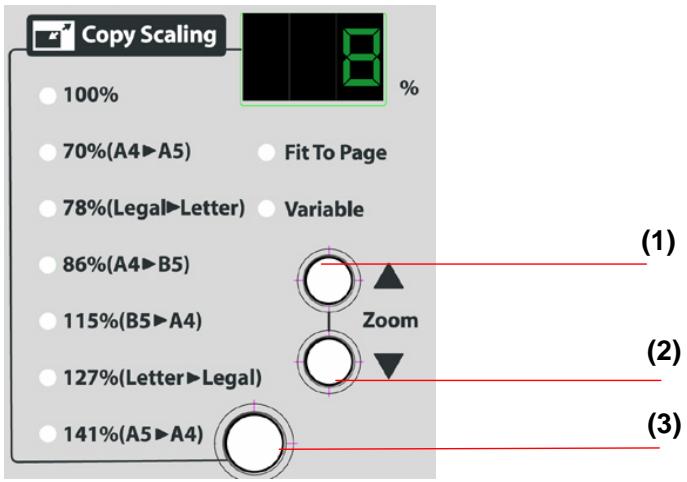
(1). Increase scaling in 1% increment up to 400% .
(2).Decrease scaling in 1 % Decrement down to 25 %
(3).Select scaling from the preset percentages
The machine is preset to Speed, a mode to speed up the scanning. If required, you can change to Fine if you wish to focus your copy result on text.
To change your focus on Fine,

-
Press on the control panel to prompt the Copy screen.
-
Press the Left/Right arrow button or to choose your focus and press the Select button to complete.
Note:
After you have completed your copying, the machine will automatically return to the preset document focus.
The product is preset to the Normal level (level 4) of density. If your original document comes with a lighter or darker contrast, you can improve the quality using the Adjusting Density feature.
To change your density,

- Press on the panel to prompt the Copy screen.
- Press the down arrow button to move the cursor down to the Density field.
- Press the Left/Right arrow button or to choose your density level and press the Select button to complete.
Note:
There are 7 levels of density. (1 means weakest density, and 7 means strongest density.)
The machine is preset without Paper Saver feature. To minimize paper usage, you can copy a 4-page document to a single page. There are two ways to copy a 4-page document to
| II | IV |
| I | III |
option, the copied pages
a single page: If you select
| III | IV |
| I | II |
are aligned horizontally. If you select
option, the
copied pages are aligned vertically. Yet please check if your
primer supports Paper Saver before using this feature.
To choose paper saver,

- Press
key on the panel to prompt the Copy screen.
- Press the down arrow button down to the Paper Saver fie
to move the cursor
- Press the Left/Right arrow button


to choose your
paper saver option and press the Select button to complete.
The product is preset to 1 copy count. If you wish to increase the number of copies, choose your desired copy count with the numeric keypad or keyboard.
To increase your copy count,

- Press the
Press the key on the control panel to prompt the Copy screen.
- Enter your desired copy count with the numeric keypad.
Enter your desired copy count with the numeric keypad.
The LCD display shows the number of your copy count.
*This feature depends on the capability of your printer.
Please note that the machine provides the auto detect paper size feature. The detectable paper size includes Ledger, A4, A4R, Letter, LTR, A3, A4, A4R, B5, B5R, Letter, LetterR, A4, A4R, B4, B4R, A3. If you wish to make copy for a particular area of your original, you can manually specify paper size to make a copy for that particular area only.
Please note that the paper size ending with a letter R represents a portrait style (□) while the paper size ending without a letter R represents a landscape style.
To change your copy area,

-
Press the key on the control panel and then "More Settings" key to prompt the More Settings screen.
-
Press the down arrow button down to the Paper Size field.

to move the cursor
- Press the Select button

- Press the Left/Right arrow button or to choose your
paper size option and press the Select button to complete.
*This feature depends on the capability of your printer.
If you wish to choose a media type such as plain paper, you can choose Plain from the Media Type option.
To choose media type,

- Press the key on the control panel and then "More Settings" key to prompt the More Settings screen.
- Press the down arrow button to move the cursor down to the Media Type field.
- Press the Select button
- Press the Left/Right arrow button or to choose your media type option and press the Select button to complete.
If your original document contains color background, please choose to enable Background Remove to sharpen your text.
To remove background,
-
Press the Copy key on the control panel and then "More Settings" key to prompt the More settings screen.
-
Press the down arrow button to move the cursor down to the Background Remove field.
-
Press the Select button
-
Press the Left/Right arrow button or to turn on/off your Background Remove option and press the Select button to complete.
*This feature depends on the capability of your printer.
The product is preset without the sorting feature. If you wish to sort your document, please apply this feature to increase your efficiency.
To sort your document,

- Press the key on the control panel and then "More Settings" key to prompt the More Settings screen.
- Press the down arrow button to move the cursor down to the Collate field.
- Press the Select button
- Press the Left/Right arrow button or to turn on /off your Collate option and press the Select button to complete.
The product is preset without the water mark and stamp feature. If you wish to contain specific wordings as your water mark or stamp, please enter text in this option for your scanned document.
To use water mark,
- Press the Copy key on the control panel and then "More Settings" key to prompt the More Settings screen.
- Press the down arrow button to move the cursor down to the Water Mark field.
- Press the Select button
- Enter text as your water mark and press the Select button to complete.
For example, type "CONFIDENTIAL" as your water mark.
The result will look as below:
Features:
Scan to Filing:
@V5100 allows you to send scanned documents to a server or a personal computer's file folder over intranet with FTP(File Transfer Protocol), HTTP(Hypertext Transfer Protocol), HTTPS(a secure way of using HTTP), CIFS(Common Internet File System), AVPP(Avision Post Processing) protocol. The scan to filing feature off loads the mail server from handling large attachments.
Note:
After you have completed your copying, the machine will automatically return to the default settings.
*This feature depends on the capability of your printer.
If you wish to cut off some areas by the specified distance around the border of your scanned image, you can set Edge Erase option.
To set Edge Erase,
- Press the key on the control panel and then "More Settings" key to prompt the More Settings screen.
- Press the down arrow button to move the cursor down to the Edge Erase field.
- Press the Select button
- Press the Left/Right arrow button or to set your Edge Erase option and press the Select button to complete.
*This feature depends on the capability of your printer.
The product provides two types of margin shift options for your scanned image. The Margin Shift-R allows you to shift your scanned image to the right by the specified distance. The
Margin Shift-B allows you to shift your scanned image to the bottom by the specified distance.
To set Margin Shift-R or Margin Shift-B,

- Press the key on the control panel and then "More Settings" key to prompt the More Settings screen.
- Press the down arrow button to move the cursor down to the Margin Shift-R field or the Margin Shift-B field.
-
Press the Select button
-
Press the Left/Right arrow button or to set your Margin Shift-R or Margin Shift-B option and press the
Select button

to complete.
10 Troubleshooting
Information Codes/Message
Information Codes During Scanning and Copying
| Info code | Meaning | Action |
| 10001 | SRAM error | Restart your product. If the code still appears, contact your nearest dealer. |
| 10006 | Home sensor error | Restart your product. If the code still appears, contact your nearest dealer. |
| 10007 | Lamp error | Restart your product. If the code still appears, contact your nearest dealer. |
| 10009 | ADF error. (ADF paper jam) | ADF paper jam. Open the ADF cover and remove the paper from the ADF then restart your product. If the code still appears, contact your nearest dealer. |
| 10010 | Cover open | Close the cover. If the code still appears, contact your nearest dealer |
| 10099 | Lock error | 1. Turn off your product. 2. Find the lock switch underneath the machine and unlock the machine. 3. Restart your product. If the code still appears, contact your nearest dealer. |
MESSAGE DURING SCANNING AND COPYING
| LCD Message | Action |
| Copy function disables. | Please download the printer profile. |
| Check printer cable or status. | 1. Check if the printer cable has been correctly connected. 2. Check if the printer is turn on. 3. Restart the product and your printer. 4. If the message still appears, contact your nearest dealer. |
INFORMATION CODES DURING NETWORKING
| Info Code | Meaning | Action |
| 20512 | The connection failed. | Ping the IP address of the product from another PC in DOS prompt. For example, type “Ping 10.1.20.144” in Dos prompt. If the product has no response, then perform the following steps. 1. Check if the RJ-45 connector is firmly plugged-in. 2. Check the Ethernet cable. 3. Check the product's IP address. 4. Check the destination IP address. 5. Check Subnet Mask. 6. Check Gateway IP. |
| 20519 | The destination address is invalid. | |
| 20530 | Network is down. | |
| 20531 | Network is unreachable. | |
| 20533 | The connection aborted by the server. | |
| 20534 | The connection reset by the server. | |
| 20540 | Connection timed out | |
| 20541 | The attempt to connect failed. | |
| 20545 | The destination host is not able to reach. | |
| 29999 | Fail to connect Email Server | Check network environment. |
| 30001 | Device internal failure | Reboot the machine, and try again. If the error is still there, contact your nearest dealer. |
| 30002 | Fail to connect Mail server | Contact your network administrator for further help. |
| 30009 | Fail to get Mail server response | Turn on Log File option in [ADMIN / MANAGEMENT/ Service mode] to record and observe network actions and contact your network administrator or nearest dealer for further help. |
| 31019 | ||
| 31029 | ||
| 31049 | ||
| 32009 | ||
| 33009 | ||
| 33019 | ||
| 31000 | Unpredicted error | Turn on Log File option in [ADMIN / MANAGEMENT/ Service mode] to record and observe network actions and contact your network administrator or nearest dealer for further help. |
| 31020 | ||
| 31030 | ||
| 32000 | ||
| 33000 | ||
| 33010 | ||
| 31001 | SMTP [421] Service not available, closing transmission channel. The Server is going to shut down. | Contact your network administrator for further help. |
| 31021 | ||
| 31031 | ||
| 32001 | ||
| 31010 | Mail server doesn't support SMTP service extension | Contact your network administrator for further help. |
| 31011 | Mail server doesn't support SMTP-login authentication | Contact your Mail server administrator to turn on SMTP-login option. |
| 31012 | SMTP login user name error | Check your login user name |
| 31032 | SMTP[450]Requested mail action not taken: mailbox unavailable | Check “To” address. |
| 31022 | SMTP[451]Requested action aborted: local error in processing | Contact your network administrator for further help. |
| 31033 | SMTP[452]Requested action not taken: insufficient system storage | Contact your network administrator for further help. |
| 31034 | SMTP[454]Temporary authentication failure: The authentication failed due to a temporary server failure. | Contact your network administrator for further help on mail server's authentication mechanism. Choose SMTP authentication for Email security or turn off the mail server's authentication and try again. |
| 31024 | SMTP[500]Syntax error, command unrecognized | Reboot the machine, and try again. If the error is still there, contact your nearest dealer. |
| 31035 | SMTP[501]Syntax error in parameters or arguments | 1. Check if the Device Name is valid. The Device Name can be found in Menu/General.2. Check “From” address.3. Check “To” address.4. Contact your network administrator for further help. |
| 31036 | SMTP[503]Bad sequence of commands | Reboot the machine, and try later. If the error is still there, contact your nearest dealer. |
| 31003 | SMTP[504]Malicious邮件 | If the error is still there, contact your nearest dealer. |
| 31004 | SMTP[504]Commandparameters notimplemented | Check if the Device Name is valid.The Device Name can be found inMenu/General. |
| 31027 | SMTP [530]Authenticationrequires Mailserver requiresauthentication inorder to performthe requestedaction. | Contact your network administratorfor further help on mail server'sauthentication mechanism.Choose SMTP authentication forEmail security or turn off the mailserver's authentication and try again. |
| 31038 | SMTP[550]Requestedaction not taken:mailboxunavailable[E.g., mailboxnot found, noaccess] | Check “To” address. |
| 31039 | SMTP [551]Usernot local: pleasetry again. | Check “To” address. |
| 31026 | SMTP[552]Requestedmail actionaborted:exceeded storageallocation | 1. Check “To” address.2. Check mailbox storage allocation.3. Contact your networkadministrator for further help. |
| 31040 | SMTP[553]Requestedaction not taken:mailbox namenot allowed | Check “To” address. |
| 31041 | SMTP[554]Transactionfailed | Contact your network administratorfor further help. |
| 32006 | Connectionbroken duringdatatransmission. | 1. Check network environment.2. Check if email attachment size islarger than the mailbox quota. |
| Info Code | Meaning | Action |
| 40001 | Device internal failure | Reboot the machine, and try later. If the error is still there, contact your nearest dealer. |
| 40002 | ||
| 40003 | ||
| 40004 | ||
| 40005 | ||
| 40006 | ||
| 41001 | ||
| 41002 | ||
| 41003 | ||
| 41004 | Fail to connect FTP server | Make sure the FTP server is not shut downing and port number is correct. If the error is still there, contact your FTP server administrator. |
| 41004 | Unpredicted error | Turn on Log File option in [ADMIN / MANAGEMENT/ log action] to log and observe device actions and contact your server administrator or nearest dealer for further help. |
| 41000 | ||
| 42000 | ||
| 43000 | ||
| 42001 | FTP login name error | Check your login name and try again |
| 42002 | FTP password incorrect | Check your password and try again |
| 43001 | FTP can't enter this directory | Make sure your have privilege to enter this directory. |
| 43003 | FTP can't check file existed or not | Make sure your have privilege to browse this directory. |
| 44001 | FTP can't change data transfer type | Contact your server administrator for further help. |
| 44002 | FTP store file error | Make sure your have privilege to store file in this position (server/directory) |
| 44003 | Insufficient storage space in system. | Check FTP server free storage space and contact your server administrator. |
| 44004 | File name not allowed. | Change file name to meet naming convention of FTP server's OS. |
| 50001 | CIFS Network share name incorrect. | Check directory in profile and make sure it follows UNC, such as \Computer\Share\directory. |
| 51001 | CIFS fail to connect | Check that server supports CIFS(SMB) connection. |
| 51002 | CIFS Computer name error | Make sure computer name in directory is correct. |
| 51003 | CIFS dialect negotiation fail | This CIFS may not support PC NETWORK PROGRAM 1.0 dialect. |
| 52001 | CIFS (User level) login fail. | Check login name and password you typed and try again. |
| 53001 | CIFS (User level) can not make subdirectory | This account has not right to create new subdirectory. |
| 54001 | CIFS fail to create file. | Make sure you have full control privilege on this network share. |
| 54002 | CIFS send data error | |
| 61001 | HTTP fail to connect | Check Server IP and HTTP port. Make sure they are correct. Or, Check whether that server supports HTTP connection. |
| 63001 | ||
| 63002 | ||
| 64000 | ||
| 62001 | HTTP [401] Unauthorized | This HTTP server needs authorization. Make sure your account has correct authorization. |
| 64001 | ||
| 62002 | HTTP [403] Forbidden | This action is forbidden in this server. This is not unauthorized but forbidden. |
| 64002 | ||
| 62009 | Unpredicted error | Turn on Log File option in [ADMIN / MANAGEMENT/ log action] to log and observe device actions and contact your server administrator or nearest dealer for further help. |
| 64009 | ||
| 63003 | HTTP [405] MKCOL method not allowed | Contact server administrator to change permission on this privilege. |
| 63004 | HTTP [501] MKCOL method not implemented | HTTP server does not support MKCOL to create directory. Give up creating new directory or create directory at server in advance. |
| 64003 | HTTP [405] PUT method not allowed | Contact server administrator to change permission on this privilege. |
| 64004 | HTTP [500] internal server error | Contact your server administrator for further help. |
| 64005 | HTTP [501] PUT method not implemented | That server does not implement HTTP PUT method. This product can’t store file on this server, contact your system administrator for help. |
| 64006 | HTTP [503] service unavailable | Contact your server administrator for help. |
| 64007 | HTTP [505] server does not support HTTP version 1.1 | That server does not support HTTP version 1.1 (the product uses), contact your server administrator for help. |
| 64021 | HTTP [404] | That server can’t save the files, contact your server administrator for help. |
| 65001 | Resource not found |
In the event of a paper jam, follow the procedures below to remove the paper:
- Gently open the ADF front cover to the left.
- Carefully pull the paper out of the ADF unit.
- Close the ADF front cover. The product is now ready to use.
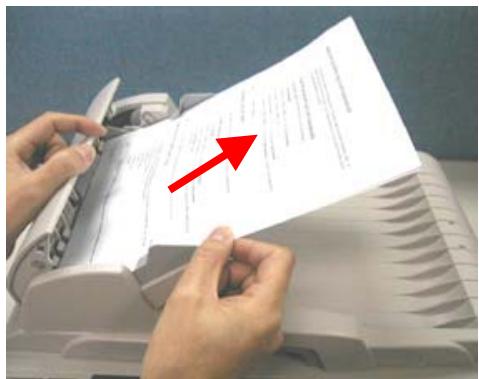
Removing the Abnormal Line Image
When the scanned image is with abnormal lines on it, clean the white area on the glass as indicated below with a clean lintless cloth.
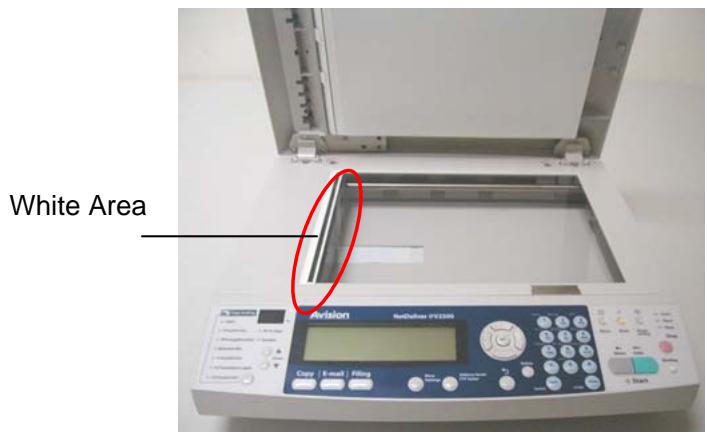
From time to time the pad assembly and feeding rollers may become contaminated with ink, toner particles or paper dust. In this case the product may not feed documents smoothly. If this occurs please follow the cleaning procedures to return your machine to its original state.
- Moisten a clean lintless cloth with isopropyl alcohol (95%).
- Gently open the ADF front cover. Wipe the feeding rollers from side to side. Rotate the rollers forward with your finger and repeat the above cleaning procedures until the rollers are clean. Be careful not to snag or damage the pick springs.
- Wipe the pad in the direction from top to bottom. Be careful not to hook the pick springs.
- Close the ADF unit. Your machine is now ready to use.
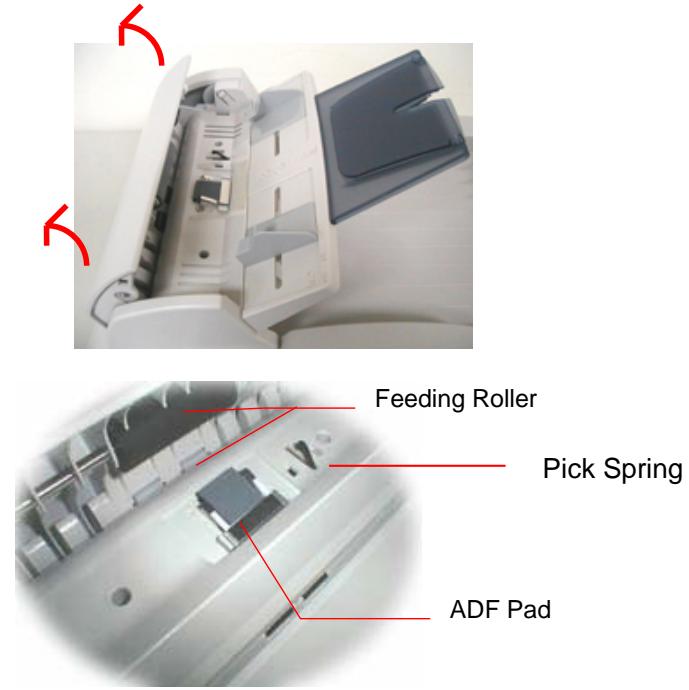
After scanning approximately 50,000 pages through the ADF, the pad may be worn out and you may experience problems with document feeding. In this case, it is highly recommended to replace the pad module with a new one. For ordering the pad module, please consult your nearest dealer and follow the procedure below to replace it.
Disassembling Procedure
- Gently open the ADF front cover to the left.
- Press both arms of the ADF snap-in pad module inwardly with your fingers to pull out the ADF snap-in pad module.
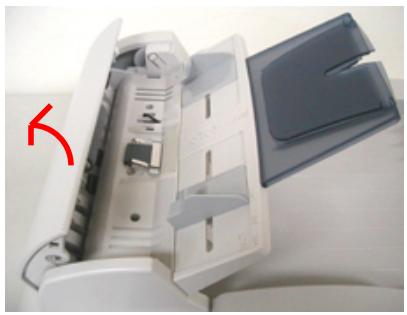
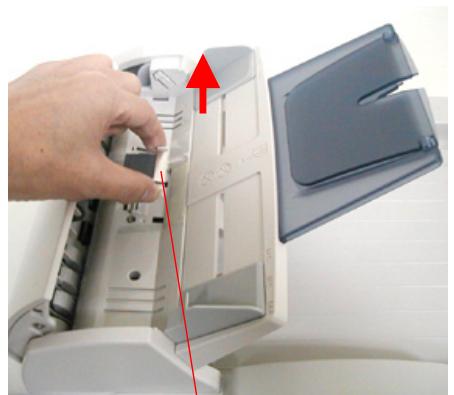
ADF Pad
Assembling Procedure
- Take out the ADF pad module from the box.
- Press both arms of the ADF snap-in pad module inwardly with your two fingers
- Place it into the holes until it snaps into place.
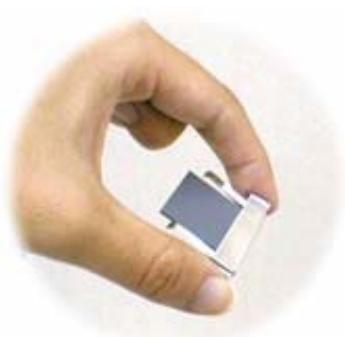
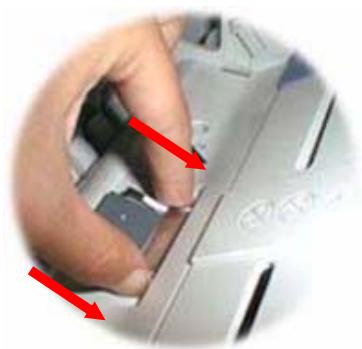
The product is designed to be maintenance-free. However, it still needs to be cleaned occasionally to ensure optimum image quality and performance.
To clean the glass,
- Open the document cover as shown below.
- Dip a soft clean cloth with isopropyl alcohol (95%).
- Gently wipe the document glass and the white sheet beneath the document cover to remove the dust or any toner particles.
- Close the document cover. The product is now ready for use.
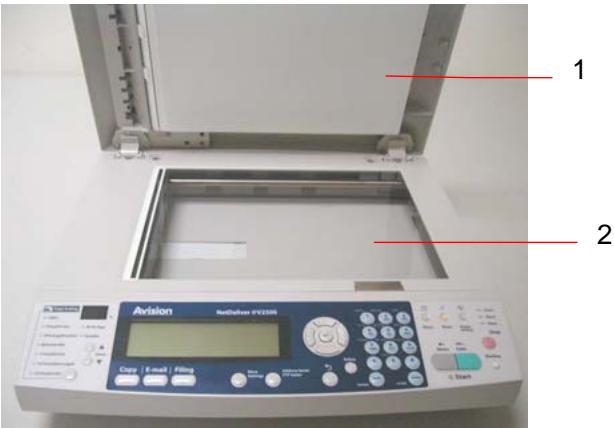
- Document Cover
- Document Glass
Appendix
Quick Guide
Placing Your Documents
For multi-page transmission
Place your document FACE UP in the ADF.
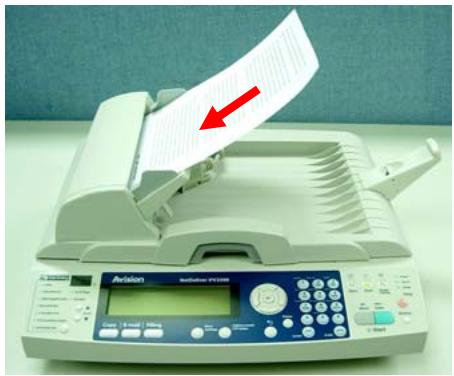
For single-page transmission
Place your documents FACE DOWN on the glass.
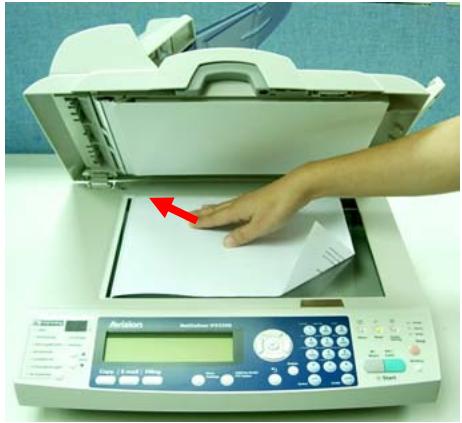
Simple Operation Steps
| To make copy, Copy Press the Copy key. | Enter your copy count via the numeric keypad → | Press the key to make B&W copy. |
| Press the color to make color copy. | ||
| To send e-mail, E-mail Press the E-Mail key. | Enter an e-mail address with your keyboard. → or press “Address book/FTP folder” key to select an e-mail address from the list. (i.e. | Press the key to send your document in B&W. |
| Press the color to send your document in color. | ||
| To send document to filing server, Filing Press the Filing key. | Press “Address book/ FTP folder” to choose a profile name. → | Press the key to file your document in B&W. |
| (i.e. | Press the color to file your document in color. |
Specifications
| Items | Specifications |
| Model Number : DF-0605H | |
| General Specifications | |
| System Description | Stand-alone Internet Appliance |
| Image Sensor | Color CCD |
| Light Source | Cold Cathode Fluorescent Lamp |
| Optical Resolution | 600 x 600 dpi |
| Output Quality | Input: 48 bits color Output: 24 bits Color 8 bits Gray 4 bits CMYK 1 bit Monochrome |
| Memory Size | 192 MB SDRAM, 8.5MB flash |
| LCD Size | 240 x 64 dots Effective area: 127.15 x 33.87 mm |
| External Connections | 1. RJ-45 (for Network connection) 2. USB COPYPORT 3. USB keyboard 4. ADF port |
| Network Connection | 10/100 Mbits auto-negotiation |
| Networked Workgroup Solution for: | Stand-alone Copy E-Mail via Internet/Intranet Filing |
| Output Format | PDF, JPEG, PCX, TIFF, MTIFF, PCX, GDI |
| Duty Cycle | 1,000 pages/day |
| Dimension | 444x391x272(mm) |
| Weight | 6.2 kgs(W/ ADF) |
| Power Supply | 24Vdc/2A |
| Power Consumption | Less than 36W |
| Auto Document Feeder | |
| Capacity | 50 sheets |
| Dimension | 434 x 292 x 177 mm |
| Weight | 1.6 kgs |
| Document Size | 4.5" x 5.5" ~ 8.5" x 14" |
| Document Weight/Thickness | 16 ~ 28 lb / 0.002" ~ 0.006" |
| Paper Feed | Face Up |
| Copy Specification | |
| USB Copy Port | USB2.0 Copy port |
| First copy time | Depend on printer |
| Multiple Copies | Up to 99 |
| Copy Resolution | 600 x 600 dpi |
| Copy Mode | Speed, Fine |
| Density Control | 7 Levels |
| Output Format | GDI |
| Enlarge / Reduce | Fit to Page (98%)25%~400% in 1% increment/decrementPre-set Scales |
| Input Capacity | Depend on printer |
| Output Capacity | Depend on printer |
| Copy Application | One scan, multiple copiesWater mark and Stamp |
| Network Specification | |
| Connectivity | Ethernet 10BaseT/100BaseTXauto-negotiation with RJ-45 connector |
| Communication Protocol | TCP/IP, SMTP, HTTP, HTTPS, MIME, FTP,CIFS, AVPP, DHCP, DNS, LDAP |
| Supported Browsers | Microsoft IE 5.0 or higherNetscape Navigator 6.0 or higher |
| Configuration Requirement | 1. IP address 2. Subnet mask 3. Gateway 4. SMTP server/POP3 server 5. FTP server 6. Web server |
| E-mail Specification | |
| Communication Protocol | SMTP, MIME, POP3 |
| File Formats B&W Gray/Color | PDF, TIFF, MTIFF, PCX PDF, TIFF, MTIFF, JPEG |
| Default File Format | |
| Separation Limit | 1MB, 3 MB, 5 MB, 10 MB,30 MB, Unlimited |
| Resolution | 75, 100, 150, 200, 300, 400, 600 dpi |
| Default Resolution | 200 dpi |
| Address Book Volume Max. Addresses Group No. of Addresses in Each Group | 2000 100 99 |
| Multiple Recipients Allow | Yes |
| Security Check | Yes |
| Mail Server Authentication | SMTP, POP3 |
| Supported Mail Server Application | Lotus Mail Server 5.0 MS Exchange Server 2000 RedHat 7.0 SendMail MAC Mail Server in OS 9.04 |
| Supported LDAP Server | Windows 2000 Active Directory Windows NT 4.0 + MS Exchange 5.5 Lotus Notes R5 |
| Supported Mail Application | Microsoft Outlook 2000 Microsoft Outlook Express 5.0 Microsoft Outlook Express 6 Netscape Messenger 4.7 Netscape Messenger 4.73 MAC built-in MAIL application Eudora 4.3.2J Lotus Notes R5 |
| Filing Specification | |
| Communication Protocol | FTP, HTTP, HTTPS, CIFS, AVPP |
| Post Processing Protocols for System Integrator | AVPP |
| File Formats | |
| B&W | PDF, TIFF, MTIFF, PCX |
| Gray/Color | PDF, TIFF, MTIFF, JPEG |
| Default File Format | |
| Resolution | 75, 100, 150, 200, 300, 400, 600 dpi |
| Default Resolution | |
| B&W | 200 dpi |
| Gray/Color | 200 dpi |
| Number of Most Used Profiles | 5 |
| Max. Number of Profiles | 50 |
Index
Account List, 6-5
Account Management, 6-1
adding A new group, 4-9
adding an email address, 4-1
adding water mark, 9-25
Address Book, 1-2, 4-1
adf, 9-3
ADF snap-in pad module, 10-13
Adjusting Density, 9-18
AVPP, 1-15
Basic Settings server type,serverURL,server port, counter reset option,6-3
Billing Log Setting by e-mail, by protocol, 7-1
Changing Scaling, 9-16
Choosing copy area, 9-21
Choosing Paper Saver, 9-19
choosing Sorting your document, 9-24
Clean the ADF, 10-12
Clean the Glass, 10-15
Deleting an E-mail Address, 4-7
Deleting group, 4-15
Deleting PROFILES, 5-45
Digital Copying, 1-2
Ethernet Hub, 2-7
Focusing on Photo or Text, 9-17
Full Control, 5-11
Illustrating CIFS profile settings, 5-21
Illustrating HTTP profile settings, 5-26
increasing Copy Count, 9-20
Internet Communication Features Scan to E-mail, Scan to Filing., 1-13
LAN, 2-7
LCD-display, 1-3
Loading Your Paper Via the ADF, Via the Glass, 9- 2
Making Copies, 9-14
Management, 3-5
Managing Your E-mail Address Book Adding an Email Address, Modifying an Email Address, Deleting an Email Address, 4-1
Managing Your Groups Adding A New Group, Modifying Your Group, Deleting Your Group, 4-9
Manual Feed, 9-6, 9-10
Modifying an e-mail address, 4-5
Modifying CURRENT PROFILES, 5-42
Modifying group, 4-12
Multiple Pages Sending, 1-2
network parameters
IP Address, Subnet mask, Gateway
IP, SMTP Server, SMTP port, DNS
server, DHCP enable, POP3 Server,
POP3 port, 1-10
Network Settings, 3-10
New Account, 6-5
Paper Feed Tray., 2-5
Paper Jams, 10-10
Paper Support, 2-5
placing your document(s) in the adc, 9-3
placing your document(s) on the glass, 9-4
post processing, 1-15
Power Saving, 2-10
Profiles Managing, 1-2
Quota, 6-6
Scan count, 8-6
Scan to E-mail, 1-1
scan to file, 1-14
Scan to File, 1-2
Send Log to
Mail Box, FTP/CIFS/HTTP, 7-6
Target URL
CIFS filing format, 5-14
TCP/IP network, 2-1

- NETDELIVER MFP USER'S MANUAL
- SAFETY INFORMATION
- SAFETY DURING OPERATION
- WARNING
- CAUTION
- IMPORTANT
- NOTE
- PRECAUTIONS
- NOTICE
- COPYRIGHTS AND TRADEMARKS
- WARRANTY
- TABLE OF CONTENTS
- 1 GETTING STARTED. 1-1
- 2 INSTALLING YOUR MACHINE 2-1
- 3 CONFIGURING THE MACHINE. 3-1
- 4 MANAGING THE ADDRESS BOOK 4-1
- 5 SPECIFYING FTP FOLDER TEMPLATE AND PROFILE.... 5-1
- 6 SETTING UP ACCOUNT MANAGEMENT 6-1
- 7 CREATING BILLING LOG SETTINGS 7-1
- 8 ADMINISTRATION 8-1
- 9 OPERATION 9-1
- 10 TROUBLESHOOTING 10-1
- APPENDIX
- 1 GETTING STARTED
- INTRODUCTION
- FEATURES
- SCAN TO E-MAIL
- SCAN TO FILE
- DIGITAL COPYING
- MULTIPLE PAGES SENDING
- POST PROCESSING
- ADDRESS BOOK/PROFILES MANAGING
- THE REAR VIEW
- PART A: SCALING AREA
- PART B: LCD-DISPLAY & FUNCTION KEYS
- PART C: THE NUMERIC/CHARACTER KEYPAD
- PART D: START & OTHER KEYS
- EXPLANATION OF CONTENTS
- 2 INSTALLING YOUR MACHINE
- MINIMUM CONFIGURATION REQUIREMENTS
- TO SEND E-MAILS FROM THE PRODUCT
- TO FILE DOCUMENT(S) VIA INTRANET
- TO MAKE COPIES FROM THE PRODUCT
- CHECKING PACKAGE CONTENTS
- UNLOCKING THE SCAN UNIT
- INSTALLING THE RUBBER SUPPORT
- INSTALLING THE PAPER FEED TRAY
- CONNECTING THE ADF CABLE
- CONNECTING THE ETHERNET CABLE
- CONNECTING THE KEYBOARD CABLE
- CONNECTING THE PRINTER CABLE
- CONNECTING THE POWER AND TURNING ON THE MACHINE
- 3 CONFIGURING THE MACHINE
- SPECIFYING THE ADMINISTRATION INFORMATION BY THE CONTROL PANEL
- OR
- SPECIFYING ADMINISTRATOR INFORMATION BY THE PRODUCT'S WEB PAGE
- SPECIFYING NETWORK CONFIGURATION BY THE CONTROL PANEL
- LOGIN NAME
- INPUT PASSWORD
- FOR EXAMPLE
- SPECIFYING MAIL SERVER BY THE CONTROL PANEL
- SPECIFYING THE MAIL SERVER BY THE PRODUCT'S WEB PAGE
- 4 MANAGING THE ADDRESS BOOK
- ADDRESS BOOK MANAGER
- TO MODIFY AN E-MAIL ADDRESS
- REPEAT STEP 1 TO STEP 3 FROM THE PREVIOUS SECTION
- CLICK THE E-MAIL ICON AND CHOOSE THE ADDRESS YOU WANT TO MODIFY FROM THE LIST. CHOOSE MODIFY TO PROMPT THE MODIFY AN E-MAIL ADDRESS DIALOG
- MODIFY AN E-MAIL ADDRESS
- TO DELETE AN E-MAIL ADDRESS
- ADDING A NEW GROUP
- CLICK THE GROUP ICON AND CHOOSE NEW TO PROMPT THE ADD A NEW GROUP SET DIALOG
- ENTER YOUR GROUP NAME
- TO MODIFY A GROUP
- CLICK THE GROUP ICON AND CHOOSE MODIFY TO PROMPT THE MODIFY A GROUP SET DIALOG
- TO DELETE A GROUP
- 5 SPECIFYING FTP FOLDER TEMPLATE AND PROFILE
- THE SETTINGS OF FILING SERVER
- FTP
- HTTP AND AVPP
- HTTPS
- CIFS
- SPECIFYING THE FTP FOLDER TEMPLATE BY THE CONTROL PANEL
- ADDING A NEW PROFILE ON THE CONTROL PANEL
- MOST USED PROFILES
- ILLUSTRATING CIFS AND HTTP PROFILE SETTINGS
- USING TWO EXAMPLES TO ILLUSTRATE CIFS AND HTTP PROFILE SETTINGS
- EXAMPLE 1: ILLUSTRATING CIFS PROFILE SETTINGS
- EXAMPLE 2: ILLUSTRATING HTTP PROFILE SETTINGS
- SPECIFYING THE FTP FOLDER TEMPLATE BY THE PRODUCT'S WEB PAGE
- ADDING A NEW PROFILE BY THE PRODUCT'S WEB PAGE
- CLICK NEW TO PROMPT THE NEW PROFILE DIALOG
- MODIFYING CURRENT PROFILES
- TO MODIFY A CURRENT PROFILE
- DELETING PROFILES
- TO DELETE A PROFILE
- 6 SETTING UP ACCOUNT MANAGEMENT
- SETTING UP ACCOUNT MANAGEMENT BY THE PRODUCT'S WEB PAGE
- ACCOUNT LIST
- SILAS
- 7 CREATING BILLING LOG SETTINGS
- CREATING BILLING LOG SETTINGS BY THE CONTROL PANEL
- CREATING BILLING LOG SETTINGS BY THE PRODUCT'S WEB PAGE
- 8 ADMINISTRATION
- ADMINISTERING THE PRODUCT BY THE CONTROL PANEL
- 9 OPERATION
- NOTICE ON USING THE ADF
- BASIC OPERATION
- MANUAL FEED
- TO REDUCE OR ENLARGE THE ORIGINAL DOCUMENT
- TO CHANGE YOUR DENSITY
- TO CHOOSE PAPER SAVER
- THIS FEATURE DEPENDS ON THE CAPABILITY OF YOUR PRINTER
- SCAN TO FILING
- 10 TROUBLESHOOTING
- INFORMATION CODES/MESSAGE
- MESSAGE DURING SCANNING AND COPYING
- INFORMATION CODES DURING NETWORKING
- REMOVING THE ABNORMAL LINE IMAGE
- DISASSEMBLING PROCEDURE
- ASSEMBLING PROCEDURE
- TO CLEAN THE GLASS
- PLACING YOUR DOCUMENTS
- SIMPLE OPERATION STEPS
- SPECIFICATIONS
- INDEX
Brand : AVISION
Model : NETDELIVER @V2500
Category : Photocopier