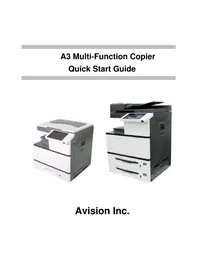
AM7640i - Printer AVISION - Free user manual and instructions
Find the device manual for free AM7640i AVISION in PDF.


Pick your language and provide your email: we'll send you a specifically translated version.
| Product Type | Multifunction Printer |
| Brand | AVISION |
| Model | AM7640i |
| Functions | Print, scan, copy, fax |
| Print Technology | Laser |
| Print Resolution | Up to 1200 x 1200 dpi |
| Print Speed | Up to 40 pages per minute (A4) |
| Duplex Printing | Automatic |
| Scanner Type | Flatbed and Automatic Document Feeder (ADF) |
| Scan Resolution | Up to 600 x 600 dpi |
| Paper Input | 250-sheet paper tray, 50-sheet ADF |
| Paper Output | 100-sheet face-down tray |
| Connectivity | USB 2.0, Gigabit Ethernet, Wi-Fi (dual-band) |
| Display | 4.3-inch color touchscreen |
| Memory | 1 GB |
| Dimensions (W x D x H) | 420 x 410 x 340 mm |
| Weight | 18.5 kg |
| Power Consumption | Max 600 W, standby 10 W, sleep 2 W |
| Supported Media Sizes | A4, A5, B5, Letter, Legal, Executive |
| Operating Systems | Windows 7/10/11, macOS, Linux |
| Maintenance | Replace toner cartridge, clean paper feed rollers, calibrate scanner |
| Safety Features | Auto power-off, energy-saving mode, Energy Star certified |
Frequently Asked Questions - AM7640i AVISION
How do I replace the toner cartridge?
Open the front cover and pull out the toner cartridge contained in the drum unit. Remove the new cartridge from its packaging, shake it horizontally to distribute the toner, then insert it into the drum unit until it clicks. Close the cover and print a test page to confirm.
How do I connect the printer to my Wi-Fi network?
Use the touchscreen to go to Network Settings > Wireless > Wizard. Select your SSID, enter the password, and confirm. The printer will obtain an IP address automatically. You can then install the driver and select the wireless connection.
How do I perform a factory reset?
Press Menu, then Settings > System > Factory Defaults. Confirm the reset. This will restore all settings, including network and security configurations, to their original state. Reconnect the printer afterwards.
The printer is printing blank pages. What should I do?
First, check if the toner cartridge is empty or poorly installed. Remove the cartridge and shake it gently, then reinsert it. If the problem persists, run a Cleaning Mode from the maintenance menu. Also verify that the paper is not moist and the printer is not in eco-mode.
How do I scan documents to email?
Place the document on the glass or in the ADF. On the touchscreen, select Scan > Email. Enter the recipient's address, choose the file format and resolution, then press Start. The printer will send the scan as an email attachment.
How do I clean the scanner glass?
Use a soft, lint-free cloth slightly dampened with water or a glass cleaner. Gently wipe the flatbed glass and the ADF glass strips. Dry with a clean cloth. Avoid using abrasive materials that could scratch the surface.
What should I do if there is a paper jam?
Open the front cover and remove the drum unit. Pull the jammed paper out from the rollers gently. Also check the output tray and the ADF for jammed sheets. Close the cover and press Resume to continue printing.
How do I update the printer firmware?
Download the latest firmware from the AVISION support website. Save it to a USB drive, then insert the drive into the printer's USB port. From the touchscreen, go to System > Firmware Update and select the file. Do not turn off the printer during the update.
Can I print from a mobile device?
Yes. The printer supports AirPrint and Mopria printing. Make sure your mobile device is on the same Wi-Fi network as the printer. Open the document, choose the print option, and select the AM7640i from the list of available printers.
How do I maintain the printer for long-term use?
Regularly clean the paper feed rollers with a damp cloth, check for toner dust inside the machine, and replace the toner cartridge when the low toner indicator appears. Perform a hardware self-test monthly, and keep the printer in a dry, dust-free environment.
User questions about AM7640i AVISION
0 question about this device. Answer the ones you know or ask your own.
Ask a new question about this device
No questions yet. Be the first to ask one.
Download the instructions for your Printer in PDF format for free! Find your manual AM7640i - AVISION and take your electronic device back in hand. On this page are published all the documents necessary for the use of your device. AM7640i by AVISION.
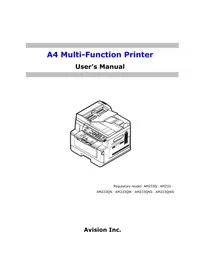
USER MANUAL AM7640i AVISION

Manual assistant
Powered by Anthropic
Waiting for your message
Product information
Brand : AVISION
Model : AM7640i
Category : Printer