AD570G - Scanner AVISION - Free user manual and instructions
Find the device manual for free AD570G AVISION in PDF.


Pick your language and provide your email: we'll send you a specifically translated version.
| Product Type | Document Scanner |
| Brand | AVISION |
| Model | AD570G |
| Scanner Type | Automatic Document Feeder (ADF) desktop scanner |
| Sensor Type | Dual contact image sensor (CIS) |
| Optical Resolution | 600 dpi |
| Scan Speed | Up to 70 pages per minute (140 images per minute in duplex) |
| ADF Capacity | 100 sheets of 80 g/m² paper |
| Duplex Scanning | Yes, 2-sided scanning supported |
| Document Size Range | A8 to A4 (maximum 216 x 356 mm) |
| Connectivity | USB 2.0 High-Speed |
| Dimensions (W×D×H) | 316 × 191 × 168 mm |
| Weight | 4.2 kg |
| Power Supply | AC 100–240 V, 50–60 Hz |
| Power Consumption | 15 W (operating), < 5 W (standby) |
| Operating Systems | Windows 7/8/10/11, macOS 10.14 and above |
| Software Included | AVISION Button Manager, Twain driver, ISIS driver |
| Output Formats | PDF, JPEG, TIFF, BMP, PNG |
| Document Feed Detection | Ultrasonic double-feed detection |
| Image Processing Features | Automatic crop, orientation, deskew and barcode detection |
| Recommended Daily Volume | 5,000 sheets |
| Maintenance | Clean ADF rollers and glass with soft, lint-free cloth; replace rollers after ~200,000 scans |
| Safety Certifications | CE, FCC, VCCI, Energy Star |
| Consumables / Spare Parts | Separate roller kit and separation pad are user-replaceable |
Frequently Asked Questions - AD570G AVISION
What is the maximum scanning resolution and speed of the AVISION AD570G?
The AVISION AD570G offers an optical resolution of 600 dpi and a scanning speed of up to 70 ppm / 140 ipm in duplex mode. This makes it suitable for high-volume digitization.
How do I install the scanner driver on Windows 11?
Download the latest driver from the AVISION website or use the included setup disc. Run the installer, connect the scanner via USB when prompted, and follow the on-screen instructions. The scanner is compatible with Windows 11.
How should I clean the ADF rollers to prevent paper jams?
Open the ADF cover, locate the rollers, and gently wipe them with a soft, lint-free cloth moistened with water or isopropyl alcohol. Let them dry completely before closing the cover. Clean the glass strips underneath as well.
What paper types and sizes can I scan?
The scanner handles paper from A8 to A4 (216 × 356 mm) with a basis weight of 40–220 g/m². Plastic cards (0.76 mm thick) can also be scanned through the ADF.
How can I scan both sides of a document with the AD570G?
Use the duplex scanning option in the scanner driver or Button Manager. Simply place the stack in the ADF and select "Duplex" in the scan settings. The scanner automatically scans both sides in one pass.
What should I do if a paper jam occurs?
Open the ADF cover, carefully remove any wedged paper from the rollers. If the paper tears, make sure no fragments remain. Close the cover, reset the scanner, and retry. The scanner may ask you to confirm the jam is cleared.
What is the recommended daily duty cycle for the AVISION AD570G?
The recommended daily volume is 5,000 sheets. Running the scanner beyond this limit on a regular basis can cause premature wear of the feeding components and reduce reliability.
Can I scan long documents such as receipts or forms?
Yes, the ADF accepts custom paper lengths up to 5,461 mm (215 inches) in length when using the document mode, making it suitable for long continuous forms.
How do I replace the separation pad and roller kit?
Open the ADF cover, release the old separation pad by pressing the locking tabs, and slide in the new one. For rollers, remove the retaining clips, detach the roller modules, and install the replacements. Detailed instructions are in the user manual.
What software is shipped with the AD570G?
The scanner includes AVISION Button Manager for one-touch scanning, as well as Twain and ISIS drivers for integration with third-party applications.
User questions about AD570G AVISION
0 question about this device. Answer the ones you know or ask your own.
Ask a new question about this device
No questions yet. Be the first to ask one.
Download the instructions for your Scanner in PDF format for free! Find your manual AD570G - AVISION and take your electronic device back in hand. On this page are published all the documents necessary for the use of your device. AD570G by AVISION.
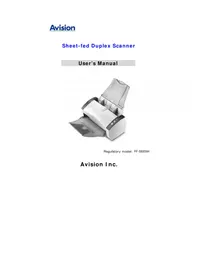
USER MANUAL AD570G AVISION
Manual assistant
Powered by Anthropic
Waiting for your message
Product information
Brand : AVISION
Model : AD570G
Category : Scanner