NETDELIVER @V1800 - Fax AVISION - Free user manual and instructions
Find the device manual for free NETDELIVER @V1800 AVISION in PDF.

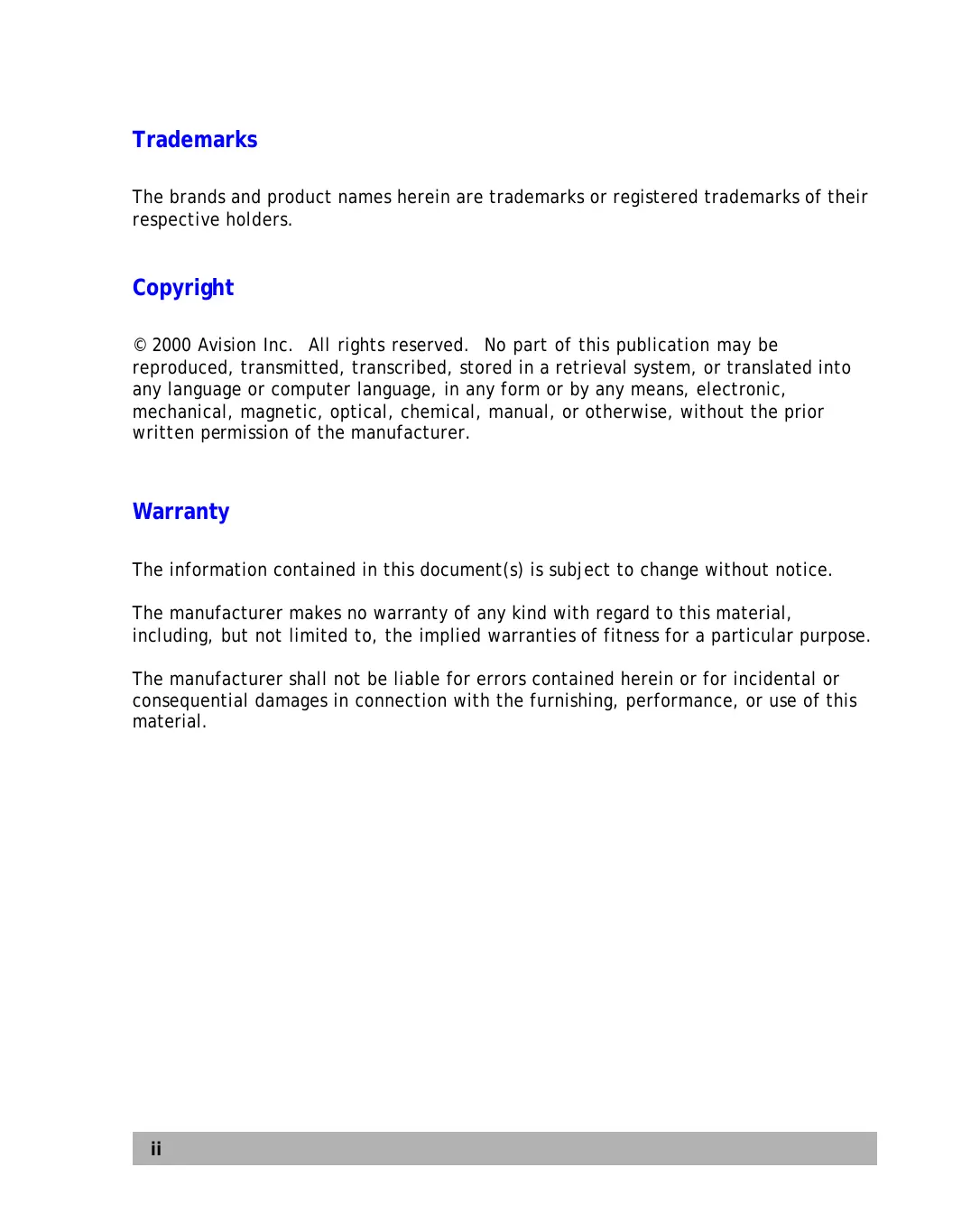

| Product Type | Internet Fax / Network Scanning Device |
| Brand | AVISION |
| Model | NETDELIVER @V1800 |
| Dimensions (W x D x H) | 447 x 365 x 275 mm |
| Weight | 6 kg |
| Power Supply | External AC adapter 24V DC, 2A (model ADP-50ZB) |
| Power Consumption | Less than 30 W (auto standby after 4 hours) |
| Main Functions | E-mail document sending (scan and convert to PDF/JPEG/TIFF), digital copy (with compatible PCL/PostScript laser printer), automatic document feeder (25 sheets), address book management (up to 2000 e-mail addresses and 100 groups) |
| Scan Quality | Up to 600 dpi, 36-bit color |
| E-mail Output Formats | PDF, JPEG, TIFF (depending on configuration) |
| Network Interface | Ethernet 10/100 BaseTX (RJ-45) |
| Supported Network Protocols | TCP/IP, SMTP, FTP, HTTP, MIME, LDAP |
| ADF Tray Capacity | 25 sheets (size 114 x 140 mm to 216 x 356 mm, 14-28 lb) |
| Copy Functions | Reduce/Enlarge 25-400%, up to 99 copies, Text/Photo/Mixed modes, Adjustable Density |
| Administrative Management | Configuration via LCD screen or web page, administrator password protection, e-mail security |
| Maintenance and Cleaning | Clean the feed rollers and ADF pad with isopropyl alcohol (95%); clean the glass with a soft cloth |
| Security | Password authentication for administrator access and e-mail sending; Enable Security for Email function |
| Spare Parts and Repairability | Replaceable ADF pad module (approx. 50,000 scans); cleanable feed rollers; technical support available (contact information in the manual) |
| General Information | Compact desktop device with backlit LCD screen and included PS2 keyboard; compatible with PCL laser printers; firmware update via web page |
Frequently Asked Questions - NETDELIVER @V1800 AVISION
User questions about NETDELIVER @V1800 AVISION
0 question about this device. Answer the ones you know or ask your own.
Ask a new question about this device
Download the instructions for your Fax in PDF format for free! Find your manual NETDELIVER @V1800 - AVISION and take your electronic device back in hand. On this page are published all the documents necessary for the use of your device. NETDELIVER @V1800 by AVISION.
USER MANUAL NETDELIVER @V1800 AVISION
NetDeliver @V1800 User's Manual
Trademarks
The brands and product names herein are trademarks or registered trademarks of their respective holders.
Copyright
© 2000 Avision Inc. All rights reserved. No part of this publication may be reproduced, transmitted, transcribed, stored in a retrieval system, or translated into any language or computer language, in any form or by any means, electronic, mechanical, magnetic, optical, chemical, manual, or otherwise, without the prior written permission of the manufacturer.
Warranty
The information contained in this document(s) is subject to change without notice.
The manufacturer makes no warranty of any kind with regard to this material, including, but not limited to, the implied warranties of fitness for a particular purpose.
The manufacturer shall not be liable for errors contained herein or for incidental or consequential damages in connection with the furnishing, performance, or use of this material.
The Federal Communications Commission Statement
This equipment has been tested and found to comply with the limits for a class B digital device, pursuant to Part 15 of the FCC rules. These limits are designed to provide reasonable protection against harmful interference in a residential installation. This equipment generates, uses, and can radiate radio frequency energy and, if not installed and used in accordance with the instruction manual, may cause harmful interference to radio communication. However, there is no guarantee that interference will not occur in a particular installation. If this equipment does cause harmful interference to radio or television reception, which can be determined by turning the equipment off and on, the user is encouraged to try to correct the interference by one or more of the following measures:
– Reorient or relocate the receiving antenna.
– Increase the separation between the equipment and receiver.
- Connect the equipment into an outlet on a circuit different from that to which the receiver is connected.
- Consult the dealer or an experienced radio/TV technician for help.
You are cautioned that changes or modifications not expressly approved by the party responsible for the compliance could void your authority to operate the equipment.
EC Declaration of Conformity
Update with final regulations
According to EN55022 and EN55024
Manufacturer's Name:
Avision Inc.
Manufacturer's Address:
No. 20, Creation Road I,
Science-based Industrial Park, Hsinchu
Taiwan, ROC
Declare that the product
Model Name:
NetDeliver @V1800
Conforms to the following Product Specification
Emission:
EN 50081-1
EN 55022
EN 61000-3-2
EN 61000-3-3
Immunity:
EN 55024
EN 60950
IEC 61000-4-2
IEC 61000-4-3
IEC 61000-4-4
IEC 61000-4-5
IEC 61000-4-6
IEC 61000-4-8
IEC 61000-4-11
Table of Contents
1 GETTING STARTED 1-1
PRECAUTIONS....1-1
INTRODUCTION....1-2
FEATURES....1-2
EXTERNAL VIEW....1-4
The front view....1-4
The rear view....1-5
CONTROL PANEL....1-6
PRE INSTALLATION INFORMATION....1-9
INTERNET COMMUNICATION FEATURES....1-11
e-mail forwarding....1-11
2 SETTING UP YOUR MACHINE....2-1
MINIMUM CONFIGURATION REQUIREMENTS....2-1
CHECKING PACKAGE CONTENTS....2-2
UNLOCKING THE SCAN UNIT 2-3
INSTALLING THE PAPER FEED TRAY....2-4
CONNECTING THE CABLES....2-5
Connecting the Ethernet cable....2-5
Connecting the keyboard cable....2-5
Connecting the printer cable....2-6
Connecting the ADF Cable....2-6
Connecting the Power and Turning on the Machine....2-7
SETTING UP YOUR NETWORK PARAMETERS....2-9
3 ADMINISTERING 3-1
TO ADMINISTER VIA THE LCD-DISPLAY....3-1
TO ADMINISTER VIA THE @V1800 WEB PAGE....3-2
SUMMARY OF ADMINISTRATOR ACTIVITIES....3-3
4 MANAGING THE ADDRESS BOOK....4-1
MANAGING YOUR E-MAIL ADDRESS BOOK....4-1
adding email addresses 4-1
Modifying e-mail addresses....4-4
Deleting E-mail Addresses....4-5
MANAGING YOUR GROUPS....4-6
adding new groups....4-6
Modifying groups....4-7
Deleting groups....4-8
5 OPERATION 5-1
LOADING PAPER 5-2
notice on using the adf....5-2
placing document(s) in the adf 5-3
placing document(s) on the glass....5-4
SENDING EMAILS....5-5
MAKING COPIES....5-7
Before making copies 5-7
basic operating steps....5-8
Printer Compatibility list 5-9
accessing Copy Features....5-10
USING THE MANUAL FEED BUTTON....5-16
6 TROUBLESHOOTING 6-1
INFORMATION CODES/MESSAGE....6-1
Information Codes During Scanning and Copying 6-1
Information Codes During Networking....6-2
Information Codes During E-Mailing....6-3
CLEARING A PAPER JAM....6-5
CLEANING THE ADF 6-6
CLEANING THE GLASS 6-6
CLEANING THE GLASS 6-7
REPLACING THE SNAP-IN PAD MODULE 6-8
FREQUENTLY ASKED QUESTIONS AND ANSWERS....6-10
E-Mail Transmission....6-10
Copy....6-11
Others....6-11
TECHNICAL SUPPORT 6-13
APPENDIX ...... A
QUICK GUIDE......A
SPECIFICATIONS......C
GLOSSARY......E
Precautions
- Keep the machine out of direct sunlight. Direct exposure to the sun or excessive heat may cause damage to the unit.
- Do not install the machine near heating or air conditioning units.
- Do not install the machine in a humid or dusty place.
- Be sure to use the proper AC power source.
- Only use the AC adapter (model name ADP-50ZB made by Delta Electronics, Inc.) included with the machine. Using other AC adapters may damage the machine and void the warranty.
- Place the machine securely on an even, flat surface. Tilted or uneven surfaces may cause mechanical or paper-feeding problems.
- Retain the box and packing materials for shipping purposes.
Thank you for purchasing the Avision NetDeliver @V1800. The NetDeliver @V1800 offers business professionals a fast and cost-effective way to transmit paper documents electronically over the internet. With the speed and cost of e-mails, the @V1800 significantly increases productivity and reduces the cost on document distribution.
Best of all, with the addition of a laser printer and a fax module, the @V1800 is able to perform digital copying. The innovation provides business users a cost-saving way to upgrade office equipments to digital ones and to increase more business-to-business e-Commerce.
Features
E-mail Forwarding:
Connected to an Ethernet network and a SMTP server, the @V1800 allows you to transmit document(s) over the internet via email. With a touch of the e-mail button and the selection of your recipients' e-mail addresses, the document(s) is first scanned and converted into an image file, and then transmitted to remote recipients within minutes.
Digital Copying:
Connected to a color or black and white laser printer, the @V1800 becomes a digital copier. With an intuitive control panel, making digital copies becomes fast and easy.
Multiple Pages Sending:
With the built-in Auto Document Feeder, the @V1800 allows a stack of 25 page document(s) to be continuously scanned at one time in reliable quality to increase your efficiency.
Address/Phone Book Managing:
The @V1800 provides a convenient way to manage the address book. Simply typing the machine's IP address in the URL field of your browser, the @V1800 web page will be prompted. This web page allows the administrator to create a list of e-mail addresses and most important it allows the administrator to create password for security purpose.
THE FRONT VIEW
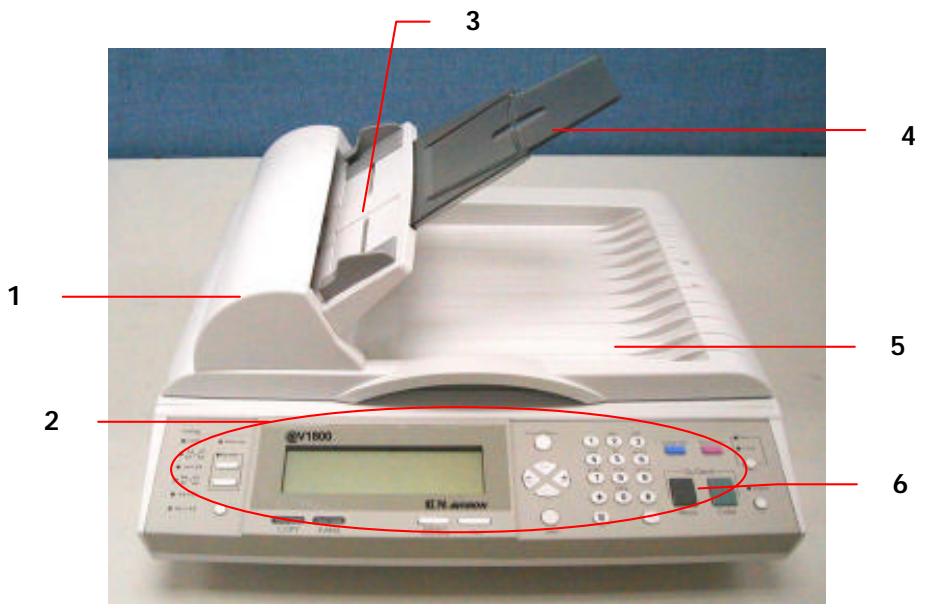
- ADF Front Cover
- LCD-display
-
ADF Paper Tray
-
ADF Paper Support
- Document(s) Cover
- Control Panel
THE REAR VIEW
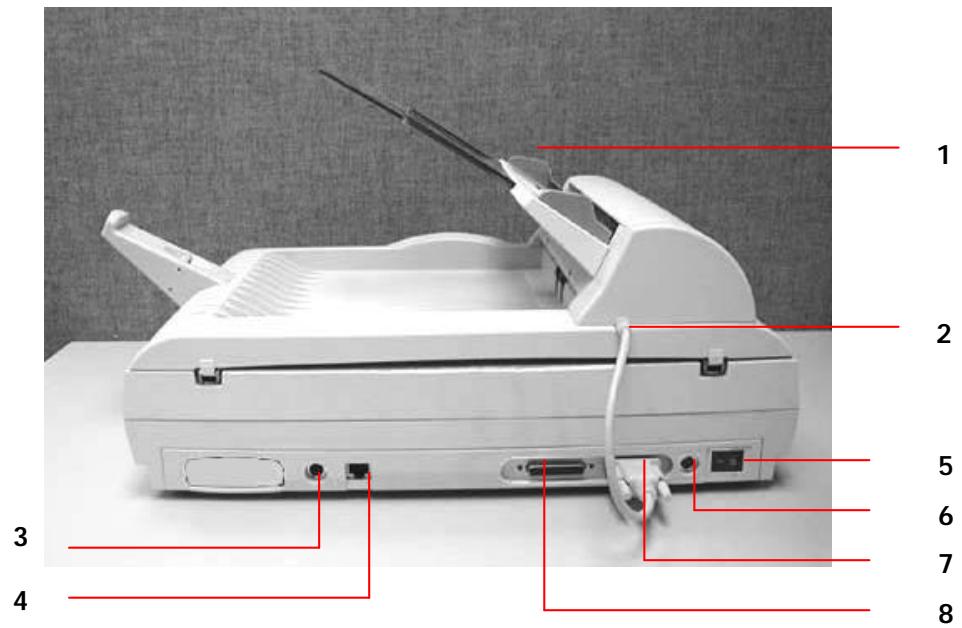
- Paper Feed Tray
- ADF Cable
- Keyboard Port
-
RJ-45 Network Port
-
Power Switch
- Power Jack
- ADF Port
- Printer Port
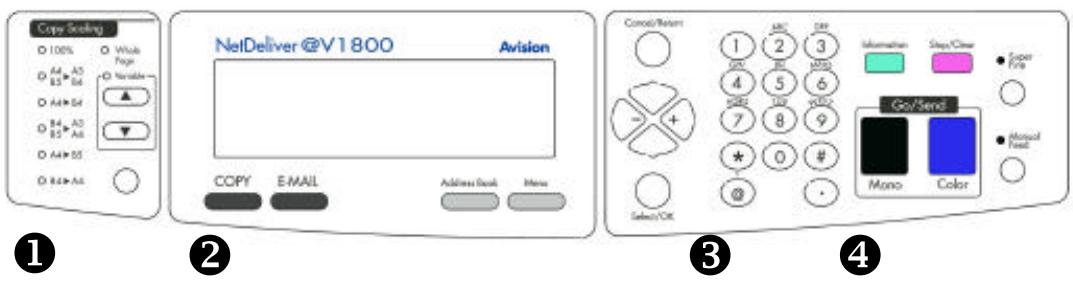
① Scaling Area:
Used to reduce document(s) down to 25% or enlarge it up to 400%.
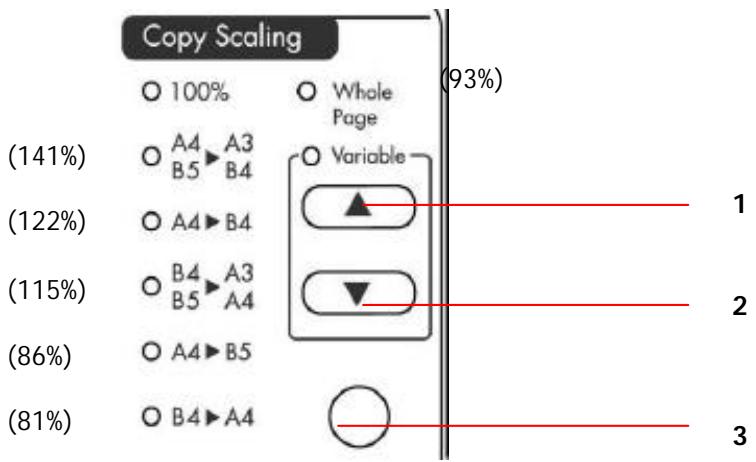
- Increase scaling in 1% increment
- Decrease scaling in 1% Decrement
- Select scaling from the preset percentage
② LCD-display & Function Keys:
Used to display current operation and select key working mode.
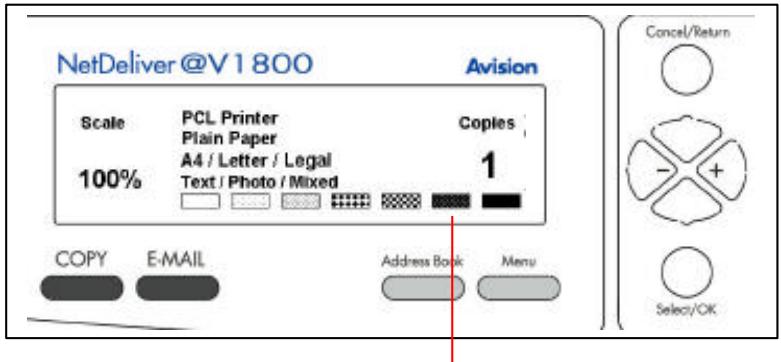
LCD-display
Function Keys and others:
 | Press to use the Copy function. |
 | Press to use the email function. |
 | Press to select an email address from an address book. |
 | Press to setup the machine. |
 | Used to cancel previous input. |
 | Used to move to up/down/left/right. |
 | Used to move to the left or to delete last input. |
 | Used to select or execute your command. |
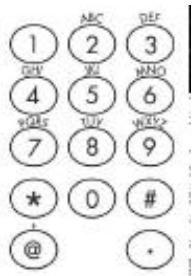
③ The Numeric/Character Keypad:
Used to manually enter e-mail address.
4 Start & Other Keys:
Used to select scanning resolution and start sending or copying document(s).
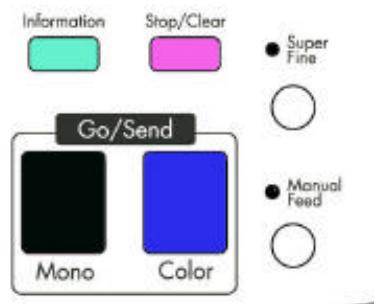
Information | Used to show serial number, IP address, firmware version,etc. |
 | Used to stop sending process or clear previous operation. |
 | Stands for Super Fine. Used to enhance scanning resolution. |
 [PC5B] [PC5B] | Used to scan and send document(s) in black and white. |
 [TYOK] [TYOK] | Used to scan and send document(s) in color. |
 | Used to scan and send multi-page document on the document glass manually one page by one page. |
The @V1800 has to be setup properly on your network to perform email and fax forwarding functions. The following network parameters have to be set. For required information and LAN connection, please contact your network administrator.
Important !
Make a copy of the following table and ask your Network Administrator to complete the information.
| 1. *IP Address: | . . . |
| 2. *Net Mask: | . . . |
| 3. *Gateway IP: | . . . |
| 4. *SMTP Server: | . . . |
| 5. SMTP Port | 25 (default) |
| 6. DNS Server: | . . . |
Note: “*” requests an IP address you must fill.
Explanation of contents:
- *IP Address: The Internet Protocol (IP) address assigned to your machine by your network administrator.
- Subnet Mask: The net mask address assigned by your network administrator.
- Gateway IP: The gateway IP address assigned by your network administrator.
- *SMTP Server: The IP address of your SMTP Mail Server assigned by your network administrator.
- SMTP Port: The port number for SMTP connection.
- DNS Server: The IP address of your *DNS server.
Note: 1. *IP Address: An IP (Internet Protocol) address uniquely identifies a host connection to an IP network. System administrator or network designer assigns the IP address. The IP address consists of two parts, one identifying the network and the one identifying your node.
The IP address is usually written as four numbers separated by period. Each number can be zero to 255. For example, 10.1.30.186 could be an IP address.
2. *SMTP: Stands for Simple Mail Transfer Protocol. It is the main communication protocol used to send and receive email on the Internet.
3. *SMTP Port: This setting defines the TCP/IP port for incoming mail. By default, this setting uses port 25 that is the Internet standard for receiving SMTP mail. If your SMTP server listens on a non-standard port, change this value accordingly.
4. *DNS: Short for Domain Name Service, an internet service that translates domain names into IP addresses. Every time you use a domain name, a DNS service must translate the name into the corresponding IP address. For example, the domain name www.example.com might translate to 198.105.232.4.
E-MAIL FORWARDING
The @V1800 allows you to transmit document(s) over the Internet via email. The document is first scanned and converted into a jpeg-formatted or a pdf-formatted file, and then transmitted to a remote recipient as an attachment to an email.
When you send an email to someone via the @V1800, the @V1800 uses Simple Mail Transfer Protocol (SMTP) to transfer your outgoing mail to your SMTP mail server, and then to send your mail to the Internet.
![graph TD A["@V1800"] -->|LAN| B["Email Server"] C["@V1800"] -->|≈| B D["@V1800"] -->|≈| B B --> E["internet"] E --> F["PC"] style A fill:#f9f,stroke:#333 style C fill:#f9f,stroke:#333 style D fill:#f9f,stroke:#333 style B fill:#ccf,stroke:#333 style E fill:#cfc,stroke:#333 style F fill:#fcc,stroke:#…](/content/2025/01/185493/images/72f9e2ef6b8882c1fcc90c015dbe804ca1d829af79ca81085c12239994cbdc35.jpg)
2 Setting up Your Machine
Minimum Configuration Requirements
To make the best of the @V1800, the following configuration is required:
To send emails from the @V1800:
- TCP/IP network
- A SMTP server
To make copies from the @V1800:
- A laser printer
Note: If you are not familiar with these terms, contact your network administrator to set up the @V1800 on your network properly.
Checking Package Contents
Unpack the box and check its components. If there is any item missing, contact your dealer immediately.
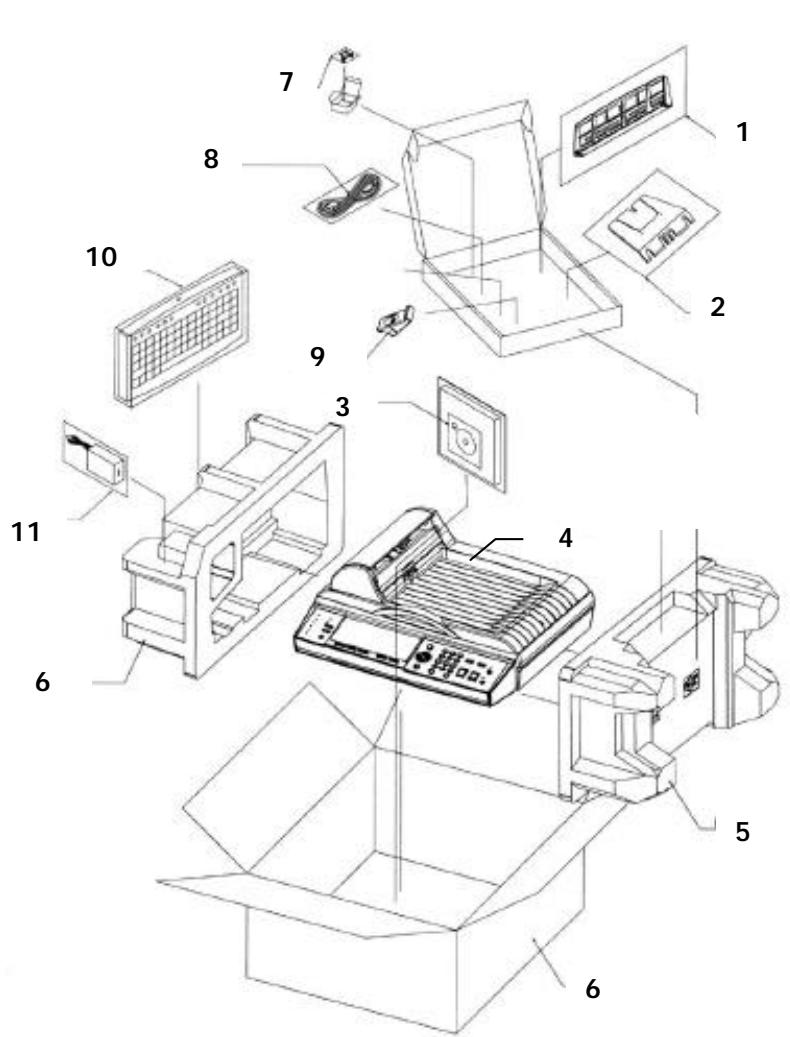
- Paper Feed Tray
- Paper Support
- CD, User's Manual, Quick Guide
- @V1800 Main Body
- Cushion
-
Carton
-
ADF Pad
- Power Cord
- Paper Stopper
- Keyboard
- Power Adapter
Unlocking the Scan Unit
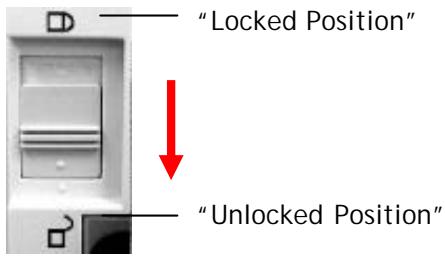
The scan unit is locked during transport to protect the scanning mechanism from being damaged. Be sure to unlock the scan unit before using the machine.
1). Locate the lock switch underneath the machine.
2). Move the lock switch to the "unlocked position".
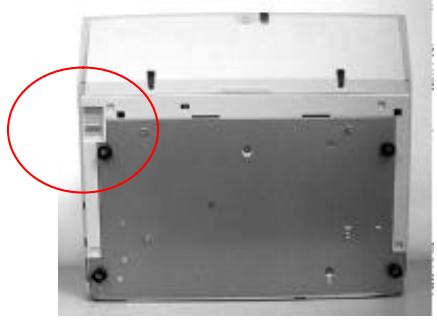
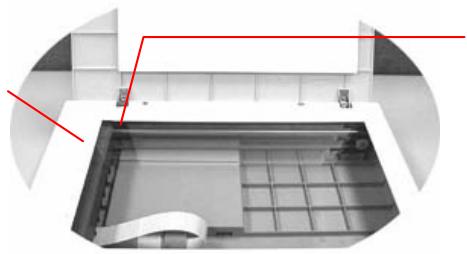
The scanning unit at this position before locking the switch
Note:
If you need to move your @V1800 for repair or any other reason, be sure to lock your @V1800 before moving. To lock your @V1800, please do the following,
- Turn off your @V1800.
- If the scanning head is not located at the front of the glass, turn the @V1800 on to return the scanning head to the front of the glass. After the scanning head is returned to the home position, turn the power supply off.
- Move the lock switch to the "Locked Position".
Installing the Paper Feed Tray
1). Attach the Paper Support to the Paper Feed Tray.
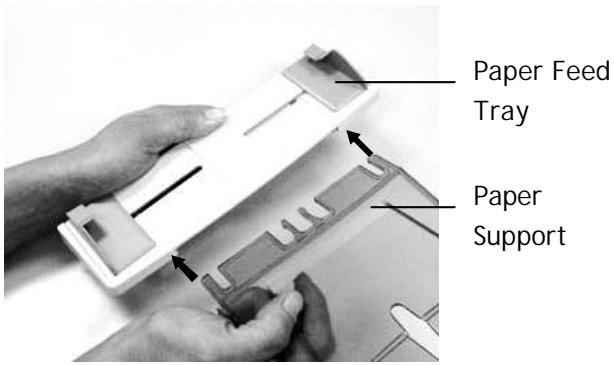
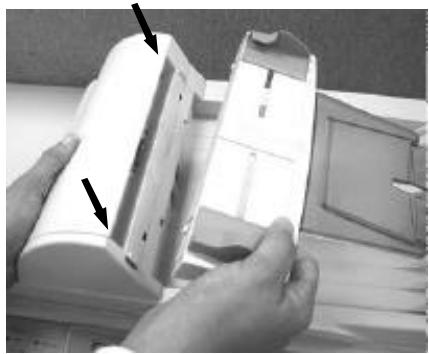
2). Then, attach the Paper Feed Tray to the machine.
CONNECTING THE ETHERNET CABLE
- Connect one end of your Ethernet LAN cable to an available port of your Ethernet Hub.
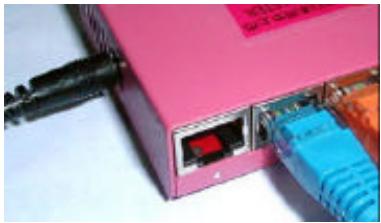
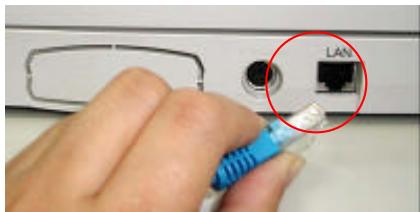
- Connect the other end to the network port at the back of your @V1800.
CONNECTING THE KEYBOARD CABLE
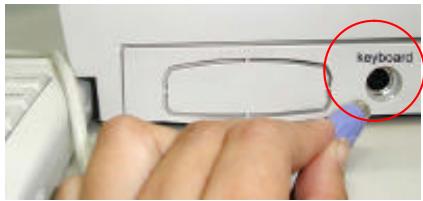
- Connect the cable of the keyboard to the PS2 port at the back of the @V1800.
CONNECTING THE PRINTER CABLE
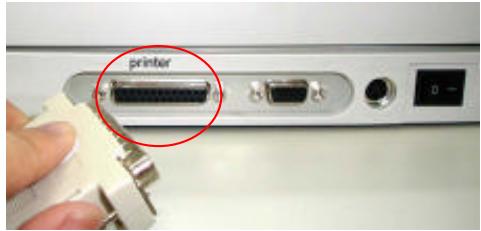
- Connect one end of the printer cable (not included) to your printer.
- Connect the other end to the printer port of your @V1800.
CONNECTING THE ADF CABLE
Connect the ADF (Auto Document Feeder) cable (attached to the document(s) cover) to the ADF port at the back of the @V1800.
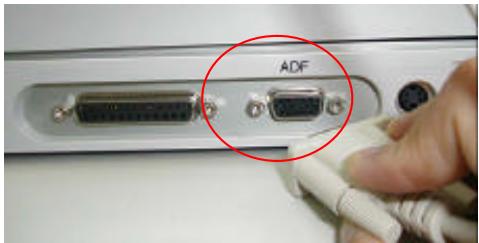
CONNECTING THE POWER AND TURNING ON THE MACHINE
- Press the power switch to the "0" position to turn off the @V1800.
- Connect the small end of the power cable to the power port of your @V1800.
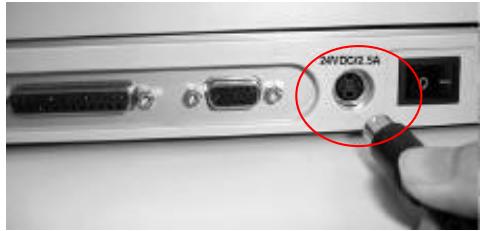
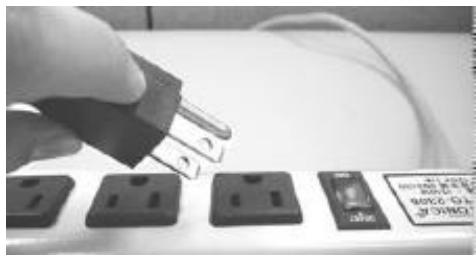
- Connect the other end to an appropriate power outlet.
- Press the power switch to the "I" position to turn on your @V1800. After showing the warming up message, the LCD display prompts the Copy ready status (present) as shown below.
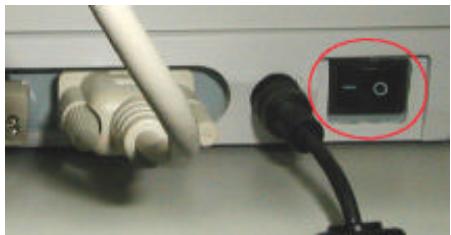
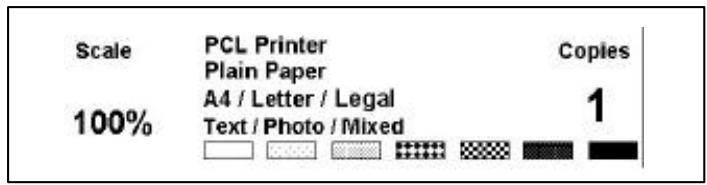
Note: You can leave your @V1800 ON at all times since the @V1800 is designed with a power saving function. If the @V1800 is idle for four hours, it automatically shuts off the scanning lamp.
Before using the @V1800, please setup the @V1800 properly on your network to perform email and fax forwarding functions. The following network parameters have to be set. For required information and LAN connection, please contact your network administrator.
To set up the network parameters via the control panel,
- After turning on the @V1800, press the Menu button and select the "Network Configuration". A Login screen appears. Press the Select/OK button to skip to prompt the Network Configuration screen (see below) in the LCD-display. (If you have changed the login name and password, the new login name and password are required each time you select the "Network Configuration" or "Administrator".)
| 1. General2. Network Configuration3. Copy4. E-Mail5. Function Buttons6. Administrator9. Information | 1. IP Address: . . .2. Subnet Mask: . . .3. Gateway IP: . . .4. SMTP Server: . . .5. SMTP Port:6. DNS Server: . . .7. Save & Exit: . . .8. Exit |
The Menu items
The Network Configuration
- Consult your network administrator for the network parameters and enter them respectively.
- Use the ▼ key to scroll the Save & Exit menu and press the Select/OK button to save your setting.
Note:
- If you wish to assign a login name, please press the "Menu" button and select the "Administrator">"Admin. Login Name"> and then enter your login name. (Up to 8 characters)
- If you wish to assign a password, please press the "Menu" button and select the "Administrator">"Admin. Password"> and then enter your password. (Up to 8 characters)
- Please make a note of your new login name and password. The new login name and password are required each time you select the "Network Configuration" and "Administrator" item.
- To send document via e-mail from the @V1800, you are required to enter at least the IP address/Subnet Mask/Gateway IP/SMTP server.
This chapter describes how to perform the administrator activities either on the control panel or on the @V1800 web page.
The access to the administrator activities is blocked by the administrator password. It is recommended that administrator create a password before performing these activities.
To Administer via the LCD-display
-
Press the Menu button ( ) on the Control Panel and select "Network Configuration". A Login screen appears. Press the Select/OK button to skip and prompt the Network Configuration screen as shown below.
-
General
- Network Configuration
- Copy
- Function Buttons
- Administrator
-
Information
-
IP Address: . . .
- Subnet Mask: . . .
- Gateway IP: . . .
- SMTP Server: . . .
- SMTP Port:
- DNS Server: . . .
- Save & Exit: . . .
- Exit
The Menu items
The Network Configuration
- Use the

or the

key to move between the menus.
-
For the contents of each menu, please see the subsequent section, Summary of Administrator Activities.
-
Start your browser, either Netscape 4.0 or the I.E. 4.0.
- Type the IP address of your @V1800 in the URL field of your browser. The @V1800 web page appears.
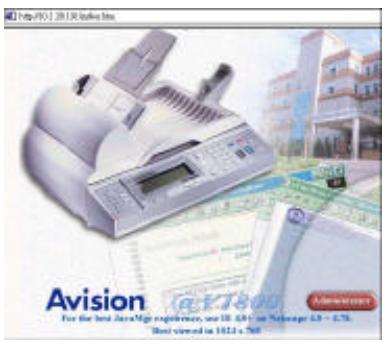
- Click on Administrator to prompt the Administrator Login dialog.
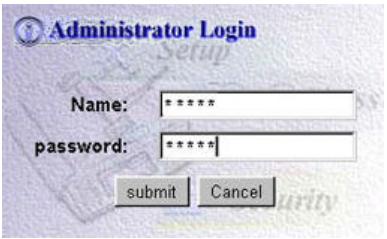
- Enter your name and password and click Submit. The Setting screen appears as below.
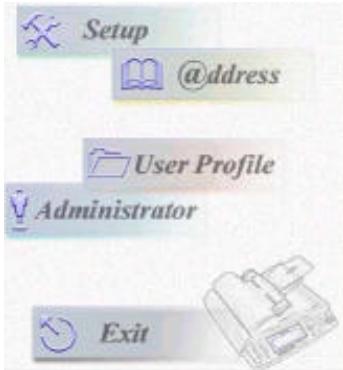
- For the contents of each menu, please see the subsequent section, Summary of Administrator Activities.
| Configuration Settings | Description |
| Setup Menu | |
| General | |
| Device Name | Displays the model name. |
| Network Configuration | |
| IP Address | IP address of your @V1800. |
| Subnet Mask | The IP address of your subnet mask. |
| Gateway | The IP address of your gateway. |
| SMTP Server | IP address of your SMTP Server. |
| SMTP Port | The port number for SMTP connection. (Default: 25) |
| DNS Server | IP address of your DNS server. |
| Copy | |
| Printer Name | PCL printer |
| Paper Size | Choice: Letter, A4, Legal |
| Remove Background | Remove background to sharpen text.(only for B&W original) |
| Default Subject | Default text for theSubjectfield in email messages from the @V1800.Up to 64 characters are allowed. The default subject is usedonlywhen users fail to enter anything in theSubjectfield in email message from the @V1800. |
| B/W File Format | File format for documents to be sent in black and white via e-mail from @V1800.Choice: PDF or TIF |
| Color File Format | File format of the color documents to be sent in color via e-mail from @V1800.Choice: TIF, JPG, and PDF |
| Fine Resolution for B&W | The scanning resolution you choose to scan from the @V1800.Choice: Fine(75/100/150/200/300/400 dpi) |
| Super Fine Resolution for B&W | The enhanced scanning resolution you choose to scan from the @V1800.Choice: S. Fine(100/150/200/300/400/600 dpi) |
| Fine Resolution for Color | The scanning resolution you choose to scan from the @V1800.Choice: Fine(75/100/150/200/300/400 dpi) |
| Super Fine Resolution for Color | The enhanced scanning resolution you choose to scan from the @V1800.Choice: S. Fine(100/150/200/300/400/600 dpi) |
| Activities | Description |
| Setup Menu | |
| Document Type | The contents for your document.Choice: Text, Photo, and Mixed |
| Compression Rate | The compression level for the documents you send from the @V1800.Choice: Low, Medium, and High*This machine supports JPG and PDF compression only. |
| Enable Background Remove | Remove color background to sharpen your text.Choice: Yes, No |
| Function Buttons | |
| Button #1~6 | Set the most frequent cover message for the Fn#1~6 keys in the supplied PS2 keyboard.Choice: Copy, E-mail |
| Address Book Menu | |
| The email address sets for the @V1800. Up to 2000 email addresses can be set.Menus: Add, Delete, and Modify | |
| Group | The group of more than one email address or numbers of fax destination. Up to 200 groups can be set. Up to 99 e-mails or fax destinations can be set in one group.Menus: Add, Delete, and Modify |
| Activities | Description |
| User Profile | |
| Local User | Create and display registered users of this machine if “Enable Security For Email”.Menu: Add, Delete, and Modify |
| Administrator | |
| Login Name | The login name for the administrator. If the administrator wishes to change current name, enter new login name in the field.Note: The login name is case-sensitive and allows up to 16 characters. |
| Enter New Login Name | New login name for the administrator if the administrator wishes to create a new one.Note: The login name is case-sensitive and is up to 8 characters. |
| Verification | Confirmation of the new login name. |
| Activities | Description |
| Setup Menu | |
| Document Type | The contents for your document.Choice: Text, Photo, and Mixed |
| Compression Rate | The compression level for the documents you send from the @V1800.Choice: Low, Medium, and High*This machine supports JPG and PDF compression only. |
| Enable Background Remove | Remove color background to sharpen your text.Choice: Yes, No |
| Function Buttons | |
| Button #1~6 | Set the most frequent cover message for the Fn#1~6 keys in the supplied PS2 keyboard.Choice: Copy, E-mail |
| Address Book Menu | |
| The email address sets for the @V1800. Up to 2000 email addresses can be set.Menus: Add, Delete, and Modify | |
| Group | The group of more than one email address or numbers of fax destination. Up to 200 groups can be set. Up to 99 e-mails or fax destinations can be set in one group.Menus: Add, Delete, and Modify |
| Activities | Description |
| User Profile | |
| Local User | Create and display registered users of this machine if “Enable Security For Email”.Menu: Add, Delete, and Modify |
| Administrator | |
| Login Name | The login name for the administrator. If the administrator wishes to change current name, enter new login name in the field.Note: The login name is case-sensitive and allows up to 16 characters. |
| Enter New Login Name | New login name for the administrator if the administrator wishes to create a new one.Note: The login name is case-sensitive and is up to 8 characters. |
| Verification | Confirmation of the new login name. |
| Administrator's E-Mail Address | The email address for the administrator. Update administrator's email address in this field. |
| Enter New E-Mail Address | New e-mail address for the administrator if the administrator wishes to create a new one.Note: The address is case-sensitive and is up to 64 characters can be entered in the e-mail address. |
| Verification | Confirmation of the new e-mail address. |
| Password | Current password for the administrator. If the administrator wishes to change current password, double click Password to prompt Change Password dialog. |
| Enter Previous password | Previous password for the administrator. |
| Enter New Password | New password for the administrator if the administrator wishes to create a new one.Note: The password is case-sensitive and is up to 8 characters are allowed. |
| Verification | Confirmation of the new password. |
| Enable Security for Emails | Scroll to Yes to prevent any non-registered users to send emails from the @V1800. |
| Add "To" Address After Sending | Scroll to Yes and a dialog appears asking you if you need to add the new email address into the address book after sending your document(s). |
| Activities | Description |
| Administrator Menu | |
| E-mail Default From | Default e-mail address for the From field in email message from the @V1800. Up to 64 characters are allowed. The default address is used only when users fail to enter anything in the Form field in email message from the @V1800. |
| Save Current Settings as Default | Save changed settings to be default settings. |
4 Managing the Address Book
Avision Java-Manager is a convenient browser-based tool to manage the address book of the @V1800 remotely. Since only the administrator can manage the address book, it is highly recommended that the administrator read this chapter before using the @V1800.
Managing Your E-mail Address Book
ADDING EMAIL ADDRESSES
To add e-mail addresses,
- Start your browser, for example Netscape Communicator or Microsoft I.E.
- Type your IP address in the URL field. for example, http://xxx.xxx.xxx.xxx The Avision @V1800 web page appears as shown below.
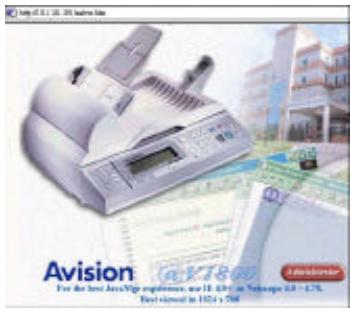
Note: The web page is best viewed at a 1024 x 768 dpi resolution.
- Press the Administrator button to prompt the Login dialog.
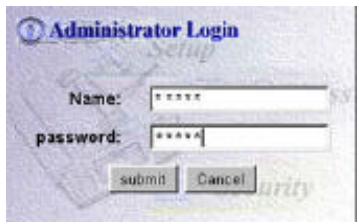
- Enter the name and password of the administrator and press the "Submit" button. The Administrator screen appears.
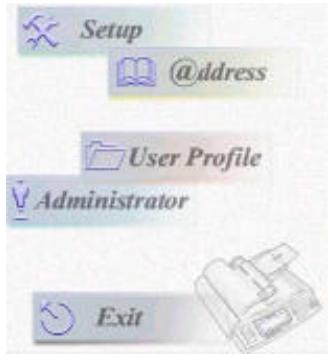
- Press "ddress" to prompt the Address Book dialog.
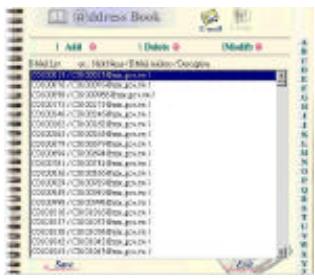
- Press the E-mail icon and choose "Add" to prompt the Add A New E-mail Address dialog.
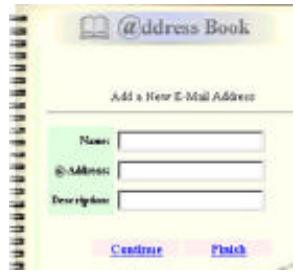
- Enter a local user's name and password and the email address and click "Continue" for the next input or "Finish" to save and exit.
To modify e-mail addresses,
- Repeat Step 1 to Step 5 from the previous section, Adding E-mail Addresses. The Address book dialog appears.
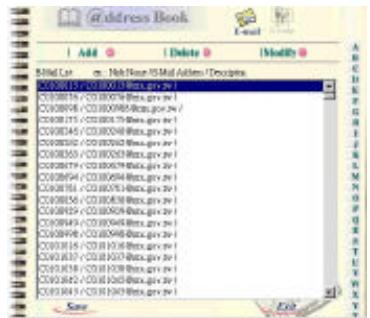
- Click the E-mail icon and choose the address you want to modify from the list. A Modify E-mail address dialog appears.
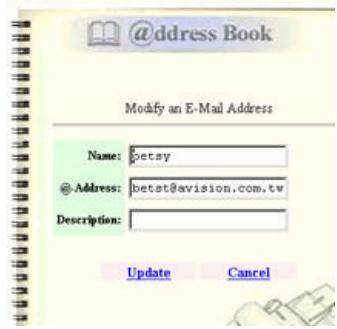
- Modify your address.
- Click "Update" to save or "Cancel" to exit.
To delete e-mail addresses,
- Repeat Step 1 to Step 5 from the previous section, Adding E-mail Addresses. The Address Book dialog appears.
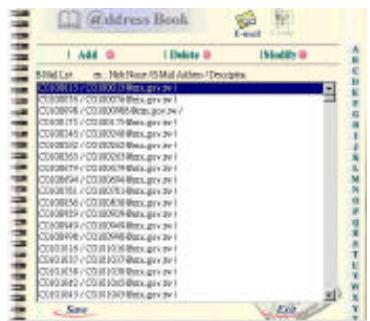
- Click the E-mail icon on the top and choose the addresses you want to delete from the list.
- Click "Delete" to erase the address. A warning message appears to confirm your deletion. Click "OK" to activate or "Cancel" to cancel the deletion.
ADDING NEW GROUPS
To add new groups,
- Repeat Step 1 to Step 5 from the previous section, Adding E-mail Addresses. The Address book dialog appears.
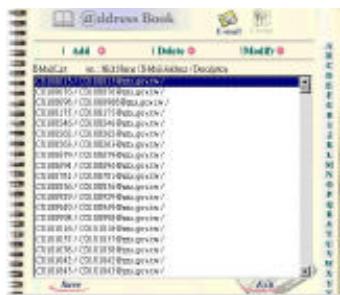
- Click the Group icon and choose "Add" to prompt the Add A New Group dialog.
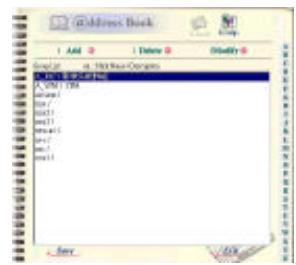
- Enter your group name.
- Choose the address from the right side and click ← to add to the group.
- Click "Update" to continue or "Cancel" to exit.
To modify groups,
- Repeat Step 1 to Step 5 from the previous section, Adding E-mail Addresses. The Address book dialog appears.
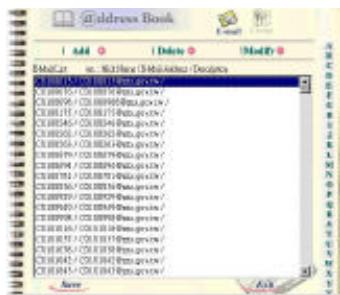
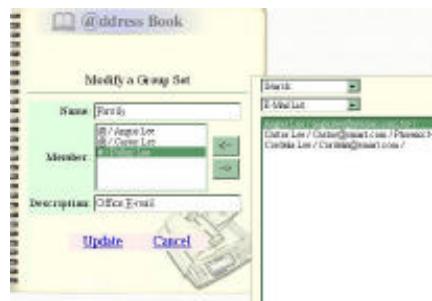
- Click the Group icon on the top and choose "Modify" to display the Modify E-mail dialog.
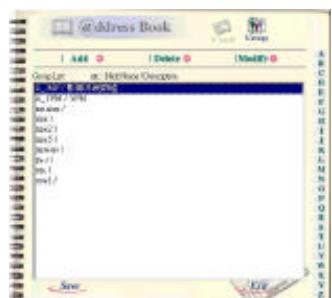
-
Choose one member you want to delete from the group and click the → key to delete or insert a new member from the current addresses by choosing the address on the right side and clicking the ← key to insert to the group.
-
Click "Update" to modify and exit or "Cancel" to exit.
To delete groups,
- Repeat Step 1 to Step 5 from the previous section, Adding E-mail Addresses. The Address Book dialog appears.
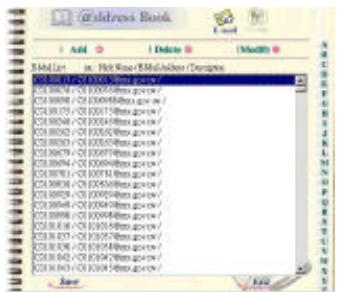
- Click the Group icon and choose the group name you want to delete from the list.
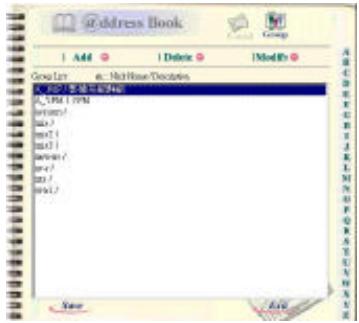
- Click "Delete" to erase the number. A warning message appears to confirm your deletion. Click "OK" to confirm or "Cancel" to exit.
Note: A Group can be a combination of several email addresses and fax numbers.
With an intuitive control panel, the @V1800 is designed to be easy-to-use. Basically, to operate the @V1800 takes three simply steps:
- Load your paper either in the ADF or on the glass.
- Type or select your recipient's destination.
- Press the "Mono" button (Mono) or the "Color" button (Color) to send your document(s).
The following sections describe in detail the things you should know and the advanced features on how to send your document(s) and make copies with the @V1800.
The @V1800 can scan and send document(s) either in the ADF (Automatic Document Feeder) or on the glass. If you need to send multiple pages, please load your papers in the ADF. The ADF can hold up to 30 pages at one time. If you need to send pages from books, newspaper clippings, paper with wrinkles or curls, please place your paper on the glass.
NOTICE ON USING THE ADF
Before using the ADF, please make sure that your paper meets the following specifications:
- Document(s) can range in size from 4.5 by 5.5 inches to 8.5 by 14 inches (Legal).
- Document(s) can range in weight from 14 to 28 lbs (0.002" to 0.006").
- Document(s) should be square or rectangular and in good condition (not fragile or worn).
- Document(s) should be free of curl, wrinkle, tears, wet ink, or punch holes.
- Document(s) should be free of staples, paper clips, paper sticky notes.
** To transmit irregular types of document(s), place the document(s) on the glass or make a copy first and then transmit the copy instead.
- Make sure your document is free of staples, paper clips and is not torn out.
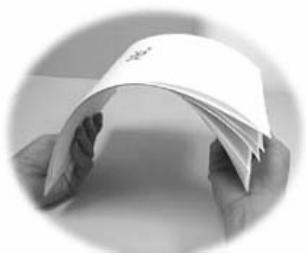
- If you have multiple pages, fan your document(s) to avoid occasional paper jam. The ADF can hold up to 25 pages at one time.
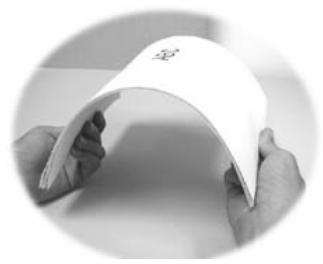
- Place your document(s) with the text FACE UP in the ADF and make sure that the top of the pages is fed in first.
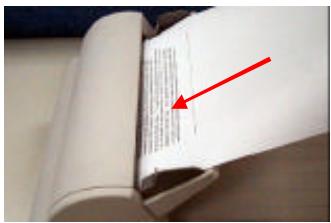
-
Adjust the Paper Guides to center the document(s) in the ADF.
-
Open the document(s) cover to reveal the glass.
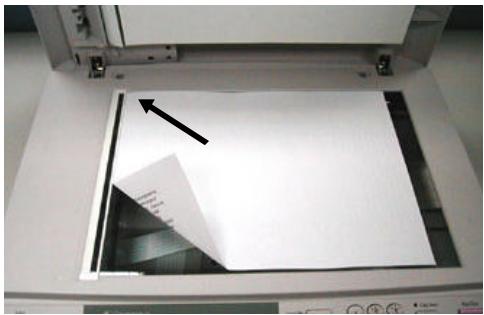
- Place your document(s) with the text FACE DOWN on the glass and align the document(s) in the upper-right corner of the glass.
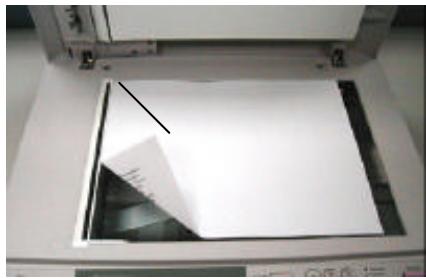
-
Close the document cover.
-
Place your document(s) face up in the ADF or face down on the glass.
-
Press the E-MAIL key. The LCD displays the Email screen.
From:
Subj:
To:
CC:
BCC:
Memo:
You can temporarily select your scanning resolution between Fine (75 dpi, 100 dpi, 150 dpi, 200 dpi, 300 dpi, 400 dpi) and Super Fine (100 dpi, 150 dpi, 200 dpi, 300 dpi, 400 dpi, 600 dpi) by pressing the Menu button and selecting E-mail then Fine Resolution or S. Fine Resolution.
Or you can press the F. Resolution button on the control panel to enable the default Fine Resolution value.
- Enter your email address manually with the keyboard.
Or select the email address from the address book via the
button and the Select/OK button.
-
Enter your e-mail message with the keyboard.
-
Press the Mono key to send your document(s) in black and white.
Or press the Color key to send your document(s) in color.
The LCD displays the scanning progress on the sending of your document(s) via email.
Page 1 100%
E-Mail OK
Note:
- You can send your document to e-mail addresses or to fax destinations simultaneously.
- If the "Enable Security for Email" box has been checked, you have to enter the password to access the e-mail forwarding function.
- If you make a mistake during the transmission process, press the Stop/Clear key to cancel.
- If you have stopped typing in the From, Subject, To, CC, or BCC fields for three minutes, the LCD-display automatically clears what you have typed.
- Up to 18 lines of text on the LCD-display (each line includes 34 characters) can be shown in the Memo field.
BEFORE MAKING COPIES
Before making copies through the control panel, please do the following:
- Make sure that your printer supports PCL or Postscript printer language.
- Check if your printer has been properly connected to the @V1800.
To make simple copies,
-
Place your document(s) either in the ADF or on the glass.
-
Press the Mono key to send your document(s) in black and white.
Or press the Color key to send your document(s) in color. The LCD displays the scanning progress of the printing of your document(s) from your printer.
Copying
80%
Note:
If you make a mistake during the transmission process, press the key to cancel.

Before using the copy features, make sure that you have connected a color or black and white laser printer to your @V1800.
Please also note that the @V1800 can be connected to various brands of laser printers as long as they are PCL-compliant (it even supports some PostScript printers). The supported printer list is as follows:
| Brand name | Model name |
| Tektronix | Phase 740/Phaser 750 |
| Mita | Ci 1100 |
| HP | 4500 |
| Kyocera | FS-800/FS-3750 |
| Lexmark | T614/C710 |
| Oki | 8C |
| Samsung | QL-7000/QwikLaser |
| ...More in the future |
Note:
For the most updated printer list, please visit the Avision's web site at http://www.avision.com
You can access a variety of copy features before pressing the "Mono" or "Color" buttons. These features include:
- Changing Scaling
- Adjusting Density
- Choosing Copy Quality
- Choosing Paper Size
• Increasing Copy Count
• Focusing on Photo/Text/Auto
CHANGING SCALING
To reduce or enlarge the original document,
- Press the Copy button on the panel to prompt the Copy screen.
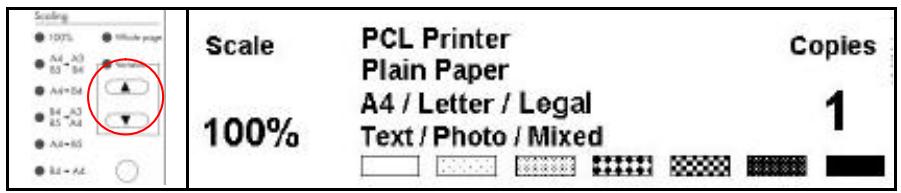
- Press the , key to enlarge your document in 1 percent increment.
Or press the ▼ key to reduce your document in 1 percent decrement.
Or, press the round button to choose your scaling from preset scaling from 141%, 122%, 115%, 93% (whole page) 86%, 81%.
** After you have made your copies, the settings you have just made will remain in the LCD-display for three minutes. After three minutes, the machine will automatically return to the factory default settings.
The @V1800 is preset to the Normal level of density. If your original document comes with a lighter or darker contrast, your can improve the quality using the Adjusting Density feature.
To change your density,
- Press the Copy button on the panel to prompt the Copy screen.
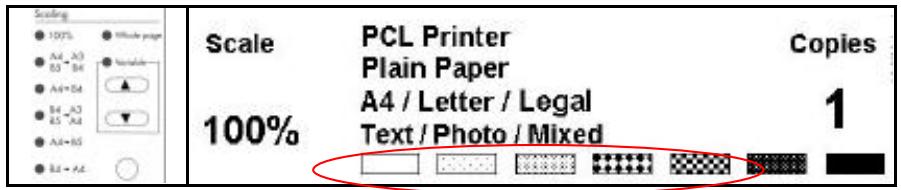
- Press the key to move your cursor down to the Density field.
- Choose your desired density with the or keys.
** After you have made your copies, the settings you have just made will remain in the LCD-display for three minutes. After three minutes, the machine will automatically return to the factory default settings.
The @V1800 is preset to Fine copy quality, the setting suitable for most business document(s). If necessary, this setting can be changed to Super Fine copy quality.
To choose your copy quality,
Press the

key to enhance your copy quality.
The Super Fine button appears with a lit LED.
** After you have made your copies, the settings you have just made will remain in the LCD-display for three minutes. After three minutes, the machine will automatically return to the factory default settings.
Your machine is preset to Letter size. If your output paper size is different from Letter, change your output size with the touch of the buttons.
To change your output paper size,
- Press the Menu button (Menu) on the Control Panel.
-
Press the key to scroll down to the Copy menu and press the Select button (Select/OK). The Copy menu appears.
-
Printer Name:
- Paper Type:
-
Paper Size:
-
Press the ◇ key to scroll down to Paper Size and press the Select button to prompt the option. (Letter/A4/Legal)
-
Choose the paper size with the Select/OK button. or keys and press the
** After you have made your copies, the settings you have just made will remain in the LCD-display for three minutes. After three minutes, the machine will automatically return to the factory default settings.
The @V1800 is preset to 1 copy count. If you wish to increase the number of copies, choose your desired copy count with the numeric keypad or keyboard.
To increase your copy count,
- Press the Copy button on the Control Panel to prompt the Copy screen.
- Enter your desired copy count with the numeric keypad. The LCD display shows the number of your copy count.
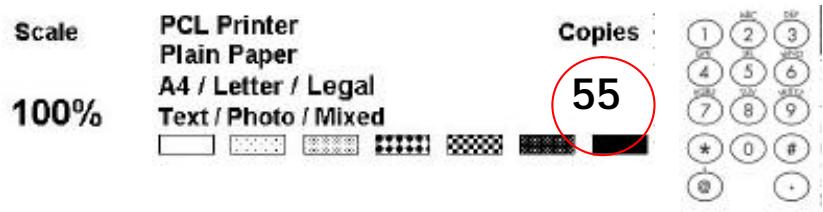
** After you have made your copies, the settings you have just made will remain in the LCD-display for three minutes. After three minutes, the machine will automatically return to the factory default settings.
The machine is preset to auto mode. If required, you can change to photo or text if you wish to focus your copies result on photo or on text.
To change your focus on photo or text,
- Press the Copy button on the Control Panel to prompt the Copy screen.
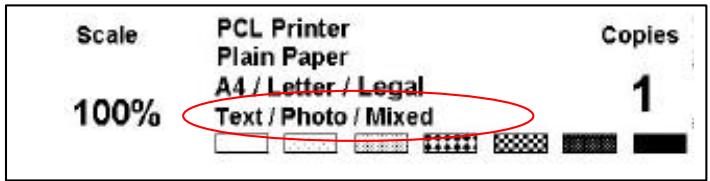
- Press the key to scroll down to the Text/Photo/Mixed field.
- Choose your focus with the or keys.
** After you have made your copies, the settings you have just made will remain in the LCD-display for three minutes. After three minutes, the machine will automatically return to the factory default settings.
Using the Manual Feed Button
The “Manual Feed” button allows you to scan multi-page document manually on the document glass one page by one page. With the “Manual Feed” button, the recipient can receive your multi-page documents in one mail.
To use the "Manual Feed" button,
- Press the "Manual Feed" button (○). The "Manual Feed" button appears with a lit LED.
- Press the e-mail button on the Control Panel.
- Enter your "From" and "To" address n the E-mail screen.
- Press the Mono or Color button to start sending your document.
- When the machine completing scanning your first page, the LCD-display will guide you to place your next page.
- Place your next page on the document glass, then press the "Color" or "Mono" button according to the LCD-display.
- Press the "Manual Feed" button ( ) again if you want to stop scanning. The LCD light of the "Manual Feed" will be off.
- The LCD-display shows the finish message. And the recipient can receive your multi-page documents in one e-mail.
Information Codes/Message
INFORMATION CODES DURING SCANNING AND COPYING
| Info code | Meaning | Action | Page |
| 10001 | SRAM error | Restart your @V1800. (Turn off and on again.)If the code still appears, contact your dealer. | -- |
| 10002 | DRAM error | Restart your @V1800.If the code still appears, contact your dealer. | -- |
| 10003, 10004 | Lamp error | Restart your @V1800.If the code still appears, contact your dealer. | -- |
| 10005 | Home sensor error | Restart your @V1800.If the code still appears, contact your dealer. | -- |
| 10006 | Lamp error | Restart your @V1800.If the code still appears, contact your dealer. | -- |
| 10007 | Lock error | 1. Turn off your @V1800.2. Find the lock switch underneath the machine and unlock the machine.3. Restart your @V1800.If the code still appears, contact your dealer. | 2-3 |
| 10008, 10009 | ADF error. | ADF paper jam.Open the ADF cover and remove the paper from the ADF.If the code still appears, contact your dealer. | 6-2 |
| 10201 | Z1 access error | Restart your @V1800.If the code still appears, contact your dealer | -- |
| 10202 | Z1 SRAM error | Restart your @V1800.If the code still appears, contact your dealer | -- |
MESSAGE DURING SCANNING AND COPYING
| LCD Message | Action | Page |
| Copy function disables. | Please download the printer profile. | -- |
| Check printer cable or status. | 1. Check if the printer cable has been correctly connected.2. Check if the printer is turned on.3. Restart the @V1800 and your printer.4. If the message still appears, contact your dealer. | -- |
INFORMATION CODES DURING NETWORKING
| Info Code | Meaning | Action | Page |
| 20512 | The connection failed. | Ping the IP address of the @V1800 from another PC in DOS prompt. For example, type “Ping 10.1.20.144” in Dos prompt. If the @V1800 has no response, then perform the following steps. | 2-5, 2-9 |
| 20519 | The destination address is invalid. | ||
| 20530 | Network is down. | ||
| 20531 | Network is unreachable. | ||
| 20533 | The connection aborted by the server. | 1. Check if the RJ-45 connector is firmly plugged-in.2. Check the Ethernet cable.3. Check the @V1800 IP address.4. Check the destination IP address.5. Check Subnet Mask.6. Check Gateway IP. | |
| 20534 | The connection reset by the server. | ||
| 20540 | Connection timed out | ||
| 20541 | The attempt to connect failed. | ||
| 20545 | The destination host is not able to reach. |
INFORMATION CODES DURING E-MAILING
| Info Code | Meaning | Action | Page |
| 304213142132421 | Service not available, closing transmission channel. The Server is going to shut down. | Contact the network administrator. | -- |
| 31450 | Requested mail action not taken: mailbox unavailable | Check the “To” address. | |
| 3145132451 | Requested action aborted: local error in processing | Contact the network administrator. | |
| 3145232452 | Requested action not taken: insufficient system storage | Contact the network administrator. | |
| 3045431454 | Temporary authentication failure: The authentication failed due to a temporary server failure. | Contact your network administrator for further help on mail server’s authentication mechanism.Turn off the mail server’s authentication, and try again. | |
| 30500315003250033500 | Syntax error, command unrecognized | Reboot the machine, and try again.If the error still appears, contact your dealer. | |
| 305013150132501 | Syntax error in parameters or arguments | 1. Check if the Device Name is valid.The Device Name can be found by pressing the “Menu” button and choose the “General” item.2. Check the “From” address.3. Check the “To” address.4. Contact the network administrator. | |
| 3150332503 | Bad sequence of commands | Restart the machine, and try later.If the error still appears, contact your dealer. | |
| 30504 | Command parameters not implemented | Check if the Device Name is valid.The Device Name can be found by pressing the “Menu” button and choose the “General” item. | |
| 31550 | Requested action not taken: mailbox unavailable [E.g., mailbox not found, no access] | Check the “To” address. | |
| 31551 | User not local: please try again. | Check the “To” address. | -- |
| 315513255233552 | Requested mail action aborted: exceeded storage allocation | 1. Check the “To” address.2. Check mailbox storage allocation.3. Contact your network administrator for further help. | |
| 31553 | Requested action not taken: Mailbox name not allowed | Check the “To” address. | |
| 32554 | Transaction failed | Contact your network administrator for further help. | |
| 32999 | Connection broken during data transmission. | 1. Check network environment.2. Check if the disk space of email attachment is larger than the mailbox quota. |
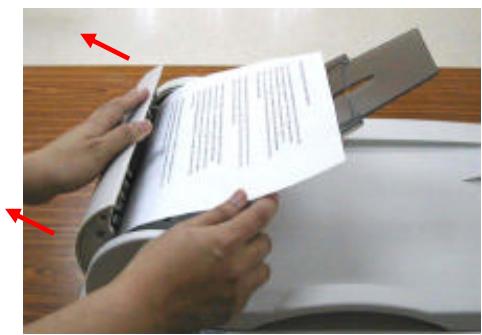
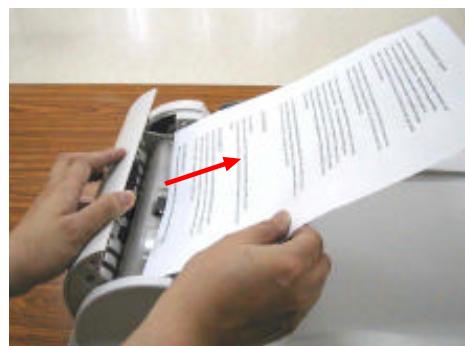
In the event of a paper jam, follow the procedures below to remove the paper:
- Gently open the ADF front cover to the left.
- Carefully pull the paper out of the ADF unit.
- Close the ADF front cover. Your V1800 is now ready to use.
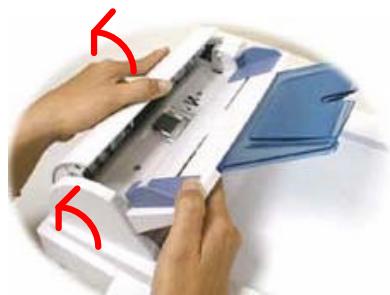
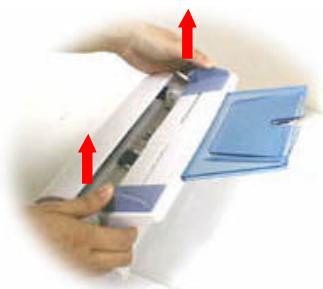
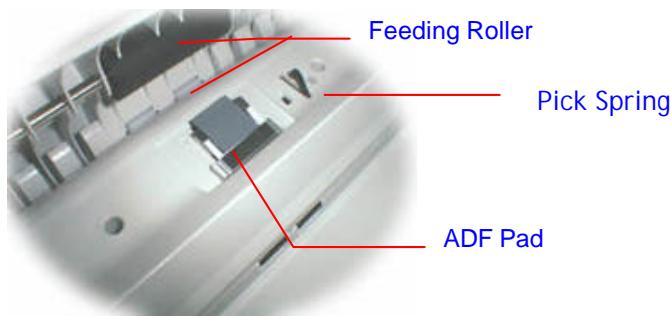
From time to time the pad assembly and feeding rollers may become contaminated with ink, toner particles or paper dust. In this case the @V1800 may not feed documents smoothly. If this occurs please follow the cleaning procedures to return your machine to its original state.
- Moisten a cotton swab with isopropyl alcohol (95%).
- Gently open the ADF front cover. Wipe the feeding rollers by moving the swab from side to side. Rotate the rollers forward with your finger and repeat the above cleaning procedures until the rollers are clean. Be careful not to snag or damage the pick springs.
- Wipe the pad in the direction from top to bottom. Be careful not to hook the pick springs.
- Close the ADF unit. Your machine is now ready to use.
1
2
3
The @V1800 is designed to be maintenance-free. However, it still needs to be cleaned occasionally to ensure optimum image quality and performance.
To clean the glass,
- Open the document cover as shown below.
- Dip a soft clean cloth with isopropyl alcohol (95%).
- Gently wipe the document glass and the white sheet beneath the document cover to remove the dust or any toner particles.
- Close the document cover. The @V1800 is now ready for use.
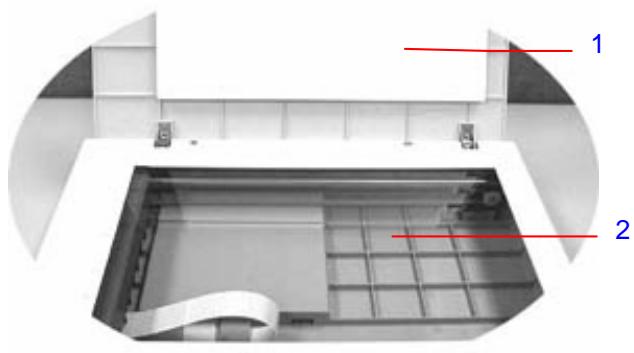
- Document Cover
- Document Glass
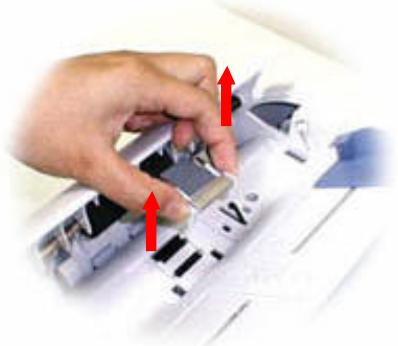
After scanning approximately 50,000 pages through the ADF, the pad may be worn out and you may experience problems with document feeding. In this case, it is highly recommended to replace the pad module with a new one. For ordering the pad module, please consult your nearest dealer and follow the procedure below to replace it.
Disassembling Procedure
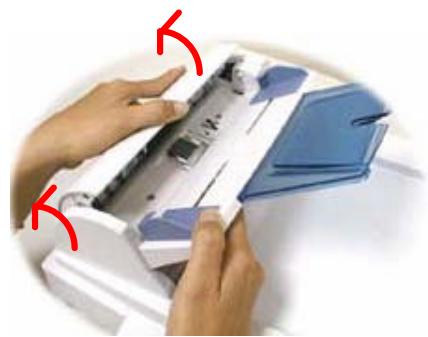
- Gently open the ADF front cover to the left.
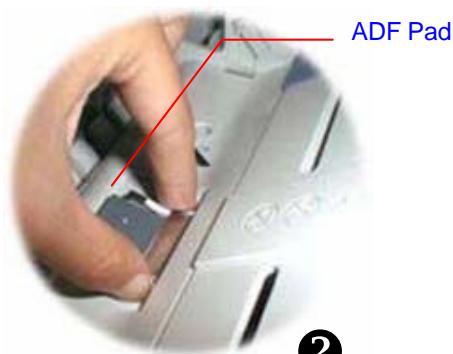
- Press both arms of the ADF snap-in pad module inwardly with your fingers to pull out the ADF snap-in pad module.
1
2
3
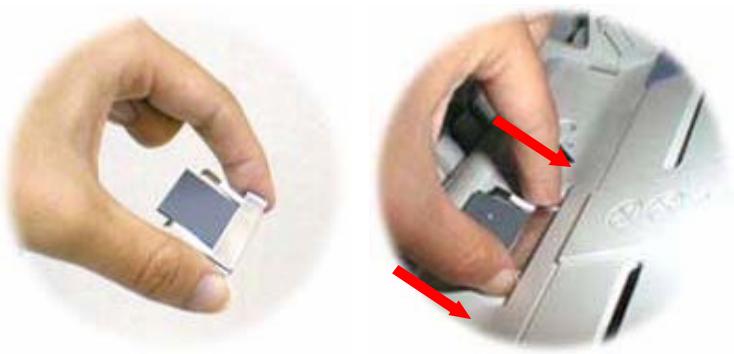
Assembling Procedure
- Take out the ADF pad module from the box.
- Press both arms of the ADF snap-in pad module inwardly with your two fingers
- Place it into the holes until it snaps into place.
Frequently Asked Questions and Answers
E-MAIL TRANSMISSION
Q: Can I adjust the image contrast when sending e-mails from the @V1800?
A: No, when you are sending the image, you are unable to adjust the image contrast since it has been optimized. Yet, your recipient is able to adjust it in the Image Editing software application.
Q: Is it possible to scan and generate multi page documents from flatbed?
A: Yes, please press the "Manual Feed" button before pressing the E-Mail, or Copy function button. After the scanning of your first page has been completed, the LCD-display would indicate to continue or end your scanning. Follow the instruction to complete the request. After completing scanning all your pages, press the "Manual Feed" button again to disable the function.
COPY
Q: Is the @V1800 compatible with Inkjet color printer?
A: So far the @V1800 is only compatible with laser printer with PCL-compliant printer language.
OTHERS
Q: How to know the version of my @V1800?
A: Press the Menu key on the control panel, choose #9 Information. All information including the IP address, serial number, and the firmware version appear.
Q: How to use the function button #1 to #6 from the keyboard provided by Avision?
A: Function button #1 to #6 are used store your favorite settings, for example, your most frequently used copy setting, and e-mail setting setting. To set your function button, simply follow these steps.
Press the "Menu" button on the Control Panel and then select "Function Buttons">"Function Button#1">"Copy, or Email" in succession and then set your favorite copy, e-mail settings. Finally, select "Save & Exit" to save the settings.
To use the function button is easy. For example, when you need to copy, simply press the "Fn#1" (If your previously set function button #1 is Copy setting), the Copy screen will appears. Press the Go button, then your document will be printed out according to the previously setting in Function Button #1.
Likewise, if you need to e-mail, simply press the "Fn#2" (If your previously set function button #2 is E-mail setting), the E-mail screen will appears. Press the Go button, then your document will be converted and emailed according to the previously setting in Function Button #2.
Q: If the keyboard supplied from Avision is defective, can I use another set of keyboard? And does the function buttons still work?
A: Yes, you can replace with any other keyboard as long as it is PS2 type. Type characters and numbers as usual. However, the function button and the control keys may not work properly.
If your problem still exists after trying the above solution, please prepare the following information and then contact the technical support of Avision.
- Serial number of your machine
- Your network parameters
• Error Code and its description if any - Brand and model name of the Printer connected to the machine
Headquarter
Avision Inc.
No. 20, Creation Road I, Science-Based Industrial Park,
Hsinchu 300, Taiwan, ROC
TEL: +886 (3) 578-2388
FAX: +886 (3) 577-7017
EMAIL: service@avision.com.tw
Web Site: http://www.avision.com
US and Canada
Avision Labs., Inc.
6815 Mowry Ave., Newark CA 94560, USA
TEL: +1 (510) 739-2369
FAX: +1 (510) 739-6060
EMAIL: support@avision-labs.com
Web Site: http://www.avision.com
Appendix
Quick Guide
1 Placing Your Documents
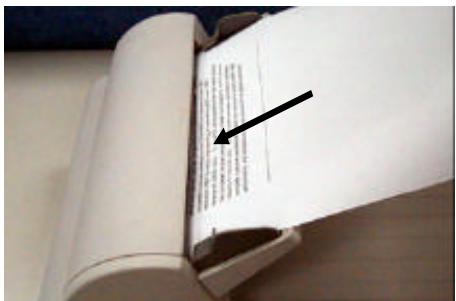
For multi-page transmission
Place your document FACE UP in the ADF.
For single-page transmission
Place your documents FACE DOWN on the glass.
2
Making Copies Through Your Printer
 Press the Copy button. Press the Copy button. | 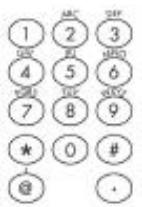 Enter your copy count via the numeric keypad Enter your copy count via the numeric keypad |  Press the Mono button to make B&W copies. Press the Mono button to make B&W copies. |
 Press the Color button to make color copies. Press the Color button to make color copies. |
3
Sending Your Document via Emails
 Press the E-Mail button. Press the E-Mail button. | Enter an email address with your keyboard or with the character keypad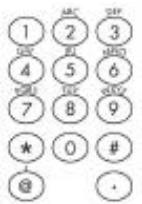 or press "Address/Phone Book" to select from the list(i.e Address Book + - + + Select/OK) or press "Address/Phone Book" to select from the list(i.e Address Book + - + + Select/OK) |  Press the Mono button to send your document in Black & white. Press the Mono button to send your document in Black & white. |
 Press the Color button to send your document in color. Press the Color button to send your document in color. |
Specifications
| Items | Specifications |
| System Overview | |
| System Description | Stand-alone Internet Appliance |
| Output Quality | 600 dpi, 36 bit color |
| External Connections | 1. RJ-45 (for Network connection)2. SPP (for Copy application)3. RJ-11 (option, for PSTN connection)4. PS2 (option, for External standard PS2 keyboard) |
| Internet Transmission Speed (ADF, Letter, B/W, Gray, Color) | 200 dpi: 8 PPM |
| Copy Speed (ADF, A4, 300 dpi) | B/W: 9 PPMColor: 1.5 PPM |
| Network Connection | Yes, 10/100 Mbits auto-negotiation |
| Networked Workgroup Solution for: | Stand-alone CopyE-Mail via Internet/Intranet |
| Output Format | PDF, JPEG, PNG, Postscript, PCL |
| CPU | 32 bit RISC CPU |
| Memory Size | Flash: 2 MBDRAM: 8 MB |
| ADF Document Size | 4.5" x 5.5" ~ 8.5" x 14" |
| ADF Document Weight/Thickness | 14 ~ 28 lb / 0.002" ~ 0.006" |
| ADF Capacity | 25 sheets |
| Paper Feed | Face Up |
| Dimension | 447x365x275(mm) |
| Weight | 6 kgs |
| Power Supply | 24V DC, 2A external power adapter |
| Power Consumption | Less than 30W |
| Copy | |
| Output Format | Postscript, PCL |
| Speed for Local Copy | B/W: 9 PPMColor: 1.5 PPM |
| Multiple Copies | Up to 99 |
| Copy Mode | Standard, High Quality |
| Enlarge / Reduce | Whole Page (97%)25%~400% in 1% increment/decrementPre-set ScalesCustomized |
| Network/Internet Applications | |
| Connectivity | Ethernet 10BaseT/100BaseTX auto-negotiation with RJ-45 connector |
| Communication Protocol | TCP/IP, SMTP, FTP, HTTP, MIME, LDAP |
| File Formats | PDF, JPEG, TIFF |
| Supported Browsers | Microsoft IE 4.1 or higherNetscape Navigator 4.0 or higher |
| Configuration Requirement | 1. IP address & subnet mask2. Gateway3. SMTP server/Gateway |
| System Capacity | E-mail Addresses/Fax numbers: 2000Group: 100Number of Email in one group: 99 |
| Security | Yes |
| Network Management | Configuration and administration via standard Web Browsers |
Glossary
ADSL - Asymmetrical Digital Subscriber Line
Asymmetrical Digital Subscriber Line, a high speed communications line
Client/server
A client is a computer that requests service from another computer (server).
Dial-up connection
A connection to the Internet made via phone & modem.
Direct connection
A connection made directly to the Internet.
Ethernet
Ethernet is a standard for connecting computers into a local area network (LAN). The most common form of Ethernet is called 10BaseT, which denotes a peak transmission speed of 10 mbps using copper twisted-pair cable.
Gateway
An interface that connects two different networks (a LAN can be connected to the Internet through some kind of gateway.)
Hub
This chunk of hardware is used to network computers together (usually over an Ethernet connection). It serves as a common wiring point so that information can flow through one central location to any other computer on the network.
IP Address
Internet Protocol Address – every computer on the Internet has a unique identifying number, like 191.2.24.2
LAN
Local Area Network – a network of computers installed within a small area, such as an office building.
Modem (MOdulator, DEModulator)
A device that you connect to your computer & to a phone line, that allows the computer to talk to other computer through the phone system.
Basically, modems do for computers what a telephone does for a human.
Network
Groups of computer that are connected together so that they can share resources and exchange data.
Node
Any server connected to the Internet.
POP
Post Office Protocol – Internet protocol used by your ISP to handle emails for its subscribers. A POP account is just a synonym for an email account.
Protocol
A set of rules and conventions that describes the behaviors that computer must follow in order to understand each other.
Router
A piece of equipment which connect two or more networks.
SMTP
Simple Mail Transfer Protocol – a main protocol to send and receive email between servers on the Internet.
SMTP Port
This setting defines the TCP/IP port for incoming mail. By default, this setting uses port 25 that is the Internet standard for receiving SMTP mail. If your SMTP server listens on a non-standard port, change this value accordingly.
Subnet mask
A mask used to determine what subnet an IP address belongs to. An IP address has two components, the network address and the host address. For example, consider the IP address 150.215.017.009. Assuming this is part of a Class B network, the first two numbers (150.215) represent the Class B network address, and the second two numbers (017.009) identify a particular host on this network.
TCP/IP
Transmission Control Protocol/Internet Protocol – a suite of communication protocol that defines the basic working of the Internet. In fact, TCP/IP is the protocol of the Internet because it's the language by which all Internet computers talk to each other.

- NETDELIVER @V1800 USER'S MANUAL
- TRADEMARKS
- COPYRIGHT
- WARRANTY
- THE FEDERAL COMMUNICATIONS COMMISSION STATEMENT
- EC DECLARATION OF CONFORMITY
- CONFORMS TO THE FOLLOWING PRODUCT SPECIFICATION
- TABLE OF CONTENTS
- 1 GETTING STARTED 1-1
- 2 SETTING UP YOUR MACHINE....2-1
- 3 ADMINISTERING 3-1
- 4 MANAGING THE ADDRESS BOOK....4-1
- 5 OPERATION 5-1
- 6 TROUBLESHOOTING 6-1
- APPENDIX ...... A
- PRECAUTIONS
- FEATURES
- E-MAIL FORWARDING
- DIGITAL COPYING
- MULTIPLE PAGES SENDING
- ADDRESS/PHONE BOOK MANAGING
- ① SCALING AREA
- ② LCD-DISPLAY & FUNCTION KEYS
- ③ THE NUMERIC/CHARACTER KEYPAD
- 4 START & OTHER KEYS
- IMPORTANT
- EXPLANATION OF CONTENTS
- 2 SETTING UP YOUR MACHINE
- MINIMUM CONFIGURATION REQUIREMENTS
- TO SEND EMAILS FROM THE @V1800
- TO MAKE COPIES FROM THE @V1800
- CHECKING PACKAGE CONTENTS
- UNLOCKING THE SCAN UNIT
- NOTE
- INSTALLING THE PAPER FEED TRAY
- CONNECTING THE ETHERNET CABLE
- CONNECTING THE KEYBOARD CABLE
- CONNECTING THE PRINTER CABLE
- CONNECTING THE ADF CABLE
- CONNECTING THE POWER AND TURNING ON THE MACHINE
- TO SET UP THE NETWORK PARAMETERS VIA THE CONTROL PANEL
- TO ADMINISTER VIA THE LCD-DISPLAY
- 4 MANAGING THE ADDRESS BOOK
- MANAGING YOUR E-MAIL ADDRESS BOOK
- TO DELETE E-MAIL ADDRESSES
- ADDING NEW GROUPS
- NOTICE ON USING THE ADF
- BEFORE MAKING COPIES
- CHANGING SCALING
- TO CHANGE YOUR DENSITY
- TO CHOOSE YOUR COPY QUALITY
- USING THE MANUAL FEED BUTTON
- INFORMATION CODES/MESSAGE
- TO CLEAN THE GLASS
- DISASSEMBLING PROCEDURE
- ASSEMBLING PROCEDURE
- FREQUENTLY ASKED QUESTIONS AND ANSWERS
- E-MAIL TRANSMISSION
- COPY
- OTHERS
- HEADQUARTER
- AVISION INC
- US AND CANADA
- AVISION LABS., INC
- APPENDIX
- 1 PLACING YOUR DOCUMENTS
- 2
- MAKING COPIES THROUGH YOUR PRINTER
- 3
- SENDING YOUR DOCUMENT VIA EMAILS
- GLOSSARY
- ADSL - ASYMMETRICAL DIGITAL SUBSCRIBER LINE
- CLIENT/SERVER
- DIAL-UP CONNECTION
- DIRECT CONNECTION
- ETHERNET
- GATEWAY
- HUB
- IP ADDRESS
- LAN
- MODEM (MODULATOR, DEMODULATOR)
- NETWORK
- NODE
- POP
- PROTOCOL
- ROUTER
- SMTP
- SMTP PORT
- SUBNET MASK
- TCP/IP
Brand : AVISION
Model : NETDELIVER @V1800
Category : Fax