 EasyManual
AV630CS - To scan AVISION - Free user manual and instructions
Find the device manual for free AV630CS AVISION in PDF.


User questions about AV630CS AVISION
0 question about this device. Answer the ones you know or ask your own.
Ask a new question about this device
Download the instructions for your To scan in PDF format for free! Find your manual AV630CS - AVISION and take your electronic device back in hand. On this page are published all the documents necessary for the use of your device. AV630CS by AVISION.
USER MANUAL AV630CS AVISION
(Doc. No. 250-0115-E)
© AVISION INC. 1997
Trademarks
Microsoft is a U.S. registered trademark of Microsoft Corporation.
Windows and MS-DOS are trademarks of Microsoft Corporation.
IBM, PC, AT, XT are registered trademarks of International Business Machines Corp.
Other brands and product names herein are trademarks or registered trademarks of their respective holders.
Copyright
All rights reserved. No part of this publication may be reproduced, transmitted, transcribed, stored in a retrieval system, or translated into any language or computer language, in any form or by any means, electronic, mechanical, magnetic, optical, chemical, manual, or otherwise, without the prior written permission of Avision Inc.
Material scanned by this product may be protected by governmental laws and other regulations, such as copyright laws, the customer is solely responsible for complying with all such laws and regulations.
Warranty
The information contained in this document is subject to change without notice.
Avision makes no warranty of any kind with regard to this material, including, but not limited to, the implied warranties of fitness for a particular purpose.
Avision shall not be liable for errors contained herein or for incidental or consequential damages in connection with the furnishing, performance, or use of this material.
FCC Radio Frequency Interference Statement
This equipment has been tested and found to comply with the limits for a class B digital device, pursuant to Part 15 of the FCC rules. These limits are designed to provide reasonable protection against harmful interference in a residential installation. This equipment generates, uses, and can radiate radio frequency energy and, if not installed and used in accordance with the instruction manual, may cause harmful interference to radio communication. However, there is no guarantee that interference will not occur in a particular installation. If this equipment does cause harmful interference to radio or television reception, which can be determined by turning the equipment off and on, the user is encouraged to try to correct the interference by one or more of the following measures:
- Reorient or relocate the receiving antenna.
- Increase the separation between the equipment and receiver.
- Connect the equipment into an outlet on a circuit different from that to which the receiver is connected.
- Consult the dealer or an experienced radio/TV technician for help.
CAUTION: Any changes or modifications not expressly approved by the manufacture of this device could void the user's authority to operate the equipment.
Table of Contents
Chapter 1 INTRODUCTION
Chapter 2 SCANNER INSTALLATION
2.1 Installation of the Scanner 2-1
2.2 Unlocking the Scanner 2-2
2.3 Installation of the SCSI card 2-3
2.4 Connecting the Cable 2-5
2.5 Document Placement 2-9
Chapter 3 SCANNER DRIVER INSTALLATION
Chapter 6 TROUBLESHOOTING
6.1 Q&A 6-2
6.2 Technical Service 6-3
Chapter 7 SPECIFICATIONS
Model: AV630CS. 7-1
Appendix Detailed Procedure for installing SCSI Driver
Chapter 1 Introduction
Congratulations on your purchase of Avision AV630CS color image scanner. Avision Inc. is one of the leading companies in the world to develop high performance scanners.
Before you install and operate the new scanner, please take a few minutes to read through this manual. It provides you with the proper instructions on how to unpack, install, operate and maintain the scanner.
Figure 1-1 shows how the scanner is packed. Please check all the items against your checklist. If you do not receive all the items, please contact your authorized local dealer immediately.
Figure 1-1 Scanner packing
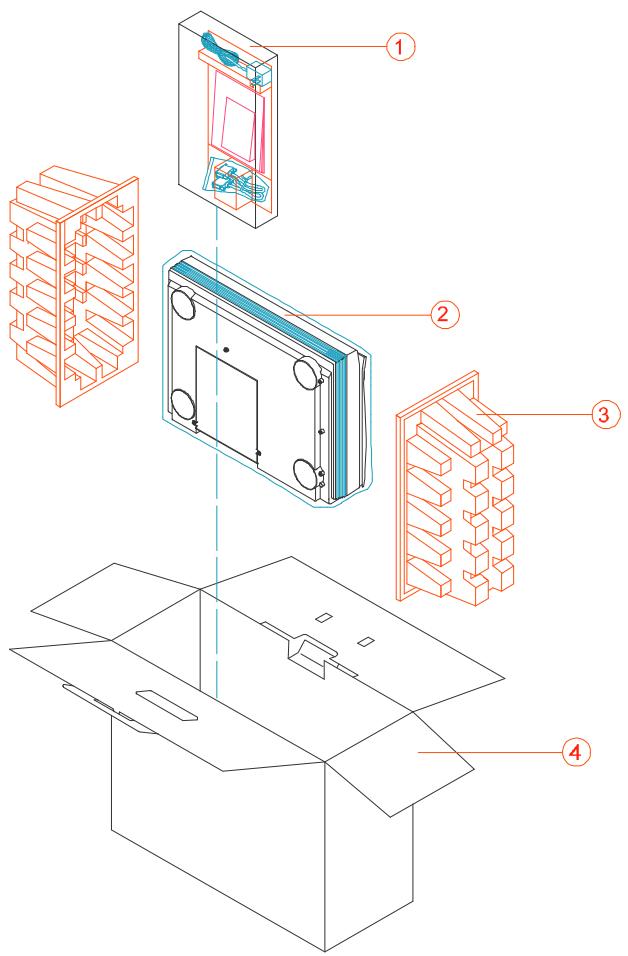
1. Manual, Driver kit CD, AC power cord, D25P cable, etc.
2. Scanner 3.Cushion 4.Carton
Chapter 2 Scanner Installation
Precautions
- Keep the scanner out of direct sunlight. Direct exposure to the sun or excessive heat may cause damage to the unit.
- Do not install the scanner in a humid or dusty place.
- Be sure to use the proper AC power source.
- Place the scanner securely on an even, flat surface. Tilted or uneven surfaces may cause mechanical problem.
- Keep the scanner box and packing materials in case you may need to ship the scanner back in good condition.
2.1 Installation of the Scanner
Please unpack the scanner box carefully, and check the items against the checklist. If any item missing or damaged, please contact your dealer immediately.
2.2 Unlocking the Scanner
As shown below, unlock the scanner by turning the scanner lock to the "Use" position.
Figure 2-1 Unlocking the Scanner
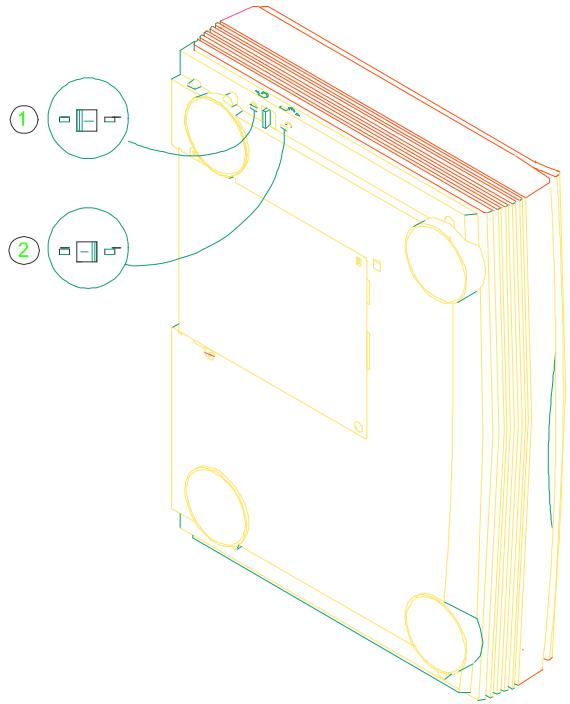
1. "Shipping" position 2. "Use" position
2.3 Installation of the SCSI Card
Hardware Installation
1) Power off your computer.
2) Plug the SCSI card in an available slot of your computer. Be sure to screw it firmly.
3) Power on your computer.
Software Installation
In Windows 3.1
1) If your SCSI card is bundled with Avision AV630CS, then installing the scanner driver will at the same time complete the installation of the SCSI card driver.
2) If your SCSI card is not bundled with Avision AV630CS, then please follow the installation sheet contained in your SCSI card.
In Windows 95
1) Press Start Setting Control Panel. And then double click "Add New Hardware". Select SCSI Adapter.
2) Choose Have disk and type "d:\DTCSCSI"(d means the letter indicating your current CD-ROM drive)
3) Choose Finish and restart Windows 95.
In Windows NT
1) Press Start Setting Control Panel. And then double click "Add New Hardware". Select SCSI Adapter.
2) Choose Driver tag and Add new SCSI Adapter.
3) Choose Have disk and type "d:\DTCSCSI(d means the letter indicating your current CD-ROM drive)
4) Choose Finish and restart Windows NT.
-
If your SCSI card is bundled with Avision AV630CS, you can refer to the Appendix for more details in regards to the installation of the SCSI driver.
-
If your SCSI card is not bundled with Avision AV630CS, then you can refer to the installation sheet contained in your SCSI card or ask for details from your SCSI card vendor.
2.4 Connecting the Cable
Make sure the power of scanner is off.
Connecting the SCSI cable to the scanner
The AV630CS scanner is provided with an active terminator already. As such, if the scanner is the only (or final) SCSI device connected to your host computer, turn the active terminator to the on position), and the scanner will function all right. Do not attach an additional passive terminator to the connection!
If the scanner is linked in a SCSI chain (between the host computer and other devices), turn the active terminator to the off position, plug the SCSI cable from other devices into the unused SCSI connector of the scanner, and add a passive terminator to the last device of the SCSI chain (See Figure 2-2).
Connect the power cable and signal cable as shown below.
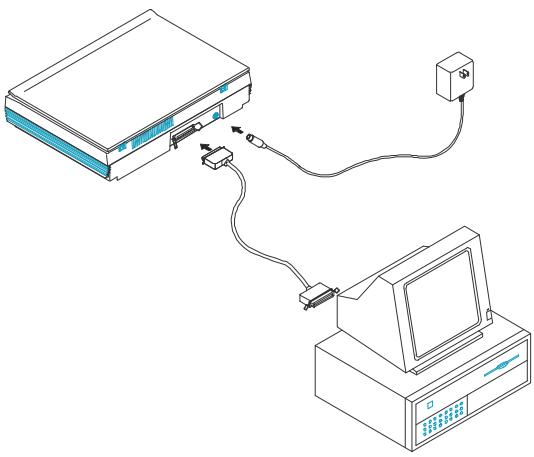
Figure 2-1 AV630CS scanner cable connection
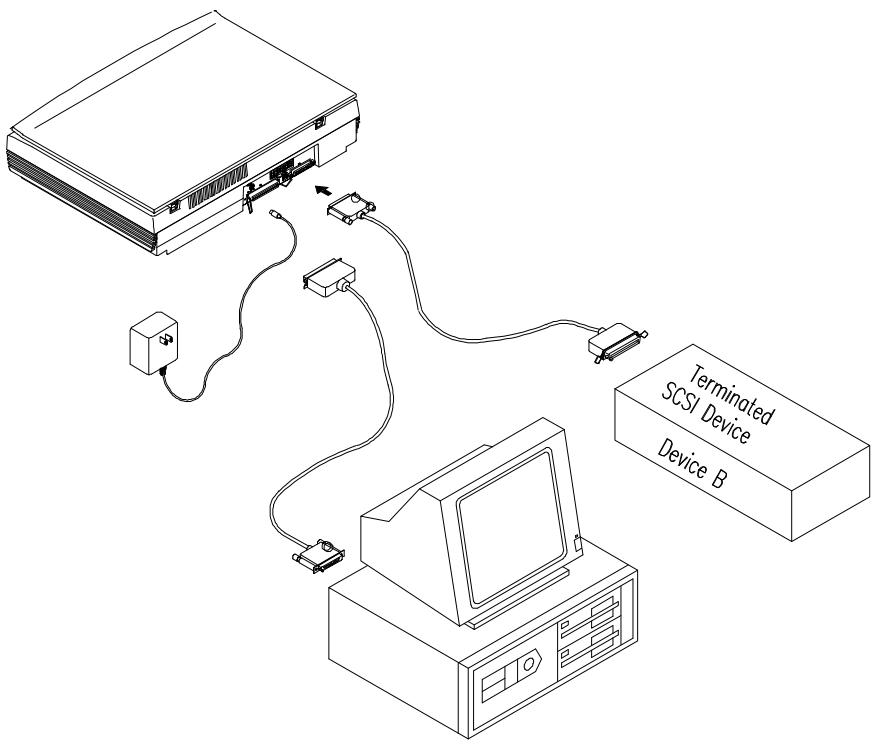
Figure 2-2 SCSI chain configuration
Figure 2-2 In the SCSI chain configuration, the scanner is connected to the host computer; a second SCSI cable then connects the scanner with other devices.
Setting the SCSI ID
SCSI ID:
If you have several devices on a SCSI chain, you may need to adjust the SCSI ID selector which is located on the back panel of the scanner. This action is to make sure each device match with a unique SCSI ID number. If the ID# you select is duplicate with an existing SCSI device, then please select a different ID#. (See Figure 2-3)
Note: The default SCSI ID number for Avision AV630CS is 6. Usually ID# 0 is assigned to an internal hard disk drive, and ID# 7, to SCSI adapter or host.
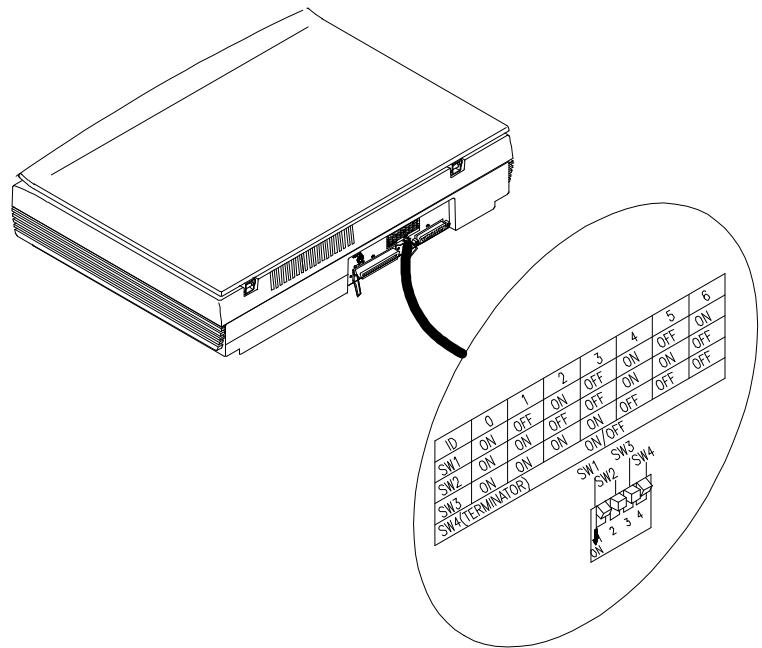
Figure 2-3 Adjust the SCSI ID setting
2.5 Document Placement
As shown below, place the document upside down on the document board with the text facing away from you.
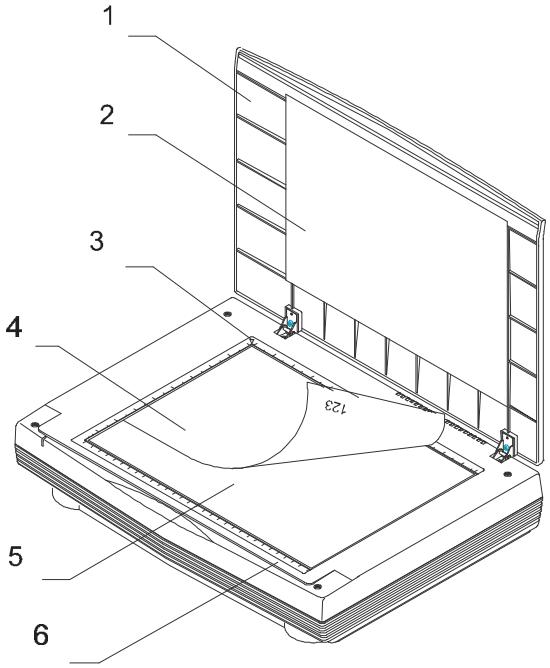
Figure 2-5 Document loading
-
Document Cover
-
Document Pad
-
Reference Frame
-
Document
-
Glass
-
Document Board
Chapter 3 Scanner Driver Installation
MAC Users
The AV630CS scanner must have the following minimum requirements to run at rated speed as recommended:
- MAC II series; Quadra series, Perfoma series; Power Macintosh series or later recommended;
- At least 20 M Bytes of free hard disk space;
- A minimum of 8 M Bytes of system memory required; 16 M Bytes or higher recommended;
- Mac compatible display card and monitor with at least 256 colors; thousands colors or million colors display card recommended;
- System 7 or later.
* A CD-ROM drive
The installation procedures of Avision scanner driver are as follows:
- Close all the applications including the anti-virus program.
- Install on your computer the image-editing or scanner-related application you want to use with the scanner, such as OmniPage, PhotoShop, etc.
- Insert "Avision PaperCom Supreme" into your CD ROM drive. The Avision Driver Kit 3.X.X dialog box as Fig. 3-1 will appear. Read "Read Me First" for some valuable information which you should note.
- Double click on the "AV Kit 3.X.X Installer" icon. AV Kit 3.X.X Installer dialog box will appear as Fig. 3-2.
- Click Easy Install icon and drag it to the system icon in the right side. A "Select a folder for plug-in" dialog box as Fig.
3-3 will appear. Select your application folder and select the "plug-ins" folder within the application folder. Click on the "Choose plug-ins" button. The installation will then be completed.
- Choose Restart to proceed your next step.
- If you want to use other Optical Character Recognition (OCR) applications such as OmniPage, Xerox TextBridge, Type Reader, etc., you have to setup the ISIS driver to access the scanner. The ISIS driver is a file named "Avision Scan." To setup, select "Chooser" command from the "Apple"
menu. A dialog box as Figure 3-4 will appear on the screen. Select the "Avision Scan" icon, ignore the "Scanner Model" list and the "Set SCSI ID" button, The list of scanner model will be displayed. Click on the "Set SCSI ID" button. The "Scanner ID" window as Fig. 2-17 will appear. Choose "Detect". The current Scanner ID number will be verified and highlighted. Press OK button. You can then start your application to use the scanner, or refer to your application manual for more details.
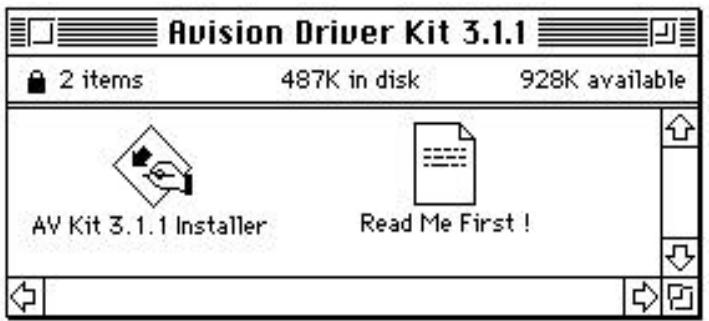
Figure 3-1 Avision Driver Kit 3.11
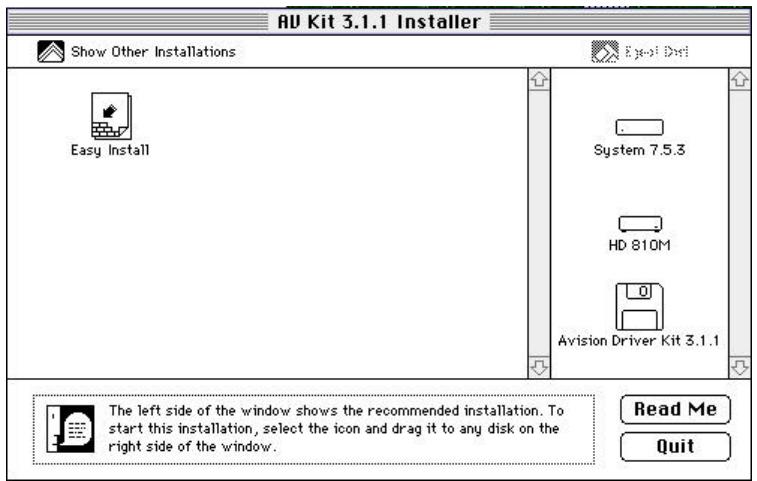
Figure 3-2 AV Kit 3.3.1 Installer
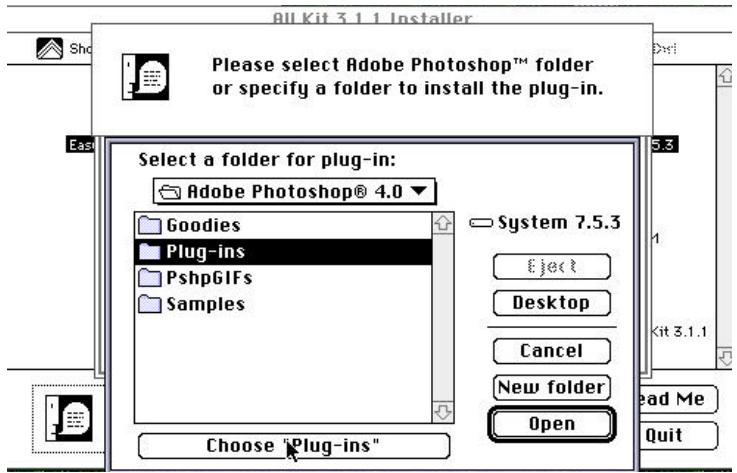
Figure 3-3 Select a folder for plug-in
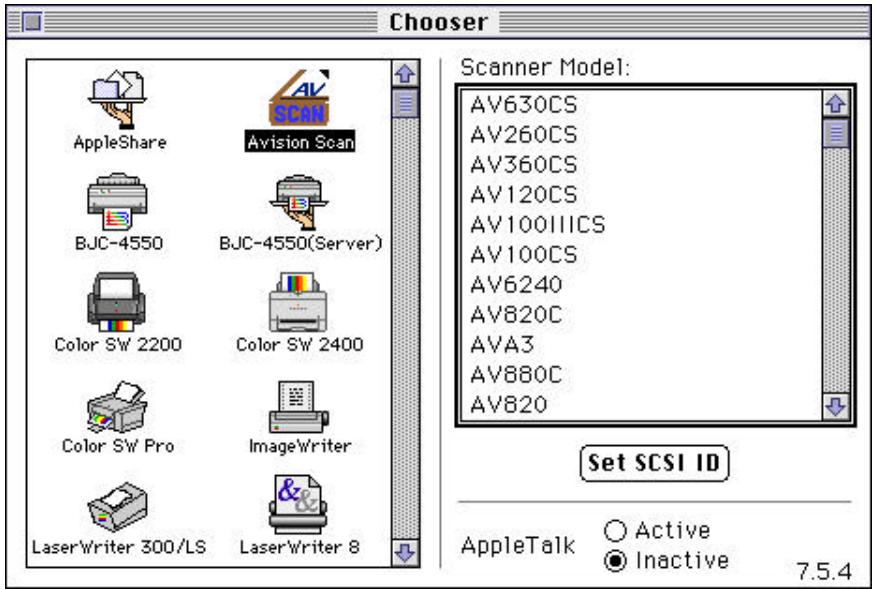
Figure 3-4 Chooser
Note: You can find the latest driver and documents in our homepage in World Wide Web(WWW). Our address is: http://www.aviision.com
PC Users
To run at rated speed as recommended, the AV630CS color scanner must have the following minimum requirements:
- IBM compatible PC 386/486 or Pentium;
- Microsoft Windows 3.1, Windows 95, or Windows NT;
- DOS 5.0 or higher;
- One SCSI card installed one your computer;
- 20 megabytes of available hard disk space for installation;
- 8 megabytes of RAM (16 megabytes or higher recommended);
- A video graphics array (VGA) monitor;
- A Microsoft Windows-compatible pointing device (e.g., the mouse);
- A CD-ROM drive.
Installation procedures of Avision Scanner driver with Avision Auto-installation Program are as follows:
- Start Windows 3.1 or Windows 95.
- Insert Avision PaperCom Supreme CD to your CD-ROM drive.
For Windows 3.1 or Windows 3.11
- From the File Menu, choose RUN. Type d:\Driver\AV630CS.exe (d means the letter indicating your current CD-ROM drive). Choose O.K.
For Windows 95
- Avision PaperCom Supreme CD is auto run. Simply follow the instructions on the screen to install the scanner driver and its application.
- If you choose to install not by auto run, then press the Start button and choose RUN. Type d:\Driver\AV630CS.exe (d means the letter indicating your current your CD-ROM drive). Choose O.K.
- Follow the subsequent instruction on the screen to complete the instruction. (Normally just press OK and the installation will be completed.)
For Windows NT
- From the File Menu, choose RUN. Type d:\Driver\AV630CS.exe (d means the letter indicating your current CD-ROM drive). Choose O.K.
Chapter 4 Operating the Scanner
MAC Users
- Start your application. From File menu, choose Acquire command.
- Select MrScan from the submenu of Acquire. The Mac Plugin user interface will pop up on the screen.
- Place the document upside down on the document board(glass) with the text facing away from you.
- Click on the Preview or Scan button to preview or scan your document or image.
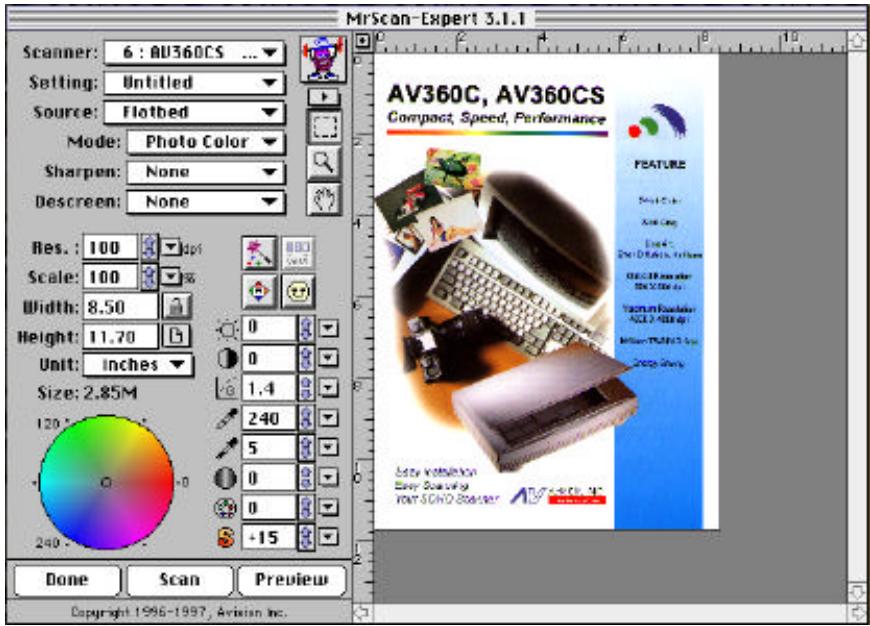
Figure 4-1 The Mac Plug-in user interface
PC Users
- Open your application and choose Select Source from the File menu. If the Select Source command is not available from the File menu, see the user guide of your application to learn how the TWAIN link is used.
- A dialog box appears containing the different TWAIN sources for you to choose from to bring an image into your application.
- Select MrScan as the source.
- You need to select MrScan for just once except when you need to use the dialog box to select a different source. In that case, you will need to select MrScan as the source again before you can reuse the AV630CS scanner.
- Place the document upside down on the document board with the text facing away from you.
- From the File menu, choose Acquire.
- Avision TWAIN user interface as Figure 4-2 will pop up on the screen. Click Preview or Scan button to scan the document.
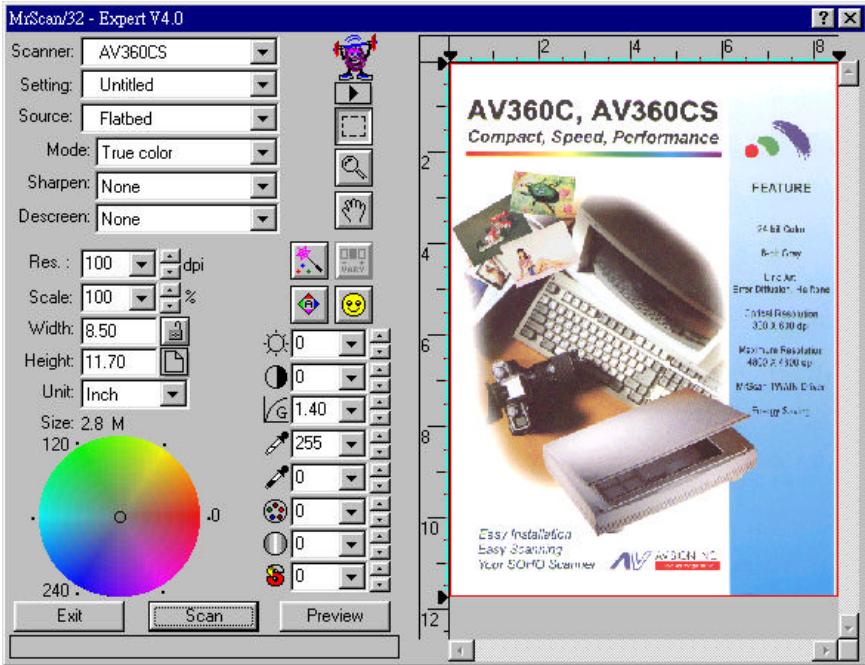
Figure 4-2 Avision TWAIN user interface
Scanning Source:
AV630CS scans two types of source, the document as well as the transparency. Select either one from the screen of Avision TWAIN user interface for your own purpose. Please see Figure 4-3 as shown below:
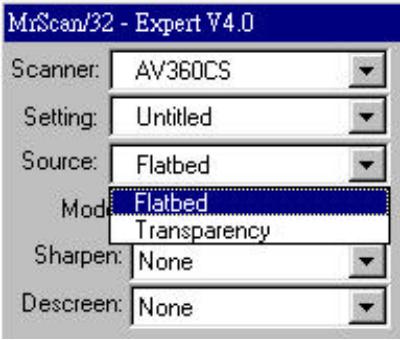
Figure 4-3 Scanning Source
4.1 Image Type
Select image type through the mode from the screen of Avision TWAIN user interface for your own purpose. Please see Figure 4-4 as below:
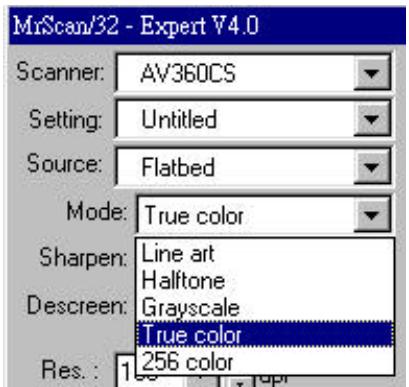
Figure 4-4 Image Type
Each image type is described as follows:
Line art
Line art includes only black and white areas. There are no intermediate shades of gray in between.
Halftone
Halftone simulates different shades of gray by varying the threshold value of a matrix.
Gray (256 levels gray scale)
Scanner recognizes each point in the image as a shade of gray (continuous tone). 10-bit gray gives more detailed information about the image.
True Color (30 bits 16.7 million colors)
The 30 bits True Color provides continuous tones along with its color hues and gives wider range of tonal range to present more detailed information of an image than the 24 bits color.
256 Colors
The 256 colors image provides 256 levels of color hues.
4.2 Resolution Control
A good control of the resolution results a satisfactory detail of an image that scans. The resolution is measured by dots per inch(dpi). Normally, the greater the dpi number, the higher the resolution and the image file size. Be aware that the greater resolution takes more time, memory and disk space, therefore, up to a certain degree of dpi, the resolution will not visually be improved, on the contrary, it makes your files more unmanageable.
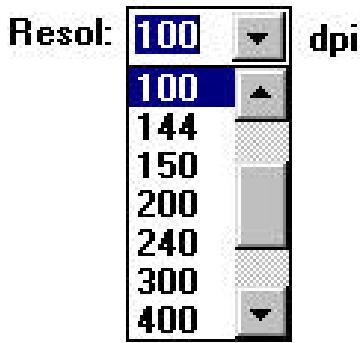
Figure 4-5 Resolution Control
4.3 Image Control
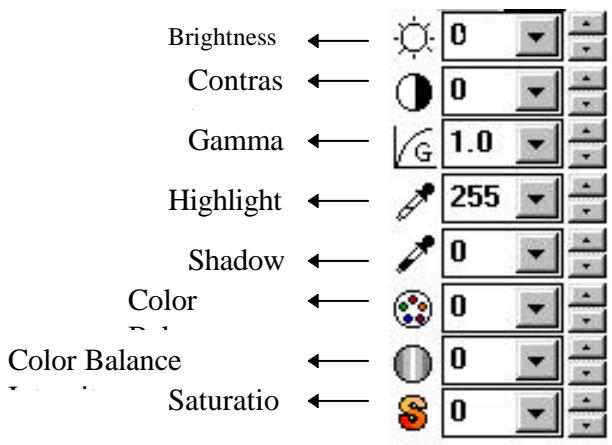
Brightness: Adjusts the lightness or darkness of an image. The higher the value, the brighter the image.
Contrast: Adjusts the range between the darkest and the lightest shades in the image. The higher the contrast, the bigger the different gray scales.
Gamma: Adjusts the midtone of the image without losing details of the lightest and the darkest areas.
Highlight: Adjusts the highlight area of the image.
Shadow: Adjusts the darkest area of the image.
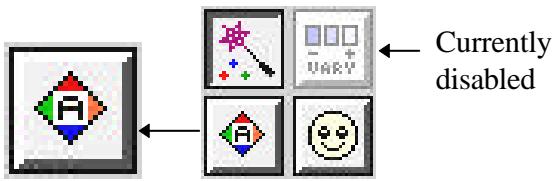
Auto Level Automatically adjusts the highlight and shadow areas of the scanned image to give it an optimal effect.
Invert:
The invert command reverses the brightness and the color in the image. For color images, each pixel will be changed into its complementary color at the command of Invert.

Color Match: Adjusts the color quality of the image so that it comes close to that of the original. This function uses default parameters to adjust the image.
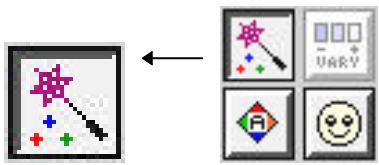
Sharpen:
Sharpens the scanned image. Look for more selections under this item.

Descreen: Eliminates the moiré patterns commonly found in printed matter.


Before Descreen

After Descreen
4.4 Scanning
Preview: Previews your image to allocate the area to be scanned.
Scan: Scans the area with the parameters you have set.
Exit: Cancels the current job.
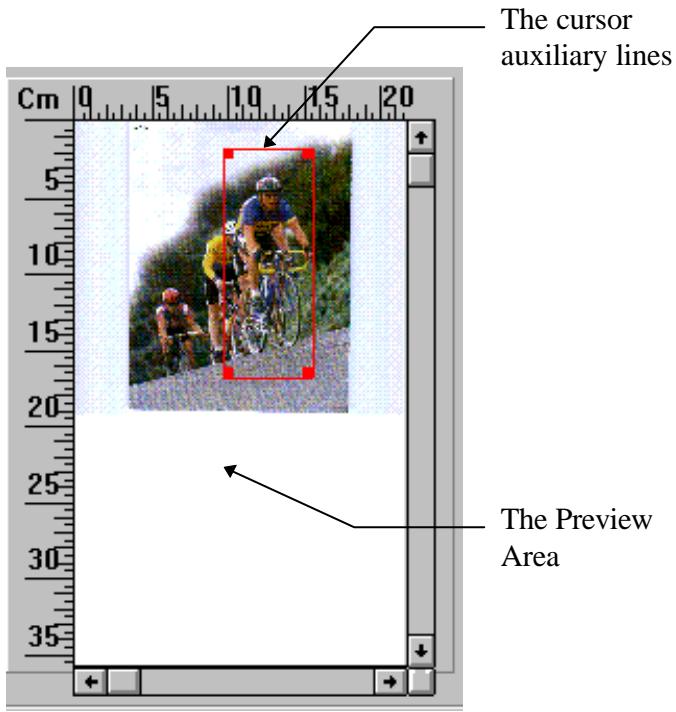
As shown in the figure below, in the Preview window, you can define the area to be scanned by dragging the cursor auxiliary lines with the mouse.
Chapter 5 Maintenance
Clean the Document Board Glass:
As shown below, wipe the scanner glass with a piece of soft clean cloth to rid the glass of dust or toner particles.

Figure 5-1 Clean the document board glass.
Chapter 6 Troubleshooting
The scanner will automatically perform a simple self test whenever it has been powered on. This will help spot major system errors in the scanner itself.
If you have any problem with the operation of the scanner, please check the following troubleshooting hints.
6.1 Questions and Answers
Question: When I power on the scanner, it makes noise and will not stand ready.
Answer: There are two possibilities:
1) You forgot to unlock the scanner. Please unlock the scanner by turning the switch to the "use" position.
2) You did not place the scanner on a level surface. Please settle the scanner on a level surface.
Question: The scanner has been powered on, but the lamp does not light up.
Answer: The lamp is out of order. In this case, please contact your local dealer to replace the lamp. The life time of the lamp is about 10,000 hours.
Question: The system would often hang up during scanning.
Answer: Please check
1) If the cable is firmly seated;
2) Only 2 SCSI terminators can be connected to your SCSI daisy chain. One is at the end of the SCSI device, another is already in your host adapter.
Question: Why is it the scanned image always comes out too dark?
Answer: 1) Modify the Gamma setting to 1.8 for your monitor and, when printing, set Gamma to 2.2 for your printer.
2) Use the Brightness setting of the TWAIN user interface to get a brighter image.
Question: Why does Image scanned in line art mode appear to be much coarser than the original?
Answer: Use the Brightness or Threshold setting to control the line art image.
6.2 Technical Service
Technical support for Avision scanner is provided at the Avision Technical Assistance Center (ATAC). Before contact with ATAC, please prepare the following information:
- Scanner serial & revision number (located on the bottom of the scanner);
- Hardware configuration (e.g., your host CPU type, RAM size, free disk space, display card, interface card...);
- The name and version of your scanning software application;
- The version of your scanner driver.
Please call us at:
US and Canada Area: Avision Labs., Inc.
Address :6094 Stewart Avenue, Fremont, CA 94538 USA
Telephone number :510-440-8785
Fax number :510-440-8337
Web Site :http://www.avision.com
E-mail :avision@avision-lab.com
Other Area: Avision Inc.
Address :No.20, Creation Road I, Science-Based Industrial Park, Hsinchu, Taiwan, R.O.C.
Telephone number :886-3-5782388
Fax number :886-3-5777017
Web Site :http://www.avision.com
Email :service@avision.com.tw
Note: 1. You can find the latest driver and documents in our homepage in World Wide Web(WWW). Our address is: http://www.avision.com
Chapter 7 Specifications
All specifications are subject to change without notice.
Model: AV630CS
Scanner Type:
Optical Resolution:
Maximum Resolution:
Scanning Modes:
Scanning Speed:
Document Size
Interface:
Power Source:
Power Consumption:
Dimensions: (WxHxD)
Weight:
Single-Pass color flatbed scanner
up to 600 dpi * 1200 dpi (H*V)
19200 dpi * 19200 dpi
Black & White mode
Halftone mode (64-step)
Error diffusion
10-bit gray scale (1024 levels internal)
30-bit color (16.7 Millions of color)
10 sec/page (letter size, color
mode, 100 dpi)
A4, B5, A5, business card
Printer port (supports SCSI card for Mac)
100Vac or 240Vac, 50-60Hz, external
12 watts (12Vdc,1A)
414 mm x 82 mm x 306 mm
3.9 kg.
Appendix Detailed Procedure for installing SCSI Driver
In Windows 95, please:
1) The "New Hardware Found?" dialog box will be displayed. Choose Driver from hard disk provided by the hardware manufacturer or choose Do not install a driver.
If you choose Driver from hard disk provided by the hardware manufacturer, please follow the following procedure.
2) The "Install from hard disk provided by the hardware manufacturer" dialog box will be displayed. Press Browse button to assign your path. Type d:\DTCSCSI (d is the letter indicating your current CD-ROM drive). Press OK.
3) The unknown device statement will be displayed. Press OK.
4) The d:\SCSI and filename will be displayed. Press OK. Your are now completing the installation of SCSI card on your computer.
If you choose Do not install a driver, please follow the following procedure.
5) Click Windows Start icon from the bottom. Choose Setting. Choose Control Panel from Setting.
6) Double click "Add new hardware" icon from the Control Panel. The "Add new hardware wizard" dialog box will be displayed. Choose Next.
7) The "Do you want Windows to search for your hardware" dialog box will be displayed. Press No and then press Next.
8) Choose hardware type "SCSI Controller", then press Next.
9) The "click the manufacturer & model of your hardware" dialog box will be displayed. Choose current SCSI manufacturer and model and then press Next. Follow the subsequent procedure as indicated to complete the installation and to restart Windows 95.
10) If current manufacturer and model are not listed in the selection box, press Have disk button. The "Have disk" dialog box will be displayed. Type d:\DTCSCSI in the path box(d is the letter indicating your current CD-ROM drive). Choose Confirm and follow the subsequent procedure as indicated on the screen to complete the installation..
11) The "Finish" dialog box will be displayed. Choose Finish and then choose Restart the Windows 95.
In Windows 3.1, please:
1) If your SCSI card is bundled with Avision AV630CS, then installing the scanner driver will at the same time complete the installation of the SCSI card driver.
2) If your SCSI card is not bundled with Avision AV630CS, then please follow the installation sheet contained in your SCSI card.
In Windows NT, please:
1) Click Windows Start icon from the bottom. Choose Setting. Choose Control Panel from Setting.
2) Choose SCSI Adapter from the Control Panel. The " SCSI Adapter" dialog box will be displayed. Choose Driver.
3) Choose Add and select manufacturer and SCSI adapter
4) Choose Have disk if your SCSI card manufacturer and SCSI adapter is not listed in the selection box. Type d:\DTCSCSI (d representing the letter of your current CD-ROM drive) and choose Confirm.
5) Follow the subsequent procedure on the screen to complete the installation.
6) When the "System Setting Change" dialog box appears, choose OK to restart Windows NT.