
LDP-600 - Portable audio player LEXAR - Free user manual and instructions
Find the device manual for free LDP-600 LEXAR in PDF.


User questions about LDP-600 LEXAR
0 question about this device. Answer the ones you know or ask your own.
Ask a new question about this device
Download the instructions for your Portable audio player in PDF format for free! Find your manual LDP-600 - LEXAR and take your electronic device back in hand. On this page are published all the documents necessary for the use of your device. LDP-600 by LEXAR.
USER MANUAL LDP-600 LEXAR
LDP-600 User's Guide
Getting Started
Congratulations and thank you for purchasing the LDP-600. This guide provides the basics of using your player. Read on and learn how to quickly start listening to your favorite music!
Some of the more advanced features are not described in this guide, but feel free to explore the menus and discover what this player can do.
For the latest information on your LDP-600, go to www.lexar.com.
Turning on the Player
Press and hold the POWER button to turn the player on. The player automatically turns on in Music mode, which allows you to play and access your music files. You can also listen to FM radio, by switching to FM mode, with the press of a button.
Switching Listening Modes
While listening to your music files, press and hold down the REC button to listen to the radio.
- Press and hold REC again to toggle between listening to the radio and your music files.
Quick View of the Controls
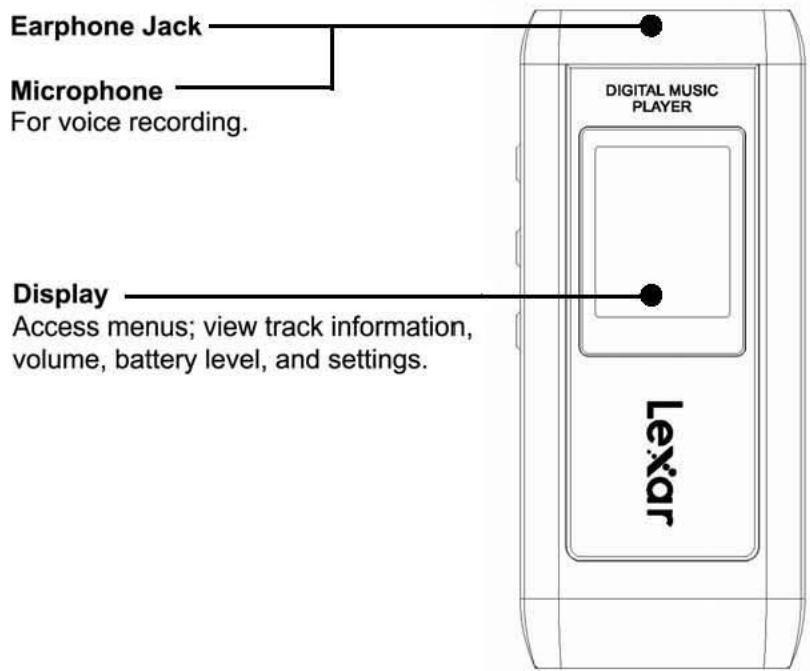
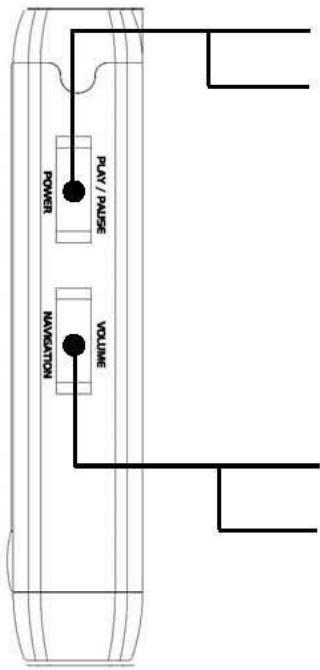
Power
Turn the player On and Off.
Play/Pause
Press to Play and Pause music when power is on.
Move up and hold to Fast Forward or down and hold to Rewind.
Quickly move and release to scan previous and next tracks.
When in FM mode, move up/down to scan stations; move and hold to manually scan.
Auto Scan
Volume
Move up/down and hold to adjust volume.
Navigation
Press and hold with a track playing to access music folders. Press and release to display player menus. Press again to select a function or on-screen item.
+/-
Move up/down to navigate to menu functions.
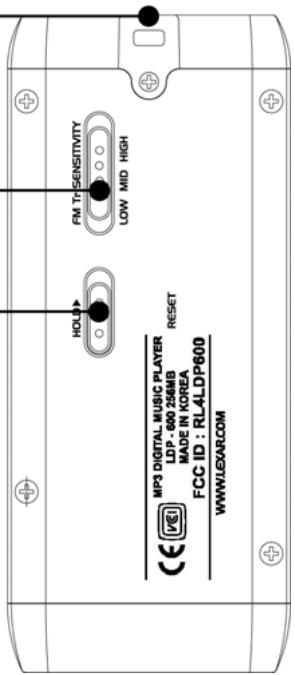
Necklace Hole
FM Tr Sensitivity
Adjust the FM transmitter reception sensitivity.
Hold
Lock the player controls to avoid an accidental button press.
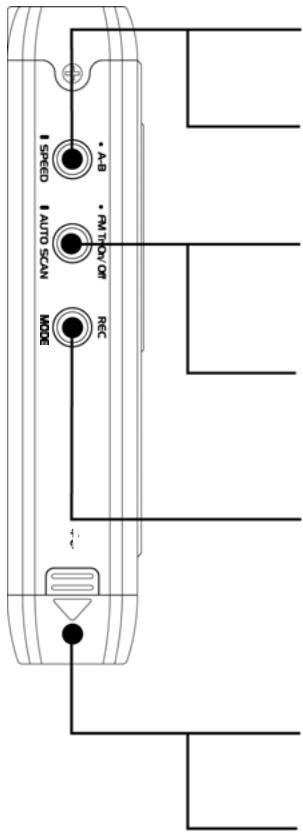
A-B
Repeat currently playing track.
Repeat a section of the track.
Speed
Change the currently set playback speed.
FM Tr On/Off
While listening to the radio, press to switch
between manual and preset scanning.
Press and hold to delete a preset in case of preset mode
AUTO SCAN
While in Manual mode, press and hold
to automatically scan stations.
Record
Press and hold to switch to FM mode.
Bookmark, Mode
Record FM radio and voice.
Add songs to a playlist in case of playback status, not stop status
Hold to Change Mode
External Card Slot
Accepts SD and MMC
external storage (up to 1GB).
USB 1.1 Connector
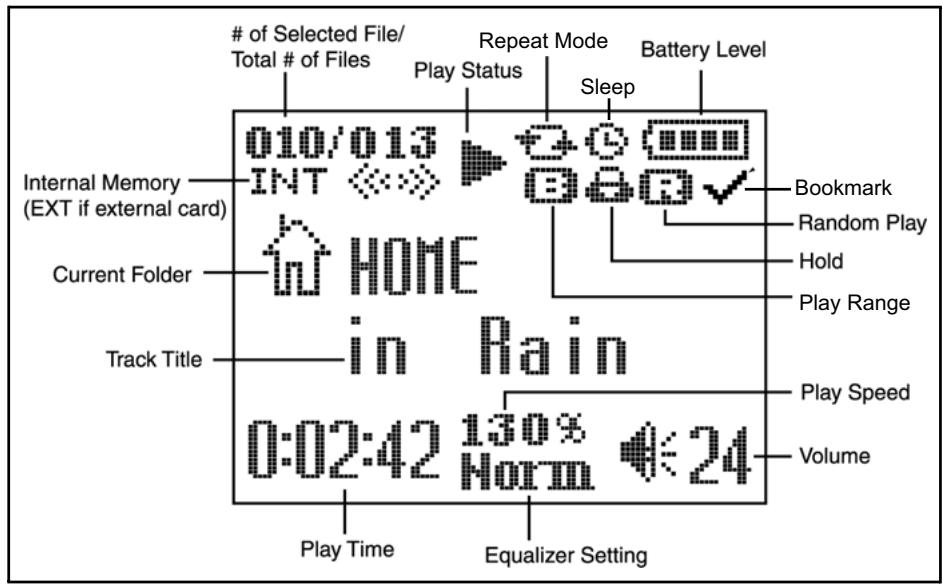
Reading the LCD Screen
The display gives you all the information you need for easy operation and navigation.
Charging the Player
Connect the USB cable to the player and to an available USB slot on your computer. The display shows that the player is charging.
Adjusting the Volume
Move the VOLUME switch to (+) to increase the volume, or (-) to decrease the volume. The maximum volume level is 40.
Locking the Player Controls
If you carry the player in your pocket, or if it's tucked away during activity, slide the HOLD switch to temporarily disable the controls so you don't accidentally press a button. It's a good idea to set the HOLD switch when the player is off too, so you don't accidentally turn it on and use up the battery.
Resetting the Player
In the event that the player does not respond to button presses, simply insert a pin or sharp object into the RESET hole on the back of the player. Press firmly and the player will be off.
Navigating the Player Screens
In addition to their standard music-playing functions, the PLAY/PAUSE, FF/REW and VOLUME +/- buttons are used to navigate around the player interface. Their function depends on the mode in which the player is currently operating.
There are three modes: Music, FM, and Menu. While in Music mode, press and hold down Navigation to access your music files and folders. Press and release Navigation access the player settings. These buttons work as described below when navigating the player, not while playing music or the radio.
| Button | Function in Menu Mode |
| Navigation | Press to enter and exit menus and folders, and to select items. |
| PLAY | Select an on-screen item. |
| FF | Press to move down a list of files/folders. |
| REW | Press to move up a list of files/folders. |
| +/- | Search up and down lists. |
Connecting the MP3 Player
You need to connect the player to your computer to download music. Connect the MP3 player to your computer using the included USB cable. The player is recognized on your computer as a "Removable Disk." If you have an external memory card inserted, it will be recognized as a second Removable Disk.
If the player is powered off, it will automatically turn on when you connect it to your computer.
Loading Music
Your player appears as an external device ("Removable Disk") when connected to your computer. To load music, select the folder on your computer that contains your music, then copy and paste, or drag and drop the music files onto the player. To buy music, see "Purchasing Music from On-line Music Stores" on page 8.
Playing Music
To get to your music folders, press and hold down Navigation button. Press +/- to view other folders. Press FF to move within a folder, and REW to move out of the folder. Press Navigation to exit menus.
Press the PLAY/PAUSE button to play your music. While playing a song, press PLAY/PAUSE to pause the song.
For random play of your music, select Play from the player Menu. Select Random from the Menu, and then select On.
To continuously play your music, select Play from the player Menu. Select Repeat Mode from the Menu, and then select either Once to play the music files one time, or Continue to continuously play the music files.
See "Navigating the Player Screens" on page 6 for more information.
Playing Music from a Memory Card
The LDP-600 accepts SD and MMC cards up to 1GB. Open the bottom of the player and insert a card into the external slot.
Press Navigation and then select Memory from the player Menu. Select Change Drive from the Menu, and then press Navigation to select Yes. Exit the Menu.
To play music from an external memory card, press and hold Navigation to access your music folders. You will see the external card folder. Select the folder then press the PLAY button.
You will need to select Change Drive again to return to playing songs that are already on the player.
Setting the Playback Speed
Setting the playback speed is a handy feature to use when listening to a voice recording. Select Speed from the player Menu to adjust the speed. You can choose from 75 130 percent of normal playback speed. To change the playback speed, press and hold the SPEED button on the player. The speed will change based on the speed that you select.
To switch back to normal speed, press and hold the SPEED button on the player.
Setting the Equalizer
The equalizer features allows you to play your music in one of the following music styles: Normal, Classic, Live, Pop, X-Bass. and Rock.
To set a music style, press Navigation and then select Play from the player Menu. Select Equalize from the menu and then choose your preferred music style.
You can also set your own custom equalizer setting by selecting User EQ.
Creating Playlists
Use theBookmark feature to create playlists containing up to 20 songs.
To create a playlist, begin playing a song and press the REC button. The track is made into a playlist. Press REC again to unset the bookmark that was set before.
To access your playlists, press Navigation and then select Play from the player Menu. Select Play Range and then selectBookmark.
Playing the Radio
With the player on and in Music mode, press and hold down the REC button to switch to the FM radio. To access the FM Menu, press and release Navigation while listening to the radio.
- Press FF to tune to the next frequency.
- Press REW to tune to the previous frequency.
- To automatically scan stations, hold down FF or REW.
Presetting Channels
While in Manual listening mode, tune to the station you would like to preset and press PLAY/PAUSE.
Press FF or REW to change channel number and then press PLAY/PAUSE to save current frequency to that channel.
To remove a station from your presets, press and hold the FM Tr On/Off button, and then press Navigation button after selecting YES.
Recording from a Radio Station
If the player is in Music mode, press and hold the REC button to switch to FM mode. Press the REC button to begin recording from the radio. Press PLAY while recording to pause the recording. Press the REC button to stop recording.
Using the FM Transmitter
The FM transmitter feature allows you to play the music on your MP3 player on a separate radio or stereo, such as in your car.
Turn on the player and plug in the antenna. Select the music you want to play and press the FM Tr On/Off button. The FM broadcasting starts, and the station to tune to on your stereo is shown on the player display. Tune to that station on your stereo.
For more information on how to optimize the FM transmitter performance for play and the antenna, go to www.lexar.com.
Voice Recording
Make sure the player is in Music mode. Pause the track that is playing. Press the REC button to access the voice recording feature. Press REC to begin recording. Press REC again to stop recording.
Voice recordings are stored in a folder labeled "Voice."
Deleting Music Files and Folders
There may be times when you want to remove the music on your player and replace it with new music.
While in Music mode, press Navigation and select File from the player Menu. Select Del File (to delete one music file), or Del Folder (to delete an empty folder).
See "Navigating the Player Screens" on page 6 for more information.
Purchasing Music From On-line Music Stores
Using Windows Media Player 10
You can purchase music from on-line music sites that do not require their own application, but use Windows Media 10 as the software application to transfer music from your computer to your LDP-600.
Depending on the on-line music store, some will require you to download a plug-in for Windows Media 10. If the on-line music store requires a plug-in, download the plug-in and install it on your computer. The plug-in will upgrade the functionality of Windows Media Player to support music purchased from your on-line store.
Once you have downloaded and installed the plug-in, navigate to your on-line store by going to View, On-line Store. Select your on-line store.
Find and purchase the music that you want to buy.
- If you are an existing customer, you will need to log-in to your account and follow the steps to purchase your music.
- If you are a new customer, you will need to register and set up an account on the store.
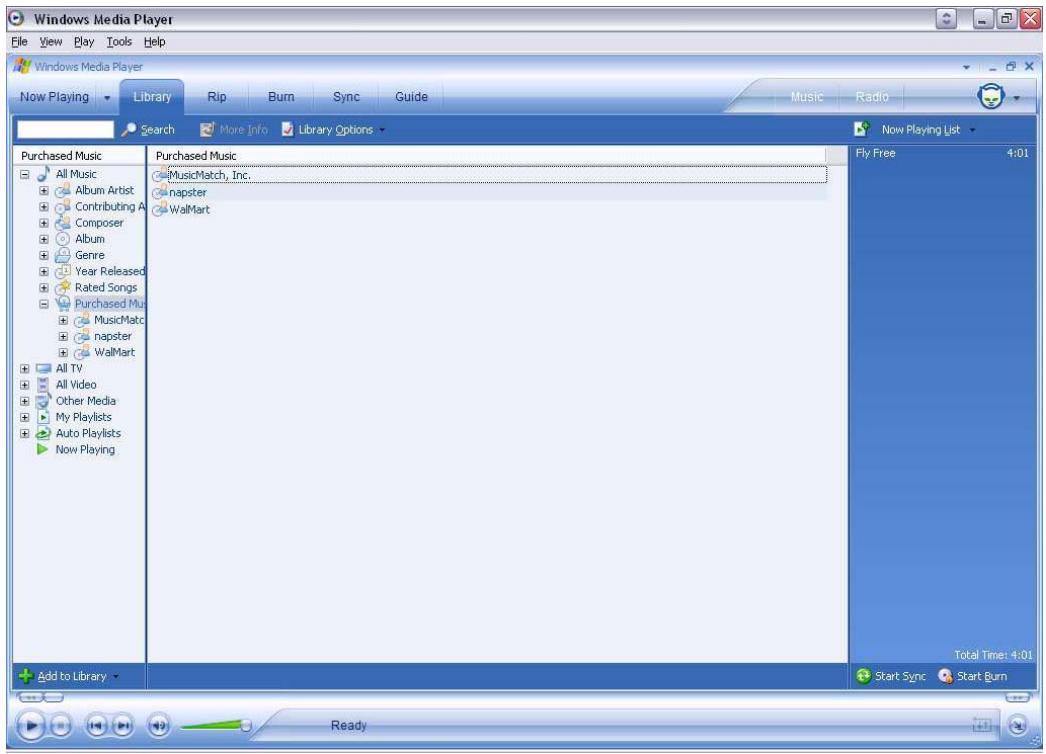
Once you have purchased the music, navigate to Sync and click on Edit Playlist. Find the music that you want to copy to your LDP-600. Once you have found your music, double click on it and it will be part of the Sync List.
Once you find all of the music that you want to copy, click on Start Sync. Windows Media 10 will copy the highlighted music to the LDP-600. Disconnect the LDP-600 from your computer.
Here are some of the on-line music retailers that offer support for Windows Media 10:
- www.napster.com
- www.musicmatch.com
www.walmart.com
www.msn.com
Using the On-Line Music Retailer's Application
Some retailers require you to use their application to transfer purchased music from your computer to the LDP-600.
Go to the retailer's Web site and download their application. Install their application and register as a customer. Select and purchase the music that you want.
Connect your Lexar LDP-600 to your computer. The LDP-600 will show up as a portable device. Select the music files that you want to copy to your LDP-600. Drag and drop the files to the player.
The on-line music store's application will then transfer your music files from your PC to the LDP-600.
Here is a compatible on-line music store:
www.real.com
Need More Help?
If this guide did not answer all of your questions, additional help is available.
- go to www.lexar.com and click on Support
510-413-1200
Try the Web site first. It's the most up-to-date and easiest way to find your solutions.
Federal Communications Commission (FCC) and VCCI and CE
Model Name: LDP-600
FCC ID: RL4LDP600
Company Name: Lexar, Inc.
This device complies with Part 15 of the FCC Rules. Operation is subject to the following two conditions:
- This device may not cause harmful interference, and
- This device must accept any interference received, including interference that may cause undesired operation.
This equipment has been tested and found to comply with limits for a class B digital device, pursuant to Part 15 of the FCC Rules. These limits are designed to provide reasonable protection against harmful interference in a residential installation. This equipment generates, uses and can radiates radio frequency energy and, if not installed and used in accordance with the instructions, may cause harmful interference to radio Communications, However, there is no guarantee that interference will not occur in a particular installation. If this equipment does cause unacceptable interference to radio or television reception, which can be determined by turning the equipment off and on, the user is encouraged to try to correct the interference by one or more of the following measures.
- Reorient or relocate the receiving antenna.
- Increase the separation between the equipment and receiver.
- Connect the equipment into an outlet on a circuit different from that to which the receiver is connected.
- Consult the dealer or an experienced Radio/TV technician for help.
Caution
Changes or modifications not expressly approved by the party responsible for compliance could void the user's authority to operate the equipment.
Démarrage
Federal Communications Commission (FCC) et VCCI et CE
© 2004 Lexar Media, Inc. All rights reserved.
P/N 7265, Rev A