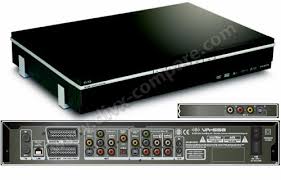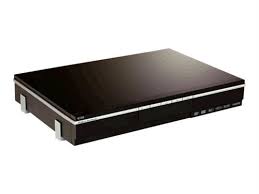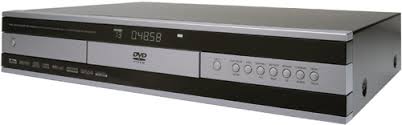
DP-450 - DVD player KISS - Free user manual and instructions
Find the device manual for free DP-450 KISS in PDF.



User questions about DP-450 KISS
0 question about this device. Answer the ones you know or ask your own.
Ask a new question about this device
Download the instructions for your DVD player in PDF format for free! Find your manual DP-450 - KISS and take your electronic device back in hand. On this page are published all the documents necessary for the use of your device. DP-450 by KISS.
USER MANUAL DP-450 KISS
Traditional/analog audiotilstnutting:
Congratulations on your new DVD Player
The many different functions provided by your new player will be a source of pleasure to you for many years to come. Naturally, you can play and watch DVD films with superb audio and visual quality.
You can watch films in many other formats than DVD, such as SVCD, MPEG-4 or DivX (ver. 4 or higher). The audio features also give you the option of playing music CDs or MP3 files.
The DP-450 automatically recognises each format and can read CD-RW and DVD-RW alike. Your new DP-450 also supports Photo CDs (jpg), which means that you can show your photos right on the TV screen. This includes the pictures developed at the photo shop and any photos you have scanned and saved on a CD yourself.
Import safety information
- Read these instructions carefully and pay attention to all warnings and guidelines.
- Do not overload electric sockets or extension cords. Overloading can result in fire or electric shock.
- Never insert objects into the DVD player's cabinet door. They might come into contact with dangerous voltage points or you can short-circuit components, which can cause fire or electric shock.
- Do not spill liquids on the DVD player.
If the DVD Player does not function normally, or if it emits unusual sounds or odours, pull out the plug immediately and contact an authorised technician. - Do not attempt to perform service on the DVD Player yourself. If you open or dismantle the shielding, you can expose yourself to dangerous voltage and other hazards. All service must be performed by qualified service technicians.
Environmental information
The system is made of recyclable materials which can be reused if disassembled by authorised personnel.
- Please follow local regulations for the disposal of packaging materials, used batteries and discarded units.
Copyright
This product contains copyrighted technology which is protected pursuant to the patents that are the property of Macrovision Corporation and other copyright holders. Any use of this copyrighted technology must be approved by Macrovision Corporation. The technology is intended for use in the home unless otherwise approved by Macrovision Corporation. Breakdown and disassembly are prohibited.
Made under license from Dolby Laboratories. "Dolby" and the double "D" symbol are trademarks of Dolby Laboratories. "DTS" and "DTS Digital Out" are trademarks of Digital Theater Systems, Inc.
Important information
Do not use the DVD Player until you have studied the configuration menu. To do so, the DVD Player must be connected to a TV set. See page 14.
Contents
| Accessories | 12 |
| Front panel | 12 |
| Rear panel | 12 |
| Remote control | 13 |
| Front panel display | 13 |
| Video connection | 14 |
| Audio connection | 14 |
| Quick setup | 15 |
| Advanced setup | 16 |
| Playing media | 17 |
| Advanced functions | 18 |
| Support and updates | 19 |
1 Accessories
Make sure the following accessories are included with your DVD Player.
Remote control unit 1
Batteries 2
for the remote control unit [size "AAA" (R6P)]
Cable, 220V 1
Audio cable 1 (two-channel)
SCART cable 1
Composite Video 1
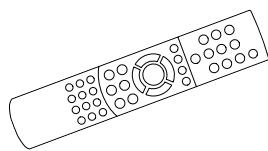
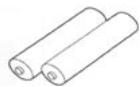
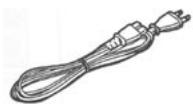
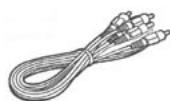
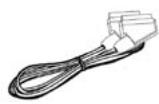
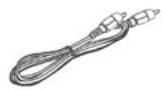
2
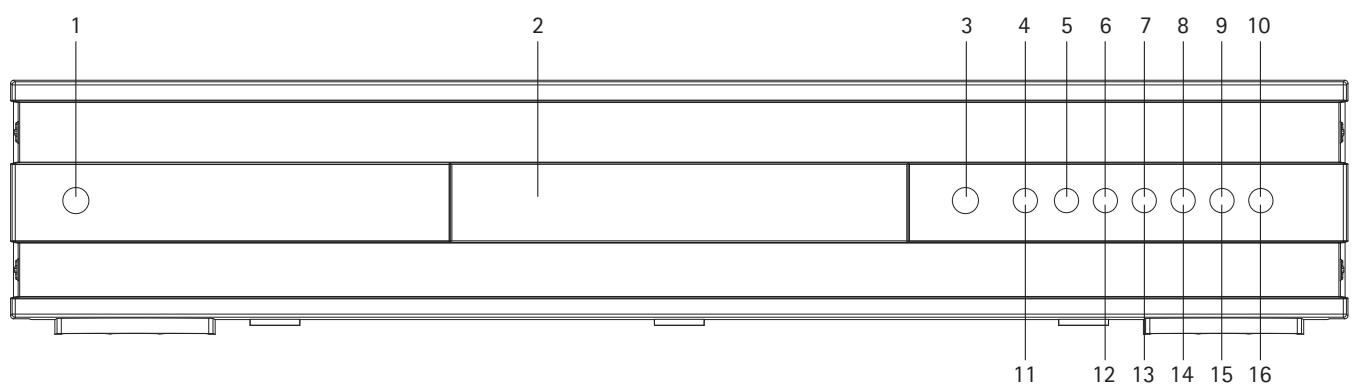
The front panel has the following standard buttons. The options of the buttons depend on whether they are used for playing various media, or in connection with the 'Setup' menu.
Playback options: Options on the 'Setup' menu:
(1) On/Off
(6) Previous chapter
(11) Enter
(2) CD tray
(7) Next chapter
(12) Navigate left
(3) Open/Close
(8) Rewind
(13) Navigate right
(4) Play/Pause
(9) Fast forward
(14) Navigate up
(5) Stop
(10) Menu
(15) Navigate down
(16) Close
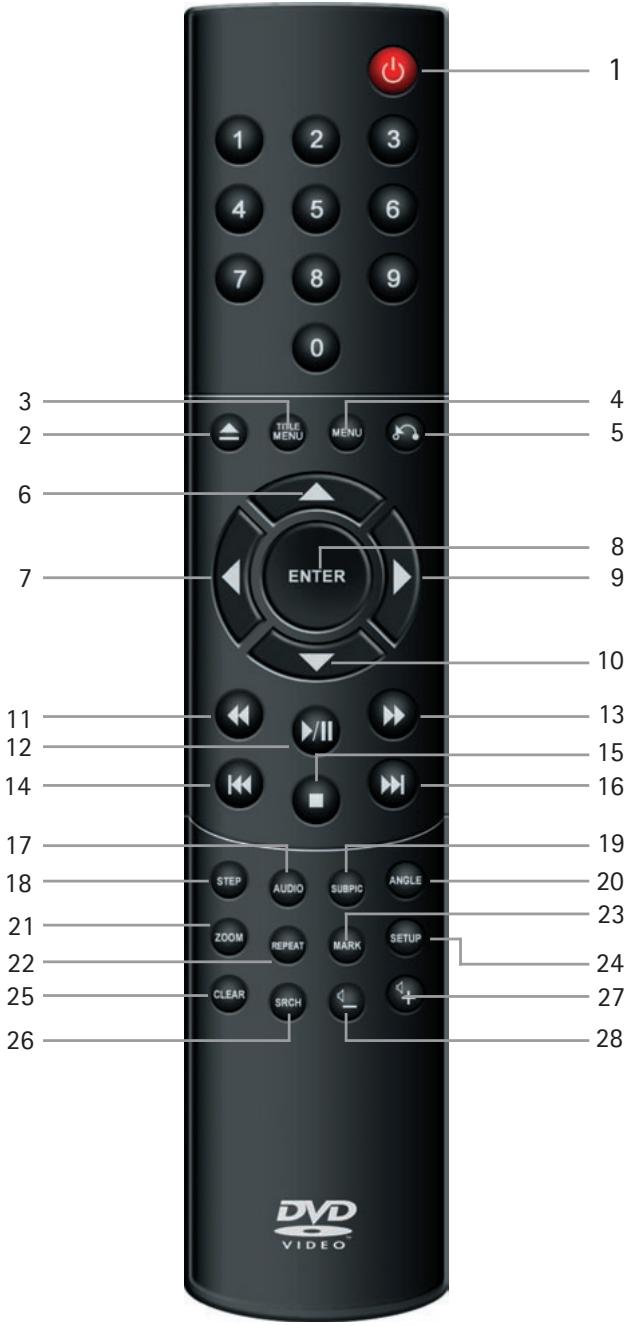
2.3 Remote control
(1) On/Off
(2) Open/Close
(3) Title/Menu
(4) Menu
(5) Back
(6) Up arrow
(7) Left arrow
(8) Enter
(9) Right arrow
(10) Down arrow
(11) Rewind
(12) Play/Pause
(13) Fast forward
(14) Previous chapter
(15) Stop
(16) Next chapter
(17) Select language/audio
(18) Next picture
(19) Select subtitles
(20) Select angle
(21) Zoom
(22) Repeat
(23) Unused
(24) Setup
(25) Clear input
(26) Search
(27) Increase volume
(28) Decrease volume
Note: Certain functions will only work if supported by the DVD.
2.4 Display
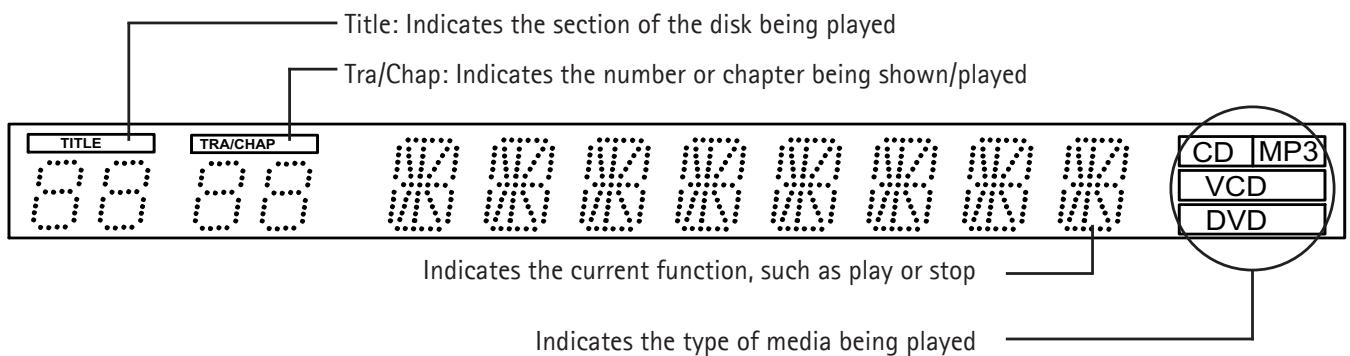
The DVD Player is equipped with a VFD display which indicates the current ongoing activities.
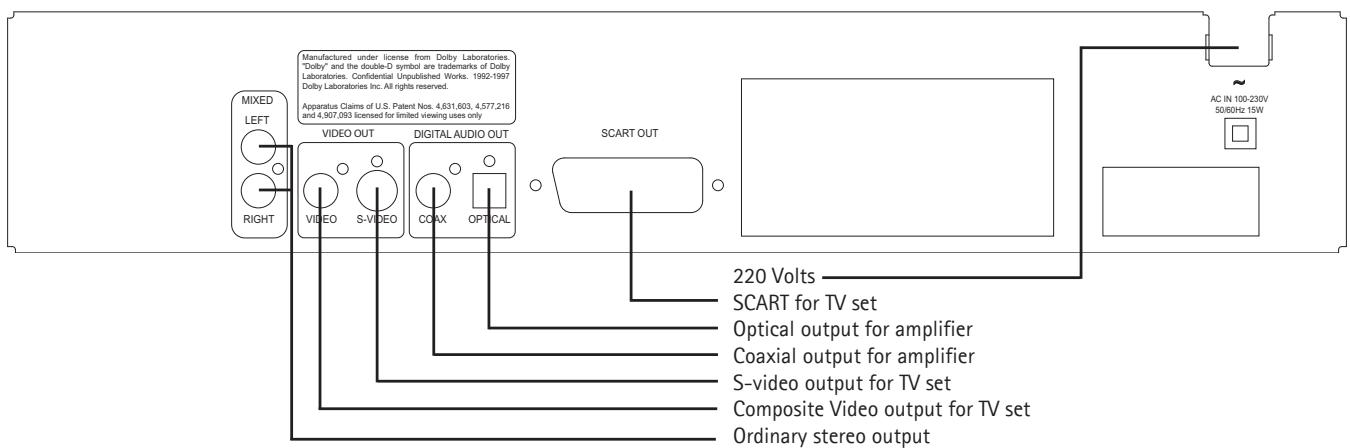
3.1 Video connection
The DVD Player can be connected in different ways, depending on your TV set and other equipment. Use only one of the methods described below.
| 1: RGB via Scart | RGB via the SCART plug is one way to connect the DVD Player to your TV set. Consult your TV set's instruction manual to see whether it supports RGB. |
| 2: S-Video | S-Video is another way of connecting the DVD Player to the TV set. S-Video is only supported by recent model TV sets equipped with an S-Video output. |
| 3: SCART | The most common way of connecting the TV set to your DVD Player is a SCART plug. The SCART plug is used for transferring pictures and sounds directly to your TV set. |
| 4: Composite Video | Composite Video is an easy way of transferring video signals via a phono cable, but requires a separate audio connection. |
| 5: Component SCART | A so-called YPbPR is another way of connecting the DVD to your TV set. Check your TV set's instruction manual to see whether it has a Component Video outlet (special cable required). |
Note: Progressive Scan is available and requires a special type of cable and a special TV set.
Video
1: RGB via SCART
2: S-Video (the cable is an extra accessory)
3:SCART
4: Composite Video
5: Component SCART
Audio
6: Optical output (the cable is an extra accessory)
7: Coaxial output (the cable is an extra accessory)
8: Stereo
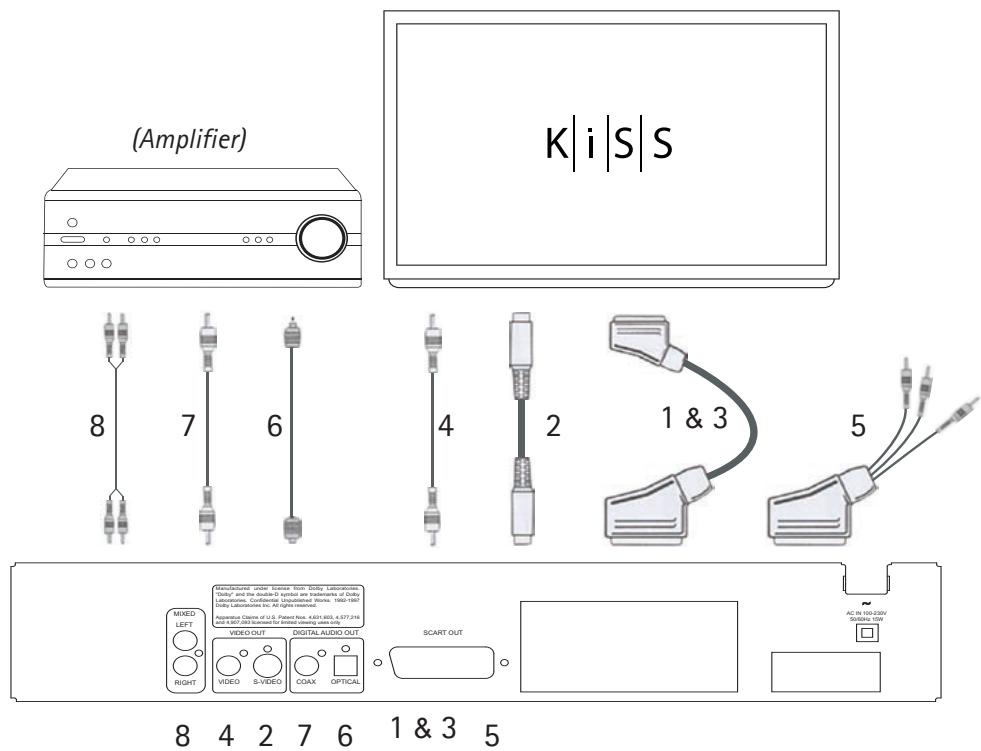
Picture: Connecting the DVD Player
3.2 Audio connection
3.2 Conventional/analogue audio connections:
Use the audio cable (phono cable) to connect the DVD Player's audio outlet with the corresponding input on the amplifier or stereo system.
3.2 Advanced/digital audio connection:
Connect the Player's digital audio outlets (optical: 5 or coaxial: 6) to the corresponding input on the amplifier.
- Special cables are required for this purpose. Next, change the DVD player's settings on the "Audio settings" menu. Refer to your amplifier's instruction manual for more information on correct setup.
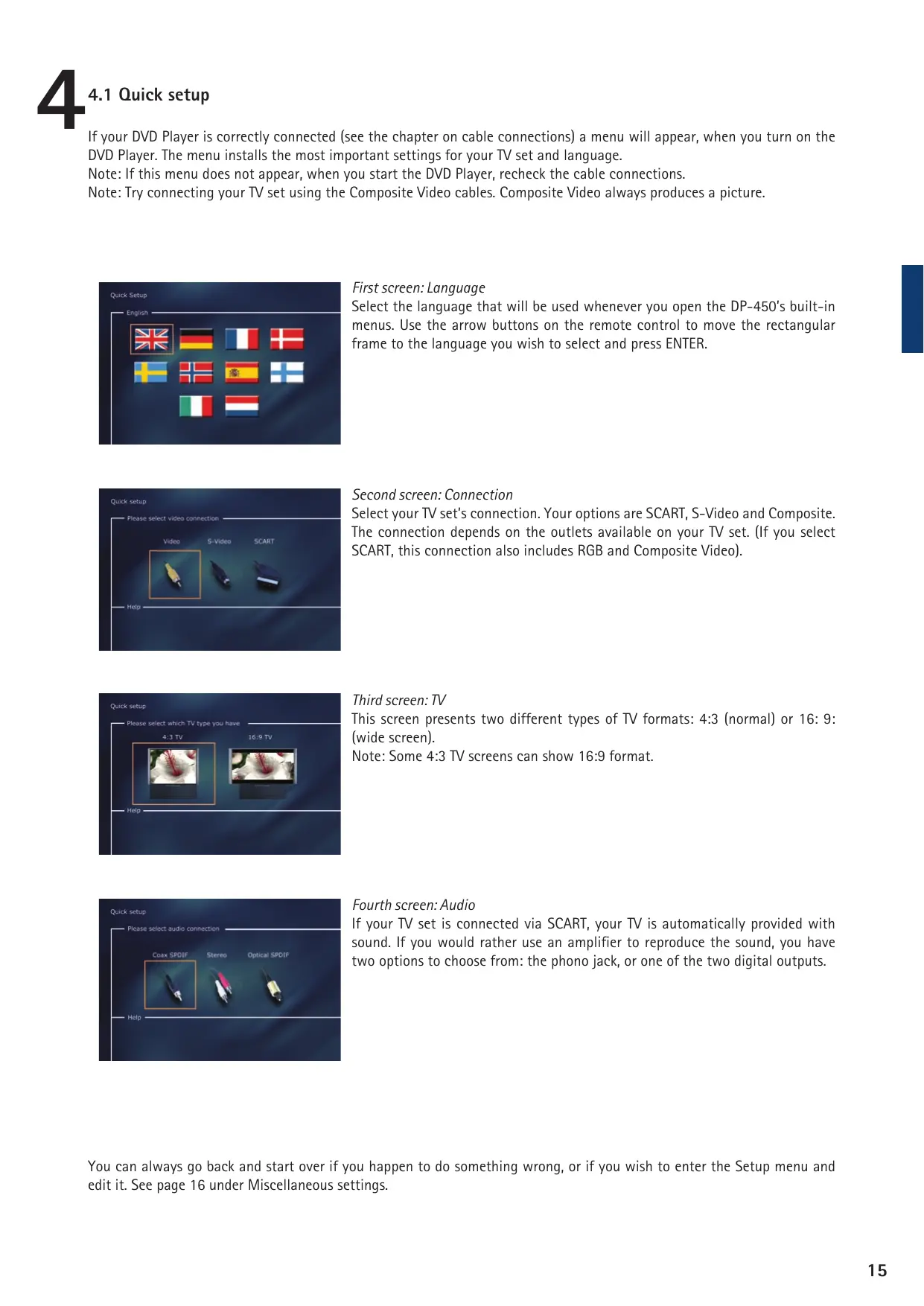
If your DVD Player is correctly connected (see the chapter on cable connections) a menu will appear, when you turn on the DVD Player. The menu installs the most important settings for your TV set and language.
Note: If this menu does not appear, when you start the DVD Player, recheck the cable connections.
Note: Try connecting your TV set using the Composite Video cables. Composite Video always produces a picture.
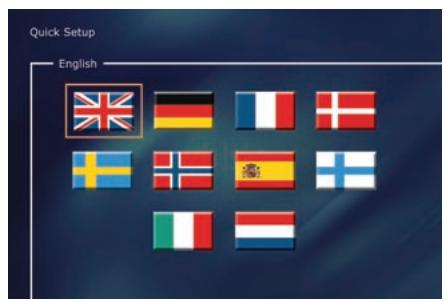
First screen: Language
Select the language that will be used whenever you open the DP-450's built-in menus. Use the arrow buttons on the remote control to move the rectangular frame to the language you wish to select and press ENTER.
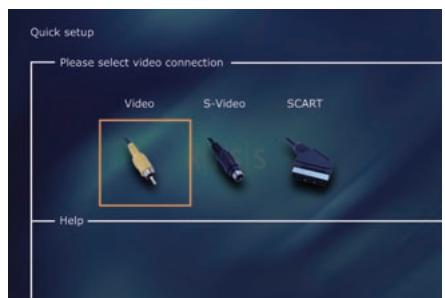
Second screen: Connection
Select your TV set's connection. Your options are SCART, S-Video and Composite. The connection depends on the outlets available on your TV set. (If you select SCART, this connection also includes RGB and Composite Video).
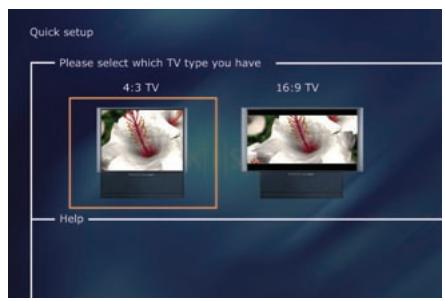
Third screen: TV
This screen presents two different types of TV formats: 4:3 (normal) or 16:9 (wide screen).
Note: Some 4:3 TV screens can show 16:9 format.
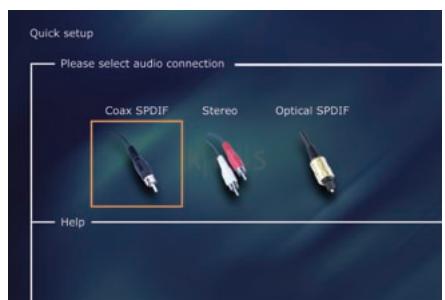
Fourth screen: Audio
If your TV set is connected via SCART, your TV is automatically provided with sound. If you would rather use an amplifier to reproduce the sound, you have two options to choose from: the phono jack, or one of the two digital outputs.
You can always go back and start over if you happen to do something wrong, or if you wish to enter the Setup menu and edit it. See page 16 under Miscellaneous settings.
5.1 Advanced setup
You can always access the Setup menu and adjust the DP-450 to your specific requirements and hardware. When DP-450 appears on the main screen, press the SETUP button on your remote control, and a menu will appear with the available options. The orange frame shows your position on the menu. Use the arrow buttons to move the frame and select by pressing the ENTER button. The settings on some of the menus have already been determined under Quick setup, but there are several settings available under Advanced setup as well.
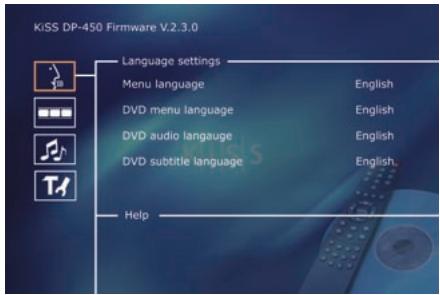
First screen: Language Settings
The first menu is the Language settings menu. Here you select the language you wish to use for the menus, that will appear on the screen, and your preferred language when playing a DVD film – for subtitles, speech and menus (they will only be used if the film supports the language).
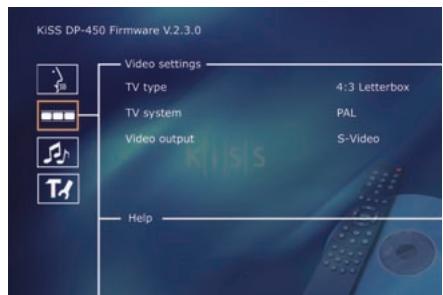
Second screen: Video settings
You have already selected your TV set on another menu, but as previously mentioned you can change it on this menu as well. You can also select a different TV system than PAL (the European standard), and you can indicate whether you have RGB via SCART, Component via SCART or S-Video. Refer to your TV set's instruction manual before selecting the connection.
Note: Composite Video via SCART is always activated.
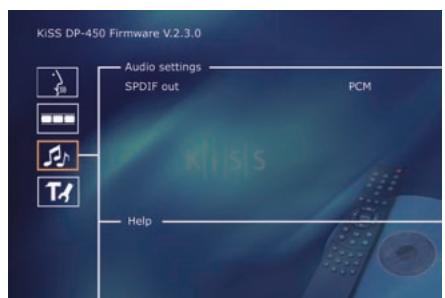
Third screen: Audio settings
This menu enables you to select either RAW or PCM.
PCM: Stereo sound. Used for slightly older amplifiers.
RAW: Plays the sound track on the disk. Recommended as default.
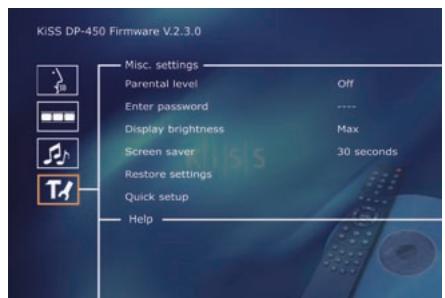
Fourth screen: Miscellaneous settings
This display lets you set your preferred level of protection on the films. Most films are divided into levels, so that parents can prevent their children from seeing a specific type of film. In the next menu item, you create a password that is required for editing this setup*. The light in the DVD Player's display can be modified from dim to normal or bright. All settings can be reset in the "Restore settings" menu, and the Quick setup can be re-initiated from the last menu.
*If you wish to modify this setup later on, you must re-enter the password.
Note: To leave a menu, press the left arrow on the remote control.
6.1 Playing media
The DVD Player supports the following media:
DVD Video
DivX, Ver. 4 and higher
ISO MPEG-4
VCD and SVCD
Audio CD and MP3
JPG
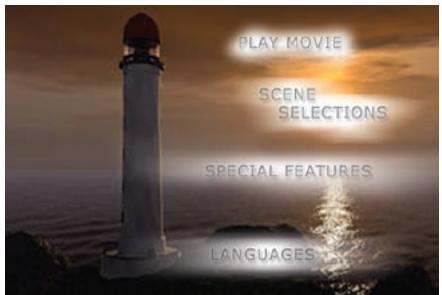
First screen: DVD Menu
If you have adjusted your DVD Player according to the instructions above, you can now insert a DVD into your DVD Player. A moment later, the DVD menu will appear. Use the arrow buttons to navigate the menu and start the film. Note: As this menu is part of the DVD itself, it will vary from DVD to DVD.
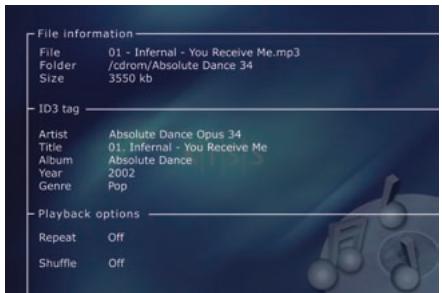
Second screen: MP3
When you insert an audio CD with MP3 music, the player will automatically recognise the format and let you select the songs you wish to hear. You can choose the order in which you want to listen to the tracks, listen to just a few songs/albums/folders or play them at random by pressing the SETUP button on your remote control and selecting the preferred method for the playing order.

Third screen: DivX and MPEG-4
The DP-450 recognises the format and automatically starts playing the CD when you insert it into the drive. Use the counter in the display to help you to see where you are in the film. You have access to the usual playback options, such as stop, pause, go to next, etc.
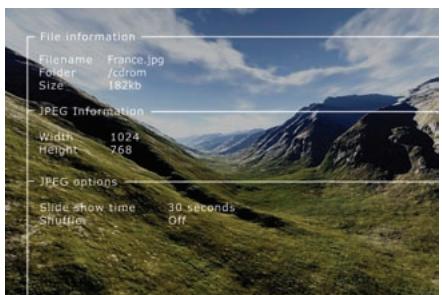
Fourth screen: Photo CD and JPG
You can either have your photos burned on a CD in the shop, where you had them developed or burn your own CD on your computer.
Afterwards the photos can be shown on your TV to the delight of your family and friends. You select whether the photos should be shown one by one in the order you prefer or as a slide show. Press SETUP to select slide show.
Note:
DVD films are sometimes furnished with a regional code (1), (2), etc., and can only be played on DVD players with the same regional code. The DVD Player is preset for region 2, unless otherwise indicated on the packaging.
7.1 Advanced functions
A number of advanced functions are located on the lower section of the remote control. These functions are described below.
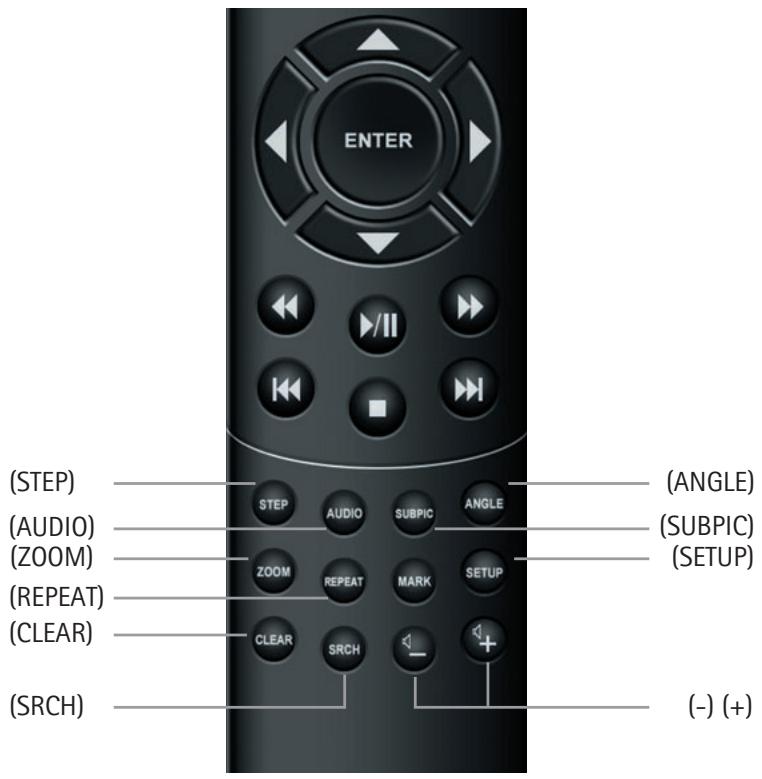
(STEP)
This function lets you watch one picture at a time. The film stops, and every time you press the (STEP) button the next picture will appear. Return to the film by pressing the (PLAY) button.
(AUDIO)
Press the (AUDIO) button to change the sound format. The audio format options, such as two-channel stereo and six-channel surround, are determined by the film producer.
(ZOOM)
When watching the film, you can zoom in on specific areas. You can zoom in either as the film is playing or after you have paused it. Activate the function by pressing the (ZOOM) button, and return to the normal picture by pressing the button repeatedly.
TIP: Use the arrow buttons to move around the enlarged screen display.
(REPEAT)
As the film is playing, press the (REPEAT) button and three options will appear on the screen.
MODE: Shuffle (random chapter playing) or Off (deactivated)
Repeat: Lets you decide whether to repeat the section or the entire film.
(CLEAR)
Use this function to delete all previous input.
(SRCH)
Use (SRCH) to find a specific spot on the disk.
Time: Specify time, minutes and seconds
Title/Chapter: Find the title or the chapter
7.2 Advanced functions
(ANGLE)
If the film supports more than one camera angle, you can switch from one angle to another by pressing the (ANGLE) button.
(SUBPIC)
Use this button to change the film's subtitles. If you press the (SUBPIC) button, a message will appear at the top left corner of the screen indicating the number of available languages and the language that is currently active. If you press the (SUBPIC) button again, you go to the next language option. The number of languages is also determined by the film's producer.
(SETUP)
If the DVD Player is in the process of showing a film or playing music, press the (SETUP) button to see the available options on the disk. For instance, if you are watching a DVD film, the left hand side of the screen will show information about the film's length, the number of chapters, the language options and the number of subtitles.
If the DVD player is turned on, but not playing films or other media, pressing this button will take you to a menu, where you can configure your DVD player. Here you can select the default settings for language, sound, video, parental level, etc. See item 2.5.
(-) (+)
These buttons are used for increasing and decreasing the sound volume.

8.1 Support
More information or assistance is available at KiSS Technology's website under Support for DVD Player.
Address: www.kissdvd.com
8.2 Updates
At our website, you can update the DVD Player's firmware/operating system with the latest new features. To do so, download the software from the support section at the www.kissdvd.com website. Then burn it on a CD-R and load it into the DVD player. See our website under support for additional information.
If you do not have Internet access, or do not own or have access to a CD burner, an update can be purchased from the dealer, where you purchased your DVD Player.
Reset all settings.
To reset the settings of the DP-450, press the following buttons on the remote control: "Open", "Clear", "1", "2", "3"
KiSS Technology reserves the right to change all settings and specifications without notice.
KiSS Instant Repair Service
If the DVD player is STILL UNDER WARRANTY, KiSS Technology A/S will pay freight costs back and forth to the customer. Please follow the instructions given by the HelpDesk. Always remember to write the RMA number (provided by the HelpDesk) on the freight bill. If the DVD player is NOT UNDER WARRANTY, all costs must be held by the customer. There are three ways to get an RMA number. "An RMA number is a reference number generated in every single case for administrative purposes."
- By fax or e-mail: Fax: +45 44 78 41 48 and e-mail: kiss@esupport.dk: Enclose the error description, serial no., invoice no., copy of the invoice/sales ticket and warranty.
- Personal contact: Phone KiSS's Help Desk at +45 70 26 82 70 and request an RMA number.
- From the dealer: take the product to the dealer, where it was purchased.
Important: Never send the product to be repaired without obtaining an RMA no. first. Otherwise it will be rejected. The product must always be packed properly, otherwise the product warranty will be discontinued. (Packaging can be purchased from KiSS Technology at the market price.)
Retrieval and delivery to the end user.
The product can be picked up from and delivered directly to the end user. To do so, the end user must follow the HelpDesk's instructions at the time of the RMA enquiry. If these instructions are not followed, the end user will be charged an extra cost that must be paid on delivery.
Warranty certificate
KiSS Technology A/S provides a twenty-four (24) month warranty from the date of purchase against material and manufacturing defects. In the event of defects covered by the warranty, the product must be returned to the dealer that sold the product, or refer to the enclosed appendix on the KiSS Instant Repair Service. The expected time of repair, including transport, is approximately five working days (except for outlying areas).
If any problems arise, information on our authorised service centres is available at the following address, or from the dealer that sold the product.
KiSS Technology A/S, Slotsmarker 10, DK 2970 Hørsholm, Denmark Hotline (user support) +45 45 17 00 07, HelpDesk (repair support) +45 70 26 82 70
Terms of Warranty
- The warranty is only valid on presentation of a correctly completed warranty certificate and sales ticket, and if the serial number on the product is fully legible.
- The obligations of KiSS Technology are limited either to repair or replacement of defective components. The repair or replacement of defective components is based on an assessment by KiSS Technology. Exchange is only possible if the repair cannot be performed.
- Warranty repairs must be performed by an authorised KiSS Technology dealer, or an authorised service centre. No remuneration is provided for repairs performed by unauthorised workshops. Any repairs or damage to the product caused by unauthorised intervention are not covered by this warranty.
- This product will not be viewed as defective, neither in materials nor in manufacture, if adaptation to national, local, technical or safety-related requirements is required in countries other than the specific country for which the product was originally designed and manufactured.
- This warranty does not cover these types of adaptations, and no remuneration will be offered for these types of adaptations or for any consequential damages. The warranty does not cover the following:
a) Periodic inspection, maintenance and repair or replacement of parts resulting from normal wear. b) Costs connected to transport, disassembly or installation of the product.
c) Misuse, including use for other purposes than the intended, or faulty installation. d)Damage caused by lightning, water, fire, natural catastrophes, war, insurrection, incorrect line voltage, insufficient ventilation or other causes beyond the control of KiSS Technology. - This warranty applies to every legal owner of the product during the warranty period.
Information we must receive before repairing the product:
Model name: KiSS DVD Player DP-450
Serial no.:
RMA no.:
Copy of the invoice or sales ticket
The dealer's name, address and phone no.
Personal information: Name, address, post code/city, phone no. and e-mail address (optional).
Your signature
Dealer's stamp and signature
Date
HelpDesk (repair support) +45 70 26 82 70
hotline@kiss-technology.com