
DC-2122 - Digital Camera MINOX - Free user manual and instructions
Find the device manual for free DC-2122 MINOX in PDF.


| Product type | Digital camera |
| Brand | MINOX |
| Model | DC-2122 |
| Maximum resolution | 1600 x 1200 pixels (2.1 megapixels) |
| Sensor | CCD 1/3.2 inch |
| Lens | Fixed focal length 5.6 mm, F2.8/5.6 |
| Digital zoom | 2x |
| LCD screen | 1.6 inch TFT color |
| Internal memory | 8 MB |
| Memory support | SD card (up to 128 MB) |
| Image format | JPEG |
| Video format | Motion JPEG (320 x 240 pixels) |
| Power supply | 2 AA batteries (not included) or AC adapter (optional) |
| Dimensions (L x H x D) | 105 x 44 x 55 mm |
| Weight | Approx. 150 g (without batteries or card) |
| Flash | Built-in, modes: Auto, Red-eye reduction, Forced, Off, Slow sync. Range: 0.5 to 2.5 m |
| Shutter speed | 1/10 s to 1/1000 s |
| White balance | Auto, Sunny, Cloudy, Fluorescent, Tungsten |
| Exposure compensation | -1.8 to +1.8 EV in 0.3 steps |
| Self-timer | 10 seconds |
| Connectivity | USB, video output (NTSC/PAL), DC input |
| Shooting modes | Photo, Video, Playback, Setup |
| Included accessories | USB cable, video cable, CD-ROM, wrist strap, case |
| Maintenance and cleaning | Clean with a soft dry cloth. Avoid solvents. Protect from moisture. |
| Safety | Do not expose to water, do not disassemble, use only specified batteries, do not use if smoke or abnormal odor. |
| Spare parts and repairability | Batteries commercially available; AC adapter optional. The device is not user-repairable. |
Frequently Asked Questions - DC-2122 MINOX
User questions about DC-2122 MINOX
0 question about this device. Answer the ones you know or ask your own.
Ask a new question about this device
Download the instructions for your Digital Camera in PDF format for free! Find your manual DC-2122 - MINOX and take your electronic device back in hand. On this page are published all the documents necessary for the use of your device. DC-2122 by MINOX.
USER MANUAL DC-2122 MINOX
This device complies with Part 15 of the FCC Rules. Operation is subject to the following two conditions:
(1) this device may not cause harmful interference, and
(2) this device must accept any interference received, including interference that may cause undesired operation
Note: This equipment has been tested and found to comply with the limits for Class B digital devices, pursuant to Part 15 of the FCC rules. These limits are designed to provide reasonable protection against harmful interference in a residential installation. This equipment generates, uses and can radiate radio frequency energy and, if not installed and used in accordance with the instructions, may cause harmful interference to radio communications. However, there is no guarantee that interference will not occur in a particular installation. If this equipment does cause harmful interference to radio or television reception, which can be determined by turning the equipment off and on, the user is encouraged to try to correct the interference by one or more of the following measures:
Reorient or relocate the receiving antenna.
■ Increase the separation between the equipment and receiver.
- Connect the equipment into an outlet on a circuit different from that to which the receiver is connected.
■ Consult the dealer or an experienced radio/TV technician for help.
Use of shielded cable is required to comply with Class B limits in Subpart B of Part 15 of the FCC rules.
Do not make any changes or modifications to the equipment unless otherwise specified in the manual. If such changes or modifications should be made, you could be required to stop operation of the equipment.
■ Microsoft® and Windows® are U.S. registered trademarks of Microsoft Corporation.
Pentium® is a registered trademark of Intel Corporation.
Macintosh is a trademark of Apple Computer, Inc.
SD^TM is a trademark.
- PhotoSuite, PhotoVista and the MGI logo are trademarks or registered trademarks of MGI Software Corp.
Adobe, the Adobe logo, and Acrobat are trademarks of Adobe Systems Incorporated.
- Other names and products may be trademarks or registered trademarks of their respective owners.
READ THIS FIRST
Please start by reading the important messages below first.
- The bundled driver, software, design, specifications and user's manual that packaged with the camera are subject to change without notice.
- The accessories that come with the camera may vary between regions.
- For driver update, you can contact the dealer who you purchased the camera from for help.
- We are not liable whatsoever for any compensation arising from errors in descriptions in this user's manual.
WARNING
- Do not use the camera if it is emitting smoke, becomes unusually hot to be touched, emitting any unusual odor or noise, or if it is in any other abnormal states. Operating the camera in any of these situations may cause a fire or an electrical shock. Stop using the camera immediately, turn the camera off, and then disconnect the power source (batteries or AC power adapter). (If you are using the AC power adapter, unplug the adapter from the AC power outlet after you have disconnected the camera.) After checking that smoke is no longer being emitted, contact your dealer or your local authorized service facility and request repairs. Never attempt to repair the camera yourself as this is dangerous.
- Do not use the camera if any foreign objects have entered the camera. Turn the camera off, and then disconnect the power source (batteries or AC power adapter). (If you are using the AC power adapter, unplug the adapter from the AC power outlet after you have disconnected the camera.) Then contact your dealer or your local authorized service facility. Do not continue to use the camera as this may cause a fire or an electrical shock.
If the camera has been dropped or if the camera case has been damaged, turn the camera off, and then disconnect the power source (batteries or AC power adapter). (If you are using the AC power adapter, unplug the adapter from the AC power outlet after you have disconnected the camera.) Then contact your dealer or your local authorized service facility. Do not continue to use the camera as this may cause a fire or an electrical shock. - Do not place the camera in any unstable locations such as on a wobbly table or sloping surface where the camera may fall or tip over and cause injury.
- Do not expose the camera to moisture and make sure that there is no water getting into the camera. Take particular care when using the camera under extreme weather conditions such as rain or snow, or when operating the camera at the beach on near water. Water in the camera may cause a fire or an electrical shock.
- Do not attempt to modify the camera. This may cause a fire or an electrical shock.
- Do not remove the camera casing. This may cause an electrical shock. Internal inspection, maintenance and repairs should only be carried out by your dealer or local authorized service facility.
- Do not touch the power plug during a thunderstorm if you are using the AC power adapter. This may cause an electrical shock.
CAUTIONS
- Do not place the camera in damp or dusty locations. This may cause a fire or an electrical shock.
- Do not place the camera in a location affected by oil fumes or steam, such as near a cooking stove or humidifier. This may cause a fire or an electrical shock.
Exposure to high temperatures may adversely affect the camera case and internal components and may cause a fire. - Do not cover or wrap the camera or the AC power adapter with a cloth or quilt. This may cause heat to build up and distort the case and cause a fire. Always use the camera and its accessories in well-ventilated locations
- Handle the camera carefully and do not bump the camera into any hard object. Handling the camera roughly may cause a malfunction.
- Do not move the camera while it is switched on. (If you are using the AC power adapter, unplug the adapter from the AC power outlet after you have switched off the camera.) Ensure that any connector cords or cables to other devices are disconnected before moving the camera. Failure to do so may damage the cords or cables and cause a fire or an electrical shock.
- When leaving the camera unused for long periods, such as during a vacation, always unplug the camera from the power source (batteries or AC power adapter) for safety. (if you are using the AC power adapter, unplug the adapter from the AC power outlet after you have disconnected the camera.) Failure to do so could result in a fire.
- Do not use batteries other than those specified for use with the camera. The use of unsuitable batteries may result in the batteries splitting or leaking and causing a fire, injury, or soiling of the battery compartment.
- When fitting batteries into the camera, check the polarity markings on the battery (- and +) to ensure that you insert the battery correctly. Incorrect battery polarity may result in the batteries splitting or leaking and causing a fire, injury, or soiling of the battery compartment.
- Remove the batteries if the camera will not be used for an extended period of time. The batteries may leak and cause a fire, injury or soiling of the battery compartment. If the batteries leak, clean and wipe the battery compartment carefully and install new batteries. Wash your hands carefully if you touch the battery fluid.
CONTENTS
INTRODUCTION 7
Overview 7
Package contents 7
Common (Optional) Accessories 7
GETTING TO KNOW
THE CAMERA 8
Front view 8
Rear view 9
Mode dial 10
LED indicators. 10
Status LCD 11
LCD monitor information 12
GETTING STARTED 13
Installing the batteries. 13
Using the AC power adapter .. 13
Loading a SD memory card .... 14
Attaching the strap. 14
Choosing the language 15
Setting the date and time. 15
Setting the image resolution and quality 16
RECORD MODE 17
Taking pictures 17
Using the viewfinder 17
Using the LCD monitor 18
Using the normal mode 18
Using the digital zoom 19
Using the self-timer 20
Using the macro mode 21
Using the flash 21
Taking pictures manually 23
PLAYBACK MODE 24
Viewing images 24
ZoomPlayback 25
Displaying thumbnail images.. 26
Slideshow display 26
Deleting images 27
MOVIE MODE 28
Recording video clips 28
Viewing video clips 29
TRANSFERRING RECORDED IMAGES TO YOUR
COMPUTER 30
Step 1: Installing the USB driver on Windows computers . 31
Installing the USB driver on Macintosh computers 31
Step 2: Connecting the camera to your computer 31
Step 3: Downloading images/video clips 32
For computers running Windows .. 32
For computers running Mac OS.... 32
INSTALLING
MGI PHOTOSUITE 33
INSTALLING
MGI PHOTOVISTA 34
MENU OPTIONS 35
Record menu 35
LCD BRIGHTNESS 35
QUICK VIEW 35
DIGITAL ZOOM 35
WHITE BALANCE 35
EV COMPENSATION 36
SHARPNESS 36
EXIT 36
Playback menu 37
LCD BRIGHTNESS 37
SLIDE SHOW 37
COPY TO CARD 37
DELETE ALL 37
DPOF 38
EXIT 38
Movie menu 39
LCD BRIGHTNESS 39
EXIT 39
Setup menu 40
DATE/TIME 40
LANGUAGE 40
SOUND 40
FORMATMEDIA 40
VIDEO MODE 41
AUTO POWER OFF 41
RESET TO DEFAULT 42
CONNECTING THE CAMERA
TO OTHER DEVICES 43
CAMERA SPECIFICATIONS
44
Overview
Your new digital camera delivers high quality, 1600x1200 resolution images using a 2.1 Mega pixel CCD imager. Using either the optical viewfinder or the 1.6" TFT color image LCD monitor, you can compose images and then examine them in detail. An auto-flash sensor automatically detects the shooting (lighting) conditions and determines whether the flash should be used. This feature helps ensure that your images turn out right.
8MB internal (built-in) memory lets you capture and store images without the need for an additional memory card. However, you may wish to expand the memory capacity (up to 128MB capacity) by using an external memory card.
In addition to still images, you can record short videos using the movie function. Images you have taken can be downloaded to your computer using the USB cable (USB driver required for Win98 and Mac OS 8.6) You can enhance and retouch your images on your computer by using the provided editing software, or image editing software you may already own. You may share your images with your friends via e-mail, in a report, or on a website.
DPOF functionality allows you to print your images on a DPOF compatible printer by simply inserting the memory card.
Package contents
Carefully unpack your package and make sure that you have the following items. Common Product Components:
Digital camera
USB cable
Video cable
Software CD-ROM
User's manual
Camera strap
Camera pouch
Common (Optional) Accessories:
SD memory card (up to 128MB capacity)
AC power adapter
2 x AA alkaline batteries
Front view
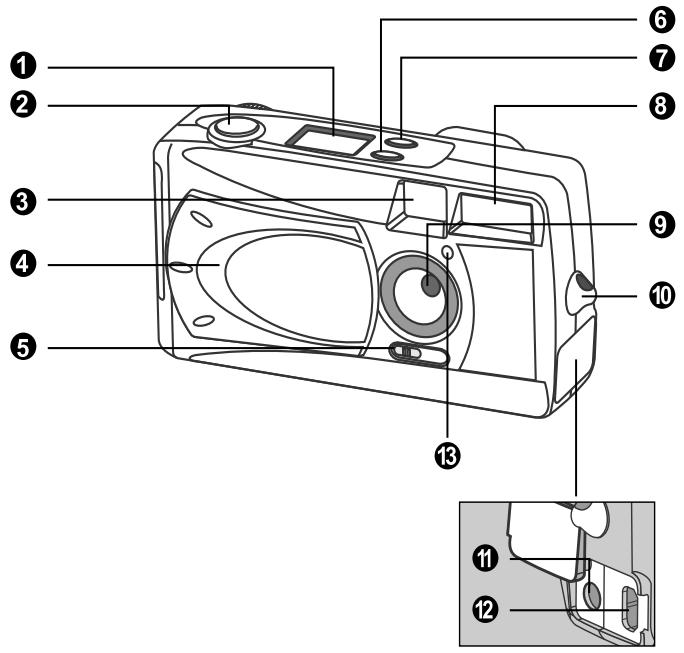
- Status LCD
2.Shutter button - Viewfinder window
- Lens cover
- Focus switch
- Flash button
-
Quality/Resolution button
-
Flash
- Lens
- Strap eyelet
- DC IN jack
- USB connector
- Self-timer lamp
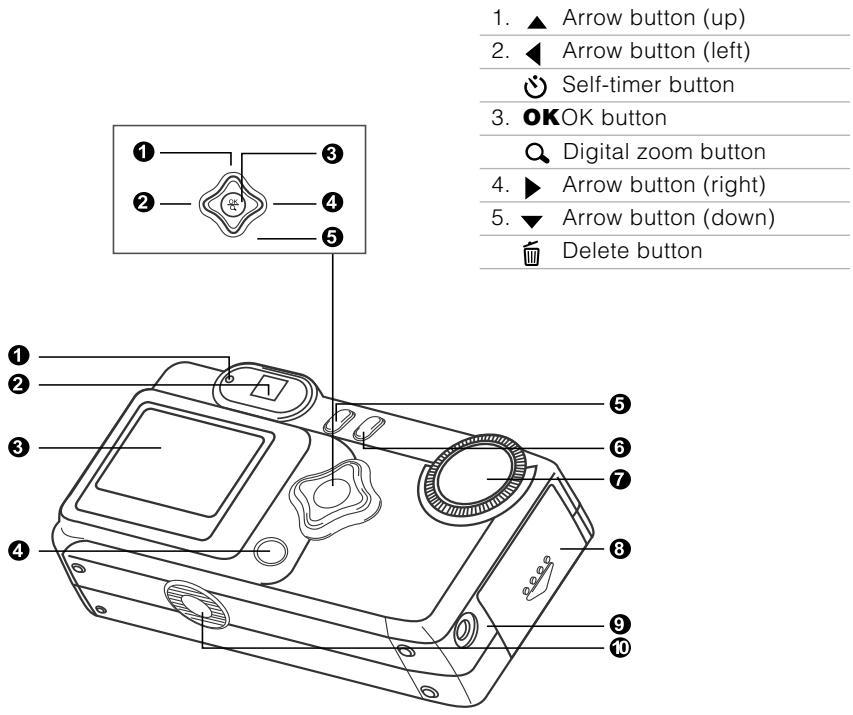
- LED indicator
2.Viewfinder - LCD monitor
-
LCD button
-
3 Menu button
- ① Power button
7.Mode dial - Battery/SD card cover
- VIDEO OUT jack
- Tripod socket
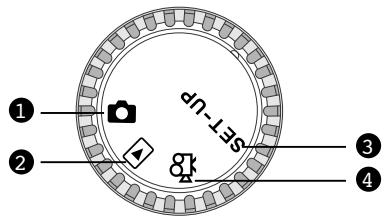
- Record mode
- Playback mode
- Setup mode
- Movie mode
| Mode | Description | |
| Record Mode | Use this mode to capture still images. | |
| Playback mode | Use this mode to view images & videos, delete images & video clips, view a slide show, view thumb-nail displays. | |
| SET-UP | Setup mode | Use this mode to adjust camera settings. |
| Movie mode | Use this mode to record video (movie) clips. | |
LED indicators
| Indicator | Status | Description/Activity | Sound |
| LED Indicator | Solid red | The camera is powering up. | No |
| LED Indicator | Blinking red | Camera system error | Yes *(3) |
| LED Indicator | Solid orange | Charging the flash | No |
| LED Indicator | Blinking orange | Image is being recorded to the memory card. | No |
| LED Indicator | Blinking orange | USB communication/transfer in progress No | |
| LED Indicator | Solid green | The camera is ready to record images (or movies). | Yes *(1) |
| Self-timer Indicator | Blinking red | The self-timer function is activated. | Yes *(1) |
| — | — | Error message | Yes *(3) |
| — | — | Valid button event | Yes *(1) |
^(3) The camera sounds three beeps.
^(1) The camera sounds one beep.
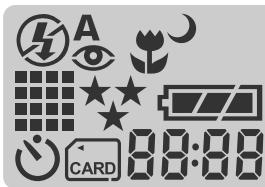
Flash mode
Auto flash
Red-eye reduction
Fill flash (on)
Flash off
Slow synchro
Image resolution
1600 x 1200 pixels
800x600pixels
Self-timer mode
Card indicator
Image quality
Fine
★★ Normal
★ Basic
Macro mode
Battery check
Full battery power
Medium battery power
Low battery power
Virtually No battery power
88:88
Digital indicator (This display varies according to the camera mode setting.)
Displays the estimated shots that you can take in Record mode 0
Displays the estimated seconds that you can record for the video clip in Movie mode.
Displays the current number of the recorded image in Playback mode.
Displays "PC" when connecting the camera to your computer by using the USB cable.
The displayed indicators when recording still images:
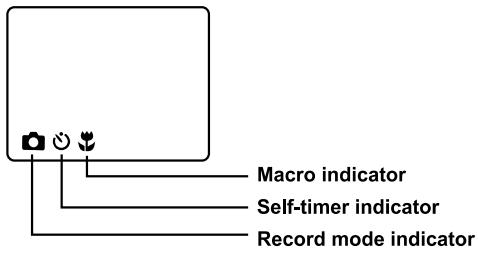
The displayed indicators when recording video clips:
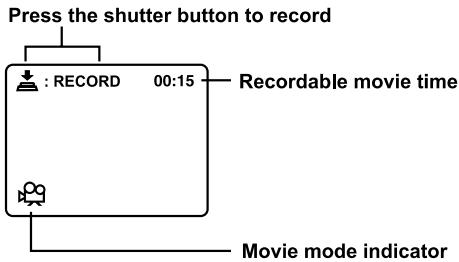
The displayed indicators when playing images back:
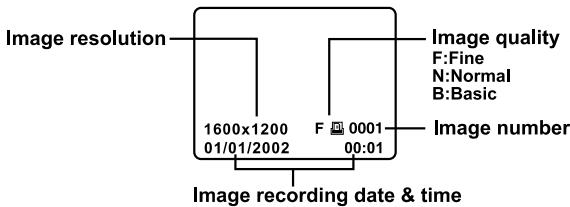
The displayed indicators when playing video clips back:
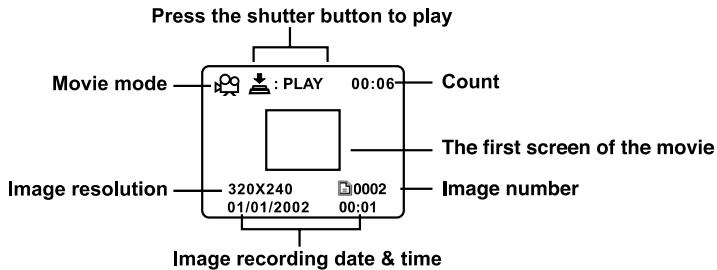
GETTING STARTED
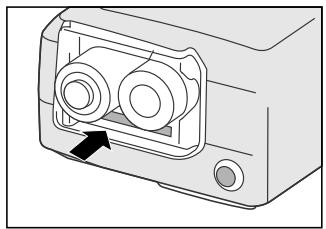
You can use either 2 AA size batteries (Alkaline, Ni-MH) or an AC power adapter (optional accessory) to power the camera. Battery power is convenient for recording images or video clips while AC adapter power is recommended for transferring images to your computer.
Installing the batteries
- Make sure the camera is off.
- Slide the battery/SD card cover in the direction of the OPEN arrow.
- Insert the batteries according to the correct polarity marks (+ or -).
- Close the battery/SD card cover firmly.

NOTE
- If you won't be using the batteries for an extended period of time, remove them from the camera to prevent leaks or corrosion.
- Never use manganese batteries.
- Never use different types of batteries (together) or mix old and new batteries.
- Avoid using batteries in extremely cold environments as low temperatures can shorten the battery life and reduce camera performance.
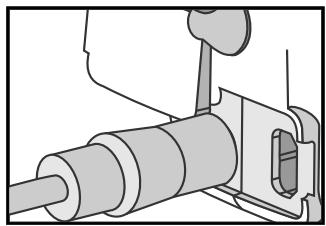
Using the AC power adapter (optional accessory)
- Make sure the camera is off.
- Open the DC IN jack cover and connect one end of the AC power adapter to the DC IN jack on the camera.
- Connect the other end to an electrical outlet.

NOTE
- Make sure to use only the specified AC power adapter for the camera. Otherwise, it may cause damages to the camera, which is not covered under the warranty.
- To prevent unexpected auto power off resulting from no battery power left during the process of transferring your images to the computer, use the AC power adapter as a power supply.
Loading a SD memory card (optional accessory)
The camera comes with 8MB of internal memory, allowing you to store images and video clips in the camera. However, you can expand the memory capacity by using an optional SD memory card so that you can store additional images and video clips.
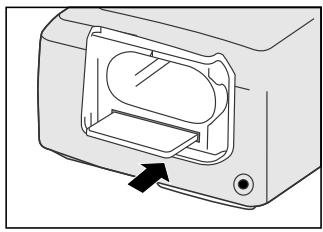
- Make sure the camera is off.
- Slide the battery/SD card cover in the direction of the OPEN arrow.
- Insert the SD memory card.
The front side of the memory card (printed arrow) should face towards the front side of the camera.
If the card cannot be inserted, check the orientation.
-
Close the battery/SD card cover.
-
To remove the SD memory card, make sure the camera is off. Open the battery/SD card cover. Press lightly on the edge of the memory card and it will eject.

NOTE
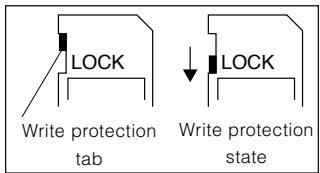
- To prevent valuable data from being accidentally erased from an SD card you can slide the write protect tab (on the side of the SD memory card) to "LOCK".
- To save, edit, or erase data on an SD memory card, you must unlock the card.
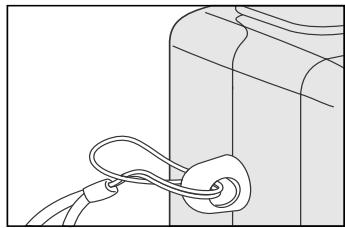
Attaching the strap
To prevent accidental dropping of the camera, always use the strap.
- First thread the small loop of the wrist strap through the strap eyelet on the camera and then pull the large loop through the small loop until the strap is firmly secured.
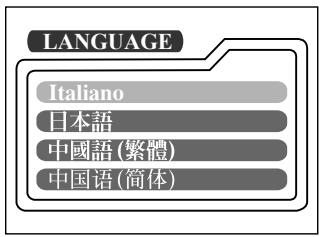
Choosing the language
When you first turn the camera on, the language setting screen appears, prompting you to choose a language for displayed information on the LCD monitor. Follow the steps below to set the OSD (On-Screen Display) language.
- Select a language that you prefer by using the / button.
- Press the OK button to confirm.

NOTE
- The language setting will be retained even if the camera is turned off.

Setting the date and time
The Date/Time screen will be presented if/when:
Camera is turned on for the first time (after setting the language).
Camera is turned on after removing or replacing the batteries.
When the date and time setting screen appears, follow these steps to set the correct date and time. You may skip this procedure by pressing the OK button repeatedly.
- Enter the values of the year, month, day and time fields by using the / / button. Press the OK button after each field is set.
To increase a value, press the / button.
To decrease a value, press the / button.
Setting the image resolution and quality
Resolution and quality settings determine the pixel size (dimension), image file size, and compression ratio for your images. These settings affect the number of images that can be stored in memory, or on an SD memory card. As you get to know the camera, it is recommended that you try each quality and resolution setting to get an appreciation for the effects that these settings will have on your images.
Higher resolution and higher quality images offer the best photographic results but produce large files sizes. Therefore, fewer images will take up more memory space.
High resolution and quality settings are recommended for printed output and situations requiring the finest detail. Lower resolution/quality images take up less memory space and may be quite suitable for sharing images via e-mail, in a report, or on a web page. To change image resolution and quality settings, press the button on top of the camera repeatedly to select the settings that you prefer. As you press this button watch the Status LCD.
Resolution & Quality:
The camera provides 2 resolution modes and 3 quality modes, which can be changed cyclically by pressing the button. The cyclical order is repeat.
Resolution & quality indicators on the status LCD
In the mode: shows the resolution & quality settings of the image to be recorded
In the mode: shows the resolution & quality settings of the recorded image
The table below shows the approximate shots that you can take at each setting based on 8MB internal memory or a 8MB SD memory card.
| Resolution | Quality | Compression ratio | 8 MB internal memory | 8MB SD memory card |
| 1600x1200 pixels | ★ Fine | 8:1 | 10 | 9 |
| ★ Normal | 12:1 | 15 | 14 | |
| ★ Basic | 20:1 | 20 | 18 | |
| 800x600 pixels | ★ Fine | 4:1 | 40 | 37 |
| ★ Normal | 8:1 | 60 | 56 | |
| ★ Basic | 16:1 | 80 | 75 |
- The above data shows the standard testing results. The actual capacity varies according to the shooting conditions and settings.
Taking pictures
Your camera is equipped with both an optical viewfinder and a 1.6" LCD monitor to compose images. Taking images using the optical viewfinder will conserve battery power. If your batteries are low, it is recommended that you only compose images by using the viewfinder. Using the LCD monitor you can compose images more accurately, but at the cost of battery consumption. Always use the image LCD for macro shots, however, to avoid parallax effects. The LCD image display must be used when Digital Zoom is used.
Using the viewfinder
- Open the lens cover.
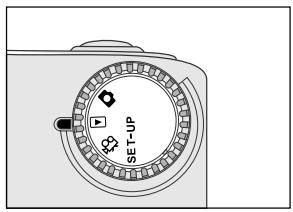
- Turn the mode dial to the mode.
- Turn the camera on by pressing the ① button.
- Compose your shot in the viewfinder.
-
Press the shutter button down halfway (the camera adjusts the exposure and the focus), then press it the rest of the way down.
-
When the camera adjusts the exposure and focus, the LED indicator lights red. Take a picture until the LED indicator lights green.
The LED indicator blinks orange while the camera is processing a captured image.
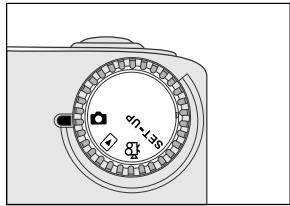
Using the LCD monitor
- Open the lens cover.
- Turn the mode dial to the mode.
- Turn the camera on by pressing the ① button.
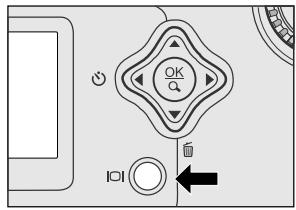
- Turn the LCD monitor on by pressing the IDI button.
- Compose the picture.
- Press the shutter button.
The LED indicator blinks orange while the camera is processing a captured image.

NOTE
- The image on the LCD monitor darkens when in strong sunlight or bright light. This is not a malfunction.
- Using the LCD monitor for an extended period of time will decrease the number of images you can take. To increase battery longevity, turn the LCD monitor off and use the viewfinder instead.
Always use the image LCD for macro shots. - The LCD monitor must be on when Digital Zoom is to be used.
Using the normal mode
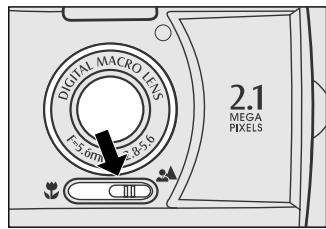
Normal mode is used to take images where the distance to the subject is 70~cm or more. Select this mode for general shooting, including portraits and scenery.
- Open the lens cover, turn the mode dial to the mode, and power on the camera.
- Move the focus switch located on the front side of the camera to the position.
- Compose the picture.
- Press the shutter button.
Using the digital zoom
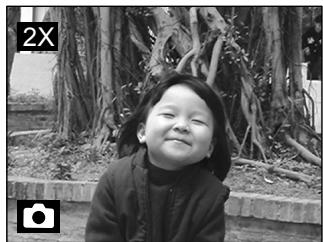
Using digital zoom, images appear closer. Whereas digital zoom is a compelling feature, the more an image is enlarged (zoomed), the more pixilated (grainier) the image will appear. The digital zoom function is only available when you set the LCD monitor and the digital zoom to ON. To enable the digital zoom, refer to DIGITAL ZOOM in Record menu.
- Open the lens cover, turn the mode dial to the mode, and power on the camera.
- Turn the LCD monitor on by pressing the iOi button.
- Press the OK button to activate 2X digital zoom function.
The 2X icon appears on the LCD monitor.
To cancel the digital zoom function, press the OK button.
- Press the shutter button to capture a "zoomed" image.

NOTE
- You can only set the digital zoom at the resolution of 1600 × 1200 pixels; digital zoom is not available at the resolution of 800 × 600 pixels. When you play back a "digitally zoomed" image, the image size is 800 × 600 pixels.
- The more the image is enlarged, the more pixilated (grainier) the image.
- Digital zoom cannot be used in the movie mode.
Using the self-timer
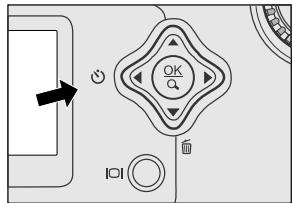
The self-timer duration is 10 seconds. After the activation of the self-timer by pressing the shutter button, the self-timer lamp starts blinking slowly for 7 seconds and then blinking faster for the rest of 3 seconds. This allows you to get into the scene when taking group images.
- Secure the camera to a tripod or place it on a stable surface.
- Open the lens cover, turn mode dial to the mode, and power on the camera.
- Press the button.
The icon appears on the LCD monitor and status LCD.
- Compose the picture.
- Press the shutter button.
The self-timer function is activated. - After ten seconds, the camera takes an image.
To cancel self-timer photography at any time, press the shutter button to disrupt the sequence.

NOTE
After one shot is taken, the self-timer mode is turned to off.
Using the macro mode
Use the macro mode to shoot a close-up of the subject, such as flowers or insects.
The effective range is between 30cm and 80cm.
- Open the lens cover, turn the mode dial to the mode, and power on the camera.
- Move the focus switch located on the front side of the camera to the position.
The icon appears on the LCD monitor and status LCD.
- Compose the picture.
- Press the shutter button.
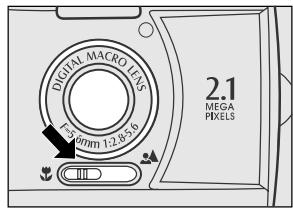
To disable macro photography, slide the focus switch back to normal.

NOTE
- When shooting a close-up in macro mode, use the image LCD monitor to compose your shot, avoiding the off-center parallax phenomenon.
- There is not a distinct point (subject range) at which normal mode is favored over macro mode; take in image an both optical modes and compare the results.
- After a macro shot is taken DO NOT FORGET to reset the lens to the normal position.
Using the flash
The flash is designed to function automatically when lighting conditions warrant the use of flash. You can take an image using a flash mode suitable to your circumstances. If you change the flash mode, the camera will retain that setting even if the camera is turned off.
- Open the lens cover, turn the mode dial to the mode, and power on the camera.
- Press the button located on top of the camera repeatedly until your desired flash mode appears.
- Compose the picture and press the shutter button.
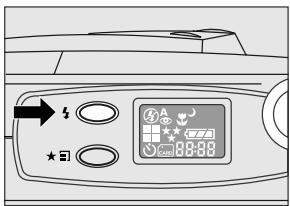
The camera has five flash modes: Automatic Flash (default), Red-Eye Reduction, Fill flash (on), Flash Off and Slow Synchro. The modes appear, cyclically, when you press the flash button on top of the camera. The table below will help choose the appropriate flash mode:
| Flash Mode | Description |
| [ 4 ] Auto Flash | The flash fires automatically according to the ambient conditions. Select this mode for general photography. |
| [ 5 ] Red-eye Reduc-tion | The flash emits a precursor-flash before the main flash fires. This causes the pupil in the human eye to constrict, reducing the red-eye. Select this mode when taking pictures of people and animals in low-light conditions. |
| [ 4 ] Fill Flash (on) | The flash will always fire regardless of the surrounding brightness. Select this mode for recording images with high contrast (backlighting) and deep shadows. Also known as forced flash. |
| [ 6 ] Flash Off | The flash will not fire. Select this mode when taking images in a place where flash photography is prohibited, or when the distance to the subject is beyond the effective range of the flash. |
| [ 7 ] Slow Synchro | The flash fires and the shutter speed is reduced so that the subject will be exposed correctly while taking a image with dark (night) background. |
Taking pictures manually
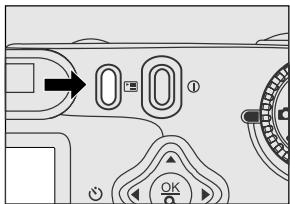
You can manually adjust conditions such as white balance, EV compensation and sharpness when taking pictures. For white balance, EV compensation and sharpness information, refer to WHITE BALANCE, EV COMPENSATION or SHARPNESS in Record menu.
To take pictures manually:
- Turn the camera on.
- Turn the mode dial to the mode.
- Press the button.
- Move to WHITE BALANCE, EV COMPENSATION or SHARPNESS with the / button.
- Change the settings by using the / button and then press the OK button.
- Compose the picture.
- Press the shutter button.
PLAYBACK MODE
In the mode, you can view, magnify, delete images, play video clips, or run a slide show. Playback mode also provides a thumbnail image display, allowing you to quickly search for the image you want.
Viewing images
You may view your images without opening the lens cover since the lens is not used for playback. The camera lens is protected during playback.
- Turn the mode dial to the mode and power on the camera.
- Select the image that you want to view by using the / button.
To view the previous image, press the button.
To view the next image, press the button.

NOTE
- If there is no image stored in the internal memory or on the memory card, "① NO IMAGES" message will appear on the LCD monitor.
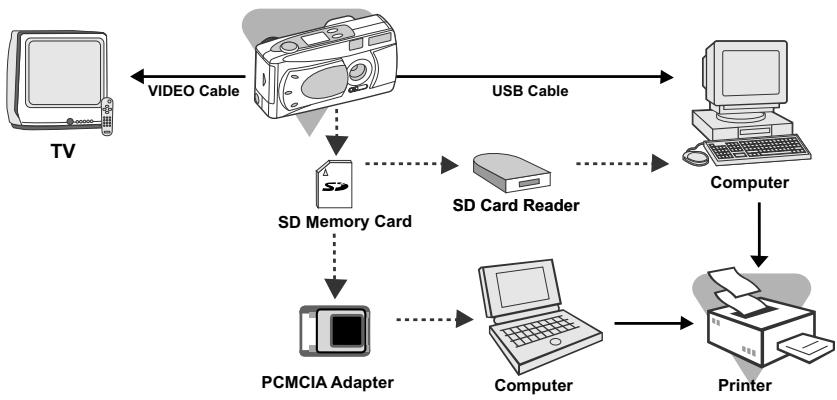
- You can also view your images on the TV screen. Connect one end of the video cable to the video out jack of the camera and connect the other end to the video input of your TV. Turn the mode dial to the mode and then turn on both TV and camera.
While reviewing your images, you may enlarge a selected portion of an image. This magnification allows you to view fine details.
- Turn the mode dial to the mode with the camera power on.
- Select the image that you want to view by using the button.
-
Enlarge the image by pressing the OK button.
-
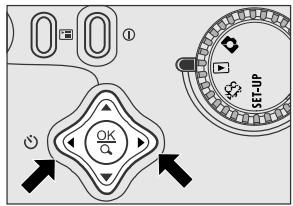
Pressing the OK button once magnifies the image to 2X. Pressing it again magnifies the image to 4X. When enlarging the recorded image, you will see a red frame with a red box inside. The red frame indicates the entire image, while the red box shows the enlarged area.
-
To view the different portion of the enlarged image, press the / / button.
- To return to the regular display from 4X-enlarged status, press the OK button twice.
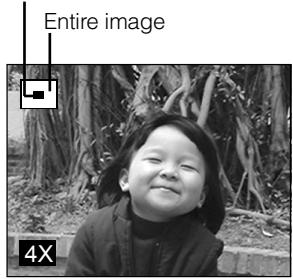
Current position of enlargement

NOTE
- Pressing the OK button magnifies the image from 1X 2X 4X .
- Pressing the OK button reduces the image from 4X 2X 1X
Displaying thumbnail images
This function allows you to view nine thumbnail images on the LCD monitor simultaneously so you may search for a particular image.
- Turn the mode dial to the mode and power on the camera.
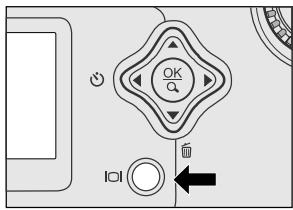
- Press the button once.
The image information appears on the LCD monitor.
- Press the button again.
Nine thumbnail images appear on the LCD monitor (assuming there are nine or more images in memory).
To view a full-size image, press the OK button after selecting it by using the / button.

NOTE
- By pressing the 10 button repeatedly, the image will show as follows. Image only Image and OSD (on-screen display) Thumbnail image display

Slideshow display
The slideshow function enables you to playback your images back automatically in sequential order as a slide show. This is a very useful and entertaining feature for reviewing recorded images and for presentations.
- Turn the mode dial to the mode and power on the camera.
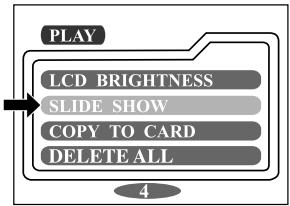
- Press the button and move to SLIDE SHOW by using the / button.
- Set the playback interval by using the button and then press the OK button.
The slideshow starts, displaying your images on the LCD monitor, one by one, at the set interval.
To stop the slideshow display, press the OK / I/OI / ▲/▼ button.

NOTE
- You can adjust the slideshow display interval within the range of 2 sec. to 10 sec. For interval setting, refer to SLIDE SHOW in the Playback menu.
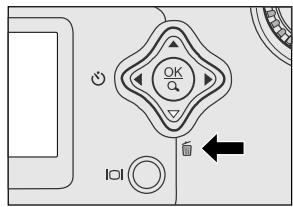
You can delete one image/video clip by pressing the button.
To delete one image at a time:
- Select the image/video clip you want to delete by using the button. And then press the button.
- Select [YES], and then press the OK button. The next image/video clip appears.
If you want to cancel the deletion, select [NO]. - Continue the deletion if necessary. If all images are deleted, [①] NO IMAGES] pops up. To exit this function, turn the mode dial to any other mode.

NOTE
- To delete the images or video clips stored in the internal memory, remember not to insert the memory card in the camera. Otherwise, you will delete the images or video clips stored in the memory card.
Recording video clips
The movie mode allows you to record video clips at the resolution of 320 × 240 pixels.
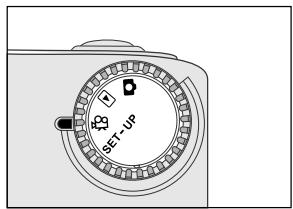
- Open the lens cover, turn the mode dial to the mode, and power on the camera.
The recordable movie time displays on the status LCD and the LCD monitor.
- You can start recording a video clip by pressing the shutter button.
The elapsed time displays on the LCD monitor while recording a video clip.
To stop recording, press the shutter button again.

NOTE
- In movie mode, resolution/quality, macro, self-timer cannot be set or activated.
- In movie mode, the flash mode is automatically set to [OFF].
To view the recorded video clips, follow the steps below.
- Turn the mode dial to the mode and power on the camera.
- Select the video clip that you want to view by using the button.
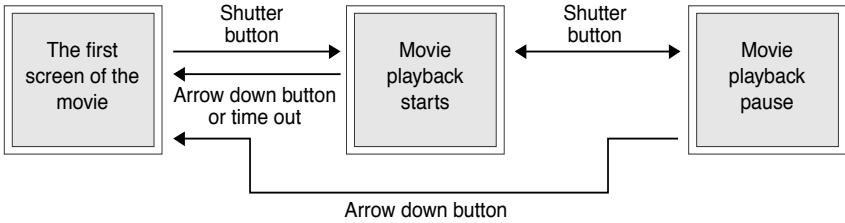
- Press the shutter button to start.
To pause playback at any time, press the shutter button again.
To stop playback, press the button.
Pressing the shutter button or the button while playing back the video clip will change the status as follows:

NOTE
- The zoom function cannot be activated while playing the video clip back.
- To play the video clip back on the computer, we recommend that you use the "Quick Time Player". This software is free of charge, compatible for Mac and Windows-based computers and can be downloaded from the Web site at www.apple.com. For Quick Time Player usage, please refer to its on-line help for more information.
TRANSFERRING RECORDED IMAGES TO YOUR COMPUTER
You can share recorded images/video clips with your family or friends via e-mail or post them on the Web. Before doing those things, you need to connect the camera to your computer by using the USB cable and then transfer the images/video clips.
To transfer images/video clips from the camera to your computer, follow the steps below.
Step 1: Installing the USB driver
Step 2: Connecting the camera to your computer
Step 3: Downloading images/video clips
| System requirements (Windows) | System requirements (Macintosh) | |
| CPU | Pentium 166 MHz processor or higher | PowerPC G3/G4 |
| OS | Windows 98/98SE/Me/2000/XP | OS 8.6 or later |
| Memory | 32MB RAM (64MB recommended) | 32MB RAM (64MB recommended) |
| Free Space on Hard Disk | 128 MB hard disk space | 128 MB hard disk space |
| Required Devices | A CD-ROM drive, An available USB port | A CD-ROM drive, An available USB port |
| Color Monitor | Color monitor (800x600, 24-bit or higher recommended) | Color monitor (800x600, 24-bit or higher recommended) |
Step 1: Installing the USB driver on Windows computers
The USB driver on the supplied CD-ROM is exclusively for Windows 98. Installing the USB driver on computers running Windows 2000/ME/XP is not necessary.
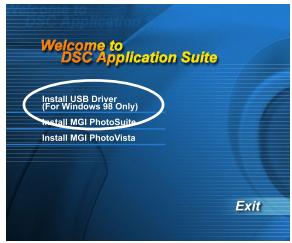
- Insert the CD-ROM packaged with the camera into the CD-ROM drive. The welcome screen appears.
- Click "Install USB Driver". Follow the on-screen instructions to complete the installation. After the USB driver installation is complete, restart your computer.
Installing the USB driver on Macintosh computers
Mac OS 8.6 users must install a USB driver. For Mac OS 9.0 or higher, the computer will automatically recognize the camera and load its own USB drivers.
- Insert the CD-ROM packaged with the camera into the CD-ROM drive.
- Select and double-click "Digital Camera Driver Installer".
- Select "Install Location" and click "Install".
- Follow the on-screen instructions to complete the installation and restart your computer.
Step 2: Connecting the camera to your computer
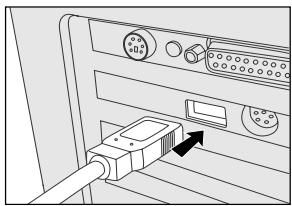
- Connect one end of the USB cable to an available USB port on your computer.
- Connect the other end of the USB cable to the USB connector on the camera.
- Turn the camera on.
"PC" appears on the status LCD.
- Look for a new "removable disk" appearing in the "My Computer" window. Your recorded images/video clips will be in a folder on this "removable disk". (For Mac users, double-click the "untitled" disk drive on the desktop.)
Step 3: Downloading images/video clips
When the camera is turned on and connected to your computer, it is considered to be one disk drive. You can download images/video clips by coping them from the "removable disk" ("untitled" disk on a Macintosh) to your hard drive or to another kind of disk.
For computers running Windows
Open the "removable disk" by double clicking on it. Double click on the folder. Your images are inside the folder(s). Select the images that you want, then choose copy from the Edit menu. Open the destination location and choose Paste from the Edit menu. You may also drag and drop image files from the camera to a desired location.
For computers running Mac OS
Open the "untitled" disk window and the hard disk or the destination location. Drag and drop from the camera disk to the desired destination.

NOTE
- It is recommended that you use the AC power adapter as a power supply for the camera while transferring images/video clips from the camera to you computer since camera power maybe cut off unexpectedly if the batteries run out.
INSTALLING MGI PHOTOSUITE
MGI PhotoSuite is a very user-friendly image-editing program. With PhotoSuite, you can breezily retouch, compose and organize your images. It contains a variety of templates, such as photo frames, birthday cards, calendars and more. Get your images ready and go explore this amazing program.
To install MGI PhotoSuite:
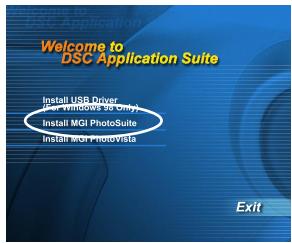
- Insert the CD-ROM packaged with the camera into the CD-ROM drive. The welcome screen appears.
- Click "Install MGI PhotoSuite". Follow the on-screen instructions to complete the installation.

NOTE
- To use MGI PhotoSuite to edit and retouch your recorded images, please refer to the on-line help of this software as a guide.
- For Windows 2000/XP users, make sure to install and use the MGI PhotoSuite in the "Administrator" mode.
PhotoSuite is not supported on the Mac.
INSTALLING MGI PHOTOVISTA
MGI PhotoVista is an easy-to-use program that lets you create spectacular 360^ panoramic images in a snap. When you view these panoramicas, you get the experience of being totally immersed in a realistic environment. PhotoVista's powerful engine quickly and automatically stitches images together, and its intuitive interface will let even a novice get great results in minutes.
To install MGI PhotoVista:
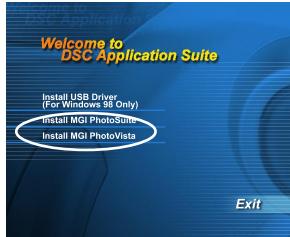
- Insert the CD-ROM packaged with the camera into the CD-ROM drive. The welcome screen appears.
- Click "Install MGI PhotoVista". Follow the on-screen instructions to complete the installation.

NOTE
- To use MGI PhotoVista to create spectacular 360^ panoramic images, please refer to the online help of this software as a guide.
- For Windows 2000/XP users, make sure to install and use the MGI PhotoVista in the "Administrator" mode.
- PhotoVista is not supported on the Mac.
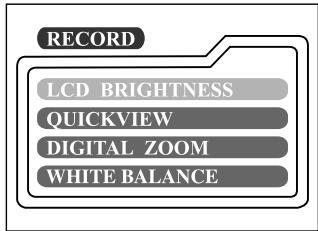
Record menu
You can use the record menu to change LCD brightness, change white balance, adjust EV compensation settings, etc. To do this, press the button in the mode. And then scroll through the options by using the / button.
LCD BRIGHTNESS
This option adjusts the brightness of the LCD monitor. Press the OK button, the LCD brightness control will appear. Press the / button to brighten the LCD monitor while press the / button to darken the LCD monitor. And then press the OK button.
QUICK VIEW
You can view each captured image on the LCD display immediately after capture by enabling Quick View. Each captured image will be displayed briefly, after which the camera returns to the mode automatically. Set [ON] or [OFF] to enable or disable the instant review by pressing button. And then press the OK button.
DIGITAL ZOOM
You can take digital zoom shots by activating the digital zoom function. Use the button to enable this option if necessary. And then press the OK button.
WHITE BALANCE
Your camera adjusts the white balance of each scene automatically. However, the images that your camera captures will appear different under different lighting conditions (sun, shade, fluorescent, tungsten lights). Unlike your eyes, which can easily adjust to different lighting conditions (lighting temperatures), a digital camera cannot always differentiate between lighting types. Under some lighting conditions the image may appear in strange shades. If that occurs you may change the white balance setting by specifying a lighting condition (temperature) most appropriate for your scene. Use the / button to select the appropriate white balance and then press the OK button.
[AUTO] :automatically adjusting the white balance
[SUN] : for outdoors on a bright day
[SHADE] : for cloudy and shady sky
[FLUORESCENT] : for under fluorescent lighting
[TUNGSTEN] : for under tungsten lighting
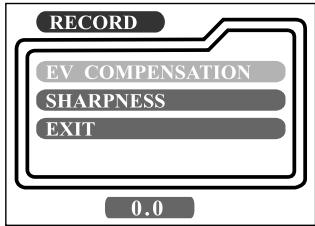
EV COMPENSATION
Your camera adjusts the exposure of each scene automatically. However, when if the subject is very dark, or very bright, you may override the camera automatic exposure determination to make the subject brighter or darker. This is called EV compensation. The EV compensation of the camera can be adjusted from -1.8EV to +1.8EV. Use the button to select the EV compensation that you want and then press the OK button.
Effective Subjects and Set Values Positive (+) Compensation
Imaging of printed text (black characters on white paper)
- Portraiture with back lighting
- Very bright scenes (such as snowfields) and highly reflective subjects
- Shots made up predominantly of sky
Negative (-) Compensation
■ Spot lighted subjects, particularly against dark backgrounds
Imaging of printed text (white characters on black paper)
- Scenes with low reflectivity, such as shots of green or dark foliage
SHARPNESS
This option sets the level of image sharpness. Use the button to select the sharpness mode that you want and then press the OK button.
[NORMAL]: leave the image detail as captured
[SOFT]: soften the edge of the image detail for special effect
[HARD]: sharpen the edge of the image detail
EXIT
This option exits the record menu and then returns to the mode. Press the OK button to exit. You can also press the button again to exit.
Playback menu
Use the playback menu to create an on-camera slide show, configure DPOF settings, or transfer images from internal memory to a memory card. To access the playback menu, press the button in the mode and navigate through the options by using the / button.
LCD BRIGHTNESS
Refer to LCD BRIGHTNESS in Record menu.
SLIDE SHOW
Your camera can display your images sequentially as a slide show at a selected interval. Use the button to select the slide interval time you desire and then press the OK button.
[2 sec], [4 sec], [6 sec], [8 sec], [10 sec]
COPY TO CARD
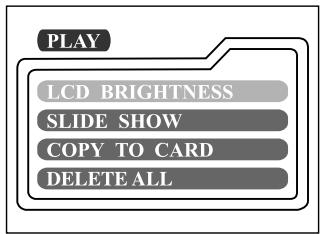
This feature allows you to copy your images from the camera's internal memory to an SD memory card. Of course, you can only do this if you have an SD memory card installed and some images in internal memory. Use the button to select [YES] if necessary and then press the OK button.
DELETE ALL
This option allows you to delete all images/video clips the memory. If you wish to delete the images or video clips in the internal memory, ensure that the memory card is not inserted in the camera. Otherwise, you will delete the images or video clips stored in the SD memory card.
Use the button to select [YES] if necessary and then press the OK button.
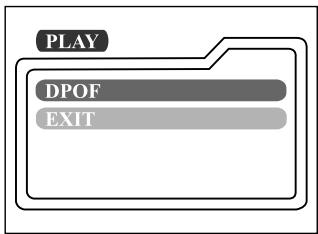
DPOF
DPOF allows you to embed printing information on your memory card. Using DPOF you can select an image to be printed and then specify how many prints to you would like. Take your memory card to a DPOF enabled printer that accepts SD memory cards. The DPOF/card-compatible printer will read the embedded information on the memory card and print your images as specified.
To use DPOF, first press the OK button to enter the DPOF sub-menu. Use the button to set the values for each field and then press the OK button.
[PRINT QUANTITY]: Select image quantity from 1~9
[PRINT SIZE] : Select your preferred image size (standard, 3x5, 4x6, 5x7, 8x10)
[PRINT INDEX] : allows you to print the images in index format
[PRINT ENABLE] : If you select ENABLE, the camera will save the DPOF settings. If DISABLE is selected, all the settings will be erased.
DPOF shortcut
You can use the shutter button to quickly establish DPOF settings, as follows:
- Turn the mode dial to the mode.
- Press the shutter button to toggle the DPOF print tag setting for the specified image.

NOTE
- When using the shutter button to enable the DPOF setting, the default setting is size=standard, and quantity=1.
EXIT
This option exits the record menu and then returns to the mode. Press the OK button to exit. You can also press the button again to exit.
To adjust movie menu setting, press the 三 button in the mode and navigate to the option you wish to set by using the / button.
LCD BRIGHTNESS
This option adjusts the brightness of the LCD monitor. Refer to LCD BRIGHTNESS in Record menu for detailed information.
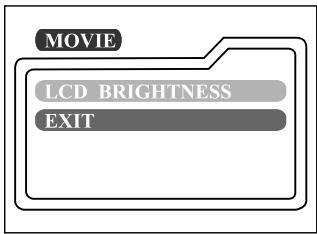
EXIT
This option exits the movie menu and then returns to the mode. Press the OK button to exit. You can also press the button again to exit.
Setup menu
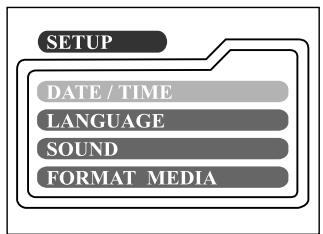
Select your general camera preferences in the SET-UP mode. Switch the mode dial to the SET-UP mode and navigate to the option you wish to configure by using the / button.
DATE/TIME
Press the OK button to enter the DATE/TIME sub-menu. Refer to section in this manual titled SETTING THE DATE AND TIME for further detail. After removing the batteries from the camera, the date and time will return to the default setting. If this happens, reset the date and time when using the camera.
[YEAR], [MONTH], [DAY], [TIME]
LANGUAGE
This option allows you to select the language for the menus and the text displayed on the LCD monitor. Press the OK button to enter the LANGUAGE sub-menu. And then select the preferred language using the / button and press the OK button.
[ENGLISH], [Français], [Deutsch], [Espanol], [Italiano], [日本語], [中國語(繁體)], [中国語(簡体)]
SOUND
The camera produces a sound (beep) each time you press the camera button if this function is enabled. Select [ON] or [OFF] by using the button and then press the OK button.
FORMAT MEDIA
This utility formats the internal memory (or memory card) and erases all stored images and data. If you select [YES] with the button and press the OK button, the FORMAT MEDIA message appears on the LCD monitor. When you select [YES] and press the OK button again, a progress bar displays, showing the progress of the format. This utility formats the internal memory (or memory card) and erases all stored images and data.
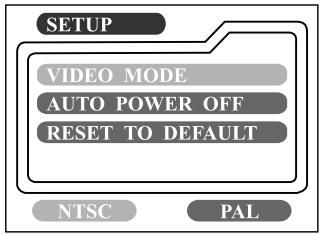
VIDEO MODE
This option allows you to view your images on a TV. Connect the camera to your TV using the video cable. Then select the video output format by using the button and press the OK button.
[NTSC] : select this format when located in the U.S.A., Canada, Japan, Korea, Taiwan, Central America, Mexico, etc.
[PAL] : select this format when located in Australia, Austria, Belgium, China, Denmark, Finland, Germany, Great Britain, Holland, Italy, Kuwait, Malaysia, New Zealand, Singapore, Spain, Sweden, Switzerland, Thailand, Norway, etc.
AUTO POWER OFF
If there is no camera activity (no buttons are pressed) for a defined period of time while the camera is powered on, the camera will switch to an idle mode, and eventually turn itself off to conserve power.
| Inactivity period (batteries) | Inactivity period (AC power adapter) | Camera status |
| 90 seconds | 90 seconds | stay idle |
| 3 minutes | 30 minutes | shut off |
If the camera is idle, re-activate the camera by pressing any button or switch the mode dial. If the camera has powered-off you must to turn the camera on again by pressing the ① button. The table (above) shows the default time settings for idle, and power-off. You can change the power saving interval by using the ↓▶ button and then press the OK button.
[3 min], [5 min], [10 min], [30 min]
RESET TO DEFAULT
If you wish to restore all camera settings to their original status, select [YES] by using the button and then press the OK button.
The following table shows the default setting for each item.
| Item | Description |
| Image resolution | 1600x1200 pixels |
| Image quality | ★★ Fine |
| Flash | Auto |
| Quick view | Off |
| White balance | Auto |
| EV compensation | 0.0 |
| Slide show delay | 4 seconds |
| Auto power off | Battery: 3 minutes AC power adapter: 30 minutes |
| Sound | On |
| Digital Zoom | Off |
CONNECTING THE CAMERA TO OTHER DEVICES
CAMERA SPECIFICATIONS
| Item | Description |
| Sensor | Approx. 2.1megapixels 1/3.2" CCD |
| Color depth | 24 bits (8 bits x 3 colors) |
| Resolution | 1600x1200 pixels 800x600 pixels |
| LCD | 1.6" color TFT LCD |
| Self-timer | 10 seconds delay |
| Shutter speed | 1/10 sec..~1/1000 sec. |
| Zoom | 2 x digital zoom |
| Capture modes | Still photographs or video recording |
| Memory type | 8 MB internal memory SD memory card (optional) (up to 128MB capacity) |
| Memory capacity | Storage for an 8MB SD memory card at 1600x1200 pixels:Fine: 10 images; Normal: 15 images; Basic: 20 images |
| Flash effective range | 0.5m~2.5m |
| Lens | Fixed focal length: 5.6mm Focal range: Standard-0.7m~infinity; Macro-0.3m~0.8m F-number: 2.8/5.6 |
| Focus | Focus range: 30cm to infinity |
| Exposure compensation | Auto; Manual: -1.8 ~ +1.8EV (0.3EV step) |
| White balance | Auto, Sun, Shade, Fluorescent, Tungsten |
| Compressed format | JPEG, Motion JPEG for video clip |
| Standards | JPEG, EXIF 2.1, DPOF, DCF, Motion JPEG |
| Interface | DC IN jack, USB connector, VIDEO OUT jack (NTSC or PAL) |
| Operating environment | Operation: 0°C~40°C, 15~90% humidity Storage: -20°C~80°C, 10~95% humidity |
| Power | 2 AA Alkaline (1.5V) or Ni-MH (1.5V) batteries, or AC power adapter(2.5A/3.3V) |
| Tripod socket | Yes |
| Dimensions | 105 x 44 x 55 mm (W x H x D) (without protruding parts) |
| Weight | Approx. 150g (without batteries and the SD memory card) |
*Design and specifications are subject to change without notice.