
VOYAGER JDV8035 - Car media player JENSEN - Free user manual and instructions
Find the device manual for free VOYAGER JDV8035 JENSEN in PDF.


| Product Type | Automotive multimedia player with 3.5" TFT screen and DVD/CD player |
| Brand | JENSEN |
| Model | VOYAGER JDV8035 |
| Dimensions | 178 mm x 178 mm x 51 mm (7" x 7" x 2") |
| Power supply | 11 to 16 VDC, negative ground, 15 A ATO type fuse |
| Audio output power | 40 W x 4 channels (max) at 4 ohms |
| Display | TFT LCD 3.5" (diagonal), resolution 960 x 234 sub-pixels, contrast 350, brightness 250 cd/m² |
| Compatible disc formats | DVD, VCD, CD, CD-R/RW, DVD±R/RW, MP3, WMA, JPEG, MPEG4 (SP/ASP), MP4 (audio) |
| Audio file formats | MP3 (32-48 kHz, 64-256 kbps), WMA, CD-DA |
| Image formats | JPEG |
| Video formats | MPEG4 (Simple and Advanced Profile), MP4, DVD Video |
| FM tuner | 87.5 – 107.9 MHz, sensitivity 18 dBµV (mono), 20 dBµV (stereo) |
| AM tuner | 530 – 1720 kHz, sensitivity 30 µV (S/N 20 dB) |
| Station memory | 6 presets per band (3 FM, 2 AM), total 30 stations |
| Audio functions | Bass, mid, treble adjustable (with center frequencies and Q-factor), balance, fader, subwoofer (level and LPF), iX-Bass (low/high boost at low volume) |
| Connectivity | AV input (2 sources), AV output, antenna, front/rear speakers, subwoofer output |
| Memory card input | MMC/SD (up to 2 GB) |
| 2-zone AV function | Allows playing different sources on front/rear speakers and optional TFT monitors |
| Detachable front panel | Yes, for theft prevention |
| Maintenance and cleaning | Clean the front panel with a soft, dry cloth; use isopropyl alcohol for electrical contacts; do not use chemicals or solvents |
| Safety | Video lockout while driving (except with parking brake engaged); do not expose to water or excessive humidity |
| Spare parts / Repairability | Use only supplied parts; no user-serviceable parts; contact a qualified technician for any maintenance |
Frequently Asked Questions - VOYAGER JDV8035 JENSEN
User questions about VOYAGER JDV8035 JENSEN
0 question about this device. Answer the ones you know or ask your own.
Ask a new question about this device
Download the instructions for your Car media player in PDF format for free! Find your manual VOYAGER JDV8035 - JENSEN and take your electronic device back in hand. On this page are published all the documents necessary for the use of your device. VOYAGER JDV8035 by JENSEN.
USER MANUAL VOYAGER JDV8035 JENSEN
3.5" TFT Multimedia Player/Receiver
Keep the volume level low enough to be aware of the road and traffic conditions.
When Car Washing
Do not expose the product to water or excessive moisture. This could cause electrical shorts, fire or other damage.
CAUTION: To avoid an accident, the driver must not watch video while driving. This unit is designed to NOT allow video while driving. Park your car in a safe place and engage the parking brake before watching video.
When Parked
Parking in direct sunlight can produce very high temperatures inside your vehicle. Give the interior a chance to cool down before starting playback.
Use the Proper Power Supply
This product is designed to operate with a 12 volt DC, negative ground battery system (the regular system in a North American car).
Protect the Disc Mechanism
Avoid inserting any foreign objects into the slot of this player. Failure to follow this may cause malfunction or permanent damage.
Copyright Protection Notice
This product incorporates copyright protection technology that is protected by method claims of certain U.S. Patents and other intellectual property rights owned by Macrovision Corporation and other rights owners. Use of this copyright protection technology must be authorized by Macrovision Corporation, and is intended for home and other limited viewing uses only unless otherwise authorized by Macrovision Corporation. Reverse engineering or disassembly is prohibited.
CAUTION:
THIS MOBILE DVD PLAYER IS A CLASS I LASER PRODUCT. THIS UNIT USES A VISIBLE/INVISIBLE LASER BEAM WHICH COULD CAUSE HAZARDOUS RADIATION IF EXPOSED DIRECTLY. BE SURE TO OPERATE THE MOBILE DVD PLAYER CORRECTLY AS INSTRUCTED. USE OF CONTROLS, ADJUSTMENTS, PERFORMANCE AND PROCEDURES OTHER THAN THOSE SPECIFIED HEREIN MAY RESULT IN HAZARDOUS RADIATION EXPOSURE. DO NOT OPEN COVERS AND DO NOT REPAIR BY YOURSELF PLEASE REFER SERVICING TO A QUALIFIED TECHNICIAN.
WARNING:
DO NOT EXPOSE THIS EQUIPMENT TO RAIN OR MOISTURE.
- USE ONLY THE RECOMMENDED ACCESSORIES.
THIS DEVICE IS INTENDED FOR CONTINUOUS OPERATION.
SUPPORTED DISCS AND MEDIA FORMATS
Compatible Disc Formats
Digital Versatile Discs (DVDs)
Video CDs (VCDs)
Digital Versatile Discs Recordable(DVD+/-R)
Digital Versatile Discs Rewritable(DVD+/-RW)
- Compact Discs (CDs)
CD Recordable (CD-R)
CD Rewritable (CD-RW)
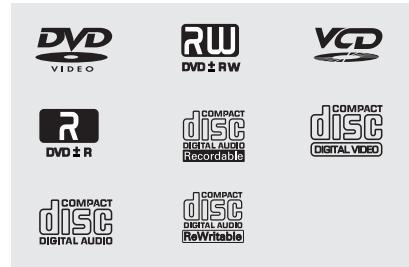

NOTE: DVD players and DVD Video discs have their own Region Code numbers. This unit can play discs with all region code numbers.
Compatible Media Formats
Audio Format
Playback CD-DA and MP3 or WMA digital music file on CD-ROM or DVD-ROM or Memory Card.
MP3 and WMA notes:
Support Maximum of 2000 files
Maximum 30 characters displayed
Supported Sampling frequencies: 32kHz, 44.1kHz, 48kHz.
Supported Bit-Rates: 64-256 kbps variable bit rate
Video Format
Playback IMAGE JPEG, DVD Video, MPEG4 on CD-ROM or DVD-ROM or Memory Card.
MPEG4 Notes:
Supported decoding MPEG-4 video defined by ISO 14496-2 Standard
a. Simple Profile (SP)
b. Advance Simple Profile (ASP)
Supported file formats: .mp4 and .m4a (audio only).
Discs Which Cannot be Played
- 8cm disc
CDV, CDI, CDG
LD
DVD RAM
Disc Maintenance
Before playing, wipe the disc using a clean cloth, working from the center hole towards the outside edge.
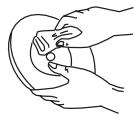
Never use benzene, thinners, cleaning fluids, anti-static liquids or any solvent.
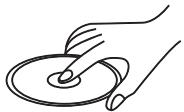
Insert label side up.

Do not bend.

Never touch the under side of the disc.
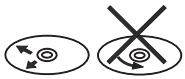
Wipe clean from the center to the edge.
NOTE: A disc may become scratched (although not enough to make it unusable) depending on how you handle it and other conditions in the usage environment. These scratches are not an indication of a problem with the player.
INSTALLATION INSTRUCTIONS
Before You Begin
- Disconnect battery negative terminal.
- Remove transport screws.
Important Notes
- Before final installation, test the wiring connections to make sure the unit is connected properly and the system works.
- Use only the parts included with the unit to ensure proper installation. The use of unauthorized parts can cause malfunctions.
- Consult with your nearest dealer if installation requires the drilling of holes or other modifications to your vehicle.
Install the unit where it does not interfere with driving and cannot injure passengers if there is a sudden or emergency stop.
If the installation angle exceeds 30° from horizontal, the unit might not give optimum performance. - Avoid installing the unit where it will be subject to high temperatures from direct sunlight, hot air, or from a heater, or where it would be subject to excessive dust, dirt or vibration.
DIN Front Mount (Method A)
- Slide the mounting sleeve off of the chassis if it has not already been removed. If it is locked into position, use the removal keys (supplied) to disengage it. The removal keys are depicted in "Removing the Unit".
- Check the dashboard opening size by sliding the mounting sleeve into it. If the opening is not large enough, carefully cut or file as necessary until the sleeve easily slides into the opening. Do not force the sleeve into the opening or cause it to bend or bow. Check that there will be sufficient space behind the dashboard for the radio chassis.
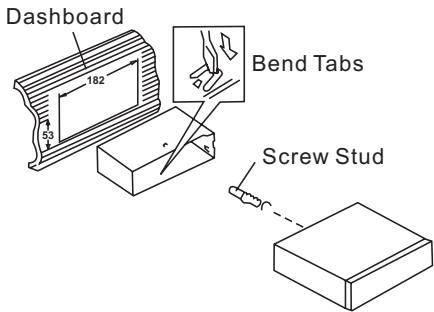
- Locate the series of bend tabs along the top, bottom and sides of the mounting
sleeve. With the sleeve fully inserted into the dashboard opening, bend as many of the tabs outward as necessary to firmly secure the sleeve to the dashboard.
- Place the radio in front of the dashboard opening so the wiring can be brought through the mounting sleeve.
- Follow the wiring diagram carefully and make certain all connections are secure and insulated with crimp connectors or electrical tape to ensure proper operation.
- After completing the wiring connections, turn the unit on to confirm operation (vessel accessory switch must be on). If the unit does not operate, recheck all wiring until the problem is corrected. Once proper operation is achieved, turn the accessory switch off and proceed with final mounting of the chassis.
- Carefully slide the radio into the mounting sleeve making sure it is right-side-up until it is fully seated and the spring clips lock it into place.
- Attach one end of the perforated support strap (supplied) to the screw stud on the rear of the chassis using the hex nut and spring washer provided. Fasten the other end of the perforated strap to a secure part of the dashboard either above or below the radio using the screw and plain washer pro
vided. Bend the strap, as necessary, to position it. CAUTION: The rear of the radio must be supported with the strap to prevent damage to the dashboard from the weight of the radio or improper operation due to vibration.
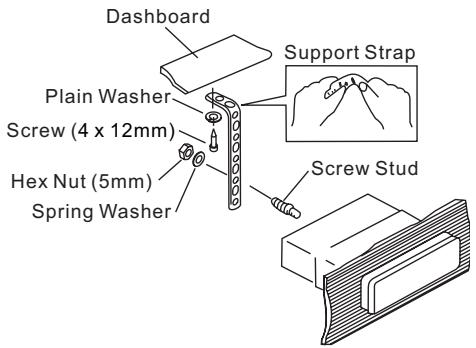
- Test radio operation by referring to the operating instructions for the unit.
Trim Plate Installation
Push the trim plate against the chassis until it is fitted. You must do this before you install the control panel, otherwise it can't be attached.
Removing the Unit
To remove the radio after installation:
- Insert fingers into the groove on the front of the frame and pull out to remove the frame
(when re-attaching, point the edge with the groove downward and attach).
- Insert the removal keys straight back until they click, and then pull the radio out. If removal keys are inserted at an angle, they will not lock properly to release the unit.
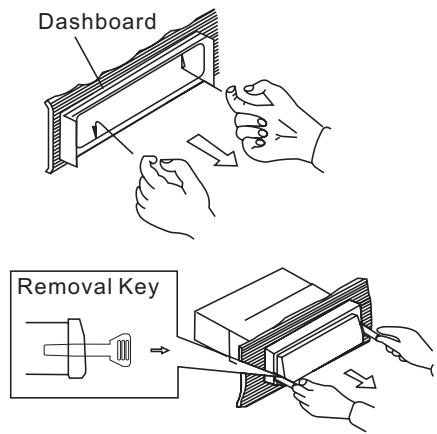
DIN Rear Mount (Method B)
This unit has threaded holes in the chassis side panels which may be used with the original factory mounting brackets of some vehicles to mount the radio to the dashboard. Please consult with your local mobile stereo shop for assistance on this type of installation.
- Remove the existing factory radio from the dashboard or center console mounting. Save all hardware and brackets as they will be used to mount the new radio.
- Carefully unsnap the plastic trim ring from the front of the new radio chassis. Remove and discard the trim ring.
- Remove the factory mounting brackets and hardware from the existing radio and attach them to the new radio. Select a position where the screw holes of the bracket and the screw holes of the main unit are aligned (are fitted). Tighten the screws at 2 places on each side. Do not exceed M5 x 9 MM
maximum screw size. Longer screws may damage components inside the chassis.
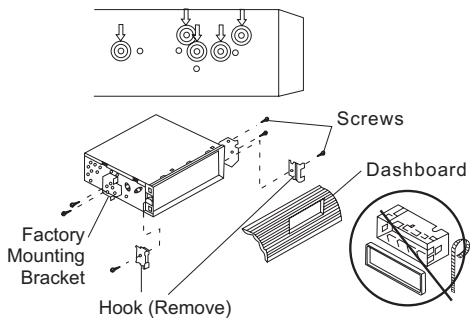
- Wire the new radio to the vehicle as outlined in the Universal Installation instructions.
- Mount the new radio assembly to the dashboard or center console using the reverse procedure of step 1.
NOTE: The mounting box, outer trim ring, and half-sleeve are not used for method B installation.
Reconnect Battery
When wiring is complete, reconnect the battery negative terminal.
WIRING DIAGRAMS
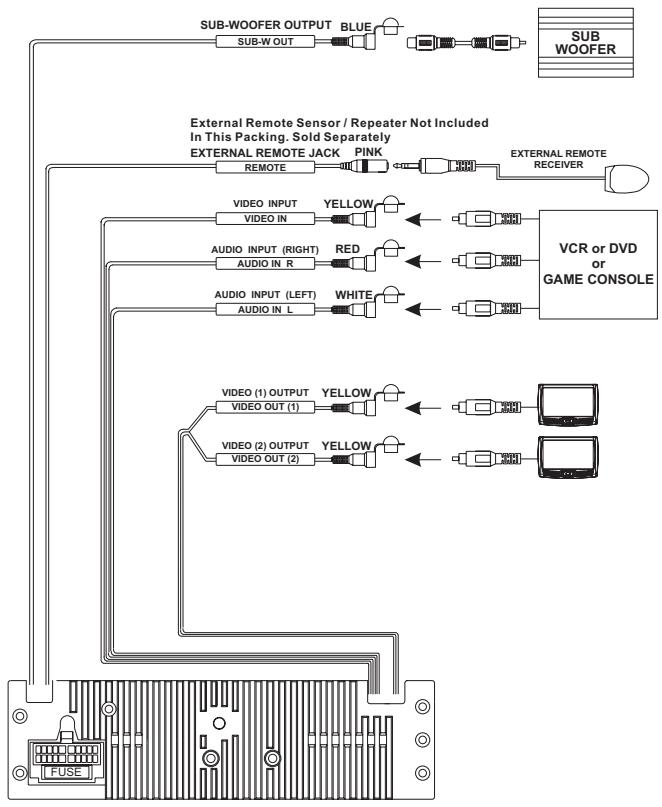
Audio/Video Connections
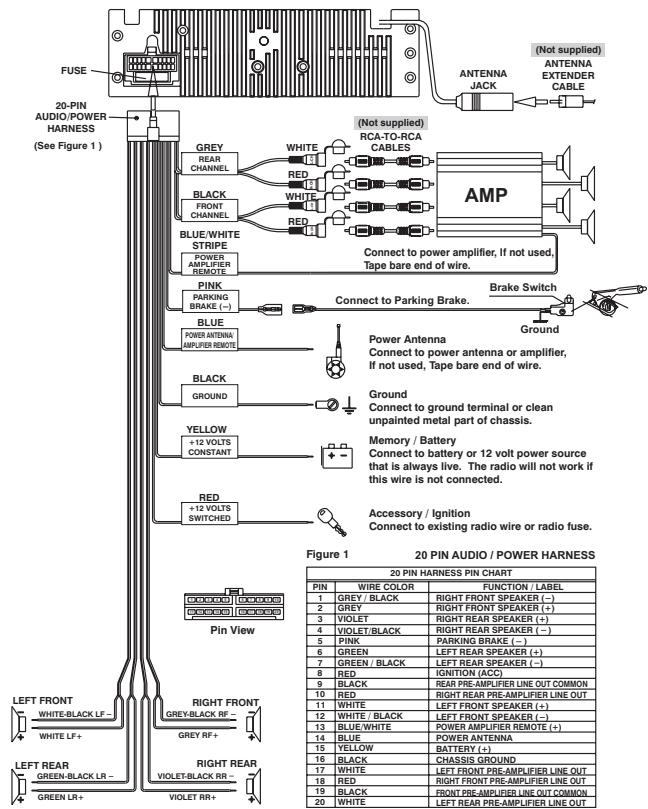
Electrical Connections
DETACHABLE CONTROL PANEL
DO NOT insert the control panel from the left side. Doing so may damage it.
- Do not put pressure on the display or control buttons when handling the front panel.
- The rear connector that connects the main unit and the D.C.P is an extremely important part. Be careful not to damage it by pressing on it with fingernails, pens, screwdrivers, etc.
- If the D.C.P becomes dirty, wipe with a soft, dry cloth only. Use a cotton swab soaked in isopropyl alcohol to clean the socket on the back of the D.C.P.
Make sure there is no dust or dirt on the electrical terminals on the back of the panel as this could cause intermittent operation or other malfunctions.
- The D.C.P can easily be damaged if dropped. After removing it, place it in a protective case and be careful not to drop it or subject it to strong shocks.
- When the release button is pressed and the D.C.P is unlocked, the car's vibrations may cause it to fall. To prevent damage to the D.C.P, always store it in a protective case after detaching it.
Removing the Control Panel
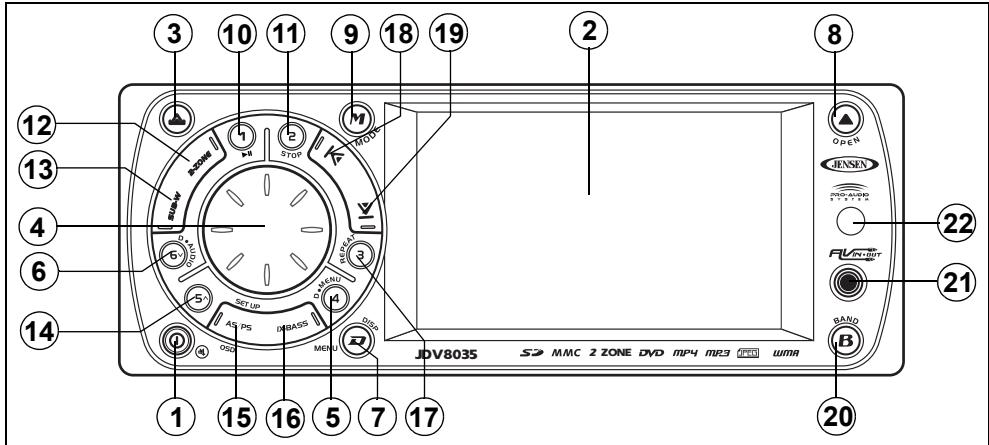
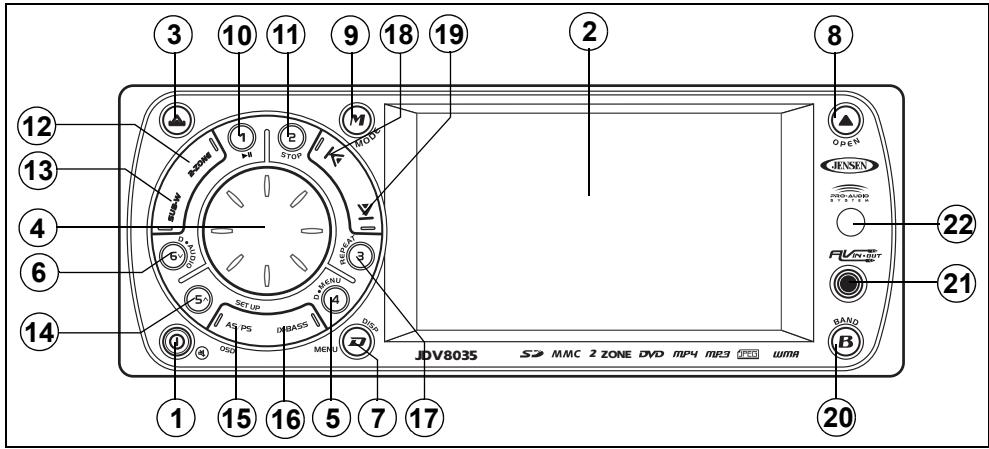
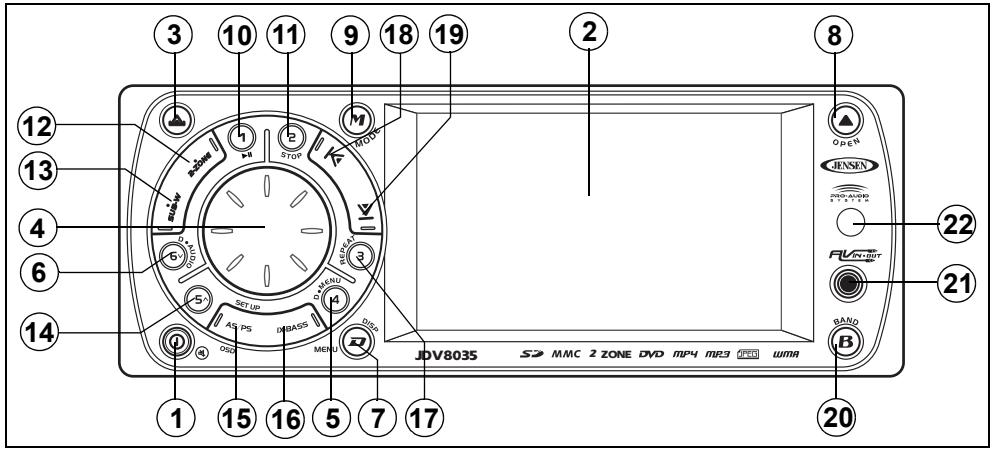
The front panel release button (3) releases the mechanism that holds the front panel to the chassis. To detach the front panel, perform the following steps:
- Turn the power off.
- Press the release button.
- Grasp the left side to release the front panel and then pull it an an angle to remove the right side from the chassis.
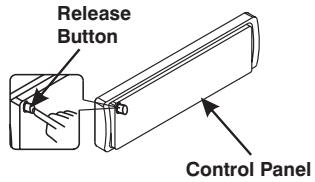
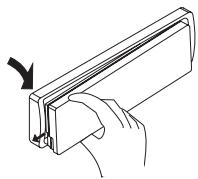
Attaching the Control Panel
Before re-attaching the front panel, make sure the electrical terminals on the back of the panel are free of dust and dirt, as debris could cause intermittent operation or other malfunctions.
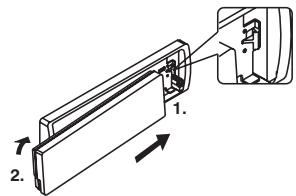
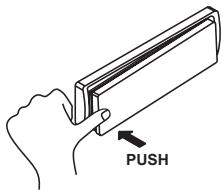
To attach the front panel:
- Insert the right side of the control panel into the main unit, making sure the panel is attached at the T-joint (see diagram).
- Push the left side of the control panel near the middle until a "click" sound is heard.
REMOTE CONTROL
The remote control will allow you to control the advanced functions of the JDV8035.
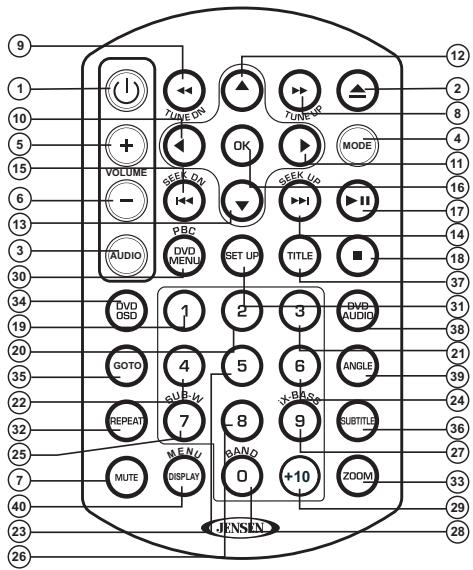
- Power
- Open/Close/Eject
- Audio Menu
- Mode (select playing source)
- Volume Up
-
Volume Down
-
Mute
-
Tune Up/Fast Forward
-
Tune Down/Fast Reverse
-
Left
-
Right
12.Up - Down
- Seek Up
Radio Tune
Track Up
File Up
Next
- Seek Down
Radio Tune
Track Down
File Down
Back
-
OK/Enter
-
Play/Pause
-
Stop/Return
-
1
-
Tuner M1 recall, Memory 1
-
Track Number Entry
File Number Entry -
2
-
Tuner M2 recall, Memory 2
- Track Number Entry
File Number Entry
21.3
-
Tuner M3 recall, Memory 3
-
Track Number Entry
File Number Entry
22.4
Tuner M4 recall, Memory 4
- Track Number Entry
File Number Entry
23.5
Tuner M5 recall, Memory 5
- Track Number Entry
File Number Entry
24.6
Tuner M6 recall, Memory 6
- Track Number Entry
File Number Entry
-
7/SUB-W
-
Track Number Entry
File Number Entry - Subwoofer ON/OFF
26.8
-
Track Number Entry
File Number Entry -
9/iX-BASS
-
Track Number Entry
File Number Entry -
iX-Bass ON/OFF/Adjust
-
0/BAND
-
Track Number Entry
File Number Entry -
Change Band (3 FM, 2 AM)
-
Press repeatedly to select a number in the tens position for direct track entry (for example, to select track "44", press the +10 button four times and then press the 4 button).
30.DVD MENU/PBC
DVD Menu
PBC (for VCD 2.0 and up)
- SET UP Menu (Disc only)
- REPEAT
33.ZOOM - DVD OSD (On Screen Display)
- GOTO (direct entry)
- SUBTITLE (DVD)
- DVD TITLE
- DVD AUDIO
DVD Audio
VCD Audio L/R/ST
- ANGLE (DVD only)
- DISPLAY/MENU
Operating Range
The head unit remote control sensor (22) is located on the right side of the control panel. The remote control can operate within a distance of 3 5m of this sensor.
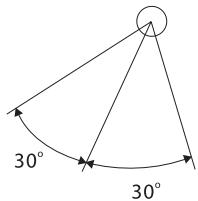
REMOTE SENSOR
Replacing the Battery
When the range of operation of the card remote control becomes short or stops functioning, replace the battery with a new lithium battery. Be sure to observe the proper polarity, as indicated below.
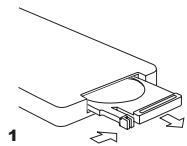
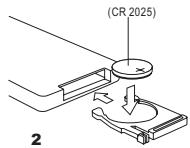
OPERATING INSTRUCTIONS
Front Panel Open/Close
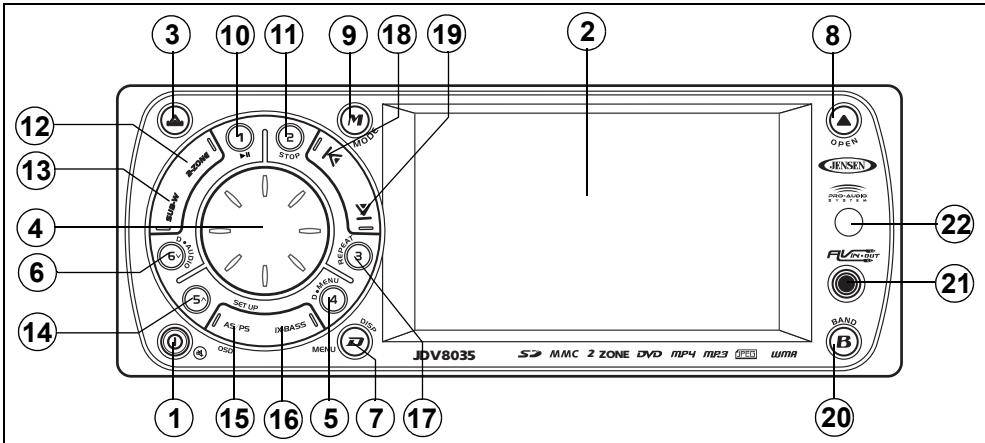
This unit is equipped with an advanced full logic motorized slide down front panel. Press the OPEN button (8) to open the closed panel or to close the opened panel.
WARNING: Always use the OPEN button to open/close the front panel. Never try to open/close the front panel manually, as this will cause serious and permanent damage to the slide mechanism and void the warranty.
WARNING: Do not attempt to remove or attach the front panel (by pressing the detach button) when the panel is in the down (open) position. This may cause serious and permanent damage to the unit and panel. Only attach or detach the front panel when the panel is in the up (closed) position.
Power On/Off
Press and hold the ① (power/mute) button (1) or short press any other button on the control panel (except open/eject) to turn the unit on. Press and hold the power/mute button again to turn the unit off.
NOTE: It is a characteristic of LCD panels that, if subjected to cold temperatures for an extended period of time, they may take longer to illuminate than under normal conditions. In addition, the visibility of the numbers on the LCD may slightly decrease. The LCD read-out will return to normal when the temperature inside the vehicle increases to a normal range.
Volume Control
Turn the rotary encoder (4) to increase/ decrease the volume level, shown on display panel, from "00" to "46". The display will automatically return to the normal indication 5 seconds after the last volume adjustment or when another function is activated.
Mute
Press the power/mute ( ) button (1) to mute the audio output "MUTE" appears on the display. Press the power/mute button again to restore audio output to the previous level.
Mode Selector (MODE)
Press this MODE button (9) to select a different mode of operation, as indicated on the display panel. Available modes include TUNER, DISC, CARD (SD), AV IN 1, AV IN 2.
AV IN/OUT Connector
Use the AV IN/OUT connector (21) to connect a portable media device for playback through the vehicle sound system.
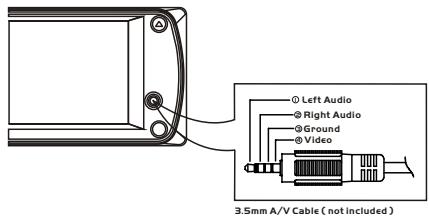
See "AV Connector" on page 13 to learn how to reverse the AV IN/OUT connector from IN to OUT.
NOTE: For iPod or Zune video playback, please refer to owner's manual that came with your device. Please complete any photo or video setting adjustments before connecting the device to this unit.
Display Selector (D)
You can change the way playback information is displayed to suit your needs. Press the D/ DISP button (7) to alternate between the Image Display and Big Font Interface screens, shown below:
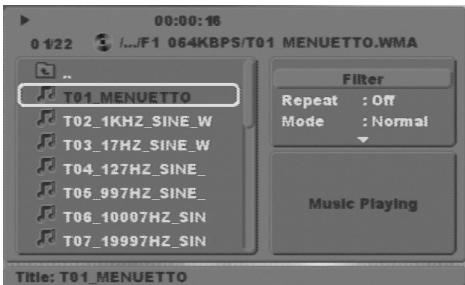
Image Display Interface
HMA
File 0
0001
00'06'18"
15-NAR-06
18:09
Big Font Interface
System Menu (D/MENU)
Press and hold the D/MENU button (7) for more than 3 seconds to display the system menu. You can then press the D/MENU button repeatedly or press the tune/track |||< or >||| buttons (18, 19) to access menu items. Use the rotary encoder (4) to adjust the settings for a selected function. The display will return to the normal indication 5 seconds after the last adjustment or when another function is activated.
Angle
Turn the rotary encoder to adjust the angle of the front panel upward by choosing a setting from "00" to "12".
Contrast
Turn the rotary encoder to adjust the screen contrast from "00" to "50".
Bright
Turn the rotary encoder to adjust the screen brightness from "00" to "50".
Color
Turn the rotary encoder to adjust the screen color level from "00" to "50".
Date Set
Turn the rotary encoder to adjust the DATE/MONTH/YEAR. Press the rotary encoder (4) to confirm each entry and move to the next field.
Clock
Turn the rotary encoder (4) to the right to adjust the minutes or to the left to adjust the hour.
Time Form
Turn the rotary encoder to adjust the clock format from "12 Hours" to "24 Hours".
AV Connector
By default, the AV connector (21) on the front panel is designated as "IN". Use the rotary encoder to change the source to "OUT", allowing you to output the audio/video source from the built-in DVD player to another device.
Tuner Set (Local/Distant)
Turn the rotary encoder to choose "Local" or Distance". Local mode favors access to local stations whose signals are much stronger.
Tuner Area
Turn the rotary encoder to choose the appropriate frequency spacing for your area: U.S.A., Latin, Europe, or Orit (Russia).
Beep Tone
Turn the rotary encoder to choose whether and audible beep is heard when a function is selected: "BEEP ON" or "BEEP OFF".
Programmable Turn-On Volume (Vol PGM)
Turn the rotary encoder to select the default turn-on volume level. "VOL PGM 12" is the default setting.
Rear Speaker On/Off (Rear Spk)
Turn the rotary encoder to turn the rear speaker on/off. It is recommended to turn the rear speaker "OFF" when using headphones. When the rear speaker is "OFF", the "FADER" audio function is disabled.
Internal Amplifier (Inter Amp)
Turn the rotary encoder to turn the system's built in amplifier on/off. It is recommended to turn the internal amplifier "OFF" when connected to an external amplifier.
Audio Menu Button
Press the rotary encoder (4) repeatedly to access the Audio Menu functions, including sub-menu items. Use the tune/track ||< or >|| buttons (18, 19) to cycle through only the top-level menu functions, and then press the rotary encoder to select the various adjustment options for that feature. Turn the rotary encoder to select settings for each option. The unit automatically exits audio control mode after five seconds of inactivity.
Sub-W
Only appears when subwoofer function is turned on. See "Subwoofer (SUB-W)" on page 15.
X-Bass
Only appears when X-Bass function is turned on. See "Bass Boost (iX-BASS)" on page 15.
BASS
To adjust Bass options, press the rotary encoder (4) until "BASS" appears in the display. Continue pressing the rotary encoder to access the following Bass settings:
LEVEL
Turn the rotary encoder clockwise to increase or counter-clockwise to decrease the Bass level from " -6" to " +6". "00" represents a flat response.
- Bass Center Frequency (C. Frq)
Turn the rotary encoder to adjust the Bass Center Frequency to 60, 80, 100 or 200Hz .
- Bass Quality Factor (BassQ)
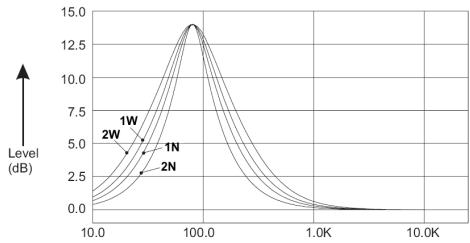
Turn the rotary encoder to select one of the following Bass Quality Factor options: 2N, 1N, 1W, 2W. The following chart depicts the curve characteristics for each step:
Bass Quality Factor Curve Characteristics
Middle
To adjust Mid-Range options, press the rotary encoder (4) repeatedly until "Middle" appears in the display. Continue pressing the rotary encoder to access the following Mid-Range settings:
LEVEL
Turn the rotary encoder clockwise to increase or counter-clockwise to decrease the Mid-Range level from “-6” to “+6”. “00” represents a flat response.
Mid-Range Center Frequency (C.Frq) Turn the rotary encoder to adjust the Mid-Range Center Frequency to 500Hz, 1KHz, 1.5KHz, or 2.5KHz.
Mid-Range Quality Factor (BassQ) Turn the rotary encoder to select one of the following Mid-Range Quality Factor options: 2N, 1N, 1W, 2W. The following
chart depicts the curve characteristics for each step:
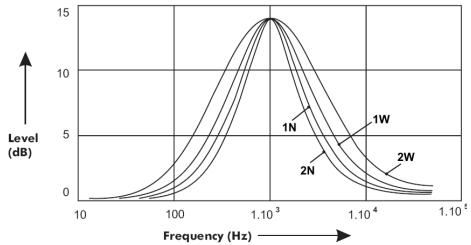
Middle Quality Factor Curve Characteristics
Treble
To adjust Treble options, press the rotary encoder (4) repeatedly until "TREBLE" appears in the display. Continue pressing the rotary encoder to access the following Treble settings:
LEVEL
Turn the rotary encoder clockwise to increase or counter-clockwise to decrease the Treble level from " -6" to " +6". "00" represents a flat response.
- Treble Center Frequency (Freq)
Turn the rotary encoder clockwise to adjust the Treble Center Frequency to 10KHz, 12.5KHz, 15KHz or 17.5KHz.
Balance
To adjust the balance from "L12" (full left) to "R12" (full right), press the rotary encoder (4) until "Balance" appears in the display. Turn the rotary encode adjust the balance between the left and right speakers. "C00" represents a center balance.
Fader
To adjust the fader from "F12" (full front) to "R12" (full rear), press the rotary encoder (4) until "Fader" appears in the display. Turn the rotary encoder to adjust the fader between the front and rear speakers. "C00" represents a center fader level.
Subwoofer (SUB-W)
After connecting a subwoofer to the back of the unit, press the SUB-W button (13) to turn the subwoofer function "ON". Press the rotary encoder to access and modify the following options:
Level: Turn the rotary encoder to adjust the subwoofer Level from "00" to "12".
LPF: Turn the rotary encoder to adjust the LPF (Low Pass Filter) to 80Hz, 120Hz or 160Hz.
Bass Boost (iX-BASS)
When listening to music at low volume levels, this feature will boost the bass and treble ranges to compensate for the characteristics of human hearing. To turn iX-BASS on, press the
iX-BASS button (16) on the front panel and then use the rotary encoder to select "LOW", "MID", or "HIGH". "XBAS" appears on the LCD. Press the IX-BASS button again to turn X-Bass off.
TUNER OPERATION
AM/FM Band Selector (BAND)
Press the B/BAND button (20) to change between three FM and two AM bands. Each band stores up to six preset stations.
Manual Tuning
Press the tune/track ||< button (18) to manually tune the radio station higher or press the tune/ track >|| button (19) to tune the radio station lower.
Seek Tuning
Press and hold the tune/track ||||< button (18) to seek tune the radio station higher. Press and hold the tune/track >|||| button (19) to seek tune the radio station lower.
Preset Stations
Up to six stations on each band can be stored as presets, which can then be instantly recalled by pressing the associated preset button (5, 6, 10, 11, 14, 17). To store a station, turn the radio on and select the desired band and station. Press and hold a preset button (numbered one through six on the face of the radio) for more than two seconds. When stored, the preset number (CH1 - CH6) appears on the display. The station can now be recalled by pressing the corresponding preset button. Repeat for the
remaining five presets on the current band and for presets on the other four bands.
Preset Scan
Press the AS/PS button (15) to scan and play each preset station for 5 seconds each. Press AS/PS again to stop preset scan.
Automatic Preset Store
Press and hold the AS/PS button (15) to select six strong stations and store them in the current band using the AUTO PRESET feature. The radio will automatically scan the current band and enter strong stations into the preset memory positions. When using the AUTO PRESET feature, the new stations replace any stations already stored in preset memory.
NOTE: You can stop the AUTO PRESET function at any time by pressing the AS/PS button again.
Mono/Stereo Reception
During FM radio operation, the JDV8035 will automatically pickup a stereo signal, when available ("ST" appears on the display). When no stereo signal is available, the unit automatically reverts to mono operation.
DISC OPERATION
Insert Disc (OPEN)
Press the OPEN button (8) to open the front panel and reveal the disc slot. With the label surface facing up, gently insert the disc into the slot until the soft-loading mechanism engages and disc play begins. The front panel will close automatically and "Reading..." will appear on the screen while the disc loads.
NOTE: The unit is designed for play of standard 5'' (12 cm.) compact discs only. Do not attempt to use 3'' (8 cm.) CD singles in this unit, either with or without an adaptor, as damage to the player and/or the disc may occur. Such damage will not be covered by the warranty on this product.
Eject Disc (OPEN)
When the OPEN button (8) is pressed while a disc is inserted, disc play is stopped and the disc is ejected. The unit will revert to Tuner operation. If the disc is not removed from the unit within 15 seconds, the disc will be reloaded.
NOTE: To prevent a disc from accidentally being damaged, always remove the disc from the unit when disc play is finished.
ControllingPlayback
After inserting an audio disc, the player automatically plays the first track. The elapsed playing time is displayed at the top of the screen. The CD and MP3 user interfaces are shown below:
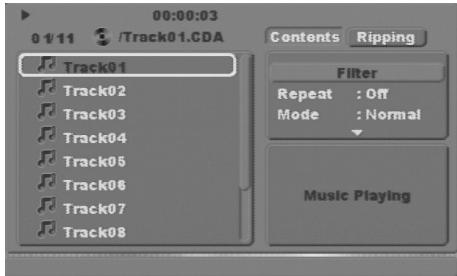
CD Audio Interface
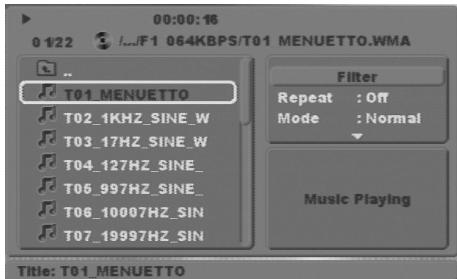
MP3 Audio Interface
When the track is finished, the next track will play automatically. Press the 2/STOP button (11) to stop playback of the current file.
- Use the , , or buttons on the remote control to navigate the on-screen file list.
- Press the button on the remote control or the 5 ∧ button (14) on the control panel when the highlighted file is in the column on the far right to display the next ten files.
- Press the button on the remote control or the 6 V button (6) on the control panel when the highlighted file is in the column to the far left to display the previous ten files.
- Press OK when a file number is highlighted or after numeric input to begin playback of the selected file.
- Use the remote control numeric buttons (0-9, +10) to enter and play a file number directly. Press the +10 button repeatedly to select a number in the tens position for direct track entry (for example, to select track "44", press the +10 button four times and then press the 4 button).
Disc Play/Pause
Press the 1/PAUSE button (10) to freeze disc play. Press 1/PAUSE again to resume disc play.
Disc Stop
Press the 2/STOP button (11) to stop disc play and retain the playback position (DVD, VCD, CD). Press 2/STOP twice if you want to resume playback from the beginning of the disc. Press 1/PAUSE to resume disc play.
NOTE: After the last track on a disc is played, the unit will stop playback. Press 1/ PAUSE to play from the beginning of the disc.
Track Selection
The Track Select functions are used to quickly access the beginning of a track/chapter. Each time the track up (||| <) button (18) is pressed, the next higher track/chapter is selected, as shown on the display panel. Each time the track down (>|||) button (19) is pressed, the previous track/chapter is selected.
Direct Track Access (GOTO)
Use the GOTO function to access a track directly.
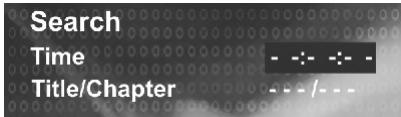
- Press the GOTO button on the remote control to view the Search menu.
-
Use the / buttons on the remote control to select Time or Title/Chapter/Track search.
-
Select "Time" to jump to a specific place on the disc by entering the elapsed time in hours, minutes and seconds (hh:mm:ss).
- Select "Title/Chapter" to jump to the beginning of a specified chapter within a title by entering the title and chapter numbers.
-
Select "Track" to jump to a specific track on a non-DVD disc.
-
Use the number keys on the remote control to enter the track number or elapsed time directly.
- Press the OK button to confirm and begin playback.
Fast Forward/Reverse
Press and hold the track up (||<) button (18) to advance rapidly forward (>>× 2) or the track down (>||) button (19) to advance rapidly backward (<<× 2) .
Press and hold the track up/down button repeatedly to adjust the fast forward/reverse speed from x 2 to x 4, x 8 or x 20. During either
function, the elapsed time of each track will be shown on the display panel.
Repeat Play
Press the 3/REPEAT button (17) multiple times during playback to select from the following repeat play options:
VCD/CD: Repeat Single (track), Repeat All (disc), Off
DVD: Repeat Chapter, Repeat Title, Off
- MP3/WMA: Repeat Single (file), Repeat All (directory/folder), Off
MP3 File/Folder Searching
Use the 5 or 6 V button (14, 6) on the control panel or the cursor up/down key on the remote to select a folder, and then press OK. The folder is opened and the content displayed.
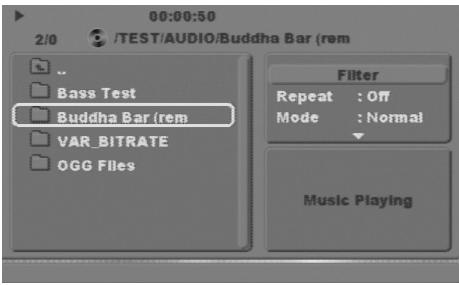
Use the 5 or 6 V button on the control panel or the cursor up/down key on the remote to
navigate the file list. Press OK to confirm and play the selected file.
NOTE: The JDV8035 will display ID3 information (Name, Album, Artist, Copyright, etc.), when available. Extended information will scroll across the bottom of the optional external TFT screen, if connected.
VCD PlayBack Control (PBC)
If you insert a VCD with playback control (version 2.0), playback automatically starts at the beginning of the first track.
- Press the PBC (DVD MENU) button on the remote control to turn PBC on/off.
- Use the numeric keypad (0-9) on the remote control to select the desired track.
Press OK to confirm your selection. - Press DVD MENU to access the main menu.
DVDPlaybackFeatures
The following features are available during DVD playback:
DVD MENU: Press the DVD MENU button on the remote control to access the main DVD menu. Use the , , or buttons to highlight a menu item, and then press OK to play.
DVD AUDIO: Press the DVD AUDIO button on the remote control or press and hold the 6 V button (6) on the control panel to choose an alternate audio language, if available.
1/8□2 Ch Eng
2/8□2 Ch Chl
- SUBTITLE: Press to select an alternate subtitle language, if available.
2/10 Fre
- TITLE: Press to display the title or chapter list. Use the , , or buttons or the numeric buttons to enter a title or chapter number, and then press OK to play.
- ANGLE: Press to select an alternate viewing angle, if available.
1/1
- ZOOM: Press to zoom the picture during normal, slow or still playback at Q1, Q2, Q3, Q4 or select QOff to return to normal view. Use the , , or buttons to shift the zoom point, allowing the zoomed image to be panned.
DVD OSD: Press the DVD OSD button on the remote control or the AS/PS button (15)
on the control panel to view the elapsed playing time and remaining time. Press twice to additional DVD information including disc type, current title, selected angle, subtitle information, audio language, etc. Press a third time to return to normal viewing mode.
| DVD Video | 00:00:07 | 01:03:48 | ||
| Title | 1/1 | Chapter +/- | ||
| Audio | 1/4 | 2 Ch | ||
| Subtitle | Off | |||
| Angle | 1/1 | Bitrate | 0.000Mbps | |
NOTE: Feature availability is dependent upon DVD embedded information.
JPEG CD Operation
After inserting a disc with JPEG files, the unit will search for files with appropriate formats and then begin to play an image slideshow starting with the first picture.
Playback Controls
Use the instructions in the first part of this section (DVD/DISC Playback) for Pause, Track Selection or GOTO operations.
Thamburger View
- Press the TITLE button on the remote control to display a thumbnail view of up to nine pictures (3 x 3). Use the , , or buttons to select a thumbnail.
Use the tune/track ||< and >||| buttons (18, 19) on the control panel or the / buttons on the remote control to view the next/previous page of thumbnails.
- Press the OK button on the remote control or the rotary encoder button (4) on the control panel to select the highlighted image.
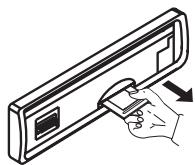
This unit can play MP3, WMA, JPEG and MP4 files stored on an SD or MMC Memory card.
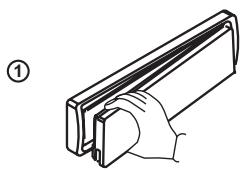
Inserting an SD or MMC Card
- Detach the front panel.
- Insert memory card with label side up.
- Push in until a "click" is heard.
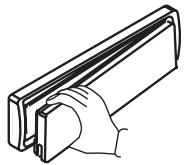
①
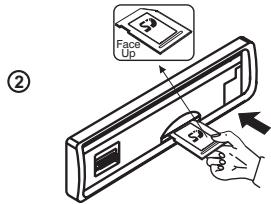
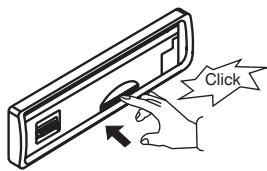
②
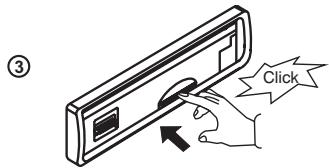
(3)
Accessing Card Mode
After inserting an SD or MMC card, press the MODE button (9) to select "Card" mode. The unit will read the files on the Memory Card and playback will begin automatically.
Playback Controls
The playback controls for memory card playback are the same as for MP3 or CD playback. See "Disc Operation" on page 17 for more information.
NOTE: SD card slot supports up to 2GB SD format. HC type cards are not compatible.
DUAL ZONE OPERATION
This unit is equipped with an advanced Dual AV Zone feature, which allows the user to select different modes of Audio and Video (AV) output for the Front and Rear Speakers and TFT screens (optional). For example, you can choose to the Tuner through the front speakers while playing a movie through the rear speakers. If an additional TFT monitor(s) is installed (sold separately), the Dual A/V Zone function allows passengers to enjoy two different video sources For example, the built-In TFT screen can display the video from the Game Console while a rear seat screen can display video from a DVD Movie or other A/V source.
Turning Dual Zone On/Off
Press the 2-ZONE button (12) on the remote control or front panel to turn the dual zone feature ON/OFF. "OFF" is the default setting. "2-Zone" will appear on the LCD after Dual Zone is activated.
Selecting Front/Rear AV Sources
With Dual Zone turned "ON", press the rotary encoder button (4) to access the "2 Zone" setup menu. Turn the rotary encoder to choose a source for the front zone (Tuner, DVD, AV IN 1, AV IN 2) or press the rotary encoder to move to
the rear zone field and choose a source (Tuner, DVD, AV IN 1, AV IN 2).
During Dual Zone operation, AV IN 1 and AV IN 2 are considered as the same mode/source. If AV IN 1 or AV IN 2 is selected for either the front or rear source, the other AV source is not allowed for the other zone.
Front/Rear Source Controls
Changing Modes
Press the MODE button (9) to switch between the FZone (Front) and RZone (Rear) sources.
Controlling the Front Zone
By default, the front panel controls and remote control will operate the front zone only.
Controlling the Rear Zone
To control the rear zone:
-
Press the MODE button (9) to switch to the rear source. The LCD will display the Rear Source mode for 10 seconds.
-
Within 10 seconds, perform the desired operation for the Rear source using the remote control or control panel buttons. The LCD will automatically return to the Front source after 10 seconds.
Default Settings (Dual Zone "ON")
- When DUAL ZONE is turned on, the audio output will be muted for about 1 second.
- The default source mode for Front zone is "Tuner" and for Rear zone is "DVD".
- The default Volume level is "12" for both Front and Rear zone audio output (or the selected VOL PGM level indicated in the System Setup menu).
- The LCD display is defaulted to display the Front zone mode.
- When Dual Zone is "ON", the following audio functions are not available for adjustment: Bass, Treble, Middle, Balance, Fader, Sub-woofer, and iX-bass.
Default Settings (Dual Zone "OFF")
When Dual Zone is turned off, the default audio output reverts to what the user selected for the Front zone source.
NOTE: The subwoofer output is not available when the 2-ZONE button is pressed.
SYSTEM SETUP MENU
- During DVD or CD playback, press and hold the AS/PS button (15) to access the System Setup Menu.
- Use the tune/track ||< and >||| buttons (18, 19) on the control panel or the / buttons on the remote control to move left/right and select a menu category.
- Press the rotary encoder to select a category and access the menu items.
- Turn the rotary encoder to choose and menu item and then press to select.
- Turn the rotary encoder to choose an option for the selected menu item.
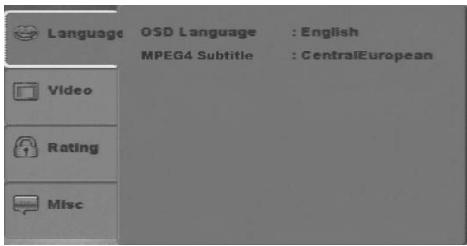
Language Settings
NOTE: Feature availability is dependent upon DVD embedded information.
OSD Language
Select a preferred language for the DVD OSD menus and messages.
- English = Menu/OSD is in English (factory default)
- French = Menu/OSD is in French
Espanol = Menu/OSD is in Espanol - Deutsch = Menu/OSD is in Deutsch
Italian = Menu/OSD is in Italian - Portuguese = Menu/OSD is in Portuguese
- Turkish = Menu/OSD is in Turkish
- Russian = Menu/OSD is in Russian
MPEG4 Subtitle
Choose a preferred subtitle language (MPEG4 only). Some discs may be programmed to display subtitles in a language other than the language selected.
Video
Aspect Ratio
Select the appropriate aspect ratio for your TV.
4:3: Aspect ratio of TV is 4:3.
16:9: Aspect ratio of TV is 16:9. Both widscreen and 4:3 content will fill the entire screen.
TV System
Select the appropriate output for your TV.
- NTSC: TV is NTSC. PAL content is played at NTSC resolution and frame rate (factory default).
PAL: TV is PAL. NTSC content is played at PAL resolution and frame rate.
- Auto: Media is played in its original format.
NOTE: Aspect Ratio and TV System are used to describe functions of the video screen. The JDV8035 is not equipped with a TV tuner.
Rating
Set Password
Enter a 4-digit password to activate the "Rating" feature. The original password is "8888".

Enter Password
In Correct Password
Once activated, this password will be required to access restricted content or to make changes to the Rating menu.
To change the password, select the "Set
Password" and enter the current password. You can then enter a new password.

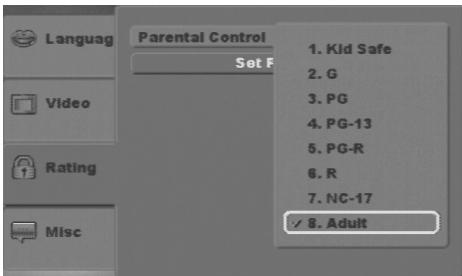
Parental Control
Select the appropriate rating level for the intended audience. You may override higher ratings by using your password.
Misc
Select "Use Default Settings" to restore the factory default settings for the Rating system only.
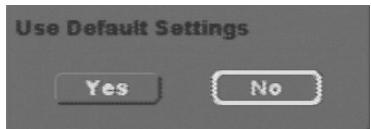
No = Return to Use Default Setting
Yes = Close Setup menu.
CARE AND MAINTENANCE
Your new radio/CD/DVD player does not require any maintenance. However, proper understanding of its use and handling will help you obtain maximum enjoyment of its capabilities. We recommend that you keep this manual for reference on the many features of this unit as well as how to set the clock. The following points should be observed:
- When cleaning the interior of the vehicle, do not get water or cleaning fluids on the unit.
- The CD/DVD player is a precision instrument and will not operate properly in extreme heat or cold. If such conditions occur, wait until the interior of the vehicle reaches a normal temperature before using the player.
If the temperature inside the player gets too hot, a protective circuit will automatically stop play of the disc. In this case, allow the unit to cool before operating the player again. - Never insert anything other than a 5" (12 cm) disc into the player as the mechanism can be damaged by foreign objects.
-
Do not attempt to use 3'' (8 cm) CD-Single discs in this unit, either with or without an adaptor, as damage to the player and/or disc may occur. Such damage will not be covered by the Warranty on this product.
-
When not using the disc player, always remove the compact disc. Do not leave an ejected disc sitting in the disc slot as this can expose it to sunlight and other causes of damage.
- Do not attempt to open the unit chassis. There are no user-serviceable parts or adjustment points inside.
- When the vehicle warms up during cold weather or under damp conditions, condensation may appear on the lens of the disc player. Should this occur, the player will not operate properly until the moisture has evaporated.
- The unit is designed with a vibration dampening disc mechanism to minimize interruption of disc play due to normal vibration. When driving on rough roads, however, occasional sound skips may occur. This will not scratch or damage the disc and normal play will resume when the rough conditions cease.
Handling Compact Discs
Dirt, dust, scratches and warping can cause skips in the playback and deterioration of sound quality. Please follow these guidelines to take care of your compact discs:
- Carefully wipe fingerprints, dust and dirt from the disc's playing surface with a soft
cloth. Wipe in a straight motion from the center to the outside of the disc.
- Never use chemicals such as record sprays or household cleaners to clean discs, as they can irreparably damage the disc's surface.
- Discs should be kept in their storage cases when not in use.
- Do not expose discs to direct sunlight, high temperatures or high humidity for long periods.
- Do not stick paper, tape or labels on disc surfaces.
RESET BUTTON
A Reset button is located behind the faceplate near the center of the unit (the front panel must be removed to access the button). The Reset function should only be activated under the following circumstances as it will erase the time and pre-set memories: Upon initial installation after all wiring is completed; If there is a malfunction of any of the switches on the unit, pressing the Reset button may clear the system and return to normal operation.
SPECIFICATIONS
CD-R and CD-RW Capability
Depending on media type and method of "recording / burning", some DVD's, SVCD's, VCD's and CD-R/RW's may be incompatible with this unit. After "recording / burning" the session must be closed. Please refer to your software's recommended procedures for closing a disc / session. Review your recording software to familiarize yourself with the correct "recording / burning" procedures. The software for recording DVD+R / RW and CD-R / RW's is widely available from retailers and Internet sources. This unit will support the following formats: SVDC, VCD, CDDA (Compact Disc Digital Audio), MP3 and .WMA formats "recorded / burned" onto a CD-R/RW. In addition, this unit supports MP3 / WMA files burned onto a DVD+R / RW's. This unit does not support .WAV, .OGG or other formats.
Technical Specifications
DVD/CD Player
Signal to Noise Ratio: >90dBA
Frequency Response: 20Hz to 20kHz, -3dB
Channel Separation: >55dB @ 1kHz
D/A converter: 1Bit/Ch
FM Tuner
Tuning range: 87.5MHz-107.9MHz
Mono Sensitivity: 18dBf
50dB Stereo Quieting Sensitivity: 20dBf
Stereo Separation @ 1kHz: >60dB
Frequency Response: 30Hz to 12kHz, -3dB
AM Tuner
Tuning Range: 530kHz - 1720kHz
Sensitivity @ 20dB Signal to Noise: 30uV
Frequency Response: 30Hz - 2kHz, -3dB
Video
Color System: NTSC/PAL
Video Output: Composite 1.0 Vp-p (+/- 0.2) 75 - ohm
Video Input: Composite 1.0 Vp-p (+/- 0.2) 75 - ohm
Audio
Max Output Power: 40W x 4 channels
Load Impedance (speakers): 4 ohms
Line out level/load: 400mV/10k ohm load
Line out Impedance: 200 ohm
Auxiliary Input
Frequency response: 20Hz to 20KHz, -3dB
Input Maximum Voltage: 1200 mV
Input Impedance: 4.7k ohm
Monitor
Screen Size: 3.5" (measured diagonally)
Active area: 78.24mm x 45.864mm
Screen Type: TFT Liquid Crystal Display (LCD) active matrix
Resolution: 960 (W) X 234 (H) sub pixels
Dot Pitch: 0.0815 mm x 0.196mm
Contrast Ratio: 350
Brightness: 250 cd/m²
General
Power Supply: 11 to 16VDC, negative ground
Power Antenna (Blue): 500mAmp Max, current limited protection.
Operating Temp: -10C~60C
Fuses: 15 amp ATO type
Dimensions: 7'' × 7'' × 2'' (178mm x 178mm x 51mm)
Specifications subject to change without notice.
JDV8035
For instructions in English, refer to page 2.
INFORMATION SUR LA SECURITE
DVD Menu
PBC (for VCD 2.0 and up)
- SET UP Menu (Disc only)
- REPEAT
33.ZOOM - DVD OSD (Affichage sur l'écran)
- GOTO (entree directe)
- SUBTITLE (DVD)
- DVD TITLE
- DVD AUDIO
DVD Audio
VCD Audio L/R/ST
- ANGLE (DVD uniqueness)
- DISPLAY/MENU
Gamme d'opération
Commander la reproduction
ASA Electronics Corporation
www.asaelectronics.com
© 2008 ASA Electronics Corporation
v.071108
- WHEN CAR WASHING
- WHEN PARKED
- USE THE PROPER POWER SUPPLY
- PROTECT THE DISC MECHANISM
- COPYRIGHT PROTECTION NOTICE
- CAUTION
- WARNING
- SUPPORTED DISCS AND MEDIA FORMATS
- COMPATIBLE DISC FORMATS
- COMPATIBLE MEDIA FORMATS
- AUDIO FORMAT
- MP3 AND WMA NOTES
- VIDEO FORMAT
- MPEG4 NOTES
- DISCS WHICH CANNOT BE PLAYED
- DISC MAINTENANCE
- INSTALLATION INSTRUCTIONS
- BEFORE YOU BEGIN
- IMPORTANT NOTES
- DIN FRONT MOUNT (METHOD A)
- TRIM PLATE INSTALLATION
- REMOVING THE UNIT
- DIN REAR MOUNT (METHOD B)
- RECONNECT BATTERY
- WIRING DIAGRAMS
- DETACHABLE CONTROL PANEL
- REMOVING THE CONTROL PANEL
- ATTACHING THE CONTROL PANEL
- REMOTE CONTROL
- OPERATING RANGE
- REPLACING THE BATTERY
- OPERATING INSTRUCTIONS
- FRONT PANEL OPEN/CLOSE
- POWER ON/OFF
- VOLUME CONTROL
- MUTE
- MODE SELECTOR (MODE)
- AV IN/OUT CONNECTOR
- DISPLAY SELECTOR (D)
- SYSTEM MENU (D/MENU)
- ANGLE
- CONTRAST
- BRIGHT
- COLOR
- DATE SET
- CLOCK
- TIME FORM
- AV CONNECTOR
- TUNER SET (LOCAL/DISTANT)
- TUNER AREA
- BEEP TONE
- PROGRAMMABLE TURN-ON VOLUME (VOL PGM)
- REAR SPEAKER ON/OFF (REAR SPK)
- INTERNAL AMPLIFIER (INTER AMP)
- AUDIO MENU BUTTON
- SUB-W
- X-BASS
- BASS
- LEVEL
- BASS CENTER FREQUENCY (C. FRQ)
- BASS QUALITY FACTOR (BASSQ)
- BASS QUALITY FACTOR CURVE CHARACTERISTICS
- MIDDLE
- TREBLE
- BALANCE
- FADER
- SUBWOOFER (SUB-W)
- BASS BOOST (IX-BASS)
- TUNER OPERATION
- AM/FM BAND SELECTOR (BAND)
- MANUAL TUNING
- SEEK TUNING
- PRESET STATIONS
- PRESET SCAN
- AUTOMATIC PRESET STORE
- MONO/STEREO RECEPTION
- DISC OPERATION
- INSERT DISC (OPEN)
- EJECT DISC (OPEN)
- CONTROLLINGPLAYBACK
- DISC PLAY/PAUSE
- DISC STOP
- TRACK SELECTION
- DIRECT TRACK ACCESS (GOTO)
- FAST FORWARD/REVERSE
- REPEAT PLAY
- MP3 FILE/FOLDER SEARCHING
- VCD PLAYBACK CONTROL (PBC)
- DVDPLAYBACKFEATURES
- 1/8□2 CH ENG
- 2/8□2 CH CHL
- 2/10 FRE
- 1/1
- JPEG CD OPERATION
- PLAYBACK CONTROLS
- THAMBURGER VIEW
- INSERTING AN SD OR MMC CARD
- ACCESSING CARD MODE
- DUAL ZONE OPERATION
- TURNING DUAL ZONE ON/OFF
- SELECTING FRONT/REAR AV SOURCES
- FRONT/REAR SOURCE CONTROLS
- CHANGING MODES
- CONTROLLING THE FRONT ZONE
- CONTROLLING THE REAR ZONE
- DEFAULT SETTINGS (DUAL ZONE "ON")
- DEFAULT SETTINGS (DUAL ZONE "OFF")
- SYSTEM SETUP MENU
- LANGUAGE SETTINGS
- OSD LANGUAGE
- MPEG4 SUBTITLE
- VIDEO
- ASPECT RATIO
- TV SYSTEM
- RATING
- SET PASSWORD
- PARENTAL CONTROL
- MISC
- CARE AND MAINTENANCE
- HANDLING COMPACT DISCS
- RESET BUTTON
- SPECIFICATIONS
- CD-R AND CD-RW CAPABILITY
- TECHNICAL SPECIFICATIONS
- DVD/CD PLAYER
- FM TUNER
- AM TUNER
- AUDIO
- AUXILIARY INPUT
- MONITOR
- GENERAL
- JDV8035
- INFORMATION SUR LA SECURITE
- GAMME D'OPÉRATION
- COMMANDER LA REPRODUCTION
Brand : JENSEN
Model : VOYAGER JDV8035
Category : Car media player