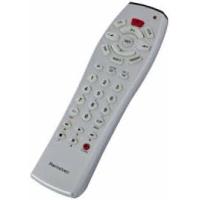
USER MANUAL UNIVERSAL REMOTE CONTROL REMOTEC
Universal Remote Control (URC)
Operating Instructions
Control Remoto Universal (CRU)
For English Reader Page 1-4
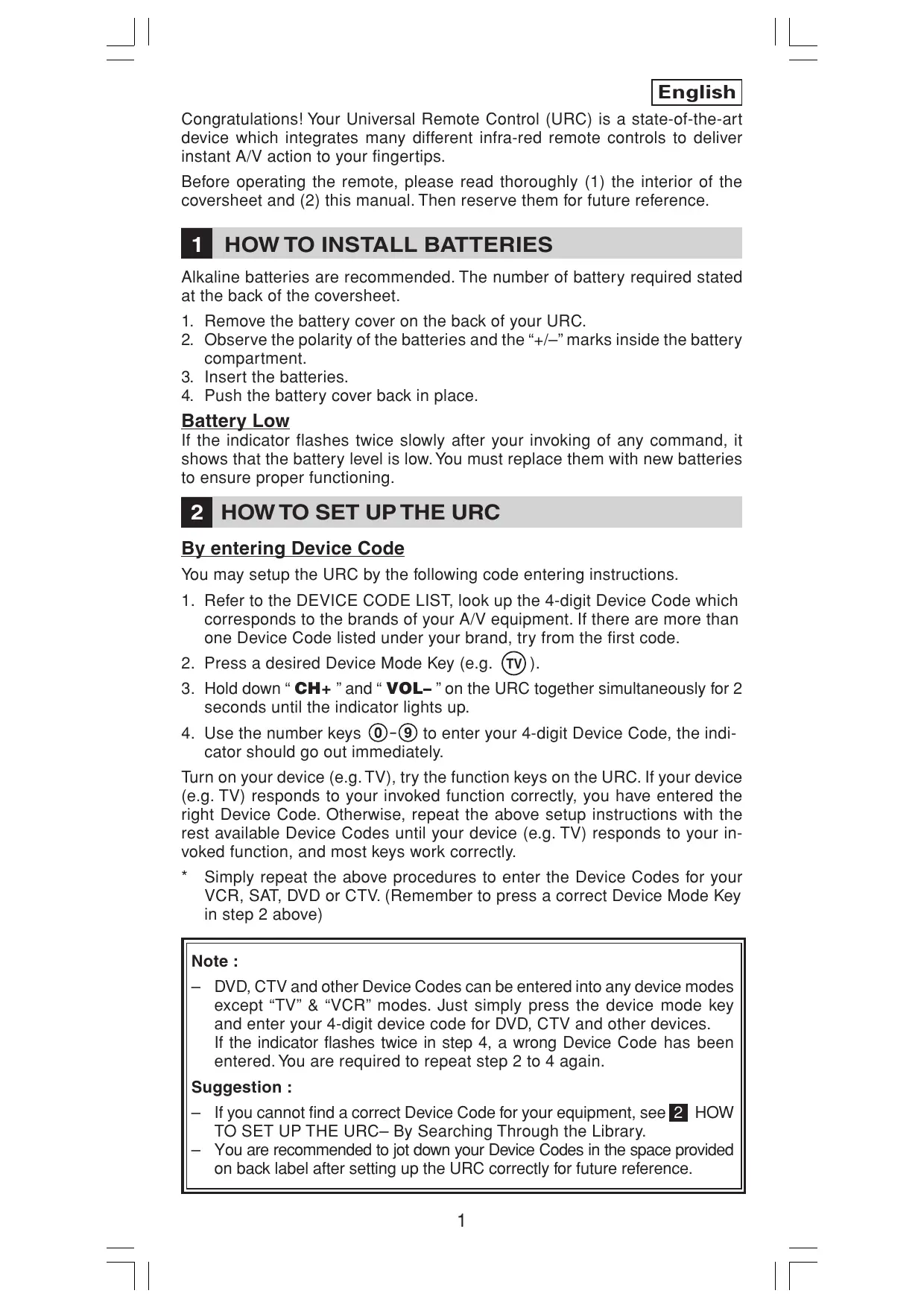
Congratulations! Your Universal Remote Control (URC) is a state-of-the-art device which integrates many different infra-red remote controls to deliver instant A/V action to your fingertips.
Before operating the remote, please read thoroughly (1) the interior of the coversheet and (2) this manual. Then reserve them for future reference.
1 HOW TO INSTALL BATTERIES
Alkaline batteries are recommended. The number of battery required stated at the back of the coversheet.
- Remove the battery cover on the back of your URC.
- Observe the polarity of the batteries and the “+/-” marks inside the battery compartment.
- Insert the batteries.
- Push the battery cover back in place.
Battery Low
If the indicator flashes twice slowly after your invoking of any command, it shows that the battery level is low. You must replace them with new batteries to ensure proper functioning.
2 HOW TO SET UP THE URC
By entering Device Code
You may setup the URC by the following code entering instructions.
- Refer to the DEVICE CODE LIST, look up the 4-digit Device Code which corresponds to the brands of your A/V equipment. If there are more than one Device Code listed under your brand, try from the first code.
- Press a desired Device Mode Key (e.g. TV ).
- Hold down “ CH+ ” and “ VOL- ” on the URC together simultaneously for 2 seconds until the indicator lights up.
- Use the number keys ① - ⑨ to enter your 4-digit Device Code, the indicator should go out immediately.
Turn on your device (e.g. TV), try the function keys on the URC. If your device (e.g. TV) responds to your invoked function correctly, you have entered the right Device Code. Otherwise, repeat the above setup instructions with the rest available Device Codes until your device (e.g. TV) responds to your invoked function, and most keys work correctly.
- Simply repeat the above procedures to enter the Device Codes for your VCR, SAT, DVD or CTV. (Remember to press a correct Device Mode Key in step 2 above)
Note :
DVD, CTV and other Device Codes can be entered into any device modes except "TV" & "VCR" modes. Just simply press the device mode key and enter your 4-digit device code for DVD, CTV and other devices. If the indicator flashes twice in step 4, a wrong Device Code has been entered. You are required to repeat step 2 to 4 again.
Suggestion :
- If you cannot find a correct Device Code for your equipment, see 2 HOW TO SET UP THE URC- By Searching Through the Library.
- You are recommended to jot down your Device Codes in the space provided on back label after setting up the URC correctly for future reference.
By Searching Through the Library
If you cannot identify a correct Device Code for your equipment from the Device Code list, you may search the code through the library:-
- Turn on your device manually (e.g. TV).
- Press a desired Device Mode Key (e.g. TV).
- Hold down “ CH+ ” and “ VOL- ” on the URC together simultaneously for 2 seconds until the indicator lights up.
- Enter a corresponding Magic Search Code from following table. The indicator should go out immediately.
| DEVICE TYPE: | TV | VCR | SAT | CTV | DVD |
| MAGIC SEARCH CODE: | 0001 | 0002 | 0003 | 0004 | 0005 |
(e.g. press TV device mode key, then press “CH+” and “VOL-”, and enter TV Magic Search Code 0001.)
- Press the same desired device mode key again as in step 2 above. (e.g. (TV) )
- Hold down “ CH+ ” & “ VOL- ” together simultaneously for 2 seconds until the indicator lights up, and your URC is ready to start searching.
- Aim the URC at your device (e.g. TV), press the “ ” key repeatedly, slowly and patiently until the device has been turned off.
Once your device has been turned off, immediately press Device Mode Key (e.g. TV) to lock in code and the indicator should go out.
- Simply repeat the above setup procedures to search the Device Code for your VCR, SAT, DVD or CTV. (Remember to press a correct Device Mode Key and correct Magic Search Code in step 2-5 above)
IMPORTANT:
- If the power on/off function of your device is not infra-red controlled - you need to follow steps 2 to 6 above and start searching :-
- Press “ ” and another important function key alternately until your device responds to the expected function, press the same Device Mode Key (e.g. TV) to lock in the code.
e.g. Press " " & " 1 " alternately, or ;
Press “ ” & “▶”alternately.
Note:
DVD, CTV and other device codes can be searched and locked into any device modes except "TV" & "VCR" modes. Just simply press the corresponding device mode key in step 2 & 5 and enter an appropriate Magic Search Code for your DVD, CTV and other devices.
Each time you press the “ () ”, the URC will skip to the next code and send out a POWER signal trying to turn off your device.
If you failed to stop pressing “ ” in time when your device has been turned off, turn on your device again immediately. Before the indicator goes out, press “ ” on the URC to skip backward. Repeat the step 7 above and lock in code.
- If the indicator flashes twice after your pressing of “( )” key, you are already at the last code of the library. Press “CH+” and “VOL-” to resume the URC and repeat carefully the above procedures to search again.
3 OPERATING THE URC
Normal Operation
Once you have set up the URC for your A/V equipment, it works like your original remote controls. To operate, just aim it at your equipment, press an appropriate device mode key and invoke the desired function by pressing a corresponding key on the URC. The indicator flashes during signal transmission and as confirmation of key touch.
Punch Through
Punch Through Channel
Punch through channel allows you to operate channel up and down without having to switch the device modes repeatedly even when your URC is in other operating modes.
To activate the punch through channel Setting:
- Press desired Device Mode Key (e.g. (TV)).
2 Press and Hold "CH+ "key.
- Press desired Device Mode Key (e.g. SAT ).
- Release " CH+ " (the indicator flashes once if the setting is activated).
To deactivate the punch through channel setting:
- Press desired Device Mode Key (e.g. (TV)
- Press and Hold "CH-" key.
- Press desired device Mode Key (e.g. SAT ).
- Release "CH- " (the indicator flashes twice if the setting is deactivated).
Punch Through Volume
Punch through volume allows you to operate volume up and down without having to switch the device modes repeatedly even when your URC is in other operating modes.
To activate the punch through volume setting:
- Press desired Device Mode Key (e.g. (tv)).
2 Press and Hold "VOL+ " key.
- Press desired Device Mode Key (e.g. SAT).
- Release "VOL+" (the indicator flashes once if the setting is activated).
To deactivate the punch through volume setting:
- Press desired Device Mode Key (e.g. (TV)
- Press and Hold "VOL-" key.
- Press desired Device Mode Key (e.g. SAT).
- Release "VOL- " (the indicator flashes twice if the setting is deactivated).
Macro Power
Macro Power allows you to turn two of your A/V equipment on/off simultaneously.
To activate the macro power setting:
- Press desired Device Mode Key (e.g. ).
2 Press and Hold “ ” key.
- Press desired Device Mode Key (e.g. SAT).
- Release " " (the indicator flashes once if the setting is activated).
To deactivate the macro power setting:
- Press desired Device Mode Key (e.g. (TV)
- Press and Hold “ ” key.
- Press desired Device Mode Key (e.g. SAT).
- Release " " (the indicator flashes twice if the setting is deactivated).
Symbols of secondary function are printed in different colors on the panel, and a SECONDARY FUNCTION TABLE is included in the interior page of the coversheet. To invoke a secondary function, press followed by a corresponding function key.
Secondary Device Mode
- If you intend to operate more than 3 (or 4) equipment with your URC, you may search/enter the additional device codes.
Following all standard procedures in setting up the URC (See 2 HOW TO SET UP THE URC), press SHIFT followed by a desired device mode key to enter a secondary device mode. All settings will be stored in the shift bank of such device mode.
- To invoke functions stored inside the shift back of a device mode, press SHIFT followed by the device mode key, your URC will stay on that particular operating mode.
5 MAINTENANCE
- Do not expose your URC to dust, strong sunlight, humidity, high temperature or mechanical shock.
- Do not use old and new batteries together as old batteries tend to leak.
- Do not use corrosive or abrasive cleansers on your URC.
- Keep the unit dust free by wiping it with a soft, dry cloth.
- Do not disassemble your URC, it contains no user-serviceable parts.
6 TROUBLESHOOTING
Q. My URC does not work at all!
A. Check your A/V device, if the device's main switch is turned off, your URC could not operate your device.
A. Check whether your batteries are inserted properly and are in correct +/- marks.
A. Check whether you have pressed the corresponding device mode key for your device.
A. If the batteries are low, replace the batteries.
Q. If several Device Codes listed under the brand of my A/V device, how can I select the correct Device Code?
A. To seek the correct Device Code for your A/V device, test the code one by one until most keys work properly.
Q. My A/V equipment responds only to some of the commands.
A. You have set a code for which only some commands work properly but some do not. Try other codes until most keys work properly.
Punch Through Channel
Punch Through Volume
Punch Through Volume