
DVD XPRESS DX2 USBAV-714 - USB Video Capture ADS TECH - Free user manual and instructions
Find the device manual for free DVD XPRESS DX2 USBAV-714 ADS TECH in PDF.



User questions about DVD XPRESS DX2 USBAV-714 ADS TECH
0 question about this device. Answer the ones you know or ask your own.
Ask a new question about this device
Download the instructions for your USB Video Capture in PDF format for free! Find your manual DVD XPRESS DX2 USBAV-714 - ADS TECH and take your electronic device back in hand. On this page are published all the documents necessary for the use of your device. DVD XPRESS DX2 USBAV-714 by ADS TECH.
USER MANUAL DVD XPRESS DX2 USBAV-714 ADS TECH
Quick Setup Steps 1
F2 Ways to Capture and Edit Video 3
Installation Guide 4
Capture Wizard 10
52 Creating Video for your Video iPod™, Sony PSP™ or Creative Zen Vision 20
6 Direct to Disc 22
German Manual 30
French Manual 59
Service & Warranty 88
This is a One Page Quick Setup Guide to help you get up and running fast
1 Connect the Audio/Video cables from your video source to DVD Xpress DX2 device.
2 Load the DVD Xpress DX2 CD.
3 Connect DVD Xpress DX2 to your PC via the USB Port.
4 Drivers for WinXP and Win2000 are on the root of the CD. Direct Windows to the drivers on the CD and they will install automatically.
5 Install CapWiz - CapWiz application must be installed as it installs the key elements for DVD Xpress DX2 to function.
6 Install ArcSoft ShowBiz® DVD 2 application.
7 Double Click the CapWiz icon on your Desktop.
8 Answer the questions on the 5 Wizard screens.
9 Press Play on your video source so you have video playing.
10 Click Preview on the CapWiz interface and video will appear.
11 Start capturing your video when ready.
Play with CapWiz for a while and then try ArcSoft ShowBiz® DVD 2 included with DVD Xpress DX2.
DVD Xpress DX2 Overview
DVD Xpress DX2 supports today's most popular video formats including MPEG4 and DivX video. All of the video formats are supported by an advanced video encoding chipset inside the DVD Xpress DX2 which means that DVD Xpress DX2 does all the work instead of your PC. Not only does this take the work load off your PC, but hardware compression of the video results in better quality with smaller file sizes. This means that you get more video on a disc, and with better quality.
Want more control? ArcSoft ShowBiz® DVD 2 is easy-to-use software that turns home videos into fun-to-watch movies! Preserve your precious movies on DVD or CD. Create video for the Web or mobile devices to share with family and friends. Enhance your movies with customizable effects, filters and transitions.
DVD Xpress DX2 is your best solution for creating video for your Sony® PSP™ (PlayStation® Portable) or Video iPod. CapWiz application makes it easy to capture video in the right format for your Sony® PSP or Video iPod. Just select the type of video you want to capture in the Audio/video Format screen and you can start capturing in the specific video format. Then transfer the video file to your Memory Stick Duo™ for your Sony® PSP™ or use iTunes to Sync to your Video iPod. It couldn't be easier than that. The videos that you capture are also compatible with the Creative Zen Vision Portable Media Player. Just follow the video resolution standards for the Creative Zen Vision.
DVD Xpress DX2 is a DivX Certified Encoder device; this means that you can capture video in DivX video format and playback the video in DivX Certified DVD Players. Just burn the captured video into a CD or DVD and insert the disc in a DVD Players that is DivX Certified.
Powerful Software Bundle
We want to be sure you receive the greatest benefits from your DVD Xpress DX2 purchase so we have included software to meet your various project goals. Some times you may just want to archive video to disc in the fastest way possible. Other times you may want to get a bit creative, but you'll save most of the video editing for a later time. And for the big project you want to have a full featured video editor that gives you the freedom to be creative.
DVD Xpress DX2 includes these software tools for your video projects:
- Capture Wizard application (with Direct To Disc feature)
- ArcSoft ShowBiz® DVD 2
Capture Wizard (CapWiz): Easy Video Capture & Playback
This is the fastest and easiest way to capture MPEG-1 (VCD), MPEG-2 (SVCD, DVD), MPEG-4 and DivX video on your PC. Create video for playback in your Video iPod® or your Sony PSP device. Use the Capture Wizard screens to verify your video connections, video compression format and where you want your video files stored on your computer hard drive.
CapWiz also allows you to set up timed recordings and delayed recordings and easily select video capture bit rates for Good, Better or Best DVD video quality. You can set custom settings for video resolution, video and audio bit rate.
ArcSoft ShowBiz® DVD 2
ArcSoft ShowBiz® DVD 2 is a simple yet powerful software application that has everything you need to edit home video and create professional looking DVDs. The software features a simple storyboard view for basic video sequencing and a more advanced timeline view giving you greater control over your movie clips, audio tracks and transitional effects. What's more, the program includes a powerful photo slideshow wizard and a full set of DVD authoring tools for turning your video productions into great-looking DVDs ready for enjoying on TV.
Minimum System Requirements
- Intel® Pentium® III 1GHz or higher or AMD Athlon/Duron CPU
- Microsoft ® Windows® 2000 or XP (Home or Professional)
256MB of RAM - 1.2GB of available hard drive space for program installation
- 4 GB hard drive space for video capture and editing
- Windows® compatible display with at least 1024 x 768 resolution
- Windows® compatible mouse or pointing device
- Windows® compatible sound card
Available USB 2.0 Port - CD-ROM drive for software install
- CD-RW or DVD-Recordable drive required for saving movies onto CD or DVD
Recommended System Requirements
Intel® Pentium® 4 1.5GHz CPU
- 512MB of RAM
20 GB free hard drive space
7200 rpm IDE Hard Drive
USB 2.0 and USB 1.1 Connections and Drivers
Note: We strongly recommend that you use the USB Ports on the back of your PC, some front USB ports will not perform correctly because they act as a Hub. Do not use a USB Hub for the best video capture experience.
USB 2.0
We strongly recommend using only Windows XP or Windows 2000 with Microsoft USB 2.0 drivers for proper operation of your DVD Xpress DX2 at USB 2.0 connection speeds.
Microsoft Windows USB 2.0 drivers can be obtained from Microsoft directly:
- Windows XP - Included on your new PC, Windows Update, Download Windows XP Service Pack 1
- Windows 2000 - Download Windows 2000 Service Pack 3
Many USB 2.0 upgrade cards ship with non-Microsoft, third party drivers. These drivers have many revisions and may have compatibility issues with some USB 2.0 devices. In many cases the USB 2.0 driver you have may work fine, but we cannot guarantee proper operation with third party USB 2.0 drivers.
We recommend using the USB 1.1 port on your motherboard or from a USB 1.1 add-in card. All USB 1.1 cards use the Microsoft USB drivers. Do not use a USB Hub to connect the DVD Xpress DX2 to your PC.
Getting Started

Check DVD Xpress DX2 Contents
Hardware:
DVD Xpress DX2 device
- 6 ft. USB Cable
- 6 ft. A/V Cable (RCA Video and (L + R) Audio)
- Installation CD
- User's Manual
- Registration Card
CD Contains:
- Capture Wizard Application
DVD Xpress DX2 device drivers - ArcSoft ShowBiz® DVD 2 customized for DVD Xpress DX2
- User's Manual
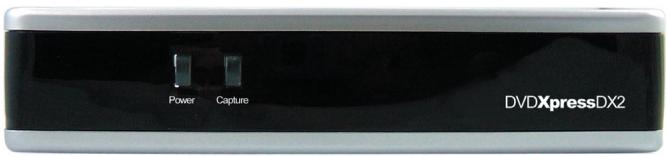
Front
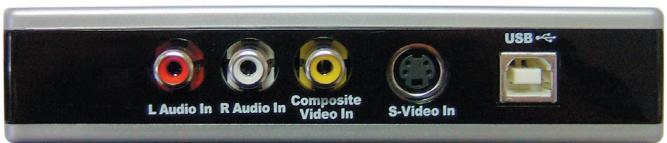
Back
In this section you will connect audio and video cables to capture audio and video.
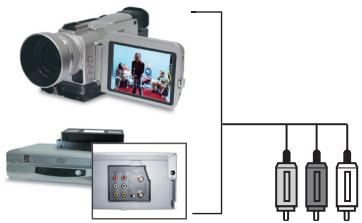
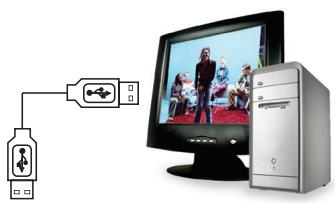
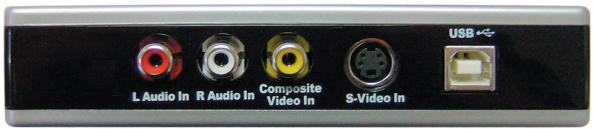
Connect your video source (VHS, DVD Player, Laser Disc Player, Camcorders, TV, etc.) to the DVD Xpress DX2. Connect the 6 ft. A/V In cable to the 3 RCA jacks to your analog audio/video source RCA Line Out.

Plug It In
In this section you will Connect DVD Xpress DX2 to your PC and Install Software Drivers. Please read through this section first, then go back and follow these step by step instructions to connect your DVD Xpress DX2 and install device drivers and software applications:
Insert DVD Xpress DX2 CD.
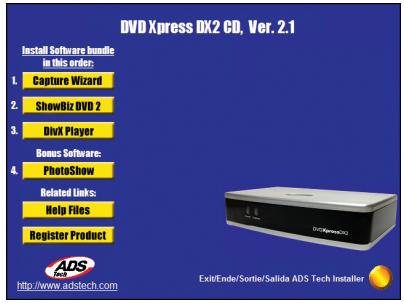
Now, plug your USB cable into DVD Xpress DX2 and your PC. Windows will recognize the device and ask you for the device drivers.
Windows XP or Windows 2000 Let Windows conduct an automatic search for the drivers. The drivers are located in the root directory of your DVD Xpress DX2 CD, usually your "D" drive. Windows will install the drivers.
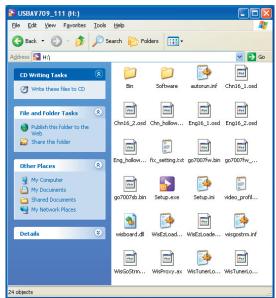

Install Software Applications
Now that you have installed the device, click the Capture Wizard button to install the Capture Wizard capture and playback application.
- If you do not have Microsoft's DirectX 9.0c installed, it will install automatically. DirectX 9.0c is required for proper operation of your DVD Xpress DX2. Installation of DirectX 9.0c may require a re-start of your computer.
- If your computer restarted, click "My Computer" on your desktop. Double click the CD Drive icon to bring back the DVD Xpress DX2 Installation screen.
- Continue installing the key bundled software on to your system: ArcSoft ShowBiz® DVD 2.

Verify Hardware Installation
Check Device Manager to verify that the ADS DVD Xpress DX2 hardware is recognized by Windows and is properly installed.
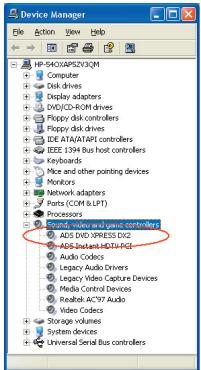
Windows XP or Windows 2000:
1 Click Start, Settings, Control Panel.
2 In Control Panel, click System.
3 Click on the Hardware Tab.
4 Click Device Manager Button.
5 Double click the Sound, Video and Game Controllers Device.
6 ADS DVD Xpress DX2 should be listed.
If ADS DVD Xpress DX2 is listed under the Sound, Video and Game Controllers heading, then the device was properly installed.

Optimize your System for Best Performance
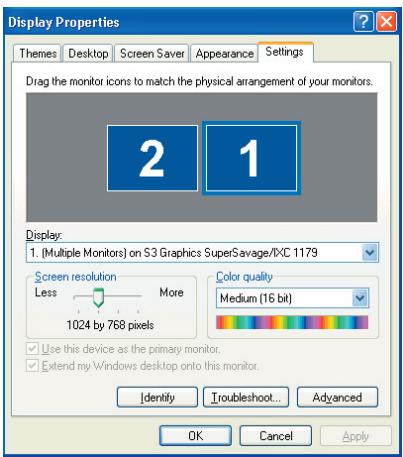
Set your VGA Resolution
1024 x 768 is the optimal resolution for viewing video at full resolution. DVD video is captured at 720 × 480 ( 720 × 576 ) PAL. If your resolution is not high enough you will not be able to view the video at full resolution.
1 Right click on your desktop
2 Click Properties
3 Click on Settings Tab
4 Adjust screen area to 1024 X 768 & 16 Bit Color (or higher if your VGA card and monitor support higher resolutions and color depth).
Defragment your Hard Drive for best performance
Disk Defragmentation consolidates files and folders on your Hard Disk and allows for better system access of files and folders. It will also help when you are capturing and writing new files into your Hard Disk. Please keep in mind that this process requires some amount of time which depends on several factors, including the size of the Hard Disk, number and size of files and how fragmented your local disk is. Before you Defragment your Hard Disk, you can Analyze a volume to see if this step is required.
1 Double-click My Computer
2 Right Click and Select Properties on the Hard Disk you want to Save your captured Videos
3 Click on Tools tab
4 Click Defragment Now button
5 Click Analyze button to see if you need to Defragment the Hard Disk

Installation Summary
By now you should have completed the following:
1 Made all of the Audio and Video connections between DVD Xpress DX2 and your Audio/Video source.
2 Connected DVD Xpress DX2 to the USB Port on your PC.
3 Installed the drivers and verified that the device is properly installed
4 Installed all necessary software applications required for proper operation.
5 Optimized your System for best performance.
6 Now you are ready to Start Capturing Videos to your PC.

Start Capturing Videos
- Don't forget to Turn On and press "PLAY" on your video source (VCR, Camcorder, etc.) so you can capture the video contents.
Now you are ready to start capturing video. We have created the Capture Wizard (CapWiz) application to allow you to quickly capture video on your PC without learning how to edit video or author a DVD. Use the Capture Wizard application to test video capture and playback of video before moving on to ArcSoft ShowBiz® DVD 2.
We have created a simple getting started Wizard that allows you to verify your connections and make the proper setup choices before capturing video.
DVD Xpress DX2 Capture Wizard
Click "Next" to advance to the next step.
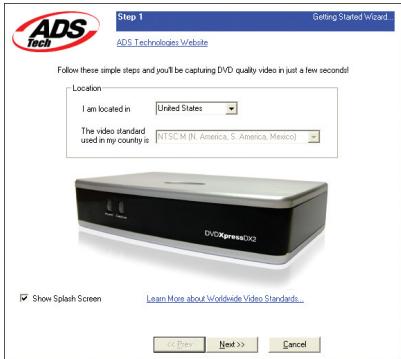
1 Open CapWiz
Click the CapWiz icon on your Desktop or Click "Start" > "All Programs" > "ADSTech DVD Xpress DX2" and click on "Capwiz"
Choose worldwide video standard based on country - For Users in North America, you will select NTSC. For Users in Europe and many other countries you will select PAL.
For more information on these standards, click on "Learn More about Worldwide Video Standards..."
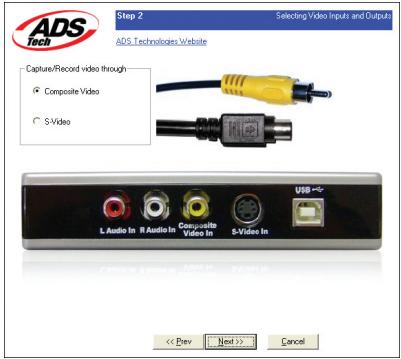
2 Select Video Inputs
Choose RCA or S-Video based on your video source.
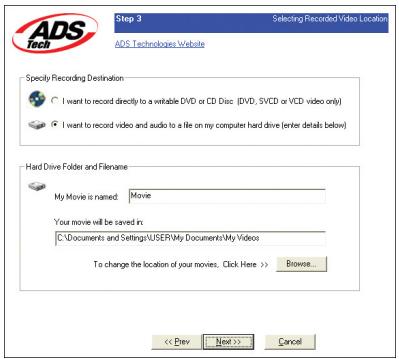
3 Create file name and select file location
We will automatically select "My Documents\My Videos" as the location to store your video files, we also set the file name to "Movies. You can select a different location or file name if you desire.
4 Choose video format
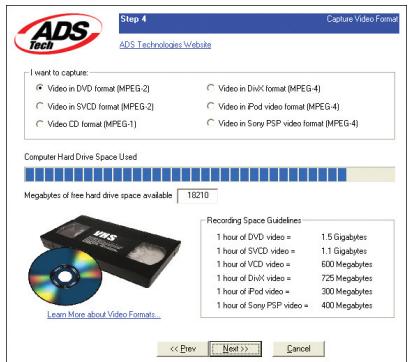
In this step you will select between MPEG-1 and MPEG-2 video compression formats. Select MPEG-2 if you wish to capture video in the highest quality DVD format. Select MPEG-1 if you want to capture video in the VCD format. You can capture in MPEG-4 or DivX format in the Audio / Video Format screen when the Wizard completes all the steps.
The Disk Space indicator shows the amount of disk space you have available and an example of how much video you can capture if you selected MPEG-2 at 3 Mb/sec.
For more information on these MPEG, click on "Learn More about Video Formats..."
5 Ready
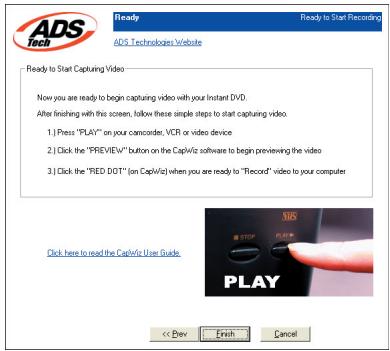
Now you are ready to start viewing and capturing video. You will need to start your Camcorder or VCR playing. Press Play on your video source (VCR, DVD player, etc.).
Click Finish and the Wizard screen will disappear and you will see the full Capture Wizard interface.
Using Capture Wizard Video Capture/Playback tool for the first time
You have just completed the Wizard screens to ensure that you have connected your video cables, selected your video format and now you are ready to capture video.
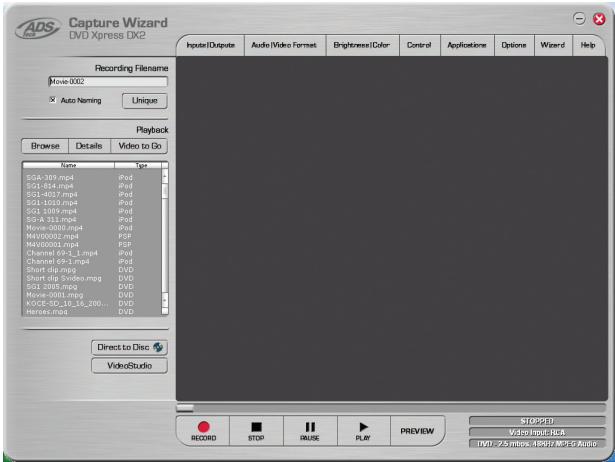
The Capture Wizard Interface
Preview and Record Video
1 Be sure your video device is playing a video
2 Click "Preview" and you will see video playing in the preview window. You will notice the status indicator displaying "Preview".
3 Click the "Stop" (■) button or press the "Esc" key on your keyboard to stop video preview.
4 If you Click the Red "Record" ( ) button while previewing video, the video will stop momentarily, then start again. When the video preview starts again, you are recording. You will notice the status indicator displaying "Recording" and the Time count start.
5 To Stop recording, press the "Stop" (■) button or press the "Esc" key on your keyboard.
6 You will notice that the file name has been added to the playback list box.
Ways to Begin Recording
1 You can start recording from the Stop or idle status in CapWiz or while you are previewing video.
2 Click the red Record ( ) button to begin recording at any time.
3 To Stop recording, Click the "Stop" (■) button or the "Esc" key on your keyboard.
4 The video will be displayed in the resolution you selected for the video capture.
Playback
Captured video files can be displayed on your computer monitor. Use this option to Playback the files you captured. Video will be played back at the resolution it was captured in.
1 Click on the file name in the Playback List Box, then click on the "Play" (▶) button. You may also double click on the file name for Instant Playback. You will notice that the status indicator turns Green and the display changes to Play.
2 To Stop Playback, Click the Stop (■) button or press the "Esc" key on your keyboard.
Seek through the video
If you have recorded a long video, you may want to jump ahead to a specific point in the video file and continue playback from that point. This feature is possible for MPEG-2 files only.
1 Double-click on the file you want to Playback in your computer.
2 As the video is playing in the screen, use your mouse to drag the playback position slider to the point you desire.
3 Once you release the mouse, the file will resume playback.
Keyboard Short Cuts:
Preview = Enter key
Record = "R" key
Instant Playback = double click file name
Play/Pause = space bar
Stop Record = Esc key
Stop Preview = Esc key
Advance 1 second (in Pause mode) = right arrow key
Rewind 1 second (in Pause mode) = left arrow key
Capture Wizard Features and Functions
Recording File Name
Before Recording check the Recording Filename box in the upper left hand corner of the application. The file name you selected in the Wizard Screen is listed here.
1 Keep this file name if you wish or run the Wizard to use a new file name.
2 Check the "Auto Naming" box and CapWiz will automatically name each captured file in sequential order; i.e. if your video file is "Movie", the first file captured will be named "Movie-0000", the second "Movie-0001" and so on.
3 Every time you stop a capture, the new file name will be displayed in Playback List box.
4 You can also uncheck "auto-naming" and click the "Unique" button and CapWiz will use the file name you enter in the filename box. You need to provide a new file name for each video clip captured. If you do multiple captures without changing the unique file name, the file will be written over each time you capture.
Playback List Box
The Playback list box shows the file names of your video captures. This list will match the directory location you selected in the Capture Wizard screens. If you are unsure of the location you selected, run the Wizard again.
Browse
The Browse button will allow you to browse to other file directories or hard drives. If you select another directory, any MPEG video files located there will appear in the Playback list box.
Details
The Details button will allow you to examine the details of the files in the Playback List box. Click on the Details Button and a dialog box will open showing detailed information about each file such as: Date, File Size, File Name and location on your system.
Click on any file in this dialog box and then click Details again and you will see more details about this individual files such as:
1 Video bit rate
2 Audio sampling rate
3 Audio bit rate
4 Frame rate
Deleting a File
From the detailed information box you can delete a file by clicking the "Remove" button.
CapWiz will ask you if you are sure, click OK and the file is deleted from your system.
Application Links
The icons at the side of the CapWiz screen allow you to easily jump from CapWiz to the bundled application that came with your DVD Xpress DX2. You can quickly jump to ArcSoft ShowBiz® DVD 2 application. When you click on the application button, CapWiz will automatically close.
CapWiz also allows you to capture MPEG1 or MPEG2 video straight to Disc, just click the Direct to Disc button to start the application, you will need to have the correct media disc for the type of project you want in your DVD burner.
Menu Options
This section will describe all settings and choices for all of the menu options along the top of the CapWiz Interface.
Inputs
This dialog box allows you to quickly change your video input choices. Here you can choose between RCA and S-Video Input. These settings can also be changed by running the Capture Wizard Screens.
Audio/Video Format
Country Setting The Audio/Video Format dialog screen allows you to select your video standard based on your location. Based on the country select, the system will set to NTSC of PAL video format. If you are not sure of the correct selection, run the Capture Wizard and read the document called "Learn More about Worldwide Video Standards".
Video Quality
Select the Video Format of your choice. You can choose:
DVD (MPEG-2)
Super Video CD (SVCD)
Video CD (VCD)
- iPod™ (MPEG-4)
- Sony PSP™ (MPEG-4)
- DivX (MPEG-4)
Custom User Defined Video Settings
CapWiz lets you set custom capture settings. The custom settings give you lots of flexibility in creating capture settings to meet your individual needs. To access the Custom Settings dialog box, click on the "Custom Settings..." button.
Regional Settings
Select the country you are located to set the proper Video Standard.
Video Encoding Format
MPEG-1 (VCD only)
MPEG-2 (DVD or SVCD)
DivX (MPEG-4)
Audio Encoding Format
MPEG-1 Layer-2
WAV (LPCM)
Compression Tuning
This section allows you to customize the Video Encoding Format you have selected. You will be able to set the Video Resolution, Video Quality, Audio Frequency or Audio Bit Rate.
Video Resolution
You can select from the following video capture resolutions for MPEG-2 Video Encoding Format:
| NTSC | PAL |
| 325 x 240 (VCD) | 352 x 288 (VCD) |
| 352 x 480 (1/2 D1) | 352 x 576 (1/2 D1) |
| 480 x 480 (SVCD) | 480 x 576 (SVCD) |
| 640 x 480 (DVD) | 720 x 576 (DVD) |
| 720 x 480 (DVD) |
You can select from the following video capture resolutions for MPEG-4 Video Encoding Format:
| NTSC | PAL |
| 176 x 144 (Handheld) | 176 x 144 (Handheld) |
| 352 x 240 (Portable) | 352 x 288 (Portable) |
| 640 x 480 (Home Theater 2) | 720 x 576 (Home Theater) |
| 720 x 480 (Home Theater 1) |
There are no quality settings for VCD as this format has standard video and audio bit rates.
MPEG-1 When MPEG-1 is selected the only Video Resolution allowed is 352 × 240 (NTSC) or 352 × 288 (PAL).
Audio Frequency
You can select between the following:
48.0 KHz (MPEG-1 L2)
44.1 KHz (MPEG-1 L2)
Note: Select 48.0 KHz (MPEG-1 L2) if you want to capture MPEG-2 for DVD disc.
Audio Bit Rates
The audio format is always compressed in MPEG-1 Layer 2 audio. CapWiz also automatically sets the audio sampling rate to 44.1kHz for VCD and SVCD settings and 48kHz for DVD video. We give you the choice to select the audio bit rate for your custom video captures in the range from 192 kbps to 384 kbps.
Custom Settings Caveats
We have provided lots of flexibility in the manner in which you can capture video at various resolutions and audio/video bit rates. We have provided this flexibility because many customers have asked for this kind of capability.
However, think about your project goal before you begin recording. If your intent is to capture video to be burned to CD or DVD disk, then capture at resolutions and bit rates that are "Legal" for burning and playing back in players. If not, you may find that you have spent hours capturing video only to find that the DVD authoring software will not directly burn it, or your player will not play it back.
VCD, SVCD and DVD Legal Settings (check our web site for FAQ's and other updates to this list):
| Format | Video Bit Rates | Audio Bit Rates |
| VCD | 1.15 MB/s | 224 KB/s |
| SVCD | 1.5 - 2.5 MB/s | 128 - 384 KB/s |
| DVD | 3 - 8 MB/s | 192 - 448 KB/s |
Setting Custom Capture Settings
1 Click Custom Settings button
2 When the custom settings dialog box opens, make your selections.
3 Click OK to save
4 Click "Use Custom Format" to capture with the settings selected.
Brightness/Color
Here you can make changes to Brightness, Contrast, Hue, Saturation and Sharpness.
You can make changes to the Brightness/Color settings while Previewing or recording video.
1 Move the slider for each setting choice and you will see the adjustment over the next second or two.
2 Try adjusting only one control at a time, observe the results in the Preview window and once you are satisfied with the results go to the next control.
3 If you mess up, Click Reset to restore factory default settings.
4 Click OK to close the box.
5 Make the adjustment during Preview to get the best Video Quality recording.
Control
The Control menu gives you another way to control video recording and playback.
The selections are: Preview, Record, Stop, Pause and Play.
Applications
The Applications menu gives you another way to jump to bundled application and you can also change the path of the application if you happened to install it on a different drive.
1 Click the Applications menu button
2 Click on ShowBiz to jump to the selected application. Capture Wizard will automatically close when you do this.
3 Click the Edit button. This will show the default or standard directory path the applications are normally installed.
4 To change the directory path click the box with the "... and you can browse to the directory path you installed the application.
Options
The Options menu provides more selections in customizing your use of the Capture Wizard application: Click the Options button at the top of the interface to view the Options menu.
Show Splash
If there is a check mark next to "Show Splash", an "ADS" splash screen will appear on your screen when you start Capture Wizard. To disable, click on "Show Splash" and the check mark will disappear.
Show Wizard
If there is a check mark next to "Show Wizard", the "Capture Wizard" screens will appear when you start Capture Wizard. To disable, click on "Show Wizard" and the check mark will disappear.
Preview Immediately at Startup
If this has a check mark next to it; video will begin previewing automatically when the Capture Wizard interface displays.
Playback...
This will allow you to playback captured video at any standard playback resolution regardless of the capture resolution:
1 Click Options at the top of the screen.
2 Click Playback...
3 Select the desired Playback Size.
4 If you select Full Screen (User Resizable), then you can manually drag the playback window to any size you choose.
Selecting this will open a dialog box that allows you to change the playback resolution of captured video. This will allow you for example to playback SVCD (480 x 480) video at 720 x 480 if you like, and so forth. You can also set to playback all video at full screen resolution. When this setting is chosen, a full screen video window will open, but it is manually sizable by dragging any edge of the window.
Skins...
This will bring up the Skin Chooser. Currently CapWiz includes 2 skins. In the future there may be other skins available for download from ADS Tech website.
Checkpoint...
You can set up to be warned if you don't have enough disk space available when you begin recording. Check this box to enable the feature and set the slider to the amount of disk space you feel comfortable as a warning level.
Options for Recording...
This presents a Recording Options dialog box with the following selections:
Prompt to Confirm Recording start:
If this is enabled, you will receive a prompt confirming when ever you click the Record button. This may be used to more accurately time the beginning of a recording session.
Prompt for Recording Delay:
Enabling this feature will cause the "Recording Options" box to appear when you click the Record Button. Un-check "Prompt for Recording Delay" to disable.
When you click the Record button you will be presented with a dialog box which allows you to set the hours, minutes and seconds for recording delay. For example if you want to start recording in 1 hour, set to one hour, after one hour, recording will start automatically.
Disable Screen Saver during recording
If you are doing a long capture you may want to disable your screen saver. Sometimes, depending upon the graphics card you are using, a screenshot, can disrupt the video capture.
Duration
You can set a time limit for your recording. If you know you want to record for exactly 1 hour, you can set the record duration, hours, minutes and seconds exactly. Start recording and walk away knowing that the recording will stop at the time limit you determine. You can use Record delay and Record duration in combination.
VCR-Style Timer Recording
Use this function to start and stop a recording based on your Computer System Time Clock. Set the Start Date and Time and Stop Date and Time, then check the box "Use start and stop recording times specified". Click Ok and then click the "Record" (●) button in the Capture Wizard interface to activate it.
Wizard
By clicking the Wizard button, the Wizard Steps will start on your screen and you can make any changes needed. If you click this button by mistake, just click Cancel on the Step1 screen.
Help
About CapWiz...
Select this to see information about the CapWiz application you have. This information is important if you have any problems and need to contact the Tech Support for help. Look for the version number and Date.
Help Using CapWiz...
This will bring up an Adobe Acrobat file that will display this CapWiz manual.
System Info
This will bring up a dialog box with all of your system information. You can click the copy button and paste this information in an e-mail and send to the Tech Support member if he/she requests it.
Creating Video for your Video iPod™, Sony PSP™ or Creative Zen Vision
We made it easy and simple for you to capture video for playback in your favorite Portable Media Player device. To assist you in this step, we added the options for iPod™ (MPEG-4) and Sony PSP™ (MPEG-4) in the Audio / Video Format window. You can capture video in the correct format and then transfer the video to your Video iPod™ using iTunes or to your Sony PSP™ by just copying the captured files to the Sony PSP™ (you need a Memory Stick Duo™ with available free space in your Sony PSP™ for playback).
Video iPodTM
1 Click on the Audio / Video Format button
2 Select the iPod™ (MPEG-4) option under Video Quality
3 Click OK
4 On CapWiz GUI, click Preview to see the video. The video will be displayed in the resolution format that is compatible with the Video iPod™ device.
5 Set your video source to the beginning frame you want to capture
6 When ready, press "PLAY" on your video source and press "RECORD" button on the CapWiz GUI to start capturing.
7 Note the name of the video file being captured for transfer to your player.
8 When you finish capturing the video, you can plug in (use the USB cable provided with your iPod) your Video iPod™ and send the Captured file to your Video iPod™ using iTunes.
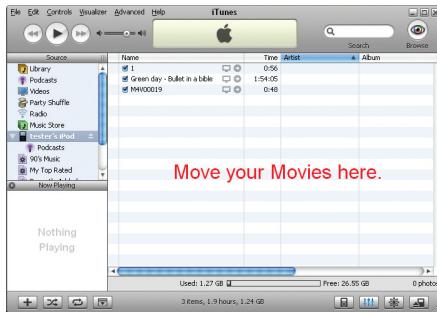
Sony PSP™
1 Click on the Audio / Video Format button
2 Select the Sony PSP™ (MPEG-4) option under Video Quality
3 Click OK
4 On CapWiz GUI, click Preview to see the video. The video will be displayed in the resolution format that is compatible with the Sony PSP™ device.
5 Set your video source to the beginning frame you want to capture
6 When ready, press "PLAY" on your video source and press "RECORD" button on the CapWiz GUI to start capturing.
7 Note the name of the video file being captured for transfer to your player.
8 When you finish capturing the video, you can plug in (use the USB cable provided with your Sony PSP™) your Sony PSP™ and copy the captured file to your Sony PSP™ using Windows Explorer.
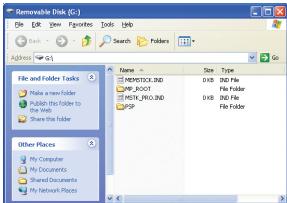
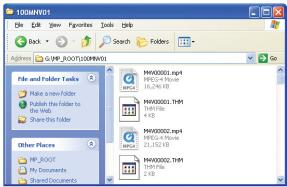
Creative Zen Vision
The Creative Zen Vision device supports different video formats which you can select before you start your video capture. The supported video formats are: MPEG-1, MPEG-2 and DivX (MPEG-4). Follow the instructions below to capture the video format that you would like to use in your device.
1 Click on the Audio / Video Format button.
2 Click Custom Settings... button.
3 Select your Country in Regional Settings.
4 Select MPEG-1, MPEG-2 or DivX (MPEG-4) under Video Encoding Format.
5 Set the Audio Encoding Format to MPEG-1 Layer-2.
6 Compression Tuning (select one of the options below):
| Option | Video Resolution | Audio Frequency | Video Quality | Audio Bit Rates |
| 1 | 640 x 480 (MPEG-2) | 44.1 KHz (MPEG-1 L2)48.0 KHz (MPEG-1 L2) | Pretty GoodGoodVery GoodBest | 224 KB/s |
| 2 | 480 x 480 (MPEG-2) | 44.1 KHz (MPEG-1 L2) | Pretty GoodGoodVery GoodBest | 224 KB/s |
| 3 | 352 x 288 (MPEG-1) | 44.1 KHz (MPEG-1 L2) | Pretty Good | 224 KB/s |
| 4 | 640 x 480 (MPEG-4) | 48.0 KHz (MPEG-1 L2) | Pretty GoodGood | 224 KB/s |
| 5 | 352 x 240 (MPEG-4) | 48.0 KHz (MPEG-1 L2) | Pretty GoodGood | 224 KB/s |
7 Click Ok, then click the option for Use Custom Format then click OK.
8 On CapWiz GUI, click the Preview button to see the video. The video will be displayed in the resolution format that was chosen.
9 Set your video source to the beginning frame you want to capture
10 When ready, press "PLAY" on your video source and press "RECORD" button on the CapWiz GUI to start capturing.
11 Note the name of the video file being captured for transfer to your player.
12 When you finish capturing the video, you can plug in (use the USB cable provided with your Creative Zen Vision) your Creative Zen Vision, you will be prompted to select an application to open, select the option: "Synchronize media files to this device using Windows Media Player", then press OK.
13 Move the captured file to Sync List panel and press the Start Sync button to send the file to your device.
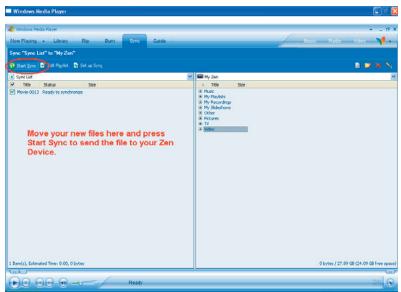
Note: 2 hours of captured video (MPEG-4) will require approximately 700 MB of hard drive space. Make sure you have enough space in your Portable Media Player device before you start transferring the video file.
Direct to Disc Wizard Overview
Capture Direct to Optical Disc
CapWiz includes the ability to capture directly to VCD, SVCD or DVD disc. This is only for MPEG-1 and MPEG-2 video format.
To make sure you get the best results, insert a blank media to your CD-R or DVD recordable device before you start this step.
Burn an MPEG file to Optical Disc
You can also load a previously captured MPEG-1 or MPEG-2 video file and burn to disc. You can select and burn a single video file only to disc, so if you want to edit several clips and join them together on a disc, you can use the other software application included with your product (ArcSoft ShowBiz® DVD 2). While writing a file to a disc, you will see the video progress bar advance to let you know the DVD writing progress.
No Hard disc space used... no worries about deleting files after your project or filling your hard disc. The most exciting and revolutionary capability is the real-time direct to disc capability. You can create a VCD, SVCD or DVD without ever storing the video on your computer hard drive. Many users have expressed the desire for a fast and simple way to archive video tape to optical disc and the Direct to Disc Wizard in CapWiz will allow customers to accomplish that goal. Just capture and burn to disc without having to store on your hard drive first. No worries about hard disc space, file maintenance; just capture and burn.
Support for All Media Types
You can capture to any type of optical media (CD-R, CD-RW, DVD+R, DVD+RW, DVD-R, DVD-RW).
Simple DVD Authoring
Direct to Disc capture in CapWiz has been designed to be very simple so don't expect too many fancy DVD Authoring tools. CapWiz and the DTD feature are meant to be the fast and easy way to capture video to the PC or to get video on disc.
Single Session only
In speaking with Customers we found that most people just want a fast and simple way to archive video tape to DVD. We have excluded features such as leaving a disc open for multi-session recording (adding more video files at a later time), editing the DVD, and other features found on full featured DVD Authoring packages. Again, the goal is to keep the Direct to Disc capability in CapWiz very fast, simple and easy.
What is a Single Session?
Single Session mean that once you have recorded to the disc, the disc cannot be appended or added to. You can record only one time to a disc, one home movie, one video capture session. You can only record video to a blank disc. If there is existing video content or some other type of file on the disc, you will not be able to capture video to that disc. The disc must be blank. Therefore if you are using a re-writable disc with video content on the disc, you will have the ability to playback the file (so you can see what is on the disc) but if you want to capture to that RW disc, you will be forced to erase the video file before capturing, or you can choose a different disc to record.
DVD Authoring features
- Record to any type of Optical Media
- Select Optical Drive
Confirmation of Optical drive capabilities - Confirmation of media type in drive and media condition (disc must be blank to allow recording)
- Select video compression format
- Display of available video record time based on video compression settings and disc type
- Create Movie Title (Volume name)
Create Video Clip name - Set record duration time (display of available time)
- Set Chapter point interval
- Select menu Background template
Quick Guide - CapWiz Direct to Disc Wizard
We have tried to make the Direct to Disc Wizard simple to use. You can begin recording video directly to a disc in as few as 4 Clicks. Here are the quick step by step instructions to start recording to disc in real time.
1 Insert a Blank CD or DVD disc your disc drive.
2 Click the Direct to Disc Wizard button.
3 Select Capture Direct to Disc or load a file to write to disc.
4 Select the Video format you want to record (VCD, SVCD, DVD)
5 Choose the disc drive you want to use for recording.
6 Check disc status information on the Step 1 screen.
7 Click NEXT.
8 Type in the name of your movie title and video clip
9 Set Duration time or choose "None" for manual control
10 Set Capture point time intervals or "None"
11 Click Record to Disc
12 Click 'Yes' to begin recording after disc has been initialized.
Direct to Disc Wizard
You will notice that we have added a link button on the lower left hand corner of the CapWiz screen called "Direct to Disc".
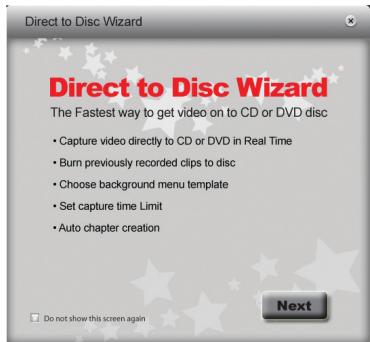
Clicking the Direct to Disc button launches the Direct to Disc (DTD) Wizard. The DTD Wizard can be launched while CapWiz is idle (no video preview) or while video is being previewed. You cannot start the DTD Wizard while you are recording to the hard drive or if you are playing back a previously recorded video file.
Splash Screen
The splash screen introduces the user to the DTD capabilities. This splash screen can be disabled so it will not appear again. Click NEXT to Continue.
DTD Wizard Step 1
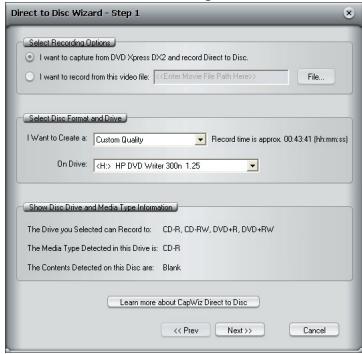
In Step One you select if you want to capture and burn or load a file to burn, select your drive and video format you want to capture and burn and verify the drive capabilities and your optical media.
Capture and Burn or Load a file to burn
The default setting is to capture and burn. If you want to burn a previously captured file, choose this setting and browse for the file.
Video Compression Settings
Select the video format (VCD, SVCD or DVD). You will be shown the amount of time available for recording on the disc, based on the disc media and quality settings.
These settings over-ride any capture setting you have previously selected in CapWiz. However, if you choose "Custom" – the DTD Wizard will use the custom capture settings you have selected in CapWiz.
Select Disc Drive
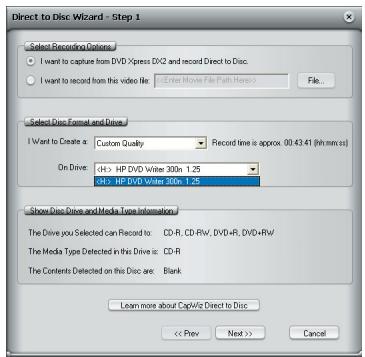
If you have more than one Optical drive you can select the drive you want to use for disc burning.
The DTD Wizard will examine the drive and show the type of media supported by the drive. This will show the capabilities of your drive. Not all optical drives support burning to all media types.
You must have a blank CD or DVD disk in the disc drive before starting the DTD Wizard. When you select the drive the DTD Wizard not only examines the capability of your drive, but also detect the type of media in the drive. The Media Type will be displayed and the type of contents on the disc (if any) will also be displayed. You need to use a Blank disc for recording, so be sure that the "Contents detected on the disc" message shows that the disc is Blank.
What can I burn to what?
| Types of Drives | Common Media Type | Video Format on Disc |
| CD Burners | CD-R or CD-R/RW | VCD or SVCD |
| DVD Burners | CD-R, CD-R/RW, DVD-R, DVD-RW, DVD+R, DVD+RW | VCD or SVCD DVDDVD |
Check the capabilities of your drive and the type of media you have before starting your video project.
Error Proof
If you select a drive with ad CD-R inside the video format will automatically change to the best video format for this media, which would be SVCD. You cannot capture DVD to a CD-R disc. You cannot capture VCD to a DVD disc. These are formats that are incompatible with the media type and we don't want you to make a mistake... so we will try our best to make you Error Proof.
DTD Wizard Step 2
In Step 2, you customize your video disc with Movie and video clip titles, set video capture duration times, auto chapter timing points and back ground template.
Background Template
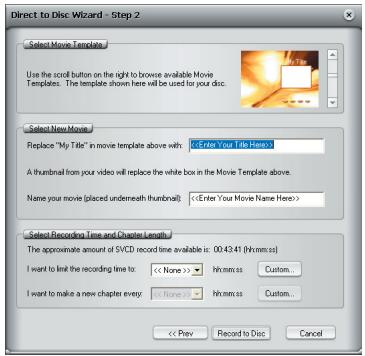
You can select from several background templates. CapWiz includes a few templates to choose from. Scroll through the background menus. The menu that is visible is the one that will be created on your video disc.
Movie Title Name
You type in the main title of your DVD movie. Movie Title name has a limit of 10 characters.
Video Title Name
You can also name the video clip to customize your video disc. The Video Title name has a limit of 12 characters.
Capture Duration
The DTD Wizard shows you the approximate record time available on the disc and also allows you to select preset record duration times or you can click the Custom button to set your own exact record time settings. If you want to have manual control of the record time, use the "None" selection choice in the duration time drop-down menu.
Stop Recording
If you have selected a Record duration time, recording will stop when the record time duration has been met. At this point the disc will be finalized and after a few seconds or up to a few minutes (depends on your drive speed and media type) the finished disc will be ejected.
You can also click the Stop button on CapWiz or press the Escape key (ESC) on your keyboard to stop recording at any time. Please BE Aware that if or when you stop recording, the disc will be finalized and you will have a CD or DVD with a background menu and a video file recorded on the disc even if you stop capture after a few seconds.
The disc will have been written to and will no longer be recordable. Avoid mistakes and wasted discs with a bit of pre-planning to know what you want to capture before you get started.
Error Proof
If you do not set a capture duration time you can possibly capture beyond the capacity of the disc space. CapWiz monitors how much video is recorded on the disc and the available disc space. When you reach 99% capacity CapWiz will automatically stop recording and finalize your disc.
Auto Chapter Settings
When creating DVD movies, the DTD Wizard allows you to select how often you want to set a chapter point. You can set a chapter point to occur at specific time intervals (1 minute, 3 minutes, 10 minutes, etc.). Chapter points make it easier to navigate through a long movie. When playing the video on your DVD player, you can use the NEXT or PREVIOUS buttons to jump from one chapter to the next.
Note that on the DVD Templates you will see a space for only one (1) video thumbnail. This is because there is only one (1) video title (video clip) recorded to each disc. The chapters you set are spaced within this video clip. You will not see a video thumbnail for each chapter point, but you will be able to use the NEXT and PREVIOUS buttons on your DVD player remote control to jump from chapter to chapter.
Auto chapter setting is not supported for VCD or SVCD disc formats – so this selection will be grayed out when you are creating a VCD or SVCD.
Record to Disc
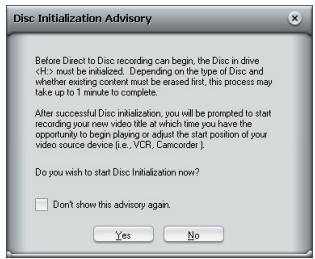
Click the Record to Disc button to begin the recording process. Before actual direct to disc recording can take place, the CD-R or DVD disc must be initialized. The initialization process can take from a couple of seconds or up to a minute depending upon your disc drive and media type. When you click the Record to Disc button you will be presented with the "Disc Initialization Advisory" message. This message is to advise you of the initialization process.
After you are familiar with this process you can select "Don't show again" and the message will not appear in future recording sessions.
Ready to Record
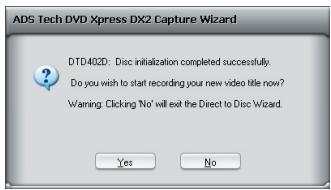
Once the disc has been initialized you will see the record confirmation dialog box. Recording will not start until you click the "YES" button. This provides you the opportunity to cue up your video to the exact start position. Once you click "YES", the recording will start in approx. 1 second. If you decide you are not ready or you want to make a change to any recording settings, click NO to return to the Step 2 Wizard screen.
Recording to Disc
Once you have started to capture directly to optical disc you will see the preview video screen appear and the CapWiz indicator will display "Recording DTD".
CapWiz will also display the current record time as well as audio and video formats being recorded. After 30-40 seconds you will see the indicator LED on your optical drive begin flash. This indicates that audio and video are being written to your disc.
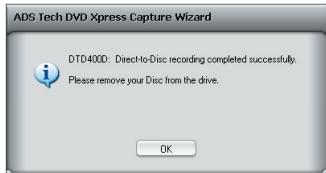
Once the duration time has been reached or after you have stopped capture the navigation menu will be written to disc and the disc will be finalized so it is ready to play in a DVD player or with DVD player software in your PC.
Brightness/Color (Helligkeit/Farbe)
"Direct to Disc" - Assistant - Überblick
"Direct-to-Disc"-Assistant
Luminosite/coleur (Brightness/Color)
L'assistant Direct to Disc
If you require assistance with the installation, operation, or application of your ADS Technologies, Inc. product there are several options available to you as described in the technical support section of this manual. Your primary source for information and assistance is always your computer store or computer parts dealer. If your ADS product needs repair or replacement, contact your dealer for on-site repair service. The ADS Technologies technical support and customer service staff can aid in solving many problems. Our technical support department is available to repair any ADS Technologies product. You or your dealer must return products to our factory for repair or warranty replacement.
Return/Replacement
If you need to return your ADS Technologies product you should return the product directly to the dealer or store where you purchased the product. Each individual computer store or dealer sets product returns policies for their customers. ADS Technologies, Inc. cannot be responsible for the actions or policies set by our dealers. If you desire to return the product for a refund, you must get the refund from the dealer or store you purchased the product from. If you purchased the product directly from ADS please see the "Terms and Conditions of Sale" on the reverse side of your sales invoice.
Returns to ADS Technologies, Inc. are for repair or warranty replacement only. If you need to return product to ADS Technologies, Inc. for repair or replacement you must follow these steps:
1 Call our Technical Support department at +1.562.926.4338 to obtain a Return Merchandise Authorization (RMA) number.
2 The RMA number is valid for 30 days.
3 Ship the product to the ADS factory with the RMA number marked on the inside and outside of the package. If there is no RMA number on the package or the RMA number has expired, the shipment will be refused. ADS will not be liable for lost or mis-shipped products.
4 Replacement product cannot be shipped to you until the defective product has been received by ADS.
5 Once the product is received at the factory it will be tested and then repaired or replaced.
6 Turn around time is approximately one week. A repaired or replacement product will be shipped back to you.
Warranty
This ADS Technologies, Inc. product comes with a One (1) year hardware warranty. ADS Technologies, Inc. (ADS) warrants this product against defects in material and workmanship for a period of One (1) year from the date of original purchase from ADS or an authorized ADS dealer. This warranty applies only to the original purchase of the product and is not transferable. This warranty does not cover any incompatibilities due to the user's computer, hardware, software or other related system configuration in which the product interfaces. Proof of purchase will be required before any warranty consideration by ADS occurs. This warranty does not cover any damage caused by negligence, non-authorized modifications, or parts installed without prior written permission from ADS. This warranty does not apply if the product has been damaged by accident, abuse, or misapplication, nor as a result of service to the product by anyone other than ADS. If your ADS product is not in working order, your only recourse is repair or warranty replacement, as described above. UNDER NO CIRCUMSTANCES will ADS Technologies, Inc. be liable for consequential damages, including but not limited to any lost savings, lost profits, or any other damages, caused by the use of any ADS Technologies, Inc. product or inability to use the product, even if the dealer or ADS Technologies, Inc. has been advised of such liability or other claims. This includes damage to property and, to the extent permitted by law, damages for personal injury. This warranty is in lieu of all other warranties including implied warranties of merchantability and fitness for a particular purpose.
Service
North American Office
ADS Tech Inc, USA
12627 Hidden Creek Way
Cerritos, CA 90703, USA
Website: www.adstech.com
Email: productinfo@adstech.com
Tech Support: +1.562.926.4338
Southern Europe | MEA Office
ADS Tech SARL France
51/55 Rue Hoche
94200 - Ivry Sur Seine, France
Website: www.adstech.fr
Email: infofrance@adstech.com
Tech Support: 0825340329
Central | Eastern | Northern Europe Office
ADS Tech GmbH
Frankfurter Straße 3b
38122 Braunschweig, Germany
WebSite: www.adstech.com/de/
Email: infogermany@adstech.com
Deutschland: 01802 000 532
UK and Ireland Office
ADS Tech
Western Business Park
Shannon, County Clare, Ireland
Tech Support: +353.61.702042

www.adstech.com
Part no. 709-5981
