 EasyManual
HBR657 - Weather Station IROX - Free user manual and instructions
Find the device manual for free HBR657 IROX in PDF.


User questions about HBR657 IROX
0 question about this device. Answer the ones you know or ask your own.
Ask a new question about this device
Download the instructions for your Weather Station in PDF format for free! Find your manual HBR657 - IROX and take your electronic device back in hand. On this page are published all the documents necessary for the use of your device. HBR657 by IROX.
USER MANUAL HBR657 IROX
MULTI-FUNCTIONAL WEATHER STATION WEATHER FORECAST, BAROMETER, IN-OUT THERMOHYGRO METER, MOON PHASE, HEAT INDEX, SUNRISE SUNSET AND RADIO CONTROLLED CLOCK
HBR657
Operating Instructions
Table of contents
- Introduction Page 3
- Starting up your HBR657... Page 8
- Using your HBR657......... Page 9 (navigating between different modes)
- Pressure and weather forecast mode...... Page 9
- Temperature and humidity mode...... Page 13
- Sunrise and sunset mode.. Page 18
- Clock and alarm mode.. Page 20
- Care Instructions.. Page 26
- Support . Page 26
- Technical Specifications.. Page 27
- Appendix . Page 29
2
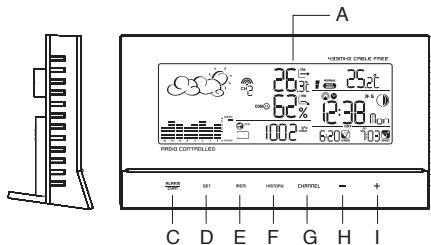
A DISPLAY
All functions are to be seen on the LCD. The functions are described in this manual.
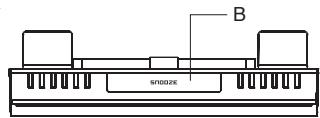
B SNOOZE/LIGHT BUTTON
Activates the backlight and snooze function
C ALARM/CHART BUTTON
Depending on the selected mode, this key has different functions:
- Select and display the alarm time (Time Mode). For setting, press and hold the key
- HI/LO temperature alarm (Thermo/Hygro Mode). For setting, press and hold the key
- Storm alert ON/OFF or hold to display temperature and humidity bar-charts (Weather Mode)
D SET BUTTON
Short press in each mode: scans through the various options.
Press and hold in the displayed mode: Enter Set-Up or change the unit. Then a short press confirms the setting.
E MEM BUTTON
Shows records for moon phase, temperature/humidity, sunrise/sunset
F HISTORY BUTTON
Enters weather mode and then shows history for the sea-level pressure (past 24h)
5
G CHANNEL BUTTON
Changes temperature and humidity display to selected channel
Press and hold to enable cycling display of channel temperature and humidity.
H(-) BUTTON
- Switches to next mode in clockwise direction
- Decreases the value in any setting model
- Activates sensor search (hold key in Thermo mode)
- Thermo Alarm ON/OFF (Thermo Mode; Alarm setting)
I (+) BUTTON
- Switches to next mode in anti-clockwise direction
- Advances the value in any setting model
- Starts RC reception (hold key in Time Mode)
- Thermo Alarm ON/OFF (Thermo Mode; Alarm)
setting)
J BATTERY COMPARTMENTS
Accommodates 4 UM-3 or "AA" size 1.5V batteries
K DC JACK
Plug-in for the 7.5V 200mA transformer
IROX TE657 & TS33C MANUAL (ENG)
SIZE: W65 X H105 (mm)
BY WING TSUI 13/06/08
1. INTRODUCTION
Congratulations on your purchase of the HBR657.
Soft-touch button design provides you a novel key interface and outlook design.
The basic package comes with 1 weather forecast station and 1 remote thermo-hygrometer sensor.
The main unit is equipped with the built-in barometer which enables to display the weather forecast, barometer and altimeter.
The main unit is capable of keeping track of the temperature and humidity of different sites. A HI/LO alarm can be set for the remote sensors. No wire installation is required as the sensors operate at 433MHz .
Apart from the temperature, it shows the indoor and outdoor relative humidity and rates the comfort level. It also retains the maximum and minimum relative humidity readings. The unit is able to receive and display readings from up to 3 remote sensors.
If the weather forecast detects "storm", an alarm will be activated.
Features
MAIN UNIT

3
4
REMOTE THERMO-HYGRO SENSOR
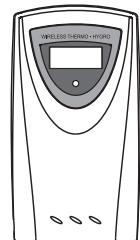
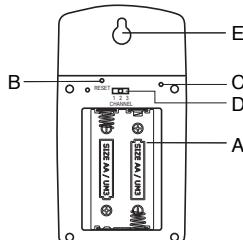
NOTE: LED INDICATOR ON FRONT SIDE
Flashes once when the remote unit transmits a reading Flashes twice when low battery is detected on sensor unit (compatible Irox Models HTS33, HTS55, HTS12C, HTC13, HTS13)
A BATTERY COMPARTMENT
Accommodates 2 UM-3 or "AA" size 1.5V batteries
B RESET BUTTON
Restart all functions after setting a new channels adn after changing the batteries
C UNIT BUTTON
Toggles the unit of temperature (if applicable)
D CHANNEL SELECTOR
Channel is to be selected before batteries are installed
E WALL MOUNT HOLE
For mounting the sensor on the wall
7
2. STARTING UP YOUR HBR657
For best operation,
- Insert batteries for remote units before doing so for the main unit.
- Position the remote unit and main unit within effective transmission range, which, in an open and noise free field, can be up to 30 meters. Note that the effective range is vastly affected by the building materials and where the main and remote units are positioned. Try various set-ups for best result. Though the remote units are weather proof, they should be placed away from direct sunlight, rain or snow.
Note: See also chapter "4.b Setting Pressure Parameters during Initial Start-Up"
BATTERY INSTALLATION: REMOTE UNIT
- Remove the screws on the battery compartment. 2. Select the channel
- Install 2 batteries (UM-3 or "AA" size 1.5V ) strictly according to the polarities shown and press RESET.
- Replace the battery compartment door and secure its screws.
POWER INSTALLATION: MAIN UNIT
- Plug in the provided 7.5V 200mA transformer to the DC jack of bottom side. Or
- Open the battery compartment door.
- Install 4 batteries (UM-3 or "AA" size 1.5V ) strictly according to the polarities shown.
- Replace the battery compartment door. Note:
- To provide reliable key operation under almost any condition, the soft-touch buttons will self-calibrated in 1 second on power-up. Please leave your hands or anything away from the soft-touch key when power-up.
- The main unit is designed for use with batteries or power adapter. For back-up purpose, always keep good batteries in the unit!
8
LOW BATTERY WARNING
When it is time to replace batteries for the remote sensor, the respective low-battery indicator [ ] will show up on the indoor or outdoor temperature & hygrometer display.
3. USING YOUR HBR657
(NAVIGATING BETWEEN DIFFERENT MODES)
There are 6 sections available on the main console unit, and each one displays a different information.
When the display is in one of the 4 modes which can be operated, its corresponding icon will start flashing. To navigate between these 4 modes, press "+" or "-" to cycle through them.
The Heat index section is a fixed mode. It cannot be navigated into this section.
4. PRESSURE AND WEATHER FORECAST MODE
Important: All operations described in here are to be made in the Weather mode
This part of the display indicates the current pressure, sea level pressure, weather forecast and pressure trend
A number of historical statistics can also be viewed such as the sea-level pressure values for the last 24 hours, as well as a pressure/ temperature/ humidity history bar-chart.
Pressure values may be displayed inHg, hPa/mBar or mmHg, and altitude values may be displayed in meters or feet.
a) Accessing Pressure and Weather Forecast Mode
From the main console unit: Press "+" or "-" until the weather forecast icon on the upper left of the display starts flashing.
9
b) Setting Pressure Parameters during Initial Start-Up During the initial start-up of the main console unit, all functions in Pressure and Weather Forecast mode will be locked until the pressure settings are configured.
- Choose Pressure Units:
The icon "hPa/mBar" starts flashing. Press "+" or - to select pressure unit as inHg, hPa/mBar or mmHg Press SET to confirm your selection. - Choose Altitude Units:
Press " ^+ " or " ^- " to select altitude unit as feet or meters. Press SET to confirm your selection. - Set Altitude:
Press "4" or "." to adjust value. Press and hold either button for fast advance. Press SET to confirm your selection. - Upon completion the display will be returned to Pressure and Weather Forecast Mode.
c) Viewing Pressure and Altitude Data
In Pressure and Weather Forecast Mode, each press of SET rotates display between:
Sea level pressure
- Local pressure
- Local altitude
d) Setting the Sea Level Pressure or the local altitude
- In Pressure and Weather Forecast Mode, press SET until the sea level pressure is displayed.
- Press and hold SET. The Sea Level Pressure display starts flashing.
- Set Sea Level Pressure: Press "+" or "-" to adjust. Press and hold either button for fast advance. Press SET to confirm your selection.
- Upon completion the display will be returned to Pressure and Weather Forecast Mode. The same procedure can be done to set the altitude. Instead of selecting the sea level, select the altitude display. Please note: Any setting made in either mode will adjust automatically the other one!
0
"Storm" is meaning a dramatic pressure drop with the potential of a storm. An acoustic warning for this situation can be activated or deactivated in the following way:
Press ALARM/CHART in Pressure and Weather Forecast Mode. Then press ALARM/CHART to turn ON or OFF the storm alert function. It will return to pressure display automatically after 5s.
- Weather Alarm
The weather alarm sound will be activated when it is change to heavy rainy, heavy snow and storm.
5. TEMPERATURE AND HUMIDITY MODE
Important: All operations described in here are to be made in the Temperature/Humidity mode.
The weather station supports up to 3 remote thermo-hygro sensors, each sensor corresponding to a separate channel for the temperature and relative humidity display. The temperature may be shown in degrees Celsius ^ C or degrees Fahrenheit ^ F . The trend (rising, steady or falling) of the values is also indicated on the display.
The main console unit uses the indoor temperature and humidity data to compute a comfort level rating of Wet, Comfort or Dry.
13
A temperature alert function is available for each channel. It can be programmed to sound if the channel temperature exceeds or falls below the pre-configured upper and lower limits.
Note: The temperature alerts have a 0.5^ hysteresis to prevent the alerts from sounding constantly due to small fluctuations near the alert value. This means that after the temperature reaches the alert value, it will have to fall below the alert value plus the hysteresis to deactivate the active alert.
a) Accessing Temperature and Humidity Mode From the main console unit: Press "+" or "-" until the IN icon starts flashing.
b) Viewing Temperature and Humidity Display for each Channel
For Static Display
In Temperature and Humidity Mode, each press of CHANNEL rotates display between different channels.
For Cycling Display:
To enable automatic rotating between different channel displays, press and hold CHANNEL, until the icon is displayed. Each valid channel will now be displayed for 5s.
c) Setting Units for Temperature Display (^ or ^) In Temperature and Humidity Mode, press and hold SET to convert units between degrees Celsius ^ C and degrees Fahrenheit ^ F .
d) Activating/Deactivating the Temperature Alertsl
- In Temperature and Humidity Mode, each press of ALARM/CHART rotates channel temperature display between:
- Current Temperature for corresponding channel
- Upper Temperature Alert (displays OFF if deactivated): icon displayed
14
h) Resetting the Max/Min Channel Temperature and Humidity Memory
In Temperature and Humidity Mode, press and hold MEM 3-4 seconds to clear memory for all channels (there will be no key sound to confirm)
i) Main Unit and Remote Sensor Status
The kinetic wave display shows the signal receiving status of the main unit. There are three possible forms:
| The unit is in searching mode. | |
| Temperature readings are securely registered. | |
| No signals. | - - °C |
j) Activating Main Console Unit to Search for All Remote Sensor Signals
The main console unit may be manually activated to search for signals from all remote sensors.
Press and hold " - " to start a search.
k) Disconnected Signals
If without obvious reasons the display of the outdoor temperature goes blank. Hold " - " for 2 seconds to start an immediate search. If that fails, check:
- The remote unit is still in place.
- The batteries of both the remote unit and main unit. Replace as necessary.
Note: When the temperature falls below freezing point, the batteries of outdoor units will get cold too and subsequently lowering their voltage supply and the effective transmission range.
11
12
15
16
- The transmission is within range and path is clear of obstacles and interference. Shorten the distance when necessary.
1) Transmission Collision
Signals from other household devices, such as door bell, home security systems and entry controls, may interfere with those of this product and cause temporarily reception failure. This is normal and does not affect the general performance of the product. The transmission and reception of temperature readings will resume once the interference recedes.
m)Heat Index
The heat index is based on the temperature and humidity measurements of the channel 1 sensor. The heat index is an index that combines air temperature and dew point in an attempt to determine the human-perceived equivalent temperature - how hot it feels, termed the "felt air temperature". The human body normally cools itself by perspiration, or sweating, which evaporates and carries heat away from the body. However, when the relative humidity is high the evaporation rate is reduced, so heat is removed from the body at a lower rate causing it to retain more heat than it would in dry air. Measurements have been taken based on subjective descriptions of how hot subjects feel for a given temperature and humidity, allowing an index to be made which corresponds a temperature and humidity combination to a higher temperature in dry air. The heat index contains average assumptions about the human body mass and height, clothing, and the wind speed.
| Category | Heat Index (°C) | Level |
| normal | < 27°C | |
| caution | 27 – 32°C | |
| extreme caution | 32 – 41°C | |
| danger | 41 – 54°C | |
| extreme danger | > 54°C |
6. SUNRISE AND SUNSET MODE
Important: All operations described in here are to be made in the Sunrise/Sunse mode The main console unit computes the sunrise and sunset times from the user-configured location data. This includes the longitudes, latitude, time zone and DST (Daylight Saving Time). Choosing a suitable city code for your location will automatically generate the correct values for the location data. Should you wish to input your own location data or if a suitable city code could not be found, choose "USR" as the city code during setup. A searching function is also available, which allows the sunrise/sunset times for different dates to be viewed.
a) Accessing Sunrise/Sunset Mode
From the main console unit: Press "+" or "-" until the sunrise and sunset icons on the lower left of the display start flashing.
17
18
7. CLOCK AND ALARM MODE
Important: All operations described in here are to be made in the clock mode
Accessing Clock and Alarm Mode
From the main console unit: Press + or - until the clock icon beside the time/date display starts flashing.
7.1 Time Function
HOW TO SET THE RADIO CONTROLLED CLOCK
- After the batteries are installed. The clock will search the radio signal automatically (DCF77 from Germany). It takes about 3-10 minutes to finish this process.
- If you wish to disable the auto-reception feature, hold “+” for 2 seconds to disable it.
- To enable the auto-reception feature again, hold “+” for 2 seconds again to start the reception and the regular synchronisations.
- If the radio signal is received, the date & time will be set automatically and the radio control signal icon [ ] turns on.
- If the clock fails to receive the time signal, it will show the [▲] icon. If the time is not correct, you may set the time manually.
HOW TO SET THE CLOCK MANUALLY
To set the clock manually, hold "SET" for 2 seconds. Now it will show the language. You may choose among English (ENG), German (GER), French (FRE), Italian (ITA), Spanish (SPA) and Dutch (DUT). Press "+" or "-" to change it. Press "SET" to confirm. Repeat the same procedure to set your nearest city (default is "Frankfurt", see below for more details), year, month, date, date-month format, 12/24 hour format, hour and minute. During the setting, press and hold "+" or "-" will increase or decrease the value rapidly.
If there is an item you do not wish to change, simply press "SET" to bypass the item. When you finished the change, press "SET" to exit. The display will return to the clock mode.
Details about the time setting mode (in "city code" section)
- In the city setting, you may chose any of the preset locations (see the list in the Appendix).
- If USR (=USER location) is selected, you may set your own latitude and longitude and timezone
Set Latitude / Longitude:
You will be asked to enter your latitude in degrees (^) Press ^ 一 + ^ 一 or - to adjust value. Press and hold either button for fast advance.
Press SET to confirm your selection. Repeat above procedure to set the minutes for the latitude (^) ,the northern or southern hemisphere and then the degrees for the longitude and the minutes for longitude and again the eastern or western hemisphere
Set Time Zone (TZ):
Press "+" or "-" to adjust value in steps of 30min
Press and hold either button for fast advance.
Press SET to confirm your selection.
Set Daylight Saving Time Option:
Press "+" or "-" to turn DST option on or off. Press and hold either button for fast advance. The various options you may find in the Appendix in the "DST definition". Press SET to confirm your selection.
Note: You may press and hold SET anytime during the setup to return to the normal Clock and Alarm Mode. All settings made will then be discarded. The same will happen, if you do not press any key in the setting mode for more than 2 minutes,
2:
b) Setting up the Location Data
i) In Sunrise/Sunset Mode, press and hold SET to enter location data setup.
ii) The city code in the Time and Alarm display should start flashing. Set City Info: Press "+" or "-" to select a city for your local area. Refer to the Appendix section for a list of available codes. The corresponding longitude and latitude will be shown along with the city. Should you wish to input your own geographical coordinates, choose "USR" as the city code. Press SET to confirm your selection.
iii)If "USR" was chosen, you will be asked to input your geographical coordinates. Set Degree of Latitudes: Press "+" or "-" to adjust value. Press and hold either button for fast advance. Press SET to confirm your selection. Repeat above procedure to set minute of latitude, degree of longitude, minute of longitude, time zone and DST selection.
iv) Upon completion the display will be returned to Sunrise/Sunset Mode.
Note: Press and hold SET anytime during the setup to return to normal Clock and Alarm mode. All setting will be discarded.
c) Viewing the Location
In Sunrise/Sunset Mode, each press of SET rotates display between:
- Time and sunrise/sunset times
- Calendar and sunrise/sunset times
- Calendar and longitude/latitude
d) Viewing Sunrise/Sunset Times for Different Dates
- In Sunrise/Sunset Mode, press MEM.
- The date should be flashing.
Press " ^+ " or " - " to adjust date. Press and hold either button for fast advance. The corresponding sunrise and sunset times will be displayed for the selected date.
19
3. Press MEM or SET to return display to
Sunrise/Sunset Mode.
e) Understanding the Sunrise/Sunset Display
The sunrise time being displayed differs during the morning and the afternoon/night.
From 12 am to 12 pm
The sunrise time for the current day will be displayed. From 12 pm to pm:
The sunrise time for the next day will be displayed.
"NEXT DAY" icon will be displayed above the sunrise time.
At certain locations (especially those at high latitudes), sunrise and sunset events may not occur within a 24 hours time frame.
Rotating between Different Clock/Calendar Displays
Pressing SET rotates the clock display between:
- Hour: Minute: Weekday
- Hour: Minute: City
- Hour: Minute: Second
- Month: Day: Year (or Day: Month Year depending on settings)
- Hour: Minute for UTC (Coordinated Universal Time)
7.2 Wake-Up Alarm Function
There are three time alarms available on the console unit:
Weekday alarm: activated everyday from Monday to Friday at specified time
Single alarm: activated once at specified time
Pre-alarm: activated at specified time interval (15- 90 min) ahead of weekday alarm, if channel 1 temperature falling to +2^ or below.
The snooze duration for the above alarms can also be programmed (1-15 min).
Activating/Deactivating the Time Alarms
- Press ALARM/CHART to rotate between:
- Weekday Alarm Time (displays OFF if weekday alarm deactivated)
- Single Alarm Time (displays OFF if single alarm deactivated)
- Pre-Alarm Time (displays OFF if pre-alarm deactivated)
- When the above alarms are displayed, pressing "+" or "-" will activate/deactivate the corresponding alarm.
Note: Press SET anytime during alarm selection mode to return to normal clock display.
23
Setting up the Time Alarms
- Press ALARM/CHART to select the alarm which you wish to configure.
- Press and hold ALARM/CHART until hour starts flashing in the display
- Set Alarm Hour:
Press "+" or "-" to adjust value. Press and hold either button for fast advance.
Press ALARM/CHART to confirm your selection. - Set Alarm Minutes
Press "+" or "-" to adjust value. Press and hold either button for fast advance.
Press ALARM/CHART to confirm your selection. - Set Duration of Snooze Function (all three alarms share same snooze time duration, default 8 minutes, 1 to 15 minutes can be set):
Press "+" or "-" to adjust value. Press and hold either button for fast advance.
Press ALARM/CHART to confirm your selection. - Upon completion the display will be returned to the alarm selection screen.
Note: Pre-alarm cannot be activated if weekday alarm or single alarm is not enabled.
ALARM FEATURE
- Weekday Alarm "W"
The alarm sound will be activated and the icon will be flashed on weekday when it is armed and the alarm time is reached.
- Single Alarm "S"
The alarm sound will be activated and the icon will be flashed when it is armed and the alarm time is reached. Once it finished, it will be disabled automatically Pre-Alarm "Pre-AL"
The pre-alarm sound will be activated and the icon will be flashed if the temperature of channel 1 is under or equal two degree C.
It is programmable 15, 30, 45, 60 or 90 minutes earlier than the weekday alarm or single alarm time.
24
Disabling/Entering Snooze when Time Alarms are activated
To Enter Snooze: Press SNOOZE to enable snooze function.
Note: Alarm will automatically enter snooze mode if no key is pressed after the alarm sounds for 2 minutes. This will occur for a maximum of three times.
To Disable Alarm(s): Press ALARM/CHART to disable the alarm (s).
Note: For weekday alarm, pressing ALARM/CHART will only disable the alarm for the current day. The alarm will be activated again the next day (if it falls within Monday to Friday).
7.3 Understanding the Moon Phase Diagram
| New Moon | Waxing Crescent | First Quarter | Waxing Gibbous |
| Full Moon | Waning Gibbous | Last Quarter | Waning Crescent |
25
8. CARE INSTRUCTIONS
- Do not expose the device to extreme temperatures or direct sunlight over longer periods.
- Avoid blows and shocks of any kind to the device.
- For cleaning use a dry soft cloth that you have moistened with water and a mild cleaning agent. Never use volatile substances such as benzene, thinner, cleansing agents in spray cans etc..
- When the device is not being used store it in a dry area and out of the reach of small children.
- If the device is activated under extreme coldness it may occur that the display becomes illegible. As soon as it is returned to a warm environment the device will function normally.
Please keep the user's manual and other documents delivered with the device stored carefully so that you can reference them at a later point if necessary. - Please use only new batteries and never mix old and new batteries.
- Please also remember that old batteries should not be disposed of with household waste but should be handed in at the designated collection centres.
- Important: With all Irox appliances, all disposal fees in Switzerland (vRG; advance recycling fee) and in the EU (WEEE) have been paid.
9. SUPPORT
This device is a new development of Irox Development Technology. All information was made and checked by means of a functioning instrument. It may occur that adjustments and improvements of the device will take place that due to typographical procedures were not able to be listed in this manual. Should you notice deviations which make it difficult for you to operate and use the instrument you may at any time download the latest manual onto your PC free of charge at www.irox.com.
© Irox Development Technology
26
11. APPENDIX
US and Canadian Cities
| City | Code | Zone Offset | DST |
| Atlanta, Ga. | ATL | -5 | SU |
| Austin, Tex. | AUS | -6 | SU |
| Baltimore, Md. | BWI | -5 | SU |
| Birmingham, Ala. | BHM | -6 | SU |
| Boston, Mass. | BOS | -5 | SU |
| Calgary, Alba., Can. | YYC | -7 | SU |
| Chicago, IL | CGX | -6 | SU |
| Cincinnati, Ohio | CVG | -5 | SU |
| Cleveland, Ohio | CLE | -5 | SU |
| Columbus, Ohio | CMH | -5 | SU |
| Dallas, Tex. | DAL | -6 | SU |
| Denver, Colo. | DEN | -7 | SU |
| Detroit, Mich. | DTW | -5 | SU |
| El Paso, Tex. | ELP | -7 | SU |
| Houston, Tex. | HOU | -6 | SU |
| Indianapolis, Ind. | IND | -5 | NO |
| Jacksonville, Fla. | JAX | -5 | SU |
| Las Vegas, Nev. | LAS | -8 | SU |
| Los Angeles, Calif. | LAX | -8 | SU |
| Seattle, Wash. | SEA | -8 | SU |
| St. Louis, Mo. | STL | -6 | SU |
| Tampa, Fla. | TPA | -5 | SU |
| Toronto, Ont., Can. | YTZ | -5 | SU |
29
| City | Code | Zone Offset | DST |
| Memphis, Tenn. | MEM | -6 | SU |
| Miami, Fla. | MIA | -5 | SU |
| Milwaukee, Wis. | MKE | -6 | SU |
| Minneapolis, Minn. | MSP | -6 | SU |
| Montreal, Que., Can. | YMX | -5 | SU |
| Nashville, Penn. | BNA | -6 | SU |
| New Orleans, La. | MSY | -6 | SU |
| New York, N.Y. | NYC | -5 | SU |
| Oklahoma City, Okla. | OKC | -6 | SU |
| Omaha, Neb. | OMA | -6 | SU |
| Ottawa, Ont., Can. | YOW | -5 | SU |
| Philadelphia, Pa. | PHL | -5 | SU |
| Phoenix, Ariz. | PHX | -7 | NO |
| Pittsburgh, Pa. | PIT | -5 | SU |
| Portland, Ore. | PDX | -8 | SU |
| San Antonio, Tex. | SAT | -6 | SU |
| San Diego, Calif. | SAN | -8 | SU |
| San Francisco, Calif. | SFO | -8 | SU |
| San Jose, Calif. | SJC | -8 | SU |
| Vancouver, B.C., Can. | YVR | -8 | SU |
| Washington, D.C. | DCA | -5 | SU |
| Vancouver, Canada | VAC | -8 | SU |
30
10. SPECIFICATIONS
Temperature Measurement
Main unit
Proposed operating range: -5.0°C to +50.0°C
23.0°F to 122.0°F
Resolution: 0.1^
0.2^ F
Remote thermo-hygro unit
Proposed operating range: -20.0°C to +50.0°C
-4.0°F to 122.0°F
Resolution : 0.1^
0.2^ F
Relative Humidity Measurement
Main unit
Measuring range : 25% to 95%
Resolution : 1%
Remote thermo-hygro unit
Measuring range : 25% to 95%
Resolution : 1%
RF Transmission
Remote thermo-hygro unit
Frequency: 433MHz
Maximum number of remote unit :
Range: Maximum 60 meters
(open area)
Cycle: 43 ~ 47 seconds
Barometric Pressure Measurement
Measuring range : 750 to 1100 hPa/mBar
at 25^
(22.15 to 32.49 inHg)
Sampling cycle : 20 minutes
Calendar Clock
12/24 h display with hh : mm
Date Format: Day - Month or Month-Day.
Day of week selectable in 6 languages
(ENG, GER, FRE, ITA, SPA and DUT)
Dual 2-minute crescendo alarm with snooze
Pre-alarm for ice alert
Temperature alarm
Weather alarm for storm
Power
Main unit : 7.5V 200mA DC transformer
4 pcs UM-3
or "AA" size 1.5V battery
Remote thermo
hygro unit : 2 pcs UM-3
or "AA" size 1.5V battery
Weight
Main unit: 459g (Without battery)
Remote thermo
hygro unit : 62g (Without battery)
Dimension
Main unit: 218 (L) x 122(H) x 30(D) mm
Remote thermo
hygro unit: 55.5(L) x 101(H) x 24(D) mm
World Cities
| City | Code | Zone Offset | DST |
| Addis Ababa, Ethiopia | ADD | 3 | NO |
| Adelaide, Australia | ADL | 9.5 | SA |
| Algiers, Algeria | ALG | 1 | NO |
| Amsterdam, Netherlands | AMS | 1 | SE |
| Ankara, Turkey | AKR | 2 | SE |
| Asunción, Paraguay | ASU | -3 | sp |
| Athens, Greece | ATH | 2 | SE |
| Bangkok, Thailand | BKK | 7 | NO |
| Barcelona, Spain | BCN | 1 | SE |
| Beijing, China | BEJ | 8 | NO |
| Belgrade, Yugoslavia | BEG | 1 | SE |
| Berlin, Germany | BER | 1 | SE |
| Birmingham, England | BHX | 0 | SE |
| Bogotá, Colombia | BOG | -5 | NO |
| Bordeaux, France | BOD | 1 | SE |
| Bremen, Germany | BRE | 1 | SE |
| Brisbane, Australia | BNE | 10 | NO |
| Brussels, Belgium | BRU | 1 | SE |
| Bucharest, Romania | BBU | 2 | SE |
| Budapest, Hungary | BUD | 1 | SE |
| Buenos Aires, Argentina | BUA | -3 | NO |
| Kinshasa, Congo | FIH | 1 | NO |
| Kuala Lumpur, Malaysia | KUL | 8 | NO |
| La Paz, Bolivia | LPB | -4 | NO |
| Lima, Peru | LIM | -5 | NO |
| Lisbon, Portugal | LIS | 0 | SE |
| Liverpool, England | LPL | 0 | SE |
| London, England | LON | 0 | SE |
| Lyon, France | LYO | 1 | SE |
| Madrid, Spain | MAD | 1 | SE |
| Manila, Philippines | MNL | 8 | NO |
| Marseille, France | MRS | 1 | SE |
| Melbourne, Australia | MEL | 10 | SA |
| Mexico City, Mexico | MEX | -6 | SU |
| Milan, Italy | MIL | 1 | SE |
| Montevideo, Uruguay | MVD | -3 | SM |
| Moscow, Russia | MOW | 3 | SK |
| Munich, Germany | MUC | 1 | SE |
| Nairobi, Kenya | NBO | 3 | NO |
| Nanjing (Nanking), China | NKG | 8 | NO |
| Naples, Italy | NAP | 1 | SE |
| New Delhi, India | DEL | 5.5 | NO |
| Odessa, Ukraine | ODS | 2 | SE |
| Osaka, Japan | KIX | 9 | NO |
33
| City | Code | Zone Offset | DST |
| Oslo, Norway | OSL | 1 | SE |
| Panama City, Panama | PTY | -5 | NO |
| Paris, France | PAR | 1 | SE |
| Perth, Australia | PER | 8 | NO |
| Prague, Czech Republic | PRG | 1 | SE |
| Rangoon, Myanmar | RGN | 6.5 | NO |
| Reykjavik, Iceland | RKV | 0 | NO |
| Rio de Janeiro, Brazil | RIO | -3 | sb |
| Rome, Italy | ROM | 1 | SE |
| Salvador, Brazil | SSA | -3 | NO |
| Santiago, Chile | SCL | -4 | sc |
| São Paulo, Brazil | SPL | -3 | sb |
| Shanghai, China | SHA | 8 | NO |
| Singapore, Singapore | SIN | 8 | NO |
| Sofia, Bulgaria | SOF | 2 | SE |
| Stockholm Arlanda, Sweden | ARN | 1 | SE |
| Sydney, Australia | SYD | 10 | SA |
| Tokyo, Japan | TKO | 9 | NO |
| Tripoli, Libya | TRP | 2 | NO |
| Vienna, Austria | VIE | 1 | SE |
| Warsaw, Poland | WAW | 1 | SE |
| Zürich, Switzerland | ZRH | 1 | SE |
34
DST definition
SA = Australian DST.
SB = South Brazilian DST. Changes annually.
SC = Chile DST
SE = Standard European DST.
SG = Egypt DST
SH = Havana, Cuba DST
SI = Iraq and Syria DST
SK = Irkutsk & Moscow DST
SM = Montevideo, Uruguay DST
SN = Namibia DST
SP = Paraguay DST
SQ = Iran DST maybe changed annually .
ST = Tasmania DST
SU = Standard American DST.
SZ = New Zealand DST
NO DST = no = Places that do not observe DST
ON = Always add 1 hour with local standard time
EC-DECLARATION OF CONFORMITY
Product : HBR657 (TE657)
This product contains the approved transmitter and complies with the essential requirements of Article 3 of the R&TTE 1995/EC Directive, if used for its intended use and that the following standard(s) has/have been applied:
Efficient use of radio frequency spectrum
(Article 3.2 of the R&11E Directive) applied standard(s) EN 300 220:2000
Electromagnetic compatibility
(Article 3.1.b of the R&TTE Directive) applied standard(s) EN 301 489-1,3:2000
Additional information:
The product is therefore conform with the Low Voltage
Directive 73/23/EC, The EMC Directive 89/336/EC and R & TEE Directive 1000/5/EC (and II).
and R&T DE Directive 1999/3/EC (appendix II) and carries the respective CE marking.
RTTE compliant countries:
ALL EU countries, Switzerland
CH
And Norway ()
35
36