
2435W - Wireless Network Card SMC - Free user manual and instructions
Find the device manual for free 2435W SMC in PDF.


User questions about 2435W SMC
0 question about this device. Answer the ones you know or ask your own.
Ask a new question about this device
Download the instructions for your Wireless Network Card in PDF format for free! Find your manual 2435W - SMC and take your electronic device back in hand. On this page are published all the documents necessary for the use of your device. 2435W by SMC.
USER MANUAL 2435W SMC
11/22Mbps Wireless CardBus / PCI Adapters
User Guide
SMC2435W & SMC2402W
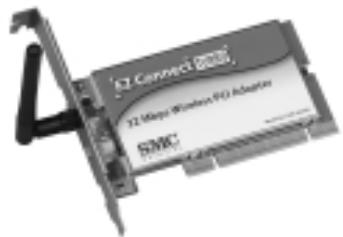
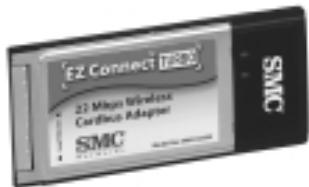
The EZ Connect TURBO Cards are IEEE 802.11b - compliant 11/22 Mbps auto-sensing wireless network adapters. They meet the needs of small business and corporate users who require backwards compatibility with a 11 Mbps wireless connection to an existing LAN. In addition, they provide exceptional scalability to 22 Mbps through the use of Packet Binary Convolutional Code (PBCC) technology. These new adapters feature an operating range of up to 1,155 feet and true plug-and play installation in all notebook computers.
System Requirements
- SMC2435W: Available Cardbus PCMCIA Type II slot
- SMC2402W: Available PCI Bus-Master slot
- Windows 98/Me/2000/XP
- Minimum of 1 MB available hard disk space for utility and driver installation
- Another IEEE 802.11b compliant device installed in your network, such as the SMC2404WBR Barricade Turbo Wireless Cable/DSL Broadband Router, or another PC with a wireless adapter, such as the SMC2662W EZ Connect Wireless USB Adapter.
Equipment Checklist
After unpacking the EZ Connect TURBO 11/22 Mbps Auto-Sensing Wireless Adapter, check the contents of the box to be sure you have received the following components:
- 1 Wireless Cardbus Adapter (SMC2435W) or 1 Wireless PCI Card (SMC2402W)
1 Driver, Utility, & Documentation CD - Manual
Immediately inform your dealer in the event of any incorrect, missing or damaged parts. If possible, please retain the carton and original packing materials in case there is a need to return the product. The EZ Connect TURBO Wireless Adapters are covered by a limited lifetime warranty.
SMC2435W: Installation Instructions
Warning:
- Network cards are sensitive to static electricity. To protect the card, avoid touching its electrical components and always touch the metal chassis of your computer before handling the card
1) Turn on your computer and insert the Driver, Utility, and Documentation CD. Run the utility software and then reboot when requested.
2) Find an available Cardbus slot in your computer.
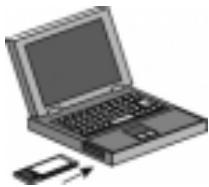
3) With the SMC2435W Wireless Cardbus Adapters 68-pin connector facing the Cardbus slot, and the "EZ Connect TURBO"label facing up, slide the card completely into the Cardbus slot as shown below:
4) For Windows 98/Me/2000, Cardbus specification is required. Please check the documents for your Cardbus adapter driver before installing the software driver for the EZ Connect TURBO Wireless Cardbus Adapter.
5) The card will be automatically installed upon insertion. Once complete, you may take advantage of the wireless functionality this adapter has to offer.
SMC2402W: Installation Instructions
1) Turn on your computer and insert the Driver, Utility, and Documentation CD. Run the utility software and then reboot when requested.
2) Switch off the computer, unplug the power cord, and remove the computer's cover. Select an unused PCI bus-master slot and remove its protective bracket.
3) Carefully insert the card and press until all edge connectors are firmly seated inside the slot. Then, screw the card's bracket securely into the PC's chassis and put the computer's cover back in place.
4) Boot up the machine.
5) The card will be automatically installed during the Operating System's boot-up process. Once complete, you may take advantage of the wireless functionality this adapter has to offer.
Driver Installation Option #1 (Recommended)
Windows 98/Me/2000/XP
NOTE: Installation processes such as these usually require the use of your original, licensed copy of Windows. Please have your Windows CD on hand BEFORE proceeding with the installation.
This Installation method makes the process as simple and Plug-and-Play as possible. Simply run the driver/utility program, reboot your machine and insert your EZ Connect TURBO Wireless Card. It's as easy as 1-2-3.
Step 1: Insert the Driver, Utility and Documentation CD.
Step 2: Click [Start], click [Run] and type [?:\Utility\setup.exe] (Note: The ? equals the letter of your CD-ROM drive. In most cases, this is D.)
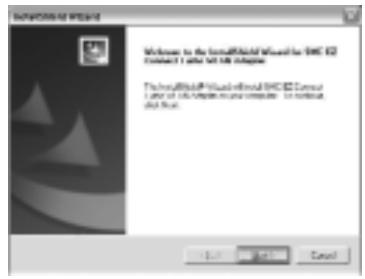
Step 3: The installation wizard will begin.
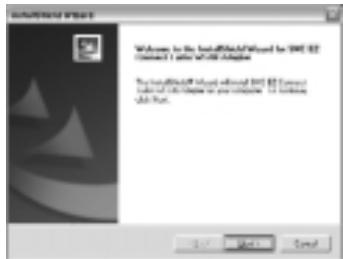
Step 4: Click [Next >] to continue.
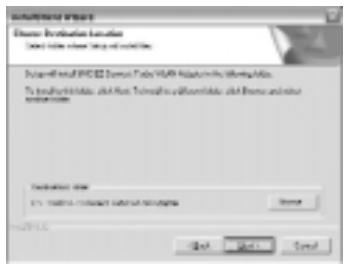
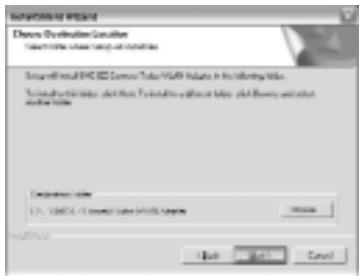
Step 5: You will be given the option to choose the location where the Configuration Utility will be installed. It is recommended to leave this at the default value. Click [Next >] to continue.
Step 6: Please set the selection to [Yes] and click [Finish] to reboot the machine. Then shut down the computer, insert your EZ Connect TURBO Cardbus Adapter or PCI Wireless Card, and boot up your machine again.
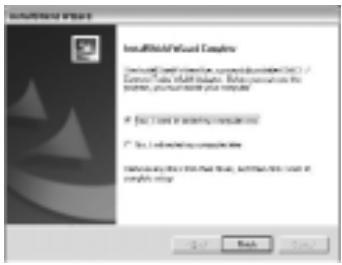
Step 7: Once the OS is booted up, it will find the new hardware and automatically install it.
The following are OS specific options that may appear during this installation procedure:
Windows 98: If you are using Windows 98, you must have your original Windows CD on hand. The system will request it near the end of the installation process.
Windows Me: The installation process is fully Plug-and-Play. You will be asked to reboot when the process is complete.
Windows 2000: Click [Yes] if asked to continue the installation with-out a Digital Signature.
Windows XP: Select [Install the software automatically] if asked and click [Next] to complete the installation. Click [Continue Anyway] if a Logo testing window appears.
Continue to the Utility Configuration section for documentation on how to use the utility application for your adapter.
Driver Installation Option #2
Click on the icon for your OS to view the directions:
Note: Windows 98, Me, 2000 and XP are registered trademarks of Microsoft.
Windows 98 - Driver Installation
NOTE: Installation processes such as these usually require the use of your original, licensed copy of Windows. Please have your Windows CD on hand BEFORE proceeding with the installation.
Step 1: After you have inserted the EZ Connect TURBO 11/22 Mbps Auto-Sensing Wireless Card in your machine, the OS will automatically recognize the adapter and prompt you for the appropriate drivers. Click the [Next >] button to begin the installation.
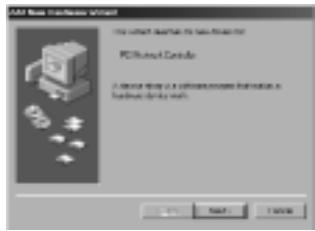
Step 2: Insert the Driver CD and select the [Search for the best driver for your device] option and click [Next >].
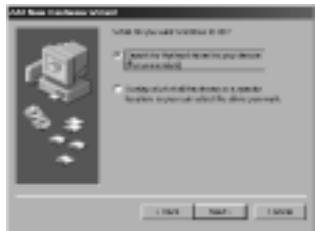
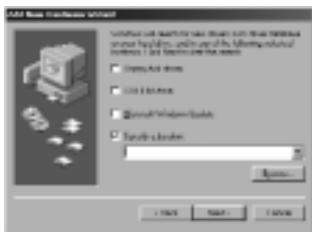
Step 3: Clear all checkboxes except for [Specify a location:]. Then press the [Browse] button and look for the drivers on your CD-ROM. Browse to ?:\Driver. (Note: The "?" equals the letter of your CD-ROM drive. In most cases, this is D.)
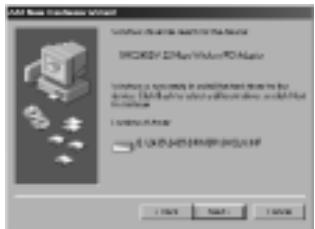
Step 4: The system should find the drivers. Now click the [Next >] button to continue the installation. The wizard will show "SMC2402W 22Mbps Wireless PCI Adapter" if you purchased the PCI Card or "SMC2435W 22Mbps Wireless Cardbus Adapter" if you purchased the Cardbus Adapter.
(Note: If the system could not find the drivers, click the [<Back] button, and select the [Display a list of all the drivers...] option. Select [Network Adapters] from the list of devices, press [Have Disk] and once again browse to the location of the drivers)
Step 5: Once the system has copied the SMC drivers from the CD, it may then request files from your original Windows disk. Please insert the Windows CD at this time.
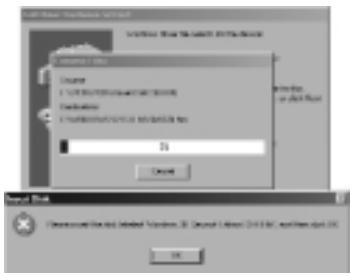
Step 6: The system will copy the files. Do NOT press [Cancel].
Step 7: Once all the necessary files are copied from the Windows disk, the driver install process will be complete. Click [Finish] to exit the wizard.
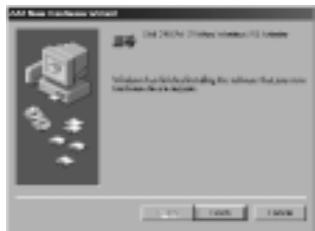
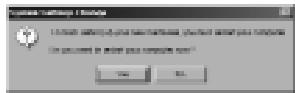
Step 8: You will then be prompted to reboot the machine. Please press [Yes]. Upon reboot, the EZ Connect TURBO Wireless Card will be initialized and ready for use.
Windows Me - Driver Installation
NOTE: Installation processes such as these usually require the use of your original, licensed copy of Windows. Please have your Windows CD on hand BEFORE proceeding with the installation.
Step 1: After you have inserted the EZ Connect TURBO Wireless Card in your machine and turned it back on, the OS will automatically recognize the adapter and prompt you for the appropriate drivers. Select the [Specify the location of the driver] option. Then click the [Next >] button to begin the installation.
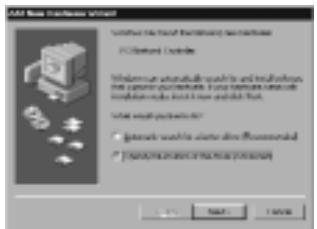
Step 2: Insert the Driver CD and select the [Specify a location:] option. Clear the [Removable Media] checkbox. Then press the [Browse] button and look for the drivers on your CD. This should be located in ?:\Driver. (Note: The ? equals the letter of your CD-ROM drive. In most cases, this is D.) Then click [Next >].
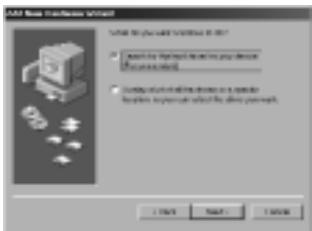
Step 3: The system should find the drivers. Now click the [Next >] button to continue the installation. The wizard will show "SMC2402W 22Mbps Wireless PCI Adapter" if you purchased the PCI Card or "SMC2435W 22Mbps Wireless Cardbus Adapter" if you purchased the Cardbus Adapter.
(Note: If the system could not find the drivers, click the [<Back] button, and select the [Display a list of all the drivers] option. Select [Network Adapters] from the list of devices, press [Have Disk] and once again browse to the location of the drivers)
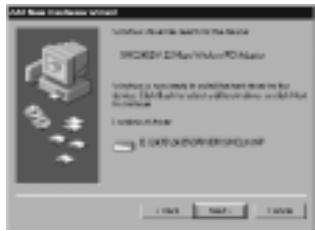
Step 4: Once all the necessary files have been copied, the driver installation is complete. Click [Finish] to exit the wizard.
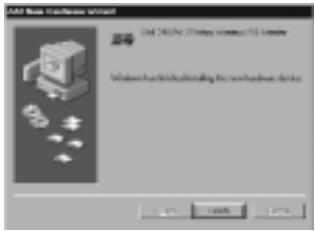
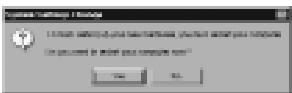
Step 5: You will then be prompted to reboot the machine. Please press [Yes]. Upon reboot, the EZ Connect TURBO Wireless Card will be initialized and ready for use.
Windows 2000 - Driver Installation
Step 1: After you have inserted the EZ Connect TURBO Wireless Card in your machine and turned it back on, the OS will automatically rec-ognize the adapter and prompt you for the appropriate drivers. Click the [Next >] button to begin the installation.
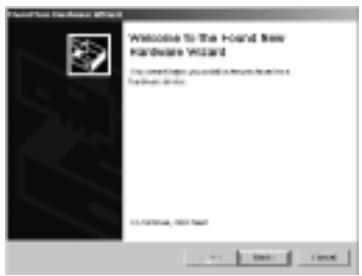
Step 2: Insert the Driver CD and select the [Search for a suitable driver...] option. Then click [Next >].
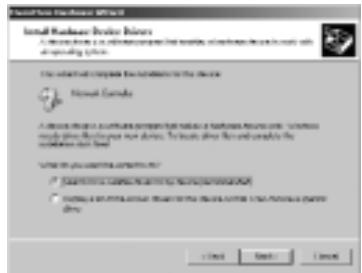
Step 3: Clear all checkboxes except for [Specify a location]. Then click [Next >].
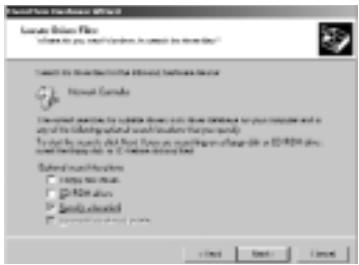
Step 4: You will then be prompted to enter the location of the drivers. This should be ?:\Driver. (Note: The ? equals the letter of your CD-ROM drive. In most cases, this is D.) Then click [OK]. You can also click Browse] and browse to the location of the drivers on the CD for further verification.
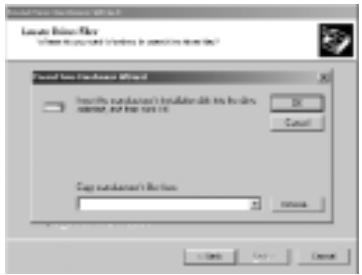
Step 5: The system should find the drivers. Now click the [Next >] button to continue the installation. (Note: If the system could not find the drivers, click the [< Back] button, and select the [Display a list of the known drivers...] option. Select [Network Adapters] from the list of devices, press [Have Disk] and once again browse to the location of the drivers)
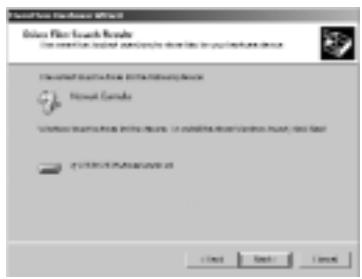
Step 6: Click [Yes] to continue the installation. Please do NOT click [No] as this will cancel the driver wizard and the card will not be installed properly. The wizard will show "SMC2402W 22Mbps Wireless PCI Adapter" if you purchased the PCI card or "SMC2435W 22Mbps Wireless Cardbus Adapter" if you purchased the Cardbus Adapter.
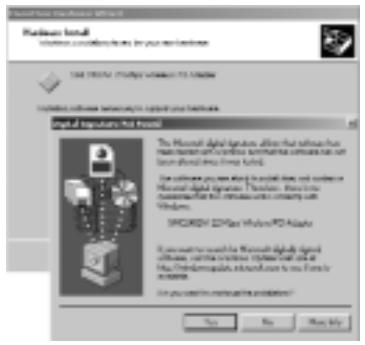
Step 7: You have now completed the driver installation. Click [Finish] to initialize the adapter.
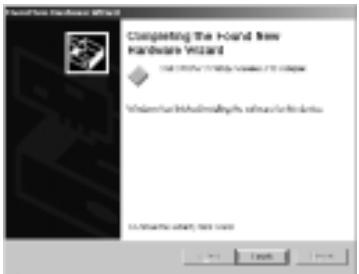
Windows XP - Driver Installation
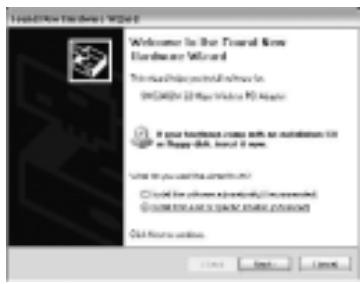
Step 1: After you have inserted the EZ Connect TURBO Wireless Card in your machine and turned it back on, the OS will automatically rec-ognize the adapter and prompt you for the appropriate drivers. Click the [Next >] button to begin the installation.
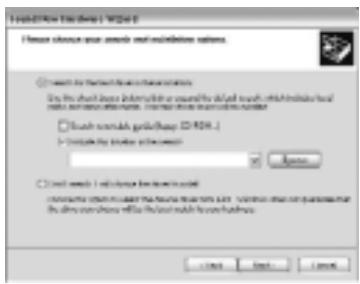
Step 2: Insert the Driver CD and check the [Include this location in the search] option. Make sure the [Search removable media] option is not checked. Click [Browse] and find the location of the drivers. This should be ?:\Driver. (Note: The ? equals the letter of your CD-ROM drive. In most cases, this is D.) Then click [Next >].
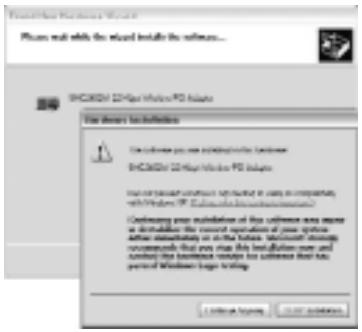
Step 3: Click [Continue Anyway] to continue the installation. Please do NOT click [STOP Installation] as this will cancel the driver wizard and the card will not be installed properly. The wizard will show "SMC2402W 22Mbps Wireless PCI Adapter" if you purchased the PCI card or "SMC2435W 22Mbps Wireless
Cardbus Adapter" if you pur-chased the Cardbus Adapter.
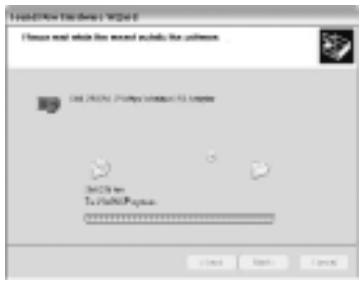
Step 4: This process will be completed once the drivers are copied to the hard drive and installed. Please click [Finish] to exit the wizard.
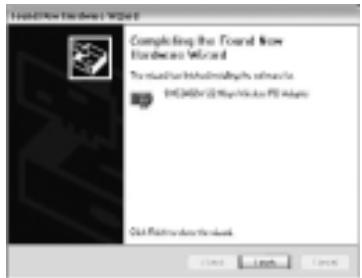
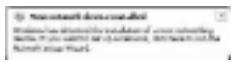
After clicking [Finish], you will see the following message in your system tray:
How Do I Know the Card is Installed?
This section will help you verify that the adapter is installed properly. Click on the icon for your OS to view the directions:
Note: Windows 98, Me, 2000 and XP are registered trademarks of Microsoft.
Windows 98 - Verification
Step 1: Right-click the My Computer icon on your desktop and click [Properties].

Step 2: Then go to the [Device Manager] tab and open the [Network adapters] section. You should see your EZ Connect TURBO Wireless Adapter in this menu. Highlight it and click [Properties].
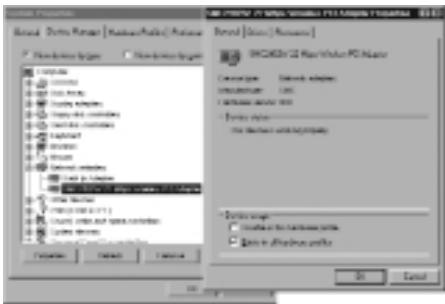
Step 3: The Device Status shows that the "This device is working properly". If there are any error messages displayed here, you will need to click the SMC adapter and click [Remove]. Then reboot the machine and go through the installation process again.
Windows Me - Verification
Step 1: Right-click the My Computer icon on your desktop and click [Properties].
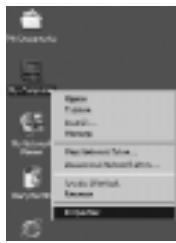
Step 2: Then go to the [Device Manager] tab and open the [Network adapters] section. You should see your EZ Connect TURBO Wireless Adapter in this menu. Highlight it and click [Properties].
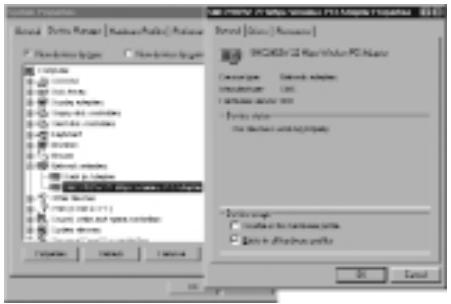
Step 3: The Device Status shows that the "This device is working properly". If there are any error messages displayed here, you will need to click the SMC adapter and click [Remove]. Then reboot the machine and go through the installation process again.
Windows 2000 - Verification
Step 1: Right-click the My Computer icon on your desktop and click [Properties].
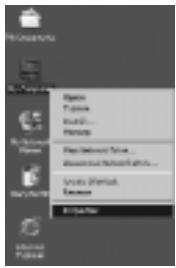
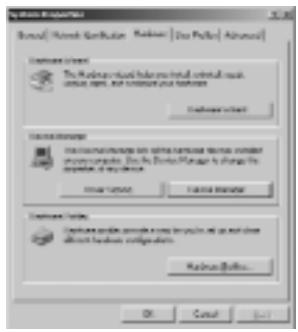
Step 2: Then go to the Hardware tab and click [Device Manager]. Open the [Network adapters] section. You should see your EZ Connect TURBO Wireless Adapter in this menu. Right-click your adapter and click [Properties].
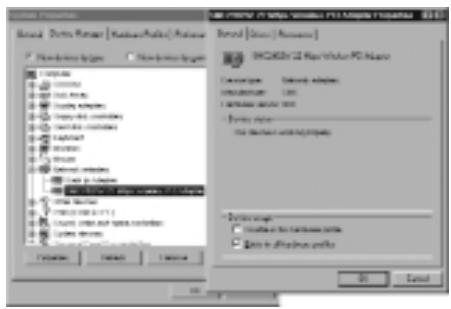
Step 3: The Device Status shows that the "This device is working properly". If there are any error messages displayed here, you will need to right-click the SMC adapter and click [Uninstall]. Then reboot the machine and go through the installation process again.
Windows XP - Verification
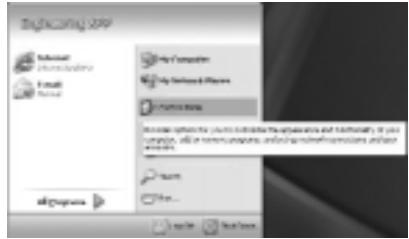
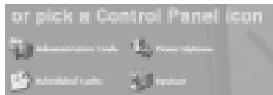
Step 1: Click [Start] and click [Control Panel]. Then click the [Performance and Maintenance] icon and select [System].

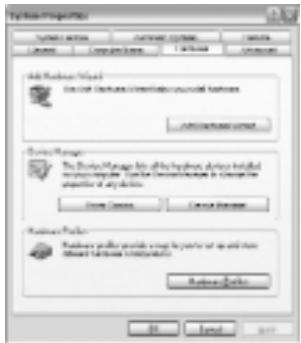
Step 2: Then go to the Hardware tab and click [Device Manager]. Open the [Network adapters] section. You should see your EZ Connect TURBO Wireless Adapter in this menu. Right-click the adapter and click [Properties].
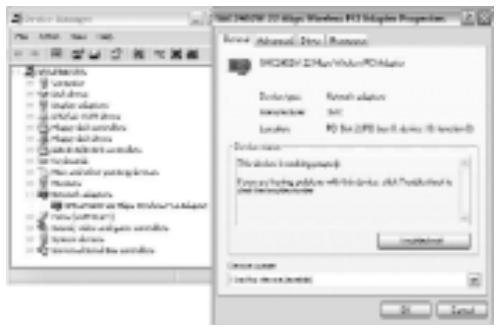
Step 3: The Device Status shows that "This device is working properly". If there are any error messages displayed here, you will need to right-click the SMC adapter and click [Uninstall]. Then reboot the machine and go through the installation process again.
Utility Installation
NOTE: If you completed [Option #1] to install the drivers, then you have already installed the utility as well. Please skip to the next section. If you completed [Option #2], please complete the steps below to install the utility.
Step 1: Insert the Driver, Utility and Documentation CD.
Step 2: Click [Start], click [Run] and type [?:\Utility\setup.exe] (Note: The ? equals the letter of your CD-ROM drive. In most cases, this is D.)
Step 3: The installation wizard will begin.

Step 4: Click [Next >] to continue.
Step 5: You will be given the option to choose the location where the Configuration Utility will be installed. It is recommended to leave this at the default value. Click [Next >] to continue.
Step 6: Please set the selection to [Yes] and click [Finish] to reboot the machine. Then once the OS is back up and running, you should see a new icon in your system tray that launches the wireless card utility

Continue to the Utility Configuration section for documentation on how to use the utility application for your adapter.
Utility Configuration
When the utility program is running, there will be a quick launch icon in the lower right-hand corner of the task bar. The icon will be GREEN if you have a good connection to a wireless network. If it is white, you will need to verify the network settings and check to be sure that the AP is turned on. You may also need to reposition the AP and possibly place it in a higher position so that you are able to gain more wireless signal strength.
Double-click the quick launch icon in the system tray to bring up the Configuration Utility. This provides quick access to management statistics and adapter settings.

The Configuration Utility includes the following tabs:
Link Info: Allows you to view/monitor network status and throughput.
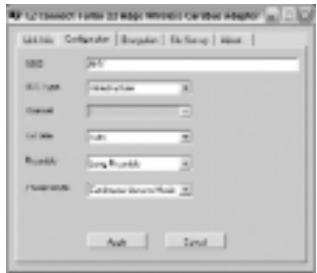
Configuration: Allows you to make changes to the wireless card settings such as the Preamble, BSS Type (Mode), and SSID.
Site Survey: Displays all the Access Points within range of the wireless adapter's signal. Encryption: Provides Wired Equivalent Privacy (WEP) security control. About: Shows the version information.
Link Info
When the Configuration Utility is initialized, the Link Info window will be immediately shown. This will show you the connection status of the wireless adapter. If you are connected to the network in Infrastructure mode, you should see the oscillating bars next to Signal Strength and Link Quality. The Status field will show that it is "Associated" as well.
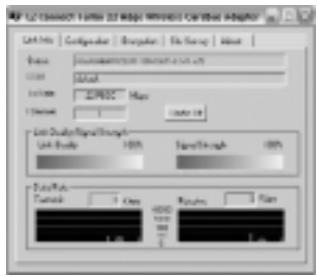
Settings cannot be changed on this tab. This tab gives you the data you need to determine which wireless network you are connected to and your connection speed. It also shows the SSID and Channel of that network, and it gives you throughput and link quality statistics.
Configuration
To change the settings, simply enter the new desired values and click the [Apply] button. Note that when configured in Infrastructure mode, you cannot change the Channel. The wireless adapter will automatically sync to the same channel that the Access Point is using. The SSID should be configured to the same value as that of the Access Point.
BSS Type: Set the station operation mode to "Adhoc" for network configurations that do not include an Access Point (i.e. - Peer-to-Peer networks). Set the operation mode to "Infrastructure" for configura-tions that utilize an AP for wireless connectivity to an Ethernet LAN. ("Infrastructure" is the default setting.)
Channel: If you are setting up an Adhoc wireless LAN, set the channel number to the same value on all wireless clients. However, if you are connecting to a network via an AP, then the channel will be automatically set to the channel of the AP.
SSID: Input an SSID for the wireless network to which you want to connect. If you will be roaming among multiple Access Points with different BSSID's, set the SSID to "ANY" to allow connection to any access point.
Tx Rate: Indicates the data transmission rate. To optimize performance and range, it is best to set this value at Auto. Lower speeds will usually allow you to gain more range. When set to Auto, the adapter will auto-sense the speed and provide the highest through-put that your environment allows.
Preamble: It is highly recommended that you leave this value at default.
Power Mode: The choices are "Continuous Access Mode", "Maximum Power Save", and "Fast Power Save". The Power Mode is set to Continuous Access Mode by default. When enabled on a laptop, the power saving mode can reduce power consumption by the wireless PC card and extend the battery life of your laptop.
Encryption
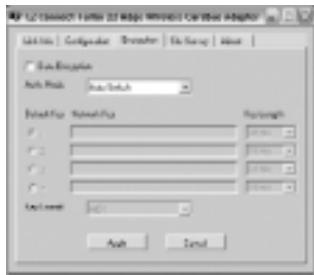
For more secure data transmissions, set encryption to "256 bits", "128 bits" or "64 bits". The 256-bit setting gives the highest level of security. The setting must be the same for all clients in your wireless network. By default, the WEP is disabled. For HEX
"Key Format", the security is enabled by entering 10-digit keys for the 64-bit WEP configuration, 26-digit keys for a 128-bit WEP configuration or 58-digit keys for a 256-bit WEP configuration. For ASCII "Key Format", the security is enabled by entering 5-letter keys for 64-bit WEP, 13-letter keys for 128-bit WEP or 29-letter keys for 256-bit WEP.
Site Survey
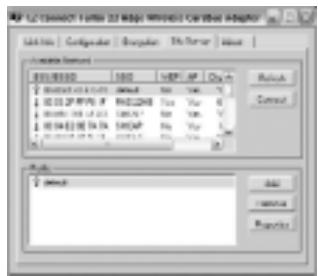
The Site Survey tab scans and displays all Access Points in the wire-less LAN. To choose a network, simply highlight it and click the [Connect] button on the right. The Site Survey shows the MAC address of the wireless network, the SSID, the encryption status, and the channel the network is using. If the "AP" option shows NO, then this means that there is no Access Point on that network - or in other words, it is an Adhoc network. If the "AP" option shows YES, then there is an Access Point on that particular wireless network.
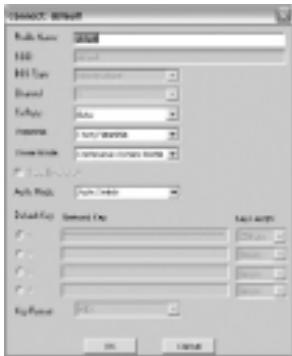
When you press [Connect], you will be able to verify the settings and enter the required WEP keys, if any. If the network does not require WEP, the encryption portion will be grayed out. You can also set up different Profiles by changing the "Profile Name". By default, the "Profile Name" is the same as the SSID.
About
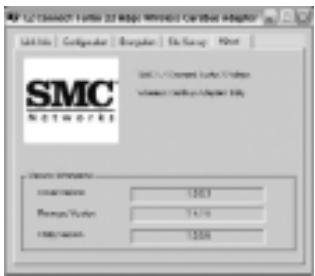
The following screen displays the version information.
Troubleshooting
Common Installation Problems
Problems are often caused by conflicts with other devices installed in the same computer, or software that has been configured incorrectly. If you encounter a problem with the EZ Connect TURBO 11/22 Mbps Auto-Sensing Wireless Adapters, use the following checklists to identify and correct the problem.
-
If your computer cannot find the EZ Connect TURBO Wireless Card, or the network driver does not install correctly, check the following items before contacting SMC Technical Support
-
Make sure the card is securely seated in the PCMCIA or PCI slot. Check for any hardware problems, such as physical damage to the card.
- Try the card in another PCMCIA or PCI slot. If this fails, test the card in a completely different system or try using a second EZ Connect TURBO Wireless Card in that particular slot.
- Check for resource conflicts
- Make sure your computer is using the latest BIOS available. Contact the manufacturer of the laptop, motherboard for information on updating the BIOS (e.g. - Dell, Toshiba, etc)
- If there are other network cards in the computer, they may be causing conflicts. Remove all other cards from the computer and test the EZ Connect TURBO Wireless Card separately.
Network Connection Problems
There may be a network connection problem if the LED on the card does not light, or if you cannot access any network resources from the computer. Check the following items before contacting SMC Technical Support.
- Make sure the correct network card driver is installed for your operating system. If necessary, try uninstalling and reinstalling the driver. To do this, first shut down your machine and remove your SMC adapter. Then boot up and open up your Start Menu, go to Programs, click the "SMC EZ Connect TURBO WLAN Adapter" program folder and choose "Uninstall". Reboot the machine when requested to do so. Then insert your Driver CD and run the Setup.exe utility again. Then shut down the computer, reinsert your SMC adapter and boot up the machine. The OS should properly reinstall the adapter during this time.
- Make sure the computer and other network devices are receiving power. If you suspect a power outlet to be faulty, plug another device into it to verify that it is working.
- If your wireless station cannot communicate with a computer on the Ethernet LAN when configured for Infrastructure mode, try changing the wireless channel on the AP. Make sure the SSID is the same as that used by the AP for a station with roaming disabled, or the same as that used by the AP's in the extended service set (ESS).
- The Access Point you are trying to attach to is defective or may not be configured properly to accept your signal. Check with the administrator of your wireless network for more information on connecting to the LAN. Also run the necessary diagnostics on the AP to make sure the unit is fully operational.
- If you cannot access the Internet, be sure to check with the ISP for further instructions once the drivers for the EZ Connect TURBO Wireless Card are installed properly.
SMC's Limited Warranty Statement
Limited Warranty Statement: SMC Networks Europe ("SMC") warrants its products to be free from defects in workmanship and materials, under normal use and service, for the applicable warranty term. All SMC products carry a standard 2 year limited warranty from the date of purchase from SMC or its Authorized Reseller. SMC may, at its own discretion, repair or replace any product not operating as warranted with a similar or functionally equivalent product, during the applicable warranty term. SMC will endeavour to repair or replace any product returned under warranty within 30 days of receipt of the product. As new technologies emerge, older technologies become obsolete and SMC will, at its discretion, replace an older product in its product line with one that incorporates these newer technologies
The standard limited warranty can be upgraded to a 5 year Limited Lifetime * warranty by registering new products within 30 days of purchase from SMC or its Authorized Reseller. Registration can be accomplished via the enclosed product registration card or online via the SMC web site. Failure to register will not affect the standard limited warranty. The Limited Lifetime warranty covers a product during the Life of that Product, which is defined as a period of 5 years from the date of purchase of the product from SMC or its authorized reseller.
All products that are replaced become the property of SMC. Replacement products may be either new or reconditioned. Any replaced or repaired product carries, either a 30-day limited warranty or the remainder of the initial warranty, whichever is longer. SMC is not responsible for any custom software or firmware, configuration information, or memory data of Customer contained in, stored on, or integrated with any products returned to SMC pursuant to any warranty. Products returned to SMC should have any customer-installed accessory or add-on components, such as expansion modules, removed prior to returning the product for replacement. SMC is not responsible for these items if they are returned with the product.
Customers must contact SMC for a Return Material Authorization number prior to returning any product to SMC. Proof of purchase may be required. Any product returned to SMC without a valid Return Material Authorization (RMA) number clearly marked on the outside of the package will be returned to customer at customer's expense. Customers are responsible for all shipping charges from their facility to SMC. SMC is responsible for return shipping charges from SMC to customer.
WARRANTIES EXCLUSIVE: IF A SMC PRODUCT DOES NOT OPERATE AS WARRANCED ABOVE, CUSTOMER'S SOLE REMEDY SHALL BE REPAIR OR REPLACEMENT OF THE PRODUCT IN QUESTION, AT SMC'S OPTION. THE FOREGOING WARRANTYES AND REMEDIES ARE EXCLUSIVE AND ARE IN LIEU OF ALL OTHER WARRANTYES OR CONDITIONS, EXPRESSED OR IMPLIED, EITHER IN FACT OR BY OPERATION OF LAW, STATUTORY OR OTHERWISE, INCLUDING WARRANTYES OR CONDITIONS OF MERCHANTABILITY AND FITNESS FOR A PARTICULAR PURPOSE. SMC NEITHER ASSUMES NOR AUTHORIZES ANY OTHER PERSON TO ASSUME FOR IT ANY OTHER LIABILITY IN CONNECTION WITH THE SALE, INSTALLATION, MAINTENANCE OR USE OF ITS PRODUCTS. SMC SHALL NOT BE LIABLE UNDER THIS WARRANTY IF ITS TESTING AND EXAMINATION DISCLOSE THE ALLEGED DEFECT IN THE PRODUCT DOES NOT EXIST OR WAS CAUSED BY CUSTOMER'S OR ANY THIRD PERSON'S MISUSE, NEGLECT, IMPROPER INSTALLATION OR TESTING, UNAUTHORIZED ATTEMPTS TO REPAIR, OR ANY OTHER CAUSE BEYOND THE RANGE OF THE INTENDED USE, OR BY ACCIDENT, FIRE, LIGHTNING, OR OTHER HAZARD.
LIMITATION OF LIABILITY: IN NO EVENT, WHETHER BASED IN CONTRACT OR TORT (INCLUDING NEGLIGENCE), SHALL SMC BE LIABLE FOR INCIDENTAL, CONSEQUENTIAL, INDIRECT, SPECIAL, OR PUNITIVE DAMAGES OF ANY KIND, OR FOR LOSS OF REVENUE, LOSS OF BUSINESS, OR OTHER FINANCIAL LOSS ARISING OUT OF OR IN CONNECTION WITH THE SALE, INSTALLATION, MAINTENANCE, USE, PERFORMANCE, FAILURE, OR INTERRUPTION OF ITS PRODUCTS, EVEN IF SMC OR ITS AUTHORIZED RESELLER HAS BEEN ADVISED OF THE POSSIBILITY OF SUCH DAMAGES.
SOME COUNTRIES DO NOT ALLOW THE EXCLUSION OF IMPLIED WARRANTYES OR THE LIMITATION OF INCIDENTAL OR CONSEQUENTIAL DAMAGES FOR CONSUMER PRODUCTS, SO THE ABOVE LIMITATIONS AND EXCLUSIONS MAY NOT APPLY TO YOU. THIS WARRANTY GIVES YOU SPECIFIC LEGAL RIGHTS, WHICH MAY VARY FROM COUNTRY TO COUNTRY. NOTHING IN THIS WARRANTY SHALL BE TAKEN TO AFFECT YOUR STATUTORY RIGHTS.
- Under the limited lifetime warranty, internal and external power supplies, fans, and cables are covered by a standard one-year warranty from date of purchase.
Full Installation Manual
Full installation manuals are provided on the Installation CD-Rom. Manuals in other languages than those included on the CD-Rom are provided on www.smc-europe.com (section support).
Firmware and Drivers
For latest driver, technical information and bug-fixes please visit www.smc-europe.com (section support).
Contact SMC
Contact details for your relevant countries are available on www.smc-europe.com and www.smc.com.
Statement of Conditions
In line with our continued efforts to improve internal design, operational function, and/or reliability, SMC reserves the right to make changes to the product(s) described in this document without notice. SMC does not assume any liability that may occur due to the use or application of the product(s) described herein. In order to obtain the most accurate knowledge of installation, bug-fixes and other product related information we advise to visit the relevant product support page at www.smc-europe.com before you start installing the equipment. All information is subject to change without notice.
Limitation of Liability
In no event, whether based in contract or tort (including negligence), shall SMC be liable for incidental, consequential, indirect, special or punitive damages of any kind, or for loss of revenue, loss of business or other financial loss arising out of or in connection with the sale, installation, maintenance, use, performance, failure or interruption of its products, even if SMC or its authorized reseller has been advised of the possibility of such damages.
Copyright
Information furnished by SMC Networks, Inc. (SMC) is believed to be accurate and reliable. However, no responsibility is assumed by SMC for its use, nor for any infringements of patents or other rights of third parties which may result from its use. No license is granted by implication or otherwise under any patent or patent rights of SMC. SMC reserves the right to change specifications at any time without notice.
Trademarks
SMC is a registered trademark; and EZ Connect is a trademark of SMC Networks, Inc. Other product and company names are trademarks or registered trademarks of their respective holders.