
WCB-GM - Wireless Network Card SMC - Free user manual and instructions
Find the device manual for free WCB-GM SMC in PDF.


User questions about WCB-GM SMC
0 question about this device. Answer the ones you know or ask your own.
Ask a new question about this device
Download the instructions for your Wireless Network Card in PDF format for free! Find your manual WCB-GM - SMC and take your electronic device back in hand. On this page are published all the documents necessary for the use of your device. WCB-GM by SMC.
USER MANUAL WCB-GM SMC
11B/G MIMO WIRELESS Adapter
User's Manual
Quick Installation
- Insert the product's CD into CD-ROM.
- Follow the onscreen instructions to install the drivers.
- Shut down the Computer and insert / plug-in the adapter into the appropriate slot.
- Boot up the Computer and let the drivers install themselves automatically
FCC Regulatory Information
This device complies with Part 15 of the FCC Rules. Operation is subject to the following two conditions:
- this device may not cause harmful interference, and
- this device must accept any interference received; including interference that may cause undesired operation. Federal Communications Commission (FCC) Statement.
This Equipment has been tested and found to comply with the limits for a Class B digital device, pursuant to Part 15 of the FCC rules. These limits are designed to provide reasonable protection against harmful interference in a residential installation. This equipment generates, uses and can radiate radio frequency energy and, if not installed and used in accordance with the instructions, may cause harmful interference to radio communications. However, there is no guarantee that interference will not occur in a particular installation. If this equipment does cause harmful interference to radio or television reception, which can be determined by turning the equipment off and on, the user is encouraged to try to correct the interference by one or more of the following measures:
- Reorient or relocate the receiving antenna.
- Increase the separation between the equipment and receiver.
- Connect the equipment into an outlet on a circuit different from that to which the receiver is connected.
- Consult the dealer or an experienced radio/TV technician for help.
FCC RF Radiation Exposure Statement:
- This Transmitter must not be co-located or operating in conjunction with any other antenna or transmitter.
- This equipment complies with FCC RF radiation exposure limits set forth for an uncontrolled environment. This equipment should be installed and operated with a minimum distance of 20 centimeters between the radiator and your body.
Contents
Chapter 1 System Requirements 3
1-1 Hardware 3
1-2 Software 3
Chapter 2 Install Driver for Windows Series 4
2-1 Set up 11B/G MIMO WIRELESS LAN Card for Windows Series 4
Chapter 3 Configure MIMO WIRELESS LAN Card 6
3-1 Install Utility 6
3-2 Use the MIMO WIRELESS LAN Card with Zero Configuration Tool
Chapter 4 Configure MIMO WIRELESS LAN Card with "MiMo
Wireless Utility" for Windows 98/ME/2000/XP 10
4-1 Site Survey Page 10
4-1-1 Add/Edit Profile 11
4-2 Authentication & Security 14
4-2-1 802.1x Setting 15
4-2-2 CA Server 16
4-3 Profile Page 18
4-4 Link Status Page 19
4-5 Statistics Page 20
4-6 Advance Page 22
4-7 About Page 24
Chapter 1 System Requirements
Before installing the adapter and related software, make sure the computer system meets the minimum requirements described below.
1-1 Hardware
The adapter can be installed in any recent-model IBM-type microcomputer with a PCMCIA on notebook or PCI slot on desktop which support CardBus or PCI interface. The CardBus adapter is a Type II CardBus card, and can be installed in a Type II or Type III CardBus slot.
1-2 Software
The drivers included with the adapter allow the adapter to be used in Microsoft Windows 98, ME, 2000, and XP.
Chapter 2 Install Driver for Windows
Series
This section describes the installation of the 11B/G MIMO WIRELESS LAN Card driver for the Windows98/ME/2000 and Windows XP operating systems.
2-1 Set up 11B/G MIMO WIRELESS LAN Card for Windows
Series
Step 1: After inserting the MIMO WIRELESS LAN Card into the PCMCIA slot on notebook or PCI slot desktop, the Windows will auto-detect the MOMO WIRELESS LAN Card and a “Found New Hardware Wizard” window will show up. Select “Cancel” to install the driver from CD-ROM.
Found New Hardware Wizard

Welcome to the Found New Hardware Wizard
This wizard helps you install software for:
Network Controller

If your hardware came with an installation CD or floppy disk, insert it now.
What do you want the wizard to do?
Install the software automatically (Recommended)
Install from a list or specific location (Advanced)
Click Next to continue.
<Back
Next>
Cancel
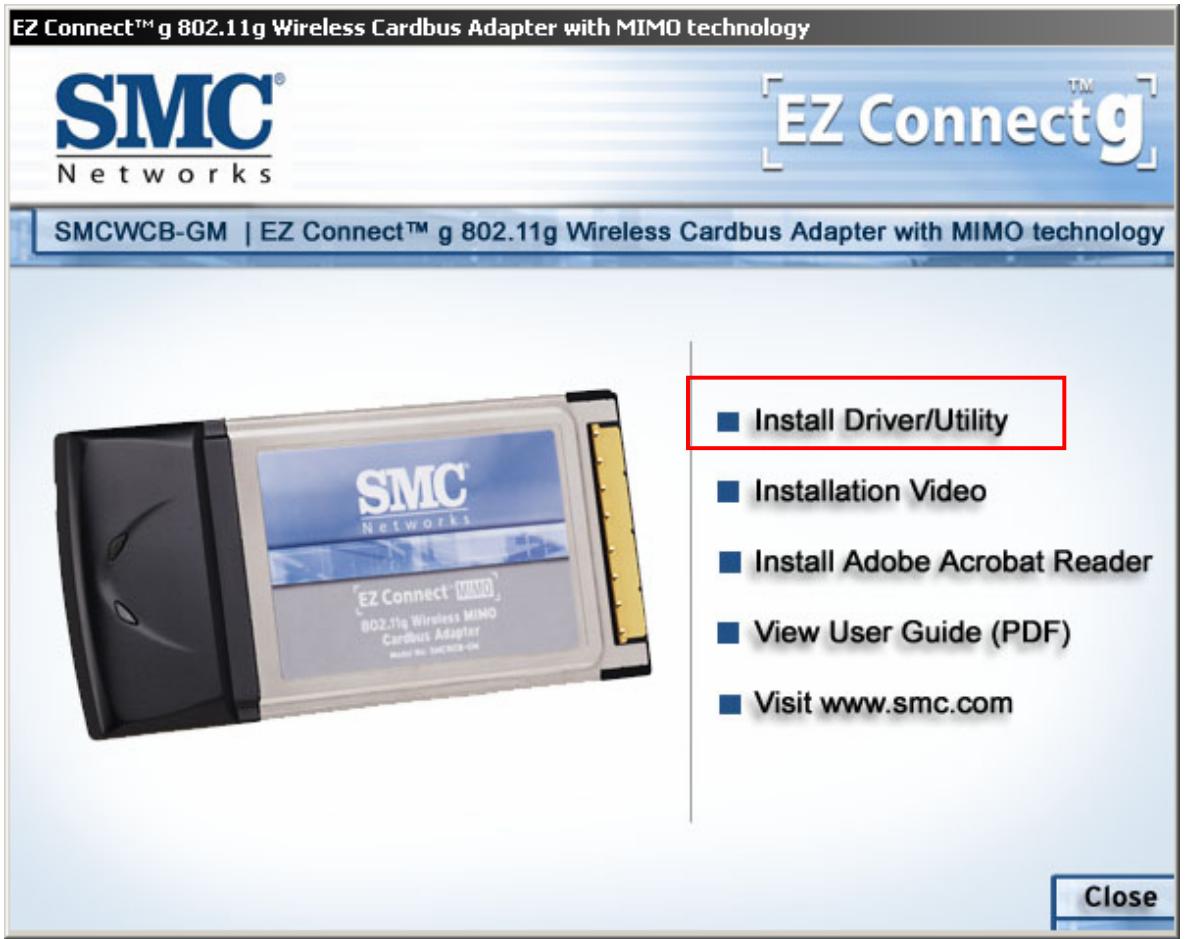
Step 2: Insert the Product CD-ROM into the CD-ROM drive. Select "Driver & Utility" to install Driver and Utility.
Step 3: After installing the driver, you can check if your device is active in the device management
Chapter 3 Configure MIMO WIRELESS
LAN Card
This chapter will show you how to configure your MIMO WIRELESS LAN Card by using utility in the Product CD Package under Windows series Operation System
3-1 Configuration Utility
- After finishing the install process, you can execute the utility from the Start Menu.
- You will see the utility icon after you executing program "MiMo Wireless Utility" if your MIMO WIRELESS Card is alive
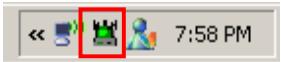
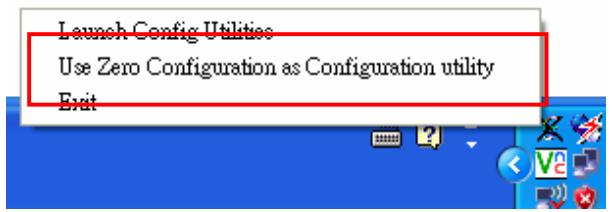
- If your operation system belong to Windows XP and have update to SP1, click the right button on the icon. You will see the frame below. If you want to configure your MIMO Wireless LAN Card with "Wireless Zero Configure" supported by XP, you should choose "Use Zero Configuration as Configuration utility".
3-2 Use the MIMO WIRELESS LAN Card with Zero
Configuration Tool
After installing MIMO Wireless LAN Card, the Windows XP will display a "WIRELESS Network Connection" message.
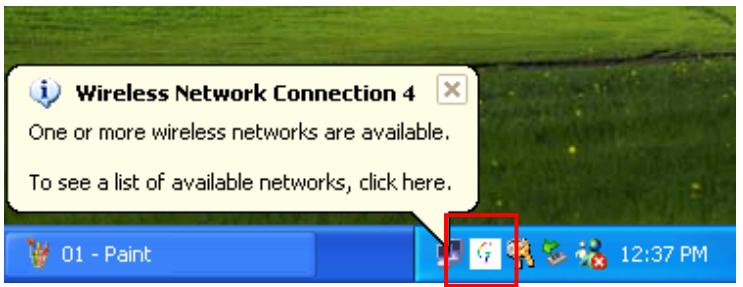
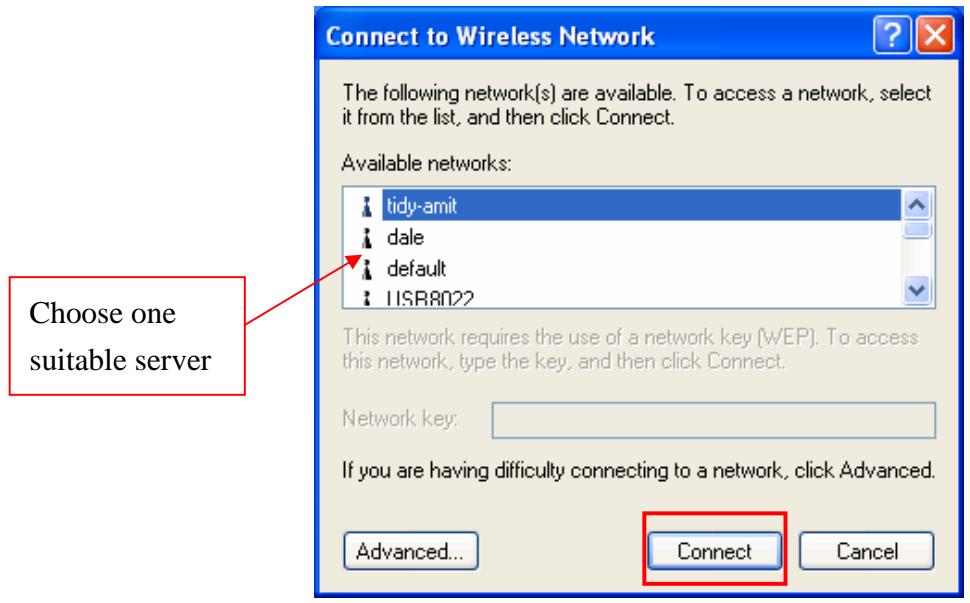
Click on the message and the "Automatic WIRELESS Network Configuration" will then appear automatically and allow users to connect to an available WIRELESS infrastructure network (Access Point), shown as follows. You may click the Advanced button to make advanced configuration for the WIRELESS LAN Card, shown as below.
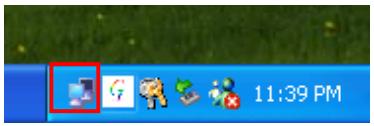
In order to reconfigure you WIRELESS connection, you can deal as follow procedure
1.click left button on the network icon as below.
2. Click Properties to continue
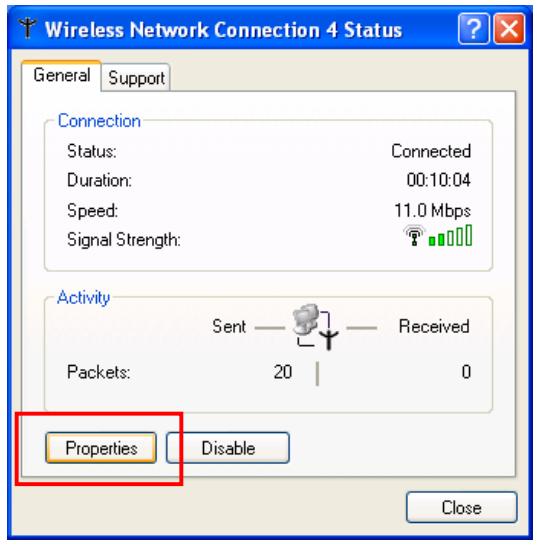
3. Click WIRELESS Networks to reconfigure the WIRELESS network connection.
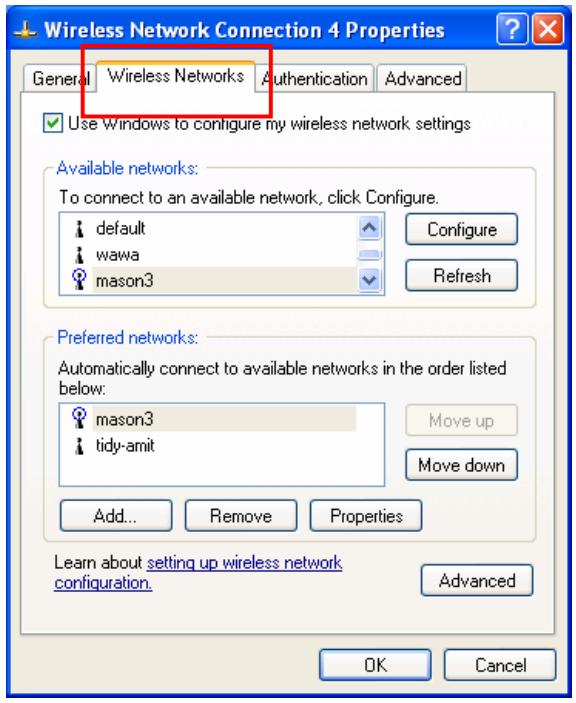
- If you need a key(WEP) to connect the WIREFLESS network, you should key in the key that supported by the WIREFLESS network router or access point
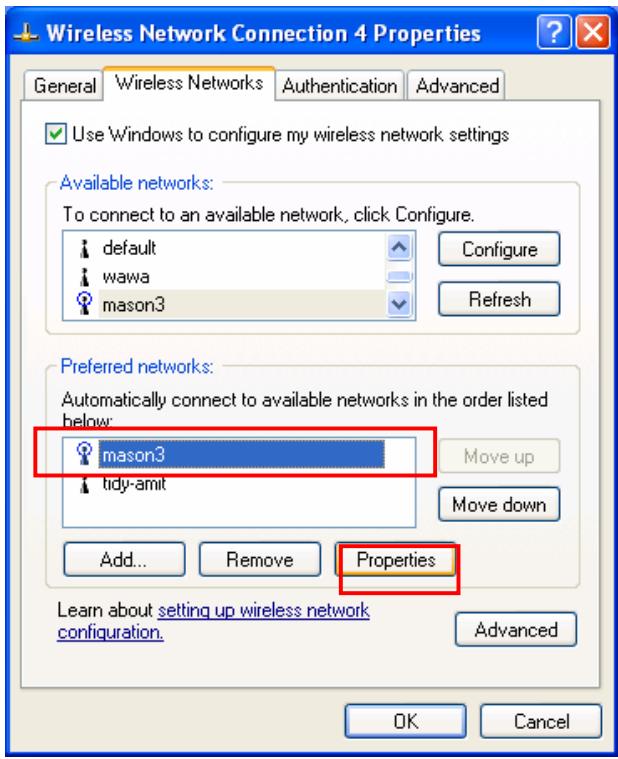
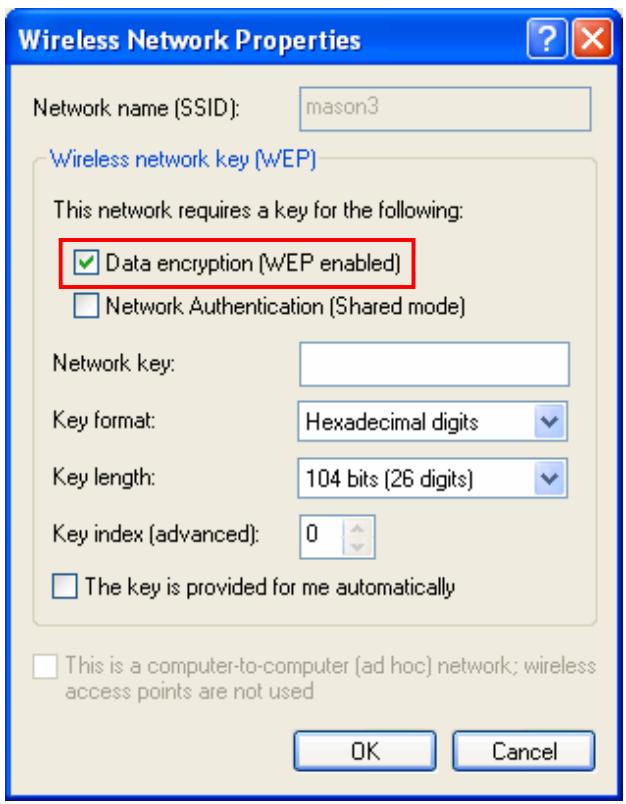

Note: Under the Windows XP, it is recommend to use the "Automatic WIRELESS Network Configuration" to configure your 11G WIRELESS LAN Card. The WIRELESS LAN Utility comes with the WIRELESS LAN Card is not support the Windows XP.
Chapter 4 Configure MIMO WIRELESS LAN
Card with “MiMo Wireless Utility” for Windows
98/ME/2000/XP
Click the utility icon, and you will see the application interface as step 2. Each icon have different means describe as follows.
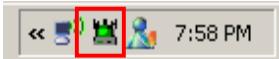
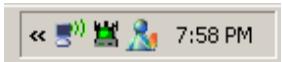
Indicates that there is a wireless connection available
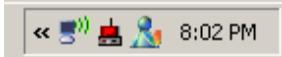
Indicates that there is no wireless connection available
4-1 Site Survey Page
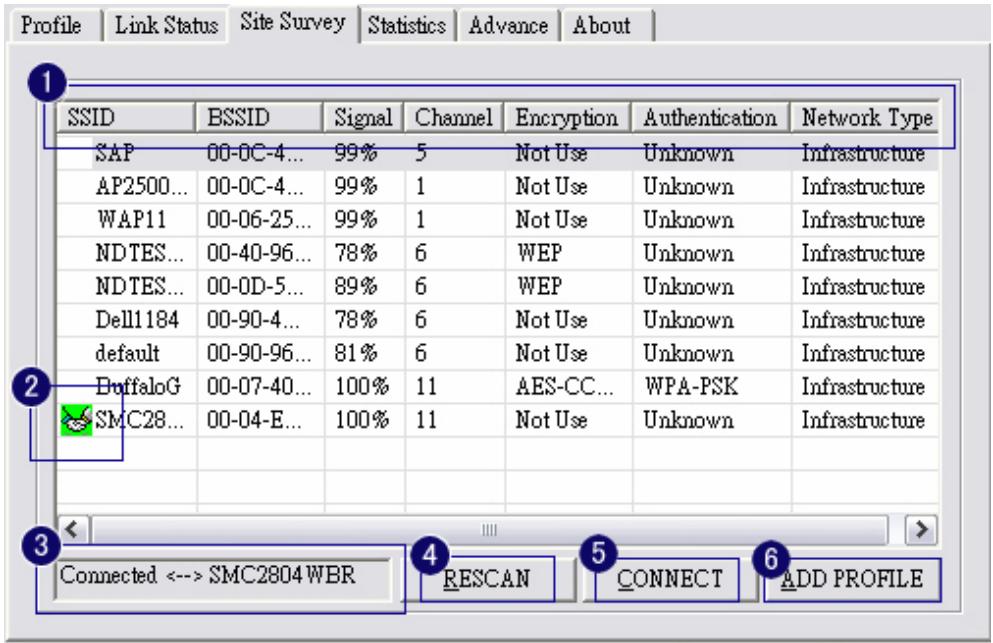
- the means of item
SSID:NameofAP
BSSID: Mac Address of AP
- Signal : Signal strength of AP
- Channel: AP used channel
- Encryption: what encrypted mechanism does AP used, the encrypted mechanism contain four ways, WEP, AES, TKIP, NOT USE
- Authentication: What authentication mechanism does AP used.
Network Type: What Network Type does the AP belong to.
2. The connected AP
- the system will choose the suitable AP when you start up RaConfig in the first time
- if you want to connect with another AP, double click mouse's left button in the SSID of AP.
indicate connect successful.
- if the connect is success, it will show the SSID of the connected AP
rescan and upgrade all the AP's information in time

connect with selected AP
Save the selected AP's information to Profile
4-1-1 Add/Edit Profile
System Configuration : as figure bellow
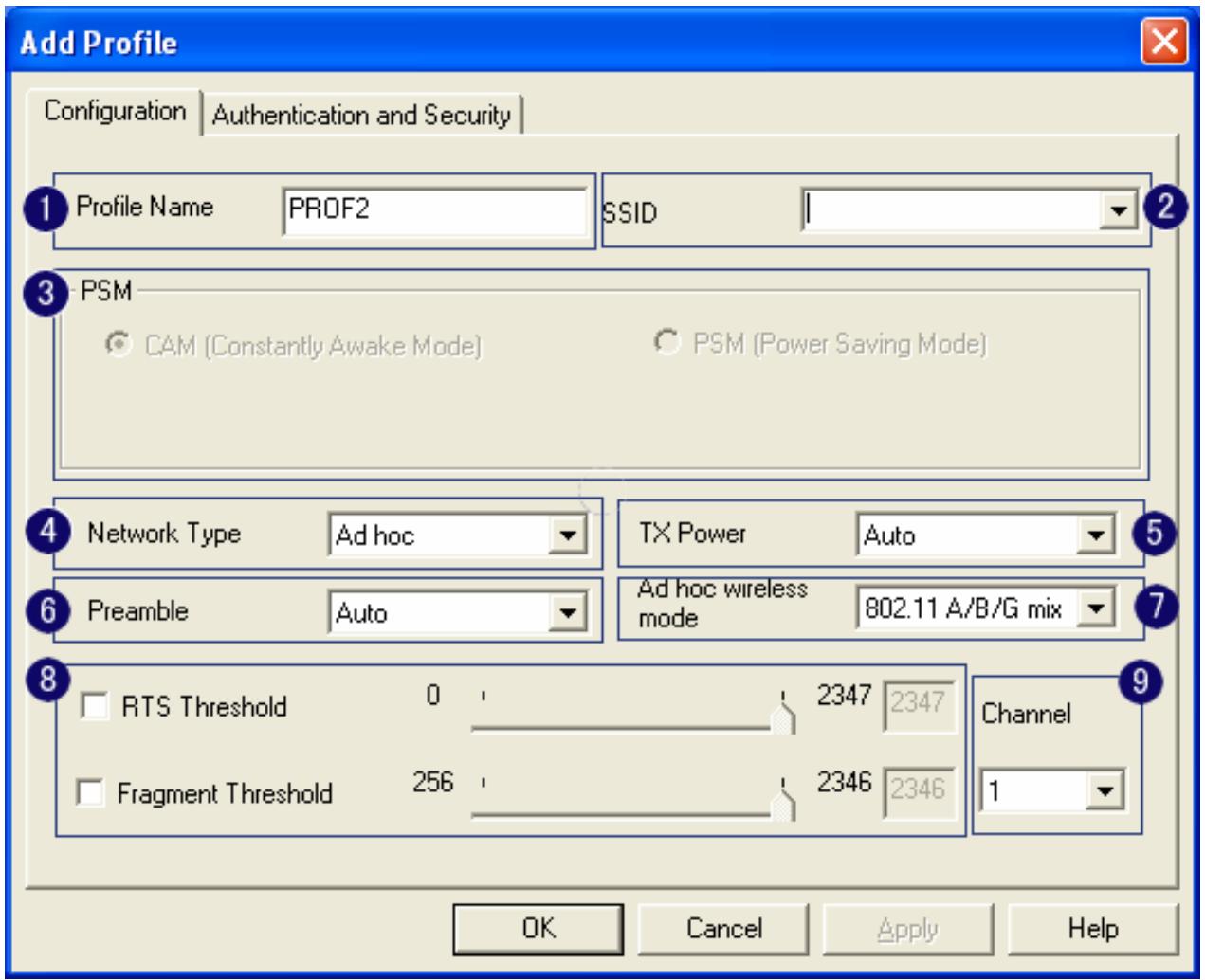
- Profile Name: Different AP can be set up into different Profile Name
- SSID: The drop-down menu can select which AP is detected by system
- Power Save Mode: can select (CAM( Constantly Awake Mode )) or (Power Saving Mode) mode. Selecting the" CAM when AC Power" means the power saving mode can automatically switch into CAM, if the computer uses the AC power, not using the batteries instead. Selecting the "Power Save Mode" can only work under the infrastructure mode.
- Network Type: Can select "Infrastructure" or "802.11 Ad Hoc" mode. When set up to "Infrastructure" mode, the "Power Saving" mode will be enabled, but the "11b Preamble Type" will not; When set up to "802.11 Ad Hoc" mode, the "Power Saving Mode" will not be enabled, but "11b Preamble" will, and the channel selection in the session 7 will show up as well.
- TX Power: Transmit power, the amount of power used by a radio transceiver to send the signal out. User can choose power value by sliding the bar.
- Preamble: There are three types, Auto, Long and Short are supported.
- Ad hoc wireless mode: There are five types. 802.11B only, 802.11 B/G mixed 802.11A only,
802.11 A/B/G mixed and 802.11G only modes are supported.
- RTS Threshold: User can adjust the RTS threshold number by sliding the bar or key in the value directly. The default value is 2312.
- Fragment Threshold: User can adjust the RTS threshold number by sliding the bar or key in the value directly. The default value is 2312.

Note: Channel: Only available for setting under ad-hoc mode. User can choose the channel frequency to start their ad-hoc network.
Profile function is based on the needs to set up the most linkable AP in order to record the system configuration and to set up the authentication security. The function of each session is shown below
4-2 Authentication & Security
As shown in picture. When the Encryption feature is enabled, the other setups are same as the said WEP setting.
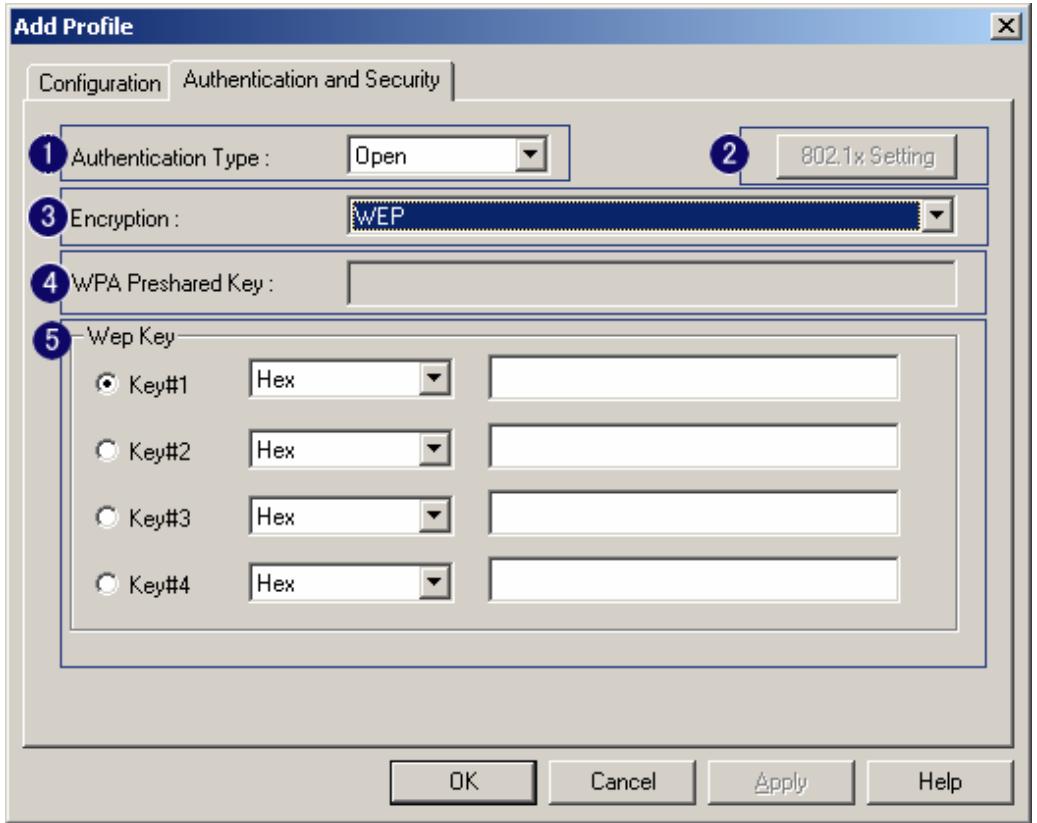
- Authentication Type: There are three types of authentication modes supported by RaConfig. They are open, Shared, WPA-PSK and WPA system.
- 802.1x Setting: It will display to set when user use radius server to authenticate client certificate for WPA authentication mode. The detail operation will explain in section 5-6 Configure connection with WPA by 802.1x setting
- Encryption Type: For open and shared authentication mode, the selection of encryption type are None and WEP. For WPA, WPA2, WPA-PSK and WPA2-PSK authentication mode, the encryption type supports both TKIP and AES.
- WPA Pre-shared Key: This is the shared secret between AP and STA. For WPA-PSK and WPA2-PSK authentication mode, this field must be filled with character longer than 8 and less than 32 length.
- WEP Key: Only valid when using WEP encryption algorithm. The key must matched AP key. There are several formats to enter the keys.
i. Hexadecimal、40bits:10Hexcharacters.
802.1x is a authentication for and 2 certificate to server. Show as figure
- Authentication type:
i. PEAP: Protect Extensible Authentication Protocol. PEAP transport securely authentication data by using tunneling between PEAP clients and an authentication server. PEAP can authenticate wireless LAN clients using only server-side certificates, thus simplifying the implementation and administration of a secure wireless LAN.
ii. TLS / Smart Card: Transport Layer Security. Provides for certificate-based and
mutual authentication of the client and the network. It relies on client-side and server-side certificates to perform authentication and can be used to dynamically generate user-based and session-based WEP keys to secure subsequent communications between the WLAN client and the access point.
iii. TTLS: Tunneled Transport Layer Security. This security method provides for certificate-based, mutual authentication of the client and network through an encrypted channel. Unlike EAP-TLS, EAP-TTLS requires only server-side certificates.
iv. LEAP: Light Extensible Authentication Protocol. It is an EAP authentication type used primarily in Cisco Aironet WLANs. It encrypts data transmissions using dynamically generated WEP keys, and supports mutual authentication.
v. MD5-Challenge: Message Digest Challenge. Challenge is an EAP authentication type that provides base-level EAP support. It provides for only one-way authentication - there is no mutual authentication of wireless client and the network.
- Session Resumption: user can choose "Disable", "Reauthentication", "Roaming", "SameSsid" and "Always".
- Identity and Password: Identity and password for server.
- Use Client Certificate: Client Certificate for server authentication.
- Tunnel Authentication
i. Protocol: Tunnel protocol, List information include “EAP-MSCHAP”, “EAP-MSCHAP v2”, “CAHAP” and “MD5”
ii. Tunnel Identity: Identity for tunnel.
iii. Tunnel Password: Password for tunnel.
- CA Server: Certificate Authority Server. Each certificate is signed or issued by it. The detail operation will explain in section 4-2-2 CA Server
4-2-2 CA Server
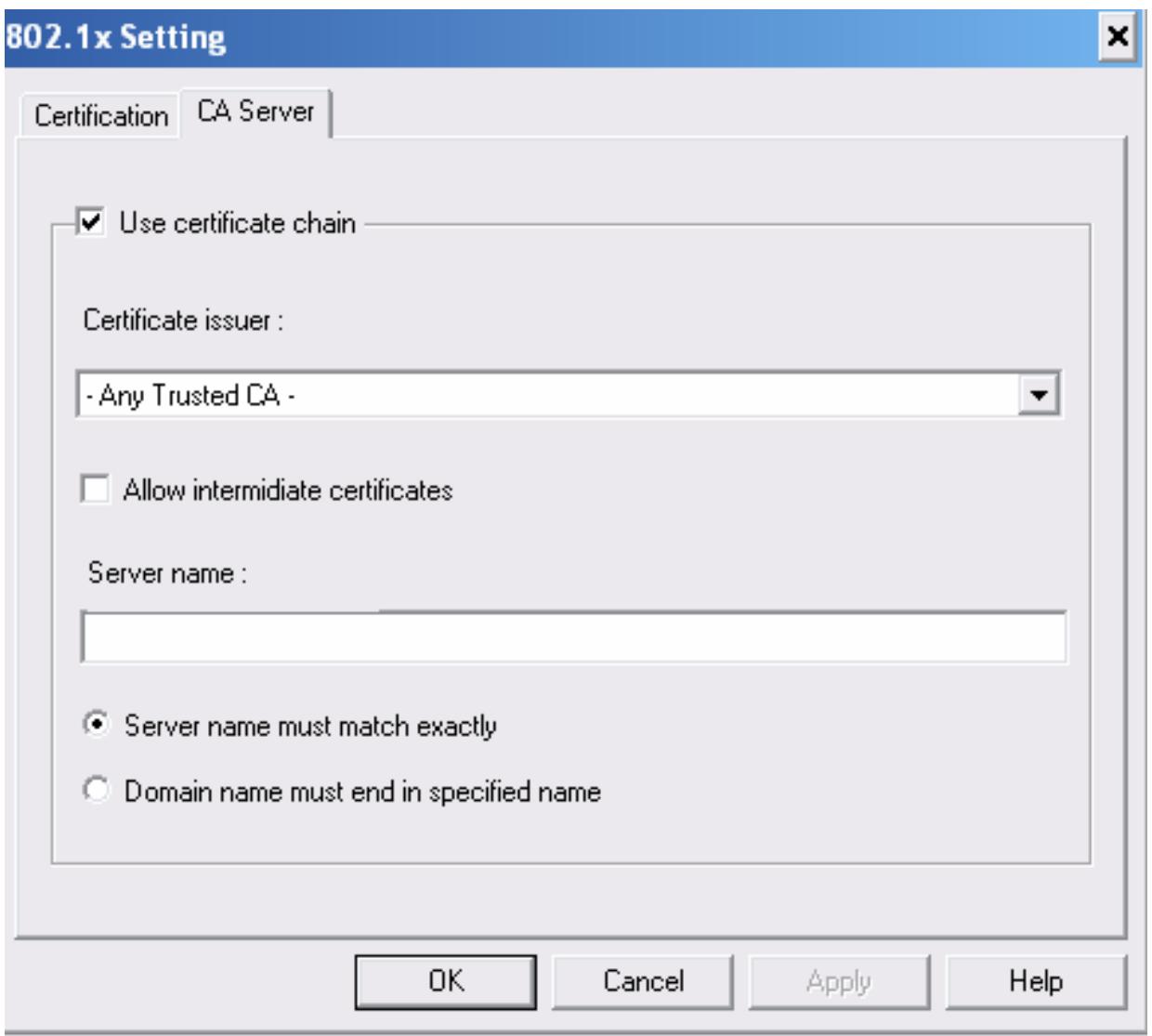
Depending on the EAP in use, only the server or both the server and client may be authenticated and require a certificate. Server certificates identify a server, usually an authentication or RADIUS server to clients. Most EAPs require a certificate issued by a root authority or a trusted commercial CA. Show as the figure.
- Certificate issuer: Choose use server that issuer of certificates.
- Allow intimidate certificates: It must be in the server certificate chain between the server certificate and the server specified in the certificate issuer must be field.
- Server name: Enter an authentication sever root.
4-3 Profile Page
Profile can book keeping your favorite wireless setting among your home, office, and other public hotspot. You may save multiple profiles, and activate the correct one at your preference.
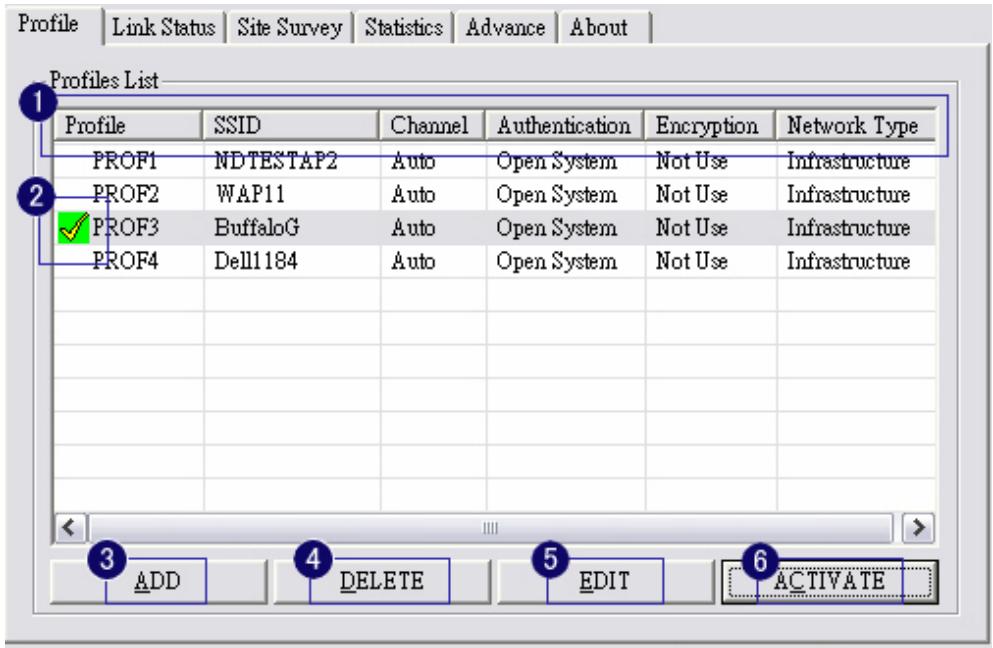
1. Definition of each field:
i. Profile: Name of profile, preset to PROF^ ( indicate 1, 2, 3).
ii. SSID: AP or Ad-hoc name.
iii. Cannel: Channel in use for Ad-Hoc mode.
iv. Authentication: Authentication mode.
v. Encryption: Security algorithm in use.
vi. Network Type: Network's type, including infrastructure and Ad-Hoc.
2. Connection status

Indicate connection is successful on currently activated profile.

Indicate connection is failed on currently activated profile.
- Add a new profile.
- Delete an existing profile.
- Edit Profile
- Activate selected profile.
4-4 Link Status Page
Show the information of linking status. As show in picture 20, the description of each session is said as following:
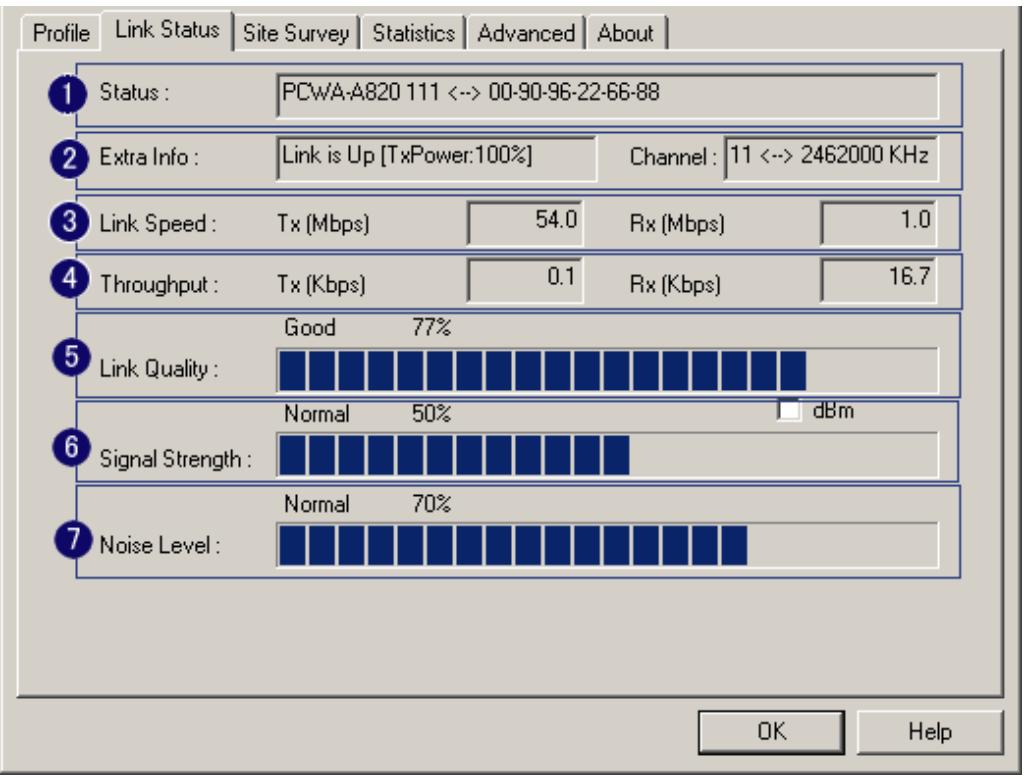
- Status: Current connection status. If no connection, if will show Disconnected. Otherwise, the SSID and BSSID will show here.
- Extra Info: Display link status and current channel in use.
- Link Speed: Show current transmit rate and receive rate.
- Throughout: Display transmits and receive throughput in unit of K bits/sec.
- Link Quality: Display connection quality based on signal strength and TX/RX packet error rate.
- Signal Strength: Receive signal strength, user can choose to display as percentage or dBm format
- Noise Level: Display noise signal strength.
4-5 Statistics Page
Statistics page displays the detail counter information based on 802.11 MIB counters. This page translates that MIB counters into a format easier for user to understand.
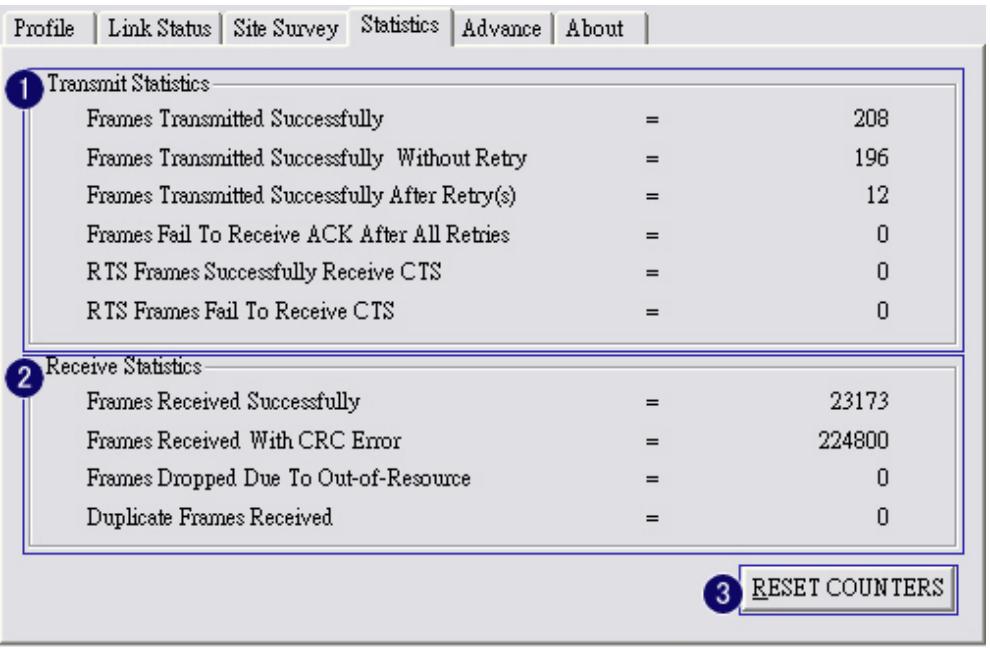
1. Transmit Statistics:
i. Frames Transmitted Successfully: Frames successfully sent.
ii. Frames Transmitted Successfully Without Retry: Frames successfully sent without any retry.
iii. Frames Transmitted Successfully After Retry: Frames successfully sent with one or more reties.
iv. Frames Fail To Receive ACK After All Retries: Frames failed transmit after hitting retry limit.
v. RTS Frames Successfully Receive CTS: Successfully receive CTS after sending RTS frame.
vi. RTS Frames Fail To Receive CTS: Failed to receive CTS after sending RTS.
2. Receive Statistics:
i. Frames Received Successfully: Frames received successfully.
ii. Frames Received With CRC Error: Frames received with CRC error.
iii. Frames Dropped Due To Out-of-Resource: Frames dropped due to resource issue.
iv. Duplicate Frames Received: Duplicate received frames.
4-6 Advance Page
The advance setting is shown as follows. The description of each session is said as following:
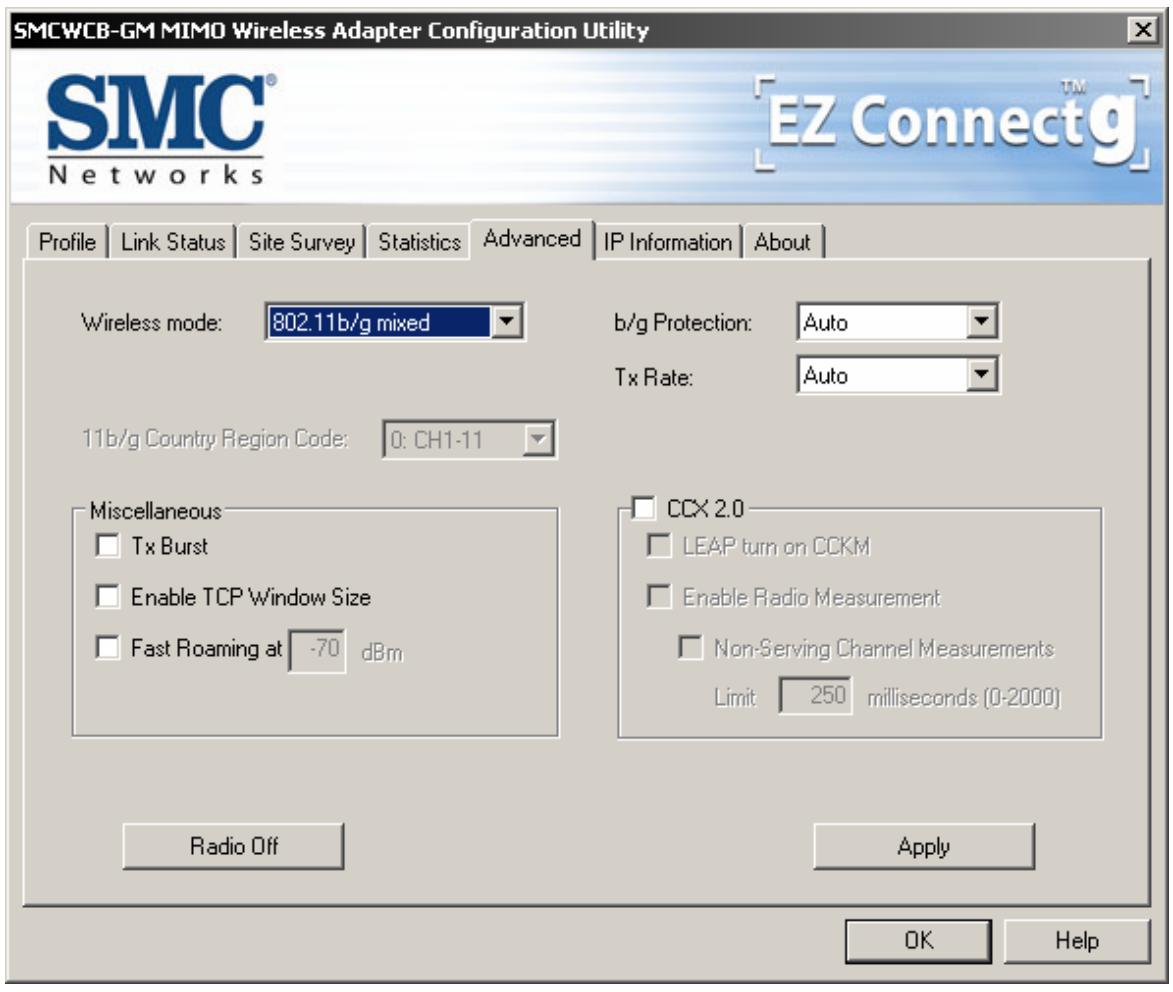
- Wireless mode: Select wireless mode. 802.11B only, 802.11 B/G mixed 802.11A only, 802.11 A/B/G mixed and 802.11G only modes are supported.
- 11B/G Protection: ERP protection mode of 802.11G definition. User can chosse from Auto, On, and Off
i. Auto: STA will dynamically change as AP announcement.
ii. On: Always send frame with protection.
iii. Off: Always send frame without protection.
- TX Rate: Manually force the Transmit using selected rate. Default is auto.
- CCX2.0: support Cisco Compatible Extensions function:
i. LEAP turn on CCKM
ii. Enable Radio Measurement: can channel measurement every 0~2000 milliseconds.
- Tx Burst: Ralink's proprietary frame burst mode.
- Wireless radio signal control

RADIO OFF
: means to open the wireless radio signal and show simultaneously:

RADIO ON
: means to close the wireless radio signal and show simultaneously:
- Apply
APPLY
Means the modification of session 1 4 are formally used.
4-7 About Page
About page display the wireless card and driver version information shown as follow figure.
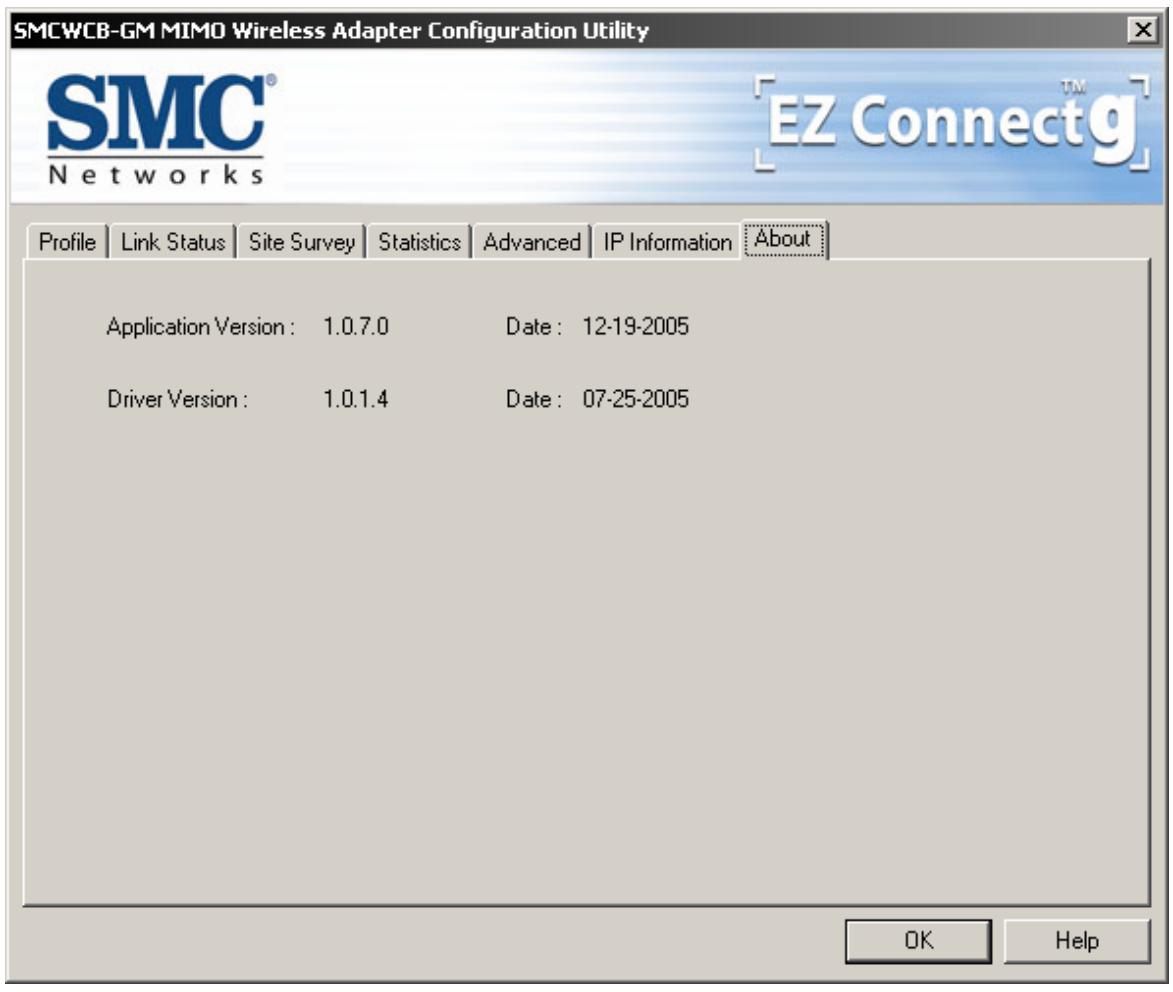
- Display Configuration Utility, Driver version information.
TECHNICAL SUPPORT
From U.S.A. and Canada (24 hours a day, 7 days a week)
(800) SMC-4-YOU
Phn: (949) 679-8000
Fax: (949) 679-1481
ENGLISH
Technical Support information available at www.smc.com
FRENCH
E-mail address: techsupport@smc.com
DRIVER UPDATES
http://www.smc.com/index.cfm?action tech_support_drivers_downloads
WORLD WIDE WEB
http://www.smc.com/