
COLOREDGE CG222W - Professional Monitor EIZO - Free user manual and instructions
Find the device manual for free COLOREDGE CG222W EIZO in PDF.



| Product Type | Professional LCD color monitor |
| Brand | EIZO |
| Model | ColorEdge CG222W |
| Screen diagonal | 22 inches (approx. 56 cm) |
| Native resolution | 1680 x 1050 (16:10 aspect ratio) |
| Recommended refresh rate | 60 Hz |
| Input connectors | 2 x DVI-I (analog and digital) |
| USB ports | 1 upstream, 1 downstream (USB 2.0) |
| Ambient light sensor | Built-in BrightRegulator |
| Calibration software | ColorNavigator provided on CD-ROM |
| Display modes | sRGB, Custom, CAL, EMU |
| Ergonomics adjustments | Height, tilt, swivel (landscape only) |
| Lock system | Kensington MicroSaver slot |
| Power supply | External AC adapter (power cord included) |
| Power consumption | Approx. 48 W (typical), power saving mode < 1 W |
| Weight | Approx. 8.5 kg (with stand) |
| Dimensions (W x H x D) | Approx. 510 x 350–450 x 200 mm (with stand) |
| Included accessories | Analog cable (FD-C16) and digital cable (FD-C39), USB cable, anti-glare hood, ScreenCleaner cleaning kit, CD-ROM with manuals and ColorNavigator |
| Maintenance and cleaning | Use the provided ScreenCleaner kit; do not use abrasive products |
| Safety | Mandatory grounding; do not open the housing |
| Warranty | Limited warranty included (see provided document) |
| Repairability | Spare parts available through authorized EIZO dealer |
Frequently Asked Questions - COLOREDGE CG222W EIZO
User questions about COLOREDGE CG222W EIZO
0 question about this device. Answer the ones you know or ask your own.
Ask a new question about this device
Download the instructions for your Professional Monitor in PDF format for free! Find your manual COLOREDGE CG222W - EIZO and take your electronic device back in hand. On this page are published all the documents necessary for the use of your device. COLOREDGE CG222W by EIZO.
USER MANUAL COLOREDGE CG222W EIZO
Calibration Color LCD Monitor
Setup Manual
Important: Please read PRECAUTIONS, this Setup Manual and the User's Manual stored on the CD-ROM carefully to familiarize yourself with safe and effective usage. Please retain this manual for future reference.
Installationshandbuch
This monitor can be connected to a PC through either an analog or digital signal cable. The cable to be used depends on the type of the PC.
For details, refer to "Connecting Cables" and confirm the shape of the connector of the PC.
The monitor supports the following resolutions.
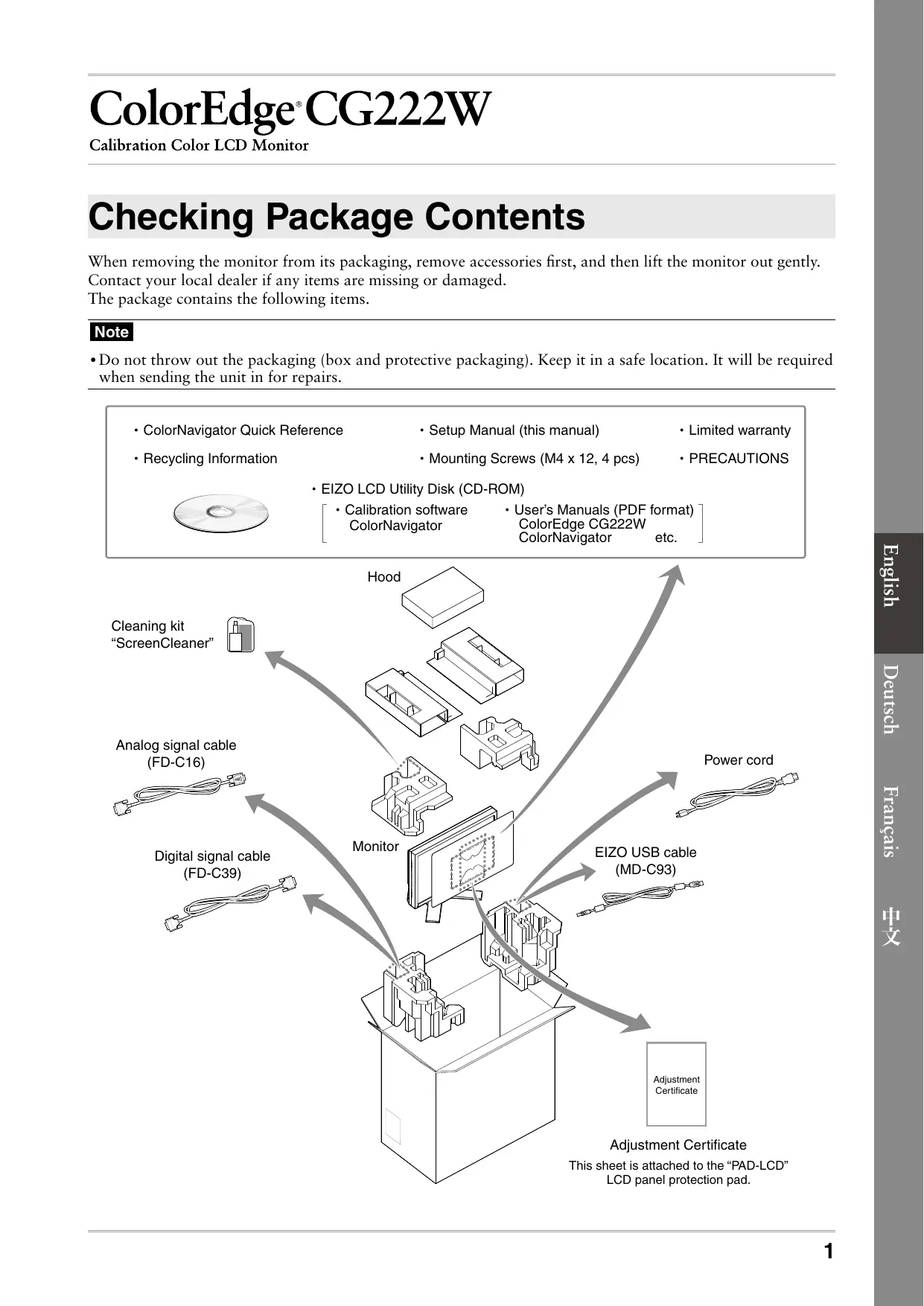
When removing the monitor from its packaging, remove accessories first, and then lift the monitor out gently. Contact your local dealer if any items are missing or damaged.
The package contains the following items.
Note
- Do not throw out the packaging (box and protective packaging). Keep it in a safe location. It will be required when sending the unit in for repairs.
ColorNavigator Quick Reference
-
Setup Manual (this manual)
-
Limited warranty
Recycling Information
- Mounting Screws (M4 x 12, 4 pcs)
PRECAUTIONS
-
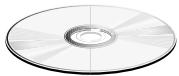
EIZO LCD Utility Disk (CD-ROM)
-
Calibration software ColorNavigator
-
User's Manuals (PDF format)
ColorEdge CG222W
ColorNavigator etc.

Cleaning kit "ScreenCleaner"
Analog signal cable (FD-C16)

Digital signal cable (FD-C39)
Monitor
EIZO USB cable (MD-C93)
Power cord
Adjustment Certificate This sheet is attached to the "PAD-LCD" LCD panel protection pad.
Controls and Functions
Display and adjustment buttons are located on the front of the monitor, and connectors are located on the rear. The name and functions of the buttons and connectors are described below.

| 1 | Sensor | Detects ambient brightness. BrightRegulator function. For details, refer to the User's Manual on the CD-ROM. |
| 2 | Adjustment Lock button | This function locks the buttons to retain the status adjusted or set once. |
| 3 | Input Signal Selection button | Switches input signals for display when two PCs are connected to the monitor. |
| 4 | Mode button | Allows you to switch the display mode. |
| 5 | Auto button | Performs the function to adjust the screen automatically. (analog input only) |
| 6 | Enter button | Displays the Adjustment menu, determines an item on the menu screen, and saves values adjusted. |
| 7 | Control buttons (Left, Down, Up, Right) | Chooses an adjustment item or increases/decreases adjusted values for advanced adjustments using the Adjustment menu. |
| 8 | Power button | Turns the power on or off. |
| 9 | Power indicator | Indicates monitor's operation status. Blue: Operating Orange: Power saving Off: Power off Flashing blue (2 times for each): When the timer is set for ColorNavigator, notifies that a recalibration is required (for CAL mode or EMU mode). |
| 10 | Security lock slot | Complies with Kensington's MicroSaver security system. |
| 11 | Power connector | Connects the power connector. |
| 12 | Input signal connectors | DVI-I Connector x 2 |
| 13 | USB port (Up) | Connects the USB cable in order to use the provided software. For how to use it, refer to the User's Manual on the CD-ROM. |
| 14 | USB port (Down) | Connects a peripheral USB device. |
| 15 | Stand | Used to adjust the height and angle of the monitor screen. |
| 16 | Cable holder | Covers the monitor cables. |
| A | Caution Statements | The equipment must be connected to a grounded main outlet. |
| B | Caution Statements | CAUTION Risk of electric shock. Do not open. |
- ScreenManager® is an EIZO's nickname of the Adjustment menu. (For how to use ScreenManager, refer to the User's Manual on the CD-ROM.)
Connecting Cables
Connect the monitor to the PC. Turn the monitor, the PC, and all peripheral devices off before connecting the cables. For details, refer to the User's Manual contained in the supplied CD-ROM.

Digital/Analog signal cable
1 Connect the monitor to the PC with a signal cable that matches the connectors.
After connecting the cable connectors, tighten the screws of the connectors to secure the coupling.
| Connectors on the monitor | cable | Connectors on the PC |
| DVI-I | [Analog signal cable]FD-C16 Analog connection | |
| DVI-I | [Digital signal cable]FD-C39 Digital connection |
2 Connect the monitor to the PC with the USB cable.
Connect to the monitor
Connect to the PC

Note
- The USB cable is required for calibration. Be sure to connect the monitor and PC with the USB cable.
3 Plug the power cord into a power outlet and the power connector on the monitor.
4 Press to turn on the monitor.
The monitor's Power indicator lights up blue.
5 Turn on the PC.
The screen image appears.
If an image does not appear, refer to "No-Picture Problem" for additional advice.
Tips
- When the PC and the monitor are turned off, monitor power is turned off completely, even though the power cord is still connected to the monitor.
Setting Resolution
When you connect the monitor to the PC and find that the resolution is improper, or when you want to change the resolution, follow the procedure below.
Recommended resolution: 1680 dots x 1050 lines (60 Hz)
MacOS X
1 Select "System Preferences" from the Apple menu.
2 When the "System Preferences" dialog is displayed, click "Displays" for "Hardware".
3 On the displayed dialog, select the "Display" tab and select desired resolution in the "Resolutions" field.
4 Your selection will be reflected immediately. When you are satisfied with the selected resolution, close the window.
Windows XP
1 Right-click the mouse anywhere on the desktop except for icons.
2 From the displayed menu, click "Properties".
3 When the "Display Properties" dialog is displayed, click the "Settings" tab and select desired resolution for "Screen resolution" under "Display".
4 Click the "OK" button to close the dialog.
Windows Vista
1 Right-click the mouse anywhere on the desktop except for icons.
2 From the displayed menu, click "Personalize".
3 On the "Personalization" window, click "Display Settings".
4 On the "Display Settings" dialog, select the "Monitor" tab and select desired resolution in the "Resolution" field.
5 Click the "OK" button.
6 When a confirmation dialog is displayed, click "Yes".
Adjusting the Monitor Height and Angle
The angle and height of the monitor can be adjusted.
Adjust the screen height and angle, tilt and swivel the screen to the best condition for working.

How to Install the Hood

CAUTION
Do not carry the monitor with the hood attached.
While carrying the monitor, the hood may fall or slip off, which may result in injury or equipment damage.
Close the open/close cover until it contacts the stopper.
If the cover is not closed properly, the ventilation slots on the monitor will be covered and proper airflow will be prevented. This may cause overheating inside the monitor and may result in fire, electric shock, or equipment damage.

Do not place any objects on the hood.
If the hood falls or slips off or the monitor falls over, it may result in injury or equipment damage.

Do not rotate the monitor into the portrait position.
Doing so may cause the hood to slip off, which may result in injury or equipment damage.
Package Contents
Check that all the following items are included in the packaging box.

Assemble the left and right hoods
Assemble the hoods in the direction of the arrows marked on the insertions on the top covers of the right and left hoods.
1 Hold the left hood's left and top covers with the sides with the anti-reflective sheet facing inward.
2 Connect the top and left covers by aligning the arrow (1) on the top cover's insertion with the two lines on the left cover's insertion slot.
3 Slide the top cover in the direction shown by the arrow (2) Assembly of the left hood is complete.
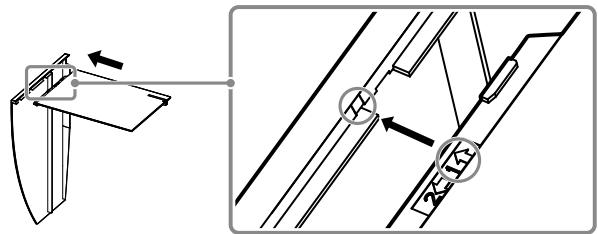

4 Assemble the right hood in the same way.
Attach the left and right hoods to the monitor
Be sure to install the second hood only after the other hood is firmly attached with hook.
1 Attach the top side of the left hood to the monitor first and then securely fit the left side of the hood in order to fix the hood to the monitor.

2 Insert the hook into the upper hole on the hood (1) and slide it down along the projection on the back side of the monitor (2).

3 Attach the right hood in the same way.
4 Check the locations of the depressions in the fitting and insert the fitting into the left and right hoods by aligning those depressions with the projections () in the grooves on the right and left hoods.

5 Attach the open/close cover to the left hood.
Note
- Do not attach the open/close cover to the right hood. Doing so prevents the cover from closing.

6 Place the open/close cover on the top of the left hood (without contacting the metal fitting) from front (1) to back (2).
7 Slide the open/close cover to the right (3) until it contacts the stopper on the metal fitting.

8 When performing calibration, slide the open/close cover to the left in order to attach the sensor.
Note
- The open/close cover does not slide onto the right cover.

Prepare for the Monitor Calibration
For details regarding the calibration procedure, refer to the ColorNavigator User's Manual on the CD-ROM.
Installing ColorNavigator
1 Uninstall any measurement driver software that may be installed on the PC.
2 Insert the Eizo LCD Utility Disk into the PC's CD/DVD drive.
3 MacOS X
Click the CD-ROM icon on the desktop, and then click [Start Menu] in the displayed window.
Windows XP
A menu will open automatically. If the menu does not open automatically, double-click the "Launcher.exe" icon in the CD-ROM.
Windows Vista
When using Windows Vista, a "User Account Control" dialog may appear by clicking the "Launcher.exe" icon. In this case, click [Continue] to open the menu.
4 Click "Install ColorNavigator" in the EIZO LCD Utility's initial screen. Follow the instructions to complete the installation.
Note
- Measurement driver software is automatically installed during ColorNavigator installation. It is not necessary to install the driver software that is supplied with your measurement device.
Connecting the measurement device
Connect an optional measurement device which you purchased separately.
Tips
- Refer to the User's Manual for the measurement device in regard to connection.

Measurement Device
How to calibrate the monitor
Startup ColorNavigator and calibrate the monitor. Follow the instructions displayed on the screen and in the ColorNavigator Quick Reference.
For details, refer to the "ColorEdge ColorNavigator User's Manual" on the EIZO LCD Utility Disk.
Note
- When calibrating the monitor, the monitor and the PC must have had the power on for at least 30 minutes. Be sure to calibrate the monitor after the power has been turned on for 30 minutes or more.
Tips
- For detailed information about calibration, visit http://www.eizo.com.
You can use the mode button on the front panel to switch the monitor to one of the four image adjustment modes (sRGB mode, Custom mode, CAL mode, and EMU mode) suitable for the displayed image.
No-Picture Problem
If no picture is displayed on the monitor even after the following remedial action is taken, contact your local dealer.
1. Check the Power indicator.
| Symptom | Status | Possible cause and remedy |
| No picture | Power indicator does not light up. | • Check whether the power cord is correctly connected. • If the problem persists, turn off the monitor, and then turn it on again a few minutes later. • Press Ⓞ. |
| Power indicator lights blue. | • Set high values for Gain RGB levels. | |
| Power indicator lights orange. | • Switch the input signal with Ⓒ. | |
| • Press a key on the keyboard or click the mouse. | ||
| • Turn on the PC. |
2. Check the error message that remains on the screen.
These messages appear when the input signal is incorrect even if the monitor is functioning.
| Symptom | Status | Possible cause and remedy |
| Signal Check Signal 2 fH: 0.0kHz fU: 0.0Hz | The input signal is not received. | ·Check whether the PC is turned on. |
| ·Check whether the signal cable is properly connected to the PC. | ||
| ·Switch the input signal with Ⓒ. | ||
| Signal Error Signal 2 fD:165.0MHz fH:75.0kHz fU:60.0Hz | The signal frequency is outside the specification. Incorrect signal frequency is shown in red. | ·Restart the PC. ·Change the mode to an appropriate mode using the graphics board's utility software. Refer to the manual of the graphics board for details. |
ColorEdge CG222W
LCD-Farbmonitor
Copyright© 2008 EIZO NANAO CORPORATION All rights reserved.
No part of this manual may be reproduced, stored in a retrieval system, or transmitted, in any form or by any means, electronic, mechanical, or otherwise, without the prior written permission of EIZO NANAO CORPORATION. EIZO NANAO CORPORATION is under no obligation to hold any submitted material or information confidential unless prior arrangements are made pursuant to EIZO NANAO CORPORATION's receipt of said information. Although every effort has been made to ensure that this manual provides up-to-date information, please note that EIZO monitor specifications are subject to change without notice.
Apple, Macintosh and Mac OS are registered trademarks of Apple Inc.
Windows is a registered trademark of Microsoft Corporation.
ColorNavigator is a trademark of EIZO NANAO CORPORATION.
ColorEdge and EIZO are registered trademarks of EIZO NANAO CORPORATION in Japan and other countries.
EZO®
EIZO NANAO CORPORATION
153 Shimokashiwano, Hakusan, Ishikawa 924-8566 Japan
Phone: +81 76 277 6792 Fax: +81 76 277 6793
EIZO NANAO TECHNOLOGIES INC.
5710 Warland Drive, Cypress, CA 90630, U.S.A.
Phone: +1 562 431 5011 Fax: +1 562 431 4811
EIZO EUROPE AB
Lovangsvagen 14 194 61, Upplands Väsby, Sweden
Phone: +46 8 594 105 00 Fax: +46 8 590 91 575
EIZO NANAO AG
Moosacherstrasse 6, Au CH - 8820 Wädenswil, Switzerland
Phone: +41-0-44 782 24 40 Fax: +41-0-44 782 24 50
- Setup Manual
- Installationshandbuch
- Note
- Controls and Functions
- Connecting Cables
- Connect the monitor to the PC with a signal cable that matches the connectors.
- Connect the monitor to the PC with the USB cable.
- Plug the power cord into a power outlet and the power connector on the monitor.
- Press to turn on the monitor.
- Turn on the PC.
- Tips
- Setting Resolution
- MacOS X
- Windows XP
- Windows Vista
- Adjusting the Monitor Height and Angle
- How to Install the Hood
- CAUTION
- Do not carry the monitor with the hood attached.
- Close the open/close cover until it contacts the stopper.
- Do not place any objects on the hood.
- Do not rotate the monitor into the portrait position.
- Package Contents
- Assemble the left and right hoods
- Attach the left and right hoods to the monitor
- Prepare for the Monitor Calibration
- Installing ColorNavigator
- Connecting the measurement device
- How to calibrate the monitor
- No-Picture Problem
- Check the Power indicator.
- Check the error message that remains on the screen.
- ColorEdge CG222W
- EZO®
- EIZO NANAO CORPORATION
- EIZO NANAO TECHNOLOGIES INC.
- EIZO EUROPE AB
- EIZO NANAO AG
Brand : EIZO
Model : COLOREDGE CG222W
Category : Professional Monitor