
WLI-UC-GNM : AIRSTATION N-TECHNOLOGY 150MBPS USB 2.0 CLIENT - USB Network Adapter BUFFALO - Free user manual and instructions
Find the device manual for free WLI-UC-GNM : AIRSTATION N-TECHNOLOGY 150MBPS USB 2.0 CLIENT BUFFALO in PDF.

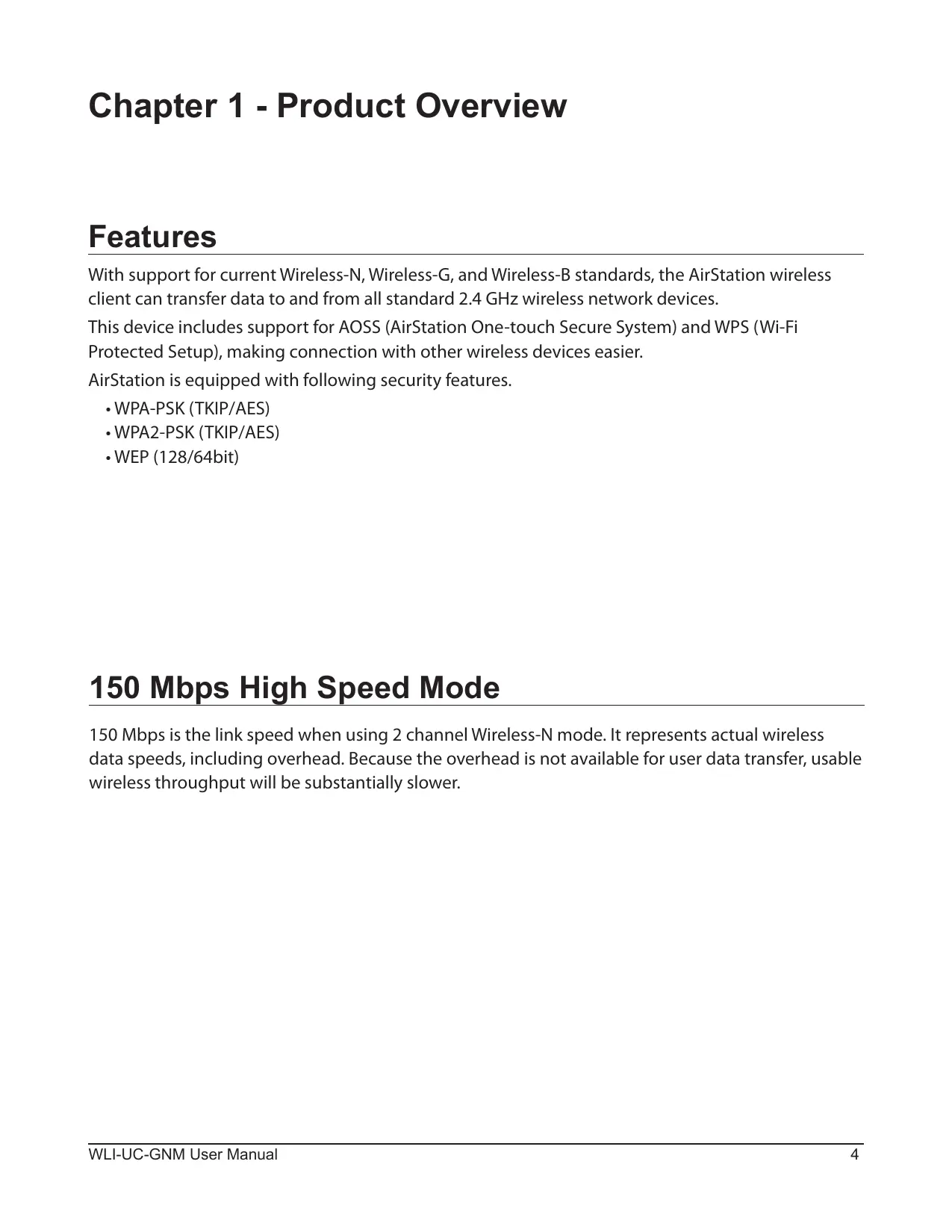

| Product Type | USB Network Adapter |
| Brand | Buffalo |
| Model | WLI-UC-GNM AirStation N-Technology |
| Maximum Wireless Speed | 150 Mbps |
| Interface | USB 2.0 |
| Wi-Fi Standard | IEEE 802.11 b/g/n |
| Frequency Band | 2.4 GHz |
| Wireless Security | WEP, WPA, WPA2, WPA-PSK, WPA2-PSK |
| Dimensions (approx.) | 21 x 15 x 8 mm |
| Weight (approx.) | 4 g |
| Power Supply | Via USB port (5V) |
| Supported Operating Systems | Windows (XP/Vista/7/8/10), Mac OS X, Linux |
| Antenna | Internal integrated |
| Care | Clean with a soft, dry cloth |
| Safety Precautions | Avoid exposure to water and excessive heat |
| Spare parts and repairability | Non-repairable product, no spare parts available |
| General Information | Compliant with directive 1999/5/EC |
Frequently Asked Questions - WLI-UC-GNM : AIRSTATION N-TECHNOLOGY 150MBPS USB 2.0 CLIENT BUFFALO
User questions about WLI-UC-GNM : AIRSTATION N-TECHNOLOGY 150MBPS USB 2.0 CLIENT BUFFALO
0 question about this device. Answer the ones you know or ask your own.
Ask a new question about this device
Download the instructions for your USB Network Adapter in PDF format for free! Find your manual WLI-UC-GNM : AIRSTATION N-TECHNOLOGY 150MBPS USB 2.0 CLIENT - BUFFALO and take your electronic device back in hand. On this page are published all the documents necessary for the use of your device. WLI-UC-GNM : AIRSTATION N-TECHNOLOGY 150MBPS USB 2.0 CLIENT by BUFFALO.
USER MANUAL WLI-UC-GNM : AIRSTATION N-TECHNOLOGY 150MBPS USB 2.0 CLIENT BUFFALO
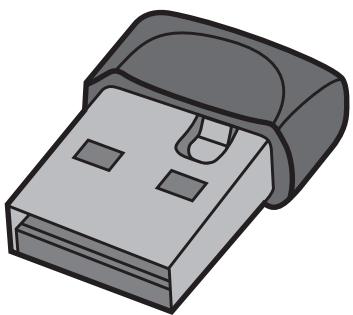
Wireless N150 COMPACT USB 2.0 Adapter WLI-UC-GNM
Contents
Chapter 1 - Product Overview 4
Features 4
150 Mbps High Speed Mode 4
System Requirements 5
Package Contents 5
Hardware Overview 5
Chapter 2 - Installation. 6
Installing Wireless Drivers 6
Installing Client Manager 10
Chapter 3 - Connect to a Wireless Network 13
Automatic Secure Setup (AOSS/WPS) 13
Windows 7 or Vista (Client Manager V) 14
Windows XP (Client Manager 3) 15
Automatic Secure Setup (WPS PIN) 16
Windows 7 or Vista (Client Manager V) 16
Windows XP (Client Manager 3) 20
Manual Setup (Client Manager) 22
Windows 7 or Vista (Client Manager V) 22
Windows XP (Client Manager 3) 25
Windows Vista (WLAN AutoConfig) 27
Windows XP (Wireless Zero Configuration) 30
Software Overview 31
Using Client Manager V with Windows 7 and Vista 31
Main Screen 32
Automatic Secure Setup and Advanced Setup 33
SSID/WPS-PIN selection 34
Searching Wireless Access Points 35
Wireless Network Information 36
WPS-PBC/AOSSselection 37
Wireless Status 38
Wireless LAN Diagnostic 40
Profile List 41
Wireless Properties 42
Network Properties 43
Browser Properties 44
Printer Properties 45
Using Client Manager 3 with Windows XP 46
Status 47
Scan 49
Connect. 50
Profiles 51
Profile Information (Basic) 52
Profile Information (Network) 54
Profile Information (Browser) 55
Profile Information (Printers) 56
System Tray Menu 57
Option Menu 58
Chapter 5 - Troubleshooting Common Problems............60
The Computer does not recognize the Wireless Adapter. 60
Cannot connect to the network wirelessly. 60
You forgot the AP's SSID, Encryption KEY, or Password............ 60
The link speed is slower than 150 Mbps. 61
Other Tips. 61
Appendix 64
150 Mbps Mode settings 64
Specifications 65
Uninstalling the Software 66
Uninstalling the Drivers 66
TCP/IP Settings in Windows 67
Windows 7 67
Windows Vista 68
Windows XP 69
Compliance Information 70
Environmental Information 77
Warranty Information 78
Contact Information (USA / Canada) 79
Contact Information (Europe) 80
Chapter 1 - Product Overview
Features
With support for current Wireless-N, Wireless-G, and Wireless-B standards, the AirStation wireless client can transfer data to and from all standard 2.4 GHz wireless network devices.
This device includes support for AOSS (AirStation One-touch Secure System) and WPS (Wi-Fi Protected Setup), making connection with other wireless devices easier.
AirStation is equipped with following security features.
WPA-PSK (TKIP/AES)
- WPA2-PSK (TKIP/AES)
- WEP (128/64bit)
150 Mbps High Speed Mode
150 Mbps is the link speed when using 2 channel Wireless-N mode. It represents actual wireless data speeds, including overhead. Because the overhead is not available for user data transfer, usable wireless throughput will be substantially slower.
System Requirements
Computer should be IBM/PC compatible (OADG specification) with a USB 2.0 port and a CD-ROM drive.
- This product does not support computers equipped with dual processors (computers with two physical CPUs). Computers with dual core CPUs are supported.
- AirStation does not support Windows' standby mode.
Compatible OS: Windows 7 (32 bit / 64 bit), Vista (32 bit / 64 bit), XP (32 bit)*
- Service Pack 2 or later is required for Windows XP.
Package Contents
The following items are included with your AirStation. If any of the items are missing, please contact your vender.
- WLI-UC-GNM 1
Air Navigator CD 1 - Quick Setup Guide 1
Hardware Overview
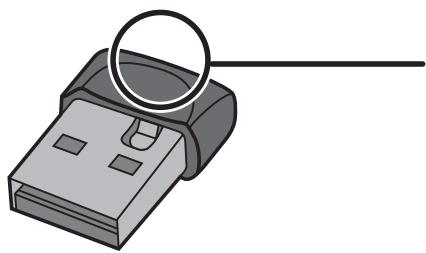
ACT LED
Flashes when sending or receiving data
Chapter 2 - Installation
Installing Wireless Drivers
Follow the instruction below to install drivers. Do not connect the unit to your computer yet.
1 Boot your computer and insert AirNavigator CD. The AirNavigator Setup Wizard will launch automatically.
Note: If the AirNavigator Setup Wizard doesn't launch, double click [My Computer] > CD-ROM drive icon > [AirNavi.exe] to launch manually.
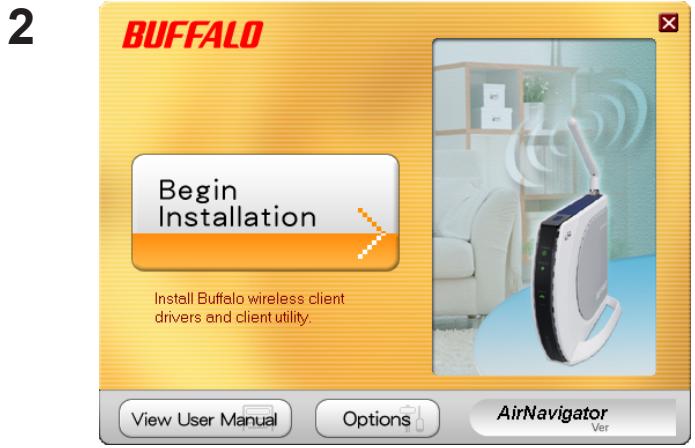
Click [Begin Installation].
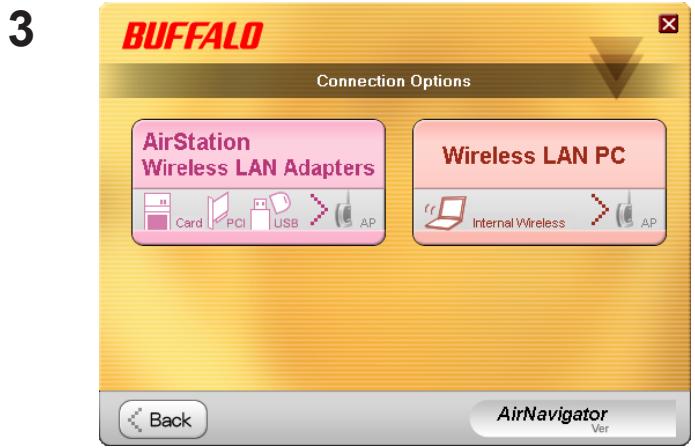
Click [AirStation Wireless LAN Adapters].
4
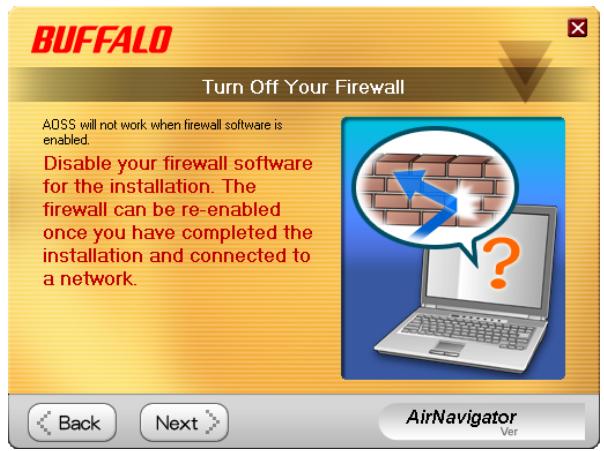
Disable any firewalls, and click [Next].
5
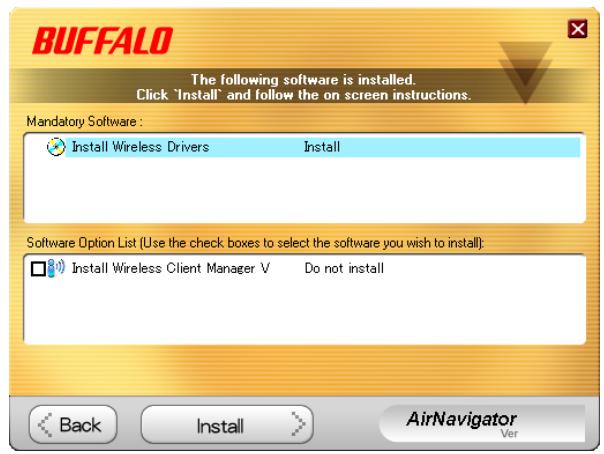
Click [Install].
Note: If you insert the check mark into the check box for Install Wireless Client Manager, you can install Client Manager as well as drivers. Refer to the instructions on page 10 to install Client Manager after installing drivers.
6
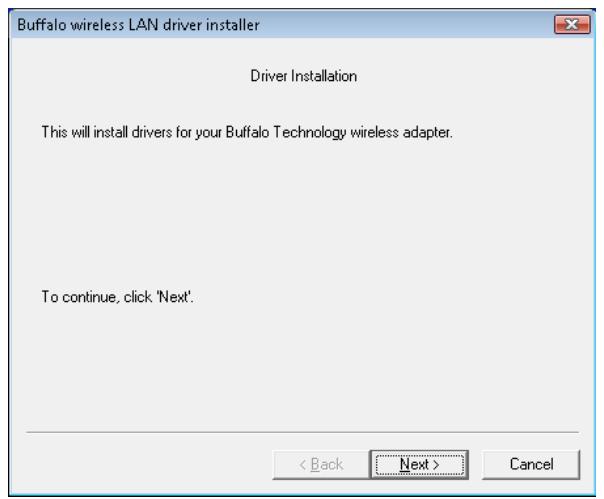
Click [Next].
7
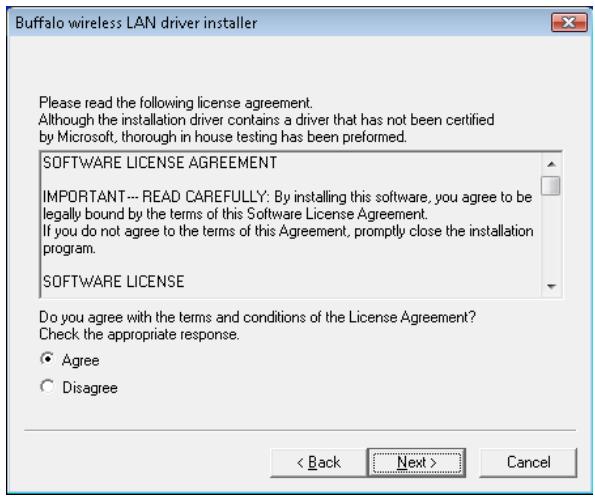
Read the license agreement, select [Agree], then click [Next].
8
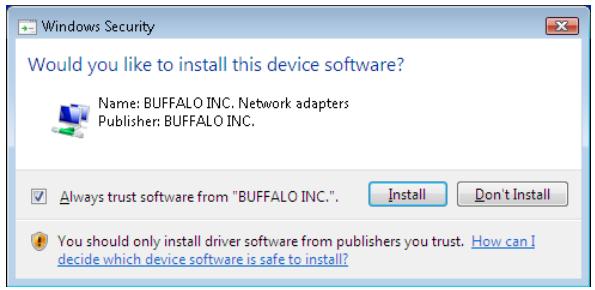
When the screen to the left is displayed, put a check mark next to "Always trust software from BUFFALO INC.", and click [Install].
9
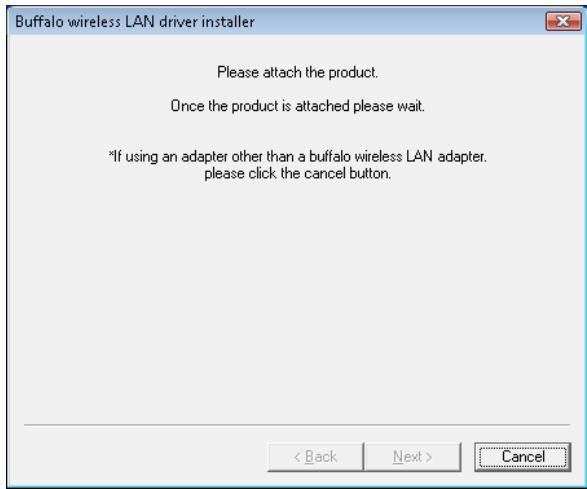
When the screen to the left is displayed, attach the AirStation to your computer. Drivers will be installed automatically.
10
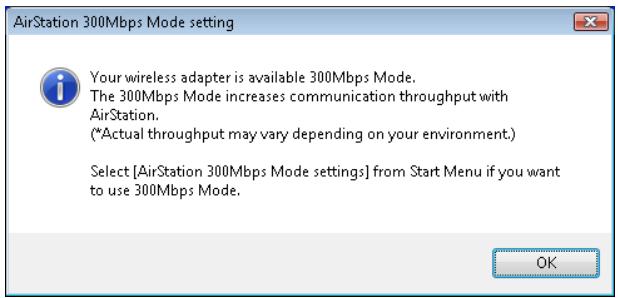
Click [OK].
11
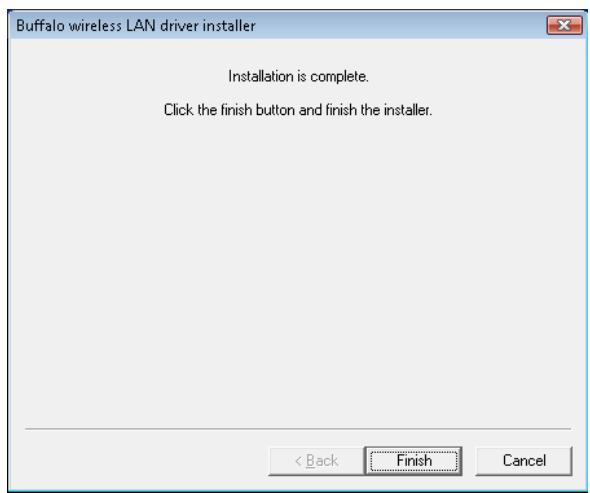
After the drivers are installed, the screen at left will be displayed. Click [Finish].
Note: If you checked the box to Install Wireless Client Manager (page 10), then the installation screen for Client Manager will be displayed after this screen. Follow the instructions on the screen to install Client Manager.
Drivers are now installed.
Installing Client Manager
Follow the procedure below to install Client Manager.
1 Boot your computer and insert the AirNavigator CD. The AirNavigator Setup Wizard will launch automatically.
Note: If AirNavigator Setup Wizard is not displayed, double click [My Computer] icon > CD-ROM drive icon > [AirNavi.exe].
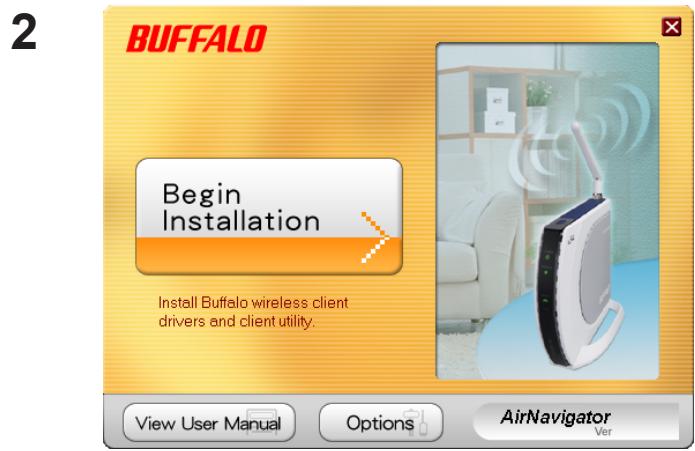
Click [Options].
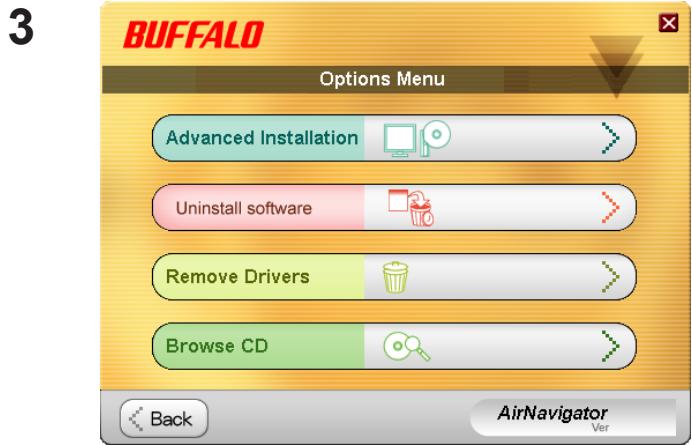
Click [Advanced Installation].
4
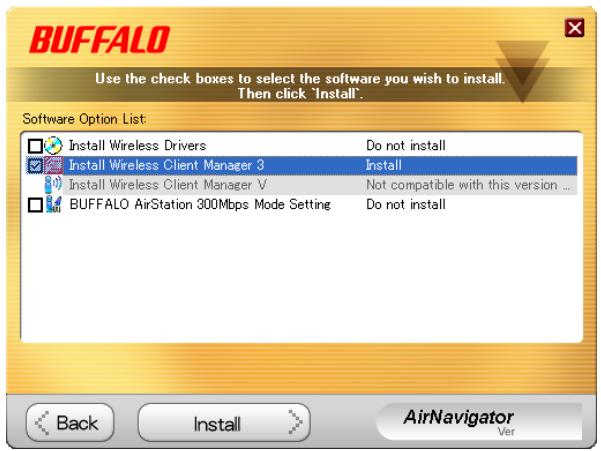
Check the box for [Install Wireless Client Manager] and click [Install].
Note: Use Client Manager V with Windows Vista or Client Manager 3 with Windows XP.
5
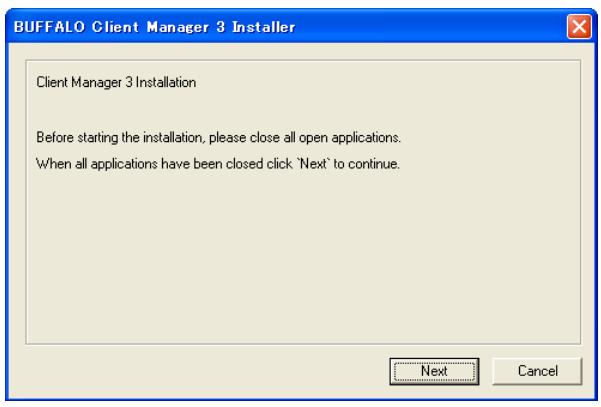
Click [Next].
6
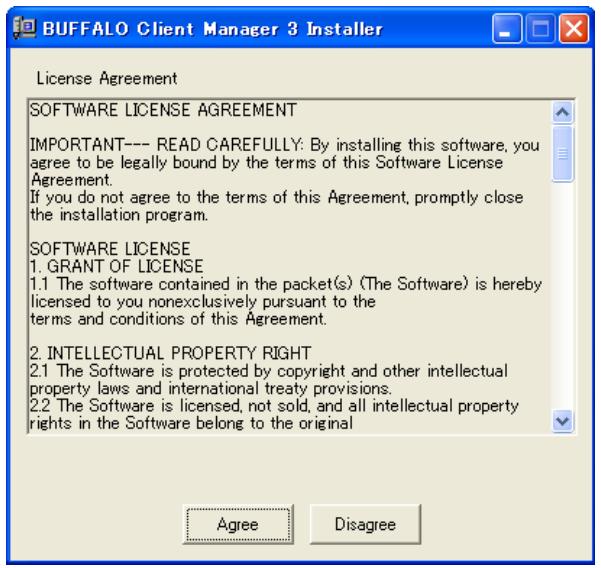
Read the license agreement and select [Agree].
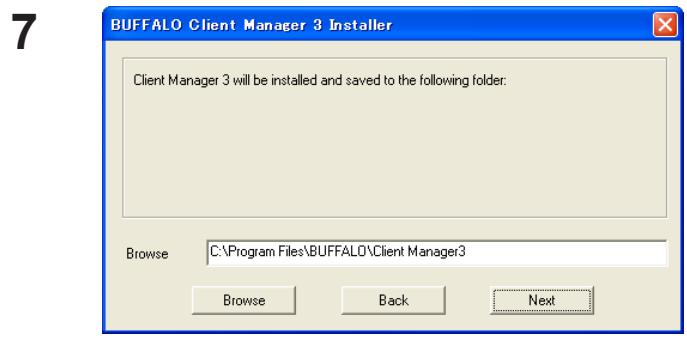
Click [Next].
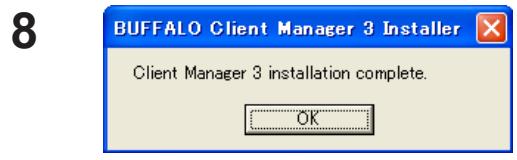
Click [OK].
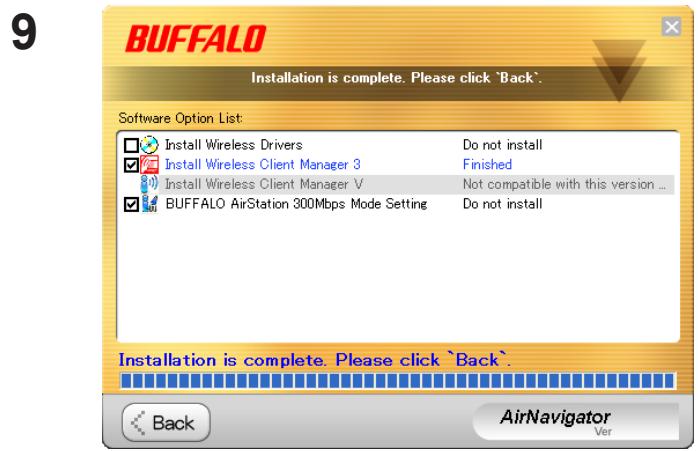
Click [Back].
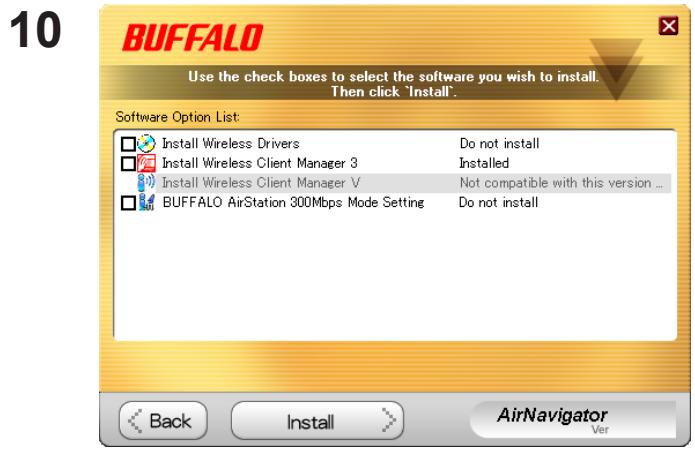
Click [X] at the top right corner of the window to close it.
Client Manager is now installed.
Chapter 3 - Connect to a Wireless Network
Automatic Secure Setup (AOSS/WPS)
AOSS and WPS are systems which enable you to automatically configure wireless LAN settings. Just pressing the buttons will connect your wireless devices securely. Use these systems to connect to computers, game machines, or any wireless devices which support AOSS or WPS.
AOSS (AirStation One-Touch Secure System) is technology developed by Buffalo Technology. WPS was created by the Wi-Fi Alliance.
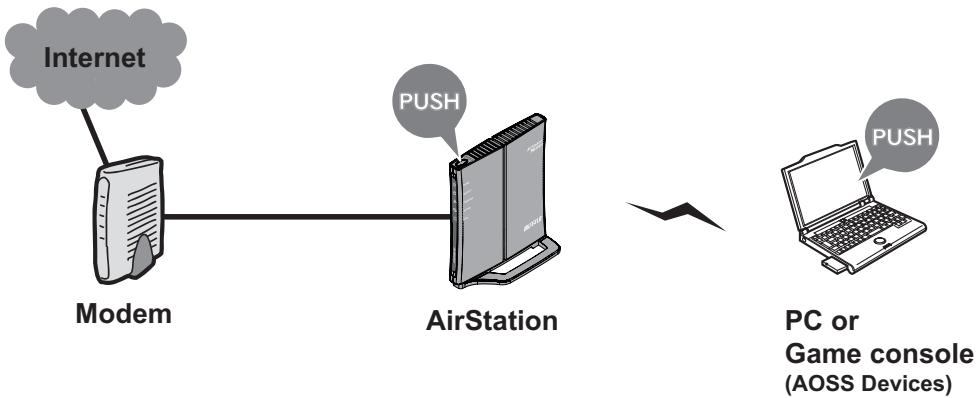
Before using AOSS or WPS, install Client Manager software from the CD. See chapter 2 for instructions on installing Client Manager software.
Windows 7 or Vista (Client Manager V)
If you are using Windows 7 or Vista, use the included Client Manager V software to connect wirelessly with AOSS or WPS.
1 Click [Start] > [All Programs] > [BUFFALO] > [AirStation Utility] > [Client Manager V].
2 Click [Create Profile].
3 The User Account Control screen is displayed. Click [Yes] or [Continue].
When "Connection has been Completed" is displayed in Client Manager V, your connection is complete. If "Set Network Location" is displayed, select "Home", "Work", or "Public location" depending on the environment in which the AirStation will be used.
Windows XP (Client Manager 3)
If you are using Windows XP, use the included Client Manager 3 software to connect wirelessly with AOSS or WPS.
1 Right-click the ?T icon in the system tray and select [Profile].
Your connection is complete when the message "Security setup and connection have been completed" is displayed.
Automatic Secure Setup (WPS PIN)
Windows 7 or Vista (Client Manager V)
WPS can use a PIN generated by the Client Manager utility to easily connect to an access point that supports WPS PIN.
To use WPS PIN, first install Client Manager software on your computer. See chapter 2 for instructions on installing Buffalo Client Manager software.
If you are using Windows 7 or Vista, use your Client Manager V software to connect wirelessly with WPS PIN.
1 Click [Start] > [All Programs] > [BUFFALO] > [AirStation Utility] > [Client Manager V].
2 2 2 3 1 2 3 4 5 6 7 8 9 10 11 12 13 14 15 16 17 18 19 20 21 22 23 24 25 26 27 28 29 30 31 32 33 34 35 36 37 38 39 40 41 42 43 44 45 46 47 48 49 50 51 52 53 54 55 56 57 58 59 60 61 62 63 64 65 66 67 68 69 70 71 72 73 74 75 76 77 78 79 80
3 The User Account Control screen is displayed. Click [Yes] or [Continue].
4
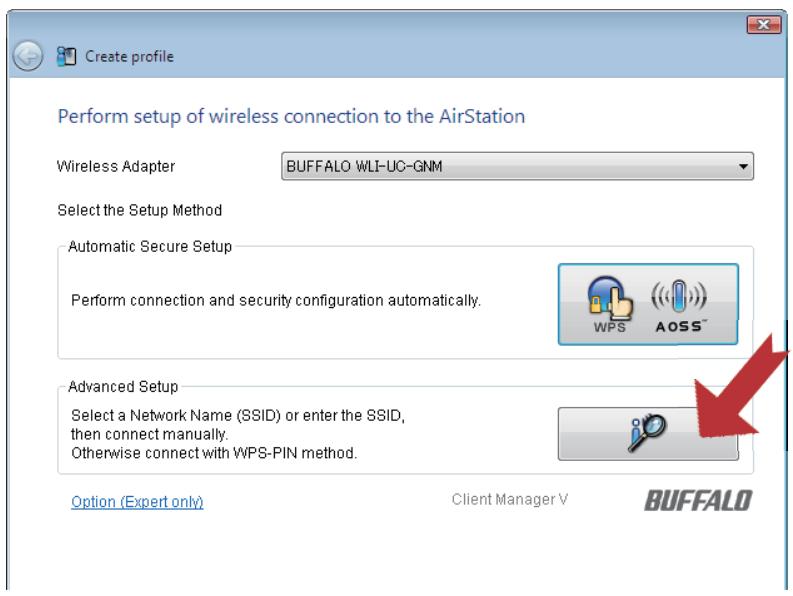
Click the [Advanced Setup] button.
5
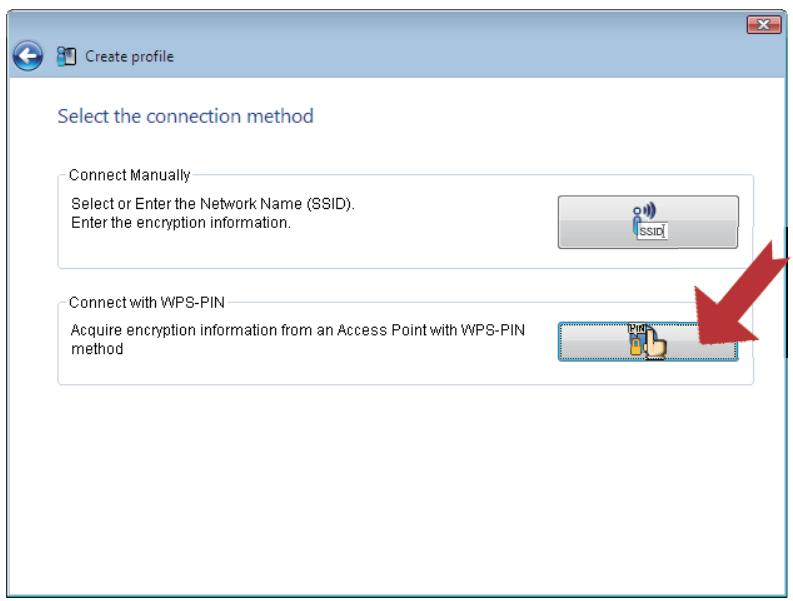
Click the [WPS-PIN] button.
6
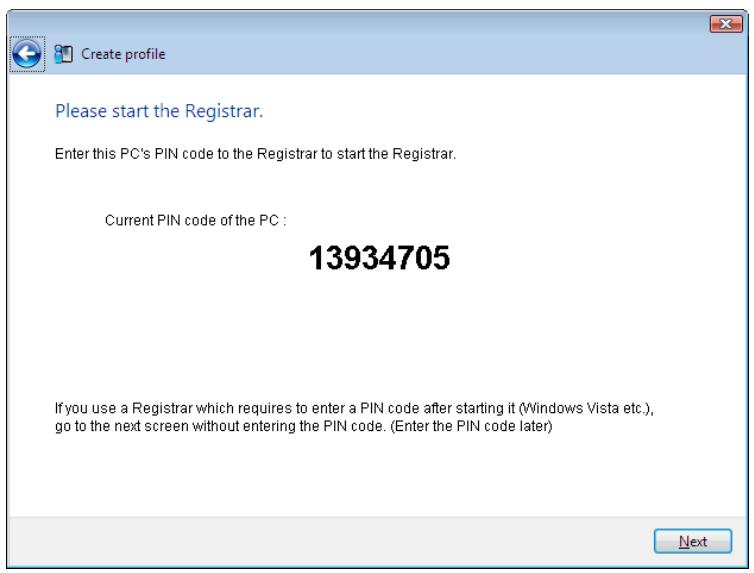
Carefully copy the PIN code to a piece of paper, then click [Next].
7
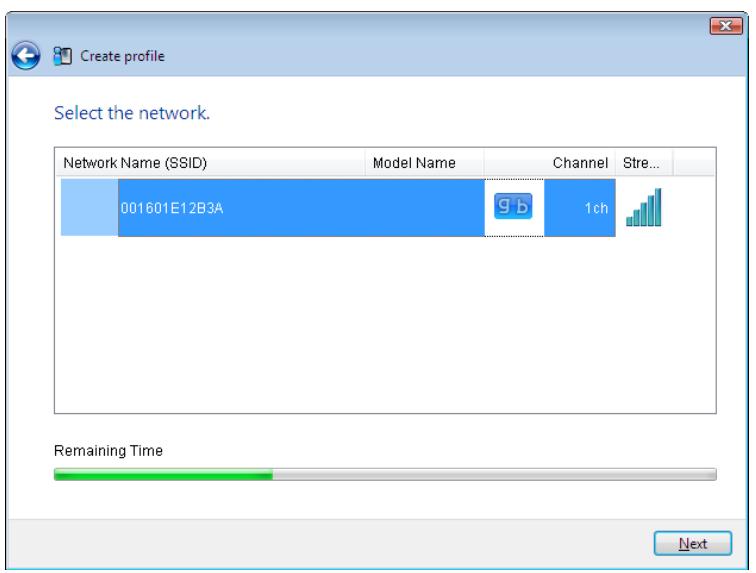
Select the access point to connect to, then click [Next].
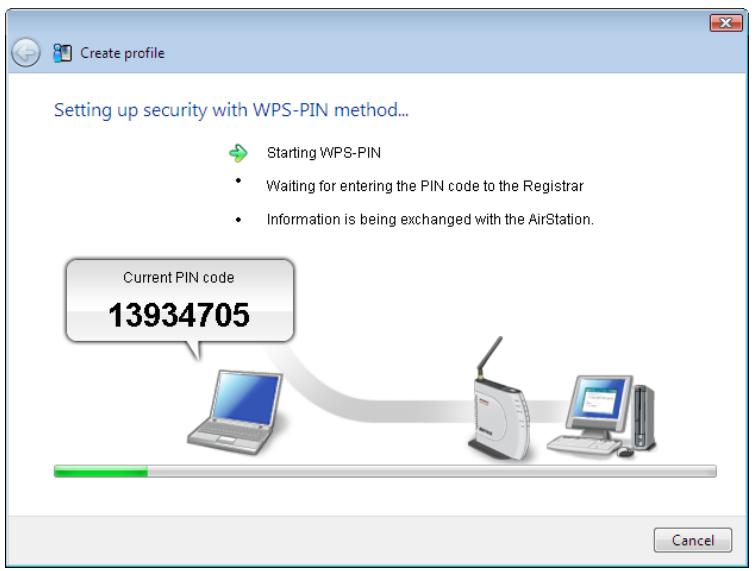
This screen will be displayed.
8 Use a PC with a wired Ethernet connection to log in to the access point's management utility.
Note: If the access point you are trying to connect is a Buffalo AirStation, click Wireless Config > WPS from the home page of the configuration interface. The screen to enter the PIN code will be displayed.
9

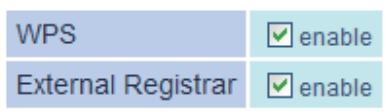
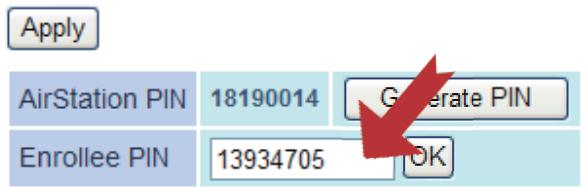
WPS Security Infomation
Navigate to the WPS PIN configuration screen, then enter the PIN code you write down in step 6.
Note: If the access point you are trying to connect is a Buffalo AirStation, enter the PIN code in [Enrollee PIN] and click [OK].
When "Connection has been Completed" is displayed in Client Manager V, your connection is complete. If "Set Network Location" is displayed, select "Home", "Work", or "Public location" depending on the environment in which the AirStation will be used.
Windows XP (Client Manager 3)
If you are using Windows XP, use your Client Manager 3 software to connect wirelessly with WPS PIN.
1 2
Right click on the icon in the system tray and select [Easy Connection] > [WPS PIN Code type].
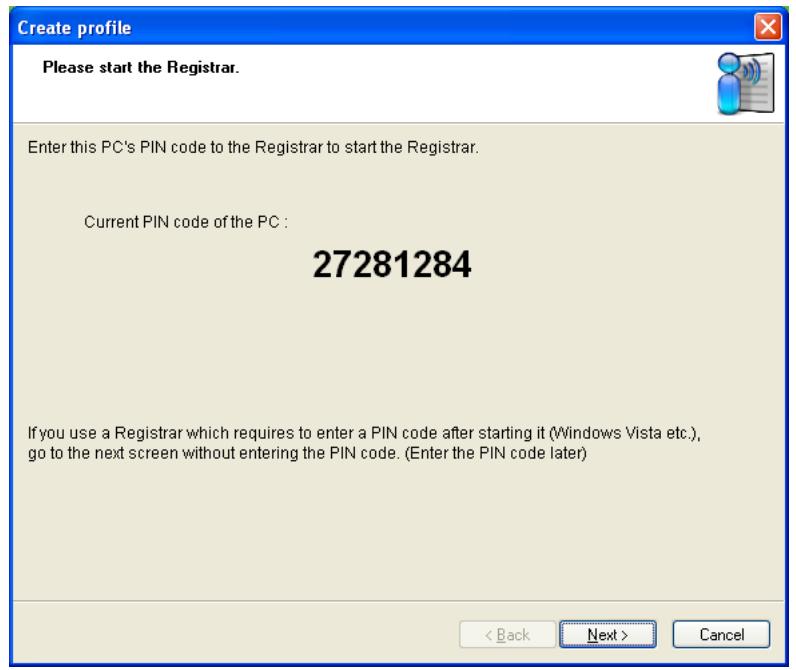
When the PIN code is displayed, write it down. Then, click [Next].
3
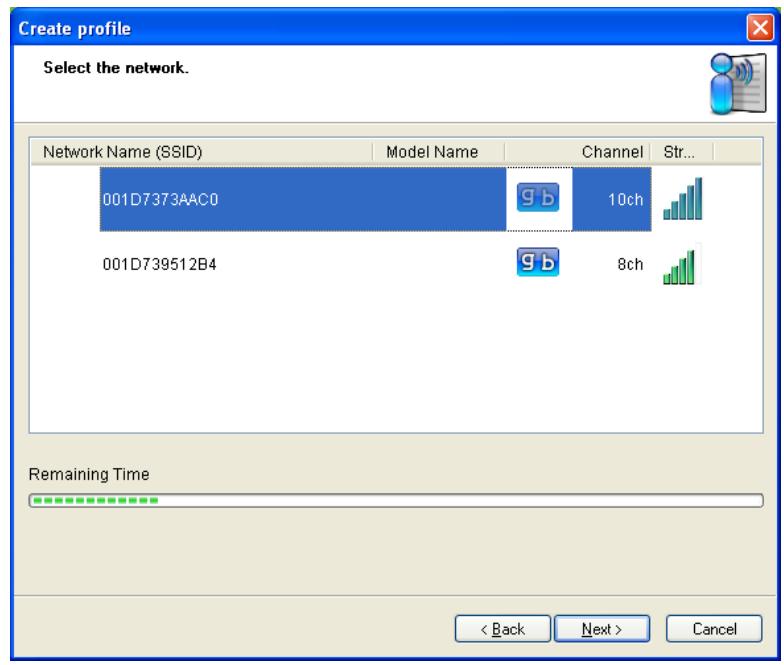
Select the access point you are going to connect to, then click [Next].
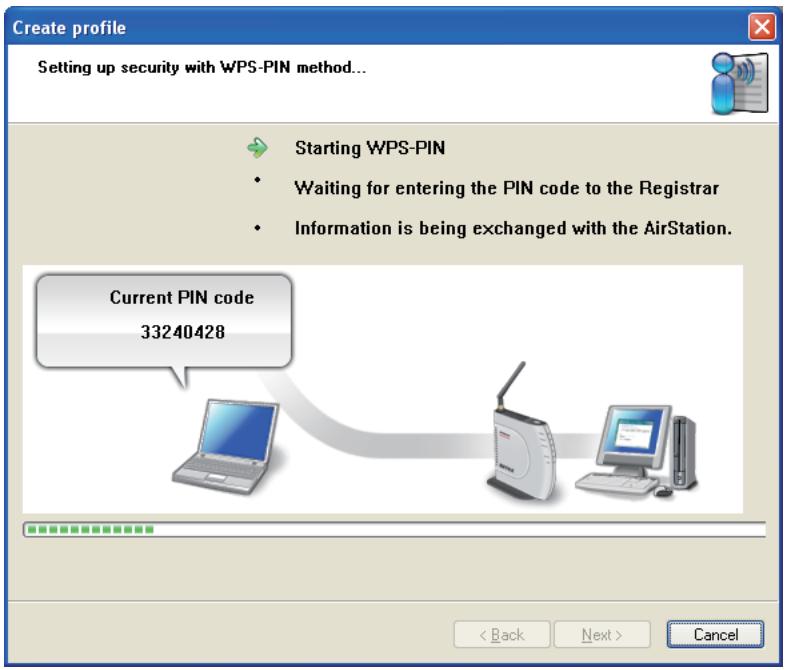
This screen will be displayed.
4 Use a computer with a wired Ethernet connection to log in to the access point. The screen to enter the PIN code will be displayed.
Note: If the access point you are trying to connect is a Buffalo AirStation, click Wireless Config > WPS from the home page configuration interface. The screen to enter the PIN code will be displayed.
5
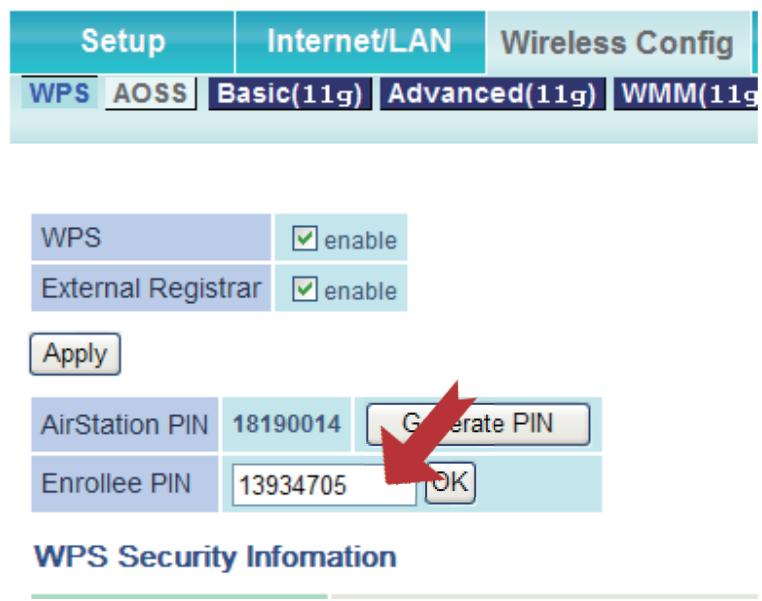
On the configuration screen of the access point, enter the PIN code you wrote down in step 2.
Note: If the access point you are trying to connect is a Buffalo AirStation, enter the PIN code in [Enrollee PIN] and click [OK].
Your connection is complete when the message "Security setup and connection have been completed" is displayed.
Manual Setup (Client Manager)
You may also connect to an access point manually, without using AOSS or WPS. The procedure varies depending on the version of Windows used.
First, install Client Manager from the included CD. See chapter 2 for instructions on installing Client Manager.
Windows 7 or Vista (Client Manager V)
With Windows 7 or Vista, use Client Manager V to connect wirelessly.
1 Click [Start] > [All Programs] > [BUFFALO] > [AirStation Utility] > [Client Manager V].
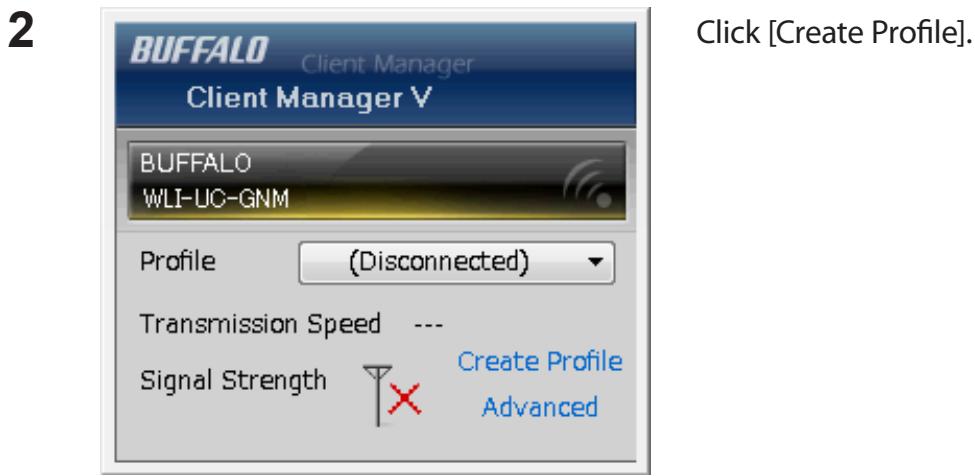
3 The User Account Control screen is displayed. Click [Yes] or [Continue].
4
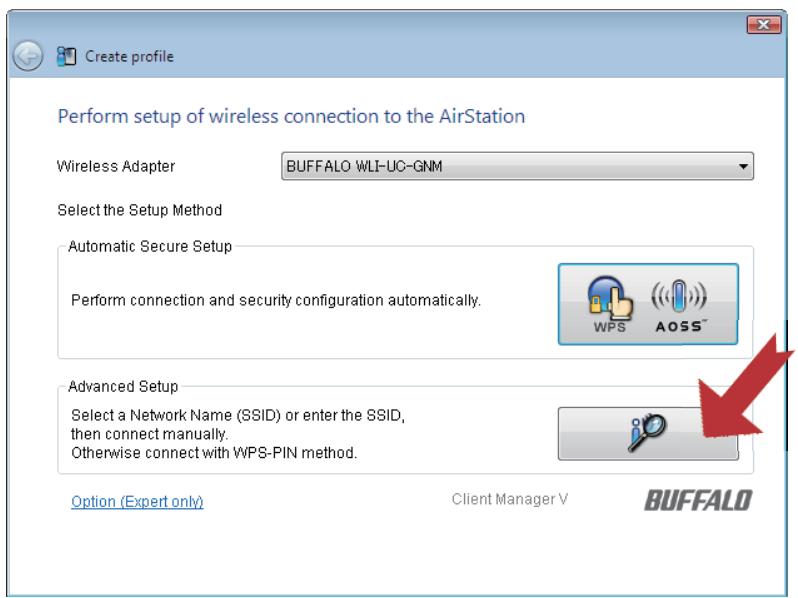
Click the [Advanced Setup] button.
5
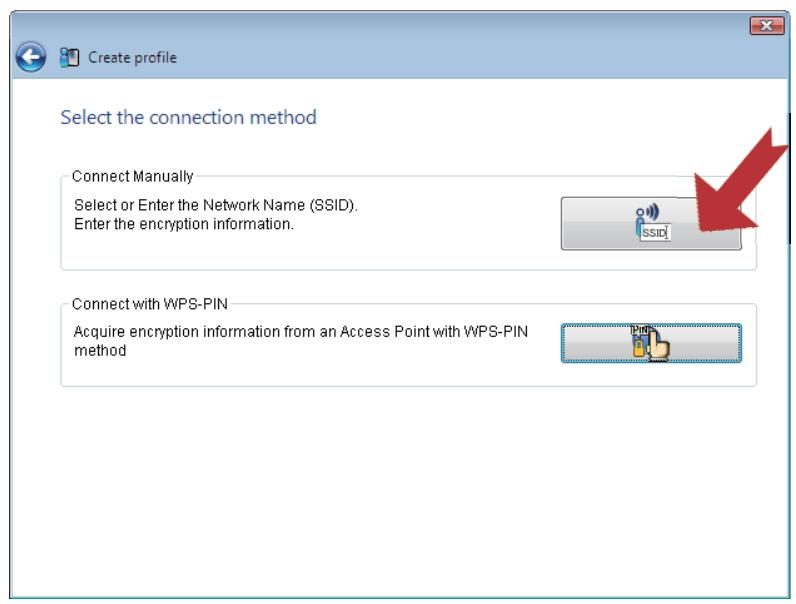
Click the [Connect Manually] button.
6
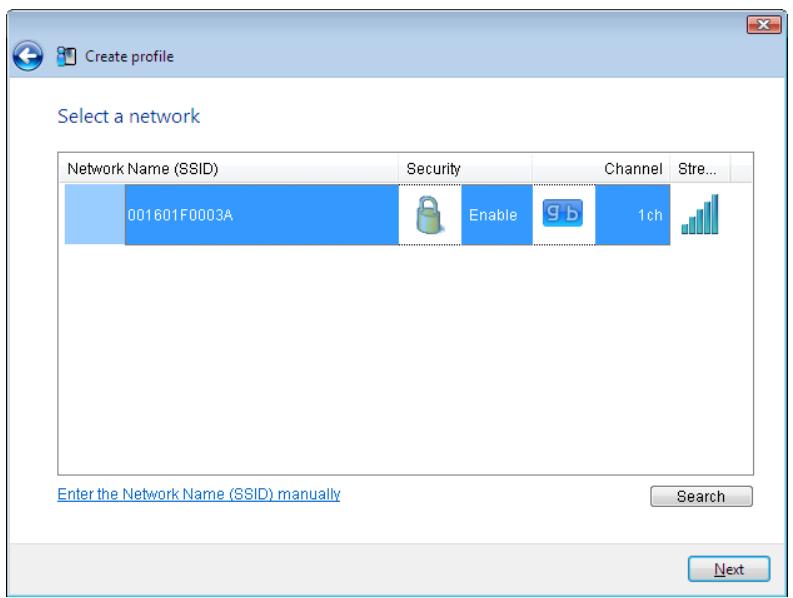
Select your access point, then click [Next].
7
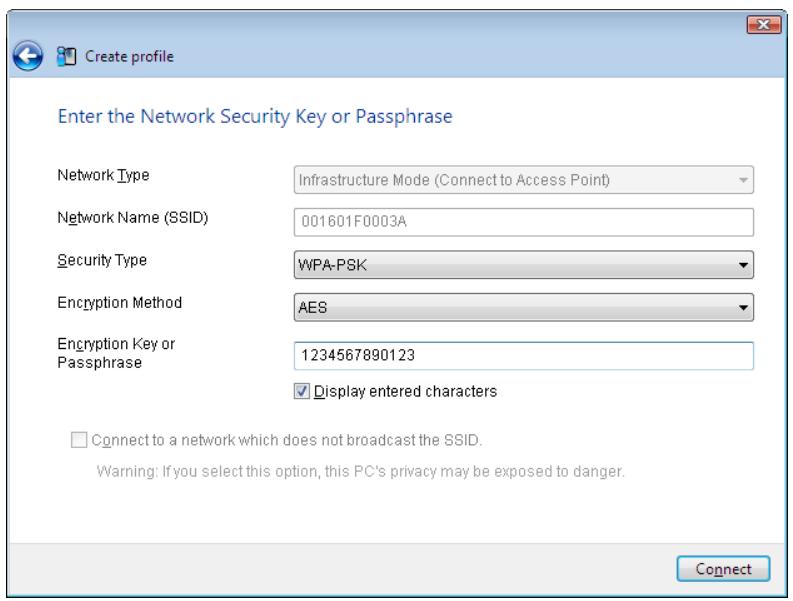
Enter your Network Type, Security Type, Encryption Method, and Encryption Key (passphrase), then click [Connect].
When "Connection has been completed" is displayed, your connection is complete. If "Set Network Location" is displayed, select "Home", "Work", or "Public location", depending on the environment in which the AirStation will be used.
Windows XP (Client Manager 3)
Client Manager 3 is a wireless connection utility for Windows XP.
1 Right click on the ?T icon in the system tray, then select [Scan].
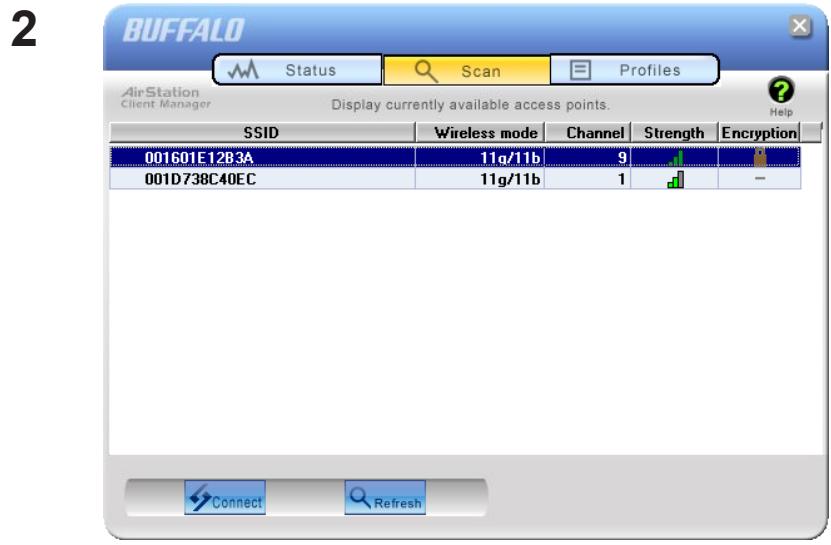
Select the access point to connect to and click [Next].
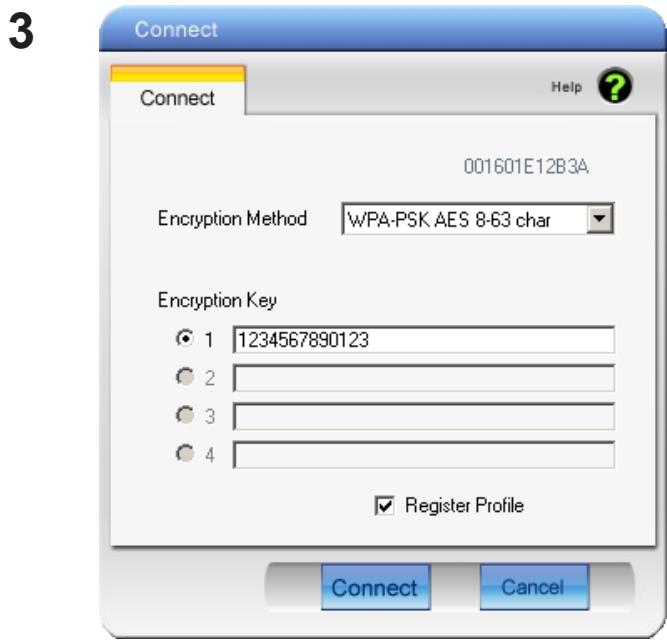
Choose your Encryption Method and enter an Encryption Key. Click [Connect].
Follow the instructions on the screen to connect.
Manual Setup (Windows Utility)
You can connect to an access point without installing or using Client Manager. Windows includes a built-in wireless utility. The procedure varies depending on the version of Windows used.
Windows 7 (WLAN AutoConfig)
With Windows 7, use WLAN AutoConfig to connect to the AirStation.
1 Click on the network icon in the system tray.
2
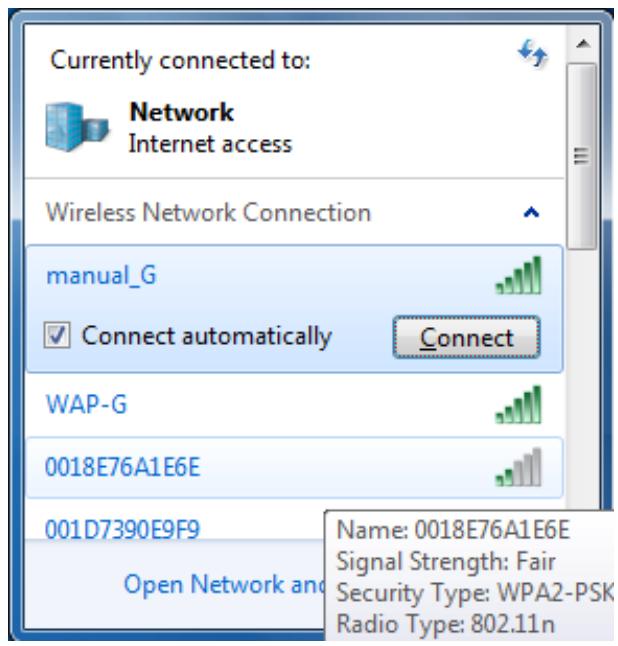
Select the target AirStation's name and click [Connect]. If you will be connecting to this device in the future, checking [Connect automatically] is recommended.
3
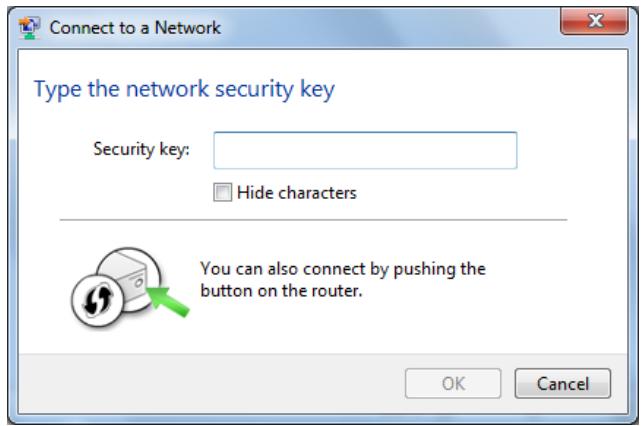
Enter the encryption key and click [OK].
Follow the instructions on the screen to connect.
Windows Vista (WLAN AutoConfig)
You can use WLAN AutoConfig to connect to a wireless Access Point:
1 Right click on the network icon in the system tray.
2 Click [Connect to a network].
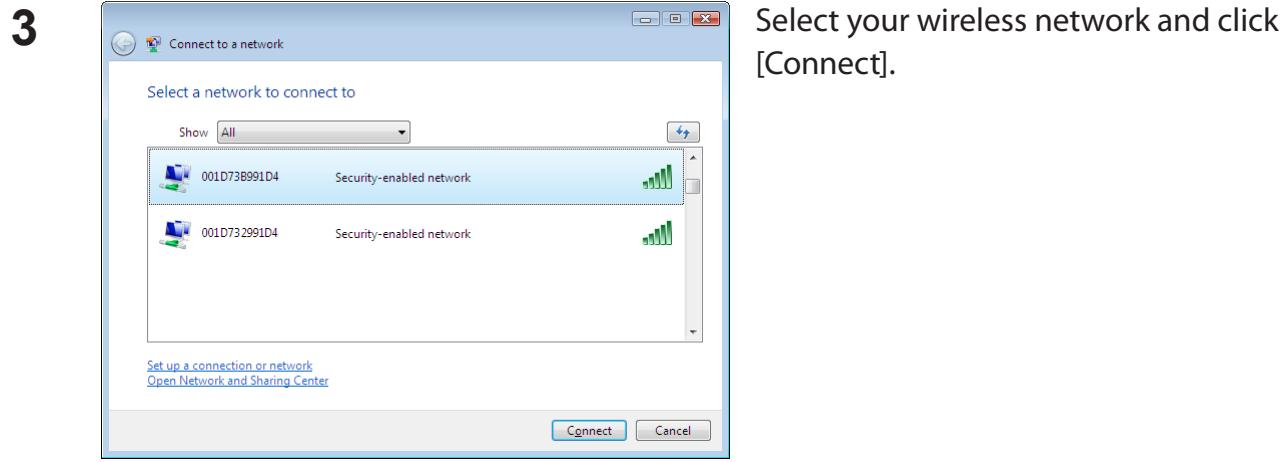
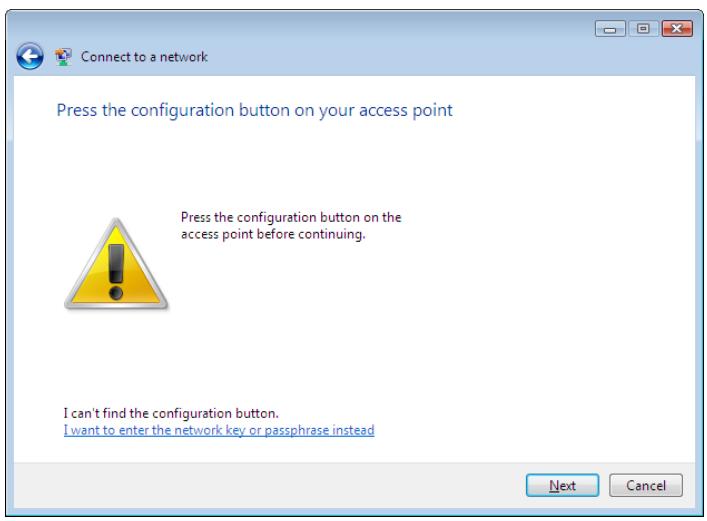
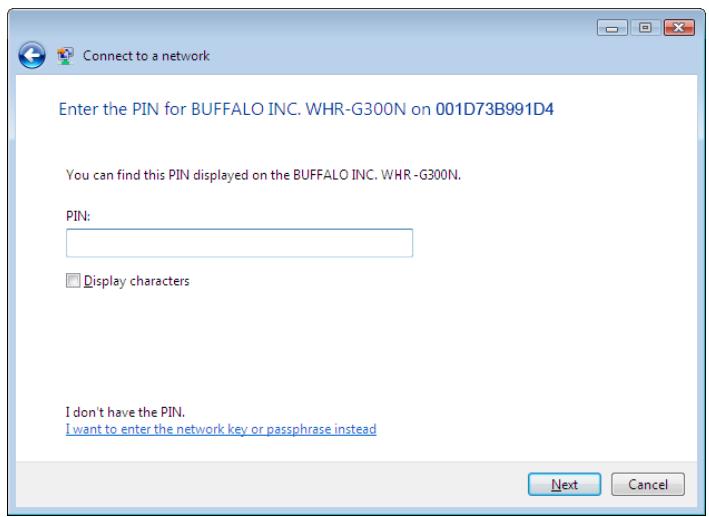
If the screen below is displayed, click [I want to enter the network key or passphrase instead]. Go to step 4.
4
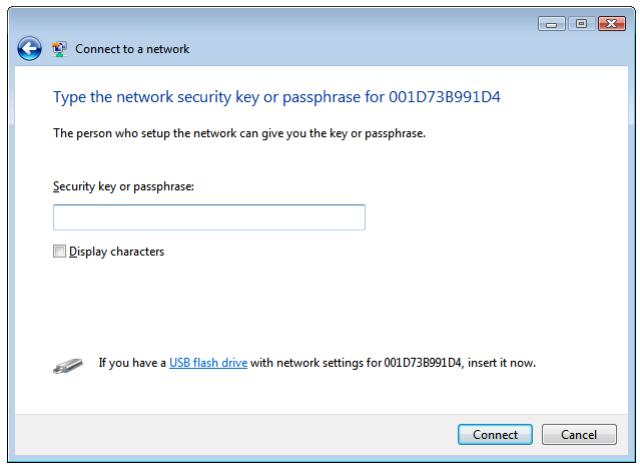
Enter the encryption key and click [Connect].
Step through the wizard to complete configuration. If the "Set Network Location" screen is displayed, select "Home", "Work", or "Public location" depending where you're using the AirStation.
Windows XP (Wireless Zero Configuration)
Windows XP includes a built-in utility to connect to your wireless access point.
Note: If Client Manager 3 is installed on your computer, then Wireless Zero Configuration is disabled. Uninstall Client Manager 3 to use Wireless Zero Configuration, or just use Client Manager 3 to connect to the AirStation.
1 Right click on the wireless network icon in the system tray.
2 Click [View Available Wireless Networks].
3 Wireless Network Connection Select a wireless network, then click [Connect].
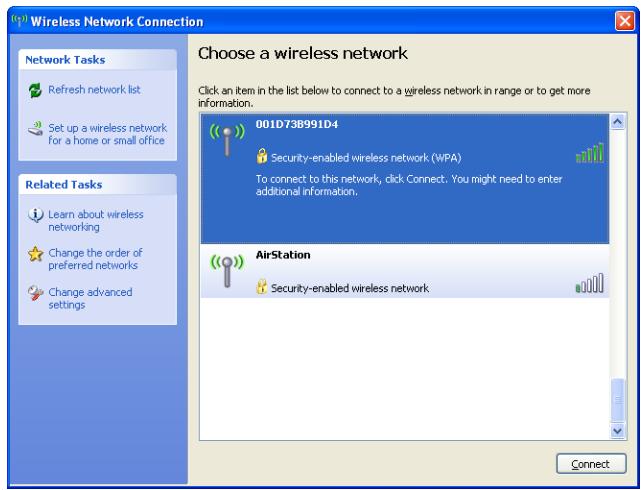
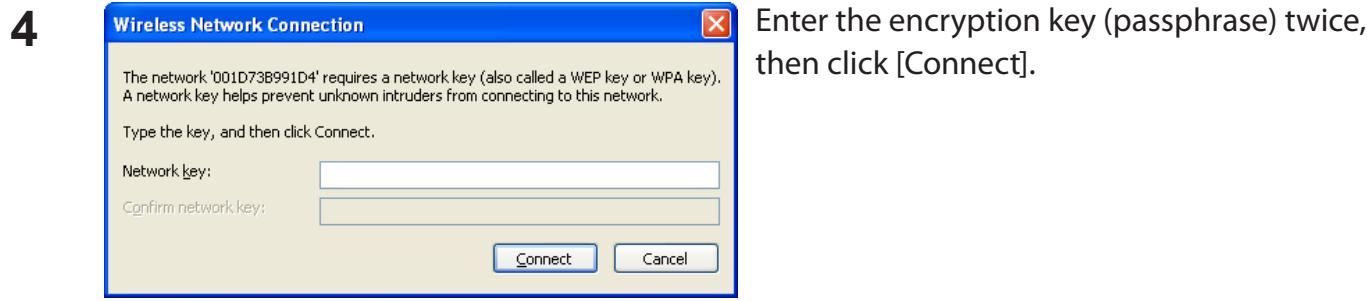
When the connection is complete, the word "Connected" will be displayed to the right of the network's SSID. Click the "X" in the top right corner of the window to close the utility.
Chapter 4 - Client Manager
Software Overview
Client Manager is utility software used to connect to an access point on the network or to verify the connection between an access point and your computer. It is included with your AirStation.
Note: Two versions of Client Manager are included on your AirNavigator CD. Client Manager V supports Windows 7 and Vista. Client Manager 3 supports Windows XP. The installation program will install the correct version for your operating system.
Using Client Manager V with Windows 7 and Vista
- When you install Client Manager, it will be added to your Startup folder and will automatically launch with Windows. If Client Manager does not launch automatically, click [Start] > [All Programs] > [BUFFALO] > [AirStation Utility] > [ClientManager V] to launch it.
- To close Client Manager, right-click on its icon in the system tray and choose [Exit].
- The appearance of the Client Manager icon varies according to its connection status:

No wireless connection.

Communicating via an access point.
Main Screen
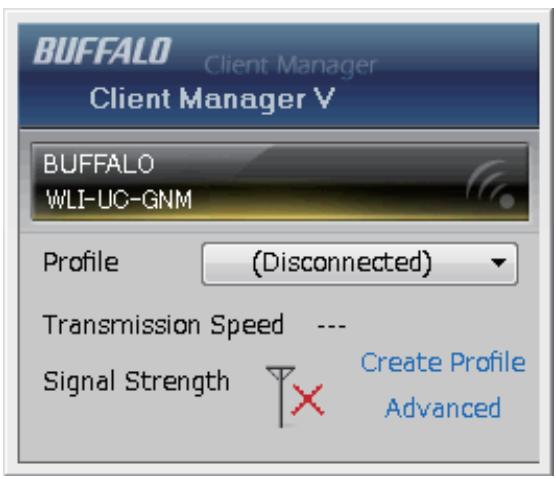
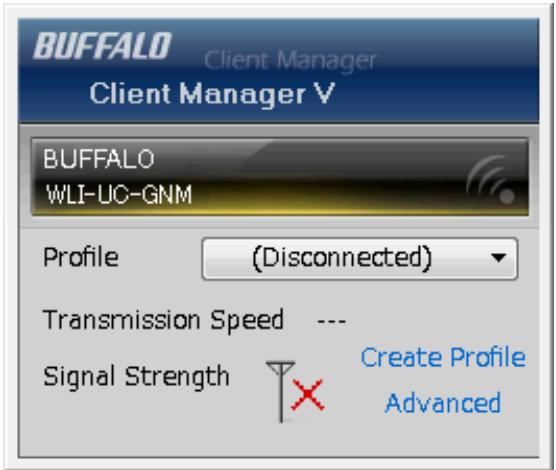
The Main screen displays the current connection status. You can perform the following operations from this screen.
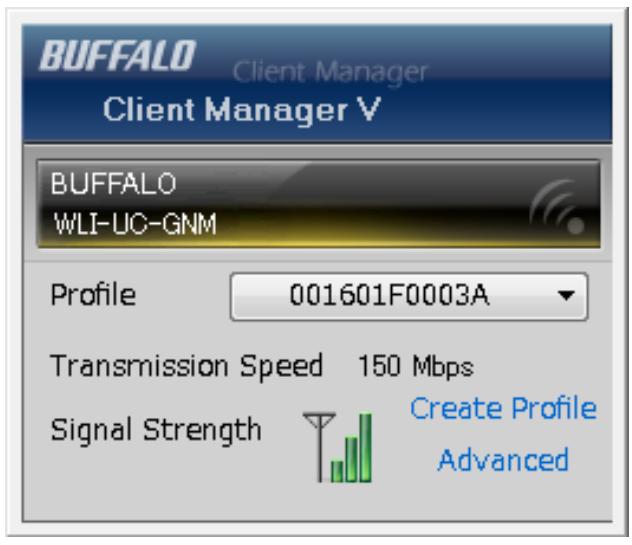
| Parameter | Meaning |
| Profile | Displays information about the current connection points. If you have multiple connection points, you can switch among them. |
| Transmission Speed | Displays the current connection speed. |
| Signal Strength | Displays the current signal strength. |
| Create Profile | Click this to display the Automatic Secure Setup and Advanced Setup screen (next page). |
| Advanced | Click this to display the Wireless Status screen. |
Automatic Secure Setup and Advanced Setup
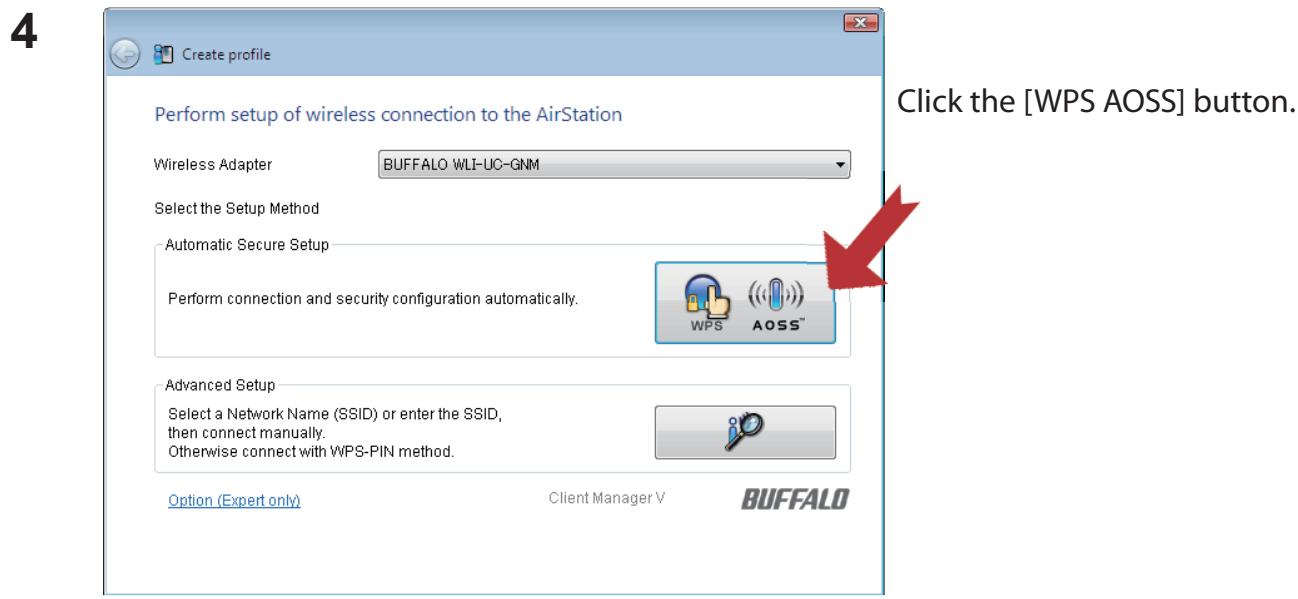
There are two ways to connect to an access point: automatic or manual. In the following wizard, automatic setup will be referred to as "AOSS/WPS" and manual setup will be referred to as "Advanced Setup".
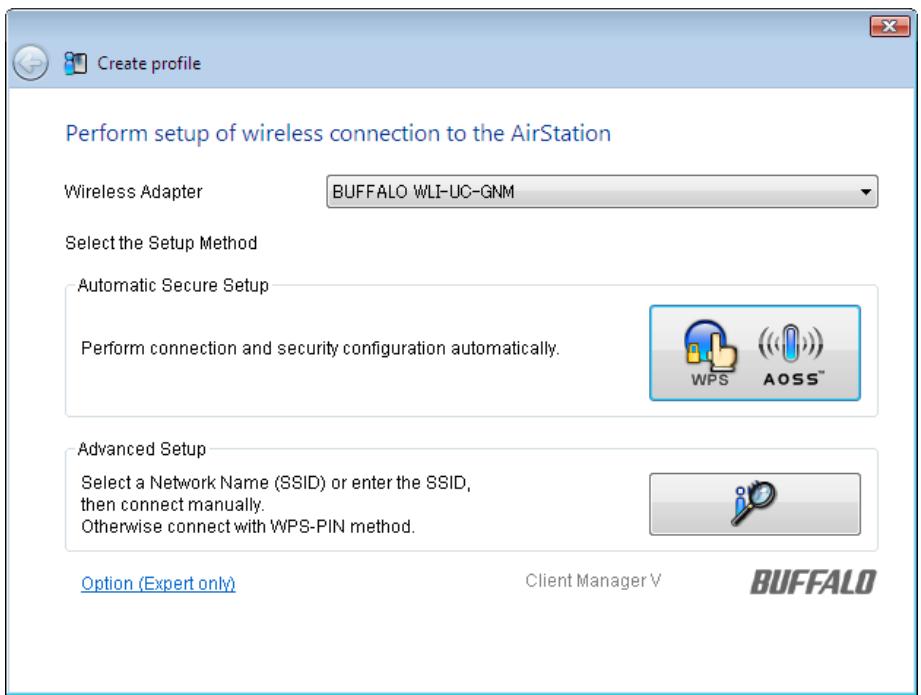
| Parameter | Meaning |
| Wireless Adapter | Displays the names of currently used wireless devices. |
| Automatic Secure Setup | Clicking this will search for an AOSS or WPS compatible access point to connect to automatically. |
| Advanced Setup | Click this to display the SSID/WPS-PIN selection screen (next page). |
| Option (Expert only) | Click this to specify whether you use AOSS or WPS (PBC) for connection in Automatic Secure Setup. It displays the WPS-PBC/AOSS selection screen. |
SSID / WPS-PIN selection
This screen lets you select whether to connect to an access point by specifying the SSID or by entering a WPS PIN.
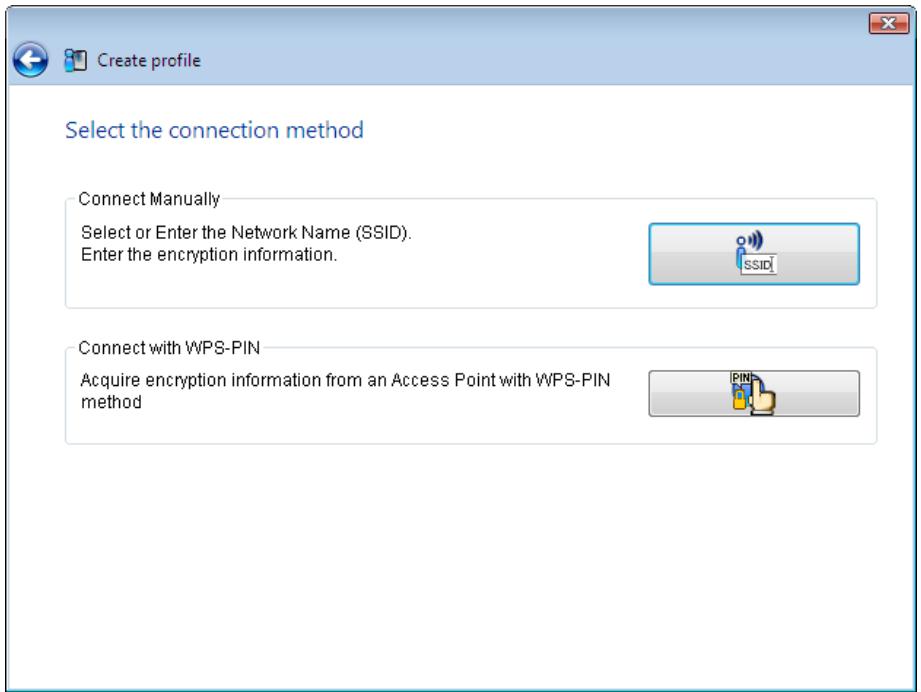
| Parameter | Meaning |
| Connect Manually | Displays the “Searching Wireless Access Points” screen and lets you enter connection settings manually. |
| Connect with WPS-PIN | Click this to connect to a wireless access point by entering its WPS PIN. |
Searching Wireless Access Points
This screen lists available wireless access points in your area. You can select an access point and enter network information manually to connect.
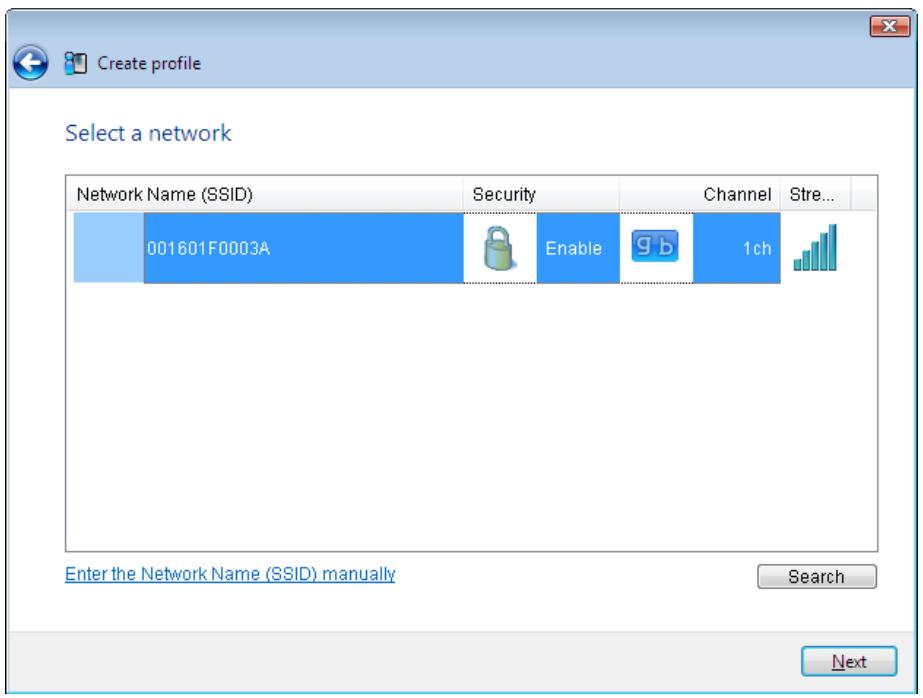
| Parameter | Meaning |
| Network Name (SSID) | Displays theSSID of each available access point. |
| Security | Displays whether or not the access point uses encryption. |
| Channel | Displays the wireless channel used by an access point. |
| Strength | Displays the signal strength of an access point. |
| Enter the Network Name (SSID) manually | Click this to display the Wireless Network Information screen, where you can enter anSSID manually. |
| [Search] | Click here to search for available access points again. |
| [Next] | Click this to display the Wireless Network Information screen. |
Wireless Network Information
Configure wireless connection settings.
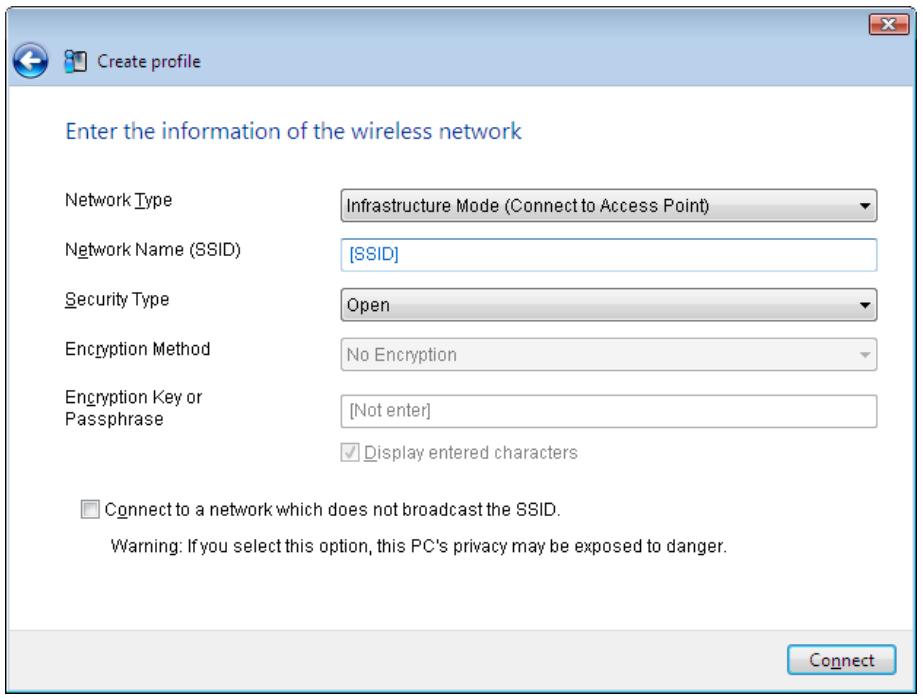
| Parameter | Meaning |
| Network Type | Select a type of connection. |
| Network Name (SSID) | Enter theSSID of an access point. |
| Security Type | Select the security type of the selected access point. |
| Encryption Method | Select the encryption method of the selected access point. |
| Encryption Key or Passphrase | Enter the encryption key for the access point. |
| Connect to a network which does not broadcast theSSID | Check this box to connect to a hiddenSSID that is not broadcast. |
| Connect | Connect to the access point. |
WPS-PBC / AOSS selection
You may automatically connect to an access point by just pushing or clicking two buttons with WPS or AOSS.
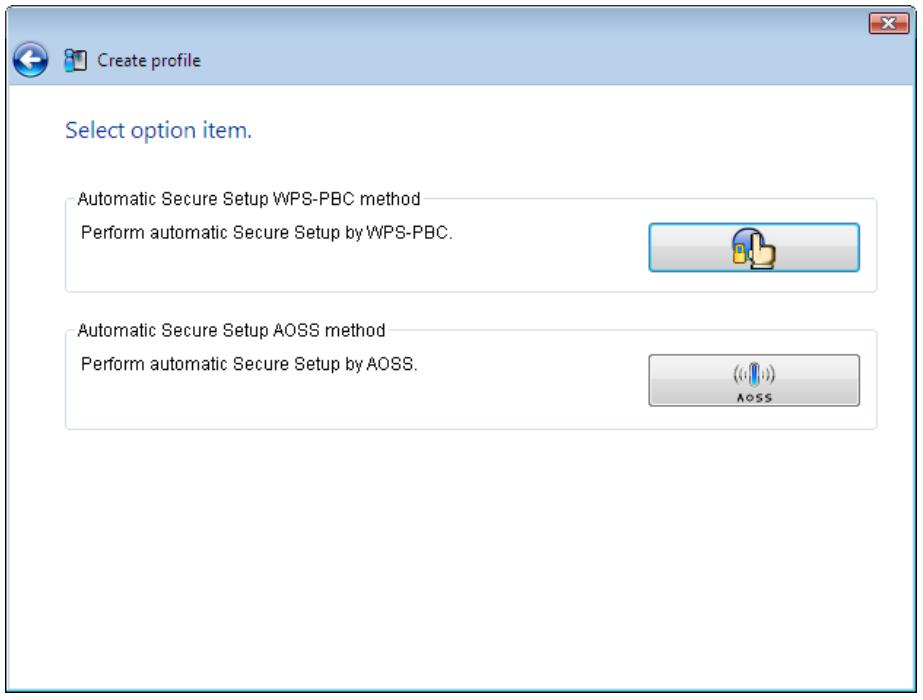
| Parameter | Meaning |
| Automatic Secure Setup WPS-PBC method | Click this to automatically connect to an access point that supports WPS. |
| Automatic Secure Setup AOSS method | Click this to automatically connect to an access point that supports AOSS. |
Wireless Status
This screen displays the current connection status.
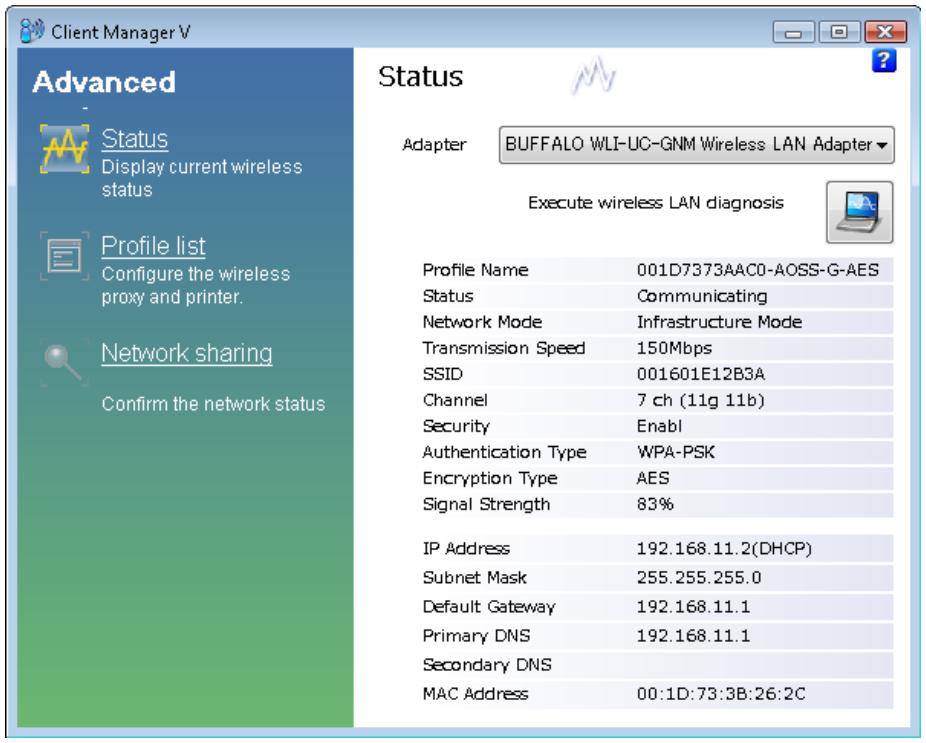
| Parameter | Meaning |
| Adapter | Displays the name of the current wireless client. |
| Execute wireless LAN diagnostics | Opens the Wireless LAN Diagnostics wizard. |
| Profile Name | Displays the current profile name. |
| Status | Displays the current transmission status. |
| Network Mode | Displays the current network mode. |
| Transmission Speed | Displays the current transmission speed. |
| SSID | Displays theSSID of the currently connected access point. |
| Channel | Displays the wireless channel currently used. |
| Security | Displays whether encryption is currently enabled or not. |
| Authentication Type | Displays the type of authentication currently used. |
| Encryption Type | Displays the type of encryption currently used. |
| Signal Strength | Displays the current signal strength. |
| IP Address | Displays the IP address assigned to your wireless client. |
| Subnet Mask | Displays the subnet mask assigned to your wireless client. |
| Default Gateway | Displays the default gateway address. |
| Primary DNS | Displays the primary DNS address. |
| Secondary DNS | Displays the secondary DNS address. |
| MAC Address | Displays the MAC address of your wireless client. |
Wireless LAN Diagnostic
On the Wireless LAN Diagnostic screen, you can check signal strength and quality.
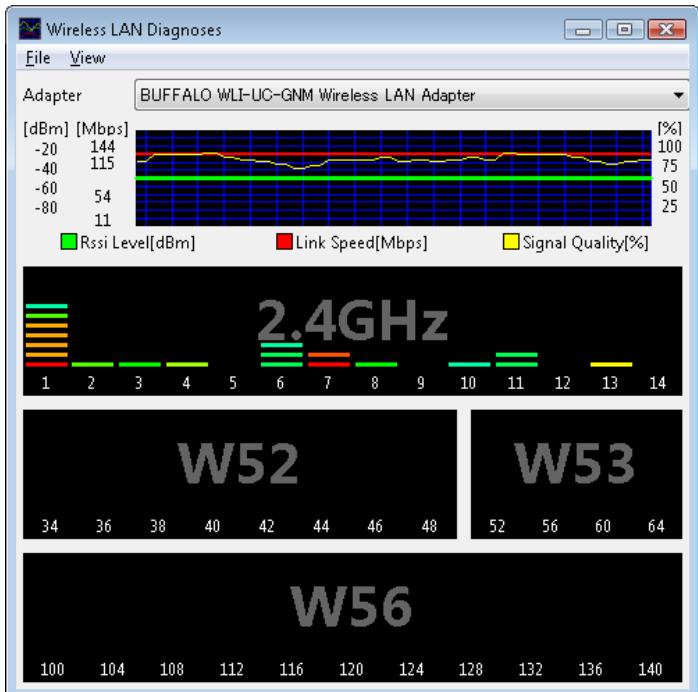
| Parameter | Meaning |
| Adapter | Displays the name of the wireless client currently in use. |
| Connection status | Displays signal strength (dBm), link rate (Mbps), and signal quality (%) at 1 minute intervals.Possible restrictions:· Some wireless devices may not be displayed.· Signal strength and quality displays may vary. These graphs should not be used to compare different wireless devices. Only use them to compare information for the same wireless device. |
| Usage of each channel | The 11b/11g displays usage of each channel on 2.4 GHz.This unit does not display 11a usage, as it does not support 5 GHz.The color expresses the signal strength of an access point. Redder means a stronger signal, bluer means a weaker signal. |
Profile List
Create a new profile or edit an existing profile.
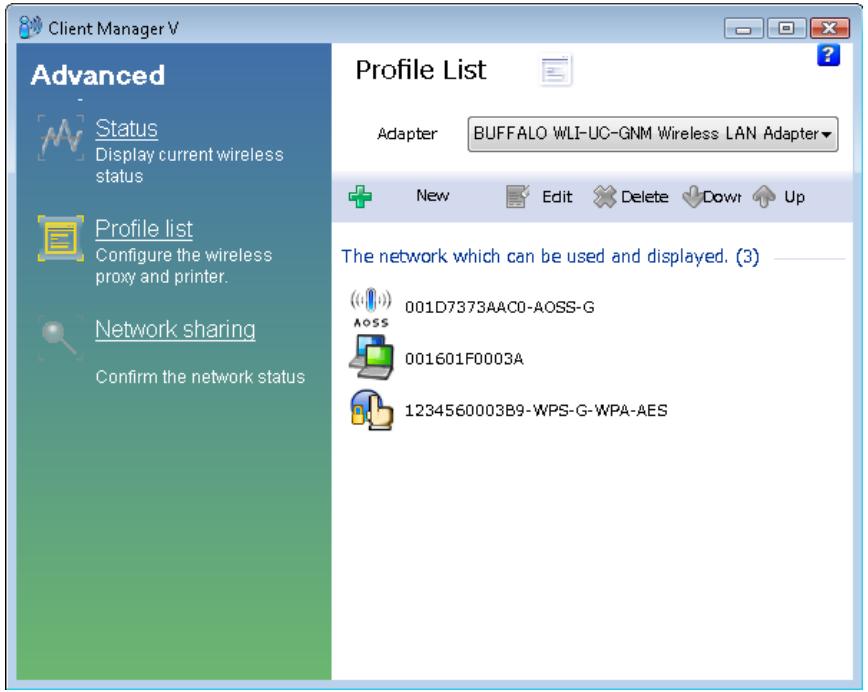
| Parameter | Meaning |
| Adapter | Displays the name of the current wireless client. |
| New | Create a new profile. This displays the Automatic Secure Setup and Advanced Setup screen. |
| Edit | Edit the selected profile. This displays the Extended properties (Wireless) screen. |
| Delete | Delete the selected profile. |
| Down | Lower the priority of the selected profile. |
| Up | Raise the priority of the selected profile. |
Wireless Properties
Current wireless settings.
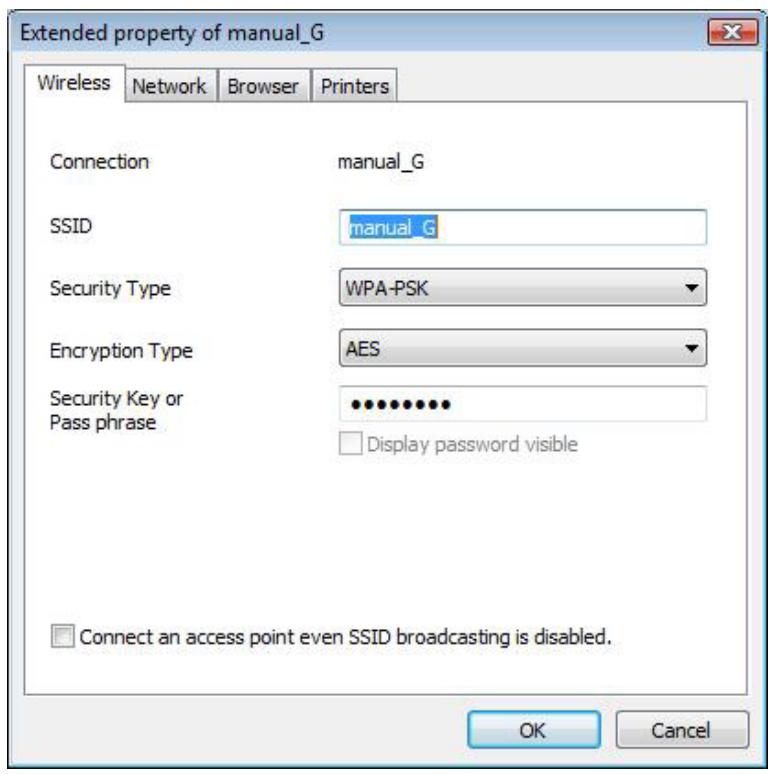
| Parameter | Meaning |
| Connection | Displays the current profile name. |
| SSID | Displays theSSID of the current connection. |
| Security Type | Displays the security type you are using for the current connection. |
| Encryption Type | Displays the encryption type you are using for the current connection. |
| Security key or Pass phrase | Displays the security key or pass phrase if [Display password visible] is checked. |
| Connect an access point evenSSID broadcasting is disabled. | Check to connect to a wireless network that doesn’t broadcast itsSSID. |
Network Properties
By default, your client's IP address is set automatically by DHCP. You may configure it manually from this screen.
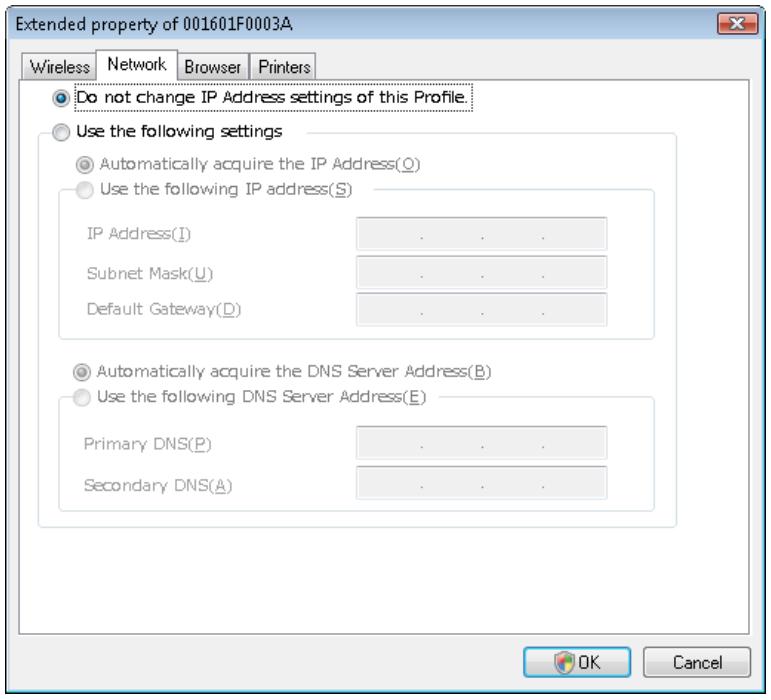
| Parameter | Meaning |
| Do not change IP Address settings of this Profile | Select to keep your current TCP/IP network setting without any changes. This is the recommended setting. |
| Use the following settings | Select this option to change your TCP/IP network settings. For expert users only. |
Browser Properties
Configure Internet Explorer settings for wireless connections.
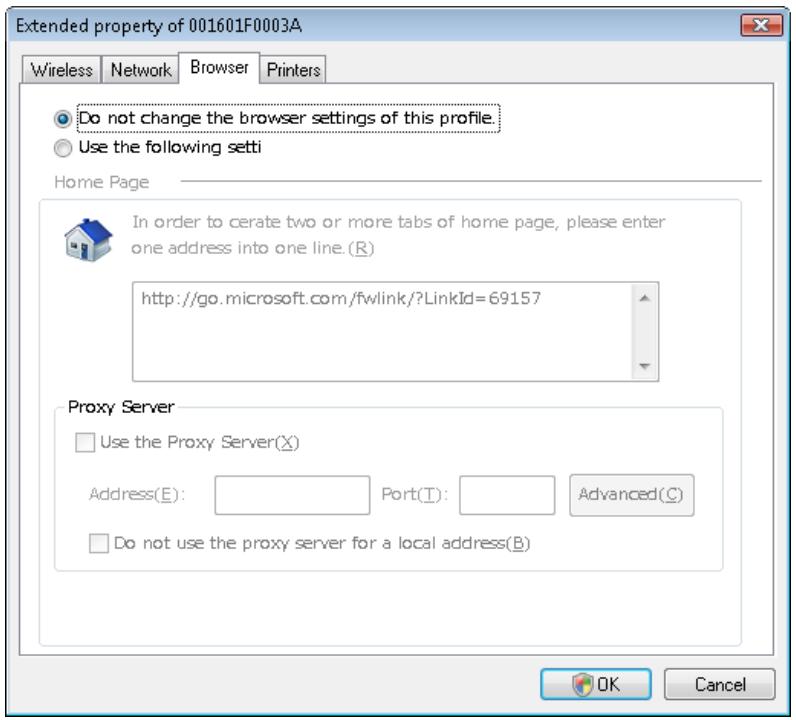
| Parameter | Meaning |
| Do not change the browser settings of this Profile | Select to keep the current Internet Explorer settings. |
| Use the following settings | Select this option to use different Internet Explorer Home Page and Proxy Server settings while connected wirelessly. |
Printer Properties
Configure the printer used while connected to an access point wirelessly.
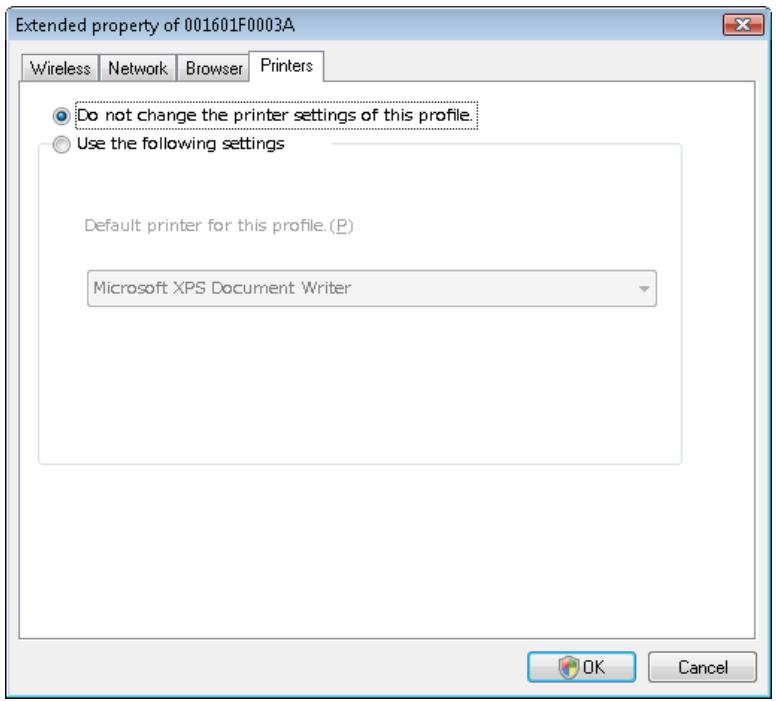
| Parameter | Meaning |
| Do not change the printer settings of this Profile | Select to keep your current printer settings. |
| Use the following settings | Select to use a different default printer while connected wirelessly. |
Using Client Manager 3 with Windows XP
- When you install Client Manager, it will be added to your Startup folder and will automatically start with Windows. To launch Client Manager manually, click [Start] > [All Programs] > [BUFFALO] > [AirStation Utility] > [ClientManager3].
- Right click on the Client Manager icon in the system tray and click [Exit] to close Client Manager. The Client Manager icon will change appearance according to its connection status:

: No wireless client installed

: Not connected to an access point

: Transmitting to an access point with TKIP/AES encryption

: Transmitting to an access point with WEP, or not encrypted

: Transmitting in ad-hoc mode (not supported with this wireless client)

: Authenticating
Status
The Status screen displays the status of the current connection.
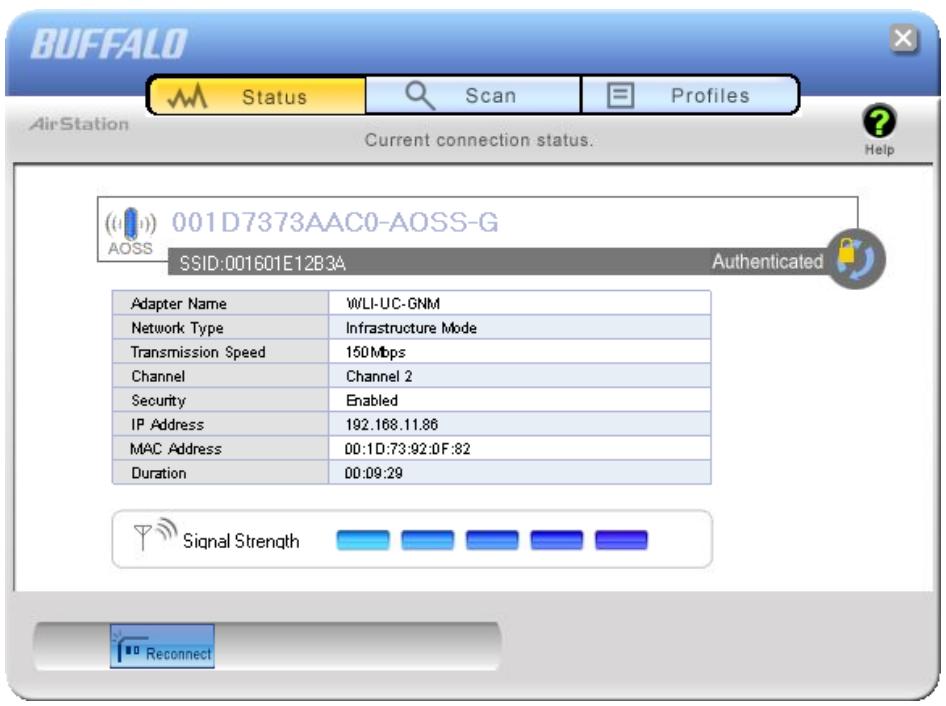
| Parameter | Meaning |
| Profile | Current connection profile name. |
| SSID | SSID of the currently connected access point. |
| Adapter Name | Name of the wireless client currently in use. |
| Network Type | Current network mode. |
| Transmission Speed | Current transmission speed. |
| Channel | Current wireless channel. |
| Security | Displays whether security is currently enabled or not. |
| IP Address | The IP address assigned to this unit. |
| MAC Address | MAC address of this unit. |
| Duration | Elapsed duration of the current wireless connection. |
| Signal Strength | Current signal strength. |
| Reconnect | Click to reconnect to the most recent connection. |
Scan
Scan and display nearby access points.
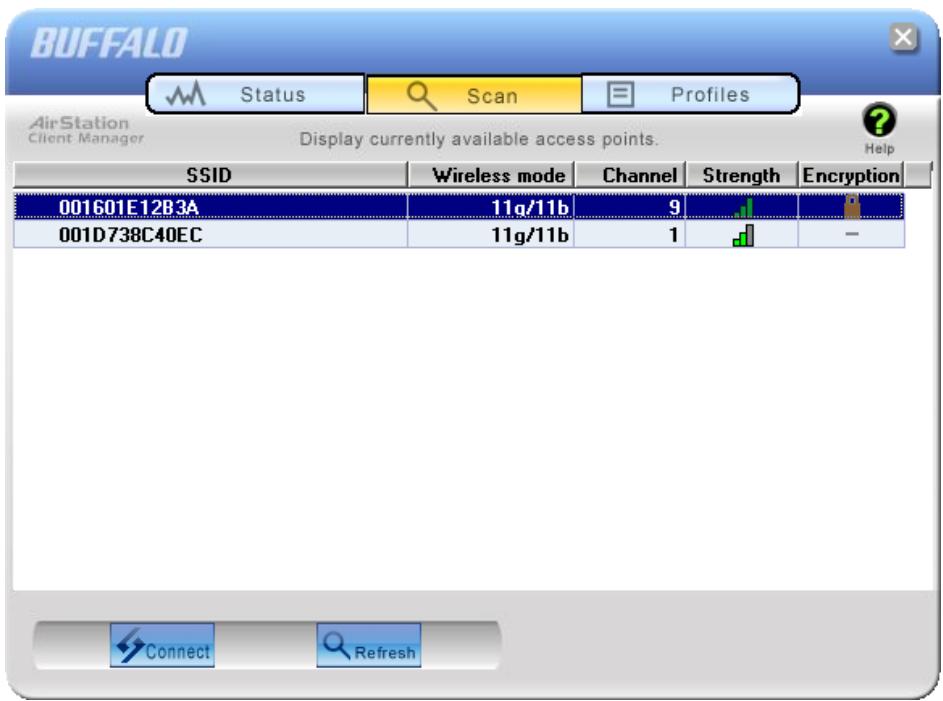
| Parameter | Meaning |
| SSID | SSID of access point. |
| Wireless mode | Type of access point (11a or 11g). |
| Channel | Wireless channel of the access point. |
| Strength | Reception strength of each access point. |
| Encryption | Lock symbol is shown if the access point uses encryption. |
| Connect | Click to display the Connect page. |
| Refresh | Click to refresh the list of available access points. |
Connect
Configure connection to an access point.
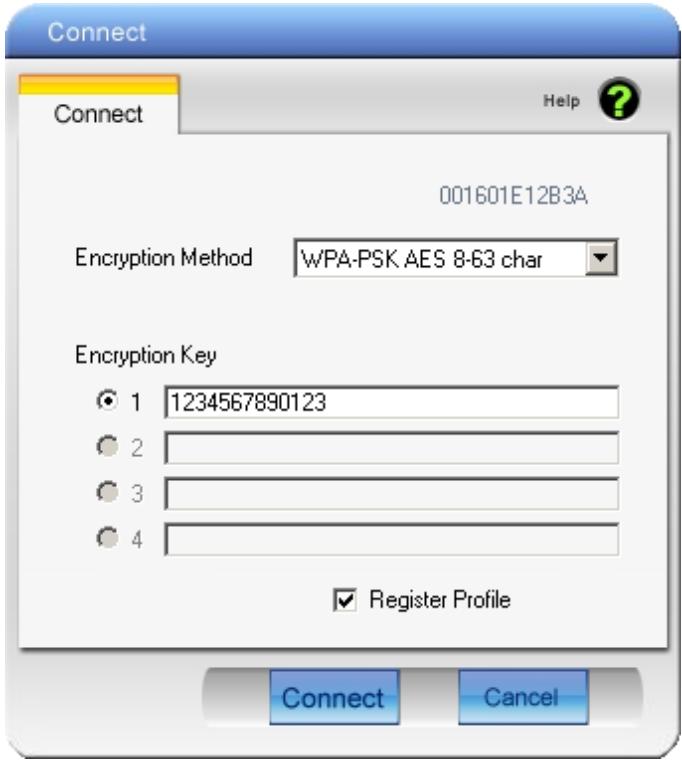
| Parameter | Meaning |
| Encryption Method | Type of encryption used by the access point. |
| Encryption Key | Enter one or more encryption keys. |
| Register Profile | Check to register this connection as a profile. |
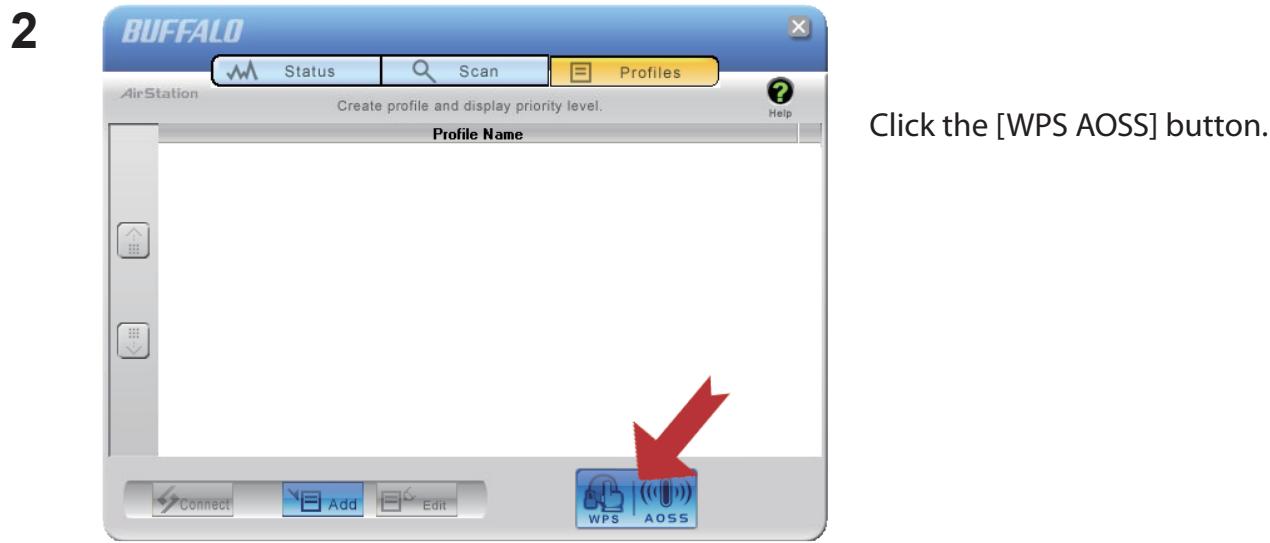
Profiles
Connect to an access point or edit a profile.
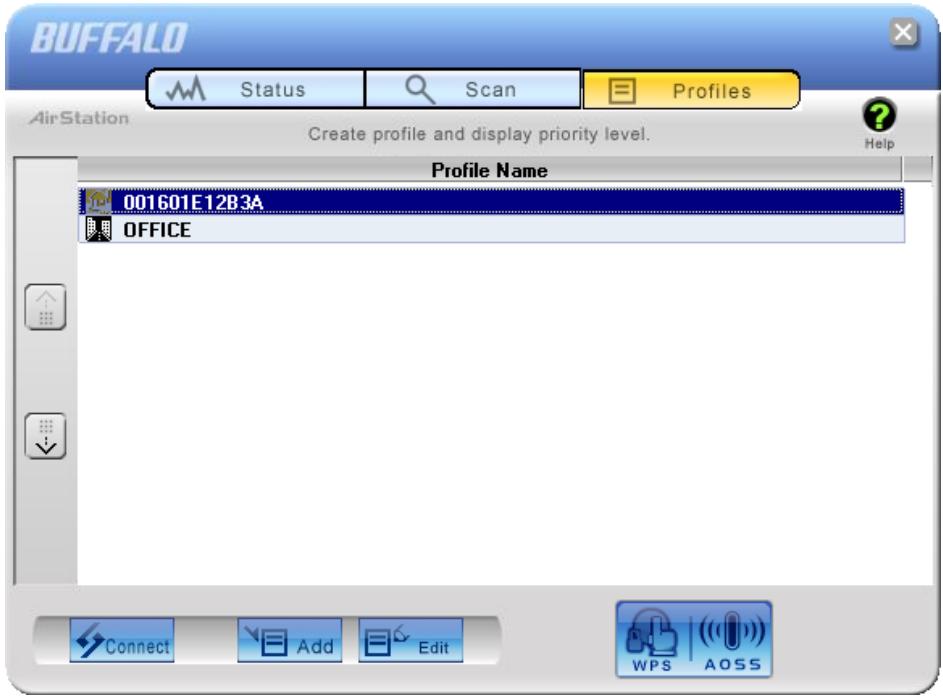
| Parameter | Meaning |
| Connect | Selecting a profile and clicking this button will connect to an access point using its stored profile information. |
| Add | Click to add a new profile. |
| Edit | Click to edit or delete information in a profile. |
| WPS AOSS | Click to have AOSS/WPS (PBC) automatically set security. After connection, a profile based on these settings will be created. |
| 802.1x Profiles | This button is displayed when Client Manager is operating in Business Mode. Click to configure 802.1x authentication. |
Profile Information (Basic)
Configure your profile settings.
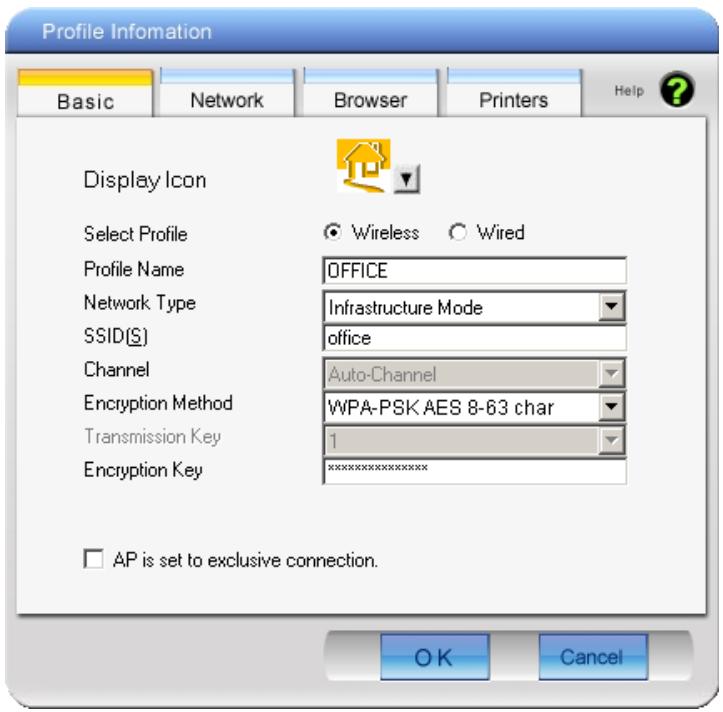
| Parameter | Meaning |
| Display Icon | Select an icon to display for this profile. |
| Select Profile | Connection may be wireless or wired (Ethernet). For use with the AirStation, select Wireless. |
| Profile Name | Enter a name for the profile. |
| Network Type | Select infrastructure mode to connect to an access point (recommended), or ad-hoc mode to connect directly to another wireless client. |
| SSID | Select theSSID of the wireless access point that the profile will connect to. |
| Channel | Choose the wireless channel. In Infrastructure Mode, the channel is automatically configured. |
| Encryption Method | Select the encryption method used by the wireless access point. |
| Transmission Key | If WEP is used for the Encryption Method, up to 4 passphrases may be entered. Choose the number of passphrases. |
| Encryption Key | Enter the encryption key(s) for the access point. |
| AP is set to exclusive connection | Check if the access point's SSID is not broadcast. |
Profile Information (Network)
The profile's IP address and subnet mask may be manually assigned.
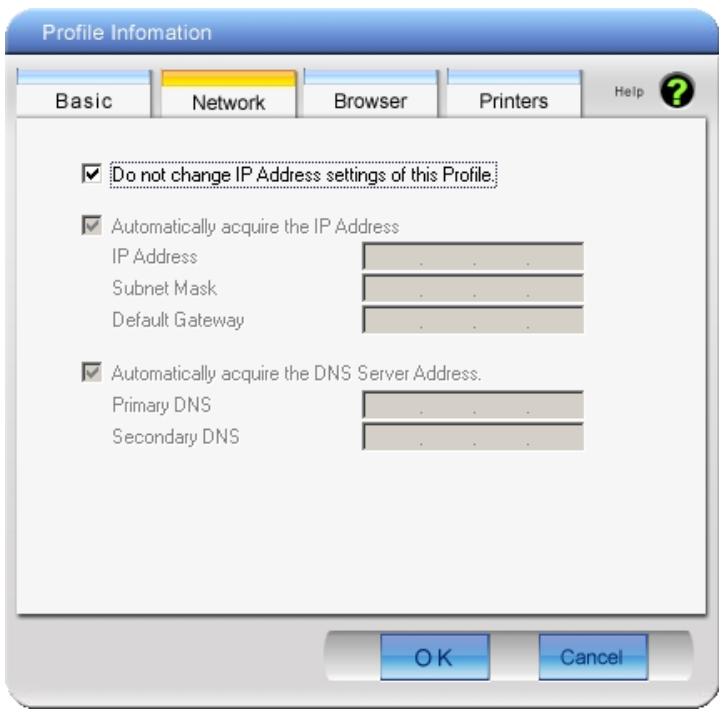
| Parameter | Meaning |
| Do not change IP Address settings of this Profile | Check to keep using current TCP/IP network settings. |
| Automatically acquire the IP Address | Check to automatically acquire the IP address from a DHCP server when connecting wirelessly. |
| Automatically acquire the DNS Server Address | Check to automatically acquire the DNS server address from a DHCP server when connecting wirelessly. |
Profile Information (Browser)
Configure your Internet Explorer settings when connecting wirelessly.
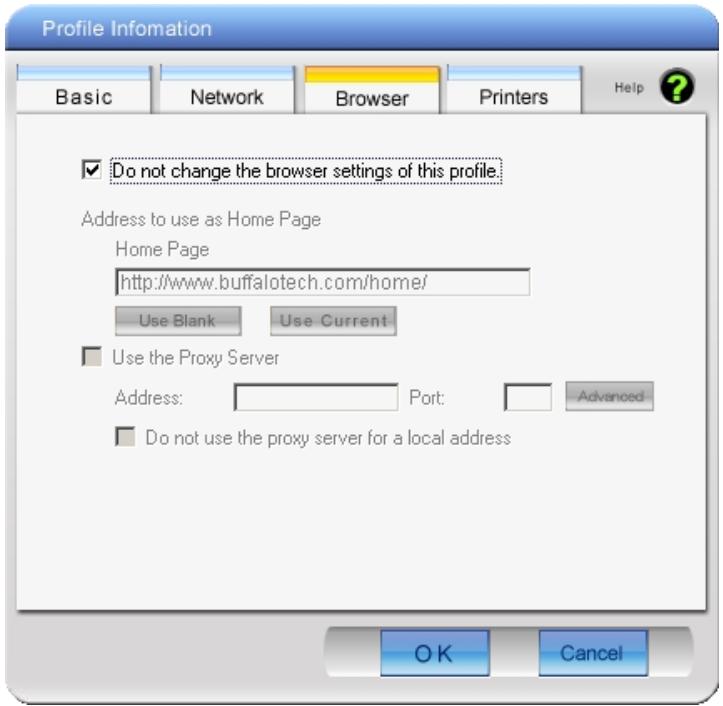
| Parameter | Meaning |
| Do not change the browser settings of this Profile | Check to use current Internet Explorer settings when connecting wirelessly. Uncheck to use any of the settings below. |
| Address to use as Home Page | To use a different home page in Internet Explorer when connecting wirelessly, enter it here. |
| Use the Proxy Server | To use a proxy server for Internet Explorer when connecting wirelessly, enter its IP address and a port number and check the box. |
| Do not use the proxy server for a local address | If checked, the proxy server will not be used for local addresses. |
Profile Information (Printers)
Configure the printer that your computer uses when connected wirelessly.
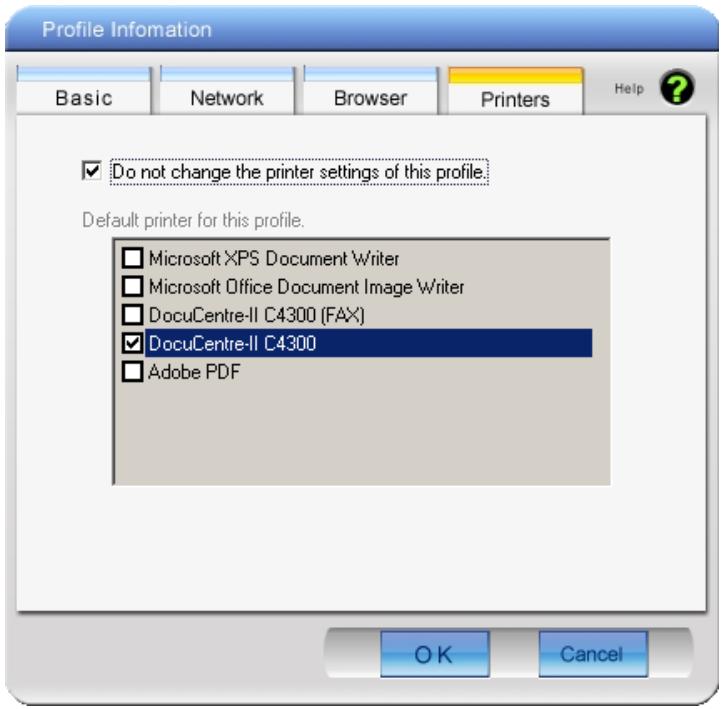
| Parameter | Meaning |
| Do not change the printer settings of this Profile | Select this option to use a different printer when connecting wirelessly. |
System Tray Menu
Right-click on the Client Manager icon in the system tray to display the following choices.
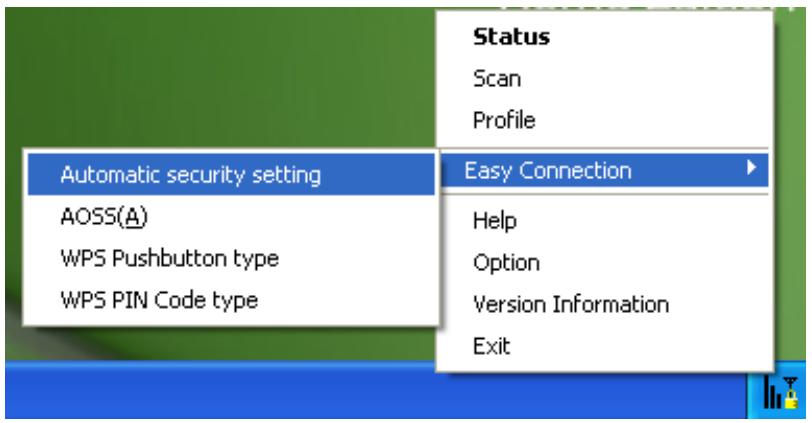
| Parameter | Meaning |
| Status | Displays the Status screen. |
| Scan | Displays the Scan screen. |
| Profile | Displays the Profiles screen. |
| Easy Connection | Runs Automatic Secure Setup, using one of the following connection methods: AOSS, WPS(PBC), or WPS(PIN). |
| Help | Displays Client Manager Help. |
| Option | Displays the Options menu screen. |
| Version Information | Displays Client Manager version information. |
| Exit | Exits Client Manager. |
Option Menu
Configure Client Manager options.
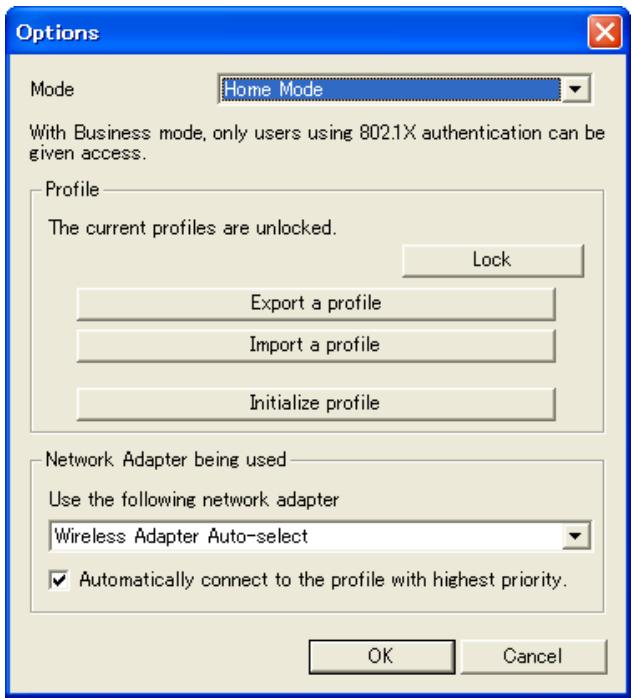
| Parameter | Meaning |
| Mode | Switch between Client Manager's operating modes. If you select [Business Mode], the button to configure 802.1x authentication appears on the Profiles screen. [Home Mode] is recommended for most users. |
| Lock | If you click this, a password will be required to add new profiles or edit existing profiles. To lock or unlock, enter the password (8 - 63 characters). |
| Export a profile | Click this to save the currently registered profile information. To save profile information, enter the password (8 - 63 characters). |
| Import a profile | Click this to import a saved profile into Client Manager. You'll need to enter the password for the profile to continue. |
| Initialize profile | Click this to initialize profile information. Before initializing profile information, unlock the unit. |
| Use the following network adapter | Select a network adaptor to use in Client Manager. [Wireless Adapter Auto-select] is recommended for most users. |
| Automatically connect to the profile with highest priority | If checked, it will attempt to connect to the profile with highest priority as assigned on the Profile screen (page 51). Checked is recommended for most users. |
Chapter 5 - Troubleshooting Common Problems
The Computer does not recognize the Wireless Adapter.
- Make sure the wireless adapter is connected to a USB port on your computer.
- If your computer has multiple USB ports, try connecting to a different USB port.
- Refer to Chapter 2 to reinstall drivers for this unit.
Cannot connect to the network wirelessly.
Refer to chapter 3 for several different ways to connect this unit to an access point wirelessly.
- Configure the same SSID, encryption method, and encryption key for each wireless device. These settings must match those of your wireless access point.
- Move your wireless devices closer to the access point.
- Restart your access point.
You forgot the AP's SSID, Encryption KEY, or Password.
- Ask your network administrator about your SSID and encryption settings. These settings must match the SSID and encryption settings of the access point.
- If your access point supports AOSS or WPS, try using them to connect to the access point. Instructions for connecting with AOSS or WPS are in chapter 3.
The link speed is slower than 150 Mbps.
The default setting for 150 Mbps mode on the AirStation is off. Refer to "150 Mbps Mode settings" in page 64 to turn on 150 Mbps mode.
Other Tips
Issue:
When using the Windows wireless connection manager, I cannot connect to my wireless router. I receive a "Cannot configure wireless network" error message when scanning for available wireless networks.
Answer:
Another wireless client software may be installed on your computer that is taking control of the wireless client adapter away from the Windows connection manager. Either switch to the other software or use Add/Remove Programs to remove the conflicting client software. Then the Windows connection manager should be able to connect to any available wireless networks.
Issue:
When I attempt to connect to my wireless router, I receive an error message indicating that security settings on my computer do not match the settings on the router.
Answer:
Manually enter the correct security key and encryption type into the Windows connection manager.
To enter the security key in Windows XP:
Go to Wireless Networks Connection Status and click on View Wireless Networks. There will be a list of networks to which you have previously connected. Highlight the network name (SSID) of the wireless router and click on Connect. Enter the correct encryption key and click on Connect.
Issue:
What can I do if my wireless connection drops randomly or seems slow?
Answer:
There are many environmental factors that may affect this behavior. First, ensure the issue is not range related by moving the access point and the wireless client closer together. Check whether the connection drops continue.
In some cases, interference from other wireless networks or sources such as 2.4 GHz wireless phones may impact performance. Try changing the wireless channel used by your wireless router.
Log in to the wireless router with your browser. Click on the [Wireless Configuration]. If an AutoChannel option is available, use it. Otherwise, manually select an alternate channel.
Issue:
Though I am able to successfully make a connection with my wireless router, I am unable to access the Internet with my web browser.
Answer:
First, power off the Cable or DSL modem, the wireless router, and then your computer. Pressing the power button or simply unplugging the devices can power off the modem and wireless router devices. Then after verifying that the modem is connected to the wireless router with a cable to the WAN port, power on the modem and wait two minutes. Turn on the wireless router and then the computer. Verify whether an Internet connection is available.
If, after these steps, an Internet connection is still unavailable, power off the Cable or DSL modem and computer again and directly connect your computer to the Cable or DSL modem with a cable between the computer and the port on the modem. Power on the modem and wait two minutes. Power on the computer and again check for an Internet connection.
If an Internet connection is not available with a direct connection to the computer, please call the Internet Service Provider who installed the modem.
If an Internet connection is available with a direct connection to the computer, please call our customer support line.
Issue:
Where can I download the latest drivers, firmware and instructions for my Buffalo wireless products?
Answer:
The latest drivers and firmware with installation instructions are available online at www.buffalotech.com
Appendix
150 Mbps Mode settings
By default, the AirStation's 150 Mbps mode is disabled. To enable it:
- Click [Start] > [All Programs] > [BUFFALO] > [AirStation Utility] > [AirStation Bandwidth 20 or 40MHz Select Tool] and launch the utility software.
If you are using Windows 7 or Vista and see the message "A program needs your permission to continue", click [Yes] or [Continue]. - When the message "Now start the setup wizard of Bandwidth Select Tool" is displayed, click [Next].
- Click [Next].
- When the message "Select wireless adapter" appears, select this unit and click [Next].
- Select [Use 150Mbps Mode (40MHz)], and click [Next].
- When the message "Wireless adapter setting is completed" is displayed, click [Exit to setup].
If you still cannot establish a 150 Mbps connection, check the settings for your access point.
Specifications
| Wireless LAN Interface | |
| Standard Compliance | IEEE802.11b / IEEE802.11g / IEEE802.11n |
| Transmission Method | Direct Sequence Spread Spectrum (DSSS), OFDM, SISO |
| Frequency Range | 2,412 - 2,462 MHz (Channels 1 - 11) |
| Transmission Rate | 802.11b/g: 54, 48, 36, 24, 18, 12, 9, 6, 11, 5.5, 2, 1 Mbps 802.11n 20 MHz BW (Long GI) 65, 58.5, 52, 39, 26, 19.5, 13, 6.5 Mbps (1 stream) (Short GI) 72.2, 65, 57.8, 43.3, 28.9, 21.7, 14.4, 7.2 Mbps (1 stream) 40 MHz BW (Long GI) 135, 121.5, 108, 81, 54, 40.5, 27, 13.5 Mbps (1 stream) (Short GI) 150, 135, 120, 90, 60, 45, 30, 15 Mbps (1 stream) |
| Access Mode | Infrastructure Mode, Adhoc Mode |
| Security | WPA2-PSK (TKIP/AES), WPA-PSK (TKIP/AES), 128/64bit WEP |
| Other | |
| Power Supply | 5.0 V Bus-powered |
| Power Consumption | 2500 mW (Max) |
| Dimensions | 15 mm x 8 mm x 20 mm (0.59 x 0.31 x 0.79 in.) |
| Weight | 3 g (~0.1 ounces) |
| Operating Environment | 0 - 40°C (32 - 104°F), 20 - 80% (non-condensing) |
Uninstalling the Software
To uninstall the software, follow the procedure described below.
- Insert AirNavigator CD.
When you insert CD, AirNavigator Setup Wizard will launch automatically. To launch it manually, double click [My Computer], then your CD-ROM, then [AirNavi.exe].
- Click [Options].
- Click [Uninstall software].
- Step through the wizard to uninstall the software.
Uninstalling the Drivers
To remove the AirStation wireless client drivers, follow the procedure described below.
- Insert your AirNavigator CD.
When you insert CD, AirNavigator Setup Wizard will launch automatically. To launch it manually, double click [My Computer], then your CD-ROM, then [AirNavi.exe]. - Click [Options].
- Click [Remove Drivers].
- Follow the instructions on the screen to remove drivers.
TCP/IP Settings in Windows
Windows 7
To configure TCP/IP in Windows 7, follow the procedure below.
1 Click [Start] > [Control Panel] > [Network and Internet].
2 Click [Network and Sharing Center].
3 Click [Change Adapter Settings] on the left side menu.
4 Right click on [Local Area Connection], then click [Properties].
5 If the message "Windows needs your permission to continue" appears, click [Continue].
6 Select [Internet Protocol Version 4 (TCP/IPv4)] then click [Properties].
7 To have DHCP set your IP address settings automatically, check [Obtain an IP address automatically] and [Obtain DNS server address automatically].
To set your IP address settings manually, enter values for each settings. Example:
If the router's IP address is 192.168.11.1,
IP address 192.168.11.80
Subnet mask 255.255.255.0
Default gateway 192.168.11.1
Preferred DNS server 192.168.11.1
Alternate DNS server blank
8 Click [OK].
Windows Vista
To configure TCP/IP in Windows Vista, follow the procedure below.
1 Click [Start] > [Settings] > [Control Panel].
2 Double click [Network and Sharing Center].
3 Click [Manage network connections] on the left side menu.
4 Right click on [Local Area Connection], then click [Properties].
5 When the message [Windows needs your permission to continue], click [Continue].
6 Select [Internet Protocol Version 4 (TCP/IPv4)], then click [Properties].
7 To have DHCP set your IP address settings automatically, check [Obtain an IP address automatically] and [Obtain DNS server address automatically].
To set your IP address settings manually, enter values for each setting. Example:
If the router's IP address is 192.168.11.1,
IP address 192.168.11.80
Subnet mask 255.255.255.0
Default gateway 192.168.11.1
Preferred DNS server 192.168.11.1
Alternate DNS server blank
8 Click [Close].
Windows XP
To configure TCP/IP in Windows XP, follow the procedure below.
1 Click [Start] > [Settings] > [Control Panel].
2 Double click [Network].
3 Right click on [Local Area Connection], then click [Properties].
4 Select [Internet Protocol (TCP/IP)], then click [Properties].
5 To have DHCP set your IP address settings automatically, check [Obtain an IP address automatically] and [Obtain DNS server address automatically].
To set your IP address settings manually, enter values for each setting. Example:.
If the router's IP address is 192.168.11.1,
IP address 192.168.11.80
Subnet mask 255.255.255.0
Default gateway 192.168.11.1
Preferred DNS server 192.168.11.1
Alternate DNS server blank
6 Click [Close].
Compliance Information
Federal Communication Commission Interference Statement:
This equipment has been tested and found to comply with the limits for a Class B digital device, pursuant to Part 15 of the FCC Rules. These limits are designed to provide reasonable protection against harmful interference in a residential installation. This equipment generates, uses and can radiate radio frequency energy and, if not installed and used in accordance with the instructions, may cause harmful interference to radio communications. However, there is no guarantee that interference will not occur in a particular installation. If this equipment does cause harmful interference to radio or television reception, which can be determined by turning the equipment off and on, the user is encouraged to try to correct the interference by one of the following measures:
- Reorient or relocate the receiving antenna.
- Increase the separation between the equipment and receiver.
- Connect the equipment into an outlet on a circuit different from that to which the receiver is connected.
- Consult the dealer or an experienced radio/TV technician for help.
FCC Caution:
Any changes or modifications not expressly approved by the party responsible for compliance could void the user's authority to operate this equipment.
This device complies with Part 15 of the FCC Rules. Operation is subject to the following two conditions: (1) This device may not cause harmful interference, and (2) this device must accept any interference received, including interference that may cause undesired operation.
Important Note - FCC Radiation Exposure Statement:
This equipment complies with FCC radiation exposure limits set forth for an uncontrolled environment. End users must follow the specific operating instructions for satisfying RF exposure compliance. To maintain compliance with FCC RF exposure compliance requirements, please follow operation instructions as documented in this manual. This device and its antenna(s) must not be collocated or operating in conjunction with any other antenna or transmitter.
SAR compliance has been established in typical laptop computers with USB slot, and product could be used in typical laptop computer with USB slot. Other applications like handheld PCs or similar devices have not been verified and may not comply with related RF exposure rule and such use shall be prohibited.
The availability of some specific channels and/or operational frequency bands are country dependent and are firmware programmed at the factory to match the intended destination. This firmware setting is not accessible by the end user.
Industry Canada Statement:
This device complies with RSS-210 of the Industry Canada Rules. Operation is subject to the following two conditions:
(1) This device may not cause harmful interference, and
(2) This device must accept any interference received, including interference that may cause undesired operation.
Important Note - Radiation Exposure Statement:
This equipment complies with Canada radiation exposure limits set forth for an uncontrolled environment. End users must follow the specific operating instructions for satisfying RF exposure compliance. To maintain compliance with Canada RF exposure compliance requirements, please follow operation instruction as documented in this manual.
This transmitter must not be co-located or operating in conjunction with any other antenna or transmitter.
CE Notification:
This is a Class B product. In a domestic environment, this product may cause radio interference, in which case the user may be required to take adequate measures.
Europe - EU Declaration of Conformity:
This device complies with the essential requirements of the R&TTE Directive 1999/5/EC. The following test methods have been applied in order to prove presumption of conformity with the essential requirements of the R&TTE Directive 1999/5/EC.
A copy of the Declaration of Conformity can be downloaded by selecting this product from the list at http://www.buffalo-technology.com/support/downloads/
EN60950-1:2006
Safety of Information Technology Equipment
EN 62311:2008
Assessment of electronic and electrical equipment related to human exposure restrictions for electromagnetic fields (0 Hz-300 GHz).
EN 300 328 V1.7.1 (2006-10)
Electromagnetic compatibility and Radio spectrum Matters (ERM); Wideband Transmission systems; Data transmission equipment operating in the 2.4 GHz ISM band and using spread spectrum modulation techniques; Harmonized EN covering essential requirements under article 3.2 of the R&TTE Directive.
- EN 301 489-1 V1.8.1: (2008-04)
Electromagnetic compatibility and Radio spectrum Matters (ERM) — ElectroMagnetic Compatibility (EMC) standard for radio equipment and services — Part 1: Common technical requirements.
EN 301 489-17 V2.1.1 (2009-05)
Electromagnetic compatibility and Radio spectrum Matters (ERM); ElectroMagnetic Compatibility (EMC) standard for radio equipment; Part 17: Specific conditions for Broadband Data Transmission Systems
Intended use:
This device is a 2.4 GHz wireless LAN transceiver, intended for indoor home and office use in all EU and EFTA member states.
EU Countries intended for use
This device is intended for indoor home and office use in the following countries: Austria, Belgium, Germany, Denmark, Spain, Greece, France, Finland, Italy, Ireland, Luxembourg, The Netherlands, Portugal, Sweden, United Kingdom, Cyprus, Czech Republic, Estonia, Hungary, Latvia, Lithuania, Malta, Poland, Slovak Republic and Slovenia. The device is also authorised for use in all EFTA member states Iceland, Liechtenstein, Norway and Switzerland.
EU countries not intended for use:
None
Potential restrictive use:
This device is a 2.4 GHz wideband transmission system (transceiver), intended for use in all EU member states and EFTA countries, except in France and Italy where restrictive use applies. In Italy the end-user should apply for a license at the national spectrum authorities in order to obtain an authorization to use the device for setting up outdoor radio links and/or for supplying public access to telecommunications and/or network services. In Belgium there is a restriction in outdoor use. The frequency range in which outdoor operation in Belgium is permitted is 2460 - 2483.5 MHz. This device may not be used for setting up outdoor radio links in France and in some areas the RF output power may be limited to 10 mW EIRP in the frequency range of 2454 - 2483.5 MHz. For detailed information the end-user should contact the national spectrum authority in France.
Taiwan:
SAR compliance has been established in typical laptop computer(s) with CardBus slot, and product could be used in typical laptop computer with CardBus slot. Other application like handheld PC or similar device has not been verified, may not comply with related RF exposure rules, and such use shall be prohibited.
FCC ID:FDI-09102085-0
[Indonesia]
15640/POSTEL/2010
2347
[India]
681/2010/WRLO
[Australia]

N32
Z068
[Canada]
6102A-032
[Kuwait]
mc/m/5/3-11176
[Korea]

in##
BUF-WLIUCGNM01
[Oman]
TRA/TA-R/1366-01/10
[ Singapore ]
Complies with
IDA Standards
DA103412
[Philippines]
No.: ESD-1004378C
[ UAE]
TRA
REGISTERED No:
ER0043290/10
DEALER No:
BUFFALO INC.
C∈0560
Cesky[Czech]
Hereby, Buffalo Technology Inc. declares that this AirStation WLI-UC-GNM is in compliance with the essential requirements and other relevant provisions of Directive 1999/5/EC.
Espanol[Spanish]
Lietuviu [Lithuanian]
Portugues[Portuguese]
Slovensko[Slovenian]
Buffalo Technology Inc. izjavlja, da je ta AirStation WLI-UC-GNM v skladu z bistvenimi zahtevami in ostalimi relevantnimi dolocili direktive 1999/5/ES.
Slovensky[Slovak]
Environmental Information
- The equipment that you have purchased has required the extraction and use of natural resources for its production.
- The equipment may contain hazardous substances that could impact health and the environment.
- In order to avoid the dissemination of those substances in our environment and to diminish the pressure on the natural resources, we encourage you to use the appropriate take-back systems.
- The take-back systems will reuse or recycle most of the materials of your end life equipment in a sound way.
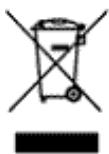
- The crossed-out wheeled bin symbol invites you to use those systems.
- If you need more information on the collection, reuse and recycling systems, please contact your local or regional waste administration.
Warranty Information
This Buffalo Technology (Buffalo Inc.) product comes with a two-year limited warranty from the date of purchase. Buffalo Technology (Buffalo Inc.) warrants to the original purchaser the product; good operating condition for the warranty period. This warranty does not include non-Buffalo Technology (Buffalo Inc.) installed components. If the Buffalo product malfunctions during the warranty period, Buffalo Technology/(Buffalo Inc.) will replace the unit, provided the unit has not been subjected to misuse, abuse, or non-Buffalo Technology/(Buffalo Inc.) authorized alteration, modifications or repair.
All expressed and implied warranties for the Buffalo Technology (Buffalo Inc) product line including, but not limited to, the warranties of merchantability and fitness of a particular purpose are limited in duration to the above period.
Under no circumstances shall Buffalo Technology/(Buffalo Inc.) be liable in any way to the user for damages, including any lost profits, lost savings or other incidental or consequential damages arising out of the use of, or inability to use the Buffalo products.
In no event shall Buffalo Technology/(Buffalo Inc.) liability exceed the price paid for the product from direct, indirect, special, incidental, or consequential damages resulting from the use of the product, its accompanying software, or its documentation. Buffalo Technology (Buffalo Inc.) does not offer refunds for any product.
@ 2003-2010 Buffalo Technology (Buffalo, Inc.)
Contact Information (USA / Canada)
Buffalo Technology USA Inc.
11100 Metric Blvd, Suite 750
Austin, TX 78758-4018
GENERAL INQUIRIES
Monday through Friday
8:30am-5:30pm CST
Direct: 512-794-8533 | Toll-free: 800-456-9799 | Fax: 512-794-8520 |
Email: sales@buffalotech.com
TECHNICAL SUPPORT
North American Technical Support by phone is available 24 hours a day, 7 days a week. (USA and Canada).
Toll-free: (866) 752-6210 | Email: info@buffalotech.com
Contact Information (Europe)
Buffalo Technology UK LTD
176 Backingham Avenue,
Slough, Berkshire, SL1 4RD
United Kingdom
GENERAL INQUIRIES
Email: sales@buffalo-technology.com
TECHNICAL SUPPORT
Buffalo Technology provides technical support in English, German, French, Italian, and Spanish.
UK 08453511005
Austria 08101 0251552
Belgium 078799917
Denmark 70150919
Finland 010802812
France 0811650220
Germany 01801 003757
Ireland 1890719901
Italy 848782113
Netherlands 09000401256
Norway 81000050
Spain 9018 10750
Sweden 0771404105
Switzerland 0848560374
For all other regions please contact +353 61 704617
www.buffalo-technology.com/contact
- Wireless N150 COMPACT USB 2.0 Adapter WLI-UC-GNM
- Contents
- Chapter 1 - Product Overview 4
- Chapter 2 - Installation. 6
- Chapter 3 - Connect to a Wireless Network 13
- Software Overview 31
- Using Client Manager V with Windows 7 and Vista 31
- Using Client Manager 3 with Windows XP 46
- Chapter 5 - Troubleshooting Common Problems............60
- Appendix 64
- Chapter 1 - Product Overview
- Features
- Mbps High Speed Mode
- System Requirements
- Package Contents
- Hardware Overview
- ACT LED
- Chapter 2 - Installation
- Installing Wireless Drivers
- 4
- 5
- Click [Install].
- 6
- 7
- 8
- 9
- Installing Client Manager
- Chapter 3 - Connect to a Wireless Network
- Automatic Secure Setup (AOSS/WPS)
- Windows 7 or Vista (Client Manager V)
- Windows XP (Client Manager 3)
- Automatic Secure Setup (WPS PIN)
- 2
- 3
- Manual Setup (Client Manager)
- Manual Setup (Windows Utility)
- Windows 7 (WLAN AutoConfig)
- Windows Vista (WLAN AutoConfig)
- Windows XP (Wireless Zero Configuration)
- Chapter 4 - Client Manager
- Software Overview
- Using Client Manager V with Windows 7 and Vista
- Main Screen
- Automatic Secure Setup and Advanced Setup
- SSID / WPS-PIN selection
- Searching Wireless Access Points
- Wireless Network Information
- WPS-PBC / AOSS selection
- Wireless Status
- Wireless LAN Diagnostic
- Profile List
- Wireless Properties
- Network Properties
- Browser Properties
- Printer Properties
- Using Client Manager 3 with Windows XP
- Status
- Scan
- Connect
- Profiles
- Profile Information (Basic)
- Profile Information (Network)
- Profile Information (Browser)
- Profile Information (Printers)
- System Tray Menu
- Option Menu
- Chapter 5 - Troubleshooting Common Problems
- The Computer does not recognize the Wireless Adapter.
- Cannot connect to the network wirelessly.
- You forgot the AP's SSID, Encryption KEY, or Password.
- The link speed is slower than 150 Mbps.
- Other Tips
- Issue:
- Answer:
- Appendix
- Mbps Mode settings
- Uninstalling the Software
- Uninstalling the Drivers
- TCP/IP Settings in Windows
- Windows 7
- Windows Vista
- Windows XP
- Compliance Information
- Federal Communication Commission Interference Statement:
- FCC Caution:
- Important Note - FCC Radiation Exposure Statement:
- Industry Canada Statement:
- Important Note - Radiation Exposure Statement:
- CE Notification:
- Europe - EU Declaration of Conformity:
- Intended use:
- EU countries not intended for use:
- Potential restrictive use:
- Taiwan:
- C∈0560
- Cesky[Czech]
- Espanol[Spanish]
- Environmental Information
- Warranty Information
- Contact Information (USA / Canada)
- GENERAL INQUIRIES
- TECHNICAL SUPPORT
- Contact Information (Europe)
Brand : BUFFALO
Model : WLI-UC-GNM : AIRSTATION N-TECHNOLOGY 150MBPS USB 2.0 CLIENT
Category : USB Network Adapter