
PHOTOSMART MZ60 - Digital Camera COMPAQ - Free user manual and instructions
Find the device manual for free PHOTOSMART MZ60 COMPAQ in PDF.


| Product type | Compact digital camera |
| Brand | COMPAQ |
| Model | PHOTOSMART MZ60 |
| Sensor resolution | 6.0 megapixels |
| Optical zoom | 3x |
| Digital zoom | 4x |
| Display | 2.0-inch LCD (approx. 115,000 pixels) |
| Storage | SD/MMC card (up to 2 GB recommended) |
| Internal memory | 16 MB |
| Power source | 2 AA batteries (alkaline or Ni-MH) or optional AC adapter |
| Interface | USB 2.0, composite video output |
| Dimensions (W x H x D) | 108 x 72 x 45 mm |
| Weight | Approx. 200 g (without batteries) |
| Shooting modes | Auto, portrait, landscape, sports, night |
| Video recording | Yes, up to 640 x 480 at 30 fps |
| Built-in flash | Yes, auto, red-eye reduction, forced, off modes |
| Care and cleaning | Clean with a soft, dry cloth. Do not use solvents. |
| Safety | Do not expose to moisture or shocks. Remove batteries if not used for an extended period. |
| Spare parts and repairability | Batteries, charger, USB cable, strap available. Repair by authorized center. |
| General information | Class B digital camera, compliant with Canadian standard NMB-003. |
Frequently Asked Questions - PHOTOSMART MZ60 COMPAQ
User questions about PHOTOSMART MZ60 COMPAQ
0 question about this device. Answer the ones you know or ask your own.
Ask a new question about this device
Download the instructions for your Digital Camera in PDF format for free! Find your manual PHOTOSMART MZ60 - COMPAQ and take your electronic device back in hand. On this page are published all the documents necessary for the use of your device. PHOTOSMART MZ60 by COMPAQ.
USER MANUAL PHOTOSMART MZ60 COMPAQ
Legal and notice information
Copyright 2007 Hewlett-Packard Development Company, L.P.
The information contained herein is subject to change without notice. The only warranties for HP products and services are set forth in the express warranty statements accompanying such products and services. Nothing herein should be construed as constituting an additional warranty. HP shall not be liable for technical or editorial errors or omissions contained herein.
Windows® is a U.S. registered trademark of Microsoft Corporation.
SD Logo is a trademark of its proprietor.
Contents
1 Getting started
Camera top and back 3
Camera front, side, and bottom. 4
Before taking pictures. 4
Install the batteries. 4
Turn on the camera 4
Choose the language 5
Set the region. 5
Set the date and time. 5
Install and format an optional memory card 6
Install the software 6
Using your camera. 7
2 Taking pictures and recording video clips
Taking pictures 8
Recording video clips 9
Instant Review 9
Auto focus and exposure. 9
Focusing on the subject. 10
Optimizing focus. 10
Using Focus Lock 11
Optimizing exposure. 11
Using zoom. 11
Optical zoom. 12
Digital zoom. 12
3 Setting options for taking pictures and recording video clips
Setting the flash. 13
Flash Setting—Red-Eye 13
Using the Picture Capture and Video Record menus. 14
Using the Self-Timer setting. 15
Using the Burst setting. 15
4 Reviewing images and video clips
18
Viewing thumbnails. 18
Magnifying images. 18
Using the Playback Menu. 18
Removing red eyes. 19
Tagging images as Favorites 19
Viewing slideshows 20
5 Using the Design Gallery Menu
Modifying colors 21
Adding borders 21
Cropping images 22
6 Transferring and printing images
Transferring images with HP Photosmart Software 23
Transferring images without HP Photosmart Software 24
Connecting to the computer 24
Using a memory card reader 25
Printing images directly to a printer 25
7 Using HP Photosmart Express
Using the Photosmart Express Menu 27
Marking images for printing. 27
Buying prints online 29
Sharing images. 29
Setting up online destinations in the camera 29
Sending images to online destinations 30
8 Using the Camera Setup Menu 31
9 Troubleshooting
Resetting the camera 32
Problems and solutions 32
Camera error messages. 37
10 Product support
Helpful websites 38
Getting assistance. 38
A Managing batteries
Top points about batteries 39
Extending battery life 39
Safety precautions for using batteries. 39
Power indicators 40
Battery performance. 40
Recharging NiMH batteries. 41
B Specifications
Memory capacity. 43
Image quality. 43
Index 44
1 Getting started
Use this section to get familiar with camera controls, set up your digital camera for use, and begin taking pictures.
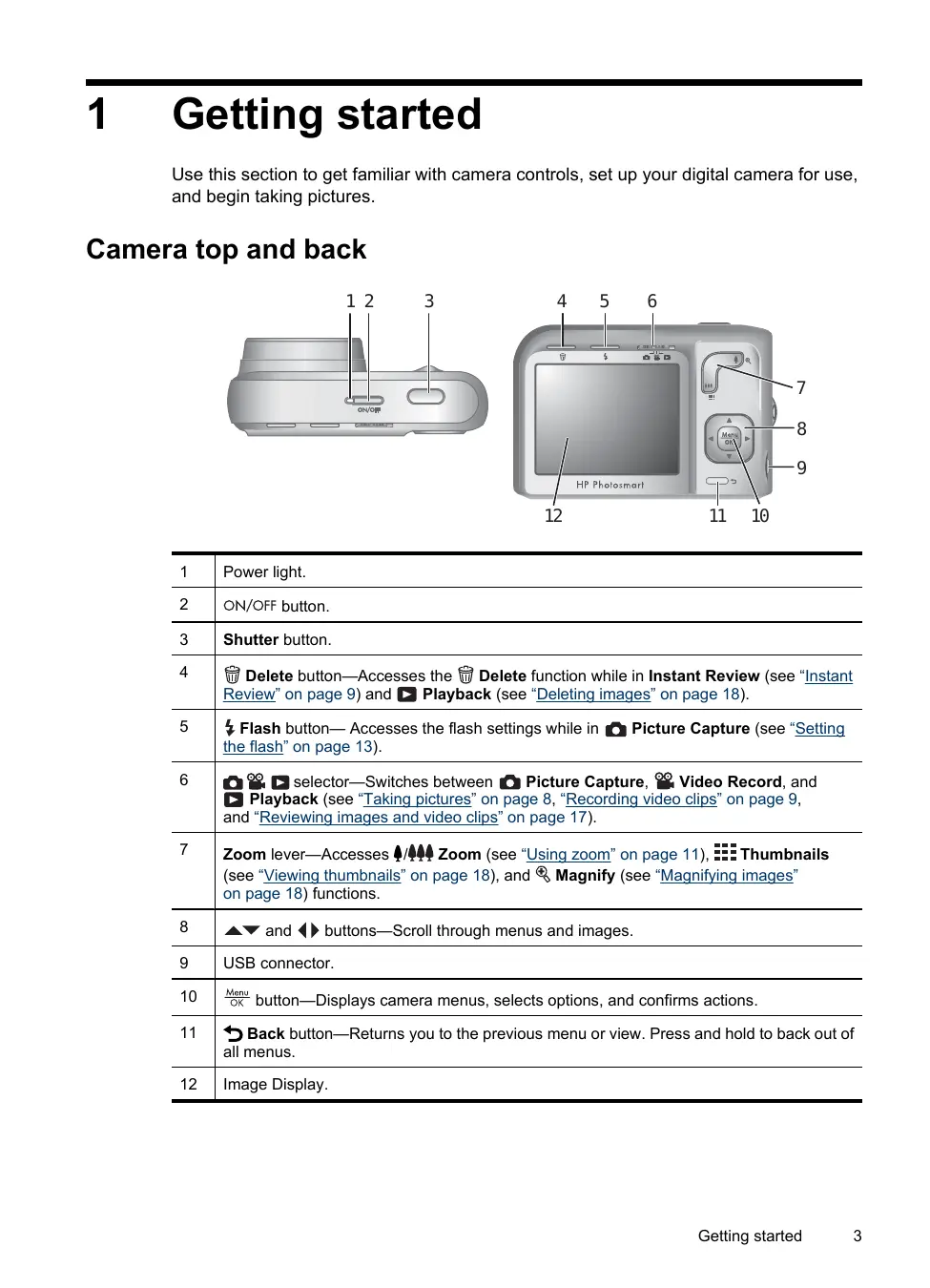
Camera top and back


| 1 | Power light. |
| 2 | ON/OFF button. |
| 3 | Shutter button. |
| 4 | Delete button—Accesses the Delete function while in Instant Review (see “Instant Review” on page 9) and ↑ Playback (see “Deleting images” on page 18). |
| 5 | Flash button—Accesses the flash settings while in Picture Capture (see “Setting the flash” on page 13). |
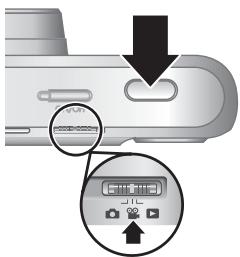
| 6 | selector—Switches between Picture Capture, Video Record, and Playback (see “Taking pictures” on page 8, “Recording video clips” on page 9, and “Reviewing images and video clips” on page 17). |
| 7 | Zoom lever—Accesses ↑ Zoom (see “Using zoom” on page 11), ↑ Thumbsils (see “Viewing thumbnails” on page 18), and ↑ Magnify (see “Magnifying images” on page 18) functions. |
| 8 | ▲▼ and ↓ buttons—Scroll through menus and images. |
| 9 | USB connector. |
| 10 | Menu OK button—Displays camera menus, selects options, and confirms actions. |
| 11 | Back button—Returns you to the previous menu or view. Press and hold to back out of all menus. |
| 12 | Image Display. |
Camera front, side, and bottom

| 1 | Flash. |
| 2 | Self-Timer light (see “Using the Self-Timer setting” on page 15). |
| 3 | Microphone. |
| 4 | Tripod mount. |
| 5 | Battery/Memory Card door. |
Before taking pictures
Complete the following procedures before taking pictures or recording video clips.
Install the batteries
- Open the Battery/Memory Card door by sliding the latch as indicated on the Battery/Memory Card door.
- Insert the two AA batteries.
- Close the Battery/Memory Card door.

NOTE: If using rechargeable NiMH batteries, fully charge the batteries before using them the first time (see "Recharging NiMH batteries" on page 41). Turn off the camera before removing the batteries.

Turn on the camera
To turn on the camera, press the ON/OFF button.
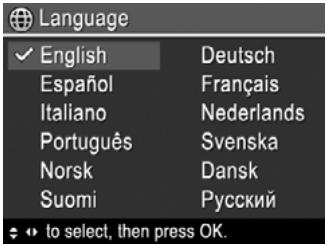
Choose the language
Use to choose the language you want, then press OK.
To change the language later, use the Camera Setup Menu (see "Using the Camera Setup Menu" on page 31).
Set the region
Along with the language setting, the region setting determines the default date format.
Use ▲▼ to choose the region you want, then press Menu OK.

Set the date and time
Accurately setting the date and time will help you locate images once you have transferred them to your computer, and will ensure that images are accurately marked if you use the date and time imprint feature. See Date & Time Imprint under "Using the Picture Capture and Video Record menus" on page 14.
- Use to adjust the highlighted value.
- Use to move to the other selections and repeat Step 1 until the date and time are set correctly.
- Press when the date, time, and format settings are correct, then press again to confirm.
To change the date and time later, use the Camera Setup Menu (see "Using the Camera Setup Menu" on page 31).

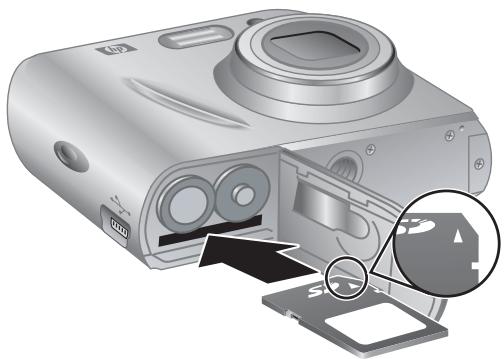
Install and format an optional memory card
This camera supports standard, high speed, and high capacity Secure Digital (SD and SDHC) memory cards, 32MB to 8GB.
- Turn off the camera and open the Battery/Memory Card door.
- Insert the memory card in the smaller slot as shown. Make sure the memory card snaps into place.
- Close the Battery/Memory Card door and turn on the camera.
NOTE: When you turn on your camera with a memory card installed, the camera indicates the number of images you can store on the memory card at the current Image Quality setting. This camera supports storing a maximum of 2000 images on a memory card.
Always format new memory cards before first use. Formatting removes all images from the memory card, so make sure to transfer existing images before formatting (see "Transferring and printing images" on page 23).
- With the camera turned on, slide to
- Press
- Use to select Format Card, then press Menu OK.
- Use to select Yes, then press Menu OK to format the card.
NOTE: Once you install a memory card, all new images and video clips are stored on the card, rather than in internal memory. To use internal memory and view images stored there, turn off the camera then remove the memory card. To transfer images from internal memory to an optional memory card, see Move Images to Card under "Using the Playback Menu" on page 18.
For information about supported memory cards, see "Storage" on page 42.
Install the software
The HP Photosmart Software provides features for transferring images and video clips to your computer, as well as features for modifying stored images (remove red eyes, rotate, crop, resize, and more).
To install the HP Photosmart Software, your computer must meet the system requirements as stated on the camera packaging.
If you have trouble installing or using the HP Photosmart Software, see the Hewlett-Packard Technical Support website for more information: www.hp.com/support. Known issues are often fixed with new releases of firmware. To optimize your digital photography experience, periodically check this website for updates to your camera's firmware, software, and drivers.
To learn about Windows Vista support for your camera, see www.hp.com/go/windowsvista (English only).
Windows:
- Close all programs and temporarily disable any virus protection software.
- Insert the HP Photosmart Software CD into the CD drive and follow the on-screen instructions. If the installation screen does not appear, click Start, click Run, type D: \Setup.exe, where D is the letter of your CD drive, then click OK.
- When the software has finished installing, re-enable virus protection software.
Macintosh:
- Insert the HP Photosmart Software CD into the CD drive.
- Double-click the CD icon on the computer desktop.
- Double-click the installer icon, then follow the on-screen instructions.
Once installation is complete and you have restarted your computer, System Preferences automatically opens to the HP Photosmart Camera settings. You may change settings so the HP Photosmart Software starts automatically when you connect your camera to your Macintosh (click the help button on the HP Photosmart Camera settings dialog for more information).
Using your camera
Now that you've completed setup, you can take and review pictures and video clips.
| For information on taking pictures and recording video clips | See “Taking pictures” on page 8 and “Recording video clips” on page 9 |
| For information on setting picture capture and video record settings | See “Setting options for taking pictures and recording video clips” on page 13 |
| For information on reviewing images and video clips on the camera | See “Reviewing images and video clips” on page 17 |
| For information on enhancing your images | See “Using the Design Gallery Menu” on page 21 |
| For information on transferring images from your camera to a computer | See “Transferring images with HP Photosmart Software” on page 23 |
| For information on printing images | See “Printing images directly to a printer” on page 25 |

TIP: To switch between Picture Capture, Video Record, andPlayback, slide to the desired option.
2 Taking pictures and recording video clips
You can take pictures when you are in Picture Capture and you can record video when you are in Video Record. Slide to to take pictures or to record video clips. The Image Display resembles the following:

| 1 | ● Picture Capture indicator. ● Video Record indicator. | |
| 2 | 12 0:15 | ● When taking pictures, pictures remaining count. ● When recording video clips, time remaining, in minutes and seconds (or in hours, minutes, and seconds if you have a large capacity memory card). |
| 3 | ● Battery level indicator (see “Power indicators” on page 40). | |
| 4 | ● Memory card indicator. | |
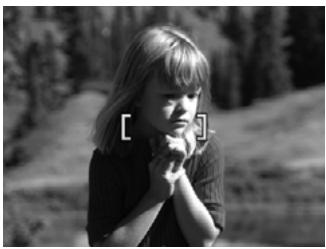
| 5 | [ ] | Focus brackets (see “Auto focus and exposure” on page 9). |
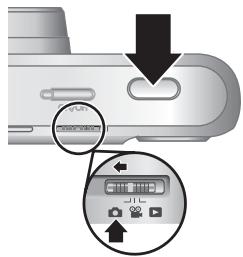
Taking pictures
You can take a picture when the camera is set to Picture Capture.
- Slide to
- Frame the subject for your picture in the Image Display.
- Press the Shutter button halfway down to measure and lock the focus and exposure. The focus brackets in the Image Display turn solid green when focus is locked (see "Auto focus and exposure" on page 9).
- Press the Shutter button all the way down to take the picture.
Recording video clips
You can record a video clip when the camera is set to Video Record.
- Slide to
- Frame the subject in the Image Display.
- Press the Shutter button halfway down to measure focus and exposure. The focus brackets in the Image Display turn solid green when focus is locked (see "Auto focus and exposure" on page 9).
- Press the Shutter button all the way down and release to begin recording video.
- To stop recording video, press and release the Shutter button again.
Instant Review
After you have taken a picture or recorded a video clip, the camera displays it briefly in Instant Review. If you want to delete the image or video clip, press , select This Image from the Delete menu, then press .

NOTE: To hear audio associated with video clips, transfer them to your computer (see “Transferring and printing images” on page 23).
Auto focus and exposure
When you press the Shutter button halfway down, the camera automatically measures and locks the focus (for pictures and video clips) and exposure (for pictures only). When you auto focus:
| Indicator | Description |
| Green focus brackets | Focus found. |
| Red focus brackets | Focus not found (see “Optimizing focus” on page 10). |
| (shaking hand icon) | (Pictures only) Long exposure required (see “Optimizing exposure” on page 11). |

TIP: If you follow the suggestions for focus and exposure and your image does not appear to be in proper focus or exposure when viewed in Playback, see the topics on blurry, dark, light, or grainy images in "Troubleshooting" on page 32.
Focusing on the subject
When you press the Shutter button halfway down, the camera searches for focus within the focus brackets. When it finds focus, the focus brackets turn green.
If the focus brackets do not frame your subject, use Focus Lock (see "Using Focus Lock" on page 11).

Optimizing focus
When the camera cannot auto focus, the focus brackets turn red. This indicates the picture may be out of focus because the subject is out of the focus range or the scene has low contrast.
If you are recording a video or taking a picture with a shooting mode (see “Using the Picture Capture and Video Record menus” on page 14) other than Close-up or Super Close-up, and the camera cannot focus, it will still take the picture. Try releasing the Shutter button, reframing, and then pressing the Shutter button halfway down again. If the focus brackets are still red, try the following.
For pictures and video clips: If the scene has low contrast, use Focus Lock (see "Using Focus Lock" on page 11) and aim at a point on the subject that has more colors or crisp edges.
For pictures only:
- Select a shooting mode more appropriate for the scene you are capturing (see Shooting Mode under "Using the Picture Capture and Video Record menus" on page 14).
- If the subject is too close (less than 300 mm or 11.81 in), move farther away from the subject or use Close-up or Super Close-up (see Close-up and Super Close-up under "Using the Picture Capture and Video Record menus" on page 14).
-
If the camera is set to Close-up or Super Close-up and cannot focus, the camera will not take the picture. Try one of the following:
-
Move within the Close-up range (200-800 mm or 7.87-31.5 in) or Super Close-up range (20-200 mm or 0.79-7.87 in) or set the camera to AUTO Auto (see Auto under "Using the Picture Capture and Video Record menus" on page 14).
- In low contrast scenes, use Focus Lock (see "Using Focus Lock" on page 11).
Using Focus Lock
Use Focus Lock to focus on a subject that is not in the center of the picture, to capture action shots more quickly by pre-focusing in the area where the action will occur, or to focus in low light or low contrast situations.
- Frame the subject for your picture within the focus brackets. In low light or low contrast situations, frame a brighter or higher contrast object.
- Press the Shutter button halfway down.
- Hold the Shutter button halfway down and re-frame.
- Press the Shutter button all the way down to take the picture.

Optimizing exposure
When you are taking a picture and press the Shutter button halfway down, the camera also measures the light level to set the proper exposure.
If the camera determines the scene will require a very long exposure, a shaking hand icon (鸣) appears. The camera will take the picture, but it may be blurry because it is difficult to hold the camera still for the length of time required. Try one of the following:
- Set the flash to A Auto Flash or Flash On (see "Setting the flash" on page 13).
- Set the camera on a tripod or stable surface.
- If the subject is out of the flash range or you do not have a tripod, set the shooting mode to (Steady Photo (see Steady Photo under "Using the Picture Capture and Video Record menus" on page 14).
- Turn on more light.

NOTE: When you are recording a video, the camera continuously updates exposure.
Using zoom
Your camera has both optical and digital zoom. Optical zoom physically extends the lens to make the subject of your picture appear closer. After you have extended the lens fully using optical zoom, the camera employs digital zoom. Digital zoom uses no moving lens parts.

TIP: The more you zoom in on the subject of your picture, the more small movements of the camera are magnified (this is called camera shake). If appears when you press the Shutter button halfway down, the picture may be blurry. To reduce potential blur, see the suggestions in "Optimizing exposure" on page 11).
Optical zoom
Optical zoom moves the lens between wide angle (1x) and telephoto (6x).
While in Picture Capture or Video Record, use the buttons on the Zoom lever to control zoom. Press to zoom in and to zoom out.

NOTE: You can set the optical zoom to the position you want just before recording video clips. However, you cannot use optical zoom while the video clip is recording.
Digital zoom
In digital zoom, the Image Display shows a yellow frame around the scene and the image quality setting (MP value). As you zoom in, the scene expands to show what the camera will capture, and the MP value decreases to indicate the resolution at which the scene will be captured.
When capturing images using digital zoom, make sure that the MP value on the Image Display is appropriate for the size at which you want to print the captured image. For MP values and their recommended print sizes, see Image Quality under "Using the Picture Capture and Video Record menus" on page 14.
To use digital zoom:
- While in Picture Capture, press on the Zoom lever to optically zoom to the maximum level, then release the lever.
- Press and hold until the image you want to capture fills the yellow frame. If you zoom in too far, press
- To return to optical zoom, press
NOTE: Digital zoom is not available when recording video clips.
3 Setting options for taking pictures and recording video clips
Your camera's default settings work well for most shooting situations. For some situations, however, the features described in this chapter can improve the pictures you take and the video clips you record. In addition to setting features that optimize the camera for lighting and motion, you can also set the camera to take a series of pictures rapidly or take images 10 seconds after you press the Shutter button, giving you time to place yourself in the image.
Setting the flash
To select a flash setting, press while in Picture Capture, use to highlight the desired flash mode, then press Menu OK. To exit without changing the flash setting, press
| A4 | Auto Flash (Default)—The camera uses the flash if necessary. |
| ● | Red-Eye—The camera uses the flash with red-eye reduction, if necessary, to minimize the possibility of human eyes appearing red in the final image. For information about red-eye, see “Flash Setting—Red-Eye” on page 13. |
| ↓ | Flash On—The camera always uses flash. If the light is behind your subject, use this setting to increase the light on the front of your subject. |
| ● | Flash Off—The camera does not use flash. Use this setting to capture poorly lit subjects beyond the flash range or to capture scenes with the existing light. |
The flash setting remains in effect until it is changed again, or you turn off the camera.

NOTE: The flash is set to ④ Flash Off in Landscape, Sunset, and
Theatre shooting modes, with the Burst setting, and while recording video
clips. The flash is set to Red-Eye in Night Portrait shooting mode.
Flash Setting—Red-Eye
The red-eye phenomenon is caused when light from the flash reflects off the subjects' eyes, which can make human eyes appear red in the captured image. Using Red-Eye causes the camera to flash quickly up to three times to shrink the subject's pupils (reducing the effect of the red-eye phenomenon) before using the main flash and capturing the image. Since it takes longer to take a picture using this setting, make sure your subjects wait for the additional flashes.
Using the Picture Capture and Video Record menus
The Picture Capture and Video Record menus allow you to adjust camera settings that affect the characteristics of the pictures and video clips you capture. The Picture Capture Menu displays only those features available for taking pictures while the Video Record Menu displays only features available for recording video clips.
- Slide to or, then press Menu OK
- Use to highlight an option, then press to display the option's menu.
- Use to highlight a setting, then press to change the setting or press → to exit without changing the setting.
- To exit the menu, hold down until the menu disappears.
For on-camera information about an option, use ▲▼ to highlight ? Help… in the option's menu, then press Menu OK.
| Mode | Shooting Mode (only)—For selecting a predefined setting optimized for particular types of scenes or shooting situations. The setting remains in effect until it is changed again, or until you turn off the camera. • AUTO Auto Mode (Default)—For taking good shots quickly, when you do not have time to select a special shooting mode. • Close-up—For taking close-up pictures of subjects between 200 and 800 mm (7.87 to 31.5 in) away. • Super Close-up—For taking very close-up pictures of subjects between 20 and 200 mm (0.79 to 7.87 in) away. • Steady Photo—For minimizing picture blur when the subject is moving or you cannot hold the camera still long enough in moderate to dim light conditions (see “Optimizing exposure” on page 11). • Theatre—For capturing images at school programs, concerts, or indoor sporting events without using flash. • Landscape—For scenes with deep perspective, such as mountain scenes. • Portrait—For pictures that have one or more people as their primary subject. • Action—For capturing sporting events, moving cars, or any scene where you want to stop the action. • Night Portrait—For capturing images of people at night. This mode uses the flash and a long exposure. As a result, you must set the camera on a tripod or stable surface. • Sunset—For capturing outdoor scenes at sunset. |
| Self-Timer—For capturing images or recording video after a 10-second delay (see “Using the Self-Timer setting” on page 15). | |
| Image Quality (only)—Sets resolution and compression for images. The greater the number, the higher the resolution. The setting remains in effect until it is changed, even when you turn off the camera. • 8MP Best—For enlarging or printing images greater than 41 x 51 cm (16 x 20 in). • Normal (8MP) (Default)—For printing images up to 41 x 51 cm (16 x 20 in). • 5MP—For printing images up to 28 x 36 cm (11 by 14 in). • 2MP—For printing images up to 13 x 18 cm (5 by 7 in). • VGA—For sending images via e-mail or posting them to the Internet. | |
| Burst (only)—For taking up to three shots quickly in succession (see “Using the Burst setting” on page 15). The setting remains in effect until it is changed again, or until you turn off the camera. | |
| Date & Time Imprint (only)—Imprints date in lower left corner of image. The setting remains in effect until it is changed, even when you turn off the camera. • Off (Default)—No date or time imprinted on the image. • Date Only—Date permanently imprinted. • Date & Time—Date and time permanently imprinted. | |
| Camera Setup...—Displays the Camera Setup Menu for setting camera behavior (see “Using the Camera Setup Menu” on page 31). | |
| Camera Help...—Displays a list of help topics for commonly used features. | |

NOTE: Some menu options are not available in certain shooting modes.
Using the Self-Timer setting
The Self-Timer allows you to take an image or video clip 10 seconds after pressing the Shutter button.
- While in the Picture Capture or Video Record menu, use to highlight Self-Timer, press Menu OK, highlight On, press Menu OK, then hold down until the menu disappears.
- Set the camera on a tripod or stable surface.
- Frame the subject in the Image Display.
- Press the Shutter button halfway down to lock focus and exposure. When the focus brackets turn green, press the Shutter button all the way down. The camera begins the 10-second countdown, then takes the picture or begins recording the video clip.
- If you are recording a video clip, press the Shutter button to stop recording.
TIP: If you want to include yourself in the picture, place the camera on a tripod or stable surface, then press the Shutter button all the way down. The camera locks focus and exposure just before the end of the countdown, allowing you time to place yourself in the scene.
The Self-Timer setting resets to Off after the image is taken.
Using the Burst setting
Burst allows you to take up to three pictures as quickly as possible when you press and hold the Shutter button all the way down.
- While in the Picture Capture Menu, use to highlight Burst, press Menu OK, highlight On, press Menu OK, then hold down until the menu disappears.
- Frame the subject, then press the Shutter button halfway down to lock the focus and exposure. Then press the Shutter button all the way down and hold it. The camera takes up to three pictures as quickly as possible until you release the Shutter button or the camera runs out of memory.
The Image Display remains off during the burst capture. After the burst images have been taken, each image appears one at a time in Instant Review (see "Instant Review" on page 9). You can delete the entire burst sequence in Instant Review. To delete individual images, see "Deleting images" on page 18.
Chapter 3
The Burst setting remains in effect until it is changed again, or until you turn off the camera.
4 Reviewing images and video clips
You can review and manipulate images and video clips in Playback as described here. For information about enhancing images, see "Using the Design Gallery Menu" on page 21.
- Slide to
- Use to scroll through your images and video clips.
Press to view video clips; press MMenu to pause a clip. When paused, use to scroll through the individual frames; press to resume playing the video.
During Playback, the Image Display also indicates additional information about each image or video clip.

| 1 | Playback indicator. | |
| 2 | Battery indicator (see“Power indicators”on page 40). | |
| 3 | SD | Memory card indicator. |
| 4 | 1 of 30 | Number of this image or video clip out of the total number of stored images and video clips. |
| 5 | ♥ | Image tagged as Favorite (see“Tagging images as Favorites”on page 19). |
| 6 | Image marked for printing via an online printing service (see“Buying prints online”on page 29). | |
| 7 | 1 | Number of electronic Photosmart Share destinations (see“Using HP Photosmart Express”on page 27). |
| 8 | 3 | Number of copies to print (see“Transferring and printing images”on page 23). |
Deleting images
To delete a displayed image during Playback:
- Press
- Use to select an option, then press Menu OK.
This Image-Deletes the image or video clip.
- All Except Favorites—Deletes all images except those tagged as Favorites. This menu option only appears if you have images tagged as Favorites (see "Tagging images as Favorites" on page 19).
- All Images (in Memory/on Card)—Deletes all stored images and video clips.
- Format (Memory/Card)—Deletes all stored files, then formats the internal memory or memory card.
Viewing thumbnails
- While in 1 Playback, press (same as Zoom Out on the Zoom lever).
- Use and to scroll through the thumbnails.
- Press Menu OK to view the highlighted image on the Image Display.

Magnifying images
This feature is for viewing purposes only; it does not permanently alter the image.
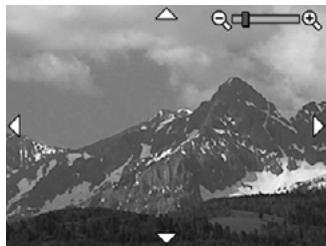
- While in 1 Playback, press (same as 4 Zoom In on the Zoom lever). The currently displayed image is magnified 2x.
- Use and to pan around the magnified image.
- Use and to change the magnification.
- Press to return to Playback.
Using the Playback Menu
- While in Playback, press Menu OK.
-
Use to highlight an option.
-
Use to select an image or video clip, press Menu OK, and follow any on-screen instructions.

NOTE: To hear audio associated with video clips, transfer them to your computer (see "Transferring and printing images" on page 23).
- To exit the selected Playback option, press .
- To exit the Playback Menu, hold until the menu disappears.
| Remove Red Eyes—Allows you to remove red eyes from captured images (see “Removing red eyes” on page 19). | |
| Design Gallery...—Allows you to enhance images by editing, cropping, adding borders, and more (see “Using the Design Gallery Menu” on page 21). | |
| Photosmart Express...—Allows you to mark images for printing, sharing, and ordering prints online (see “Using HP Photosmart Express” on page 27). | |
| Favorites—Allows you to tag images as Favorites (see “Tagging images as Favorites” on page 19). | |
| View Slideshow—Allows you to create and view slideshows of your images and videos (see “Viewing slideshows” on page 20). | |
| SD | Move Images to Card—Moves images from internal memory to memory card. Available only if there are images in internal memory and a memory card is inserted. To move images, select this option and follow the on-screen prompts. |
| Camera Setup...—Displays the Camera Setup Menu for setting camera behavior (see “Using the Camera Setup Menu” on page 31 | |
| ? | Camera Help...—Displays a list of help topics for commonly used features. |
Removing red eyes
When you select Remove Red Eyes, the camera processes the current picture to remove red eyes from the subjects.
Remove Red Eyes is only available for pictures taken with a flash.
NOTE: To prevent red eyes in images, see "Flash Setting—Red-Eye" on page 13.
The red-eye removal process takes a few seconds, after which the image displays with green boxes around corrected areas, along with the Remove Red Eyes menu:
- Save Changes (Default)—Saves a copy of the original image with the changes and returns to the Playback Menu.
- View Changes—Displays a magnified view of the image with green boxes around the corrected areas.
To exit the Remove Red Eyes menu without saving changes, press
Tagging images as Favorites
Tagging an image as a Favorite allows you to quickly select the group of images tagged as Favorites for printing or viewing as a group.

NOTE: You can tag up to 200 images as Favorites.
- While in Playback, use to display an image you want to tag as a Favorite.
- Use to highlight Favorites, press , then press again to tag the displayed image. This Image is checked in the Favorites menu. To untag the image as a Favorite, press again.
- For each additional image you want to tag as a Favorite, use to display the image, then repeat Step 2.
- To exit the Playback Menu, hold until the menu disappears.
If you have the HP Photosmart Software installed on your computer, tagged images retain the tag when transferred to your computer (see “Transferring and printing images” on page 23).
Viewing滑片
Select View Slideshow to configure and run a slideshow of images and/or video clips on the camera Image Display.
From the View Slideshow menu, use to select a slideshow option.
- Images—Plays the specified images: All (default), Favorites, Pictures Only, Videos Only.
- Interval—Sets the amount of time each image is shown: 2 secs, 5 secs (Default), 10 secs, 15 secs, 60 secs.
- Loop—Specifies how often the slideshow repeats: Once (Default), 2x, 3x, Continuous.
5 Using the Design Gallery Menu
You can use the Design Gallery features to enhance your captured images.
- While in Playback, use to scroll to an image, then press Menu OK.
- Use to highlight Design Gallery, then press Menu OK.
- Use to highlight an option, then press \ OK and follow any on-camera instructions.
| Modify Color—Allows you to apply a color effect to an image (see “Modifying colors” on page 21). | |
| Add Borders—Allows you to add a border to an image (see “Adding borders” on page 21). | |
| Rotate—Rotates images in 90-degree increments. Use ↓ to rotate the image clockwise or counter-clockwise in 90-degree increments. Press Menu OK to save the image in the new orientation. | |
| Crop—Allows you to crop an image to a selected orientation (see “Cropping images” on page 22). |
Unless otherwise stated, Design Gallery effects are applied to a copy of the image; the original image is retained.
Modifying colors
TIP: If you plan to modify colors, do so before adding a border.
Modify Color allows you to apply color schemes to the displayed image. To modify colors:
- Use to select Modify Color, then press OK.
-
Use to select a color scheme and preview the effect it has on the image.
-
Black & White—Converts color images to black and white.
- Sepia—Converts image to a brownish tone to look old-fashioned.
-
B&W Tints—Applies color tones on a black and white version of an image.
-
Press Menu OK to select the color scheme and display the Modify Color menu. Follow the on-camera instructions to adjust the color.
- Press Menu OK to save a copy of the image with the specified color scheme and return to the Design Gallery Menu. Press to exit without saving and return to the Modify Color menu.
Adding borders
TIP: If you plan to modify colors or crop your image, do so before adding a border.
Add Borders allows you to add one or more predefined borders to the displayed image. To add a border:
- Use to select Add Borders, then press OK.
-
Use to select a border type and preview the effect it has on the image.
-
Soft Edge—Applies a soft, vignetted frame to the image.
- Oval—Adds an oval matte border with beveled edges.
-
Rectangle—Adds a rectangular matte border with sharp corners.
-
Press to select the border and display the Add Borders menu.
Follow the on-camera instructions to adjust the border.
- Press to save a copy of the image with the specified border and return to the
Design Gallery Menu. Press to exit without saving and return to the Add Borders menu.
Cropping images
Crop allows you to crop the displayed image to the selected orientation, then use the Zoom lever and to ensure that the image content you want gets saved.

TIP: Make sure you crop images as needed before adding borders.
- Use to select Crop, then press Menu OK
-
Use to select a crop orientation and preview the effect it has on the image.
-
Landscape (Default)—Horizontally crops the displayed image to a 3:2 aspect ratio (one third wider than tall).
- Portrait—Vertically crops the displayed image to a 2:3 aspect ratio (one-third taller than wide).
Follow the on-camera instructions to use the Zoom lever and adjust what appears in the cropped image.
When you print, the normal aspect ratios get cropped on the top and bottom (landscape) or on the sides (portrait). Cropping helps ensure that the content you want gets printed.
- Press Menu OK to save a copy of the cropped image and return to the Design Gallery Menu. Press to exit without saving and return to the Crop menu.
6 Transferring and printing images
Regularly transferring images to your computer and deleting them from the memory card will reduce the time it takes to turn on your camera, to review images, and to transfer images. You can transfer pictures and video clips with or without the HP Photosmart Software that came with your camera. However, the HP Photosmart Software has several features for transferring and managing your images and also guides you through the transfer process.

NOTE: Transferring a large number of high-resolution images from a memory card to your computer may take up to two hours. Even if your Image Display turns off during the transfer process or it appears that nothing is happening on the computer, do not disconnect your camera from your computer until your computer indicates that image transfer is complete. When transferring a large number of images, be sure your camera batteries are fully charged or use an optional memory card reader.
Transferring images with HP Photosmart Software
If you have installed the HP Photosmart Software (see "Install the software" on page 6), use this method to transfer images and video clips to your computer.
When you connect your camera to a computer with the HP Photosmart Software installed:
- If you have tagged images as Favorites (see “Tagging images as Favorites” on page 19), the tags are transferred with the images to your computer.
- If you have marked images for printing (see "Marking images for printing" on page 27) and the computer is connected to a printer, the marked images are automatically printed.
- If you have marked images for sharing (see "Sharing images" on page 29) and the computer is connected to the Internet, the selected images are automatically sent to their destinations.
- If you have marked images to buy as prints (see “Buying prints online” on page 29) and the computer is connected to the Internet, you can follow the instructions on the computer screen to buy prints of those images you selected.
- You can transfer the images on the camera to the computer by following the instructions on the computer screen.
To transfer images using the HP Photosmart Software:
- If you have marked images for sharing, printing, or buying prints online (see "Using HP Photosmart Express" on page 27), verify that the computer is connected to a printer and/or the Internet.
-
Turn off the camera.
-
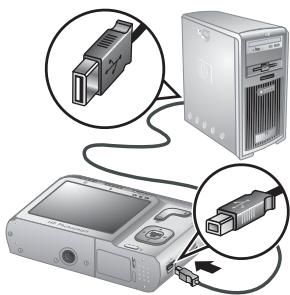
Connect the camera and computer using the USB cable that came with your camera.
- Turn on the camera. When the Image Display indicates that the camera is connected to the computer, follow the instructions on the computer screen. For more information, see the Help feature in the HP Photosmart Software.

NOTE: If the camera does not successfully connect to the computer, see "My camera stalls when establishing a connection to the computer." on page 36.

After you have transferred the images, you can then use the HP Photosmart Software to edit, print, or send the images from your computer.
Transferring images without HP Photosmart Software
If you do not install the HP Photosmart Software:
- You cannot use the Share features or Buy Prints Online on the camera's Photosmart Express Menu (see "Using HP Photosmart Express" on page 27).
- Images marked for printing do not automatically print when the camera is connected to the computer.
- Favorites tags do not transfer to the computer.
However, you can still transfer images and video clips to your computer by:
- Connecting your camera directly to the computer (see “Connecting to the computer” on page 24)
Using a memory card reader (see "Using a memory card reader" on page 25)
Connecting to the computer
- Turn off the camera, connect the camera and computer using the USB cable that came with your camera, then turn on the camera. Your computer's provided image transfer software should start. Follow the on-screen instructions to transfer your images.
- When you have finished transferring images, disconnect the camera from the computer.
If you encounter problems, set the camera's USB Configuration to Disk Drive (see USB Configuration under "Using the Camera Setup Menu" on page 31) and reconnect to your computer.

NOTE: On Macintosh computers, if you set the camera to Disk Drive and neither Image Capture nor iPhoto starts automatically, look on the desktop for a disk drive labeled with your camera model number and copy the images manually. For more information about how to copy files, visit Mac help.
Using a memory card reader
You can put your camera's optional memory card into a (separately purchased) memory card reader. Some computers and HP Photosmart printers have built-in memory card slots which act as a memory card reader.
- Insert your camera's memory card into the memory card reader (or into your computer's memory card slot).
- Your computer's provided image transfer software starts automatically and guides you through the process of transferring images.
- After verifying that the images were successfully transferred, return the memory card to your camera.
If no application starts automatically or if you want to copy the images manually, look for the disk drive for the memory card, then copy the images to your local hard drive. For more information about how to copy files, refer to your computer's help.
Printing images directly to a printer
You can print images directly from the camera to any PictBridge-certified printer. For information about printing images from your computer, see "Transferring images with HP Photosmart Software" on page 23.

NOTE: You cannot print video clips using the method described in this section. You can, however, print a frame from a video clip using the HP Photosmart Software. For more information, see Help in the HP Photosmart Software.
- Check that the printer is turned on, there is paper in the printer, and there are no printer error messages.
- Turn off the camera, connect the camera and printer using the USB cable that came with your camera, then turn on the camera.
- If the Print marked pictures? screen is displayed on the camera's Image Display, do one of the following:
If you want to print the pictures you marked for printing (see "Marking images for printing" on page 27), highlight Yes, press Menu OK, then follow the on-camera instructions to select print op

NOTE: After the printer prints the marked images, the Image Display on the camera shows an image. You can then select individual images to print by following the remaining steps in this procedure.
If you want to select individual images to print, highlight No, then press Menu OK.
-
When the Image Display on the camera shows an image:
-
If you want to print one or more images, use to display an image you want to print, use to specify the number of copies, then press . In the Print Options menu, highlight Print This Image Now, and press .
-
If you want to print a group of images or modify the printer settings, press Menu OK, highlight Print Menu..., then press Menu OK again. Highlight the option you want.
-
Printer Settings—Specifies paper size, print size and quality, and borderless printing. Use to select a print option and use to modify the selected print option. When you are done specifying print options, press Menu OK.
- Print All—Prints one copy of each image. Press Menu OK and follow the on-camera instructions to begin printing.
- Print Index—Prints all images as thumbnails. Press Menu OK to begin printing.
- Print Favorites—Prints one copy of each image tagged as a Favorite. Press Menu OK to begin printing. This option is available only if you have tagged at least one image as a Favorite (see "Tagging images as Favorites" on page 19).
-
Cancel Printing—Stops the printing of any images that have not yet printed. Press , highlight Yes, then press .
-
After the printer has printed all the images you selected, disconnect the camera from the printer.

NOTE: If you connect the camera to a non-HP printer and encounter problems with printing, contact your printer manufacturer. HP does not provide customer support for non-HP printers.
7 Using HP Photosmart Express
With HP Photosmart Express, you can select pictures in your camera to print automatically (see "Marking images for printing" on page 27), to buy prints online (see "Buying prints online" on page 29), or to send to custom destinations (see "Sharing images" on page 29) the next time you connect the camera to your computer or printer.
You must have the HP Photosmart Software installed on your computer to use some features in the Photosmart Express Menu. For information about installing this software, see "Install the software" on page 6.

NOTE: Available online services vary by country or region.
Using the Photosmart Express Menu
To display the Photosmart Express Menu:
- Slide to and press Menu OK
- Use ▲▼ to highlight Photosmart Express..., then press Menu OK.
- Use to highlight a menu option, then press \ OK
| Print—Allows you to select images and specify number of copies to print. See “Marking images for printing” on page 27. | |
| Share—Allows you to add custom online destinations and share images to one or more destinations. See “Sharing images” on page 29. | |
| Buy Prints Online—Specifies images you want printed by an online printing service. See “Buying prints online” on page 29. |

NOTE: The features in the Photosmart Express Menu are available only for pictures. They are not available for video clips.
Marking images for printing
Marked images are automatically printed when you connect the camera to a PictBridge-certified printer or a computer with the HP Photosmart Software installed. You can mark
individual images, all images, or groups of images tagged as Favorites (see "Tagging images as Favorites" on page 19).
- While in the Photosmart Express Menu, use to highlight Print, then press MMenu OK.
-
In the Print menu, highlight an option, then press Menu OK.
-
This Image—Marks the image currently displayed. You can scroll to a different image using .
- All Favorites...—Displays the Print All Favorites entry. Press Menu OK. This option is available only if you have tagged more than one image as a Favorite (see Tagging images as Favorites" on page 19).
-
All Images...—Displays the Print All Images entry. Press Menu OK. This option is available only if you have more than one image in the camera.
-
If you want to print more than one copy, highlight Change Number of Copies, then press Menu OK . In the Print menu for changing the number of copies, use to specify the number of copies to print, then press Menu OK .
-
From the main Print menu, you can mark additional images for printing, using to display an image, highlighting This Image in the Print menu, pressing Menu OK, then repeating Step 3.
-
When you are done marking images for printing, hold down until the menu disappears.
- To print the marked images directly to a printer, see "Printing images directly to a printer" on page 25. To print them from a computer connected to a printer, see "Transferring images with HP Photosmart Software" on page 23.


Buying prints online
You can mark images you want to order as prints. The next time you connect the camera to a computer with the HP Photosmart Software installed, you can order prints of the marked images online.
- While in the Photosmart Express Menu, use to highlight Buy Prints Online, then press Menu OK.
-
In the Buy Prints Online menu, highlight an option, then press Menu OK
-
This Image—Marks the image currently displayed. You can scroll to a different image using .
- All Favorites...—Displays the Buy Prints of All Favorites entry. Press Menu OK, then press . This option is available only if you have tagged more than one image as a Favorite (see "Tagging images as Favorites" on page 19).
-
All Images...—Displays the Buy Prints of All Images entry. Press Menu OK, then press . This option is available only if you have more than one image in the camera.
-
To mark additional images, use to display an image, press , then repeat Step 2.
- When you are done marking images for which you want to buy prints, hold down until the menu disappears.
- To buy prints of the images you selected, see "Transferring images with HP Photosmart Software" on page 23.
Sharing images
You can customize the Share menu to include e-mail addresses, group distribution lists, or other online services. You can then select images to send to these destinations.
Setting up online destinations in the camera
You can specify up to 34 custom destinations (such as individual e-mail addresses or group distribution lists) in the Photosmart Express Menu.
- Verify that your computer is connected to the Internet.
- While in the Photosmart Express Menu, use to highlight Share, then press Menu OK . If you have already created destinations, highlight Share Menu Setup and press Menu OK again.
- Connect the camera to your computer. Follow the on-screen instructions to set up destinations in your camera.
- Turn off the camera and disconnect the camera from the computer. Turn on the camera, access the Photosmart Express Menu, then highlight Share and press to verify that the new destinations are now in the camera.
Sending images to online destinations
After you have set up online destinations in the camera, you can mark images to be sent to these custom destinations the next time you connect your camera to your computer.
- While in the Photosmart Express Menu, use to highlight Share, then press Menu OK.
-
In the Share menu, highlight an option, then press Menu OK
-
Custom Destinations—Selects the destination to send the image displayed in the background. There may be multiple destinations depending on the number of them you created (see “Setting up online destinations in the camera” on page 29). You can scroll to a different image using .

- All Favorites...—Displays a list of destinations. Highlight each destination to which you want to send all Favorites, pressing Menu OK to select each destination. After selecting destinations, press . This option is available only if you have tagged more than one image as a Favorite (see "Tagging images as Favorites" on page 19).
-
All Images...—Displays a list of destinations. Highlight each destination to which you want to send all images, pressing to select each destination. After selecting destinations, press . This option is available only if you have more than one image in the camera.
-
To select additional images to share, use to display an image, then repeat Step 2.
- When you are done marking images to share, hold down until the menu disappears.
- To send the images to the destinations, see "Transferring images with HP Photosmart Software" on page 23.
8 Using the Camera Setup Menu
The Camera Setup Menu allows you to set preferences for the camera's behavior. The Camera Setup Menu is available from the Picture Capture, Video Record, and Playback menus.
- While in the Picture Capture, Video Record, or Playback menu, use to highlight Camera Setup..., then press Menu OK.
- Use to highlight a menu option, then press Menu OK to display the menu option's menu.
- Use to highlight a setting, then press Mnu OK
- To exit the Camera Setup Menu, hold down until the menu disappears. Settings you specify remain until you change them.
| Display Brightness—Adjusts the brightness of the Image Display. • Low—for extending battery life. • Medium (Default)—For normal viewing conditions. • High—for very bright lighting conditions. | |
| Camera Sounds—Turns the camera sounds (such as button presses and shutter clicks) off and on. On (Default), Off. | |
| Date & Time—Sets the date and time. See “Set the date and time” on page 5. | |
| USB Configuration—Specifies how a computer recognizes the camera. See “Connecting to the computer” on page 24. • Digital Camera (Default)—Recognizes the camera as a digital camera using PTP (Picture Transfer Protocol). • Disk Drive—Recognizes the camera as a disk drive using MSDC (Mass Storage Device Class). | |
| (Language)—Sets the language. See “Choose the language” on page 5. |
9 Troubleshooting
Use this section to find information on:
- Resetting the camera (see "Resetting the camera" on page 32)
Possible problems and solutions (see "Problems and solutions" on page 32)
Resetting the camera
If your camera does not respond when you press buttons, reset the camera.
- Turn off the camera.
- Remove the memory card and batteries for at least 5 seconds.
- Reinsert the batteries and close the Battery/Memory Card door.
- Turn on the camera. On successful reset, you may be prompted to set the date and time (see "Set the date and time" on page 5).
- Verify that the camera works without an optional memory card, turn off the camera, then reinstall the card.
When the camera is reset, any images or video clips stored in memory are retained.
Problems and solutions
Use this information to find solutions to common issues you may have using your camera.

NOTE: Known issues are often fixed with new releases of firmware. To optimize your digital photography experience, periodically check the Hewlett-Packard Technical Support website (www.hp.com/support) for updates to your camera's firmware, software, and drivers.
How can I get professional-quality prints if I don't have a photo printer?
Use the Buy Prints Online feature on the Photosmart Express Menu (see "Buying prints online" on page 29).
The camera does not turn on.
- Install new or recharged batteries, ensuring that the batteries are inserted correctly (see "Install the batteries" on page 4). If you are using rechargeable batteries, ensure they are rechargeable Nickel Metal Hydride (NiMH) batteries.
- Reset the camera (see "Resetting the camera" on page 32).
- Ensure that the memory card is the proper type (see "Storage" on page 42). If so, remove the memory card and turn on the camera; if the camera turns on, format the memory card (see "Install and format an optional memory card" on page 6). If the camera still does not turn on, format the memory card using a memory card reader, or replace the memory card.
I have to recharge the NiMH batteries frequently.
- New batteries or batteries that have not been charged recently must be recharged to reach full capacity.
If you have not used the batteries for two months or longer, recharge them. - For tips on conserving battery life, see "Extending battery life" on page 39.
The NiMH batteries will not charge.
Try charging the batteries again after they have drained awhile.
- If charging the batteries in an optional battery charger does not work, replace the batteries.
It takes the camera a long time to turn on.
- Your camera may be slower to turn on if you have a high capacity (4GB or larger) memory card inserted.
- Having a large number of files (over 300) stored on a memory card affects the time it takes for the camera to turn on. Transfer stored files to your computer, then format the memory card.
- Power-on time in Playback is slow if you have a large number of tagged images on your memory card. Transfer the images to your computer (see "Transferring and printing images" on page 23) and review them there.
The camera does not respond when I press a button.
- Turn on the camera.
- Most of the camera buttons do not respond when the camera is connected to a computer.
- Replace or recharge the batteries.
- Reset the camera (see "Resetting the camera" on page 32).
- The memory card may be defective. Remove the memory card and test the camera; if the camera works, replace the memory card.
- Format the internal memory and/or the memory card (see "Install and format an optional memory card" on page 6).
The camera does not take a picture when I press the Shutter button.
Press the Shutter button all the way down.
- The memory card or internal memory may be full. Transfer images from the camera to your computer, then format the internal memory or the memory card (see "Install and format an optional memory card" on page 6). Or replace the card with a new one.
- The camera may be processing. Wait a few seconds for the camera to finish processing the last image before taking another picture.
The Image Display is not working.
- The Image Display may have timed out. Press any camera button to wake up the camera.
- Reset the camera (see "Resetting the camera" on page 32).
- Replace or recharge the batteries.
My image is blurry.
Use Focus Lock (see "Using Focus Lock" on page 11).
Use a tripod to hold the camera steady, or improve lighting conditions.
Use Steady Photo shooting mode (see Steady Photo under "Using the Picture Capture and Video Record menus" on page 14).
- Set the flash to A4 Auto Flash or Flash On and set the shooting mode to Action.
My image is too bright.
- Turn the flash off (see "Setting the flash" on page 13).
- Move back from the subject and use zoom.
My image is too dark.
- Wait for natural lighting conditions to improve, use the flash (see “Setting the flash” on page 13), or add indirect lighting.
- If the subject you are trying to capture is outside the flash range, turn off the flash. This causes a longer exposure time, so use a tripod or hold the camera steady. For information about flash working distance for this camera, go to www.hp.com/support, select your language and region, enter your camera model number in the Search: Product field, click Product Information, then click Specifications.
My image is grainy.
- Add indirect lighting, use the flash (see "Setting the flash" on page 13), or wait for natural lighting conditions to improve.
Using Steady Photo shooting mode can increase graininess. - You may have zoomed in too far using digital zoom (see "Digital zoom" on page 12).
- If the camera is warm, the effect will diminish as the camera cools. For best image quality, avoid storing the camera in very hot locations.
Images are missing on my camera.
Remove the memory card and see if the images are stored in internal memory. If so, transfer the images to the memory card (see Move Images to Card under “Using the Playback Menu” on page 18).
I have two memory cards that are the same size, but one stores many more pictures than the other.
- Your memory card may contain files that are not images or videos recognized by the camera. Save any data on the memory card that you want to keep, then format the memory card (see "Install and format an optional memory card" on page 6).
- If your memory cards are 4GB or larger, the card that stores fewer images may have been improperly formatted by a device that does not support 4GB or larger cards. A new type of High Capacity Secure Digital (marked SDHC) memory card is now available that prevents improper formatting and use by devices not supporting 4GB or larger cards. Try formatting the card in this camera, which supports High Capacity Secure Digital cards.
- Your memory card may be defective. If you have formatted your memory card in the camera and it does not show the expected capacity, consider replacing the memory card.
My camera indicates I can store 2000 images regardless of the Image Quality setting.
When you turn on your camera with a memory card installed, the camera indicates the number of images you can store on the memory card at the current Image Quality setting. This camera supports storing a maximum of 2000 images on a memory card.
It takes a long time to "Delete All" images from my memory card.
Having a large number of images stored on a memory card increases the time the camera takes to delete them. Instead of deleting them, format the memory card (see "Install and format an optional memory card" on page 6).
The Power light is on but the Image Display is off, or the camera seems stuck and won't operate.
- Slide to a different position or press any camera button to reactivate the Image Display.
- Reset the camera (see "Resetting the camera" on page 32).
The camera responds sluggishly when trying to review images.
- Power-on time in Playback is slow if you have a large number of tagged images on your memory card. Transfer the images to your computer (see "Transferring and printing images" on page 23) and review them there.
- See "Storage" on page 42 and "Memory capacity" on page 43 for tips about memory cards.
Video recording terminates abruptly. The video is saved successfully, but it is shorter than expected.
Replace your memory card with a faster card. Look for cards marked High Performance, Pro, Ultra, or High Speed.
Video recording terminates abruptly and the video will not play back.
- Remove the memory card and see if the video is stored in internal memory. If so, transfer the video to a memory card (see Move Images to Card under “Using the Playback Menu” on page 18) or to your computer (see “Transferring and printing images” on page 23).
- If the video is stored on a memory card, transfer the video to your computer (see "Transferring and printing images" on page 23), then reformat the card (see "Install and format an optional memory card" on page 6).
The camera gets warm (or even hot) to the touch.
This is normal. However, if anything seems out of the ordinary, turn off the camera and allow the camera to cool. Then examine the camera and the batteries for signs of possible damage.
For best image quality, turn off the camera when not using. Always store the camera in a cool place.
My camera stalls when establishing a connection to the computer.
- Your memory card may have a large number of images stored on it. The more images you have on your card, the longer it takes to establish a connection to the computer (up to 5 minutes). If you have a large number of images on the memory card, be sure to allow this additional time to establish the connection.
- Ensure that the USB cable is properly connected to the camera and computer.
- Try connecting the USB cable to another USB port on the computer.
- Turn the camera off, then on again. If that does not fix the problem, reset the camera (see “Resetting the camera” on page 32).
- If the problem persists, contact HP Support (see "Product support" on page 38).
I cannot transfer images from the camera to my computer.
- Either install the HP Photosmart Software (see "Install the software" on page 6), or see "Transferring images without HP Photosmart Software" on page 24.
- Configure your camera preferences so the HP Photosmart software starts automatically when you connect your camera to your Macintosh. Open the HP Photosmart Camera settings in System Preferences to make changes, or to view the camera software help.
- Set your camera to act as a Disk Drive (see USB Configuration in "Using the Camera Setup Menu" on page 31), then follow the steps in "Connecting to the computer" on page 24.
I get an error message when transferring images to my computer.
A power surge or electrostatic discharge may have affected the camera. Close the HP Photosmart Software, disconnect the camera from the computer, and reset the camera (see "Resetting the camera" on page 32). Then, restart the image transfer process (see "Transferring images with HP Photosmart Software" on page 23).
The HP Photosmart Software does not start automatically when I connect to my Macintosh.
Configure your camera preferences so the HP Photosmart software starts automatically when you connect your camera to your Macintosh. Open the HP Photosmart Camera settings in System Preferences to make changes, or to view the camera software help.
The HP Photosmart Software takes a long time before it is ready to transfer images from my camera.
Having a large number of files stored on an optional memory card affects the amount of time it takes for the HP Photosmart Software to start transferring images. Transfer all images stored on the memory card, then format the card (see "Install and format an optional memory card" on page 6).
My camera shuts down unexpectedly.
- A power surge or electrostatic discharge may have affected the camera. Remove the battery and reset the camera (see “Resetting the camera” on page 32). Then reinstall the battery and turn on the camera.
- Recharge the batteries.
- Replace the battery.
I am having a problem installing or using the HP Photosmart Software.
- Make sure your computer meets the minimum system requirements as stated on the camera packaging.
Refer to the HP Photosmart Software online help system.
Refer to the Hewlett-Packard Technical Support website: www.hp.com/support.
Camera error messages
Should you receive one of the following error messages when using your camera, you can look up details about the message by visiting www.hp.com and searching on the specific code.
Lens Error (general)—Mz60-021
Lens Error (zoom cannot retract)—Mz60-022
Lens Error (lens cannot extend)—Mz60-033
Lens Error (zoom in failed)—Mz60-041
Lens Error (zoom out failed)—Mz60-081
Unsupported card—Mz60-200
- Unable to format card—Mz60-202
Error saving image—Mz60-100
Error saving video—Mz60-102
- Batteries Low (followed by data on battery types and performance)—AA-400
10 Product support
Use this section to find support information for your digital camera, including links to helpful websites and an overview of the support process.
Helpful websites
| Camera tips, product registration, newsletter subscriptions, driver and software updates, purchase HP supplies and accessories | www.hp.com Under Learn about:, click Digital Photography |
| Customers with disabilities | www.hp.com/hpinfo/community/accessibility (English only) |
| Hewlett-Packard Technical Support; firmware, software, and driver updates; support information | www.hp.com/support |
| Windows Vista support | www.hp.com/go/windowsvista (English only) |
Getting assistance
To get the best from your HP product, consult the following standard HP support offerings:
- Consult the product documentation.
Review "Troubleshooting" on page 32 in this document.
Review the electronic Help section within the software.
Refer to the camera's Help screens.
-
Visit the Hewlett-Packard Technical Support website at www.hp.com/support, or contact the store where you purchased this camera. The Hewlett-Packard Technical Support website is available to all HP customers. The Hewlett-Packard Technical Support website is the fastest source of up-to-date product information and expert assistance, including:
-
Fast e-mail access to qualified online support specialists.
- Firmware, software, and driver updates for your camera.
- Valuable product and troubleshooting information for technical issues.
-
Proactive product updates, support alerts, and HP newsletters (available when you register your camera).
-
HP support by phone. Support options and fees vary by product, country/region, and language. For a list of support conditions and phone numbers, visit www.hp.com/support.
- Post-warranty period. After the limited warranty period, help is available online at www.hp.com/support.
- Extending or upgrading your warranty. If you would like to extend or upgrade your camera's warranty, please contact the store where you bought the camera or check the HP Care Pack offers at www.hp.com/support.
- If you already purchased an HP Care Pack Service, please check the support conditions on your contract.
A Managing batteries
Your camera uses two AA batteries, either Alkaline, Photo Lithium, or rechargeable Nickel Metal Hydride (NiMH). Photo Lithium and NiMH batteries provide longer battery life than Alkaline batteries.
Top points about batteries
- The batteries shipped with your camera are AA Alkaline. These batteries have a short life and are intended to let you begin using your camera immediately. When the camera warns that the battery charge is low (see "Power indicators" on page 40), HP recommends replacing them with Photo Lithium or rechargeable NiMH batteries for longer battery life.
Fully charge NiMH batteries before using them for the first time. - The first several times you recharge NiMH batteries, they may not provide the number of shots per charge that you expect. Their performance will improve after the batteries have been charged, then discharged completely four or five times. You can use the camera normally to discharge the batteries during this conditioning period.
- Always insert the batteries in the camera correctly (see "Install the batteries" on page 4). If the batteries are inserted improperly, the compartment door may close but the camera will not operate.
If you do not intend to use your camera for more than one month, remove the batteries from the camera. - The performance of all batteries will decrease as the temperature drops. To improve battery performance, store the camera and batteries in a warm inside pocket when in a cold environment. To prevent short-circuiting the batteries, never carry small metal items such as keys or coins in the same pocket with your batteries.
Extending battery life
To conserve battery power, the Image Display turns off after a period of inactivity. Pressing any button wakes up the camera. After five minutes of inactivity, the camera turns off.
To further extend battery life:
- Set Display Brightness to Low (see Display Brightness under "Using the Camera Setup Menu" on page 31).
- Set your camera to A Auto Flash (see Auto Flash under "Setting the flash" on page 13).
Use optical zoom sparingly.
Use video recording sparingly.
Use Image Display sparingly. - If you are turning on the camera only to view images, slide → → to → , then turn on the camera to start in → Playback without extending the lens.
Safety precautions for using batteries
Always use two identical batteries of the same chemistry, brand, and age.
- Do not place batteries in fire or heat them. Always store charged batteries in a cool location.
- Do not connect the positive and negative terminals of the battery to each other with any metal object.
- Do not carry or store batteries with metal objects. Do not drop batteries into a change-filled pocket.
- Do not pierce batteries or subject them to strong impacts or shocks.
- Do not solder directly onto batteries.
- Do not allow batteries to get wet.
- Do not disassemble or modify batteries.
- Immediately discontinue use of a battery if, while using, charging, or storing the battery, the battery emits an unusual smell, feels excessively hot (note that it is normal for the battery to feel warm), changes color or shape, or appears abnormal in any other way.
- In the event batteries leak and the fluid gets into one's eye, do not rub the eye. Rinse well with water and immediately seek medical care. If left untreated, the battery fluid could cause damage to the eye.
CAUTION: Risk of explosion if battery is replaced by an incorrect type. Dispos of used batteries according to the instructions.
Power indicators
When the batteries are low, one of the following icons appears in the Image Display. If no battery icon appears in the Image Display, the batteries have sufficient power to function normally.
| Icon | Description |
| Battery level is low. Camera will soon power down. | |
| Blinking | Battery is depleted. Camera will power down. |
NOTE: If the camera is without batteries for a prolonged period, the clock may be reset and you may be prompted to update it the next time you power on the camera.
Battery performance
This graph shows the relative number of photos you can take using Photo Lithium, NiMH, and Alkaline batteries. Actual performance may vary based on usage, battery type, and battery manufacturer. Many additional factors affect the number of photos you can take (see "Top points about batteries" on page 39).

NOTE: For more information about batteries, go to www.hp.com/support and search on the code AA-400.
The following table shows how Alkaline, Photo Lithium, and rechargeable NiMH batteries perform in different types of use scenarios:
| Type of Use | Alkaline | Photo Lithium | NiMH |
| Most economical if you take more than 30 pictures per month | Poor | Fair | Good |
| Most economical if you take fewer than 30 pictures per month | Fair | Good | Fair |
| Heavy use of flash, frequent pictures | Poor | Good | Good |
| Heavy use of video | Poor | Good | Good |
| Heavy use of Image Display | Poor | Good | Good |
| Overall battery life | Poor | Good | Fair |
| Low temperature/winter use | Poor | Good | Fair |
| Infrequent use | Fair | Good | Fair |
| Want to recharge battery | No | No | Good |
Recharging NiMH batteries
You can recharge optional NiMH batteries with an optional HP quick charger. For information about recharging NiMH batteries, as well as safety precautions when recharging, see the documentation that came with your HP quick charger.
B Specifications
| Resolution | Pictures: · 8MP (3264 by 2448) effective pixel count · 8.28MP (3320 by 2496) total pixel count Video clips (QVGA): 320 by 240 total pixel count, 24 frames/sec |
| Sensor | Diagonal 8 mm (1/1.8-inch, 4:3 format) CCD |
| Color depth | 36 bit (12 bits by 3 colors). 36 bit images are transformed into an optimized 24 bit image and stored in the JPEG format. This transformation results in no discernible change to color or detail in the stored image, and allows the image to be read by computers. |
| Lens | Focal length: · Wide—5.4 mm · Telephoto—16.2 mm · 35 mm equivalent—32 mm to 96 mm F-Number: · Wide—f/2.8 to f/8 · Telephoto—f/4.8 to f/7.6 |
| Viewfinder | None |
| Zoom | 6x optical zoom, 8x digital zoom |
| Focus | Normal: · Wide—300 mm (11.81 in) to infinity · Telephoto—700 mm (27.55 in) to infinity Close-up: Wide—200 mm to 800 mm (7.87 in to 31.5 in) Super Close-up: Wide—20 mm to 200 mm (.79 in to 7.87 in) |
| Shutter speed | 1/1000 to 2 seconds |
| Built-in flash | Yes, 6-second typical recharge time (8-second maximum recharge time at power-on) |
| Flash working range | To locate the flash working range for this camera, go to www.hp.com/support, select your language and region, enter your camera model number in the Search: Product field, click Product Information, then click Specifications. |
| Image Display | 6.35 cm (2.5 in) color LTPS TFT LCD with backlight, 153,600 pixels (640 by 240) total pixel count |
| Storage | · 16MB internal flash memory. · Slot for memory card. · This camera supports standard, high speed, and high capacity SD and SDHC memory cards, 32MB to 8GB. |
| This camera supports storing a maximum of 2000 images on a memory card. The number of images or video clips that can be saved in memory depends on the Image Quality settings (see “Memory capacity” on page 43). | |
| Compression format | JPEG (EXIF) for pictures Motion JPEG for video clips |
| Interfaces | USB mini-B |
| Standards | USB-PTP and MSDC Jpeg Motion JPEG DPOF EXIF DCF DPS |
| External body dimensions | Measurements with camera off and lens retracted (width, depth, height): 96.16 mm (W) by 25.8 mm (D) by 62.2 mm (H) (3.78 in by 1.01 in by 2.44 in) |
| Weight | 128.5 grams (4.53 ounces) without battery |
| Power | Power source: two AA batteries (Alkaline, Photo Lithium, or rechargeable NiMH) |
| Temperature range | Operational: 0° to 40°C (32° to 104°F) at 15% to 85% relative humidity Storage: -30° to 65°C (-22° to 149°F) at 15% to 90% relative humidity |
Memory capacity
Not all 16MB of internal memory is available for storing images, because some memory is used for internal camera operations. The actual file sizes and number of still images that can be stored in internal memory or on a memory card will vary depending on the content of each still image, or length of each video clip and associated audio clip.
Image quality
To locate the approximate number and average size of still images that can be stored in internal memory when the camera is set to different Image Quality settings (see Image Quality under "Using the Picture Capture and Video Record menus" on page 14), go to www.hp.com/support, select your language and region, enter your camera model number in the Search: Product field, click Product Information, then click Specifications.
Index
A
Action mode 14
adding borders 21
arrow buttons 3
assistance 38
Auto mode 14
B
Back button 3
batteries
conserving 39
install 4
performance 40
top points about use 39
battery door 4
borders 21
Burst setting 14, 15
C
camera
dimensions 43
parts 3, 4
specifications 42
turn on/off 4
weight 43
Camera Setup Menu 31
Camera Sounds 31
Close-up mode 14
color depth 42
colors 21
compression format 43
computer, connect to 23, 24
D
Date & Time 5, 31
Date & Time Imprint 15
Delete button 3
digital zoom 12
dimensions 43
direct print 25
Display Brightness 31
E
e-mail images 29
exposure 11
F
F-number 42
Favorites 19
flash
red-eye reduction 13
setting 13
Flash button 3
focal length 42
focus
auto focus 9
brackets 9
focus lock 11
optimizing 10
format memory card 6
G
getting assistance 38
H
HP Photosmart Express 27
HP Photosmart Software 6
1
Image Display 3
Image Quality 14, 43
images
Date & Time Imprint 15
Image Quality 14
magnifying 18
number remaining 8
sending 30
transfer to computer 23
install memory card 6
install software 6
Instant Review 9, 15
interfaces 43
internal memory 8, 43
L
Landscape mode 14
Language 5, 31
M
Magnify control 3
magnifying images 18
memory
capacity 43
card 6, 8, 42
card door 4
Menu/OK button 3
menus
Camera Setup 31
Design Gallery 21
Photosmart Express 27
Picture Capture 14
Playback 18
Video Record 14
microphone 4
modifying colors 21
Move Images to Card 19
N
Night Portrait mode 14
number of
pictures 43
pictures remaining 8
0
on/off 4
ON/OFF button 3
online
destinations 29
print buying 29
optical zoom 12
P
parts of camera 3, 4
Photosmart Express Menu
buying prints online 29
marking images for printing 27
sharing images 29
Picture Capture Menu 14
pictures 8, 15
Playback 17
Playback Menu 18
Portrait mode 14
power
indicators 40
light 3
ON/OFF button 3
Index
print pictures 25, 27
prints, buy online 29
problems and solutions 32
R
record video clips 9
red-eye removal 19
Region 5
remaining pictures count 8
removing red eyes 19
resolution 42
reviewing images 17
s
safety precautions for batteries 39
selecting images for destinations 29, 30
selecting images for printing 27
Self-Timer light 4
Self-Timer setting 14, 15
sending individual images 29, 30
set date and time 5
setting up destinations 29
share pictures 27
Shutter button 3,9
shutter speed 42
slideshow 20
software install 6
solving problems 32
sounds of camera 31
space remaining in memory 8
specifications 42
State Selector 3
Steady Photo mode 14
storage 42
Sunset mode 14
support process 38
T
Theatre mode 14
Thumbsails 18
Thumbs control 3
Time & Date 5, 31
transfer images 23, 24
troubleshooting 32
turn on/off power 4
U
USB configuration 24, 31
V
video clips 9
Video Record Menu 14
View Slideshow 20
viewing thumbnails 18
Vista support 38
W
weight 43
Windows Vista support 38
Z
zoom 11, 12, 42
Zoom lever 3
Regulatory / Geltende Richtlinien / Informations réglementaires
Gerauschemission
LpA < 70 dB
Am Arbeitsplatz
Normaler Betrieb
nach DIN 45635 T.19
FCC statement
The United States Federal Communications Commission (in 47 CFR 15.105) has specified that the following notice be brought to the attention of users of this product.
This equipment has been tested and found to comply with the limits for a Class B digital device, pursuant to Part 15 of the FCC Rules. These limits are designed to provide reasonable protection against harmful interference in a residential installation. This equipment generates, uses and can radiate radio frequency energy and, if not installed and used in accordance with the instructions, may cause harmful interference to radio communications. However, there is no guarantee that interference will not occur in a particular installation. If this equipment does cause harmful interference to radio or television reception, which can be determined by turning the equipment off and on, the user is encouraged to try to correct the interference by one or more of the following measures:
Reorient or relocate the receiving antenna.
- Increase the separation between the equipment and receiver.
- Connect the equipment into an outlet on a circuit different from that to which the receiver is connected.
- Consult the dealer or an experienced radio/TV technician for help.
For further information, contact:
Manager of Corporate Product Regulations
Hewlett-Packard Company
3000 Hanover Street
Palo Alto, Ca 94304
(650)857-1501
HP Photosmart Mz60 series Digital Camera Declaration of Conformity (European Economic Area)
According to ISO/IEC 17050-1 and EN 17050-1
Supplier's name: Hewlett-Packard Singapore (Pte) Ltd
Imaging and Printing Manufacturing Operation Singapore
Supplier's address: 60 Alexandra Terrace #07-01, The Comtech
Singapore 118502
declares that the product:
Product name: HP Photosmart Mz60 series Digital Camera (may contain suffixes)
Product number(s): L2489A, L2490A, L2491A, L2492A, L2493A, L2494A
Regulatory model: SNPRB-0703
Conforms to the following Product Specifications:
Safety IEC/EN 60950-1:2001
IEC/EN 60825-1:1994+A1:2002+A2:2001 Class 1 LED
Electromagnetic compatibility (EMC)
EN 55022:1998+A1:2000+A2:2003, Class B
IEC/EN 61000-3-2:2000
IEC/EN 61000-3-3:1995 + A1:2001
EN 55024:1998+A1:2001+A2:2003
Supplementary information:
The product herewith complies with the requirements of the Low Voltage Directive 2006/95/EC and the EMC Directive 2004/108/EC and carries the CE marking accordingly.
Canada
This Class B digital apparatus complies with Canadian ICES-003.
- Legal and notice information
- Contents
- Getting started
- Taking pictures and recording video clips
- Setting options for taking pictures and recording video clips
- Reviewing images and video clips
- Using the Design Gallery Menu
- Transferring and printing images
- Using HP Photosmart Express
- Using the Camera Setup Menu 31
- Troubleshooting
- Product support
- A Managing batteries
- B Specifications
- Index 44
- Camera top and back
- Camera front, side, and bottom
- Before taking pictures
- Install the batteries
- Turn on the camera
- Choose the language
- Set the region
- Set the date and time
- Install and format an optional memory card
- Install the software
- Windows:
- Macintosh:
- Using your camera
- Taking pictures
- Recording video clips
- Instant Review
- Auto focus and exposure
- Focusing on the subject
- Optimizing focus
- For pictures only:
- Using Focus Lock
- Optimizing exposure
- Using zoom
- Optical zoom
- Digital zoom
- Setting the flash
- Flash Setting—Red-Eye
- Using the Picture Capture and Video Record menus
- Using the Self-Timer setting
- Using the Burst setting
- Chapter 3
- Deleting images
- Viewing thumbnails
- Magnifying images
- Using the Playback Menu
- Removing red eyes
- Tagging images as Favorites
- Viewing滑片
- Modifying colors
- Adding borders
- Cropping images
- Transferring images with HP Photosmart Software
- Transferring images without HP Photosmart Software
- Connecting to the computer
- Using a memory card reader
- Printing images directly to a printer
- Using the Photosmart Express Menu
- Marking images for printing
- Buying prints online
- Sharing images
- Setting up online destinations in the camera
- Sending images to online destinations
- Using the Camera Setup Menu
- Resetting the camera
- Problems and solutions
- The camera does not turn on.
- I have to recharge the NiMH batteries frequently.
- The NiMH batteries will not charge.
- It takes the camera a long time to turn on.
- The camera does not respond when I press a button.
- The camera does not take a picture when I press the Shutter button.
- The Image Display is not working.
- My image is blurry.
- My image is too bright.
- My image is too dark.
- My image is grainy.
- Images are missing on my camera.
- I have two memory cards that are the same size, but one stores many more pictures than the other.
- My camera indicates I can store 2000 images regardless of the Image Quality setting.
- It takes a long time to "Delete All" images from my memory card.
- The Power light is on but the Image Display is off, or the camera seems stuck and won't operate.
- The camera responds sluggishly when trying to review images.
- Video recording terminates abruptly. The video is saved successfully, but it is shorter than expected.
- Video recording terminates abruptly and the video will not play back.
- The camera gets warm (or even hot) to the touch.
- My camera stalls when establishing a connection to the computer.
- I cannot transfer images from the camera to my computer.
- I get an error message when transferring images to my computer.
- The HP Photosmart Software does not start automatically when I connect to my Macintosh.
- The HP Photosmart Software takes a long time before it is ready to transfer images from my camera.
- My camera shuts down unexpectedly.
- I am having a problem installing or using the HP Photosmart Software.
- Camera error messages
- Helpful websites
- Getting assistance
- Top points about batteries
- Extending battery life
- Safety precautions for using batteries
- Power indicators
- Battery performance
- Recharging NiMH batteries
- Memory capacity
- Image quality
- Index
- A
- B
- C
- D
- E
- F
- G
- H
- 1
- L
- M
- N
- 0
- P
- R
- s
- T
- U
- V
- W
- Z
- Regulatory / Geltende Richtlinien / Informations réglementaires
- FCC statement
- HP Photosmart Mz60 series Digital Camera Declaration of Conformity (European Economic Area)
- Supplementary information:
- Canada
Brand : COMPAQ
Model : PHOTOSMART MZ60
Category : Digital Camera