
PHOTOSMART M305 - Digital Camera COMPAQ - Free user manual and instructions
Find the device manual for free PHOTOSMART M305 COMPAQ in PDF.

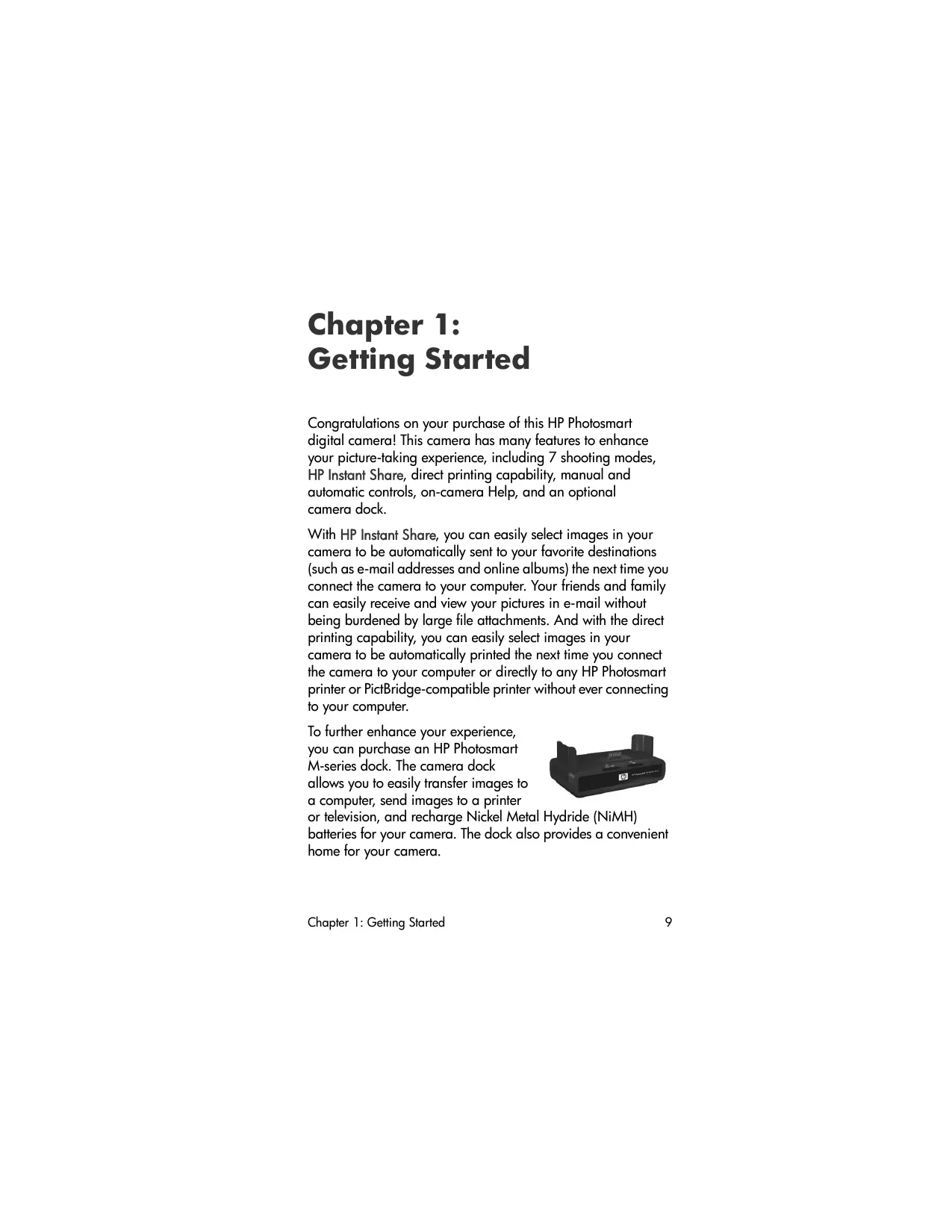

| Product type | Digital camera |
| Brand | COMPAQ (under HP license) |
| Model | Photosmart M305 |
| Resolution | 3.27 MP (2096 x 1560 pixels) total, 3.21 MP effective |
| Sensor | CCD 1/2.7 inch (6.73 mm diagonal) |
| Lens | 3x optical zoom, focal length 6.25-17.25 mm (equivalent 40-111 mm in 35 mm), aperture f/2.9-f/4.8 |
| Digital zoom | 3x (M305 model) |
| Screen | TFT LCD 1.8-inch, 130,338 pixels |
| Viewfinder | Real optical viewfinder with 3x zoom |
| Built-in storage | 16 MB internal flash memory |
| Removable storage | SD or MMC memory card up to 1 GB (not included) |
| Power | 2 AA batteries (Lithium included) or 2 rechargeable NiMH batteries via AC adapter or optional docking station |
| Dimensions (L x W x H) | 107 x 36 x 53 mm |
| Weight | 146 g (without batteries) |
| Built-in flash | Range up to 5.7 m (wide-angle, ISO 400) |
| Shooting modes | Auto, Macro, Action, Portrait, Landscape, Beach/Snow, Fast Sport |
| Image formats | JPEG (EXIF 2.2) for photos, MPEG1 for videos |
| Connectivity | USB 2.0 mini-A/B, TV output (NTSC/PAL), optional docking station |
| Special features | HP Instant Share, PictBridge direct printing, exposure compensation (-2 to +2 EV), white balance, ISO sensitivity 100/200/400 |
| Maintenance | Clean the lens with a soft, dry cloth |
| Safety | Do not charge battery types other than NiMH; use the device in a dry place; do not expose to excessive heat |
| Compatible accessories | HP Photosmart M-series docking station, 3.3 V AC adapter, quick charger, leather case |
| Warranty | 1 year (limited, HP support) |
Frequently Asked Questions - PHOTOSMART M305 COMPAQ
User questions about PHOTOSMART M305 COMPAQ
0 question about this device. Answer the ones you know or ask your own.
Ask a new question about this device
Download the instructions for your Digital Camera in PDF format for free! Find your manual PHOTOSMART M305 - COMPAQ and take your electronic device back in hand. On this page are published all the documents necessary for the use of your device. PHOTOSMART M305 by COMPAQ.
USER MANUAL PHOTOSMART M305 COMPAQ
HP Photosmart M305/M307 digital camera with HP Instant Share
User's Manual
Legal Notices
Copyright 2004 Hewlett-Packard Development Company, L.P.
The information contained herein is subject to change without notice. The only warranties for HP products and services are set forth in the express warranty statements accompanying such products and services. Nothing herein should be construed as constituting an additional warranty. HP shall not be liable for technical or editorial errors or omissions contained herein.
Windows® is a U.S. registered trademarks of Microsoft Corporation.
SD logo is a trademark of its proprietor.
Printed in China
Table of Contents
Chapter 1:
Getting Started 9
Setup 10
Attaching the Wrist Strap 10
Installing the Batteries 10
Installing a Memory Card (Optional) 11
Turning on Power 12
Choosing the Language 13
Setting the Date and Time 13
Installing the Software 14
Windows® 14
Macintosh 15
User Manual on the CD 16
Camera Parts 16
Back and First Side of the Camera 16
Front, Second Side, and Bottom of the Camera . 20
Top of the Camera 21
Camera States 22
Camera Menus 22
Using the Help Menu 24
Camera Status Screen 25
Restoring Previous Settings 25
Chapter 2:
Taking Pictures and Recording Video Clips . .27
Taking Still Pictures 27
Recording Audio with Still Pictures 28
Recording Video Clips 29
Using Live View 30
Focusing the Camera 31
Using Auto Focus 31
Using Focus Lock 34
Using Zoom 34
Optical Zoom 34
Digital Zoom 35
Setting the Flash 36
Using the Shooting Modes 38
Using the Self-Timer Settings 40
Using the Burst Setting 42
Using the Capture Menu 43
Help for the Menu Options 44
EV Compensation 44
Image Quality 45
White Balance 47
ISO Speed 49
Color 50
Date & Time Imprint 50
Chapter 3:
Reviewing Images and Video Clips 53
Using Playback 53
Total Images Summary Screen 56
Viewing Thumbsils .56
Magnifying Images 57
Using the Playback Menu 58
Delete .60
Record Audio 61
Rotate .62
Chapter 4:
Using HP Instant Share 63
Using the HP Instant Share Menu 64
Setting Up Destinations in the
HP Instant Share Menu 65
Setting Up Destinations on a Windows Computer 67
Setting Up Destinations on a Macintosh Computer 68
Selecting Images for HP Instant Share Destinations 69
How HP Instant Share E-mails Images 71
Chapter 5:
Transferring and Printing Images 73
Transferring Images to a Computer 73
Printing Images Directly from the Camera 75
Chapter 6:
Using the Setup Menu 79
Display Brightness 80
Camera Sounds 81
Live View at Power On 81
Date & Time 82
USB Configuration 83
TV Configuration 84
Language 85
Move Images to Card 85
Chapter 7:
Troubleshooting and Support 87
Resetting the Camera 88
Using Your Camera without Installing the
HP Image Zone Software 89
Transferring Images to a Computer without
HP Image Zone Software 90
Using a Memory Card Reader 90
Configuring the Camera as a Disk Drive . . . 93
Cleaning the Camera Lens 94
Problems and Solutions 95
Error Messages on the Camera 109
Error Messages on the Computer 119
Getting Assistance 122
HP Accessibility Website 122
HP Photosmart Website 122
Support Process 122
Phone Support in the United States and Canada 124
Phone Support in Europe, the Middle East, and Africa 125
Other Phone Support Worldwide 127
Appendix A:
Managing Batteries 129
Top Points About Batteries 129
Extending Battery Life 130
Safety Precautions for Using NiMH Batteries . . .131
Performance per Battery Type 132
Power Indicators 133
Recharging NiMH Batteries 134
Safety Precautions for Recharging NiMH Batteries 136
Sleep Time-out for Power Conservation 137
Appendix B:
Purchasing Camera Accessories 139
Appendix C:
Specifications 143
Memory Capacity 148
Chapter 1: Getting Started
Congratulations on your purchase of this HP Photosmart digital camera! This camera has many features to enhance your picture-taking experience, including 7 shooting modes, HP Instant Share, direct printing capability, manual and automatic controls, on-camera Help, and an optional camera dock.
With HP Instant Share, you can easily select images in your camera to be automatically sent to your favorite destinations (such as e-mail addresses and online albums) the next time you connect the camera to your computer. Your friends and family can easily receive and view your pictures in e-mail without being burdened by large file attachments. And with the direct printing capability, you can easily select images in your camera to be automatically printed the next time you connect the camera to your computer or directly to any HP Photosmart printer or PictBridge-compatible printer without ever connecting to your computer.
To further enhance your experience, you can purchase an HP Photosmart M-series dock. The camera dock allows you to easily transfer images to a computer, send images to a printer
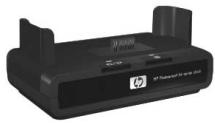
or television, and recharge Nickel Metal Hydride (NiMH) batteries for your camera. The dock also provides a convenient home for your camera.
Setup
To locate a part on your camera (such as a button or a light) while following the instructions in this section, see Camera Parts on page 16.
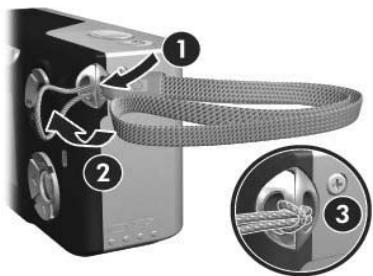
Attaching the Wrist Strap
Attach the wrist strap to the wrist strap mount on the side of the camera as shown.
Installing the Batteries
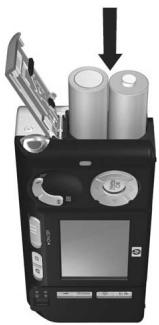
1 Open the Battery/Memory card door on the side of the camera by sliding the door down toward the bottom of the camera.
2 Insert the batteries as indicated inside the door.
3 If you want to install an optional memory card, leave the Battery/Memory card door open and go on to Installing a Memory Card (Optional) on page 11.
However, if you do not have an optional memory card to install, close the Battery/
Memory card door by pushing the door down and sliding the door toward the top of the camera until the door latches.
Then skip to Turning on Power on page 12.
NOTE Digital cameras use batteries at a much faster rate than film cameras. Battery life in digital cameras can be measured in hours and minutes of use rather than the years more typical of film cameras. Battery life may also vary dramatically from one user to another, depending on what modes the camera is being used in most frequently. For hints on optimizing battery performance, see Appendix A: Managing Batteries on page 129.
NOTE You can also use an optional HP AC power adapter to power the camera. If you use rechargeable NiMH batteries, you can recharge the batteries in the camera using the optional HP AC power adapter or optional HP Photosmart M-series dock, or recharge the batteries separately in the optional HP Photosmart Quick Recharger. For more information, see Appendix B: Purchasing Camera Accessories on page 139.
Installing a Memory Card (Optional)
If you do not have an optional memory card to install, skip this section and go on to the next section, Turning on Power on page 12.
Your camera contains internal memory that allows you to store images and video clips. However, you can use a memory card (purchased separately) instead to store images and video clips. For more information about supported memory cards, see Storage on page 145.
When you install a memory card in the camera, all new images and video clips are stored on the card. The camera's internal memory is only used when there is no memory card in the camera.
1 With the Battery/Memory card door open, insert the memory card in the small slot below the batteries, with the notched side of the card going in first, as shown. The card only fits one way; do not force it. Make sure the memory card snaps into place.
2 Close the Battery/Memory card door by pushing the door down and sliding the door toward the top of the camera until the door latches.
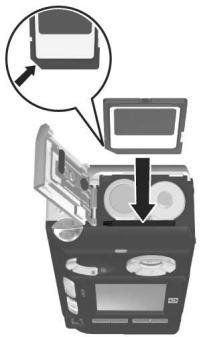
To remove the memory card from the camera, first turn the camera off. Then open the Battery/ Memory card door, press down on the top edge of the memory card, and it will spring outward from the slot.
Turning on Power
Turn the camera on by sliding the ON/OFF switch to the right and then releasing it.
The lens extends and the Power light to the left of the ON/OFF switch turns on solid green.
Choosing the Language
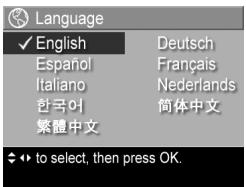
The first time you turn the camera on, the following screen appears and prompts you to choose a language.
1 Scroll to the language that you want by using the buttons on the Controller
2 Press the Menu/OK button to select the highlighted language.
NOTE If you need to change the
language later, you can do this with the Language setting in the Setup menu. See Chapter 6: Using the Setup Menu on page 79.
Setting the Date and Time
The camera has a clock that records the date and time at which you take each picture. This information is recorded in the image properties, which you can see when viewing the image on your computer. You can also choose to have the date and time imprinted on the visible image (see Date & Time Imprint on page 50).
The first time you turn the camera on, a Date & Time screen appears after you choose the language, prompting you to set the date and time.
1 Adjust the value of the highlighted selection by using the buttons.
2 Press the buttons to move to the other selections.
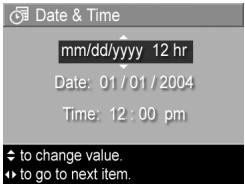
3 Repeat steps 1 and 2 until the correct date/time format, date, and time are set.
4 Press the Menu/OK button when you have entered the proper values for the date and time. A confirmation screen appears, asking if the correct date and time have been set.
5 If the date and time are correct, press the Menu/OK button to select Yes.
If the date and time are incorrect, press the button to highlight No, and then press the Menu/OK button. The Date & Time screen appears again. Repeat steps 1 through 5 to set the correct date and time.
NOTE If you need to change the date and time settings later, you can do this with the Date & Time setting in the Setup menu. See Chapter 6: Using the Setup Menu on page 79.
Installing the Software
The HP Image Zone software allows you to transfer images from the camera, and then view, edit, print, or e-mail them. It also allows you to configure the HP Instant Share menu on the camera.
NOTE If you do not install the HP Image Zone software, you can still use the camera, but certain features will be affected. For details, see Using Your Camera without Installing the HP Image Zone Software on page 89.
Windows®
In order for the HP Image Zone software to install successfully, you must have installed at least Internet Explorer 5.01 Service Pack 2 on Windows 2000, XP, 98, 98 SE, or Me. (Internet Explorer 6 is recommended.)
1 Close all programs and temporarily disable any virus protection software running on your computer.
2 Insert the HP Image Zone software CD into the CD drive of your computer. Follow the instructions in the installation screen that automatically appears.
NOTE If the installation screen does not appear, click Start, click Run, type D:\Setup.exe, where D is the letter of your CD drive, then click OK.
NOTE If you have trouble installing or using the HP Image Zone software, see the HP Customer Support website: www.hp.com/support for more information.
Macintosh
1 Close all programs and temporarily disable any virus protection software running on your computer.
2 Insert the HP Image Zone software CD into the CD drive of your computer.
3 Double-click the CD icon on the computer desktop.
4 Double-click the installer icon, and then follow the on-screen instructions to install the software.
NOTE Before you can transfer images from the camera to your Macintosh computer with the HP Image Zone software, or to take advantage of the HP Instant Share functionality, you must first change the USB Configuration setting to Disk Drive on the camera. See Chapter 6: Using the Setup Menu on page 79.
NOTE If you have trouble installing or using the HP Image Zone software, see the HP Customer Support website: www.hp.com/support for more information.
User Manual on the CD
A copy of this camera User's Manual in several different languages is located on the HP Image Zone software CD. To view your camera User's Manual:
1 Insert the HP Image Zone software CD into the CD drive of your computer.
2 On Windows: Click View User's Manual on the Main page of the CD installation screen to view the User's Manual.
On Macintosh: Look in the README file in the docs folder of the HP Image Zone software CD to locate the User's Manual in your language.
Camera Parts
Refer to the pages in parentheses after the part names in the following tables for more information about those parts.
Back and First Side of the Camera
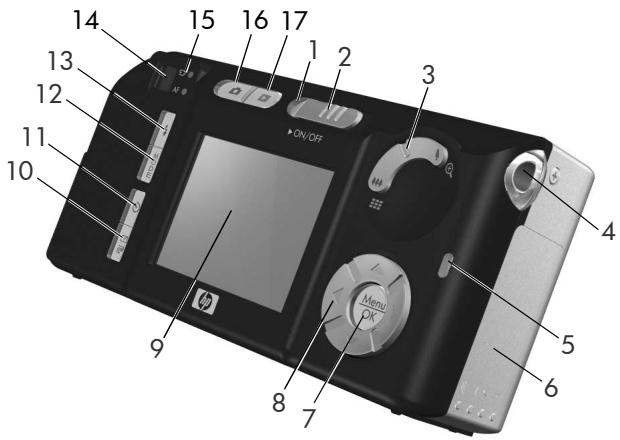
| # | Name | Description |
| 1 | Power light | Solid—Camera is on. Blinking rapidly—Camera is shutting down due to lack of battery power. Blinking slowly—Camera is charging the batteries using the optional HP AC power adapter or the optional HP Photosmart M-series dock. Off—Camera is off. |
| 2 | ON/OFF switch (page 12) | Turns the camera power on and off. |
| 3 | Zoom lever (page 34) | • ↑▲ Zoom Out—While taking still pictures, zooms out the lens to the wide angle position. • ■■ Thumbsails—While in Playback, allows you to view still images and the first frames of video clips arranged in a matrix of nine thumbnail images per screen. • ◆ Zoom In—While taking still pictures, zooms in the lens to the telephoto position. • ⊙ Magnify—While in Playback, allows you to magnify a still image. |
| 4 | Wrist strap mount (page 10) | Allows you to attach a wrist strap to the camera. |
| 5 | Memory light | • Blinking rapidly—Camera is writing to either the internal memory or an optional memory card that is installed. • Off—Camera is not writing to memory. |
| 6 | Battery/Memory card door (pages 10, 11) | Allows access to insert and remove the batteries and an optional memory card. |
| 7 | Menu/OK button (pages 43, 58) | Allows you to display the Capture and Playback menus and to select menu options and confirm certain actions on the Image Display. |
| 8 | Controller with ▲ ▼ and ▲ ▲ buttons | Allows you to scroll through menus and images on the Image Display. |
| 9 | Image Display (page 30) | Allows you to frame pictures and video clips using Live View and review them afterward in Playback, and to view all the menus. |
| 10 | □/□HP Instant Share/Print button (page 63) | Turns the HP Instant Share Menu on and off on the Image Display. |
| 11 | Timer/Burst button (pages 40, 42) | Allows you to select between the Normal, Self-Timer, Self-Timer - 2 Shots, and Burst settings. |
| 12 | MODE button (page 38) | Allows you to select between different shooting modes for taking still pictures. |
| 13 | Flash button (page 36) | Allows you to select between the different flash settings. |
| 14 | Viewfinder (page 27) | Allows you to frame the subject of your pictures or video clips. |
| 15 | Viewfinder lights | solid red—Video is recording. AF solid green—When you press the Shutter button halfway down, this light turns on solid when the camera is ready to take a picture (auto exposure and auto focus are locked, and the flash is ready). Or when you press the Shutter button all the way down to take a picture, this light turns on solid to indicate that auto exposure and auto focus were successful. AF blinking green—When you press the Shutter button halfway down or all the way down, either a focus error occurred, the flash is still charging, or the camera is processing a picture (see the NOTE below). Both and AF blinking—An error has occurred that prevents the camera from taking the picture (see the NOTE below). NOTE If an error prevents a picture from being taken, then an error message will appear on the Image Display. See Error Messages on the Camera on page 109. |
| 16 | Live View button (page 30) | Turns Live View on and off on the Image Display. |
| 17 | Playback button (page 53) | Turns Playback on and off on the Image Display. |
Front, Second Side, and Bottom of the Camera
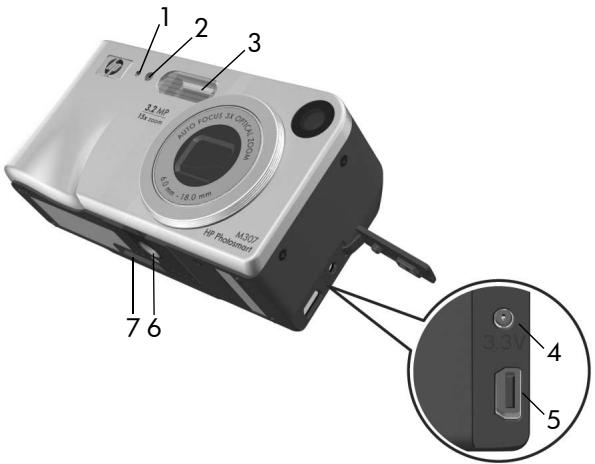
| # | Name | Description |
| 1 | Microphone (page 28) | Records sound (audio and video). |
| 2 | Self-Timer light (page 40) | Blinks during the count-down before taking a picture or recording video when the camera is set to Self-Timer or Self-Timer - 2 shots. |
| 3 | Flash (page 36) | Provides additional light to improve picture-taking. |
| 4 | DCIN ◇◇ Power adapter connector | Allows you to connect an optional HP AC power adapter to the camera to either operate the camera without batteries, or recharge NiMH rechargeable batteries in the camera. |
| 5 | USB connector (pages 73, 75) | Allows you to connect a USB cable from the camera to a USB-enabled computer or printer. |
| 6 | Tripod mount | Allows you to mount the camera on a tripod. |
| 7 | Camera dock connector (Page 140) | Allows you to connect the camera to the optional HP Photosmart M-series dock. |
Top of the Camera
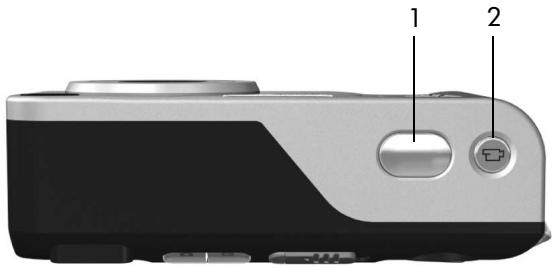
| # | Name | Description |
| 1 | Shutter button (pages 27, 28) | Takes a picture and records audio. |
| 2 | Video button (page 29) | Starts and stops recording a video clip. |
Camera States
Your camera has two main states that allow you to complete certain tasks. Each of these states has an associated menu that you can use to adjust camera settings or perform tasks in that state. See Camera Menus on page 22.
- Capture—Allows you to take still pictures and record video clips. For information about using Capture, see Chapter 2: Taking Pictures and Recording Video Clips on page 27.
- Playback— Allows you to review the still images and video clips that you capture. For information about using Playback, see Chapter 3: **Reviewing Images and Video Clips on page 53.
Camera Menu
Your camera has five menus that, when accessed, appear in the Image Display on the back of the camera. When any menu is displayed, you can then access the other menus by using the menu tabs at the top of the screen. To display another menu, use the buttons to move to the menu tab for that menu.
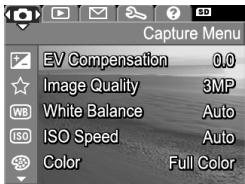
To display the Capture Menu, press the Live View button to turn Live View on, then press the Menu/OK button. A shortcut is to simply press the Menu/OK button when Live View is off. For information about using this menu, see Using the Capture Menu on page 43.
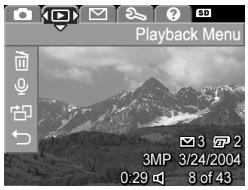
To display the Playback Menu, press the Menu/OK button while you are in Playback. If you are not currently in Playback, press the Playback button first, then press the Menu/OK button. For information about using this menu, see Using the Playback Menu on page 58.
To display the HP Instant Share Menu 口 , press the HP Instant Share/Print 口 / button. For information about using this menu, see Using the HP Instant Share Menu on page 64.
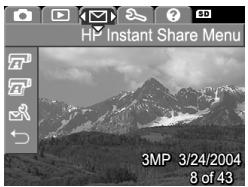
NOTE To use the HP Instant Share Menu × to send images to destinations other than printers (such as to email addresses or other online services), you must first set up the menu. See Setting Up Destinations in the HP Instant Share Menu on page 65.
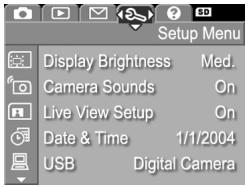
To display the Setup Menu, first access either the Capture, Playback, or HP Instant Share menu, then use the buttons to move to the menu tab for the Setup Menu. For information about using the Setup Menu, see Chapter 6: Using the Setup Menu on page 79.
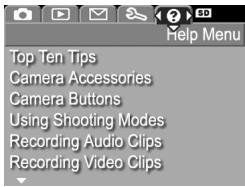
To display the Help Menu ② first access either the Capture, Playback, or HP Instant Share menu, then use the buttons to move to the menu tab for the Help Menu ② .For information about using the Help Menu ② , see the next section.
Using the Help Menu
The Help Menu ② provides helpful information and tips for using your camera.
1 Use the buttons to move across the menu tabs to the Help Menu tab. The Help Menu displays in the Image Display.
2 Use the buttons to highlight the Help topic you want to read.
3 Press the Menu/OK button to display the Help topic.
4 Use the buttons to scroll through the Help topic to read it.
5 Press the Menu/OK button to exit the Help topic and return to the Help Menu?
Camera Status Screen
A status screen appears for a few seconds in the Image Display any time you press the Flash 4, MODE, or Timer/Burst ② buttons when Live View is off.

As shown in the example here, a text description of the current setting for the button that was just pressed appears at the top of the screen. Beneath that, icons for the current flash, shooting mode, and timer/burst settings are shown, with the icon for the button that was just pressed highlighted. The bottom portion of the screen shows whether a memory card is installed (indicated by the SD icon), power indicator (such as the low battery level indicator; see Power Indicators on page 133), the number of pictures remaining, and the Image Quality setting (indicated in the example by the 3MP).
Restoring Previous Settings
The flash, shooting mode, and Timer/Burst settings, as well as some of the Capture Menu settings that you change from their default settings do not remain set after you turn the camera off. However, you can restore the non-default settings from the last time the camera was on by holding down the Menu/OK button while also sliding the ON/OFF switch to turn the camera on. The icons for the restored settings are then displayed in the Live View screen.
Chapter 2: Taking Pictures and Recording Video Clips
Taking Still Pictures
You can take a picture almost any time the camera is on, regardless of what is being shown on the Image Display. For example, if a menu is currently displayed when you press the Shutter button, the menu will be canceled, and the camera will take a picture. To take a still picture:
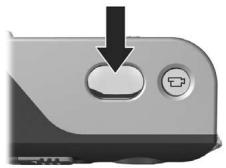
1 Frame the subject for your picture in the viewfinder.
2 Hold the camera steady (especially if using zoom) and press the Shutter button on the top of the camera halfway down. The
camera measures and then locks the focus and exposure (the AF viewfinder light turns on solid green when focus is locked - see Using Auto Focus on page 31 for details).
3 Press the Shutter button all the way down to take the picture. You will hear a shutter click when the camera takes the picture.
After a picture is taken, the image appears for several seconds on the Image Display. This is called Instant Review. You can delete the image during Instant Review by pressing the Menu/OK button.
You can use Playback to review the pictures you have taken. See Using Playback on page 53.
Recording Audio with Still Pictures
There are two ways to attach an audio clip to a still picture:
- Add an audio clip to the picture later, or re-record the audio that was captured when the picture was taken. For details on how to do this, see Record Audio on page 61.
- Record the audio while you are taking the picture, as explained in this section. You will not be able to use this method when using the Self-Timer or Burst settings.
An audio clip can be as long as you like or until the camera runs out of memory, whichever happens first.
1 Press the Shutter button all the way down to take the picture.
2 Continue to hold the Shutter button down to record the audio clip. A microphone icon () and audio counter appear on the Image Display during recording.
3 To stop recording audio, release the Shutter button.
Audio recording stops when you release the Shutter button; otherwise, the audio will continue recording until the camera runs out of memory. After recording has stopped, the image is displayed for several seconds in Instant Review on the Image Display. You can delete the image and the audio clip that is attached to the image during Instant Review by pressing the Menu/OK button.
To delete or record a new audio clip, use the Record Audio option in the Playback menu. See Record Audio on page 61.
NOTE To hear audio clips that have been attached to your still images, you must use a computer or television (TV). If you have an optional HP Photosmart M-series dock, you can review the audio clips by connecting the camera to a TV via the camera dock. To do this, see the dock User's Manual for instructions.
Recording Video Clips
NOTE Zoom is disabled while recording video clips.
A video clip includes audio.
1 Frame the subject for your video in the viewfinder.
2 To start recording video, press and release the Video button on the top of the camera. The Video viewfinder light turns on solid red. If Live View is on, a video icon, REC, a video counter, and a message instructing how to end
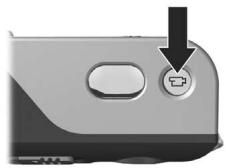
the video appear on the Image Display. (See Using Live View on page 30.)
3 To stop recording video, press and release the Video button again; otherwise, the video will continue recording until the camera runs out of memory.
NOTE If you have set the camera to Self-Timer or Self-Timer - 2 Shots (see Using the Self-Timer Settings on page 40), the camera will start recording 10 seconds after you press the Video button. However, with the Self-Timer - 2 Shots setting, the camera only records one video clip.
After recording has stopped, the last frame of the video clip appears for several seconds on the Image Display. This is called Instant Review. You can delete the video clip during Instant Review by pressing the Menu/OK button.
You can use Playback on the camera to review the video clips you have recorded. See Using Playback on page 53.
NOTE To hear the audio portion of your video clips, you must use a computer or television (TV). If you have an optional HP Photosmart M-series dock, you can review the audio portion of your video clips by connecting the camera to a TV via the camera dock. To do this, see the dock User's Manual for instructions.
Using Live View
The Image Display allows you to frame pictures and video clips using Live View. To activate Live View from the menus or when the Image Display is off, press the Live View button. To turn off Live View, press the Live View button again.
NOTE Using Live View consumes a lot of battery power. To conserve battery power, use the viewfinder instead.
The following table describes the information that is displayed in the Live View screen of the Image Display when the camera settings are at their default values and an optional memory card is installed in the camera. If you change other camera settings, icons for those settings will also be displayed in the Live View screen.
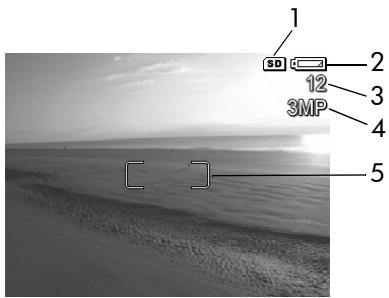
| # | Icon | Description |
| 1 | SD | Indicates that a memory card is installed in the camera |
| 2 | Power indicator, such as this low battery level indicator (see Power Indicators on page 133) | |
| 3 | 12 | Remaining pictures count (actual number depends on the current Image Quality setting and how much space remains in memory) |
| 4 | 3MP | Image Quality setting (default is 3MP) |
| 5 | Focus brackets (see Using Auto Focus on page 31) |
Focusing the Camera
Using Auto Focus
The focus brackets in the Live View screen show the focus region for the still picture you are taking or the video clip you are recording. (See Using Live View on page 30.) When you press the Shutter button halfway down to take a still picture, the camera uses this focus region to automatically measure and then lock the focus. The AF viewfinder light turns on solid green and the focus brackets in the Live View screen turn green when the image is in focus and the camera can lock the focus.
When you have the camera set to any of the shooting modes other than Macro (see Using the Shooting Modes on page 38), the camera will attempt to auto focus still pictures using the normal focus range of 0.5m (20 in) to infinity. However, when the camera cannot focus in these shooting modes, one of the following will occur:
- The AF viewfinder light will blink green and the focus brackets in Live View will turn red. The camera will still take the picture, but the picture may be out of focus. To focus the picture, release the Shutter button, re-frame the subject for your picture, and then press the Shutter button halfway down again.
If the AF viewfinder light continues to blink green and the focus brackets continue to turn red after several tries, there may not be enough contrast or light in the focus region. Try using a technique called Focus Lock to focus on an object about the same distance away but in a higher-contrast region, and then, without releasing the Shutter button, point the camera at the subject you were originally trying to photograph (see Using Focus Lock on page 34). You can also simply turn on more light, if that is possible.
- The AF viewfinder light will blink green, the focus brackets will turn red, and the Macro icon will blink in the Live View screen. In this case, the camera detects that the focus is closer than the normal range. The camera will still take the picture, but the picture may be out of focus. To focus the picture, either move farther away from the subject you are trying to photograph, or set the camera to the Macro shooting mode (see Using the Shooting Modes on page 38).
Finally, if the camera is set to the Macro shooting mode but detects that either the focus is closer or farther away than the Macro range of 0.1 to 0.5m (4 to 20 in), or there is not enough contrast or light in the focus region, both viewfinder lights will blink, the focus brackets will turn red, and the Macro icon will blink in the Live View screen. In these cases, the camera will not take a picture if it cannot find focus.
If the subject for the picture is not within the Macro range, either move farther away from or closer to the subject, or set the camera to a shooting mode other than Macro (see Using the Shooting Modes on page 38). If there is not enough contrast or light in the focus region, try using a technique called Focus Lock to focus on an object about the same distance away but in a higher-contrast region, and then, without releasing the Shutter button, point the camera at the subject you were originally trying to photograph (see Using Focus Lock on page 34). You can also simply turn on more light, if that is possible.
Using Focus Lock
Focus Lock allows you to focus on a subject that is not in the center of the picture, or to capture action shots more quickly by pre-focusing in the area where the action will occur. You can also use Focus Lock to help achieve focus in low light or low contrast situations.
1 Frame the subject for your picture within the focus brackets.
2 Press the Shutter button halfway down to lock the focus and exposure.
3 Continue to hold the Shutter button halfway down while you re-frame or adjust your subject for proper positioning.
4 Press the Shutter button all the way down to take the picture.
Using Zoom
NOTE The more you zoom in on the subject of your picture, the more even small movements of the camera are magnified (this is called "camera shake"). So, especially at full telephoto zoom (3x) , you must hold the camera steady in order to take a picture that is not blurry. If an icon of a shaking hand (哈) appears in the Live View screen, you should set the camera on a tripod or stable surface; otherwise, the picture will likely be blurry.
Optical Zoom
NOTE Optical zoom is disabled while recording video clips.
Optical zoom works like the zoom on a traditional film camera, with physical lens elements moving inside the camera to make the subject of your picture appear closer.
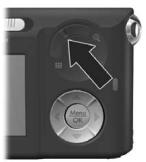
Press Zoom Out and Zoom In on the Zoom lever to move the lens between wide angle (1x) and telephoto (3x) positions.
Digital Zoom
NOTE Digital zoom is disabled while recording video clips.
Unlike optical zoom, digital zoom uses no moving lens parts. The camera essentially crops the image to give an appearance of the subject of the picture being an additional 1.1x to 5x larger with the HP M307 camera, or 1.1x to 3x larger with the HP M305 camera.
1 Press Zoom In on the Zoom lever to optically zoom in to the maximum level, then release the button.
2 Press Zoom In again and continue to press it until you reach the desired size in the Image Display. A yellow frame surrounds the area of the image that will be captured, and the image enlarges in the yellow frame.
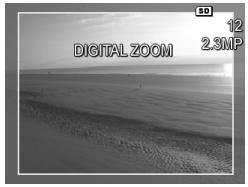
The resolution number on the right side of the screen also becomes smaller as you digitally zoom. For example, 2.3MP appears in place of 3MP, indicating that the image is being reduced to a size of 2.3 Megapixels.
3 When the image is at the desired size, press the Shutter button to take the picture.
To turn digital zoom off and return to optical zoom, press Zoom Out on the Zoom lever until digital zooming stops. Release Zoom Out and then press it again.
NOTE Digital zoom reduces the resolution of an image, so your picture will tend to be more pixilated than the same image taken with optical zoom. If you just intend to e-mail an image or post it to a website, this loss of resolution will not be noticeable; but in situations where the highest quality counts (such as printing), limit the use of digital zoom. It is also recommended that you use a tripod when using digital zoom.
Setting the Flash
The Flash button allows you to cycle through the flash settings on the camera. To change the flash setting, press the Flash button until the desired setting appears on the Image Display. The following table describes each of the flash settings on the camera.
NOTE The flash is disabled with the Burst setting, Fast Shot shooting mode, and while recording video clips.
| Setting | Description |
| Auto Flash A↓ | The camera measures light and uses the flash if necessary. |
| Red-Eye A↓ | The camera measures the light level and uses the flash with red-eye reduction if necessary (see the following NOTE for a description of red-eye reduction). |
| Flash On ↓ | The camera always uses flash. If the light is behind your subject, you can use this setting to increase the light on the front of your subject. This is called “fill-flash.” |
| Flash Off | The camera will not use flash, no matter the lighting conditions. |
| Night | The camera uses the flash if necessary and red-eye reduction to illuminate objects in the foreground (see the following NOTE for a description of red-eye reduction). The camera then continues to expose as if the flash had not been used to gather the background. |
NOTE The red-eye phenomenon is caused by light from the flash reflecting off the subjects' eyes, which sometimes makes a human's or animal's eyes appear red in the captured image. When you use a flash setting with red-eye reduction, the camera flashes several times, minimizing the red-eye in the captured images of humans or animals. It will take longer to take a picture using red-eye reduction, because the shutter is delayed for the additional flashes. In turn, make sure your subjects wait for the additional flashes.
If the flash setting is anything other than the default Auto Flash setting, the icon for the setting (in the previous table) will appear in the Live View screen. The new setting remains in effect until it is changed again or until the camera is turned off. The flash setting resets to the default Auto Flash setting when you turn the camera off.
NOTE To restore the flash setting to what it was when you last turned the camera off, hold down the Menu/OK button as you turn the camera back on.
Using the Shooting Modes
Shooting modes are pre-defined camera settings that are optimized for taking still pictures of certain scene types to give you better results. In each shooting mode, the camera selects the best settings, such as the ISO speed, F-number (aperture), and shutter speed, optimizing them for the particular scene or situation.
NOTE The shooting mode does not apply when you are recording video clips.
To change the shooting mode, press the MODE button on the back of the camera until the desired shooting mode appears on the Image Display. The following table describes each of the shooting mode settings on the camera.
| Setting | Description |
| Auto Mode | The camera automatically selects the best F-number (aperture) and shutter speed for the scene. Auto mode works well for most shots in normal situations. This mode is also useful when you need to take a good shot quickly, and do not have time to select a special shooting mode on the camera. |
| Macro | This mode allows you to take close-up pictures of subjects less than 0.5 m (20 in) away. In this mode, auto focus has a distance range of 0.1 to 0.5 m (4 to 20 in), and the camera will not take a picture if it cannot find focus (see Focusing the Camera on page 31). |
| Fast Shot | The camera uses a fixed focus instead of auto focus, allowing you to take pictures very quickly. Use this mode in bright light conditions when the subject is moderate to long distances away from the camera. |
| Action | The camera uses fast shutter speeds and higher ISO speeds to stop motion. Use Action mode to capture sporting events, moving cars, or any scene where you want to stop the action. |
| Portrait | The camera combines a smaller F-number to blur the background, with lower sharpness for a more natural effect. Use Portrait mode for pictures that have one or more people as their primary focal point. |
| Landscape | The camera combines a higher F-number for better depth of field with higher sharpness for a more vivid effect. Use Landscape mode to capture mountain scenes or any shots with a deep perspective. |
| Beach & Snow | This mode allows you to capture bright outdoor scenes and balance out harsh lighting. |
If the shooting mode setting is anything other than the default Auto Mode setting, the icon for the setting (in the previous table) will appear in the Live View screen. The new setting remains in effect until it is changed again or until the camera is turned off. The shooting mode setting resets to the default Auto setting when you turn the camera off.
NOTE To restore the shooting mode setting to what it was when you last turned the camera off, hold down the Menu/OK button as you turn the camera back on.
Using the Self-Timer Settings
1 Secure the camera to a tripod or set it on a stable surface.
2 Press the Timer/Burst button until Self-Timer or Self-Timer - 2 Shots appears in the Image Display.
3 Frame the subject in either the viewfinder or in Live View. (See Using Live View on page 30.)
4 The next steps depend on whether you are capturing one or two still pictures, or are recording a video clip.
For Still Pictures:
a. Press the Shutter button halfway down to gain Focus Lock (the camera measures and then locks the focus and exposure). The camera will hold these settings until it takes the picture.
b. Press the Shutter button all the way down. If the Image Display is on, a 10-second countdown appears on the screen. The Self-Timer light on the front of the camera then blinks for 10 seconds before the camera takes the picture. If you set the camera to Self-Timer - 2 Shots, the Self-Timer light blinks for a few more seconds until the second picture is taken.
NOTE If you immediately press the Shutter button all the way down without using Focus Lock, the camera will lock focus and exposure just before the end of the 10-second countdown. This is useful when one or more subjects will be entering the picture during the 10-second countdown period.
NOTE You cannot record audio with a still picture when using the Self-Timer settings, but you can add an audio clip later (see Record Audio on page 61).
For Video Clips:
To start recording video, press the Video button and then release it. If the Image Display is on, a 10-second countdown appears on the screen. The Self-Timer light on the front of the camera then blinks for 10 seconds before the camera starts recording the video.
NOTE With either the Self-Timer or the Self-Timer - 2 Shots setting, only one video clip is recorded after the 10-second countdown.
To stop recording the video clip, press the Video button again; otherwise, the video will continue recording until the camera runs out of memory.
If the Self-Timer setting is anything other than the default Normal setting, the icon for the setting (Self-Timer or SelfTimer - 2 Shots) will appear in the Live View screen. The Self-Timer setting resets to the default Normal setting after the picture is taken.
NOTE To restore the Timer/Burst setting to what it was when you last turned the camera off, hold down the Menu/OK button as you turn the camera back on.
Using the Burst Setting
Burst allows you to take up to 4 still pictures as quickly as possible. The camera then continues taking burst pictures at a slower rate until you release the Shutter button or the camera runs out of memory.
NOTE The Burst setting is disabled while recording video clips. You also cannot record audio when using the Burst setting, but you can add an audio clip later (see Record Audio on page 61). Also, the flash is disabled while using the Burst setting.
1 Press the Timer/Burst button until Burst appears in the Image Display.
2 Frame the subject and press the Shutter button halfway down to lock the focus and exposure. Then press the Shutter button all the way down and hold it. The camera takes 4 pictures as quickly as possible and continues taking burst pictures until you release the Shutter button or the camera runs out of memory.
The Image Display remains off during the burst capture. After the burst pictures have been taken, each image appears one at a time on the Image Display.
If the Burst setting is anything other than the default Normal setting, the Burst icon will appear in the Live View screen. The Burst setting remains in effect until it is changed again or until the camera is turned off. The camera resets to the default Normal timer/burst setting when you turn the camera off.
NOTE To restore the timer/burst setting to what it was when you last turned the camera off, hold down the Menu/OK button as you turn the camera back on.
Using the Capture Menu
The Capture Menu allows you to adjust various camera settings that affect the characteristics of the images and video clips you capture with your camera.
1 To display the Capture Menu, press the Live View button, and then press the Menu/OK button. If the Image Display is already off, you can simply press Menu/OK.
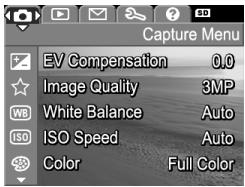
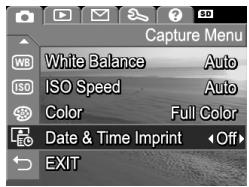
2 Use the buttons to scroll through the Capture Menu options.
3 Either press Menu/OK to select a highlighted option and display its sub-menu, or use the buttons to change the setting for the highlighted option without going to its sub-menu.
4 Within a sub-menu, use the buttons and then the Menu/OK button to change the setting for the Capture Menu option.
5 Use one of several ways to exit the Capture Menu. If, immediately after entering the Capture Menu, you decide not to change anything, simply press Menu/OK again to exit the menu. After you have used the Capture Menu, you can navigate to another menu via the menu tabs at the top of the Image Display. You can also select the EXIT menu option and press Menu/OK. If you want to switch to another camera state, press the appropriate button on the back of the camera.
NOTE To restore Capture Menu settings to what they were when you last turned the camera off, hold down the Menu/OK button as you turn the camera back on.
Help for the Menu Options
Help... is the last option in each of the Capture sub-menus. The Help... option provides information about that Capture menu option and its settings. For example, if you press Menu/OK when Help... is highlighted in the White Balance
sub-menu, the White Balance Help screen is displayed, as shown.
WB White Balance
Generally, the Auto White Balance setting produces the best results. Different kinds of lighting cast different colors. For example, sunlight is bluer, while indoor tungsten light is more yellow. In some lighting conditions, or for scenes dominated by a single color,
to scroll. Press OK to exit.
Use the buttons to scroll through the Help screens. To exit the Help and return to the particular Capture sub-menu, press the Menu/OK button.
EV Compensation
In difficult lighting conditions, you can use EV (Exposure Value) Compensation to override the automatic exposure setting that the camera makes.
EV Compensation is useful in scenes that contain many light objects (like a white house in the snow) or many dark objects (like a black cat on a dark background). Scenes containing many light objects or many dark objects could turn out gray without the use of EV Compensation. For a scene with many light objects, increase the EV Compensation to a positive number to produce a brighter result. For a scene with many dark objects, decrease the EV Compensation to darken the scene to be closer to black.
1 In the Capture Menu (page 43), select EV Compensation.
2 In the EV Compensation submenu, use the buttons to change the EV setting in 0.5 steps from -2.0 to +2.0. The new setting is applied to the Live View screen behind the menu, so you can see the effect each setting will have on the picture.
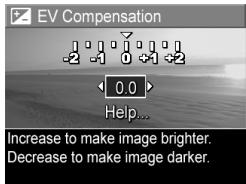
3 Press Menu/OK to save the setting and return to the Capture Menu.
If the setting is anything other than the default setting of 0.0, the number value will appear in the Live View screen next to the icon. The new setting remains in effect until it is changed again or until the camera is turned off. The EV Compensation setting resets to the default 0.0 setting when you turn the camera off.
Image Quality
NOTE This setting does not apply when recording video clips.
This setting allows you to set the resolution and JPEG compression of the still images you capture with your camera. The Image Quality sub-menu has four settings.
NOTE The resolution portion of all the Image Quality settings except for the VGA setting is represented by a number and MP (Megapixels), such as 3MP or 1MP. The higher the number of Megapixels, the higher the resolution. In the case of the VGA setting, the image will be 640 by 480 pixels (0.31 MP), which is the lowest resolution.
1 In the Capture Menu (page 43), select Image Quality.
2 In the Image Quality sub-menu, use the buttons to highlight a setting.
3 Press Menu/OK to save the setting and return to the Capture Menu.
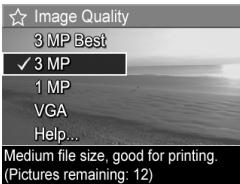
The following table explains the Image Quality settings in more detail:
| Setting | Description |
| 3MP Best | Images will be full resolution and have the lowest compression. This setting produces very high quality images, with greater color accuracy, but uses the most memory. This setting is recommended if you plan to print images at a size larger than 18 by 24 cm (8 by 10 in). |
| 3MP | Images will be full resolution and have medium compression. This setting produces high quality images, but uses less memory than the 3MP Best setting above. This is the default setting and is recommended if you plan to print images up to a size of 13 by 18 cm (5 by 7 in). |
| 1MP | Images will be 1280 by 960 (low) resolution and have medium quality and compression. This is a memory-efficient setting, ideal for images that you want to send via e-mail or post to the Internet. |
| VGA | Images will be 640 by 480 (lowest) resolution and have medium compression. This is a memory-efficient setting, but produces lower quality images. This setting is good for images you want to send via e-mail or post to the Internet. |
The Image Quality setting not only affects the quality of the images but, as a result, also the number of images that can be stored either in the internal memory in the camera or on an optional memory card. Higher resolution and lower compression images will take up more space than images with lower resolution and/or higher compression. For example, the highest setting, 3MP Best, results in high quality images, but consumes more storage space in memory than the next lower setting, 3MP. Likewise, many more still images can be stored in memory at the 1MP or VGA settings than at 3MP; however, these settings will result in much lower quality images.
The Pictures remaining count at the bottom of the Image Quality sub-menu screen updates when you highlight each setting. See Memory Capacity on page 148 for more information about how the Image Quality setting affects the number of images that can be saved in the internal memory in the camera.
The Image Quality setting (in the previous table) will appear in the Live View screen. The new setting remains in effect until it is changed again, even when you turn the camera off.
NOTE When you use digital zoom, the resolution changes as you zoom in. See Digital Zoom on page 35.
White Balance
Different kinds of lighting conditions cast different colors. For example, sunlight is more blue, while indoor tungsten light is more yellow. Scenes dominated by a single color may require an adjustment of the white balance setting to help the camera reproduce colors more accurately and ensure that whites appear white in the final image. You can also adjust the white balance to produce creative effects. For example, using the Sun setting can produce a warmer look to the image.
1 In the Capture Menu (page 43), select White Balance.
2 In the White Balance sub-menu, use the buttons to highlight a setting. The new setting is applied to the Live View screen behind the menu, so you can see the effect each setting will have on the picture.
3 Press Menu/OK to save the setting and return to the Capture Menu.
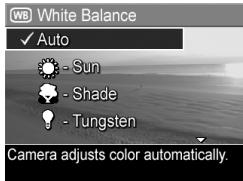
The following table explains the settings in more detail:
| Setting | Description |
| Auto | The camera automatically identifies and corrects for scene illuminance. This is the default setting. |
| Sun | The camera balances color assuming the subject is outdoors under sunny or bright cloudy conditions. |
| Shade | The camera balances color assuming the subject is outdoors in shade, in dark cloudy conditions, or at dusk. |
| Tungsten | The camera balances color based on incandescent or halogen lighting (typically found in homes). |
| Fluorescent | The camera balances color based on fluorescent lighting. |
If the setting is anything other than the default Auto setting, the icon for the setting (in the previous table) will appear in the Live View screen. The new setting remains in effect until it is changed again or until the camera is turned off. The White Balance setting resets to the default Auto setting when you turn the camera off.
ISO Speed
NOTE This setting does not apply when recording video clips, or when the shooting mode is set to Fast Shot.
This setting adjusts the sensitivity of the camera to light. When ISO Speed is set to the default Auto setting, the camera selects the best ISO speed for the scene.
Lower ISO speeds will capture the best quality images with the least amount of grain (or noise), but result in slower shutter speeds. If taking a picture in low light conditions without a flash at ISO 100, you may want to use a tripod. In contrast, higher ISO numbers allow faster shutter speeds, and can be used when taking pictures in dark areas without a flash, or pictures of fast moving objects. Higher ISO speeds produce pictures with more grain (or noise) and, thus, can be of lower quality.
1 In the Capture Menu (page 43), select ISO Speed.
2 In the ISO Speed sub-menu, use the buttons to highlight a setting.
3 Press Menu/OK to save the setting and return to the Capture Menu.
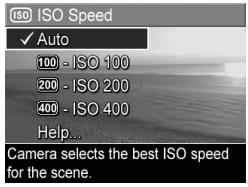
If the setting is anything other than the default Auto setting, the icon for the setting will appear in the Live View screen. The new setting remains in effect until it is changed again or until the camera is turned off. The ISO Speed setting resets to the default Auto setting when you turn the camera off.
Color
This setting allows you to control the color in which your images will be captured. For example, when you set Color to Sepia, your images will be captured in brown colors to make them look aged or old-fashioned.
NOTE After you have taken a picture using either the Black & White or Sepia setting, the image cannot be adjusted back to Full Color later.
1 In the Capture Menu (page 43), select Color.
2 In the Color sub-menu, use the buttons to highlight a setting. The new setting is applied to the Live View screen behind the menu, so you can see the effect each setting will have on the picture.
3 Press Menu/OK to save the setting and return to the Capture Menu.
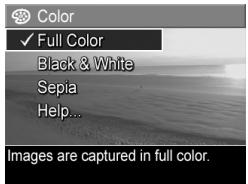
The new setting remains in effect until it is changed again or until the camera is turned off. The Color setting resets to the default Full Color setting when you turn the camera off.
Date & Time Imprint
NOTE This setting does not apply when recording video clips.
This setting imprints either the date or the date and time of when the image was captured in the lower left-hand corner of the image. After you select either of the Date & Time Imprint settings, the date or date and time will be imprinted on all subsequent still images that are captured, not to previously captured images.
NOTE After you have taken a picture using either the Date Only or Date & Time setting, the date or date and time that is imprinted on the image cannot be removed later.
NOTE The date or date and time imprint will be visible in Playback, but it will not be visible in Instant Review.
NOTE If you rotate the image using the Rotate option in the Playback Menu (page 58), the date or date and time imprint will likewise rotate with the image.
1 In the Capture Menu (page 43), select Date & Time Imprint.
2 In the Date & Time Imprint submenu, use the buttons to highlight a setting.
3 Press Menu/OK to save the setting and return to the Capture Menu.
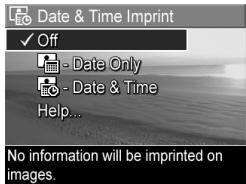
The following table explains the settings in more detail:
| Setting | Description |
| Off | The camera will not imprint a date or date and time on the image. |
| Date Only | The camera will permanently imprint the date in the lower left-hand corner of the image. |
| Date & Time | The camera will permanently imprint the date and time in the lower left-hand corner of the image. |
If the new setting is anything other than the default Off setting, the icon for the setting (in the previous table) will appear in the Live View screen. The new setting remains in effect until it is changed again, even when you turn the camera off.
Chapter 3: Reviewing Images and Video Clips
You can use Playback to review the images and video clips stored in your camera. When reviewing images in Playback, you can use the Zoom lever to view thumbnails of images, or to magnify images so you can take a closer look at them on the camera. See Viewing thumbnails on page 56 and Magnifying Images on page 57. In addition, the Playback Menu allows you to delete images or video clips, record audio to attach to still images, and rotate images. See Using the Playback Menu on page 58.
Using Playback
1 There are two ways to activate Playback.
- With the camera turned on, press the Playback button.
- With the camera turned off, hold down the Playback button while also sliding the ON/OFF switch to turn the camera on. This allows you to activate Playback without the camera lens extending.
The most recently taken or reviewed image or video clip appears on the Image Display.
2 Use the buttons to scroll through your images and video clips. Press and hold either of the buttons to scroll faster.
NOTE Video clips play automatically after the first frame of the video clip displays for 2 seconds.
3 To turn off the Image Display after reviewing your images and video clips, press the Playback button again.
NOTE Because the camera does not have a speaker, you cannot hear audio clips that are attached to still images or the audio portion of video clips when using Playback on the camera. Instead, you must use a computer or television (TV) to hear audio. If you have an optional HP Photosmart M-series dock, you can review the audio by connecting the camera to a TV via the camera dock. To do this, see the dock User's Manual for instructions.
During Playback, the Image Display also indicates additional information about each image or video clip. The following table describes this information.
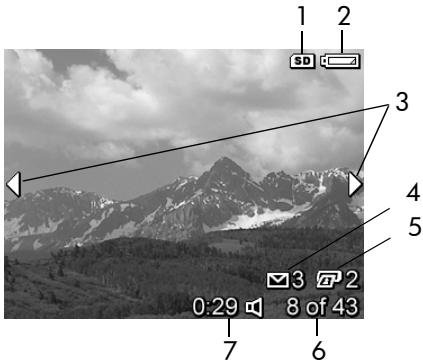
| # | Icon | Description |
| 1 | SD | Displays only when an optional memory card is installed in the camera. |
| 2 | -1 | Power indicator, such as this low battery level indicator (see Power Indicators on page 133). |
| 3 | ▲▶ | Displays for the first few seconds when you enter Playback to indicate that you can scroll through the images or video clips using the▲▶ buttons. |
| 4 | ○3 | Indicates this image has been selected to be sent to 3 destinations using HP Instant Share (see Chapter 4: Using HP Instant Share on page 63). |
| 5 | □2 | Indicates this image has been selected for printing 2 copies using HP Instant Share (see Chapter 4: Using HP Instant Share on page 63). |
| 6 | 8 of 43 | Shows the number of this image or video clip out of the total number of images and video clips that are stored in memory. |
| 7 | 0:29 | • Shows the recorded length of this audio or video clip. |
| or | • Indicates this image has an audio clip attached. | |
| • Indicates this is a video clip. |
Total Images Summary Screen
When you press the button while viewing the last image, a screen appears showing the number of pictures taken, and the number of pictures remaining. Counters indicating the total number of images selected for HP Instant Share and
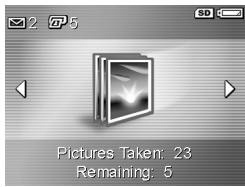
for printing are shown in the upper left-hand corner of the screen. In addition, icons are shown in the upper right-hand corner of the screen for an optional memory card if installed (indicated by the SD icon) and the power indicator (such as the low battery level indicator; see Power Indicators on page 133).
Viewing Buttons
Thumbnail view allows you to view the still images you have taken and the first frames of the video clips you have recorded arranged in a matrix of nine thumb nail images and video clip frames per screen.
1 While in Playback (page 53), press Thumbsails (same as Zoom Out) on the Zoom lever. A Thumbsail view of up to nine images and video clip frames appears on the Image Display. A yellow border surrounds the current image or video clip frame.
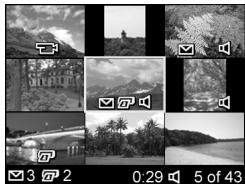
2 Use the buttons to scroll horizontally to the previous or next thumbnail.
3 Press the buttons to scroll vertically to the thumbnail directly above or below the current thumbnail.
4 Press the Menu/OK button to exit Thumbsail view and return to Playback. The current image or video clip (that was in the yellow border in Thumbsail view) is displayed in full view on the Image Display again.
At the bottom of each thumbnail, an HP Instant Share icon signifies that the still image is selected for one or more HP Instant Share destinations, a printer icon signifies that it is selected for printing, a video icon signifies that this is a video clip, and an audio icon signifies that an audio clip is attached to this still image.
Magnifying Images
NOTE This feature is only available for still images; video clips cannot be magnified. Also, this feature is for viewing purposes only; it does not permanently alter the image.
1 While in Playback (page 53), press Magnify (same as Zoom In ) on the Zoom lever. The currently displayed image is automatically magnified 2x . The center portion of the magnified image is displayed along with four arrows, which indicate that you can pan around the magnified image.
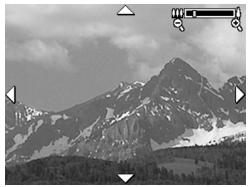
2 Use the and buttons to pan around the magnified image.
3 Use Zoom In and Zoom Out to increase or decrease the magnification.
4 Press the Menu/OK button to exit Magnify view and return to Playback. The current image is displayed in full view on the Image Display again.
Using the Playback Menu
The Playback Menu allows you to delete still images or video clips, undelete images, and format the camera's internal memory or optional memory card. Additionally, you can attach audio clips to still images and manipulate still images by rotating them.
1 To display the Playback Menu, press the Menu/OK button while you are in Playback. If you are not currently in Playback, press the Playback button first, then press the Menu/OK button.
2 Use the buttons to highlight the Playback Menu option that you want to use on the left side of the Image Display. The Playback Menu options are explained later in this section.
3 Move to the image or video clip you want to use by pressing the buttons. This makes it easy to perform the same action on several images or video clips, such as deleting multiple images or video clips.
4 Select the highlighted Playback Menu option by pressing the Menu/OK button.
5 Use one of several ways to exit the Playback Menu. If, immediately after entering the Playback Menu, you decide not to change anything, simply press Menu/OK again to exit the menu. After you have used the Playback Menu, you can navigate to another menu via the menu tabs at the top of the Image Display. You can also select the EXIT option and press Menu/OK. If you want to return to Playback, or switch to another camera state, press the appropriate button on the back of the camera.
The following table summarizes each of the Playback Menu options and describes the information in the bottom right corner of each image or video clip while the Playback Menu is displayed.
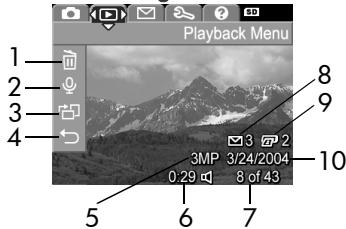
Still Image Screen:
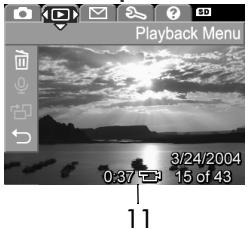
Video Clip Screen:
| # | Icon | Description |
| 1 | Delete - Presents a sub-menu where you can delete this image or video clip, delete all images and video clips, format the internal memory or an optional memory card, and undelete the last deleted image. (See Delete on page 60.) | |
| 2 | Record Audio - Records an audio clip to attach to this still image. (See Record Audio on page 61.) | |
| 3 | Rotate - Rotates the currently displayed still image 90 degrees clockwise. (See Rotate on page 62.) | |
| 4 | EXIT - Exits the Playback Menu. | |
| 5 | 3MP | Shows the Image Quality setting used to capture this image. |
| 6 | 0:29 | Visible if this image has an audio clip attached to it, with the length of the audio clip displayed to the left of the icon. |
| 7 | 8 of 43 | Shows the number of this image or video clip out of the total number of images and video clips in internal memory or on an optional memory card. |
| 8 | 3 | Indicates this image has been selected to be sent to 3 destinations using HP Instant Share. (See Chapter 4: Using HP Instant Share on page 63.) |
| 9 | 2 | Indicates this image has been selected for printing 2 copies using HP Instant Share (see Chapter 4: Using HP Instant Share on page 63). |
| 10 | 3/24/2004 | Shows the date that this image was captured or this video clip was recorded. |
| 11 | 0:37 | Visible if this is a video clip, with the length of the video clip displayed to the left of the icon. |
Delete
In the Playback Menu (page 58), when you select Delete, the Delete sub-menu displays. The Delete sub-menu provides the following options:
- Cancel—Returns you to the Playback Menu without deleting
the currently displayed image or video clip.
- This Image—Deletes the currently displayed image or video clip.
- All Images (in Memory/on Card)—Deletes all of the images and video clips either in internal memory, or on an optional memory card that is installed in the camera.
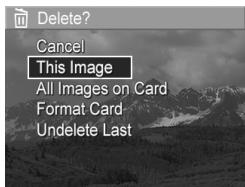
- Format (Memory/Card)—Deletes all of the images, video clips, and files in internal memory or on an optional memory card, and then formats the internal memory or memory card.
- Undelete Last—Recovers the most recently deleted image or images, depending on whether This Image or All Images (in Memory/on Card) was selected from the Delete sub-menu. (This option is only displayed after a Delete operation has been performed.)
NOTE With the Undelete Last option, you can recover only the most recent delete operation. When you proceed to another operation, for example, powering off the camera or taking another picture, the last delete operation you performed is permanent, and the camera can no longer recover the image or images you last deleted.
Use the buttons to highlight an option, and then press the Menu/OK button to select it.
Record Audio
NOTE This menu option is not available for video clips.
To record an audio clip for a still image that does not already have an audio clip attached to it:
1 In the Playback Menu (page 58), select Record Audio. Audio recording starts immediately after you select this menu option. A microphone icon and an elapsed time counter are displayed during recording.
2 To stop recording, press Menu/OK; otherwise the audio continues to record until the camera runs out of memory. When recording stops, the display returns to the Playback Menu.
If the currently displayed image already has an audio clip attached to it, when you select Record Audio, the Record Audio sub-menu is displayed instead. The Record Audio sub-menu lists several options:
- Keep Current Clip—Retains the current audio clip and returns to the Playback Menu.
- Record New Clip—Begins to record audio, replacing the previous audio clip.
- Delete Clip—Deletes the current audio clip and returns to the Playback Menu.
NOTE Because the camera does not have a speaker, you cannot hear audio clips when using Playback on the camera. Instead, you must use a television (TV) or computer to hear audio clips. If you have an optional HP Photosmart M-series dock, you can review the audio clips attached to your still images by connecting the camera to a TV via the camera dock. For information on how to do this, see the instructions in the dock User's Manual.
Rotate
NOTE This menu option is not available for video clips.
In the Playback Menu (page 58), when you select Rotate, the currently displayed image is automatically rotated 90 degrees clockwise. The image is displayed in its new orientation. You can then press Menu/OK to rotate the image again as many times as needed to gain the orientation of the image you want. When you exit the Rotate menu option, the image will be saved in its new orientation.
Chapter 4: Using HP Instant Share
This camera has an exciting feature called HP Instant Share. This feature allows you to easily select still images in your camera to be automatically sent to a variety of destinations the next time you connect the camera to your computer. For example, you can select images that you want to have printed, then connect the camera to your computer or printer, and the selected images will be printed automatically. As another example, you can select images in your camera to be automatically sent to e-mail addresses (including group distribution lists), online albums, or other online services the next time you connect the camera to your computer.
NOTE Available online services vary by region. Visit www.hp.com/go/instantshare to see HP Instant Share in action.
Using the HP Instant Share Menu
When you press the HP Instant Share/Print l button on the back of the camera, the most recently taken or viewed image appears on the Image Display, with the HP Instant Share Menu overlaid on top. The following table describes each of the default HP Instant Share Menu options as shown in the following example HP Instant Share screen.
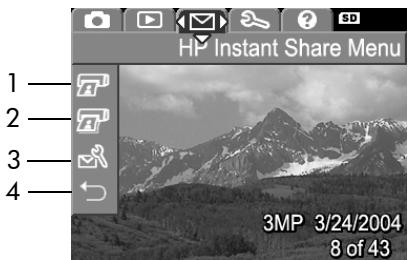
| # | Icon | Description |
| 1 | Print 1 copy of the currently displayed image when connected to a computer or printer. By default, the picture is printed at 10 by 15 cm (4 by 6 in). | |
| 2 | Print 2 copies of the currently displayed image. | |
| 3 | HP Instant Share Setup... allows you to add more e-mail and other HP Instant Share destinations to the HP Instant Share Menu. (See Setting Up Destinations in the HP Instant Share Menu on page 65.) | |
| 4 | EXIT - Exits the HP Instant Share Menu. |
With the default HP Instant Share Menu, you can now select images in your camera so they will print automatically the next time you connect your camera to your computer or printer. You do this by selecting either or both the Print 1 copy and the Print 2 copies menu options for each image you want to print. See Selecting Images for HP Instant Share Destinations on page 69 for instructions on how to do this.
You can also set up the HP Instant Share Menu with other HP Instant Share destinations, such as e-mail addresses (including group distribution lists), online albums, or other online services, where your images will automatically be sent the next time you connect your camera to your computer. You do this by selecting the HP Instant Share Setup... menu option, as explained in the following section.
Setting Up Destinations in the HP Instant Share Menu
NOTE You will need an Internet connection to complete this procedure on a Windows computer. Macintosh users, however, will not need an Internet connection.
NOTE If you have an optional memory card installed in your camera, make sure that the memory card in your camera is not locked and has some free space on it.
1 Make sure that the HP Image Zone software is installed on your computer (see page 14).
2 Turn on the camera, and then press the HP Instant Share/ Print l button on the back of the camera. The HP Instant Share Menu appears on the Image Display.
3 Use the button to highlight HP Instant Share Setup... , and press the Menu/OK button.
When you select HP Instant Share Setup... a message appears on the Image Display asking you to connect the camera to your computer.
NOTE If your computer is running Windows XP, when you connect the camera to your computer in the next step, a dialog box may display that requests you to Select the program to launch for this action. Simply click Cancel to close this dialog box.
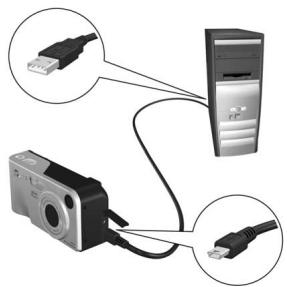
4 Connect the camera to your computer either by using the special USB cable that came with your camera for connecting the camera to a computer, or by using the optional HP Photosmart M-series dock:
- Connect the camera to the computer with the USB cable by connecting the larger end of the cable to the computer, and connecting the small end of the cable to the USB connector behind the rubber door on the side of the camera.
- Connect the camera to the computer with an optional HP Photosmart M-series dock by putting the camera in the dock and pressing the Save/Print button on the dock.
Connecting the camera to the computer with the USB cable or the dock activates the camera HP Instant Share Menu setup wizard on your computer. See Setting Up Destinations on a Windows Computer on page 67 or Setting Up Destinations on a Macintosh Computer on page 68 for instructions for your computer.
Setting Up Destinations on a Windows Computer
1 At the Welcome screen, click Start.
2 The Set Up Your HP Instant Share Destinations screen appears. Any HP Instant Share destinations you have already set up will be listed here. Click Create to add a new destination to your camera HP Instant Share Menu.
3 The Go Online screen appears, prompting you to connect to your Internet service provider. Connect to the Internet, if not already online, and click Next.
4 Sign in to your secure HP Instant Share account:
- If this is your first time using HP Instant Share, the Region and Terms of Use screen appears. Select your region, read and agree to the Terms of Use, and click Next to continue. Then follow the instructions to register for a secure HP Instant Share account.
- If you have used HP Instant Share before, sign in to your HP Instant Share account.
Click Next to continue.
5 Choose an HP Instant Share Service for your destination. Click Next, and follow the instructions to set up the service to be used when you select this destination.
6 When you finish setting up the service for this destination, you are returned to the Set Up Your HP Instant Share Destinations screen, and the name of your new destination appears in the list of destinations.
NOTE You can configure a maximum of 32 HP Instant Share destinations (such as individual e-mail addresses or group distribution lists) that can be listed in the HP Instant Share Menu on your camera.
7 Click Create to add another destination (repeating steps 2, 5, and 6 above), or select a destination and do one of the following:
- Click Edit to modify the destination.
- Click Remove to delete the destination.
8 When you have finished adding HP Instant Share destinations, click Save to my camera. The new destinations are then saved to the camera's HP Instant Share Menu. When the computer confirms they have been saved to your camera, disconnect the camera from the computer.
Setting Up Destinations on a Macintosh Computer
1 At the Modify Share Menu screen, any HP Instant Share destinations you have already set up will be listed. Click Add to add a new destination to your camera's HP Instant Share Menu.
2 The New Share Menu Item screen appears. Enter a name for the destination in the Menu Item Name field, and do either of the following:
- Select Use my local e-mail application to send images directly to the e-mail address(s) you specify below in this screen without using HP Instant Share.
- Select Use HP Instant Share e-mail and services to create an HP Instant Share destination.
3 Click OK to add the new destination to the camera's HP Instant Share Menu. You are returned to the Modify Share Menu screen, and the name of your new destination appears in the list of destinations.
NOTE You can configure a maximum of 32 HP Instant Share destinations (such as individual e-mail addresses or group distribution lists) that can be listed in the HP Instant Share Menu on your camera.
4 Click Add to add another destination (repeating steps 2 & 3), or select a destination and do one of the following:
- Click Edit to modify the destination.
- Click Remove to delete the destination.
5 When you have finished adding destinations, click Update Camera. The new destinations are then saved to the camera's HP Instant Share Menu. When the computer confirms they have been saved to your camera, disconnect the camera from the computer.
Selecting Images for HP Instant Share Destinations
NOTE You can select any number of HP Instant Share destinations for each still image. However, you cannot select HP Instant Share destinations for video clips, because video clips are not currently supported by HP Instant Share.
1 Turn on the camera, and then press the HP Instant Share/ Print l button.
2 Use the buttons to highlight the first destination in the HP Instant Share Menu that you want to select, such as an e-mail destination.
3 Use the buttons to scroll to a still image for which you want to select this HP Instant Share destination.
4 Press the Menu/OK button to select the destination, and a appears over that destination in the HP Instant Share Menu. To deselect the destination, press the Menu/OK button again.
5 Select any other HP Instant Share destinations that you want for this image by using the buttons to highlight each destination in the HP Instant Share Menu, and pressing the Menu/OK button to select the destination.
6 Scroll to other images by using the buttons, and select HP Instant Share destinations for each of the other images in the same manner. You can also use the buttons to scroll to other images to simply review their destinations.
7 When you are finished selecting all of the HP Instant Share destinations for your images, select the EXIT menu option and press Menu/OK.
8 Connect the camera to your computer and transfer the images as explained in Transferring Images to a Computer on page 73. After the images are transferred to your computer, they will be automatically sent to their respective HP Instant Share destinations. Macintosh users will need to add addressing information for their HP Instant Share destinations before the images and messages can be sent.
How HP Instant Share E-mails Images
The way images are e-mailed via HP Instant Share works much the same on Windows and Macintosh computers.
Images are not e-mailed as attachments. Rather, a message is sent to each e-mail address that you selected in the HP Instant Share Menu. The message contains thumbnail images of the pictures you selected for that address, as well as a link to a web page where the recipient can view the images. From that web page, the recipient can do things like reply to you, print the images, save images to their computer, forward images, and more. This makes it easy for people who use different e-mail programs to be able to see your images without the difficulty of dealing with e-mail attachments.
On Windows, the process of e-mailing images via HP Instant Share is fully automated. After you have selected your destinations, messages will be sent to each of your recipients and the images will be posted on the web page when you transfer the images from the camera to the computer.
On Macintosh, the process of e-mailing images is not automatic. After images marked with HP Instant Share destinations are transferred to your Macintosh, they will be displayed in the HP Instant Share application. Simply follow the instructions in the HP Instant Share application to send your messages and post your images on the web page.
Chapter 5: Transferring and Printing Images
Transferring Images to a Computer
NOTE You can also use the optional HP Photosmart M-series dock to do this task. See the dock User's Manual for instructions.
1 Confirm the following:
- The HP Image Zone software is installed on your computer (see Installing the Software on page 14). To transfer images to a computer that does not have the HP Image Zone software installed on it, see Using Your Camera without Installing the HP Image Zone Software on page 89.
- If you are using a Macintosh computer, the camera's USB Configuration is set to Disk Drive in the Setup Menu (see USB Configuration on page 83.)
- If images on the camera are selected for printing or selected for HP Instant Share destinations, make sure the computer is connected to a printer and/or the internet.
2 Turn off the camera.
3 Your camera came with a special USB cable for connecting the camera to a computer. Connect the larger end of that USB cable to the computer.
4 Open the rubber door on the side of the camera and connect the small end of the USB cable to the USB connector on the camera.
5 Turn on the camera. The HP Image Transfer software will launch on your computer. If you have set the software to automatically transfer the images in the camera, the images will automatically transfer to the computer. Otherwise, in the Transfer Images from Camera/Card screen, click Start Transfer. The images are transferred to the computer, and then if there are any still images that were previously selected for HP Instant Share destinations (page 63), those actions are started.
6 When the Image Action Summary screen appears on the computer, you can disconnect the camera from the computer.
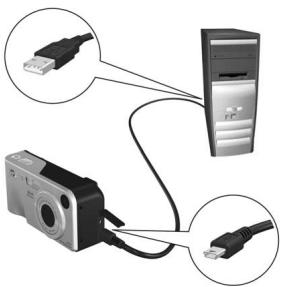
Printing Images Directly from the Camera
NOTE You can also use the optional HP Photosmart M-series dock to do this task. See the dock User's Manual for instructions.
You can connect the camera directly to any HP Photosmart printer or PictBridge-compatible printer to print images. You can then print either all images in the camera, or just those images you have selected using the HP Instant Share Menu on the camera (see Selecting Images for HP Instant Share Destinations on page 69).
NOTE HP does not support printers from other manufacturers. If your printer will not print, contact the manufacturer of your printer.
NOTE You can only print still images; video clips cannot be printed.
1 Check that the printer is turned on. There should be no blinking lights on the printer or error messages displayed about the printer. Load paper into the printer, if needed.
2 Connect your camera to the printer.
- If you are printing directly to an HP printer that does not display the PictBridge logo (see logo on next page), use the special USB cable for connecting the camera directly to an HP printer. Connect the square end of that USB cable to th
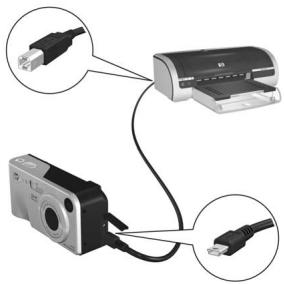
- If you are connecting the camera to a printer displaying the PictBridge logo (see logo on right) from HP or another manufacturer, do the following:

a. Make sure the camera's USB Configuration setting is set to Digital Camera (see USB Configuration on page 83).
b. Using the USB cable that you would normally connect between the camera and the computer, connect the larger, flat end of the USB cable to the corresponding connector on the PictBridge printer.
3 Open the rubber door on the side of the camera and connect the small end of the USB cable to the USB connector on the camera.
4 When the camera is connected to the printer, a Print Setup menu displays on the camera. If you already selected images to print using the camera HP Instant Share Menu, the number of images selected is shown. Otherwise, Images: ALL is displayed
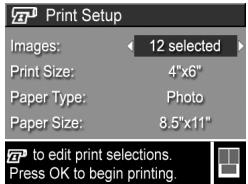
NOTE There is a print preview in the lower right-hand corner of the Print Setup screen showing the page layout that will be used for printing images. This print preview updates as you change the settings for the Print Size and Paper Size.
For PictBridge printers only: If default is displayed for the Print Size or Paper Size, then no print preview is shown. The printer will automatically determine the page layout that will be used for printing images.
5 If all the settings in the Print Setup menu look correct, press Menu/OK on the camera to begin printing. Or you can change the settings in the Print Setup menu using the arrow keys on the camera, and then follow the instructions on the screen to begin printing.
Chapter 6: Using the Setup Menu
The Setup Menu allows you to adjust a number of camera settings, such as the camera sounds, date and time, and the configuration of the USB or TV connection.
1 To display the Setup Menu, first display any other menu (see Camera Menus on page 22) and then use the buttons to move to the menu tab for the Setup Menu.
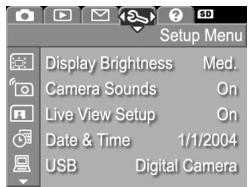
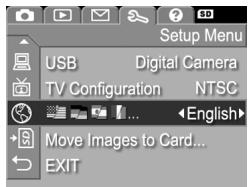
2 Use the buttons to scroll through the Setup Menu options.
3 Either press the Menu/OK button to select a highlighted option and display its sub-menu, or use the buttons to change the setting for the highlighted option without going to its sub-menu.
4 Within a sub-menu, use the buttons and then the Menu/OK button to change the setting for the Setup Menu option.
5 Use one of several ways to exit the Setup Menu. After you have used the Setup Menu, you can navigate to another menu via the menu tabs at the top of the Image Display. You can also select the EXIT menu option and press Menu/OK. If you want to switch to another camera state, press the appropriate button on the back of the camera.
Display Brightness
This setting allows you to adjust the brightness of the Image Display for the viewing conditions. You can use this setting to increase the brightness for harsh lighting environments, or reduce the brightness to extend battery life.
The default Display Brightness setting is Medium.
1 In the Setup Menu (page 79), select Display Brightness.
2 In the Display Brightness submenu, highlight the brightness level you prefer for the Image Display. The new setting is applied to the Live View screen behind the menu so you can see the effect the setting will have on the display brightness.
3 Press Menu/OK to save the setting and return to the Setup Menu.
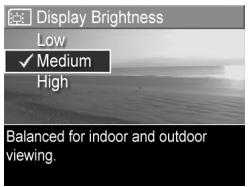
The new setting remains in effect until it is changed again, even when you turn the camera off.
Camera Sounds
Camera sounds are the sounds that the camera makes when you turn it on, press a button, or take a picture. Camera sounds are not the audio sounds recorded with images or video clips.
The default Camera Sounds setting is On.
1 In the Setup Menu (page 79), select Camera Sounds.
2 In the Camera Sounds sub-menu, highlight Off or On.
3 Press Menu/OK to save the setting and return to the Setup Menu.
The new setting remains in effect until it is changed again, even when you turn the camera off.
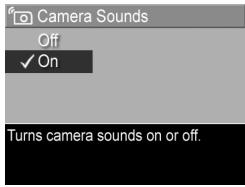
Live View at Power On
This setting allows you to have the camera automatically display Live View every time you turn the camera on, or to have the Image Display turned off every time.
The default Live View at Power On setting is Live View On.
NOTE Setting Live View at Power On to Off can save battery power.
1 In the Setup Menu (page 79), select Live View Setup.
2 In the Live View at Power On submenu, highlight Live View On or Live View Off.
3 Press Menu/OK to save the setting and return to the Setup Menu.
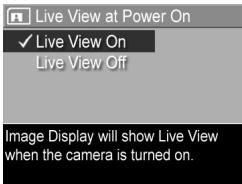
The new setting remains in effect until it is changed again, even when you turn the camera off.
Date & Time
This setting allows you to set the date/time format, as well as the current date and time for the camera. This is usually done when you first set up the camera; however, you may need to re-set the date and time when you are travelling to different time zones, after the camera has been without power for an extended time, or if the date and time is incorrect.
NOTE The date/time format chosen will be used to display the date information in Playback. Also, the format chosen in this setting is what is used in the Date & Time Imprint feature (see Date & Time Imprint on page 50).
1 In the Setup Menu (page 79), select Date & Time.
2 In the Date & Time sub-menu, adjust the value of the highlighted selection by using the buttons.
3 Press the buttons to move to the other selections.
4 Repeat steps 2 and 3 until the correct date/time format, date, and time are set.
5 Press Menu/OK to save the setting and return to the Setup Menu.
The date/time format setting remains in effect until it is changed again, even when you turn the camera off. The date and time settings also remain current as long as the camera batteries that are installed have a charge, or the camera is connected to an optional HP AC power adapter.
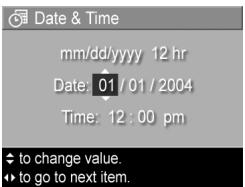
USB Configuration
This setting determines how the camera is recognized when connected to a computer.
1 In the Setup Menu (page 79), select USB.
2 In the USB Configuration sub-menu, highlight one of these two choices:
Digital Camera—Causes the computer to recognize the
camera as a digital camera using the Picture Transfer Protocol (PTP) standard. This is the default setting on the camera.
- Disk Drive—Causes the computer to recognize the camera as a disk drive using the Mass Storage Device Class (MSDC) standard. Use this setting to transfer images to a computer that does not have the HP Image Zone software installed on it (see Transferring Images to a Computer without HP Image Zone Software on page 90). This setting may be unavailable with a Windows 98 computer that does not have the HP Image Zone software installed on it.
3 Press Menu/OK to save the setting and return to the Setup Menu.
The new setting remains in effect until it is changed again, even when you turn the camera off.

USB Configuration
Digital Camera
Disk Drive
Camera appears as an imaging device when connected to a computer. (uses PTP)
TV Configuration
This setting allows you to set the format of the video signal for displaying camera images on a television (TV) that is connected to the camera with an optional HP Photosmart M-series camera dock.
The default TV Configuration setting depends on the language that you selected when you turned on the camera for the first time.
1 In the Setup Menu (page 79), select TV Configuration.
2 In the TV Configuration sub-menu, highlight one of these two choices:
- NTSC—This format is used primarily in North America and Japan. This is the default setting on the camera.
PAL—This format is used primarily in Europe.
3 Press Menu/OK to save the setting and return to the Setup Menu.
The new setting remains in effect until it is changed again, even when you turn the camera off.
For more information on connecting the camera to a TV, see the dock User's Manual.
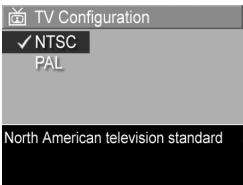
Language
This setting allows you to set the language used in the camera interface, such as the text in menus.
1 In the Setup Menu (page 79), select
2 In the Language sub-menu, highlight the language you want to use.
3 Press Menu/OK to save the setting and return to the Setup Menu.
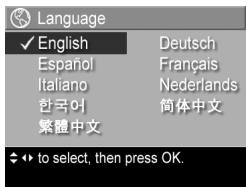
The new setting remains in effect until it is changed again, even when you turn the camera off.
Move Images to Card
The Move Images to Card... option is available in the Setup Menu if an optional memory card is installed in the camera and the internal memory contains at least one image.
In the Setup Menu (page 79), if you press Menu/OK when the Move Images to Card... option is highlighted and there is room on the memory card, a confirmation screen appears explaining that there is enough room to move all internal files to the memory card. If only some of the images will fit, then a confirmation screen appears explaining how many images in internal memory can be moved to the memory card. If no images can be moved to the memory card, then the screen displays CARD FULL.
During the move, a progress bar is shown. All of the images that are successfully moved to the memory card are then deleted from the camera's internal memory. When the move is complete, you return to the Setup Menu.
Chapter 7: Troubleshooting and Support
This chapter contains information on the following topics:
- Resetting the camera (page 88)
- Using the camera without installing the HP Image Zone software (page 89)
- Cleaning the camera lens (page 94)
Possible problems, causes, and solutions (page 95) - Error messages on the camera (page 109)
- Error messages on the computer (page 119)
- How to get assistance from HP (page 122)
NOTE For more information about solutions to problems mentioned here, as well as any other issues you might have with your camera or the HP Image Zone software, see the HP Customer Support website: www.hp.com/support
Resetting the Camera
If your camera does not respond when you press any buttons, try resetting the camera as follows:
1 Turn off the camera.
2 If you have an optional memory card installed, remove it. (Although removing an optional memory card is not necessary for performing the reset, it eliminates the memory card as a possible cause of the problem.)
3 Reset the camera by removing power from it as follows:
- If you are powering the camera with only batteries, open the Battery/Memory card door and remove both batteries for approximately 5 seconds.
- If you are using only an optional HP AC power adapter to power the camera, disconnect it from the camera for at least 5 seconds.
- If you are using both batteries and the HP AC power adapter, remove both for at least 5 seconds.
4 Reinsert the optional memory card (if you have one). Then reinsert the batteries and close the Battery/Memory card door, and/or reconnect the HP AC power adapter to the camera. You may now use the camera again.
Using Your Camera without Installing the HP Image Zone Software
If you do not, or cannot, install the HP Image Zone software on your computer for some reason (such as there is not enough RAM in your computer, or your computer is not running a supported operating system), you can still use your camera to take pictures and video clips. However, some of the things you can do with the camera will be affected:
- The HP Instant Share feature depends on the HP Image Zone software, so if the software is not installed on your computer, you will not be able to use the HP Instant Share feature on the camera.
-
Images you have marked for printing using the HP Instant Share Menu on the camera will not automatically print out when the camera is connected to the computer. However, this feature will still work in the following scenarios:
-
When you connect the camera directly to a printer.
-
If your printer has a memory card slot in it, and if you are using a memory card in your camera, you can simply remove the memory card from the camera and insert it in the memory card slot in the printer.
-
The process for transferring images and video clips from the camera to your computer will be different, since normally the HP Image Zone software handles this task. See the following section for details.
Transferring Images to a Computer without HP Image Zone Software
NOTE If you have a Windows Me, 2000, or XP system, or a Mac OS X system, you do not need to read this section. Simply connect the camera to your computer with the USB cable, and the operating system will launch a program to help you transfer images.
If you do not, or cannot, install HP Image Zone on your computer, there are two ways to transfer images from your camera to the computer: using a memory card reader, or configuring the camera as a disk drive.
Using a Memory Card Reader
If you are using a memory card in your camera, you can simply remove it from the camera and put it in a memory card reader (purchased separately). The memory card reader acts just like a floppy disk drive or CD-ROM drive. In addition, some computers and HP Photosmart printers have memory card slots built into them, and you can use these memory card slots as you would use a regular memory card reader to save images to the computer.
Transferring Images to a Windows Computer
1 Remove the memory card from your camera and insert it into the memory card reader (or the memory card slot in your computer or printer).
2 Right-click on the My Computer icon on your desktop, then select Explore from the menu.
3 A screen appears that shows a list of disk drives under My Computer. The memory card shows up as a removable disk drive called either HP_M305 or HP_M307. Click on the + sign just to the left of the removable disk.
4 Two directories (Folders) appear under the removable disk. Click on the + sign next to the folder called DCIM, and a subdirectory should appear. When you click on the subdirectory under DCIM, the list of your images should appear on the right side of the Explorer screen.
5 Select all the images (in the Edit pull-down menu click on Select All), then copy them (in the Edit menu click on Copy).
6 Click on the Local Disk under My Computer. You are now working in your computer's hard disk drive.
7 Create a new folder under Local Disk (go to the File pull-down menu and click on New, then click on Folder. A folder called New Folder appears in the right side of the Explorer screen). While the text of this new folder is highlighted, you can type in a new name (for example, Pictures). To change the name of the folder later, you can simply right-click on the folder name, choose Rename from the menu that appears, then type in the new name.
8 Click on the new folder you just created, then go to the Edit pull-down menu and click on Paste.
9 The images you copied in step 5 are pasted into this new folder on your computer's hard drive. To verify that the images were successfully transferred from the memory card, click on the new folder. You should see the same list of files in that folder that you saw when you looked at them on the memory card (step 4).
10 When you have verified that the images were successfully transferred from the memory card to your computer, put the card back in your camera. To free up space on the card, you can either delete the images or format the card (under the Delete option in the Playback Menu in the camera).
Transferring Images to a Macintosh Computer
1 Remove the memory card from your camera and insert it into the memory card reader (or the memory card slot in your computer or printer).
2 Depending on the configuration and/or version of the Mac OS X operating system you are running, either an application called Image Capture or one called iPhoto will launch automatically and guide you through the process of transferring images from your camera to your computer.
- If the Image Capture application is launched, click on either the Download Some or Download All button to transfer the images to your computer. By default, the images will be put in the Pictures or Movies folder (depending on which kind of file they are).
- If the iPhoto application is launched, click on the Import button to transfer the images to your computer. The images will be stored in the iPhoto application. So to access the images later, simply run iPhoto.
- If no application launches automatically or if you want to copy the images manually, look on the desktop for a disk drive icon which represents the memory card, then copy the images from there to your local hard drive. For more information about how to copy files, visit Mac help, the help system included with your computer.
Configuring the Camera as a Disk Drive
This method sets up your camera to function as a disk drive when it is connected to your computer.
NOTE This method may be unavailable with Windows 98 computers.
1 Set your camera to Disk Drive mode (you only need to do this step once):
a. Turn the camera on, then press the Menu/OK button to display the Capture Menu.
b. Use the button to navigate to the Setup Menu 已
c. Use the button to highlight the USB menu option, and then press Menu/OK.
d.Use the button to select Disk Drive,and then press Menu/OK.
e. Use the button to highlight EXIT, and then press Menu/OK.
2 When you have set your camera to Disk Drive mode, connect the camera to your computer using the USB cable.
3 At this point, the process for transferring images is the same as described in the section Using a Memory Card Reader on page 90. On Windows computers, the camera will appear as a removable disk in the Windows Explorer screen. On Macintosh computers, either the Image Capture or iPhoto application will launch automatically.
4 When you have finished transferring images from the camera to the computer, simply disconnect the camera from the computer. If your computer is running Windows 2000 or XP, you may get an "Unsafe Removal" warning upon disconnecting the camera. You can disregard this warning.
NOTE On Macintosh computers, if either Image Capture or iPhoto do not launch automatically, look on the desktop for a disk drive icon with the label HP_M305 or HP_M307. For more information about how to copy files, visit Mac help, the help system included with your computer.
Cleaning the Camera Lens
Do the following to remove lubricant that has seeped from the lens wink mechanism onto the camera lens, as well as fingerprints, dust, and so forth that have accumulated on the lens. To clean the lens, you will need standard lens cleaning paper commonly available at photo-specialty stores, as well as a cotton swab.
1 Turn the camera on to open the lens wink mechanism and to extend the lens.
2 Wrap the lens cleaning paper around the end of the cotton swab.
3 Using the cotton swab with the lens paper, wipe the lens clean using a circular motion.
When handling the camera after cleaning the lens, use care not to press on the wink mechanism cover when the lens is in the retracted position because this may cause lubricant to seep from the wink mechanism onto the lens.
Problems and Solutions
| Problem | Possible cause | Solution |
| The camera does not turn on. | The batteries either are functioning incorrectly, are dead, are installed incorrectly, are missing, or are the wrong type. | The charge in the batteries could be low or completely drained. Try installing new or recharged batteries. Ensure that the batteries are installed correctly (see page 10). Do not use ordinary alkaline batteries. For best results, use Energizer Lithium AA or rechargeable NiMH AA batteries. |
| If you are using an optional HP AC power adapter, it is not connected to the camera, or is not plugged into a power outlet. | Ensure that the HP AC power adapter is connected to the camera and is plugged into a working electrical outlet. | |
| The optional HP AC power adapter is not functioning correctly. | Ensure that the HP AC power adapter is not damaged and is plugged into a working electrical outlet. | |
| The camera does not turn on (continued). | The optional memory card is not a supported card or is corrupted. | Ensure that the memory card is the proper type for your camera (see Storage on page 145). If the card is the proper type, remove the memory card and see if you can turn on the camera. If you can turn on the camera with the memory card removed, then the card is probably corrupted. Replace the memory card. |
| The camera has stopped operating. | Reset the camera (see Resetting the Camera on page 88). | |
| The Power light is on but my camera seems "stuck" and won't operate properly. | While the camera was running, the power was cut off then reapplied quickly. | Reset the camera (see Resetting the Camera on page 88). |
| I have to replace or recharge the batteries frequently. | Extended Image Display use for Live View or video recording, excessive flash use, and excessive zooming consume a lot of battery power. | See Extending Battery Life on page 130. |
| The NiMH batteries you are using were recharged incorrectly, or have drained on their own because they have not been used lately. | NiMH batteries are not fully charged when new, and they discharge over time whether or not they are installed in a camera. Batteries that are new or have not been charged recently must be recharged to reach full capacity (see Recharging NiMH Batteries on page 134). | |
| The camera batteries will not charge. | Rechargeable batteries are not inserted. | Install NiMH batteries. Lithium batteries cannot be recharged. |
| Batteries are already charged. | Battery charging will not start if the NiMH batteries were recently charged. Try charging them again after they have drained awhile. | |
| The wrong AC power adapter is being used. | Use only the HP AC power adapter approved for use with this camera (see Appendix B: Purchasing Camera Accessories on page 139). | |
| Battery voltage is too low for charging to start. | The camera will not attempt to charge NiMH batteries that may be damaged or over-discharged. Remove the batteries from the camera and charge them in the optional HP Photosmart Quick Recharger for M-series cameras (purchased separately), then try them in the camera again. If this does not work, it is likely that one or both of the batteries are bad. Purchase new NiMH batteries and try again. | |
| The camera batteries will not charge (continued). | The batteries are damaged or bad. | NiMH batteries degrade over time and can fail. If the camera detects a problem with the batteries, it will not start charging or will stop charging prematurely. Purchase new batteries. |
| Batteries are not inserted correctly. | Ensure that the batteries are inserted correctly (see page 10). | |
| The camera does not respond when I press a button. | The camera is turned off or has shut down. | Turn on the camera, or turn it off and then on again. |
| The camera is connected to a computer. | Most of the camera buttons do not respond when the camera is connected to a computer. If they respond, it is only to turn the Image Display on if it is off, or, in some cases, turn the Image Display off if it is on. | |
| The batteries are drained. | Replace or recharge the batteries. | |
| The optional memory card is not a supported card or is corrupted. | Ensure that the memory card is the proper type for your camera (see Storage on page 145). If the card is the proper type, turn off the camera, remove the memory card, turn on the camera, and see if the camera responds when you press a button. If so, then the card is probably corrupted. Replace the memory card. | |
| The camera does not respond when I press a button (continued). | The camera has stopped operating. | Reset the camera (see Resetting the Camera on page 88). |
| A long delay occurs between pressing the Shutter button and the camera taking a picture. | The camera needs time to lock focus and exposure. | Use Focus Lock (see page 34). |
| The scene is dark and the camera is taking a long exposure. | • Use the flash. • If using flash is not possible, then use a tripod to keep the camera steady during the long exposure time. | |
| The camera is using a flash setting with red-eye reduction. | It will take longer to take a picture with red-eye reduction. The shutter is delayed because of the additional flashes. In turn, make sure your subjects wait for the additional flashes. | |
| The camera does not take a picture when I press the Shutter button. | You did not press the Shutter button hard enough. | Press the Shutter button all the way down. |
| The internal memory or the optional memory card that is installed is full. | Transfer images from the camera to your computer, then delete all images in internal memory or on the memory card (see Delete on page 60). Or replace the card with a new one. | |
| The optional memory card that is installed is locked. | With the camera turned off, remove the memory card and switch the locking tab on the card to the unlocked position. | |
| The flash is recharging. | Wait until the flash has recharged before taking another picture. | |
| The camera is set to the Macro shooting mode and cannot take a picture until it finds focus. | ● Re-focus the camera (try using Focus Lock; see page 34). ● Make sure the subject of the picture is within the Macro (close-up) range (see Using the Shooting Modes on page 38). | |
| The camera is still saving the last picture you took. | Wait a few seconds for the camera to finish processing the last image before taking another picture. | |
| My image is blurry. | The light is low and the flash is set to Flash Off Ⓞ. | In dim light, the camera requires a longer exposure. Use a tripod to hold the camera steady, improve lighting conditions, or set the flash to Flash On Ⓞ (see Setting the Flash on page 36). |
| The camera should have been set to the Macro shooting mode. | Set the camera to the Macro Ⓞ, shooting mode and try taking the picture again (see Using the Shooting Modes on page 38). | |
| You moved the camera while you took the picture. | Hold the camera steady as you press the Shutter button or use a tripod. Watch for the icon in the Image Display (this means that it is almost impossible to hold the camera steady, and you must use a tripod). | |
| The camera focused on the wrong thing, or was unable to focus. | Make sure the focus brackets turn green before taking the picture (see Focusing the Camera on page 31). Use Focus Lock (see page 34). | |
| My image is too bright. | The flash provided too much light. | Turn the flash off (see Setting the Flash on page 36). Move back from the subject and use the zoom to get the same framing. |
| A natural or artificial source other than the flash provided too much light. | Try taking the picture from a different angle. Avoid pointing the camera directly toward a bright light or reflective surface on a sunny day. Decrease the EV Compensation (see page 44). | |
| The scene had many dark objects, such as a black dog on a black couch. | Decrease the EV Compensation (see page 44). | |
| The Image Display is set for outdoor display, making images appear too bright. | Change the Display Brightness in the Setup Menu for more accurate brightness on the Image Display. (see page 80). | |
| You used EV Compensation when you should not have. | Set EV Compensation to 0.0 (see page 44). | |
| My image is too dark. | There was not enough light. | Wait for natural lighting conditions to improve. Add indirect lighting. Use the flash (see page 36). Increase the EV Compensation (see page 44). |
| The flash was on, but the subject was too far away. | Make sure your subject is within the flash working distance (see page 144). If so, try using the Flash Off setting (see page 36), which will require a longer exposure (use a tripod). | |
| A light is behind the subject. | Use the Flash On setting (see page 36) to brighten the subject. Increase the EV Compensation (see page 44). | |
| Your finger blocked the flash. | Be sure to move your fingers away from the flash when you take a picture. | |
| The scene had many light-colored objects, such as a white dog in snow. | Increase the EV Compensation (see page 44). | |
| My image is grainy. | The camera was too warm when the picture was taken. The camera may have been on for a long time or had been stored in a hot location. | This effect, which can happen on all digital cameras, is probably not noticeable in most images. The effect will diminish as the camera cools. For best image quality, avoid storing the camera in very hot locations. If the camera is warm after using it for a long time, consider turning off the Image Display to minimize heating. As with all electronic devices, avoid leaving the camera in very hot locations, such as the dashboard of a car in the sun. |
| The ISO Speed setting was too high. | Use a lower ISO Speed setting (see page 49). | |
| The image compression of the Image Quality setting (3MP, 1MP, or VGA) was too high. | Use the 3MP Best Image Quality setting, which has the lowest image compression (see page 45). | |
| There was not enough light. | Wait for natural lighting conditions to improve. Add indirect lighting. Use the flash (see page 36). | |
| The wrong date and/or time is shown. | The date and/or time was set incorrectly or the time zone has changed. | Reset the date and time by using the Date & Time option in the Setup Menu (see page 82). |
| The batteries were drained or were removed from the camera for too long. | The date and time will be maintained for about 10 minutes without charged batteries installed. Reset the date and time by using the Date & Time option in the Setup Menu (see page 82). | |
| The camera responds very sluggishly when trying to review images. | A slow optional memory card that is installed or too many images on the card can affect actions like scrolling through images, magnifying, deleting, etc. | See Storage on page 145 and Memory Capacity on page 148 for tips about memory cards. |
| The camera gets warm (or even hot) to the touch. | You are using the optional HP AC power adapter to power the camera or to charge the batteries in the camera, or you have been using the camera for a prolonged period of time (15 minutes or longer). | This is normal. However, if anything seems out of the ordinary, turn off the camera, unplug the camera from the HP AC power adapter, and allow the camera to cool. Then examine the camera and the batteries for signs of possible damage. |
| I cannot unload images from the camera to my computer. | The HP Image Zone software is not installed on the computer. | Either install the HP Image Zone software (see Installing the Software on page 14), or see Using Your Camera without Installing the HP Image Zone Software on page 89. |
| The computer is unable to understand the Picture Transfer Protocol (PTP) standard. | Set your camera to Disk Drive mode (see Configuring the Camera as a Disk Drive on page 93). | |
| I am having a problem installing or using the HP Image Zone software. | Refer to the HP Customer Support website: www.hp.com/support |
Error Messages on the Camera
| Message | Possible cause | Solution |
| BATTERIES DEPLETED. Camera is shutting down. | Battery power is too low to continue operation. | Replace or recharge the batteries, or use an optional HP AC power adapter. |
| Batteries are defective | Batteries are shorted or severely overdischarged. | Purchase new batteries. (See Appendix B: Purchasing Camera Accessories on page 139). |
| Batteries cannot be charged | Either an error occurred during charging, an AC power disruption occurred during charging, the wrong AC power adapter is being used, batteries are over-discharged, batteries are defective, or no batteries are installed in the camera. | Retry charging the batteries a couple of times. If that fails, try charging the batteries in an external charger. If the batteries still will not charge, purchase new batteries and try again. (See Appendix B: Purchasing Camera Accessories on page 139). |
| UNSUPPORTED CARD | The optional memory card that is installed in the memory slot is not a supported memory card. | Ensure that the memory card is the proper type for your camera. (See Storage on page 145.) |
| CARD IS UNFORMATTED Press OK to format card | The optional memory card that is installed needs to be formatted. | Format the memory card by following the instructions on the Image Display (or remove the card from the camera if you do not want it to be formatted). |
| CARD HAS WRONG FORMAT Press OK to format card | The optional memory card that is installed is formatted for a different device, such as an MP3 player. | Re-format the memory card by following the instructions on the Image Display (or remove the card from the camera if you do not want it to be re-formatted). |
| Unable to Format Try Again | The optional memory card that is installed is corrupted. | Replace the memory card, or if you have a memory card reader, try formatting the card on your computer. See your card reader documentation for instructions. |
| The card is locked. Please remove the card from your camera. | When trying to configure your HP Instant Share menu, the optional memory card that is installed is locked. | With the camera turned off, simply remove the memory card from the camera and continue the HP Instant Share task, or switch the locking tab on the card to the unlocked position before continuing. |
| CARD LOCKED | The optional memory card that is installed is locked. | With the camera turned off, remove the memory card from the camera and switch the locking tab on the card to the unlocked position. |
| MEMORY FULL or CARD FULL | There is insufficient room to save more images in internal memory or on the optional memory card that is installed. | Transfer images from the camera to your computer, then delete all images in internal memory or on the memory card (see Delete on page 60). Or replace the card with a new one. |
| Memory full. or Card full. Camera cannot save Share selections. | Internal memory or the optional memory card is full, preventing HP Instant Share destinations from being saved to the camera, or preventing images from being marked for HP Instant Share. | Transfer images from the camera to your computer, then delete all images in internal memory or on the memory card (see Delete on page 60). Then set up the HP Instant Share destinations again (see Setting Up Destinations in the HP Instant Share Menu on page 65). |
| Memory/card too full to record audio. | There is insufficient room to record more than 3 seconds of audio. | Transfer images from the camera to your computer, then delete all images in internal memory or on the memory card (see Delete on page 60). Or replace the card with a new one. |
| Insufficient space on card to complete request. | There is insufficient room in internal memory or on the optional memory card to rotate the image. | Transfer images from the camera to your computer, then delete all images in internal memory or on the memory card (see Delete on page 60). Then rotate the image using your computer. |
| The image is too big to rotate or magnify. | The image probably came from another camera. Transfer the image from the camera to your computer, then rotate or magnify the image using your computer. | |
| CARD IS UNREADABLE | The camera is having trouble reading the optional memory card that is installed. The card may be corrupted or an unsupported type. | Try turning the camera off and then back on. Ensure that the memory card is the proper type for your camera (see Storage on page 145). If the memory card is the proper type, try re-formattling the card using the Format option in the Delete sub-menu of the Playback Menu (see Delete on page 60). If it will not format, it is probably corrupted. Replace the memory card. |
| PROCESSING... | The camera is processing data, such as saving the last picture you took. | Wait a few seconds for the camera to finish processing before taking another picture or pressing another button. |
| CHARGING FLASH... | The camera is recharging the flash. | It takes longer to charge the flash when the battery is low. If you see this message a lot, you may need to replace or recharge the battery. |
| FOCUS TOO FAR and blinking | The focus distance is beyond where the camera can focus in the Macro shooting mode. | • Change the shooting mode (see Using the Shooting Modes on page 38). • Move closer to the subject, within the range of the Macro shooting mode (see Using the Shooting Modes on page 38). |
| FOCUS TOO CLOSE | The focus distance is closer than the camera can focus in the Macro shooting mode. | Move farther away from the subject, within Macro range (see page 38). |
| Blinking | The focus distance is closer than the camera can focus without being in the Macro shooting mode. | Set the camera to Macro shooting mode or move farther away. |
| UNABLE TO FOCUS and blinking | The camera cannot find focus in the Macro shooting mode, possibly due to low contrast. | • Use Focus Lock (see page 34). Point at a part of the scene that is brighter. • Make sure the camera is within Macro range (see page 38). |
| LOW LIGHT - UNABLE TO FOCUS | The scene is too dark and the camera cannot focus in Macro shooting mode. | • Add an external light source. • Use Focus Lock (see page 34). Point at a part of the scene that is brighter. |
| (camera shake warning) | The light is low and the image is likely to be blurry due to the long exposure required. | Use the flash (see Setting the Flash on page 36), or use a tripod. |
| ERROR SAVING IMAGE or ERROR SAVING VIDEO | The optional memory card that is installed was removed before the camera finished writing to the card or was half-locked. | ● Always wait until the Memory light stops blinking before removing the memory card from the camera. ● With the camera turned off, remove the memory card and check to see if the locking tab on the edge of the card is fully in the unlocked position. |
| Cannot display image | The image was taken with another camera or the image file was corrupted when the camera was shut down improperly. | ● The image may still be okay. Transfer the image to your computer and try opening it with the HP Image Zone software. ● Do not remove the memory card when the camera is turned on. |
| Camera has experienced an error | The camera may have a firmware problem. | Turn the camera off and then on again. If that does not fix the problem, try resetting the camera (see Resetting the Camera on page 88). If the problem persists, note the error code and then call HP Support (see Getting Assistance on page 122). |
| Unknown USB device | The camera is connected to a USB device that it does not recognize. | Make sure that the camera is connected to a supported printer or computer. |
| Unable to communicate with printer | There is no connection between the camera and printer. | Check that the printer is turned on. Make sure the cable is connected between the printer and the camera or the optional HP Photosmart M-series dock. If that does not work, turn off the camera and disconnect it. Turn the printer off and then on again. Re-connect the camera and turn it on. |
| Unsupported printer | The printer is an unsupported device. | Connect the camera to a supported printer, such as an HP Photosmart or PictBridge-compatible printer. Or connect the camera to a computer and print from there instead. |
| Photo tray is engaged. Disengage photo tray or select smaller paper size. | The selected paper size cannot be used with the printer photo tray. | Disengage the printer photo tray, or change the paper size in the Print Setup menu on the camera. |
| Printer top cover is open | The printer is open. | Close the top cover of the printer. |
| Incorrect or missing print cartridge | The printer cartridge is the incorrect model or is missing. | Install a new printer cartridge, turn the printer off, then turn it back on. |
| Printer has a paper jam or The print carriage has stalled | There is a paper jam or the printer carriage has stalled. | Turn off the printer. Completely clear the paper jam, then turn the printer back on. |
| Printer is out of paper | The printer is out of paper. | Load paper into the printer, and then press the OK or Continue button on the printer. |
| Selected print size is larger than selected paper size. | Print size is too large for the paper size. | Press Menu/OK on the camera to return to the Print Setup screen and select a print size that matches the paper size. Or select a larger paper size and load larger paper into the printer. |
| Selected paper size is too big for printer. | Selected paper size is larger than the maximum size supported in the printer. | Press Menu/OK on the camera to return to the Print Setup screen and select a paper size that fits the printer. |
| Borderless printing is only supported on photo paper. | You tried to print a borderless image on plain paper. | Select a smaller print size or make sure Paper Type on the Print Setup screen is set to Photo (press Menu/OK on the camera to return to the Print Setup screen and set Paper Type to Photo). Put photo paper in the printer. |
| Borderless printing is not supported on this printer. | The printer does not support borderless printing. | Press Menu/OK on the camera to return to the Print Setup screen and select a smaller print size. |
| Printing canceled | The print job has been canceled. | Press the Menu/OK button on the camera. Complete the print request again. |
Error Messages on the Computer
| Message | Possible cause | Solution |
| Cannot Connect To Product | The computer needs to access files in memory during HP Instant Share setup. But either the internal memory is full, or if an optional memory card is installed, the card is full. | If internal memory or the optional memory card is full, transfer the images to a computer (see Transferring Images to a Computer on page 73) and then delete the images from the camera to free-up space (see Delete on page 60). |
| The camera is turned off. | Turn on the camera. | |
| The camera is not working correctly. | Try connecting the camera directly to an HP Photosmart or PictBridge-compatible printer, and print an image. This will verify that the image, optional memory card, USB connection, and the USB cable are functioning correctly. | |
| The cable is not connected correctly. | Make sure that the cable is firmly connected to the computer and camera. | |
| Cannot Connect To Product (continued) | The camera is set to the Digital Camera setting in the USB Configuration sub-menu of the Setup Menu, but the computer cannot recognize the camera as a digital camera. | Change the USB Configuration setting to Disk Drive in the Setup Menu. (See page 83.) This allows the camera to appear as another disk drive on the computer so that you can easily copy the image files from the camera to the computer hard drive. |
| The camera is connected to the computer through a USB hub, and your USB hub is not compatible with the camera. | Connect the camera directly to a USB port on the computer. | |
| You are using the optional HP Photosmart M-series dock and forgot to press the Save/Print button. | Press the Save/Print button on the dock. | |
| Cannot Connect To Product (continued) | The optional memory card that is installed is locked. | With the camera turned off, remove the memory card and switch the locking tab on the card to the unlocked position. |
| The USB connection failed. | Reboot the computer. | |
| Could Not Send To Service | The computer is not connected to the Internet. | Make sure your computer is online. |
| Communication Problem | Other HP Instant Share software is running with exclusive access to your camera. | Close the other HP Instant Share program. |
Getting Assistance
This section contains support information for your digital camera, including support website information, an explanation of the support process, and support phone numbers.
HP Accessibility Website
Customers with disabilities can get help by visiting www.hp.com/ Hpinfo/community/accessibility/prodserv
HP Photosmart Website
Visit www.photosmart. hp.com or www. hp.com/photosmart for the following information:
- Tips on using your camera more effectively and creatively
HP digital camera driver updates and software - Register your product
- Subscribe to newsletters, driver and software updates, and support alerts
Support Process
The HP support process works most effectively if you perform the following steps in the order specified:
1 Review the troubleshooting section of this User's Manual (see Problems and Solutions on page 95).
2 Access the HP Customer Care website for support. If you have access to the Internet, you can obtain a wide range of information about your digital camera. Visit the HP website for product help, drivers, and software updates at www.hp.com/support
Customer Support is available in the following languages: Dutch, English, French, German, Italian, Portuguese, Spanish, Swedish, Traditional Chinese, Simplified Chinese, Japanese, Korean. (Danish, Finnish, and Norwegian support information is available in English only.)
3 Access HP e-support. If you have access to the Internet, connect with HP via e-mail by going to: www.hp.com/support. You will receive a personal reply from an HP Customer Support technician. E-mail support is available in the languages listed at that website.
4 (US and Canadian customers, skip this step and go on to Step 5.) Contact your local HP dealer. If your digital camera has a hardware failure, take it to your local HP dealer for a solution. Service is free during your digital camera's limited warranty period.
5 Contact HP Customer Care for support by phone. Please consult the following website to check the details and conditions of phone support in your country/region: www.hp.com/support. As a part of HP's continuing efforts to improve phone support information services, we advise you to check the HP website on a regular basis for new information regarding service features and delivery. If you cannot solve the problem using the above options, call HP while you are in front of your computer and digital camera. For faster service, please be prepared to provide the following information:
- The digital camera's model number (on the front of the camera)
- The digital camera's serial number (on the bottom of the camera)
-
The computer's operating system and available RAM
-
The version of the HP software (on the CD label)
- Messages displayed at the time the situation occurred
The applicable conditions for HP phone support are subject to change without notice.
Telephone support is free from the date of purchase for the period specified unless otherwise noted.
| Locations | Phone Support Period |
| Africa | 30 days |
| Asia Pacific | 1 year |
| Canada | 1 year |
| Europe | 1 year |
| Latin America | 1 year |
| Middle East | 30 days |
| United States | 1 year |
Phone Support in the United States and Canada
Support is available both during and after the warranty period.
Within the period of your warranty, telephone support is provided free of charge. Call 1-(800)-474-6836 (1-800HP invent).
HP Total Care phone support is available in both English and Spanish 24x7. (Days and hours of support may change without notice.)
After the warranty period, call 1-(800)-474-6836 (1-800-HP invent). A service charge will be required, which will be charged to your credit card. If you think your HP product needs service, please call HP Total Care and a Total Care Representative will help determine your service options.
Phone Support in Europe, the Middle East, and Africa
HP Customer Support phone numbers and policies may change. Visit the following website to check the details and conditions of phone support in your country/region:
www.hp.com/support
Algeria +213 61 56 45 43
Austria +43 1 86332 1000
0810-001000 (in-country)
Bahrain 800 171 (in-country toll-free)
Belgium 070 300 005 (Dutch)
070 300 004 (French)
Czech Republic +420 261307310
Denmark +45 70 202 845
Egypt +20 2 532 5222
Finland +358 (0)203 66 767
France +33 (0)892 69 60 22 (Euro 0.34/minute)
Germany +49 (0)180 5652 180 (Euro 0.12/minute)
Greece +30 210 6073603 (international number)
801 11 22 55 47 (in-country)
800 9 2649 (toll-free from Cyprus to Athens)
Hungary +36 1 382 1111
Ireland 1890 923 902
Israel +972 (0) 98304848
Italy 848 800 871
Luxembourg 900 40 006 (French)
900 40 007 (German)
Middle East +971 4 366 2020 (international number)
Morocco +212 22 404747
Netherlands 0900 2020 165 (Euro 0.10/minute)
Nigeria +234 1 3204 999
Norway +47 815 62 070
Poland +48 22 5666 000
Portugal 808 201 492
Romania +40 (21) 315 4442
Russian Federation +7 095 7973520 (Moscow) +7 812 3467997 (St. Petersburg)
Saudi Arabia 800 897 1444 (in-country toll-free)
Slovakia +421 2 50222444
South Africa 086 0001030 (Republic of South Africa) +27 11 2589301 (international number)
Spain 902 010 059
Sweden +46 (0)77 120 4765
Switzerland 0848 672 672 (German, French, Italian—Peak time 0.08 CHF/Outside peak 0.04 CHF)
Tunisia +216 71 89 12 22
Turkey +90 216 579 71 71
Ukraine +7 (380 44) 4903520 (Kiev)
United Arab Emirates 800 4520 (in-country toll-free)
United Kingdom +44 (0)870 010 4320
West Africa +351 213 17 63 80 (French-speaking countries only)
Other Phone Support Worldwide
HP Customer Support phone numbers and policies may change. Visit the following website to check the details and conditions of phone support in your country/region:
www.hp.com/support.
Argentina (54)11-4778-8380 or 0-810-555-5520
Australia +61 (3) 8877 8000 or local (03) 8877 8000
Brazil 0800-15-7751 or 11-3747-7799
Canada 1-800-474-6836
(905-206-4663 from within local Mississauga calling area)
Chile 800-360-999
China +86 (21) 3881 4518
Colombia 01-800-51-HP-INVENT
Costa Rica 0-800-011-4114 or 1-800-711-2884
Ecuador 999-119 (Andinatel)
+1-800-711-2884 (Andinatel)
1-800-225-528 (Pacifitel)
+1-800-711-2884 (Pacifitel)
Guatemala 1-800-999-5105
Hong Kong SAR +852 2802 4098
India 1600447737
Indonesia +62 (21) 350 3408
Jamaica 1-800-711-2884
Japan 0570 000 511 (inside Japan) +81 3 3335 9800 (outside Japan)
Korea, Republic of +82 1588-3003
Malaysia 1800 805 405
Mexico 01-800-472-6684 or (55)5258-9922
New Zealand +64 (9) 356 6640
Panama 001-800-711-2884
Peru 0-800-10111
Philippines +63 (2) 867 3551
Republica Dominicana 1-800-711-2884
Singapore +65 6272 5300
Taiwan +886 0 800 010055
Thailand +66 (0)2 353 9000
Trinidad & Tobago 1-800-711-2884
United States +1 (800) 474-6836
Venezuela 0-800-4746-8368
Vietnam +84 (0) 8 823 4530
Appendix A: Managing Batteries
Your camera uses two AA batteries. Do not use ordinary alkaline batteries. For best results, use Energizer Lithium AA or rechargeable Nickel Metal Hydride (NiMH) AA batteries.
Top Points About Batteries
-
The first time that you use a set of NiMH batteries, be sure that you fully charge them before using them in the camera.
-
If you do not intend to use your camera for extended periods of time (more than two months), HP recommends that you remove the batteries unless you are using rechargeable batteries and are leaving the camera docked or connected to an optional HP AC power adapter.
-
When inserting the batteries in the camera, always be sure to orient the batteries as directed by the markings in the battery compartment. If the batteries are inserted improperly, the compartment door may close but the camera will not operate.
-
Never use batteries of different chemistries (Lithium and NiMH), brands, or ages. This can cause erratic camera behavior, as well as battery leakage. Always use two identical batteries of the same chemistry, brand, and age.
-
The performance of all batteries will decrease as the temperature drops. For best performance in cold environments, use Energizer Lithium AA batteries. NiMH batteries may also provide acceptable low temperature performance. To improve the performance of all battery types, keep the camera and/or batteries stored in a warm inside pocket when in a cold environment.
Extending Battery Life
Here are some tips for extending battery life:
- Turn off the Image Display and use the viewfinder instead when framing pictures and video. Leave the Image Display off whenever possible.
- Change the Live View at Power On setting in the Setup Menu to Live View Off, so that your camera does not power on in Live View (see Live View at Power On on page 81).
- Change the Display Brightness setting in the Setup Menu to Low, so that the Image Display consumes less power when in Live View (see Display Brightness on page 80).
- Minimize the use of flash by setting your camera to Auto Flash, instead of Flash On (see Setting the Flash on page 36).
-
Use zoom only when necessary to minimize moving the lens (see Using Zoom on page 34).
-
Minimize unnecessary power cycling. If you expect to average more than two pictures every five minutes, leave the camera on with the Image Display off, rather than turning off the camera after each shot. This minimizes the number of times the lens must extend and retract.
- Use the optional HP AC power adapter or HP Photosmart M-series dock when the camera will be on for extended periods of time, such as when you transfer images to your computer or when printing.
Safety Precautions for Using NiMH Batteries
- Do not charge any batteries other than NiMH batteries in the camera, the optional HP Photosmart M-series dock, or the optional HP Photosmart Quick Recharger.
- Do not place an NiMH battery in fire or heat the battery.
- Do not connect the positive terminal and the negative terminal of an NiMH battery to each other with any metal object (such as wire).
- Do not carry or store an NiMH battery together with coins, necklaces, hairpins, or other metal objects. Placing an NiMH battery in contact with coins is especially dangerous to you! To avoid injury, do not drop this battery into a change-filled pocket.
- Do not pierce the battery with nails, strike the battery with a hammer, step on the battery, or otherwise subject it to strong impacts or shocks.
- Do not solder directly onto the battery.
-
Do not expose the battery to water or salt water, or allow the battery to get wet.
-
Do not disassemble or modify the battery. The battery contains safety and protection devices, which, if damaged, may cause the battery to generate heat, explode, or ignite.
- Immediately discontinue use of the battery if, while using, charging, or storing the battery, the battery emits an unusual smell, feels excessively hot (note that it is normal for the battery to feel warm), changes color or shape, or appears abnormal in any other way.
- In the event the battery leaks and the fluid gets into your eye, do not rub the eye. Rinse well with water and immediately seek medical care. If left untreated, the battery fluid could cause damage to the eye.
Performance per Battery Type
The following table shows how Lithium and rechargeable NiMH batteries perform in different types of use scenarios.
| Type of use | Lithium | NiMH |
| Most economical (more than 30 pictures per month) | Fair | Good |
| Most economical (less than 30 pictures per month) | Good | Fair |
| Heavy use of flash, frequent pictures | Good | Good |
| Heavy use of video | Good | Good |
| Heavy use of Live View | Good | Good |
| Overall battery life | Good | Fair |
| Low temperature/winter use | Good | Fair |
| Infrequent use (without dock) | Good | Fair |
| Infrequent use (with dock) | Good | Good |
| Want to recharge batteries | No | Good |
Power Indicators
The following icons may be displayed on the status screen, in Live View, in Playback, and when the camera is connected to a computer or printer. If no icon is displayed, this means that the camera is using battery power.
| Icon | Description |
| Batteries are running low. Camera will power down soon. | |
| Camera is operating on AC power (with non-rechargeable batteries or no batteries installed). | |
| Animated battery filling up | Camera is operating on AC power and is charging the batteries. |
| Camera has successfully completed battery charging and is operating on AC power. |
NOTE When you remove the batteries from the camera, the date and time settings are preserved for approximately 10 minutes. If the camera is without batteries for longer than 10 minutes, the clock is set to the last date and time at which the camera was used. You may be prompted to update the date and time the next time you power on the camera.
Recharging NiMH Batteries
NiMH batteries can be recharged in the camera when the camera is connected to an optional HP AC power adapter or HP Photosmart M-series dock. NiMH batteries can also be recharged with the optional HP Photosmart battery quick charger. See Appendix B: Purchasing Camera Accessories on page 139.
When the HP AC adapter is used to charge the batteries and the camera is off, the Power light on the back of the camera will blink during charging. When the dock is used, the dock light will blink. When the quick recharger is used, the light on the quick recharger will be red.
The following table shows the average time it takes to recharge NiMH batteries that have been fully discharged, depending on where the batteries are being charged. The table also notes the signal you will see when the batteries have been recharged.
| Where batteries are charged | Average charge time | Signal when charging has completed |
| In camera with HP AC power adapter connected | 12 to 15 hours | If the camera is off, the power light on the camera stops blinking and turns off. If the camera is on with the Image Display on, the icon appears. |
| In camera while camera is in the dock | 12 to 15 hours | Power light on the dock stops blinking and turns on solid. |
| In HP quick charger | 1 hour for 2 batteriesAbout 2 hours for 4 batteries | Light on quick charger turns on solid green. |
If you will not be using your camera immediately after charging the batteries, we recommend that you leave the camera in the dock or plugged in to the HP AC adapter. The camera will top off the batteries periodically to ensure that the camera is always ready for use.
Some things to keep in mind when using NiMH batteries are as follows:
- The first time that you use a set of NiMH batteries, be sure that you fully charge them before using them in the camera.
- You may notice that the first several times you use NiMH batteries, the battery life seems shorter than what you expect. Performance will improve and become optimal after the batteries have been charged and then discharged (used) completely four or five times. You can use the camera normally to discharge the batteries during this "conditioning" period.
- Always recharge both NiMH batteries at the same time. One low-charged battery will reduce the battery life for the other battery in the camera.
- NiMH batteries discharge when not in use, whether they are installed in a camera or not. If they have not been used for more than two weeks, recharge them before using them again. Even if you are not using your batteries, it is a good idea to charge them every six months to a year to prolong their useful life.
-
The performance of all rechargeable batteries, including NiMH, will degrade over time, especially if they are stored and used at high temperatures. If battery life has become unacceptably reduced over time, replace the batteries.
-
The camera, the dock, or the quick recharger may be warm while operating and charging NiMH batteries. This is normal.
- NiMH batteries can be left in the camera, the dock, or the quick recharger for any period of time without harm to the batteries or the camera, the dock, or the quick recharger. Always store charged batteries in a cool location.
Safety Precautions for Recharging NiMH Batteries
- Do not charge any batteries other than NiMH batteries in the camera, the dock, or the quick recharger.
- Insert the NiMH batteries in the correct orientation in the camera, the dock, or the quick recharger.
- Use the camera, the dock, or the quick recharger in a dry location only.
- Do not charge NiMH batteries in a hot location, such as in direct sunlight or near a fire.
- When recharging NiMH batteries, do not cover the camera, the dock, or the quick charger in any way.
- Do not operate the camera, the dock, or the quick recharger if the NiMH batteries appear damaged in any way.
- Do not disassemble the camera, the dock, or the quick recharger.
-
Unplug the HP AC power adapter or the quick recharger from the electrical outlet before cleaning the power adapter or quick recharger.
-
After extensive use, an NiMH battery may begin to swell. If it becomes difficult to insert an NiMH battery into or remove the battery from the camera, the dock, or the quick recharger, discontinue use of the battery and replace it with a new one. Please recycle the old battery.
Sleep Time-out for Power Conservation
To conserve battery power, the Image Display turns off automatically if there is no button activity for 20 seconds when in Live View or 30 seconds when in any other mode. When the camera is connected to a computer, the Image Display turns off automatically 10 seconds after the connection is made. When the camera is in this "sleep" state, pressing any button will wake up the camera again. If no buttons are pressed during the sleep state, the camera will turn off after an additional 5 minutes, unless it is connected to a computer, printer, or optional HP AC power adapter.
Appendix B: Purchasing Camera Accessories
You can purchase additional accessories for your camera.
For information on your HP M305/M307 and compatible accessories, go to:
- www.hp.com/go/myhpcamera (US)
- www.hp.ca/myhpcamera (Canada)
- www.hp.com (all other countries)
To purchase accessories, visit your local retailer or order online at:
- www.hpshopping.com (US)
www.hpshopping.ca (Canada) - www.hp.com/eur/hpoptions (Europe)
- www.hp.com/apac/homeandoffice (Asia Pacific)
Some accessories for this digital camera are as follows:
HP Photosmart M-series dock—C8907A
Recharge the AA NiMH batteries in your camera so your camera is always ready to go. Transfer photos easily to your computer, send photo
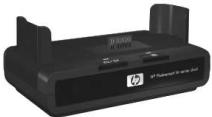
e-mails via HP Instant Share, or print photos at the touch of a button. Connect to your TV and view photo slideshows.
Includes a dock with two rechargeable AA NiMH batteries, an audio/video cable, a USB cable, and an HP AC power adapter.
HP Photosmart M-series quick recharge kit—L1815A (Not available in Latin America)
One hour recharging of AA NiMH batteries, plus stylish protection for your HP Photosmart M-series camera. Includes all you need to provide a home away from home for your camera: an ultra-lightweight portable charger, a camera case, a travel pouch, and four high-capacity rechargeable AA NiMH batteries.
HP Photosmart 3.3V AC power adapter for HP Photosmart M-series cameras—C8912B (Not available in Latin America)
This is the only power adapter supported for use with M-series cameras.
HP Photosmart SD memory cards (North America only) (For important information about supported types of memory cards, see Storage on page 145.)
HP Photosmart 64 MB SD memory card —C8896A
HP Photosmart 128 MB SD memory card—C8897A
HP Photosmart 256 MB SD memory card—L1813A
HP Photosmart 512 MB SD memory card—L1814A
HP Photosmart M-series leather case—L1816A
Protect your HP Photosmart M-series camera with this padded leather case. Designed to fit HP digital cameras, the case features a storage pouch for memory cards, extra batteries, and more.
- www.casesonline.com—Go to www.casesonline.com to design your own custom case to fit your HP Photosmart M-series camera. Choose the style, material, and color for your camera case.
Appendix C: Specifications
| Feature | Description | |||
| Resolution | Still pictures: • 3.27 MP (2096 by 1560) total pixel count • 3.21 MP (2080 by 1544) effective pixel count Video clips: • 288 by 216 total pixel count | |||
| Sensor | Diagonal 6.73 mm (1/2.7-inch, 4:3 format) CCD | |||
| Color depth | 36 bit (12 bits by 3 colors) | |||
| Lens | Focal length: • Wide—6.25 mm • Telephoto—17.25 mm • 35 mm equivalent, approximately 40 mm to 111 mm F-Number: • Wide—f/2.9 to f/4.9 • Telephoto—f/4.8 to f/8.0 | |||
| Lens threads | None | |||
| Viewfinder | Optical real image zoom type viewfinder, 3x magnification, without diopter adjust | |||
| Zoom | HP M307—3x optical, 5x digital zoom HP M305—3x optical, 3x digital zoom | |||
| Focus | TTL auto focus. Focus ranges: • Normal (default)—508 mm (20 in) to infinity • Macro—101.6 mm to 812.8 mm (4 in to 32 in) | |||
| Feature | Description | |||
| Shutter speed | 1/2000 to 15 seconds | |||
| Tripod mount | Yes | |||
| Built-in flash | Yes, 7.5-second typical recharge time | |||
| Flash working distance | Zoom | |||
| Position | ISO 100 | ISO 200 | ISO 400 | |
| Wide | 2.8 m | 4.0 m | 5.7 m | |
| 9.2 ft | 13.1 ft | 18.5 ft | ||
| Telephoto | 1.7 m | 2.4 m | 3.4 m | |
| 5.5 ft | 7.8 ft | 11.1 ft | ||
| External flash | No | |||
| Flash settings | Flash Off, Auto Flash (default), Red-Eye, Flash On, Night | |||
| Image Display | 1.8-inch color active matrix TFT LTPS with backlight, 130,338 pixels (557 by 234) | |||
| Image capture options | • Still (default) • Self-Timer—still picture or video clip taken after 10-second delay • Self-Timer - 2 shots—still picture taken after 10-second delay, then a second picture taken about 3 seconds later. • Single video taken after 10-second delay. • Burst—camera takes 4 shots in a row as quickly as it possibly can, and then continues taking pictures until the camera runs out of memory • Video—30 frames per second (includes audio), until the camera runs out of memory | |||
| Feature | Description | |||
| Storage | 16 MB internal flash memorySlot for memory cardThis camera supports both Secure Digital (SD) and MultiMediaCard (MMC) memory cards 16 MB and larger. Only MMC cards that have been verified compliant to the MultiMediaCard specification are supported. Compliant MMC memory cards have theMultiMediaCard logo on the card or package.SD cards are recommended, as they are faster than MMC cards at reading and writing data.This camera supports memory cards up to 1 GB.A high capacity card itself does not affect camera performance, but a large number of files (over 300) does affect the time it takes for the camera to turn on.The number of images that can be saved in memory depends on the Image Quality settings (see Memory Capacity on page 148). | |||
| Audio capture | Still pictures-audio clip length depends on the amount of available memoryBurst-audio capture not availableVideo clips-audio is recorded automatically | |||
| Shooting modes | Auto (default), Macro, Fast Shot, Action, Portrait, Landscape, Beach & Snow | |||
| EV Compensation settings | Can be set manually from -2.0 to +2.0 EV (Exposure Value) in 1/2 EV increments. | |||
| Image Quality settings | 3MP Best3MP (default)1MPVGA | |||
| White Balance settings | Auto (default), Sun, Shade, Tungsten, Fluorescent | |||
| ISO Speed settings | Auto (default), 100, 200, 400 | |||
| Color settings | Full Color (default), Black & White, Sepia | |||
| Date & Time Imprint settings | Off (default), Date Only, Date & Time | |||
| Compression format | JPEG (EXIF) for still imagesEXIF2.2 for still images with embedded audioMPEG1 for video clips | |||
| Interfaces | USB mini A/B connector to a computer or printerDPSUSB to HP DeskJet and HP Photosmart printersDC input 3.3 Vdc @ 2500 mAHP Photosmart M-series dock | |||
| Orientation Sensor | No | |||
| Standards | PTP transfer (15740)MSDC transferNTSC/PALJPEGMPEG1 level 1DPOF 1.1EXIF 2.2DCF 1.0DPS | |||
| Power | Typical power usage: 2.1 Watts with Image Display on. 4.5 Watts maximum power usage. Power sources include: · Either two non-rechargeable AA Lithium batteries (included) or two rechargeable AA NiMH batteries (purchased separately). Rechargeable batteries can be recharged in the camera using the optional HP AC power adapter or optional HP Photosmart M-series dock. · Optional HP AC power adapter (3.3 Vdc, 2500 mA, 8.25 W) · Optional HP Photosmart M-series dock Recharging in camera with the optional HP AC power adapter or optional HP Photosmart M-series dock: 100% in 15 hours. | |||
| External body dimensions | Measurements with camera off and lens retracted: 107 mm (L) by 36 mm (W) by 53 mm (H) 4.28 in (L) by 1.44 in (W) by 2.12 in (H) | |||
| Weight | 146 grams (.32 pounds) without battery | |||
| Temperature range | Operational: 0 to 50°C (32 to 122°F) at 15 to 85% relative humidity Storage: -30 to 65°C (-22 to 149°F) at 15 to 90% relative humidity | |||
| Warranty | 1 year limited warranty backed by HP Customer Support | |||
Memory Capacity
The following table lists the approximate number and average size of still images that can be stored in the internal memory in the camera when the camera is set to different Image Quality settings available in the Capture Menu.
NOTE Not all 16 MB of internal memory is available for storing images, because some memory is used for internal camera operations. Also, the actual file sizes and number of still images that can be stored in the internal memory in the camera or on an optional memory card will vary, depending on the content of each still image.
| 3MP Best | 8 images (1.6 MB each) |
| 3MP (default) | 13 images (1.0 MB each) |
| 1MP | 40 images (320 KB each) |
| VGA | 162 images (80 KB each) |
Index
A
AA batteries, types to use 129
AC power adapter connector on camera 20
purchasing 140
accessories for camera 139
Action mode, setting 39
AF viewfinder light 19
arrow buttons on Controller 18
audio clips, record 28, 61
automatic exposure, override 38
B
batteries
door on camera 18
extend life of 130
indicators 133
install 10
performance per type 132
quick recharge kit 140
recharging NiMH 134
top points about use 129
types to use 129
Beach & Snow mode, setting 39
blinking lights on camera 17, 19, 20
brackets in Live View screen 31
brightening an image 44
Burst
restore setting 42
setting 42
Timer/Burst button 18
buttons on camera 16
buying camera accessories 139
C
camera
accessories, purchasing 139
cleaning the lens 94
menus 22
purchasing case for 141
reset 88
specifications 143
states 22
turn on/off 12
camera dock
connector on camera 21
description 9
purchasing 140
camera parts
back and first side of camera 16
front, second side, and bottom of camera 20
top of camera 21
Camera Sounds, setting 81
capacity of internal memory 148
Capture Menu
Help for menu options 44
restore settings 44
using 43
case for camera,
purchasing 141
cleaning the lens 94
Color of images, setting 50
compression format 146
computer, connect camera to 73
connections
as a Picture Transfer Protocol (PTP) device 83
as a USB Mass Storage Device Class (MSDC) 83
to computer 73
to printer 75
connectors
AC power adapter 20
camera dock 21
USB21
conserving battery life 130
Controller with arrow buttons, description 18
crosshairs in viewfinder 31
customer support 122
D
darkening an image 44
Date & Time Imprint, setting 50
Date & Time, setting 13, 82
delete during Instant Review 27, 29
Delete, using 60
digital zoom 35
direct print
HP Instant Share/Print button 18
printing images from camera to printer or computer 75
disk drive, camera as 83
Display Brightness, setting 80
E
error messages
on camera 109
on computer 119
EV Compensation, setting 44 extending battery life 130
F
Fast Shot mode, setting 38
flash
description 20
restore setting 37
settings 36
using 36
working distance 144
Flash button, description 18
focus
brackets, using 31
camera shake 34
lock 34
range 143
format
internal memory 61
memory card 61
H
help from customer support 122
Help, online
for Capture Menu options 44
Help Menu, using 24
HP AC power adapter
connector on camera 20
purchasing 140
HP Image Zone software
installing 14
not using 89
HP Instant Share
customizing the HP Instant
Share Menu 65
description 9, 63
HP Instant Share/Print
button 18, 65
selecting individual images 69
turn on/off 65
using the HP Instant Share Menu 64
HP Instant Share Menu
customizing 65
description 64
selecting individual images 69
setting up destinations 65 using 64
HP Instant Share/Print button 65
HP web sites 122
1
Image Display
description 18
Live View at Power On setting 81
Live View button 19
status screen 25
using 30
Image Quality, setting 45
images
brightening 44
Color setting 50
darkening 44
Date & Time Imprint 50
Image Quality setting 45
ISO Speed setting 49
magnifying 57
number remaining 25, 31, 56
number saved in internal memory 148
record audio clips 28
Rotate 62
shooting modes 38
thumbnails view 56
too dark/light 44
transferring camera to computer 73
White Balance setting 47
indicators, power 133
install
batteries 10
memory card 11
software 14, 15
wrist strap 10
internal memory format 61
image capacity of 148
pictures remaining 25, 31, 56
ISO Speed, setting 49
L
Landscape mode, setting 39
Language
change setting 85
choose at first startup 13
LEDs (lights) on camera
AF light 19
Memory light 17
Power light 17
Self-Timer light 20
Video light 19
lens, cleaning 94
life of battery, conserving 130
Live View
button 19
using 30
Live View at Power On, setting 81
low battery indicator 133
M
Macintosh computer
connect to 73
install software 15
USB setting on camera 83
Macro mode, setting 38
Magnify control on Zoom lever 17 using 57
magnifying images 57
memory card door on camera 18
format 61
install 11 pictures remaining 25, 31, 56 supported types and sizes 145
Memory light, description 17
memory, internal format 61 image capacity 148
Menu/OK button, description 18
menus
Capture 43
Help 24
HP Instant Share 64
overview 22
Playback 58
Setup 79
messages on camera 109 on computer 119
microphone, description 20 MODE button 18
Move Images to Card 85
N
NiMH batteries
recharging 134
safety precautions 131
number of
images stored in internal memory 148
pictures remaining 25, 31, 56
0
ON/OFF switch, description 17
online Help
for Capture Menu options 44
Help menu, using 24
optical zoom 34
over-exposing an image 44
override automatic exposure 38
P
parts of camera
back and first side of
camera 16
front, second side, and bottom
of camera 20
top of camera 21
performance per battery
type 132
pictures record audio clips 28 share 63 take self-timer 40 take stills 27
Playback button, description 19 Menu, using 58 using 53
Portrait mode, setting 39
power
indicators 133
light 17
specifications 147
turn on/off 12
poweradapter,HPAC20
connector on camera 20
purchasing 140
Power light, description 17
Power ON/OFF switch, description 17
print images
directly to printer 75
HP Instant Share/Print button 18
using HP Instant Share 63
problems, troubleshooting 87
product support 122
purchasing camera accessories 139
R
range
Exposure Compensation 145
flash 144
F-number 143
focus 143
recharging NiMH batteries 134
record
audio clips 28, 61
video clips 29
red-eye reduction, description
remaining pictures count 25, 31, 56
reset camera 88
restore settings 25, 37, 39, 41, 42, 44
reviewing images 53
rotate images 62
S
safety precautions for NiMH batteries 131
selecting images for HP Instant Share destinations 69
Self-Timer
light 20
restore setting 41
settings 40
Timer/Burst button 18
settings, restore 25, 37, 39, 41, 42, 44
Setup Menu, using 79
share pictures 63
shooting mode
button 18
restore setting 39
settings 38
Shutter button
description 21
lock exposure and focus 31
shutter speed range 144
software
installing 14, 15
using camera without 89
sounds of camera 81
space remaining in memory 25, 31, 56
specifications 143
states, camera 22
status screen 25
still pictures, take 27
support for users 122
T technical support 122
Thumbs nails
control on Zoom lever 17
viewing 56
Time & Date, setting 13, 82
Timer/Burst button 18
total images summary screen 56
transfer images to computer 73
tripod mount, description 21
troubleshoot problems 87
turn on/off power 12
TV (television) Configuration
setting 84
U
under-exposing an image 44
USB
configuration setting 83
connector on camera 21
V
Video button, description 21
video clips, recording 29
Video viewfinder light 19
viewfinder
crosshairs 31
description 18
lights 19
using 31
W
web sites for HP 122
White Balance, setting 47
Windows computer
connect to 73
install software 14
working distance of flash 144
wrist strap, attaching to
camera 10
Z
zoom
digital 35
optical 34
specifications 143
Zoom lever, description 17
Zoom Out and Zoom In
controls 17
- HP Photosmart M305/M307 digital camera with HP Instant Share
- User's Manual
- Legal Notices
- Table of Contents
- Chapter 1:
- Getting Started 9
- Chapter 2:
- Taking Pictures and Recording Video Clips . .27
- Chapter 3:
- Reviewing Images and Video Clips 53
- Chapter 4:
- Using HP Instant Share 63
- Chapter 5:
- Transferring and Printing Images 73
- Chapter 6:
- Using the Setup Menu 79
- Chapter 7:
- Troubleshooting and Support 87
- Appendix A:
- Managing Batteries 129
- Appendix B:
- Purchasing Camera Accessories 139
- Appendix C:
- Specifications 143
- Chapter 1: Getting Started
- Setup
- Attaching the Wrist Strap
- Installing the Batteries
- Installing a Memory Card (Optional)
- Turning on Power
- Choosing the Language
- Setting the Date and Time
- Installing the Software
- Windows®
- Macintosh
- User Manual on the CD
- Camera Parts
- Back and First Side of the Camera
- Front, Second Side, and Bottom of the Camera
- Top of the Camera
- Camera States
- Camera Menu
- Using the Help Menu
- Camera Status Screen
- Restoring Previous Settings
- Chapter 2: Taking Pictures and Recording Video Clips
- Taking Still Pictures
- Recording Audio with Still Pictures
- Recording Video Clips
- Using Live View
- Focusing the Camera
- Using Auto Focus
- Using Focus Lock
- Using Zoom
- Optical Zoom
- Digital Zoom
- Setting the Flash
- Using the Shooting Modes
- Using the Self-Timer Settings
- For Still Pictures:
- For Video Clips:
- Using the Burst Setting
- Using the Capture Menu
- Help for the Menu Options
- WB White Balance
- EV Compensation
- Image Quality
- White Balance
- ISO Speed
- Color
- Date & Time Imprint
- Chapter 3: Reviewing Images and Video Clips
- Using Playback
- Total Images Summary Screen
- Viewing Buttons
- Magnifying Images
- Using the Playback Menu
- Delete
- Record Audio
- Rotate
- Chapter 4: Using HP Instant Share
- Using the HP Instant Share Menu
- Setting Up Destinations in the HP Instant Share Menu
- Setting Up Destinations on a Windows Computer
- Setting Up Destinations on a Macintosh Computer
- Selecting Images for HP Instant Share Destinations
- How HP Instant Share E-mails Images
- Chapter 5: Transferring and Printing Images
- Transferring Images to a Computer
- Printing Images Directly from the Camera
- Chapter 6: Using the Setup Menu
- Display Brightness
- Camera Sounds
- Live View at Power On
- Date & Time
- USB Configuration
- TV Configuration
- Language
- Move Images to Card
- Chapter 7: Troubleshooting and Support
- Resetting the Camera
- Using Your Camera without Installing the HP Image Zone Software
- Transferring Images to a Computer without HP Image Zone Software
- Using a Memory Card Reader
- Transferring Images to a Windows Computer
- Transferring Images to a Macintosh Computer
- Configuring the Camera as a Disk Drive
- Cleaning the Camera Lens
- Problems and Solutions
- Error Messages on the Camera
- Error Messages on the Computer
- Getting Assistance
- HP Accessibility Website
- HP Photosmart Website
- Support Process
- Phone Support in the United States and Canada
- Phone Support in Europe, the Middle East, and Africa
- Other Phone Support Worldwide
- Appendix A: Managing Batteries
- Top Points About Batteries
- Extending Battery Life
- Safety Precautions for Using NiMH Batteries
- Performance per Battery Type
- Power Indicators
- Recharging NiMH Batteries
- Safety Precautions for Recharging NiMH Batteries
- Sleep Time-out for Power Conservation
- Appendix B: Purchasing Camera Accessories
- Appendix C: Specifications
- Memory Capacity
- Index
- A
- B
- C
- 1
- L
- R
- S
- U
- V
- W
- Z
Brand : COMPAQ
Model : PHOTOSMART M305
Category : Digital Camera