
HUB 4000 Q - Professional audio equipment AKG - Free user manual and instructions
Find the device manual for free HUB 4000 Q AKG in PDF.


| Product Type | HiQnet network interface for AKG device management |
| Brand | AKG |
| Model | HUB 4000 Q |
| Category | Professional audio equipment |
| Dimensions (L x D x H) | 200 x 190 x 44 mm |
| Weight | Approximately 970 g |
| Power supply | 12 VDC ±2 V, 500 mA via provided power adapter |
| Power consumption | 65 mA ±20 mA |
| Operating temperature | -10 °C to 60 °C |
| Number of AKG device ports | 8 RJ11 ports |
| Network port | 1 RJ45 HiQnet LINK port (10/100 Mbit/s) |
| Main functions | Management of up to 8 AKG devices via HiQnet, daisy-chaining possible with switches, compatibility with Harman Pro System Architect |
| Included accessories | 1 HUB 4000 Q, 1 Inline power adapter, 8 RJ11 data cables, 1 19" rack mounting kit |
| Required software | System Architect (free download at akg.com/hiqnet or harmanpro.com/hiqnet) |
| Maintenance and cleaning | Disconnect the power adapter, clean with a slightly damp cloth (not wet). Do not use abrasive products, alcohol, or solvents. |
| Safety | Do not open the device, do not use in humid environments, check the mains voltage, use only the supplied power adapter (12 V DC, 500 mA). |
| Repairability | Repair by authorized technical personnel only. No user-serviceable parts inside. |
| General information | Compliant with CE standards (Directive 1999/5/EC). Declaration of conformity available at akg.com. |
Frequently Asked Questions - HUB 4000 Q AKG
User questions about HUB 4000 Q AKG
0 question about this device. Answer the ones you know or ask your own.
Ask a new question about this device
Download the instructions for your Professional audio equipment in PDF format for free! Find your manual HUB 4000 Q - AKG and take your electronic device back in hand. On this page are published all the documents necessary for the use of your device. HUB 4000 Q by AKG.
USER MANUAL HUB 4000 Q AKG
network concentrator
HiQnet
User Instructions. p. 6
Please read the manual before using the equipment!
- Do not spill any liquids on the equipment and do not drop any objects through the ventilation slots in the equipment.
- The equipment may be used in dry rooms only.
- The equipment may be opened, serviced, and repaired by authorized personnel only. The equipment contains no user-serviceable parts.
- Before connecting the equipment to power, check that the AC mains voltage stated on the supplied power supply is identical to the AC mains voltage available where you will use the equipment.
- Operate the equipment with the included power supply with an output voltage of 12 VDC only. Using adapters with an AC output and/or a different output voltage may cause serious damage to the unit.
- If any solid object or liquid penetrates into the equipment, shut down the sound system immediately. Disconnect the power supply from the power outlet immediately and have the equipment checked by AKG service personnel.
- If you will not use the equipment for a long period of time, disconnect the power supply from the power outlet. Please note that the equipment will not be fully isolated from power when you set the power switch to OFF.
- Do not place the equipment near heat sources such as radiators, heating ducts, or amplifiers, etc. and do not expose it to direct sunlight, excessive dust, moisture, rain, mechanical vibrations, or shock.
- To avoid hum or interference, route all audio lines, particularly those connected to the microphone inputs, away from power lines of any type. If you use cable ducts, be sure to use separate ducts for the audio lines.
- Clean the equipment with a moistened (not wet) cloth only. Be sure to disconnect the power supply from the power outlet before cleaning the equipment! Never use caustic or scouring cleaners or cleaning agents containing alcohol or solvents since these may damage the enamel and plastic parts.
11.Use the equipment for the applications described in this manual only. AKG cannot accept any liability for damages resulting from improper handling or misuse.
1.2 Environment
- The power supply will draw a small amount of current even when the equipment is switched off. To save energy, disconnect the power supply from the power outlet if you will leave the equipment unused for a long period of time.
- When scrapping the equipment, separate the case, circuit boards, and cables, and dispose of all components in accordance with local waste disposal rules.
- The packaging of the equipment is recyclable. To dispose of the packaging, make sure to use a collection/recycling system provided for that purpose and observe local legislation relating to waste disposal and recycling.

2 Description
2.1 Introduction
Thank you for purchasing an AKG product. This Manual contains important instructions for setting up and operating your equipment. Please take a few minutes to read the instructions below carefully before operating the equipment. Please keep the Manual for future reference. Have fun and impress your audience!
*Refer to figs. 3.1 and 3.2 on page 26. See SR 4000 manual for details.
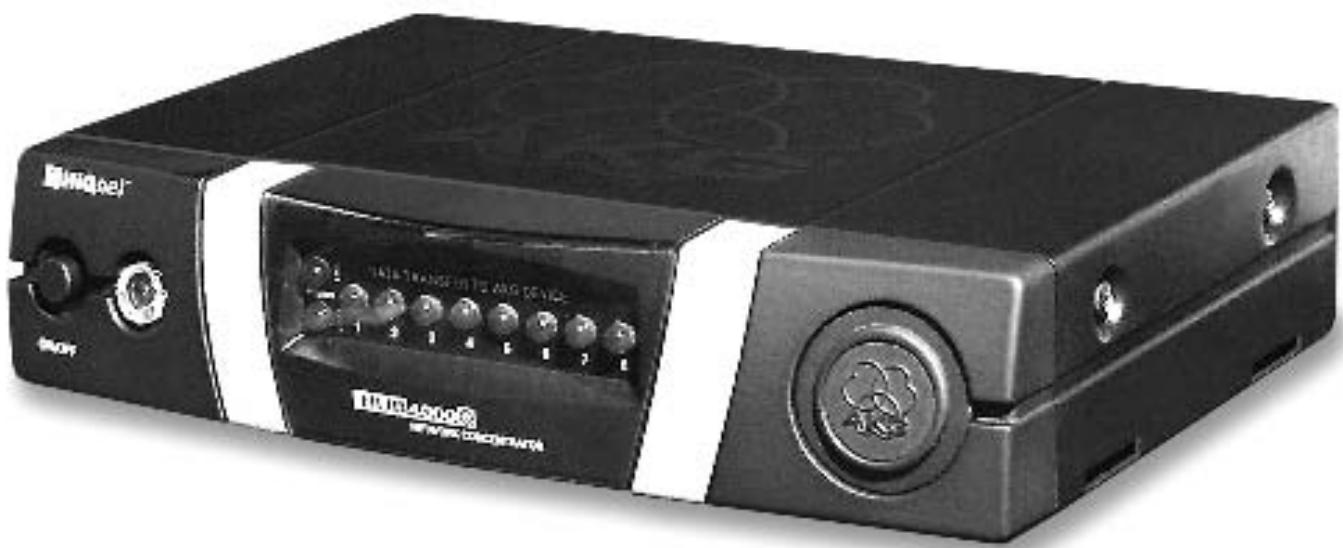
The HUB 4000 Q is a HiQnetTM network interface designed by AKG for controlling up to eight AKG devices from a single computer. The required System ArchitectTM software developed by Harman Pro is available as a free download from www.harmanpro.com/hiqnet or www.akg.com/hiqnet. These websites also list system requirements and provide information on the latest updates of System ArchitectTM.
For larger systems with more than eight AKG devices, you can use commercial switches (Ethernet hubs, routers, network interface cards, etc.) to daisy-chain the required number of HUB 4000 Qs.
You can use the HUB 4000 Q as a standalone unit or install it in a 19" rack using the supplied rack mounting kit.*
2.2 Unpacking
1 HUB 4000 Q
1 in-line power supply (as checked on the packaging)

8 data cables
1 rack mounting kit
Check that the packaging contains all of the components listed above. Should anything be missing, please contact your AKG dealer.
2.3 Required Accessory
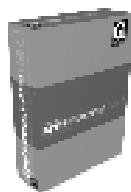
System ArchitectTM control software from Harman Pro, available as a free download from www.harmanpro.com/hiqnet or www.akg.com/hiqnet.
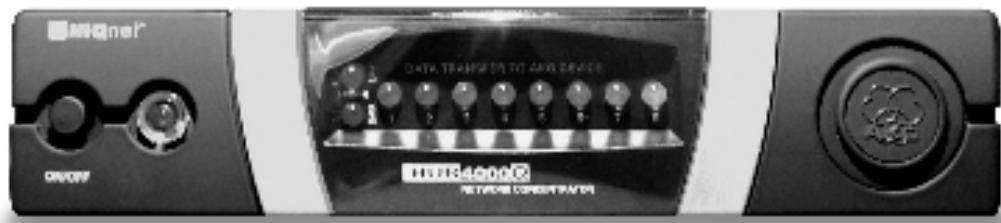
ON/OFF: Switches power to the unit on and off. The status LED next to the ON/OFF key will be lit green to indicate power is on.
HiQnet LINK: This green LED will be lit constantly to indicate the unit is connected to a HiQnetTM network.
HiQnet DATA: This green LED will flash to indicate the unit is receiving or sending data.
DATA TRANSFER TO AKG DEVICE 1-8: These blue LEDs indicate the status of data exchange between the HUB 4000 Q and the AKG devices connected to it. Each LED is assigned to one of the rear panel AKG NETWORK DEVICES 1 through 8 data ports. Each LED indicates the following conditions:
LED flashing: Data is being exchanged between the assigned data port on the HUB 4000 Q and the connected AKG device.
LED flashing slowly (approx. once every 3 seconds): There is a communication problem between the assigned data port on the HUB 4000 Q and the connected AKG device (hard or software error, defective data cable, etc.).
LED is dark: No AKG device is connected to the assigned data port or the connection has been interrupted.
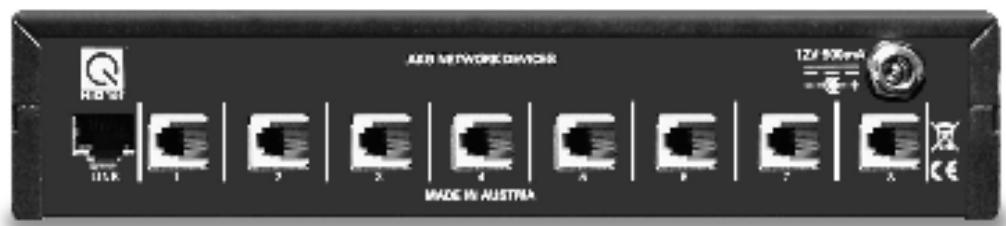
HiQnet LINK: This RJ 45 socket accepts the connecting cable to the computer.
- The connecting cable is not supplied with the euiqpment. To connect the equipment directly to a computer, use a crossover Ethernet cable. To connect the equipment to a standard Ethernet hub, use a straight-through Ethernet cable.
AKG NETWORK DEVICES 1-8: RJ 11 sockets for connecting up to eight AKG devices (e.g., SR 4000 receivers.
12 V/500 mA: Locking DC input for connecting the included power supply (12 VDC, 500 mA).

Operate the equipment with the included power supply with an output voltage of 12 VDC, 500mA only. Using adapters with an AC output and/or a different output voltage may cause serious damage to the unit.
2.4 Controls
2.4.1 Front Panel
Fig. 1: Front panel controls.
Refer to fig. 1.
2.4.2 Rear Panel
Fig. 2: HUB 4000 Q rear panel.
Refer to fig. 2.
Note:
Warning!
| Important! | Prior to setting up the unit, check that the AC mains voltage stated on the included power supply is identical to the AC mains voltage available where you will use your system. Using the power supply with a different AC voltage may cause damage to the unit. |
| Note: | Although the equipment will operate on both 10-Mbit and 100-Mbit networks, we recommend using a 100-Mbit network. |
| 3.1 Data Connections | 1. Use a crossover Ethernet cable to connect the HUB 4000 Q to a computer. |
| 3.1.1 Direct Connection to the Computer | 2. Connect the HiQnet LINK socket on the HUB 4000 Q to a network input on the computer or network card. (For details refer to the manual of your computer.) |
| 3.1.2 Connecting to the Computer via a Switch | A single HUB 4000 Q allows you to control up to eight AKG devices from a computer. You can use one or more commercial switches (Ethernet hubs, routers, etc.) to daisy-chain several HUB 4000 Qs and control the entire setup from the computer. |
| 1. Connect the switch to the computer referring to the manual(s) of the swi switch and/or computer. | |
| 2. Plug a straight-through network cable into the HiQnet LINK socket of each HUB 4000 Q. | |
| 3. Plug the other end of each network cable to an unused output on (one of) your switch. | |
| 3.1.3 Connecting AKG devices | 1. Be sure not to use any cables other than the supplied data cables with RJ 11 connectors. |
| 2. Connect the data port on each AKG device to one of the AKG NETWORK DEVICES sockets nos. 1 to 8 on the HUB 4000 Q rear panel. | |
| 3.2 Connecting to Power | 1. Check that the AC mains voltage stated on the included power supply is identical to the AC mains voltage available where you will use your system. Using the power supply with a different AC voltage may cause damage to the unit. |
| 2. Plug the DC cable on the included power supply into the 12 V/500 mA socket on the HUB 4000 Q rear panel and screw down the DC connector. | |
| 3. Plug the power cable on the power supply into a convenient power outlet. | |
| 3.3 Powering Up/Down | 1. To switch power to the unit on, press the ON/OFF key. The status LED next to the ON/OFF key will be lit, the blue DATA TRANSFER TO AKG DEVICE LEDs will illuminate starting from the center and extinguish to indicate the unit is initialized and ready to operate. |
| 2. To switch power to the unit off, press the ON/OFF key again. | |
| 3.4 Configuring the Computer | 1. Make sure that a functioning network card is installed in your computer. |
| 2. Install System ArchitectTM on your computer by following the installation instructions that come with in the download. | |
| 3. Make all data and network connections. | |
| 4. Connect all AKG devices connected to your network to power. | |
| 5. Switch power to all AKG devices on your network on. | |
| Important! | 6. Turn off all firewall and/or proxy software that may be running on your computer. This is absolutely necessary because this type of software may interfere with data communications within the HiQnetTM network. |
| 7. Start System ArchitectTM. System ArchitectTM and the HUB 4000 Q support DHCP (Dynamic Host configuration Protocol). This means that System ArchitectTM will automatically assign an unambiguous TCP/IP address to the network card and to each AKG device on your network. Therefore, you do not need to assign addresses manually. |

4 Cleaning
Important!
-
Disconnect the power supply from the power outlet.
-
Use a cloth moistened (not wet!) with water to clean the surfaces of the equipment.
Important!

Never use caustic or scouring cleaners or cleaning agents containing alcohol or solvents since these may damage the enamel or plastic parts.
| Problem | Possible Cause | Remedy |
| All LEDs remain dark on powering up. | • Power supply is not connected to HUB 4000 Q and/or power outlet. | • Connect power supply to HUB 4000 Q and/or power outlet. |
| HiQnet LINK LED remains dark on powering up. | • HUB 4000 Q is not connected to computer/network card/switch. | • Connect HUB 4000 Q to computer/network card/switch |
| DATA TRANSFER TO AKG DEVICE LED(s) remain(s) dark | • No AKG device connected. | • Connect AKG device(s). |
| DATA TRANSFER TO AKG DEVICE LED(s) is (are) lit constantly. | 1. Data cable(s) disconnected during data transfer. 2. Data cable(s) defective. | 1. Switch HUB 4000 Q OFF, connect data cable, switch HUB 4000 Q back ON. 2. Switch HUB 4000 Q OFF, replace data cable, switch HUB 4000 Q back ON. Should the problem persist, contact your nearest AKG Service Center. |
| DATA TRANSFER TO AKG DEVICE LEDs flash from center outward approx. every 2 seconds. | • Internal error. | • Switch unit OFF, wait for 10 seconds, switch unit back ON. Should the problem persist, contact your nearest AKG Service Center. |
| POWER, HiQnet LINK, and HiQnet DATA LEDs are lit constantly after power-up. | • Internal error. | • Switch unit OFF, wait for 10 seconds, switch unit back ON. Should the problem persist, contact your nearest AKG Service Center. |
| System Architect™ lists no devices. | • Computer operating system configured for manual TCP/IP address assignment. | • Configure operating system for automatic assignment. (Refer to operating system documentation.) |
6 Specifications

| Power supply | 12 VDC ±2 V |
| Current consumption | 200 mA max. |
| Ambient temperature | -10°C to +60°C |
| Connectors for AKG devices | RJ11 |
| Connector for network card | RJ45 |
| Size | 200 x 190 x 44 mm (7.8 x 7.5 x 1.7 in.) |
| Weight | approx. 970g (2.2 lbs.) |
This product conforms to the standards listed in the Declaration of Conformity. To order a free copy of the Declaration of Conformity, visit http://www.akg.com or contact sales@akg.com.
1.1 Sécurité
AKG Acoustics GmbH herewith declares that the HUB 4000 Q is in compliance with the essential requirements and other relevant provisions of Directive 1999/5/EC. To order a free copy of the Declaration of Conformity, visit http://www.akg.com or contact sales@akg.com.
H A Harman International Company
AKG Acoustics GmbH
Bodenseestra 228, D-81243 Munchen/GERMANY, Tel: (+49 89) 87 16-0, Fax: (+49 89) 87 16-200, www.akg.com/de, e-mail: infode@akg.com
Hotline: (+49 89) 87 16-22 50, hotlinede@akg.com
AKG ACOUSTICS, U.S.
914 Airpark Center Drive, Nashville, TN 37217, U.S.A., Tel: (+1 615) 620-3800, Fax: (+1 615) 620-3875, www.akgusa.com, e-mail: akgusa@harman.com
For other products and distributors worldwide see our website: www.akg.com
Brand : AKG
Model : HUB 4000 Q
Category : Professional audio equipment