
N412I - Mobile Phone NEC - Free user manual and instructions
Find the device manual for free N412I NEC in PDF.


User questions about N412I NEC
0 question about this device. Answer the ones you know or ask your own.
Ask a new question about this device
Download the instructions for your Mobile Phone in PDF format for free! Find your manual N412I - NEC and take your electronic device back in hand. On this page are published all the documents necessary for the use of your device. N412I by NEC.
USER MANUAL N412I NEC
Emergency Services and Safety Precautions
Emergency Services
To make an emergency call in any country
Press 112
Ask the operator for the service which you require: Police, Ambulance, Fire Brigade, Coastguard or Mountain Rescue Services. Give your position and, if possible, remain stationary to maintain phone contact.
The 112 emergency number service is available on every digital network service. The number 999 is an alternative emergency number for the UK only, and can only be used with a valid SIM card.
Due to the nature of the cellular system, the success of emergency calls cannot be guaranteed.
General Care
A cellphone contains delicate electronic circuitry, magnets, and battery systems. You should treat it with care and give particular attention to the following points.
- Do not allow the phone or its accessories to come into contact with liquid or moisture at any time.
- Do not place anything in the folded phone.
- Do not expose your phone to extreme high or low temperatures.
- Do not expose your phone to naked flame, cigars or cigarettes.
- Do not paint your phone.
- Do not drop or subject your phone to rough treatment.
- Do not place the phone alongside computer disks, credit cards, travel cards and other magnetic media. The information contained on disks or cards may be affected by the phone.
- Take care not to allow metal objects, such as coins or key rings, to contact or short-circuit the terminals.
- Do not dispose of your phone in a fire. Your phone's Li-ion batteries may be safely disposed of at Li-ion recycling points. For more specific battery and power supply information, see page 3.
- Do not attempt to dismantle the phone or any of its accessories.
- This equipment is fitted with an internal battery that can only be replaced by a qualified service engineer.
-
Using any Vehicle power adapter (option), Dual tap (option), AC adapter or accessory not specified by the manufacturer for use with this phone creates a potential safety hazard.
-
The earpiece may become warm during normal use and the unit itself may become warm during charging.
- Your phone may become warm during charging and normal use. Do not expose your phone to your skin for a long time.
- Use a damp or anti-static cloth to clean the phone. Do NOT use a dry cloth or electrostatically charged cloth. Do not use chemical or abrasive cleaners as these could damage the case.
- Remember to recycle: the cardboard packaging supplied with this phone is ideal for recycling.
- Do not leave the battery empty for a long time, otherwise some data may be initialized.
- Your phone contains metal which may cause you an itch, a rash or eczema depending on your constitution or physical condition.
- Take care not to put your phone in the back pocket of your trousers or skirt and then sit on it. Also, do not put your phone at the bottom of bag where it may subject to excessive weight or pressure.
- Doing so may damage the display and camera lens and cause them malfunction.
- The foam covers the earpiece of the headset. Do not put any other part of the headset in your ears.
- If you use or leave the phone in high temperature (above 45^ ), bubbles may appear on the surface of the Main-display. In such a case, use the phone in normal temperature (around 25^ ). The bubbles on the Main-display will disappear after a while.
Aircraft Safety
- Switch off your phone when inside or near aircraft. The use of cellphones in aircraft is illegal. It may be dangerous to the operation of the aircraft and it may disrupt the cellular network. Failure to observe this instruction may lead to suspension or denial of cellphone service to the offender, or legal action, or both.
- Do not use your phone on the ground without the permission of the ground crew.
Hospital Safety
- Switch off your phone in areas where the use of cellphones is prohibited. Follow the instructions given by the respective medical facility regarding the use of cellphones on their premises.
General Safety
- Observe 'Turn off 2-way radio' signs, such as those near stores of fuel, chemicals or explosives.
- Do not allow children to play with the phone or its accessories.
- Small parts are included in your phone. Keep them out of reach of small children, for whom it could be a choking hazard.
- The operation of some medical electronic devices, such as hearing aids and pacemakers, may be affected if a cellphone is used next to them. Observe any warning signs and manufacturer's recommendations.
- Keep your phone away from precision instruments. It may cause noise or malfunction of the instruments.
-
If you have a weak heart, you should take extra precautions when setting functions such as the Vibrator and Ringer volume functions for incoming calls.
-
If you set the Vibrator setting to anything other than OFF, be careful that the phone is not near a source of heat (e.g. a heater) and that it does not fall from a desk due to the vibration.
- To avoid risk of burns do not allow the product temperature to exceed 55^ ; e.g. do not leave the phone on a car dashboard or on a window sill, behind glass in direct sunlight, etc.
Road Safety
- You MUST exercise proper control of your vehicle at all times. Give full attention to driving.
- Observe all the recommendations contained in your local traffic safety documentation.
- Pull off the road and park before making or answering a call if driving conditions so require.
- You MUST NOT stop on the hard shoulder of a motorway to answer or make a call, except in an emergency.
- Switch off your phone at a refuelling point, such as a petrol station, even if you are not refuelling your own car.
- Do not store or carry flammable or explosive materials in the same compartment where a radio transmitter, such as a cellphone, is placed.
- Electronic vehicle systems, such as anti-lock brakes, speed control and fuel injection systems are not normally affected by radio transmissions. The manufacturer of such equipment can advise if it is adequately shielded from radio transmissions. If you suspect vehicle problems caused by radio transmissions, consult your dealer and do not switch on your phone until it has been checked by qualified approved installers.
Vehicles Equipped with an Air Bag
An air bag inflates with great force. Do not place objects, including either installed or portable wireless equipment, in the area over the air bag or in the air bag deployment area. If in-vehicle wireless equipment is improperly installed and the air bag inflates, serious injury could result.
Third Party Equipment
The use of third party equipment, cables or accessories, not made or authorized by NEC, may invalidate the warranty of your cellphone and also adversely affect the phone's operation. For example use only the NEC mains cable supplied with the AC charger.
Service
The cellphone, batteries and charger contain no user-serviceable parts. We recommend that your NEC cellphone is serviced or repaired by an NEC authorized service centre. Please contact your Service Provider or NEC for advice.
Non-Ionizing Radiations
The radio equipment shall be connected to the antenna via a non-radiating cable (e.g. coax).
The antenna shall be mounted in a position such that no part of the human body will normally rest close to any part of the antenna unless there is an intervening metallic screen, for example, the metallic roof.
Use only an antenna that has been specifically designed for your phone. Use of unauthorized antennas, modifications or attachments could damage your phone and
may violate the appropriate regulations, causing loss of performance and radio frequency (RF) energy above the recommended limits.
Efficient Use
For optimum performance with minimum power consumption, note the following:
- Your phone has the internal antenna. Do not cover part of the internal antenna of the phone with your hands. This affects call quality, may cause the phone to operate at a higher power level than needed and may shorten talk and standby times.
Radio Frequency Energy
Your phone is a low-power radio transmitter and receiver. When it is turned on, it intermittently receives and transmits radio frequency (RF) energy (radio waves). The system that handles the call controls the power level at which the phone transmits.
Exposure to Radio Frequency Energy
Your phone is designed not to exceed the limits for exposure to RF energy set by national authorities and international health agencies. * These limits are part of comprehensive guidelines and establish permitted levels of radio wave exposure for the general population. The guidelines were developed by independent scientific organizations such as ICNIRP (International Commission on Non-Ionizing Radiation Protection) through periodic and thorough evaluation of scientific studies. The limits include a substantial safety margin designed to assure the safety of all persons, regardless of age and health, and to account for any variations in measurements.
*Examples of radio frequency exposure guidelines and standards that your phone is designed to conform to:
- ICNIRP, "Guidelines for limiting exposure to time-varying electric, magnetic, and electromagnetic fields (up to 300 G Hz)-International Commission on Non-Ionizing Radiation Protection (ICNIRP)", Health Physics, vol. 74. pp, 494-522, April 1998.
99/519/EC Council Recommendation on the limitation of exposure to the general public to electromagnetic fields 0 Hz-300 GHz, Official Journal of the European Communities, July 12, 1999.
ANSI/IEEE C95.1-1992. "Safety levels with respect to human exposure to radio frequency electromagnetic fields, 3kHz to 300 GHz". The Institute of Electrical and Electronics Engineers Inc., New York, 1991.
FCC Report and Order, ET Docket 93-62, FCC 96-326, Federal Communications Commission (FCC), August 1996.
- Radio communications (Electromagnetic Radiation Human Exposure) Standard 2003, Australian Communications Media Authority.
Declaration of Conformity
This product complies with the requirements of the R&TTE Directive 1999/5/EC. The Declaration of Conformity' leaflet can be found within this box.
Licenses
T9 Text Input and the T9 logo are registered trademarks of Tegic Communication. "T9 Text Input is licensed under one or more of the following: U.S. Pat. Nos. 5,187,480,5,818,437,5,945,928,5,953,541,6,011,554,6,286,064, 6,307,548,6,307,549,and 6,636,162,6,646,573; Australian Pat. Nos. 727539, 746674,and 747901; Canadian Pat. Nos. 1,331,057,2,302,595,and 2,227,904; Japan
Pat. No. 3532780, 3492981; United Kingdom Pat. No. 2238414B; Hong Kong Standard Pat. No. HK1010924; Republic of Singapore Pat. No. 51383, 66959, and 71979; European. Pat. Nos. 0 842 463 (96927260.8), 1 010 057 (98903671.0), 1 018 069 (98950708.2); Republic of Korea Pat. Nos. KR201211B1 and KR226206B1. People's Republic of China Pat. Application Nos. 98802801.8, 98809472.X and 96196739.0; Mexico Pat. No. 208141; Russian Federation Pat. No. 2206118; and additional patents are pending worldwide"
USE OF THIS PRODUCT IN ANY MANNER THAT COMPLIES WITH THE MPEG-4 VISUAL STANDARD IS PROHIBITED, EXCEPT FOR USE DIRECTLY RELATED TO (A) DATA OR INFORMATION ENCODED BY A CONSUMER FOR PERSONAL AND NON-COMMERCEIAI USE WITHOUT REMUNERATION; (B) DATA OR INFORMATION (i) GENERATED BY AND OBTAINED WITHOUT CHARGE FROM A CONSUMER NOT THEREBY ENGAGED IN A BUSINESS ENTERPRISE, AND (ii) FOR PERSONAL USE ONLY; and (C) OTHER USE SPECIFICALLY AND SEPARATELY LICENSED BY MPEG LA, LLC.
- Helvetica is a registered Trademark of Heidelberger Druckmaschinen AG which may be registered in certain jurisdictions.
©2002 Music Airport Inc., http://www.music-airport.com/
- Java and all Java-based trademarks and logos are trademarks or registered trademarks of Sun Microsystems, Inc in the U.S. and other countries.
This product contains ACCESS Co., LTD's Compact NetFront™ Plus internet browser software.
Copyright © 1998-2005 ACCESS CO., LTD.
CompactNetFront Plus
Compact NetFront™ is a registered trademark or trademark of ACCESS CO., LTD in Japan and selected countries worldwide.
This product contains ACCESS CO., LTD's JV-Lite2™ Java virtual machine software. Copyright © 2000-2005 ACCESS CO., LTD.
JV-Lite2™ is a registered trade mark or trademark of ACCESS COI, LTD, in Japan and selected countries world wide.
Copyright 2005 Aplix Corporation and eSOL Co., Ltd. All Rights Reserved.
- This Mobile Printing Ready product is designed to provide easy printing from mobile phones. This product follows Mobile Imaging and Printing Consortium (MIPC) guidelines version 1.0 for PictBridge.
- The Bluetooth® word mark and logos are owned by the Bluetooth SIG, Inc. and any use of such marks by NEC is under license. Other trademarks and trade names are those of their respective owners.
- i-mode and i-mode logos are trademarks or registered trademarks of NTT DoCoMo.
For the purpose of improvement, the specifications for this product and its accessories are subject to complete or partial change without prior notice.
User's manual conventions
The instructions in this user's manual make use of the shortcuts selection except special cases.
The following markers are used throughout the user's manual to attract your attention:
This type of paragraph will contain details of where to find information related to the topic in question.
This type of paragraph will contain information worth noting.
This type of paragraph will contain important information.
This type of description will contain procedures to operate your phone.
Menu shortcuts selection
The alternative shortcuts method of selection lets you jump straight to a menu or function without highlighting an icon and scrolling through the intermediate menu options. The selection is made by pressing numbers which relate to the displayed menu options.
The instructions in this user's manual make use of the shortcuts selection, except in special cases.
Reading the titles
Some titles in this manual contain information on how to access the functions. In these titles, M stands for (MEN), the numbers indicate the menu shortcut numbers (see "Overview of menu function" on page x for details) and ... (three periods) indicate that there are more operations described in the paragraph.
Reading the procedures
"Highlight" means to use the 4-way navigation keys (▲▼ ≦▶) to move the area emphasized with different colouring.
"Select" means to highlight an item and then press
Procedures are written omitting the verb "press", except in some special cases.
For example, (MEN) 12 means to:
Start from the standby screen Press (MENU) to display the Main menu screen
Press 1 to display the Settings screen Press 2 to display the Phone modes screen
Simple procedures are connected by arrows () .
Check box/Radio button
A check box enables/disables an option out of a set of options, and multiple check boxes can be selected at the same time. On the other hand, selecting a radio button automatically cancels the previous selection, so only one radio button can be selected at one time.
A check box/radio button option can be selected/cancelled by highlighting it and pressing
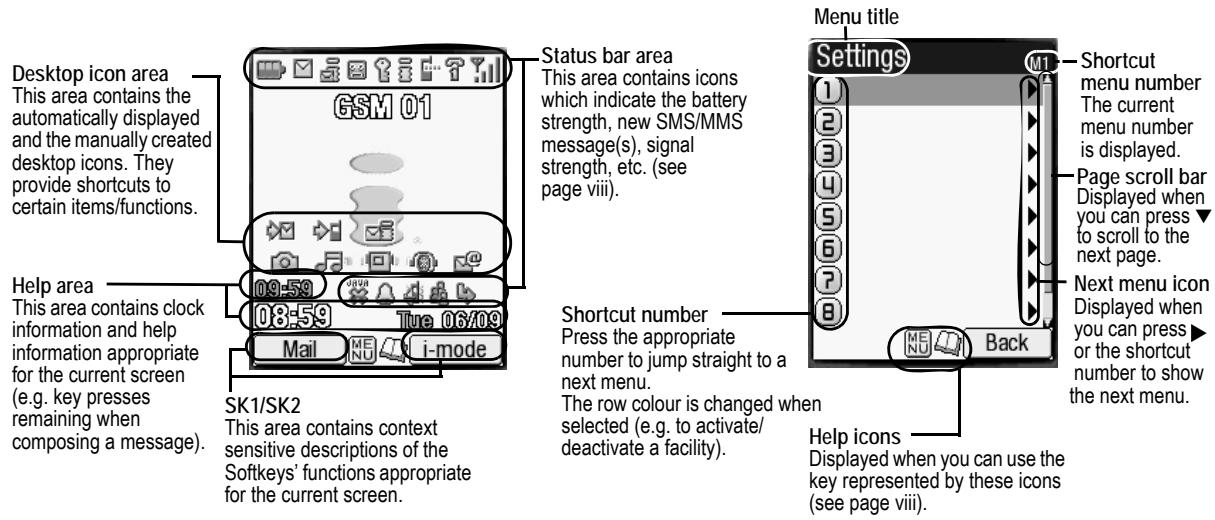

The Liquid Crystal Display (LCD) of your phone's main-display is manufactured using high-precision technology. Even so, the LCD may contain pixels (dots) that fail to light or that remain permanently lit. Note that this is normal and does not indicate a problem with your display.
The following operations are available from the standby screen.
Keypad shortcuts
| Key | Operation that involves pressing a key | See page | Operation that involves pressing and holding a key | See page |
| \(\mathbf{\underline{M E N U}}\) | Accessing the Main menu screen | x | Setting/Cancelling the Side key lock | 22 |
| SK1 | Accessing the Mail screen | 44 | Accessing the Inbox screen | 45 |
| SK2 | Accessing the i-mode menu screen | 41 | Accessing the Java™ applications screen | 70 |
| \(\mathbf{\underline{L}}\) | Accessing the Phonebook list screen | 50 | Accessing the Message screen | 29 |
| ▲ | Accessing the Phone modes screen | 23 | Setting the phone to Meeting mode/Returning to the previous mode | 23 |
| ▼ | Accessing the My data screen | 64 | Accessing the voice recall | 8 |
| \(\mathbf{\underline{A}}\) | Accessing the received calls list | 12 | - | - |
| ▶ | Accessing the missed calls list | 12 | - | - |
| \(\mathbf{\underline{C}}\) | Accessing the dialled calls list | 12 | - | - |
| ○ | Highlighting a desktop icon | 21 | Accessing the homepage | 42 |
| \(\mathbf{\underline{D}}\) | Ending a call or returning to the standby screen | - | Powering off | 5 |
| CLR | Cancelling the Cell Broadcast message display | 35 | Deleting all the automatically displayed desktop icons | 20 |
| Deleting character or returning to the previous screen | - | Deleting all characters when you enter text | - | |
| 1 | Entering phone numbers | 6 | Calling the Voice mail centre | 57 |
| 2 to 9 | Entering phone numbers | 6 | One-touch dial to the corresponding number in the phonebook(SIM) | 8 |
| 0 | Entering phone numbers | 6 | Entering + when you make an international call | 14 |
| # | Entering # | 6 | Entering a pause | - |
| * | Entering * | 6 | Switching the ALS line 1/2 (if the SIM card supports ALS) | 22 |
| Side up | Accessing the volume control screen when your phone is open(Use ▲▼, Side keys or 0 to 9 keys to adjust the volume.) | 22 | Accessing the camera view finder screen | 58 |
| Activating the ring silencer function when you receive a call | 22 | |||
| Side down | Accessing the volume control screen when your phone is open(Use ▲▼, Side keys or 0 to 9 keys to adjust the volume.) | 22 | - | - |
| Activating the ring silencer function when you receive a call | 22 |
Displayed icons
Main-display
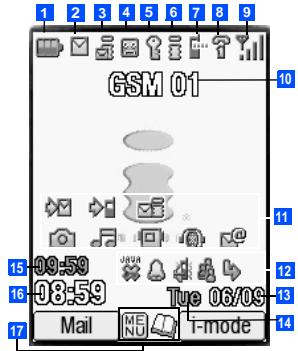


Indicates the battery level.


Indicates the battery charging status (charging, stop).


Indicates that there is a new SMS in your phone.

Indicates that there is a new SMS on the network.

Indicates that the SIM memory is full.

Indicates that the Inbox in your phone is full.

(pink)
Indicates that there are mail and MMS on the server.

(yellow)
Indicates that there is a new mail/MMS in your phone.

This yellow icon blinks while a mail/MMS is being downloaded.

Indicates that the memory for mail/MMS is full.

Indicates that new voice mail messages are on the network (No ALS or ALS Line 1/ALS Line 1 and 2/ALS Line 2).

Indicates secured communication on WTLS in i-mode browsing.

Indicates that your phone is connected to a GPRS modem such as PC.
(gray)
Indicates that the phone is in the GSM (Global System for Mobile communication) network service area and GPRS is active.
(yellow)
Indicates that the GPRS is available and i-mode (PDP Context) is active.

Indicates that the i-mode connection is carried out.

Indicates that the i-mode lock is on.

No icon appears when the phone is outside the GSM network service area, or when the phone is in the GSM network service area and GPRS is not attached.


Indicates Bluetooth On, Bluetooth is active.

Indicates the line status (No ALS or ALS Line 1/ALS Line 2). The icon with ≈ displayed in red indicates that the ALS line 1 or 2 is unencrypted/no ALS.

Y 3d 3d
Indicates the signal strength level.

Appears when you are outside the service area.

Network name (indicated in orange when using roaming service)

Desktop icons
See "Desktop icons" on page 20 for details


Indicates the call diversion is set.

Indicates the Meeting mode/Pocket mode.

No icon appears for the Normal mode.


Indicates sound-off, vibrator-on, sound-off/ vibrator-on.

Indicates alarm-on.

Indicates the auto start of a Java™ application has failed.


Day of week

Remote time

Local time


Indicates that you can use the options menu by pressing (MEN).

Indicates that you can use the phonebook list by pressing

Indicates the usable keys in black, while using i-mode or a JavaTM application is in operation.

Indicates that the help display is available by pressing when using SIM toolkit.

Indicates that a JavaTM application is in operation.
<When the camera/video view finder is in

售货员销售员销售员销售
Indicates single/burst mode (camera).

Indicates the video mode is on or the video is recording.


Indicates that the self timer is on.

F W E
Indicates the quality of the picture (super fine, fine, normal, economy or super economy).

Indicates the quality of the video.

园园园园
Indicates the photo/video screen size.

图
Indicates the shooting environment.

图图
Indicates the brightness setting. The +2 setting is the brightest.

Indicates the zoom level.

噪
Indicates the video mode is set to on, the video is playing, on pause, fast forwarding, or rewinding.

品品品
Indicates the track information of the video (the video only, the audio only, and the video and audio).

图图
Indicates the video is played in normal/enlarged screen size.

6 8 8 8 8 8 8 8 8 8 8
Displays the current volume level. The 0 is mute and 9 is the maximum.

Displays the current volume level. The 0 is mute and 9 is the maximum.

Indicates the repeat mode is Repeat all, Repeat one.

Indicates the Equalizer mode is Rock, Jazz, Pop
External-display
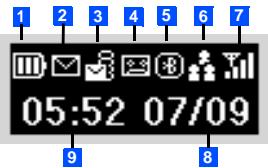

Indicates the battery level.

Indicates the battery charging status (charging, stop).

Indicates that there is a new SMS in your phone.

Indicates that there is a new SMS on the network.

Indicates that the SIM memory is full.

Indicates that the Inbox in your phone is full.

Indicates that there are mail and MMS on the server.

Indicates that there is a new mail/MMS in your phone.
This icon blinks while a mail/MMS is being downloaded.

Indicates that the memory for a mail/MMS is full

图图
Indicates that a new voice mail message is on the network (No ALS or ALS Line 1/ALS Line 1 and 2/ALS Line 2).

8 8
Indicates Bluetooth On, Bluetooth is in operation.

品
Indicates that the phone is in the Meeting/Pocket mode.

No icon appears for the Normal mode.

Indicates the signal strength level.

Appears when you are outside the service area.

Date

Local time

M D D
Indicates the battery level.

Indicates the battery charging status (charging, stop).

Indicates that the MP3 player is playing.

Indicates that the repeat mode is Repeat all, Repeat one.
Overview of menu function
Standby screen
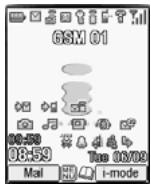
Main menu screen
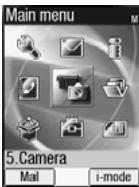
The Main menu has a set of icons for its top levels of options which can be selected either using a combination of the 4-way navigation key (▲▼▲▶) and (menu selection), or just the keypad (shortcuts selection).
The title of the selected option will be displayed in the Help area.
SIM toolkit icon is displayed only when your SIM card supports this function.
With the Main menu screen displayed, 0 to display your own number.
| Key | Main menu | Second level menu |
| 1 | Settings | Phone |
| Phone modes | ||
| Main-display | ||
| External-display | ||
| Power saving | ||
| Calls | ||
| Security | ||
| Network | ||
| Reset settings | ||
| 2 | Message | Inbox |
| Drafts | ||
| Outbox | ||
| Sent | ||
| Folder1 | ||
| Folder2 | ||
| CB |
| Key | Main menu | Second level menu |
| 3 | i-mode | i-mode |
| Settings | ||
| 4 | Phonebook | Lists |
| Information # | ||
| Call options | ||
| 5 | Camera | Camera |
| Video recorder | ||
| 6 | My data | Videos |
| Sounds | ||
| Pictures | ||
| MP3 |
| Key | Main menu | Second level menu |
| 7 | JavaTM | Programs |
| Prog backlight | ||
| 8 | Accessory | MP3 player |
| Calculator | ||
| Clock alarm | ||
| Scheduler | ||
| ToDo list | ||
| Notepad | ||
| Voice memo | ||
| Currency | ||
| Bluetooth | ||
| Synchronization | ||
| 9 | SIM toolkit | |
| Getting Started | 1 |
| Basic Calls & Phone Use | 6 |
| Text Entry | 16 |
| Desktop icons | 20 |
| Settings (M1) | 22 |
| Message (M2) | 29 |
| i-mode (M3) | 36 |
| Phonebook (M4) | 50 |
| Camera (M5) | 58 |
| My data (M6) | 64 |
| Java™ (M7) | 70 |
| Accessory (M8) | 72 |
| Bluetooth (M89) | 81 |
| Index | 86 |
Emergency Services and Safety Precautions i
Before You Start iv
User's manual conventions.. iv
Display information .
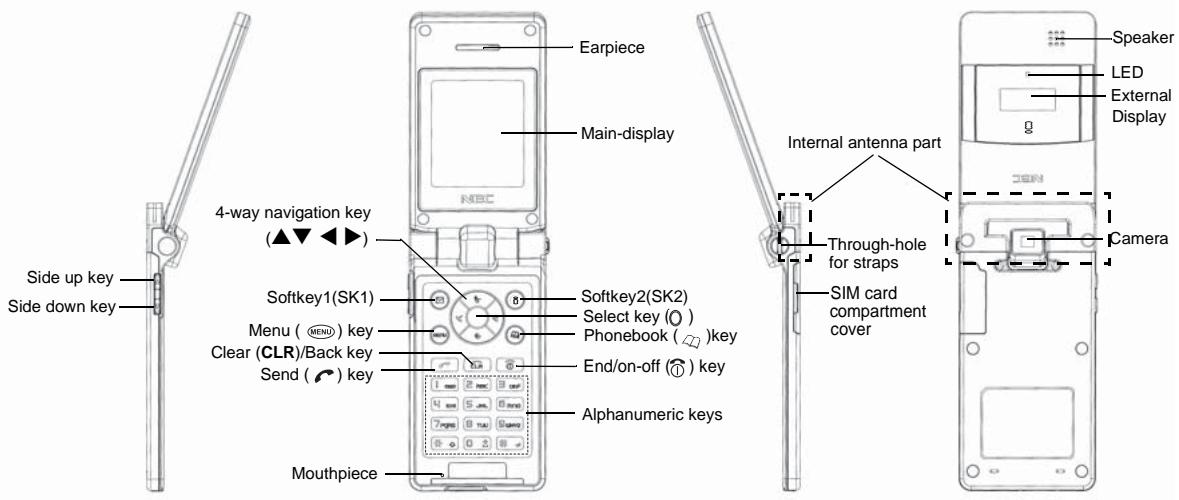
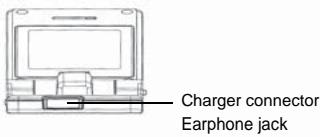
Parts and functions vi
Displayed icons. viii
Overview of menu function.
Getting Started 1
Preparing the phone 1
Standby and talk times 4
Checking the battery. 4
Low battery alarm 4
Other battery alarms. 5
Start-up 5
Basic Calls & Phone Use 6
Making basic calls. 6
Ending a call 6
Receiving an incoming call 6
Unsuccessful calls 7
Emergency calls 7
Last number radial 8
One-touch dial 8
Fast dialling. 8
Displaying your own phone number (M0/M416)............8
Voice recall 8
Options menu (during a call) 9
Putting a call on hold 9
Mute. 9
Call transfer 10
Multi-party calls 10
Recording a call 11
Scratchpad number 11
Call options (M43) 11
Call settings (M16) 13
International dialling codes 14
Roaming 15
Text Entry 16
Mode change 16
T9® English text input 16
Normal text input. 17
Numeric input. 17
T9® Chinese Stroke input 18
T9® Pinyin input (Simplified Chinese) 18
T9® Zhuyin input (Traditional Chinese) 18
Key allocations. 19
Desktop icons 20
Settings (M1) 22
Phone (M11) 22
Phone modes (M12) 23
Main-display (M13) 25
External-display (M14) 25
Power saving (M15) 26
Calls (M16) 26
Security (M17) 26
Network (M18) 27
Reset settings (M19) 28
Message (M2) 29
Message overview 29
Reading a message (M21). 30
Creating a message 33
Cell broadcast (M27) 35
i-mode (M3) 36
i-mode operation guide 36
i-mode screen 40
i-mode menu screen 41
iMenu screen 43
Mail screen 44
i-mode glossary 48
Phonebook (M4) 50
Phonebook types 50
Accessing your phonebook (M4) 51
Phonebook list Options menu 52
Personal data Options menu 56
Voice mail (M417) 57
Camera (M5) 58
Notes on using the camera. 58
Taking a picture (M51) 59
Recording a video (M52) 61
My data (M6) 64
Videos (M61) 64
Sounds (M62) 64
Pictures (M63) 65
MP3 (M64) 67
File selector Options menu 67
JavaTM (M7) 70
Programs (M71) 70
Prog backlight (M72) 71
Accessory (M8) 72
MP3 player (M81) 72
73
Clock alarm (M83) 73
Scheduler (M84) 74
ToDo list (M85) 76
Notepad (M86) 77
Voice memo (M87) 79
Currency (M88) 80
Bluetooth (M89) 80
Synchronization (M80) 80
Bluetooth (M89) 81
Pairing a Bluetooth device and your phone 82
Using Bluetooth for voice/modem 83
Bluetooth Object Push 83
Bluetooth File Transfer. 85
Index 86
Getting Started
Preparing the phone
Before trying to use your phone, make sure that a valid Subscriber Identity Module (SIM) card is inserted and the battery is charged.
SIM card
Before using your phone, you must sign-up with one of the digital network service providers. In addition to your subscription details you will receive a personal SIM (Subscriber Identity Module) card which is inserted into your phone.
If the SIM card is removed, the phone becomes unusable until a valid SIM card is fitted. It is possible to transfer your SIM card to another compatible phone and resume your network subscription. The screen on your phone will display appropriate messages if no SIM card is fitted.
If the phone, or the SIM card, is lost or stolen then you should contact your service provider immediately in order to bar it from use.
The phone supports a number of languages and the keyboard symbols have been chosen for world-wide operation.
The digital technology of your phone helps to ensure that your conversations are kept secure.
The SIM card contains personal data such as your electronic phonebook, messages (see "Message (M2)" on page 29) and also details of the network services you have subscribed to. The phone will not work (except for emergency calls on some networks) unless a valid SIM card is fitted.
Be sure to turn the phone off before inserting and removing a SIM card. Otherwise damage to the SIM card can occur.
If you remove the SIM card while the phone is turned on, the phone will restart itself.
Inserting a SIM card
Be sure to turn the phone off before inserting a SIM card.

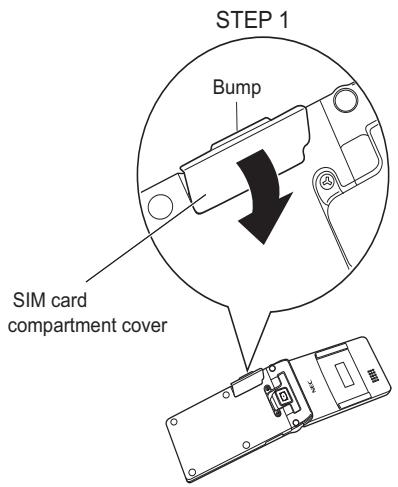
Pick up the bump and lift the SIM card compartment cover gently in the direction of the arrow (STEP 1).
Be careful not to pull out the cover too much. This may cause the SIM card compartment cover to break apart.
Make sure to handle the black rubber part that connects the phone and the SIM card compartment cover gently.
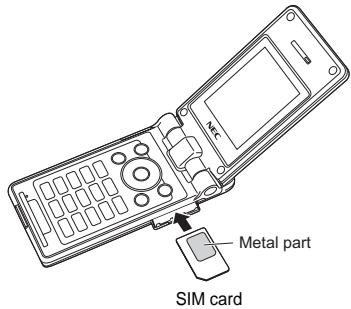
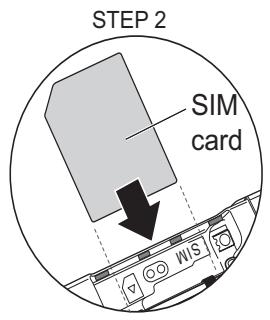
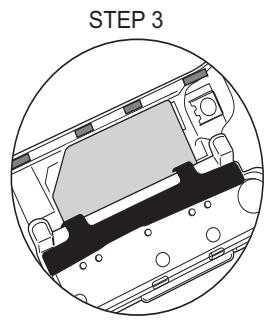
Insert the SIM card into the narrow slot in the SIM card compartment in the direction of the arrow (STEP 2) until it is locked in place (STEP 3). Make sure the metal part of the SIM card is facing front when viewed from the keypad (see the figure on the right).
Be careful not to damage electric parts of the SIM card compartment when inserting a SIM card.
If the SIM card is not fully inserted, damage to the SIM card can occur.
Slide the cover in the direction of the arrows (STEP 4) until the two tabs fit properly inside the cover (STEP 5).
Close the cover in the direction of the arrows until the four tabs are locked in the cavities and click (STEP 5 and STEP 6).
If the SIM card is already fitted, see "Start-up" on page 5.


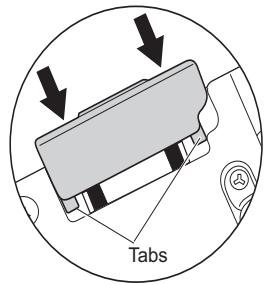
STEP4

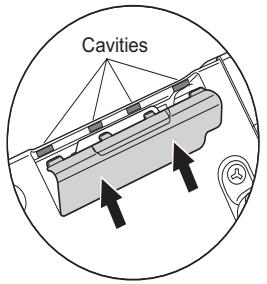
STEP5

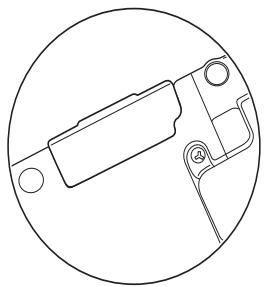
STEP6
Removing a SIM card

Be sure to turn the phone off before removing a SIM card.
Pick up the bump and lift the SIM card compartment cover gently in the direction of the arrow (STEP 1).
Be careful not to pull out the cover too much. This may cause the SIM card compartment cover to break apart.
- Slide the SIM card with your finger for a few millimeters and pull the SIM card out of the slot gently in the direction of the arrow (see the figure on the right).

Be careful not to damage electric parts of the SIM card compartment when removing a SIM card.
Slide the cover in the direction of the arrows (STEP 4) until the two tabs fit properly inside the cover (STEP 5).
- Close the cover in the direction of the arrows until the four tabs are locked in the cavities and click (STEP 5 and STEP 6).
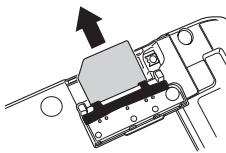
Charging the battery
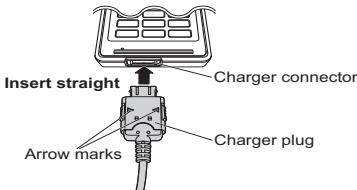
Make sure to hold the charger plug with the arrow marks facing up and slowly insert it straight.
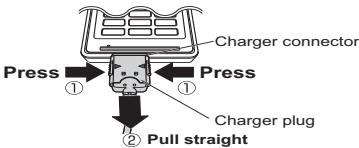
Make sure to press both buttons and gently pull the charger plug straight.
Before trying to use your phone, connect the NEC battery charger (AC adapter) supplied with your phone to a suitable mains power socket.
With the arrow marks of the charger plug facing up, slowly insert the charger plug straight into the charger connector.

Make sure to insert the charger plug with the arrow marks facing up. Otherwise, damage to the charger connector can occur.
If your phone is turned on and charging starts, the battery charging icon will be displayed. LED will turn on in red while charging. When charging is complete, the LED will turn off.
You are recommended to switch off the phone while charging. If you need to receive calls, your phone can be switched on and left in standby while being charged, although the total time taken to charge is then increased.
After the charging is complete, press the buttons of the charger plug as indicated by the arrow marks on the charger plug (①) and gently pull straight out of the charger connector (②).

Make sure to press both buttons when disconnecting the charger plug from the charger connector. If you pull the charger plug forcibly without pressing the buttons, damage to the charger connector can occur.
The icons show the charging status of battery.

Battery charging

Battery charging stopped due to overheat
Using any AC adapter, vehicle power adapter (option) or dual tap (option) not specified by NEC for use with this phone can be dangerous and may invalidate any warranty and approval given to the cellphone. Do not leave the charger connected to the mains supply when it is not in use.
Do not try to charge the battery if the ambient temperature is below 5^ (41^) or above 35^ (95^) .
If the phone does not respond, please wait for a few minutes. The charging will then start.
If you use the phone while charging, handle the phone carefully since the cable or adapter is connected.
If you make/receive a call while charging, the charging may temporarily be interrupted.
Charging takes approximately 3 hours with your phone turned off.
Even if the phone remains connected to the charger, battery residual capacity may decrease when the phone is used for video recording, playing or other battery consuming operation.
IMPORTANT BATTERY CHARGING INFORMATION
Charging a very low battery
The battery's charge continues to drop after the low battery warning is displayed. In extreme cases where the battery is left uncharged for some considerable time after this warning, a trickle charge is used to slowly top-up the battery to the safe level at which the fast charging can begin. The phone can be in trickle charge for a few minutes before the fast charging starts.
Standby and talk times
Your phone works closely with the network you are using to provide the services you need, and the standby and talk times achieved will depend on how you use the phone and choices made by the network operator.
In particular, factors such as your location within the network, the frequency at which this location is updated, the type of SIM card you have, your reception of area messages or cell broadcast messages and the use of full rate or enhanced full rate speech, will affect both standby and talk times.
Checking the battery
Check icon at the top of the standby screen.
The number of blocks on the icon shows the battery charge level.

Full battery power

Partial battery power

Low battery power

Battery empty
Low battery alarm
When the battery voltage falls below the working level, a low battery warning is displayed on the screen accompanied by LED illumination and a short tone along with an empty battery icon. The phone will automatically power down shortly afterwards.

Please charge the battery as much as possible when the battery is very low.
Other battery alarms
Your phone may display warnings when the battery temperature is too high, or the voltage of the battery or the charger is over the appropriate level. Follow the instruction given by these warnings immediately.
Start-up
Switching the phone on
Hold down ① for about a second to switch on. The screen will display the selected greeting (if set, see page 25) and the phone is then in standby.

You may need to charge the battery before using your phone.

When your phone is turned on, the specified ringer may sound.

If your phone is accidentally turned off while downloading or deleting Java™ application, it will take longer than usual to start up the phone the next time you turn on the power.
Switching the phone off

Hold down until the display shows the switch off message.
PIN code
The SIM card issued by your service provider has a security feature called PIN code protection. The Personal Identification Number (PIN) is a number put on to the card by your service provider, and is 4 to 8 digits long. Some service providers supply SIM cards which will cause your phone to prompt for a PIN code when it is turned on. If this is the case, enter your code with the phone's keypad. If you insert a SIM card other than your own, information such as call logs may be lost (see "Security (M17)" on page 26 for details).
Basic Calls & Phone Use
Making basic calls
You make a simple call in the same way as you would with a normal phone, except that you need to press after entering the area Subscriber Trunk Dialling (STD) code and the phone number. To make international calls, you must first enter the international dialling code (see page 14).
Use the full STD area code even if you are calling to a person in the same town. If the numbers are too long to be displayed within one line, after pressing , excess part is deleted and '... ' is added at its end.
The main-display shows the icon of strength of the radio signal that links your phone to the network. The maximum signal strength is shown by 4 shaded blocks and the minimum signal strength by 1 block.
Starting a call
Key in the phone number. Check the number on the display or SK1 to send the input number to start the call
Before the other party answers the call, you can end the call by pressing ⑦ briefly, pressing SK2 or closing your phone. When you use the headset, you can also end the call by pressing and holding the button on it.
When connecting a wired headset and Bluetooth headset at the same time, the wired headset will work partially (only its button will work).
When the call is sent, the screen displays the number called, the name stored in the phonebook and a connection graphic or a Calling Line Identification (CLI) picture that has been allocated to the number called (see page 55).
Correcting mistakes
Use the and to move the cursor and then CLR to clear individual digits, or hold down CLR to completely clear a phone number.
Ending a call
While talking, SK2 or ① briefly, or close your phone. The phone returns to the standby screen.
If is held down, your phone will turn off.
When you use the headset, you can also end a call by pressing and holding the button on it.
When connecting a wired headset and Bluetooth headset at the same time, the wired headset will work partially (only its button will work).
You cannot end a call by closing your phone when the headset is connected.
Receiving an incoming call
When someone calls your number, the ringer will play (if set - see page 24), the LED glows in the specified colour, and the phone number of the caller may be displayed if the calling line identification facility is available and the caller has activated the feature. If the caller's phone number has been related and stored in your phonebook with a name and a CLI picture (see page 55), that name and picture will be displayed. If the caller has withheld their identity,
the screen will give a message that the caller's number is being withheld. If the origin of the call cannot be determined, no information is displayed on the screen.
You also have options for holding and forwarding calls. These options depend on your network and your subscription arrangements.
When connecting a wired headset and Bluetooth headset at the same time, the wired headset will work partially (only its button will work).
Accepting an incoming call
While receiving an incoming call, or SK1
When you use the headset, you can also accept an incoming call by pressing the button on it.
When Auto answer function (see page 25) is set to on and a headset is connected to the phone, the incoming call is automatically accepted after several rings.
You can accept an incoming call by opening your phone, when Fold answer function (see page 22) is set to on.
You can set your phone to answer a call when any key is pressed (see "Any key answer" on page 22).
Rejecting an incoming call
While receiving an incoming call, or SK2 briefly or close your phone.
When you use the headset, you can also reject an incoming call by pressing and holding the button on it.
You cannot reject a call by closing your phone when the headset is connected.
If your phone receives a call and you do not answer it, the main-display will display a desktop icon of the phone number (or the name if stored) of the caller (if available). If your phone is closed, the external-display will display a missed call message. This information is stored in the missed calls list. Up to 20 missed calls are stored in this list.
If you are making a call, the phone gives priority to receiving a call unless you have already pressed
See also: "Call diversion (M161)" on page 13 and "Call waiting and holding (M162)" on page 14.
See also: "Call options (M43)" on page 11.
Unsuccessful calls
If dialled call is not successfully connected, the display will give an appropriate message.
If your phone has the auto radial function activated, the number will be automatically called again after a short delay (see page 14).
Emergency calls
The standard emergency number of 112 can be used.
Key in 112 or SK1 to connect the call to the local emergency services.
On some networks, emergency calls can be made using the 112 number without a SIM card inserted.
Last number radial
You can redial the last number you called.
Ensure that the standby screen is displayed and no phone number is shown twice to dial the last number you called.
See also: "Call options (M43)" on page 11.
One-touch dial
One-touch dial for the phonebook (SIM) is available by pressing and holding the number keys between 2 and 9.
A number for the One-touch dial corresponds to the location number in the phonebook (SIM).
One-touch dial is available only for the phone numbers with the location number 2 to 9 stored in the phonebook (SIM).
Fast dialling
You can make a call to the phone number in the phonebook (Phone/SIM) with just a few press of button.
To fast-dial the phone number in the phonebook (SIM), use the following procedure:
From the standby screen, key in the Location number of a personal data in the phonebook (SIM) # The corresponding personal data is displayed.
to dial the phone number.
To fast-dial the phone number in the phonebook (Phone), use the following procedure:
From the standby screen, key in the Location number of a personal data in the phonebook (Phone) The corresponding personal data is displayed.
Use the and keys to choose the phone number (if there are more than one), then to dial the phone number.
Displaying your own phone number (M0/M416)
MENU O or MENU 416
Voice recall
You can store up to 10 voice recall recordings which can be allocated to a personal data stored in the phonebook (Phone). To store the voice recall sound, see "Voice recall functions" on page 55. To use the voice recall function, use the following procedure:
Press and hold
When you use the headset, you can also activate the voice recall function by pressing and holding the button on it from the standby screen.
Within 4 seconds, say the word or words you have recorded to identify the record you wish to recall. If the word or words were recognized, the first phone number of the personal data stored in the phonebook (Phone) will be called automatically.
Options menu (during a call)
During a call, (MENU) to display the options menu
| No. | Options menu (during a call) | |
| 1 | Main menu | Displays the Main menu screen. See “Overview of menu function” on page x for details. |
| 2 | Hold/Retrieve | Puts the call(s) on hold or retrieves the call(s). |
| 3 | Mute/Unmute | Mutes or unmutes your voice to all active calls. |
| 4 | Transfer call | Enables to transfer the call and connect other parties. After transferring the call, your call will be dropped. |
| 5 | Add to conference | Merges calls and makes a multi-party call. |
| 6 | Private call | Makes a private call to the highlighted party within the multi-party call. |
| 7 | Record call | Records the call while talking. |
| 8 | Disconnect party | Disconnects the highlighted party. |
| 9 | Switch call to Bluetooth/ Switch call to phone | Switches the audio path state of the call. You can also switch call to Bluetooth or phone by pressing and holding #. This option is available only when the Bluetooth device is connected to the phone. |
| 0 | Bluetooth On | Activates the Bluetooth device. |
Depending on the conditions, some options may be displayed in gray and not be available.
Putting a call on hold
To put the received or dialled call on hold, SK1 or (MENU) 2. To retrieve the call, SK1 or (MENU) 2 again.
Mute
You can mute the sound from the mouthpiece during a call. When your call is muted, the other party cannot hear any sound from your phone, but you can still hear the sound from the other party.
To mute the sound during a call, (MENU) 3. To retrieve the sound, (MENU) 3 again.
The mute function is automatically released after the call ends.
The mute function is not available while using the headset.
Call transfer
When you have an active call and a held call, you can transfer the call and connect the two parties, then you can drop from the line while leaving those two calls active.
To transfer the call, (MEN) 4.
After dropping from the call with the other two parties, if you have a call waiting, you can proceed the call with it.
Call transfer facility is SIM dependent.
Multi-party calls
If your SIM card is multi-party enabled, you can make a conference call to more than one caller. To create the multi-party calls, at least 3 parties, including the host, are needed.
Receiving the second call
SK1 or ±b to accept the second call SK2 or (MENU) 5 to merge both calls to initiate a multi-party call.
When you accept the second call, the first call will be put on hold.
Making the second call
- SK1 to put the first call on hold Key in the phone number SK1 or to make the second call After the second participant answers, SK2 or (MENU) 5 to merge both calls to initiate a multi-party call.
Putting the multi-party calls on hold
SK1 or (MENU) 2 to put all calls on hold To retrieve the call, SK1 or (MENU) 2 again.
You can put the multi-party calls on hold only when you are a host of the multi-party calls.
Making a private call
While on the multi-party call, you can make a private call to a specific party.
To make a private call, highlight the desired party you want to make a private call to (MENU) 6
To end a private call and return to the normal multi-party call (MENU) 5
While you are on a private call, other parties can continue with their conversation.
You can make a private call only when you are a host of the multi-party calls.
Ending the multi-party calls
To end the multi-party calls, or SK2.
To disconnect a specific party on a multi-party call, highlight the party you wish to disconnect (MENU) 8
Recording a call
You can record the conversation during the call.
During a call, press and hold or (MEN) 7 to display the Voice memo screen SK1 to start the recording SK1 to pause and SK2 to stop the recording
To play the recording, see "Recording/playing voice memo or setting speaker" on page 79.
Scratchpad number
Your phone has a scratchpad facility that enables you to take down a phone number during a call and then make a call to it when you have finished. This scratchpad number can be stored in memory for future use.
Noting & calling a scratchpad number
During a call, key in the number to be placed in the scratchpad. It will be shown on your phone's screen when the call is finished. The number will still be displayed to dial the displayed number.
Call options (M43)
From Call options, you can display the list of missed, received and dialled calls, the duration of the last call made and all calls, charge information and the radial blacklist.
43 to display the Call options screen.
| No. | Call options | |
| 1 | Missed calls | Displays the list of missed calls. You can also access this function by pressing▶ from the standby screen. |
| 2 | Received calls | Displays the list of received calls. You can also access this function by pressing▶ from the standby screen. |
| 3 | Dialled calls | Displays the list of dialled calls. You can also access this function by pressing▶ from the standby screen. |
| 4 | Last call duration | Displays the duration of the last call made on your phone. ▶ SK1 to reset the display to zero. |
| 5 | Total calls duration | Displays the duration of the total calls made on your phone. ▶ SK1 → 1 to reset the duration of the total dialled calls, 2 to reset the duration of the total received calls, or 3 to reset the duration of all calls. |
| No. | Call options | ||
| 6 | Charge info | Displays the charge information (Advice of Charge - AoC).The AoC facility is SIM card and network dependent.To reset the display to zero, set the maximum charges or edit the unit price, you may be prompted to enter the PIN2 code. | |
| 1 | Total charge Displays the total charge.SK1 to reset the display to zero. | ||
| 2 | MaximumchargeDisplays the maximum charge.Key in the maximum number of units allowed → SK1 | ||
| 3 | Unit price Displays the unit price.Highlight the whole number (integer), the decimal number or the currency field →Key in the required value for the whole number and decimal number fields.For the currency field, key in the currency type using a maximum of three characters→SK1 | ||
| 7 | Redial blacklist | Displays the numbers in the blacklist.If dialled call is not successfully connected (e.g. number busy), the auto radial facility will be offered (see page 14). If you have set auto radial and the call still fails 10 times, the number called will be added to the blacklist. | |
Depending on the conditions, some options may be displayed in gray and not be available.
Display missed/received/dialled calls Options menu (M431M/M432M/M433M)
or 431 for missed calls, or 432 for received calls, or or 433 for dialled calls.
Highlight a number in the list (MENI)
| No. | Missed calls/Received calls/Dialled calls Options menu | |
| 1 | Call | Calls the current number. |
| 2 | Create message | Creates a new message to the highlighted phone number. |
| 3 | Add to phonebook | Adds the current number to the phonebook. → 1 to add it as a new personal data, 2 to add it to an existing personal data → Press the appropriate number for the storage destination → Press the appropriate number for the phonebook data field to copy the current number to. |
| 4 | Delete one | Deletes the current number. |
| 5 | Delete all | Deletes all the numbers in the list. |
| 6 | Info | Displays information on the current number. |
| 7 | Add desktop icon | Creates a desktop icon of the selected number. |
| 8 | Items/Page | Selects either to display 4 or 8 phone numbers in one screen. |
Depending on the conditions, some options may be displayed in gray and not be available.
Call settings (M16)
From the Calls screen, you can change various call settings: the call diversion, call waiting and holding, auto redial, and line ID.
Call diversion (M161)
Setting Call diversion
MENU 161 or to select the type of call you wish to divert from Speech, Data or Fax.
There will be a delay while your phone checks its divert status with your network.
Highlight one of the conditions When the phone number field of a divert condition is highlighted, either enter the phone number to divert to, or delete any existing phone number.
If you have made any mistake, highlight the appropriate field SK1 to clear any mistakes.
If the settings are correct,
There will be a short delay while the network sends the divert status of your phone.
There may be an additional charge for this service depending on your network.
There may be unavailable settings depending on your network.
Call diversion edit options menu
Highlight the required edit field (MENU)
| No. | Call diversion edit options menu | |
| 1 | Copy | Copies the number in the edit field. |
| 2 | Paste | Pastes the previously copied number. |
| 3 | Disable all | Disables the numbers from all the fields. |
| 4 | Phonebook | Displays the phonebook to insert a number in the edit field. |
| 5 | Add to phonebook | Adds the number to the phonebook as a new personal data or saves the number in an existing personal data. |
Depending on the conditions, some options may be displayed in gray and not be available.
Call waiting and holding (M162)
This facility informs you that another call is being made to your phone while an existing call is in progress.
Setting up call waiting
162→11toactivate,12todeactivate the call waiting,or 2 to check the status of call waiting.
Using call waiting
If you are on a call and another comes in, you will be alerted by a beep in the earpiece SK1 to accept the incoming call.
To switch the calls, SK1
To merge the calls, SK2 (see "Multi-party calls" on page 10).
To end the current call,
To retrieve the held call SK1
Auto radial (M163)
With the auto radial facility, your phone will radial a number up to 10 times if the first attempt fails. A tone will be heard at each radial attempt. Your phone cannot connect a call if the other party is busy or if there are network problems. Pressing SK2 during a radial attempt will abort it.
( 163 1 to activate or 2 to deactivate the auto radial facility.
If the tenth attempt still fails, the number will be added to the blacklist (See "Redial blacklist" on page 12).
Line ID (M164)
The line ID (identification) facility is network dependent.
The line ID facility enables you to choose whether or not to send your own phone number when you make a call and also whether or not to display a caller's phone number when you receive a call.
(1) 64 to display the Line ID screen with a over an activated line and a × over a deactivated line.
To set the status of each line (see the table on the right), highlight a line (the line will flash when selected).
SK1 to set the line identification on or off to save the current settings.
| Line type | Setting |
| Outgoing | Send own # |
| Show connected # | |
| Incoming | Show Incoming # |
| Return own # |
International dialling codes
When you make an international call from any country, you must start by dialling a special international access code. Your phone has the facility to prefix a + symbol to the numbers, so that you need not enter the access code for the country that you are calling from.
Entering international dialling codes
Hold down 0. The 0 character displayed will change to a ^+ character Key in the country code, area code, and phone number that you wish to call.
| International access | country code | area code | phone number |
| + | 44 | 131 | 1234567 |
Roaming
You will be charged for calls forwarded to you while roaming.
The roaming facility enables you to use your phone in many parts of the world and pay all charges through your normal service provider. Your network operator usually has agreements with named networks in other countries so that automatic roaming can take place with these named networks. The phone also allows you to set network preferences of your own.
When dialling, you will need to add the international access codes if required. So, storing all numbers with the codes (such as +44 for UK) is helpful (see "Entering international dialling codes").
Before leaving your home country, you should select any preferences such as bar calls or call diversion.
Setting Automatic or Manual network selection (M181)
_MENU 181 1 to select the automatic mode or 2 to select the manual mode.

Before you manually select a network, ensure it is covered under the agreement you have with your service provider.
New search (M182)
182 to search the available networks Highlight the desired network 0 to connect to it.
Viewing/editing network list (M183)
Before editing your network list, please consult with your service provider.
183 to read the network list in the SIM memory Highlight the required network (MENU)
| No. | SIM list Options menu | |
| 1 | Add | Adds a new network to the list. |
| 2 | Move | Moves the highlighted network within the list. Use ▲ and ▼ to move the network → SK1 |
| 3 | Remove | Deletes the highlighted network. |
Depending on the conditions, some options may be displayed in gray and not be available.
Selecting the frequency band (M184)
You have to select the frequency band to suit the location.
184 Select the required frequency band.
Frequency bands must be adjusted to suit the location when roaming (Europe, US, etc.), for the phone to work properly.
Text Entry
This section describes how you enter text.
Mode change
With a text entry screen displayed, SK1 to change the text entry mode.
Depending on the Language setting (see "Language" on page 23 for details) the type of text input mode you can use varies:
- Chinese mode: T9® Chinese stroke, T9® Pinyin/Zhuynin, Numeric input, Normal text (ABC)
- English mode: T9® English text, Normal text (ABC), Numeric input
T9® English text input
Your phone incorporates T9® Text Input, enabling fast, easy and intuitive text input. For each letter to be keyed in, you only need to press the alphanumeric key once. The screen will display the word you may require based on the internal English dictionary of your phone.
With a text entry screen displayed, SK1 until the entry mode is T9® English input.
i) For example, to enter "Good":
4663,and then 0 to confirm the word.
ii) To enter "Peter is good":
to shift to upper case (for one letter). You will see a green arrow in the Help area.
73837 to display "Peter", and then 0 to confirm.
47 to display "is", and then 0 to confirm.
4663 to display "good", and then 0 to confirm and the sentence is completed.
| Key | Function |
| 0 | Confirms a word and inserts a space. |
| 1 | Inserts a period or a single quote as in “Let’s”, “we’re”, “it’s”, etc. |
| SK1(List) | Displays the list of other matching words. |
| SK1(Spell?) | Activates the spell mode which temporarily deactivates T9® for you to spell the word in Normal text input. The spell mode ends when you key in 0 to enter a space, or SK1(T9). |
| SK2(Dismiss) | Cancels the T9® matching word list. |
| SK2(Next) or # | Displays the next candidate. |
| or | Places the cursor. |
| 0 to 9 (press and hold) | Inserts the number. |
| CLR | Deletes any character. |
| * | Toggles between lower case, shift (upper case for one letter) and caps lock (permanent upper case). |
| * (press and hold) | Press and hold to activate the highlight mode (see “Highlight mode” on page 35). |
| # | Activates symbol mode when no word is highlighted. |
Normal text input
With a text entry screen displayed, SK1 until the entry mode is Normal text (ABC) input.
Use alphanumeric keys to enter letters. For example, to enter "e," press 3 twice; to enter "f," press 3 three times. For other functions, see the table below.
When you are in the Normal text (ABC) input, any word entered that is not in the T9^® dictionary will be added automatically.
| Key | Function |
| * | Toggles between lower case, shift (upper case for one letter) and caps lock (permanent upper case). |
| * (press and hold) | Press and hold to activate the highlight mode (see “Highlight mode” on page 35). |
| 0 | Inserts a space. |
| 0 to 9 (press and hold) | Inserts the number. |
| CLR | Deletes any character. |
| < or > | Places the cursor. |
| # | Activates symbol mode. |
If you have made a mistake, use ▲▼ ▲▶ to place the cursor to the left or the right of the incorrect character (depending on the Clear mode setting, see page 35 for details) and then CLR.
When entering normal (ABC) text, and the character you require is displayed, use to move to the next character position (if you wait for more than 1 second, the cursor will move one character to the right automatically).
Numeric input
With a text entry screen displayed, SK1 until the entry mode is Numeric input.
You can also press and hold the number key to insert the number in T9/Normal text input mode.
Use alphanumeric keys to enter numbers.
T9® Chinese Stroke input
With a text entry screen displayed, SK1 until the entry mode is T9® Chinese Stroke input.
* to toggle Radical mode on/off. (If ON, an indication appears in the stroke bar.)
Press 1 to 6 to add a stroke to the stroke bar, and display candidate characters.
To select a candidate, SK1 or 0 and then the character number (1-9), or press and hold the character number for one second. (Pressing ▲ or ▼ will display more characters when there are more than 9 candidates.)
If the radical mode is on, radicals will appear with a dotted line underneath. Select a radical to copy it to the stroke bar, where more strokes may be added.
When a character has been selected, it is copied to the edit field and the cursor moves to the right to accept the next character.
T9® Pinyin input (Simplified Chinese)
For T9^® Pinyin input, select Simplified Chinese in the Language setting (see "Language" on page 23 for details).
With a text entry screen displayed, SK1 until the entry mode is T9® Pinyin input.
Press 2 to 9 keys to enter a pinyin, based on the normal key mapping. Matching pinyin are displayed in the top row of the T9® bar.
Use or to highlight a pinyin.
If a complete pinyin is highlighted, you may press SK2 to display the Tones To select a Tone, press the Tone number
Character candidates are displayed on the candidate bar. (Pressing or will display more characters when there are more than 9 candidates.)
To select a character, SK1 or 0 and then the character number (1-9), or press and hold the character number for one second.
When a character has been selected, it is copied to the edit field and the cursor moves right to accept the next character.
T9® Zhuyin input (Traditional Chinese)
For T9® Zhuyin input, select Traditional Chinese in the Language setting (see "Language" on page 23 for details).
With a text entry screen displayed, SK1 until the entry mode is T9® Zhuyin input.
Press a key (1-9, *, #) to enter a zhuyin, based on the BoPoMoFo key mapping. Matching zhuyins are displayed in the top row of the T9® bar.
Use or to highlight a zhuyin.
If a complete zhuyin is highlighted, you may press SK2 to display the Tones To select a Tone, press the Tone number
Character candidates are displayed on the candidate bar. (Pressing ▲ or ▼ will display more characters when there are more than 9 candidates.)
To select a character, SK1 or 0 and then the character number (1-9), or press and hold the character number for one second.
When a character has been selected, it is copied to the edit field and the cursor moves right to accept the next character.
Key allocations
Whenever you need to enter text (for messages, storing names with numbers, etc.), successive presses of an alphanumeric key will display different characters. Pressing in T9® English text input or Normal text (ABC) input toggles between lower case, shift (upper case for one letter) and caps lock (permanent upper case). When a text entry screen is displayed, pressing SK1 enables you to select Normal text input (ABC), T9® Text input (T9) or Numeric input (123).
Depending on the types of text entry screens, not all types of text entry modes are available.
Symbol mode
In the symbol mode, pressing each key will input a symbol according to its position on the Symbols screen. By pressing or holding # in a text entry mode, the Symbols screen will be displayed. Use and to select the row, and then press the appropriate number on the column of the required symbol.
Desktop icons
Desktop icons are shortcuts to functions or items. You can activate a desktop icon on the standby screen (desktop) in stead of following the menu and pressing the shortcut numbers.
The desktop icons are displayed in two rows on the standby screen. See "Display information" on page v for the actual location of the desktop icon area
There are two types of desktop icons: the automatically displayed and the manually created.
Automatically displayed desktop icons
The following automatically displayed icons are displayed on the upper row of the desktop icon area:
| Icon name | Image | Description |
| Missed call | ◇ | Displayed when there is a new entry in the Missed calls list. |
| Missed message | ◇ | Displayed when there is a new message you have not acknowledged. |
| Missed Mail | ◇ | Displayed when there is a new Mail you have not acknowledged. |
You can delete all the automatically displayed icons by pressing and holding CLR on the standby screen.
If you turn the phone off, all the automatically displayed desktop icons are deleted.
Manually created desktop icons
The following manually created icons are displayed on the lower row of the desktop icon area
| Icon name | Image | Description |
| Phone number | Displays a dialer screen with the registered phone number displayed. | |
| Message | Creates a new message to the registered phone number or Email address. | |
| URL | Activates the browser and accesses the registered URL. | |
| Picture | Displays the image file. | |
| Note | Displays the note. | |
| Camera | Displays the camera view finder screen. | |
| Video | Displays the video view finder screen. | |
| MP3 player | Displays the MP3 player screen. | |
| Calculator | Displays the Calculator screen. | |
| Clock alarm | Displays the Set alarm screen. | |
| Scheduler | Displays the Monthly/Weekly calendar screen. | |
| ToDo list | Displays theToDo list screen. | |
| Notepad | Displays the Add new screen for Notepad. | |
| Voice memo recorder | Displays the New record screen for Voice memo. | |
| Currency | Displays the Currency screen. | |
| Bluetooth Voice/Modem | Displays the Bluetooth screen. | |
| Bluetooth data exchange | Displays the Waiting for data screen to receive data from another Bluetooth device. |
Creating a desktop icon manually
Highlight the required function (Camera/Video/MP3 player/Calculator/Clock alarm/Scheduler/ToDo list/Notepad/Voice memo/Currency/Bluetooth) or display the item (image file/note file/phone number/Email address/URL).
For functions, SK1
For items, MEMU to display the Options menu and select Add desktop icon (for an image/Note file, this menu is under Use item)
For Camera/Video/MP3 player, you can also display the Options menu and select Add desktop icon (for Camera/Video, this menu is under Other settings).
You can create up to 10 desktop icons.
If you have more than 5 desktop icons, an arrow will be displayed to indicate that you can scroll for more icons.
The phone number, Email address or URL desktop icon data will not be updated when the original data is modified. Delete the old desktop icon and create a new one in such a case.
When you create a desktop icon of an image file or notepad file, the file will be automatically protected. The default title will be the file name. Even if this title is changed, the original file name will remain the same.
Each manually created desktop icon has a title that you can edit.
Activating a desktop icon
Highlight the required desktop icon O
If you do not press any key for three minutes after highlighting a desktop icon, the highlight is cancelled and the screen goes back to the normal standby screen.
If you activate an automatically displayed desktop icon, it will be deleted automatically.
Desktop icon Options menu
Highlight a desktop icon (MENU)
| No. | Desktop icon Options menu | |
| 1 | Edit title | Edits the title of the highlighted desktop icon. |
| 2 | Delete one | Deletes the highlighted desktop icon. |
| 3 | Delete all | Deletes all the manually created desktop icons. |
Settings (M1)
Phone (M11)

(MENU)
11
| No. | Phone | ||
| 1 | Voice volume | Adjusts the sound volume output from the earpiece.Use ▲▼, Side keys or alphanumeric keys (0 to 9) to adjust the volume.You can also press the Side keys to display the volume control screen and to adjust the volume setting.During a call, you can press the Side keys to adjust the setting of the volume as required.When you change this setting while a headset is connected, the changed volume will be valid only when you have a headset connected.While using a Bluetooth headset, you cannot change the volume. | |
| 2 | Answer options | 1 | Any key answerOn: Any key (except Ⓞ, SK2, the Side keys) is valid to answer a call.Off: Only Ⓞ and SK1 are valid to answer a call. |
| 2 | Ring silencerOn: Pressing one of the Side keys stops the ringer sound and the vibrator while receiving a call with the phone closed.This function cannot be used if the Side keys are locked. | ||
| 3 | Fold answerOn: You can answer an incoming call by opening your phone. | ||
| 3 | Side key | Disable: Side keys are locked while your phone is folded.You can also lock/unlock the Side keys by pressing and holding (MENU) on the standby screen. | |
| 4 | ALS setup | The Alternate Line Service (ALS) facility is SIM card and network dependent.If your SIM card supports ALS, you can setup which line to use for Outgoing call or Voice mail. | |
| No. | Phone | |||
| 5 | Clock | 1 | Show clock | Sets to display the local time, both the local and remote times or no time on the main-display. |
| 2 | Set time | Sets the time for the local or remote time. | ||
| 3 | Set date | Sets the date. | ||
| 4 | Set date format | Selects the date display format. | ||
| 5 | Set time format | Selects the time display format from 12 hour or 24 hour. | ||
| 6 | Settimezone | Sets thetimezone. (A✓ is placed on the currently selectedtimezone.) ● Highlight the requiredtimezone → SK1 to save the change. ● If the highlightedtimezone has Daylight Saving, a check box will be displayed at the bottom of the screen. ○ to activate (✓)/deactivate the setting. | ||
| 7 | Set start day | Selects whether to start the week on Sunday or Monday. ● This setting affects the functions related to the day of the week, such as Scheduler. (See "Scheduler (M84)" on page 74 for details.) | ||
| 6 | Language | Selects the language the phone displays. ● When you have switched the language to be displayed, please wait until the new setting becomes active. ● Even if you change the language settings, some names, such as that of desktop icons and pre-set folders in My data, do not change. | ||
| 7 | LED | Selects the Light Emitting Diode (LED) colour for incoming calls/SMS/Email or during a call. ● If the personal setting or the Group setting for the LED colour is also set in the phonebook, it has priority over this LED setting. (See "Allocating a LED colour" on page 55 for details.) | ||
| 8 | Earphone type | Selects the earphone type from Stereo or Monaural, depending on your earphones (headset). | ||
Phone modes (M12)
Your phone can be set to one of the following modes: Normal mode, Meeting mode or Pocket mode.

Any changes made to the settings while in a particular mode will be stored and used when that mode is selected again.
Selecting your phone mode
or MENU 12 Press the appropriate key for the required mode.
You can also set the Meeting mode or return to the previous mode by pressing and holding on the standby screen.
Editing the mode settings
or (MENU) 12 Highlight the required mode SK1 Press the appropriate number for the required setting in the following table.
For any volume setting, use . Side keys or alphanumeric keys (0 to 9).
When you change any volume setting while a headset is connected, the changed volume will be valid only when you have a headset connected.
| No. | Phone mode setting | |
| 1 | Ringer | Selects the Sound or Video for incoming calls. (See "Sounds (M62)" on page 64 or "Videos (M61)" on page 64 for details.)If the Video is set, it will sound and will be displayed regardless of the CLI picture setting for the personal data in Phonebook. (See "Allocating a picture as a CLI" on page 55.) |
| 2 | Ringer volume | Sets the sound volume for incoming calls. While receiving a call with your phone open, the ringer volume can also be adjusted by pressing the Side keys. While using a wired headset, you can set the volume for the wired headset. The volume settings for the wired headset and the speaker of the phone are saved individually. While using a Bluetooth headset and a Bluetooth hands-free kit, however, the volume setting for the speaker of the phone is used. |
| 3 | SMS tone | Selects the ringtone for incoming SMS messages. (See "Sounds (M62)" on page 64 for details.) |
| 4 | SMS tone volume | Sets the sound volume for incoming SMS messages. |
| 5 | Mail tone | Selects the ringtone for incoming Mail or MMS messages. (See "Sounds (M62)" on page 64 for details.) |
| 6 | Mail tone volume | Sets the sound volume for incoming Mail or MMS messages. |
| 7 | Key tone | Turns on/off the key tone. |
| 8 | Service tone | Turns on/off the service tone. |
| 9 | Alarm volume | Sets the sound volume for Clock alarm and Schedule alarm. |
| 0 | Vibrator | Turns on/off the vibrator function. |
| * | Earphone setting | Selects the sound output from Earphone & Speaker or Earphone. This option affects the wired headset. |
| # | Auto answer | Selects whether to answer an incoming call automatically. To use the Auto answer function, connect the headset to your phone and set the earphone volume to 1 or higher. If the earphone volume is set to 0, you must turn the vibrator ON to use the Auto answer. The Auto answer function only applies to the first incoming call. When you have another incoming call, you have to answer it manually. |
Main-display (M13)

(MENU)
13
| No. | Main-display | |
| 1 | Greetings | Selects the greeting which is displayed on the main-display during phone start-up from No greeting, Text or Animation. If you select Text greeting, SK1 to edit the greeting text. Key in a greeting text and Ⓞ. |
| 2 | Wallpaper | Selects a picture or video file to use as the background for the main-display. |
| 3 | Main menu style | Selects and resets the background and icons for the Main menu screen. |
| 4 | Colour style | Selects the phone's colour theme. |
External-display (M14)

(MENU)
14
| No. | External-display | |
| 1 | Clock/Event display | Selects which items to display on the external-display from Clock & Event, Clock only, Event only or Off. When you select Off, the other options menus are displayed in gray and not be available. The display time of the external-display is approximately 15 seconds. |
| 2 | Demo scroll | Turns on/off the function to display a demonstration of scrolling logos before displaying the icons, clock and events. The scroll on the external display may appear different depending on the status of the phone. |
| 3 | Clock selection | Selects the type of clock to be displayed on the external-display. When selecting Digital 2 clock, no icon will be displayed in the standby screen of the external-display. |
| 4 | Incoming call No. | Turns on/off the function to display the incoming call number on the external-display. |
Power saving (M15)

(MENU)
15
| No. | Power saving | |
| 1 | Level setting | Selects the power saving level from Level 1 (minimum power save setting), Level 2 (moderate) or Level 3 (maximum). The main-display backlight will turn dim and then turn off after a given amount of time with no operation. |
| 2 | Function key LED | Selects whether to flash the LED of SK1 and SK2 when the main-display and its backlight are turned off. |
Calls (M16)

16

For settings provided on the Calls screen, see "Call settings (M16)" on page 13.
Security (M17)

(MENU)
17
The security settings will help to protect your phone from improper and unauthorized use. You may be required to enter one of the five codes (shown below). When the phone prompts you for one of these codes, key in the appropriate number.
PIN code (provided by your network service provider to protect your SIM card if it is stolen)
PIN2 code (provided by your network service provider for charge information and Fixed dialling services protection)
- PUK code (personal unblocking key in case you forget PIN code)
- PUK2 code (personal unblocking key in case you forget PIN2 code)
Security code

If you forget any of these codes, ALWAYS contact your service provider as they are the ONLY source for your codes.
PIN code
Your phone can be set up so that your PIN code must be entered at power up before the phone can be used at all. If the PIN code is not entered, not even incoming calls can be answered. Entering your PIN code incorrectly 3 times (not necessarily in the same session) will invalidate the correct PIN code. In such a case you will have to contact your service provider for a PUK code to unlock your SIM card.
Some SIM cards are set up so that PIN number entry cannot be turned off.
When SIM PIN lock is enabled, you can change the PIN code.
PIN2 code
Your phone supports advanced feature that may require a PIN2 code to be entered before they can be accessed or modified. Entering your PIN2 code incorrectly 3 times (not necessarily in the same session) will invalidate the correct PIN2 code. In this case you will have to contact your service provider for a PUK2 code.

The PIN2 code is SIM card related and may only be available from your service provider.
| No. | Security | ||
| 1 | Change PINs | Changes the PIN or PIN2 code (PIN activate setting must be turned on to change the PIN code). | |
| 2 | PIN activate | Turns on/off the PIN code entry required at starting up the phone. | |
| 3 | Change security code | Changes the security code which is used to set some of functions and unlock the Personal Information Manager (PIM) features. The default setting of the security code is "0000". | |
| 4 | Phone lock | Turns on/off the Phone lock function which will lock the phone: you can only make emergency calls or enter the security code. After entering the correct security code, you can use the phone normally. Upon power-up, you are prompted to enter the security code if the Phone lock was active when the phone was powered down. | |
| 5 | Bar calls | You can bar the following calls made/received on your phone: all outgoing (dialled) calls, international outgoing (dialled) calls, international outgoing (dialled) calls except to home, all incoming (received) calls or Incoming (received) calls when roaming. Bar calls facilities are network services and may require a password. | |
| 1 | Change settings | ||
| Highlight the type of restriction and the call type, and then Ⓞ → Ⓞ to save changes. Key in your bar calls password to verify user identification to the network → SK1 to confirm and save changes to the network. The selected settings have red bars over their icons. | |||
| 2 | Set password | ||
| 6 | Fixed dialling | Turns on/off the fixed dialling which restricts the use of dialled number to only the Fixed Dialling Numbers (FDN). The FDN facility is network dependent. See also: "Fixed dialling numbers (FDN)" on page 51. | |
Network (M18)

(MENU)
18

For settings provided on the Network screen, see "Roaming" on page 15.
Reset settings (M19)

MENU
19
This function will reset your phone to its factory settings.

By restoring the factory settings, any changes you have made to your phone EXCEPT the following will return to the factory settings (the following data/settings will not be reset):
- Settings: Set time for Local time, Set date, Language, all settings in Calls other than Auto radial, all Security settings other than Change security code, SIM list settings in Network.
- Call options: Information in Charge info.
- Phonebook: All Phonebook entries. The settings for Groups.
- Accessory: All Schedule, ToDo, Notepad and Voice memo entries. All the settings other than Clock alarm, Play list for MP3 player, View events for Scheduler, Sort for ToDo, and Timer setting and My phone settings for Bluetooth.
- i-mode: All Bookmarks, Saved pages, Go to webpage, and Mail settings. All the i-mode related settings.
- Java™: All the Java™ applications.
- Message: All the stored messages. The settings for SMS centre, Validity period for SMS and Language for Cell Broadcast.
My data: All stored files.
Message (M2)
Message overview
Message services
Your phone supports the following messaging services:
- Short Messaging Service (SMS) allows you to send short messages (160 half-pitch characters max.) to one or more phone numbers. To send an SMS message, the destination phone number must be a mobile phone with an SMS service subscription. SMS service also supports Enhanced Messaging Service (EMS) for which the maximum length of the message you can send depends on the number of linked messages (maximum of 10 linked messages are available).
- Mail (i-mode messaging service) allows you to send a message to not only other cellphones but also to PCs and other devices that uses Email addresses. You can attach files from Pictures, Videos and Sounds in My data (see page 64). Mail facility is available from the Mail screen under the i-mode facility. For details on the mail service, see "i-mode (M3)" on page 36.
- Multimedia Messaging Service (MMS) is a service that allows you to send messages of a slideshow of text and multimedia files. When you receive an MMS message, you will be notified by a message from the MMS centre. You can either automatically or manually receive the contents of an MMS message. MMS facility is available from the Mail screen under the i-mode facility. For details on the mail service, see "i-mode (M3)" on page 36.

The Message Services are network dependent.
Sending/Receiving messages
While an SMS message is being sent or received, a name or a number will be displayed (if a name has been stored with the number in your phonebook). The received messages are stored on the SIM card or in your phone memory. When you receive a message, your phone will ring, a new message icon will be shown on your phone's display and its LED will glow.
Please delete the unnecessary messages in the folders from time to time. The phone cannot receive any messages when the Inbox folder is full.
Message screen
To display the Message screen, 2 or press and hold Press the appropriate key for the required option.
| No. | Message screen menu | |
| 1 | Inbox | The received messages are stored here. |
| 2 | Drafts | The messages currently being edited are stored here. |
| 3 | Outbox | The messages that failed to be sent are stored here. |
| 4 | Sent | The sent messages are stored here. |
| No. | Message screen menu (Continued) | |
| 5,6 | Folder1/Folder2 | The messages moved by Move msg (see “Message list Options menu” on page 31) are stored here. |
| 7 | CB | The received broadcast messages are saved. See “Cell broadcast (M27)” on page 35 for details. |
If there is no message in a message list, the list will be displayed in gray and you cannot select it.
Reading a message (M21)
To display the Message view screen of a new message, (MEN) 21 or press and hold 空 and then 1 Highlight the new message
The new (unread) messages are displayed in bold. If the message cannot be displayed in one page, use and to scroll through the message. The following icons will be displayed.
| Icon type | Icons | Descriptions | Icon type | Icons | Descriptions |
| Message type icons | SMS message | Read/Unread status icons | New/Unread message(s) | ||
| Incomplete SMS message | Read message(s) | ||||
| Storing location icons | Highlighted message stored in SIM | Filtering status icons | SMS messages filtered by status (incomplete) | ||
| Highlighted message stored in the phone memory | SMS messages filtered by location (SIM) | ||||
| Sorting status icons | Messages sorted by Date | SMS messages filtered by location (the phone memory) | |||
| Messages sorted by Name | Filtered SMS messages | ||||
| Messages sorted by Read/Unread status | Sent message status icons | Sent but failed message | |||
| Messages sorted by Size | Sent message | ||||
| Messages sorted by Ascending order | |||||
| Messages sorted by Descending order | |||||
Message Options menu (M2M)
MENU 2 (MENU or press and hold and then (MENU
| No. | Message Options menu | |||
| 1 | SMS settings | 1 | SMS centre | Edits the SMS centre number (this number is saved in the SIM card). |
| 2 | Auto display | Turns on/off the automatic display function that displays the received SMS messages automatically. | ||
| 3 | Receipt request | Selects whether to request a receipt of the sent SMS messages. | ||
| No. | Message Options menu (Continued) | |||
| 1 | SMS settings(Continued) | 4 | Max linked msgss | Sets the maximum number of linked SMS messages. This function divides an SMS with the message text exceeding the maximum number of characters allowed into multiple messages. |
| 5 | Validity period | Selects the period of time an SMS message is stored at the SMS centre, while trying to deliver the message. | ||
| 2 | CB settings | 1 | Enable | 1 to receive none, 2 to receive all, or 3 to specify a list of Cell Broadcast Message Identifier(CBMI) to receive broadcast from. |
| 2 | Languages | Selects which language to receive the cell broadcast messages in. | ||
| 3 | View msg status | Displays the information on the number of messages in the phone, the size of free/used memories, SMS units in the phone/SIM, and complete/incomplete SMS units. | ||
| 4 | Rename folder | Renames Folder1 and Folder2. | ||
| 5 | View all | Displays all the messages in all folders on the same list. | ||
| 6 | Msg filter | Sets the type(s) of messages to be displayed by selecting the desired filter option. | ||

The receipt request and linking of SMS messages are network dependant.

Depending on the selected folder, some options may be displayed in gray and not be available.
Message list Options menu

Display the message list in the Inbox, Drafts, Outbox, Sent, Folder1, Folder2 or CB (MENU)
| No. | Message list Options menu | |
| 1 | Reply | Replies to the sender of the highlighted message. |
| 2 | Reply all | Replies to the sender and all other recipients of the highlighted message. |
| 3 | Delete | Deletes the highlighted message. |
| 4 | Delete all | Deletes all the messages in the current folder. |
| 5 | Forward | Forwards the message text of the highlighted message. |
| 6 | Msgs/page | Selects either to display 3 or 7 messages in one screen. |
| 7 | Move msg | Moves the highlighted message to Inbox or Folder1/2, or copies to SIM or Phone. |
| 8 | Sort msg | By: Sorts the messages by date, name, read/unread status or size. Order: Sorts the messages in ascending or descending order. Method: Sorts the messages alphabetically or by the number of Chinese strokes. |
| No. | Message list Options menu (Continued) | |
| 9 | Search | Searches messages alphabetically or by the number of Chinese strokes. To switch the search method, change Method in Sort msg. |
| 0 | View details | Displays the detailed information on the highlighted message. |
| - | Add desktop icon | Creates a desktop icon of the sender or recipient of the highlighted message ( Inbox, Sent, Folder1, Folder2, and Drafts only). |
| - | Edit | Edits the highlighted message (Drafts and Outbox only). |
| - | Resend | Resends the highlighted message in the folder (Outbox only). The entire message or only the packets that failed to reach the recipient(s) can be sent. |
Depending on the selected folder, the menu number and available options may vary.
Depending on the selected folder, some options may be displayed in gray and not be available.
Message view Options menu
Display the message list in the Inbox, Drafts, Outbox, Sent, Folder1, Folder2 or CB Highlight a message O (MENU)
| No. | Message view Options menu | |
| 1 | Reply | Replies to the sender of the highlighted message. |
| 2 | Reply all | Replies to the sender and all other recipients of the highlighted message. |
| 3 | Delete | Deletes the highlighted message. |
| 4 | View details | Displays detailed information on the highlighted message. |
| 5 | Forward | Forwards the message text of the highlighted message. |
| 6 | Save object | Saves the highlighted object to a folder in My data. |
| 7 | Move msg | Moves the highlighted message to Inbox or Folder 1/2, or copies to SIM or Phone. |
| 8 | Highlight mode | Activates the Highlight mode (see “Highlight mode” on page 35 for details). |
| 9 | Option mode | Activates the Option mode to highlight the phone number, Email address, URL or attached file. |
| 0 | Add desktop icon | Creates a desktop icon of the sender or recipient of the highlighted message. |
Depending on the conditions, some options may be displayed in gray and not be available.
The reply facility uses the phone number of the person who sent the message.
The Save object Options menu will be displayed only if an object is highlighted.
Option mode Options menu
Display the message list in the Inbox, Drafts, Outbox, Sent, Folder1, Folder2 or CB Highlight a message (MENU) 9 / </▶ to highlight a phone number, Email address or URL in the message (MENU)
The columns show the menu numbers for P: Phone number highlighted, E: Email address highlighted and U: URL highlighted
| P | E | U | Option mode Options menu | |
| 1 | 1 | - | Add to phonebook | Adds the highlighted phone number or Email address to a phonebook. |
| 2 | - | - | Dial phone number | Dials the selected phone number. |
| - | - | 1 | Add to bookmark | Adds the highlighted URL to the bookmarks. |
| - | - | 2 | Go to URL | Activates the web browser to access the highlighted URL. |
| 3 | 2 | 3 | Create message | Creates a new message with the highlighted phone number/Email address/URL in the To field, the message text, or the slide text. |
| 4 | 3 | - | Add desktop icon | Creates a desktop icon of the highlighted phone number/Email address. |
| 5 | 4 | 4 | View mode | Deactivates the Option mode. |
Creating a message
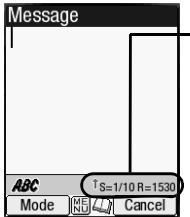
Help area
This area contains the information on the message. S indicates the size of the message equivalent to the number of SMS messages, a R indicates the remaining number of characters available.
| † (green) | Indicates that an upper case letter will be input next. |
| ‡ (red) | Indicates the capital lock. |
| ¶ (no arrow) | Indicates that a lower case letter will be input next. |
To display the Message composer screen, 2 and SK1, or press and hold then SK1
To address the message, highlight the To field Input the required phone number
To scroll the phone numbers in the To field, or
To key in the message, highlight the Message field Key in the message
Pressing (MENU) while keying in the To/Message field displays the Message edit Options menu screen.
SK1 to send the message.
When you are in the ABC (normal text) mode, any word entered that is not in the T9® dictionary will be added automatically.
When you are keying in your message, SK1 to change the text entry mode.
If you display another screen or receive a call while you are editing a message more than 1 character, the message will be saved automatically in Drafts.
Message composer Options menu
2 and SK1 or press and hold then SK1 Highlight To or Message field (MENU)
| No. | Message composer Options menu | |
| 1 | Add/Edit | Adds or edits a recipient phone number or a message. |
| 2 | Preview msg | Displays a message preview screen. |
| 3 | Delete | Deletes the highlighted recipient, message, or object. |
| 4 | Delete all | Deletes all the recipients. |
| 5 | Save | Saves the message in Drafts folder. |
| 6 | Phonebook | Displays the phonebook list to insert a recipient phone number. |
| 7 | Resend list | Inserts a phone number from the resend list. You can delete the highlighted phone number from the resend list or the entire resend list by pressing (MENU) 1 or (MENU) 2 respectively. |
| 8 | Insert | Inserts a new recipient phone number (To field only). |
| 9 | Address list | Displays the recipients of the message (To field only). |
Depending on the selected field, some options may be displayed in gray and not be available.
Message edit Options menu
2 and SK1 or press and hold then SK1 Highlight To or Message field 0 (MENU)
| No. | Message edit Options menu | |
| 1 | Text colour | Selects the colour of text and background. |
| 2 | Text format | Selects the font size (small, normal or large) and font style (bold, italics, underline or strikethrough). |
| 3 | Text alignment | Sets the text alignment (left, centred or right). |
| 4 | Paste | Pastes the text which has been copied onto the clipboard in the Highlight mode. This function can be used only when text has been copied or cut in the Highlight mode. |
| No. | Message edit Options menu | ||
| 5 | Highlight mode | Activates the Highlight mode at the cursor position. You can also activate the Highlight mode by pressing and holding *. This function can only be used when text has been entered. To toggle the Highlight mode on/off, SK1 and to go back to the normal mode, CLR To display the following Highlight mode Options menu, (MENL). | |
| 1 | Text colour Selects the colour of text and background. | ||
| 2 | Text format Selects the font size (small, normal or large) and font style (bold, italics, underline or strikethrough). | ||
| 3 | Copy Copies the highlighted part of text onto the clipboard. | ||
| 4 | Cut Cuts the highlighted part of text. | ||
| 5 | Delete Deletes the highlighted part of text. | ||
| 6 | Select word Selects (highlights) the nearest word to the current cursor position. | ||
| 7 | Select paragraph Selects (highlights) the nearest paragraph to the current cursor position. | ||
| 8 | Select all Selects (highlights) the entire text. | ||
| 9 | Save to text file Saves the highlighted part of text as a text file in the list of Notepad. | ||
| 6 | Insert object | Inserts Text, Sound, Still image, Animation, Emoticon, or Pictograph into the message at the cursor position. | |
| 7 | T9 Language | Selects the language for T9® text input. | |
| 8 | Edit settings | Sets the Write mode (Insert or Overwrite) and Clear mode (Backspace or Delete). | |
Depending on the conditions, some options may be displayed in gray and not be available.
Cell broadcast (M27)
Cell broadcast (CB) messages (e.g. weather reports, news) are sent by the network to all phones in a certain area.
MENU 27
The Cell broadcast message display on the standby screen is erased by pressing CLR. Broadcast messages service is network dependent. Please contact your service provider for details.
i-mode (M3)
Using your phone's browser facility, you can enjoy i-mode services such as browsing information on i-mode sites (programs) and other Internet web pages, and sending/receiving i-mode messages which include the mail and MMS (including attachment).
You can download melody files, images, animations, videos and Java™ applications to your phone's memory. Some files with restrictions cannot be saved to your phone's memory, even though they can be downloaded and played or displayed.
For the definitions of the icons related to i-mode, see "Displayed icons" on page viii.
i-mode operation guide
You can access various i-mode functions by selecting the menus on the main four i-mode related screens: i-mode screen, i-mode menu screen, iMenu screen and Mail screen. The following table gives an outline of the procedures related to the i-mode services.
| Action | Procedure |
| Browsing the i-mode sites/Internet web pages | |
| Display the homepage | Press and hold (or SK2 → 6 → 3)You need to set the homepage URL in Set homepage beforehand (see "Set homepage" on page 43). |
| Display a web page | SK2 → 6 → 1 to key in the address, or 2 to select an address in the history. |
| Reload the current page | While browsing a webpage, (MENU)▶1 |
| Display the URL of the current page | While browsing a webpage, (MENU)▶2 |
| Bookmark a web page | With the web page you want to bookmark displayed, (MENU) 1 |
| Display a bookmarked web page | SK2 and 5 (while browsing a webpage, (MENU) 2) → highlight a bookmark → ○ |
| Save a web page | With the page to save displayed, (MENU) 4 |
| Display a saved page | SK2 → 7 → highlight a saved page → ○ |
| Save an image | With the page including the image to save displayed, (MENU) 3 → ○ |
| Save a phone number | With the highlighted phone number on the page, (MENU) 5 |
| Display the certificate information of the current page | With a page displayed, (MENU) 6You can also refer to a saved page's certificate information by displaying the page and (MENU) 3. |
| Download a file | Highlight the link to the file to download → ○ → When the download is completed, save the file and check that the downloaded file is stored in My data (see page 64) or the Applications screen of Java™ (see page 70). |
| Returning to the previous screen/moving forward to the next screen | While connecting to i-mode, ← to return to the previous screen (if any), or > to move forward to the next screen (if any). |
| Mail/MMS | |
| Create a mail | SK1 → 1 (for details, see “Creating a new mail” on page 37) |
| Create an MMS | SK1 → 2 (for details, see “Creating a new MMS” on page 38) |
| Read a mail /MMS | SK1 → 3 → Highlight a message → ○ |
| Retrieving selected mail/MMS | SK1 → 6 |
| Check for new mail/MMS | SK1 → 7 |
| Settings for i-mode | |
| Change the mail settings | SK1 → 8 (for details, see “Mail settings” on page 48) |
| Change the browser settings | SK2 → 8 (for details, see “Settings” on page 43) |
| Change the phone settings related to i-mode | (MENU) 3 2 (for details, see “Settings” on page 41 in "i-mode screen menus") |
Mail/MMS operations
Creating a new mail
SK1→1
Set the addressee.
Highlight the To field key in the destination
To refer to the phonebook, (MENU) Open phonebk. to retrieve the destination
To send the mail to more than one addressee, (MENU) Add To/Cc/Bcc
To change the To/Cc/Bcc status of an already set addressee, highlight the destination (MENU) Change to To/Cc/Bcc
To delete an already set addressee, highlight the To field (MENU) Del. address
Key in the subject.
Highlight the Subject field key in the subject
Key in the message.
Highlight the Message field key in the message
To attach a header, (MENU) Attach header
To attach a signature, (MENU) Attach sign.
Attach a file if necessary.
Highlight the Attachment field select a file to attach from the My data screen
To delete an already attached file, highlight the attachment field (MENU) Delete attachment
To preview the attached file, highlight the attachment field (MENU) Play/View file
You can attach files up to 299 KB in total, or 10 files.
To send the mail, highlight Send O
To save the mail, highlight Save O
To delete the currently edited mail, (MENU) Del. mail
Creating a new MMS
SK1 2 TheCompose menu screen is displayed
Using Compose menu options, create an MMS (for details, see the table "Compose menu options") SK2 The Compose MMS screen is displayed
Set the addressee and key in the subject (see "Creating a new mail" on page 37 for details).
To send the MMS, highlight Send O
To save the MMS, highlight Save O
Composing an MMS
From the Compose MMS or Edit MMS screen, highlight Attachment O The slide is displayed (MEN)
| No. | Compose menu options | ||||
| - | Add/Overwrite/Delete media | 1 | Add/Edit/Delete text | ||
| 2 | Add/Overwrite/Delete image | ||||
| 3 | Add/Overwrite/Delete audio | ||||
| 4 | Add/Overwrite/Delete video | ||||
| - | Exit | Shifts to theCompose MMS screen. | |||
| - | Save | Saves the currently created MMS. | |||
| - | Preview | Displays the created slides in order from the beginning at the preset playback time for each. | |||
| - | Add slide | 1 | Add slide | ||
| 2 | Insert slide | ||||
| - | Delete slide | Deletes the currently displayed slide. | |||
| - | Text colour | Selects the Text colour from the 16 different colours. | |||
| No. | Compose menu options (Continued) | ||||
| - | Background colour | Selects the Background colour from the 16 different colours. | |||
| - | Set Fit mode | Selects the size in which the image/video is displayed. This setting will be applied to all the slides. | |||
| 1 | Hidden | Displays the image/video in the actual size. | |||
| 2 | Fill | Displays the image/video in the reduced size so that the height and width fit into the image/video display area. | |||
| 3 | Meet | Displays the image/video in the reduced size so that the longer side of the height or width fits the corresponding side of the image/video display area. | |||
| 4 | Slice | Displays the image/video in the reduced size so that the shorter side of the height or width fits the corresponding side of the image/video display area. | |||
| - | Options | Sets the length of time a slide is displayed, and sets the beginning and end times for text, image or sound within that slide display time. You cannot set the beginning and end time for video files. | |||
| - | Resize region | Changes the region size of the image/video field and the text field, using the▲ and▼ keys. | |||
| - | Switch positions | Switches positioning of the image/video field and text field on the slide. | |||
| - | Previous slide | Displays the previous slide. | |||
| - | Next slide | Displays the next slide. | |||
Depending on the conditions, some options may be displayed in gray and not be available.
When you finish editing attachment, SK2 or select Exit from Compose menu options to return to the Compose MMS screen.
If necessary, edit the composed MMS using the Edit menu options menu (see "Using the Edit menu options" for details).
Using the Edit menu options
From the Compose mail/Compose MMS/Edit mail/Edit MMS screen, (MENU) to display the Edit menu options.
| No. | Edit menu options | |
| - | Send | Sends the mail/MMS. |
| - | Save | Saves the mail/MMS being edited to the draft folder. |
| - | Attach file | Attaches a file to the mail. |
| - | Delete attachment | Deletes the attached file(s). |
| - | Play/View file | Plays or displays the attached file. |
| No. | Edit menu options (Continued) | |
| - | Open phonebk. | Adds the destination directly from the phonebook. |
| - | Add To/Cc/Bcc | Adds a To/Cc/Bcc field. |
| - | Change to To/Cc/Bcc | Changes the highlighted Cc/Bcc/To field to a To/Cc/Bcc field. |
| - | Del. address | Deletes a destination field. |
| - | Attach header/sign. | Attaches a stored opening sentence at the start or a stored signature at the end of the text. |
| - | Del. message | Deletes the message of the mail being edited. |
| - | Del. mail | Deletes the new message currently edited. |
Depending on the conditions, some options may be displayed in gray and not be available.
Reading a received mail/MMS
SK1 3 The list of mail/MMS in the Inbox folder will be displayed.
Highlight the message to read The message content will be displayed. Scroll the message content.
To view the previous message to view the next message,
While reading a received mail/MMS in the Inbox folder, you can use various functions. See "Inbox" on page 45.
If Auto play is on (see "Auto play" on page 48), the MMS/attachment will be automatically played/displayed. if not, SK1 to start playing.
You can change the font size of mail text by pressing and holding the and▶▶ enlarges the font size, while reduces it.
i-mode screen
From the i-mode screen you can change the i-mode related settings of your phone.
_ 3 The i-mode screen will be displayed.
| No. | i-mode screen menus | |||||||
| 1 | i-mode | Displays the i-mode menu screen (For details, see “i-mode menu screen menus”). | ||||||
| No. | i-mode screen menus (Continued) | |||||||
| 2 | Settings | 1 | Ringer time | Sets the ringtone duration to 3-10 seconds for incoming mail/MMS. | ||||
| 2 | Connection No. | Selects the connection number settings to use. The following settings are available: | ||||||
| 1 | Factory setting | Uses the default connection numbers. | ||||||
| 2,3 | User setting 1/2 | Uses and changes the following settings. | ||||||
| 1 | Access point | |||||||
| 2 | i-mode server (Gateway address) | |||||||
| 3 | Portal server (i-mode server) | |||||||
| 4 | Mail server | |||||||
| 2nd Mail server | ||||||||
| Confirmation site | ||||||||
| 5 | User data | User name | ||||||
| Password | ||||||||
| 6 | Port No. | HTTP Port No. | ||||||
| SSL Port No. | ||||||||
| 3 | i-mode lock | Locks the i-mode function, including mail/MMS. | ||||||
i-mode menu screen
From the i-mode menu screen you can access to the iMenu/Meal/Message screen, your bookmarks, the entry screen for a URL to be displayed, the access history, the saved pages, the list of Java™ applications and the browser settings.
SK2 or (MENU) 31 to display the i-mode menu screen.
| No. | i-mode menu screen menus (Sheet 1 of 3) | |
| 1 | iMenu | Accesses the iMenu screen. (See “iMenu screen” on page 43.) |
| 2 | Displays the Mail screen, on which you can display received mail/MMS, saved draft messages and sent messages, and also create new mail/MMS (see “Mail screen” on page 44). | |
| 3 | Java application | Displays the list of Java™ applications (see “Java™ (M7)” on page 70 for details). |
| 4 | SMS | Displays the Message screen, on which you can read received SMS, saved draft SMS and sent SMS, and also create new SMS (see “Message (M2)” on page 29). |
| No. | i-mode menu screen menus (Sheet 2 of 3) | ||
| 5 | Bookmarks | Displays the list of bookmarked web pages. | |
| Bookmarks options menu | |||
| 1 | Open Displays the highlighted bookmark. | ||
| 2 | Copy address Copies the highlighted bookmark URL. | ||
| 3 | Edit title Edits the title of the highlighted bookmark. | ||
| 4 | Add desktop icon Creates a desktop icon of the URL of the selected bookmark. | ||
| 5 | Create message Creates a new message with the highlighted bookmark address in the message text. | ||
| 6 | Delete one Deletes the highlighted bookmark. | ||
| 7 | Delete all Deletes all the bookmarks. | ||
| 6 | Go to webpage | Displays the URL you key in, the URL in the address history, or the homepage. | |
| 1 | Enter address Prompts you to key in a web page address. | ||
| 2 | Address history Displays the list of addresses in the access history for you to select from.Address history Options menuAdd desktop icon: Creates a desktop icon of the URL of the selected history.Create message: Creates a message with the URL of the selected history in the text/Delete one: Deletes the highlighted address/Delete all: Deletes all the addresses in the list. | ||
| 3 | Go to home Displays the homepage set in Set homepage (See "Set homepage" on page 43).This menu is not available, if Set homepage of i-mode menu screen is not set. | ||
| 0 | Back Returns to the i-mode menu screen. | ||
| 7 | Saved pages | Displays the list of saved pages. Saved pages are stored in your phone memory so you can see them offline. | |
| Saved pages list Options menu | |||
| 1 | Open Displays the current saved page. | ||
| 2 | Edit title Edits the title of the current saved page. | ||
| 3 | Protect On/Off Protects or unprotects the current page. | ||
| 4 | Delete one Deletes the current saved page. | ||
| 5 | Delete all Deletes all the saved pages excluding the protected. | ||
| 6 | Delete all + Pr. Deletes all the saved pages including the protected. | ||
| Saved pages details Options menu | |||
| No. | i-mode menu screen menus (Sheet 3 of 3) | ||
| 7 | Saved pages(Continued) | 1 | Save imageSaves an image as a file on the current saved page. |
| 2 | Edit titleEdits the title of the current saved page. | ||
| 3 | Certificate infoDisplays the certificate information on the current saved page. | ||
| 4 | Page infoDisplays the URL on the current saved page. | ||
| 5 | Protect On/OffProtects or unprotects the current page. | ||
| 6 | DeleteDeletes the current saved page. | ||
| 8 | Settings | Changes the settings of your browser. | |
| 1 | Set time outDisconnects the connection after the set time. You can set 60 seconds or 90 seconds, or disable this function. | ||
| 2 | Load imagesSets whether to display images contained in web pages. | ||
| 3 | Wrap textSets whether to display text as is on web pages and mail/attachment text, or wrap it to fit your phone's screen. | ||
| 4 | CertificatesDisplays the certificate information and validates/invalidates a certificate. | ||
| 5 | Send terminal infoSets whether to display a confirmation message before sending the terminal information to the Information Providers (IPs).If you agree to send private information (e.g. production serial No. and SIM No.) to the IPs via the Internet, it may be obtained by others. | ||
| 6 | Set homepageValidates the homepage and sets the URL.You can display the homepage by pressing and holding from the standby screen. | ||
| 7 | Video auto playSets whether to play a video file automatically after the download is completed. | ||
| 8 | Check settingsDisplays all the options set for the settings (browser). | ||
| 0 | BackReturns to the i-mode menu screen (see "i-mode menu screen" on page 41). | ||
Depending on the conditions, some options may be displayed in gray and not be available.
iMenu screen
From the iMenu screen you can access the various services, and also use the function menus of your browser such as adding a bookmark, saving a web page and creating a message.
SK2 or (MENU) 31 to display the i-mode menu screen 1 to display the iMenu screen (MENU) to display the browser options menu.
| No. | Browser options menu | |
| - | Add bookmark | Bookmarks the current page. |
| - | Bookmarks | Displays theBookmark list. This option is displayed only when one or more bookmarks are registered. |
| - | Save image | Saves an image on the current page. This option is displayed only when one or more images are displayed on the current screen. |
| - | Save page | Saves the current page. |
| - | Add to phonebook | Saves the phone number displayed in the current page in the phonebook. This option is displayed only when one or more phone numbers are displayed on the current screen. |
| - | Certificate info | Displays the server certificate of the current page. This option is displayed only when the current page is a SSL page. |
| - | Go to webpage | Displays a page by keying in the URL or using the access history (see “Go to webpage” on page 42). |
| - | Reload | Updates the data on the current page. |
| - | Page info | Displays the URL of the current page. |
| - | Add desktop icon | Creates a desktop icon of the URL of the current page. |
| - | Create message | Creates a new message with the highlighted phone number or Email address in the message text. |

If you agree to send private information (e.g. production serial No. and SIM No.) to the IPs via the Internet, it may be obtained by others.

Pressing CLR or may not bring back the previous screen. Screen operations depend on the current screen content.
Mail screen
From the Mail screen you can use the i-mode message services.
SK1 or (MENU) 312 to display the Mail screen.
The available options differ depending on the operators.
If an error occurs while sending mail, it will be saved in the Draft folder as an unsent mail.
The same mail can be sent to up to five addresses.
If you save a mail while editing, it will be saved in the Draft folder.
| No. | Mail screen menus (Sheet 1 of 5) | |
| 1 | Compose mail | Displays theCompose mail screen (see “Creating a new mail” on page 37). |
| No. | Mail screen menus (Sheet 2 of 5) | ||||
| 2 | Compose MMS | Displays theCompose MMSscreen (see "Creating a new MMS" on page 38). | |||
| 3 | Inbox | Displays the list of received mail/MMS. | |||
| Inbox list Options menu | |||||
| - | Show all Displays all the received mail/MMS. | ||||
| - | Show unread Displays only the unread mail/MMS. | ||||
| - | Show read Displays only the read mail/MMS. | ||||
| - | Show protect. Displays only the protected mails/MMS. | ||||
| - | Delete one Deletes the currently selected mail/MMS. | ||||
| - | Delete read mail Deletes all the read mails except protected mails/MMS. | ||||
| - | Delete all deletes all the mails/MMS. | ||||
| - | Title sort Sorts the received mails/MMS by title. | ||||
| - | Address sort Sorts the received mails/MMS by address. | ||||
| - | Date sort Sorts the received mails/MMS by date. | ||||
| Inbox details Options menu | |||||
| - | Reply Replies to the received mail/MMS. | ||||
| - | Reply quoted Replies to the received mail quoted. | ||||
| - | Reply all Replies to the sender and all the recipients of a mail/MMS. | ||||
| - | Reply quoted all Replies to the sender and all the recipients of a mail quoted. | ||||
| - | Forward Forwards the received mail/MMS. | ||||
| - | Delete Deletes the received mail/MMS you are viewing. | ||||
| - | Add desktop icon Creates a desktop icon that creates a new message to the sender. | ||||
| - | Save address Saves the address of the sender into the phonebook. | ||||
| - | Save selection Saves the highlighted phone number into the phonebook. | ||||
| - | Create message Creates a new message with the highlighted Email address or phone number. | ||||
| - | Save melody Saves the melody attached to the received mail. | ||||
| - | Save attachment Saves the attached file. | ||||
| - | Copy message Copies the message text. | ||||
| No. | Mail screen menus (Sheet 3 of 5) | ||||
| 3 | Inbox(Continued) | - | Copy subject | Copies the desired subject text. | |
| - | Copy address | Copies the desired address. | |||
| - | Play attachment | Plays the attachment content based on the content setting. | |||
| Play attachment Options menu | |||||
| 1 | Copy textCopies the text data on the slide. | ||||
| 2 | Save imageSaves the image file on the slide. | ||||
| 3 | Save audioSaves the audio file on the slide. | ||||
| 4 | Save videoSaves the video file on the slide. | ||||
| - | Browseattachment | Plays the attachment content manually. | |||
| Browse attachment Options menu | |||||
| 1 | Copy textCopies the text data on the slide. | ||||
| 2 | Save imageSaves the image file on the slide. | ||||
| 3 | Save audioSaves the audio file on the slide. | ||||
| 4 | Save videoSaves the video file on the slide. | ||||
| 5 | Save selectionSaves the highlighted phone number, Email address or URL to the phonebook or bookmarks. | ||||
| 6 | Create messageCreates a message to the destination in the slide text. | ||||
| 7 | Play slidePlays the highlighted slide. | ||||
| - | Protect On/Off | Protects or unprotects the received mail/MMS. | |||
| No. | Mail screen menus (Sheet 4 of 5) | ||||
| 4 | Sent mail | Displays the list of sent mail/MMS. | |||
| Sent mail list Options menu | |||||
| - | Title sort Sorts the sent mail/MMS by their titles. | ||||
| - | Address sort Sorts the sent mail/MMS by their first destination addresses. | ||||
| - | Date sort Sorts the sent mail/MMS by the date they were sent. | ||||
| - | Delete one Deletes the selected mail/MMS. | ||||
| - | Delete all Deletes all the sent mail/MMS. | ||||
| - | Delete all + Pr. Deletes all the sent mail/MMS including the protected. | ||||
| Sent mail details Options menu | |||||
| - | Re-edit Displays the composer to edit the sent mail/MMS again. | ||||
| - | Delete deletes the sent mail. | ||||
| - | Add desktop icon Creates a desktop icon that creates a new message to the addressee. | ||||
| - | Save address Saves the destination address to the phonebook. | ||||
| - | Save selection Saves the phone number and mail address contained in the message part. | ||||
| - | Create message Creates a new message to the highlighted Email address or phone number. | ||||
| - | Copy message Starts the copy mode in the message part. | ||||
| - | Copy subject Starts the copy mode in the subject part. | ||||
| - | Play attachment Plays the attachment content based on the content setting (see “Play attachment” on page 46). | ||||
| - | Browse plays the attachment content manually (see “Browse attachment” on page 46). | ||||
| - | Protect On/Off Protects or unprotects the received mail/MMS. | ||||
| 5 | Draft | Displays the unsent and the saved draft mail/MMS. | |||
| Draft Options menu | |||||
| 1 | Delete one deletes the selected mail/MMS. | ||||
| 2 | Delete all Deletes all mail/MMS. | ||||
| 6 | Selective retrieval | Displays the list of stored mail/MMS on the mail server, and lets you select whether to retrieve or delete each one. | |||
| 7 | Check new mail | Checks if there is any new i-mode messages (mail/MMS) for you stored at the mail server. | |||
| No. | Mail screen menus (Sheet 5 of 5) | ||||
| 8 | Mail settings | Changes the mail settings. | |||
| 1 | Edit header | ||||
| 2 | Edit signature | ||||
| 3 | Reply marker | ||||
| 4 | Auto play | ||||
| 5 | Auto reception | ||||
| 6 | Receive attachment | ||||
| 7 | Attachment data | ||||
| 8 | Font size | ||||
| 9 | Check settings | ||||
| 0 | Back | ||||
| 0 | Back | Returns to the i-mode menu screen. | |||
Depending on the conditions, some options may be displayed in gray and not be available.
i-mode glossary
The following defines the basic terms used in this section.
| Term | Definition |
| Site (program) | An Internet contents page especially designed for i-mode users, which can be accessed from your i-mode top screen of your IP. |
| Mail is the messaging service of i-mode. You can not only exchange messages with other cellphones, but also with PCs, PDAs, etc. | |
| MMS | Multimedia Messaging Service lets you send messages with image/video/sound files attached. The MMS type message is also referred to as an MMS. |
| Access history | Your phone stores up to 10 URLs you have accessed. You can refer to this list when you want to go to a web page you have accessed recently. |
| Web page | An Internet contents page compatible to i-mode services, which can be browsed using your phone, including the sites (programs). |
| Bookmark | A bookmark contains the URL of a web page. You can save up to 50 bookmarks and use them for easier accesses. |
| Certificate information | If you are displaying a Secure Sockets Layer (SSL) page designed to enable safe data transmission, you will be able to see its certificate information. |
| IP | Information Provider. Your IP provides you the i-mode sites (programs). |
| Home page | A web page that is set in your profile as the page to connect to when you press and hold Ⓞ from the standby screen. |
| Saved pages | You can save up to 20 web pages in your phone memory, for quick off-line access. |
Phonebook (M4)
Phonebook types
Your phone can have up to 7 directories stored on your SIM card and in your phone memory:
- Complete (a list of all the numbers stored in the ADN and FDN)
- Personal directories (ADN) in the SIM card
Personal directories (ADN) in the phone memory
Service dialling numbers (SDN) - Fixed dialling numbers (FDN)
Own number
Voice mail number
When viewing any of the directories described, you can switch to the other directories (if your SIM card supports them) by pressing .
The maximum number of phone numbers that can be stored on a SIM card is the total of the ADN, FDN and SDN directories.
When you activate the phonebook, the directory which you were referring to the last time will open.
Personal directory (ADN)
These numbers are known as abbreviated dialling numbers (ADN). There are two types of ADN, one is the phonebook stored on the SIM card (the phonebook (SIM)) and the other is the phonebook stored in the phone memory (the phonebook (Phone)).
Phonebook (SIM)
- Up to 255 personal data can be stored in the SIM card.
Each personal data contains a name, a phone number and a location number.
The number of phone numbers that can be stored on a SIM card depends on the SIM card capability.
Phonebook (Phone)
Up to 500 personal data can be stored in your phone memory. Each personal data is given a location number (1 to 500), and it can be allocated to a group.
To each personal data, you can set the following:
- Name
- 7 phone numbers (Home, Mobile, Work, Data, Fax, Other phone x 2)
2 Email addresses
2 descriptive information - Group, Voice tag, LED colour, Picture, Ringer and Location number Up to 10 phone numbers can have a voice recognition recording allocated to them.
Fixed dialling numbers (FDN)
Fixed dialling numbers are a means of limiting which numbers can be called from your phone. With the FDN feature switched on (see page 27), you can call with your phone the numbers you have stored in this phonebook and the emergency number only.

Although FDN is supported by your phone, it must be present on your SIM card - check with your service provider.
Service dialling numbers (SDN)
The numbers stored in the SDN directory are pre-installed by your service provider. They will call numbers and services as agreed with your supplier (e.g. customer enquiries, billing information, sportslines, weatherlines, etc.) and cannot be edited by you.

Although SDN is supported by your phone, it must be present on your SIM card - check with your service provider.
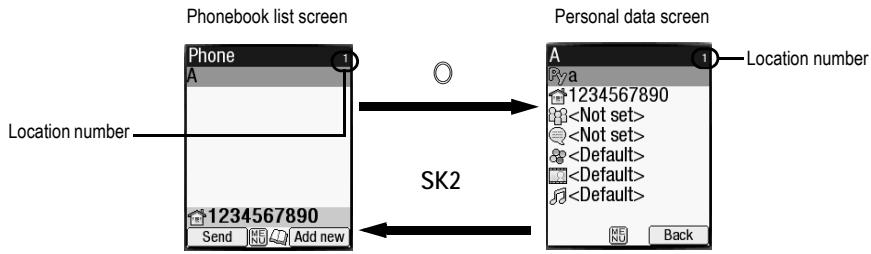
Accessing your phonebook (M4)
You can store personal information in the phonebook of your phone or your SIM card.
Displaying a personal data (M41)

MENU
4 1 and the appropriate key for the desired directory, or until the required directory is displayed Highlight the required personal data

Displaying information about your phonebook (M42)

MENU
42 to display the information about your phonebook.

This function is SIM dependent.
Call options (M43)

(MENU) 43 to display the Call options screen.

For details on the Call options screen, see "Call options (M43)" on page 11.
Phonebook list Options menu

(MENU)

MENU
4 1 and the appropriate key for the desired directory, or until the required directory is displayed Highlight the required personal data
| No. | Phonebook list Options menu | |||
| 1 | Add new | Adds a new personal data to Phone/SIM/FDN. | ||
| 2 | Edit | Displays the data edit screen to edit the currently highlighted personal data. When editing the data in FDN, you will be prompted to enter PIN2 code. | ||
| 3 | Copy | Copies personal data to another phonebook (see “Copying and moving personal data” on page 56 for details). | ||
| 1 | Current copy | Copies the currently highlighted personal data. | ||
| 2 | Package copy | Copies the selected data in the list. | ||
| 4 | Move | Moves the currently highlighted personal data to SIM, Phone, FDN, Own number or Voice mail number. | ||
| 5 | Delete | Deletes personal data. | ||
| 1 | Delete current | Deletes the currently highlighted personal data. | ||
| 2 | Delete all | Deletes all the data in the list. | ||
| No. | Phonebook list Options menu | ||
| 6 | Groups | Editing the group information | |
| Highlight the group you wish to edit → SK1 and highlight the required fieldTo rename the group name, select Group name field → Key in the name of the group → ○To set information on the selected group, select Info field → Key in the info → ○To select the LED colour, select LED field → 1 → Highlight the desired colour → ○To select the CLI picture, select Picture field → 1 for Picture → Highlight the desired picture → ○To select the ringer, select Ringer field → 1 for Sound or 2 for Video → Highlight the desired sound or video → ○SK1 to set the changeIf the personal settings for the LED colour, CLI picture, or the ringer are also set, they have priority over those of the Group settings. | |||
| Group member list screen Options menuHighlight the group you wish to edit → ○ to display the list of group members → Highlight the member → (MENU) | |||
| 1 | Call Calls the highlighted member. | ||
| 2 | Create message Creates a new message to the highlighted member. | ||
| 3 | Add new Creates a new phonebook entry to join the group. | ||
| 4 | Add to group Adds a phonebook entry to the group. | ||
| 5 | Remove from group Removes the highlighted member from the group. | ||
| 6 | Remove and delete Removes the highlighted member from the group and delete the phonebook entry at the same time. | ||
| 7 | Add desktop icon Creates a desktop icon of the phone number/Email address of the highlighted member. | ||
| 7 | Sort | Sorts the personal data in the order of alphabets or location number. Sorting may take time depending on the number of personal data entries, the number of characters contained in each entry and the type of language. | |
| 1 | Alphabetic Sorts the personal data alphabetically. You can jump directly to a name beginning with specific characters by pressing the appropriate key (e.g. press 5 once to jump to names beginning with J, or twice to jump to names beginning with K). | ||
| 2 | Location Sorts the personal data in memory location number. | ||
| 3 | Stroke Sorts the personal data by the number of Chinese strokes. | ||
| 8 | Location | Searches for the personal data by the location number. Key in the desired location number → SK1 to display the Phonebook list screen with the selected personal data highlighted. | |
| 9 | Show | Displays phonebook information. | |
| 1 | Summary Displays the summary of phonebook contents. | ||
| 2 | Voice tag list Displays the phonebook entry names with the voice recognition tags recorded. | ||
| 0 | Send via Bluetooth | Sends the currently highlighted personal data to another device through Bluetooth. See also: "Bluetooth Object Push" on page 83. | |
| * | Add desktop icon | Creates a desktop icon of the highlighted personal data. | |
Depending on the conditions, some options may be displayed in gray and not be available.
Making a call or creating a message from the phonebook list
Highlight a desired personal data to display the stored numbers or Email addresses in the help area Use and to display the other stored phone numbers or Email addresses, if any, in the help area
to make a phone call to the displayed phone number, or SK1 to send a new message to the phone number or Email address
Adding a new personal data
41 and the appropriate key for the desired directory, or until the required directory is displayed SK2 Select the directory to which you wish to store the personal data Enter the name and other necessary information SK1 (see "Editing an existing personal data" on page 55).
You can also input phone numbers on the standby screen and to add a new personal data.
It is best to store numbers using the international number format.
Editing an existing personal data
41 and the appropriate key for the desired directory, or until the required directory is displayed Highlight the required personal data 2
For the phonebook (SIM) and FDN, only the name, phone number and the location number can be added or edited in the following procedures.
For the own number and voice mail number settings, only the name and phone number can be added or edited in the following procedures.
Adding/editing phone numbers, Email addresses & personal information
Highlight the field you wish to edit or add information to
Add the required number or information or make necessary changes to the selected field O
Highlight another field to make further changes, if required
You can edit the Name, Phone number, Email address and Info fields by the above method.
Allocating a group
Highlight the Group field Highlight the group you wish to add the current personal data to
Voice recall functions
Adding a Voice recall recording
Highlight the Voice tag field 1
Say the name you wish to record as a voice tag Say the name again for confirmation according to the displayed message
Playing a Voice recall recording
Highlight the Voice tag field 2
Deleting a Voice recall recording
Highlight the Voice tag field 3
Up to 10 voice tags can be stored.
You can check the number of stored voice tag and list of those tags (see "Summary" and "Voice tag list" on page 54).
Allocating a LED colour
Highlight the LED colour field 1 Highlight the desired colour O
The personal setting for the LED colour has priority over the Group setting and phone setting for the LED colour.
Allocating a picture as a CLI
You can set a picture to be displayed on the screen as a Calling Line Identification (CLI) for an incoming call.
Highlight the Picture field O 1 to display the picture list screen
Highlight the desired picture SK1 to preview the picture or to select the highlighted picture
A is displayed on the icon for which the item is currently selected.
See also: "Pictures (M63)" on page 65.
Allocating sound/video as a ringer
You can set a sound or video as a ringer for an incoming call. When a video is set, a movie is displayed on the screen with the sound.
Highlight the Ringer field 1 to display the sound list screen or 2 to display the video list screen
Highlight the desired sound or video SK1 to preview the file or to select the highlighted file
A is displayed on the icon for which the item is currently selected.
If the video as a ringer is set, it will sound and will be displayed on the screen regardless of the CLI picture setting.
See also: "Sounds (M62)" on page 64.
Allocating a location number
Highlight the Location number field O Key in the desired location number O
Saving the edited personal data
After editing the required field, SK1 to save the edited data and return to the previous screen.
Copying and moving personal data
- 41 and the appropriate key for the desired directory, or until the required directory is displayed → Highlight the required personal data/ list of data → 3 to copy or 4 to move
For copying, 1 to copy the highlighted personal data entry or 2 to copy the selected personal data entries in the current list
Press the appropriate key for the desired destination (SIM, Phone, FDN, Own number or Voice mail number)
If you copy or move from phonebook (Phone), the Origin number screen will be displayed to choose which phone number to copy or move.
When copying the selected personal data entries (Package copy) from phonebook (Phone), you can copy only the first or all the numbers in each entry.
Key in the desired location number O
If you copy or move to phonebook (Phone), the Number type screen will be displayed to choose the phone number type.
Personal data Options menu
4 1 and the appropriate key for the desired directory, or until the required directory is displayed
Highlight the required data Highlight the required field (MENU)
| No. | Personal data Options menu | |
| 1 | Call | Calls the highlighted phone number. |
| 2 | Create message | Creates a new message to the highlighted phone number or Email address. |
| 3 | Send via Bluetooth | Sends the selected personal data to another device through Bluetooth. |
| No. | Personal data Options menu (Continued) | |
| 4 | Edit | Edits the selected personal data. |
| 5 | Copy | Copies the selected phone number(s)/Email address(es). Press the appropriate key for the desired destination (SIM, Phone, FDN, Own number or Voice mail number) → Key in the desired location number → Ⓞ |
| 6 | Move | Moves the currently highlighted personal data. Press the appropriate key for the desired destination (SIM, Phone, FDN, Own number or Voice mail number) → Key in the desired location number → Ⓞ |
| 7 | Delete current | Deletes the selected personal data. |
| 8 | Add desktop icon | Creates a desktop icon of the selected personal data. |
See also: "Editing an existing personal data" on page 55 and "Copying and moving personal data" on page 56 for the above operations.

Voice mail (M417)
Voice mail function enables you to forward received calls to the Voice mail centre, and the caller can leave voice messages in your voice mail mailbox. You may be notified by an icon on the standby screen if the caller leaves a voice message.

The voice mail service is network dependent. Contact your service provider for details on your voice mail number.
Setting the Voice mail number

This function is available when the Voice mail number has not been set.
MENU 417 Highlight the required line O twice O key in the voice mail number O SK1 to save the change.
Forwarding a call to the Voice mail centre
Set the voice mail centre number (see "Setting the Voice mail number" for details) Set up Call diversion (see "Call diversion (M161)" on page 13 for details). When you receive a call set to be diverted, the call will be diverted to the voice mail centre.
Retrieving a Voice mail

This function is available when the Voice mail number has been set.


Highlight the required line

You can also retrieve a voice mail by pressing and holding 1 from the standby screen.

To set up the line to call the voice mail centre, see "ALS setup" on page 22 for details.
Camera (M5)
Camera function enables you to take pictures or record videos and save them as Joint Photographic Expert Group (JPEG) files and 3rd Generation Partnership Project (3GPP) files respectively. You can enjoy the picture and video files in many ways: send them attached to an MMS or mail, set a picture file as the wallpaper for your phone, etc.
Notes on using the camera
Handling the Camera

The camera of your phone is manufactured using high-precision technology. However, there may be dots or lines on the screen that appear darker or brighter than the others. Note also that when you are shooting or recording in dimly-lit places, the amount of noise (such as red and blue dots or horizontal lines) may increase noticeably.

Be careful not to apply force to the lens when closing your phone. This could damage the lens.

Fingerprints or grease on the lens can result in focusing problems or dark images. Wipe the lens clean with a soft cloth before use.

The image quality may be degraded after your phone has been left for a long period in a warm place.

Exposing the camera to direct sunlight for a long period could discolour the camera's internal colour filter and cause discoloured images.

Camera mode is automatically cancelled if none of the phone's keys are pressed for 3 minutes or longer.
Precautions when taking pictures/recording videos

You cannot switch the camera's shutter sound off. The shutter makes a clicking sound when you take a picture or start/end a video recording, even when the phone is in Meeting mode.

Avoid camera shake. Moving the phone when you take a picture will result in a blurred image. Hold the camera firmly to keep it still when you take a picture, or use the auto timer to take the shot.

As there is a slight delay from the time you press or Side up until the picture is actually taken, do not move the camera until you hear the shutter sound.

If taking a picture with not enough light, try to hold the phone still as much as possible, and for a longer period of time after the shutter sound: the shutter speed may be slower in a darker environment.

Note that if you attempt to shoot directly into a strong light source, such as the sun, another bright light or the high reflecting target with strong light, the image may contain washed-out white highlights or be disrupted.

While recording, be careful not to cover the mouthpiece of your phone as it is used as the microphone to record sound along with the video.
Copyright information

Images and videos shot or recorded on your phone cannot be used in ways that infringe copyright laws without the consent of the copyright holder, unless intended only for personal use. Note that some restrictions apply to the photographing of stage performances, entertainments and exhibits, even when intended purely for personal use.
Taking a picture (M51)
To activate the camera function, press and hold Side up or (MENU) 51
When you highlight Camera on the Camera screen, pressing SK1 creates a desktop icon of the camera function on the standby screen.
The LED lights in green while in the camera mode.
Look into the camera view finder screen and adjust the camera position to place the target on the screen.
Hold the phone still To use the shutter, O or Side up Check the picture If successfully taken, O Saved as a JPEG file in a folder in Pictures
The LED lights in red when the picture is taken.
After taking a picture, SK1 to send the taken picture attached to a message, and SK2 to discard the picture.
The default file name for the picture saved in the folder is the date, month, year and sequence number. When you take pictures in burst mode, the saved files will be named by the default file names plus a consecutive two-digit number at the end.
If a call comes in while you are checking or saving a photographed image, image storage is cancelled. When this occurs, the next time you select camera function a message appears to say that you have an image that was not stored, allowing you to check and store the image.
Before taking a picture, you can switch to the video camera function by pressing SK1. This use of SK1, however, is invalid if the self-timer function is activated.
Operations when taking a picture
To zoom in and out, or
You can also select 1x, 2x, 3x, 4x or 5x magnification from the Zoom setting on the Camera Options menu.
To turn on/off the camera view finder on the full screen, #.
Depending on the photo size, there may be parts not seen on the full screen view finder display in the saved picture.
To control the brightness level of the picture, or
Camera Options menu (before taking a picture)
| No. | Camera Options menu (before taking a picture) | |
| 1 | Single mode/Burst mode | Switches the shooting mode to Single/Burst mode (serial shooting). |
| 2 | Shoot environment | Changes the camera settings to suit the environment. Select from Standard, Person, Room or Darkness. |
| 3 | Effect | Applies special effect to the picture. Select from Off, Sepia, Monochrome, or Negative film. |
| No. | Camera Options menu (before taking a picture) (Continued) | |
| 4 | Photo size | Sets the picture size to Sub-QCIF (128x96), QCIF (176x144), Wallpaper (176x220), CIF (352x288), VGA (640x480) or SXGA (1280x1024).You cannot use the Zoom function for VGA and SXGA, and you can select 1x to 2x magnification for Wallpaper and CIF, 1x to 4x magnification for QCIF and 1x to 5x magnification for Sub-QCIF.You can use the Frame and Burst mode functions for Sub-QCIF, QCIF and Wallpaper.You cannot use the Full screen function for Sub-QCIF and QCIF.If you select Wallpaper, CIF, VGA or SXGA, the picture on the camera view finder screen will be displayed as a smaller picture than the actual size. Also on the camera view finder screen, the picture size before shooting differs from the size after shooting. |
| 5 | Image quality | Sets the image quality to Super fine, Fine, Normal, Economy or Super economy. |
| 6 | Frame | Selects whether to use a frame when taking pictures, and sets the desired frame with which a picture will be taken. |
| 7 | Self timer/Self timer cancel | Activates or deactivates the self-timer function. |
| 8 | Sound settings | Selects the Shutter sound and Self timer sound. |
| 9 | Pictures | Opens Pictures in My data. |
| 0 | Other settings | Add desktop icon: Creates a desktop icon of the camera function on the standby screen.Automatic save: Selects whether to save taken pictures automatically or not.Save in: Selects the folder (preset or created) where the taken picture will be saved.Brightness: Changes the brightness level of the picture between -2 and +2.Zoom: Changes the zoom magnification from 1x, 2x, 3x, 4x or 5x.Thumbsail view: Selects whether to display the pictures taken in the Burst mode as thumbnails or slides Video recorder: Activates the video function.Flicker control: Selects 50Hz, 60Hz or Auto to prevent flickers when taking a picture under a fluorescent light. |
| * | Full screen | Turns the Full screen on or off. |
Depending on the conditions, some options may be displayed in gray and not be available.
Camera Options menu (after taking a picture)
| No. | Camera Options menu (after taking a picture) | |
| 1 | Save current | Saves the currently displayed picture in the folder selected as Save in setting. In Burst mode, only the highlighted picture is saved. |
| 2 | Save all | Saves all pictures taken in Burst mode. |
| 3 | Create message | Creates a new message with the file attached. |
| 4 | Set as wallpaper | Sets the picture to be the main-display wallpaper. |
| 5 | Thumbsail view | Selects whether to display the pictures taken in the Burst mode as thumbnails or slides. |
| 6 | Automatic save | Selects whether to save taken pictures automatically or not. |
| 7 | Save in | Selects the folder (preset or created) where the taken picture will be saved. |
| 8 | Pictures | Opens Pictures in My data. |
Depending on the conditions, some options may be displayed in gray and not be available.
Recording a video (M52)
Recording a video

To record a video, keep your phone open at all time. Unlike taking a picture, you cannot record a video while the phone is closed.
Press and hold Side up then SK1, or (MEN) 5 2 Look into the view finder screen and adjust the camera position.
When you highlight Video recorder on the Camera screen, pressing SK1 creates a desktop icon of the video function on the standby screen.
The LED lights in green while in the video mode.
To start recording, or Side up The progress bar will show the ratio of how much you have recorded already.
While recording, the LED lights in red and the key tones are deactivated.
Be careful not to cover the mouthpiece of your phone while recording, as it is used as the microphone to record sound along with the video.
Move the camera to capture the scenes you want To stop recording, or the Side up.
After the set video file size is reached, the recording automatically stops.
After recording, SK1 to replay the recorded video, and SK2 to send the video file attached to a message.
While replaying, you can fast forward by pressing or rewind by pressing again to cancel fast forwarding/rewinding and continue the replay.
You can discard the recorded video by pressing or CLR.
To save the recorded video, . The recorded video is saved as a 3GPP file in the Videos - My movies folder in My data (see page 64).
Pressing # before/while playing a video file will enlarge the replay screen size, and pressing # will return the screen size to normal for Sub-QCIF only.
The default file name for the recorded video saved in the folder is the date, month, year and sequence number.
For the operations while recording a video, see "Operations when taking a picture" on page 59.
For the operations while replaying the video, see "Videos (M61)" on page 64.
If a call comes in while you are checking or saving a video, video storage is cancelled. If this occurs, the next time you select camera function a message appears to say that you have a video that was not stored, allowing you to check and store the video.
Before recording a video, you can switch to the camera function by pressing SK1. This use of SK1, however, is invalid if the self-timer function is activated.
Operations when recording a video
To zoom in and out, or
To control the brightness level of the picture, or
Video recorder Options menu (before recording a video)
| No. | Video recorder Options menu (before recording a video) | |
| 1 | Shoot environment | Changes the camera settings to suit the conditions. Select from Standard, Person, Room or Darkness. |
| 2 | Effect | Applies special effect to the video. Select from Off, Sepia, Monochrome or Negative film. |
| 3 | Screen size | Sets the video screen size to Sub-QCIF (128x96) or QCIF (176x144). |
| 4 | Video file size | Sets the video file size to Mail size or Normal size. |
| 5 | Quality | Sets the video quality to High or Standard. |
| 6 | Self timer/Self timer cancel | Activates or deactivates the self-timer function. |
| 7 | Self timer sound | Selects the self timer sound from Sound1, Sound2 or Sound3. |
| 8 | Videos | Opens Videos in My data. |
| 9 | Other settings | Add desktop icon: Creates a desktop icon of the video function on the standby screen. Save in: Selects the folder (preset or created) where the recorded video will be saved. Brightness: Changes the brightness level of the video between -2 and +2. Zoom: Changes the zoom magnification from 1x to 5x for Sub-QCIF and from 1x to 4x for QCIF. Camera: Activates the camera function. Flicker control: Selects 50Hz, 60Hz or Auto to prevent flickers when taking a picture under a fluorescent light. |
Depending on the conditions, some options may be displayed in gray and not be available.
Video recorder Options menu (after recording a video)
| No. | Video recorder Options menu (after recording a video) | |
| 1 | Save | Saves the currently displayed video. |
| 2 | Create message | Creates a new message with the file attached. |
| 3 | Set as ring tone | Sets the video as the ringtone. |
| 4 | Set as wallpaper | Sets the video to be the main-display wallpaper. |
| 5 | Full screen | Selects whether to enlarge the replay screen size. If Yes You cannot use the Full screen function for QCIF. |
| 6 | View detail | Displays detailed information on the selected video. |
| 7 | Save in | Selects the folder (preset or created) where the recorded video will be saved. |
| 8 | Videos | Opens Videos in My data. |
Depending on the conditions, some options may be displayed in gray and not be available.
My data (M6)
Using My data, you can playback sound and MP3 files, or display pictures and videos downloaded from the Internet or captured with the camera function of your phone.
Videos (M61)
In the following section, how to playback video files (videos) stored in your phone is described. You can either record videos using your phone, download them from the Internet, receive them attached to messages. There are two pre-set folders: My Movies and Download.
Replaying the video files
1 or 61 Highlight a folder O Highlight a video file you wish to replay O The video file will be replayed.
When the flat view function is activated, the list of folders is not displayed. The list of all the stored video files is displayed.
If you wish to move to another hierarchy folder, use and .
Pressing # on the video preview screen will enlarge the replay screen size, and pressing # again will return the screen size to normal for Sub-QCIF only.
For the definitions of the icons displayed while replaying, see "Displayed icons" on page viii.
Operations while replaying video
To stop, SK2
To pause, SK1 While pausing, SK1 again to restart and continue the replay.
To fast forward/rewind / / again to cancel fast forwarding/rewinding and continue the replay
To enlarge the replay screen size, # for Sub-QCIF only
To adjust the volume, Side keys
To display the previous/next file, or
You cannot fast forward, rewind or enlarge the screen for video files with only sound but no image.
Sounds (M62)
In the following section, how to playback sound files stored in your phone is described. There are three pre-set folders: Download, Preset and Voice memo.
Selecting and playing sound
2 or 62 → Highlight a folder → O → Highlight a sound file you wish to replay → O
When the flat view function is activated, the list of folders is not displayed. The list of all the stored sounds files is displayed.
Operations while playing sound
To stop, SK2
To adjust the volume, Side keys.
To replay the previous/next file, or
Pictures (M63)
The Pictures function allows you to display images and animations, which were obtained with the camera function of your phone, received as a file attached to MMS messages, or downloaded from the Internet. The images can also be edited using this function. From the Pictures function you can also attach images and animations to messages you compose. There are five pre-set folders: Photo, Download, Preset, Frame, and Stamp.
Displaying the Pictures view screen
3 or 63 Highlight a folder Highlight an image file you wish to display
To display the previous/next image file, or
When the flat view function is activated, the list of folders is not displayed. The list of all the stored image file is displayed.
If you wish to move to another hierarchy folder while the Thumbnail view is turned off, use and
Cutting the image
Highlight or display the image file you wish to edit 13 Select the image size A frame indicating the cut area appears on the preview screen.
Move the frame position O SK1 if the image is favorable
When you select Free, a cross indicator appears on the preview screen. Move it to the point to start a frame and to confirm the position. Then, expand the frame into the required size and to confirm.
Reducing the image size
Highlight or display the image file you wish to edit 14 Select the image size SK1 if the image is favorable
Rotating the image
Highlight or display the image file you wish to edit (MENU) 15 SK1 to rotate the image 90 degrees clockwise.
- Keep pressing SK1 until the image is at the required angle O to confirm
Decorating the image with stamps
Highlight or display the image file you wish to edit (MENU) 16
To apply a marker stamp, 1 Highlight the required stamp The marker stamp position is displayed in centre
If you wish to preview the highlighted stamp, SK1. To display the previous/next stamp, or .
To apply a text stamp, 2 Key in the text The text stamp position is displayed in centre
Move the stamp position to confirm The stamp preview is displayed again. Repeat applying if necessary, or (MENU) to select another stamp.
SK1 when finished applying the stamp (the stamp preview will not be applied this time)
Adding a frame to the image
Highlight or display the image file you wish to edit 17 Highlight a frame to preview the resulting image Scroll through the various frames by and to confirm.
Saving the edited image
After any edition, SK1 or to save the edited image Select the Save Quality
SK1 to check the expected size of the image.
Edit the name (if required) O
Printing an image using a printer
You can print an Exif format image file by connecting your phone to a PictBridge compatible printer using a USB cable (option).
There may be PictBridge compatible printers that cannot be connected to your phone.
Refer to the operation manual of the printer for details on the printing.
For some printers, an image file name including characters other than alphanumeric characters (e.g. accentuated characters) may cause an error when printing.
3 or 63 Highlight a folder Highlight an image file you wish to print 24
"Print via USB" may be displayed in gray and unavailable, depending on the image file.
Connect your phone and the printer with the USB cable Prepare the printer ready for printing, referring to its manual
Check the print detail screen displayed
To print as seen on the detail screen, SK1
To edit the print detail and then print, (MEN) on the print detail screen to display the Options menu Edit the detail using the Options menu SK1
The Options menu may change depending on the connected printer.
If any interruption or error occurs, or the printing is not completed normally, pull out the USB cable and start again from the first step.
| No. | Print via USB Options menu | |
| 1 | Number of prints | Sets the number of prints to output. |
| 2 | Layout detail | Selects the paper size, paper type and layout to print the image file. |
| 3 | Print quality | Selects the required quality of printing. |
| 4 | File name | Selects whether or not to print the file name on the paper. |
| 5 | Date | Selects whether or not to print the date on the paper. |
If you want to print multiple images on one sheet, set both the settings for Number of prints and N -up on Layout screen under Layout detail. For example, 4 for Number of prints and 2 for N -up will print 2 sheets with 2 half-sized images per sheet.
MP3 (M64)
In the following section, the procedures to display and play your MP3 files are described. There is one pre-set folder: Download.
Selecting and playing an MP3 file
4 or 6 Highlight the MP3 file you want to play
When the flat view function is activated, the list of folders is not displayed. The list of all the stored MP3 files is displayed.
To create your own playlist, see "MP3 player (M81)" on page 72.
Operations while playing an MP3 file
To stop, SK2
To adjust the volume, Side keys.
To replay the previous/next file, or
File selector Options menu
Display the Videos/Sounds/Pictures/MP3 list screen Highlight a file (MENU)
| No. | File Selector Options menu | |
| 1 | Edit item | Rename item: Edits the user title or name of the selected file/folder. Set protection: Sets the protection settings of the selected folder or file on/off. Cut: Cuts the selected picture into Sub-QCIF (128x96), QCIF (176x144), Wallpaper (176x220) or Free. Reduce: Reduces the selected picture to fit within Sub-QCIF (128x96), QCIF (176x144) or Wallpaper (176x220). Rotate: Rotates the selected picture. Stamp tool: Adds a marker or text stamp on the selected picture. Frame: Sets a frame to the selected picture. You cannot use the Cut and Rotate functions for SXGA. You can only use the Stamp tool and Frame functions for Sub-QCIF, QCIF and Wallpaper. |
| 2 | Use item (Videos) | Set as ring tone: Sets the selected video to be the ringer tone. Set as wallpaper: Sets the selected video to be the main-display wallpaper. Send via Bluetooth: Sends the selected video through Bluetooth to other devices or a cellphone. |
| 2 | Use item (Sounds) | Set as ring tone: Sets the selected sound to be the ring tone. Set as SMS tone: Sets the selected sound to be the SMS tone. Set as Mail tone: Sets the selected sound to be the Mail tone. Send via Bluetooth: Sends the selected sound through Bluetooth to other devices or a cellphone. |
| 2 | Use item (Pictures) | Set as wallpaper: Sets the selected image to be the main-display wallpaper. Add desktop icon: Creates a desktop icon for the selected image on the standby screen. Send via Bluetooth: Sends the selected image through Bluetooth to other devices or a cellphone. Print via USB: Prints the selected image file using a PictBridge printer via USB cable (option) (see page 66). |
| 2 | Use item (MP3) | Send via Bluetooth: Sends the selected MP3 through Bluetooth to other devices or a cellphone. |
| 3 | Create message | Creates a new message with the file attached. This function is not available for the MP3 files. |
| 4 | Delete item | Deletes the selected file and folder. |
| 5 | Delete all | Deletes all the files in the current list. |
| 6 | Copy item | Copies the selected file or folder to the selected folder. |
| 7 | Copy all | Copies all the files in the current list to the selected folder. |
| 8 | Move | Moves the selected file/folder or all the files in the current list to the selected folder. |
| 9 | Create folder | Creates a new folder under the current folder. |
| 0 | Storage detail | Displays the current storage information of your phone memory. |
| * | View detail | Displays the details of the selected folder or file. You can also display the details on the highlighted folder or file by pressing * without displaying the Options menu. |
| # | Options | Sorting order: Info column: Thamburger view: Flat view: Save options: Reset options: Sorts the files by date, alphabetically, or by the number of Chinese stroke. Sets whether to display the column on the list screen, and the information to be shown there. None: No column showing Size: Approximate size of the file Type: File type If You can also change the information on the column by pressing # without displaying the Options menu. Displays the files as thumbnails (for only Pictures). Displays the list of all the stored files regardless of the folder hierarchy. Saves the current option settings. Reset the option settings. |
Depending on the conditions, some options may be displayed in gray and not be available.
Depending on the size of the data, file selector operation may take a long time.
Neither protected data nor preset data and folders can be deleted or moved.
JavaTM (M7)
You can download Java™ applications (games etc.) from i-mode sites and run them on your phone.
Programs (M71)
How to run software
To run a software (Java™ application), perform the following.
MENU 71 or press and hold SK2 Highlight an application containing the software you want to run O
When you display the Java™ applications list screen for the first time after downloading a program(s), it may take a while for your phone to verify the program(s). A message will be displayed during this process, and you may activate the program(s) after it is completed.
After downloading the software, always make sure that you check the downloaded program is displayed in the Applications screen.
While the software is active, the JavaTM operation icon is displayed (see page ix).
Java™ System menu
MENU 71 Highlight an application MENU
| No. | System menu | |
| 1 | Description setting | Selects whether to display the information of the selected application. |
| 2 | Delete all | Deletes all the applications. |
| 3 | Storage status | Displays the status of Java™ applications currently stored in your phone. |
| 4 | Trace info. | Displays the trace information. |
| 5 | About | Displays the information of the Java™ system. |
Depending on the conditions, some options may be displayed in gray and not be available.
Application menu
MENU 71 Highlight an application you want to run SK1
| No. | Application menu | |
| 1 | Properties | Displays the information of the selected software. |
| 2 | Upgrade | Makes an enquiry on whether the selected software has an upgrade. If there is, starts downloading the data. |
| 3 | Delete | Deletes the selected software. |
| 4 | Network connection | Permits/prohibits the selected software to connect to the network or displays the confirmation message every time you start the selected software. |
| 5 | Auto start setting | Enables or disables the automatic start of a complying Java™ application. |
Depending on the conditions, some options may be displayed in gray and not be available.
Prog backlight (M72)
You can set the backlight mode of your phone.
MENU 72 1 to set your phone to follow the normal backlighting setting, or 2 to let the backlight be controlled by the Java™ application.
If you set your phone to follow the normal backlight setting, the current power save settings will be active (see "Power saving (M15)" on page 26).
When the software is not running, the backlight operation depends on your phone's backlight settings
MP3 player (M81)
This feature allows you to create a Playlist to play MP3 files in the order you desire. You can add MP3 files saved in your phone to the Playlist (see "MP3 (M64)" on page 67) or change the order of the MP3 files within the Playlist.
_MENU 81 SK1 to play After playing, SK2 to stop.
To change the volume, Side keys.
To play the previous/next file, or .
When there are no MP3 files saved in the Playlist, the Playlist screen will be displayed in stead of the MP3 player screen.
When you use a wired headset, you can start or stop playing by pressing the button on it, and play the next file by pressing and holding it.
MP3 player Options menu

MENU
81
| No. | MP3 player Options menu | |||
| 1 | Playlist | Displays a list of MP3 files in the order in which they are played. You can save up to 30 MP3 files in the Playlist depending on the size of each file. The MP3 files that are deleted from MP3 of My data or erroneous MP3 files are displayed in gray and cannot be played. MENU to display the Playlist Options menu below, or SK1 to add an MP3 file. | ||
| 1 | Add item | Adds an MP3 file in your phone to the Playlist. | ||
| 2 | Move item | Moves the highlighted MP3 file in the Playlist. | ||
| 3 | Delete item | Deletes the highlighted MP3 file from the Playlist. | ||
| 4 | Delete all | Deletes all the MP3 files from the Playlist. | ||
| 5 | View detail | Displays the properties (file name, title, artist name and recording time) of the highlighted MP3 file. | ||
| 2 | Play mode | Normal: Plays all the MP3 files in order from top to bottom of the Playlist once. Repeat all: Plays all the MP3 files in the Playlist repeatedly. Repeat one: Plays the selected MP3 file repeatedly. | ||
| 3 | Equalizer | Selects from Rock, Jazz, Pop and Off to obtain the desired tone. The selected Equalizer setting applies to all the MP3 files in the Playlist. | ||
| 4 | Add desktop icon | Creates a desktop icon of the MP3 player function on the standby screen. | ||
Calculator (M82)
You can perform addition, subtraction, multiplication and division with the calculator. It also has a memory function.
(MEN) 82
The calculator can display a result of up to 9 digits. If a calculation results in a number exceeding the maximum, the screen displays error in the calculation field.
Calculator Key Assignment
For calculator function, the keys are assigned different functions. The following shows the key assignment:
| Key | Operation | Key | Operation |
| ► | Addition (+) | ▲ | Subtraction (−) |
| ▲ | Multiplication (×) | ▼ | Division (÷) |
| ○ | Equals to (=) | SK2 | Memory Store/Memory Addition |
| SK1 | Memory Recall/Memory Cancel (Press twice) | ◇ | Percent (%) |
| MENU | Inversion (±) | ◇ | Exit calculator |
| ← | Decimal Point (.) | CLR | Delete digit (if held, all clear) |
Using the % function, you can calculate (100 + x) \% of a figure (e.g. 200 + 5% = 210 ) and (100 - x) \% of a figure (e.g. 200 - 5% = 190 ).
Clock alarm (M83)
This feature enables you to switch the clock alarm function on/off and to set the time, repetition and alarm tone.
Turning the alarm on/off
(MENU)83
| Clock alarm setting | |
| On/Off | Turns on or off the alarm. |
| Set time | Sets the time and am/pm (for 12 hour format) at which the alarm will sound. |
| Set alarm tone | Sets the melody to be played when the alarm occurs. See “Sounds (M62)” on page 64. |
| Clock alarm setting (Continued) | |
| Alarm repeat | Selects alarm repeat for once, daily or day of the week. You can select more than one day of the week at the same time. You can remove the check by highlighting and pressing OK again. |
| Enter alarm text | Sets the message (e.g. Wake up!) which is displayed when the alarm occurs (optional). |
When all settings are done, SK1 to save the setting.
The selected melody will be played when the alarm occurs if the ringer is turned on based on the current phone mode. If vibration is turned on, you will be notified of the alarm by vibration.
Even if the phone has been switched off, the phone automatically switches itself on and sounds the alarm or vibrates at the specified time.
Pa You can stop the alarm tone or vibration by pressing any key.
Scheduler (M84)
Scheduler enables you to enter reminders and appointments for particular time and date.
Adding a new event
84 Highlight the day to display the day's schedule list screen (if any) SK1
| Scheduler setting | |
| Event date/time | Sets the day, month, year, time and am/pm (for 12 hour format) of the event. |
| Event end date/time | Sets the day, month, year, time and am/pm (for 12 hour format) of the end of event. |
| Description | Sets the event description (optional). |
| Repeat | Selects repeat for One time only, Daily, Weekly or Monthly. |
| Reminder | Turns on or off the reminder. |
| Reminder time | Selects the time to set off the reminder prior to the event start time. |
| Reminder tone | Associates a reminder tone with an event. You can set the reminder tone only when the Reminder is turned on. |
| Private | Sets the event as a private event. Place a check mark to set the event as a private event. To set the event as a public event, do not place a check mark. |
When all settings are done, SK1 to save the setting.
The selected melody will be played when the scheduled event occurs if the ringer is turned on based on the current phone mode. If vibration is turned on, you will be notified of the event by vibration.
If the phone has been switched off, the phone does not switch itself on to sound the reminder or vibrate at the specified time.
You can stop the reminder tone or vibration by pressing any key.
If the event is a private event, the reminder will sound at the specified time but the entered description will not be displayed. You are prompted to enter the security code to view the details of the private event.
Viewing the scheduled events
84 Highlight a day (SK1 to display the previous monthly/weekly view screen or SK2 to display the next monthly/weekly view screen)
to display the day's schedule list screen (To display the previous/next day's schedule list screen, or).
to display the detail screen of the highlighted schedule.
Setting the reminder again
When the scheduler reminder is set off, or and SK2 to select the time to remind again.
Scheduler Options menu
84 to display the day's schedule list screen (if any) to Highlight the required scheduled event (MENU)
| No. | Scheduler Options menu | |
| 1 | Add new | Adds a new entry. |
| 2 | Edit | Edits the highlighted event. |
| 3 | Copy | Copies the highlighted event. |
| 4 | Delete | Deletes event(s). Press the appropriate keys for the event category (the currently selected event, all the public/private events on the day, all the past public/private events, all the public/private events or all the events) to delete. |
| 5 | Go to date | Displays the selected date. |
| 6 | Monthly calendar/Weekly calendar | Switches the weekly view screen to the monthly view screen, or the monthly view screen to the weekly view screen. You can select Sunday or Monday to start the week from "Set start day" on page 23. |
| 7 | View summary | Displays the number of used and available entries. |
| 8 | View events | Displays the events. Press the appropriate keys for the event category (Public only, Private only or All) to display. You are required to key in the security code to display the private events or all events. |
| 9 | Send viaBluetooth | Sends the selected schedule through Bluetooth to other devices or a cellphone. Send via Bluetooth function is not available during a call. |
Depending on the conditions, some options may be displayed in gray and not be available.
ToDo list (M85)
This feature allows you to set up to 100 ToDo tasks that should be finished by a certain date. You can choose to display either all ToDo tasks, or those just finished or unfinished. Each task is identified by a description (of up to 256 characters) and its start/due date.
Adding a new ToDo task
(1) 85 → Highlight the list → O → SK1
| ToDo list setting | |
| Start date | Sets the day, month and year to start the ToDo task. |
| Due date | Sets the date to end the ToDo task. Key in the date or press the appropriate key for the date. If you select to key in the date yourself, input the day, month and year of the date to end the ToDo task, then SK1. |
| Description | Sets the ToDo task description (e.g. Pay the rent). |
| Category | Sets the category (Business, Personal or Other). |
| Priority | Sets the priority (Normal, Low or High). |
| Private | Sets the ToDo task as private. |
When all settings are done, SK1 to save the setting.
When a来做 task is completed
85 Highlight the list Highlight the required ToDo task (MENU 1 and 1, or SK2 to save the task as completed.
Viewing ToDo task details
85 Highlight the list Highlight the required ToDo task To view the details of the previous or next ToDo task in the list, or
To edit the currently displayed task, SK1
ToDo Options menu
To display the ToDo Options menu, (MENU) 85 → Highlight the list → O → Highlight the required ToDo task → (MENU)
To display the ToDo detail Options menu, (MEN) 85 Highlight the list O Highlight the required ToDo task O (MEN)
Column L shows the ToDo options menu, and column D shows the ToDo detail Options menu.
| L | D | ToDo Options menu | |
| 1 | 4 | Add new | Adds a ToDo task (see “Adding a new ToDo task” on page 76). |
| - | 1 | Status | Changes the completion status of the highlighted ToDo task. |
| L | D | ToDo Options menu (Continued) | |
| 2 | 2 | Edit | Edits the highlighted ToDo task (see "Adding a new ToDo task" on page 76). |
| 3 | - | Delete | Deletes ToDo task(s). Press the appropriate keys for the ToDo task category (the currently selected ToDo task, all the public/private ToDo tasks, all the completed public/private ToDo tasks or all the ToDo tasks) to delete. |
| - | 3 | Delete current | Deletes the current ToDo task. |
| 4 | - | Display filter | Sets the type(s) of ToDo tasks to be displayed by selecting the desired filter option (None, Incomplete or Completed). |
| 5 | - | Sort list | Displays a list of ToDo tasks rearranged according to the selected sort key (Due date, Category, Priority, or Status). |
| 6 | - | View summary | Displays the number of Incomplete and Completed tasks and how many more tasks can be created. |
| 7 | 5 | Send via Bluetooth | Sends the selected ToDo task through Bluetooth to other devices or a cellphone. Send via Bluetooth function is not available during a call. |
Depending on the conditions, some options may be displayed in gray and not be available.
Notepad (M86)
Notepad function allows you to record and store a note as a text file.
Creating a new memo (M861)
861 Key in text to save the entry as a text file. The first few words are displayed on the text list screen.
Displaying a memo (M862)
MENU 862 Highlight a file SK1 to preview, or 0 to edit
Notepad Options menu
(MENU) 862 Highlight a file (MENU)
| No. | Notepad Options menu | |
| 1 | Edit item | Changes the protection settings of the selected file. Rename item: Edits the user title or name of the selected file/folder. Set protection: Sets the protection settings of the selected folder or file on/off. |
| 2 | Use item | Add desktop icon: Creates a desktop icon of the selected file on the standby screen. Send via Bluetooth: Sends the selected file through Bluetooth to other devices or a cellphone. Ra Send via Bluetooth function is not available during a call. |
| No. | Notepad Options menu (Continued) | |
| 3 | Create message | Creates a new message with the highlighted text (note). |
| 4 | Delete item | Deletes the selected file or folder if it is unprotected. |
| 5 | Delete all | Deletes all the notes unprotected from the list. |
| 6 | Copy item | Copies the selected note. |
| 7 | Copy all | Copies all the notes. |
| 8 | Move | Moves the selected note or all the notes in the current folder to a folder. |
| 9 | Create folder | Creates a new folder under the current folder. |
| 0 | Storage detail | Displays the current storage information of your phone memory. |
| * | View detail | Displays the detail of the selected file. You can also display the details on the highlighted folder or file by pressing * without displaying the Options menu. |
| # | Options | Sorting order: Sorts the files by date or alphabetically. Info column: Sets whether to display the column on the list screen, and the information to be shown there. None: No column showing Size: Approximate size of the file Type: File type You can also change the information on the column by pressing # without displaying the Options menu. Flat view: Displays the list of all the stored files regardless of the folder hierarchy. Save options: Saves the current option settings. Reset options: Resets the option settings. |
Depending on the conditions, some options may be displayed in gray and not be available.
Voice memo (M87)
Voice memo function allows you to record up to 60 seconds of sound/voice, using your phone's microphone.
Recording/playing voice memo or setting speaker
MENU 87
| No. | Voice memo setting | |
| 1 | Record | Records a voice memo. →SK1 to start recording. →You can finish recording and save the data as a file by pressing SK2 even before the recording is completed. →To record the conversation during a call, see “Recording a call” on page 11. |
| 2 | Play | Plays a voice memo or recorded call. →Highlight a voice memo →○to start playing and SK2 to stop playing. |
| 3 | Speaker setting | Selects between speaker and earpiece to play the voice memo. →1 for the Speaker, or 2 for the Earpiece. |
See also: "Sounds (M62)" on page 64.
Currency (M88)
Currency function allows you to convert an amount of money in one currency to another.
Converting currency
MENU 88
| Currency setting | |
| From | Sets the source currency code. |
| To | Sets the destination currency code. |
| Exchange rate | Sets the exchange rate. ← If you wish to change the exchange rate, CLR to delete the displayed exchange rate and key in the required number (for decimal point, SK1) → 0 |
| Amount | Sets the amount of money you wish to convert (for decimal point, SK1). |
If you have made a mistake in entering the exchange rate or amount, CLR to delete individual number or SK2 to cancel the entry and return to the previous screen, and then start again.
Resetting the currencies
MENU 88 and SK1
Bluetooth (M89)
(MENU)89
For details, see "Bluetooth (M89)" on page 81.
Synchronization (M80)
Synchronization function allows you to synchronize data between your phone and your PC. When your phone is connected to your PC via a USB cable (option), you can synchronize phonebook, scheduler or ToDo list data.
Data should comply with vCard 2.1/vCalendar 1.0 specification
You cannot synchronize the phonebook data stored in the SIM card.
Connect your phone with your PC via a USB cable Activate the software on PC side and prepare for synchronization (for details, refer to the manuals of the software)
- 80 → Select the data type (Phonebook, Scheduler or去做 list) → SK1 or 1 to start synchronization
Bluetooth (M89)
Bluetooth function provides the following services:
- Dial-up service - You can use your phone as a modem.
- Headset/hands-free service - You can make/receive a call using a Bluetooth headset or hands-free kit.
- Object push service - You can send or receive the data (from Phonebook/Scheduler/ToDo list/Notepad/My data (Videos/Sounds/Pictures/MP3)) between your phone and other Bluetooth devices (see "Bluetooth Object Push" on page 83).
- File transfer service - You can use your phone as a server while other Bluetooth devices function as a client. This enables the user to browse your phone from other Bluetooth devices (see "Bluetooth File Transfer" on page 85).
When using Bluetooth devices, always refer to their operation manual.
Depending on the connection status, a Bluetooth device may not function correctly. In such a case, retry operation from the device side, or switch your phone off and on.
There may be Bluetooth devices that cannot be connected to your phone.
Bluetooth setting

MENU
891
| No. | Bluetooth setting | ||
| 1 | Bluetooth On/Bluetooth Off | Activates or deactivates Bluetooth function. If you switch the phone off while Bluetooth On is set, the next time you switch on, the phone will be in Bluetooth On status again. If your phone is in Bluetooth On status, it will accelerate the battery consumption. | |
| 2 | Pair new device | Registers the external Bluetooth devices. | |
| 1 | Search device | ||
| 2 | Wait for connect | ||
| Standby your phone to wait for other devices to search for it. Other Bluetooth devices can only detect your phone while your phone is displaying Wait for connect screen. | |||
| 3 | Device list | Displays and edits the list of paired devices. | |
| 4 | My phone | Displays the terminal information of your phone. MENU to display the Options menu Rename: Edits the terminal name of your phone. You cannot edit the information during Bluetooth communication. | |
| 5 | Active device | Displays the information on the device in connection. | |
| No. | Bluetooth setting | |
| 6 | Disconnect | Ends the Bluetooth connection in progress. |
Depending on the conditions, some options may be displayed in gray and not be available.
Device list Option menu
MENU 891→3 (MENU
| No. | Device list Option menu | |
| 1 | Rename | Edits the name of the highlighted device. |
| 2 | Protect/Un-protect | Protects or unprotects the highlighted device. |
| 3 | Delete device | Deletes the highlighted device. |
| 4 | Delete all devices | Deletes all the devices listed. |
| 5 | View detail | Displays detailed information on the highlighted device. |
Device list icons
The following icons will be displayed in the device list screen.
Indicates the device is not registered.
Indicates the device is an audio (a headset or handsfree device).
PC Indicates the device is a PC.
Indicates the device is a phone
Indicates the device is other than an audio, PC, or phone.
Indicates the device is protected.
Indicates the device is connected with your phone.
Pairing a Bluetooth device and your phone
MENU 891 2 1 to search other Bluetooth devices or 2 to be searched by other Bluetooth devices
If the device is found, the list of found Bluetooth devices will be displayed
Highlight the device from the list O Input passcode of the found Bluetooth device
When pairing, you will be asked to enter a passcode specified by the Bluetooth device to your phone and the device. If no passcode is specified by the device, enter the same arbitrary number to your phone and the device. A passcode is a number from 4 to 16 digits.
Using Bluetooth for voice/modem
To use the Bluetooth headset/hands-free kit or Bluetooth modem, you must perform the Bluetooth pairing with your external device beforehand. For details, refer to the operation manual of the device.

While using the Bluetooth device, the following icons will be displayed in the status bar area of your phone.

Indicates Bluetooth On.

Indicates that Bluetooth is active.
Connecting Bluetooth headset/hands-free kit
When connecting a wired headset and Bluetooth headset at the same time, the wired headset will work partially (only its button will work).
For some Bluetooth devices, the voice recall function may be activated when a paired headset/hands-free kit is turned on (see "Voice recall" on page 8).
Pair the Bluetooth device and your phone beforehand (see "Pairing a Bluetooth device and your phone" on page 82 for details)
MENI 891 3 to display the Device list screen Highlight the headset/hands-free kit in the list SK1 or O
Using Bluetooth headset/hands-free kit
To answer the incoming call, press the button on the headset/hands-free kit
To switch the headset/hands-free kit call to your handset call during a call, (MENU 9
You cannot deactivate Bluetooth during a call.
To end the call, or end from the headset/hands-free kit
Using your phone as Bluetooth modem
For details of dial-up connection settings, consult your Internet service provider.
Pair the Bluetooth device and your phone beforehand (see "Pairing a Bluetooth device and your phone" on page 82 for details)
MENU 891 1 to toggle to Bluetooth On to activate Bluetooth Perform dial-up connection by your PC
To end the dial-up connection, disconnect from the PC application
You can also end the dial-up connection by pressing (MENU) 8916
Bluetooth Object Push
You can send/receive the data from Phonebook/Scheduler/ToDo list/Notepad/My data (Videos/Sounds/Pictures/MP3) between other Bluetooth devices.
The maximum data size for the Object push service is 6 MB for MP3 and 1MB or less for other files depending on the file type. Any files too large will be displayed in gray and not be available.
While sending or receiving data via Bluetooth, your phone is automatically placed out of service, so phone call, message and i-mode access are disabled.
Procedures to send data
Phonebook entry (M413...)
You can only send Name, Home, Mobile, Work, Fax, 2 Email addresses and 2 pieces of descriptive information.
Your phone sends data according to the vCard 2.1 specification.
To display the phonebook (Phone), (for required number of times) or (MENU) 4 1 3 Highlight a phonebook entry
MENU O or O MENU 3
Video/Sound/Picture/MP3 (M6...)
- MENU 61 for Videos, MENU 62 for Sounds, MENU 63 for Pictures or MENU 64 for MP3 → Highlight a folder → O → Highlight a file
MENU 23 for Videos/Pictures, MENU 24 for Sounds or MENU 21 for MP3
Schedule entry (M84...)
(MENU) 84 Highlight a date O Highlight a schedule entry O (MENU) 9
ToDo entry (M85...)
MENU 85 Highlight Public, Private or All O Highlight a ToDo entry MENU 7
Notepad (M862...)
MENU 862 Highlight a note MENU 2 and 2
Sending data
If your phone has not previously had access to other Bluetooth devices through Bluetooth object push or file transfer service, after selecting Send via Bluetooth, the phone will start searching other Bluetooth devices If the device is found, the list of found Bluetooth devices will be displayed Highlight the device from the list The phone starts connecting to the device. If the device accepts the connection, the data will be sent.
If your phone has already had access to other Bluetooth devices through Bluetooth object push or file transfer service, after selecting Send via Bluetooth, the screen is displayed asking to send data to the last Bluetooth device the phone had had access to SK1 to send data, SK2 to search other Bluetooth devices
Receiving data
MENU 892 to set your phone to receive the data from other Bluetooth device
Start sending data from the other end If the connection is established, the screen appears asking to accept the data SK1 to accept, SK2 to reject
If accepted, SK1 to save the data.
Once the transmission completes, your phone automatically judges the type of received data and stores the data accordingly.
If your phone does not have enough space to store the received data, a message will be displayed indicating lack of space. In such a case, delete unnecessary data and try again.
Bluetooth File Transfer
Using Bluetooth connection, you can browse your phone from other Bluetooth devices and transfer data.
This function provides the following services:
See the file/folder list in your phone.
- Send/receive the file/folder to/from your phone.
- Delete the file/folder from your phone.
- Create a folder in your phone.
MENU 892 The Waiting for data screen is displayed.
Browse your phone from other Bluetooth device.
While using File transfer service to receive the data from other Bluetooth devices, your phone can only accept the data for Notepad or My data (Videos, Sounds, Pictures, MP3).
The connection from other Bluetooth devices is accepted only when the Waiting for data screen is displayed.
While using File transfer service, your phone is automatically placed out of service, so phone call, message and i-mode access are disabled.
Index
Numerics
3GPP 58
4-way navigation key vi
A
AC adapter 3
Accepting an incoming call 7
Access history 49
Accessory 72
ADN 50
Alarm volume 24
ALS 22
Animation 65
Any key answer 22
AoC 12
Auto answer 25
Auto radial 14
B
Bar calls 27
Basic calls & phone use 6
Battery charging 3
Battery level icons viii, 4
Blacklist 12
Bluetooth 81
Bookmark 49
C
73
Call diversion 13
Call lists 12
Call options 11
Call transfer 10
Call waiting and holding 14
Camera 58
Recording a video 61
Taking a picture 59
CB 35
Certificate information 49
CLI 6,55
Clock 23
Clock alarm 73
Clock selection 25
Clock/Event display 25
Colour style 25
Correcting mistakes 6
Currency 80
D
Date 23
Date format 23
Demo scroll 25
Desktop icons 20
Dialled calls list 12
Download 36
E
Earphone setting 24
Earphone type 23
Emergency calls 7
Ending a call 6
External-display 25
F
Fast dialling 8
FDN 27,51
File transfer service 81
Flicker control 60, 62
Fold answer 22
Frame 66
Frequency band 15
Function key LED 26
G
General care
Greetings 25
Groups 53
GSM viii
H
Hands-free kit 81
Headset 23,81
Highlight mode 35
Holding a call 9
Homepage 49
12 =
Icons VIII, 82, 83
i-mode 36
Certificate information 49
i-mode menu screen 41
i-mode operations 36
i-mode screen 40
IP 49
Mail 49
MMS 49
Site (program) 48
Web page 49
i-mode menu screen 41
i-mode operations 36
i-mode screen 40
Inbox 29
Incoming call No. 25
International dialling codes 14
IP 49
J
JavaTM 70
JPEG 58
K
Key allocations 19
Key tone 24
Keypad shortcuts vii
L
Language 23
Last call duration 11
Last number radial 8
LCD
LED 23
Line ID 14
Low battery alarm 4
M
Mail 49
Mail screen 44
Mail server 41
Mail tone 24
Mail tone volume 24
Main menu X
Main menu style 25
Main-display 25
Making basic calls 6 Phone modes 23 SIM card 1 Video 58
Meeting mode 23 Phonebook 50 SIM card insertion 1 Recording a video 61
Menu functions x PIM 27 SIM card removal 3 View mode 33
Menu shortcuts selection iv PIN activate 27 Site (program) 48 Voice mail 57
Message 29 PIN code 5,26 SMS messages 29 Voice memo 79
MFi 48 PIN2 code 27 SMS tone 24 Voice recall 8
Missed calls list 12 Pocket mode 23 SMS tone volume 24 Voice volume 22
MMS 49 Power saving 26 Stamp 65 W
MMS messages 29 Preparing the phone 1 Standby and talk times 4 Wallpaper 25
MP3 player 72 PUK 26 Standby screen v Web page 49
Multi-party calls 10 R Starting a call 6 -5 page
Mute 9 Reading a message 30 Start-up 5
My data 64 Received calls list 12 STD 6 Zoom 60,62
MP3 67
Receiving calls list 12
Switching the phone off 5
Pictures 65
Recording a call 11
Switching the phone on 5
Sounds 64
Redial blacklist 12
Synchronization 80
Videos 64
Piecing an incoming call 7
N
Network selection 15 Ring silencer 22 T9® Chinese Stroke input 18
Normal mode 23 Ringer 24 T9® Pinyin input 18
Normal text (ABC) input 17 Ringer volume 24 T9® Zhuyin input 18
77 Roaming 15 Text entry 16
Number type 56 Mode change 16
Numeric input 17 Saved pages Time 23
0
Object push service 81 Scratchpad number 11 Timezone 23
One-touch dial 8 SDN 51 TOPO list 76
Option mode 32 Security 26 Total calls duration 11
Origin number 56 Security code 26 U
Own phone number display 8 Service tone 24 Unsuccessful calls 7
P
Parts and functions vi Shortcuts selection X V
Phone lock 27 Side key lock 22 Vibrator 24