
SAFEWATCH PRO 3000EN - Security System ADT - Free user manual and instructions
Find the device manual for free SAFEWATCH PRO 3000EN ADT in PDF.


| Brand | ADT |
| Model | SAFEWATCH PRO 3000EN |
| Product Type | Security system |
| Usage | Residential monitoring |
| Power Supply | 120 V AC with transformer |
| Power Consumption | Less than 10 W |
| Backup Battery | Built-in, approximately 24 h backup |
| Dimensions (L x W x H) | 300 x 200 x 100 mm |
| Weight | 1.5 kg |
| Included Sensors | Motion and door opening detectors |
| Built-in Siren | 85 dB |
| Communication | Analog telephone line |
| Certifications | IC (Industrie Canada), NMB-003 |
| Ringer Equivalence Number (REN) | ≤ 5 |
| Operating Temperature | 0 °C to 40 °C |
| Relative Humidity | Less than 80% |
| Housing Material | ABS plastic |
| Color | White |
| Box Contents | Control unit, sensors, user manual |
| Maintenance | Clean with a soft, dry cloth |
| Repairability | Contact an ADT certified technician |
Frequently Asked Questions - SAFEWATCH PRO 3000EN ADT
User questions about SAFEWATCH PRO 3000EN ADT
0 question about this device. Answer the ones you know or ask your own.
Ask a new question about this device
Download the instructions for your Security System in PDF format for free! Find your manual SAFEWATCH PRO 3000EN - ADT and take your electronic device back in hand. On this page are published all the documents necessary for the use of your device. SAFEWATCH PRO 3000EN by ADT.
USER MANUAL SAFEWATCH PRO 3000EN ADT
Safewatch Pro® 3000EN Entrepreneur 3000EN Security Manager 3000EN
Security Systems
User's Guide
Meets ADT Security Services Triple Standards Requirements:

Standards for Security and Fire

Standard for False Alarm Reduction

California State Fire Marshal Approval

Security Services
IMPORTANT!
PROPER INTRUSION PROTECTION
For proper intrusion coverage, sensors should be located at every possible point of entry to a home or commercial premises. This would include any skylights that may be present, and the upper windows in a multi-level building.
In addition, we recommend that radio backup be used in a security system so that alarm signals can still be sent to the Customer Care Center in the event that the telephone lines are out of order (alarm signals are normally sent over the phone lines).
EARLY WARNING FIRE DETECTION
Early warning fire detection is important in a home. Smoke and heat detectors have played a key role in reducing fire deaths in the United States. With regard to the number and placement of smoke/heat detectors, we subscribe to the recommendations contained in the National Fire Protection Association's National Fire Alarm Code (NFPA 72). These recommendations can be found on page 34 of this manual.
About This Manual
This manual is a step-by-step guide that will acquaint you with the system's features and benefits. It defines the components and their functions, describes their operation, and provides clear step-by-step instructions for normal and emergency procedures. Keep this manual in a convenient place so that you can refer to it as necessary.
System Overview 5
Introduction 5
System Basics 5
Using the Voice Message Center 7
About The Touchpads 8
General Information 8
Functions of the Touchpads 10
Entry/Exit Delays 12
Exit Delay. 12
Entry Delay 12
Exit Alarms 13
Checking For Open Zones 13
Using the [ ] Key to Display and Announce System Status 13
Arming the System 14
Stay Mode: Arms Perimeter Only, Entry Delay On 14
Night-Stay Mode: Arms Perimeter Only, Plus Selected Zones 14
Instant Mode: Arms Perimeter Only, Entry Delay Off 14
Away Mode: Arms Entire System, Entry Delay On 14
Arming Commands 15
Single Button Arming 16
Single-Button "Step" Arming 16
Using the Keyswitch 17
Using the Keyswitch. 17
Disarming and Silencing Alarms. 18
Using the [OFF] key 18
Bypassing Protection Zones 19
Using the BYPASS Key. 19
Quick Bypass 20
Chime Mode 20
Viewing Current Date and Time 21
Viewing the Current Date and Time 21
Setting the Date and Time 21
Panic Keys. 22
Using Panic Keys 22
Table of Contents
Macro Key Programming & Usage 23
About Macro Keys 23
Example of Macro Programming 24
Using a Programmed Macro Key 24
Using Device Commands 25
Paging Feature 26
About Automatic Paging 26
About Manual Paging 27
Latch Key Paging 27
Security Codes & Authority Levels 28
About Security Codes 28
Authority Level Definitions 28
To assign User Codes and Attributes 29
Accessing Other Partitions (GOTO Command and Multi-Partition Arming) ....30
About Accessing Partitions 30
Using the GoTo Command 31
Multi-Partition Arming 31
Common Zone Operation 32
Scheduling 33
About Scheduling 33
Creating Schedules 33
Event Logging Procedures 35
About Event Logging 35
Viewing the Event Log 35
Testing the System (To Be Conducted Weekly) 36
Trouble Conditions 37
Maintaining Your System. 40
Fire Alarm System (If Installed) 41
Quick Guide to Basic System Functions 45
Summary of Audible/Visual Notifications 46
Regulatory Statements andWarnings 48
Charts of Your System's Features 50
Introduction
Congratulations on your ownership of an ADT Partitioned Security System. You've made a wise decision in choosing it, for it represents the latest in security protection technology today, and millions of premises are protected by ADT systems.
This system provides:
- Three forms of protection: burglary, fire* and emergency.
- At least one touchpad which provides control of system operation and displays the system's status
- Various sensors for perimeter and interior burglary protection
-
Smoke or combustion detectors* designed to provide early warning in case of fire. Your system may also have been programmed to automatically send alarm or status messages over the phone lines to a Customer Care Center.
-
Commercial installations and some residential systems may not include fire protection - check with your installer.
System Basics
Burglary Protection
- There are four modes of burglary protection: Stay, Night-Stay, Away, Instant. STAY: arms perimeter zones only and entry delay is on INSTANT: same as STAY, except entry delay is off NIGHT-STAY: arms perimeter zones and selected interior zones; entry delay on AWAY: arms perimeter and all interior zones, entry delay is on
- You can BYPASS selected zones while leaving the rest of the system armed.
- CHIME mode alerts you to the opening of protected doors and windows while the system is disarmed.
Fire Protection
- Fire protection is always active (if installed) and an alarm sounds if a fire condition is detected
- If necessary, you can manually initiate a fire alarm using the touchpad (if programmed).
- Refer to the Fire Alarm System section for information regarding fire protection, smoke detectors and planning emergency exit routes.
Security Codes
- You were assigned a 4-digit security code during system installation.
- Use your security code when arming and disarming the system, and when performing other system functions.
- Other users can be assigned different security codes.
- User codes can be assigned different authority levels, which define which system functions a particular user can perform.
Zones and Partitions
- The system sensing devices have been assigned to various "zones," which are specific areas of protection (e.g., front door, kitchen window, etc.).
- Zone numbers are displayed at the touchpad when an alarm or trouble condition occurs on a sensor.
- Partitions provide two independent areas of protection, with each partition containing a group of zones that can be armed and disarmed without affecting other zones or users.
- Partitioned systems can include a common zone area, which is an area shared by users of both partitions (such as a lobby in a building).
- Partition identification: 1 = partition 1; 2 = partition 2; 3 = common zone.
Arming, Step-Arming and Disarming Burglary Protection
- The system must be armed before the burglary protection can sense intrusions.
- To arm your system, enter your user code followed by the desired arming key.
- If programmed, the [#] key can be pressed instead of entering the security code when arming the system.
- You can also use the step-arming key to arm the system, if programmed.
- To disarm the system, enter your user code then press the [OFF] key.
- Step-armming, if programmed, lets you use a function key to arm the system in one of three modes by simply pressing the key repeatedly, where: first press arms STAY; second press arms NIGHT-STAY; third press arms AWAY.
Alarms
- When an alarm occurs, both the touchpad and external sounders will sound, and the touchpad will display the zone(s) causing the alarm.
If your system is connected to a Customer Care Center, an alarm message will also be sent. - To stop the alarm sounding, simply disarm the system.
Memory of Alarm
- When an alarm condition occurs, the touchpad displays the number(s) of the zone(s) that caused the problem, and displays the type of alarm (e.g., "FIRE").
- The message remains displayed even after disarming the system, but can be cleared with another "off" sequence.
Function Keys
- The "A", "B", "C", and "D" keys on the touchpad can be programmed to perform various functions.
- Functions include: activate a Panic alarm; arm the system; provide step arming; switch lights on/off; send a message to a pager; display Time/Date; start a Macro
Phone Access
- If included, a phone module permits you to access the system via a touch-tone phone, either on-premises or by call-in when away.
- When you call in, the phone module announces system status over the telephone, and you can arm/disarm the system and perform most function commands remotely using the telephone keys.
- Complete information for using these features is provided with the voice module.
Paging Feature
- If programmed, the system can automatically send certain system condition messages to up to four pagers.
- The display consists of code numbers that identify the type of condition that has occurred.
Scheduling
- Your system can be programmed to automatically perform certain functions (e.g., arm the system) at a predetermined time each day.
Using the Voice Message Center
The Voice Touchpads feature a voice message center that lets you record and playback one message.
- The message can be up to 2.5-minutes long
- The message remains in the Touchpad's memory until a new message is recorded.
- The volume control of the message is adjustable.
- Refer to the procedures below when using the Message Center functions.
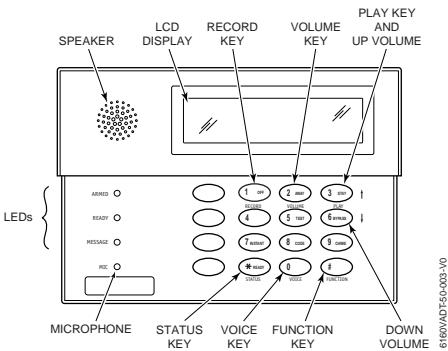
Message Center Functions
| To... | Press these keys... | Notes... |
| record a message | [#] FUNCTION + [0] VOICE + [1] RECORD | The redMESSAGE LED lights. Message remains in memory until a new message is recorded. |
| end recording | [1] RECORD | The redMESSAGE LED flashes, indicating message waiting. |
| play a message | [#] FUNCTION + [0] VOICE + [3] PLAY | The recorded message plays and the redMESSAGE LED turns off. |
| adjust the volume | [#] FUNCTION + [0] VOICE + [2] VOLUME keys, then press volume key [3] ↑ (up) or [6] ↓ (down) | Adjusting message volume also adjusts status volume. Volume cannot be adjusted while playing. |
General Information
Your touchpads allow you to control all system functions and feature the following:
- A telephone style (digital) keypad
- Liquid Crystal Display (LCD) which shows the nature and location of all occurrences
- Built-in sounder which will sound during alarms and troubles. The sounder also "beeps" during certain system functions and when depressing any of the keys (to acknowledge the key press).
- Backlighting of the LCD display windows. Backlighting turns on when any key is pressed, and when opening an entry/exit door while the system is armed. This feature is helpful when a touchpad is located in a dimly lit area.
- Some touchpads have a voice feature that announces the nature and location of all occurrences. Voice touchpads also announce any faulted zones when Chime mode is on. Ask your installer if this option has been programmed for your system.
IMPORTANT: If the touchpad beeps rapidly upon entering the premises, it indicates that an alarm has occurred during your absence and an intruder may still be on the premises. LEAVE IMMEDIATELY and CONTACT THE POLICE from a nearby safe location.
Your touchpads are functionally the same, but may have different types of displays, depending on the type installed with your system. To access the keys on the touchpad, simply open the swing-down door.
Custom English Display
2-line Custom English display touchpads feature a 2-line, 32-character alphanumeric LCD which displays system messages in friendly English. These touchpads can also be programmed with custom zone descriptors.
English Display
English display touchpads are functionally identical to Custom English display touchpads, but the LCD display uses pre-designated words to identify the nature and location of occurrences.
Voice Touchpads
Voice Touchpads (if installed), are functionally the same as other touchpads, except that these touchpads can provide the following:
- Voice announcements of system status (see Checking for Open Zones section)
- Voice chime, which can alert you to the opening of doors and windows while the system is disarmed (see Voice Chime in Chime mode section)
- Message center, which lets you record and playback messages (see Using the Voice Message Center in the System Overview section).
English Display Touchpad
AWAY: All burglary zones, interior and perimeter, are armed.
STAY: Perimeter burglary zones, such as protected windows and doors, are armed.
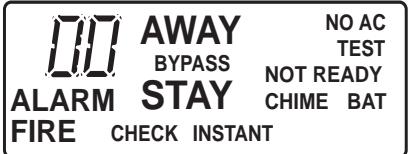
ENGLISH DISPLAY TOUCHPAD
INSTANT: Entry delay is turned off: Lit with STAY = Instant mode Lit with AWAY = Maximum mode
BYPASS: This appears when one or more burglary protection zones have been bypassed.
NOT READY: Appears when burglary portion of the system is not ready for arming (due to open protection zones). The system is ready to arm when this message disappears and the READY indicator light comes on.
NO AC: Appears when AC power has been cut off. System is operating on backup battery power.
AC: Appears when AC power is present.
CHIME: Appears when the CHIME feature is activated.
BAT: Low battery condition in a wireless sensor (if zone number displayed) or low system battery (if no zone number displayed).
ALARM: Appears when an intrusion has been detected and the system is armed (also appears during a fire alarm or audible emergency alarm). Accompanied by the protection zone in alarm.
CHECK: Appears when a malfunction is discovered in the system at any time or if an open is detected in a FIRE zone at any time or a fault in a DAY/NIGHT burglary zone during a disarmed period. Accompanied by a display of zone number in trouble.
FIRE: Appears when a fire alarm is present. Accompanied by a display of the zone in alarm. A FIRE display also appears when a fire alarm is manually activated, accompanied by a display of emergency key zone number programmed for fire.
Functions of the Touchpads
NOTE: The functions printed directly on the keys indicate their primary purpose (most require entry of a security code first); the functions printed under some keys (shown in brackets in the list below) indicate an alternate function available on voice touchpads only.
1. DISPLAY WINDOW.
Custom English Display Touchpads: 2-line, 32-character Liquid Crystal Display (LCD) touchpads that display protection point identification, system status, and messages.
English Display Touchpads: Display protection zone ID and system status messages using pre-designated words in the LCD display.
2. 1 OFF Disarms burglary portion of the system, silences alarms and audible trouble indicators, and clears visual display after problem's correction.
[RECORD] Used to record up to a 2.5-minute message.
3. 2AWAY Arms the entire burglary system, perimeter and interior.
[VIDEO] Used with the desired [3] or [6] keys to set playback and system announcement volume.
4. 3 STAY Arms perimeter portion of burglary system only. Interior protection is not armed, allowing movement within premises without causing an alarm.
[PLAY] Used to playback a recorded message.
[↑] Used with VOLUME key to raise volume.
5. 4 This is not a Function key. Used only as a numeric key.
6. 5 TEST Tests the system and alarm sounder if disarmed. Refer to Testing The System section for test procedures.
7. 6 BYPASS Removes individual protection zones from being monitored by the system. [↓]Used with VOLUME key to lower volume.
8. 7INSTANT Arms in manner similar to the STAY mode, but without the entry delay feature. Entering via an entry/exit door will cause an instant alarm.
- 8 CODE Used to assign additional user codes for other users of the system.
- 9 CHIME Turns CHIME mode on and off. When on, the opening of windows or doors while the system is disarmed will sound 3 beeps at the touchpad(s).
- This key can be used for "Quick Arming" of the system without use of a security code (if programmed).
[FUNCTION] Used to enable voice and volume functions.
- Key [0 [VOICE] Used to activate the RECORD, VOLUME, and PLAY functions.
- *READY Used to display all open protection zones.
[STATUS] Used to announce system status and faulted zones (if any exist).
- KEYS 0-9: Numeric keys used to enter your security code(s).
- MIC: Microphone for Message Center recordings.
16.MESSAGELED:(red).Flashes red when message waiting or lights steady red when recording a message. - READY INDICATOR: (green) Lit when the system is ready to be armed (no faults present). While the system is disarmed, this indicator will go on and off as protection zones are closed and opened.
- ARMED INDICATOR: (red) Lit when the system has been armed.
- FUNCTION KEYS: Keys A, B, C, D may have been programmed for a variety of functions, including panic (emergency) functions. For details, see the Function Keys section.
- INTERNAL SPEAKER: The built-in speaker mimics the alarm sounder during alarms, and will also "beep" during certain system functions. The speaker also provides voice playback for any recorded messages.
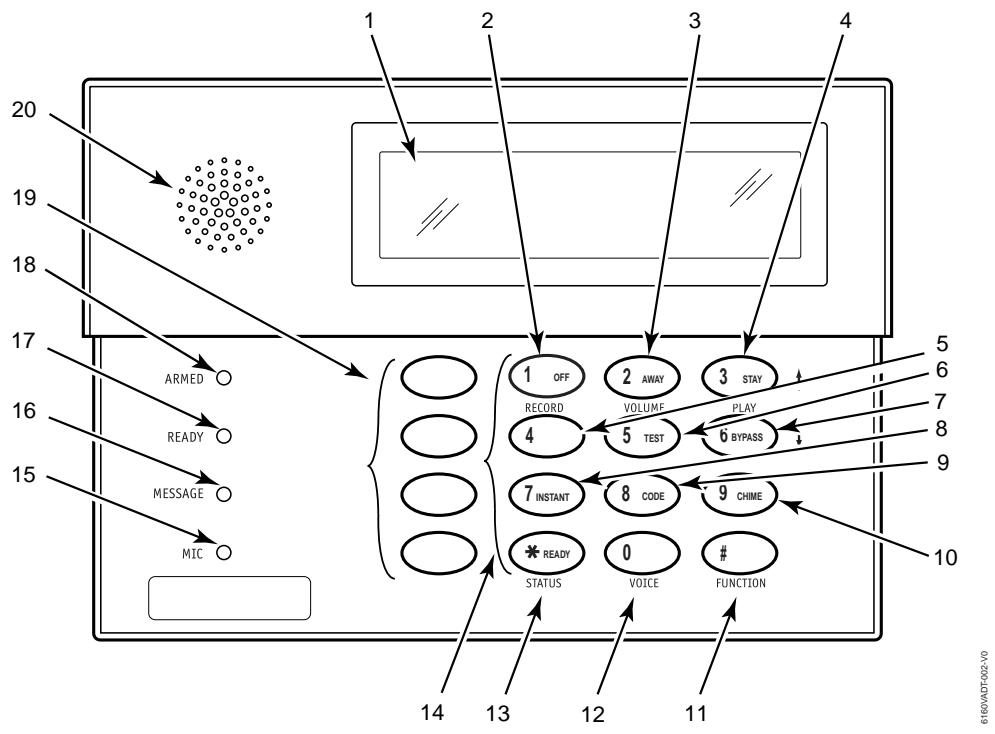
Custom English Display Voice Touchpad
(show without swing-down front door)
IMPORTANT!
- When entering codes and commands, sequential key depressions must be made within 10 seconds of one another. If 10 seconds elapse without a key depression, the entry will be aborted and must be repeated from its beginning. Be sure to observe this precaution when performing any of the procedures in this manual.
- If you make a mistake while entering a security code, stop, press the [] key, and then start over. If you stop in the middle while entering a code, and then immediately start the entry over, an erroneous code might be entered.
Entry Delay
Entry Delays give you time to disarm the system when you re-enter through the designated entrance door. You must disarm the system (simply enter your security code) before the entry delay period ends, or an alarm will occur. The touchpad beeps during the entry delay period, reminding you to disarm the system. There are two entry delays (if programmed). The first is for your primary entrance and the second can be used for a secondary entrance, where a longer delay is required to walk to the touchpad to disarm the system.
You can also arm the system with no entry delay at all by using the INSTANT arming mode. This mode provides greater security while on the premises or while away for extended periods of time.
See your installer for your delay times.
Partition 1
Exit Delay: seconds
Entry Delay 1: seconds
Entry Delay 2: seconds
NOTE: Entry/Exit times set for partition 1 also apply to the common zone.
Partition 2
Exit Delay: seconds
Entry Delay 1: seconds
Entry Delay 2: seconds
Exit Delay
Exit delay gives you time to leave through the designated exit door without setting off an alarm. Exit delay begins immediately after arming your system in any arming mode and Custom Display touchpads display the message "You May Exit Now." When "You may exit now" disappears, the system is fully armed. If programmed, a slow beeping will sound during the exit delay period, until the last 10 seconds, which then changes to fast beeping (alerting you to the end of exit delay). If you cannot leave by this time, you should stop, disarm the system, and start over to avoid a false alarm.
Exit Delay Restart (if programmed): If you wish to open the entry/exit door to let someone in after arming STAY, you can re-start the exit delay at any time - simply press the [] key, then let that person in. The system automatically re-arms when exit delay expires, which avoids having to disarm the system and then re-arm it again. In addition, when the system is armed AWAY, reopening and closing the entry/exit door before exit delay time expires (e.g., reentering to get a forgotten item) will reset the exit delay time.
Exit Alarms
Whenever you arm the system, the exit delay begins. If an entry/exit door or interior zone is faulted when the exit delay ends (e.g., exit door left open), the system sounds an alarm and starts the entry delay timer. If you disarm the system before the entry delay ends, the alarm sound stops and the message "CANCELLED ALARM" or "CA" is displayed on the touchpad, along with a zone number indicating the faulted zone. No message is sent to the Customer Care Center.
To clear the exit alarm condition, the open zone must be made intact; to clear the display, enter your code plus OFF.
If you do not disarm the system before the entry delay ends, and an entry/exit door or interior zone is still open, the alarm sound continues and an "exit alarm" message is sent to the Customer Care Center. The message ""EXIT ALARM" or "EA" is displayed on the touchpad, along with a zone number indicating the faulted zone. To stop the alarm, the system must be disarmed (your code plus OFF); to clear the display, enter your code plus OFF a second time.
An "exit alarm" also results if an entry/exit door or interior zone is faulted within two minutes after the end of the exit delay.
Your system may have been programmed for this feature to minimize false alarms sent to the Customer Care Center. Ask your installer if "Exit Alarm" is active in your system. If so, check this box.
Checking For Open Zones
Using the [] Key to Display and Announce System Status
Before arming your system, all protected doors, windows and other protection zones must be closed or bypassed, otherwise the touchpad will display a "Not Ready" message.
-
Press [] READY (do not enter code first) to display faulted zones.
-
Secure or bypass the zones displayed.
-
The touchpad's READY indicator lights when all protection zones have been either closed or bypassed.
-
Arm the system as desired.
Custom Display:
DISARMED - PRESS* TO SHOW FAULTS
English Display: Zone no. and "NOT READY"
Voice Status: Voice Touchpads (if installed), can announce system status and faulted zones (up to 3 zone descriptors) if the Voice Status feature is turned on.
To turn the Voice Status feature on/off: # + 0 + 2 + 4
(also turns on Voice Chime mode; see Chime mode section)
To announce Status: Press [] STATUS key once.
To announce faulted zones: Press the [*] STATUS key a second time within 5 seconds of the first press.
Stay Mode: Arms Perimeter Only, Entry Delay On
- Used when you want to arm the system with persons staying inside (or if you have pets that are moving throughout the premises).
- The perimeter sensors are armed, but interior sensors are left disarmed.
- Exit delay begins (you can leave through the entry/exit door, if desired).
- An alarm sounds immediately if any protected perimeter window or non-entry/exit door is opened.
- You may otherwise move freely within the premises.
- Persons entering later can enter through an entry/exit door without causing an alarm, but they must disarm the system within the entry delay period to avoid sounding an alarm.
Night-Stay Mode: Arms Perimeter Only, Plus Selected Zones
- Use Night-Stay mode to provide increased security while staying inside.
- Arms same as Stay mode, but also arms pre-selected interior sensors (programmed by your installer), while other interior sensors are left disarmed.
- Persons entering later can use an entry/exit door but they must disarm the system and must not violate any of the programmed interior zones to avoid sounding an alarm.
- IMPORTANT: When Night-Stay mode is on, the selected interior zones are armed and cause an alarm if anyone enters those areas (e.g., waking in the middle of the night). To avoid sounding an alarm, you must disarm the system before any activity takes place in those interior zones.
Instant Mode: Arms Perimeter Only, Entry Delay Off
- Used when staying inside and do not expect anyone to use an entry/exit door.
- Arms same as Stay mode.
- An alarm sounds immediately if any protected perimeter window or any door is opened, including entry/exit doors.
- IMPORTANT: Arming the system in this mode greatly increases the chance of false alarms. Use extreme care in selecting this mode of arming.
Away Mode: Arms Entire System, Entry Delay On
- Used when nobody will be staying inside (including pets).
- The entire system (interior and perimeter) is armed.
- Exit delay begins letting you leave through the entry/exit door.
- An alarm sounds if a protected window or any door is opened, or if any movement is detected inside your premises.
- You can reenter through an entry/exit door without causing an alarm, but you must disarm the system within the entry delay period to avoid sounding an alarm.
Arming Commands
Before arming, close all perimeter doors and windows and make sure the Ready to Arm message is displayed.
Modes of Arming
| Mode | Press these keys... | Touchpad Confirms By... |
| Stay | security code + [3] (STAY) | • three beeps • armed STAY message displayed • red ARMED indicator lights |
| Night-Stay | security code + [3] + [3] | • three beeps • NIGHT-STAY message displayed • red ARMED indicator lights |
| Instant | security code + [7] (INSTANT) | • three beeps • armed STAY message displayed • red ARMED indicator lights • also note that entry delay is turned off |
| Away | security code + [2] (AWAY) | • two beeps, or, if programmed, beeping for duration of exit delay • armed AWAY message displayed • red ARMED indicator lights Leave the premises through an entry/exit door during the exit delay period to avoid causing an alarm. The touchpad beeps rapidly during the last 5 seconds of the exit delay to warn you that it is ending. |
Quick Arming
If "Quick Arming" was programmed by the installer, the [#] key can be pressed in place of the security code when arming the system in any of its arming modes. However, the security code must always be used to disarm the system.
Function Key Arming
For any arming command, a function key may have also been programmed for your system. If so, you can press and hold the appropriate function key for 2 seconds to arm the system. See your installer for the designated functions (see Single Button Arming section).
Refer to the Accessing Other Partitions section for information on multi-partition arming.
Single Button Arming
The "A", "B", "C", and/or "D" keys on your touchpad may have been programmed for single-button arming. Note that while it will not be necessary to use a security code for arming, a security code must always be used to disarm the system.
If Single-Button Arming is programmed:
- A function key has been assigned to a specific type of arming: STAY mode, Night-STAY mode, AWAY mode, or STEP-ARMING (see Step-Arming paragraph).
- You DO NOT need to enter your security code before pressing the function key (but you always need your security code to DISARM the system).
Before arming, close all perimeter doors and windows.
- Press and hold the assigned function key for 2 seconds (no code is required). Function keys are shown below.
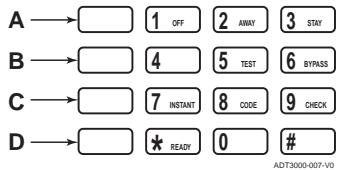
DISARMED READY TO ARM
English Display: Green LED lit
- The touchpad begins beeping and displays the armed message. The red ARMED indicator also lights.
English Display:AWAY
Single-Button “Step” Arming
Single-Button "Step" arming may have been programmed into one of the lettered keys (A, B, C, or D). Check with your installer to see if this has been done in your system.
If Step-Arming is programmed:
- The assigned key provides a choice of three levels of security.
- The selected key can be pressed once, twice, or three times, increasing the level of security with each press, as follows
| Key ↓ A, B, C, D | First Press ↓ Armed-STAY | Second Press ↓ Armed Night-STAY (if programmed) | Third Press ↓ Armed-AWAY |
Using the Keyswitch
Your system may be equipped with a keyswitch for use when arming and disarming. Red and green lights on the keyswitch plate indicate the status of your system as follows:
Green Light: Lights when the system is disarmed and ready to be armed (no open zones). If the system is disarmed and the green light is off, it indicates the system is not ready (one or more zones are open).
Red Light: Lights or flashes when system is armed in AWAY or STAY mode. See your installer for the meanings of the lit red light:
Lit Steady = system armed AWAY or
system armed STAY and exit delay has expired
Flashing = system armed STAY and exit delay timer active
Rapid flashing = an alarm has occurred (memory of alarm).
Before arming, close all perimeter doors and windows.
To arm in the AWAY mode:
Turn the key to the right for 1/2 second and release. Touchpads beep twice and the red indicator lights or flashes.
To arm in the STAY mode:
Turn the key to the right and hold for longer than 1 second, then release. Touchpads beep three times and the red indicator lights or flashes.
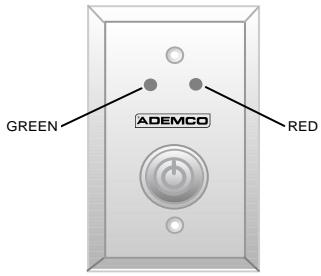
To disarm the system:
Turn the key to the right and release. The red light turns off
Using the [OFF] key
The OFF key is used to disarm the system, silence alarm and trouble sounds, and clear alarm memories.
IMPORTANT: If you return and the main burglary sounder is on, DO NOT ENTER, but CONTACT THE POLICE from a nearby safe location.
If you return after an alarm has occurred and the main sounder has shut itself off, the touchpad will beep rapidly upon your entering, indicating that an alarm has occurred during your absence.
LEAVE AT ONCE, and CONTACT THE POLICE from a nearby safe location.
- + 1
(Security Code) OFF
The "READY" indicator light will be lit if all zones are secure, and the touchpad will emit a single tone to confirm that the system is disarmed.
NOTE: If entry delay has started (you've opened the entry door), you do not need to press the OFF key; simply enter your security code.
DISARMED
READY TO ARM
English Display: READY
- To Silence a Burglary Alarm and Clear a Memory of Alarm
Enter your security code. This disarms the system and silences the alarm (or warning tones of a Memory of Alarm).
Note the zone in alarm on the touchpad display, and make that zone intact (close door, window, etc.). Now enter the security code plus OFF sequence again to clear the touchpad's Memory of Alarm display.
- To Silence a Fire Alarm and Clear Memory of Alarm
Simply press the OFF key to silence the alarm. Note the zone in alarm on the touchpad display, and check the detector. Now enter the security code plus OFF sequence to clear the touchpad's Memory of Alarm display. See the Fire Alarm System section.
Using the BYPASS Key
Use this key when you want to arm your system with one or more zones intentionally unprotected.
Vent Zones: Your system may have certain windows set as "vent" zones, which are automatically bypassed if left open when arming the system (you do not need to manually bypass them). However, if a vent zone window is closed after arming, it becomes protected and will cause an alarm if opened again while the system is armed.
When bypassing zones:
- The system must be disarmed before you can bypass zones.
- Bypassed zones are unprotected and will not cause an alarm if violated.
- The system will not allow fire zones to be bypassed.
-
Zones are automatically un bypassed when the system is disarmed.
-
+ 6 + zone numbers (see below)
(Security Code)
BYPASS
Enter the 2-digit zone number(s) for the zone(s) to be bypassed (e.g., 06, 10, 13, etc.). Single digit zone numbers must be preceded by a zero (e.g. 05, 06).
- When finished, the touchpad will momentarily display a "Bypass" message for each bypassed zone number. Wait for all bypassed zones to be displayed. Arm the system as usual.
To display bypassed zones prior to arming, enter your security code and press the [6] BYPASS key.
DISARMED-PRESS
- TO SHOW FAULTS
English Display: NOT READY
DISARMED BYPASS
READY TO ARM
English Display: BYPASS
Quick Bypass
If programmed, "Quick Bypass" allows you to easily bypass all open (faulted) zones without having to enter zone numbers individually. This feature is useful if, for example, you routinely leave certain windows open when arming at night.
- + 6 + [#]
(Security Code) BYPASS
In a few moments, all open zones will be displayed and automatically bypassed. Make sure that only those zones that you wish to leave unprotected are bypassed, and that there are no other zones unintentionally left open.
- Wait for all bypassed zones to be displayed, then arm the system as desired.
Ask your installer if "Quick Bypass" is active for your system, and if so, check here:
DISARMED-PRESS
- TO SHOW FAULTS
English Display: NOT READY
DISARMED BYPASS
READY TO ARM
English Display: BYPASS
Chime Mode
CHIME mode alerts you to the opening of a perimeter door or window while the system is disarmed. When Chime mode is activated:
- Three tones sound at the touchpad whenever a perimeter door or window is opened.
- Interior zones do not produce a tone when they are faulted.
- Pressing the READY key will display the open protection points.
To turn Chime Mode on/off (system must be disarmed):
□ □ □ + 9
(Security Code) CHIME
The CHIME message appears when on. Perimeter zones will cause a tone when faulted.
The CHIME message disappears when Chime mode is off.
DISARMED
READY TO ARM
English Display: READY
DISARMED CHIME
READY TO ARM
English Display: CHIME
Voice Chime: You can set the Voice Touchpads (if installed) to announce faulted (opened) entry/exit or perimeter zones whenever normal Chime mode is on.
To turn Voice Chime Mode on or off: # + 0 + 2 + 4
(normal Chime mode must be on first)
When Voice Chime is on, any faulted zone(s) causes a voice status announcement, chime and display. When off, the sounder still provides chime if normal Chime mode is on.
Viewing the Current Date and Time
The system lets you view its time and date setting.
□ □ □ +[#] + [6] [3]
(Security Code)
OR, press the function key (A, B, C, or D) for viewing current date and time, if programmed.
A typical time/date display is shown.
The display will remain on for about 30 seconds.
DISARMED
READY TO ARM
English Display: READY
TIME/DATE SAT
12:05AM_05/09/00
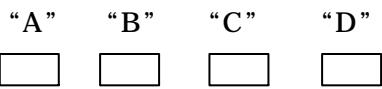
If one of the above keys has been programmed for the date/time display feature, place a check mark in the box beneath that key.
Setting the Date and Time
You can set the time and date by doing the following:
- +[# ] + [6][3]
(Security Code)
DISARMED
READY TO ARM
- Press ([*] when the time/date is displayed.
A cursor appears under the first digit of the hour.
To move cursor ahead, press [] . To go back, press [#] .
- Enter the 2-digit hour setting.
- Enter the 2-digit minute setting.
- Press [1] for PM or [0] for AM.
- Enter the last two digits of the current year.
- Enter the 2-digit month setting.
-
Enter the 2-digit day setting.
-
To exit, press ([*] when cursor is at the last digit, or wait 10 seconds.
TIME/DATE SAT
04:04PM 10/17/00
Current time display
TIME/DATE SAT
04:04P2000/10/17
Time/date editing display
Using Panic Keys
Your system may have been programmed to use special keys to manually activate emergency (panic) functions as follows:
| This Function | Sends this signal* | With This Sounding... |
| Silent Alarm | silent alarm | no audible alarm or any visual display indicating that a silent alarm has been initiated. |
| Audible Alarm | audible alarm | a loud, steady alarm at touchpad(s) and at any external sounders that may be connected. |
| Personal Alarm | auxiliary alarm | steady alarm sound at touchpad(s), but not at external bells or sirens. |
| Fire Alarm | fire alarm | temporal (pulsing) sound at external bells and sirens. |
*All panic functions send signals to the Customer Care Center, if connected.
To activate a Panic Function:
Press and hold down for at least 2 seconds whichever lettered key on the touchpad has been programmed for the desired emergency function.
OR
Press both keys of the assigned key pair at the same time.
DISARMED
READY TO ARM
English Display: READY
Typical Panic Display:
ALARM 92
English Display: 99 and ALARM
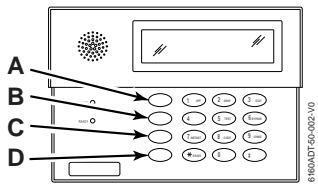
Lettered Panic Keys
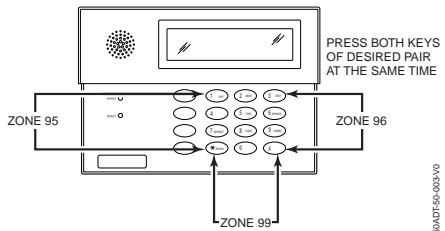
Panic Key Pairs
See your installer and use the chart provided in the Features Programmed in Your System section to note the functions that have been programmed for your system.
About Macro Keys
The “A”, “B”, “C” or “D” keys can be used to automatically activate a series of commands of up to 16 keystrokes, if programmed for this function. These keystrokes, as a group, are called “macros” and are stored in the system's memory.
Typical macro functions can include:
- Arming sequences: STAY, Night-STAY, INSTANT, or AWAY
- Bypassing particular zone(s)
- Activating relay(s) for turning on (or off) lights, fans, etc.
- Up to four macros can be assigned - but no more than one macro to a key.
- Macros can be activated only by users with authority levels authorized to perform the macro's function.
NOTE: The installer must activate the desired function key (using *57 Function key Menu Mode) before macros can be assigned.
See the chart at the back of this manual for the key(s) assigned for macros.
- + [#] + [6] + [6]
(Security Code)
DISARMED
READY TO ARM
- Enter the macro number, 1-4, to be programmed at the "Select Macro?" prompt. Remember, there are four macros available, but only one macro can be assigned to each key.
SELECT MACRO
1-4 0
- If a macro has been previously defined, the keystrokes are shown on the bottom line of the display, otherwise the display is blank.
MACRO DISPLAY
To exit this mode (and keep the existing macro definition), press any key except the [*] key. The system returns to normal mode.
To define a macro for the selected key, press [] and continue with the next prompt.
Enter the first of the series of desired commands, (do not include your user code when programming a macro), then press/hold the “D” key for at least two seconds to complete the first command. This key terminates each separate command, and appears as an “F” in the touchpad display.
MACRO PGM
Macro Key Programming & Usage (cont.)
The touchpad beeps to acknowledge your input and displays the command you entered (followed by “F”).
- Enter the next command, followed by press/holding the "D" key for at least two seconds. The touchpad beeps and displays the keystrokes entered so far.
- Repeat until the all the desired commands (up to 16 characters including the "F"s) have been entered. Be sure to check your keystrokes before continuing. If you made a mistake, you must start over.
- To exit, press/hold the "D" key for at least two seconds. The display returns to system status and indicates system is ready.
Typical Macro Display:
MACRO PGM 60203F#701F2F
Example of Macro Programming
Suppose you want to (1) bypass the two upstairs window zones, then (2) turn on an exterior light, and then (3) arm the security system in the AWAY mode. The procedures in the table that follow show you how you would program this macro:
| Function | Keystrokes Required | Touchpad Display |
| 1. Bypass zones 02 & 03 | Press BYPASS [6] key, then 2-digit zone numbers 02 & 03. | 60203 |
| 2. Insert terminator. | Press the “D” key for at least 2 seconds. | 60203F |
| 3. Turn light on (device 01). | Press[#] and 7 keys for “device ON”, and [01] key for selecting device 1. | 60203F#701 |
| 4. Insert terminator. | Press the “D” key for at least 2 seconds. | 60203F#701F |
| 5. Arm system AWAY | Press AWAY [2] key. | 60203F#701F2 |
| 6. Insert terminator. | Press the “D” key for at least 2 seconds. | 60203F#701F2F |
Using a Programmed Macro Key
DISARMED READY TO ARM
ENTERUSERCODE
- Press the Macro key programmed for the desired series of commands for at least 2 seconds. The "Enter User Code" prompt appears. The prompt remains displayed for up to 10 seconds.
- Enter your 4-digit user code. The programmed macro sequence begins automatically after the user code is entered.
About Device Commands
Your system may be set up so that it can control certain lights or other devices.
- Some devices may be automatically turned on or off by the system.
- You may be able to override automatically controlled devices using the commands described below.
- Some devices can be manually turned on or off using the commands described below.
- See your installer for a list of devices that may be set up for your system. A list of these devices is provided at the back of this manual for you to fill out.
To Activate Devices:
□ □ □ + [#] + [7] + 2-digit device number
(Security Code)
Devices associated with that device number activate.
DISARMED
READY TO ARM
English Display: READY
To Deactivate Devices:
□ □ □ + [#] + [8] + 2-digit device number
(Security Code)
Devices associated with that device number deactivate.
About Automatic Paging
Your system may be set up to automatically send alert messages to a pager as certain conditions occur in your system.
-
The following events can be programmed by your installer to be sent to the parsers: arming, disarming†, alarms, and trouble conditions. († reports when arming/disarming from a touchpad using a security code; auto-arming/disarming, arming with assigned button, and keyswitch arming do not send pager messages.)
-
You can also program the system to send an automatic pager message to alert you in the event that someone has not arrived home (disarmed the system) within a defined period of time (see the Scheduling section for details on programming a "latch key report").
-
Your installer programs the pager phone numbers and reporting events.
-
The pager message consists of a 7-digit system status code that indicates the type of condition that has occurred.
-
An optional, predefined 16-digit character string can precede the 7-digit system status code; these characters can consist of a PIN no., subscriber account no., or any additional data that you may wish to have sent to the pager.
-
The pager display format is as follows: 3-digit Event Code
Optional 16 digits AAAAAAAAAAAAAAAAAA - BBB - CCCC 4-digit User or Zone No.
| A = | B = | C = |
| Optional 16-digits for Account numbers, PIN numbers, or any other data; programmed by the installer, if required. | A 3-digit code that describes the event that has occurred in your system (see for event codes table below) | A 4-digit User or Zone number, depending on the type of event that has occurred, where: • alarms and troubles display zone number • arming/disarming (opens/closes) display user number The first 2 digits are always “00” (e.g., 0004 represents zone or user number 4), and, single-digit user or zone numbers are always preceded by a zero. |
The 3-digit Event Codes (BBB) that can be displayed are:
| 911 = | 811 = | 101 = | 102 = |
| Alarms. The 4-digit number (CCCC) following this code is the zone number that has caused the alarm. | Troubles. The 4-digit number (CCC) following this code is the zone number that has caused the trouble. | Open (system disarmed). The 4-digit number (CCC) that follows this code is the user number that has disarmed the system. | Close (system armed). The 4-digit number (CCC) that follows this code is the user number that has armed the system. |
Examples of typical 7-digit pager displays follow.
Ex. 1. 911-0004 = Reporting of an alarm (911) caused by a fault on zone 4 (0004).
Ex. 2. 102 - 0005 = Reporting of a closing-system arming (102)- by user 5 (0005).
About Manual Paging
Your system may be set up so you can manually send a message to up to four pagers.
- Your installer programs the paging function key and the pager phone numbers.
- Pressing the paging keys sends the message 999 - 9999 to the selected pager.
- This message could mean "call home", "call your office", or any other prearranged meaning.
-
See the Paging chart at the back of this manual for details of the paging setup for your system.
-
Hold [pager key] 2 seconds then press [1-4].
(pager no.)
Press and hold the programmed Paging Key for at least 2 seconds (wait for beep), then press the pager number (1 - 4)^* representing the pager intended to receive the message.
2. The recipient, on seeing the 999-9999 message, will understand the prearranged meaning of this signal.
- If no number is pressed, the message is sent to pager 1.
DISARMED
READY TO ARM
English Display: READY
999-9999
Pager Display
Latch Key Paging
You can program a schedule that causes a pager report to be sent if the system is not DISARMED by the scheduled time (see Scheduling section, event "03"). For example, a working parent might want a message to be sent to a pager if their child did not arrive home from school and disarm the system by a certain time.
If programmed, the message that is sent is: 777-7777.
About Security Codes
Your system lets you assign up to 45 different security codes for use by other users.
- Only the System Master and Partition Masters can assign user codes to users.
- Users are identified by 2-digit user numbers 03-49 and are pre-assigned to either partition 1 or partition 2 (users 01-02 are reserved).
- Only the Installer or System Master can change the partitions to which a user is assigned.
- In addition to a security code, each user is assigned various system attributes.
- User codes can be used interchangeably within a partition when performing system functions (a system armed with one user's code can be disarmed by another user's code), with the exception of the guest code described below.
-
User code programming involves these steps:
-
Choose a user number from the set of users assigned to the partition in which the user will be operating, and assign a 4-digit security code.
- Assign an authority level to that user.
- Assign other attributes as necessary (see attributes on the next page).
NOTE: The factory settings are designed to meet most normal user situations.
Therefore, the only step you usually need to do when adding users is assign a user number (from the partition's pre-assigned user numbers) and a security code.
Authority Level Definitions
Authority levels define the system functions a particular user can/cannot perform.
| Level | Title | Explanation |
| N/A | System Master | Reserved for user 02; Can perform all system functions and assign codes in both partitions; can change its own code as follows: [Master code + [8] + 02 + new master code + new master code again] |
| 0 | Standard User | Can only perform security functions in assigned partition. Cannot perform other system functions. |
| 1 | Arm Only | Can only arm the system. Cannot disarm or do other functions. |
| 2 | Guest | Can arm the system in assigned partitions, but cannot disarm the system unless the system was armed with this code. This code is typically assigned to someone (such as a babysitter or cleaner) who has a need to arm/disarm the system only at certain times. The user of this code should not use the “Quick Arming” feature. |
| 3 | Duress Code | Intended for use when you are forced to disarm or arm the system under threat. When used, the system will act normally, but can silently notify the Customer Care Center of your situation, if that service has been provided. |
| 4 | Partition Master | Can do everything a standard user can do, and can assign user codes to users in their partition. |
Security Codes & Authority Levels (Cont.)
How To Assign User Codes and Attributes
The following lists the various command strings for adding user codes and attributes. Refer to the User Setup chart at the back of this manual for factory assignments of user attributes and to keep a record of user programming.
NOTE: Partition Master codes apply only to those user numbers previously assigned (by the system master/installer) to the partition master's partition.
Add User Code: (Users 03/33 are pre to partition masters, but can be changed.
Delete User Code:
System/Partition Master code + [8] + user no. + new user's code
User 01 = installer User 03 = partition 1 master
User 02 = master User 33 = partition 2 master
The Touchpad beeps once to confirm that new user was added.
System/Partition Master code + [8] + [user no.] + [#] [0] The user code and all attributes* programmed for this user number, including any associated RF keys, are erased from the system. (*except assigned partition)
System/Partition Master code + [8] + [user no.] + [#] [1]+ auth. level
Authority Levels (see definitions on previous page):
0 = standard user 3 = duress
1 = arm only 4 = partition master
2 = guest
Authority Level: Factory Assignments: users 04-32/34-49 = 0 users 03/33 = 4
Access Group: Factory Assignments: none
User's Partition: Factory Assignments: Part. 1 = users 03-32 Part. 2 = users 33-49
RF User Number: Factory Assignments: none
Pager On/Off: Factory Assignments: users 01 - 04 = 0 (off) users 05 - 49 = 1 (on)
System/Partition Master Code + [8] + [user no.] + [#] [2]+ group (1-8)
You can assign users to a group, then set an access schedule that defines the times this group of users can operate the system. The system ignores these users outside the scheduled times.
System Master Code + [8] + [user no.] + [#] [3] + 0 + partition(s) + [#]
This command assigns the partitions the user can access. If more t one, enter partition numbers sequentially, then press [#] to end. E.g., master code + [8] + [user no.] + [#] [3] + [0] + [1] [2] + [#] gives the user access to partitions 1 and 2 and the common partition. Partition Entries: 1 = partition 1 and common 2 = partition 2 and common 3 = common partition only
System/Partition Master Code + [8] + [user no.] + [#] [4]+ zone no.
Use this command to assign a wireless button device (keyfob) to this user (keyfob must be enrolled in system first; see installer).
Zone number: enter the zone number assigned to a button on the keyfob that will be used for arming/disarming by this user.
System/Partition Master Code + [8] + [user no.] + [#] [5] + 0 or 1
You can program a user so that a message is sent to a pager whenever this code is used to arm or disarm the system. Paging On/Off: 1 = allow paging; 0 = no paging for this user
Accessing Other Partitions (GOTO Command and Multi-Partition Arming)
About Accessing Partitions
Each touchpad is assigned a default partition for display purposes, and will show only that partition's information.
- If the user is authorized, a touchpad in one partition can be used to perform system functions in the other partition by using the GOTO command. Refer to the GOTO section.
- If the user is authorized, that user can arm other partitions. Refer to the Multi-Partition Arming section.
The following table shows the relationship of the touchpads in each partition when system is armed and disarmed.
| Condition 1 ⇒ Condition 2 ⇒ Condition 3 ⇒ Condition 4 ⇒ | PARTITION 1 | PARTITION 2 | COMMON ZONE (LOBBY, etc.) | |||
| Arming State | Touchpad Status | Arming State | Touchpad Status | Arming State | Touchpad Status | |
| Disarmed | Partition 1 Only | Disarmed | Partition 2 Only | Disarmed | Common Zone Only | |
| Disarmed | Partition 1 and Common Zone | Armed | Partition 2 Only | Disarmed | Common Zone Only | |
| Armed | Partition 1 Only | Disarmed | Partition 2 and Common Zone | Disarmed | Common Zone Only | |
| Armed | Partition 1 Only | Armed | Partition 2 Only | Armed | Common Zone Only | |
When both partitions are disarmed, the touchpad in each partition displays zone status for its partition only. The common zone touchpad shows the status in that zone only. See Condition 1 above.
When partition 1 is disarmed and partition 2 is armed, the touchpad in partition 1 shows the status of partition 1 and the common zone. Partition 2 will display the status of partition 2 only. See Condition 2 above.
When partition 1 is armed and partition 2 is disarmed, the touchpad in partition 1 shows the status of partition 1 only. Partition 2 will display the status of partition 2 and the common zone. See Condition 3 above.
As long as any one of the two partitions is disarmed, the common zone will always be disarmed. The common zone will be armed only when both partition 1 and 2 are armed. See Condition 4 above.
Using the GoTo Command
If the user is authorized, a touchpad in one partition can be used to perform system functions in the other partition by using the GOTO command.
- You must use a Custom English touchpad to access another partition.
-
Touchpads automatically return to their original partition after 2 minutes with no touchpad activity.
-
+ [*] + partition number (0,1,2,3)
(Security Code)
0 = return to touchpad's original partition.
1 = partition 1; 2 = partition 2; 3 = common zone
The touchpad beeps to confirm the partition change.
- The touchpad remains in the new partition until directed to go to another partition, or until it automatically returns to the original partition.
The active partition number is displayed in the upper left portion of screen, if the option is programmed.
1 DISARMED
READY TO ARM
English Display: Green LED lit
2 DISARMED
READY TO ARM
English Display: Green LED lit
Multi-Partition Arming
Some users can be given Multi-Partition arming ability by being assigned to both partitions when programming user attributes.
When attempting to arm multi-partitions:
- You must use a Custom English touchpad.
- The system arms only if all partitions are "ready to arm."
- If any partition is "not ready," the system does not arm at all.
- You can use the GOTO command to bypass open zones before arming.
- If any partition is already armed when global arming is attempted, that partition remains in its existing armed state.
□ □ □ + [0] + arm command (see list below)
(Security Code)
1 DISARMED
READY TO ARM
Multi-Partition Arming Commands
2 = arms all partitions AWAY
3 = arms all partitions STAY
33 = arms all partitions NIGHT-STAY
7 = arms all partitions INSTANT
1 = disarms all partitions
English Display: Green LED lit
Common Zone Operation
Ask your installer if a "common zone" was assigned. If so, check this box
Your system may have been set up to use a common zone, which is an area shared by users of both partitions, such as a foyer or lobby. If so, please note the following:
- The common zone will sound and report alarms only when both partitions are armed. If only one partition is armed, the system ignores faults on the common zone.
- Either partition may arm its system if the common zone is faulted, but once armed, the other partition will not be able to arm unless the common zone is first bypassed or the fault is corrected.
- Faults on the common zone are displayed on common zone touchpads, and will also appear on another partition's touchpad when that partition is armed.
- Either partition can clear and restore the common zone after an alarm.
- Entry/exit time for the common zone is the same as for partition 1.
About Scheduling
The system provides up to 16 end-user schedules (programmable by master/installer only), which can be used to control various types of events.
- Each schedule causes a defined event to start and stop (when appropriate) at a specified time.
- Schedules can be set to automatically repeat at various intervals.
- Schedules can be set for random starting, if desired.
Creating Schedules
- + [#] + [6][4] (Master Code)
1 DISARMED READY TO ARM
- Enter a 2-digit schedule number from 01-16. Press [] to continue.
ENTER SCED NO.
00=QUIT 00
- Enter the desired 2-digit event number from the following list.
ENTER EVENT
00 = clear the scheduled event
01 = turn a programmed output on or off (see Using Device Commands section for a list of output device numbers used in your system)
02 = set a user access schedule for one or more users (see Security Codes section for an explanation of access groups)
03 = send a "latch-key" report to a pager if the system is not disarmed by a specified time; message sent is "777-7777."
04 = automatically arm the system in STAY mode at a specified time
05 = automatically arm the system in AWAY mode at a specified time
06 = automatically disarm the system at a specified time
07 = Display the word "REMEINDER" at a specified time
Press [+] to continue.
- For event number "01," enter the output number associated with this schedule.
Otherwise, this prompt is skipped. Press [ ] to continue to the "Start" prompt below.
DEVICE NUMBER
Scheduling (continued)
- For event number "02," enter the access group number. Otherwise, this prompt is skipped. Press [] to continue to the "Start" prompt below.
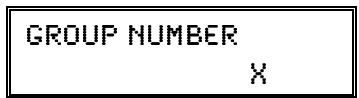
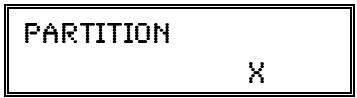
- For event numbers "03-07," enter the partition number to be armed or disarmed. ( 0 = ) arm all; ( 1 = ) partition 1; ( 2 = ) partition 2; ( 3 = ) arm common Otherwise, this prompt is skipped. Press ([*] to continue to the "Start" prompt.
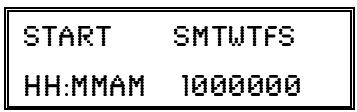
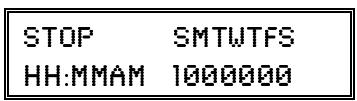
- Enter the event's start time and days of week.
Hour = 00-12; minute = 00-59
AM = 0; PM = 1
Days = Position the cursor under the desired days using the [] key to move forward, then press "1" to select the day.
Press [] to continue. - Enter the event's stop time, AM/PM and days of week. Refer to step 7 for available entries. Press [ ] to continue.
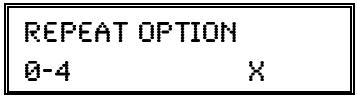
- Enter the desired repeat option.
0 = no repeat
1 = repeat schedule weekly
2 = repeat schedule biweekly (every other week)
3 = repeat schedule every third week
4 = repeat schedule every fourth week
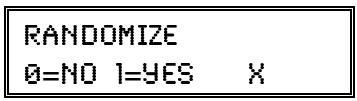
e.g., To make a schedule that happens everyday you would select all days with a repeat count of 1. To make a schedule that runs for one week then stops, select everyday with a repeat count of 0. - Select the randomize option, if desired. 0 = no; 1 = yes If selected, the schedule times will vary within 60 minutes of the "hour" time. For example, if a schedule is set to start at 6:15pm, it will do so the first time 6:15pm arrives, but on subsequent days it will start anytime between 6:00 and 6:59 p.m. Press [ ] to continue.
About Event Logging
The system records various events in a history log, which can be viewed by the master user using a Custom English Display touchpad.
- The Event Log holds up to 100 events.
- Events are displayed in chronological order, from most recent to oldest.
- When the log is full, the oldest event is replaced by the logging of any new event.
Viewing the Event Log
- +[# ] + 6 +0
(Master Code)
DISARMED
READSTORM
- The system displays the most recent event as follows:
event number
- type of event, identified by its corresponding code (see your installer for the meaning of each code)
- zone or user number (depending on type of event)
- partition in which event occurred
- time and date of the event's occurrence.
- Pressing [^*] displays previous events (back in time).
Pressing [#] displays events forward in time.
- Exit the event log by pressing any key other than [^*] or [# ]
001 E441U001 P1
12:34AM 01/02/00
About Testing the System
Using TEST mode allows each protection point to be checked for proper operation.
- The touchpad sounds a single beep every 40 seconds as a reminder that the system is in the Test mode.
- Alarm messages are not sent to your Customer Care Center while Test mode is on.
1 Disarm the system and close all protected windows, doors, etc. The READY indicator light should come on if all zones are intact (i.e., all protected windows, doors, etc. are closed.
DISARMED
READY TO ARM
- + 5 then [0] (walk)
(Security Code)
TEST
The Dial test (option "1") is intended for the installer and should not be used unless directed to do so by your Customer Care Representative.
$$ 1 = \text {D I A L} \quad \varnothing = \text {W A L K} $$
- Listen. The external sounder should sound for 1 second and then turn off. If the sounder does not sound, CALL FOR SERVICE.
TEST IN PROGRESS
- Fault zones. Open each protected door and window in turn and listen for three beeps from the touchpad. Identification (zone number or zone description) of each faulted protection point should appear on the display. The display clears when the door or window is closed.
- Walk in front of any interior motion detectors (if used) and listen for three beeps. The identification of the detector should appear on the display when it is activated. The display clears when no motion is detected.
Note that if wireless motion detectors are used, there is a 3-minute delay between activations. This is to conserve battery life.
- Test all smoke detectors, following the manufacturer's instructions. The identification of each detector should appear on the display when each is activated. If a problem is experienced with any protection point (no confirming sounds, no display), call for service immediately.
When all protection points have been checked and are intact (closed), there should be no zone identification numbers displayed on the touchpad.
7.Exit test mode:
(Security Code)
If the test mode is inadvertently left active, it automatically turns off after 4 hours.
"Check" and "Battery" Displays
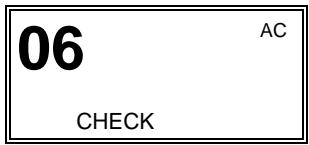
The word CHECK on the touchpad's display, accompanied by a "beeping" at the touchpad, indicates a trouble condition in the system.
To silence the beeping for these conditions, press any key.
- A display of "CHECK" and one or more zone numbers indicates that a problem exists with the displayed zone(s) and requires your attention. Determine if the zone(s) displayed are intact and make them so if they are not. If the problem has been corrected, the display can be cleared if you enter the OFF sequence (security code plus OFF key) twice. If the display persists, CALL FOR SERVICE.
Note: A display of CHECK 70 on English Display touchpads indicates that the wiring connection to the external sounder is at fault (opened or shorted), and you should CALL FOR SERVICE. See “BELL FAILURE” on next page. A display of CHECK 90 indicates that RF interference may be impeding the operation of wireless sensors* in the system. See “Rcvr Jam” on next page.
- If there are wireless sensors* in your system, the CHECK condition may also be caused by some change in the environment that prevents the wireless receiver from receiving messages from a particular sensor. CALL FOR SERVICE if this occurs.
IF YOU CANNOT CORRECT A "CHECK" DISPLAY, CALL FOR SERVICE.
TYPICAL "CHECK" DISPLAYS
ENGLISH DISPLAY TOUCHPAD
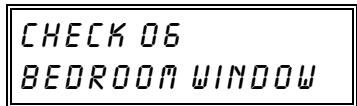
CUSTOM ENGLISH DISPLAY TOUCHPAD
| Other Trouble Displays | Words or letters in parentheses ( ) are those that are displayed on English Display touchpads. | |
| COMM. FAILURE (or FC) | Indicates that a failure has occurred in the telephone communication portion of your system. CALL FOR SERVICE. | |
| SYSTEM LO BAT (or BAT with no zone No.) | Indicates that a low system battery condition exists. Display is accompanied by "beeping"* at the touchpad. If this condition persists for more than one day (with AC present), CALL FOR SERVICE. | |
| LO BAT + zone descriptor (or BAT with zone No.) | Indicates that there is a low battery condition in the wireless transmitter** number displayed (00 is RF keypad). Accompanied by a single "beep"* (about once every 40 seconds) at the touchpad. Either replace the battery yourself, or CALL FOR SERVICE. If the battery is not replaced within 30 days, a CHECK display may occur. | |
| Rcvr Jam (or CHECK 90) | Wireless part of the system is experiencing RF interference which may impede reception from wireless sensors.** | |
| MODEM COMM (or CC) | Indicates that the control is on-line with the Customer Care Center's remote computer. The control will not operate while on-line. Wait a few minutes — the display should disappear. | |
| BELL FAILURE (or CHECK 70) | Indicates that the wiring connection to the external sounder is at fault (open or shorted). Accompanied by "beeping" at the touchpad. CALL FOR SERVICE. | |
| Other Trouble Displays (Continued) | AC LOSS (or NO AC) | The system is operating on battery power only due to an AC power failure. If only some lights are out on the premises, check circuit breakers and fuses and reset or replace as necessary. If AC power cannot be restored and a “low system battery” message appears (see previous page), CALL FOR SERVICE. |
| Busy-Standby (or dI) | If this message remains displayed for more than 1 minute, system is disabled. CALL FOR SERVICE. | |
| OPEN CIRCUIT (or OC) | The touchpad is not receiving signals from the control. CALL FOR SERVICE. | |
| Long Ring Trbl (or bF) | If part of your system, back-up Long Range Radio communication has failed. CALL FOR SERVICE. | |
| TELCO FAULT (or CHECK 94) | The telephone line has a problem. CALL FOR SERVICE. | |
Total Power Failure If there is no touchpad display at all, and the READY indicator is not lit, operating power (from AC and back-up battery) for the system has stopped and the system is inoperative. CALL FOR SERVICE.
In The Event Of Telephone Operational Problems
In the event of telephone operational problems, disconnect the control from the phone line by removing the plug from the phone wall jack. We recommend that your installer demonstrate this disconnection on installation of the system. Do not attempt to disconnect the phone connection inside the control. Doing so will result in the loss of your phone lines. If the regular phones work correctly after the control has been disconnected from the phone wall jack, the control has a problem and you should immediately call for service. If upon disconnection of the control, there is still a problem on the phone line, notify the Telephone Company that they have a problem and request prompt phone repair service. The user may not under any circumstances attempt any service or repairs to the security system. Repairs must be made only by ADT authorized service (see the LIMITED WARRANTY statement for information on how to obtain service).
Maintaining Your System
Taking Care of Your System
The components of your security system are designed to be as maintenance-free as possible. However, to make sure that your system is in reliable working condition, do the following:
- Test your system weekly.
- Test your system after any alarm occurs.
Silencing Low Battery Warning Tones at the Touchpad
You can silence the touchpad's warning tones by pressing the OFF key, but the touchpad's low battery message display will remain on as a reminder that you have a low battery condition in one or more of your wireless sensors. When you replace the weak battery with a fresh one, the sensor sends a "good battery" signal to the control as soon as the sensor is activated (opening/closing of door, window, etc.), causing the low battery display to turn off. If the sensor is not activated, the display will automatically clear within approximately 1 hour.
Replacing Batteries in Wireless Sensors
Each wireless sensor in your system has a 9-volt or 3-volt battery. The system detects a low battery in wireless sensors, including smoke detectors, the personal emergency transmitter, and the portable wireless touchpad and displays a low battery message*. (A low battery in a portable wireless touchpad is detected as soon as one of its keys is pressed, and displayed as 00.). Battery-operated smoke detectors with a low battery also emit a single "chirp" sound approximately once every 20-30 seconds.
Wireless sensors may not have been used in your security system
IMPORTANT:
Use only batteries recommended by your installer as replacement.
Alkaline batteries provide a minimum of 1 year of operation, and in most units and applications, provide 2-4 years of service. 3-volt lithium batteries provide up to 4 or more years of operation. Actual battery life will depend on the environment in which the sensor is used, the number of signals that the transmitter in the sensor has had to send, and the specific type of sensor. Factors such as humidity, high or low temperatures or large swings in temperature, may all lead to the reduction of actual battery life in an installation.
- The low battery message comes on as a warning that battery replacement in indicated sensor(s) is due within 30 days. In the meantime, a sensor causing a low battery indication is still fully operational.
Routine Care
- Treat the components of your security system as you would any other electrical equipment. Do not slam sensor-protected doors or windows.
- Keep dust from accumulating on the touchpad and all protective sensors, particularly on motion sensors and smoke detectors.
- The touchpad and sensors should be cleaned carefully with a dry soft cloth. Do not spray water or any other fluid on the units.
THIS SECTION APPLIES ONLY TO RESIDENTIAL SYSTEMS
General
Your fire alarm system (if installed) is on 24 hours a day, for continuous protection. In the event of an emergency, the strategically located smoke and heat detectors will sound their alarms and automatically send signals to your system, triggering a loud, interrupted pulsed sound* from the Touchpad(s) and any external sounders. A FIRE message will appear at your Touchpad and remain on until you silence the alarm (see below for silencing fire alarms).
- Temporal pulse sounding is produced for Fire alarms, as follows: 3 pulses–pause–3 pulses–pause–3 pulses–pause. . . . , repeated.
TYPICAL FIRE EMERGENCY DISPLAYS
FIRE 01 MASTER BEDROOM
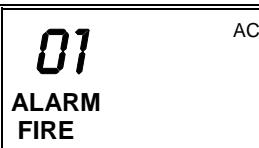
CUSTOM DISPLAY TOUCHPAD
ENGLISH DISPLAY TOUCHPAD
Silencing Fire Alarms and Clearing Memory of Alarm
- You can silence the alarm at any time by pressing the OFF key (the security code is not needed to silence fire alarms). To clear the display, enter your code and press the OFF key again (to clear Memory of Alarm).
- If the Touchpad's FIRE display does not clear after the second OFF sequence, smoke detectors may still be responding to smoke or heat producing objects in their vicinity. Investigate, and should this be the case, eliminate the source of heat or smoke.
- If this does not remedy the problem, there may still be smoke in the detector. Clear it by fanning the detector for about 30 seconds. When the problem has been corrected, clear the display by entering your code and pressing the OFF key.
Smoke Detector Reset
Depending on the type of smoke detectors in your system, it may be necessary to "reset" the smoke detectors after a fire alarm has been turned off. Check with your installer. This "reset" is accomplished at a touchpad, as follows:
Enter User Code, then press the [1] key ( except "arm only" user).
THIS SECTION APPLIES ONLY TO RESIDENTIAL SYSTEMS
Manually Initiating a Fire Alarm
- Should you become aware of a fire emergency before your smoke or heat detectors sense the problem, go to your nearest touchpad and manually initiate an alarm by pressing the panic key assigned for FIRE emergency for 2 seconds. If a key pair has been assigned for fire, press both keys at the same time. See Using the Panic Keys section below for further details.
- Evacuate all occupants from the premises.
- If flames and/or smoke are present, leave the premises and notify your local Fire Department immediately.
- If no flames or smoke are apparent, investigate the cause of the alarm. The zone number(s) of the zone(s) in an alarm condition will be displayed at the touchpad.
Using the Panic Key(s) Assigned for FIRE Emergency
A key or key pair may have been assigned for manually initiating a FIRE alarm. See the Panic Keys section for key assignments. For convenience, indicate the key or key pair assigned for fire below. Individual Keys
A
B
C
Press the individual key assigned for fire for 2


Press the individual key assigned for fire for 2
seconds.
OR
Key Pairs


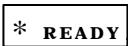

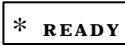


Press the key pair assigned for fire at the same time.
DISPLAYS FOLLOWING MANUAL INITIATION OF A FIRE ALARM
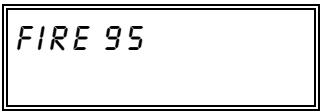
CUSTOM DISPLAY TOUCHPAD
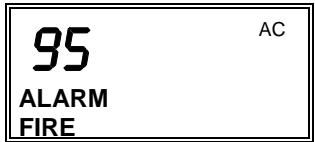
ENGLISH DISPLAY TOUCHPAD
THIS SECTION APPLIES ONLY TO RESIDENTIAL SYSTEMS
National Fire Protection Association Recommendations on Smoke Detectors
With regard to the number and placement of smoke/heat detectors, we subscribe to the recommendations contained in the National Fire Protection Association's National Fire Alarm Code (NFPA 72) noted below.
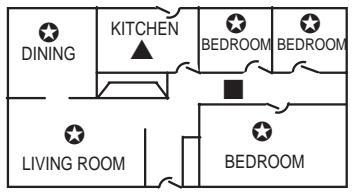
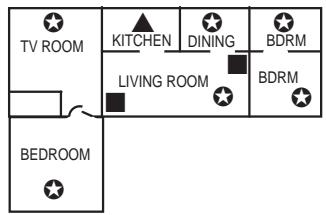
Early warning fire detection is best achieved by the installation of fire detection equipment in all rooms and areas of the household as follows: A smoke detector installed outside of each separate sleeping area, in the immediate vicinity of the bedrooms and on each additional story of the family living unit, including basements and excluding crawl spaces and unfinished attics.
In addition, the NFPA recommends that you install heat or smoke detectors in the living room, dining room, bedroom(s), kitchen, hallway(s), attic, furnace room, utility and storage rooms, basements and attached garages.
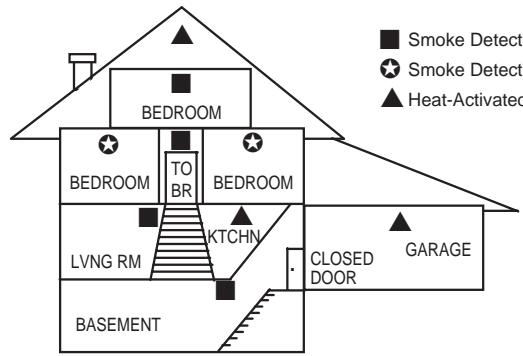
Smoke Detectors for Minimum Protection
Smoke Detectors for Additional Protection
Heat-Activated Detectors
Emergency Evacuation
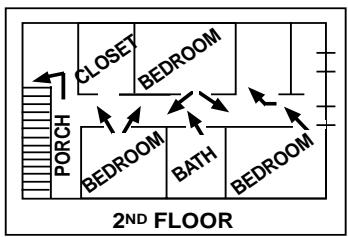
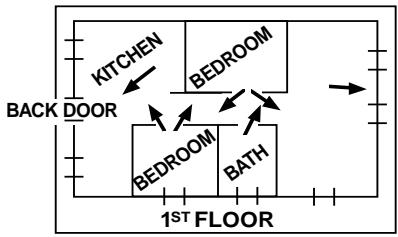
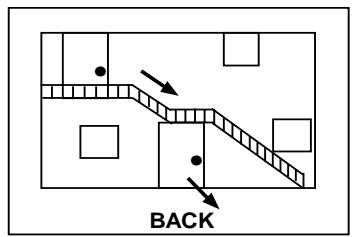
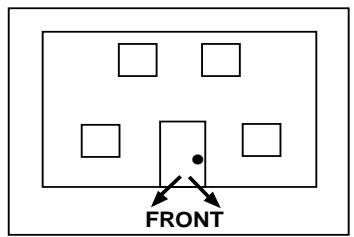
Establish and regularly practice a plan of escape in the event of fire. The following steps are recommended by the National Fire Protection Association:
- Position your detector or your interior and/or exterior sounders so that they can be heard by all occupants.
- Determine two means of escape from each room. One path of escape should lead to the door that permits normal exit from the building. The other may be a window, should your path be impassable. Station an escape ladder at such windows if there is a long drop to the ground.
- Sketch a floor plan of the building. Show windows, doors, stairs and rooftops that can be used to escape. Indicate escape routes for each room. Keep these routes free from obstruction and post copies of the escape routes in every room.
- Assure that all bedroom doors are shut while you are asleep. This will prevent deadly smoke from entering while you escape.
- Try the door. If the door is hot, check your alternate escape route. If the door is cool, open it cautiously. Be prepared to slam the door if smoke or heat rushes in.
- When smoke is present, crawl on the ground. Do not walk upright, since smoke rises and may overcome you. Clearer air is near the floor.
- Escape quickly; don't panic.
- Establish a common meeting place outdoors, away from your house, where everyone can meet and then take steps to contact the authorities and account for those missing. Choose someone to assure that nobody returns to the house — many die going back
Quick Guide to Basic System Functions
| FUNCTION | PROCEDURE | COMMENTS |
| Check Zones | Press READY key. | View faulted zones when system not ready. |
| Arm System | Enter code. Press arming key desired: (AWAY, STAY, NIGHT-STAY, INSTANT) | Arms system in mode selected. |
| Quick Arm(if programmed) | Press#. Press arming key desired: (AWAY, STAY, INSTANT) | Arms system in mode selected, quickly and without use of a code. |
| Bypass Zone(s) | Enter code. Press BYPASS key. Enter zone number(s) to be bypassed (use 2-digit entries). | Bypassed zones are unprotected and will not cause an alarm if violated. |
| Quick Bypass(if programmed) | Enter code. Press BYPASS key + [#]. | Bypasses all faulted zones automatically. |
| Silence SoundersBurglary:Fire:"Check": | Enter code. Press OFF key. Press OFF key. Press any key. | Also disarms system. Memory of alarm remains until cleared. Memory of Alarm remains until cleared. Determine cause. |
| Disarm System | Enter code. Press OFF key. | Also silences sounders. Memory of alarm remains until cleared. |
| Clear AlarmMemory | After disarming, enter code again. Press OFF key again. | Touchpad beeps rapidly on entry if alarm has occurred while absent. Alarm display will remain upon disarming until cleared. |
| Duress(if active and connected to Customer Care Center) | Arm or disarm "normally", but use your 4-digit Duress code to do so. | Performs desired action and sends silent alarm to Customer Care Center. |
| Panic Alarms(as programmed) | Press key [A], [B], or [C] for at least 2 seconds. | See the Panic Keys section for emergency functions programmed for your system. Note: Keys "A", "B", and "C" may have been programmed for other functions. |
| Chime Mode | To turn ON or OFF: Enter code. Press CHIME key. | The touchpad will sound if doors or windows are violated while system is disarmed and chime mode is ON. |
| Test Mode | To turn ON: Enter code. Press TEST key. To turn OFF: Enter code. Press OFF key. | Tests alarm sounder and allows sensors to be tested. |
| Phone Access(Smartphone Module)if applicable | Consult Phone Access User's Guide that accompanies the Phone Module. | Permits system access remotely, via Touch-tone phone. |
English Display Touchpads
| SOUND | CAUSE | DISPLAY |
| LOUD,INTERRUPTED*Touchpad & Ext. | FIRE ALARM | FIRE is displayed; zone number of zone in alarm is displayed. If a fire alarm is manually activated, zone number 95 will be displayed. |
| LOUD,CONTINUOUS*Touchpad & Ext. | BURGLARY/AUDIBLEEMERGENCY ALARM | ALARM is displayed. Zone number of zone in alarm is also displayed. |
| ONE SHORT BEEP(not repeated)Touchpad only | a. SYSTEM DISARMb. SYSTEM ARMING ATTEMPTWITH AN OPEN ZONEC.BYPASS VERIFY | a. READY indicator light comes on.b. Number of the open protection zone displayed.c. Zone numbers of the bypassed protection zones are displayed (one beep is heard for each zone displayed). Subsequently, BYPASS is displayed. |
| ONE SHORT BEEP (once every 40 secs) Touchpad only | a. SYSTEM IS IN TEST MODEb. LOW BATTERY AT A TRANSMITTER | a. Opened zone numbers will appear.b. BAT displayed with zone number of transmitter. |
| TWO SHORT BEEPS Touchpad only | ARM AWAY | AWAY is displayed. Red ARMED indicator is lit. |
| THREE SHORTBEEPS Touchpad only | a. ARM STAY, NIGHT-STAY, OR INSTANTb. ZONE OPENED WITHSYSTEM IN CHIME MODE. | a. STAY or INSTANT is displayed. Red ARMED indicator is lit.b. CHIME displayed; zone number of open protection zone will be displayed if the [★] key is pressed. |
| RAPID BEeping Touchpad only | a. TROUBLEb. MEMORY OF ALARMc. SYSTEM LOW BATTERYd. EXT. SOUNDER WIRING FAIL | a. CHECK displayed. Zone number of troubled protection zone is displayed.b. FIRE or ALARM is displayed; zone number of zone in alarm is displayedc. BAT displayed with no zone ID number.d. CHECK 70 is displayed. |
| SLOW BEeping Touchpad only | a. EXIT DELAY WARNINGb. ENTRY DELAY WARNING | a. AWAY is displayed.b. Exceeding the entry delay time without disarming causes alarm. |
- If a bell is used as external sounder, fire alarm is pulsed ring; burglary/audible emergency is steady ring.
Custom English Display Touchpads
| SOUND | CAUSE | DISPLAY |
| LOUD, INTERRUPTED* Touchpad & Ext. | FIRE ALARM. | FIRE is displayed; descriptor of zone in alarm is displayed. If a fire alarm is manually activated, zone number 95 will be displayed. |
| LOUD, CONTINUOUS* Touchpad & Ext. | BURGLARY/AUDIBLE EMERGENCY ALARM. | ALARM is displayed. If programmed, descriptor of zone in alarm is also displayed |
| ONE SHORT BEEP (not repeated) Touchpad only | a. SYSTEM DISARM. b. SYSTEM ARMING ATTEMPT WITH AN OPENZONE. c. BYPASS VERIFY. | a. DISARMED/READY TO ARM is displayed. b. Number and descriptor of open protection zone is displayed. c. Numbers and descriptors of the bypassed zones are displayed (One beep is heard for each zone displayed). Subsequently, the following is displayed: DISARMED BYPASS /Ready to Arm. |
| ONE SHORT BEEP (once every 40 secs) Touchpad only | a. SYSTEM IS IN TEST MODE. b. LOW BATTERY AT A TRANSMITTER. | a. Opened Zone identifications will appear. b. LO BAT displayed with description of transmitter. |
| TWO SHORT BEEPS Touchpad only | ARM AWAY. | ARMED AWAY displayed. Red ARMED indicator lit. |
| THREE SHORT BEEPS Touchpad only | a. ARM STAY, NIGHT-STAY, OR INSTANT. b. ZONE OPENED WHILE SYSTEM IS DISARMED. | a. ARMED STAY or ARMED INSTANT displayed. Red ARMED indicator lit. b. CHIME displayed, descriptor of open protection zone will be displayed if the [★] key is pressed. |
| RAPID BEeping Touchpad only | a. TROUBLE. b. MEMORY OF ALARM. c. SYSTEM LOW BATTERY. d. EXT. SOUNDER WIRE FAIL. | a. CHECK displayed. Descriptor of troubled protection zone is displayed. b. FIRE or ALARM is displayed; descriptor of zone in alarm is displayed. c. SYSTEM LO BAT displayed. d. BELL FAILURE is displayed. |
| SLOW BEEPING Touchpad only | a. EXIT DELAY WARNING (if programmed). b. ENTRY DELAY WARNING. | a. ARMED AWAY is displayed along with You May Exit Now. b. DISARM SYSTEM OR ALARM WILL OCCUR is displayed. Exceeding the delay time without disarming causes an alarm. |
- If a bell is used as external sounder, fire alarm is pulsed ring; burglary/audible emergency is steady ring.
NOTE: This is a "Grade A" Residential System
RADIO FREQUENCY EMISSIONS
Federal Communications Commission (FCC) Part 15
This device complies with part 15 of the FCC rules. Operation is subject to the following two conditions: (1) This device may not cause harmful interference, and (2) this device must accept any interference received, including interference that may cause undesired operation.
Industry Canada
TELEPHONE/MODEM INTERFACE
FCC Part 68
This equipment complies with Part 68 of the FCC rules. On the front cover of this equipment is a label that contains the FCC registration number and Ringer Equivalence Number (REN). You must provide this information to the telephone company when requested.
This equipment uses the following USOC jack: RJ31X
This equipment may not be used on telephone-company-provided coin service. Connection to party lines is subject to state tariffs. This equipment is hearing-aid compatible.
Industry Canada
NOTICE: The Industry Canada Label identifies certified equipment. This certification means that the equipment meets telecommunications network protective, operational and safety requirements as prescribed in the appropriate Terminal Equipment Technical Requirements document(s). The Department does not guarantee the equipment will operate to the user's satisfaction.
Before installing this equipment, users should ensure that it is permissible to be connected to the facilities of the local telecommunications company. The equipment must also be installed using an acceptable method of connection. The customer should be aware that compliance with the above conditions may not prevent degradation of service in some situations.
Repairs to certified equipment should be coordinated by a representative designated by the supplier. Any repairs or alterations made by the user to this equipment, or equipment malfunctions, may give the telecommunications company to request the user to disconnect the equipment.
Users should ensure for their own protection that the electrical ground connections of the power utility, telephone lines and internal metallic water pipe system, if present, are connected together. This precaution may be particularly important in rural areas.
Caution: Users should not attempt to make such connections themselves but should contact appropriate electric inspection authority, or electrician, as appropriate.
Ringer Equivalence Number Notice:
The Ringer Equivalence Number (REN) assigned to each terminal device provides an indication of the maximum number of terminals allowed to be connected to a telephone interface. The termination on an interface may consist of any combination of devices subject only to the requirement that the sum of the Ringer Equivalence Numbers of all the devices does not exceed 5.
Industrie Canada
Charts of Your System’s Features
| Features | Comments | ||||
| Exit Delay | Part. 1: Part. 2: | ||||
| Entry Delay 1 | Part. 1: Part. 2: | ||||
| Entry Delay 2 | Part. 1: Part. 2: | ||||
| Night-Stay Zones | Zones: | ||||
| Quick Arm | yes no | ||||
| Quick Bypass | yes no | ||||
| Automatic Paging | yes no users: | ||||
| Keyswitch Arming(circle type of LED lighting) | Arm AWAY: steady flashArm STAY: steady flash | ||||
| Up and About Schedule | inactivity alert time:daily monitoring times: | ||||
| Function Keys | A | B | C | D | Comments |
| • Single-Button Arming | |||||
| • Step Arming | |||||
| • Paging (see Paging chart below) | |||||
| • Time/Date Display | |||||
| • Macro Key 1 | |||||
| • Macro Key 2 | |||||
| • Macro Key 3 | |||||
| • Macro Key 4 | |||||
| • Emergency Key††: Personal | |||||
| • Emergency Key††: Silent Alarm | |||||
| • Emergency Key††: Audible Alarm | |||||
| • Emergency Key††: Fire | |||||
| • Device Activation | Device: | ||||
Emergency Keys:
A = [1] / [*
B = [ ] / [# ]
C = [3] / [# ]
User Setup
The following chart will help keep track of system users. Copies should be distributed to the partition 1 and partition 2 masters for their records.
To program a user attribute:
Enter system/partition master code + [8] + user no. + “#” command listed in column heading...
User Setup (continued)
(Enter system/partition master code + [8] + user no. + “#” command listed in column heading...)
| User No. | User Name | User's Part(s). (system master only) [#] [3] + part(s) + [#] | Security Code enter new code | Auth. Level [#] [1] + level | Access Group [#] [2] + group | RF Zone Number [#] [4] + zone no. | Pager on/off [#] [5] + 0/1 |
| 33 | part. 2 master | (2) | (4) | (1) | |||
| 34 | (2) | (0) | (1) | ||||
| 35 | (2) | (0) | (1) | ||||
| 36 | (2) | (0) | (1) | ||||
| 37 | (2) | (0) | (1) | ||||
| 38 | (2) | (0) | (1) | ||||
| 39 | (2) | (0) | (1) | ||||
| 40 | (2) | (0) | (1) | ||||
| 41 | (2) | (0) | (1) | ||||
| 42 | (2) | (0) | (1) | ||||
| 43 | (2) | (0) | (1) | ||||
| 44 | (2) | (0) | (1) | ||||
| 45 | (2) | (0) | (1) | ||||
| 46 | (2) | (0) | (1) | ||||
| 47 | (2) | (0) | (1) | ||||
| 48 | (2) | (0) | (1) | ||||
| 49 | (2) | (0) | (1) |
Authority Levels: 0 = standard user
1 = arm only
2 = guest
3 = duress
4 = partition master
Partitions: 1 = partition 1 and common
2 = partition 2 and common
3 = common partition only
Paging: 0 = no paging
1 = allow paging
Paging Setup
| Pager | Pager Phone Number\ Prefix Characters | Automatically Reports Upon... | Sched. | Func. Key | |||||
| open/close | alarm/trouble | zone list | |||||||
| p1 | p2 | p1 | p2 | p1 | p2 | ||||
| 1 | |||||||||
| 2 | |||||||||
| 3 | |||||||||
| 4 | |||||||||
Charts of Your System's Features
Schedules (master code + [#] + [6] [4])
| No. | Event(see list below) | Device No.for "01" events:enter 01-18 | Group No.for "02" events:enter 1-8 | Partition for "04-06" events:enter 1, 2, or 3 | Start Time/Day | Stop Time/Day | Repeat(yes/no) | Random(yes/no) |
| 01 | ||||||||
| 02 | ||||||||
| 03 | ||||||||
| 04 | ||||||||
| 05 | ||||||||
| 06 | ||||||||
| 07 | ||||||||
| 08 | ||||||||
| 09 | ||||||||
| 10 | ||||||||
| 11 | ||||||||
| 12 | ||||||||
| 13 | ||||||||
| 14 | ||||||||
| 15 | ||||||||
| 16 |
Events: 00 = clear event
03 = latch key report
06 = auto disarm
01 = device on/off
04 = forced STAY arm
07 = display "reminder"
02 = user access
05 = forced AWAY arm
List of Output Devices
| Device | Description | Schedule No. | Function Key |
| 01 | |||
| 02 | |||
| 03 | |||
| 04 | |||
| 05 | |||
| 06 | |||
| 07 | |||
| 08 | |||
| 09 | |||
| 10 | |||
| 11 | |||
| 12 | |||
| 13 | |||
| 14 | |||
| 15 | |||
| 16 | |||
| 17 | |||
| 18 |
WARNING! THE LIMITATIONS OF THIS ALARM SYSTEM
While this system is an advanced design security system, it does not offer guaranteed protection against burglary or other emergency. Any alarm system, whether commercial or residential, is subject to compromise or failure to warn for a variety of reasons. For example:
- Intruders may gain access through unprotected openings or have the technical sophistication to bypass an alarm sensor or disconnect an alarm warning device.
- Intrusion detectors (e.g. passive infrared detectors), smoke detectors, and many other sensing devices will not work without power. Battery operated devices will not work without batteries, with dead batteries, or if the batteries are not put in properly. Devices powered solely by AC will not work if their AC power supply is cut off for any reason, however briefly.
- Signals sent by wireless transmitters may be blocked or reflected by metal before they reach the alarm receiver. Even if the signal path has been recently checked during a weekly test, blockage can occur if a metal object is moved into the path.
- A user may not be able to reach a panic or emergency button quickly enough.
- While smoke detectors have played a key role in reducing residential fire deaths in the United States, they may not activate or provide early warning for a variety of reasons in as many as 35% of all fires, according to data published by the Federal Emergency Management Agency. Some of the reasons smoke detectors used in conjunction with this System may not work are as follows. Smoke detectors may have been improperly installed and positioned. Smoke detectors may not sense fires that start where smoke cannot reach the detectors, such as in chimneys, in walls, or roofs, or on the other side of closed doors. Smoke detectors also may not sense a fire on another level of a residence or building. A second floor detector, for example, may not sense a first floor or basement fire. Moreover, smoke detectors have sensing limitations. No smoke detector can sense every kind of fire every time. In general, detectors may not always warn about fires caused by carelessness and safety hazards like smoking in bed, violent explosions, escaping gas, improper storage of flammable materials, overloaded electrical circuits, children playing with matches, or arson. Depending upon the nature of the fire and/or the locations of the smoke detectors, the detector, even if it operates as anticipated, may not provide sufficient warning to allow all occupants to escape in time to prevent injury or death.
Passive Infrared Motion Detectors can only detect intrusion within the designed ranges as diagrammed in their installation manual. Passive Infrared Detectors do not provide volumetric area protection. They do create multiple beams of protection, and intrusion can only be detected in unobstructed areas covered by those beams. They cannot detect motion or intrusion that takes place behind walls, ceilings, floors, closed doors, glass partitions, glass doors, or windows.
Mechanical tampering, masking, painting or spraying of any material on the mirrors, windows or any part of the optical system can reduce their detection ability. Passive Infrared Detectors sense changes in temperature; however, as the ambient temperature of protected area approaches the temperature range of 90^ to 105^ , the detection performance can decrease.
- Alarm warning devices such as sirens, bells or horns may not alert people or wake up sleepers if they are located on the other side of closed or partly open doors. If warning devices sound on a different level of the residence from the bedrooms, then they are less likely to waken or alert people inside the bedrooms. Even persons who are awake may not hear the warning if the alarm is muffled from a stereo, radio, air conditioner or other appliance, or by passing traffic. Finally, alarm warning devices, however loud, may not warn hearing-impaired people or waken deep sleepers.
- Telephone lines needed to transmit alarm signals from a premises to a central monitoring station may be out of service or temporarily out of service. Telephone lines are also subject to compromise by sophisticated intruders.
- Even if the system responds to the emergency as intended, however, occupants may have insufficient time to protect themselves from the emergency situation. In the case of a monitored alarm system, authorities may not respond appropriately.
- This equipment, like other electrical devices, is subject to component failure. Even though this equipment is designed to last as long as 10 years, the electronic components could fail at any time.
The most common cause of an alarm system not functioning when an intrusion or fire occurs is inadequate maintenance. This alarm system should be tested weekly to make sure all sensors and transmitters are working properly.
Installing an alarm system may make one eligible for lower insurance rates, but an alarm system is not a substitute for insurance. Homeowners, property owners and renters should continue to act prudently in protecting themselves and continue to insure their lives and property.
We continue to develop new and improved protection devices. Users of alarm systems owe it to themselves and their loved ones to learn about these developments.
Notes
LIMITED WARRANTY
Terms and Conditions Applying to Sale of Equipment
1. Limited Warranty.
Any part of the system, including the wiring, installed under this Agreement which proves to be defective in material or workmanship within 90 days of the date of completion of installation will be repaired or replaced at ADT's option with a new functionally operative part. Labor and material required to repair or replace such defective components or to make mechanical adjustments to the system will be free of charge for a period of 90 days following the completion of the original installation.
This warranty is extended only to the original consumer purchaser of the system and may be enforced only by such person.
To obtain service under this warranty, call or write our local ADT Service Department at the telephone number or address found in your local yellow pages.
Service pursuant to the warranty will be furnished only during ADT's normal working hours 8:00A.M. to 4:30P.M., Monday through Friday, except holidays. Services rendered outside the normal working hours of ADT are not within the scope of this warranty and any services requested to be performed at such times shall be charged for at ADT's then applicable rates for labor and material.
This warranty does not apply to the conditions listed below, and in the event customer calls ADT for service under the warranty and upon inspection it is found that one of these conditions has led to the inoperability or apparent inoperability of the system, a charge will be made for the service call of the ADT representative, whether or not he actually works on the system. Should it actually be necessary to make repairs to the system due to one of the "conditions Not Covered By Warranty", a charge will be made for such work at ADT's then applicable rates for labor and material.
Conditions Not Covered By Warranty.
A. Damage from accidents, acts of God, alterations, misuse, tampering or abuse.
B. Failure of the customer to properly close or secure a door, window, or other point protected by a burglar alarm device.
C. Failure of customer to properly follow operating instructions provided by ADT at time of installation or at a later date.
D. Trouble in leased telephone.
E. Trouble due to interruption of commercial power.
F. Battery replacements.
LIMITED WARRANTY (Continued)
This warranty is in lieu of all other express warranties. Any implied warranties of merchantability and fitness for a particular purpose are limited in duration to a period of 90 days from the date of completion of installation. The exclusive remedy of the customer hereunder shall be repair or replacement as stated above. Under no circumstances shall ADT be liable to the customer or any other person for incidental or consequential damages of any nature, including without limitation, damages for personal injury or damages to property, and, however occasioned, whether alleged as resulting from breach of warranty by ADT, the negligence of ADT, or otherwise, ADT's liability will in no event exceed the purchase price of the system. Some states may not allow limitations on how long an implied warranty lasts, or the exclusion or limitations of incidental or consequential damages, so the above limitations and exclusions may not apply to you, unless a longer period is required by applicable law. Any action against ADT in connection with a system must be commenced within one year after the cause of action has occurred.
No agent, employee or representative of ADT nor any other person is authorized to modify this warranty in any respect.
This warranty gives you specific legal rights and you may also have other rights which vary from state to state.
2.Installation.
ADT agrees to install the equipment in a workmanlike manner in accordance with the following conditions:
A. Customer will make premises available without interruption during ADT normal working hours 8:00A.M. to 4:30P.M., Monday through Friday, except Holidays.
B. Customer understands that the installation will necessitate drilling into various parts of the premises: ADT intends, generally, to conceal wiring in the finished areas of the premises; however, there may be areas which, due to construction, decoration, or furnishing of the premises, ADT determines, in its sole discretion, that it would be impractical to conceal wiring and, in such cases, wiring will be exposed.
C. Customer agrees to provide 110 VAC electrical outlets at designated locations for equipment requiring AC power.
D. Customer to provide for lifting and replacing carpeting, if required, for installation of floor mats or wiring.
ALL RIGHTS RESERVED
No part of this publication may be reproduced, stored in a retrieval system, or transmitted in any form, or by any means – electronic, mechanical, photocopying, recording, or otherwise without the written permission of ADT Security Systems, Inc. The material in this publication is for information purposes and subject to change without notice. ADT Security Systems, Inc. assumes no responsibility for any errors which may appear in this publication.
ADT Security Services, Inc. One Town Center Rd. Boca Raton, FL 33486