
MPX 100 - Audio processor LEXICON - Free user manual and instructions
Find the device manual for free MPX 100 LEXICON in PDF.


| Product Type | Digital Audio Effects Processor |
| Brand | Lexicon |
| Model | MPX 100 |
| Dimensions (W x H x D) | 44,5 x 4,4 x 20,3 cm |
| Weight | 2,7 kg |
| Power Supply | 100-240 V AC, 50/60 Hz |
| Power Consumption | 15 W |
| Rack Format | 1U, 19 inches |
| Audio Inputs | 2 jack inputs 6,35 mm (left/right) |
| Audio Outputs | 2 jack outputs 6,35 mm (left/right) |
| Audio Resolution | 24 bits, 48 kHz |
| Signal-to-Noise Ratio | > 95 dB |
| Main Effects | Reverb, delay, chorus, flanger, phaser, pitch shift, compressor, equalizer |
| Number of Presets | 100 factory presets, 50 user |
| Control Interfaces | Optional footswitch, MIDI In/Out/Thru |
| Display | Backlit LCD screen |
| Care and Cleaning | Unplug the device, clean with a soft, dry cloth. Do not use chemical products. |
| Safety | Do not expose to moisture, shocks, or extreme temperatures. Use a suitable power cord. |
| Spare Parts and Repairability | Contact Lexicon customer service for spare parts and repairs. Do not open the chassis. |
Frequently Asked Questions - MPX 100 LEXICON
User questions about MPX 100 LEXICON
0 question about this device. Answer the ones you know or ask your own.
Ask a new question about this device
Download the instructions for your Audio processor in PDF format for free! Find your manual MPX 100 - LEXICON and take your electronic device back in hand. On this page are published all the documents necessary for the use of your device. MPX 100 by LEXICON.
USER MANUAL MPX 100 LEXICON
Dual Channel Processor
Stereo 44.1kHz S/PDIF Digital Output
User Guide
Unpacking and Inspection
After unpacking the unit, save all packing materials in case you ever need to re-ship. Thoroughly inspect the unit and packing materials for signs of damage. Report any shipment damage to the carrier at once; report equipment malfunction to your dealer.
Notice
This equipment generates and uses radio frequency energy and if not installed and used properly, that is, in strict accordance with the manufacturer's instructions, may cause interference to radio and television reception. It has been type tested and found to comply with the limits for a Class B computing device in accordance with the specifications in Subpart J of Part 15 of FCC Rules, which are designated to provide reasonable protection against such interference in a residential installation. However, there is no guarantee that interference will not occur in a particular installation. If this equipment does cause interference to radio or television reception, which can be determined by turning the equipment OFF and ON, the user is encouraged to try to correct the interference by one or more of the following measures: reorient the receiving antenna; relocate the computer with respect to the receiver; move the computer away from the receiver; plug the computer into a different outlet so that the computer and receiver are on different branch circuits. If necessary, the user should consult the dealer or an experienced radio/television technician for additional suggestions. The user may find the following booklet prepared by the Federal Communications Commission helpful: "How to identify and Resolve Radio/TV Interference Problems." This booklet is available from the U.S. Government Printing Office, Washington, DC 20402, Stock No. 004-000-00345-4.
All product names indicated by a Trade Mark are registered by their respective manufacturers.
Lexicon Inc.
3 Oak Park
Bedford MA 01730 USA
Telephone 781-280-0300
Fax 781-280-0490
Copyright ©1998, Lexicon Inc.
All Rights Reserved.
Lexicon Part #070-11935
Table of Contents
Getting Started 1
Introduction 1
Front Panel Overview 2
Setting Audio Levels
Rear Panel Connections 4
Audio Connections · Headphones · Footswitch
Basic Operation 7
Selecting Programs 7
Single Programs · Dual Programs · User Programs
Editing 9
Tap Tempo Functions: Varying the rhythm • Audio
Tap · Setting Tempo via MIDI
Bypass 11
Storing Programs 12
System Mode 13
System Mode Parameters 14
Bypass · Patching · Program Load · Digital Output
MIDI OUT/THRU · MIDI Pgm Change · MIDI Clock
Receive • Tempo • MIDI Dumps
Program Descriptions 17
Single Programs 18
Dual Programs 32
Special FX 41
User Programs 42
Restoring Factory Defaults
MIDI Operation 43
MPX 100 MIDI Behavior 43
Assigning a MIDI Channel for Program Load 44
Using Program Change Messages for Program Load
Learning Continuous Controllers 46
Activating Bypass or Tap Functions with Program Change
Messages 47
Clearing a Learned Assignment 48
MIDI Clock 49
MIDI Dumps 49
MIDI Implementation Chart 50
Specifications 52
Getting Started
Introduction
Thank you for your purchase of the MPX 100 Dual Channel Processor.
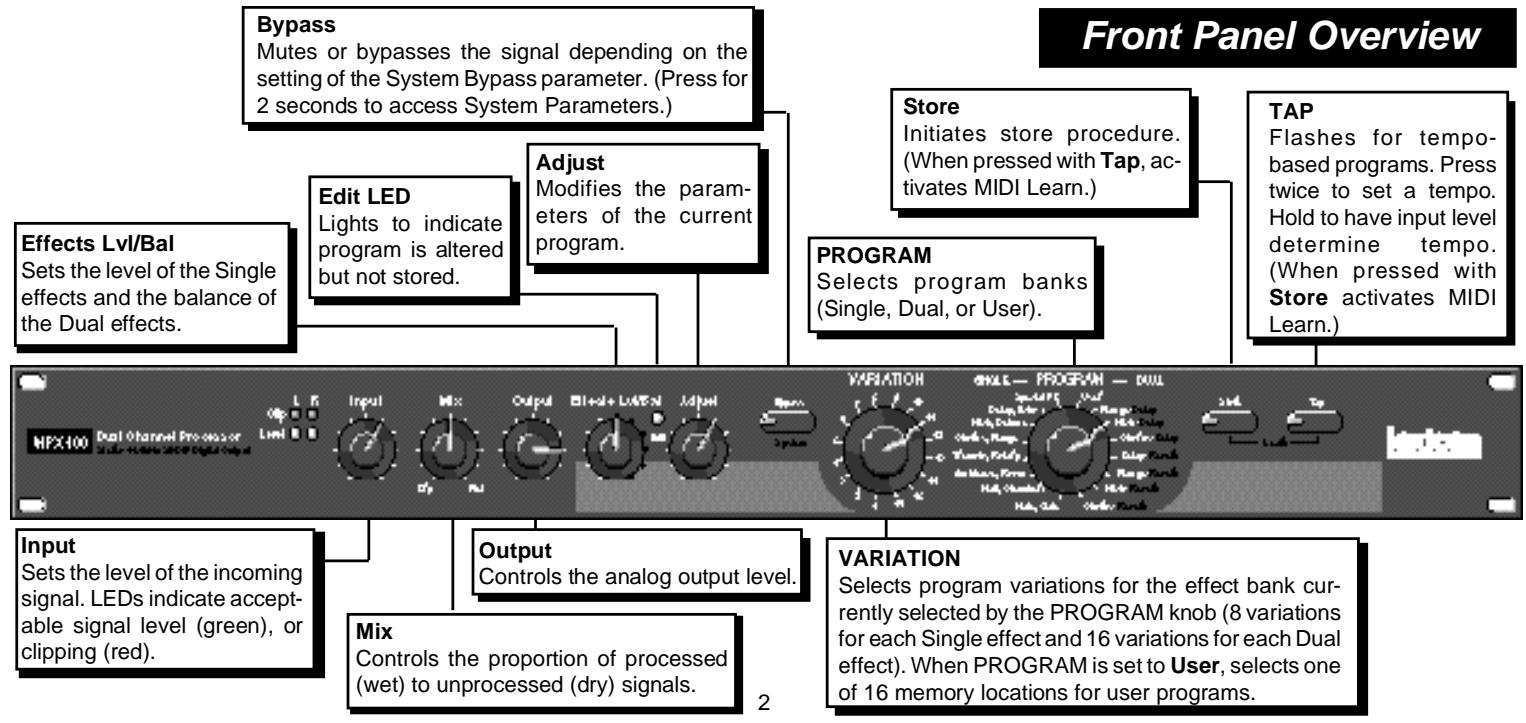
The MPX 100 is a true stereo dual-channel processor with 24-bit internal processing, 20-bit A/D-D/A and S/PDIF digital output. Powered by a new version of Lexicon's proprietary Lexichip™, the MPX 100 has 240 presets with classic reverb programs such as Ambience, Plate, Chamber and Inverse, as well as Tremolo, Rotary, Chorus, Flange, Pitch, Detune, 5.7 second Delay and Echo. Dual-channel processing gives you two independent effects in a variety of configurations: Dual Stereo (Parallel), Cascade, Mono Split and Dual Mono.
A front panel Adjust knob allows instant manipulation of each preset's critical parameters and an Effects Lvl/Bal knob lets you control effect level or the balance of dual effect combinations. An easy Learn mode allows MIDI patching of front panel controls. In addition, tempo-controlled delays and modulation rates lock to Tap or MIDI clock, and Tap tempos can be controlled by audio input, the front panel Tap button, dual footswitch, external MIDI controller or MIDI Program Change.
Other features include dual 2-stage headroom indicators, a headphone output, a software-selectable MIDI OUT/THRU port, pushbutton or footswitch selection of dry or muted audio output and a 20Hz - 20kHz± 1dB Frequency Response.
To make sure you get the most out of the MPX 100, be sure to read the manual.
Setting Audio Levels
- Start with INPUT set to 9:00 o'clock and OUTPUT all the way down (fully counterclockwise).
-
Set the instrument output or effects send being input to the MPX 100 to a nominal level and play, or send audio to the MPX 100. The Level LEDs* should light green. If the Clip LEDs light red at this point, turn down the output of the instrument or effects send until the Clip LEDs remain off during the loudest passages.
-
While still sending audio to the MPX 100, gradually turn up the INPUT control until the Clip LEDs show red on only the loudest peaks.
- Set the MIX control to Dry.
- Turn OUTPUT to the desired level.
-
If the MPX 100 is using a console's sends and returns, set the MIX control fully clockwise (100% wet). If you are using an instrument amplifier, start with MIX set halfway up.
-
The Level LEDs are off when the incoming signal is low (more than 30dB below overload). The Clip LEDs light red when the signal approaches overload (-2.5dB). Acceptable signals will cause the Level LEDs to light green almost continuously, with the Clip LEDs flashing red on peaks.
As with any audio product, it is good practice to first power on all outboard gear, then the mixer, then any loudspeakers.
Audio Connections
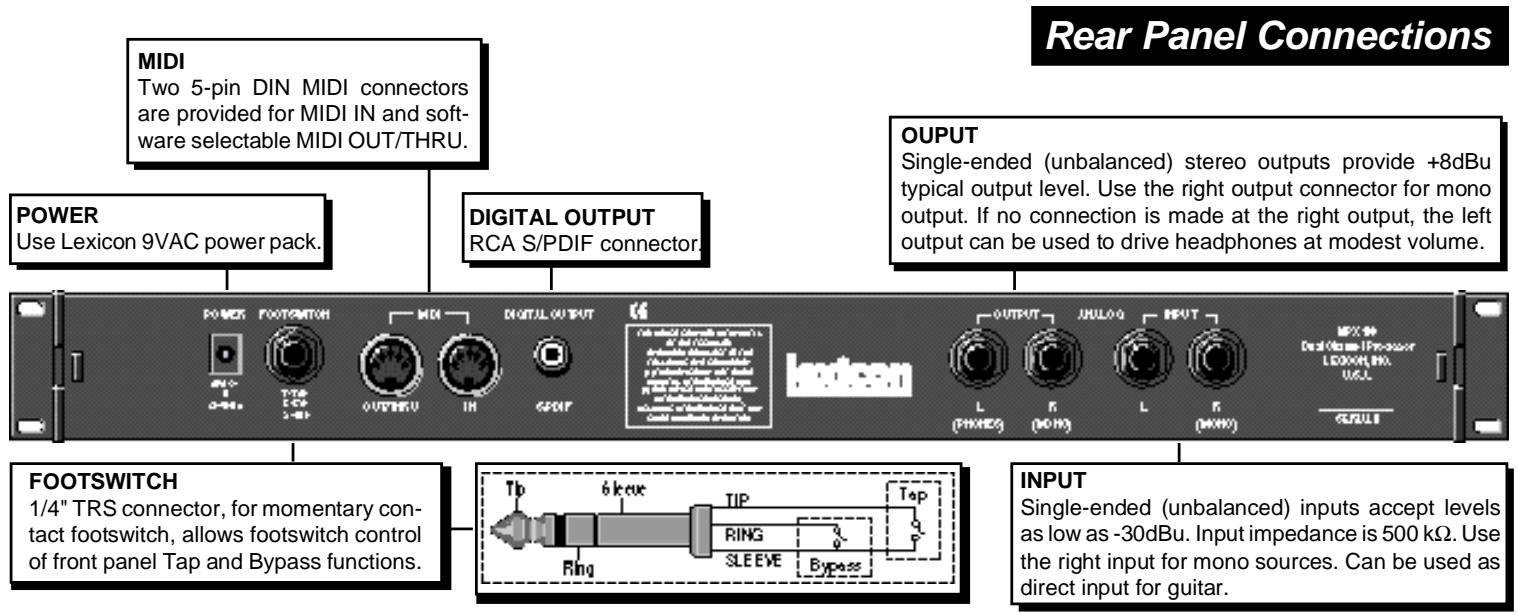
Audio connections to the MPX 100 are unbalanced and should be made with high quality shielded cables with 1/4'' tip-sleeve phone plugs at the MPX 100 end.
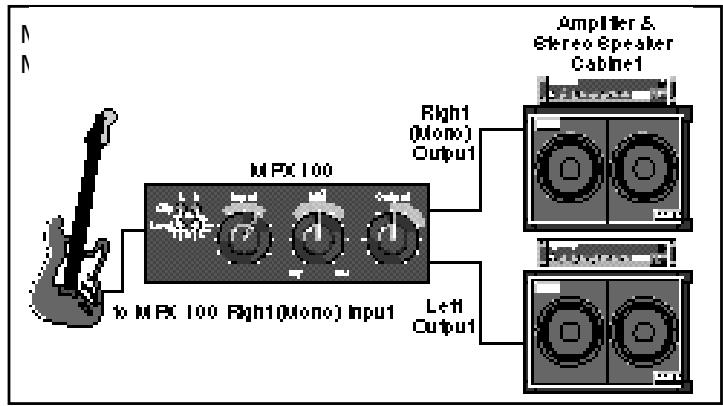
The MPX 100 produces effects from either mono or stereo sources. With mono sources, the dry signal appears, along with audio effects, at both outputs. For instruments and sources with stereo outputs, use both inputs. We recommend using the outputs in stereo whenever stereo inputs are used, but if mono output is required, use the right output jack. The left and right signals are summed internally when only the right output is used.
Headphones
A stereo signal which is adequate to drive headphones is available at the left output (provided no connections are made through the right output). This feature is provided as a convenience for practice purposes, and is intended to provide only modest volume.
Footswitch
A footswitch connected via the rear-panel footswitch jack allows control of Tap and Bypass. A momentary footswitch can be wired to a tip-ring-sleeve connector. A stereo Y-connector allows two identical single switches to be used.
Power off the MPX 100 before plugging in the footswitch. (Otherwise, Bypass will be enabled.)
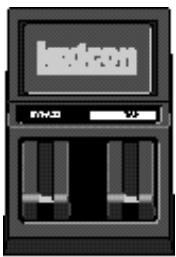
A dual-function footswitch with a set of labels to identify footswitch functionality (Tap and Bypass) is available from Lexicon dealers.
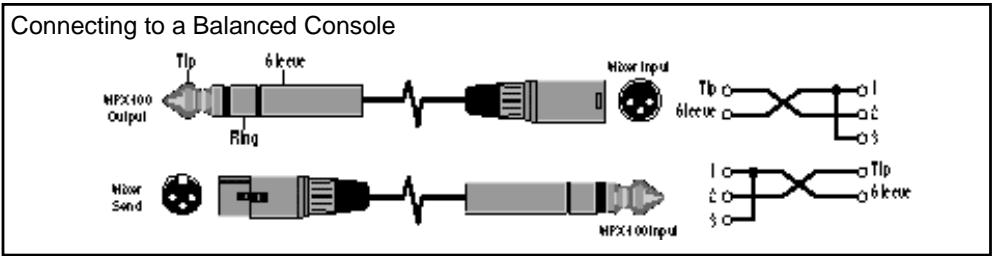
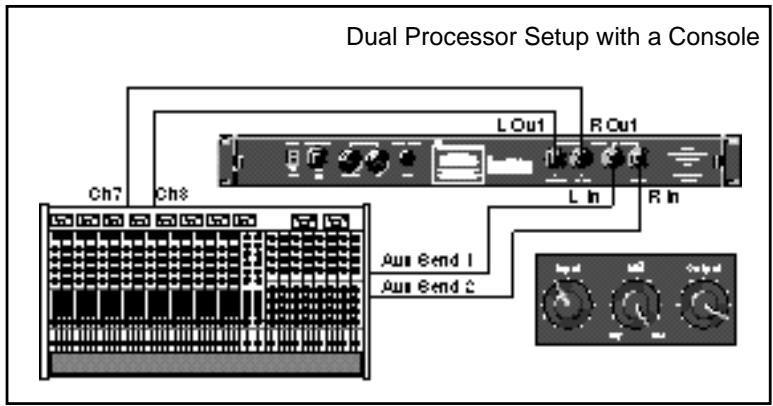
The MPX 100 can be used as two independent Effects Processors with Dual Program Variations 11-16. Designate two auxiliary sends on your console and connect one to the left MPX 100 input, and the other to the right input. Refer to the Program Descriptions to take advantage of this configuration.
Basic Operation
Selecting Programs
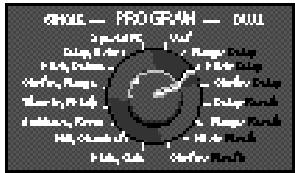
All of the programs on the MPX 100 are selected with the front panel PROGRAM and VARIATION knobs.
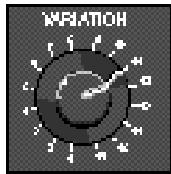
The PROGRAM knob selects Single or Dual program banks. The VARIATION knob selects different program versions.
The Single selections are arranged around the left side of the PROGRAM knob; the Dual selections and the User bank are arranged around the right side of the knob.
Single Programs
When a Single program is selected, turning the VARIATION knob to positions 1-8 will load eight versions of the first effect; positions 9-16 will load eight versions of the second effect.
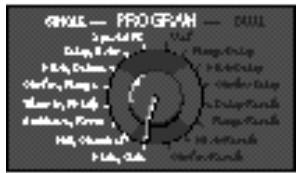
For example, when Plate, Gate is selected, VARIATION 1-8 will load eight different Plate programs; VARIATION 9-16 will load eight different Gate programs.
When Special FX is selected, the VARIATION knob will load 16 different programs (one at each knob position).
Use the PROGRAM knob to select the Single, Dual or User effect you want.
Turn VARIATION to select one of 16 programs.
Dual Programs
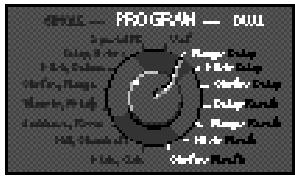
When one of the Dual Programs is selected, the VARIATION knob will load 16 different programs, each containing two effects.
User Programs
When User is selected with the PRO-GRAM knob, VARIATION selects 16 memory locations available for storing your own programs.
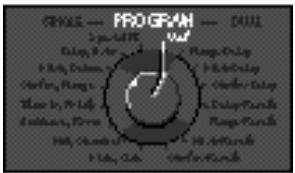
(When shipped, User variations 1-16 contain duplicates of a selection of the factory-installed programs.)
Editing
Editing MPX 100 programs is easy. We've arranged the critical parameters of each program under the front panel Adjust knob, so all you have to do is turn the knob to adjust the program to suit you.
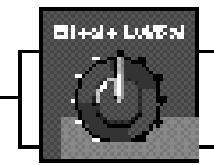
You can also adjust the level of the Single programs, or the Effects Balance of the Dual programs with the Effects Lvl/Bal knob.
Changes made with either knob are recognized as edits, and will cause the front panel Edit LED to light to alert you to the fact that the program has been altered.
Use Adjust to edit the current program.
Turn Effects Lvl/Bal to adjust the level of a Single program...
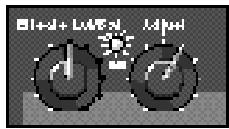
The Edit LED will light to show that the program has been altered from its stored state.
...or the balance of the two effects in a Dual program
Tap Tempo Functions
Varying the Rhythm
The MPX 100 Tap Tempo feature allows you to set the delay times and modulation rates of tempo-based programs to the beat of the music.
To set the tempo from the front panel, simply press the Tap button twice in time with the music. That's your tempo. No more dialing up what "could be" the delay time in milliseconds—just tap twice—the MPX 100 will figure out the time for you. When you want to change tempo, just tap twice again in the new rhythm.
The Tap LED will flash whenever a tempo-based preset is loaded.
Audio Tap
You can also use audio input to set the tempo of the MPX 100 delay times.
- Press and hold the Tap button for two seconds. (The optional dual footswitch lets you press and hold Tap without taking your hands off your instrument.)
- While holding down Tap, play 2 short notes in rhythm, then release the Tap button.
- The MPX 100 automatically calculates the tempo from the space between your two notes.
For live performances this is a must — an easy way to set delay rates to follow your rhythm.
Many factory programs are stored with their own tempo rate. You can tap in a new tempo (and store your version in a User location) or set the MPX 100 to always recall the last tempo used and apply it to every program. (See System Mode.)
When you select Global Tempo from the MPX 100 System mode, the last tempo tapped in will be applied to all programs with tempo-controlled parameters. (You will know if a program is tempo-controllable because the Tap button LED will flash when the program is loaded.)
Setting Tempo via MIDI
When used in conjunction with the Learn feature, Tap can be set remotely from any MIDI device. MIDI controllers, such as Lexicon's MPX R1 Foot Controller, can be used to send Continuous Controller messages or Program Changes to the MPX 100 or you can send Continuous Controller or Program Change messages from the button and fader moves of many mixing consoles. The MPX 100 will Learn these messages and allow you to set tempo via MIDI.
The MPX 100 can also receive and utilize MIDI Clock. So, when used with a MIDI sequencer or drum machine, the MPX 100 automatically adjusts its internal tempo to match. (See MIDI Operation.)
Bypass
Pressing the front panel Bypass button will cause the MPX 100 to pass only dry, unprocessed audio, or to mute the inputs to the current effect.
Bypass can be set to mute or bypass effects.
A System Mode parameter determines which of these two options is in effect. (See System Mode.) Bypass functions can also be activated by footswitch or via MIDI.
Storing Programs
When you want to save a program, press Store. The Store LED will flash slowly to indicate that the MPX 100 store function is armed. (If you want to exit without saving the current program, press Store again.)
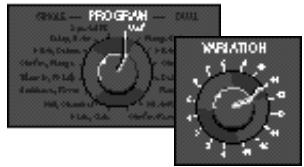
Turn the PROGRAM knob to User, then use VARIATION to select one of the 16 User locations.
Press Store again to save your program to the selected location (and overwrite the program previously stored there). The Store LED will flash rapidly while the store operation is completed. The store operation is complete when the LED stops flashing and turns off. The Edit LED will also turn off, as the current program is now your saved version.
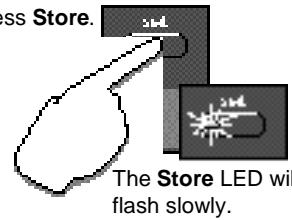
Press Store.
Turn PROGRAM to User and use VARIATION to select a User location.
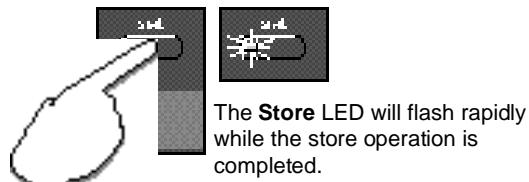
Press Store again.
System Mode
System parameters and MIDI dumps are activated in System mode. To enter this mode, press and hold Bypass for approximately 2 seconds. The Bypass and Store LEDs will blink slowly to indicate you are in System mode.
The adjustable parameters available in this mode are shown in the chart on the following page.
Turn the VARIATION knob to select a parameter. Press Store to toggle the state of the parameter, or to execute a MIDI dump. The Edit LED will show the current state of each parameter.
When you have finished editing parameters and are ready to resume normal operation, return the VARIATION knob to its prior setting, or you will load a new program based on its position when you exit System Mode. (The Tap LED will light when VARIATION matches its prior setting.)
To exit System Mode, Press Bypass. If you have changed any System parameters, the Store LED will flash rapidly.
Press and hold Bypass
for 2 seconds...
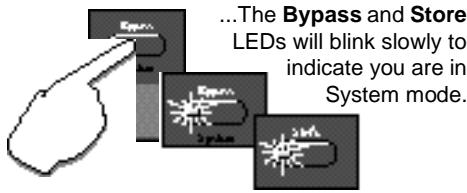
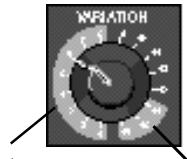
Turn VARIATION to select a parameter.
System parameters
MIDI Dumps
Press Store to toggle the parameter state (or to execute a MIDl dump).
System Mode Parameters
Variation
Setting
Parameter
1 Bypass
2 Patching
3 Program Load
4 Digital Output
5 MIDIOUT/THRU
6 MIDI Pgm Change
7 MIDI Clock Receive
8 Tempo

State when Edit LED is: On Off Mute Bypass
Disabled
Mute Bypass
Dry Out*
Disabled
Disabled
Program
Bypass
Wet*
Thru
Global

*Factory Default
Bypass
Enabled*
Enabled*
Enabled*
MIDI Dumps (Press Store to Transmit)
14 Dump User Programs
15 Dump Current Program
16 Dump System and Learned patches
Turn VARIATION until the Tap LED goes on to find the last loaded program...then press Bypass to exit System Mode.
System Mode Parameters
1 Bypass
Mute/Bypass
This parameter sets the Bypass button (or the footswitch, or MIDI controller assigned to Bypass) to mute the inputs, or to bypass the processed audio (passing only dry audio to the outputs).
2 Patching
Disable/Enable
This parameter allows you to temporarily suspend (Disable) and restore (Enable) any Learned patches.
3 Program Load
Mute/Bypass
This parameter determines whether the MPX 100 will engage wet mute or simply bypass processed audio during program load.
4 Digital Output
Dry/Wet
For certain recording and monitoring applications, this parameter allows you to choose to pass only dry audio, or to resume output of the full, processed signal.
5 MIDIOUT/THRU
Out/Thru
Sets the rear panel MIDI OUT/THRU jack for either MIDI OUT or MIDI THRU functionality.
6 MIDI Pgm Change Disable/Enable
The setting of this parameter determines whether or not the MPX 100 will recognize MIDI Program Change messages for loading programs.
7 MIDI Clock Receive Disable/Enable
The setting of this parameter determines whether or not the MPX 100 will recognize MIDI Clock messages.
8 Tempo
Program/Global
Determines whether the current tempo of the MPX 100 will be applied to all programs (Global), or whether program-specific tempos are restored on each program load.
14-16
MIDI Dumps
These selections allow you to execute MIDI Dumps. See MIDI Operation.
Program Descriptions
The 240 programs in the MPX 100 are designed to provide a full palette of high caliber ambience, reverb, delay, pitch shift and other effects. As you audition the programs, be sure to vary the Adjust knob.
The Adjust knob has been carefully customized for each individual program. In many cases it controls several effect parameters simultaneously to provide simple control of a complicated editing process. In many Chamber and Room programs, for example, Adjust controls the "liveness" of the space by changing decay, EQ and early reflections all at the same time.
The behavior of the Adjust knob is also customized for different functions. Sometimes it acts as a linear control (at its minimum value when turned fully counterclockwise—like a volume control) and sometimes it acts as a bi-polar control (at its minimum value when centered—like a cut/boost EQ control).
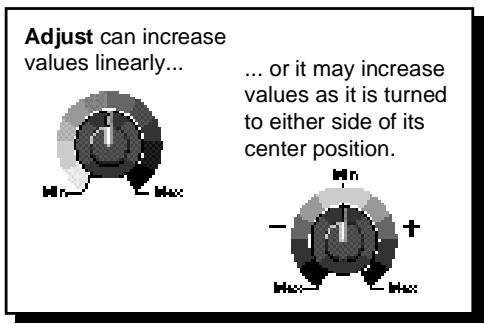
The following section provides a general description of each MPX 100 program along with tables that detail all of the program versions available with the VARIATIONS knob. These details include the function of the Adjust knob and the Tap button (for variations that use tempo-controlled rate or delay times).
| Plate VARIATIONS | Adjust - Liveness | Tap | |
| 1 | Small Plate | Liveness | - |
| 2 | Medium Plate | Liveness | - |
| 3 | Large Plate | Liveness | Predelay (1/32 Note) |
| 4 | Larger Plate | Decay Time | Predelay (1/32 Note) |
| 5 | Tape Slap Plate | ± Decay/15ips or 7.5ips | - |
| 6 | Rich Plate | Decay Time | Predelay (1/32 Note) |
| 7 | Large Bright Plate | Decay Time | Predelay (1/32 Note) |
| 8 | Vocal Plate | Low Cut, Decay Time | Echo |
Plate reverb was originally generated by a large, thin sheet of metal suspended upright under tension on springs. Transducers attached to the plate transmitted a signal that made the plate vibrate — making sounds broadcast through the plate seem to be occurring in a large open space.
Plate
The Plate program in the MPX 100 synthesizes the sound of metal plates with high initial diffusion and a relatively bright, colored sound. This program is designed to be heard as part of the music, mellowing and thickening the initial sound. It is a popular choice for enhancing popular music, particularly percussion.
| Gate VARIATIONS | Adjust | Tap | |
| 9 | Straight Gate | Duration* | - |
| 10 | Drum Gate | Duration* | - |
| 11 | Slope Down | Duration* | - |
| 12 | 140 ms Gate | High Cut | Predelay (1/32 Note) |
| 13 | 240 ms Gate | High Cut | Predelay (1/32 Note) |
| 14 | 340 ms Gate | High Cut | Predelay (1/32 Note) |
| 15 | 440 ms Gate | High Cut | Predelay (1/32 Note) |
| 16 | 540 ms Gate | High Cut | Predelay (1/32 Note) |
Gated reversbs were originally created by feeding a reverb, such as a metal plate, through an analog gate device. The decay time was set to instant, and the hold time varied the duration of the sound.
Gate
In the MPX 100, the Gate program provides a fairly constant sound with no decay until the rever is cut off abruptly. This program works well on percussion — particularly on snare and toms, but be sure to experiment with other sound sources as well.
- Note that audio is muted briefly when Duration is altered with Adjust.
| Hall VARIATIONS | Adjust | Tap | |
| 1 | Recital Hall | Decay | - |
| 2 | Small Church | Decay | - |
| 3 | Jazz Hall | Decay | - |
| 4 | Dance Hall | Decay | - |
| 5 | Synth Hall | Decay | - |
| 6 | Medium Hall | Decay | - |
| 7 | Large Hall | Decay | - |
| 8 | Large Church | Decay | - |
Lexicon's Hall programs recreate the acoustics of actual places, from grand reverberant enclosures to small concert halls.
Hall
The clean reverberation of the Hall program is designed to add spaciousness, while leaving the source material unchanged. In addition to general instrumental and vocal applications, the Hall program is a good choice for giving separately recorded tracks the sense of belonging to the same performance.
| Chamber VARIATIONS | Adjust | Tap |
| 9 Brick Wall | Liveness | - |
| 10 Basement | Liveness | - |
| 11 Live Concert | Liveness | Eko Delay |
| 12 Percussion 1 | Liveness | - |
| 13 Percussion 2 | Liveness | - |
| 14 Live Chamber | Liveness | - |
| 15 Vocal 1 | Liveness | Eko Delay |
| 16 Vocal 2 | Liveness | Eko Delay |
Historically, recording studio chambers were often oddly shaped rooms with a loudspeaker and set of microphones to pick up the ambience in various parts of the room.
Chamber
In the MPX 100, the stereo Chamber program produces an even, relatively dimensionless reverberation, with little change in color as the sound decays. The initial diffusion is similar to the Hall program, but the sense of space and size is much less obvious. This characteristic, along with the low color of the decay tail makes Chamber useful on a wide range of material. It is especially useful on spoken voice, giving a noticeable increase in loudness with very low color.
| Ambience VARIATIONS | Adjust | Tap | |
| 1 | Voice Over | High Cut | - |
| 2 | Very Small Ambience | High Cut | - |
| 3 | Small Ambience | High Cut | - |
| 4 | Medium Ambience | High Cut | - |
| 5 | Studio D | High Cut | - |
| 6 | Bright Ambience | Decay Level | - |
| 7 | Dark Ambience | Decay Level | - |
| 8 | Marble Foyer | Liveness | - |
Ambience gives warmth, spaciousness and depth to a performance without coloring the direct sound, and is commonly used to add a room sound to recorded music or speech.
Ambience
The Ambience program simulates reflections from room surfaces with random reflections, a gradual decay of overall level, and a gradual narrowing of the bandwidth.
The variations (1-8) provide a series of rooms in increasing sizes.
| ROOM VARIATIONS | Adjust | Tap |
| 9 | Bedroom | Wall Reflections |
| 10 | Tiled Room | Low Frequency Cut |
| 11 | Studio C | Liveness |
| 12 | Small Room | Liveness |
| 13 | Studio B | Decay Time |
| 14 | Rehearsal Room | High/Low Equalizer |
| 15 | Studio A | Decay Time |
| 16 | Large Room | High/Low Equalizer |
The Room program emulates actual rooms where there is a more apparent sense of being in a small live place.
Room
The Room program is very useful on drums and percussion and can also be applied to electric guitar tracks.
The variations (9-16) provide a series of rooms in increasing sizes.
| TREMOLI VARIATIONS | Adjust | Tap | |
| 1 | Rectified Sine Wave | Rate: 0.4-15Hz | - |
| 2 | Square Wave | Rate: 0.4-15Hz | - |
| 3 | Sawtooth Wave | Rate: 0.4-15Hz | - |
| 4 | Rectified Sine Wave | Sweep: 0, 90, 180, 270 | Rate (1/8 Note) |
| 5 | Square Wave | Sweep: 0, 90, 180, 270 | Rate (1/8 Note) |
| 6 | Sawtooth Wave | Sweep: 0, 90, 180, 270 | Rate (1/8 Note) |
| 7 | Triangle Wave | Sweep: 0, 90, 180, 270 | Rate (1/8 Note) |
| 8 | Sine Wave | Sweep: 0, 90, 180, 270 | Rate (1/8 Note) |
Tremolo is a rhythmic change in loudness, commonly employed as an expressive technique by vocalists and wind instrument players. It is also one of the oldest electronic effects — frequently used with electric guitar, electric piano and, sometimes, vocals. Different tremolo effects are largely determined by the rate and waveform shape of the loudness change (fast or slow, smooth or sharp). If the effect is used in a stereo mix, the left and right can be synchronized in a variety of ways to produce dramatic side-to-side motion.
Tremolo
The MPX 100 tremolo variations offer a variety of tremolo shapes (square, sawtooth, triangle, sine and rectified sine). The synchronization of the left and right sides can be adjusted to produce mono and stereo effects. As the tremolo rates of several variations are set with Tap, it's easy to match the tempo of the music. Other variations let you set left and right channel waveforms out-of-phase, resulting in a panning motion.
All of the variations of this program (1-8) should be used with Mix set to fully Wet. By adding more dry to the wet/dry mix, Mix effectively sets the depth of the Tremolo.
As tremolo is essentially a rhythmic effect, care should be taken to make the rate work with the tempo of the music.
| Rotary VARIATIONS | Adjust - | Tap | |
| 9 | Rotary | Slow/Fast | - |
| 10 | Rotary | Slow/Fast, Width | - |
| 11 | Rotary | Slow/Fast, Balance | - |
| 12 | Slow Rotary | ± Resonance | - |
| 13 | Varispeed Rotary | Speed | - |
| 14 | Tap Rotary | Balance | Rate (Quarter-Note) |
| 15 | Tap Rotary | Width | Rate (Quarter-Note) |
| 16 | Tap Rotary | ± Resonance | Rate (Quarter-Note) |
Rotary speaker cabinets were originally designed to provide a majestic vibrato/ choir effect for electronic theater and church organs. The most well known rotary speaker is the Leslie™ Model 122, which has two counter-rotating elements — a high frequency horn and a low frequency rotor with slow and fast speeds. The sound generated as the spinning elements change speed is truly magical. The swirling, spacious effect is hard to describe, but is instantly recognizable.
Rotary
The MPX 100 rotary effect is a detailed simulation of a Leslie-style cabinet. The input signal is split into high and low frequency bands. The rotation effect is created by a synchronized combination of pitch shifting, tremolo and panning. Like the physical model, the high (horn) and low (drum) frequencies are "spun" in opposite directions. Horn and drum speeds are independent, and are designed with acceleration and deceleration characteristics to simulate the inertia of the original mechanical elements.
A virtual requirement for any organ sound, the rotary effect also sounds great with guitar and electric piano rhythm parts. In fact, it's a great alternative to chorus and tremolo effects for any sound source.
All of the variations of this program (9-16) should be used with Mix set to fully Wet for the full effect.
| Chorus VARIATIONS | Adjust - Char + | Tap | |
| 1 | Rich Chorus | ± Resonance | - |
| 2 | Rich Chorus | ± Depth | - |
| 3 | Rich Chorus | Rate | - |
| 4 | Rich Chorus | High Cut | - |
| 5 | Diffuse Chorus | Diffusion | - |
| 6 | Slap Chorus | Diffusion | - |
| 7 | Slap Chorus | ± Resonance | - |
| 8 | Slap Chorus | ± Depth | - |
Chorus effects multiply the original audio source to create a lush, full sound. Traditionally used to fatten up tracks and to add body to guitar without coloring the original tone, chorus effects are also often used in combination with echoes, plates and other reverb effects.
Chorus
The stereo Chorus program uses six independently randomized delay voices panned across the stereo field. This program, inherited from Lexicon's PCM 80, generates a rich, airy effect that can simulate the sound of multiple sound sources from a single source.
This program is stunning on acoustic or clean electric guitar.
All of the variations of this program (1-8) should be used with Mix set to fully Wet to achieve the full richness of the 6-voice chorus.
| Flange VariATIONS | Adjust - + | Tap | |
| 9 | Light Flange: in phase sweep | ± Resonance | — |
| 10 | Light Flange: out of phase sweep | ± Resonance | — |
| 11 | Light Flange: in phase sweep | Rate | — |
| 12 | Light Flange: out of phase sweep | Rate | — |
| 13 | Deep Flange: in phase sweep | ± Resonance | — |
| 14 | Deep Flange: out of phase sweep | ± Resonance | — |
| 15 | Light Flange | Sweep: 0, 90, 180, 270 | — |
| 16 | Deep Flange | Sweep: 0, 90, 180, 270 | — |
Flanging effects were originally created by simultaneously recording and playing back two identical programs on two tape recorders, then using hand pressure against the flange of the tape reels to slow down first one machine, then the other. The result was a series of changing phase cancellations and reinforcements, with a characteristic swishing, tunnelling and fading sound.
Flange
In the MPX 100, the stereo Flanger has two 2-tap delays—one per channel. The first tap is fixed, and the second sweeps past it. Mixing the two delay taps together creates the flanging effect.
All of the variations of this program (9-16) should be used with Mix set to fully Wet to achieve the full flange effect.
| Pitch VARIATIONS | Adjust - | Tap | |
| 1 | Semi-tone Shift | -2 to +1 octaves | — |
| 2 | Glide Shifter | ± 1 octave | — |
| 3 | +/-100 cents | ± 100 cents | — |
| 4 | Minor 3rd to 4th Harmony | Flat 3rd to 4th Up | — |
| 5 | 4th/5th Harmony | 4th to 5th Up | — |
| 6 | 5th/6th Harmony | 5th to 6th Up | — |
| 7 | 2nd Inversion Triad | Minor/Major 3rd | — |
| 8 | Power Chords | Inversion | — |
Altering the pitch of a sound allows a variety of effects from subtle detuning to the creation of harmonies and chords.
Pitch
The stereo polyphonic Pitch program in the MPX 100 allows complete program material or monophonic sources to be shifted down two octaves or up one octave.
For pitch correction, use this algorithm with Mix set to fully Wet. For harmonization, use the desired amount of wet/dry Mix.
| WELCOME | Detune VARIATIONS | Adjust | Tap |
| 9 | Mild | Detuning | - |
| 10 | Moderate | Detuning | - |
| 11 | Heavy | Detuning | - |
| 12 | FullRange | Detuning | - |
| 13 | Warm & Mild | Detuning | - |
| 14 | Warm & Moderate | Detuning | - |
| 15 | Warm & Heavy | Detuning | - |
| 16 | Slap Detuner | Detuning | - |
Detune effects add a delayed/pitch shifted version of the original source — thickening up the sound. They can be particularly effective when used to simulate double-tracking. They are also great alternatives to chorus effects, adding the richness of a chorus without the audible sweep caused by the chorus rate.
Detune
The 4-voice stereo Detune program in the MPX 100 has one pair of voices per channel. As more detune amount is applied (with Adjust), the pair grows more out of tune, providing a lush sound without the need for a dry signal to be mixed in.
All of the variations of this program (9-16) should be used with Mix set to fully Wet to achieve the full effect.
Delay, Echo
The MPX 100 Delay, Echo variations include mono (5.5 seconds), stereo (2.7 seconds) and 6-voice multitap effects. Each of the 16 variations can be used for digital delay or tape echo effects. When Adjust is turned past its center position to the right, tape echo effects are produced. (Each repeat is darker and softer.) When Adjust is turned to the left of center, digital delay effects are produced. (Each repeat is the same timbre, but softer.)
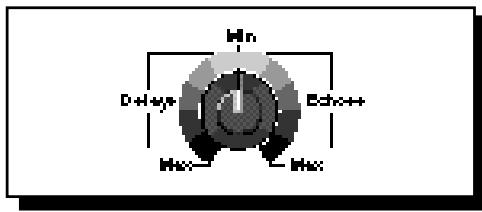
In variations 1-8, Adjust also sets the amount of feedback — a single repeat when the knob is centered, more repeats as the knob is moved past center in either direction. Delay time is set with Tap. Each variation is preset with a different useful rhythm.
In Variations 9-16, the amount of feedback is preset and Adjust determines Delay time — the delay time is shortest when the knob is centered, increasing as the knob is moved away from center in either direction.
Delays and echoes are effects that repeat a sound a short time after it first occurs. The simplest (and oldest) delay effect is tape slap — a single repeat about 100ms after the original sound. (It was often used on Elvis's voice and rockabilly guitar tracks.) Tape slap becomes tape echo when the output of the tape is fed back into the input (feedback), turning a single repeat into a series of repeats — each a little softer and a little darker than the last. This darkening of each repeat is characteristic of the analog tape recording process. Digital delays don't have this characteristic — each repeat has the same exact timbre and the only difference from repeat to repeat is in loudness.
Digital delay and tape echo are both useful, but they are different. Tape echo is warmer and allows the original sound to stand out more, while digital delay can present a "perfect" copy of the original sound.
| WEDNESDAY | Delay, Echo VARIATIONS | Adjust | Tap |
| 1 | Mono Quarter-Note | Delay/Echo Feedback | Delay Time |
| 2 | Stereo Quarter-Note | Delay/Echo Feedback | Delay Time |
| 3 | Triplet Shuffle | Delay/Echo Feedback | Delay Time |
| 4 | Dotted Eighth-Note | Delay/Echo Feedback | Delay Time |
| 5 | Eighth-Note and Triplet | Delay/Echo Feedback | Delay Time |
| 6 | Ping Pong Quarter-Note | Delay/Echo Feedback | Delay Time |
| 7 | Triplet Rhythm 1 | Delay/Echo Feedback | Delay Time |
| 8 | Triplet Rhythm 2 | Delay/Echo Feedback | Delay Time |
| 9 | Mono | Delay/Echo Time: 0-5.5sec | |
| 10 | Stereo | Delay/Echo Time: 0-2.7sec | |
| 11 | Tape Slap | Delay/Echo Time: 3 3/4 to 30ips | |
| 12 | Multi Bounce | Delay/Echo Time: 0-100ms | |
| 13 | Multi Linear | Delay/Echo Time: 0-400ms | |
| 14 | Multi Inverse | Delay/Echo Time: 0-400ms | |
| 15 | Multi Repeat | Delay/Echo Time: 0-150ms + Fbk | |
| 16 | Multi Pong | Delay/Echo Time: 0-200ms + Fbk |
When using any type of delay or echo effects with music, always pay attention to the way the repeats fall rhythmically to the beat. The most effective delay and echo patterns are those that lock in with the tempo of the tune.
About the Dual Programs
The MPX 100 Dual programs combine either a Delay or Reverb algorithm with a Flange, a Pitch or a Chorus. Effects Lvl/Bal controls the relative balance of each effect in the combination.
Four routing configurations are used in the variations of each Dual program: Dual Stereo (Parallel), Cascade, Mono Split and Dual Mono.
Variations 1-6 are set up in the Parallel configuration - two stereo effects placed side by side so that they receive and output stereo audio from both left and right channels.
Variations 7-10 are set up in the Cascade configuration - two stereo effects, one placed after the other (for example, Flange-Delay, Flange passes its stereo signal to the Delay).
Variations 11-14 are set up in the Mono Split configuration which is similar to Parallel, however one effect (Flange) receives audio from the left input and the other effect (Delay) receives audio from the right input. Both effects then output stereo audio.
Variations 15 and 16 are set up in the Dual Mono configuration where one effect (Flange) appears on the left channel only and the other effect (Delay) appears on the right channel only.
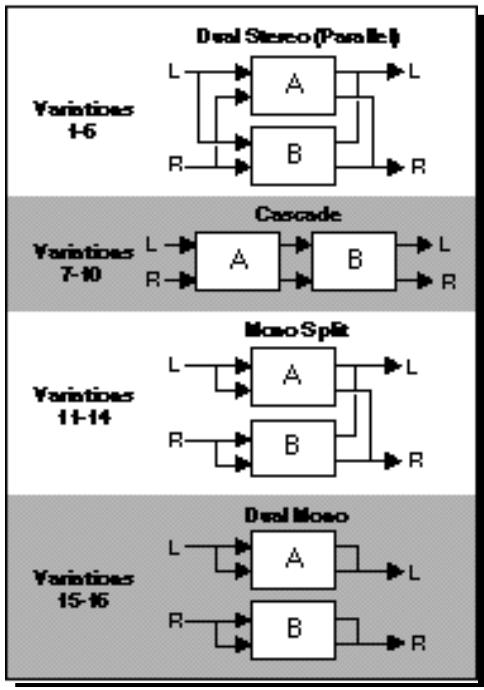
Generally, the Effects Lvl/Balknob controls the balance of the two effects in each dual program. In the cascade variations, rather than simply controlling balance, the knob varies the amount of the first effect or dry signal which is fed into the second effect.
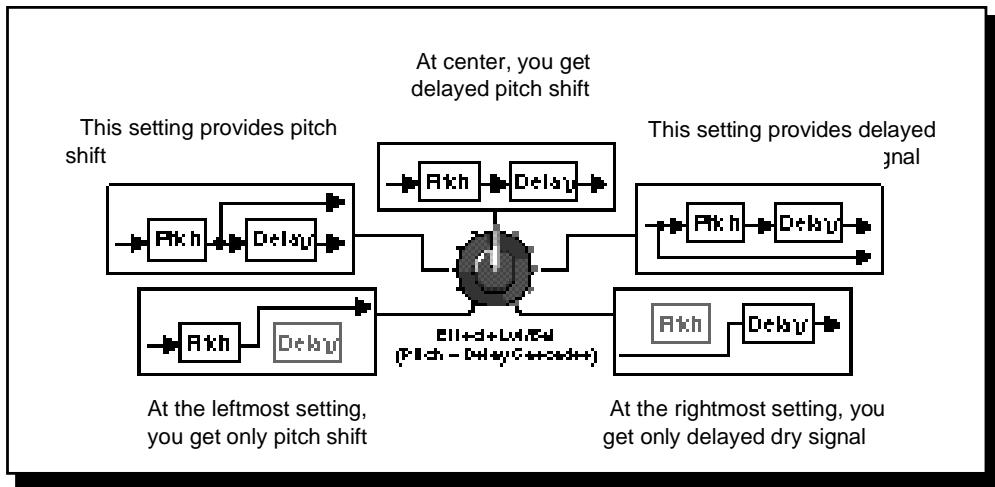
Behavior of Effects Lvl/Bal in the cascade variations. Several points from the knob's continuous range are illustrated here, using the Pitch-Delay program as an example.
Flange - Delay
| WAFER | Flange-Delay VARIATIONS | Adjust | Tap | Routing |
| 1 | Deep Flange - Stereo Delay | Delay/Echo Feedback | Delay Time (1/4 Note) | LRange→L RDelay→R |
| 2 | Deep Flange - Stereo Delay | Delay/Echo Feedback | Dotted 1/8 Note | |
| 3 | Deep Flange - Stereo Delay | Delay/Echo Feedback | 1/8 Note Triplet | |
| 4 | Light Flange - Ping Pong | Delay/Echo Feedback | Delay Time (1/4 Note) | |
| 5 | Light Flange - Repeat | Delay/Echo Time: 0-150ms, Feedback | — | |
| 6 | Light Flange - Bounce | Delay/Echo Time: 0-200ms, Feedback | — | |
| 7 | Deep Flange>Stereo Delay | Delay/Echo Feedback | Delay Time (1/4 Note) | LRange→L RDelay→R |
| 8 | Deep Flange>Repeat | Delay/Echo Time: 0-150ms, Feedback | — | |
| 9 | Deep Flange>Ping Pong | Delay/Echo Feedback | Delay Time (1/4 Note) | |
| 10 | Deep Flange>Bounce | Delay/Echo Time: 0-200ms, Feedback | — | |
| 11 | Light Flange+Stereo Delay | Delay/Echo Feedback | Delay Time (1/4 Note) | LRange→L RDelay→R |
| 12 | Ligth Flange+Ping Pong | Delay/Echo Feedback | Delay Time (1/4 Note) | |
| 13 | Light Flange+Repeat | Delay/Echo Time: 0-150ms, Feedback | — | |
| 14 | Light Flange+Bounce | Delay/Echo Time: 0-200ms, Feedback | — | LRange→L RDelay→R |
| 15 | Deep Flange/Mono Delay | Delay/Echo Feedback | Delay Time (1/4 Note) | |
| 16 | Deep Flange/Mono Delay | Delay/Echo Feedback | Delay Time (Dotted 1/4 Note) |
Pitch - Delay
| WEEK | Pitch-Delay VARIATIONS | Adjust | Tap | Routing |
| 1 | 5th Up/Down - Stereo Quarter-Note | ± 5th | Delay Time | L Pitch Delay R |
| 2 | Octave Up/Down - Triplet Shuffle | ± 1 octave | Delay Time | |
| 3 | Octave Up/Down - Eighth and Triplet | ± 1 octave | Delay Time | |
| 4 | 3rd Up/4th Up - Ping Pong Quarter-Note | Minor 3rd to 4th Up | Delay Time | |
| 5 | 4th Up/5th Up - Triplet Rhythm 1 | 4th to 5th Up | Delay Time | |
| 6 | 5th Up/6th Up - Triplet Rhythm 2 | 5th to 6th Up | Delay Time | |
| 7 | Octave Up/Down > Triplet Rhythm 1 | ± 1 octave | Delay Time | L Pitch Delay R |
| 8 | 5th Up/Down > Triplet Rhythm 2 | ± 5th | Delay Time | |
| 9 | Major/Minor | Minor/Major 3rd w/Feedback | Delay Time | |
| 10 | Intervals Up | Ascending Intervals w/Feedback | Delay Time | |
| 11 | 5th Up/Down + Stereo Quarter-Note | ± 5th | Delay Time | L Pitch Delay R |
| 12 | Octave Up/Down + Triplet Shuffle | ± 1 octave | Delay Time | |
| 13 | 4th Up/5th Up + Triplet Rhythm 1 | 4th to 5th Up | Delay Time | |
| 14 | 5th Up/6th Up + Triplet Rhythm 2 | 5th to 6th Up | Delay Time | |
| 15 | Octave Up/Down / Mono Quarter-Note | ± 1 octave | Delay Time | |
| 16 | Octave Up/Down / Triplet Shuffle | ± 1 octave | Delay Time |
Chorus - Delay
| W A R N | Chorus-Delay VARIATIONS | Adjust | Tap | Routing |
| 1 | Rich Chorus 1 - Stereo 1/4 Note | Delay/Echo Feedback | Delay Time | L Chorus L R Delay R |
| 2 | Rich Chorus 1 - Dotted 1/8 Note | Delay/Echo Feedback | Delay Time | |
| 3 | Rich Chorus 1 - 1/8 Note and Triplet | Delay/Echo Feedback | Delay Time | |
| 4 | Rich Chorus 1 - Ping Pong 1/4 Note | Delay/Echo Feedback | Delay Time | |
| 5 | Rich Chorus 1 - Multi Repeat | Delay/Echo Time: 0-150ms, Feedback | — | |
| 6 | Rich Chorus 1 - Multi Pong | Delay/Echo Time: 0-200ms, Feedback | — | |
| 7 | Rich Chorus 1 - Stereo 1/4 Note | Delay/Echo Feedback | Delay Time | L Chorus L R Delay R |
| 8 | Rich Chorus 2 - Multi Repeat | Delay/Echo Time: 0-150ms, Feedback | — | |
| 9 | Rich Chorus 2 - Ping Pong 1/4 Note | Delay/Echo Feedback | Delay Time | |
| 10 | Rich Chorus 3 - Multi Pong | Delay/Echo Time: 0-200ms, Feedback | ||
| 11 | Rich Chorus 1 - Stereo 1/4 Note | Delay/Echo Feedback | Delay Time | L Chorus L R Delay R |
| 12 | Rich Chorus 1 - Ping Pong 1/4 Note | Delay/Echo Feedback | Delay Time | |
| 13 | Rich Chorus 1 - Crossfeed | Delay/Echo Time: 0-150ms, Feedback | — | |
| 14 | Rich Chorus 1 - Multi Pong | Delay/Echo Time: 0-200ms, Feedback | — | L Chorus L R Delay R |
| 15 | Rich Chorus 4 - Mono 1/4 Note | Delay/Echo Feedback | Delay Time | |
| 16 | Rich Chorus 4 - Dotted 1/8 Note | Delay/Echo Feedback | Delay Time |
Delay - Reverb
| Delay-Reverb VARIATIONS | Adjust | Tap | Routing |
| 1 Stereo 1/4 Note - Small Space | Decay Time | Delay Time | L Delay R Fever b R |
| 2 Triplet Shuffle - Medium Space | Decay Time | Delay Time | |
| 3 1/8 Note and Triplet - Large Space | Decay Time | Delay Time | |
| 4 Ping Pong 1/4 Note - Small Space | Decay Time | Delay Time | |
| 5 Triplet Rhythm 1 - Medium Space | Decay Time | Delay Time | |
| 6 Triplet Rhythm 2 - Large Space | Decay Time | Delay Time | |
| 7 Stereo 1/4 Note > Room | Decay Time | Delay Time | L Delay R Fever b R |
| 8 1/8 Note and Triplet > Large Space | Decay Time | Delay Time | |
| 9 Triplet Rhythm 1 > Room | Decay Time | Delay Time | |
| 10 Triplet Rhythm 2 > Large Space | Decay Time | Delay Time | |
| 11 Stereo 1/4 Note + Medium Space | Decay Time | Delay Time | L Delay R Fever b R |
| 12 Ping Pong 1/4 Note + Large Space | Decay Time | Delay Time | |
| 13 Triplet Rhythm 1 + Medium Space | Decay Time | Delay Time | |
| 14 Triplet Rhythm 2 + Small Space | Decay Time | Delay Time | L Delay R Fever b R |
| 15 Mono 1/4 Note / Room | Decay Time | Delay Time | |
| 16 Triplet Rhythm 2 / Large Space | Decay Time | Delay Time |
Flange - Reverb
| WELCOME | Flange-Reverb VARIATIONS | Adjust | Tap | Routing |
| 1 | Light Flange - Small Space | Decay | Flange Rate (Whole Note) | L Range R Reverb R |
| 2 | Light Flange - Medium Space | Decay | Flange Rate (Whole Note) | |
| 3 | Light Flange - Large Space | Decay | Flange Rate (Whole Note) | |
| 4 | Deep Flange - Small Space | Decay | — | |
| 5 | Deep Flange - Medium Space | Decay | — | |
| 6 | Deep Flange - Large Space | Decay | — | |
| 7 | Light Flange > Large Space | Decay | Flange Rate (Whole Note) | L Range R Reverb R |
| 8 | Deep Flange > Large Space | Decay | — | |
| 9 | Light Flange > Room | Liveness | Flange Rate (Whole Note) | |
| 10 | Deep Flange > Room | Liveness | — | |
| 11 | Light Flange + Medium Space | Decay | Flange Rate (Whole Note) | L Range R Reverb R |
| 12 | Light Flange + Room | Liveness | Flange Rate (Whole Note) | |
| 13 | Deep Flange + Medium Space | Decay | — | |
| 14 | Deep Flange + Room | Liveness | — | |
| 15 | Light Flange / Large Space | Decay | Flange Rate (Whole Note) | L Range R Reverb R |
| 16 | Light Flange / Large Space | Decay | Flange Rate (Whole Note) |
Pitch - Reverb
| WETA | Pitch-Reverb VARIATIONS | Adjust | Tap | Routing |
| 1 | Minor 3rd to 4th - Room | 3rd to 4th Up | PreDelay (1/32 Note) | L Pitch L R Fever b R |
| 2 | 4th to 5th - Room | 4th to 5th Up | PreDelay (1/32 Note) | |
| 3 | 5th to 6th - Room | 5th to 6th Up | PreDelay (1/32 Note) | |
| 4 | ±1 Octave - Medium Space | ± 1 octave | PreDelay (1/32 Note) | |
| 5 | Power Chords - Medium Space | Decay Time | PreDelay (1/32 Note) | |
| 6 | Manual Detune - Room | Detuning | PreDelay (1/32 Note) | |
| 7 | ±100 > Small Space | ± 100 cents | PreDelay (1/32 Note) | L Pitch L R Fever b R |
| 8 | Power Chords - Large Space | Decay Time | PreDelay (1/32 Note) | |
| 9 | 4ths > Medium Space | Decay Time | PreDelay (1/32 Note) | |
| 10 | Octaves > Medium Space | Decay Time | PreDelay (1/32 Note) | |
| 11 | 4th to 5th + Room | 4th to 5th Up | PreDelay (1/32 Note) | L Pitch L R Fever b R |
| 12 | 5th to 6th + Room | 5th to 6th Up | PreDelay (1/32 Note) | |
| 13 | 4ths + Large Space | Decay Time | PreDelay (1/32 Note) | |
| 14 | Octaves + Medium Space | Decay Time | PreDelay (1/32 Note) | L Pitch L R Fever b R |
| 15 | Octaves / Medium Space | Decay Time | PreDelay (1/32 Note) | |
| 16 | 4ths / Large Space | Decay Time | PreDelay (1/32 Note) |
Chorus – Reverb
| WAFER | Chorus-Reverb VARIATIONS | Adjust | Tap | Routing |
| 1 | Rich Chorus 1 - Small Space | Decay Time | — | L Chorus R Reverb R |
| 2 | Rich Chorus 1 - Medium Space | Decay Time | — | |
| 3 | Rich Chorus 1 - Large Space | Decay Time | — | |
| 4 | Rich Chorus 2 - Small Space | Decay Time | — | |
| 5 | Rich Chorus 2 - Medium Space | Decay Time | — | |
| 6 | Rich Chorus 2 - Large Space | Decay Time | — | |
| 7 | Rich Chorus 1 > Room | Liveness | — | L Chorus R Reverb R |
| 8 | Rich Chorus 2 > Room | Liveness | — | |
| 9 | Rich Chorus 3 > Room | Liveness | — | |
| 10 | Rich Chorus 1 > Small Space | Decay Time | — | |
| 11 | Rich Chorus 1 + Small Space | Decay Time | — | L Chorus R Reverb R |
| 12 | Rich Chorus 2 + Medium Space | Decay Time | — | |
| 13 | Rich Chorus 2 + Large Space | Decay Time | — | |
| 14 | Rich Chorus 1 + Large Space | Decay Time | — | L Chorus R Reverb R |
| 15 | Rich Chorus 1 / Room | Liveness | — | |
| 16 | Rich Chorus 4 / Room | Liveness | — |
| Delay, Echo VARIATIONS | Adjust | Tap | |
| 1 | Infinite Reverb | High Cut | Echo |
| 2 | The Abyss | ± Pitch Bend | - |
| 3 | Jet Flange | Tone | Rate (Whole Note) |
| 4 | Chorus Verb | High Cut | - |
| 5 | Rotary Delay | Dly/Echo Time: 0-150ms+Fbk | Rate (1/4 Note) |
| 6 | Fader Verb | Input Volume | Echo |
| 7 | PCM 60 - LgSize | Decay Time | - |
| 8 | LowRumble | Decay Time | - |
| 9 | Ducking Reverb | Decay Time | - |
| 10 | Ducking Chorus>Delay | ± Resonance | - |
| 11 | Ducking Triplets | Delay/Echo Feedback | - |
| 12 | Subdividing Delay | Beat Value: 1/32-Whole Note | Delay Time |
| 13 | Panning Delays | Delay/Echo Feedback | Dly Time, Pan Rate |
| 14 | Dream Sequence | ± Shift Amount | - |
| 15 | Infinite Repeat | Feedback: 0-Infinite | Dly Time (Whole Note) |
| 16 | Diffusor | Diffusion | - |
Special FX
The Special FX variations showcase the flexibility and creative possibilities of the MPX 100. Adjust is completely different in each of the Variations, so be sure to experiment with all of them.
When shipped from the factory, the sixteen MPX 100 User locations contain duplicates of the following programs:
| User VARIATION | |
| 1 | Plate 2 |
| 2 | Gate 9 |
| 3 | Hall 5 |
| 4 | Hall 6 |
| 5 | Chamber 13 |
| 6 | Ambience 3 |
| 7 | Room 14 |
| 8 | Tremolo 1 |
| 9 | Rotary 9 |
| 10 | Rotary 15 |
| 11 | Chorus 3 |
| 12 | Flange 12 |
| 13 | Pitch 1 |
| 14 | Detune 12 |
| 15 | Delay, Echo 8 |
| 16 | Delay, Echo 12 |
Reinitialization
Reinitializing the MPX 100 will reset all of the System Mode parameters to their factory defaults, replace any programs stored in the User bank with the factory-loaded preset copies, and clear any Learned patches. To do this:
- Hold the Store button while powering up the MPX 100. (Store and Tap will flash rapidly.) Press Tap or Bypass to exit without reinitializing.
- Press Store to reinitialize the MPX 100.
User Programs
MIDI Operation
MPX 100 MIDI Behavior
The MPX 100 "learns" MIDI Channel, Program Change and Continuous Controllers in its Learn Mode.
As many as five Learn patches (for the front panel Mix, Effects Lvl/Bal, Adjust, Bypass and Tap controls) on as many as five MIDI Channels are supported.
Program Change messages 0-15 are reserved for executing program loads on any learned MIDI Channel — or a separate MIDI Channel can be selected for program load.
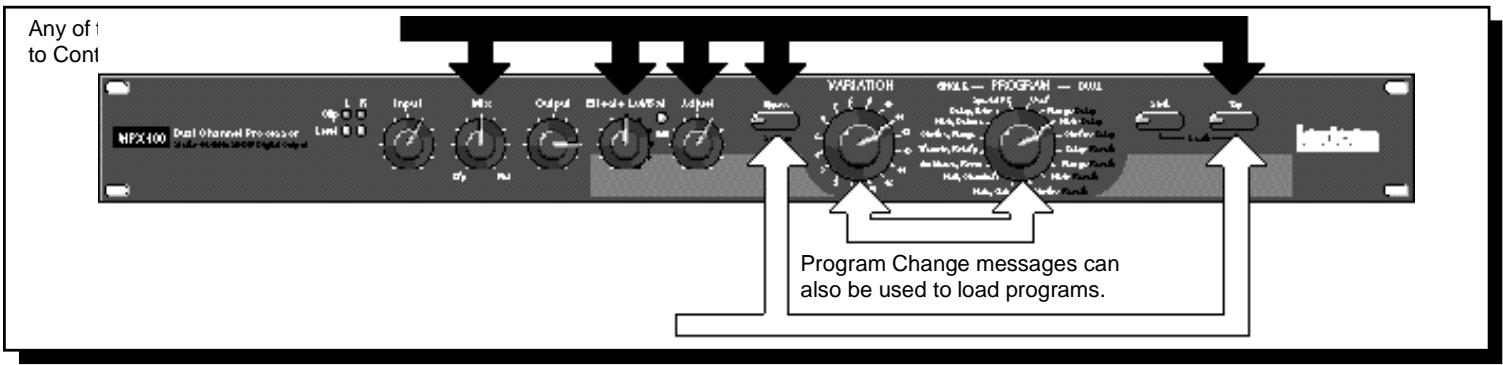
Assigning a MIDI Channel for Program Load
In order to use Program Change messages for Program loads as well as to control front panel buttons, the MPX 100 is designed to have one MIDI channel dedicated to loading programs. This is called the Program Load MIDI Channel.
Although this channel can be used to receive other Program Change messages, numbers 0-15 will always load the 16 variations of the currently loaded program. Program Change messages 0-15 will be ignored on all other MIDI Channels.
When shipped from the factory, the MPX 100 has MIDI Channel 1 assigned as the default Program Load channel. To re-define the Program Load assignment:
- Simultaneously press Store and Tap to enter Learn Mode. (The Store LED flashes slowly and the Tap LED lights steadily to indicate Learn Mode is active.)
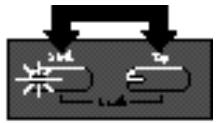
- Send a Program Change message to the MPX 100. (The Edit LED will flash to show incoming MIDI activity.)
- The MPX 100 learns the MIDI Channel of the transmitting device and re-assigns the Program Load function to that channel.
- Simultaneously press Store and Tap to exit.
This Program Load channel assignment is remembered until it is deliberately re-set with the same procedure.
Using Program Change Messages for Program Load
The MPX 100 will allow loading of all of its 240 preset and 16 User programs via standard MIDI Program Change messages. It also conforms to the use of MIDI controller 32 to perform Bank Select, starting with the User bank as the first bank. (For the purposes of this discussion, each setting of the MPX 100 PROGRAM knob selects a "bank" of 16 programs.) The MPX 100 "banks" are ordered numerically from 0-15.
Here's how it works. If a standard MIDI Program Change is sent to the MPX 100 on its Program Load MIDI Channel, Program Change messages 0-15 will load programs 1-16 from the current Program Bank.
If a Bank Select message (controller 32) precedes a Program Change message, any one of the 256 programs can be loaded.
For example, Program Change 1 with PROGRAM pointing to Plate, Gate, will cause the first Plate program to be loaded. Sending controller 32 with a value of 0, followed by Program Change 1, loads the first program of the User bank. Sending controller 32 with a value of 1, then Program Change 2, loads the second program in the Flange-Delay bank. Sending controller 32 with a value of 8, then program change 15 will load the last Gate program in the Plate, Gate bank.
Once a bank is selected, all subsequent Program Change messages will select programs within that bank until a new value for controller 32 is received, or until the PRO-GRAM or VARIATION knob is moved.
This function can be disabled with the MIDI Pgm Change parameter in System Mode.
MPX 100 Program Banks
0 User
1 Flange-Delay
2 Pitch-Delay
3 Chorus-Delay
4 Delay Reverb
5 Flange-Reverb
6 Pitch-Reverb
7 Chorus-Reverb
8 Plate, Gate
9 Hall, Chamber
10 Ambience, Room
11 Tremolo, Rotary
12 Chorus, Flange
Pitch, Detune
14 Delay, Echo
15 Special FX
Learning Continuous Controllers
The MPX 100 recognizes Pitch Bend, AfterTouch and MIDI Continuous Controllers 1-31 and 33-119. To Learn a Continuous Controller:
- Simultaneously press Store and Tap to enter Learn Mode. (The Store LED flashes slowly and the Tap LED lights steadily to indicate Learn Mode is active.)
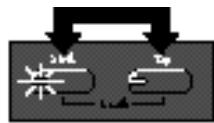
- Move one of the MPX 100 front panel controls (Mix, Effects Lvl/Bal, Adjust, Bypassor Tap) to assign it to the controller.
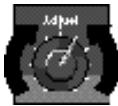
- Move the MIDI controller through its full range. To use only a fraction of the controller's range, limit your movement to the desired range.
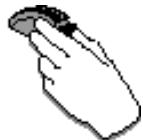
The Edit LED will flash to indicate incoming MIDI activity.
- Press Store to commit to the assignment. The Store LED will flash rapidly.
- To assign another front panel control to a MIDI controller, repeat steps 2 - 5.
- Simultaneously press Store and Tap to exit. The Store LED will flash rapidly if you have created or changed any assignments.
NOTE: When a MIDI controller is assigned to Bypass or Tap, moving it through the mid-point of its Learned range will execute a "press" of the front panel button.
Activating Bypass or Tap functions with Program Change Messages
The MPX 100 recognizes MIDI Program Changes 16-127 (17-128 on some MIDI devices) on any channel. To assign a Program Change message to Bypass or Tap:
- Simultaneously press Store and Tap to enter Learn Mode. (The Store LED flashes slowly and the Tap LED lights steadily to indicate Learn Mode is active.)
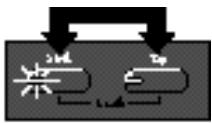
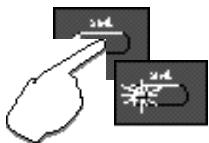
- Press the front panel button you want to control (Bypass or Tap).
- Send a MIDI Program Change to the MPX 100. The Edit LED will flash to indicate incoming MIDI activity.
- Press Store to commit to the assignment. The Store LED will flash rapidly.
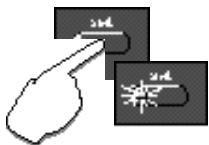
- Simultaneously press Store and Tap to exit. The Store LED will flash rapidly if you have created or changed any assignments.
To aid MIDI controllers (such as some foot controllers) which do not allow repeated Program Change messages to be sent by a single button, the MPX 100 learns the next highest Program Change along with every Program Change message it learns for Bypass and/or Tap. For example, if you Learn Program Change 20 as the source for Bypass, Program Change 21 will also control Bypass functions. To avoid conflicting Bypass and Tap assignments, leave a space between the two buttons' assignments. (i.e. if you learn Program Change 20 for Bypass, remember that 21 will also be learned, so you will have to jump to Program Change 22 (and 23) for Tap.
Clearing a Learned Assignment
- Simultaneously press Store and Tap to enter Learn Mode. (The Store LED flashes slowly and the Tap LED lights steadily to indicate Learn Mode is active.)
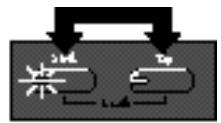
- Move the front panel control that you want to clear (Mix, Effects Lvl/Bal, Adjust, Bypass or Tap).
- Press Store to clear the assignment. The Store LED will flash rapidly.
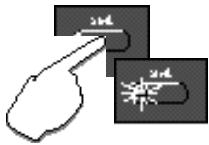
- To clear another front panel assignment, repeat steps 2 and 3.
- Simultaneously press Store and Tap to exit. The Store LED will flash rapidly if you have changed any assignments.
Learnable Front Panel controls and Assignable MIDI Sources
| Front Panel Control | MIDI Controllers 1-31, 33-119 | MIDI Pgm Change 16-127* |
| Mix | Yes | No |
| Effects Lvl/Bal | Yes | No |
| Adjust | Yes | No |
| Bypass | Yes | Yes |
| Tap | Yes | Yes |
| *Program Change numbers 0-15 will be ignored except on the MIDI Channel assigned for pro-gram load. | ||
MIDI Clock
The MPX 100 recognizes MIDI Clock messages and applies the tempo (40-400 BPM) to any program which utilizes the Tap-tempo feature. Connect a MIDI device which outputs MIDI Clock (such as the MPX R1 foot controller or a MIDI sequencer) to the MPX 100 MIDI IN jack, to have the MPX 100 automatically recognize and begin to process the MIDI clocks. When you change tempo on the connected device, the MPX 100 will follow along and adjust its delay times or rates to match the tempo.
This can be disabled with the MIDI Clock Receive parameter in System Mode.
MIDI Dumps
MIDI Dumps allow you to back up the 16 User programs, the currently running program, or your System Mode settings and Learned patch assignments, to a storage device (typically, a sequencer).
MIDI Dumps are performed in System Mode. To perform a dump of the User programs, the current program, or all of the System Mode parameter settings:
-
Press and hold Bypass for 2 seconds. The Bypass and Store LEDs will blink slowly to indicate you are in System Mode.
-
Turn VARIATION to:
14 to dump the User programs
15 to dump the current program
16 to dump the System settings and Learned patch assignments
- Press Store to execute the dump.
- Press Bypass to exit System Mode.
Lexicon MPX 100
MIDI Implementation
| Function | Transmitted | Recognized | Remarks | |
| Basic Channel | Default | X | 1 | Learned |
| Channel | X | 1-16 | ||
| Mode | Default | Mode 2 | ||
| Messages | X | X | ||
| Altered | X | |||
| Note Number | True Voice | X | X | |
| Velocity | Note ON | X | X (Off=9n v=0) | |
| Note OFF | X | X | ||
| After Touch | Keys | X | X | used as controller |
| Channels | X | OX | Learned | |
| Pitch Bender | X | OX | used as controller, Learned | |
| Control Change | X | OX | 1-119 (0 and 32 used as Bank Select) | |
| Program Change | True # Bank Select | X | 0-15=1-16 | 16-127 ignored; Program message 1-15=Program Change 1-16 for current Program Group |
| X | O | |||
| System Exclusive | Lexicon Real-Time non Real-Time | O X X | O X X | Product ID=14 (decimal) Device ID=MIDI Channel 0-15 = 1-16 |
| System | :Song Pos :Song Sel :Tune | X X X | X X | |
| Common | X | X | ||
| System | :Clock | X | O | |
| Real Time | :Commands | X | X | |
| Aux Messages | :Local ON/OFF :All Notes OFF :Active Sense :Reset | X X X | X X X | |
| X | X | |||
| X | X | |||
Mode 1: OMNI ON, POLY Mode 2: OMNI ON, MONO
Mode 3: OMNI OFF, POLY Mode 4: OMNI OFF, MONO
O:Yes
X: No OX: Selectable
Specifications
Audio Inputs (2)
Level -30dBu to +4dBu
Impedance 500K unbalanced for Direct Instrument input (Unit detects a mono input on the right input) 1 / 4" connectors
Audio Outputs (2)
Level +8dButypical
Impedance 75Ω for Headphone output (Right only used for mono output; Left only used for stereo headphones) 1/4" connectors
Digital Audio Output
20-bit Digital S/PDIF output (always active)
Sample Rate: 44.1kHz
Connector: Coaxial, RCA type
Footswitch
Tip/Ring/Sleeve phone jack for Bypass and Tap (optional)
Frequency Response
Wet/Dry: 20Hz-20kHz, ±1dB
THD+N
<0.05%, 20Hz-20kHz
Dynamic Range
A/A: >95dB typical, 20Hz-20kHz, unweighted
A/D: >100dB typical, 20Hz-20kHz, unweighted
Conversion
20 bits A/D, 20 bits D/A
44.1kHz sample rate
Crosstalk
45dB
Internal Audio Data Path
DSP: 24-bit
Power Requirements
9VAC wall transformer provided
Dimensions
19"W x 1.75"H x 4"D (483 x 45 x 102mm)
Weight
Unit: 2 lbs, 2 oz (0.959kg)
Environment
Operating
Temperature 32^ to 104^ (0^ to 40^)
Relative
Humidity 95% non-condensing
Specifications subject to change without notice.