
PCM Native Resonant Chords - Unknown LEXICON - Free user manual and instructions
Find the device manual for free PCM Native Resonant Chords LEXICON in PDF.


| Product Type | Audio Plug-In (VST, Audio Unit, RTAS, Pro Tools) |
| Algorithm | Resonant Chords (based on Lexicon PCM70) |
| Number of Voices | 8 (4 per input channel) |
| Maximum Delay Time | 9.5 seconds per voice |
| License Protection | iLok 2nd Generation USB Smart Key required |
| Installation Media | CD-ROM (or digital download) |
| Platform Compatibility | Mac OS X, Windows XP/Vista/7 |
| Supported Formats | Audio Unit, VST, RTAS (Pro Tools) |
| Preset Management | User presets stored per algorithm; portable across DAWs |
| Key Parameters | Mix, Diffusion, Delay Time, Feedback, Resonance, Filter, Detune, Pan |
| Additional Features | Realtime Display (3D Voice View, Frequency, Live Impulse Response) |
| Stereo Analyzers | Lissajous Figure Window, Stereo Width Meter |
| Edit Modes | Soft Row, Master Edit, Resonance Edit, Voice Edit (per voice) |
| Manufacturer | Lexicon (Harman) |
| Manual Format | PDF, 40 pages, English |
Frequently Asked Questions - PCM Native Resonant Chords LEXICON
User questions about PCM Native Resonant Chords LEXICON
0 question about this device. Answer the ones you know or ask your own.
Ask a new question about this device
Download the instructions for your Unknown in PDF format for free! Find your manual PCM Native Resonant Chords - LEXICON and take your electronic device back in hand. On this page are published all the documents necessary for the use of your device. PCM Native Resonant Chords by LEXICON.
USER MANUAL PCM Native Resonant Chords LEXICON
The Lexicon® Legacy continues...
...with the PCM Native Resonant Chords
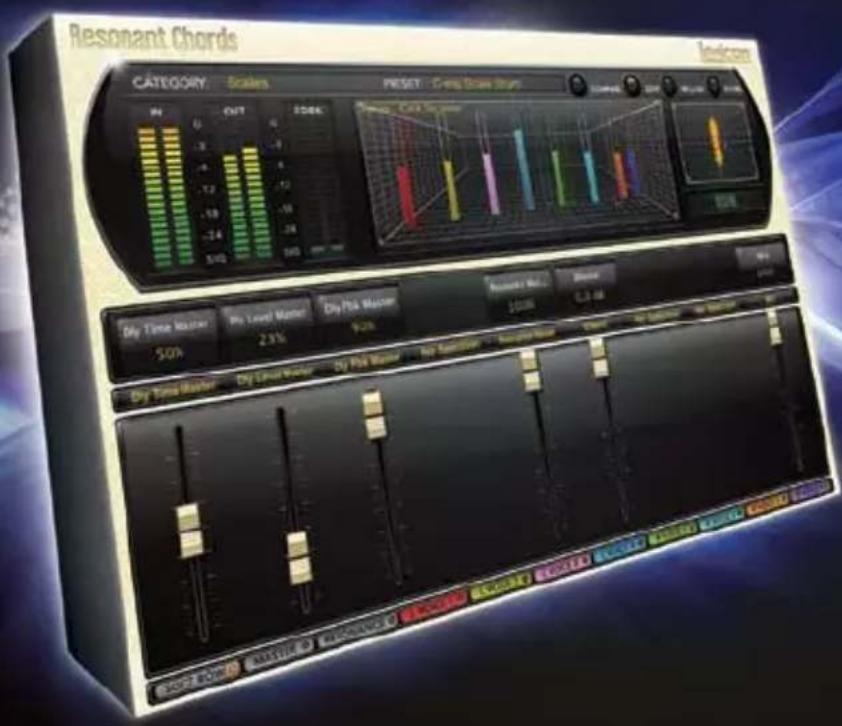
For over 40 years Lexicon® has been recognized as the gold standard of digital reverb and effects processing and has continuously introduced leading edge technology for the audio industry. Lexicon again rocked the audio industry with the introduction of the PCM Native Reverb and PCM Native Effects Plug-In Bundles, the ultimate bundles for creating professional, inspirational mixes within popular DAWs like Pro Tools®, Logic®, and any other VST®, Audio Unit™, or RTAS® compatible platform.
With all the flexibility you would expect from native plug-ins, these powerhouse plug-ins offer legendary Lexicon processing with the most versatile and finely crafted studio presets. Designed to bring the highest level of sonic quality and functionality to all your audio applications, the PCM Native Series Plug-Ins will take center stage in your DAW.
Congratulations and thank you
for purchasing the PCM Native Resonant Chords plug-in. With decades of legacy products to pull from, the PCM Native plug-ins include the finest collection of factory presets available. Designed to bring the highest level of sonic quality and functionality to all of your audio applications, the PCM Native plug-ins will take center stage in your DAW.
Quick Start
- Open your DAW and choose the Lexicon plug-in from your list of plug-ins
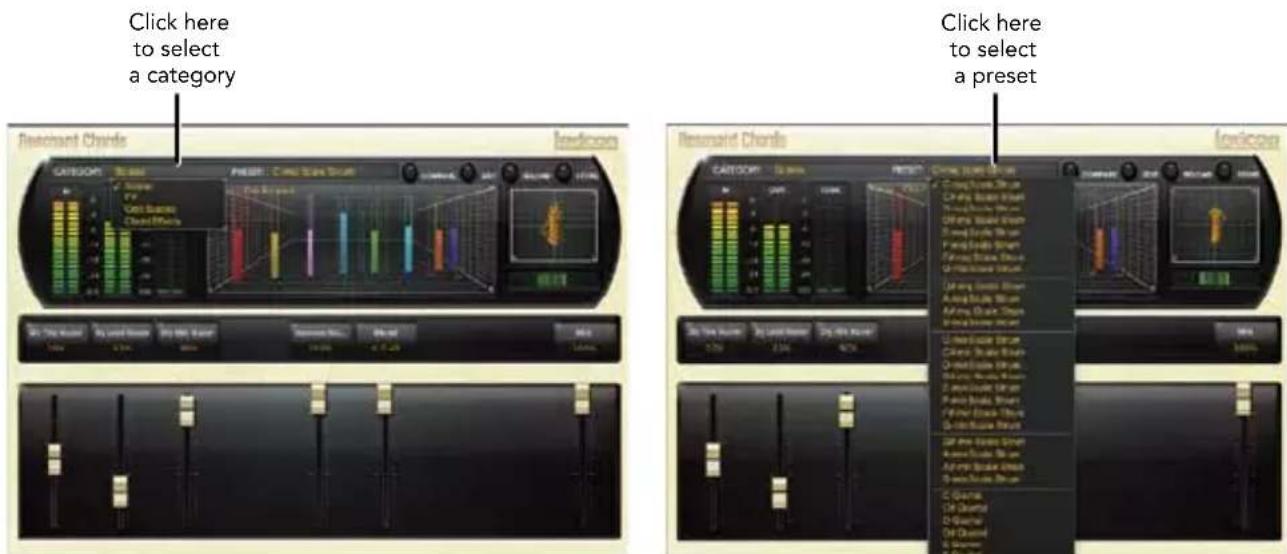
- In the plug-in's window, select a category
- Select a preset
- Adjust parameters (optional)
- Save the preset (optional)
It can be as simple or as in-depth as you'd like. The included presets work well for most situations, but you can easily adjust any parameter and save any preset. See the "Factory Presets" section for more information on editing, loading and saving presets.
Included Items
• PCM Native Resonant Chords software CD
- iLok license code
- This manual
Table of Contents
Installation....1
Install the Plug-in .... 1
iLok License 1
First Look—The User Interface......2
Overview....2
Level Meters....3
Preset Category.... 3
Preset Selector 3
Realtime Display....3
Control Buttons....3
Stereo/Phase Analyzers 3
Fader Area....3
The Realtime Display 4
Off 5
3-D Voice View 5
Frequency.... 5
Live Impulse Response......5
The Stereo/Phase Analyzers 6
Lissajous Figure Window......6
Stereo Width Meter....6
The Fader Area 7
Parameter Name 7
Parameter Value 7
Modifier Button....7
Fader....7
The Control Buttons....8
Compare 8
Edit....8
Reload 8
Store 8
Edit Navigation and Full Edit Mode ..... 9
The Soft Row....10
Customizing the Soft Row......10
Master Edit Page 11
Resonance Edit Page 12
Voice Edit Pages 13
Presets....14
Loading a Preset....14
Storing and Managing Presets......15
Portable Presets 16
Where are presets stored?......17
Getting the most out of your computer..18
The Algorithm....22
Resonant Chords 23
The Parameters 24
Delay Master....24
Mix....24
Diffusion 24
Delay Level Master....24
Delay Time Master 24
Delay Feedback Master 25
Resonance Delay Master 25
Resonance Master....25
Filter Master 25
Detune Master 25
Tuning Mode 25
Tuning Master 25
Transposition 25
Blend 25
Voice Parameters 26
Delay Time 26
Delay Level....26
Feedback Level 26
Output Pan....26
Feedback Pan....26
Output Filter Type 26
Output Frequency 26
Output Bandwidth.... 26
Output Shelf....27
Feedback Filter Type....27
Feedback Frequency......27
Feedback Bandwidth 27
Feedback Shelf....27
Resonance Frequency 27
Resonance Filter....27
Resonance 27
Resonance Detune 28
Lexicon Plug-Ins & Upgrades......29
Available Lexicon Plug-Ins 29
Upgrading 29
Installation
Install the Plug-in
Insert the CD into your CD-ROM drive. The Installer should start automatically.
If the Installer doesn't start automatically, you can start it manually by opening the appropriate file on the CD:
Mac®: Use the ".dmg" installation file
Windows®: Use the "32-bit.exe" or "64-bit.exe" installation file
Once the Installer is open, follow the on-screen instructions to install the software.
iLok License
You must download the license to your 2nd Generation iLok USB smart key before running any program that might use this plug-in. If a valid iLok license is not present, the initial plug-in validation scan will fail and you may not be able to run the plug-in without digging into your system. For more information go to www.iLok.com.

Important! Your PCM Native Plug-in will not work without an authorized 2nd Generation iLok USB smart key inserted in your computer's USB port!

First Look—The User Interface
Overview
When the plug-in is instantiated, you will see a window that looks something like this:
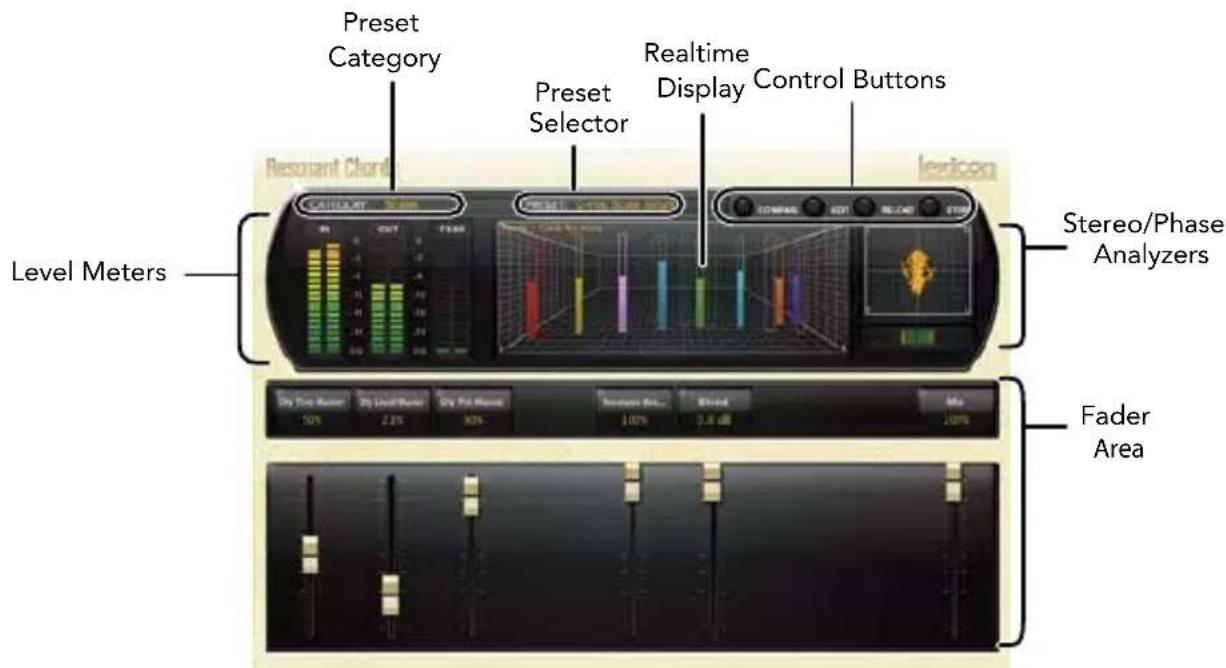
Level Meters
Shows the input, output and feedback levels. The Feedback meters measure the energy level being fed back into the beginning of the delay line.
Preset Category
Presets for the algorithm are grouped into categories to make them easier to find. Clicking in this area will show the list of categories. Selecting a category will load the presets for that category in the Preset Selector.
Preset Selector
Displays the list of presets within the selected category. Selecting a preset from the list will cause the preset to be loaded into the plug-in.
Realtime Display
Three unique visualizations help you to see inside the effect. See the "Realtime Display" section for more detailed information.
Control Buttons
These buttons are used to compare, edit, reload and store presets. This is explained in more detail in the "Control Buttons" section of this manual.
Stereo/Phase Analyzers
These tools provide a visual of the phase response and perceived stereo image of the processed signal. See the "Stereo/Phase Analyzers" section for more detailed information.
Fader Area
Parameter values are shown and controlled in this area. This is explained in more depth in the "Fader Area" section of this manual.
The Realtime Display
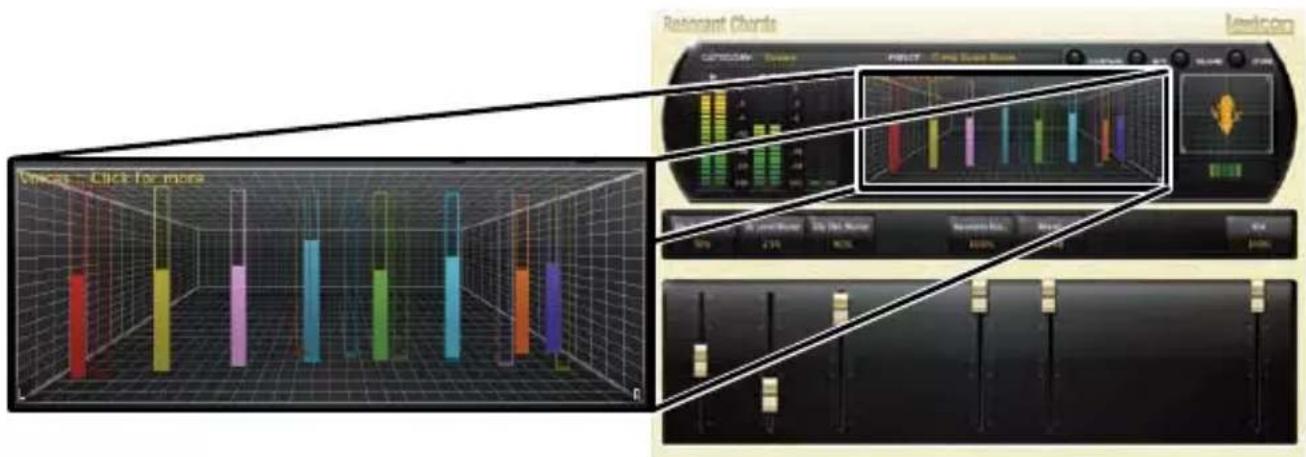
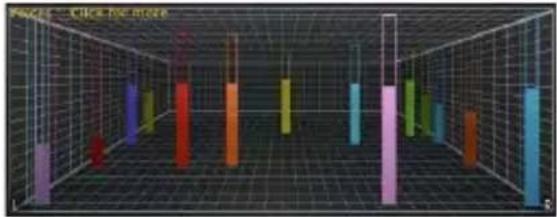
The realtime display window allows you to visualize the effect in three ways. While your ears will always be the primary tool in choosing and adjusting presets, the displays provide a direct way to see what's going on. Click anywhere in the realtime display window to change the view.
Off
This display mode shows only the algorithm name. It is the default view for the plug-in and requires the least amount of CPU cycles.
3-D Voice View
This display shows a 3-D view of each individual voice. Each voice (feedback or output) is displayed on screen using a vertical hollow frame. The frame is filled by the measured real-time level in the voice, and therefore, acts as a meter (0dB = full scale). The depth represents logarithmic delay time and the x axis represents pan.
Frequency
This display shows the frequency levels of the left and right output signals.
Live Impulse Response
This display shows a live impulse response of the left and right output signals.



The Stereo/Phase Analyzers
These analysis tools provide visualizations of the output signal's stereo image and phase response.

Lissajous Figure Window
This window shows the width and panning of the effects stereo image. The width of the stereo image is displayed by how far out, from center, the lines spread. Therefore, a mono effect signal panned center would be represented by a thin vertical line and an extremely wide spread would indicate inverted mono and may have mono compatibility problems. A rightward slant indicates effect voices have more energy on the right output as compared to the left and a leftward slant indicates the effect voices have more energy on the left output as compared to the right.
Stereo Width Meter
This meter shows the perceived width of the stereo image in a different way. A mono signal would show no level. A true stereo signal will display a wider bar, while inverted mono will display at the maximum width. The widest signals may exhibit problems with mono compatibility, so they should be monitored. The left and right side of this meter will always show identical level. The greater the meter level, the wider the stereo image will be perceived.
The Fader Area
The fader area may be populated by up to nine faders. This illustration shows what may be found for each fader.

Parameter Name
Shows the parameter being adjusted.
Parameter Value
Shows the current value of the parameter. This field may be directly edited.
Modifier Button
This button only appears for certain types of parameters. It controls aspects of the parameter.
Fader
Changes the value of the parameter. May be dragged, control-dragged (for higher resolution) or may be controlled by the mouse wheel.
The Control Buttons
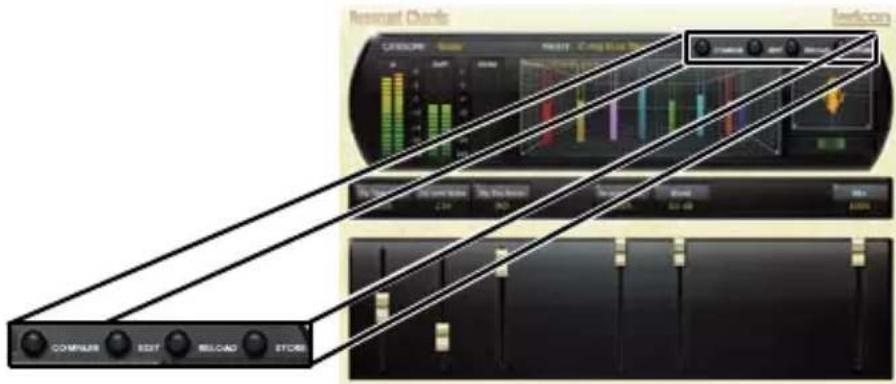
These buttons let you access all of a preset's parameters, manage presets, and compare changes you've made to the original settings.
Compare
The Compare button temporarily resets all parameters to the original preset value. It is used to get back to the original preset and quickly audition your edits verses the original preset. When compare is on, all parameters are frozen and cannot be changed. Turning compare off returns you to your edits. Choosing a different preset cancels compare mode.
Edit
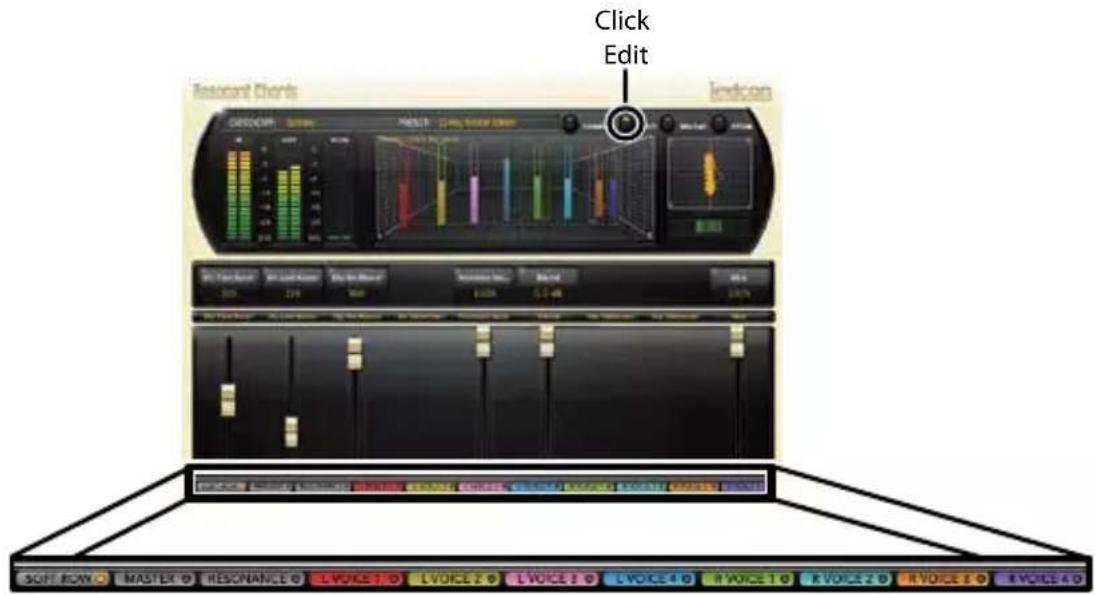
Clicking the Edit button enters "Pro" mode. Here you can adjust all parameters and configure the soft row. See the "Edit Navigation and Full Edit Mode" section for more detailed information.
Reload
Clicking the Reload button reloads the current preset, overriding all user edits.
Store
The Store button allows you to create and manage user presets. See the "Storing and Managing Presets" section for more information.
Edit Navigation and Full Edit Mode
When the Edit button is clicked, an additional row of buttons appear along the lower portion of the plug-in. Clicking one of the buttons will bring up an edit page holding parameters related to the button name. Those parameters may be edited until the desired sound is achieved.
The Soft Row
When the plug-in is first instantiated, a number of parameters appear. This page of parameters is called the "Soft Row". These parameters were chosen as being the most useful parameters for a particular preset. In most cases, we've tried to make a consistent set of choices, but many presets call for different parameters. For most people, the soft row is all that's needed.
Customizing the Soft Row
The soft row assignments are part of the preset. You can change the soft row assignments and store the preset as a User Preset. To do this, press the Edit button to go into edit mode then press the button for Soft Row. The plug-in will look something like this:

In the modifier button area, just above the fader, you will see the name of the parameter that is assigned to that position in the soft row. Clicking on any of these parameter buttons reveals a list of all the algorithm's parameters. Select a parameter (or "no selection") from the list, and that parameter is then assigned to the soft row. The assigned parameter is still available on its original edit page, but now it appears in the soft row as well.
You can assign any parameter to the soft row. You can even assign the same parameter more than once. When you're done, store it as a User Preset and you'll always be able to recall the preset with your customized soft row.
Master Edit Page
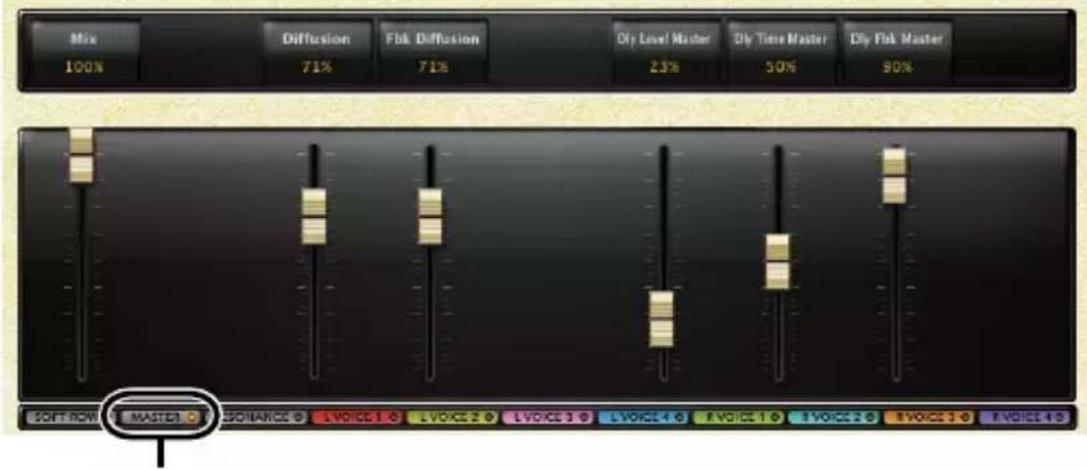
To enter the Master Edit page, click the Edit button to display the edit page buttons, then click the Master button. A page similar to this will appear:
- Click Master
Each parameter is described in the "Parameters" section starting on page 24.
The Master page allows you to adjust the master levels of the algorithm. For example, you can adjust the overall mix level (wet/dry mix) and diffusion here.
This page also gives you global control over some of the individual voice parameters. For example, adjusting the delay time master on this page will re-adjust the delay time parameter for all delay voices.
Other controllable parameters on this page are: feedback diffusion, delay level master, and delay feedback master.
Resonance Edit Page
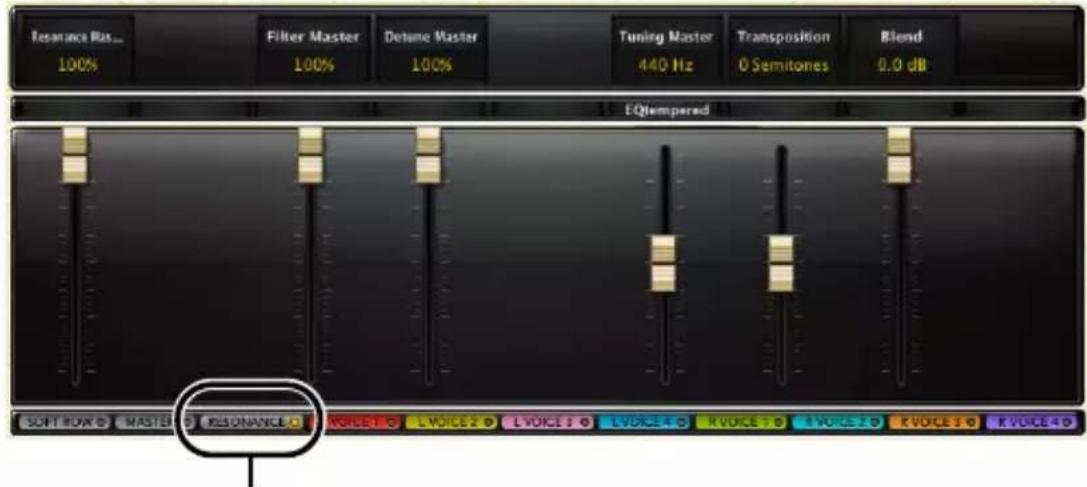
To enter the Resonance Edit page click the Edit button to display the edit page buttons, then click the Resonance button. A page similar to this will appear:
- Click Resonance
Each parameter is described in the "Parameters" section starting on page 24.
This page provides global control over the resonance parameters. For example, you can adjust the resonance master on this page, which will affect the resonance level of all voices, by the percentage indicated above the resonance master slider.
Voice Edit Pages
The Resonant Chords plug-in has multiple Voice Edit pages. To enter one of the Voice Edit pages click the Edit button to display the edit page buttons, then click the Voice button for the voice in which you would like to edit. A page similar to this will appear:
![Output/Feedback Buttons L1 Dry Time 140.00 ms L1 Rot/Freq [4] Absolute L1 Dly/Off +22.3 dB OUTPUT FEBBACK Output/Feedback Section S2/DOPE OFF](/content/2026/06/1223208/images/d65e6f9e80523a96717e2b0edc257e6042c04d703c258e41c8ac4db095d1503b.jpg)
- Click one of the Voice buttons
Each parameter is described in the "Parameters" section starting on page 24.
Each Voice Edit page contains the same parameters, but controls a different voice.
The Output/Feedback section allows you to edit the output and feedback parameters for each voice. The Output and Feedback buttons allow you to toggle between these two sections. Therefore, these Feedback and Output section parameters are independently controlled. Here you can control the output and feedback level, polarity, pan and filtering for each voice.
Presets
The PCM Native plug-ins come with a large complement of Factory Presets. These presets are grouped in categories that make it easier for you to find the sound you need. Most presets also come with several variants that may save you a lot of editing time.
Loading a Preset
The preset category is chosen from the drop-down menu in the upper-left portion of the edit window. When you select a category, the preset menu is updated to show availability of the new presets within the selected category. An initial preset will be loaded from the category. It will be the first preset in the list unless you have previously visited the category. In that case, it will be the last preset you loaded from that category.
Storing and Managing Presets
When you load a Lexicon® plug-in, the overall appearance may be something like this:
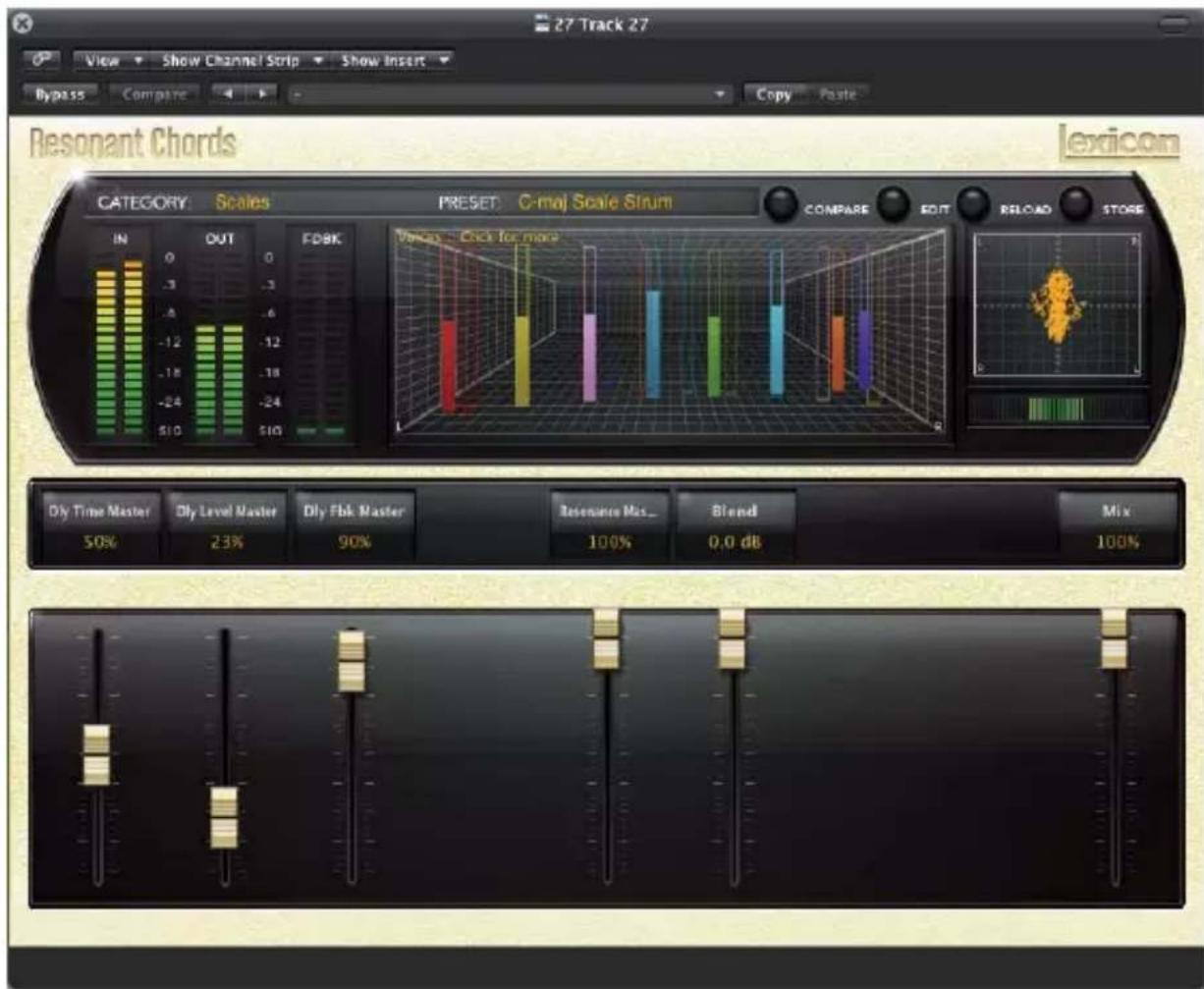
You will notice that the Lexicon plug-in (with the gold border) is embedded within a larger window provided by the DAW. Appearance will differ from host to host (this example is from Logic®). Oftentimes, the DAW itself provides the ability to save presets. The presets saved by the DAW can only be used with the DAW that saved them. If you work with multiple DAWs, this would be a problem. However, Lexicon® solves this problem with the use of Portable Presets.
Portable Presets
When you store presets with the Lexicon Store button (shown below), your presets are available to all DAWs on your machine. With only a little effort, you can also share them with other machines, even when going between Mac and PC.
If you've made some edits you'd like to save as a User Preset, press the Store button on the upper portion of the plug-in editor. You'll see a screen that looks like this:
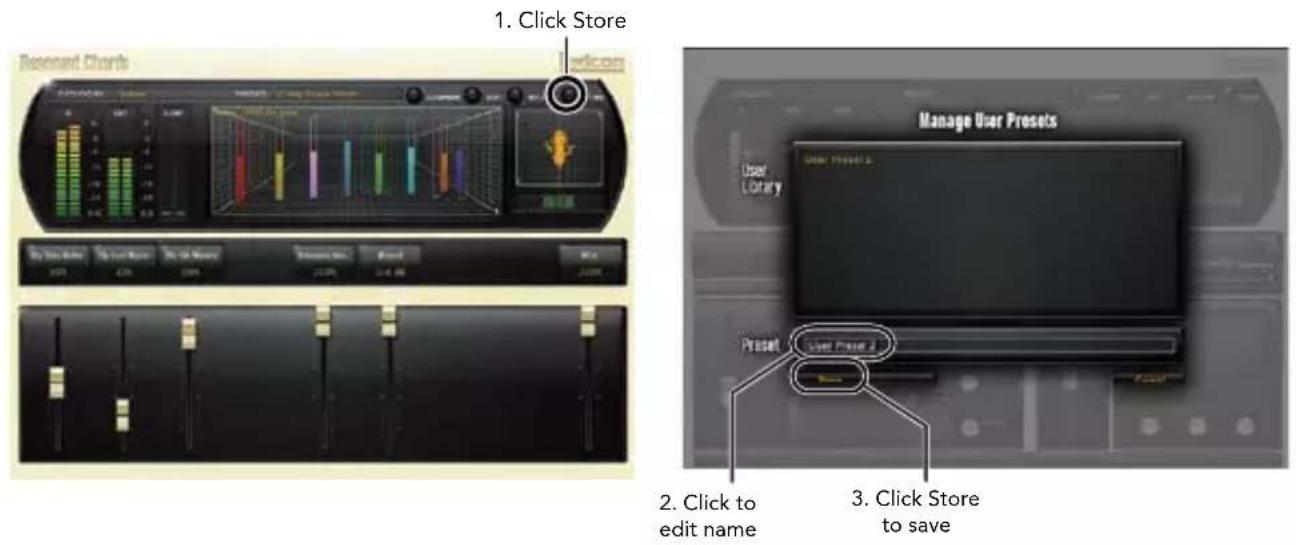
2. Click to edit name
The upper field contains the list of User Presets that have already been created for this algorithm. Presets appear in alphabetical order. Click the name field to edit the name of the preset. Once done, click the Store button.
The lower field contains the name of the preset that was loaded before you began editing. You can easily click in this field and change the name to anything you like. Once you have the appropriate name, click the Store button and the preset will be saved. If you decide not to save the preset, pressing the Cancel button will return you to the editor without saving the preset.
If you select one of the existing presets in the library, you can replace or delete that preset.

- Click to replace, or Click to delete
Where are presets stored?
On the Mac, User Presets are stored in:
"Home"/Library/Application Support/Lexicon/Native/User Presets/"AlgorithmName"
("Home" is the name of the account you're logged in under. "AlgorithmName" is the name of the plug-in.)
On Windows Vista/Seven, User Presets are stored in:
Users/"Username"/AppData/Roaming/Lexicon PCM Native/
UserPresets/"AlgorithmName"
("Username" is the name of the account you're logged in under. "AlgorithmName" is the name of the plug-in.)
On Windows XP, User Presets are stored in:
Documents and Settings/"Username"/Application Data/Lexicon PCM Native/User Presets/"AlgorithmName"
("Username" is the name of the account you're logged in under. "AlgorithmName" is the name of the plug-in.)
Note: The AppData and Application Data folders are Windows system folders and are hidden by default. Windows must be configured to "show hidden files and folders" to view these folders.
Getting the most out of your computer
The PCM Native plug-ins are written to be efficient, and most computers will run more copies than you may need. But if you find yourself needing to squeeze a little bit more out of your CPU, you can take the following simple steps:
- Turn off the active realtime display. The active display window can represent your effect in real time in several ways. However, this display consumes some of your computer's processing power. If you click until you reach the static display, your computer will have more CPU power available.
- Close the plug-in editor. Unless you're actively controlling your mix in realtime, you don't need the editor after you've made the appropriate settings. All those knobs, faders and displays require processing power. You can always reopen the editor if you need to edit.
This page intentionally left blank.
The lexicon®
Heritage
Lexicon ® occupies a unique position as a leading innovator in both professional and consumer audio industries. Since the release of the first digital delay, Lexicon has stood at the forefront of digital audio with a reputation as a manufacturer of exceptional audio and home theater products and an inventor of new technologies. Years of research, development, and learning allow us to continue expanding the boundaries of the listening experience.
Our professional products are prominent in the creation of worldwide music, television, and film productions. These products have won numerous awards, including an Emmy® and numerous TEC awards, including a TEC Hall of Fame award for the Lexicon Delta T-101, the world's first digital delay. Lexicon processors have been embraced as the standard in professional signal processing since the introduction of the 480L Digital Effects Processor, which has retained tremendous popularity for the past 22 years. It has since been replaced as the standard in professional signal processing by the 960L Multi-Channel Digital Effects System and the PCM96 Series Reverb/Effects Processors, which have themselves garnered an impressive following of producers, artists, and engineers.
Growing demand for proprietary Lexicon technologies has led to its appearance in numerous applications, with dramatic results. Our processing is relied upon to enhance the sound of prestigious live halls and venues.
Knowingly or unknowingly, you experience Lexicon products and technologies on a daily basis. Chances are that Lexicon processing was involved in the television program you watch at home, the film you see at the cinema, or the song you listen to on the radio. From the initial tracks to your listening room or automobile, Lexicon is part of the process that brings these recordings to life. Our commitment to the audio professional and content delivery ensures an unbroken chain between the artist and the audience. Now hear this...
The Algorithm

Resonant Chords
The Resonant Chords algorithm, first introduced in the Lexicon PCM70, allows multiple delay voices to be tuned to resonate on specific notes. Use this algorithm to create glistening chords, strange ringing delays, or truly bizarre room sounds.
The Resonant Chord algorithm uses impulsive energy at the inputs to excite six resonant voices (notes). The voices resonate to some degree with any input, but the most effective excitation contains all frequencies, like percussion. Other instruments may give a quality of tonal ambience in which certain notes rise ethereally from the background.
The Resonant Chords algorithm has 8 total delay voices (4 delay voices per input channel). Each voice has independently adjustable delay time of up to 9.5 seconds, resonance frequency, resonance amount, resonance filter, resonance detune and independent output and feedback control.
Each of the delay voice's output and feedback paths include an independently selectable filter, adjustable filter frequency, filter bandwidth, filter shelf, polarity, level and pan control.
The Parameters
The PCM Native plug-ins contain presets covering a wide range of needs, but you can refine and customize any preset by adjusting its parameters. Parameters are the building blocks within each preset that determine how it sounds and behaves.
Each PCM Native plug-in contains a set of parameters, and a variety of those parameters are combined to create a preset.
Following are all the algorithm parameters you can edit in the PCM Native Resonant Chords Plug-in. Note that sometimes parameter names are abbreviated when they appear onscreen, and they may have prefixes indicating what channel they control (for example, the Feedback Level parameter for voice 1 may appear as "L1 FbkLvl").
Delay Master
Mix
Mix is the proportion of wet (processed) signal to dry (unprocessed) signal.
Diffusion
Input diffusion is the first part of processing for any signal entering a delay. It can be described as a smearing or softening of the signal and is typically used to lessen the impact of strong transients.
Feedback Diffusion
Feedback Diffusion is similar to Input Diffusion, except that it is applied to a delayed signal that is being added back into the input.
Delay Level Master
Controls all delays in the algorithm. Each voice has its nominal gain value adjusted by this percentage.
Delay Time Master
Controls all delays in the algorithm. Each voice has its nominal delay time adjusted by this percentage.
Delay Feedback Master
Controls all delays in the algorithm. Each voice has its nominal feedback gain adjusted by this percentage.
Resonance Delay Master
Resonance Master
Controls all voices in the algorithm. Each voice has its nominal resonance adjusted by this percentage.
Filter Master
This parameter controls all voices in the algorithm. Each voice's resonator has its nominal cutoff frequency adjusted by this percentage.
Detune Master
This parameter controls detuning of all voices in the algorithm. Each voice has its nominal detune, adjusted by this percentage.
Tuning Mode
This parameter determines whether the resonant tones are set in Hz or Equal Tempered.
Tuning Master
In the musical world, the tuning reference is A=440. This means that the note A (above middle C) is equivalent to 440 Hz. However, that's not the way it always works in the real world. Therefore, this parameter affects the resonant frequency of all voices in the algorithm. Changing the master tuning causes the notes in all voices to be sharp or flat.
Transposition
This parameter transposes the resonant frequency within all delay voices.
Blend
This parameter adjusts how much of the direct signal is allowed to pass along with the effect from the resonator (Off meaning you hear only the resonance effect and none of the direct signal and 0.0 dB meaning you hear an equal amount of direct signal and the resonance effect). This is a global control which affects all voices.
Voice Parameters
Delay Time
Delay time defines the time offset of a delay voice. This parameter can be adjusted in one of two ways, they are:
• Absolute: Adjusts the delay time in seconds/milliseconds.
- Tempo: Adjusts the delay time in fractions of tempo (quarter note, eighth note, etc.). This tempo is synced to the DAW's session tempo.
Delay Level
This parameter adjusts the output level of the delay line within each voice.
Feedback Level
This parameter determines the feedback level for a particular voice. It is controlled independently of the voice's output level.
Output Pan
Routes the post-filter delay voice across the left-right soundstage.
Feedback Pan
This parameter controls the left-right soundstage of the feedback portion of the delay line signal.
Output Filter Type
This parameter allows you to assign a filter on the output of a delay voice. There are 6 selections available, they are: 1 Pole Lopass, 1 Pole Hipass, 2 Pole Lopass, 2 Pole Hipass, Bandpass, and Notch.
Output Frequency
This parameter lets you set the cutoff frequency of the output filter. The audible effect of this is determined by the Output Filter Type parameter.
Output Bandwidth
When Bandpass or Notch have been selected, this parameter allows you to set the bandwidth of an output filter. Bandwidth is specified in octaves or fractions thereof.
Output Shelf
This parameter affects all output filter types. It allows a certain amount of unfiltered audio to be combined with the filtered audio. This effectively lowers the effect of the filter. Another way of looking at it is that it lessens the normal filter slope of 12 dB per octave. Unlike the traditional biquad filter, the shelf is effective for all filter forms.
Feedback Filter Type
This parameter allows you to assign a filter on the feedback portion of the signal within a delay voice. There are 6 selections available: 1 Pole Lopass, 1 Pole Hipass, 2 Pole Lopass, 2 Pole Hipass, Bandpass, and Notch.
Feedback Frequency
This parameter lets you set the cutoff frequency of the feedback filter. The audible effect of this is determined by the Feedback Filter Type parameter.
Feedback Bandwidth
When Bandpass or Notch have been selected, this parameter allows you to set the bandwidth of a feedback filter. Bandwidth is specified in octaves or fractions thereof.
Feedback Shelf
This parameter affects all feedback filter types. It allows a certain amount of unfiltered audio to be combined with the filtered audio. This effectively lowers the effect of the filter. Another way of looking at it is that it lessens the normal filter slope of 12 dB per octave. Unlike the traditional biquad filter, the shelf is effective for all filter forms.
Resonance Frequency
This parameter determines at which frequency the delay voice resonates. It can be adjusted by frequency (Hz) or musical notes (Equal Tempered).
Resonance Filter
This parameter adjusts the resonator's low pass filter.
Resonance
This parameter determines how much of the resonance effect will be added to the delay voice.
Resonance Detune
This parameter acts as an adjustment to the specified frequency for the voice's resonator. The calculation of cents yields a ratio which is used to modify the specified frequency of the voice. This parameter is then modified by the Detune Master parameter.
Lexicon Plug-Ins & Upgrades
Available Lexicon Plug-Ins
Please visit www.lexiconpro.com for the latest information on available Lexicon plug-ins.
Upgrading
Please visit www.lexiconpro.com for the latest information on upgrading to the PCM Native Effects Bundle or PCM Total Bundle.
lexicon®
by HARMAN
www.lexiconpro.com
Harman
8760 South Sandy Parkway, Sandy, Utah 84070, U.S.A.
Phone: 801.568.7660 | Fax: 801.568.7662
Questions or comments? Visit us at www.lexiconpro.com
©2012 Harman. All rights reserved.
Lexicon is a registered trademark of Harman.
All other trademarks are property of their respective owners.
All features and specifications are subject to change.
PCM Resonant Chords Manual v0.1
- THE LEXICON® LEGACY CONTINUES
- WITH THE PCM NATIVE RESONANT CHORDS
- CONGRATULATIONS AND THANK YOU
- QUICK START
- INCLUDED ITEMS
- TABLE OF CONTENTS
- INSTALLATION....1
- FIRST LOOK—THE USER INTERFACE......2
- PRESETS....14
- GETTING THE MOST OUT OF YOUR COMPUTER..18
- THE ALGORITHM....22
- THE PARAMETERS 24
- LEXICON PLUG-INS & UPGRADES......29
- INSTALLATION
- INSTALL THE PLUG-IN
- ILOK LICENSE
- FIRST LOOK—THE USER INTERFACE
- OVERVIEW
- LEVEL METERS
- PRESET CATEGORY
- PRESET SELECTOR
- REALTIME DISPLAY
- CONTROL BUTTONS
- STEREO/PHASE ANALYZERS
- FADER AREA
- THE REALTIME DISPLAY
- OFF
- 3-D VOICE VIEW
- FREQUENCY
- LIVE IMPULSE RESPONSE
- THE STEREO/PHASE ANALYZERS
- LISSAJOUS FIGURE WINDOW
- STEREO WIDTH METER
- THE FADER AREA
- PARAMETER NAME
- PARAMETER VALUE
- MODIFIER BUTTON
- FADER
- THE CONTROL BUTTONS
- COMPARE
- EDIT
- RELOAD
- STORE
- EDIT NAVIGATION AND FULL EDIT MODE
- THE SOFT ROW
- CUSTOMIZING THE SOFT ROW
- MASTER EDIT PAGE
- RESONANCE EDIT PAGE
- VOICE EDIT PAGES
- PRESETS
- LOADING A PRESET
- STORING AND MANAGING PRESETS
- PORTABLE PRESETS
- WHERE ARE PRESETS STORED
- GETTING THE MOST OUT OF YOUR COMPUTER
- THE LEXICON®
- HERITAGE
- THE ALGORITHM
- RESONANT CHORDS
- THE PARAMETERS
- DELAY MASTER
- MIX
- DIFFUSION
- FEEDBACK DIFFUSION
- DELAY LEVEL MASTER
- DELAY TIME MASTER
- DELAY FEEDBACK MASTER
- RESONANCE DELAY MASTER
- RESONANCE MASTER
- FILTER MASTER
- DETUNE MASTER
- TUNING MODE
- TUNING MASTER
- TRANSPOSITION
- BLEND
- VOICE PARAMETERS
- DELAY TIME
- DELAY LEVEL
- FEEDBACK LEVEL
- OUTPUT PAN
- FEEDBACK PAN
- OUTPUT FILTER TYPE
- OUTPUT FREQUENCY
- OUTPUT BANDWIDTH
- OUTPUT SHELF
- FEEDBACK FILTER TYPE
- FEEDBACK FREQUENCY
- FEEDBACK BANDWIDTH
- FEEDBACK SHELF
- RESONANCE FREQUENCY
- RESONANCE FILTER
- RESONANCE
- RESONANCE DETUNE
- LEXICON PLUG-INS & UPGRADES
- AVAILABLE LEXICON PLUG-INS
- UPGRADING
- LEXICON®
Brand : LEXICON
Model : PCM Native Resonant Chords
Category : Unknown