
TV126 - TV SWEEX - Free user manual and instructions
Find the device manual for free TV126 SWEEX in PDF.


User questions about TV126 SWEEX
0 question about this device. Answer the ones you know or ask your own.
Ask a new question about this device
Download the instructions for your TV in PDF format for free! Find your manual TV126 - SWEEX and take your electronic device back in hand. On this page are published all the documents necessary for the use of your device. TV126 by SWEEX.
USER MANUAL TV126 SWEEX
Thank you for purchasing this LED TV. When opening the box for the first time, please check whether all the accessories are present. Before connecting parts and power, please carefully read the user manual and always keep these instructions handy and close by your LED TV.
Contents
Safety precaution. 2
Accessories. 3
Remote control manual. 4
Remote control functions. 5
TELETEXT function buttons. 6
LED TV panel overview. 7
Connecting to external devices. 9
The OSD menus. 10
USB Multimedia operation. 22
Trouble shooting. 24
Maintenance. 25
1. Safety precaution
Notes:
The lightning flash with arrowhead symbol, within an equilateral triangle, is intended to alert the user to the presence of insinuated "dangerous voltage" within the product's enclosure that may be of sufficient magnitude to constitute a risk of electric shock
The exclamation point within an equilateral triangles is intended to alert the user to the presence of important operating and maintenance (servicing) instructions in the literature accompanying the product.

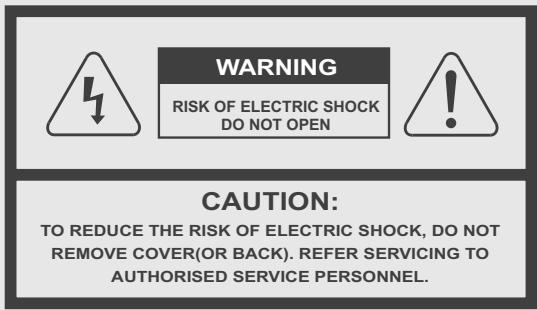
WARNING:
TO REDUCE THE RISK OF FIRE OR ELECTRIC SHOCK, DO NOT EXPOSE THIS PRODUCT TO RAIN OR MOISTURE.
DO's and DON'T's
DO's
Always power this product from an outlet with the same rating (voltage and frequency) as indicated on the rating label on the back of the product.
If this product has been damaged (including cord or plug) take it to an authorised service technician for inspection, and if necessary, repair.
Turn off and disconnect the power cable before cleaning or storing this product.
Ensure this product does not get wet or splashed.
Only use the A/C power adapter supplied with your product, or a replacement recommended by an authorised technician.
DON'T'S
Do not place naked flames, such as lighted candles on or near the product.
Do not place objects filled with liquids, such as vases on or near the product.
Do not install this product on top of other electrical equipment or on uneven surfaces.
Do not use or store this product in a place where it is subject to direct sunlight, heat, excessive dust or vibration.
Do not use this product with wet hands.
Do not clean this product with water or other liquids.
Do not block or cover the slots and holes in the product.
Do not push foreign objects into the slots or holes in the product.
The screen surface is easily scratched. Do not touch the screen with your hands or any hard object.
Do not pull the power cord when disconnecting power. Turn off the switch on the socket and pull the plug not the cord.
Do not attempt to open this product yourself. There are no user serviceable parts inside.
SAFETYWARNINGS
Before using this product, read and follow all warnings and instructions.
This product is not intended for use by young children. Young children should be properly supervised.
This product is intended for household use only and not for commercial or industrial use.
Do not expose to dripping or splashing.
No naked flame sources, such as lighted candles, should be placed on the product.
Allow suitable distances around the product for sufficient ventilation.
Ventilation should not be impeded by covering ventilation openings with items such as newspapers, table cloths, curtains and the like.
Make sure the LED TV stand is adjusted to a stable position. Damage caused by using this product in an unstable position or by failure to follow any other warning or precaution contained within this user manual will not be covered by warranty.
2. Accessories
Check the accessories
(TV accessories)
User manual
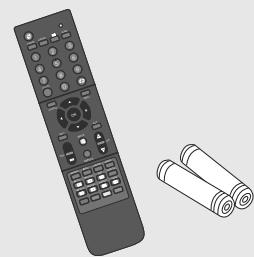
Remote control/batteries
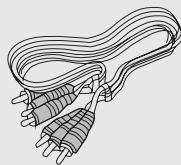
AV connection cable
3. Remote control manual
Bright sunlight or lighting may cause erratic remote operation
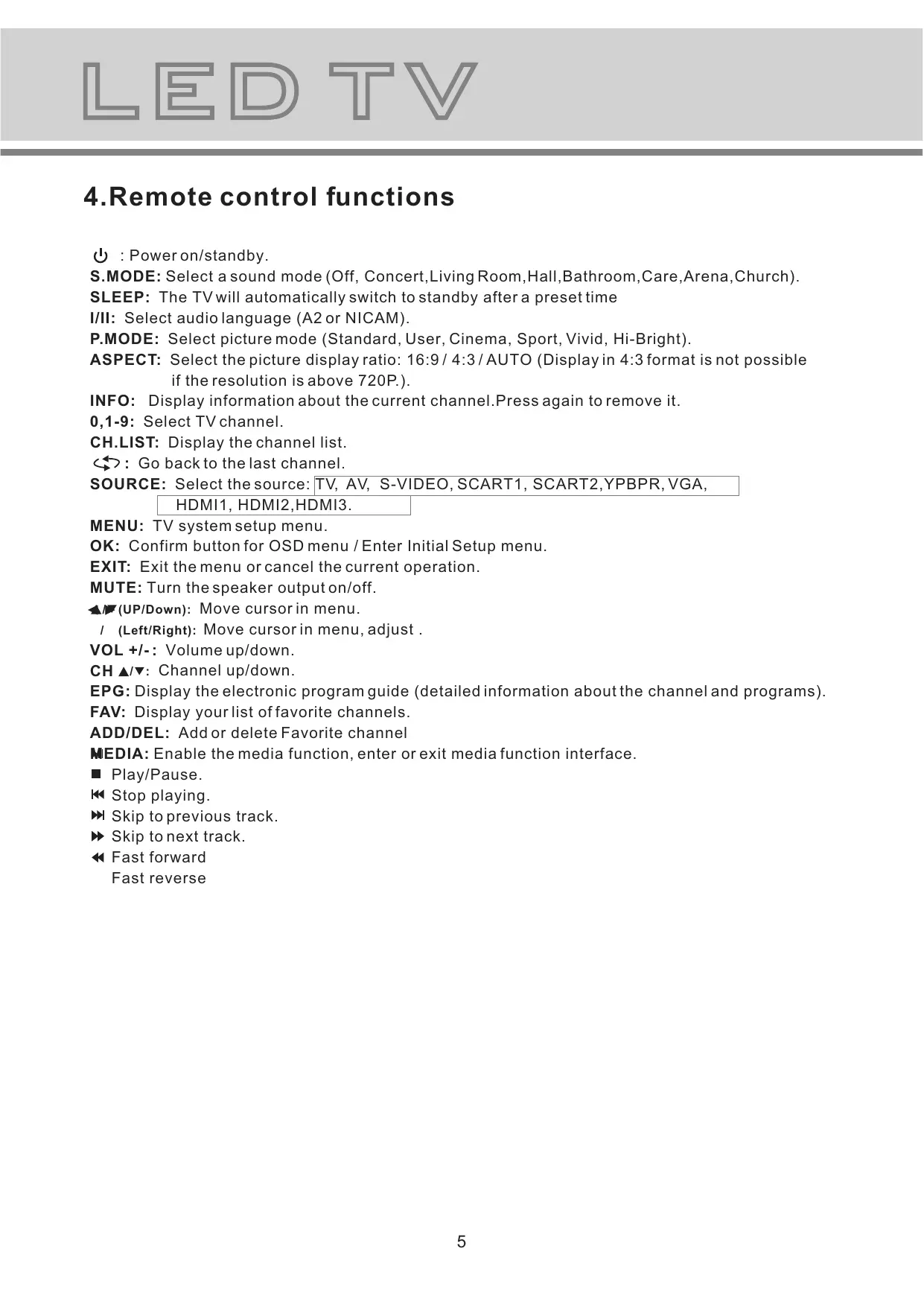
4. Remote control functions
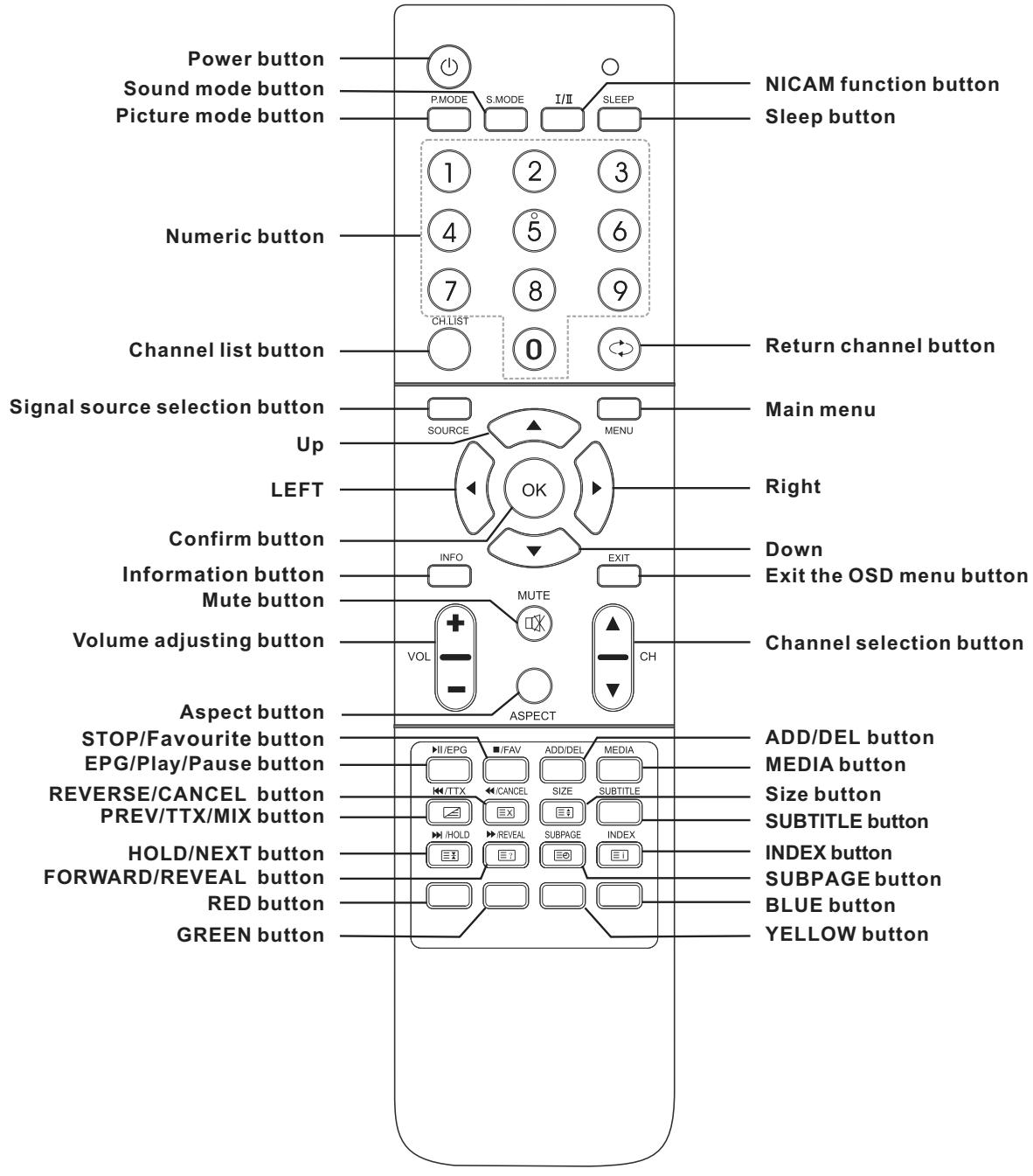
:Poweron/standby.
S.MODE: Select a sound mode (Off, Concert, Living Room, Hall, Bathroom, Care, Arena, Church).
SLEEP: The TV will automatically switch to standby after a preset time
I/II: Select audio language (A2 or NICAM).
P.MODE: Select picture mode (Standard, User, Cinema, Sport, Vivid, Hi-Bright).
ASPECT: Select the picture display ratio: 16:9 / 4:3 / AUTO (Display in 4:3 format is not possible if the resolution is above 720P.).
INFO: Display information about the current channel. Press again to remove it.
0,1-9: Select TV channel.
CH.LIST: Display the channel list.
: Go back to the last channel.
SOURCE: Select the source: TV, AV, S-VIDEO, SCART1, SCART2, YPBPR, VGA, HDMI1, HDMI2, HDMI3.
MENU: TV system setup menu.
OK: Confirm button for OSD menu / Enter Initial Setup menu.
EXIT: Exit the menu or cancel the current operation.
MUTE: Turn the speaker output on/off.
UP/Down): Move cursor in menu.
/ (Left/Right): Move cursor in menu, adjust.
VOL + / - : Volume up/down.
CH / : Channel up/down.
EPG: Display the electronic program guide (detailed information about the channel and programs).
FAV: Display your list of favorite channels.
ADD/DEL: Add or delete Favorite channel
MEDIA: Enable the media function, enter or exit media function interface.
Play/Pause.
止 playing.
Skip to previous track.
Skip to next track.
Fast forward Fast reverse
5. TeLETEXT function buttons

Press this button once, turn on the teletext function, Press twice, enter picture and text mix mode. Press once more, turn off the teletext function.

After searching for some page, press this key once to go back to the text mode. While the searching result will be displayed at the top of the TV picture, press again to go back to the text mode.

Press this key to change the size of the character of the current text page as following: Normal Display the upper half Display the bottom half Normal Display.
SUBTITLE

Press this key to turn on or off the subtitle of TV programs.

Keep the current page not to refreshed and press again to cancel the holding state.

Reveal/Conceal the concealed information of the current text page.

To enter the subpage.

To show teletext index.


RED
GREEN
YELLOW
BLUE:Fast teletext buttons
6. LED TV panel overview
TV Control Panel
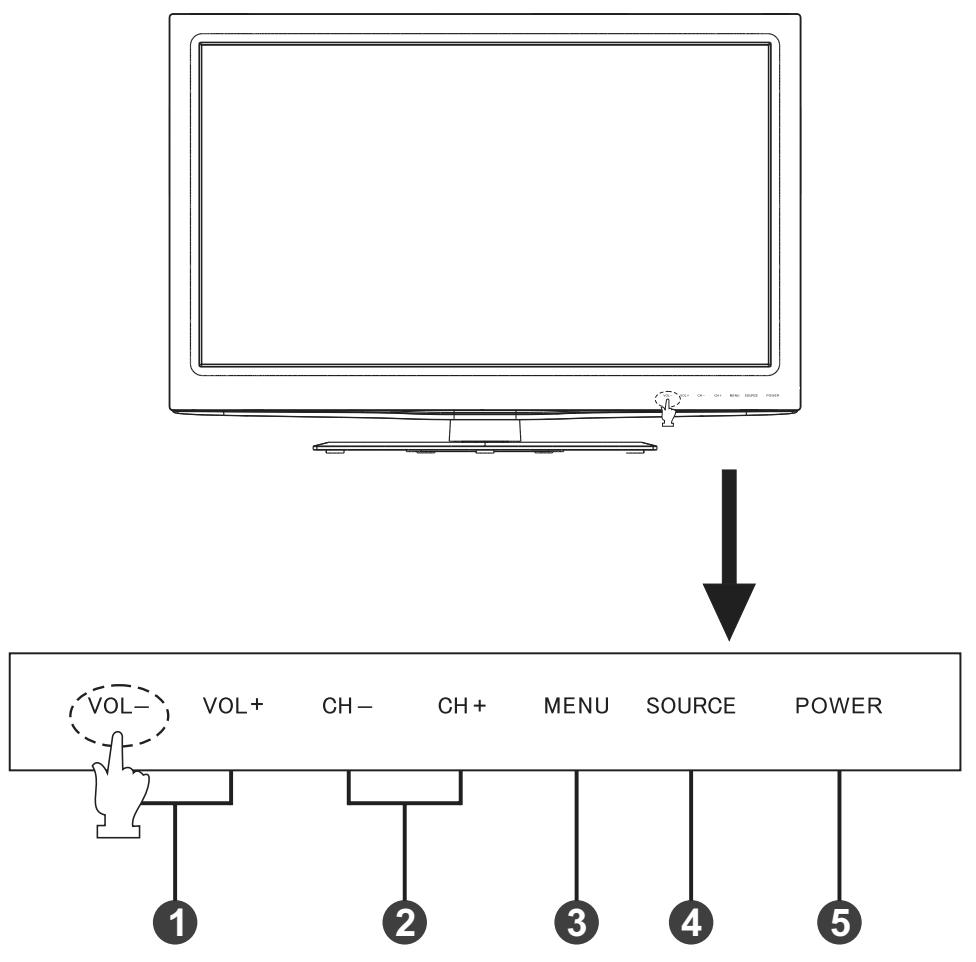
1.Volume adjustment and Menu item adjustment.
2.Channel selection and Menu item selection.
3. Main menu display and confirm.
4. Signal Source selection button.
5. On/off button.
Instruction of the touch button
-
Press any button with your fingers lightly to activate the touch buttons and all indicators will be lit.
-
Press the desired button while all the button indicators are turned on.
The corresponding indicator will flicker once it is pressed.
NOTE
To make it easier for the monitor to respond the touch button, please press the location slightly below the silk screen of the buttons indicated as following.
TV Terminal connections
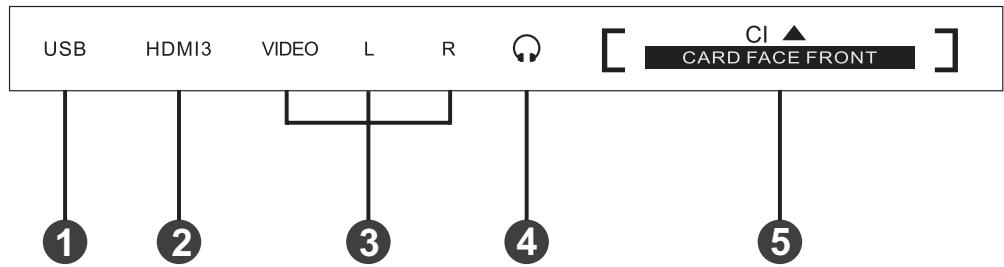
- USB input.
- HDMI input.
-
AV input.
-
Headphone output.
- CI card input.
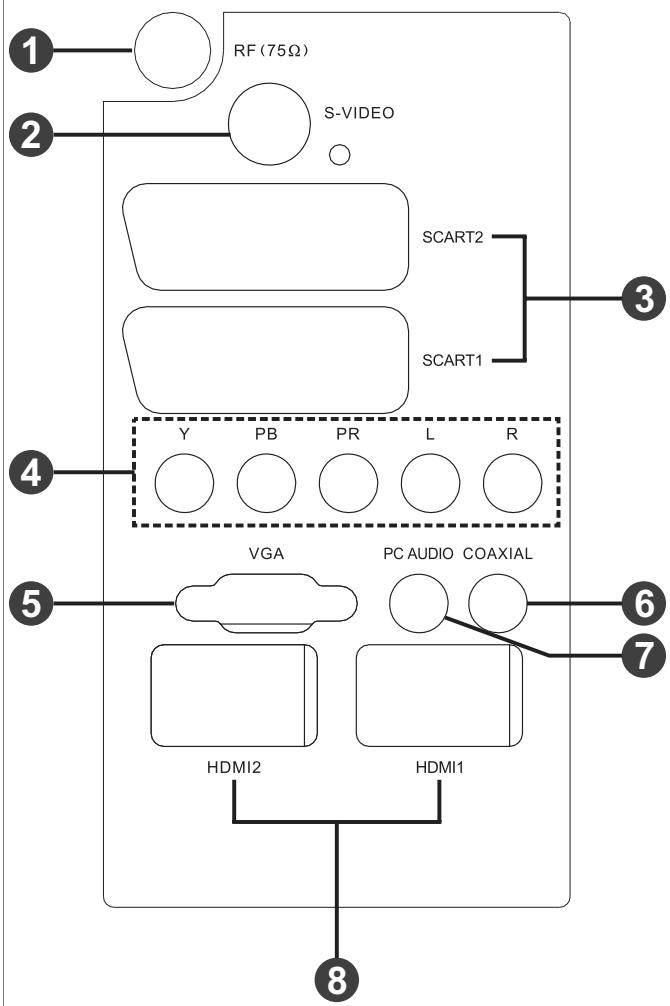
- Antenna input (75 Ohm VHF/UHF).
- S-VIDEO input.
- SCART input terminal, suitable for a European export machine.
- Component and audio input terminal.
- VGA input.
- Coaxial audio signal out plug.
- PC audio input.
- HDMI input.
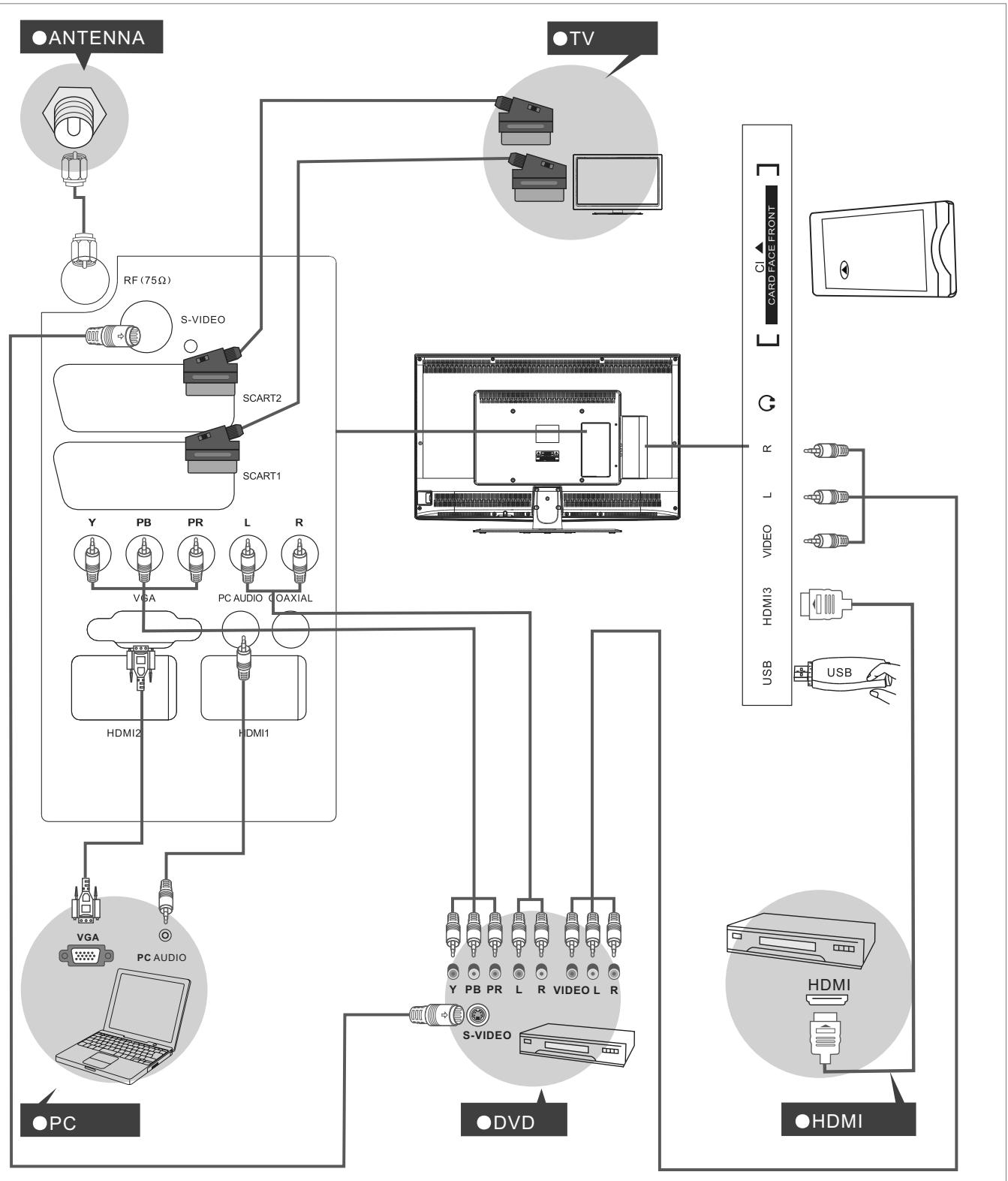
7. Connecting to external devices
8. The OSD menus
Menu Setup TV (When using for the first time only)
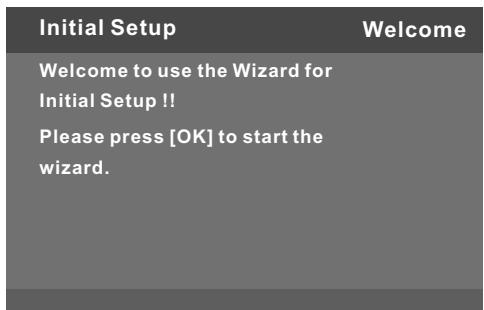

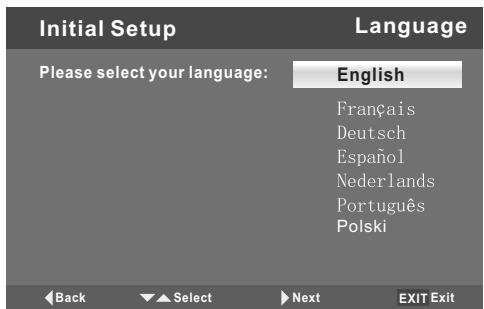
- Turn on TV, Please press"OK" to start the wizard
- Please select your language
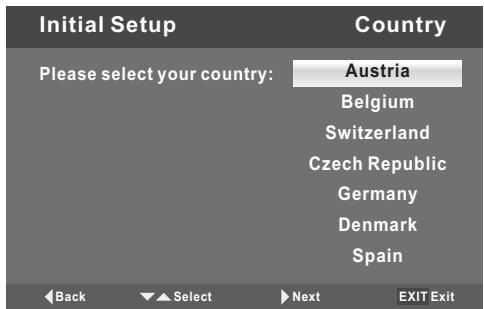
- Please select your country
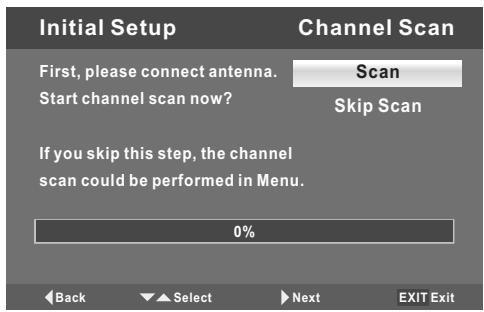
- Connect antenna and Press "OK " key start channel scan
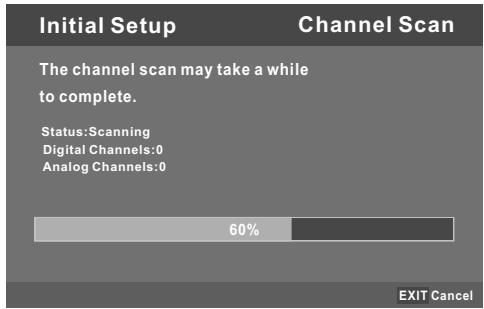

Menu Operation Under TV Input
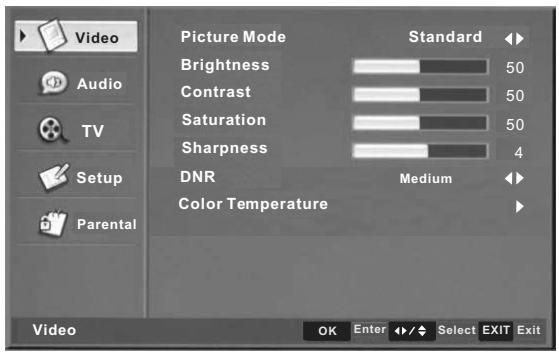
1.VIDEO MENU
a. The following picture is the sketch map of the video menu.
b. The definition of each option:
b-1. Picture Mode: Change the picture mode in the sequence as: Standard User Cinema Sport Vivid Hi-Bright
b-2. Brightness: Change the value of brightness with the key / in the range of 0 to 100.
b-3. Contrast: Change the value of contrast with the key / in the range of 0 to 100.
b-4. Saturation: Change the value of saturation with the key / in the range of 0 to 100.
b-5. Sharpness: Change the value of sharpness with the key / in the range of 0 to 7.
b-6. DNR: Change the DNR in the sequence as: Medium Strong Auto Off Low, which do not work in the VGA/HDMI/YPBPR source.
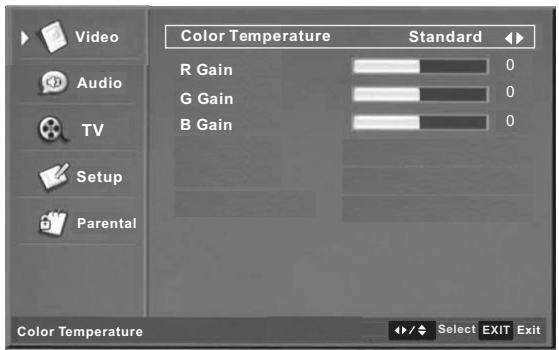
b-7. Color Temperature: Change the color temperature in the sequence as: User Cool Standard Warm, also R Gain, G Gain, B Gain included in each item
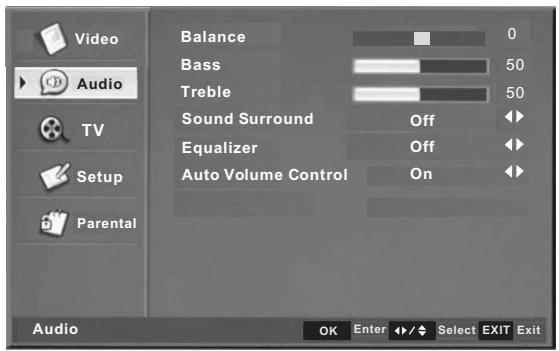
2.AUDIO MENU
a. The following picture is the sketch map of the audio menu.
b. The definition of each option:
b-1. Balance: Change the value of Balance with the key / in the range of -50 to +50.
b-2. Bass: Change the value of Bass with the key / in the range of 0 to 100.
b-3. Treble: Change the value of Treble with the key / in the range of 0 to 100.
b-4. Sound Surround: Change the sound surround in the sequence as: On→Off.
b-5. Equalizer: Change the Equalizer in the sequence as: Off Concert Living Room Hall Bathroom Cave Arena Church.
b-6. Auto Volume Control: Change the Auto Volume Control in the sequence as: On→Off.
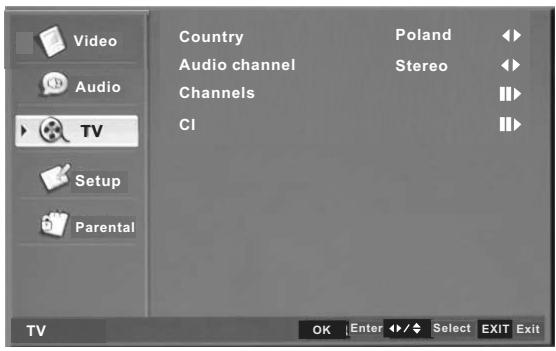
3. TV MENU
a. The following picture is the sketch map of the TV menu.
b. The definition of each option:
b-1. Country: Change the country in the sequence as: Germany, Denmark, Spain, Finland, France, United Kingdom, Italy, Luxembourg, Netherlands, Norway, Sweden, Austria, Belgium, Switzerland, Czech Republic, etc.
b-2. Audio channel: Change the audio channel: Stereo, Dual1, Dual2, Mono
b-3. Channels: Press / key to this position, Then press key to enter manual search programs, you can set the subordinate menu.
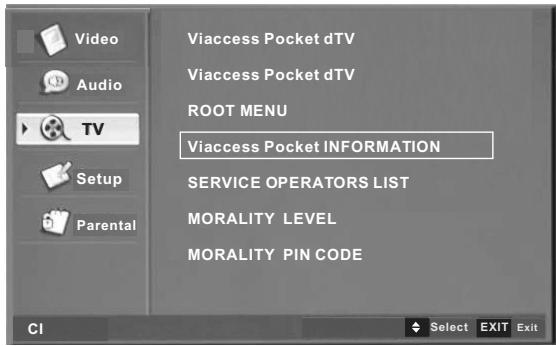
b-4. CI:CI card item
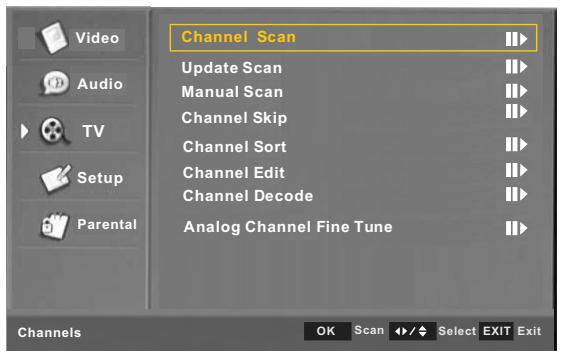
The submenu of ChannelItem
b-3-1. Channel Scan: Auto channelsearching.
b-3-2. Update Scan: Searching added channel.
b-3-3. Manual Scan: manual channel searching
b-3-4. Channel Skip: Set skip function.
b-3-5. Channel Sort: Sorting channel.
b-3-6. Channel Edit: Edit channel information.
b-3-7. Channel Decode: Decode function.
b-3-8. Analog Channel Fine Tune: Fine tuning.
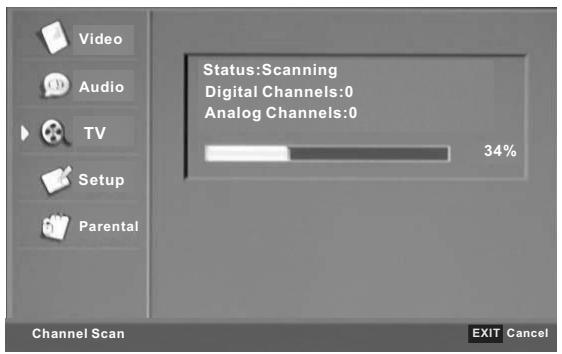
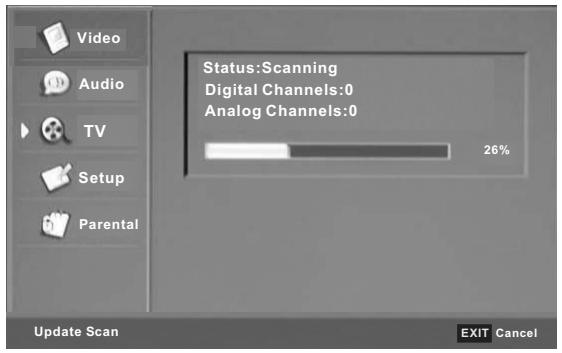
b-3-1/2. The submenu of Channel Scan and update Scan Item These two items are used for searching channels. The channel scan is searching the channels completely, and the update scan is searching the channels for updating.
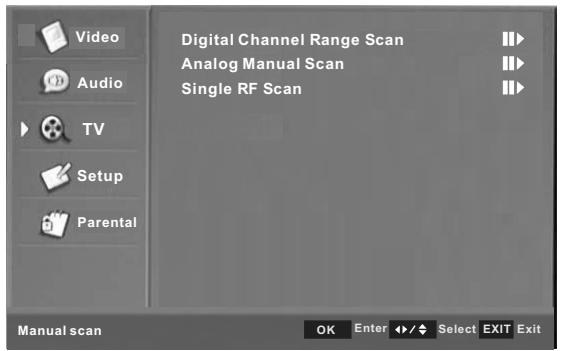
b-3-3. The submenu of manual channel scan This item can analog channel scan and single RF scan.
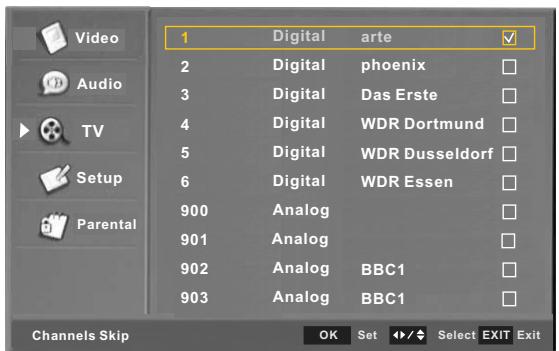
b-3-4. The menu of Channel Skip
The channel skip is used for skipping the channel.
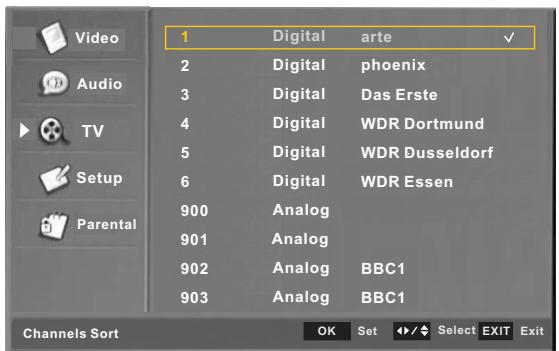
b-3-5. The submenu of Channel Sort Item The channel sort is used for changing the channel.
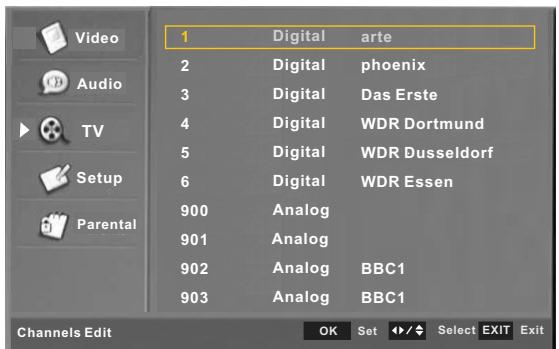
b-3-6. The menu of Channel Edit The channel edit is used for editing the channel items.
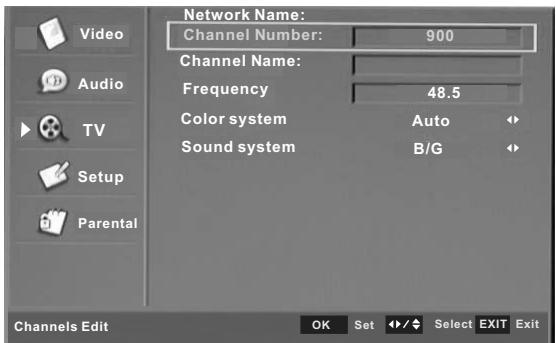
Press numeric button to edit channel name:
1: A / B / C / 1
2:D/E/F/2.
3:G/H/1/3
4:J/K/L/4
5: M / N / O / 5
6: P/Q/R/6
7: S / T / U / 7
8:V/W/X/8
9:Y/Z/9
0: + / - / . / 0
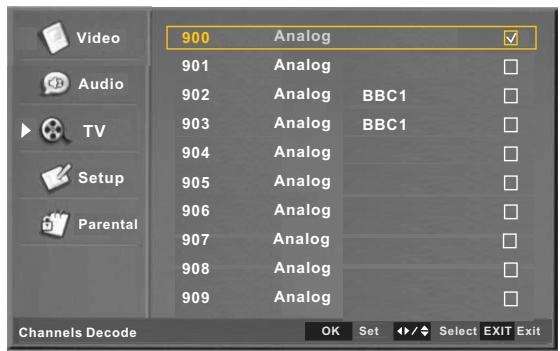
b-3-7. The menu of Channel Decode The channel decode is used for decoding the channel.
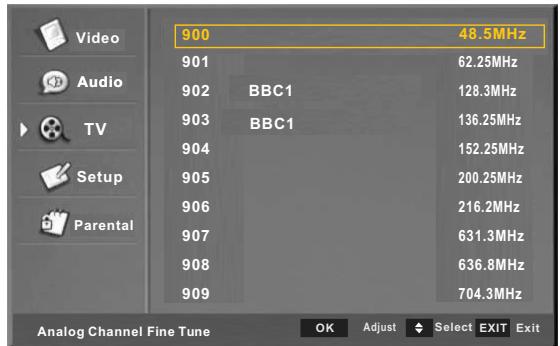
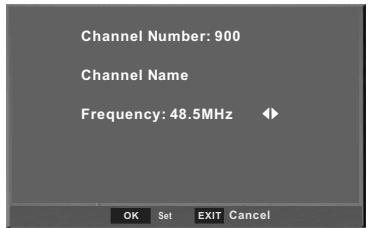
b-3-8. The submenu of Analog Channel Fine Tune This item shows the frequency of each program.
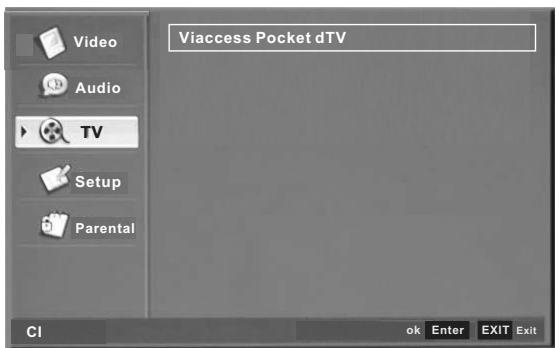
b-4.CI card item:when insert the CI Card, it will display the information of the CI card. (only in DTV)
4. Setup MENU
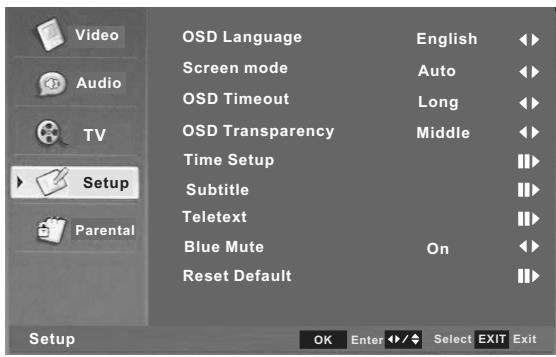
a. This menu is used to set the function
b. The definition of each option:
b-1. OSD Language: Change the OSD
language in the sequence as: English→
Français Deutsch Espanol Nederlands Português Polska
b-2 .Screen mode: Change the Screen
mode in the sequence as: Auto 16:9 4:3
b-3. OSD TIMEOUT: set the showing time of OSD Menu in the sequence as: Short Long Middle.
b-4. OSD Transparency: set the
transparency of the OSD Menu in the
sequence as: Middle Low High.
b-5. Time Setup: set the timer, you can set the subordinate menu.
b-6. Subtitle :set the subtitle, you can set the subordinate menu.
b-7. Teletext: set the teletext, you can set the teletext menu.
b-8. Blue Mute: Change the blue mute in the sequence as: On Off.
b-9. Reset Default: restore default setting.
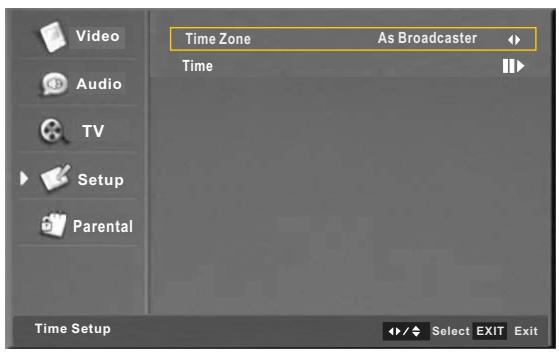
The Submenu of Time Setup
b-5-1. Time Zone: Change the time zone by user.
b-5-2. Time: set the time. and set power on/off time.
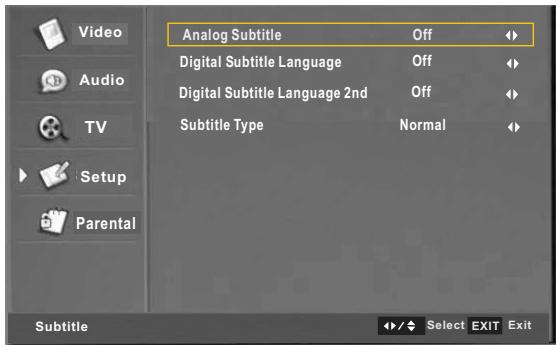
The submenu of Subtitle Item.
b-6-1. Analog Subtitle: Change the analog subtitle in the sequence as: Off、On、Mute
b-6-2. Digital Subtitle Language:
Change the subtitle language in
the sequence as: Off English Espanol Francais Deutsch Nederlands,etc.
b-6-3. Digital Subtitle Language 2nd:
Change the subtitle language in
the sequence as: Off English Espanol Français Deutsch Nederlands,etc.
b-6-4. Subtitle Type: Change the subtitle type in the sequence as: Normal、Hearing Impaired.
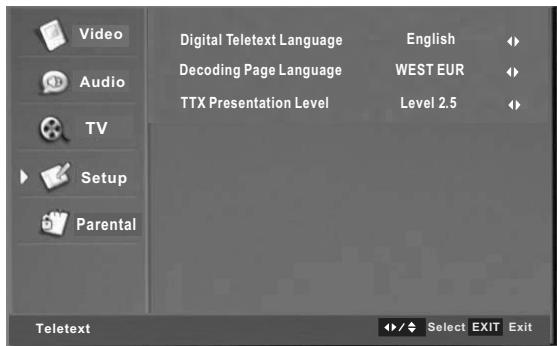
b-7-1. Digital Teletext Language: Change the digital teletext language in the
sequence as: English→Espanol→Français →Deutsch→Nederlands,etc.
b-7-2. Decoding Page Language: Change the decoding page language in the
sequence as: WEST EUR→EAST EUR→RUSSIA→RUSSIA-2→GREEK→Turkey→
Arab/Hbrw Farsian Arab,etc.
b-7-3.TTX Presentation Level: Change TTX
Presentation Level as:Level 1.5 Level 2.5
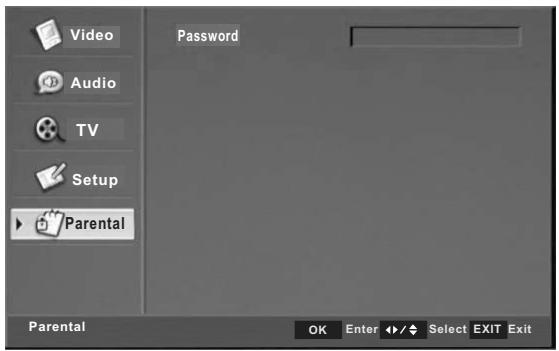
5 . Parental menu
a. This menu is used to set the block function.
Password: set the child lock password, the initial password is 0000.

b. The Submenu after You Enter the Correct Password.
b-1. Hotel block: Hotel mode set
b-2. Channel block: block the channel
b-3. Program block: block the program
b-4. Input block: you can block any of the source.
b-5. Change password: change the parental password.
b-6. Clean all: restore your set.
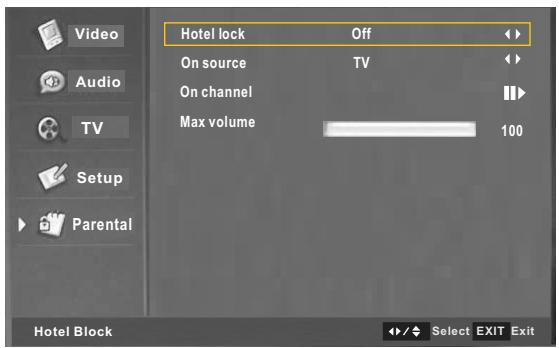
b-1. The menu of hotel block: You can
select the hotel mode by setup below options:
b-1-1: Hotel lock: On/Off
b-1-2:On source: Select your input source
while open the main unit.(TV/AV/S-VIDEO/SCART1
/SCART2/YPBPR/VGA/HDMI17/HDMI27/HDMI3)
b-1-3:On channel: Select your TV channel No.
while you open the main unit under TV mode.
b-1-4:Max Volume: Setup the maximum volume level.
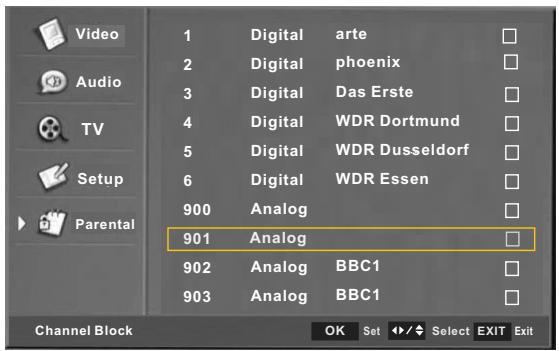
b-2. The submenu of channel block. If you select any of the channel, the channel can not receive signal unless you unblock it.
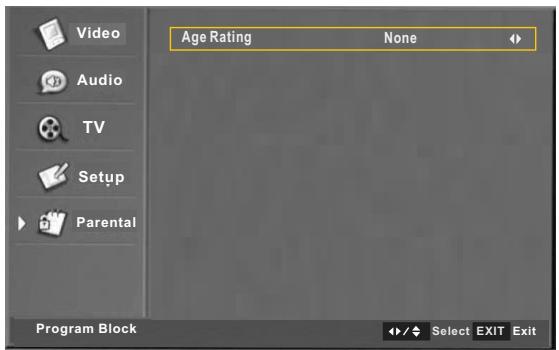
b-3. The menu of program block.
Age Rating: The program will be blocked if the age you set is below that the program confine.
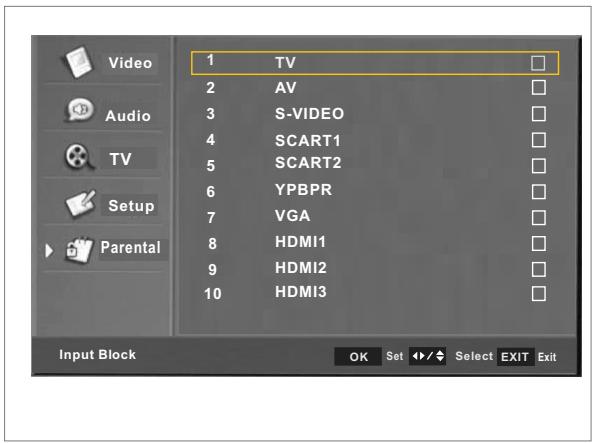
b-4. The submenu of input block. If you select any of the source, the source can not be used unless you unblock it.
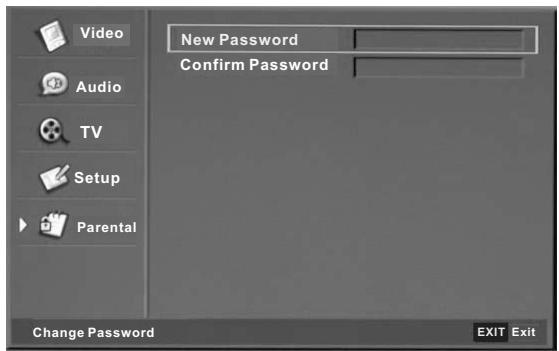
b-5. The submenu of change password. You need to input the new password and confirm it.
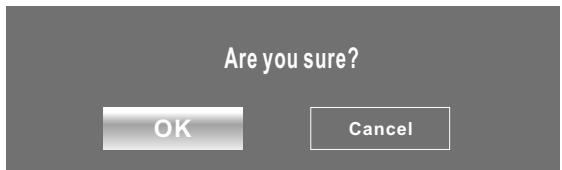
b-6. The submenu of Clean All. Press OK to clean your set or cancel to return the previous menu.
+ Main menu under VGA Input

a. When system signal source switch to VGA, there will be a VGA mark in the up-left corner of the screen, it is in the VGA menu ,and you can setup the item.
a-1. Auto Adjust: set position and size of the picture automatically.
a-2. H.Position: Adjust the H-Position of the picture. you can set the value range 0-100.
a-3. V.Position: Adjust the V-Position of the picture. you can set the value range 0-100.
a-4. Phase: Adjust the phase of the picture. you can set the value range 0-31.
a-5. Clock: set the clock. you can set the value range 0-255.
+ SOURCE

- Press "SOURCE" button to enter the signal source menu.
- Press "▲/▼" button to select signal source.
- Press "OK" button to confirm.
- Press "EXIT" button to exit signal source menu.
USB Multimedia operation
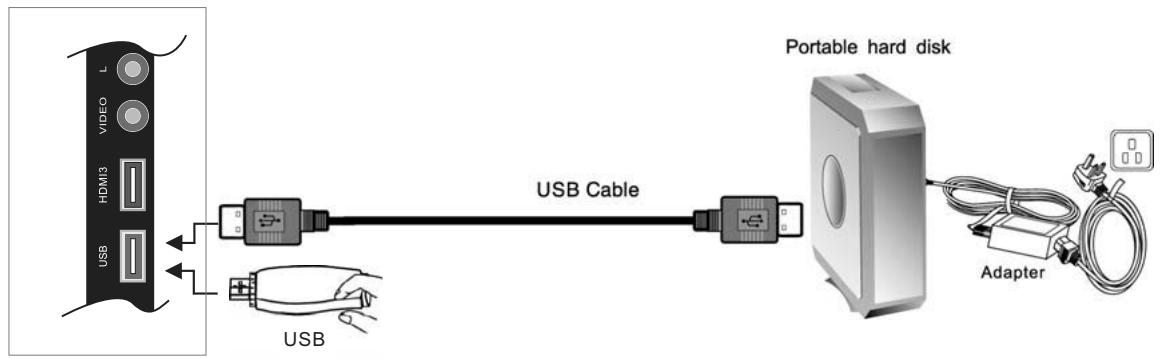
Import ant: All multimedia operations are available only when an USB storage device is Connected. The USB storage device is not included in this TV packing, please purchase it separately.
NOTE:
(a)Switch off the TV before connecting any USB devices of the USB port
(b) If a hard disk is used, make sure its AC/DC adapter is connected to the power supply.
(c)The file system only support FAT32 format
MULTIMEDIA OPERATION
Press MEDIA button on the remote control to show the MULTIMEDIA menu, press MEDIA button again to exit this menu
Press buttons to select the sub-menu(Picture/Music/Video),press OK button to enter
Multimedia Operation: Picture
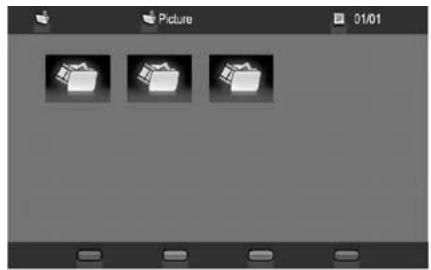
Press buttons to select Picture, press OK button to enter, Press EXIT button to return to the previous menu. press the buttons to select the photo you want to view, press the OK button to view the picture, press the EXIT button to exit.
NOTE: file format supported: JPEG

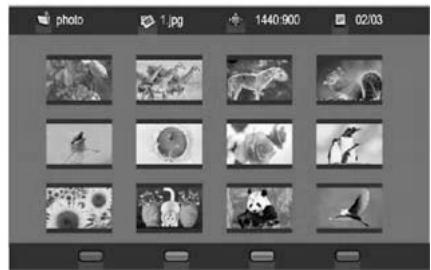
Press the RED button on the remote control to make a pause, press again to play picture. Press the GREEN button on the remote control to select different duration mode (medium long/short)
Press the YELLOW button on the remote control to select different effect mode (none/ dissolve/wipe right/wipe left/wipe up/wipe down/box in/box out)
Press the BLUE button on the remote control to view the picture information, press again close it. If it state pause mode, press GREEN button can rotate the currently view picture.
USB Multimedia operation
Multimedia Operation: Music
Press buttons to select Music button to enter, Press EXIT button to return to the previous menu. press the buttons to select the Music to view, press the OK button to play the music, press the
EXIT button to exit.
NOTE: file format just supported : MP3

Press button once to pause,
Press button again to return to normal play
Press button to stop playback.
Press button to play the previous track.
Press button to play the next track
Press button for quick revind search
Press button for quick forward search
Press RED button to select repeat play mode.
Press GREEN button to select shuffle play mode
Press BLUE button to display the currently music information
Multimedia Operation: Picture and Music mode
First play music, press EXIT button exit Music mode and into picture mode, select you want view picture, press OK button to play picture, then the Music can playback background of Picture mode.
Multimedia Operation: Video
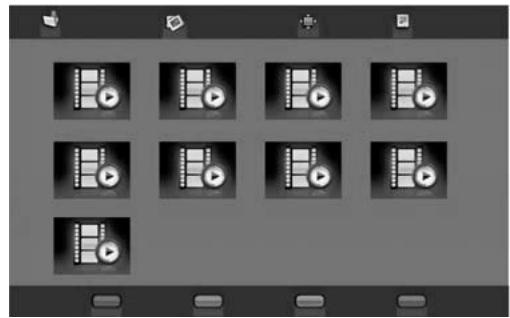
Press buttons to select Video button to enter, Press EXIT button to return to the previous menu. press the buttons to select the Video to view, press the OK button to play the movie.
Press the EXIT button to exit.
NOTE: file format just supported : SD MPEG1(.dat .mpg) /SD MPEG2(.vob .mpg)/SD MPEG4(.avi), not supported divx file and other HD video format.

Press button once to pause,
Press button again to return to normal play
Press button to stop playback.
Press button to play the previous track.
Press button to play the next track
Press button for quick revind search
Press button for quick forward search
Press GREEN button to select picture mode(user/cinema/sport/vivid/hi-bright )
Press BLUE button to display the currently music information
Trouble shooting
Before contrast the service technician, perform the following simple checks. If any program still persists, unplug the LED TV and calling for serving.
| PROBLEM | POSSIBLE SOLUTION |
| No sound and picture | - Check that the main plug has been connected to a wallet. - Check that you have pressed the POWER button on the front of TV set. - Check the picture contrast and brightness settings. |
| Normal picture but no sound | - Check the volume. - Sound muted? Press the MUTE button. - Try another channel the problem may be with the broadcast. - Are the audio cables installed properly. |
| The remote control does not work | - Check to see if there any object between the product and remote control Causing obstruction. - Are batteries installed with correct polarity(+ to+, - to -). - Correct remote operating mode set: TV, VCR etc.? - Install new batteries |
| Power is suddenly turned off | - Is the sleep timer set. - Check the power control settings. Power interrupted. - No broadcast on station tuned with auto activated. |
| Picture appears slowly after switching on | - This is normal, the image is muted during the product startup process. Please contact your service center, if the picture has not appeared after five minutes. |
| No or poor color or poor picture | - Adjust the color in menu option. - Keep a sufficient distance between the product and the VCR. - Try another channel, the problem may be with the broadcast. - Are the VIDEO cables installed properly? - Activate the any function to restore the brightness of the picture. |
| Horizontal/vertical bars or picture shaking | - Check for local interference such as an electrical appliance or powertool. |
| Poor reception on some channels | - Station or cable product experiencing problems. Tuneto another station. - Station signal is weak, reorient antenna to receive weaker station. - Check for sources of possible interference. |
| Lines or streaks in pictures | - Check the antenna(Change the direction of the antenna). |
| No output from one of the speakers | - Adjust balance in menu option. |
NOTE: There is a problem in VGA mode.(Only VGA mode applied)
| PROBLEM | POSSIBLE SOLUTION |
| The signal is out of range. | - Adjust resolution, horizontal frequency, or vertical frequency. - Check it whether the signal cable is connected or loose. - Check the input source. |
| Vertical bar or stripe on back ground&Horizontal Noise&Incorrect position. | - Work the auto configure or adjust clock, phase, or H/V position. |
| Screen color is unstable or single color. | - Check the signal cable. - Reinstall the PC video cord. |
Maintenance
Early malfunctions can be prevented. Careful and regular cleaning can extend the amount of time you will have your new TV. Be sure to turn the power off and unplug the power cord before you begin any cleaning.
Cleaning the screen
- Here's a great way to keep the dust off your screen for a while. Wet a soft cloth in a mixture of lukewarm water and a little fabric softener or dish washing detergent. Wring the cloth until it's almost dry, and then used it to wipe the s-creen.
- Make sure the excess water is off the screen, and then let it air-dry before you turn on your TV.
Cleaning the cabinet
To remove dirt or dust, wipe the cabinet with a soft, dry, lint-free cloth. Please be sure not to use a wet cloth.
Extended Absence

If you expect to leave your TV dormant for a long time(such as a vacation), it's a good idea to unplug the power cord to protect against possible damage from lightning or power surges.