
MO128 - Modem SWEEX - Free user manual and instructions
Find the device manual for free MO128 SWEEX in PDF.

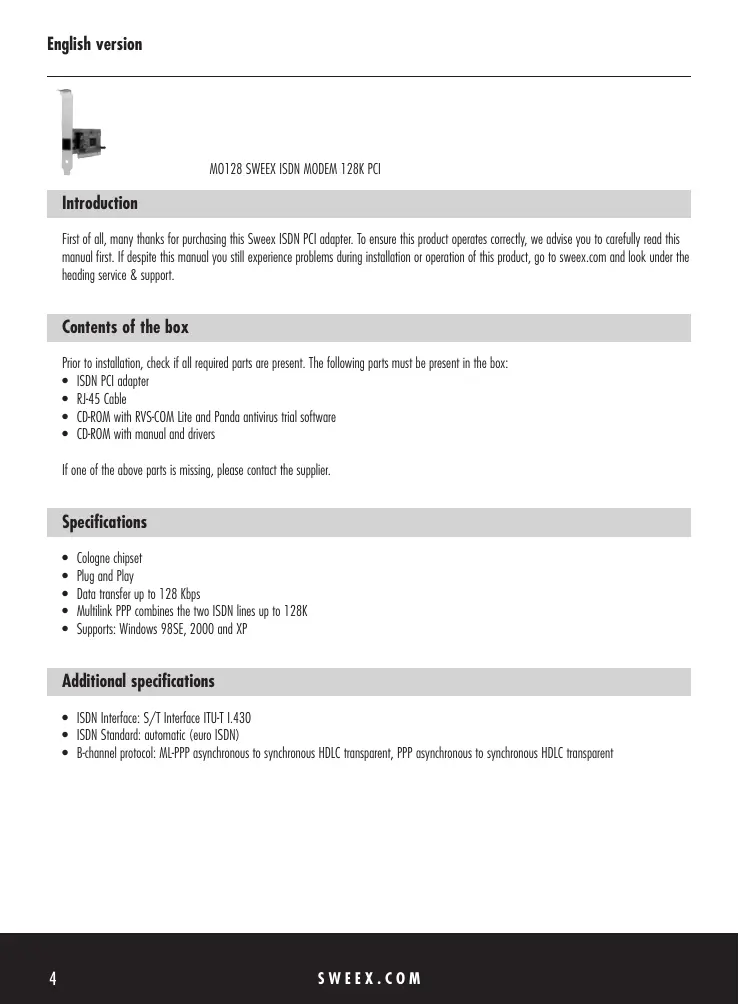

| Product Type | ISDN PCI Modem |
| Brand | Sweex |
| Model | MO128 |
| Chipset | Cologne |
| Interface | PCI, Plug and Play |
| Transfer Rate | Up to 128 Kbps (Multilink PPP) |
| ISDN Interface | S/T compliant with ITU-T I.430 |
| ISDN Standard | Euro-ISDN (DSS1) automatic |
| B-Channel Protocol | Asynchronous/synchronous ML-PPP, transparent HDLC, asynchronous/synchronous PPP, transparent HDLC |
| Supported Operating Systems | Windows 98SE, 2000, XP |
| Dimensions (approx.) | 12 cm × 6 cm × 1.5 cm (standard PCI card) |
| Weight (approx.) | 100 g |
| Power | Via PCI slot (5V) |
| Power Consumption | Approximately 2 W |
| Box Contents | ISDN PCI adapter, RJ-45 cable, CD-ROM with drivers and software (RVS-COM Lite, Panda Antivirus) |
| Warranty | 3 years |
| Maintenance and Cleaning | Disconnect before cleaning; use a dry, lint-free cloth. Avoid liquids. |
| Safety | Install while disconnected; discharge static electricity by touching a metal ground. Use only in a closed PC case. |
| Spare Parts and Repairability | Not available; contact the dealer in case of defect. |
Frequently Asked Questions - MO128 SWEEX
User questions about MO128 SWEEX
0 question about this device. Answer the ones you know or ask your own.
Ask a new question about this device
Download the instructions for your Modem in PDF format for free! Find your manual MO128 - SWEEX and take your electronic device back in hand. On this page are published all the documents necessary for the use of your device. MO128 by SWEEX.
USER MANUAL MO128 SWEEX
First of all, many thanks for purchasing this Sweex ISDN PCI adapter. To ensure this product operates correctly, we advise you to carefully read this manual first. If despite this manual you still experience problems during installation or operation of this product, go to sweex.com and look under the heading service & support.
Contents of the box
Prior to installation, check if all required parts are present. The following parts must be present in the box:
- ISDN PCI adaptor
RJ-45 Cable - CD-ROM with RVS-COM Lite and Panda antivirus trial software
- CD-ROM with manual and drivers
If one of the above parts is missing, please contact the supplier.
Specifications
Cologne chipset
Plug and Play
Data transfer up to 128 Kbps
- Multihink PPP combines the two ISDN lines up to 128K
Supports:Windows 98SE,2000 and XP
Additional specifications
- ISDN Interface: S/T Interface ITU-T I.430
- ISDN Standard: automatic (euro ISDN)
B-channel protocol: ML-PPP asynchronous to synchronous HDLC transparent, PPP asynchronous to synchronous HDLC transparent
Installation of hardware
Take the following precautionary measures prior to installing the hardware:
- Ensure the PC is switched off and disconnected from the mains.
- Also, disconnect the printer and monitor cables (they have their own power supplies) to make absolutely sure the PC is not live.
- Now unscrew the computer casing.
- Subsequently, remove any static electricity you may carry on your body. Do this by touching a (neutral) pipe of the central heating system or an unpainted water pipe, among other things. Please note that you must not use a magnetic screwdriver for this. Before you proceed any further, briefly touch the iron frame of the PC casing. Make sure that you minimise contact with any contact points of the PC Card or the memory.
- Find a vacant PCI slot and remove the metal guard plate part of the computer casing in front of the relevant slot. On occasion the card does not allow to be inserted in the PCI slot smoothly. Should this be the case, do not force anything, but try another available slot.
- Once the card has been successfully installed, check whether all other cards are still properly inserted in the PCI slots. It is possible that the other PCI cards are lifted up slightly when installing a new PCI card; as a result, the relevant cards or even the entire PC may no longer operate correctly.
- Replace the casing on the computer base and correctly reconnect all cables.
- Switch on the PC again.
Windows 98SE installation
After the card has been installed in the system, switch on the PC. Windows will detect the card and show the following screen. Here click "Next" (Next).
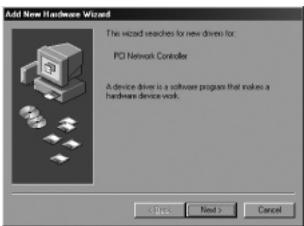
In the next screen, select the option "Search for the best driver" (Search for the best driver) and click "Next" (Next).
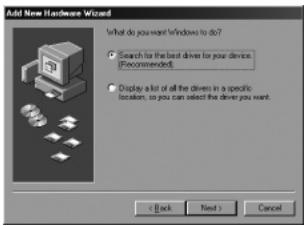
In the next screen, tick "Specify a location" (Specify a location).
Underneath, type "X:\98me2kxp" (X being the letter of your CD-ROM drive which will be different from this example).
Insert the Sweex CD-ROM in the CD-ROM player and click "Next" (Next).
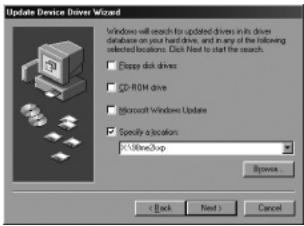
Or click "Browse" (Browse). Select the CD-ROM drive and the folder "98me2kxp" and click "OK" (OK). You will then be led back to the above screen. Here click "Next" (Next).
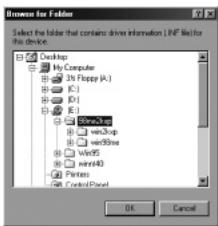
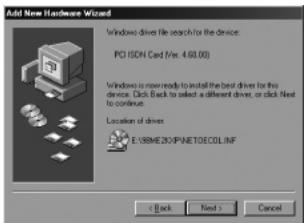
Windows will find the driver on the indicated location. Now click "Next" (Next) to start the installation.
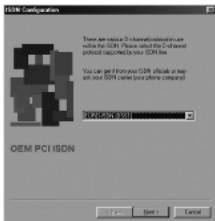
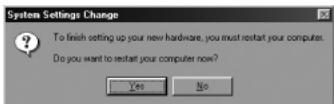
Subsequently, you will be prompted to restart the PC. Having restarted to PC, the following screen will appear. Here select EURO-ISDN (DSS1) and click "Next" (Next).
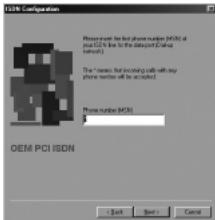
In the following two screens you will be given the opportunity to submit your ISDN number. You can also leave it blank and click "Next" (Next).

Click "Finish" (Finish).
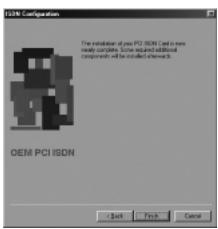
When prompted, insert the Windows 98SE CD-ROM into your CD-ROM drive.
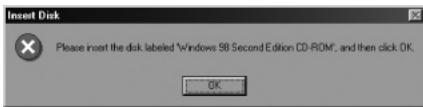
In the following screen, type "X:\win98" (X being the letter of your CD-ROM drive which will be different from this example). Click "OK" (OK).
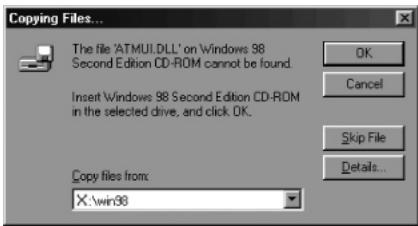
Click on "Finish" (Finish) to complete the installation.
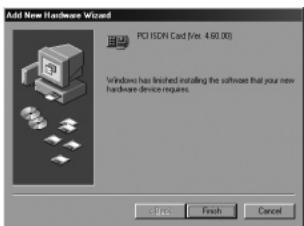
In the following screen, click "Next" (Next) to restart the PC.
The installation has now been completed. The Sweex ISDN PCI adapter is ready for use.
Windows 2000 and XP installation
After the card has been installed in the system, switch on the PC. Windows will detect the card and show the following screen. Here select "No, not this time" (No, not this time) and click "Next" (Next).
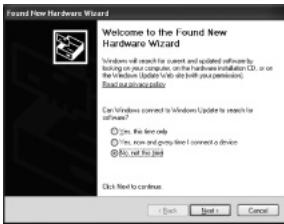
Now insert the Sweeex CD-ROM in the CD-ROM player. If you have already done so, open the CD-ROM player and close it again. Windows will now automatically start to search for drivers on the CD-ROM.
Or: If Windows does not start searching automatically or is unable to locate any drivers, select "Install from a list or specific location" and click "Next" (Next).
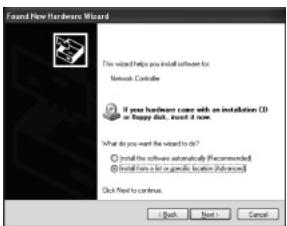
In the next screen, only tick "Include this location in the search" (Include this location in the search).
Underneath, type "X\98me2kxp" (X being the letter of your CD-ROM drive which will be different from this example).
Insert the Sweex CD-ROM in the CD-ROM player and click "Next" (Next).

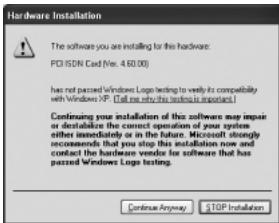
Sweex extensively tests the drivers of all its products. Here click "Continue Anyway" (Continue Anyway) to confirm the logo test.
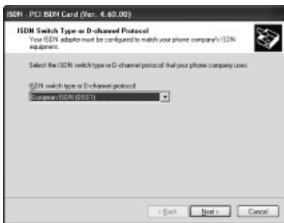
Select European ISDN (DSS1) and click "Next" (Next).
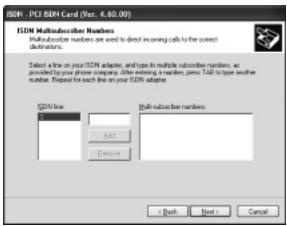
Here submit your ISDN number. You can also leave it blank and click "Next" (Next).
Click "Finish" (Finish).
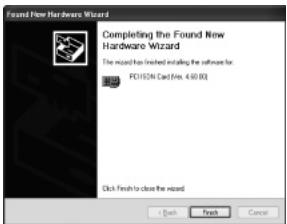
In the following screens click "Finish" (Finish). To complete and "Next" (Next) to set up the installation process.
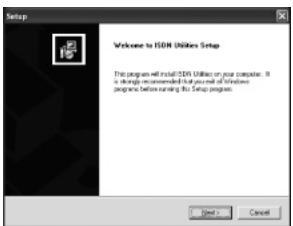
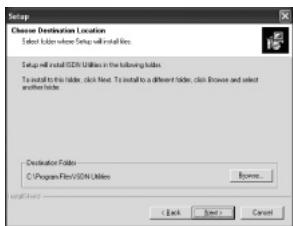
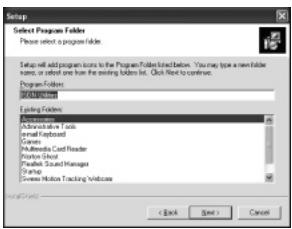
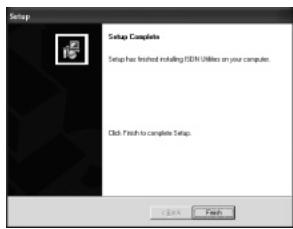
The installation has now been completed. The Sweex ISDN PCI adapter is ready for use.
Warranty
All products under the Sweex brand are warranted for a period of three years. We do not grant support or warranties for any software and/or (rechargeable) batteries included. Warranty claims are only settled via the dealer where the product concerned was purchased.
The rightful owner has and retains title to all brand names and related rights mentioned in this manual.