
LW310 - Router SWEEX - Free user manual and instructions
Find the device manual for free LW310 SWEEX in PDF.


| Product Type | 300 Mbps Wireless Broadband Router |
| Wi-Fi Standard | IEEE 802.11n (300 Mbps) |
| LAN Ports | 4x RJ-45 10/100 Mbps Ethernet ports |
| WAN Port | 1x RJ-45 10/100 Mbps Ethernet port |
| Antennas | 2 fixed external antennas |
| Power Supply | Included AC adapter |
| Configuration | Web interface at 192.168.31.1 |
| Default Credentials | Username: sweeex, Password: mysweeex |
| Wireless Security | WEP, WPA, WPA2, WPS (WiFi Protected Setup) |
| Firewall | Built-in, cannot be disabled |
| Advanced Features | Port forwarding (Virtual Server), DMZ, DHCP, PPPoE, PPTP, MAC cloning |
| Reset | Reset button on the back (press 10 seconds) or via the interface |
| Operating Temperature | Avoid extreme temperatures, direct sunlight and heat sources |
| Environment | Avoid very dusty or humid environments |
| Warranty | 3 years (except graphics cards and consumer electronics: 2 years) |
| Package Contents | Router, AC adapter, RJ-45 Ethernet cable, CD-ROM with setup wizard |
| Compatible Operating Systems | Windows 2000, XP, Vista |
Frequently Asked Questions - LW310 SWEEX
User questions about LW310 SWEEX
0 question about this device. Answer the ones you know or ask your own.
Ask a new question about this device
Download the instructions for your Router in PDF format for free! Find your manual LW310 - SWEEX and take your electronic device back in hand. On this page are published all the documents necessary for the use of your device. LW310 by SWEEX.
USER MANUAL LW310 SWEEX
LW310 Sweex Wireless Broadband Router 300 Mbps
Important! The Setup Wizard is located on the Sweex CD-ROM. This installation procedure will show you step by step how to setup the router.
- Do not expose the Sweeex Wireless Broadband Router 300 Mbps to extreme temperatures. Do not place the device in direct sun light or close to heating elements.
- Do not use the Sweex Wireless Broadband Router 300 Mbps in extremely dusty or moist environments.
- Prevent hard shocks or impacts of the device, as this can cause damage to the internal electronics.
- Never try to open the device yourself, this voids the warranty.
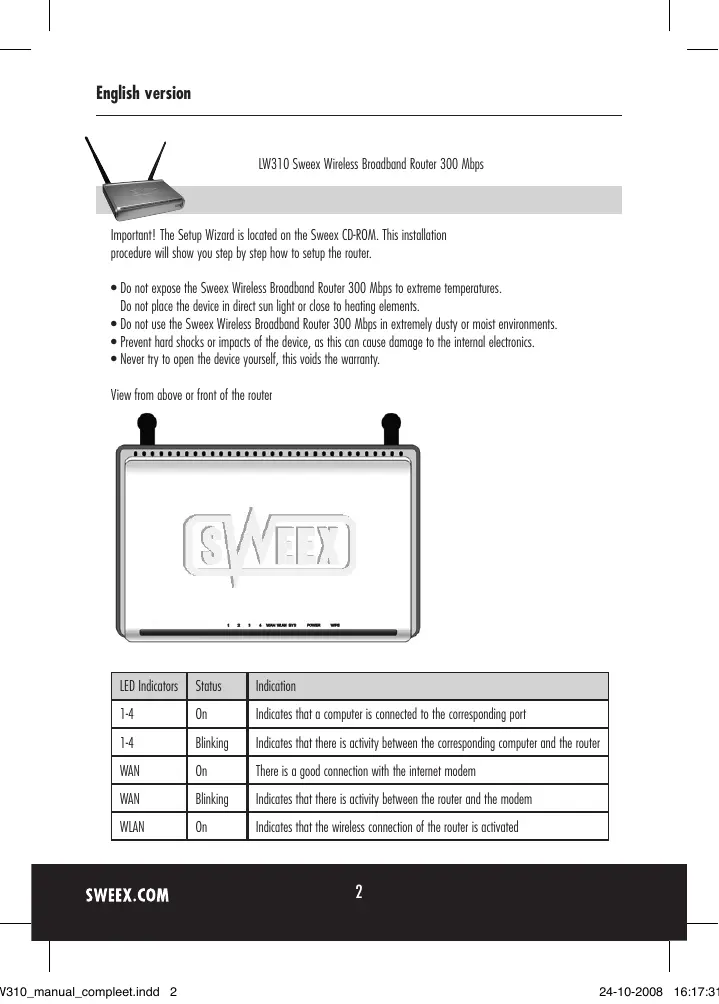
View from above or front of the router
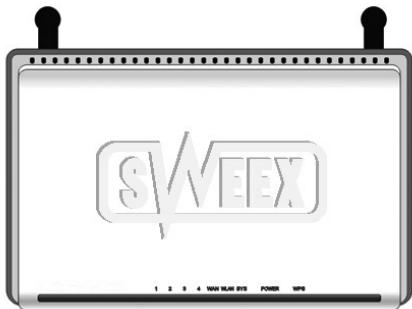
| LED Indicators | Status | Indication |
| 1-4 | On | Indicates that a computer is connected to the corresponding port |
| 1-4 | Blinking | Indicates that there is activity between the corresponding computer and the router |
| WAN | On | There is a good connection with the internet modem |
| WAN | Blinking | Indicates that there is activity between the router and the modem |
| WLAN | On | Indicates that the wireless connection of the router is activated |
| WLAN | Blinking | Indicates that there is activity between the designated wireless computer(s) and the router |
| SYS | Blinking | Indicates that the router is working properly. When turning on the router it can take 15 seconds before the light starts blinking. |
| Power | On | Indicates that the modem is on |
| WPS | Blinking | A WPS is being made |
Rear view of the router
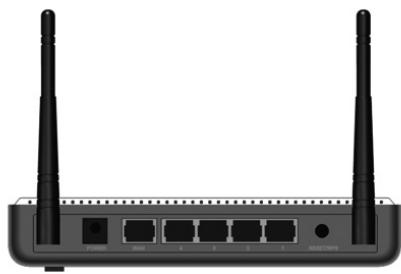
From left to right on the rear side of the router there are the following connections:
Antennal
- Power port to connect the power adapter.
- WAN-port to connect a modem with an RJ-45 UTP ethernet networking cable
- UTP Ethernet ports 1, 2, 3 and 4 to connect computers with an ethernet networking cable RJ45.
- Reset / WPS button to restore default settings (press and hold 10 sec) or connection of WPS (press shortly 1x)
Antenna2
Connecting the Sweex Broadband Router
-
Connect the supplied power adapter to the rear side of the router. Plug the power adapter in a plug socket. The light next to "Power" has to be lit. When it does not, check the power adapter off the router and check the plug socket.
-
Turn on the computer and connect a networking cable (RJ-45 UTP) to the computer on the rear side of the router. Do this in port 1, 2, 3 or 4. The corresponding light on the front side will light up. When it does not, check if the networking cable is correctly connected to the computer and the router.
- Turn on the modem*. Pay attention: We do not mean the Sweex router. With a networking cable (RJ-45 UTP), connect the modem to the rear side of the router. Do this in the WAN-port. The WAN light on the front side of the router will light up. When it does not, check if the networking cable is correctly connected to the modem and the router.
*To be able to use the Sweeex Broadband Router you need a working internet connection, which is made by a modem. In most cases this modem is provided by the internet provider.
Configuration computer to connect to the router
Windows Vista
At the bottom left of the screen go to "Start" . "Control Panel"
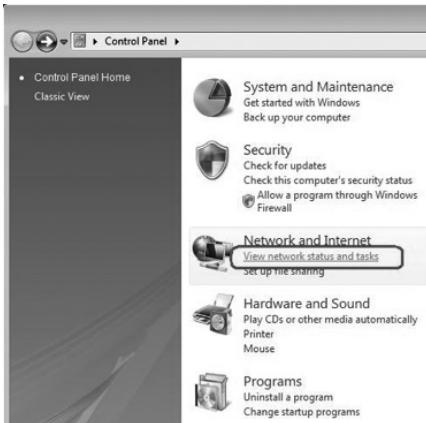
Select "View network status and tasks".
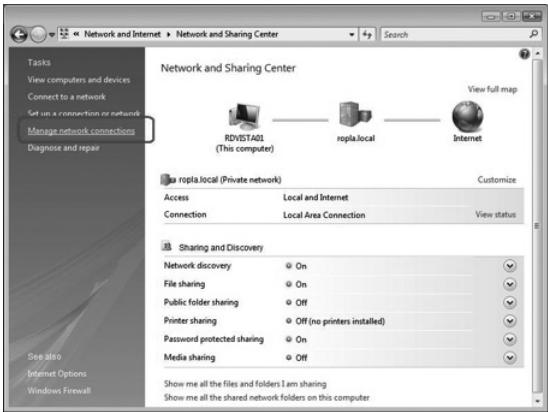
In the left column select "Manage network connections".
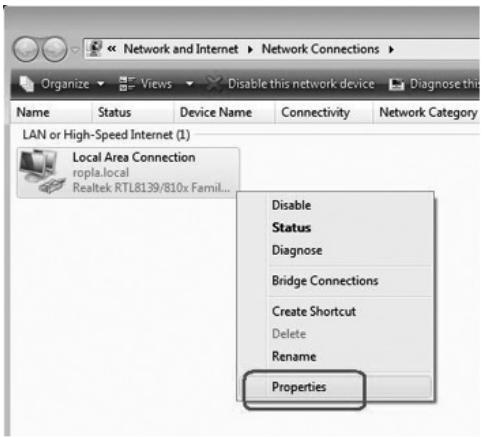
Right-click "LAN Connection" or "Wireless Network connection" and choose "Properties". The following screen appears:
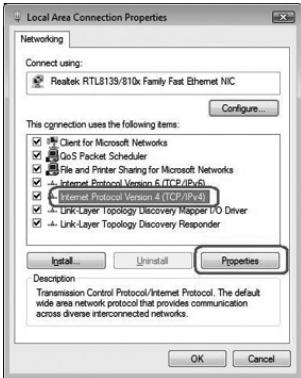
Select "Internet Protocol Version 4 (TCP/IPv4)" and select "Properties".
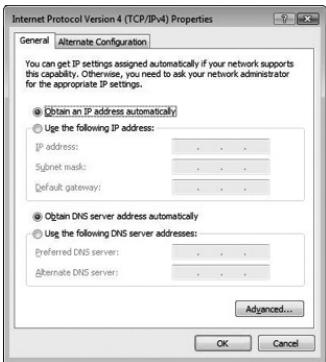
Select the option "Obtain an IP address automatically" and "Obtain DNS server address automatically". Confirm the settings by clicking "OK". The network settings for Vista are now configured correctly. Further on in this manual you will find the correct settings for your internet browser.
Windows XP
At the bottom left of the screen go to "Start" . "Control Panel"
Then go to "Network and Internet Connections". Open "Network Connections" or when the classic view is being used; "Start" Settings "Network Connections".
Right-click "LAN Connection" or "Wireless Network connection" and choose "Properties". The following screen appears:
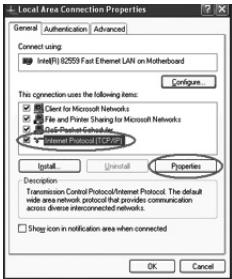
Under the "General" tab select "Internet Protocol (TCP/IP)" and select "Properties".
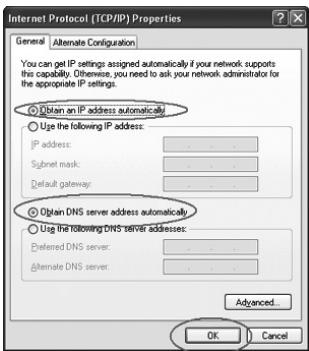
Select the option "Obtain an IP address automatically" and "Obtain DNS server address automatically".
Confirm the settings by clicking "OK". The network settings for Windows XP are now configured correctly. Further on in this manual you will find the correct settings for your internet browser.
Windows 2000
At the bottom left of the screen go to "Start" . "Control Panel"
Then go to "Network and Internet Connections". Open "Network Connections"
or when the classic view is being used;
"Start" Settings "Network Connections".
Right-click "LAN Connection" or "Wireless Network connection" and choose "Properties". The following screen appears:
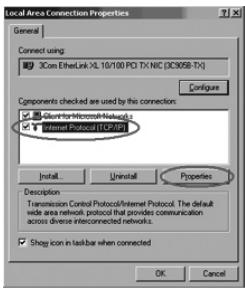
Select "Internet Protocol (TCP/IP)" and select "Properties".
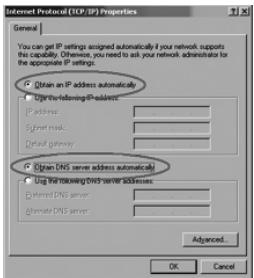
Select the option "Obtain an IP address automatically" and "Obtain DNS server address automatically". Press "OK" twice. The network settings for Windows 2000 are now configured correctly. Further on in this manual you will find the correct settings for your internet browser.
Internet browser settings for Windows 2000, XP and Vista
- To be able to connect to the router the browser settings have to be setup correctly. This can be checked easily by selecting "Extra" - "Tools" and then the option "Internet Options..." in Internet Explorer.
- In this screen go to the tab "Connections" and select "Never dial a connection" or in the white space above remove all connections.
- Then click "LAN Settings..." at the bottom, remove all check marks and click "OK".
- Restart the browser to activate the new settings.
Setting up the wireless network
How does it work?
To create a wireless network you need a wireless router, wireless modem or access point. The wireless router, modem or access point distributes the wireless network. The name of this network, also called the SSID, is dependant on your wireless router, modem or access point and is different per type or brand. You can often change the name, so you can easily identify your own wireless network.
Security
A wireless network is comparable with radio signals. However, a wireless network at home does not have such a long range. The range of a home network often has a range of 20 to 30 meters. This means that neighbours and passers-by can also use your network. This way they can surf on your internet connection and possibly access your shared folders and files on your network unpunished. That is why it is necessary to secure your wireless network. This security is configured on the device that transmits the network. In most cases this is the wireless router, modem or access point. By means of a WEP or WPA security code you can secure the network. This code is also called the network key. Enter this code on every computer that wants to connect to the secured network. Only with this key you can be part of the network. If you did not enter the network key yourself in the router or modem, ask the installer, manufacturer, supplier or provider for this code.
Connecting the computer to the wireless network
At the bottom left of the screen go to "Start" →. "Control Panel"
Then go to "Network and Internet Connections". Open "Network Connections"
or when the classic view is being used;
"Start" Settings "Network Connections".
Right click "LAN Connection" or "Wireless Network connection" and choose "View Available Wireless Networks".
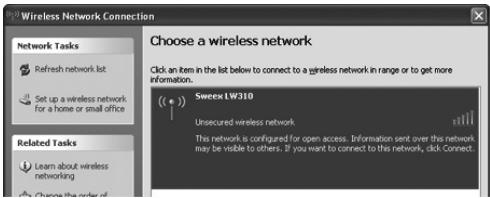
First always click on "Refresh network list" top left to see the most recent list.
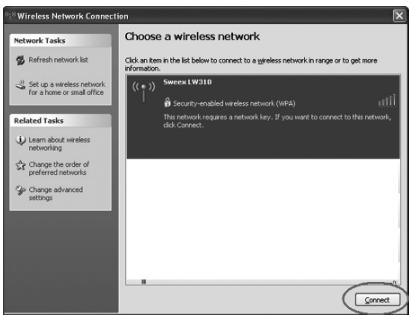
Select the name (also called SSID) "Sweex LW310" by clicking on it en then click on "Connect" at the bottom right. When a successful connection is established with the wireless network a popup will appear with the message "Connected". You now have a working wireless network.
When a message appears that the wireless connection can not be configured because an other program is managing it, turn off this software and start again.
We recommend you secure the wireless part of the router. How to do this is described further on in this manual. The network will then appear as "Sweeex LW310" with underneath it the message "Security-enabled wireless network". When connecting to this secured network it will ask for the Network key. When the entered network key is incorrect a messages will pop up after a few moments telling "Limited or no connection possibilities". Now you do not have a good wireless connection. Reconnect to the wireless network and check the network key.
When you change a wireless network setting in the router that makes you loose the wireless connection follow these steps again.
Connecting to the router (Login)
Open your web browser. We use 'Internet Explorer'.
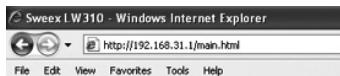
The standard IP-address of the router is: 192.168.31.1
An IP-address is a unique number that every network device, so also your computer or router, has to have to be active within the network. Without an IP-address you can not connect to the network. In the address bar enter the IP-address of the router. With this you can connect to the router.
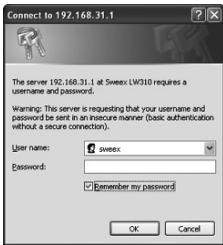
The login screen of the router appears. Enter the required password:
User name: sweeex
Password: mysweeex
When this login screen does not appear, check the internet browser settings again as is described earlier. Also, check the IP-address of your computer. From this IP-address only the number after the last dot may be different than the IP-address of the router (example: 192.168.31.xxx).
Where do you find the IP-address of your computer?
Win2000/WinXP: Click "Start" - "Run" - Type cmd - press Enter - in the black screen type ipconfig - press Enter and read your IP-address.
Win98/Me: Click "Start" - "Run" - Type winipcfg - press Enter. Select your network adapter in this screen. (Usually NOT the ppp-adapter) and read your IP-address.
Configuring the Internet Service Provider (ISP)
Before you start configuring your provider, ensure that the internet connecting is active without the Sweex Broadband Router. If the modem does not have an internet connection without the router, then configuring the router is useless. The modem makes the internet connection and the Sweex Broadband Router forwards this internet connection to 1 or more computers in your network.
These settings only have to be configured once in the router. This means that no matter how many computers you connect to the router, the following settings only have to be done on one computer. That is because the settings are not stored on the computer but on the router.
Important! The Setup Wizard is located on the Sweex CD-ROM. This installation
procedure will show you step by step how to setup the router.
If your provider can not be configured with the Setup Wizard, contact your provider for the correct settings and enter them manually.
Settings 1 DHCP without hostname (Suitable for most providers)
- Login to the Router (see "Connecting to the Router" above).
- In the left column click "Internet Configuration".
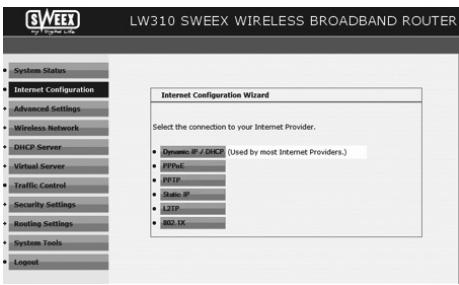
- Select "DHCP Client". These setting belong to providers that use a DHCP-connection.
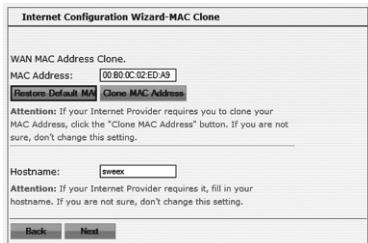
- Click on "Next". Now click "Apply" to store the settings.
- To check if the internet connection is established successfully, go to the status screen by clicking on "System Status" in the left column. Your internet "WAN IP" will appear in the "Network Status" part. It can take approx. 1 minute before this IP-address appears. You are now done configuring and can now use internet.
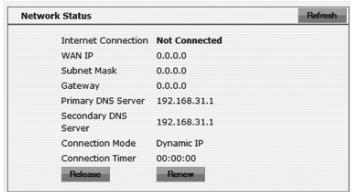
- When your "WAN IP" stays 0.0.0.0, click on the "Renew" button. When your IP-address is still 0.0.0.0 after 1 minute, check the above steps.
Still no internet? Follow these steps:
- Turn off the router and modem.
- Disconnect the cable between the router and modem from the "WAN" port.
- Turn on the router and wait until it is fully started.
- Turn on the modem and wait until it is fully started and the right lights are lit.
- Reconnect the network cable between the modem and router by putting it in the "WAN" port of the router. The "WAN" light has to be lit.
- Connect to the router via 192.168.31.1 and check your internet connection in the status screen.
Settings 2 DHCP with hostname
Important: When configuring the router, always use the computer that had the internet connection before you connected the router.
- Login to the Router (see "Connecting to the Router" above).
- In the left column click "Internet Configuration".
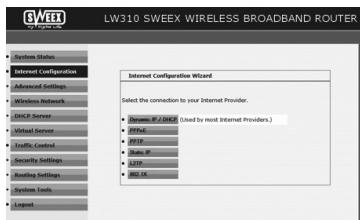
- Select "DHCP Client". These setting belong to providers that use a DHCP-connection.
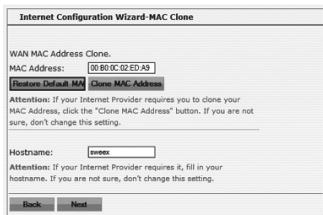
- At "Hostname" enter the hostname the provider gave you.
- To place the MAC address of your computer in the router click "Clone MAC Address".
- Click on "Next". Now click "Apply" to store the settings.
- To check if the internet connection is established successfully go to the status screen by clicking on "System Status" in the left column Your internet "WAN IP" will appear in the "Network Status" part. It can take approx. 1 minute before this IP-address appears. You are now done configuring and can now use internet.
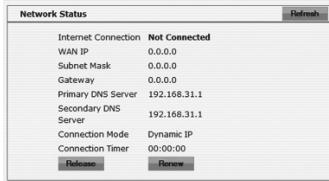
- When your "WAN IP" stays 0.0.0.0, click on the "Renew" button.
When your IP-address is still 0.0.0.0 after 1 minute, check the above steps.
Still no internet? Follow these steps:
- Turn off the router and modem.
- Disconnect the cable between the router and modem from the "WAN" port.
- Turn on the router and wait until it is fully started.
- Turn on the modem and wait until it is fully started and the right lights are lit.
- Reconnect the network cable between the modem and router by putting it in the "WAN" port of the router. The "WAN" light has to be lit.
- Connect to the router via 192.168.31.1 and check your internet connection in the status screen.
Settings 3 PPPoE
- Login to the Router (see "Connecting to the Router" above).
- In the left column click "Internet Configuration".
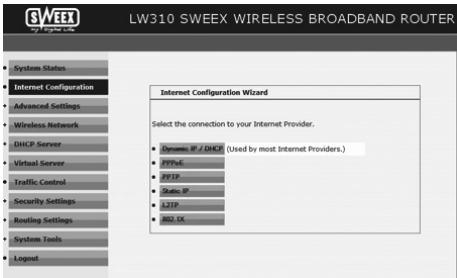
- Select the option "PPPoE". This setting belongs to providers that use a PPPoE connection.
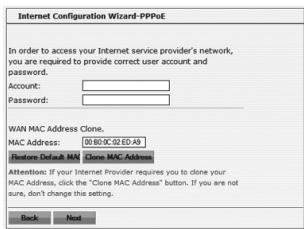
- At "Account" enter the user name that your provider gave you.
- At "Password" enter the required password.
- Click on "Next". Now click "Apply" to store the settings.
- To check if the internet connection is established successfully, go to the status screen by clicking on "System Status" in the left column. Your internet "WAN IP" will appear in the "Network Status" part. It can take approx. 1 minute before this IP-address appears. You are now done configuring and can now use internet.
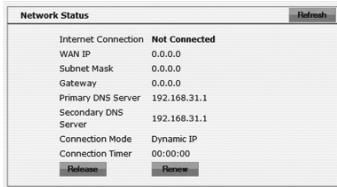
- When your "WAN IP" stays 0.0.0.0, click on the "Connect" button.
When your IP-address is still 0.0.0.0 after 1 minute, check the above steps.
Still no internet? Follow these steps:
- Turn off the router and modem.
- Disconnect the cable between the router and modem from the "WAN" port.
- Turn on the router and wait until it is fully started.
- Turn on the modem and wait until it is fully started and the right lights are lit.
- Reconnect the network cable between the modem and router by putting it in the "WAN" port of the router. The "WAN" light has to be lit.
- Connect to the router via 192.168.31.1 and check your internet connection in the status screen.
Settings 4 PPTP
- Login to the Router (see "Connecting to the Router" above).
- In the left column click "Internet Configuration".
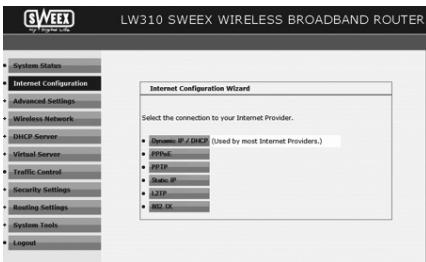
- Select the option "PPTP". This setting belongs to providers that use a PPTP connection.
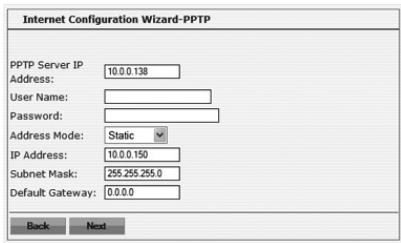
- At "Username" enter the user name that your provider gave you.
- At "Password" enter the required password and click "Next".
- Click on "Next". Now click "Apply" to store the settings.
- To check if the internet connection is established successfully, go to the status screen by clicking on "System Status" in the left column. Your internet "WAN IP" will appear in the "Network Status" part. It can take approx. 1 minute before this IP-address appears. You are now done configuring and can now use internet.
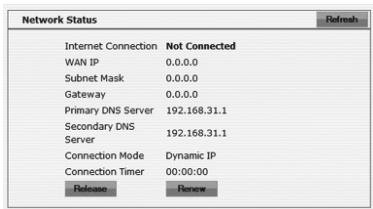
- When your "WAN IP" stays 0.0.0.0, click on the "Connect" button.
When your IP-address is still 0.0.0.0 after 1 minute, check the above steps.
Still no internet? Follow these steps:
- Turn off the router and modem.
- Disconnect the cable between the router and modem from the "WAN" port.
- Turn on the router and wait until it is fully started.
- Turn on the modem and wait until it is fully started and the right lights are lit.
- Reconnect the network cable between the modem and router by putting it in the "WAN" port of the router. The "WAN" light has to be lit.
- Connect to the router via 192.168.31.1 and check your internet connection in the status screen.
Wireless settings and security
We recommend that you always do these settings with a wired computer that is connected to the Sweex Broadband Router. When saving these settings you will lose the wireless connection with the Sweex Broadband Router. In the left column under "Wireless Networks" click on "Basic Settings".
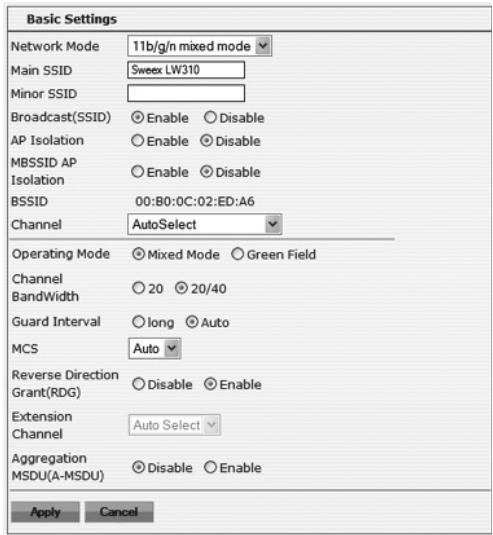
The standard SSID is "Sweex LW310". We recommend you never change this, so you can always recognize the router. Here you will also find other options, such as "Channel" and "Mode". We recommend you also leave these settings unchanged.
Securing the wireless network
Securing the wireless network in the Sweex Wireless Broadband Router 300 Mbps can be done in two ways. The trusted manual way (WEP, WPA and WPA2), where you determine and enter your own network key, or with the WPS (WiFi Protected Setup) function, where the router and the computer "agree" on a network key and use it automatically with one push of a button to secure the network.
It is not possible to use both ways at the same time. Therefore, if you have computers that do not support WPS we recommend you use the WPA or WPA2 security.
WPS (WiFi Protected Setup)
Securing a network fast and easy is done with WPS. This function only works with computers that use a wireless card or USB dongle that supports WPS.
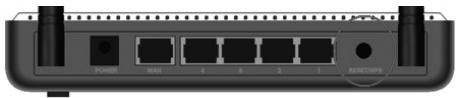
- The WPS function is activated by pressing the WPS button on the back of the router. The light will start to blink.
- A wireless computer that supports WPS can now scan for the router and automatically use the automatically generated network key and the network is secured.
For future computers you want to add to the network, follow the same procedure. You can also read a PIN code from the router and enter it in the computers the "old" way.
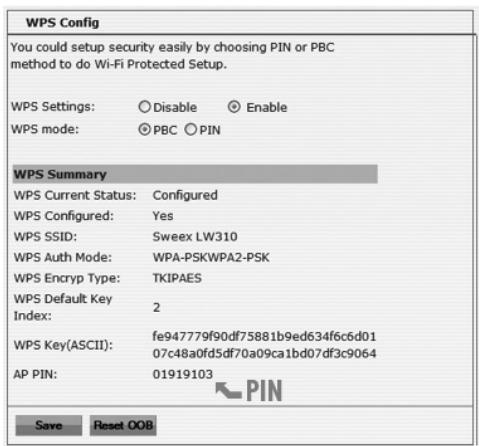
Select WPS Settings: Enable to activate WPS. Pressing the WPS button on the router will automatically turn on WPS.
- Select "PBC" to let the router generate a network key automatically.
- Select "PIN" to enter an existing WPS PIN-code that is already entered in the computer. Often this can be read in the WPS configuration software on the computer.
- Click "Save" to save your chosen settings. The router will now send out the WPS signal.
When using the Sweex LW311, LW312 or LW313, click the "WPS Settings" tab and then the "PCB" button to make a secure connection to the router.
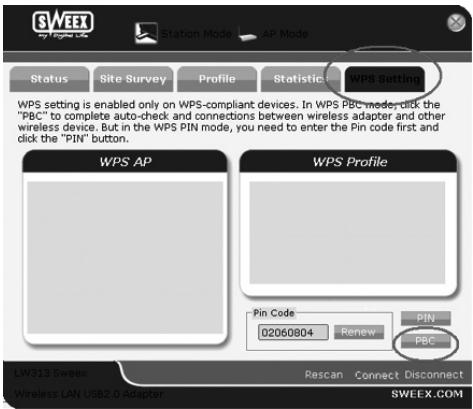
WPA and WPA2 security
In the left column under "Wireless Networks" click on "Security Settings".
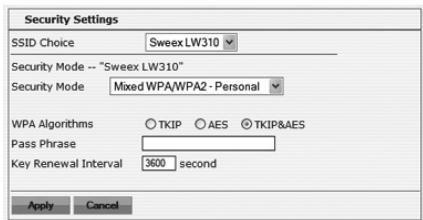
To configure the WPA security follow these steps:
- At "Security Mode:" select the option "Mixed WPA-PSK/WPA2-PSK - Personal".
- At "Pass Phrase" enter your network key. You can make this up yourself and are allowed to use 8 to 63 numbers and letters.
- Click "Apply" to store the settings.
The router is now secured. Reconnect your wireless computer.
When using the basic Windows Zero Configuration, select the SweeX LW310, click "Connect" and enter the network key.
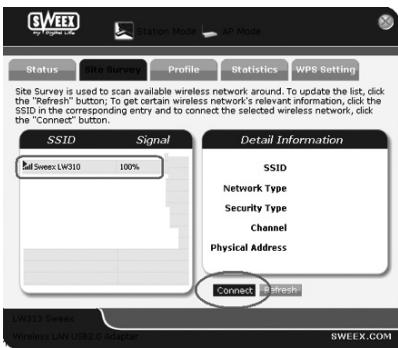
When using the Sweeex LW311, LW312 or LW313, click "Sweeex LW310" in the "Site Survey" tab and then click "connect". Also, enter the WPA network key.
Opening the ports in the router (Port Forwarding and DMZ)
In this router the built-in firewall can not be turned off. Ports can be opened for programs, games, servers or game consoles that require an open port.
We recommend that you lock the IP-address of your computer or game console for which you open the ports. So that these computers always have the same IP-address similar to the address they have in the router. It can occur that the router gives a different IP-address to the computer making the forwarding or DMZ assignment invalid for that computer.
How do you give a computer a fixed IP-address?
This is only necessary for computers you want to open a port for using the Forwarding or DMZ function. Follow the steps in the chapter "Configuration computer to connect to the router". Instead of selecting "Obtain an IP address automatically" select Use the following IP address".
In our example the IP-address begins with (192.168.31.xxx). As last number enters a number that is unique in your network. We advice you to choose a number between 150 and 200. So a possible IP-address could be (192.168.31.150). The following computer has (192.168.31.151) etc.
As "Subnetmask" enter: 255.255.255.0
At both "Default gateway" and "Preferred DNS-server" you enter the IP-address you use to login to the router. In our example: 192.168.31.1
At "Alternative-DNS-server" you do not have to enter anything.
Click "OK" twice to save the settings and close the window.
Opening the ports in the router (Port Forwarding and DMZ)
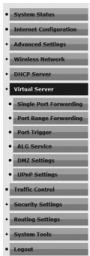
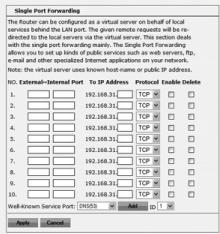
The port settings can be changed by pressing "Virtual Server" in the left column.
- External-Internal Port; When you only want to open port 500, so only one port, enter the same port number in both boxes. In this example you enter 500 in both the left and right box. (For example, if you want to open port 500 to 600. Click on "Port Range Forwarding" on the left and enter 500 in the left box and 600 in the right box.)
- To IP Address; Enter the IP-address of the computer, server or game console you want to open the ports for. in most cases the IP-address will start with 192.168.31...
- Select the protocol or leave it on "Both".
- Place a check mark at "Enable" to activate Port Forwarding.
- Click "Apply". The entered entry appears.
DMZ
In some situations, or when using a game console, you can choose to let the computer or game console pass the firewall entirely. This happens in the so called "demilitarized zone" ("DMZ"). This option is located in the main screen of the port settings "Port Forwarding" under "Advanced". Be aware that now you miss the security the firewall of the router has to offer. All ports are opened for the computer that you place in the DMZ. Only one computer can be placed in the DMZ.
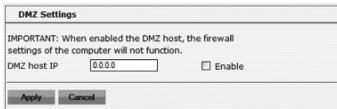
- Enter the IP-address of the computer, server or game console you want to open the ports for. in most cases the IPaddress will start with 192.168.31...
- Place a check mark at "Enable".
LAN settings
The network settings of the router can be changed as follows. In the left column click "Advanced settings". Here you will find the LAN IP-Address of the router (192.168.31.1). The address in your browser where you can configure the router.
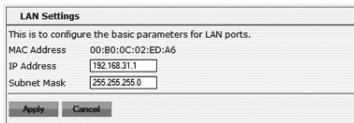
Upgrading the router firmware (Firmware)
Here you can upgrade the firmware of the router. New firmware can be downloaded from the Sweex website from the product page. When the firmware file is a ZIP-file, ensure you unzip it and place it where you can easily find it again on your computer.
In the left menu click "System Tools" and then "Upgrade".
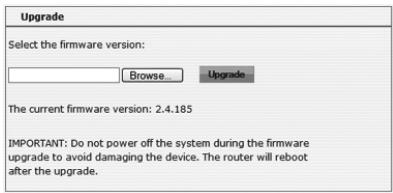
Next click on "Browse" and select the unzipped firmware file. In most cases the name of the file will start with "Sweex_Firmware_LW310...".
To start the firmware upgrade click "Upgrade". Do not interrupt this procedure. The router can be damaged by this. Wait until the upgrade is finished and a message appears confirming this. The connection between the computer and the router will be interrupted for a short moment.
Resetting the router to the factory settings
Resetting the Sweex Broadband Router to the factory settings can be done in two ways.
Important! After the reset all settings that are required for your connection and network have to be reconfigured. After the reset the router will restart. During the restart the factory settings will be restored and the computer will lose its connection to the router for approximately 30 seconds. After that the router is approachable by the default IP-address (192.168.31.1).
Way 1: At the back of the router is a reset button. Use a small item to press the button. Hold the button for 10 seconds. The router will restart.
Way 2: In the left column click "System Tools", then "Restore to factory" and the "Restore".
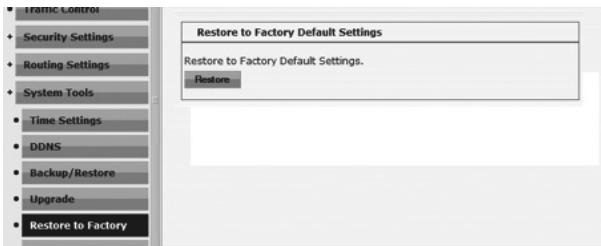
Additional tips and further information about the remaining functions of the router can be found in the English manual on the CD-ROM.
Warranty
For most Sweeex products a warranty period of 3 years applies. On Graphics Cards and Consumer Electronics Sweeex offers 2 years of warranty. We do not give support or warranty on supplied software, rechargeable batteries and batteries. Transaction of warranty only takes place at the sales point where the product is bought.
All brand names and associated rights mentioned in this manual are and stay property of the rightful owner.