SDV 3100 HV - Audio Amplifier T+A - Free user manual and instructions
Find the device manual for free SDV 3100 HV T+A in PDF.


| Product type | High-end audio amplifier with integrated DAC |
| Brand | T+A |
| Model | SDV 3100 HV |
| Product series | HV (High Voltage) series |
| USB audio driver | T+A Bit Perfect USB Audio Driver v4.61.0 |
| Maximum sampling rate | 768000 Hz / 32 Bit |
| Supported operating systems | Microsoft Windows 7, 8, 10; MAC OS X 10.13.6 or higher |
| Minimum system requirements | Intel Core i5 or equivalent AMD processor, 4 GB RAM, USB 2.0 interface |
| USB connection | Direct connection via USB port; use of a USB hub is not recommended |
| Native music playback | Supported with compatible players (e.g., J. River Media Center, Foobar 2000) |
| Kernel streaming | Supported on Windows systems for high-resolution audio transfer |
| Device name in system | DAC SD3100HV |
| Installation procedure | Driver installation required before connecting the device to a computer |
| Audio transmission | Bit-perfect USB audio transmission for lossless playback |
| Power supply | AC mains power (as typical for high-end audio components) |
| Manual details | User manual and driver installation guide (22 pages, PDF) |
| Manual languages | English, German |
Frequently Asked Questions - SDV 3100 HV T+A
User questions about SDV 3100 HV T+A
0 question about this device. Answer the ones you know or ask your own.
Ask a new question about this device
Download the instructions for your Audio Amplifier in PDF format for free! Find your manual SDV 3100 HV - T+A and take your electronic device back in hand. On this page are published all the documents necessary for the use of your device. SDV 3100 HV by T+A.
USER MANUAL SDV 3100 HV T+A
Driver / software installation manual
Version 1.0
03/2019
DEUTSCH 3
ENGLISH 12
INHALT
Welcome to the T+A Bit Perfect USB Audio Driver v4.61.0 Setup Wizard
This wizard will guide you through the installation of T+A Bit Perfect USB Audio Driver v4.61.0.
It is recommended that you close all other applications before starting Setup. This will make it possible to update relevant system files without having to reboot your computer.
Click Next to continue.

Cancel
③
Choose Install Location
Choose the folder in which to install T+A Bit Perfect USB Audio Driver v4.61.0.

Setup will install T+A Bit Perfect USB Audio Driver v4.61.0 in the following folder. To install in a different folder, click Browse and select another folder. Click Install to start the installation.
Destination Folder
C:\Program Files\T+A elektroakustik\Bit Perfect USB Audio Driver
Browse...
Space required: 4.4MB
Space available: 197.7GB

5

Completing the T+A Bit Perfect USB Audio Driver v4.61.0 Setup Wizard
T+A Bit Perfect USB Audio Driver v4.61.0 has been installed on your computer.
Click Finish to close this wizard.

④
Installation Complete
Setup was completed successfully.

Execute: regsvr32 /s "C:\Program Files\T+A elektroakustik\Bit Perfect USB Audio Driver...
Create shortcut: C:\ProgramData\Microsoft\Windows\Start Menu\Programs\T+A elektro...
Create shortcut: C:\ProgramData\Microsoft\Windows\Start Menu\Programs\Startup\T+...
Preinstalling drivers.
This may take some time to complete. Please wait ...
Preinstallation was successful. Click Next to continue.
[EMPTY]

⑥
To complete the driver installation, you must disconnect and reconnect your device. Do you want to exit this wizard now and connect the device later?

All operating systems
System requirements 13
Notes on USB audio reproduction
Native music playback 14
Kernel Streaming 14
Installation and settings
Windows installation 15
Windows settings 17
MAC OS settings 19

Caution!
Text passages marked with this symbol contain important information which must be observed if the machine is to operate safely and without problems.

This symbol marks text passages which provide supplementary notes and background information; they are intended to help the user understand how to get the best out of the machine.
All operating systems
Please note that the illustrations in these installation instructions may vary from the displays on your own computer, depending on your system's configuration.
System requirements
(for playing high-resolution audio files at maximum sampling frequency)
- Intel Core i5 or higher or a comparable AMD Processor.
- 4 GB RAM
- USB 2.0 Interface
• Microsoft Windows 7, 8 or 10
• or MAC OS X 10.13.6 or higher

We are unable to provide a general guarantee that the SDV 3100 HV will function perfectly with your computer, as this depends on the particular configuration of your machine's hardware and software.
Native music playback
(applicable to Windows systems only)
Computer operating systems do not support ‘native’ music playback as standard. This means that the PC always re-calculates the data to produce a fixed sampling rate, regardless of the sampling rate of the file being played. This conversion process is necessary in order to blend audio playback with other audio sources, e.g. the operating system’s system sounds (referred to as the ‘kernel mixer’).
An HD audio recording at, say, 96 kHz is always converted down to 48 kHz, and subsequently scaled to the output data rate set in the PC system settings, e.g. 44.1 kHz.
These resampling processes cause a partial loss of audio quality. If this is to be avoided, it is necessary to circumvent the kernel mixer's conversion process.
Since it is not possible for the SDV 3100 HV to influence the PC's internal handling of audio data, suitable music players with appropriate drivers and, in some cases plugins, must be installed on the PC; this software then circumvents the standard audio processing of the PC's operating system.
Programs such as J. River Media Center and Foobar 2000 offer good facilities in this area.
The Internet contains many forums and sources of information on the background to audio data processing using the PC.
This is the basic rule: in the final analysis the SDV 3100 HV is only able to convert the audio data which is delivered by the PC and its operating system.

Please note that possible software updates mean that we are unable to provide a general guarantee that files will play properly. If you encounter problems during playback, please contact the software manufacturer.
Kernel streaming
The term kernel streaming refers to the process used by the Windows operating system for transferring audio between media players and drivers. Kernel streaming involves different and in some cases multiple processes, depending on the operating system.
- For Windows XP we recommend the 'Kernel Streaming' process.

If your version of Windows supports different methods of kernel streaming, the setting is entered in Media Player.

To prevent fail functions and system crashes of your computer and the playback program, please note the following: Never connect or disconnect the USB connection while the system is running. The SDV 3100 HV should never be switched off while playback.
For the same reason, do not change the input on the SDV 3100 HV during playback. When the input is changed, the USB connection is interrupted.
Windows Installation
The device drivers must be installed before you connect the SDV 3100 HV to a computer.
This is the procedure:
- Download the software package from the T+A website: http://www.ta-hifi.com/support
- Unpack the ZIP-file.
- Double-click on the file TA_BpUsbAudio_vX.XX.X_XXXX-XX-XX_setup.exe to call up the Setup program.
- Confirm the installation by clicking on the 'Setup Software' button.
- The Setup program carries out the installation, running through a small number of steps.
- Confirm dialogue windows ① to ⑥ by clicking on the buttons marked by the mouse cursor.
- The installation is complete, when the USB connection is established.
The next section describes the system settings required.
①

Welcome to the T+A Bit Perfect USB Audio Driver v4.61.0 Setup Wizard
This wizard will guide you through the installation of T+A Bit Perfect USB Audio Driver v4.61.0.
It is recommended that you close all other applications before starting Setup. This will make it possible to update relevant system files without having to reboot your computer.
Click Next to continue.

③
Choose Install Location
Choose the folder in which to install T+A Bit Perfect USB Audio Driver v4.61.0.

Setup will install T+A Bit Perfect USB Audio Driver v4.61.0 in the following folder. To install in a different folder, click Browse and select another folder. Click Install to start the installation.
Destination Folder
C:\Program Files\T+A elektroakustik\Bit Perfect USB Audio Driver
Browse...
Space required: 4.4MB
Space available: 197.7GB

5

Completing the T+A Bit Perfect USB Audio Driver v4.61.0 Setup Wizard
T+A Bit Perfect USB Audio Driver v4.61.0 has been installed on your computer.
Click Finish to close this wizard.

④
Installation Complete
Setup was completed successfully.

Execute: regsvr32 /s "C:\Program Files\T+A elektroakustik\Bit Perfect USB Audio Driver...
Create shortcut: C:\ProgramData\Microsoft\Windows\Start Menu\Programs\T+A elektro...
Create shortcut: C:\ProgramData\Microsoft\Windows\Start Menu\Programs\Startup\T+...
Preinstalling drivers.
This may take some time to complete. Please wait ...
Preinstallation was successful. Click Next to continue.
[EMPTY]

⑥
To complete the driver installation, you must disconnect and reconnect your device. Do you want to exit this wizard now and connect the device later?

Windows settings
When installation is complete, you can connect the SDV 3100 HV to your computer using any available USB port.

The SDV 3100 HV should always be connected directly to the outer. Please do not use a USB distributor (hub).
Windows should now detect the SDV 3100 HV automatically.
System settings:
- Windows 7 users first click on the 'Start' button and then on 'Control Panel'.
- Windows 8 + 10 users can use the keyboard shortcut 'WIN button + X button' to open a pop up window in which the 'Control panel' can be started.
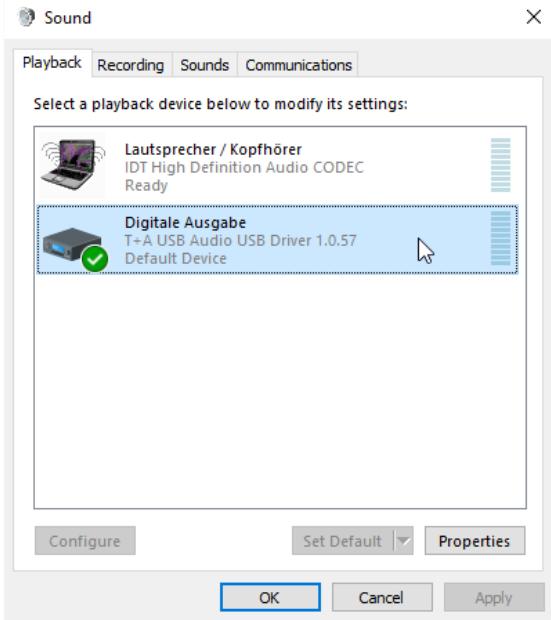
① After the Control Panel is opened, select the 'Sound' entry.
①

② Mark "DAC SD3100HV" and click on
'Set default'.
③ Click on 'Properties' and set the maximum sampling rate as shown.
②
③

MAC OS settings
When installation is complete, you can connect the SDV 3100 HV to your computer using any available USB port.

The SDV 3100 HV should always be connected directly to the computer. Please do not use a USBbutor (hub).
Windows should now detect the SDV 3100 HV automatically.
System settings:
Open the utilities

Select the 'Audio MIDI Setup' entry.

- Now mark 'DAC SD3100HV'.
- Check under settings 🎨 'Use this device for sound output'.
- Format
At this point you can set the maximum sampling rate. This should be 768000.0 Hz / 32 Bit.


- INHALT
- WELCOME TO THE T+A BIT PERFECT USB AUDIO DRIVER V4.61.0 SETUP WIZARD
- ③
- CHOOSE INSTALL LOCATION
- COMPLETING THE T+A BIT PERFECT USB AUDIO DRIVER V4.61.0 SETUP WIZARD
- ④
- INSTALLATION COMPLETE
- ⑥
- ALL OPERATING SYSTEMS
- NOTES ON USB AUDIO REPRODUCTION
- INSTALLATION AND SETTINGS
- CAUTION
- SYSTEM REQUIREMENTS
- NATIVE MUSIC PLAYBACK
- KERNEL STREAMING
- WINDOWS INSTALLATION
- WINDOWS SETTINGS
- SYSTEM SETTINGS
- MAC OS SETTINGS
Brand : T+A
Model : SDV 3100 HV
Category : Audio Amplifier